
This document will continue to evolve as existing sections change and new information is added. All updates appear in the following table:
| Date | Product | Feature | Notes |
|---|---|---|---|
| 17 JUL 2020 | Console | Enable/Disable Chat System Notifications | Updated document. Revised feature information. |
| 26 JUN 2020 | Created initial document. |
This guide outlines the information you need to know about new or improved functionality in Oracle B2C Service Agent Browser UI and describes any tasks you might need to perform for the update. Each section includes a brief description of the feature, the steps you need to take to enable to begin using the feature, any tips or considerations that you should keep in mind, and the resources available to help you.
For a listing of hardware and software requirements for Oracle products, log in to our support site and access Answer ID 31.
Give Us Feedback
We welcome your comments and suggestions to improve the content. Please send us your feedback.
Column Definitions:
Features Delivered Enabled
Report = New or modified, Oracle-delivered, ready to run reports.
UI or Process-Based: Small Scale = These UI or process-based features are typically comprised of minor field, validation, or program changes. Therefore, the potential impact to users is minimal.
UI or Process-Based: Larger Scale* = These UI or process-based features have more complex designs. Therefore, the potential impact to users is higher.
Features Delivered Disabled = Action is needed BEFORE these features can be used by END USERS. These features are delivered disabled and you choose if and when to enable them. For example, a) new or expanded BI subject areas need to first be incorporated into reports, b) Integration is required to utilize new web services, or c) features must be assigned to user roles before they can be accessed.
| Ready for Use by End Users Reports plus Small Scale UI or Process-Based new features will have minimal user impact after an update. Therefore, customer acceptance testing should focus on the Larger Scale UI or Process-Based* new features. |
Action is Needed BEFORE Use by End Users Not disruptive as action is required to make these features ready to use. As you selectively choose to leverage, you set your test and roll out timing. |
|||||
|---|---|---|---|---|---|---|
| Feature |
Report |
UI or |
UI or |
|
||
Chat Options in the Interaction Workspace
When creating the Interaction WS for Agent Browser UI, should you chose to, you can now select from the following options;
- Create/Associate an incident at the beginning of a chat. With Yes or No options.
By default this is set to Yes.
- Focus the incident when a chat is accepted. With Yes or No options
By default this is set to No
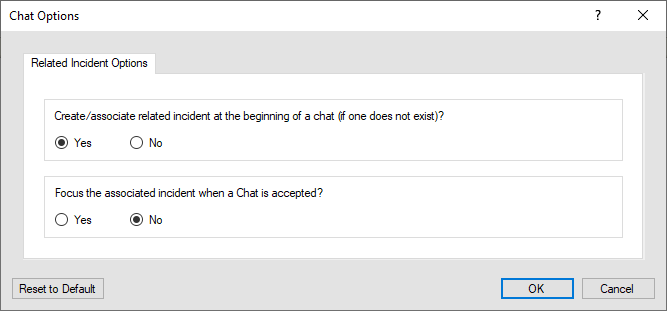
Chat Options Dialog in Workspace Designer
Steps to Enable
- From the CX Agent Desktop Workspace Designer, open or create a new Interaction WS
- Select Options from the Home tab on the Ribbon
- Select your options
Tips And Considerations
- Requires CX 20B+
- If No is selected for the option to create/associate an incident at the beginning of a chat and an incident is not manually added to the interaction ws, then the transcript will still be saved in the chat_events table. There are two ways to view the chat transcript in this case.
- Add the All Chats report to your navigation set. The transcript can be viewed when you drill down.
- Create a custom report against the chat_events table
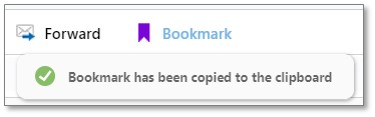
Bookmarks are now copied to the operating system clipboard with a single click. A message that the "Bookmark has been copied to the clipboard" will appear for a few seconds after the bookmark button is clicked. Incident bookmarks will now include the incident reference number rather than the incident id.
Steps to Enable
You don't need to do anything to enable this feature.
New Labels for Thread Entry Buttons
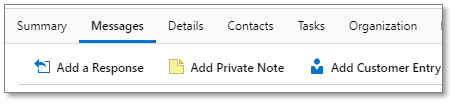
The button labels for new thread entries have been changed to "Add Private Note", "Add Customer Entry", and "Add a Response". The functionality of the buttons has not changed.
Steps to Enable
You don't need to do anything to enable this feature.
Tips And Considerations
The purpose of the change is to align the length of the button labels, establish continuity with the corresponding .NET buttons, and to distinguish between a "Note" and a "Private Note".
Chat in Browser UI: Emoji Support
We have added emojis to the Chat compose control in the Agent Browser UI. Agents can choose from a menu of smilies and emojis to add during a live Chat session.
Steps to Enable
Administrators can set custom configs to enable or disable emoticons in chat. To enable or disable the emoticons in Agent Browser UI requires an administrator to create and deploy a custom yes/no type configuration setting with a specific name (key). Once deployed, the configuration can be set.
Steps to Configure:
Create and deploy a custom configuration setting. Instructions on creating and deploying custom configuration settings can be found here.
Key names and descriptions:
CUSTOM_CFG_CHAT_EMOJI_ENABLE
- Type Yes/No
- Yes to enable
- No to disable
Tips And Considerations
This feature is not automatically enabled. It needs to be enabled by your business.
At this time, smilies and emojis will be rendered as a question mark within the historical chat transcript. We will address this in a future phase.
Role Information
- Chat Agents
- Chat Supervisors
Enable/Disable Chat System Notifications
Administrators can set custom configs to enable, disable, set the time and how many notifications will display.
The system notifications display in the Agent Browser UI client when there is an event on chat; such as logging in. It also includes system error notifications.
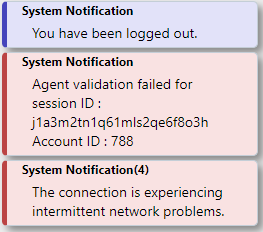
Chat System Notifications
Steps to Enable
To enable, disable or set the time of the chat system notifications in Browser UI requires a administrator to create and deploy a custom text type configuration setting with a specific name (key). Once deployed, the configuration can be set.
- Create and deploy a custom configuration setting. Instructions on creating and deploying custom configuration settings can be found here.
- Key names and descriptions:
- CUSTOM_CFG_CHAT_INFO_MSG_ENABLED
- Enable/Disable the Informational Chat Messaging
- Type Yes/No
- Yes to enable
- No to disable
- CUSTOM_CFG_CHAT_ERR_MSG_ENABLED
- Enable/Disable the Error Chat Messaging
- Type Yes/No
- Yes to enable
- No to disable
- Enable/Disable the Error Chat Messaging
- CUSTOM_CFG_CHAT_HIDE_TIMER_SECONDS
- Amount of time each message will display for, in seconds
- Type Integer in seconds
- Amount of time each message will display for, in seconds
- CUSTOM_CFG_CHAT_MAX_DISPLAY_COUNT
- How many notifications will display at one time
- Type integer
- How many notifications will display at one time
- Once the configuration setting(s) has been created and deployed, the chat system notifications settings will be supported Agent Browser UI for the associated interface(s).
Tips And Considerations
Configuration settings can be associated with one or more site interfaces.