


This document will continue to evolve as existing sections change and new information is added. All updates appear in the following table:
| Date | Feature | Notes |
|---|---|---|
| 28 JUN 2019 | Created initial document. |
This guide outlines the information you need to know about new or improved functionality in Oracle Service Cloud Agent Browser UI June 2019 and describes any tasks you might need to perform for the update. Each section includes a brief description of the feature, the steps you need to take to enable to begin using the feature, any tips or considerations that you should keep in mind, and the resources available to help you.
For a listing of hardware and software requirements for Oracle products, log in to our support site and access Answer ID 31.
Give Us Feedback
We welcome your comments and suggestions to improve the content. Please send us your feedback.
Column Definitions:
Report = New or modified, Oracle-delivered, ready to run reports.
UI or Process-Based: Small Scale = These UI or process-based features are typically comprised of minor field, validation, or program changes. Therefore, the potential impact to users is minimal.
UI or Process-Based: Larger Scale* = These UI or process-based features have more complex designs. Therefore, the potential impact to users is higher.
Customer Action Required = You MUST take action before these features can be used by END USERS. These features are delivered disabled and you choose if and when to enable them. For example, a) new or expanded BI subject areas need to first be incorporated into reports, b) Integration is required to utilize new web services, or c) features must be assigned to user roles before they can be accessed.
| Ready for Use by End Users Reports plus Small Scale UI or Process-Based new features will have minimal user impact after an update. Therefore, customer acceptance testing should focus on the Larger Scale UI or Process-Based* new features. |
Customer Must Take Action before Use by End Users Not disruptive as action is required to make these features ready to use. As you selectively choose to leverage, you set your test and roll out timing. |
|||||
|---|---|---|---|---|---|---|
| Feature |
Report |
UI or |
UI or |
Customer Action Required |
||
Incident Reference List for an Answer
- Agents can see a list of incidents an article is attached to.
- It will be displayed in a new section called “linked incidents ” within an accordion on the answer view page.
- For each case the following information will be displayed – Incident number, Status, summary, Date/Time opened, Date/Time closed, linked by, linked on
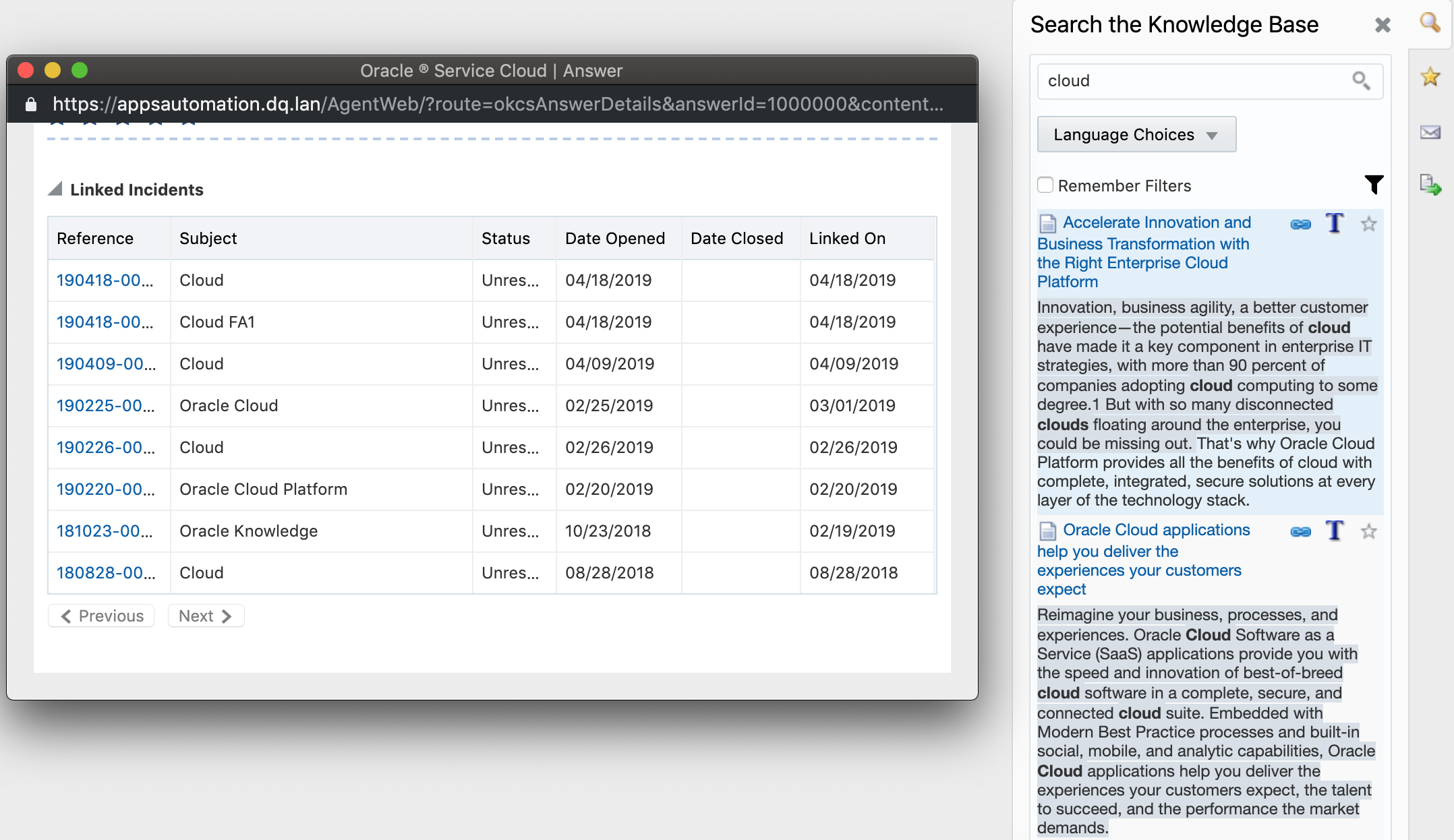
Table Showing Incidents the Article is Attached To
Steps to Enable
You don't need to do anything to enable this feature.
Answers Viewed in Last 24 Hours
The feature provides a new icon that helps Agents identify the answers viewed by the contact on customer portal in last 24 hours.
This prevents an agent from sending the information that the customer has already accessed before and thereby improves efficiency in solving the incident.
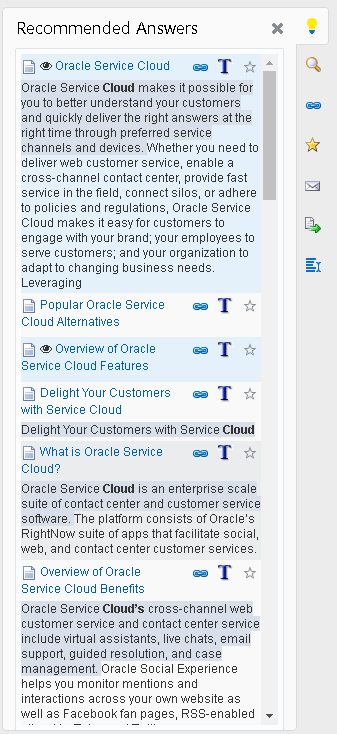
KA Results with 'eye' Icon
Steps to Enable
You don't need to do anything to enable this feature.
Role Information
- Agent
Short Cuts on Answer Detail Page
Now short cut keys are supported on answer detail page.
The keys are:
- Shift + K + L = For "add link'
- Shift + K + T = For "add Text'
- Shift + K + F = For Making an answer as Favorite
- Shift + K + F = For removing an answer from Favorites
- Shift + K + S = For subscribing to an answer.
Steps to Enable
You don't need to do anything to enable this feature.
Agents can refine search results using facets. The facets are formed based on Collections , Document Type, Product, Category.
'Remember Filters' enables an agent to retain the facets for subsequent search results.
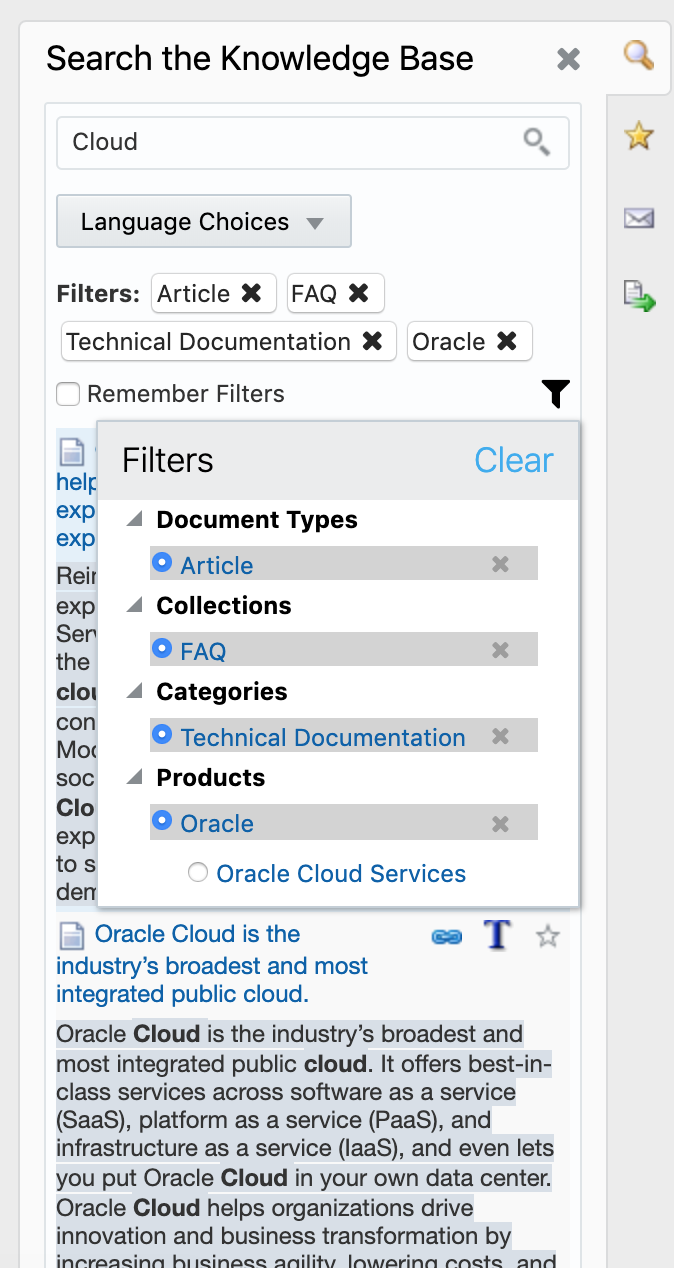
KA Search Results with Facets Selected
Steps to Enable
You don't need to do anything to enable this feature.
Incident File Attachment Handling
Agent Browser UI users can drag and drop multiple files onto the incident attachment control using Chrome and Firefox. Multiple incident file attachments can be downloaded from an incident to the user's operating system.
Steps to Enable
You don't need to do anything to enable this feature.
Tips And Considerations
Drag and drop is only supported in Firefox and Chrome with this release of Agent Browser UI.
These new file attachment handling capabilities are available to users who have an incident workspace that includes an attachments control.
To attach files using drag and drop:
- Navigate to the attachment control on the incident workspace.
- Select one or more files from the computer's operating system.
- Drag the selected files to the attachment control. Notice the border around the control and an indicator of the number of files pending attachment.
- Release the files onto the attachments control, wait for them to upload, and save the incident when complete.
To download file attachments from an incident:
- Navigate to the incident's attachment control
- Highlight multiple files from the list of attachments using control + click
- Click the 'download' button from the attachment control command bar
- A popup dialog will display a progress bar untile the file download is complete