
This document will continue to evolve as existing sections change and new information is added. All updates appear in the following table:
| Date | Feature | Notes |
|---|---|---|
| 18 MAY 2020 | Knowledge Advanced: Propose Answer from Incident | Updated document. Revised feature information. |
| 26 MAR 2020 | Created initial document. |
This guide outlines the information you need to know about new or improved functionality in Oracle B2C Service Agent Browser UI and describes any tasks you might need to perform for the update. Each section includes a brief description of the feature, the steps you need to take to enable to begin using the feature, any tips or considerations that you should keep in mind, and the resources available to help you.
For a listing of hardware and software requirements for Oracle products, log in to our support site and access Answer ID 31.
GIVE US FEEDBACK
We welcome your comments and suggestions to improve the content. Please send us your feedback.
Column Definitions:
Features Delivered Enabled
Report = New or modified, Oracle-delivered, ready to run reports.
UI or Process-Based: Small Scale = These UI or process-based features are typically comprised of minor field, validation, or program changes. Therefore, the potential impact to users is minimal.
UI or Process-Based: Larger Scale* = These UI or process-based features have more complex designs. Therefore, the potential impact to users is higher.
Features Delivered Disabled = Action is needed BEFORE these features can be used by END USERS. These features are delivered disabled and you choose if and when to enable them. For example, a) new or expanded BI subject areas need to first be incorporated into reports, b) Integration is required to utilize new web services, or c) features must be assigned to user roles before they can be accessed.
| Ready for Use by End Users Reports plus Small Scale UI or Process-Based new features will have minimal user impact after an update. Therefore, customer acceptance testing should focus on the Larger Scale UI or Process-Based* new features. |
Action is Needed BEFORE Use by End Users Not disruptive as action is required to make these features ready to use. As you selectively choose to leverage, you set your test and roll out timing. |
|||||
|---|---|---|---|---|---|---|
| Feature |
Report |
UI or |
UI or |
|
||
Agent Browser UI users can now expand variables in the thread before saving. This allows users to see the variable content that will be saved or sent in the response before committing the thread which increases agent accuracy and efficiency.
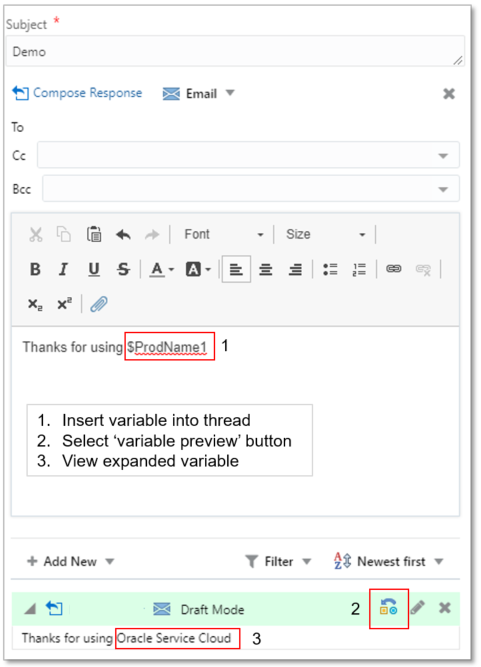
Variable Preview in Incident Thread
Steps to Enable
You don't need to do anything to enable this feature.
Tips And Considerations
When composing a thread entry, a preview icon will appear. Selecting the icon will expand any variables in thread and replace them with the corresponding variable content. Selecting the icon once again will return the content to it's variable form.
Users are not required to expand or retract the variable before committing the thread entry.
This feature is enabled by default and is not configurable.
Organization Hierarchy Is Supported in Agent Browser UI
The Organization Hierarchy feature in Oracle Service Cloud enables you to create a hierarchy for any organization that has subordinate organizations.
For example, if an organization in your has several subsidiaries or regional or international offices, each having an organization record, you can add secondary organizations to the parent organization, thereby creating an organization hierarchy.
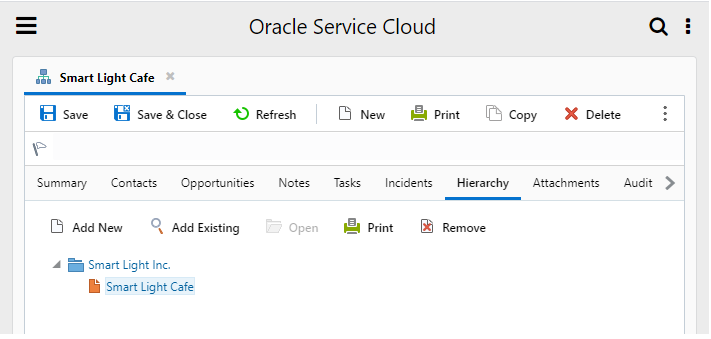
Organization Hierarchy
Steps to Enable
- From the Workspace Explorer in .NET open the Organization Workspace defined for Agent Browser UI
- Add a new tab to the tab set.
- From the Insert Control tab on the Workspace Designer Ribbon, drag and drop the Organization Hierarchy control to the new tab in the tab set
NOTE: the Standard Organization Workspace does have the Organization Hierarchy on the workspace by default
Tips And Considerations
- The organization hierarchy can not be edited if the organization is a new workspace. The workspace must be saved first and then the Add New and Add Existing functionality will be enabled.
- A new or an existing organization that is added to the hierarchy will become the secondary organization to the organization that is highlighted during the time of adding.
- An organization can have an unlimited number of subordinates, organized into a maximum of twelve levels per parent organization.
- Changing an organization’s hierarchy can impact the incidents and opportunities associated with all organizations in the hierarchy. Therefore, make sure you understand the consequences of changing the structure of an organization’s hierarchy.
- Drag and drop to edit the organization hierarchy is not yet supported with this release.
Role Information
An admin can add the Organization Hierarchy to the Organization Workspace. The agent will have access in Agent Browser UI runtime if all the proper permissions are selected.
Collapsible Workspace Tables for Browser UI
Workspace tables have a design option available in the .NET workspace designer called 'enable expand/collapse'. When this configuration is enabled for a table, that table can be collapsed by Agent Browser UI users.
This allows users to hide the fields and controls contained in a table in order to make more room for adjacent content. When a user hovers on a table configured with this property, a chevron affordance will appear on the upper left hand corner of the table along with an dotted outline of the table. When the chevron is clicked, the table is collapsed and is represented with a dotted outline. The size and location of the collapsed table will depend on the size and shape of the table and the adjacent content. The collapsed table will be represented with an dotted outline of the table and can be expanded to it's original size by clicking on the chevron affordance once again.
Steps to Enable
- Select a table in the .NET workspace designer.
- In the 'design' tab on the ribbon, under the 'options' section, select the 'enable expand/collapse' checkbox
- Save the workspace and open in a browser
- When hovering over the table, a chevron affordance will appear in the upper left hand corner of the table.
- Clicking on the chevron will collapse the table. Clicking on the chevron again will expand the table to it's original size.
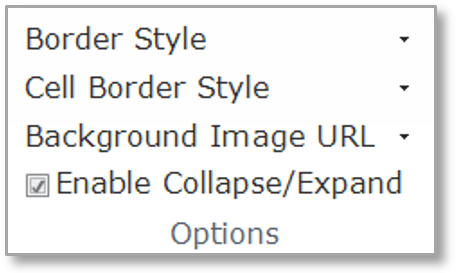
Workspace Designer Options for Table Control
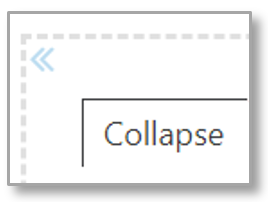
Click on the Chevron to Collapse the Outlined Table
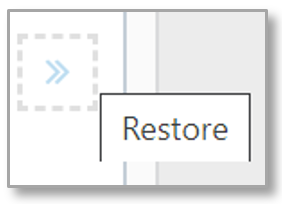
Click on the Chevron to Restore a Collapsed Table to its Original Size
Inline Standard Text Search and Insert - Agent Browser UI
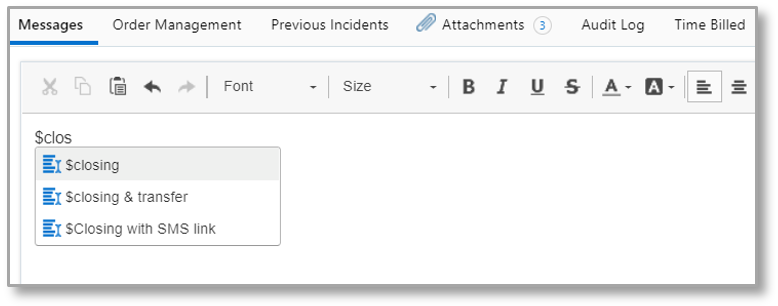
Typing a '$' character into an incident thread will trigger a standard text search by title based on the characters following '$'. The search results will appear in a contextual menu and will be filtered by typing additional characters. Users can insert standard text by using the tab and enter keys or the mouse to select the desired standard text from the inline search results.
Steps to Enable
You don't need to do anything to enable this feature.
Tips And Considerations
This feature is automatically available to users working within incident workspaces that have permissions on the rich text thread editor to access standard text.
The Filter access area has been updated to a Search button in the Toolbar in Agent Browser UI for Reports and Dashboards to allow users to optimize use of their screen. Previously, users have accessed filters from the Filter area in the top of the report but that required some screen area that took away from a user's report surface. The Search button in the toolbar can be used to show or hide the report filters. When the search is executed, the filter area will automatically collapse to optimize the report surface.
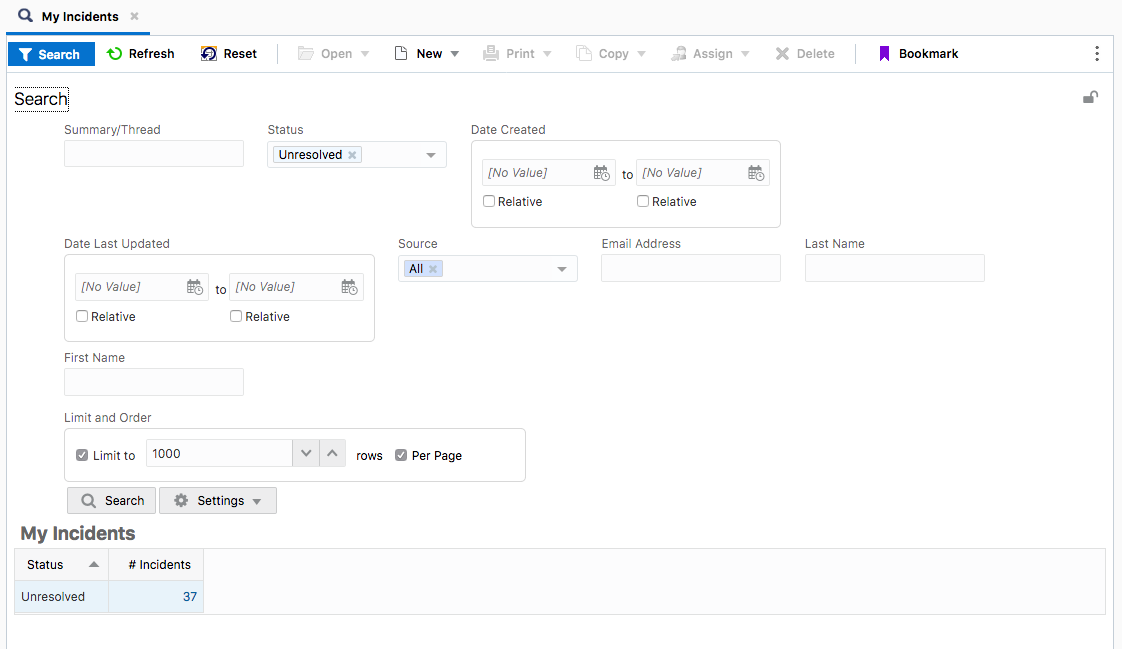
Search Area Update
If the user wants to keep the filter area open to work with different filter values, the filter area can be locked open using the lock icon in the upper right hand corner.
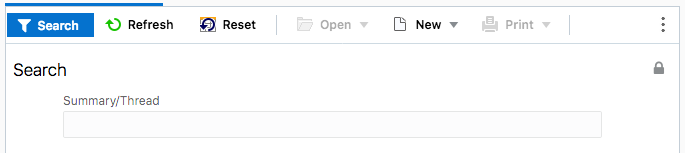
Search Area Lock Icon
Docked filters will remain visible because they are specified in the report definition to be displayed in the report's view.
Steps to Enable
You don't need to do anything to enable this feature.
Tips And Considerations
- Docked filters can be configured for reports when you want filters to continuously display.
- During report design, you can choose to show the filters at runtime in the Report Designer by selecting the "Make this filter selectable at run time."
Key Resources
- See documentation for detail on report configuration.
Role Information
- Report Users
Knowledge Advanced: Propose Answer from Incident
The feature allows an agent to propose an incident as an answer from the incident workspace. Sometime a customer’s question is common enough that an agent might believe that other customers should also have access to the answer. If an agent believes that the information belongs in the knowledge base (Oracle Knowledge), they can propose the incident as a potential answer.
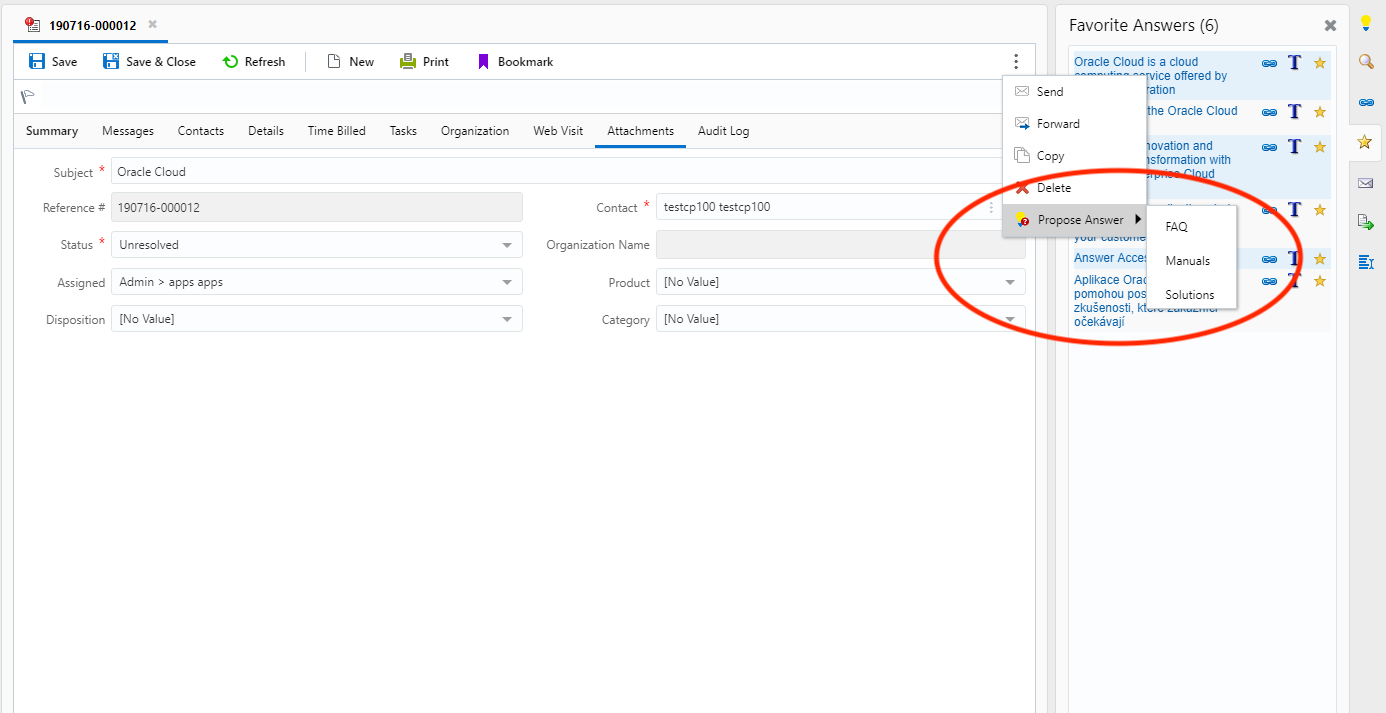
Propose Answer on Incident Workspace
Steps to Enable
- Administrator needs to add the Knowledge Advanced Propose button to the incident workspace.
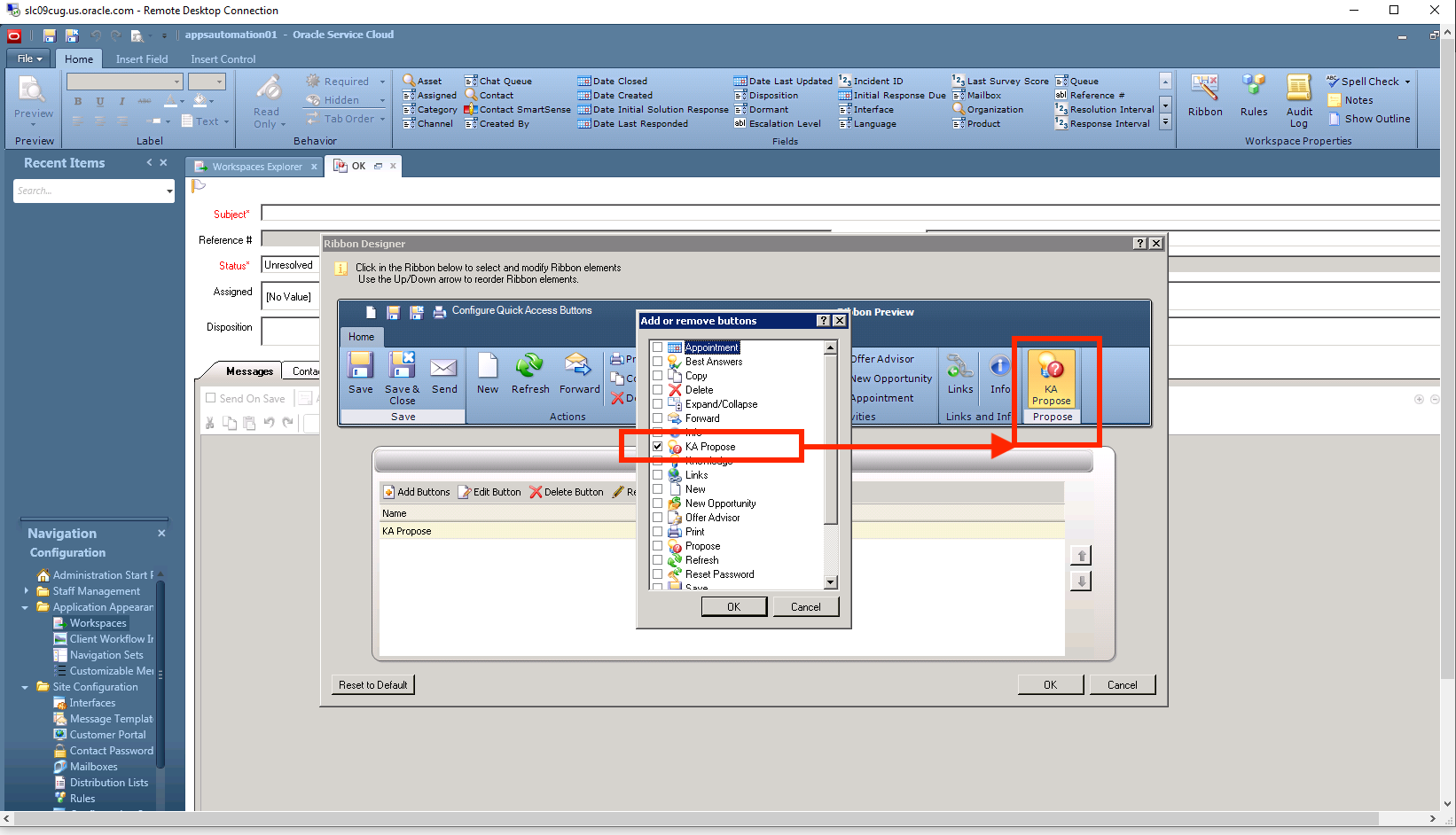
Add Knowledge Advanced(KA) Propose Button to the Incident Workspace
- Administrator must provide Propose permission in the user profile of agents for them to see the propose option in the incident window.
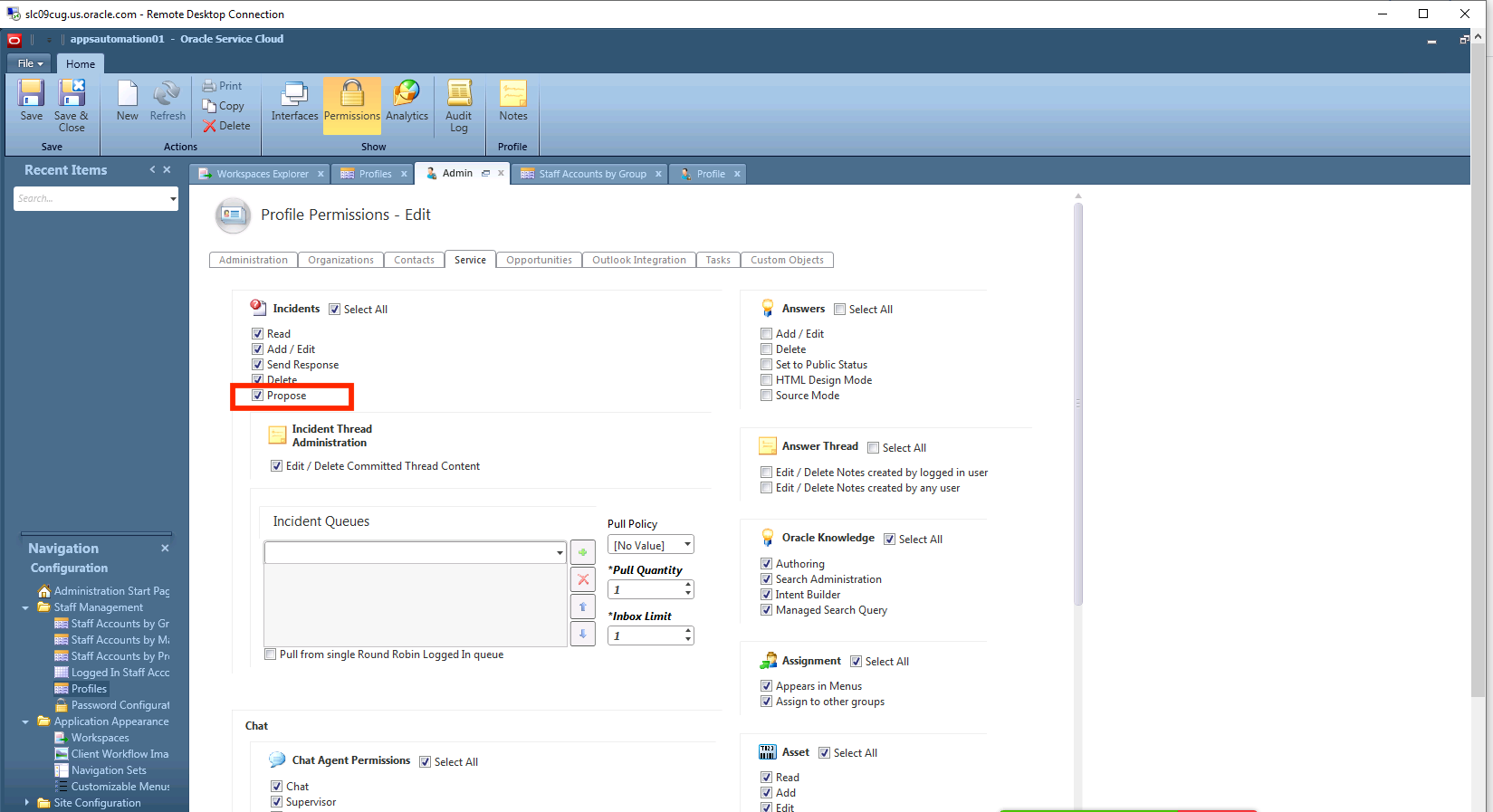
Enable Propose Permission in Profile Settings
- Administrator must provide to the agent 'modify' permission in Oracle Knowledge Authoring console. The permission is set for the content type of the article that he/she can create.
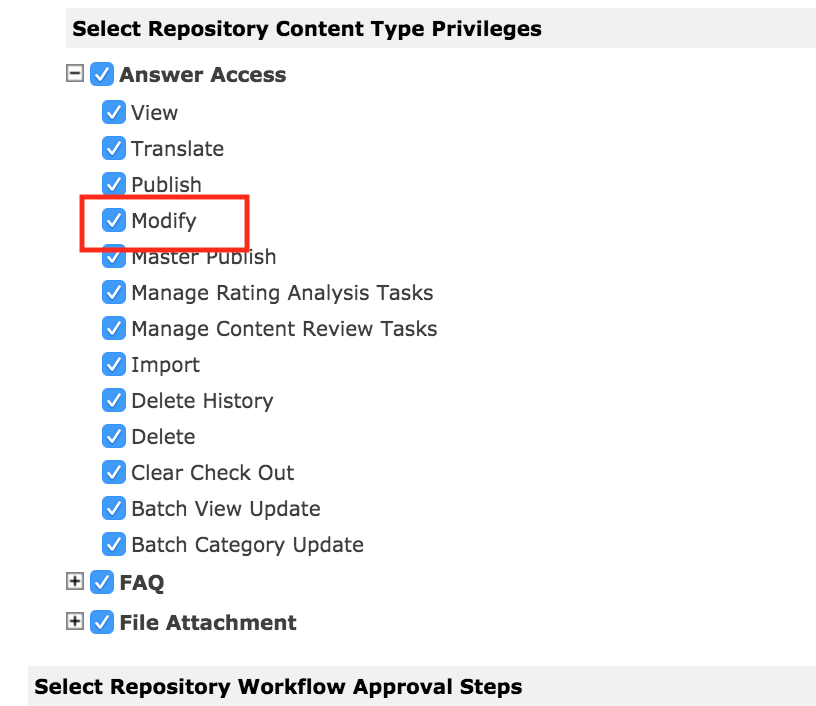
Set 'Modify' Permission for Agent in Oracle Knowledge Authoring Console
Tips And Considerations
- The feature is available only on Browser User Interface. It is not available on .net application.
- When agents propose an article, the application creates an article from the incident, but it remains unpublished until it is approved by a knowledge manager.
- Agents need to select the content type for the article that they are proposing, and they must select a content type that has appropriate fields so that the incident content can be properly saved as an article. If an agent selects a content type that does not have the appropriate fields, the process will fail with an error message.
- The application creates the new article by mapping the incident’s fields to the article’s fields as follows:
- The incident’s subject maps to the text field that is the master identifier for the content type. This is usually the title.
- The first customer entry maps to the first rich text area.
- Subsequent message threads map to the second rich text area.
Role Information
- CRM Administrator
- Knowledge Administrator