
This document will continue to evolve as existing sections change and new information is added. All updates appear in the following table:
| Date | Product | Feature | Notes |
|---|---|---|---|
| 30 NOV 2020 | Created initial document. |
This guide outlines the information you need to know about new or improved functionality in Oracle B2C Service Agent Browser UI and describes any tasks you might need to perform for the update. Each section includes a brief description of the feature, the steps you need to take to enable to begin using the feature, any tips or considerations that you should keep in mind, and the resources available to help you.
For a listing of hardware and software requirements for Oracle products, log in to our support site and access Answer ID 31.
GIVE US FEEDBACK
We welcome your comments and suggestions to improve the content. Please send us your feedback.
Column Definitions:
Features Delivered Enabled
Report = New or modified, Oracle-delivered, ready to run reports.
UI or Process-Based: Small Scale = These UI or process-based features are typically comprised of minor field, validation, or program changes. Therefore, the potential impact to users is minimal.
UI or Process-Based: Larger Scale* = These UI or process-based features have more complex designs. Therefore, the potential impact to users is higher.
Features Delivered Disabled = Action is needed BEFORE these features can be used by END USERS. These features are delivered disabled and you choose if and when to enable them. For example, a) new or expanded BI subject areas need to first be incorporated into reports, b) Integration is required to utilize new web services, or c) features must be assigned to user roles before they can be accessed.
| Ready for Use by End Users Reports plus Small Scale UI or Process-Based new features will have minimal user impact after an update. Therefore, customer acceptance testing should focus on the Larger Scale UI or Process-Based* new features. |
Action is Needed BEFORE Use by End Users Not disruptive as action is required to make these features ready to use. As you selectively choose to leverage, you set your test and roll out timing. |
|||||
|---|---|---|---|---|---|---|
| Feature |
Report |
UI or |
UI or |
|
||
Incident Forward Configuration Option: Add Comments to Thread |
||||||
Preview Workflow in Browser UI
Workflow administrators can trigger a workflow preview in Browser UI using a new option on the Preview button in the Workflow Designer ribbon.
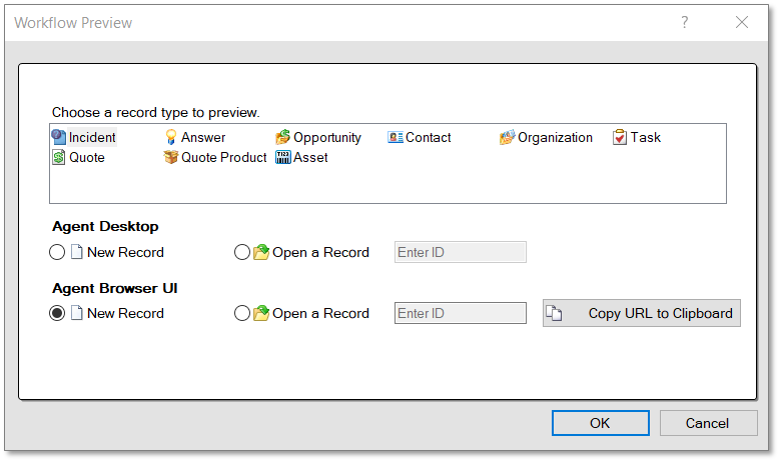
Workflow Preview Options
Administrators can reduce testing times and test on behalf of other staff accounts by launching a preview in a browser window directly from the Workflow Designer.
Steps to Enable
You don't need to do anything to enable this feature.
Tips And Considerations
- Preview options include opening a new or existing record. Administrators can also copy a preview URL to clipboard.
- Objects that aren't supported in Browser UI are not supported for preview (Quote, Quote Product)
- Previewing unsaved workflows is not supported in Agent Browser UI.
- It is possible to preview a workflow in Browser UI using a test account by authenticating into a Browser UI session with that account.
Workflow Decision for Client Type
Use a single workflow to load workspaces specifically designed for users on Agent Desktop, Agent Browser User Interface, or mobile.
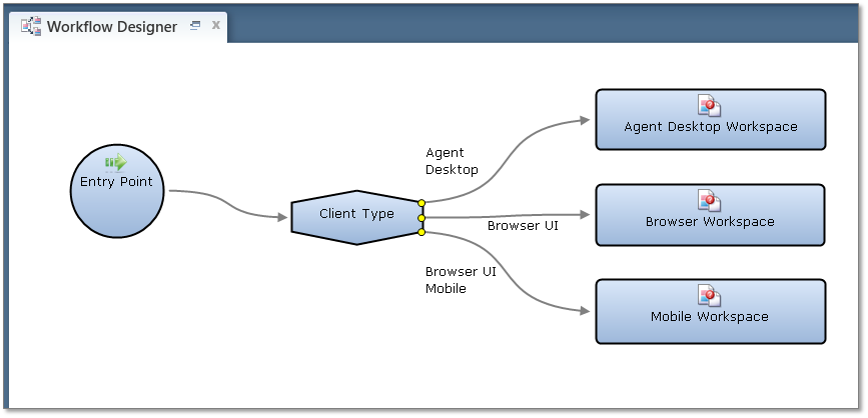
Administrators can use a single workflow to accommodate multiple device and client types which reduces complexity and administrative overhead.
Steps to Enable
- Open an existing Workflow or create a new Workflow.
- Select a Decision Element in the Workflow designer.
- Select the -Edit- button in the ribbon.
- Select the radio button option for -Multiple Value Decision-.
- Select the -Property or Field- called -Client Type-.
- Select one or more options from the -Equals- list (Agent Desktop, Browser UI, or Browser UI Mobile).
- Note that there are now 1-3 outbound connectors from the Decision Element based on the -Equals- Selection.
- Create additional workflow logic as needed from the new Decision Element connectors.
- Save the workflow and preview using different client types (Agent Desktop, Browser UI, or Browser UI Mobile) and note that the workflow branches based on the client type.
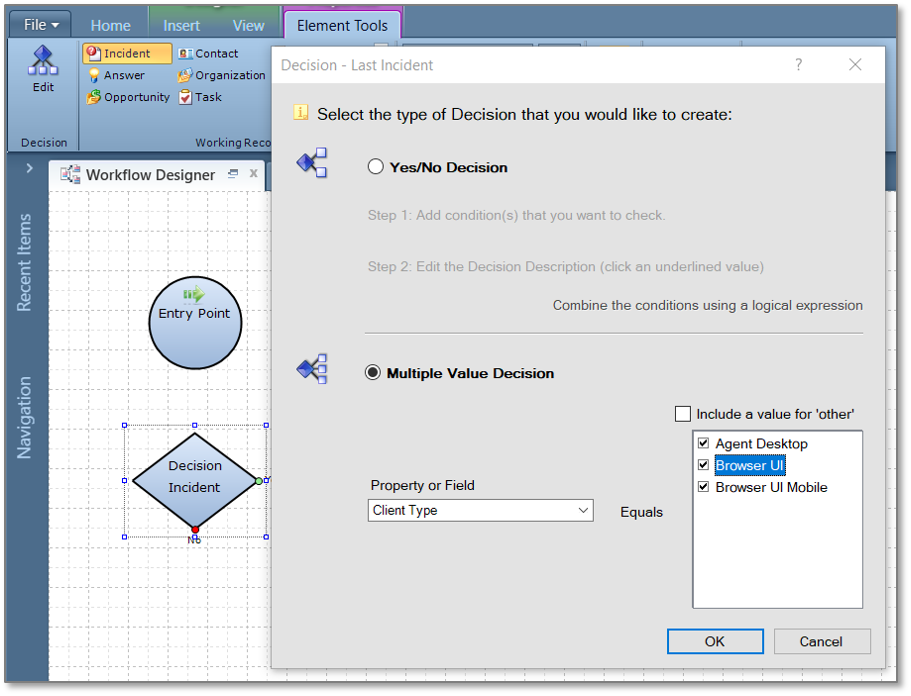
Decision Element Configuration Options
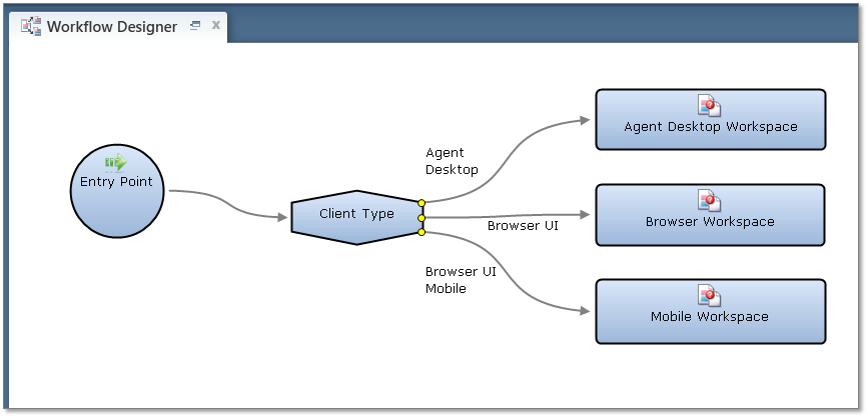
Decision Element with Three Options
Workflow Option to Open Element in Subtab
Workflow elements can be opened as a subtab rather than as an adjacent record.
Opening new records in a subtab creates a more intuitive experience for users who may be opening multiple records that should be logically grouped together.
Steps to Enable
- Select an element on the Workflow Designer.
- In the options menu, select -Open in Subtab- and -Focus Subtab-.
- Note that the element cannot have outgoing connectors.
- Save and preview the workflow.
- Note that the record designated to open in subtab will open under the parent record as a subtab instead of separately and adjacent to the existing record.

Element Options

Record with Two Sub Tabs
Tips And Considerations
- The -Focus Subtab- option is available if -Open in Subtab- is selected.
- Elements with -Focus Subtab- applied can not have outbound connectors.
- This setting is only supported on the Agent Browser UI.
Key Resources
Incident Forward Configuration Option: Add Comments to Thread
Administrators can control whether comments entered in the incident forward dialog should be added to the incident thread as a private note, and whether agents should be allowed to disable this option when forwarding an incident.
Retain a comprehensive communication history in incident threads, including comments added by agents when forwarding incidents.
Steps to Enable
- Open an incident workspace in the Workspace Designer.
- Open the Ribbon Designer and right click on the forward button and select -Edit Button-.
- Select the option to -Add Comments to Thread- and -Allow Agent to Control Comments- (if desired).
- Save and close the workspace.
- Open an incident using this workspace on the Agent Browser UI and select the forward button.
- Note that the Forward Comments option can be de-selected (leave it selected).
- Enter a forward note and send.
- Note that the comments in the forward dialog are added to the incident thread.

Forward Button Options
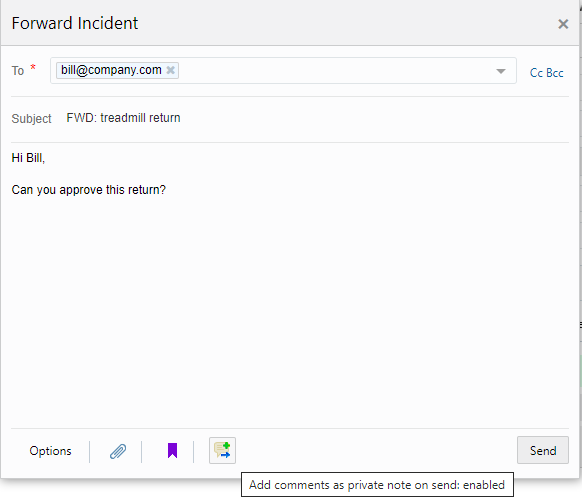
Forward Option (Agent Browser UI)
Tips And Considerations
This configuration is only supported on the Agent Browser UI.
Key Resources
Incident Field Support on Interaction WS
The Incident fields can now be added to the Interaction Workspace (IW) and supported in Agent Browser UI.

Incident Fields on IW
This allows for a more seamless transition for Agent Browser UI adoption.
Steps to Enable
- Open the (IW in the WS Designer.
- Select the Fields tab.
- Change the fields drop down to Incident Fields.
- Drag and drop the Incident Fields onto the IW.
- Save and add the WS to the desired Profile.
Tips And Considerations
This will require 20D .NET Agent Desktop.
Analytics Permissions Enhancements
This enhancement allows for great granularity in permissions for Analytics Permission by allowing individual Profiles to be configured to use Custom Scripts or Report Schedules. This helps create profiles that will have the necessary permissions without additional permissions.

Profile Permission View
Newly created sites in 20D will require Profiles of Accounts accessing reports from the APIs to have permission to reports.
Allows greater security control by providing configuration:
- Control access to Custom Scripts
- Control access to Scheduling to limit the sending data from a report
- Enforce that Accounts on sites new on 20D to have Report permissions when using the API
Steps to Enable
You don't need to do anything to enable this feature.
Tips And Considerations
The Create / Edit Reports will be automatically enable when choosing either the Create / Edit Custom Scripts or Create / Edit Schedules.
Profiles on upgraded sites will automatically have these permissions enabled. There were included previously in Create / Edit Reports and can be manually removed from Profiles.
Role Information
- Administrator
Service Usage Metrics: Phase Two
Additional Seat types are supported in this release of Service Usage Metrics. New Seat types supported are:
- Connected Chat Users
- CoBrowse Named Users
- Video Chat Named Users
- Knowledge Named Users
- Knowledge Connected User Counts
The daily count of Deployed Custom Objects is also included in this release.
Provides better transparency for customers that want to keep track of their usage.
Steps to Enable
You don't need to do anything to enable this feature.
Tips And Considerations
Each type of user seat has been broken out into their own tile to allow users to go directly to the usage type they are interested in viewing.
These new seats will be added to the Service Usage Metrics landing page and tiles that apply to the site will be dynamically populated based on configuration. Reminder if you need to enable Service Usage Metrics, the user's profile needs to have the Administrator check box on their profile and add the Service Usage Metrics component to their Navigation Set.
Role Information
- Administrators