


This document will continue to evolve as existing sections change and new information is added. All updates appear in the following table:
| Date | Feature | Notes |
|---|---|---|
| 27 NOV 2019 | Created initial document. |
This guide outlines the information you need to know about new or improved functionality in Oracle Service Cloud Agent Browser UI November 2019 and describes any tasks you might need to perform for the update. Each section includes a brief description of the feature, the steps you need to take to enable to begin using the feature, any tips or considerations that you should keep in mind, and the resources available to help you.
For a listing of hardware and software requirements for Oracle products, log in to our support site and access Answer ID 31.
GIVE US FEEDBACK
We welcome your comments and suggestions to improve the content. Please send us your feedback.
Column Definitions:
Report = New or modified, Oracle-delivered, ready to run reports.
UI or Process-Based: Small Scale = These UI or process-based features are typically comprised of minor field, validation, or program changes. Therefore, the potential impact to users is minimal.
UI or Process-Based: Larger Scale* = These UI or process-based features have more complex designs. Therefore, the potential impact to users is higher.
Customer Action Required = You MUST take action before these features can be used by END USERS. These features are delivered disabled and you choose if and when to enable them. For example, a) new or expanded BI subject areas need to first be incorporated into reports, b) Integration is required to utilize new web services, or c) features must be assigned to user roles before they can be accessed.
| Ready for Use by End Users Reports plus Small Scale UI or Process-Based new features will have minimal user impact after an update. Therefore, customer acceptance testing should focus on the Larger Scale UI or Process-Based* new features. |
Customer Must Take Action before Use by End Users Not disruptive as action is required to make these features ready to use. As you selectively choose to leverage, you set your test and roll out timing. |
|||||
|---|---|---|---|---|---|---|
| Feature |
Report |
UI or |
UI or |
Customer Action Required |
||
When multiple records are open in Agent Browser UI, users can select a top-level tab and drag it to a different position relative to the other tabs.

Tabs can be reordered by selecting a tab and dragging it to a new position.
Steps to Enable
You don't need to do anything to enable this feature.
New Workspace Designer Options for the Agent Browser UI
There are several new options for workspace controls and fields available in the .NET workspace designer that will render in Agent Browser UI. These include:
- Yes/No fields have options to display as radio buttons, checkboxes, or switches.
- Table controls have new options to expand/collapse and/or place an image within the table using a URL.
- The tabset control has an option to render the tabset as an accordion in Agent Browser UI.
- The image control has an option to use a URL to display a hosted image.
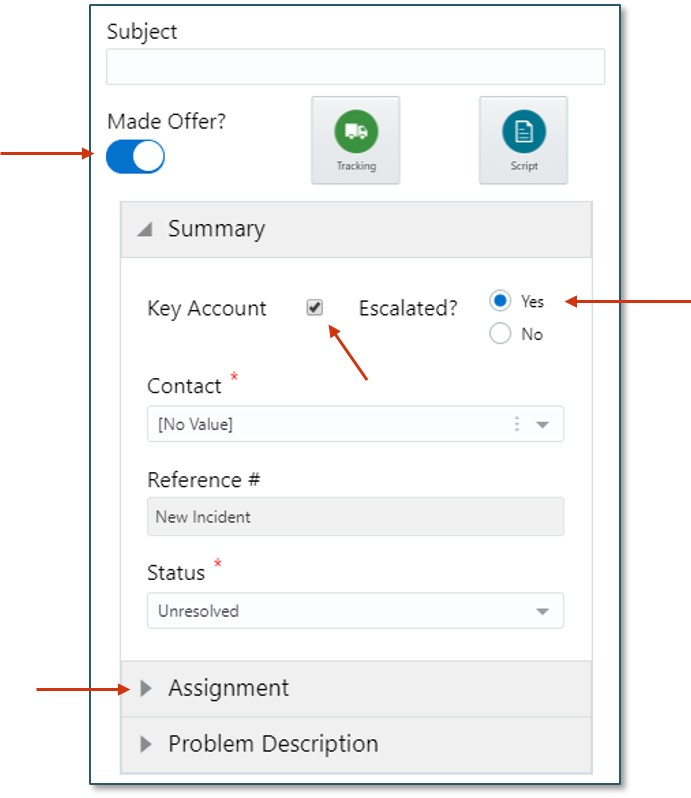
Yes/No Fields Can Be Displayed As a Switch, Radio Button, or Checkbox in Agent Browser UI. Tabsets can be displayed as an accordion.
The new workspace options are available to configure in the .NET workspace designer.
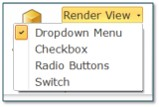
Yes/No Field Display Options
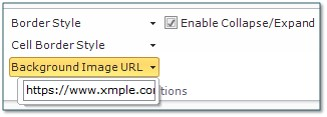
Table Options (Background Image URL, Enable Collapse/Expand)
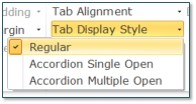
Tab Display Options (Accordion Single Open, Accordion Multiple Open)
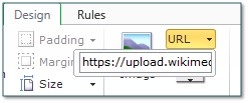
Image Control Option (URL)
Steps to Enable
The workspace options are available on all Service 19D and new instances of Service Cloud and can be implemented through configuration options available in the .NET workspace designer. These options are rendered in runtime for Agent Browser UI only.
Tips And Considerations
- Note that the new display options will only display in Agent Browser UI. If an option is selected and the workspace is opened in .NET, the feature will be displayed in a manner that's supported by .NET. For instance, tabsets will be rendered as traditional tabs instead of accordions, and Yes/No fields will be rendered as a dropdown menu. Similarly, these option will not render in the workspace designer.
- Accordion:
- The accordion options include single open and multiple option, which indicate how many accordion sections can be opened by the workspace user at a time.
- Accordions can be nested within parent tabs or parent accordions.
- An accordion section can be configured to be open when the workspace is loaded by implementing a workspace rule to focus a tab when the editor loads.
- The accordion options include single open and multiple option, which indicate how many accordion sections can be opened by the workspace user at a time.
The workspace designer allows workspace reports to be configured to filter on foreign keys. If the 'Report Behavior' option is not enabled to 'Filter on Primary Key Only', the 'Report Filter Mapping Wizard' will allow the report to be filtered on fields that are contained in the workspace. Workspace reports configured in this manner will execute accordingly in both Agent Browser UI and .NET.
Steps to Enable
This feature is available by default starting in Service 19D. To configure a workspace report to use a filter value that is based on data in the workspace record:
- In the Workspace Designer, select a workspace report
- Under 'Options' open 'Report Behavior' and de-select 'Filter On Primary Key Only'
- Open the Report Filter Mapping Wizard under 'Filter Mappings'
- Change the desired filter from 'Default Value' to 'Parent Field Value' and select the field to filter on and select 'Finish'
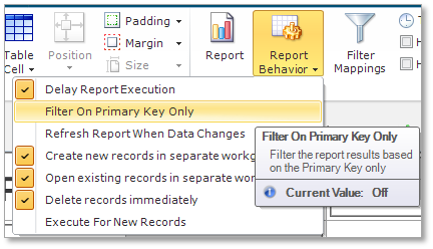
De-select 'Filter On Primary Key Only'
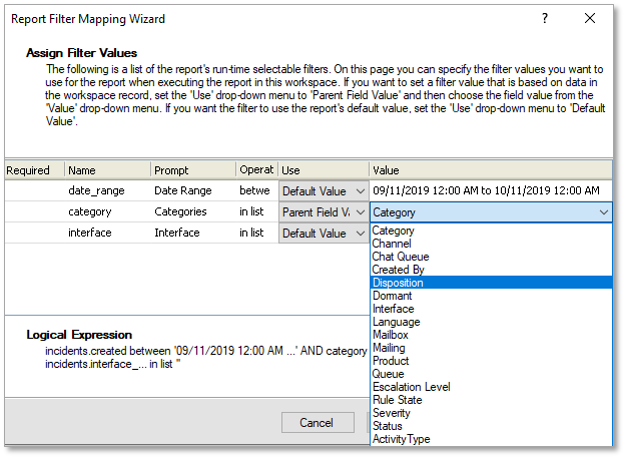
Use the Report Filter Mapping Wizard to Select a Parent Field Value As a Report Filter
Agent Browser UI users now have the ability to define Rollups and Slice groups after a report is run. This allows the users to customize the view of their data to enable users to optimize reports.
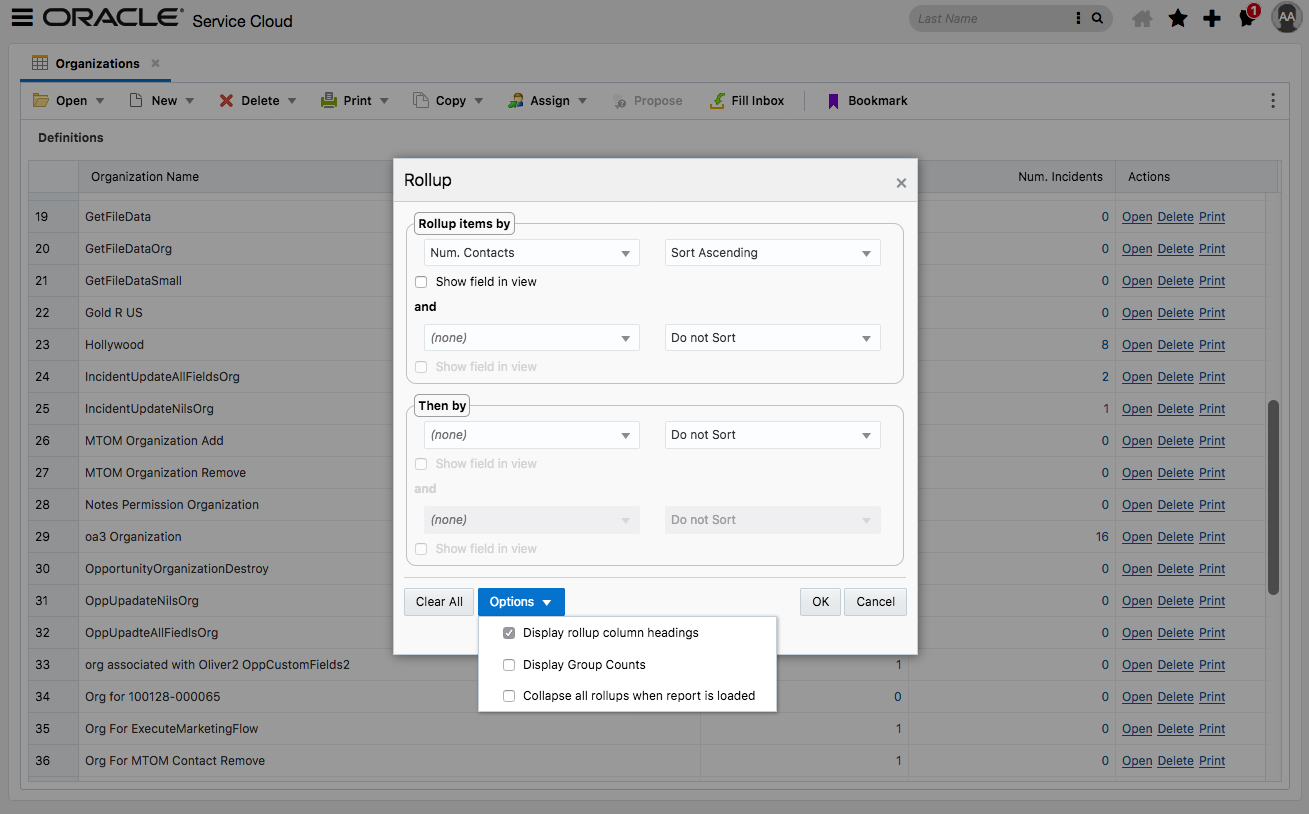
Rollup View
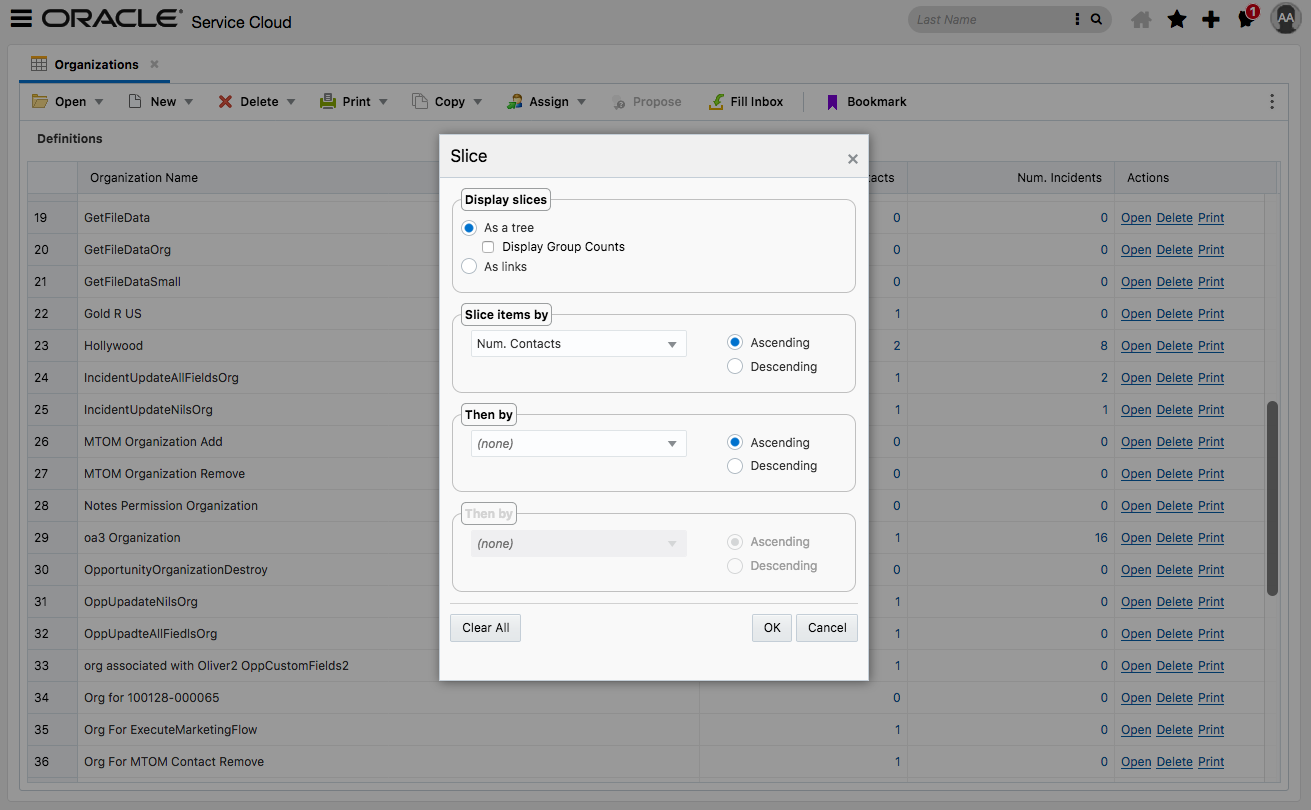
Slice View
Click the Options icon, represented by three vertical dots, and select either Rollup or Slice to configure.

Feature Access
Steps to Enable
You don't need to do anything to enable this feature.
Tips And Considerations
The following capabilities are not yet supported in the Agent Browser User Interface:
- Slice by "Buckets." We support use of the "Column Values."
- Rollup option to “Display rollup heading mulit-line.” The multiple rollups are displayed on a single line.
- Rollup option to “Repeat column heading for each rollup.”
Role Information
-
Any Agent Browser UI Report User