
This document will continue to evolve as existing sections change and new information is added. All updates appear in the following table:
| Date | Product | Feature | Notes |
|---|---|---|---|
| 30 OCT 2020 | Created initial document. |
This guide outlines the information you need to know about new or improved functionality in Oracle B2C Service Agent Browser UI and describes any tasks you might need to perform for the update. Each section includes a brief description of the feature, the steps you need to take to enable to begin using the feature, any tips or considerations that you should keep in mind, and the resources available to help you.
For a listing of hardware and software requirements for Oracle products, log in to our support site and access Answer ID 31.
GIVE US FEEDBACK
We welcome your comments and suggestions to improve the content. Please send us your feedback.
Column Definitions:
Features Delivered Enabled
Report = New or modified, Oracle-delivered, ready to run reports.
UI or Process-Based: Small Scale = These UI or process-based features are typically comprised of minor field, validation, or program changes. Therefore, the potential impact to users is minimal.
UI or Process-Based: Larger Scale* = These UI or process-based features have more complex designs. Therefore, the potential impact to users is higher.
Features Delivered Disabled = Action is needed BEFORE these features can be used by END USERS. These features are delivered disabled and you choose if and when to enable them. For example, a) new or expanded BI subject areas need to first be incorporated into reports, b) Integration is required to utilize new web services, or c) features must be assigned to user roles before they can be accessed.
| Ready for Use by End Users Reports plus Small Scale UI or Process-Based new features will have minimal user impact after an update. Therefore, customer acceptance testing should focus on the Larger Scale UI or Process-Based* new features. |
Action is Needed BEFORE Use by End Users Not disruptive as action is required to make these features ready to use. As you selectively choose to leverage, you set your test and roll out timing. |
|||||
|---|---|---|---|---|---|---|
| Feature |
Report |
UI or |
UI or |
|
||
This feature set expands knowledge foundation browser UI support to include answer versioning features. Answer versioning was originally released in 2018 for .Net and it is now available in the browser UI.
Answer versioning features include:
- Drafting and publishing answer versions
- Side-by-side comparison
- Future date publishing
- Auditing answer versions
Easier change tracking and point-in-time content identification as well as enables draft and edit content without disrupting public answers.
Steps to Enable
You don't need to do anything to enable this feature.
Tips And Considerations
To take full advantage of answer versioning features, update the answer workspace to include answer versioning fields and buttons.
The ‘cc’ and ‘bcc’ fields on the thread control will be hidden by default and can be revealed by clicking on the new ‘Cc/Bcc’ link adjacent to the ‘To’ field. These fields are available when enabled in the incident workspace's Rich Text Thread Control.
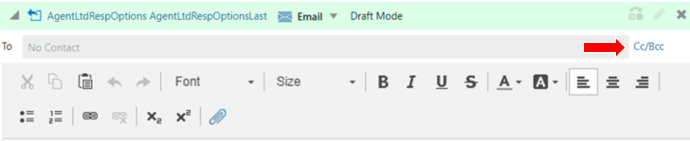
Default Thread Control (Cc/Bcc Fields Are Hidden)
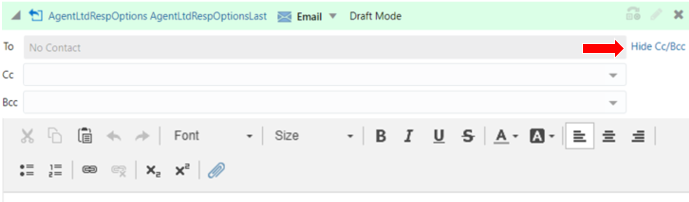
Thread Control with Bcc/Cc Fields Visible
The purpose of this change is to save vertical space within the thread control.
Steps to Enable
You don't need to do anything to enable this feature.
The default font configured for the Rich Text Thread Editor in the Workspace Designer is honored in the thread control in Browser UI.
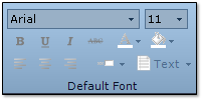
Workspace Designer
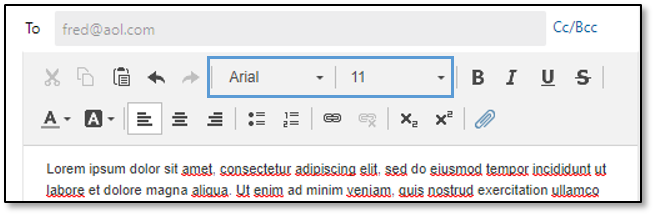
Default Font In Browser UI
This feature allows administrators to achieve a uniform font style and size for all thread entries and outbound communications from the thread editor.
Steps to Enable
You don't need to do anything to enable this feature.
Tips And Considerations
When Standard Text or Knowledge content is added to the thread, that content will conform to the thread editor default fonts unless that content has it's own font styling definition.
The Rich Text Thread Editor's option for vertical orientation is now supported in Browser UI. Thread controls with this setting will have two columns: uncommitted threads on the left side and committed threads on the right side. The columns have vertical scollbars if needed and a vertical splitter between the columns.
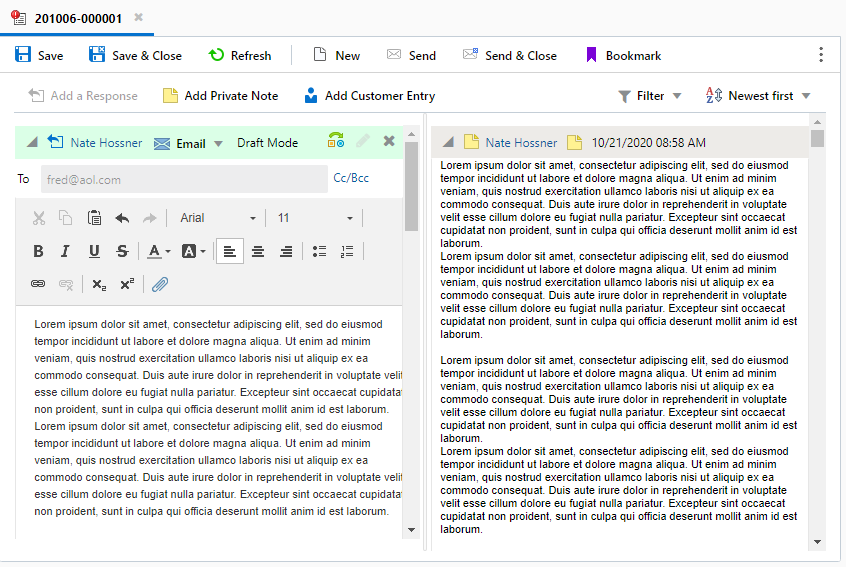
Vertical Thread Orientation
The vertical orientation allows users to compose new thread entries on the left half of the control while scrolling through existing threads on the right half. This makes it much easier to refer to communication history while composing a new message, making agents even more effective in their responses.
Steps to Enable
You don't need to do anything to enable this feature.
Tips And Considerations
- The thread orientation is defined in the Workspace Designer options for the Rich Text Thread Control.
- Because the vertical orientation option was not previously supported in Browser UI, any workspaces with that configuration rendered the thread control as 'horizontal'. Those same workspaces will render as the thread orientation as 'vertical' once Agent Browser UI is updated to release 3.20.10.15.
Add New Record from Add Existing Option
Agent Browser UI users can add new records from workspace reports when attempting to add existing records.
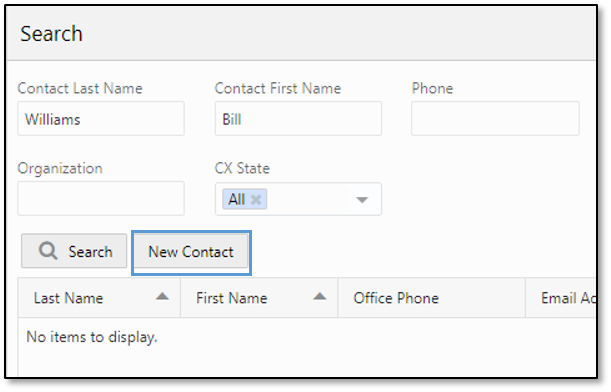
Add New Record from Add Existing Search
Users can save time by quickly adding new records from the 'add existing' menu when their search does not return the expected results.
Steps to Enable
You don't need to do anything to enable this feature.
Tips And Considerations
- When 'add new' is selected the search parameters from 'add existing' will be passed into the new record.
- This functionality is supported across standard and custom objects.
Agent Browser UI provides the ability for users to store Saved Default Filter Values and Saved Display and Data Settings. Each option offers the capability to store up to 10 personal configurations. These are a reminder of how those settings are stored.
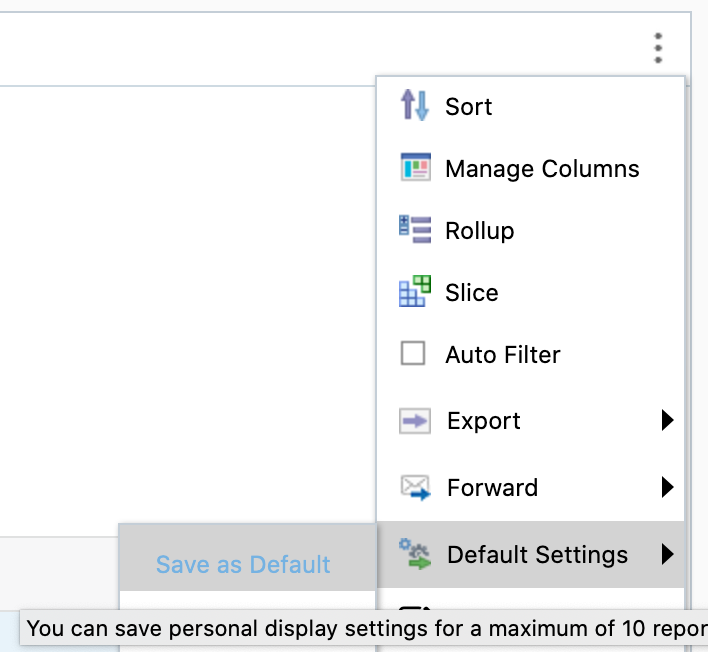
Saved Display and Data Settings

The Preference area can be accessed by going to your user icon in the upper right hand corner of Agent Browser UI.
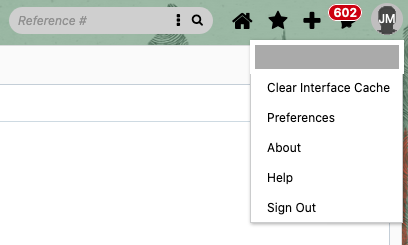
Preference Access
This will open Preferences and allow users to manage their personalizations by viewing and clearing a single, multiple or all report preferences.
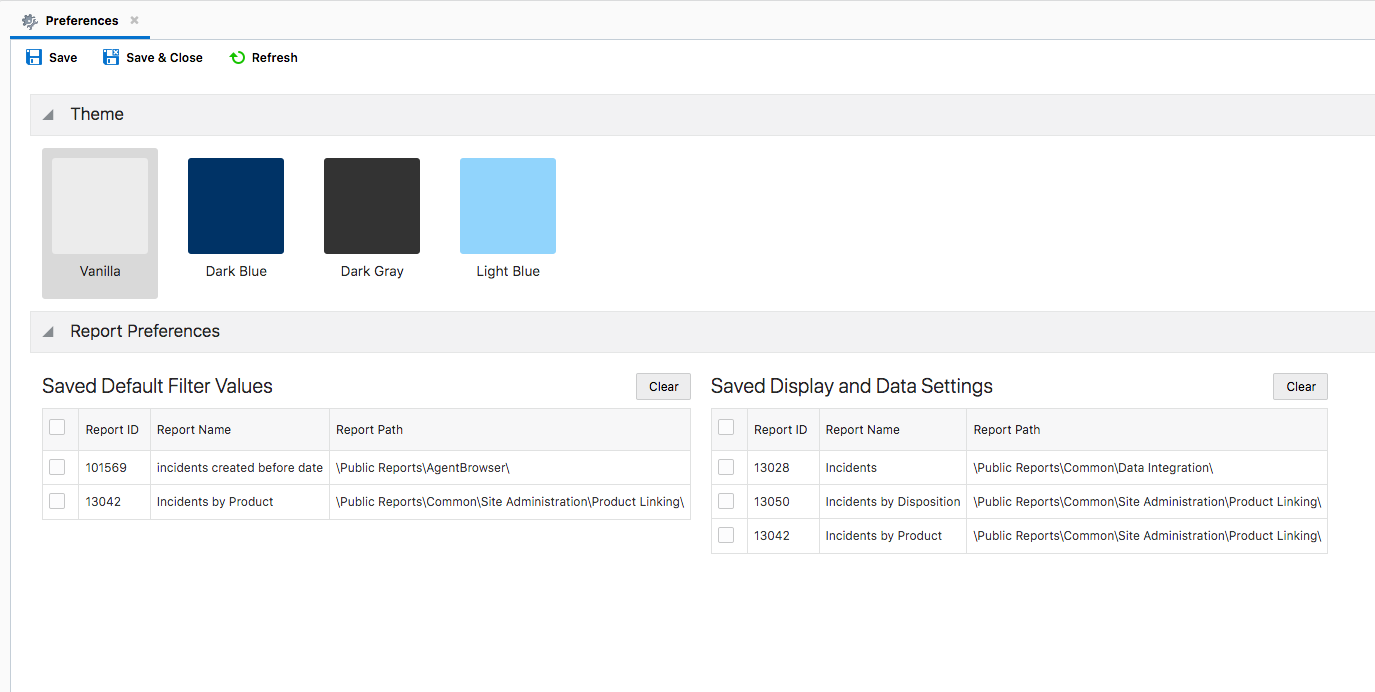
Report Preference View
This feature allows users to easily manage their saved personal settings for reports.
Steps to Enable
You don't need to do anything to enable this feature.
Role Information
- Report Preferences users
Administrators can use a custom configuration setting to define an avatar image for staff accounts. The configuration setting can be configured to call a 3rd party source and pass variables in the URL to return an image. The resulting image will take the place of the agent's initial in the upper right-hand corner in Browser UI.

Agent Avatar
An agent avatar creates a visually-rich experience and adds an element of personalization to the agent experience in Browser UI.
Steps to Enable
- Create a new text type custom configuration setting with key 'CUSTOM_CFG_BUI_AGENT_IMAGE_URL'
- For instructions on creating custom configuration verbs, see this link.
- Enter a URL into the key that calls an external source (ex. API, employee directory) containing images associated with user accounts.
- Optionally include one or more supported variables; note that MD5 is supported:
- $email_md5
- $acct_id
- $acct_id_md5
- $first_name
- $first_name_md5
- $last_name
- $last_name_md5
-
Save the configuration setting and log into Browser UI to see the avatar image.
Examples:
- https://oracle.com/avatars/$email/avatar.png
- https://oracle.com/avatars/test.account@oracle.com/avatar.png
- https://differenturl.com/getAvatar.php?NAME=$last_name_md5/$first_name_md5/avatar.png
- https://differenturl.com/getAvatar.php?NAME=098f6bcd4621d373cade4e832627b4f6/e268443e43d93dab7ebef303bbe9642f/avatar.png
- (Note: the IDs in the example above are the actual MD5 hash values for "test" and "account")
Tips And Considerations
- Configuration settings can be associated with one or more site interfaces.
- Images will be scaled to fit the allotted space (32px x 32px).
- A generic image icon will appear in the upper right-hand corner of Browser UI if an image does not exist.
- The default agent initials will be displayed where these configuration settings do not exist or if the URL cannot resolve.
- File size of hosted images should be minimized in order to maximize display performance.
- Another approach is to link to a single image to represent all users.