
This document will continue to evolve as existing sections change and new information is added. All updates are logged below, with the most recent updates at the top.
| Date |
What's Changed |
Notes |
|---|---|---|
| 19 MAY 2017 |
Initial Document Creation |
This guide outlines information about new or improved functionality in Oracle Configure, Price, and Quote (CPQ) Cloud 2017 Release 1 (2017 R1). Each section includes a brief description of the feature, the steps you need to take to enable or begin using the feature, any tips or considerations to keep in mind, and the resources available to help you.
We welcome your comments and suggestions to help us improve this document. Send your feedback to CPQ_Cloud_documentation_us_grp@oracle.com.
Some of the new CPQ Cloud 2017 Release 1 features are automatically available to users after the upgrade and some require action from the company administrator or Oracle.
The following table offers a quick view of the actions required to enable each of the features.
| Feature |
Action Required to Enable Feature |
||
|---|---|---|---|
| Automatically |
Administrator |
Oracle Service Request Required |
|
| Modern Selling Experience |
|||
|
|
|
||
| Enterprise Platform |
|||
|
|
|||
|
|
|||
|
|
|
||
|
|
|
||
|
|
|||
|
|
|||
| Integrated Suite |
|||
|
|
|||
|
|
|||
|
|
|||
|
|
|
||
| Simplify |
|||
|
|
|||
|
|
|
||

Leverage the rich interface and interactive capabilities available in CPQ Cloud to provide a smarter selling experience.
- The Deal Negotiation features are available in CPQ Cloud 2017 R1.
The CPQ Cloud 2017 R1 Deal Negotiation feature guides CPQ Cloud sales representatives in achieving optimal prices and discounts for their customers using Deal Negotiation metrics and a Deal Comparison analytic available for both Transactions and Transaction Lines. Through Deal Negotiation metrics such as Price Scores and Last Price Paid, sales representatives can better negotiate prices to drive profitability. Administrators can select predefined calculations for price scoring, with results displayed graphically to sales representatives in the Transaction and Transaction Line UIs. To further support Deal Negotiation, sales representatives can use a Deal Comparison analytic to display key price-related data for comparable Transactions and Transaction Lines.
In 2017 R1, CPQ Cloud delivers the following key metrics for the Deal Negotiation feature:
- Price Scores for Transaction Lines and Transactions
- Last Price Paid metric for Transaction Line currency-type attributes
Effective negotiation of prices with customers requires contextual information about the desirability of a price on two dimensions: profitability for the vendor, and likelihood that the customer will buy at that price. Sales users need to know how profitable the current proposed pricing is in order to guide their decisions to increase, decrease, or remove the discount. Since most customers do not reveal cost or margin information to Sales users, a Price Score metric can be used to provide this guidance. In addition to aiding the Sales user, the approver also benefits from a Price Score metric that quickly depicts profitability, without having to analyze detailed data.
The Price Score metric indicates relative profitability, with values ranging from one to nine. "1" indicates the worst or lowest profitability, and "9" indicates the best or highest profitability. In addition, the Price Score numbers are highlighted with different colors to provide a quick visual indication of profitability for Transactions and Transaction Lines. Prices Scores from one through three are highlighted in red, four through six are highlighted in yellow, and seven through nine are highlighted in green.
Administrators can add the Price Scores to relevant Commerce layouts, change the Price Score icons, and modify the Price Score calculations. CPQ Cloud's 2017 R1 release includes enhancements to Commerce Integer-type attributes to enable Price Score metrics for Transactions and Transaction Lines
Transaction Price Score
The Price Score for a Transaction represents a composite of the Prices Scores for the lines on the Transaction. This metric provides data that allows customers to determine if heavily discounted prices for some line items can be offset with high profitability on other lines on the transaction. The Transaction Price Score allows the sales and approval users to view the relative profitability of the Transaction as a whole. This calculation can be invoked from any Commerce Save action.

Transaction Price Score
TRANSACTION LINE PRICE SCORE
The Transaction Line Price Score is populated via a calculation of the relative profitability of the current Net Price using a Margin Scoring algorithm.
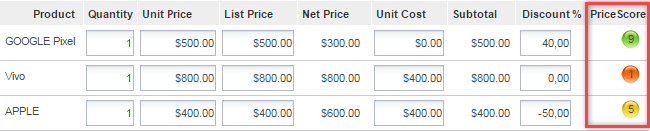
Transaction Line Price Score
Price Score Calculation Methods
Deal Negotiation provides three calculation methods for price scoring using existing Commerce attributes. For each method, any numeric attribute may be selected for use as a variable in the calculation. The Margin-based calculation uses the current price margin and the List Price margin to determine the relative profitability. The List-Based calculation is derived from net and list price and can be used if cost data is not available in CPQ. The Simple Margin calculation divides the profit margin by an admin-defined "Basis" attribute.
MARGIN-BASED CALCULATION METHOD
In the Margin-based calculation, the function changes based on the margin measured at List Price. This allows the slope of the lines to change for different products that may have different margin percentages and discount allowances. This calculation requires the following input attribute values: Unit Cost, Net Price, and List Price.
When Enable Price Score is selected for Transaction Line Integer-type attributes, administrators can select the Commerce attributes to be used for List Price, Net Price, and Unit Cost in the Margin Based Calculations.
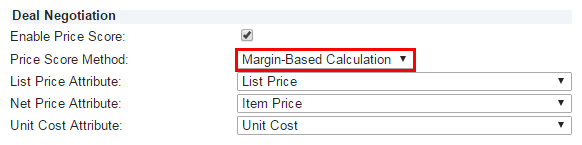
Margin Based Calculation Method
Margin-based Calculation Rules
- When the Margin is zero the Price Score will be "1"
- When the Net Price is equal to the List Price the Price Score will be "9"
LIST-BASED CALCULATION METHOD
The List-Based calculation divides the Net Price by the List Price to compute the Price Score. The advantage of this calculation is that it does not require a company to store costs or margins in CPQ Cloud.
When Enable Price Score is selected for Transaction Line Integer-type attributes, administrators can select the Commerce attributes to be used as List Price and Net Price in the List Based Calculations.

List Based Calculation Method
SIMPLE MARGIN CALCULATION METHOD
The Simple Margin calculation subtracts the Unit Cost from the Net Price to calculate the profit margin. The profit margin is then divided by a "Basis" attribute to determine Price Score. The "Basis" attribute can be any currency attribute, for example: Unit Cost, List Price, or Net Price.
When Enable Price Score is selected for Transaction Line Integer-type attributes, administrators can select the existing Commerce attributes to be used for Net Price, Unit Cost, and Basis Attributes in Simple Margin Calculations.
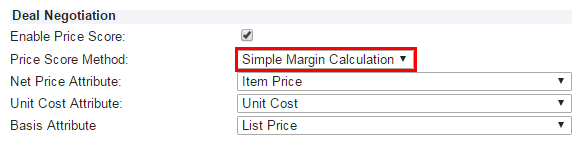
Simple Margin Calculation Method
Sales users need to know what price precedents have been established with a customer in order to intelligently define the appropriate prices for a product. Purchasing agents entering a negotiation typically have access to all of the previous transactions with a vendor and competitors. In contrast, Sales users typically have no information about the prior sales or prices. In 2017 R1, CPQ Cloud delivers the Last Price Paid metric to provide historical price information.

Last Price Paid Metric
When Deal Negotiation is enabled for currency-type Commerce attributes, the Last Price Paid option can be selected. Administrators can set the following options to specify Last Price Paid criteria: Customer Attribute, Net Price Attribute, Date Attribute, and Duration.
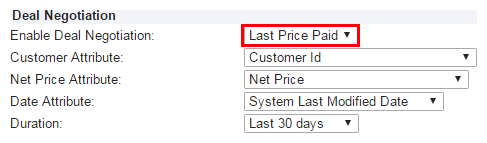
Last Price Paid Attribute
The Deal Comparison Analytic is a graph that displays data points as a comparison set in a scatterplot chart. In 2017 R1, CPQ provides a user interface that allows administrators to define analytics by selecting from business-friendly options. Deal Comparison scatterplot analytics can be defined to display the historical relationship between any two numeric Commerce attributes (currency, float, or integer). Once defined, Deal Comparison Analytics can be displayed in Commerce Transaction and Transaction Line UIs by associating the analytic with an HTML Commerce attribute. Deal Comparison Analytics can then be exposed to users by adding this HTML attribute to Desktop and Mobile UIs just like any other commerce attribute.
For Transaction Deal Comparison scatterplots, each historical Transaction is shown as a data point. The following image shows a scatterplot of Total Discount Percentage as a function of Total List Revenue. All Transactions last modified within a specified time range are queried to acquire the historical data points displayed. A commerce Transaction won/lost status is used to determine won and lost deals. A curved blue line represents the best fit historical relationship of the variables shown on the X and Y axis. Hash lines indicate the Total Discount Percentage and Total List Revenue values for the current Transaction.
This example Deal Comparison Scatterplot Analytic depicts a relationship of increasing willingness to buy by the customer when the transaction discount is increased, and shows the exact position of the current deal pricing relative to this historical pattern.
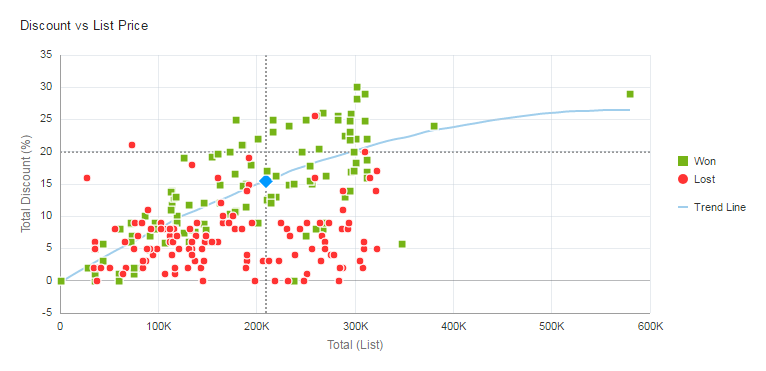
List Price vs Discount Scatterplot
Information for each historical Transaction is provided when the customer hovers over a scatterplot data point. The blue data point represents the average historical value for Total Discount Percentage for Transactions with the same Total List Revenue value as the current Transaction.
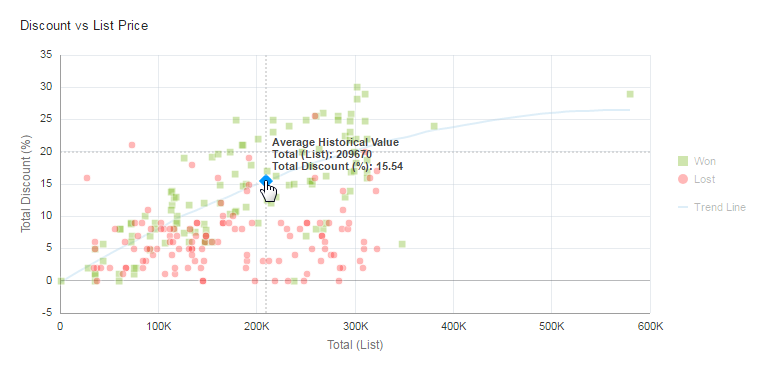
Historical Average Hover
In the following image, Total List Price and Total Discount Percentage are shown for a "Won" data point. List Price and Discount information will also be displayed when hovering over a "Lost" data point.
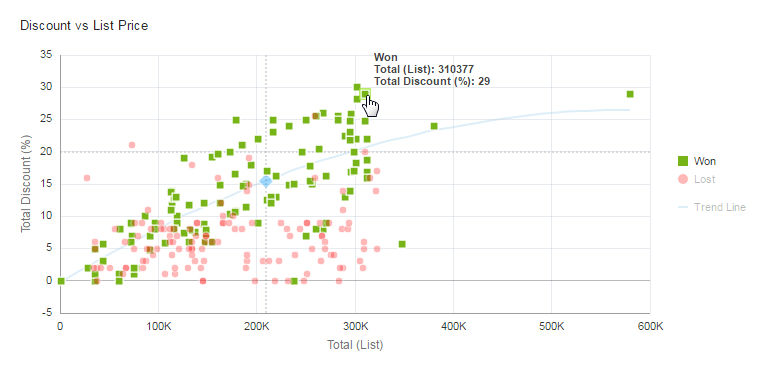
Won Deal Hover
Administrators navigate to a Commerce Process and select Analytics Manager to define analytic graphs. From this page, administrators can define the following parameters:
- Properties: This section is used to set Name, Variable Name, Description, and Document. The "Document" identifies the level, e.g. Transaction or Transaction Line.
- Chart Settings: This section is used to set properties for the chart: Title, X-Axis, Y-Axis, Group By, and Curve Fit Group Value.
- Filters: The following items are used to limit the records queried and displayed in the analytic: Date Filter, Duration, Advanced Filters, and Maximum Number of Records.
- Advanced Filters allow administrators to limit the results to be displayed in the scatterplot based upon the current transaction value of one or more attributes specified as a 'Source & Target Attribute'. For example, a line level scatterplot will display data points for only the current part if the 'Part Number' attribute is selected.
- The default value for Maximum Number of Records is "200", if a value is not specified a maximum of "1200" records will be used.
The following image displays the Analytics Definition Editor for a Transaction scatterplot.
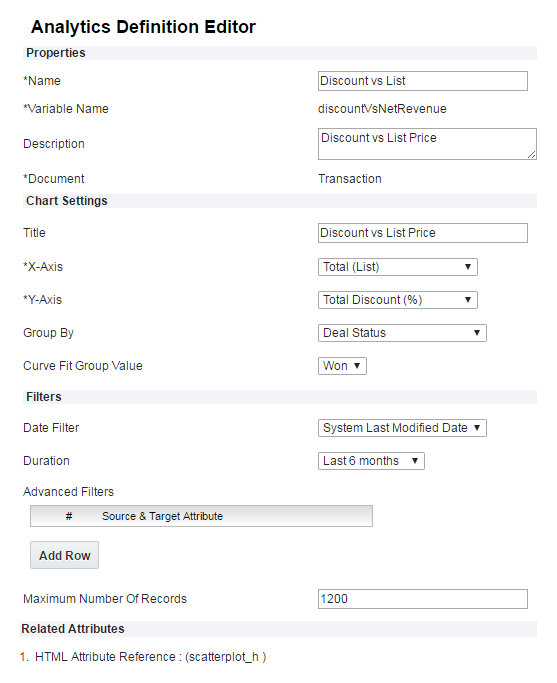
Analytics Definition Editor
Deal Comparison Scatterplots can also be defined for Commerce Transaction Lines in order to display the relationships between any numeric line attributes, including those for prices, discounts, and quantities. These scatterplots filter data based upon the line's part number, to compare the current transaction line's pricing to that of other won and lost sales for the same part.
Steps to Enable
For instructions on how to implement 2017 R1 Deal Negotiation, refer to the CPQ Cloud Administration Online Help.
Key Resources
Refer to the CPQ Cloud Administration Online Help for additional information.
Upgrade the functionality of CPQ Cloud's open and flexible platform to create value and drive results using the following CPQ Cloud 2017 R1 features.
- BOM Mapping Enhancements
- Package Lifecycle Management
- Migration Center Enhancements
- Performance Management
- DataCube Enhancements
- Data Column Enhancements
BOM Mapping Rules provide the ability to map multi-level Bills of Material to CPQ Cloud configuration variables and values and send a complex BOM from CPQ Cloud configuration to Commerce and downstream Enterprise Resource Planning (ERP) systems. As part of continuous improvements to BOM Mapping, CPQ Cloud 2017 R1 allows customers to bundle configurations across product families, product lines, and models.
The following enhancements are available in CPQ Cloud 2017 R1:
- Display BOM Mapping Rule items in configuration
- Define any child item in the BOM hierarchy as a model
- Configure a BOM with models as children of other models
- Validate models in the BOM item definition
Display BOM Mapping Rule Items in Configuration
CPQ Cloud 2016 R1 provided administrators with the ability to view BOM Mapping Rule items in Commerce line items. In CPQ Cloud 2017 R1, administrators can also view BOM Mapping Rule items, including child sales items, in configuration. This enhancement allows administrators to view the items that will be included in a Transaction. The list of BOM Mapping Rule items that display in configuration corresponds to the line items created in a Transaction using BOM Mapping Rules.
When users save configuration updates, they invoke BOM Mapping Rules. In CPQ Cloud 2017 R1, a Disable BOM-Mapping Rules During Updates setting is available on the Configuration Settings page.

Disable BOM-Mapping Rules During Updates Setting
- When administrators select the Yes option, BOM Mapping Rule items do not display in configuration. The functionality remains the same as in prior releases. When users save a BOM Mapping Rule to a Transaction, they can view the BOM Mapping Rule items in Commerce line items.
- When administrators select the No option, BOM Mapping Rule items and the associated part information will display in a Bill of Materials panel in configuration.
Understanding the Bill of Materials Panel
When users save a BOM Mapping Rule to a Transaction, they can view the associated BOM Mapping Rule items in a Bill of Materials tab in configuration. For a better understanding of the Bill of Materials panel, consider the following:
- All BOM items display as Mandatory items.
- The Bill of Materials panel displays all of the columns from the Templates for the Recommended Items page (Admin > Style and Templates > Page Templates). Administrators can hide unwanted fields from this page; however, the changes will also affect the Recommended Parts panel and the Mandatory Parts panel.
- The Bill of Materials panel displays the unit price and assumes a root quantity of 1. Administrators can set up a Quantity Mapping Rule or a default quantity that is not 1. An exploded quantity and price still displays, assuming the root model’s quantity is 1.
- A model’s description populates both the Comment and Description columns in the Bill of Materials panel.
- When administrators add a model to a BOM, the model’s label displays in the Bill of Materials panel. For non-base language users, the translations defined for the model display to the user.
- When administrators add a child model to a BOM, its rules do not run. Only the rules present on the model being configured run.
- A model’s price is calculated by its base price. While Price Books do not affect a model’s price, the price of a BOM part uses the Price Books’ price.
NOTE: CPQ Cloud 2017 R1 supports the display of BOM Mapping Rule items in configuration for both the desktop and mobile layouts.
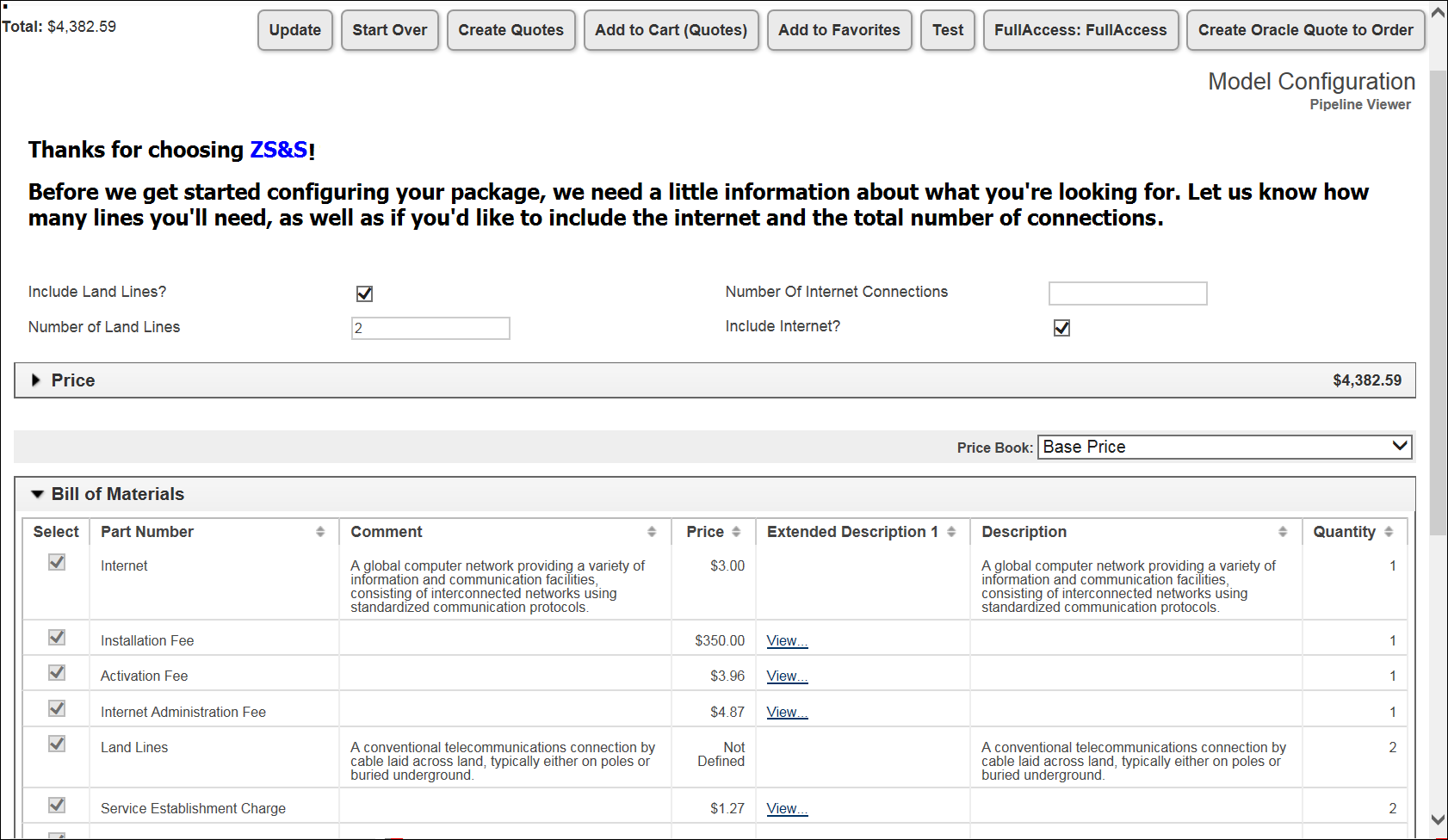
BOM Mapping Rule Items in Bill of Materials Panel – Desktop Layout
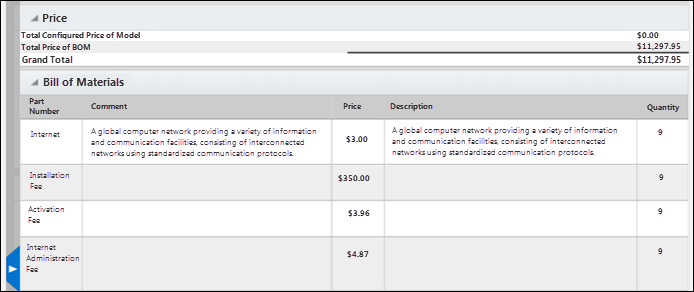
BOM Mapping Rule Items in Bill of Materials Panel – Mobile Layout
Define Any Child Item in the BOM Hierarchy as a Model
CPQ Cloud 2016 R1 introduced the ability to add any CPQ Cloud part as a child item in the BOM hierarchy. CPQ Cloud 2017 R1 extends this capability by supporting models as child items in the BOM hierarchy. Administrators can accomplish this using either the BOM Item Definition table or the “savebom” BML function.
NOTE: To add a child model to a BOM using a BOM Mapping Rule, administrators must add the child model to the BOM Item Mapping table. If adding a child model to a BOM using the “savebom” BML function, this step is not necessary.
In CPQ Cloud 2017 R1, the PartNumber column in the BOM Item Definition table can contain either the part number of a BOM item or the path to a model in the BOM hierarchy. As shown in the following figure, the format for defining the path to a model is as follows:
productFamilyVariableName:productLineVariableName:modelVariableName..
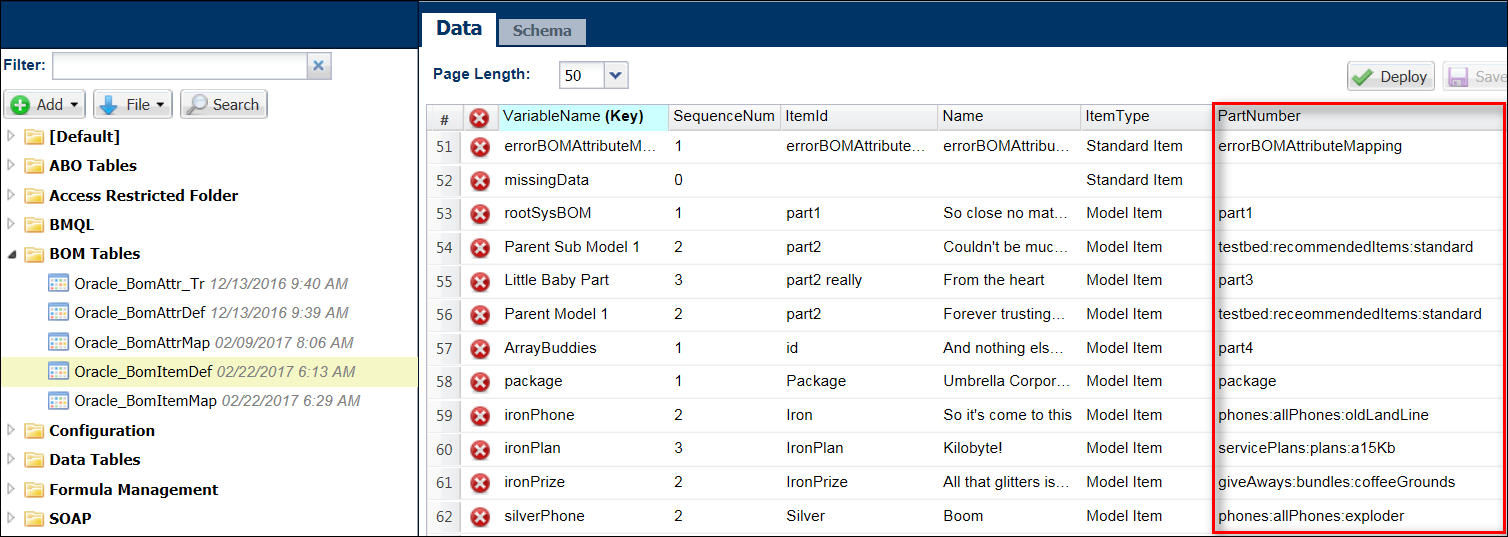
PartNumber Column Showing Part Numbers of BOM Items and Paths to Models in the BOM Hierarchy
- Entries in the PartNumber column that contain colons (:) represent a path to a model.
- For additional information about the BOM Item Definition table, the BOM Item Mapping table, or the Save BOM BML function, refer to the CPQ Cloud BOM Mapping Implementation Guide.
Configure a BOM with Models as Children of Other Models
In CPQ Cloud 2017 R1, a BOM can have models as children of other models. Companies can use this enhancement to offer packaged bundles containing models from separate product families. As in prior releases, the BOM Item Tree Administration page displays the expanded hierarchy and BOM definition information for a root BOM item, child items, and grandchild items. In CPQ Cloud 2017 R1, the BOM Item Tree Administration page also displays root models and other models as child items. Each model can have its own individual parts and models.
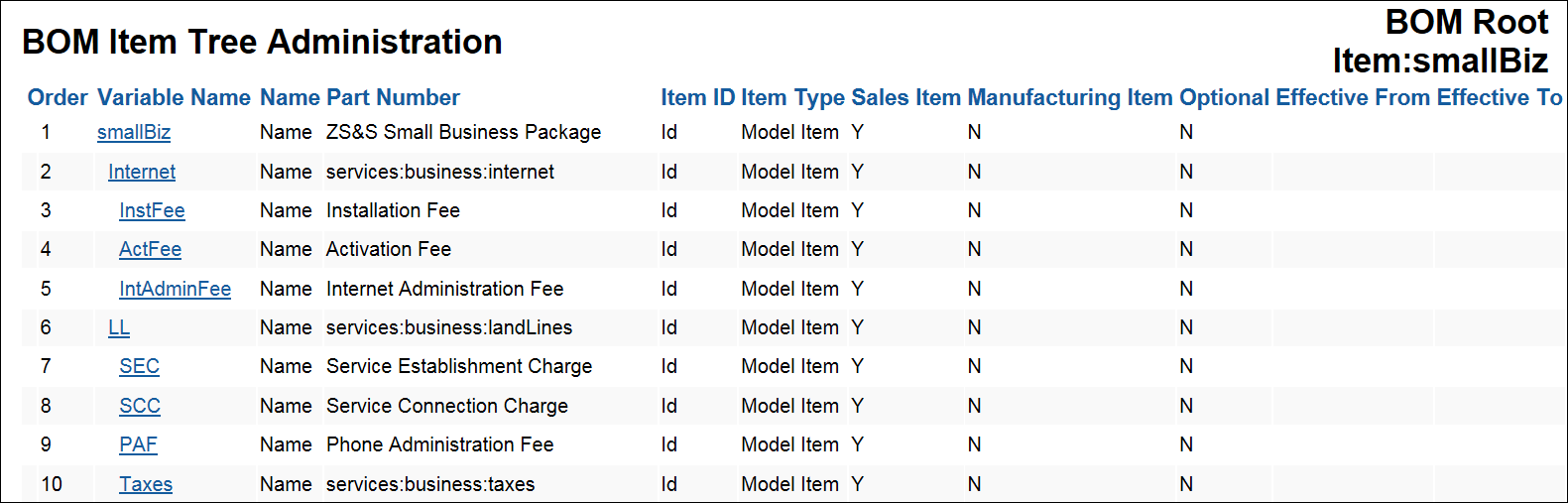
BOM Item Tree Administration Page Showing Models as Children of Other Models
NOTE: Child models are not reconfigurable. They behave as mandatory models added by Recommended Item Rules.
VALIDATE MODELS IN THE BOM ITEM DEFINITION
When administrators define child items in the BOM hierarchy as models, CPQ Cloud validates the models in the BOM item definition. When validation errors occur, CPQ Cloud handles the errors in the same way as other BOM errors. The BOM Item Tree Administration page displays an error message at the top of the page. The items with an error are proceeded by the following error indicator:  .
.
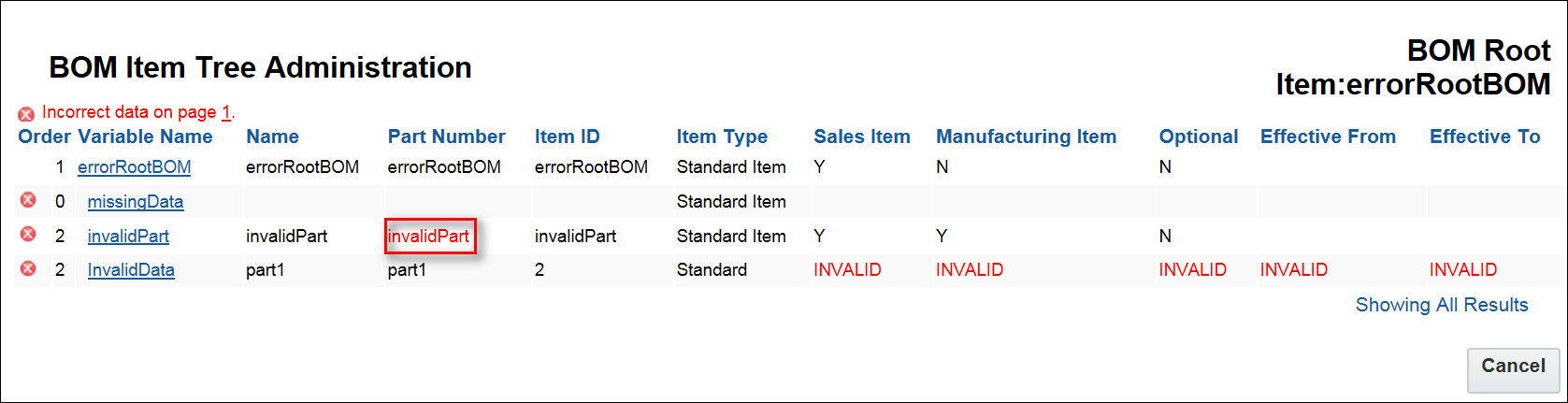
BOM Item Tree Administration
When administrators click the Variable Name associated with the error, the BOM Item Administration page opens. As shown in the following figure, an error message displays when the part number associated with a BOM item or the path to a model in the BOM hierarchy does not exist in CPQ Cloud.
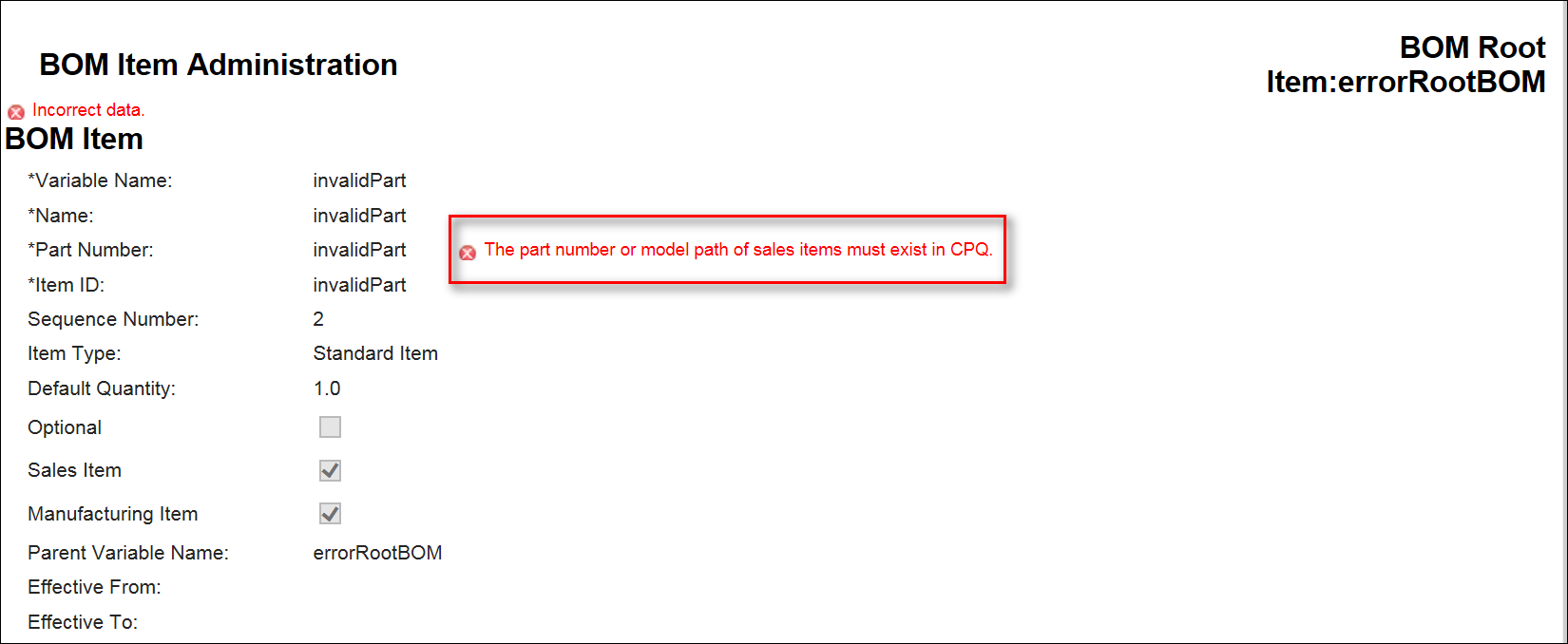
NOTE: If the BOM Item Administration page shows that parts or models do not exist when an administrator has created them, deploy the BOM Item Definition table.
Steps to Enable
The BOM Mapping enhancements are automatically available on 2017 R1 sites.
Tips and Considerations
Consider the following tips when using the 2017 R1 BOM Mapping enhancements:
- If the Bill of Materials panel does not appear, do the following:
- Check the Pipeline Viewer. If the BOM Instance tab is not present, this indicates your BOM Mapping Rule is not running.
- Check the Configuration Settings page. If Disable BOM-Mapping Rules During Updates is set to Yes, BOM Mapping Rule items will not appear in configuration.
- BOM Mapping Rule items are treated like mandatory parts and models. They always appear at the end of multi-node configuration flows.
Key Resources
For additional information, refer to the following resources:
- CPQ Cloud Administration Online Help
- CPQ Cloud BOM Mapping Implementation Guide
Administrators continue to have the ability to create packages of functionality to migrate across environments and can manage the lifecycle of these packages by deploying or updating a specific package. CPQ Cloud 2017 R1 further supports Package Lifecycle Management by providing a unique namespace to environments associated with entities, such as implementation partners, who want to create and protect their intellectual property. In addition, the content of packages is encrypted. As a result, users cannot edit the content of a package outside of a CPQ Cloud site and the import of packages across versions is not possible.
The following functionality is also available in CPQ Cloud 2017 R1:
- Apply a namespace to a util library function
- Lock or unlock a util library function
- Create an override function
Apply a Namespace to a Util Library Function
In CPQ Cloud 2017 R1, administrators can open a Service Request (SR) on My Oracle Support to set a site namespace. When this occurs, the namespace displays in the Namespace field on the Util BML Library Function Editor: Properties and Parameters page. The use of a namespace prevents a naming conflict when migrating the util library function from a source to a target site.
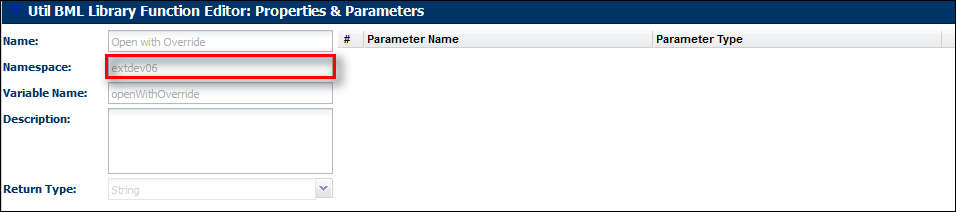
Namespace Field
When migrated, namespaced util library functions appear in folders based on the namespace of the site from which they were migrated.

Example of Namespaced Util Library Functions After Migration
Lock or Unlock a Util Library Function
Administrators can use the Util BML Library Function List page to lock util library functions, which hides the implementation details (e.g. BML) from other administrators. This functionality provides customers with a way to protect their intellectual property when distributing packages to other sites.
To support this enhancement, the Util BML Library Function List page now includes both a Lock and an Unlock button. When a util library function is locked, a “Locked” status displays next to the function on the Util BML Library Function List page.
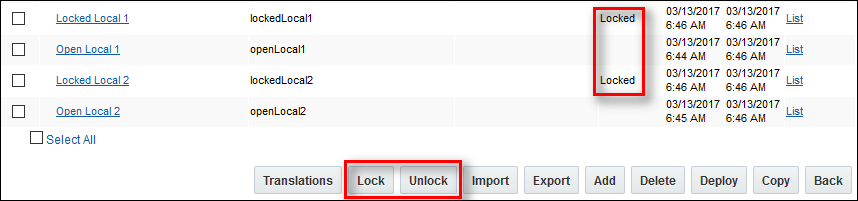
Util BML Library Function List Page with Lock and Unlock Buttons
NOTE: When administrators lock a util library function on their local site, they can continue to view and edit the util library function using the Util BML Library Function Editor: Properties & Parameters page.
An override function is an editable copy of an original, unlocked, and namespaced util library function. Administrators can upload an unlocked and namespaced util library function and view the util library function in the Util BML Library Function Editor: Properties and Parameters page. While administrators can view the properties, parameters, and BML code, they cannot change an unlocked util library function without creating an override function.
NOTE: Administrators can migrate override functions along with their original namespaced util library functions. The migration flow maintains customizations made to the original namespaced util library functions.
For example: Assume a customer uploads a package to their test site and overrides a util library function from that package. If the customer then migrates the util library function to the production site, the overridden function is also migrated.
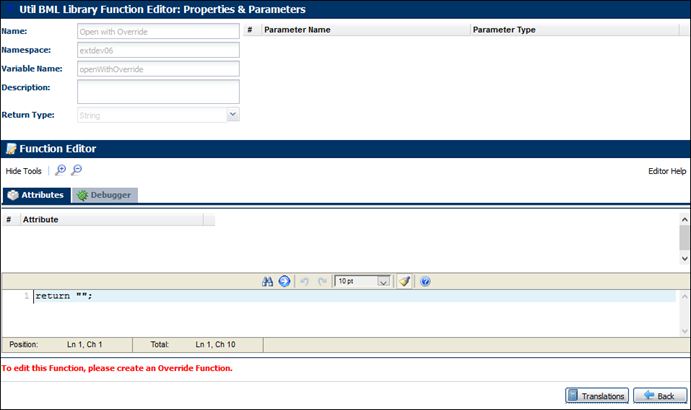
Unlocked and Namedspaced Util Library Function
To create an override function, navigate to the Util BML Library Functions List page and select the Create link next to a specific util library function.
NOTE: The Create link only displays when an administrator has not yet created an override function.

Util BML Library Functions List Showing Create Link
The util library function then opens in the Util BML Library Function Editor: Properties & Parameters page. Administrators can use this page to create an override function by editing the original function.
NOTE: Administrators cannot import new attributes or library functions into an override function. They can, however, use the Function Wizard or test the BML in the Debugger. For example: Administrators can enter Context Parameters in the Debugger and view the returned text.
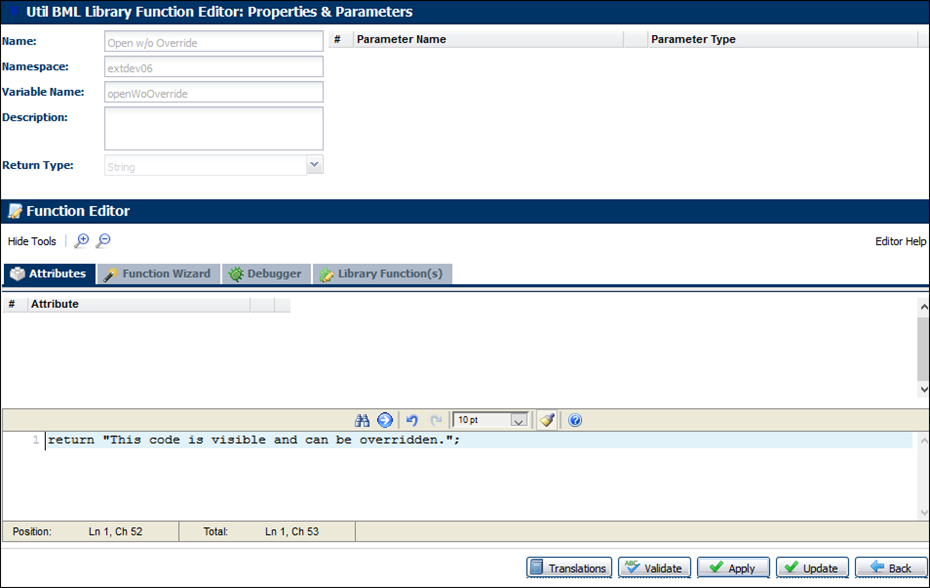
Override Function
When the Edit and Remove links display on the Util BML Library Functions List page, this indicates an override function already exists. Administrators can return to the override function to make additional updates by selecting the Edit link or remove an override function by selecting the Remove link.

Util BML Library Function List with Link to Edit/Remove the Override Function
NOTE: To view the original function associated with an override function, select the link under the Script Name heading.
Steps to Enable
To enable the Package Lifecycle Management feature, open a Service Request (SR) on My Oracle Support.
- Oracle highly recommends that customers only enable the 2017 R1 Package Lifecycle Management functionality in a complex deployment structure or when developing content specifically for other environments. If customers only have a Test and Production site, Oracle does not recommend enabling the functionality.
- Partners who change an environment’s namespace are responsible for managing all of their different namespaced util library functions. Migration treats each different namespaced util library function as a different util library function.
Tips and Considerations
Consider the following tips when using Package Lifecycle Management:
- Administrators can lock util library functions but not Commerce library functions.
- Administrators can only create an override function when the original util library function is both namespaced and unlocked.
- Migrating a locked util library function to a target site with an associated override function deletes the override function from the target site.
- Bulk downloads do not download namespaced util library functions.
- Attempts to bulk upload override functions associated with namespaced util library functions will fail.
- Bulk uploading functions that import namespaced util library functions will fail.
Key Resources
Refer to the CPQ Cloud Administration Online Help for additional information.
CPQ Cloud 2017 R1 introduces the use of natural keys in the Migration Center for Configuration, Commerce, Library Functions, and Document Engine. In 2017 R1, CPQ Cloud also delivers Cross Process Migration, which allows administrators to create a Migration Package on a source site and then migrate the package to a target site that contains a different Commerce process.
MIGRATION ICONS
The following icons indicate the status of migration objects.
|
|
Cross Process Migration |
|
|
Differences exist between the target and source sites |
|
|
Item to be added to the target site from the source site |
|
|
Item exists on the target site, but does not exist on the source site |
|
|
The item on the target and source sites is the same |
|
|
The item is not supported for Cross Process Migration |


CPQ Cloud administrators have the ability to create packages of functionality to migrate across environments and can manage the full lifecycle of these packages by deploying or upgrading individual packages. In CPQ Cloud 2017 R1, the use of natural keys in Configuration, Commerce, Library Functions, and Document Engine supports this functionality.
Natural Keys match a migration object using the variable name instead of the hidden value. With natural keys, the Migration Center recognizes when the same attribute exists on the source and target sites. For example: Assume a customer creates an attribute in the production environment to resolve a "hotfix", creates the attribute in their Dev instance, and migrates the attribute. Natural keys recognize that these attributes are the same and updates the production attribute.
The Globally Unique Identifiers (GUIDs) for the high-level objects (i.e. data tables, catalog definitions, product definitions, etc.) in the Migration Center were replaced with a natural key that is the same on all CPQ Cloud sites. These natural keys are now used in the Migration Center to support the migration of packages between sites, the migration of logical objects between sites, and the migration of changes between CPQ Cloud environments.
NOTE: While the GUIDs for the high-level objects in the Migration Center were replaced with natural keys, most of the underlying objects still use GUIDs.
MIGRATE LOGICAL OBJECTS BETWEEN SITES
When an arrow, a plus sign, or a minus sign displays in the Migration Center, this indicates that a difference exists between the logical objects on the source and target sites.
For example: The Util Functions shown in the following image are logical objects that exist on both the source and target sites. Since the natural keys for these functions are the same on both sites, the arrows indicate that the functions on the target site do not match the functions on the source site to which the administrator is connected. A modification was therefore made to the functions on the source or target site.
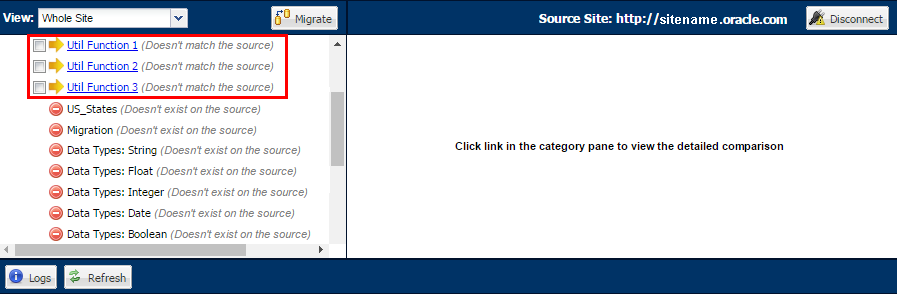
Migration Center Showing a Difference between Objects on Source and Target Sites
When an administrator clicks Migrate and successfully migrates the Util Functions from the source site to the target site, a green check box displays next to the migrated objects. The green check box indicates that the Util Functions are the same on both the source and target sites.

Migration Center Showing No Differences between Objects on Source and Target Sites
NOTE: Migrating packages between sites and migrating changes between CPQ Cloud environments are two additional scenarios supported by natural keys. While these scenarios work the same as in prior releases, the differences between objects on the source and target sites are reflected in the Migration Center in the same manner as the above migration scenario.
Cross Process Migration removes the restriction of only importing data into a common process. This feature allows an administrator to perform a granular migration of data from a package into another process on the target site. The administrator importing the package on the target site identifies the target process for the migration.
The following Commerce elements can be migrated using a Cross Process Migration:
- Granular elements of a Commerce process
- Email Designer Templates
- Document Designer Templates
- Util Libraries, Product Definition, Catalog, Configuration, Data Tables, and File Manager are also permitted, as they are not part of a Commerce process.
This feature does NOT support the following functions:
- Cross Process Migration of Document Engine Documents
- Migration to a different Commerce process using "Import from Source" or "Connect to Destination" migration modes
- Simultaneous Cross Process Migration to multiple Commerce processes
- Complete replacement of an existing target Commerce process using Cross Process Migration
- Migration across Commerce processes where either the source or the target site contain more than one main document and one sub document
- Migration of non-granular Commerce objects across processes,
For example: layouts and complex conditionals - Granular objects from multiple Commerce processes combined into one Cross Process Migration package, this includes Document Designer documents from multiple processes.
- Creation of a new target site Commerce process during Cross Process Migration
NOTE: Packages can be migrated to multiple processes if installed one at a time.
NOTE: Granular data elements from a Commerce process must be selected and migrated.
NOTE: Migration of granular data into a pre-existing Commerce process on the target site is allowed.
An administrator performs the following steps to complete a Cross Process Migration:
- Upload a migration package to the target site
- Select a target Commerce process
- Select the source process to view granular differences
- Select applicable elements
- Initiate the migration
Cross Process Migration Option
If the migration package contains eligible Cross Process Migration elements, the administrator will be presented with an option to select a target Commerce process upon import. The following image shows the eligible target Commerce processes for the uploaded package.

Cross Process Migration Target Process Selection
When a target Commerce process is selected during Cross Process Migration:
- The selected granular elements are migrated to the chosen target process.
- A complete process migration cannot be performed because some elements are not eligible for Cross Process Migration.
- When "Default Migration" is selected, a standard package migration is performed.
- The standard migration interface appears when the migration package does NOT contain any Cross Process Migration elements.
- Target Commerce processes are NOT listed for processes with multiple main sub documents or new Commerce processes on the target site.
Non-Commerce process entities can also be migrated during Cross Process Migration. For example: Util Libraries, Product Definition, Catalog, Configuration, Data Tables, and File Manager elements.
High Level and Low Level Differences
After selecting the target process, the Cross Process Migration will identify and display differences between the source and target processes. As shown in the following image:
- The Target Process is listed in the left View frame. The preceding icon and comment indicate a Cross Process Migration.
- The Source package is noted at the top right side of the Migration Preview frame.
- Granular Differences are listed in Migration Preview frame. For Example: The following image displays the new attribute for migration.
- When a Cross Process Migration is performed, checkboxes are displayed for available elements contained within the package. Migration actions are listed next to the migration elements.
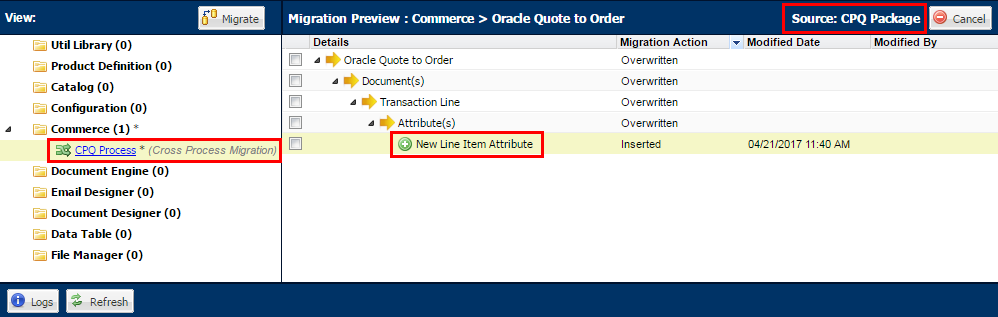
Cross Process Migration – Before Migration
- Elements that cannot be migrated across processes are not shown.
- Document Designer and Email Designer templates can be migrated even when there are not any matching templates in the target Commerce process.
NOTE: Cross Process Migration may overwrite target Commerce process templates.
When a Cross Process Migration is performed:
- If a low-level granular view is not opened, all high and low level objects are migrated for the selected high-level objects.
- When a low-level granular view is opened and individual items are selected, only the selected granular objects are migrated along with any other selected high-level objects.
- A low-level granular view can be opened for non-Commerce process objects, but only high-level objects can be selected.
Steps to Enable
The Migration Center enhancements are automatically available on 2017 R1 sites.
Tips and Considerations
Consider the following tips when using the 2017 R1 Migration Center enhancements:
- The replacement of GUIDs with natural keys is a 2017 R1 database change. The natural keys are not visible from the Migration Center.
- When the same object is copied multiple times on the same site, new GUIDs are generated for the duplicated objects. i.e. If a migration package is migrated into a Commerce process on the same site, or the package is installed multiple times on any single site.
- Objects with natural keys will not cause the same issue since keyed objects will always be unique to their process.
Key Resources
Refer to the CPQ Cloud Administration Online Help for additional package migration information.
Performance Management Enhancements
CPQ Cloud 2017 R1 provides a collection of new enhancements to increase CPQ Cloud site stability and performance. To keep environments running during extremely high loads, CPQ Cloud may temporarily restrict new user sessions
The following enhancements are also available in CPQ Cloud 2017 R1:
- Prevent need for environment restart under extreme load
- View new events in the event log
- Set a timeout period for an integration XSL or a middleware integration
- Execute an action when an integration XSL or middleware integration times out
- Use an optional timeout parameter for BML URL Access functions
- Prevent unnecessary line item looping
- Use INI property to override “Run Scripts Once for All Line Items”
Prevent Need for Environment Restart Under Extreme Load
To keep environments running during extremely high loads, the CPQ Cloud site temporarily prevents users, integrations, and BML URL access functions from creating new sessions. During this restriction period, the timeout of idle sessions is reduced to ensure active users can complete their Transactions.
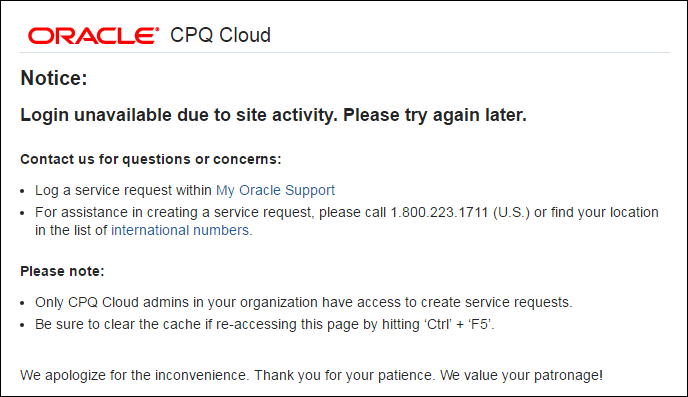
Displays When CPQ Cloud Temporarily Restricts New User Sessions
NOTE: When a site reaches its threshold, both service users and users already logged in can still access the site.
View New Events in the Event Log
In addition to the events logged in the event log in prior releases, CPQ Cloud 2017 R1 also logs an event when a site is low on resources and enters or exits “Overcrowded Mode”.

Performance Logs
Set a Timeout Period for an Integration XSL or a Middleware Integration
Administrators can set a timeout period that defines how long an integration XSL (e.g. Integration Cloud Service, Oracle Sales Cloud, Salesforce, Oracle On Demand), or a middleware integration runs before timing out. By default, Oracle provides a timeout of 5 seconds for all integration calls.
Complete the following steps:
- Click Admin to go to the Admin Home page.
- Click Process Definition in the Commerce and Documents section.
The Processes page opens. - Identify the name of the Commerce process associated with the integration XSL or middleware integration for which you are setting a timeout period.
- From the Navigation menu next to this Commerce process, select Integrations.
- Click List.
The Integrations page opens. - Select the name of the integration for which you are setting the timeout period.
The Edit Integration page opens. - In the Timeout field, enter a timeout for the integration. The timeout is defined in milliseconds.
- Click Apply.
When the integration XSL or middleware integration reaches the timeout period, the integration times out on the site and fails. Administrators can choose whether actions continue when the timeout occurs.

Processes Page with Integrations Selected from Navigation Menu

Edit Integration Page with Timeout Field
Execute an Action When an Integration XSL or Middleware Integration Times Out
Administrators have the option of allowing an action to execute when an integration XSL or a middleware integration times out. When administrators select the Execute Action If Associated Integrations Timeout checkbox, the action continues regardless of any associated integration timeout. A warning message displays to the end user, and CPQ Cloud logs information about the integration that timed out.
NOTE: By default, the Execute Action If Associated Integrations Timeout checkbox is unselected. The action works as in prior releases and results in an integration failure. Use this setting if the integration is crucial to the action’s success.
Complete the following steps:
- Click Admin to go to the Admin Home page.
- Click Process Definition in the Commerce and Documents section.
The Processes page opens. - From the Navigation drop-down menu next to the Commerce process associated with the integration XSL or middleware integration, select Documents.
- Click List.
The Document List page opens. - From the Navigation drop-down menu next to a main document, select Actions.
- Click List.
The Action List page opens. - Select the link associated with the Action Name to execute when the integration XSL or middleware integration times out.
The Admin Action page opens. - Select the Execute Action If Associated Integrations Timeout checkbox.
- Select the Integration tab.
- Select the integration to associate with the action.
- Click Apply.
When the integration XSL or middleware integration times out, the Modify actions will execute.
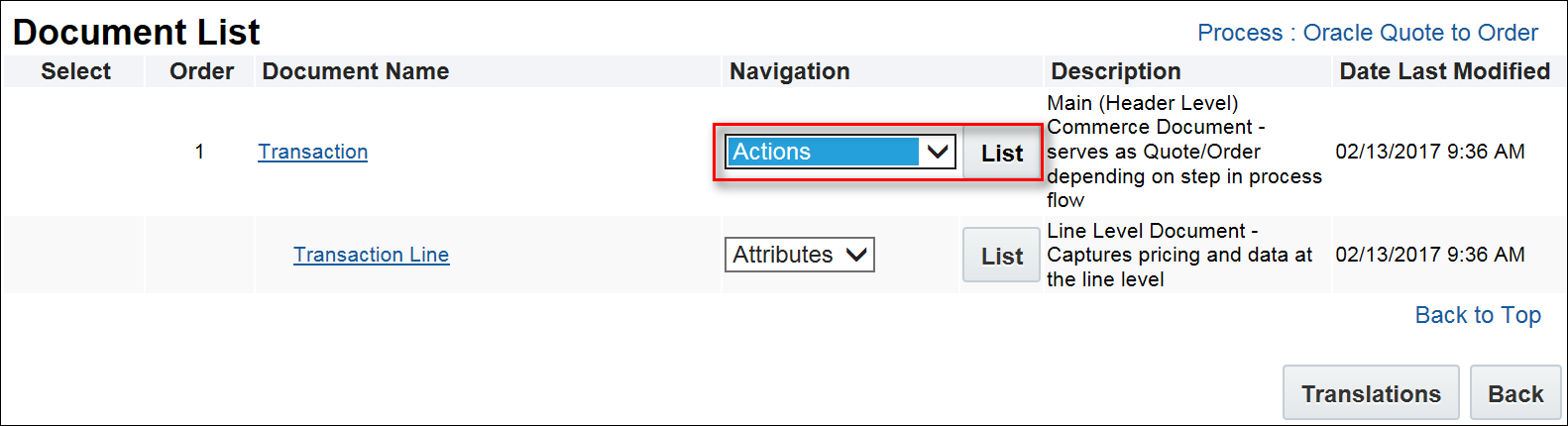
Select Actions from the Navigation Drop-Down Menu
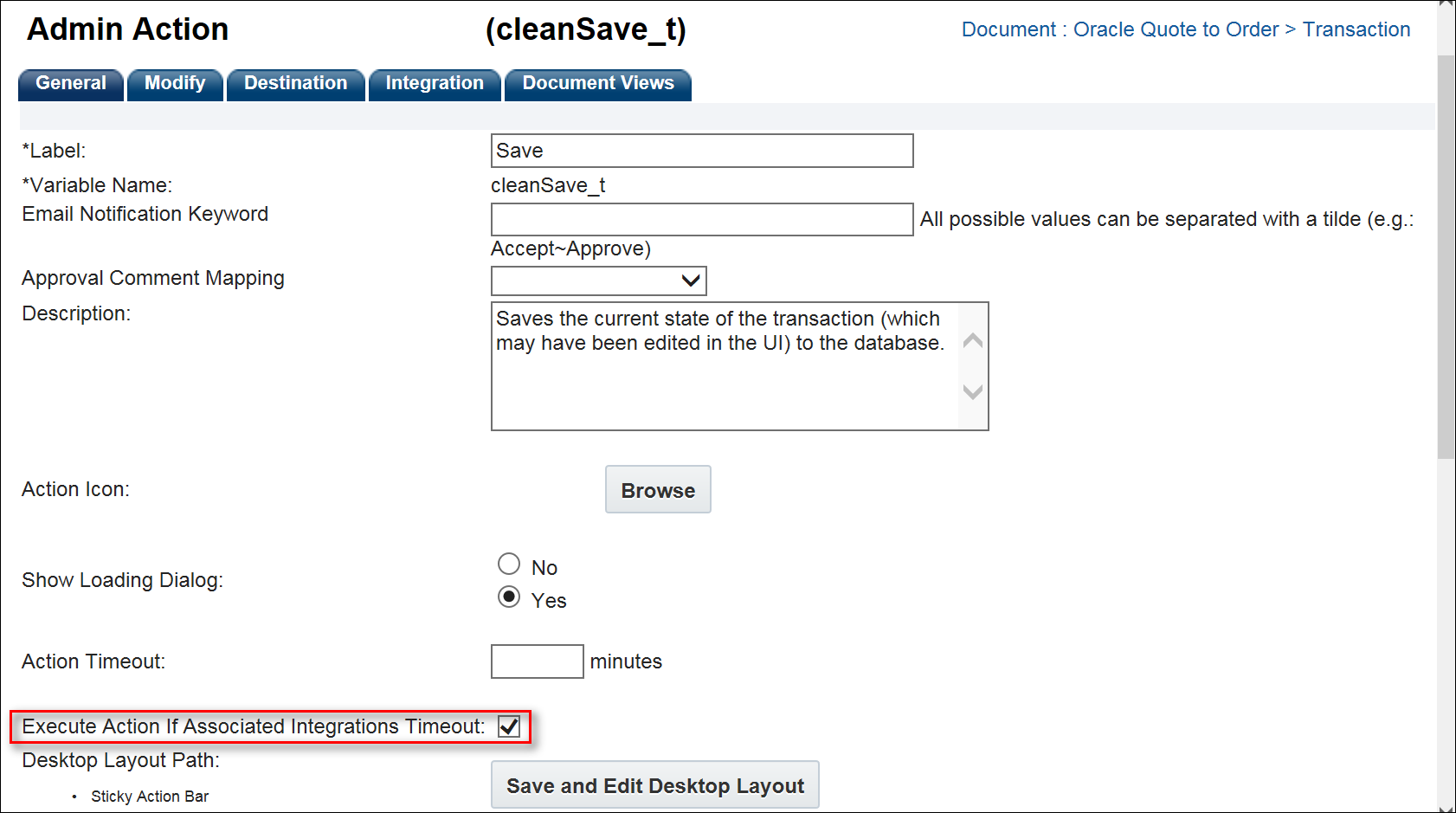
Admin Action Page with Execute Action If Associated Integrations Timeout Checkbox
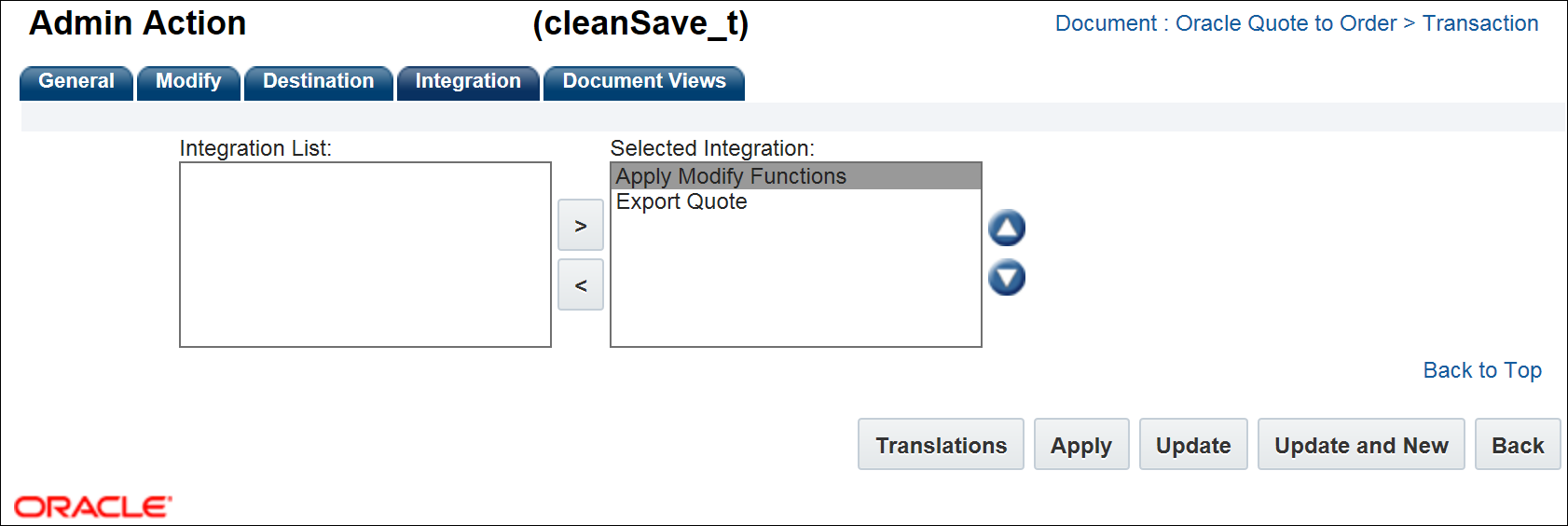
Select the Integration to Associate with the Action
Use an Optional Timeout Parameter for BML URL Access Functions
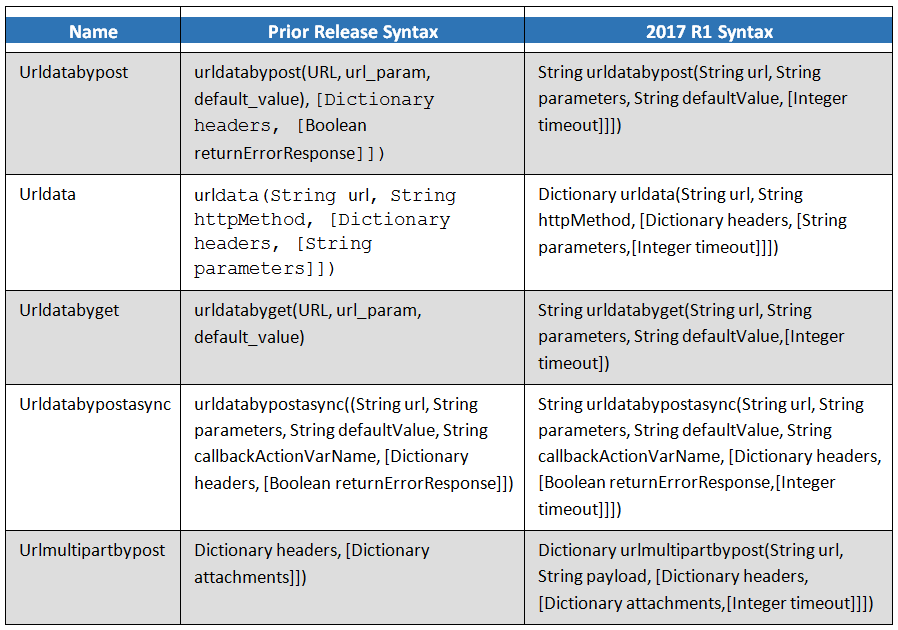
In CPQ Cloud 2017 R1, the following URL Access functions contain a single, optional, timeout parameter defined in milliseconds.
- urldata
- urldatabyget
- urldatabypost
- urldatabypostasync
- urlmultipartbypost
NOTE: If the time-period specified in the parameter elapses without receiving a response from the queried server, there will be a timeout error in the BML. The BML returns data that allows the administrator to perform error handling in the event of a timeout.
BML URL Access Function Timeout
In CPQ Cloud 2017 R1, the BML URL Function Timeout is located on the General Site Options page. In prior releases, the BML URL Function Timeout was a BM Context property. Defined in milliseconds, this timeout value serves as the default timeout threshold for any URL Access function making an external call when the timeout parameter is not used.
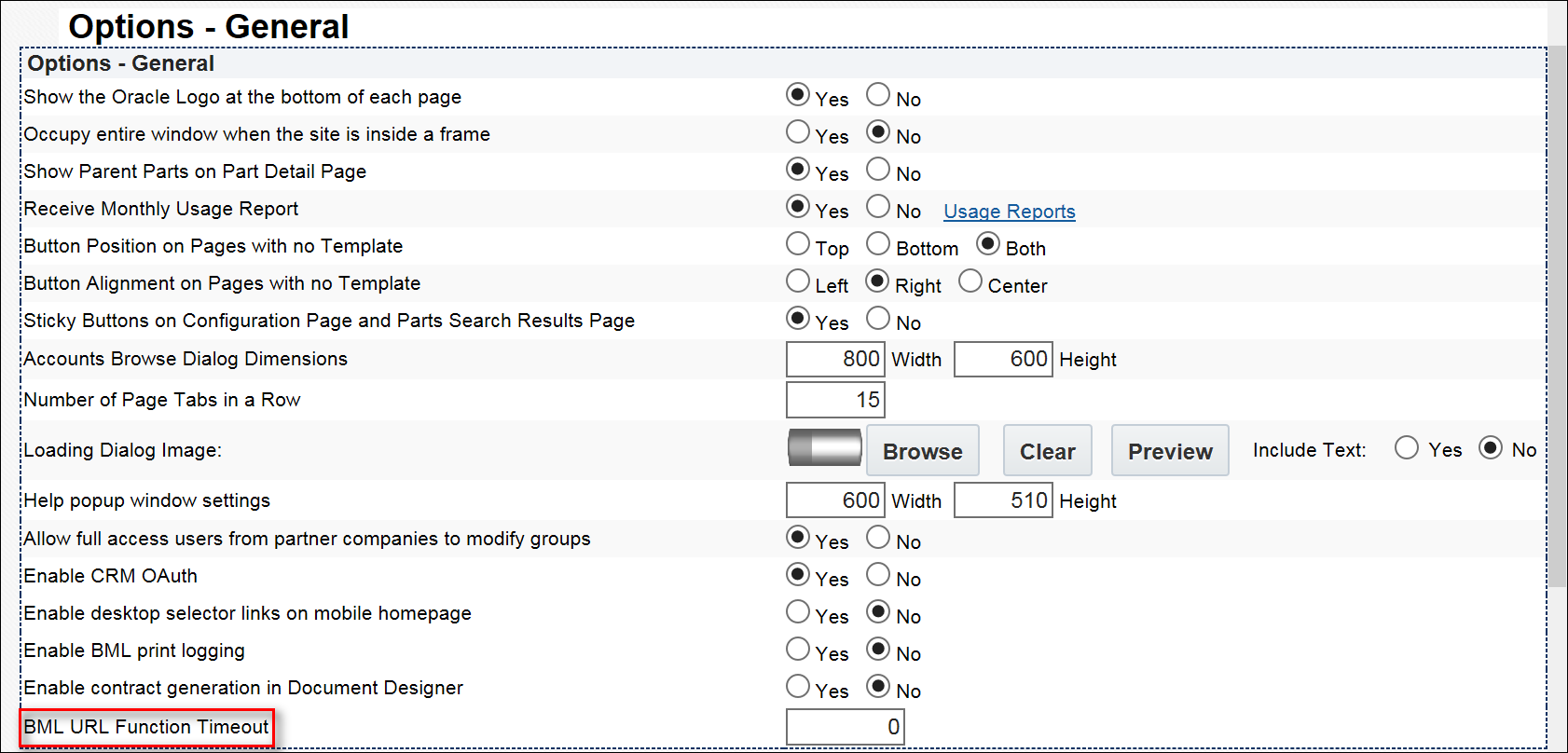
BML URL Function Timeout on General Site Options Page
NOTE: If the timeout parameter for a given call contains an invalid value, the BML URL Function Timeout is used.
BML URL Access Function Changes
The URL Access functions contain an optional timeout parameter in CPQ Cloud 2017 R1. There is no legacy impact to customers currently using these functions. The timeout is in milliseconds and overrides the BML URL Function Timeout. In the event of a timeout, the output of each of the URL Access Functions is as follows:
- Urldatabypost: If the optional “returnErrorResponse” parameter is set to true, an error message is returned.
- Urldata: An error message is returned with a status code.
- Urldatabyget: An error message is returned.
- Urldatabypostasync: If the optional “returnErrorResponse” parameter is set to true, an error message is returned.
- Urlmultipartbypost: An error message is returned.
Prevent UNNECESSARY Line Item Looping
In CPQ Cloud 2017 R1, users cannot loop over line items when they use an Advanced function in new sub document attribute defaults. Previously created default Advanced functions remain unchanged. If administrators uncheck the sub document attributes in the Variable Name for (Line Item) tab, the associated checkboxes are removed on Save.
Similarly, administrators cannot create line item loops in sub document Commerce rules. This enhancement applies to Commerce rules that have Advanced conditions or Advanced actions. Existing Advanced Commerce rule functions will not change. If administrators uncheck the sub document attributes associated with a sub document Commerce rule using the Variable Name for (Line Item) tab, the associated checkboxes are removed on Save.
Use the following steps as a reference for accessing the Variable Name for (Line Item) tab:
- Click Admin to go to the Admin Home page.
- Click Process Definition in the Commerce and Documents section.
The Processes page opens. - In the Navigation drop-down menu, Documents displays by default for all of the processes.
- Click List next to the process for which you are creating a new Advanced function.
The Document List page opens. - In the Navigation drop-down menu, Attributes displays by default for all of the documents.
- Click List next to a sub document.
The Attribute List page opens. - Select an attribute.
The Attribute Editor opens. - Select the Default tab.
- Select the Function option.
- Click Define Function.
The Select Attributes dialog opens and contains a Variable Name for (Line Item) tab.
NOTE: If administrators advance to the BML Editor without unchecking the sub document attributes in the Variable Name for (Line Item) tab, a warning message will display.
USE INI PROPERTY TO OVERRIDE "RUN SCRIPTS ONCE FOR ALL LINE ITEMS”
In CPQ Cloud 2017 R1, a new INI property will override the "Run Scripts Once for all Line Items" setting.
- When the property is set to “true”, the related option is no longer visible on the sub document properties page.
- The property is by default set to “true” for new customers.
- The property is by default set to “true” for existing customers who update to 2017 R1.
NOTE: The INI property resolves performance issues related to unnecessary looping in the “Run Scripts Once for all Line Items” setting.
Steps to Enable
The Performance Management features are automatically available on 2017 R1 sites.
Tips and Considerations
Consider the following tips when using the 2017 R1 Performance Management features:
- During the migration process, target sites cannot connect to source sites that are in “Overcrowded Mode”.
- The General Site Options page (Admin > General > General Site Options) includes a Notification Emails option that allows administrators to specify the email addresses to which notification emails are sent when a site enters or exits “Overcrowded Mode”.
- When the site is in “Overcrowded Mode”, the following occurs:
- Inbound REST and SOAP calls are blocked. The exception is when the call is a SOAP V1 call that is using a session generated prior to the site entering “Overcrowded Mode”.
- Responses from eSignature vendors will fail. The site receives the responses via REST.
- Proxy log in and logout will not work as both of these operations generate sessions.
- Quick registration accounts cannot be created.
Key Resources
Refer to the CPQ Cloud Administration Online Help for additional information.
CPQ Cloud customers using third party reporting or warehousing tools use DataCubes to export data from CPQ Cloud into their reporting or warehousing tools. The following DataCube enhancements are available in CPQ Cloud 2017 R1.
- Extract all content from a Commerce attribute as a CLOB
- Filter the Transactions to include in a DataCube report
- Schedule more than one DataCube report
- Provide more control over the DataCube report output location
Extract All Content From a Commerce Attribute as a CLOB
CPQ Cloud 2017 R1 includes a Maximum Character Large Object (CLOB) .INI property that limits the number of DataCube columns that administrators can enable for a CLOB per Commerce process. In prior releases, DataCube columns were limited to 4,000 characters. CPQ Cloud 2017 R1 extends this capability by allowing DataCube columns to exceed 4,000 characters.
Administrators can use a CLOB attribute in the mapping XML file to enable or disable CLOB on a per column basis. To enable CLOB for a column, set the CLOB attribute to “true”. To disable CLOB for a column, set the attribute to “false”. Administrators can also omit the CLOB XML attribute. In doing so, the column is not made into a CLOB.
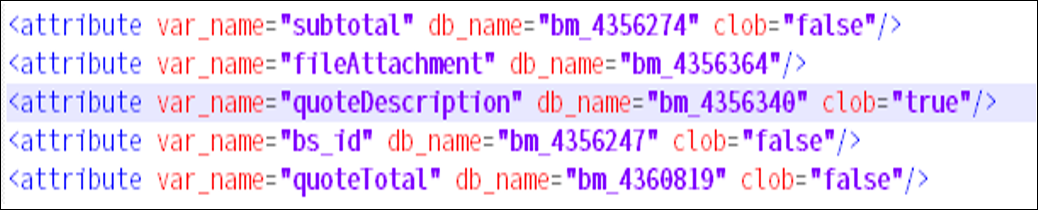
Enable or Disable CLOB Using CLOB Attribute
STORE CLOB DATA IN A DATA FILE
In 2017 R1, CPQ Cloud creates a data file per CLOB column. The data file contains all data entries for a column, delimited by “<ER>”. As shown in the following figure, the data file name follows the following format: <table name>_<attribute name>.dat.
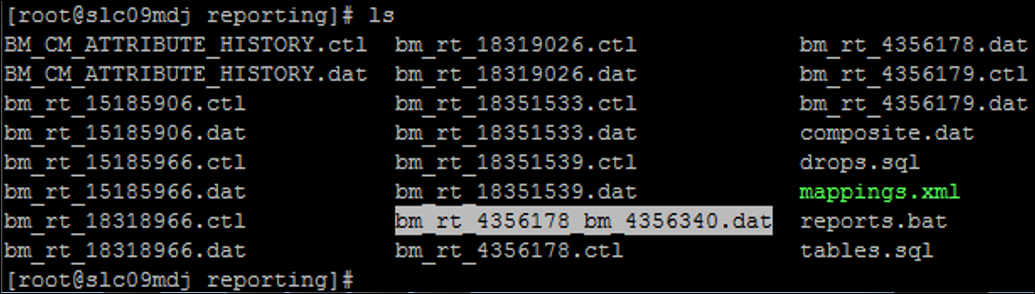
Sample Showing Data File Names for Each CLOB Column
NOTE: The CLOB files can get very large. As a result, compression time, transfer speed, and the amount of file system space needed on the customer SFTP site are all affected.
Filter the Transactions to Include in a DataCube Report
Administrators can place a filter on the mapping XML file for a process data column, which can have no filter, one filter, or multiple filters. Each filter contains the attributes shown in the following table.

An example of a mapping XML file with filter attributes:

Mapping XML File with Filter Attributes
Provide More Control Over the DataCube Report Export Location
The Integration Center contains a DataCube integration type, which allows administrators to control their own SFTP and database credentials instead of opening Service Requests (SRs) on My Oracle Support. DataCube output files are sent to a remote server using the following information entered in the Integration Center when configuring a DataCube integration.
SFTP
- Server: The name of the SSH server to which DataCube reports are sent.
- Username: The login name to use when connecting to the SSH server.
- Password: The login password to use when connecting to the SSH server.
- Remote Directory: The directory under which all DataCube reports are sent. A blank value will default to the user's login directory.
- Port: The port number to use when connecting to the SSH server. A blank value will use the SSH default port 22.
Database
- Server: The database server that the DataCube report's SQL will run on.
- Username: The login name to use in the DataCube report's SQL.
- Password: The login password to use in the DataCube report's SQL.
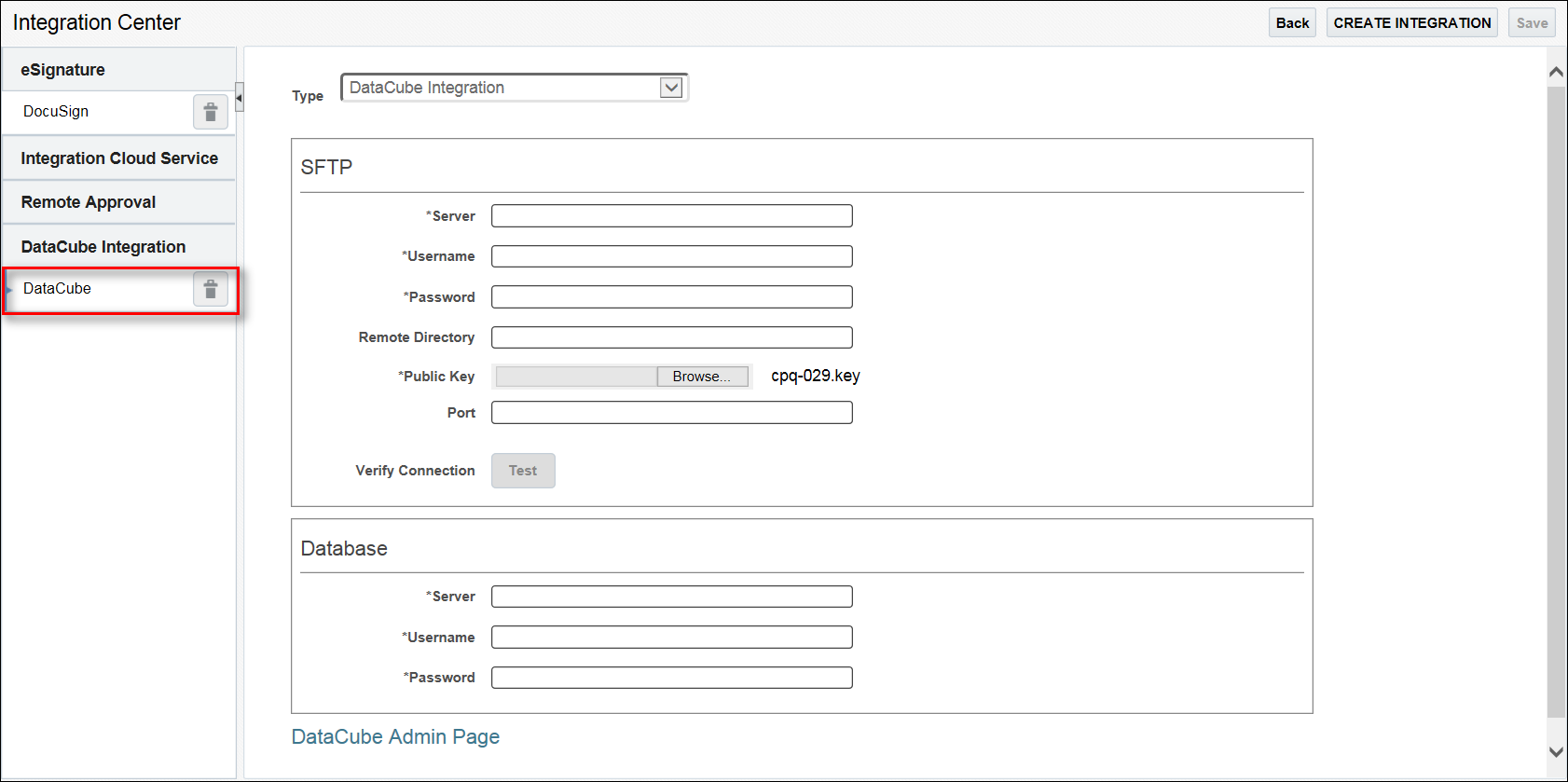
Integration Center Showing DataCube Integration
SEND DATACUBE OUTPUT FILES TO REMOTE SERVER
In CPQ Cloud 2017 R1, the mapping XML file contains a new “export_subpath” attribute under the reporting root directory. This attribute allows administrators to name the folder where DataCube reports are stored. As shown in the below example, the folder is a sub directory of the “reporting_root” folder. The folder also specifies the sub directory that a reporting system sends a report during export.
For example: Assume an administrator creates a DataCube integration in the Integration Center, sets the "Remote Directory" to '/my/reports', and uses the mapping XML file for a particular report to set export_subpath = "NorthAmerica". After generating the report, it is zipped and sent to a remote server in the /my/reports/NorthAmerica/ directory.
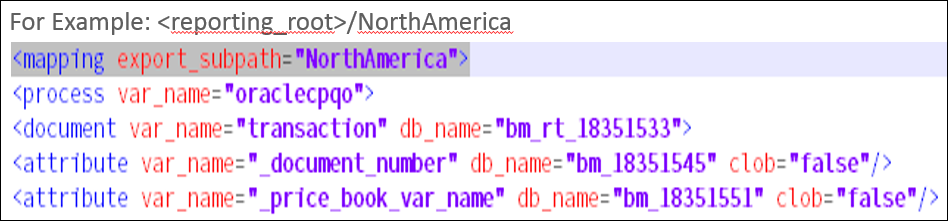
Export Location for DataCube Reports
NOTE: When an administrator specifies an invalid folder name, a warning appears in the error log and DataCube reports are stored in the <reporting_root> folder.
Schedule More Than One DataCube Report
In CPQ Cloud 2017 R1, administrators can schedule multiple DataCube reports. Each report can have its own mapping XML file and its own scheduled time, reporting period, export location, CLOB attributes, and defined filter. Filtering Transaction data from a DataCube allows administrators to schedule multiple DataCube reports with each report containing different data.
Complete the following steps:
- Click Admin to go to the Admin Home page.
- Click Process Definition in the Commerce and Documents section.
The Processes page opens. - Click DataCube Reporting to open the DataCube Reporting Setup page.
In CPQ Cloud 2017 R1, the system time displays in the upper right of the page. The time zone displays in the upper left of the page. A Recurrence Interval field also displays on the DataCube Reporting Setup page. Use this field to specify the number of days between each report generation cycle. - Select the Logs link next to a specific report to open the DataCube Reporting Logs window, which summarizes the generation and export of the report over the past seven days.
- In the Description column, “Commerce Reporting” indicates report generation and “DataCube Export” indicates the export of the report.
- Each log entry contains a Status: Running, Completed, or Failed.
- A short message details the start time, end time, and duration of completed tasks. For failed tasks, the main cause for failure displays. For additional details, administrators can refer to the error logs (bm.log).
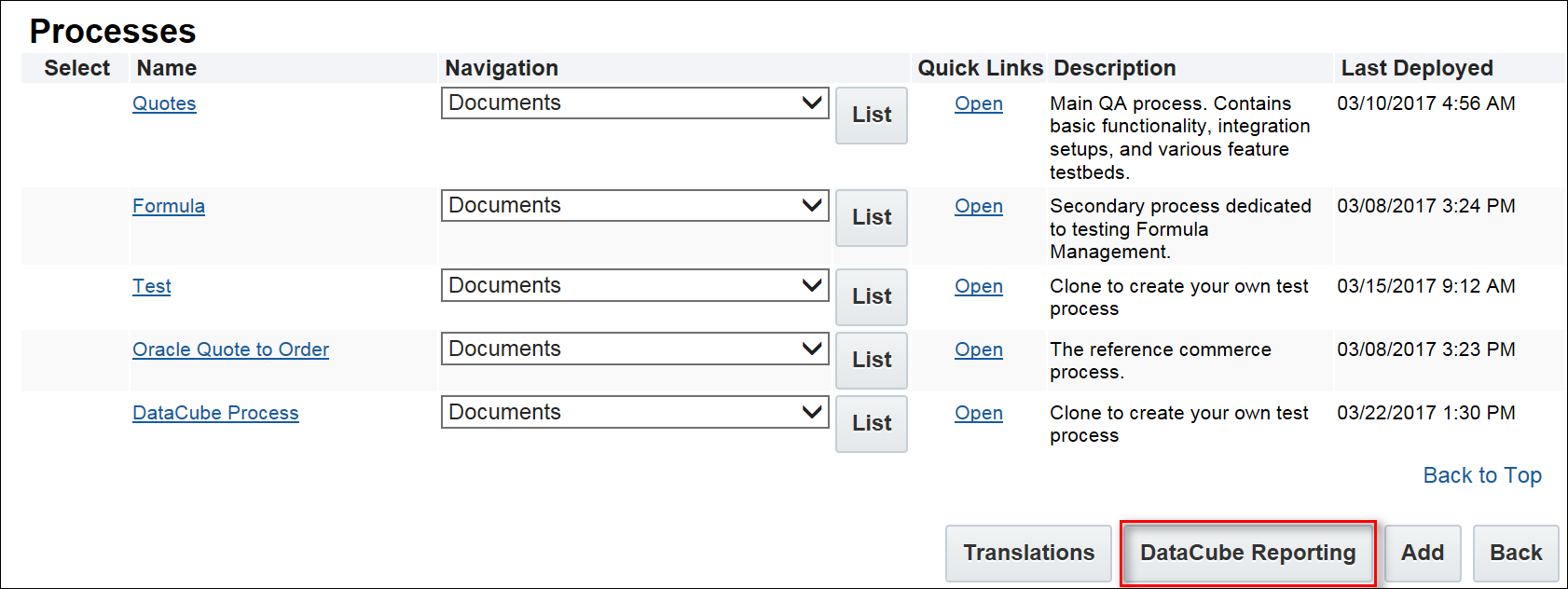
Processes Page with DataCube Reporting Button
NOTE: When administrators enable DataCube export, a DataCube Reporting button displays on the Processes page. In prior releases, the name of this button was Reporting.
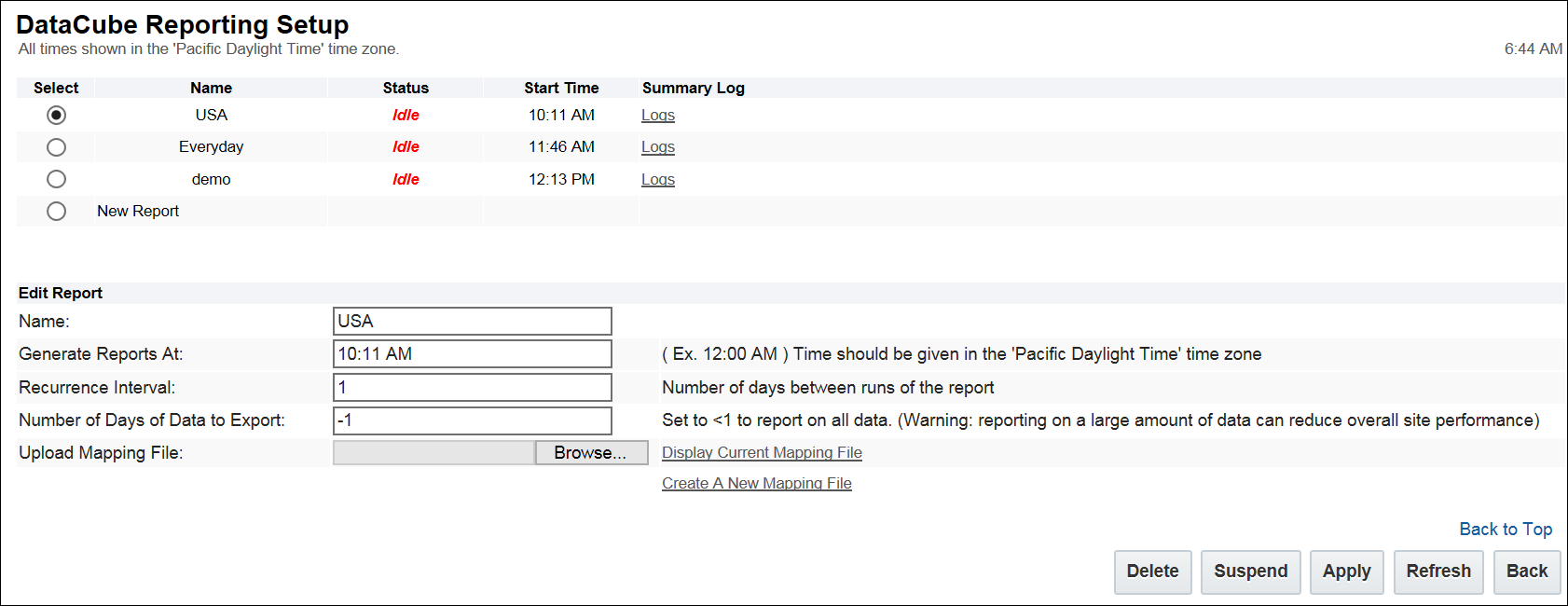
DataCube Reporting Setup
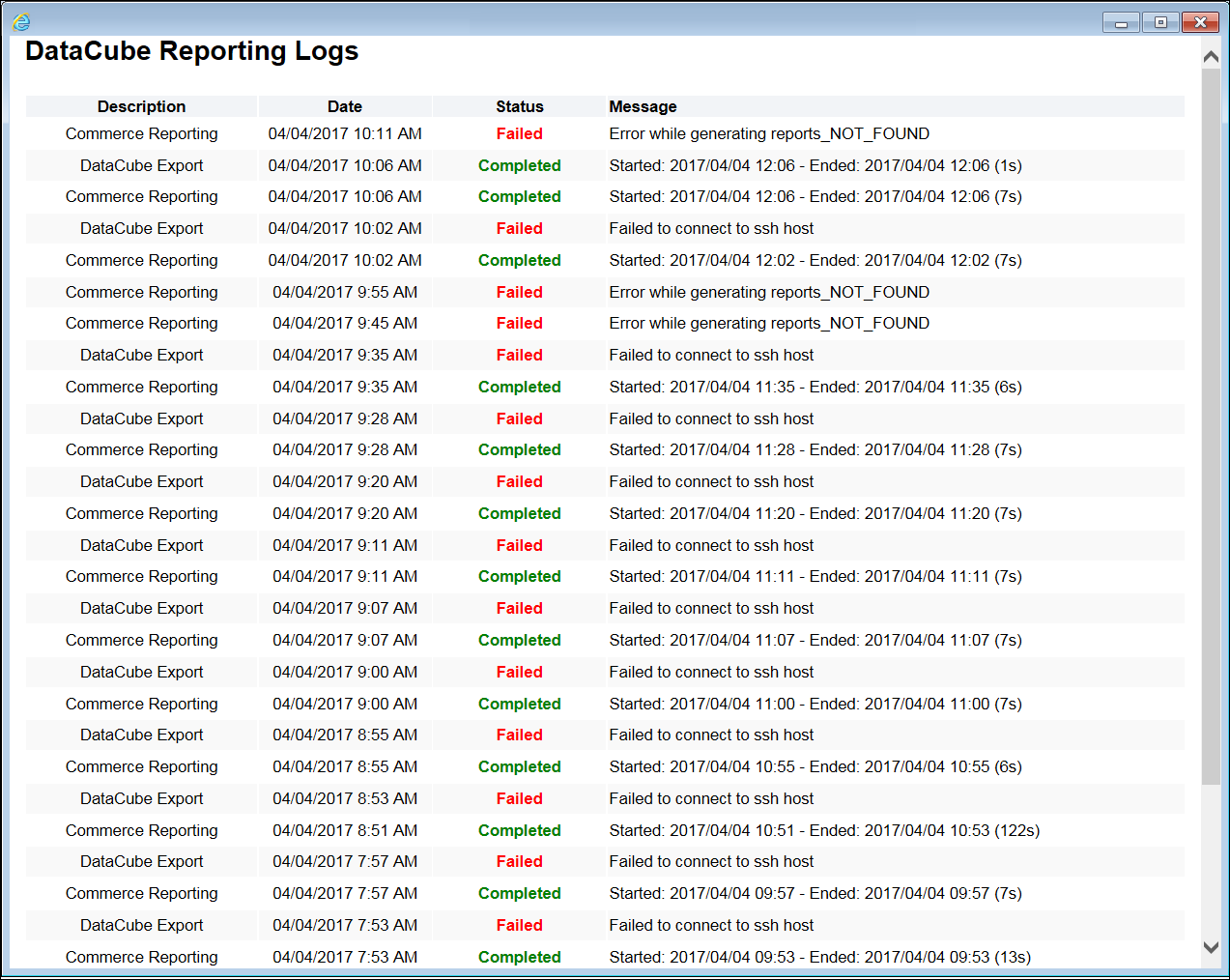
DataCube Reporting Logs
Steps to Enable
The DataCube enhancements are automatically available to customers who already have DataCube reporting.
Tips and Considerations
Consider the following tips when using the 2017 R1 DataCube enhancements:
- Oracle recommends specifying a different “export_subpath” for each scheduled report.
- If multiple reports have the same “export_subpath” value, there is no guarantee a generated report will work properly or contain the desired data. Since some of files will use the same file name, multiple reports with the same directory will overwrite each other.
- If multiple reports run in the same day with the same path, the reports will overwrite each other on the remote server. This is because the name of the zip file is the same for all reports that run in a given day (<host company name>_reports_data-<date in MMddyyyy form>.zip).
- Previous versions of DataCube reporting named the compressed report file using the HOSTNAME as the first part of the file name. In CPQ Cloud 2017 R1, the compressed report file uses the Host Company Name as the first part of the file name.
- Performing a “contains” filter operation may not always work. The data column contains the first 100 characters of what may be a larger value. If the searched content exists in the first 100 characters, the “contains” operation works. Otherwise, the “contains” filter operation may not work as expected.
- Use caution when naming data tables. CLOB data files are a concatenation of the table name and column name.
Table Definition 1:
<document db_name="table" ....> and contains CLOB column <attribute db_name="abc" clob="true"...>. This generates a data file for the table named "table.dat" and a CLOB column named "table_abc.dat". - Table Definition 2:
<document db_name="table_abc"...>. The table’s data file name will conflict with the above CLOB data file. As a result, one data file will overwrite the other. - In most cases, the mapping XML file ignores invalid information, and the invalid information does not cause a report to fail. By setting the logging level for DataCubes to WARN, the DataCube logs messages detailing why and when the mapping XML file ignores information.
NOTE: An Oracle administrator controls the logging levels. As a result, customers may need to enter a Service Request (SR) on My Oracle Support to have the logging level changed to WARN.
Key Resources
Refer to the CPQ Cloud Administration Online Help for additional information.
Data columns allow administrators to define the Commerce attributes that will be accessible in CPQ Commerce Process Manager, Transaction Searches, Reporting, and DataCubes. CPQ Cloud 2017 R1 extends the maximum number of data columns definable by administrators to 251 data columns for main document attributes and 400 data columns for sub document attributes.
Steps to Enable
The data column enhancements are automatically available on 2017 R1 sites.
Key Resources
Refer to the CPQ Cloud Administration Online Help for additional information.
Leverage the power of CPQ Cloud by integrating with other software applications. CPQ Cloud administrators can use the following pre-defined integrations out-of-the-box or enhance the provided integration patterns to build a strong Oracle Cloud suite.
- Commerce Cloud Integration Enhancements
- Subscription Ordering Integration Enhancements
- Integrated Cloud Service Based Integrations
- Transaction and Assets REST APIs
Commerce Cloud Integration Enhancements
Self-service users in Commerce Cloud can configure complex products for purchase in Commerce Cloud using the CPQ Cloud configurator. In addition, Commerce Cloud self-service users can request a CPQ Cloud quote, thereby initiating a CPQ transaction that a sales specialist can modify, reconfigure, or discount. The Commerce Cloud integration uses the Oracle Integration Cloud Service (ICS) to provide pre-built integrations for the two user flows.
The Commerce Cloud integration available in CPQ Cloud 2017 R1 expands the functionality available in the 2016 R2 integration by supporting the following enhancements:
- Include BOM items in the Add to Cart payload template
- Use BOM Mapping Rules in SOAP APIs
- Generate a Configuration ID system attribute
- Add configured items to a Transaction using a single REST API Call
- Use REST service enhancements in the Request for Quote flow
NOTE: For additional information about each of the above enhancements, refer to the Integrating Oracle Commerce Cloud Service and CPQ Cloud Service implementation guide.
Include BOM Items in the Add To Cart Payload Template
The “Add to Cart” action sends items to a Commerce Cloud cart via an Add to Cart button, which displays on the Commerce Cloud integrated CPQ Cloud site following configuration. When implementing the Commerce Cloud integration, administrators must add the following payload template files to File Manager: AddToCartPayload-Cloud.txt, Attributes_Payload.txt, and Recommended_Items_Payload.txt.
The template files support the “Add to Cart” action and form the payload structure for sending a configured item to a Commerce Cloud shopping cart. BML reads the payload template files and replaces the values in brackets, such as {{bomitems}}, with dynamic values.
NOTE: The “AddToCartPayload-Cloud.txt” payload template was available in the 2016 R2 Commerce Cloud integration. In 2017 R1, the template includes BOM items in the configuration information.
Use BOM Mapping Rules in SOAP API Response
The Commerce Cloud integration enhancements available in CPQ Cloud 2017 R1 provide support for BOM Mapping Rules in SOAP API responses. The Configure SOAP API returns data related to creating or reconfiguring a model in a Transaction. The getConfigurations SOAP API returns data related to adding items to a Commerce Cloud cart using the “Add to Cart” action.
In CPQ Cloud 2017 R1, BOM Mapping is a property in the Input SOAP XML for both the Configure SOAP API and the getConfigurations SOAP API.
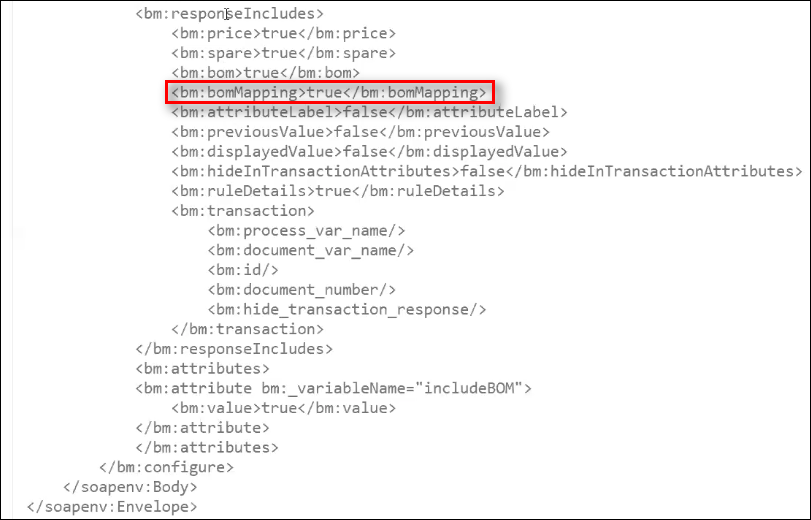
Input SOAP XML BOM Mapping Property
As shown below, the SOAP API response includes a new section called bomMapping, which shows the same kind of data that is visible to administrators when in the Pipeline Viewer (e.g. partNumber, quantity, and price).
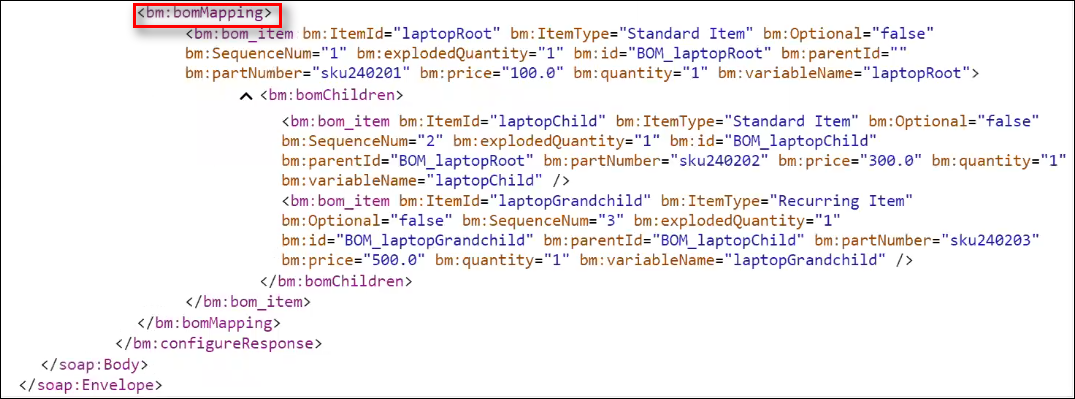
SOAP API Response with BOM Mapping Section
NOTE: The Commerce Cloud integration available with CPQ Cloud 2016 R2 required administrators to create Recommended Items corresponding to SKUs in Commerce Cloud. In CPQ Cloud 2017 R1, administrators can use Recommended Items, BOM Items, or both.
Generate a Configuration ID System Attribute
A new Commerce system attribute (e.g. _configuration_id) is available in CPQ Cloud 2017 R1. The system attribute is strictly for “Client Side” integrations. Users generate the “_configuration_id” when invoking Commerce or performing the “Add to Cart” action.
As shown below, the Configuration ID displays in the interface when Commerce Cloud self-service users create a new Transaction.

Configuration ID Shown in Interface
Administrators can view the configuration information associated with a Transaction by entering the “configurationId” associated with a previously generated Transaction into the getConfigurations SOAP API request.

getConfigurations SOAP API Request with Configuration ID
The following figure shows an example of the getConfigurations SOAP API response, which shows all of the configuration information associated with a Transaction, including attributes and BOM data.
getConfigurations SOAP API Response with Configuration Data for a Transaction
Add Configuration Items to a Transaction Using a Single REST API Call
The ICS OCCS-CPQ Create Quote integration flow uses the Configured Items API call to simplify the process used in the 2016 R2 integration, which relied on multiple API calls to create a Transaction with one or more configured items.
NOTE: In the 2017 R1 Commerce Cloud integration, Commerce Cloud self-service users can add one or more configured items to a CPQ Cloud Transaction using a single Configured Items API call from ICS.
Use REST Service Enhancements in the Request for Quote Flow
The Request for Quote flow allows Commerce Cloud self-service users to request a CPQ Cloud quote, thereby initiating a CPQ Cloud Transaction that a sales specialist can modify, reconfigure, or discount. Once finalized in CPQ Cloud, the quote returns to Commerce Cloud for acceptance and ordering by the self-service user. In CPQ Cloud 2017 R1, Oracle enhances the ICS integration with Commerce Cloud through REST service enhancements to the Request for Quote flow.
The following functionality is available when creating a new Transaction via REST services:
- Perform a Modify action
- An optional “_modify_action” property for the Create Transaction API allows a Transaction to be saved once created.
- If the “_modify_action” property is not included in the request, the REST service still creates the Transaction. No additional action runs.
- Add models to a Transaction
- Define an optional property for “_configuration_id” to add one or more models to a Transaction.
- If a “_configuration_id” is included in a request for a new Transaction, the response is the Transaction data. Included in the Transaction data is line level data for the model.
- A model in a generated Transaction only has a “_configuration_id” when the Product Family's integration type is "Client Side".
- Define “_price_list_price_each” and “_price_net_price” as line item system attributes
- Line item attributes support all fields from the Price Attribute set.
- Price Books cannot be defined for models but can be defined for parts.
- Set the following main doc and sub doc attribute types for new Transactions
- Date
- Text Field
- Menu
- Integer
- Float
- Boolean
- Currency
- Text Area
- Phone (in an Address Set)
- Country (in an Address Set)
- State (in an Address Set)
- Zip (in an Address Set)
NOTE: To set custom attributes in a new Transaction, the request must specify a “_modify_action”. Attributes are set before the “_modify_action” is run. For example: If an attribute is set to "a" through the request, but the “_modify_action” sets the attribute to "b" through Formulas or an Advanced modify, the final value of the attribute is "b".
Sample REST Payload
The URL endpoint and sample REST payload are an example of 2017 R1 REST service enhancements.
URL: https://sitename.com/rest/v3/commerceDocumentsOraclecpqTransaction/actions/_new_transaction
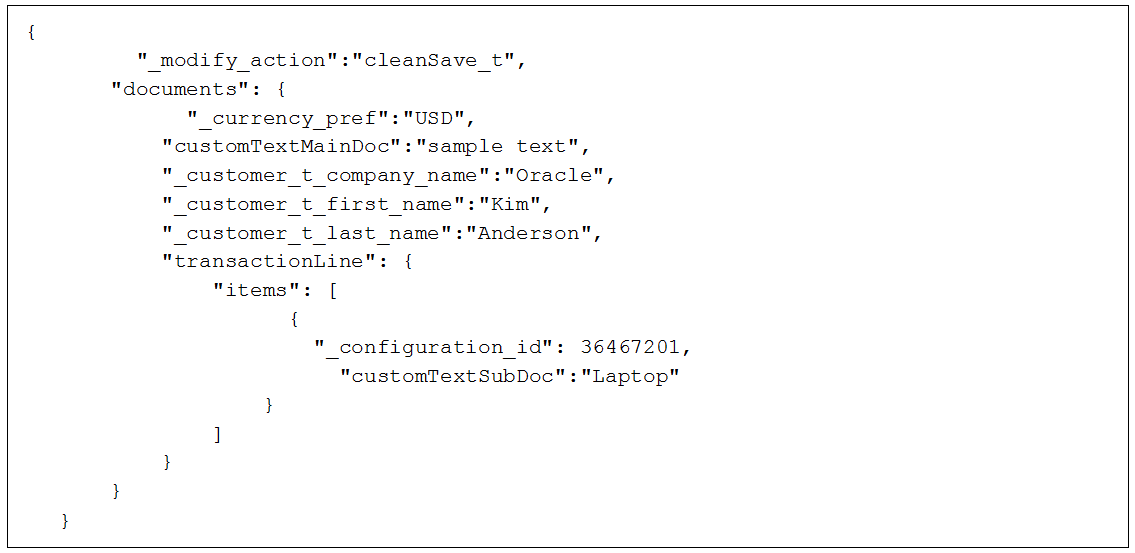
Sample REST Payload
Steps to Enable
For instructions on how to implement the 2017 R1 Commerce Cloud integration, refer to the Integrating Oracle Commerce Cloud Service and CPQ Cloud Service implementation guide.
Tips and Considerations
Consider the following tips when using the 2017 R1 Commerce Cloud integration:
- While the 2017 R1 Commerce Cloud integration supports either BOM Items or Recommended Items, customers who choose to implement asset-based services must use BOM Items.
- Among the BOM Mapping enhancements included in 2017 R1 is the ability to use BOM Mapping Rules to define child items in the BOM hierarchy as configurable models. The Commerce Cloud integration does not support this enhancement.
- There are scenarios where a Transaction successfully creates via REST services, but the “_modify_action” fails. By default, the response includes only the response of the “_modify_action”. This is regardless of whether the action is successful or not. To see the responses for create and modify, define an optional property in the request. The format of
- the optional property is "criteria" with value "state":true. To view a sample of this optional property, refer to the Transaction and Asset REST APIs section of this document.
- If trying to use the “_configuration_Id” system attribute as dynamic data in Rich Text templates or Document Engine, customers who are upgrading must perform the Refresh Data Source action.
- When creating a Transaction with a model, the model’s Price Book does not traditionally set the Transaction Price Book. However, a model with a “Client-Side” integration sets the Transaction Price Book to match the model Price Book when a quote is created. When adding parts with that model in the same Transaction, the parts must also use the same Price Book. A model without a custom Price Book defined uses the default Price Book.
- When creating a Transaction through REST services, support for Transaction currency preferences is available.
- Administrators can define the Transaction currency even when line items (both parts and models) are part of the create request.
- Model and Transaction currencies must always match. If they do not match, the Transaction is not created.
- If there are multiple config IDs with different currencies and Transaction currency is undefined, an error returns.
Key Resources
For additional information, refer to the following resources:
- CPQ Cloud Administration Online Help
- Integrating Oracle Commerce Cloud Service and CPQ Cloud Service implementation Guide
- REST API Enhancements section of this 2017 R1 What’s New document
Subscription Ordering Integration Enhancements
The Subscription Ordering integration introduced in CPQ Cloud 2016 R1 allows sales users to review, modify, and terminate subscription or asset-based products delivered over a period-of-time. As part of continuing improvements to the Subscription Ordering integration, CPQ Cloud 2017 R1 allows customers to create orders outside of CPQ Cloud in an external client application and provides REST APIs for all asset based operations. The REST APIs enable any external client application to integrate with CPQ Cloud to implement Subscription Ordering.
The following Subscription Ordering enhancements are available in CPQ Cloud 2017 R1:
- Create an order from an external client application
- Reconfigure an asset-based product using a REST API
- Create a follow-on order using a REST API
- Update an asset using a REST API
- Modify an asset using a REST API
- Terminate an asset using a REST API
- Suspend an asset using a REST API
- Resume an asset using a REST API
- Renew an asset using a REST API
- Customers must implement Bill of Material (BOM) Mapping to use Subscription Ordering. For additional information, refer to the BOM Mapping Implementation Guide.
- Oracle is delivering a new ABO migration package and implementation guide to support the 2017 R1 Subscription Ordering implementation.
- Customers using the ABO migration package in CPQ Cloud 2016 R2 who are upgrading to CPQ Cloud 2017 R1 must make two configuration changes for the ABO migration package to continue to work. For additional information, refer to the CPQ Cloud 2017 R1 Asset Based Ordering Implementation Guide.
The “Add to Cart” action, “getconfigbom” and “saveconfigbom” library functions, and the fulfillment status attribute are key concepts used to enable a Subscription Ordering integration.
ADD TO CART ACTION
As part of the CPQ Cloud – External Client Application integration, CPQ Cloud administrators must configure a “Client Side” integration to enable the Add to Cart button for a specific product family. The “Add to Cart” action sends items to an external client application cart via the Add to Cart button, which displays on the configurator UI after configuring the “Client Side” integration.
By integrating Subscription Ordering with the CPQ Cloud – External Client Application implementation, the “Add to Cart” action generates a “configId” (e.g. configuration ID) for the item added to the external client application cart. The Subscription Ordering asset-based actions use the “configId” to load a BOM instance from the CPQ Cloud configBomInstance resource, which is new in CPQ Cloud 2017 R1 and supports standard REST operations.
SAVE CONFIGBOM AND GETCONFIGBOM LIBRARY FUNCTIONS
The “saveconfigbom” and “getconfigbom” library functions are new in CPQ Cloud 2017 R1. The "saveconfigbom" library function allows users to save the BOM for non-configurator UI integration scenarios such as suspend, resume, and terminate. The library function saves a client integration BOM instance and a “configId” to the CPQ Cloud configBomInstance resource and returns a “configId”.
The “getconfigbom” library function can retrieve the configbom stored via the saveConfigBom API and the configBom created via a client integration Configurator UI session. The library function extracts and returns a client integration BOM instance from the CPQ Cloud configBomInstance resource using the “configId”.
NOTE: The “getConfigBom” action is included in the 2017 R1 ABO package. External client applications use this action to extract and return a stored configBomInstance from the CPQ Cloud configBomInstance resource using the “configId”.
FULFILLMENT STATUS ATTRIBUTES
The configBomInstance contains the asset information from the configurator UI and contains two key fields: transactionDate and fulfillmentStatus. Use the transactionDate attribute to determine the date and time of a service request, which can also be a future date. The fullfillmentStatus attribute refers to the status of the configBomInstance. An optional transactionId attribute in the configBomInstance determines the current order for which the configuration is relevant.
NOTE: The transactionDate, fulfillmentStatus, and transactionId fields determine whether to consider the current configBomInstance as an open order item for the asset. The fields also calculate the projected state of an asset during various ABO operations.
Upon launching a configurator session, the configBomInstance passes into the configurator session as the initial state. After a configBomInstance saves in the configBomInstance resource, Oracle recommends making updates to the fulfillmentStatus attribute in the configBomInstance resource at regular intervals during the course of order creation, submission, and fulfillment. There are four possible status values for the configBomInstance:
- NULL: Upon initial creation of a configBomInstance, the fullfillmentStatus is null and indicates the order was not yet submitted for fulfillment.
- BEING_FULFILLED: Indicates the order was submitted to the fulfillment system.
- FULFILLED: Indicates the order was fulfilled and assets created.
- CANCELLED: Indicates the order was cancelled.
NOTE: Use standard REST invocation to update the fulfillmentStatus, transactionDate, and transactionId attributes in the configBomInstance resource using a “configId”.
Create an Order From an External Client Application
By integrating Subscription Ordering with a CPQ Cloud – External Client Application integration, users of the external client application can create an order from the external client application.
Complete the following steps:
- Open the external client application that an administrator has integrated with CPQ Cloud.
- Use the Configurator UI to configure the external client application item.
- Click Add to Cart to save the item to the external client application cart.
The “Add to Cart” action invokes the Delta functionality in Subscription Ordering and saves a BOM instance to the configBomInstance resource. The saved BOM instance can be identified by the “configId”. The configBomInstance resource passes the “configId” and the associated BOM instance to the external client application along with a JSON payload.
Reconfigure an Asset-Based Product Using a REST API
The “Reconfigure” action is included in the 2017 R1 ABO package. External client application users can use this action to reconfigure an asset-based product prior to fulfillment and can perform this action on either a new asset-based product or an existing asset-based product undergoing modification.
Complete the following steps:
- Follow the steps in the “Create an Order from an External Client Application” section or modify an existing asset by selecting an asset from the Customer Assets page in the external client application and clicking Modify. The Configurator UI opens in an embedded iFrame in the external client application and displays the new or existing asset-based product.
- Use the Configurator UI to make configuration changes to the quote.
- Click Add to Cart to create a new quote in the external client application cart.
The action generates a new “configId” in the configBomInstance resource and sends the BOM items to the external client application cart along with the generated “configId”. - Click Reconfigure from the external client application cart.
The “Reconfigure” action invokes the Reconfig REST API on the configBomInstance. The “configId” internally calculates the projected state of the configuration and generates a “configurationURL”, which is the URL for the embedded iFrame that displays the Configurator UI in the external client application. - Use the Configurator UI to make additional changes to the configuration information.
- Click Add to Cart.
The “Add to Cart” action saves the changes to the original “configId”, updates the BOM instance data in the configBomInstance resource, and passes the “configId” and the reconfigured BOM instance to the external client application along with a JSON payload. - The external client application submits the modified BOM for fulfillment. After order fulfillment, the asset is updated.
- Once the asset changes synchronize, the external client application or the fulfillment system invokes the REST API using the “configId”, which updates the fulfillmentStatus attribute for the configBomInstance resource to FULFILLED.
NOTE: The Configurator UI will include the configuration changes made when initially creating or modifying the configBomInstance.
Create a Follow-On Order Using a REST API
A “Follow-On Order” action on a configBomInstance is included with the 2017 R1 ABO package. External client application users can use this action to create a follow-on order from an existing order not yet fulfilled. External client application users can place a new order for an existing order line by creating a follow-on order with a fulfillment date in the future.
Complete the following steps:
- Create an order using items in an external client application cart.
- Submit the order for fulfillment.
- Select the order and click the Follow-On Order button on the external client application UI.
This invokes the FollowOnOrder REST API on the configBomInstance and uses the previously generated “configId” to internally calculate the projected state of the existing unfulfilled order and generate a new “configurationURL”. - Modify the configuration information using the Configurator UI.
- Click Add to Cart to create a new order in the external client application cart.
The action generates a new “configId’ in the configBomInstance resource and sends the BOM items to a external client application cart along with the generated “configId”. - The external client application submits the modified BOM for fulfillment. After order fulfillment, the asset is updated.
- Once the asset changes synchronize, the external client application or the fulfillment system invokes the Synchronize REST API using the “configId”, which updates the fulfillmentStatus attribute for the configBomInstance resource to FULFILLED.
NOTE: The configuratorURL is the URL of the iFrame that displays the CPQ Cloud Model Configuration page in the external client application. The Model Configuration page includes the user changes to the subscription.
Update an Asset Using a REST API
When a fulfillment system fulfills an order, the external client application or the fulfillment system will invoke a REST API to create or update the assets in the assets resource. Asset creation generates a traceable item that integrates with the customer’s fulfillment system. After asset creation, customers can view and maintain subscription services through the Customer Assets page.
Customers can use the Synchronize REST API to create or update assets after order fulfillment. For more information about the “Synchronize” action, refer to the Oracle CPQ Cloud 2016R1 REST API documentation.
Modify an Asset Using a REST API
The “Modify Asset” action is included with the 2017 R1 ABO package. External client application users can use this action to modify an existing asset stored in CPQ Cloud.
Complete the following steps:
- Select an existing asset from the Customer Assets page in the external client application.
- Click Modify, which invokes the Modify REST API on the asset.
The Modify REST API internally calculates the projected state of the asset and generates a “configurationURL”, which displays the Configurator UI in an embedded iFrame in the external client application. - Use the Configurator UI to modify the asset’s configuration information.
- Click Add to Cart to create a new order in the external client application cart. The external client application user creates the new order by modifying the existing asset referenced in Step 1.
- The Add to Cart action generates a new “configId’ in the configBomInstance resource and sends the BOM items to the external client application cart along with the generated “configId”.
- The external client application submits the modified BOM for fulfillment and uses the standard Update API on the configBomInstance endpoint to update the fulfillmentStatus attribute to BEING_FULFILLED.
- Once the fulfillment system fulfills the order, the external client application or the fulfillment system invokes the Synchronize REST API on the asset to create or update assets.
- Once the asset changes synchronize, the external client application or the fulfillment system invokes the REST API using the “configId”, which updates the fulfillmentStatus attribute for the configBomInstance resource to FULFILLED.
Terminate an Asset Using a REST API
The Subscription Ordering functionality introduced in CPQ Cloud 2016 R1 allows sales users to create a subscription for service for a customer and specify a request date for the termination of the service. By integrating Subscription Ordering with a CPQ Cloud and external client application implementation, clicking Terminate from the Customer Assets page allows customers to terminate a subscription in the external client application. When the terminate action is fulfilled, the end date of the asset can be updated to the date on which the customer requests termination.
Complete the following steps:
- Select an asset from the Customer Assets page in the external client application.
- Click Terminate, which invokes a Terminate REST API on the asset.
The REST API internally calculates the projected state of the asset and generates a “configId” in the configBomInstance resource. The REST API returns the “configId” as the “lineId” in the response. - Once the fulfillment system fulfills the order, the external client application or the fulfillment system invokes the Synchronize REST API on the asset to update assets and set the end date on the asset.
- Once the asset changes synchronize, the external client application or the fulfillment system invokes the REST API using the “configId”, which updates the fulfillmentStatus attribute for the configBomInstance resource to FULFILLED.
NOTE: The external client application uses the “configId” to retrieve the BOM details using the getConfigBom REST API. The external client application submits the BOM for fulfillment and invokes the REST API using the “configId”, which updates the fullfillmentStatus attribute for the configBomInstance resource to BEING_FULFILLED.
Suspend an Asset Using a REST API
The Subscription Ordering enhancements in CPQ Cloud 2017 R1 allow external client application users to suspend their subscription service by specifying a Transaction date. By integrating Subscription Ordering with a CPQ Cloud and external client application implementation, clicking Suspend from the Customer Assets page allows self-service users to suspend a subscription in the External Client Application. When the “Suspend” action is fulfilled, the suspend date of the asset can be updated to the date on which the customer requests suspension.
Complete the following steps:
- Select an asset from the Customer Assets page in the external client application.
- Click Suspend, which invokes the Suspend REST API on the asset.
The Suspend REST API internally calculates the projected state of the asset and generates a “configId” in the configBomInstance resource. The Suspend REST API response returns the “configId” as the “lineId”. - Once the order is fulfilled by the fulfillment system, the external client application or the fulfillment system invokes the Synchronize REST API on the asset to update the assets and set the suspend date on the asset.
- Once the asset changes synchronize, the external client application or the fulfillment system invokes the REST API using the “configId”, which updates the fulfillmentStatus attribute for the configBomInstance resource to FULFILLED.
NOTE: The external client application uses the “configId” to retrieve the BOM details using the getConfigBom REST API. Once retrieved, the external client application submits the BOM for fulfillment and invokes the REST API using the “configId” to update the fulfillmentStatus attribute for the configBomInstance resource to BEING_FULFILLED.
Resume an Asset Using a REST API
The Subscription Ordering enhancements in CPQ Cloud 2017 R1 allow external client application users to resume their suspended subscription service by specifying a Transaction date. By integrating Subscription Ordering with a CPQ Cloud and external client application implementation, clicking Resume from the Customer Assets page allows external client application users to resume a subscription that was suspended earlier using a suspend action in the external client application. When fulfilled, the resume date of the asset can be updated to the date on which the customer requests service to be resumed.
Complete the following steps:
- Select an asset from the Customer Assets page in the external client application.
- Click Resume to invoke the Resume REST API on the asset.
The Resume REST API internally calculates the projected state of the asset and generates a “configId” in the configBomInstance resource. The Resume REST API response returns the “configId” as the “lineId”. - Once the fulfillment system fulfills the order, the external client application or the fulfillment system invokes the Synchronize REST API on the asset to update the assets and set the resume date on the asset.
- Once asset changes synchronize, the external client application or the fulfillment system invokes the REST API using the “configId”, which updates the fulfillmentStatus attribute for the configBomInstance resource to FULFILLED.
NOTE: The external client application uses the “configId” to retrieve the BOM details using the getConfigBom REST API. The external client application then submits the BOM for fulfillment and invokes the REST API using the “configId”, which updates the fulfillmentStatus attribute for the configBomInstance resource to BEING_FULFILLED.
Renew an Asset Using a REST API
The Subscription Ordering enhancements in CPQ Cloud 2017 R1 allow external client application users to renew their subscription service by specifying a Transaction date. By integrating Subscription Ordering with a CPQ Cloud and external client application implementation, clicking Renew from the Customer Assets page allows external client application users to renew a subscription in the external client application. When the “Renew” action is fulfilled, the end date of the asset can be updated to a new date up to when the customer requests service renewal.
Complete the following steps:
- Select an asset from the Customer Assets page in the external client application.
- Click Renew, which invokes the Renew REST API on the asset.
The Renew REST API internally calculates the projected state of the asset and generates a “configId” in the configBomInstance resource. The Renew REST API returns the “configId” as the “lineId” in the response. - Once the fulfillment system fulfills the order, the external client application or the fulfillment system invokes the Synchronize REST API on the asset to update the asset and set the end date on the asset.
- Once the asset changes synchronize, the external client application or the fulfillment system invokes the REST API using the “configId”, which updates the fulfillmentStatus attribute for the configBomInstance resource to FULFILLED.
NOTE: The external client application uses the “configId” to retrieve the BOM details using the getConfigBom REST API. The external client application then submits the BOM for fulfillment and invokes the REST API using the “configId”, which updates the fulfillmentStatus attribute for the configBomInstance resource to BEING_FULFILLED.
Steps to Enable
For instructions on how to integrate Subscription Ordering, refer to the CPQ Cloud Asset Based Ordering implementation guide.
Key Resources
For additional information, refer to the following resources:
- CPQ Cloud 2017 R1 Asset Based Ordering implementation guide.
Integrated Cloud Service CPQ Adapter Enhancements
In 2017 R1, CPQ Cloud delivers Oracle Integration Cloud Service (ICS) Adapter updates to process REST APIs, in addition to the existing SOAP APIs. Customers can now build an ICS connection that calls the desired CPQ REST API web service using CPQ as the target application in the ICS integration flow. By using the power of ICS, system integrators can manage all CPQ Cloud integrations from a single location with a consistent toolset. ICS integration enables CPQ Cloud to connect to back office systems, on premise environments, and other Oracle products in a consistent, enhanced manner.
ICS Connection Properties for REST APIs
To access to CPQ RESTful services, select "REST Catalog URL" from the ICS Connection Type menu, then enter the REST Catalog URL in Connection URL field. The REST catalog URL is formatted as follows:
http(s)://site_URL/rest/v3/metadata-catalog
Where: "site_URL" is the base URL of the Oracle CPQ Cloud site
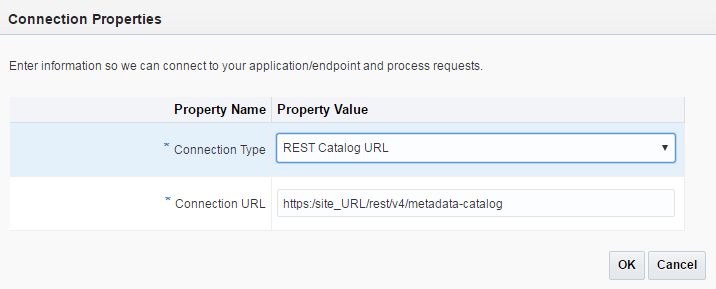
ICS Connection Properties
NOTE: Before ICS integrations using REST APIs can be built, ICS connections must be established. For information on setting up ICS connections, refer to the Oracle Cloud Integration web site.
ICS Integration Categories for REST APIs
CPQ Business resources are grouped into different categories based on their functional usage. The ICS Integration Category will list available categories, when ICS is connected to a CPQ Cloud REST catalog. The CPQ Cloud REST Catalog will list the web services that are supported in ICS. The ICS CPQ adapter only supports REST catalog services at version v3 and above.
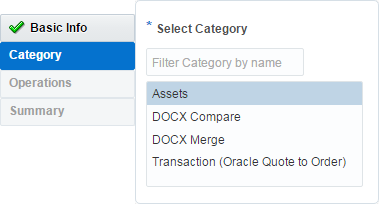
CS Integration Category
ICS Business Resources for REST APIs
After a category is selected, the business resources related to the selected category are listed in the Business Resource section. When a specific resource is selected, the applicable operations are listed in the Operations section. In the following image, the "Assets Collection" and "Create" are selected. This will invoke the CPQ Cloud Create Asset (POST) web service.
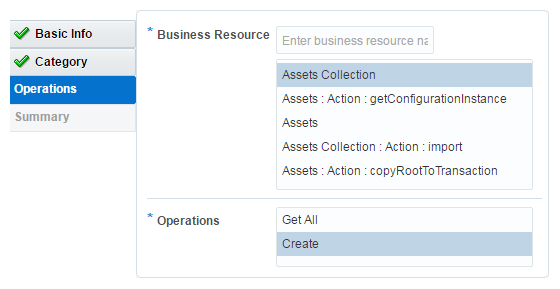
Once the CPQ Cloud REST API is set as a target and a connecting web service is set as a source, users can map the applicable parameters via the user interface. The ICS interface also supports XSL map file imports for mapping. In the following image, the source and target parameters have the same names, but mapping can occur between parameters with different names.
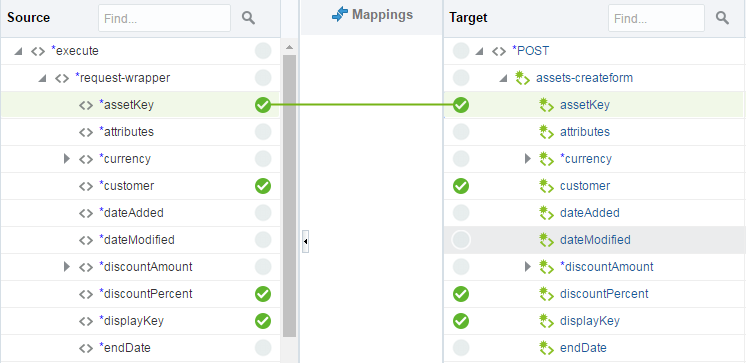
ICS Mapping
When the selected resource accepts additional query parameters, valid parameters are listed as target mapping options.

ICS Query Parameter Mapping
Steps to Enable
For instructions on how to set up ICS Integrations using CPQ Cloud REST APIs, refer to the Oracle Cloud Integration web site and the CPQ Cloud Administration Online Help.
Tips and Considerations
- Oracle CPQ Cloud 2016 R2 or later is required to use the REST catalog in the ICS CPQ Adapter.
- The ICS CPQ adapter only supports REST catalog services at version v3 and above.
The following items must be set up implement REST API Integrations:
- Oracle ICS Release 17.2.3 or above is required for REST API support in CPQ Cloud Adapter
- Oracle ICS, CPQ Cloud, and source application connections
- ICS integrations and source to target mapping
- CPQ Cloud Integration Processes
Key Resources
Refer to the following resources for additional information:
- CPQ Cloud Administration Online Help - Integration Cloud Service (ICS) topic
- Oracle Cloud Integration web site
Transaction and Assets REST APIs
CPQ Cloud continues its effort to expose objects through REST API services, empowering customers to extend the capabilities of their CPQ Cloud implementations. In 2017 R1, CPQ introduces Version 4 (v4) REST API services, and delivers new operations for Transaction and Asset REST APIs.
- v4 REST API services provide the following enhancements:
- Additional functions for the expand query parameter
- Optimized translation responses
- Support for Attachment, History, Secure, and Summation attributes
- Support for Transaction Line Total attributes
- Sort and filter support for Transaction Line XML based attributes that are not mapped in data columns
- Error response support for Open Transaction Line Action
- Shared cache support
- Cache refresh support
- Improved responses for interact functions
- Enhancements for Submit action responses
- A new AJAX Sensitive parameter ensures accurate state value data
- New Transaction REST API endpoints provide support for favorite and navigation functions.
- New Asset REST API endpoints expand support for Subscription Ordering integrations by providing access to configuration and subscription operations.
v4 REST API service enhancements
To provide complete REST API support for Commerce actions, services that enable access to CPQ Transaction attributes and functions are essential. v4 REST API services deliver several enhancements that expand REST API services for Transactions.
EXPAND QUERY PARAMETER ENHANCEMENTS
This feature provides Expand query parameter support at any level in the metadata hierarchy. Customers can now request specific child and grandchild items to retrieve the following data items:
- Attribute and action definitions at the Transaction level
- Translations and menu items at the Attribute level
- Translations at Menu Item level
Dotted notation is used to enable requests for specific items. For example, the following URI Endpoint examples demonstrate new Expand functionality.

OPTIMIZED TRANSLATION RESPONSES
This feature reduces the amount of data returned if translation items contain empty values. When translations are requested, translations that have an empty value for all the properties are not returned. Translation data is returned if any property values are populated. For example, the following samples show standard and reduced content responses.

In the following sample, the data for the "de" translation is not returned because both label and description values for the "de" translation are empty strings.
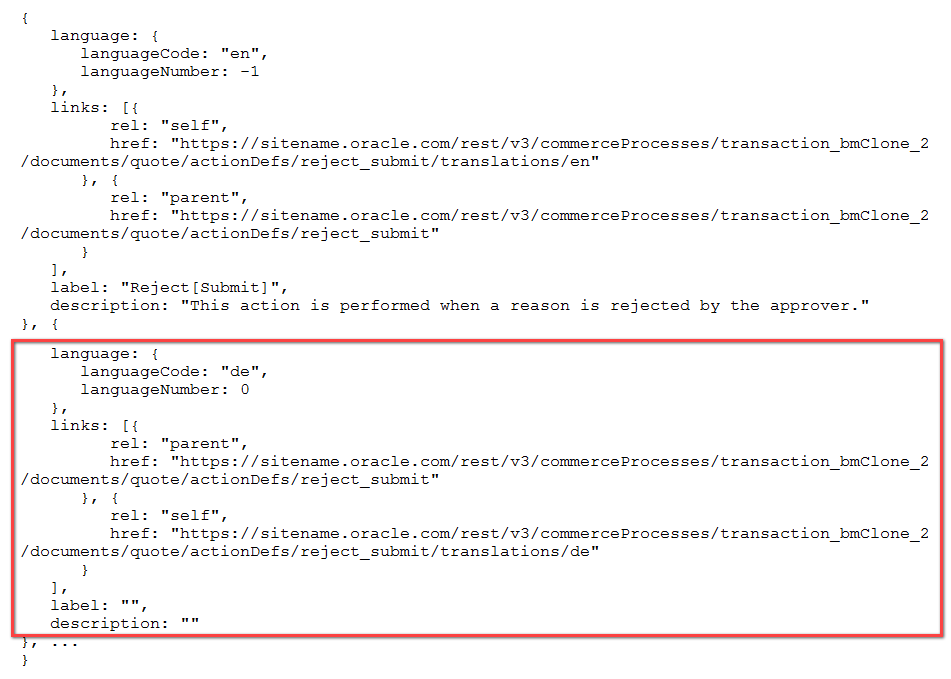
ATTACHMENT ATTRIBUTE SUPPORT
This feature provides REST service support to update and retrieve associated file attachments. This feature allows users to update files that are associated to file attachment attributes. Users can also retrieve associated file attachments using links that are provided in the REST API response.
HISTORY ATTRIBUTE SUPPORT
This feature allows users to retrieve and append entries to History attributes. History attributes capture an input text string along with the user's name and time.
SECURE TEXT ATTRIBUTE SUPPORT
In previous releases, secure data attributes returned empty strings. This feature returns masked values when secure data attributes are requested.
SUMMATION ATTRIBUTE SUPPORT
Summation is a read only entry that displays a result calculated from other attributes. This feature returns data for summation type of attributes when requested.
SUPPORT FOR TRANSACTION LINE TOTAL ATTRIBUTES
CPQ Cloud currently supports auto sums for Commerce number and currency type attributes. When a layout has auto sum enabled for an attribute, all of the Transaction Line values for that attribute are added. The total displays at the bottom of Line Item Grid. This enhancement provides REST Service support for attribute totals. Users can request total values by using the advanced query object and totals data returns as part of the state object. The following samples show an advanced query request for the "price_quantity" attribute.
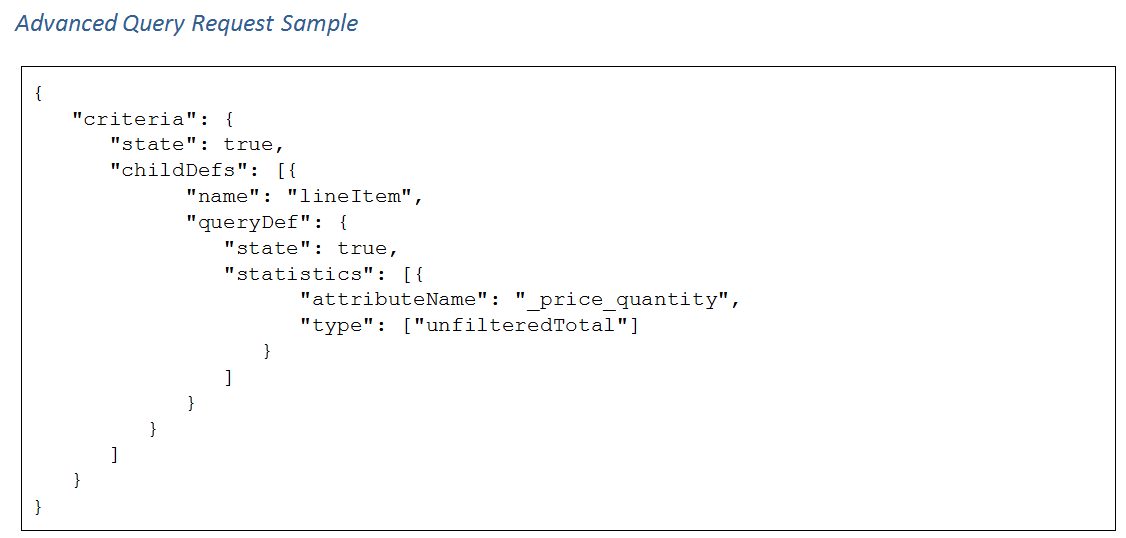

Currency Summation
This feature supports the Transaction Line Totals feature by returning currency type attribute total values as composite items that provide the value and the currency type. For example, the following items show returned currency attribute composite items.
- "quoteTotal": {"value": 9.49, "currency": "USD"}
- "quoteTotal": {"value": 9.49, "currency": "EUR"}
QUERY SUPPORT FOR TRANSACTION LINE ATTRIBUTES
In CPQ Cloud 2017 R1, users can search, sort, and filter Transaction Line XML based attributes that have not been stored in a Data Column. This enhancement supports queries for number, Boolean, string, date, and currency fields.
ERROR RESPONSE SUPPORT
This feature allows users to request an error response if errors occur when opening a Transaction Line. The new "errorCriteria" parameter can be used in REST services requests for Open Transaction Line and Back actions.
SHARED CACHE SUPPORT
In previous releases, separate cache instances were created for Transactions and each Transaction Line. When a customer updated a Transaction and then navigated to a Transaction Line, the Transaction updates were not reflected for the Transaction Line. This feature allows the sharing of a cache instance between a Transaction and Transaction Lines. The shared cache will save and reflect updates as a customer navigates between a Transaction and Transaction Line items.
CACHE REFRESH
The cache refresh enhancement makes the "cacheInstanceID" parameter of interact service optional, and allows users to invoke the interact service without prior initiation of a cache instance on the server. Additionally, users can pass a new parameter, "refreshCache" = true, to reload the current cache and discard the changes.
For example: Assume a customer modifies few attributes on a Transaction, and then wants to discard these unsaved changes, this service can be used to refresh the page with the saved data. This enhancement would imitate the current Transaction's 'Refresh' action behavior, where the Transaction page is reloaded and any of the unsaved changes are discarded.

IMPROVED INTERACT FUNCTION RESPONSES
A new "delta" parameter is available to request partial transaction responses when cache services are enabled. Instead of returning contents for the entire document, the response is limited to components affected by the requested services. Delta functionality is used with REST API actions by setting the delta request parameter to "true".
NOTE: Cache must be initiated prior to delta response requests.
When the delta parameter is enabled, the response will only consist of data and state properties that have changed from the cache image when an action is invoked. Delta data is only calculated for the requested criteria. Customers can take advantage of this functionality to reduce the response size by only returning the most relevant changes. When a new attribute value is requested in a REST API the delta, comparison is performed between the input value and the final output value. If input values are not specified for the attribute, the cache value is used for the comparison.
ENHANCEMENTS FOR SUBMIT ACTIONS
REST services for Submit related actions were delivered in 2015 R1, but these services did not return data for some of the attributes. The feature returns the data for approval, approval status, and approval history attributes.
AJAX SENSITIVE PARAMETER
Currently the metadata for Commerce attributes has auto-update and dependency parameters. It was determined that an additional parameter was required to ensure matching state values between the server and client. The "ajaxSensitive" parameter will prevent state value difference between the client and server. This parameter indicates if an interact request is performed when an attribute is modified.
The "ajaxSensitive" should be set to "true" for the following attribute conditions:
- An attribute is marked auto-update
- An attribute is used in Formulas and AJAX rules
- An attribute is the action attribute of AJAX rules
New Transaction REST API Services
New Transaction REST API services allow administrators to deliver the following functions:
- Navigate from a Transaction Line back to a Transaction
- Select and add favorite items to a Transaction
- Copy selected items from a Transaction to favorites
NAVIGATE BACK
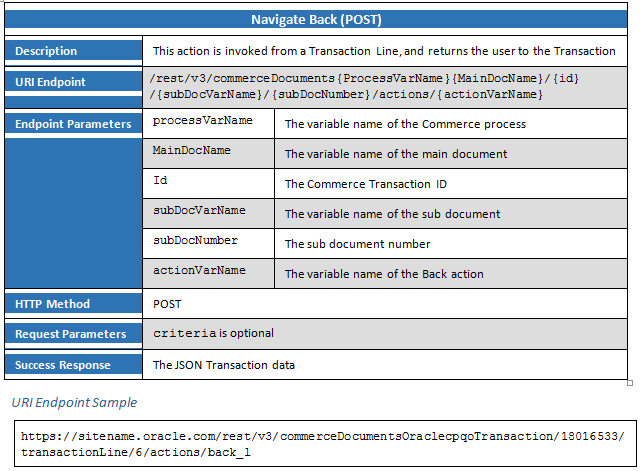
ADD TO TRANSACTION FROM FAVORITES
COPY TO FAVORITES
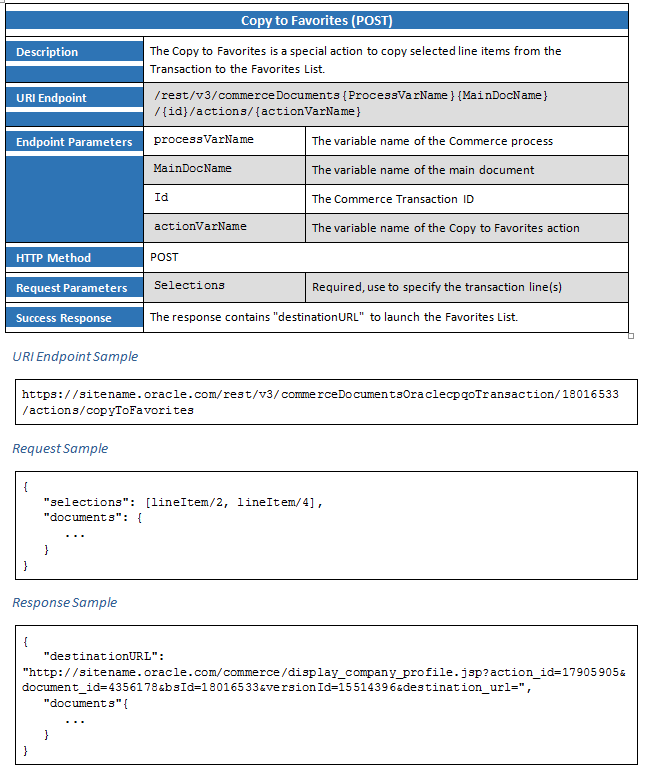
New REST API Services for Assets
New Asset REST API services allow external systems to modify, terminate, suspend, resume, renew, reconfigure, and create follow-on orders for assets.
MODIFY ASSET
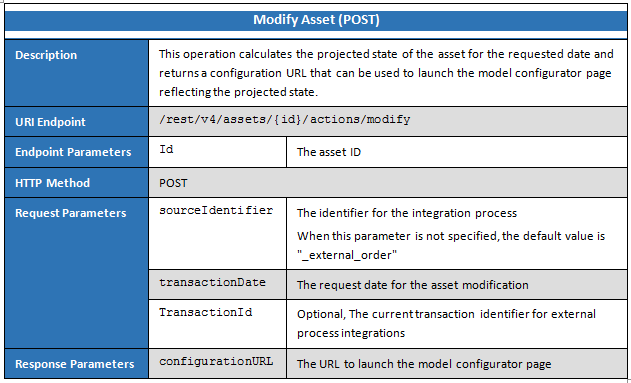
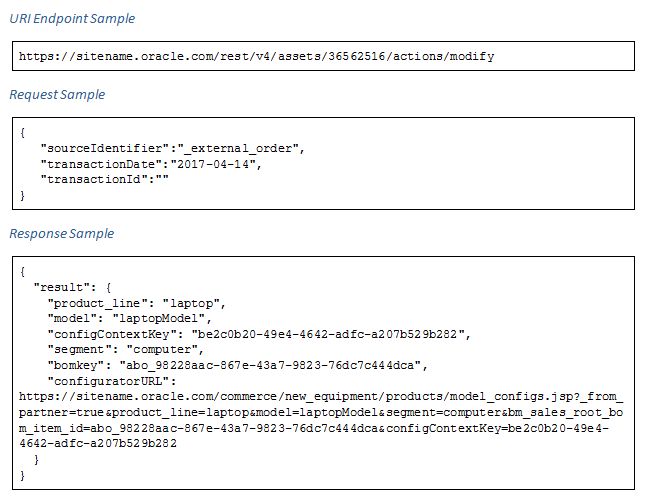
TERMINATE ASSET
SUSPEND ASSET
NOTE: Modify, reconfigure, follow-on actions cannot be performed on suspended assets.
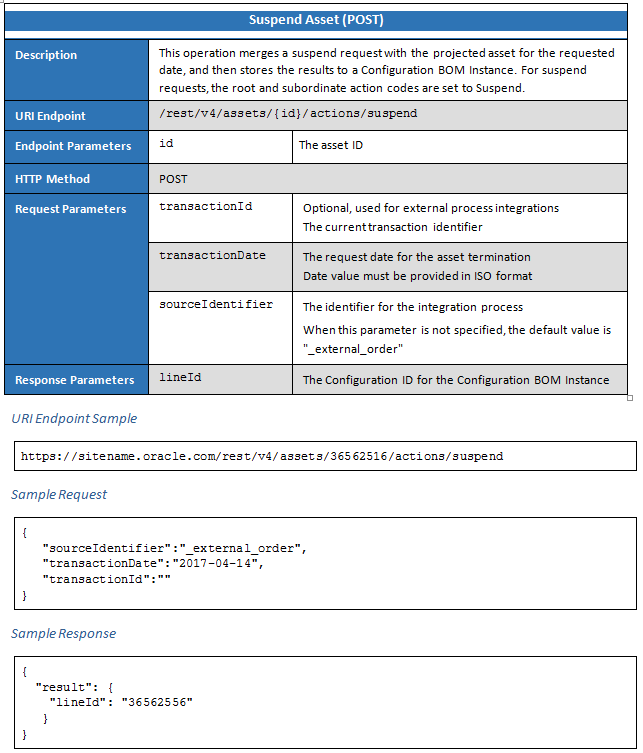
RESUME ASSET
NOTE: Resume Asset cannot be performed on active or terminated assets.

RENEW ASSET
NOTE: Renewed Assets cannot be reconfigured.
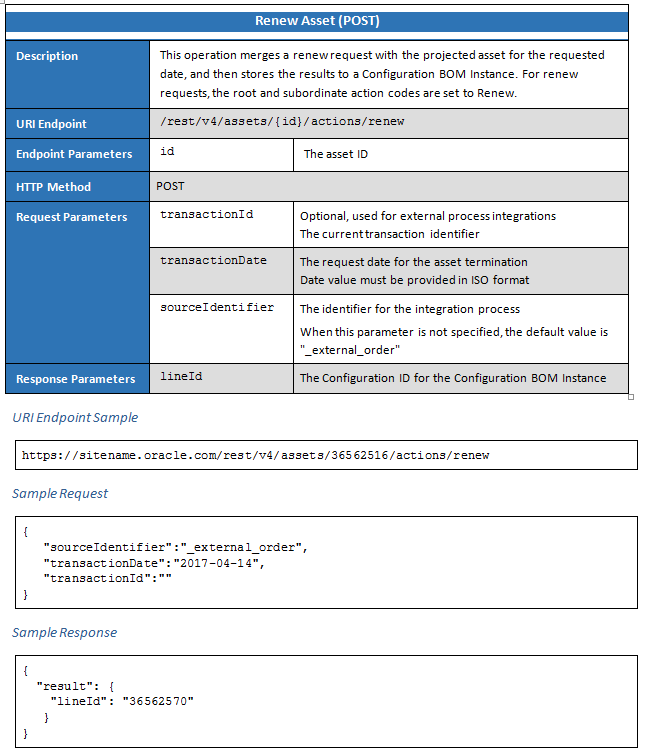
GET CONFIGURATION INSTANCE

RECONFIGURE QUOTE
NOTE: Reconfigure cannot be performed on individual or fulfilled assets.

FOLLOW-ON ORDER


Steps to Enable
The Transaction and Assets REST API enhancements are available on 2017 R1 sites using v3 or above RESTful services.
Key Resources
Refer to the following resources for additional information:
- CPQ Cloud Administration Online Help - REST API topics
- Oracle Help Center – REST API Services for CPQ Cloud
Provide a simple way for administrators and end users to leverage CPQ Cloud by using the following 2017 R1 features and enhancements:
- Document Designer Enhancements
- Concurrent Transaction Access
Document Designer Enhancements
Document Designer is a drag and drop tool for creating and administering document templates. As part of continuing improvements to Document Designer, the following enhancements are available in CPQ Cloud 2017 R1.
- Add inline references to RTE and HTML attributes in a Text element
- Embed RTE and HTML attributes in a table cell or a Header and Footer layout
- Use newly supported functions in conditions and loops
- Allow XSL variables in conditions and loops
- Use the Advanced Condition and Loop Editor
- Use new date and currency formats
- Auto-adjust table width
- Insert layouts and elements using double click and palette enhancements
Add Inline References to RTE and HTML Attributes in a Text Element
Administrators can add inline references to RTE and HTML attributes in the Text Element of a Document Designer template by completing the following steps.
- Enter either RTE or HTML in the Attribute field of the Text Element dialog to find RTE or HTML attributes. The Attribute menu filters by name and variable name.
- Select a specific RTE or HTML attribute from the list of Main Document Attributes.
- Click Add to display the attribute in the Text Element dialog.
- If administrators apply formatting (e.g. font family, font size, line spacing, indentation, and style options such as bold, italic, and underline) to a RTE or HTML attribute from within the Text Element dialog, selecting the Clear RTE/HTML Attribute Formatting checkbox will override this formatting with Text Element formatting in the output document.
- If the content added inside an RTE or HTML attribute contains a default font family or font size, the Text Element formatting is applied. This occurs regardless of whether or not the administrator selects the Clear RTE/HTML Attribute Formatting checkbox.
- When HTML attributes contain an image within an HTML tag that has formatting such as bold, italic, or font size, the text content may overlap the image in the output document. To correct this, try removing the formatting from the HTML tag or moving the image outside the tag.
- Click OK to show the attribute as part of a Text Element in the Document Designer template.
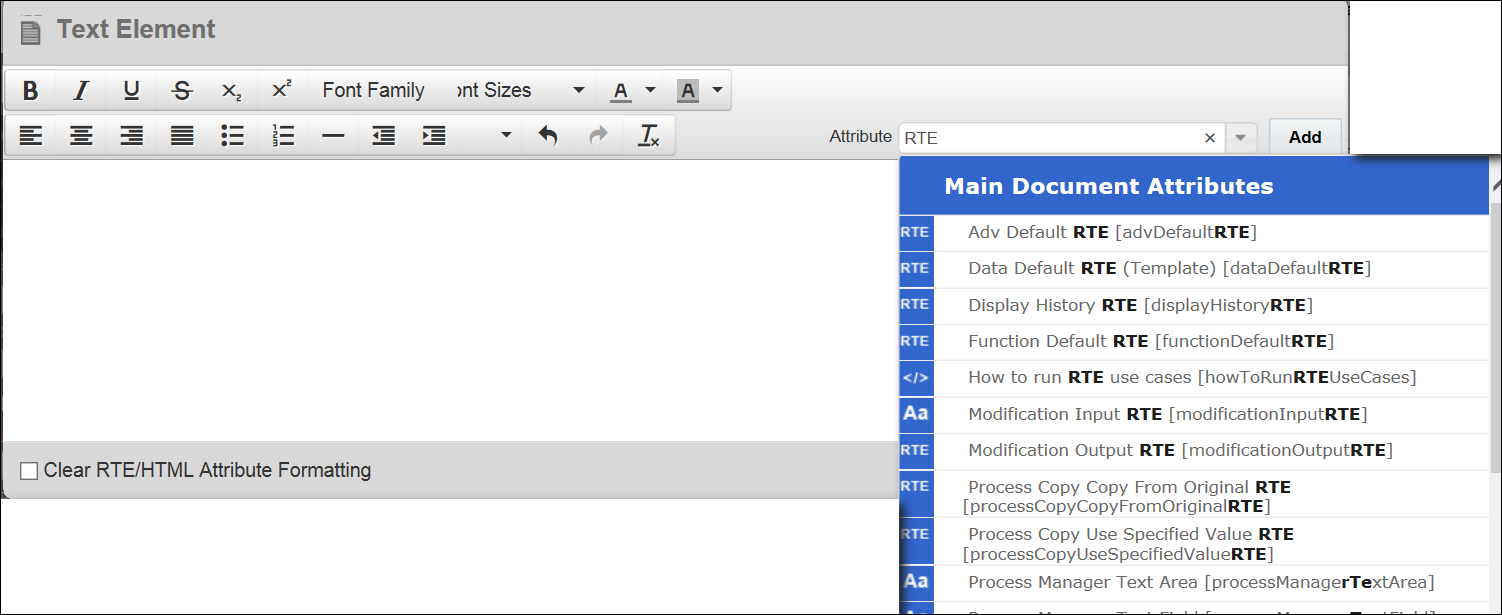
Find RTE Attributes Using the Attribute Field
NOTE: Depending on the context of the Text Element, Sub Document RTE and HTML attributes may also be available. For example: When the Text Element exists within a table cell whose row contains a defined loop.
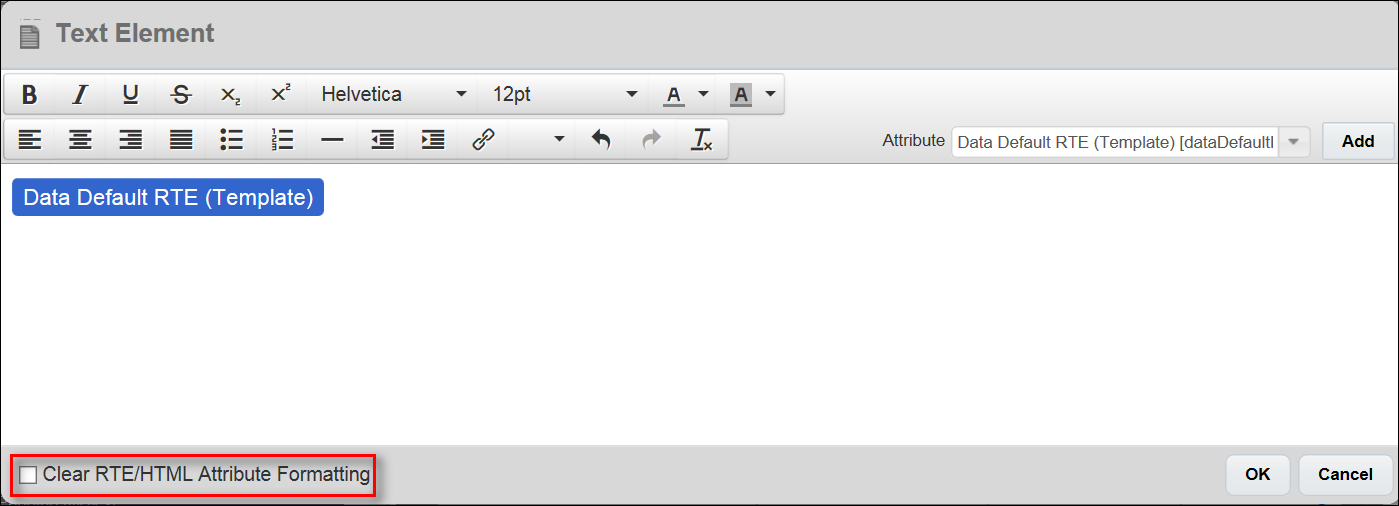
RTE Attribute in the Text Element Dialog

RTE Attribute as Part of a Text Element
Embed RTE and HTML Attributes in a Table Cell or a Header and Footer Layout
Administrators can add an Embed Document element to a table cell or a Header and Footer layout and embed an RTE attribute or HTML attribute in the associated table cell, header, or footer.
Complete the following steps:
- Expand the Elements panel and drag the Embed Document element from the Elements panel into a table cell, header, or footer.
- The Embed Document panel shows the Rich Text/HTML Attribute option selected by default.
The table cell, header, or footer where the administrator placed the Embed Document element will display a placeholder for an RTE or HTML attribute. - From the Rich Text/HTML Attribute drop-down menu, select the RTE or HTML attribute to embed in the table cell, header, or footer.
- Once selected, the name of the embedded RTE or HTML attribute will display in the layout editor in the table cell, header, or footer. The embedded attribute will also display in the Document Designer output document.
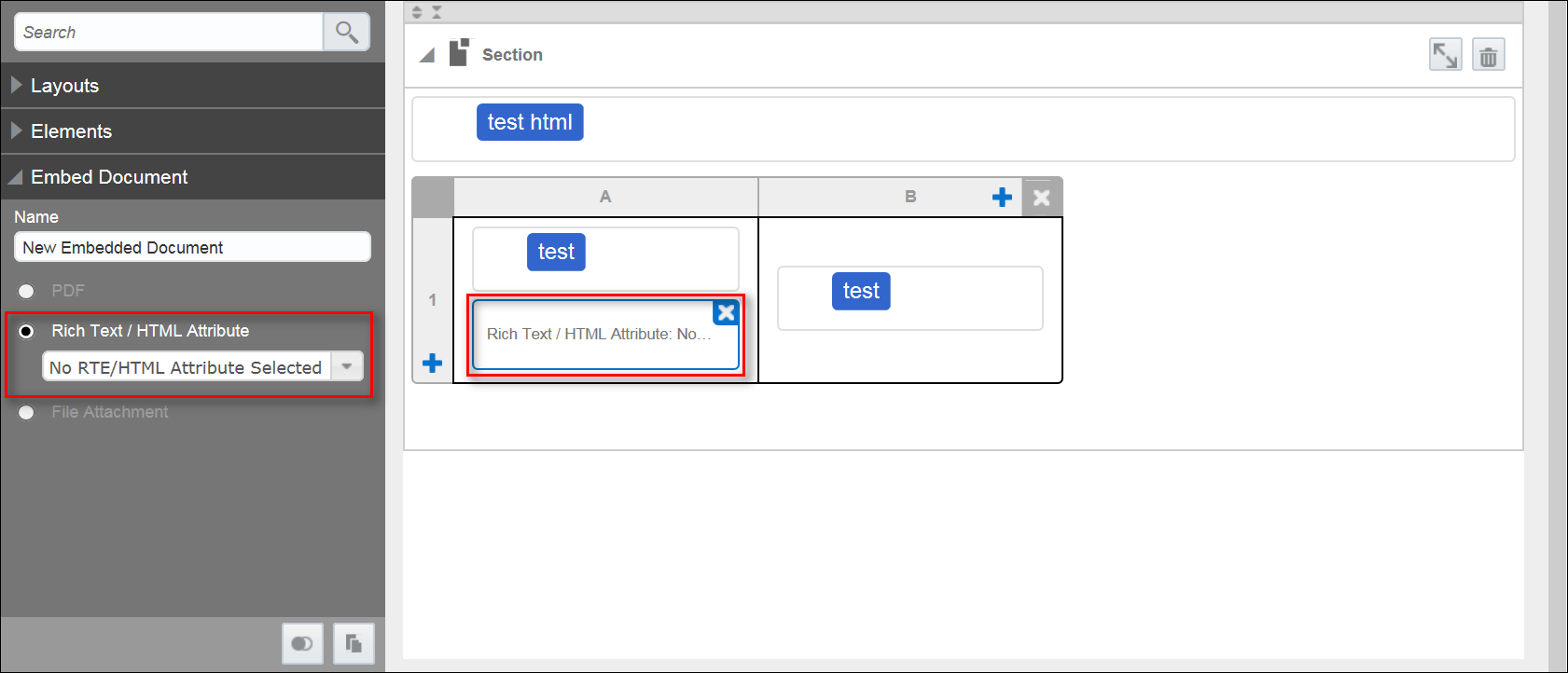
Embed Document Panel with Rich Text/HTML Attribute Selected by Default
Rich Text/HTML Attribute Option in Embed Document Panel

Embedded Attribute in Table Cell
Use Newly Supported Functions in Conditions and Loops
In CPQ Cloud 2017 R1, administrators can use newly supported string functions, date functions, and a Tips andBetween function for numbers.
String Functions
CPQ Cloud 2017 R1 supports the following string functions in conditions and loops.
Date Functions
CPQ Cloud 2017 R1 supports the following date functions in conditions and loops.

Between Function for Numbers
CPQ Cloud 2017 R1 supports a between function for numbers in conditions and loops.

Allow XSL Variables in Conditions and Loops
As in prior releases, administrators can add custom XSL code to Global XSL Snippets and Inline XSL Snippets. When administrators use Global XSL Snippets to create XSL variables, they can reference the XSL variables via inline XSL Snippets throughout a Document Designer template. In CPQ Cloud 2017 R1, administrators can use the XSL variables in conditions and loops. The entry of XSL variables into conditions and loops works the same as string entries.
For example: If an administrator starts typing '$', a 'Literal Value' option of "$" initially displays. If the administrator then types any character other than a space, an XSL variable option also displays.
Entry of XSL Variable in Condition
Entry of XSL Variable in Loop
NOTE: XSL variable entry does not check existing variables defined in Global or Inline XSL for a match. Administrators must therefore ensure the value entered after the $ sign matches the value declared in the Global XSL or Inline XSL Snippet.
Use the Advanced Condition and Loop Editor
Administrators can convert a Simple condition or loop to an Advanced filter or loop that displays in XSL format. An Advanced button displays on the Conditional dialog and the Loop dialog in 2017 R1. After opening the dialogs, administrators can go directly to Advanced mode by clicking the Advanced button.
Conditional and Advanced Conditional Editors
If a Simple condition does not exist in the Conditional dialog, clicking Advanced will load the Advanced Conditional dialog with no XSL content.
Conditional Dialog without a Simple Condition
Advanced Conditional Dialog with No XSL Content
When the Conditional dialog contains a Simple condition, administrators can click Advanced to convert the Simple condition to XSL. The following figure shows a Simple condition.
Conditional Dialog with Simple Condition
The Advanced Conditional dialog shows the Simple condition converted to XSL. The administrator can return to the Simple condition that displays in the Conditional dialog (shown above) by clicking Simple.
Simple Condition Converted to XSL
Loop and Advanced Loop Dialogs
The Loop dialog by default shows All Line Items selected from the Loop On drop-down menu.

Loop Dialog in Default View
Even when no filter is applied, clicking Advanced will construct a basic XSL loop from the default Loop On selection of All Line Items.
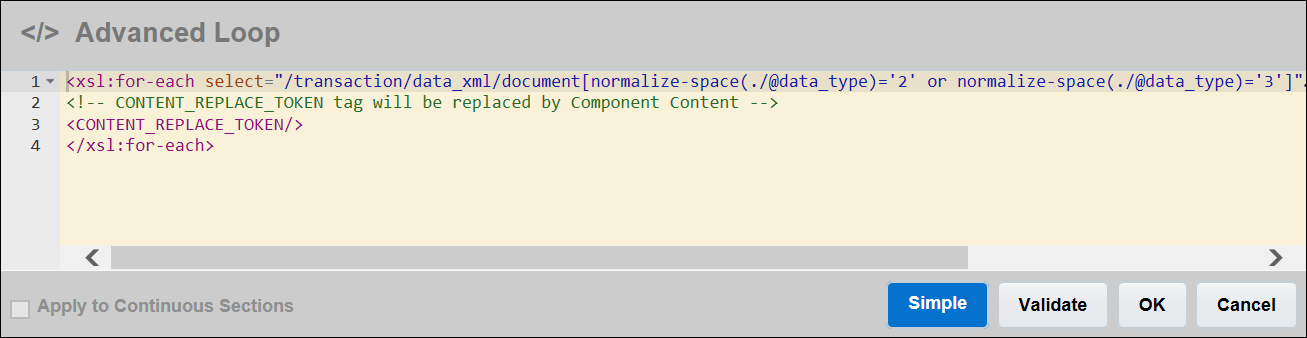
Basic XSL Loop from Default Loop On Selection of All Line Items
NOTE: Changes to Simple loops and conditions carry over to the Advanced version of the loop or condition, but changes to Advanced loops and conditions do not carry over to Simple loops and conditions.
Use New Date and Currency Formats
In CPQ Cloud 2017 R1, several new date and currency formats are available in the Document Properties, Section Properties, Text, and Heading panels.
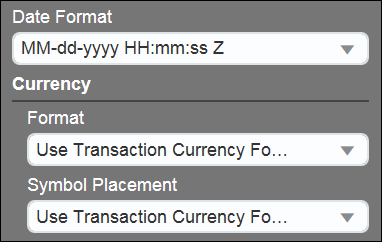
Date and Currency Menus in Document Properties Panel
NOTE: By default, Use Transaction Currency Format displays in the Currency Format and Symbol Placement drop-down menus in the Document Properties panel. When using this option, the currency format set at the Transaction level will display in the document.
Date and Currency Menus in Section Properties, Heading, and Text Panels
NOTE: In the Section Properties panel, the Heading panel, and the Text panel, the Date Format, Currency Format, and Symbol Placement drop-down menus are blank by default.
Date Enhancements
Shown below are the new formats included in the Date Format drop-down menu in CPQ Cloud 2017 R1.
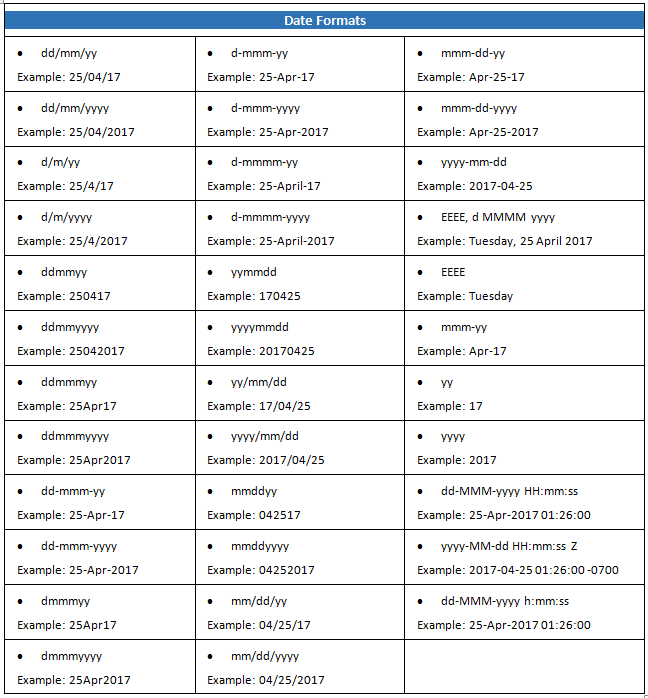
Currency Enhancements
The following table shows the new currency formats included in the Format menu under Currency in the properties panel.
| Display Formats |
|
|---|---|
|
|
|
|
|
|
|
|
|
|
|
|
Symbol Placement
Administrators can use the Symbol Placement drop-down menu to select the location to place the currency symbol. As shown below, the available options include Use Transaction Currency Format, Left, Right, and None.
- Use Transaction Currency Format: The currency symbol used at the Transaction level will display.
- Left: The currency symbol will display to the left of the display format.
- Right: The currency symbol will display to the right of the display format.
- None: No currency symbol will display.
Currency Symbol Placement Options
CPQ Cloud 2017 R1 includes a Total Width property and an Autofit property in the Table panel.
Total Width Property and Autofit Property
Autofit Property
The Autofit property is by default turned off. When administrators select the Autofit checkbox to turn the property on, the width of a table’s columns automatically adjusts to fit the table within the margins of the output document. This enhancement is useful in situations where administrators conditionally hide Document Designer table columns from the output document.
For example: When a table has five columns with each one set to 20% of the page, the table columns do not automatically expand to the full width of the page when two of the columns are conditionally hidden and the Autofit property is turned off. Selecting the Autofit checkbox addresses this scenario and ensures a table’s columns expand across the full width of the output document.
NOTE: The Autofit property takes effect whenever the table width is smaller or larger than the page width.
Total Width Property
The Total Width property is a read-only property that displays the sum of the width of the columns in a table and the corresponding unit of measure. The Total Width property includes all columns in the table, even when the table includes conditionally hidden columns. This enhancement makes it easier for administrators to adjust the width of individual table columns when the Autofit property is disabled.
When administrators select multiple tables, an asterisk displays next to the Total Width property.
Asterisk Displaying When Multiple Tables Selected
Insert Layouts and Elements Using Double Click and Palette Enhancements
Administrators now have faster ways to add layouts and elements to Document Designer templates by using the double click and palette enhancements available in CPQ Cloud 2017 R1.
Double Click Enhancement
Expand the Layouts panel and double click on a layout option (e.g. Section, Table of Contents, Header & Footer) to add it to a Document Designer template.
Double Click an Option in the Layouts Panel
As shown below, the layout option that was double clicked (e.g. Section) will then display in the layout editor.
Section Added to Layout Editor by Double Clicking “Section” in the Layouts Panel
Likewise, expand the Elements panel and double click on an element (e.g. Text, Image, Table, Heading, Column Break, Page Break, Spacer, XSL Snippet, Embed Document) to add it to a Document Designer template.
Double Click an Option in the Elements Panel
As shown below, the element that was double clicked (e.g. Text) will then display in the layout editor.

Text Element Added to Layout Editor by Double Clicking “Text” in the Elements Panel
Palette Enhancement
Administrators can use a palette of options to add layouts and layout elements from the palette to the layout editor. The following figure shows the palette of options minimized in the layout editor.
Minimized Palette in the Layout Editor
Click the palette to expand its contents, which will vary based on the layout or element selected in the layout editor. For example: When a Section is selected in the layout editor, the palette displays options for Section, Table of Contents, Header & Footer, Text, Image, Table, Heading, Column Break, Page Break, Spacer, XSL Snippet, Embed Document, and Hide Palette. Administrators can click a palette icon to add the associated element to the layout editor.
Layout Editor Showing Palette Options for a Section
When administrators select a Header & Footer in the layout editor, the palette displays icons for Section, Table of Contents, Header & Footer, Text, Image, Table, Spacer, XSL Snippet, and Embed Document.

Palette Options for a Header & Footer
When administrators select a Table of Contents in the layout editor, the palette displays options for Section, Table of Contents, and Header & Footer.

Palette Options for Table of Contents
When administrators select a Table Cell in the layout editor, the palette displays options for Section, Table of Contents, Header & Footer, Text, Image, Spacer, XSL Snippet, and Embed Document.

Palette Options or a Table Cell
Steps to Enable
The Document Designer enhancements are automatically available on 2017 R1 sites.
Tips and Considerations
Consider the following tips when using the 2017 R1 Document Designer enhancements:
- When using a multi-language Designer Template, administrators can use different date and currency formats for different languages. Each language has its own hierarchy.
- The Autofit property does not affect table borders, table padding, or section margins.
- When administrators expand a palette, they can drag the palette anywhere in the layout editor.
- The following enhancements are available in both Document Designer and Email Designer:
- Total Width property
- Add RTE and HTML attributes to a Text element
- Currency and date format enhancements
- Double click and palette enhancements
- When administrators select the Clear RTE/HTML Attribute Formatting checkbox in Email Designer:
- Table background color is removed and is not applied by the text component for HTML and RTE attributes
- Background color is not applied to content inside an RTE attribute
NOTE: Since Email Designer templates do not have Layout elements, only Text, Image, and Table elements are available in the palette for Email Designer. When a table cell is selected in Email Designer, only the Text and Image elements are available in the palette.
NOTE: Underline and strike through formatting is applied to child items for both RTE and HTML attributes in Email Designer when the Clear RTE/HTML Attribute Formatting checkbox is unchecked.
Key Resources
Refer to the CPQ Cloud Administration Online Help for additional information.
In CPQ Cloud 2017 R1, administrators can enable Transaction locking in a Commerce process. This feature is beneficial to CPQ Cloud customers who have multiple users, such as sales representatives, working concurrently on Transactions by performing actions such as adding different products to the same Transaction or updating different fields in the same Transaction. Locking a Transaction provides users with full control of a Transaction and prevents conflicting changes to the same Transaction.
When the user who locks a Transaction for editing (e.g. the Transaction owner) performs an auto-unlock action, logs out of CPQ Cloud, or their CPQ Cloud session times out, the Transaction automatically unlocks. Administrators can open a Service Request (SR) on My Oracle Support to request a specific session timeout value. Administrators have the option of allowing users other than the Transaction owner to unlock a locked Transaction.
The following Concurrent Transaction Access functionality is available in CPQ Cloud 2017 R1:
- Enable Transaction locking
- Mark a single action as an auto-unlock action
- Lock a Transaction upon opening it in Transaction Manager
- Open a locked Transaction
- Unlock a Transaction
- Use the process-level Unlock action
- Include lock state attributes in Transaction search results
- Use a REST API to request the state of a Transaction
- Allow Web Services Only users perform Transaction actions
- Use SOAP or REST APIs to unlock Transactions
- Set a destination for Back type actions
When administrators enable Transaction locking for an existing Commerce process, the following actions are by default available and selected on the Process Administration page under Actions to Automatically Unlock Transaction: Back, Version, Request Approval, Approve, and Reject. These actions are all main document action types that perform their implied action and unlock a Transaction when performed by the Transaction owner. Administrators can edit the list of auto-unlock actions by unselecting any of the default auto-unlock actions or adding one or more Modify main document action types to the list of auto-unlock actions.
NOTE: When administrators add a new action to a process that already has Transaction locking enabled, the action will automatically display in the list of Actions to Automatically Unlock Transaction.
CPQ Cloud 2017 R1 also introduces a new Unlock main document action type. As is the case with actions that have auto-unlock enabled, Unlock type actions unlock a Transaction when performed. However, Unlock type actions do not perform any further action on the Transaction, such as modify. Administrators can configure the Commerce process to allow users other than the Transaction owner to unlock a Transaction using an Unlock type action.
Complete the following steps:
- Click Admin to go to the Admin Home page.
- Click Process Definition in the Commerce and Documents section.
The Processes page opens. - Select the name of an existing Commerce process to open the Process Administration page or click Add to use the Process Administration page to create a new Commerce process.
- Select the Enable Transaction Locking checkbox. The following two additional options will display on the Process Administration page:
- Let Other Users Perform Unlock Actions - Lets users other than the Transaction owner unlock a Transaction when their Participant Profile grants access to a main document action of the new Unlock action type.
- Actions to Automatically Unlock Transaction – Displays a list of auto-unlock actions: Back, Version, Request Approval, Approve, and Reject. Administrators can also add a Modify main document action to the list of auto-unlock actions. Press the CTRL key and select the actions to include as auto-unlock actions. When the Transaction owner performs any of the auto-unlock actions, the Transaction will unlock.
- Click Apply to save your changes.
- Deploy the Commerce process in the Deployment Center. Whenever administrators make changes on the Process Administration page, they must deploy the changes for the changes to take effect.
NOTE: In the below list of Actions to Automatically Unlock Transaction, Save and Modify and Unlock are Modify main document action type that the administrator added to the list of auto-unlock actions. The other options are main document actions that, by default, are included in the list of auto-unlock actions.
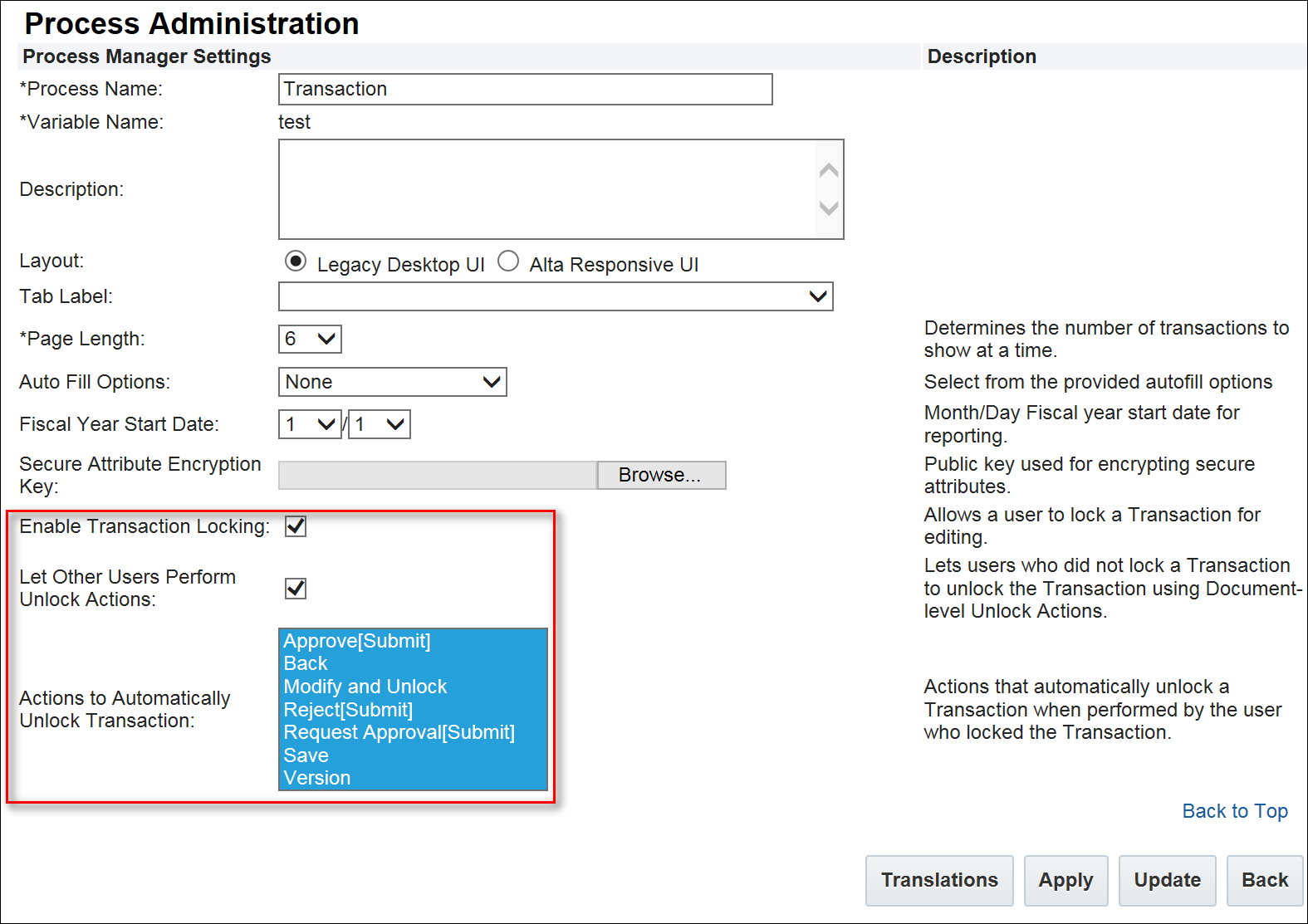
Enable Transaction Locking
NOTE: To disable Transaction locking, return to the Process Administration page, uncheck the Enable Transaction Locking checkbox, and deploy the change. After disabling Transaction locking for a Commerce process, all of the previous locked Transactions in the Commerce process are effectively unlocked until a periodic background task removes the lock completely.
MARK A SINGLE ACTION AS AN AUTO-UNLOCK ACTION
To mark a single action as an auto-unlock action, administrators can open the Admin Action page for the action and select the Automatically Unlock Transaction checkbox. The checkbox is similar to the Actions to Automatically Unlock Transaction checkbox on the Process Administration page, but sets a single action as an auto-unlock action.
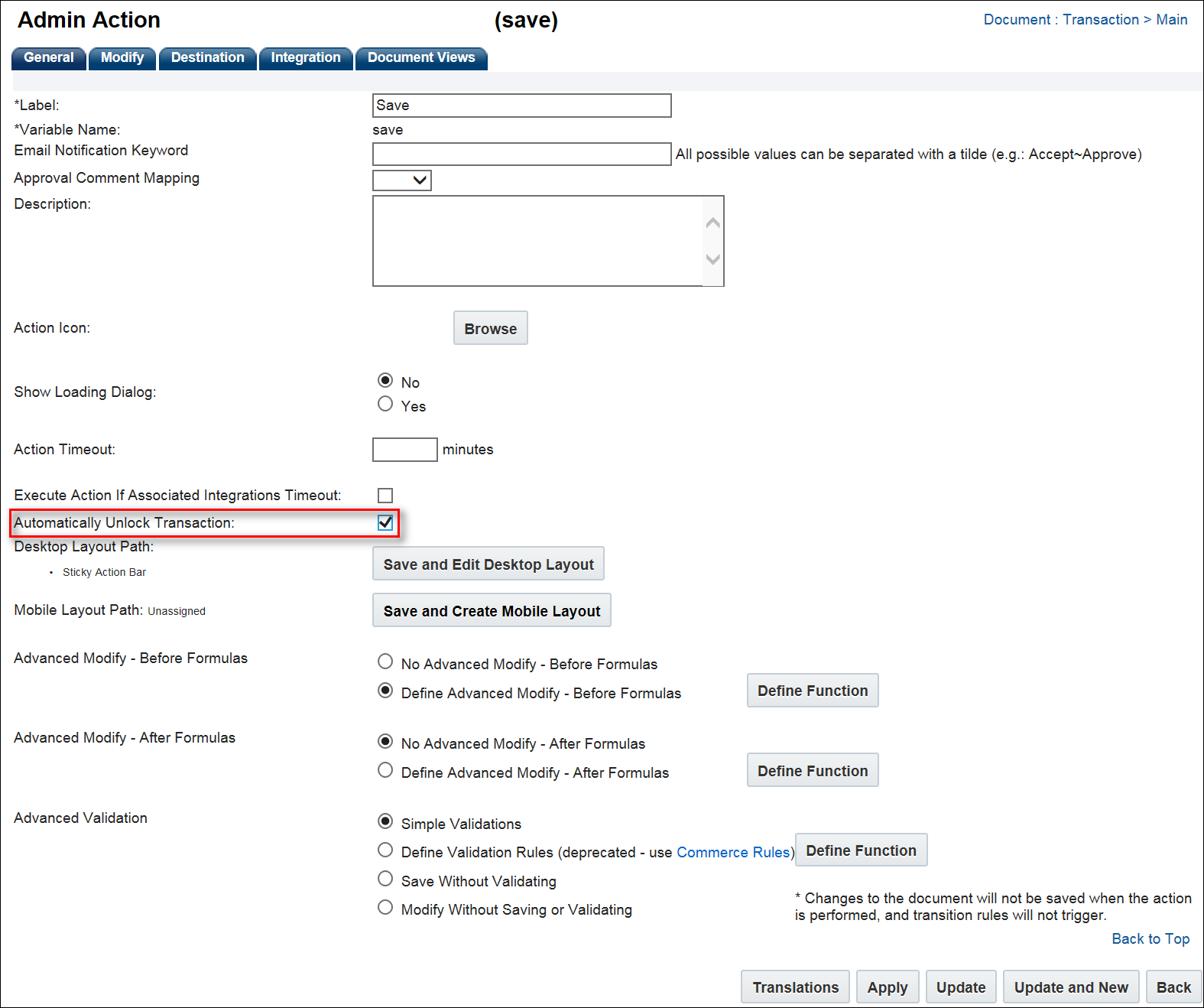
Admin Action Page with Automatically Unlock Transaction Checkbox
Lock a Transaction Upon Opening It in Transaction Manager
When a user creates a new Transaction, the Transaction immediately locks for the user when created. Users lock Transactions for editing by opening Transaction Manager and clicking on a link to the Transaction.
Transaction Manager
The Transaction opens in edit mode for the Transaction owner, who then has the Transaction locked for editing. With the exception of Web Services Only users, no other users can edit a locked Transaction.
NOTE: Web Services Only users can update a Transaction via SOAP and REST APIs, even when a Transaction is locked for editing by another user.
Transaction in Edit Mode for the Transaction Owner
When a Transaction owner performs any of the main document actions selected by an administrator in the Actions to Automatically Unlock Transaction list, a locked Transaction will unlock.
For example: If an administrator selects Back and Version as the Actions to Automatically Unlock Transaction, the user who locks a Transaction for editing becomes the Transaction owner and can unlock the Transaction by clicking either Back or Version.
When an administrator selects the Let Other Users Perform Unlock Actions checkbox on the Process Administration page, users other than the Transaction owner can unlock a locked Transaction when the main document has an Unlock type action that is available to those users via their Participant Profiles.
NOTE: When the Transaction owner logs out of CPQ Cloud or their CPQ Cloud session times out, the locked Transaction automatically unlocks.
When a Transaction owner has a Transaction locked for editing, the locked Transaction displays in read-only mode when other users open the Transaction.
For example: If another user opens a Transaction while the Transaction owner has the Transaction locked for editing, the attributes and line items in the main document (e.g. Transaction) display in read-only mode.
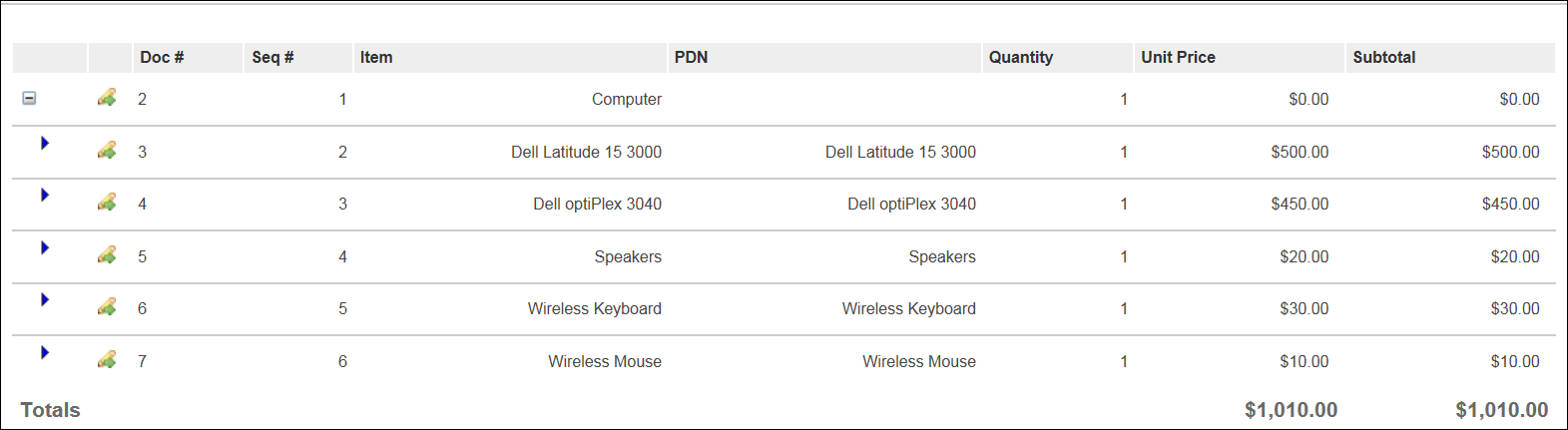
Transaction Displaying in Read-Only Mode
NOTE: Other users can still open sub documents (e.g. Transaction lines) from the Line Item Grid; however, the sub documents will display in read-only mode.
USE THE PROCESS-LEVEL UNLOCK ACTION
A Lock Status column displays in Transaction Manager whenever administrators enable Transaction locking for a Commerce process. Full Access users can use Transaction Manager to view a list of locked Transactions for a specific Commerce process. An icon displays in the Lock Status column next to each locked Transaction.
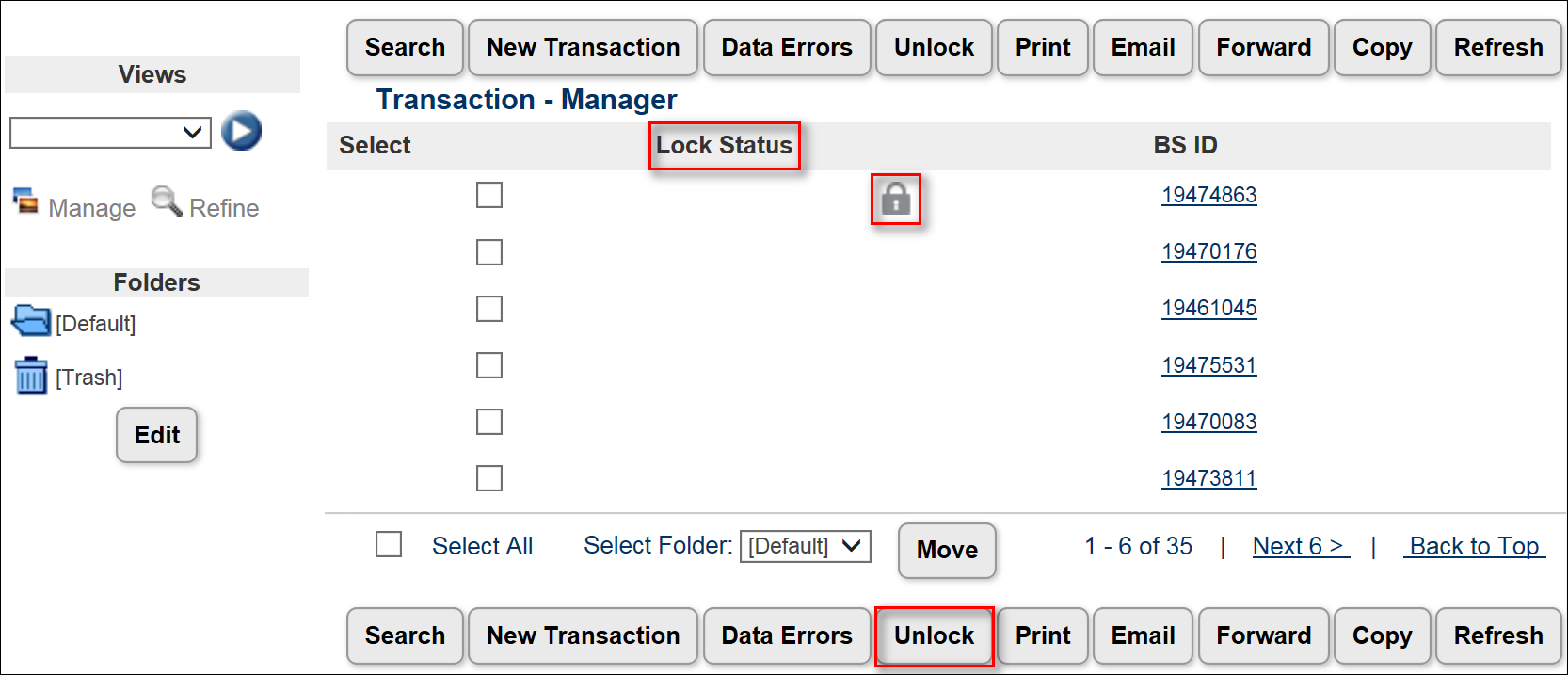
Transaction Manager with Process-Level Unlock Action, Lock Status Column, and Lock Icon
Select the Transactions to unlock and click Unlock, which is a process-level Unlock action available in Transaction Manager when all of the following apply:
- At least one Transaction displays in Transaction Manager
- Transaction locking is enabled in the deployed process
- The user has access to the Unlock process action
To grant access to the Unlock process action, navigate to the Process Action List page and select the Access Rights link next to the Unlock action.
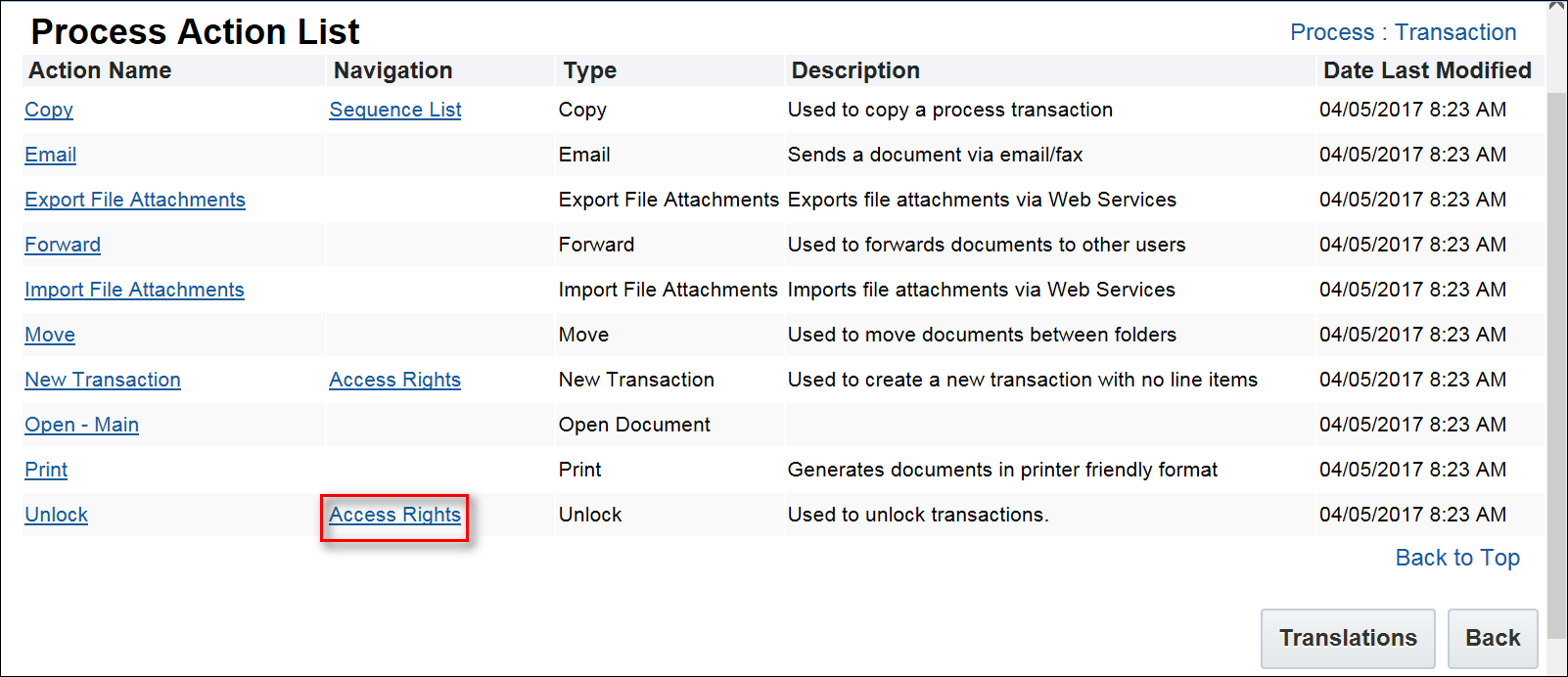
Process Action List – Access Rights Link
Use the Access Rights Editor to grant Full Access users with access to the Unlock process action.

Access Rights Editor
INCLUDE LOCK STATE ATTRIBUTES IN TRANSACTION SEARCH RESULTS
When users click Search from Transaction Manager, they can select the special attributes and main attributes to display as the columns in the search results. In CPQ Cloud 2017 R1, Lock Status, Locked By, and Date Locked are included as Special Attributes.
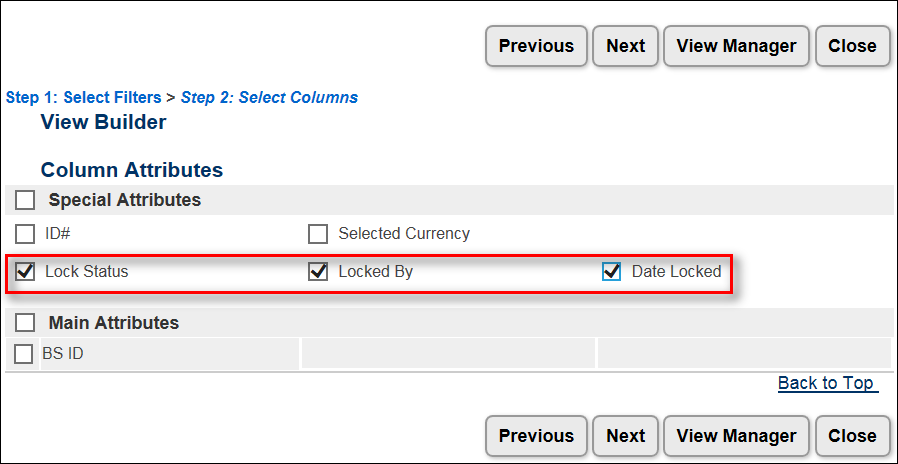
Lock Status, Locked By, and Date Locked as Special Attributes
When users opt to mark the Lock Status, Locked By, and Date Locked checkboxes to include these special attributes as search result columns, they can specify the order in which to display the columns in the search results.
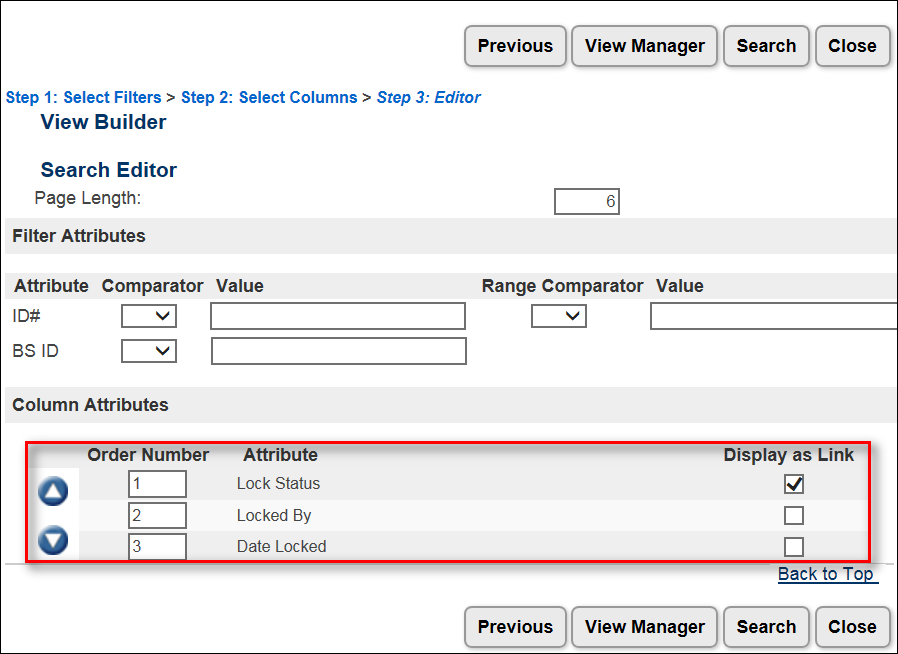
Specifying Order of Lock Status, Locked By, and Date Locked Columns
The following is an example of the Lock Status, Locked By, and Date Locked special attributes displayed as columns in the search results.
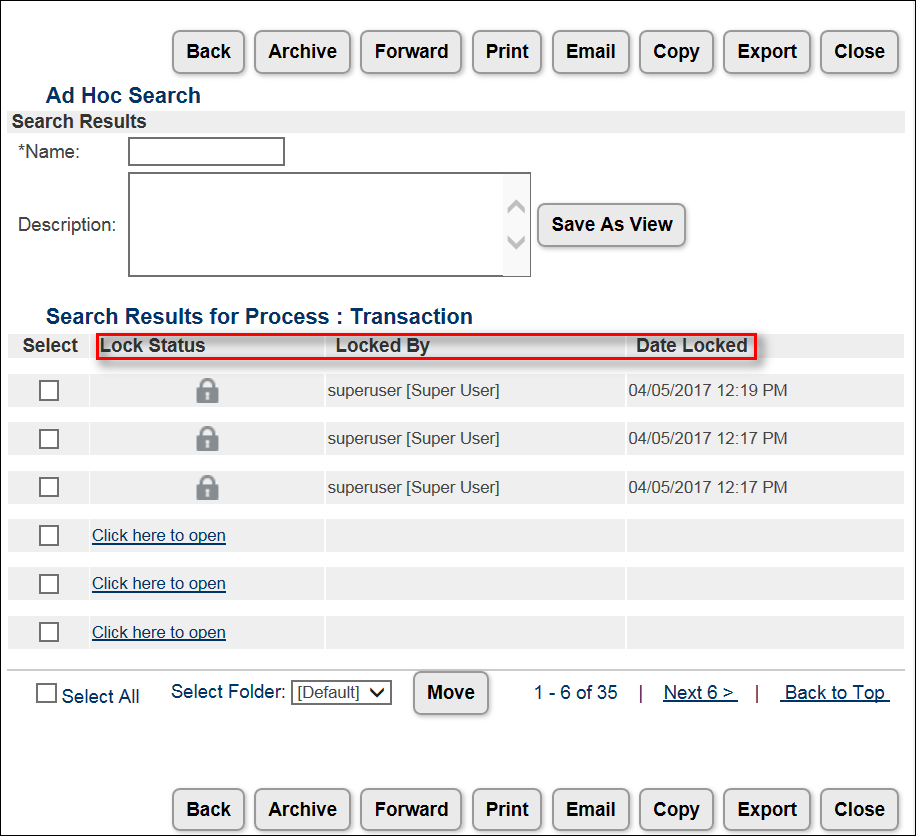
Locked Status, Locked By, and Date Locked as Columns in Search Results
Use a REST API to Request the State of a Transaction
When using a Transaction REST API to request the “_state” of a locked Transaction, the response shows the Transaction’s attributes as read-only and the actions as active or inactive.
Allow Web Services Only Users to Perform Transaction Actions
When SOAP or REST API requests for a Transaction come from a "Web Services Only" user, the action performs as usual even when performed against a locked Transaction. The owner of a lock on a Transaction remains the same after a “Web Services Only” user performs an action on a locked Transaction. A “Web Services Only” user can unlock a locked Transaction by performing an auto-unlock action or the Unlock action.
Use SOAP or REST APIs to Unlock Transactions
Creating a Transaction using a REST API locks the Transaction by the current user. When another user opens a locked Transaction, the current lock on the Transaction does not transfer. In REST, performing any Open Document type action API locks the Transaction. Using the GET Transaction API does not lock the Transaction.
When using a SOAP or REST API to unlock a Transaction, the Transaction owner can still perform any action on the Transaction or perform an auto-unlock action to unlock the Transaction. Any user can perform an auto-unlock action to unlock a Transaction, provided the action is active for the user on the step in which the Transaction is on.
Set a Destination for Back Type Actions
In CPQ Cloud 2017 R1, a Destination tab is available for all Commerce Back type actions. Since Modify actions are not available when opening a Transaction locked by a different user, administrators who need this functionality must create a Back type action and set the Destination tab appropriately. This functionality makes it easier for users to leave a locked Transaction.
For example: If Salesforce users access a locked Transaction, they are by default missing a Return to Opportunity button. As a result, they have no easy way to get back to the opportunity when CPQ Cloud is not running in an iFrame. The Destination tab for Back type actions resolves this issue. Administrators can use the Destination tab to set a Salesforce destination for a Back type action. When Salesforce users access a locked Transaction, they can return to Salesforce upon performing the Back type action.
Described below are the destination types available in the Destination tab for Back type actions and the functionality that occurs upon clicking a Back type action from a locked Transaction:
- Parent Page: The user returns to the page they were on prior to accessing the locked Transaction, such as Transaction Manager or Salesforce. Parent page is the default destination type.
- Same Page: The user remains on the locked Transaction.
- Custom Destination: The user is taken to the URL specified in this field.
- Partner Object ID Attribute: The user is taken to the appropriate object on the partner site. A valid value for this field is the variable name of the attribute that stores the partner object ID information.
- Define Destination Rule: The user is taken to the URL returned by running a BML function. The valid return value for this function is a string. Any URL whose relative path is a page on the CPQ Cloud application is a valid return value.
Steps to Enable
The Concurrent Transaction Access feature is automatically available on 2017 R1 sites.
Tips and Considerations
Consider the following tips when using the 2017 R1 Concurrent Transaction Access feature:
- When the Enable Transaction Locking checkbox is not marked, administrators can still view, update, or delete Unlock type actions. End-users cannot execute the actions unless an administrator enables the Transaction locking feature.
- When users other than the Transaction owner open a locked Transaction, the attributes and line items on the main document display in read-only mode.
- Approvers cannot approve or reject a locked Transaction.
- When administrators use the Deployment Center to perform a mass update of Transactions, locked Transactions are included in the deployment.
- When creating a new Commerce process, no options display by default in the Actions to Automatically Unlock Transaction list. Administrators must add one or more main documents to the process and add one or more actions to the main document. If the actions are eligible for auto-lock, they will display in the Actions to Automatically Unlock Transaction list.
Key Resources
Refer to the CPQ Cloud Administration Online Help for additional information.
Web Service Support for BOM Mapping Rules
This release introduces the bomMapping element to the Configuration configure and getConfiguration SOAP APIs (v1 and v2). When the item is set to "true", the SOAP API returns the related BOM Mapping data.
Sample XML Input
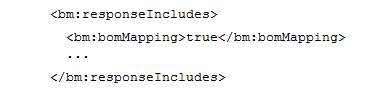
Sample Response
NOTE: Refer to Commerce Cloud Integration Enhancements for additional information.
Configuration ID – Commerce System Attribute
A new Commerce system attribute (e.g. _configuration_id) is available in CPQ Cloud 2017 R1. The Configuration ID attribute is used for the Configuration BOM Instance ID.
When migrating from one site to another using the Migration Center, both sites must use the same major release. Content may only be migrated across minor releases within the same major release. Migration across major releases cannot occur.
- “Major release” = A major product release, e.g. 2017 R1
- “Minor release” = A release update, e.g. 2017 R1 Update 1
For information on bugs fixed in 2017 R1, refer to the 2017 R1 Resolved Known Issues document available on My Oracle Support and the CPQ Cloud Online Help.
For some system-defined messages and components, strings were removed and others added in CPQ Cloud 2017 R1. If you have created your own implementation-specific translations of system-defined strings, some of these strings may no longer appear. Other strings may appear in English. The strings appearing in English are new and require translation.
Most of these messages and components are on the Admin side of CPQ Cloud, but you should review both your end user and administration pages before deploying your updated installation to confirm that all strings appear in the desired language.
CPQ Cloud supports the consumption of both single and multi-byte character sets. Submit a service request on My Oracle Support to enable your site for a new language.
For the following languages, a translation of the CPQ Cloud user interface is available for both the platform and the reference application:
- Chinese (Simplified) [China]
- Chinese (Traditional) [Taiwan]
- Czech [Czech Republic]
- Danish [Denmark]
- Dutch [Netherlands]
- English
- Finnish [Finland]
- French
- French [Canada]
- German
- Hungarian [Hungary
- Italian
- Japanese [Japan]
- Korean [South Korea]
- Norwegian (Bokmål) [Norway]
- Polish [Poland]
- Portuguese [Brazil]
- Romanian [Romania]
- Russian [Russia]
- Spanish (Worldwide)
- Swedish [Sweden]
- Turkish [Turkey]
Upgrade and test all test instances on Oracle CPQ Cloud 2017 R1 before upgrading to production.
CPQ Cloud supports all browser versions that meet the criteria of the Oracle Software Web Browser Support Policy.
Windows
- Major releases of Google Chrome upon general browser availability and until Google no longer supports the version
- Major releases of Mozilla Firefox upon general browser availability and until Mozilla no longer supports the version
- Major releases of Internet Explorer/Microsoft Edge within nine months of general browser availability and until Microsoft no longer supports the version
Mac OS X
- Major releases of Google Chrome upon general browser availability and until Google no longer supports the browser version
- Major releases of Mozilla Firefox upon general browser availability and until Mozilla no longer supports the version
- Major releases of Safari within nine months of general browser availability and until Apple no longer supports the version
iOS
- Major releases of Safari within nine months of general browser availability and until Apple no longer supports the browser version.
If you experience issues using a supported browser version, open a ticket on My Oracle Support to resolve the issue. If an issue arises when using a supported browser, use a certified browser version until a fix is delivered. Certified browsers are selected based on current market share and are thoroughly tested to work with the current version’s standard functionality.
Windows
- Google Chrome 58.x
- Mozilla Firefox 53.x
- Internet Explorer 11.x
iOS
- Operating System: iOS 10.x
- Browser: Safari 10.x
- Screen resolution: 2048 x 1536
NOTE: Compatibility issues with the selected browsers may exist when sites contain additional JavaScript, alternate CSS, or other custom functionality. Customizations may require add-on work. Contact My Oracle Support to determine the availability of workarounds and minor fixes.
Salesforce Managed Package Support
CPQ Cloud no longer releases updates to the Salesforce Managed Packages prior to v7.0. With the release of 2017 R1, only Managed Package v7.x is officially supported. Although Oracle expects Salesforce integrations that use a Managed Package prior to v7.0 to function, new issues that arise in these versions are not addressed by CPQ Cloud.
Please refer to the release documentation for all versions between your current version and the version to which you are upgrading to see all new functionality, resolved known issues, and functional known issues.
Refer to the CPQ Cloud Online Help to become familiar with the new features introduced in Oracle CPQ Cloud 2016 R2. For additional help, see My Oracle Support.
Verify any information not explicitly mentioned in this document as supported by the software against the product help for Oracle CPQ Cloud 2016 R2 or the Oracle CPQ Cloud Consulting team.
For more information on Oracle CPQ Cloud, visit the Oracle CPQ Cloud documentation site.
The details in this document are provided for high-level informational purposes only and are not intended to function as a specification or to replace the Online Help. Upgrading to a subsequent release may require the re-deployment of Commerce Processes, Configuration, or global function settings. Modifications to integration XSL files or APIs may also be required.
---

Copyright © 2017, Oracle and/or its affiliates. All rights reserved.
This document is provided for information purposes only, and the contents hereof are subject to change without notice. This document is not warranted to be error-free, nor subject to any other warranties or conditions, whether expressed orally or implied in law, including implied warranties and conditions of merchantability or fitness for a particular purpose. We specifically disclaim any liability with respect to this document, and no contractual obligations are formed either directly or indirectly by this document. This document may not be reproduced or transmitted in any form or by any means, electronic or mechanical, for any purpose, without our prior written permission.
Oracle and Java are registered trademarks of Oracle and/or its affiliates. Other names may be trademarks of their respective owners.
Intel and Intel Xeon are trademarks or registered trademarks of Intel Corporation. All SPARC trademarks are used under license and are trademarks or registered trademarks of SPARC International, Inc. AMD, Opteron, the AMD logo, and the AMD Opteron logo are trademarks or registered trademarks of Advanced Micro Devices. UNIX is a registered trademark of The Open Group.

