
- Revision History
- Overview
- Feature Summary
-
- Approvals
- BML
- Bulk Upload and Bulk Download Services
- Commerce
- Deal Management
- JET Transaction UI
-
- JET UI Inline Rich Text Editor
- Display Error Panel Messages for JET Transaction UI Tables
- Display Indicator Icons for Editable Line Item Grid Fields
- Left Align Display Labels for JET Transaction UI Layout
- Reorder and Reset Default for JET Transaction UI Table Columns
- Wrap Text Option for Line Item Grid
-
- Oracle CPQ Integration
- Web Services
- IMPORTANT Actions and Considerations
This document will continue to evolve as existing sections change and new information is added. All updates appear in the following table:
| Date | Product | Feature | Notes |
|---|---|---|---|
| 14 AUG 2020 | Created initial document. |
Oracle Configure, Price, and Quote (CPQ) enables companies to streamline the entire opportunity-to- quote-to-order process, including product selection, configuration, pricing, quoting, ordering, and approval workflows. Oracle CPQ provides a flexible, scalable, enterprise-ready solution ideal for companies of all sizes that sell products and services across direct, indirect, and e-commerce sales channels.
This guide outlines the information you need to know about new or improved functionality in Oracle CPQ 20C and describes any tasks you might need to perform for the update. Each section includes a brief description of the feature, the steps you need to take to enable or begin using the feature, any tips or considerations that you should keep in mind, and the resources available to help you.
Key Resources
Refer to Oracle CPQ Administration Online Help for detailed descriptions and instructions.
Security & New Features
We would like to remind you if your system has modified security structures you may need to advise your security administrator of new features you would like to implement.
Give Us Feedback
We welcome your comments and suggestions to improve the content. Please send us your feedback at cpqcloud_documentation_us_grp@oracle.com.
Column Definitions:
Features Delivered Enabled
Report = New or modified, Oracle-delivered, ready to run reports.
UI or Process-Based: Small Scale = These UI or process-based features are typically comprised of minor field, validation, or program changes. Therefore, the potential impact to users is minimal.
UI or Process-Based: Larger Scale* = These UI or process-based features have more complex designs. Therefore, the potential impact to users is higher.
Features Delivered Disabled = Action is needed BEFORE these features can be used by END USERS. These features are delivered disabled and you choose if and when to enable them. For example, a) new or expanded BI subject areas need to first be incorporated into reports, b) Integration is required to utilize new web services, or c) features must be assigned to user roles before they can be accessed.
| Ready for Use by End Users Reports plus Small Scale UI or Process-Based new features will have minimal user impact after an update. Therefore, customer acceptance testing should focus on the Larger Scale UI or Process-Based* new features. |
Action is Needed BEFORE Use by End Users Not disruptive as action is required to make these features ready to use. As you selectively choose to leverage, you set your test and roll out timing. |
|||||
|---|---|---|---|---|---|---|
| Feature |
Report |
UI or |
UI or |
|
||
Reorder and Reset Default for JET Transaction UI Table Columns |
||||||
The following Approval feature is available in Oracle CPQ 20C.
Capture Multiple Comment Lines in Approval Emails
Prior to Oracle CPQ 20C, only the first line of an email approval comment was copied in the email approval reply. Oracle CPQ 20C allows for the email approval reply to include multiple comment lines.

Sample Email Approval Response
With the approve/reject email notification supporting unlimited comment lines, with a maximum of 4000 characters, approval or rejection communication is improved.
Steps to Enable
You don't need to do anything to enable this feature.
Tips And Considerations
- The submit history attribute displays all comment lines in one line.
- Numbers, multi-byte characters, special characters, and extra spaces display properly in the comment lines.
- This feature applies to approval email notification in HTML format.
The following BML feature is available in Oracle CPQ 20C.
A new BML Date function, addmonths, is available to set an attribute value. This function returns the date which results after adding or subtracting a number of months from a specified date. This BML function has a number of use cases such as setting an expiration date for a subscription or a quote.
BML Syntax:
| Date addmonths(Date date, Integer num_of_months) |
Parameters:
| Parameter | Type | Description |
|---|---|---|
| date | Date | Represents the given date. |
| num_of_months | Integer | The number of months you want to add to the given month. A positive value will add months. A negative value will subtract months from the date specified. If this value is 0, the result returns the same date. |
Return Type: Date
Example:
| return datetostr(addmonths(getdate(), 2)); |
This feature allows administrators to more easily manipulate dates.
Steps to Enable
You don't need to do anything to enable this feature.
Tips And Considerations
This BML Date function takes into account the number of days in a month and leap year. If the date is at the end of a month, the date result will be a valid calendar day for the month and calendar year.
Examples:
- January 31st + 1 month = February 28th (unless leap year then February 29th)
- February 28th + 1 month = March 28th
- August 31st + 3 months = Nov 30th
- Sept 28th + 1 month = October 28th
- Dec 15th - 3 months = September 15th
Bulk Upload and Bulk Download Services
The following Bulk Upload and Bulk Download feature is available in Oracle CPQ 20C.
Add Email Addresses for Bulk Upload Summary Notifications
Prior to Oracle CPQ 20C, bulk upload summary notifications were sent only to the SuperUser's email address. Oracle CPQ 20C provides a new General Site Options setting to designate additional email addresses to send bulk upload summary notifications. Notifications regarding scheduled data table exports are also sent to the designated email addresses.
This allows for timely notification to users who require or are interested in this information. Additionally, by separating bulk upload notifications from the SuperUser email address, businesses can send notifications to an automated process that takes appropriate action when failures occur.
Steps to Enable
To add email addresses for bulk uploads and scheduled data table export notifications, complete the following steps:
- Navigate to the Admin Home page.
- Under General, click General Site Options. The Options – General page opens.
- Within the Options – General section, enter an email address in the Notification Emails for Bulk Uploads and Scheduled Data Table Export. If you want to send notification email to more than one email address, separate the email addresses with a comma or semicolon in the text entry field.

- Click Update or Apply.
Tips And Considerations
- If the Notification Emails for Bulk Uploads and Scheduled Data Table Export field is blank, the email notifications continue to be sent to the SuperUser email.
- If the Notification Emails for Bulk Uploads and Scheduled Data Table Export field contains one or more email addresses, the email notifications are sent to designated email addresses and the SuperUser does not receive email notification.
The following Commerce features and enhancements are available in Oracle CPQ 20C.
- Optimize Commerce Rule Execution
- Optimize Data Storage for Commerce Display History
- Optimize Interact Calls for JET Transaction UI Tables
Optimize Commerce Rule Execution
Oracle CPQ 20C optimizes Commerce rules by eliminating the execution of unnecessary rules. Hiding rules and filter rules are not run if the action attributes and actions are hidden on a workflow step's participant profile. These rules will run as required when the attributes and actions are displayed on the step's participant profile.
This enhancement improves performance when end user workflows include redundant hiding rules.
Steps to Enable
You don't need to do anything to enable this feature.
Tips And Considerations
This enhancement is only applicable to JET Transaction UI.
Optimize Data Storage for Commerce Display History
Oracle CPQ 20C improves performance when saving Commerce Attribute history by optimizing the save function to accommodate for the number of records being saved. Additional enhancements improve Commerce Action responsiveness by performing the Commerce Attribute history save asynchronously, allowing actions to complete before the history save is complete.
These enhancements improve end user response time when performing Commerce actions.
Steps to Enable
You don't need to do anything to enable this feature.
Optimize Interact Calls for JET Transaction UI Tables
Oracle CPQ 20C improves performance when loading the JET Transaction UI by eliminating the execution of redundant Line Item Grid and Transaction Array interact calls.
This enhancement improves end user response time when loading pages with multiple JET Transaction UI Tables.
Steps to Enable
You don't need to do anything to enable this feature.
Tips And Considerations
This enhancement is only applicable to JET Transaction UI.
The following Deal Management enhancement is available in Oracle CPQ 20C.
Auto-Update Price Score Values
Beginning in Oracle CPQ 20C, price score values automatically update during JET UI auto-updates. Additionally, a single save or modify action will update the price score value. Previously, users had to invoke a save or modify action, sometimes twice, to update price score values. For example, if a sales user applies a discount to an individual line item, the price score value on that line item will update automatically with the new price score. In addition, if a quote-level price score is displayed, this will automatically update, as well.
Transaction and Transaction Line price score values automatically update during JET UI auto-updates.
Steps to Enable
You don't need to do anything to enable this feature.
Tips And Considerations
- Auto-update of price score is only applicable to the JET Transaction UI
- Trigger Auto Update does not need to be enabled for the price score attribute. Recalculation of price score during JET UI auto-update always happens.
- Formulas that are AJAX Enabled will initiate auto-update of price score values when they are triggered.
The following JET Transaction UI features and enhancements are available in Oracle CPQ 20C.
- JET UI Inline Rich Text Editor
- Display Error Panel Messages for JET Transaction UI Tables
- Display Indicator Icons for Editable Line Item Grid Fields
- Left Align Display Labels for JET Transaction UI Layout
- Reorder and Reset Default for JET Transaction UI Table Columns
- Wrap Text Option for Line Item Grid
JET UI Inline Rich Text Editor
Oracle CPQ 20C introduces a new inline editor for rich-text editable attributes (RTE). The new JET editor includes more text formatting options than the legacy editor. Features include undo/redo, images, links, table tools, and functions with the browser's native spell check.

The editor toolbar displays above the text editing area and sizes responsively based on the page size. The following editing functions are available for the inline editor. Function tooltips display when users hover over the toolbar icons. The Maximize function allows users to increase the editor screen to a full-page view.

Table Editing Functions
When users click inside a table in the RTE inline editor, the table toolbar displays above the table. The table toolbar provides access to column and row settings, cell and table properties, and merge cell controls.
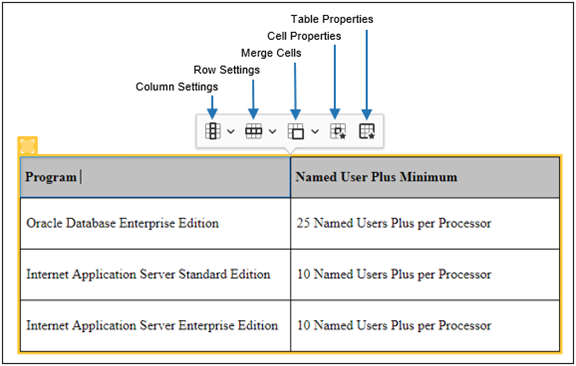
The column settings allow users to designate a column as a header column, insert a new column, delete a column, and select a column. The row settings allow users to designate a row as a header row, insert a new row, delete a row, and select a row.

The cell properties provide cell format, size, and text alignment options. The table properties provide table format, size, and alignment options.

Users can now edit and format rich text on the quote in an intuitive editor that maintains all of the formatting functions from the legacy editor while improving the copy and paste capabilities.
Steps to Enable
You don't need to do anything to enable this feature.
Tips And Considerations
- Templates selected to display as the default value are supported; however, the end user will not be able to access other templates with this initial release of the new editor.
- The JET UI inline text editor is not compatible with Internet Explorer browsers.
- To deactivate the JET Inline Rich Text Editor, site administrators can submit a Service Request (SR) on My Oracle Support.
Display Error Panel Messages for JET Transaction UI Tables
In addition to the existing inline display, JET Transaction UI Line Item Grid and Transaction Array error messages will now display at the top of the page in the collapsible sticky header bar Error Panel. Error notifications describe the error, list error occurrences, and provide links to the location of the attribute triggering the message.

The Error Panel display of JET Transaction UI Line Item Grid and Transaction Array error messages provides a consistent user experience and improves usability.
Steps to Enable
You don't need to do anything to enable this feature.
Display Indicator Icons for Editable Line Item Grid Fields
Beginning in Oracle CPQ 20C, administrators can choose to display indicator icons for easier recognition of editable Line Item Grid fields. Previously, display indicator icons only displayed when a field was selected for editing. Read-only fields will not display these indicators.

The display indicator icons for editable JET Transaction UI line items allow sales users to quickly recognize and access editable fields.
Steps to Enable
Complete the following steps to display editable field icons.
-
Navigate to the Commerce Processes page. Admin > Commerce and Documents > Process Definition
-
For the applicable process, select Documents in the Navigation column and click List.
-
For the applicable document, select JET Responsive Layout in the Navigation column and click List. The JET Responsive Layout Editor opens.
-
Click the edit icon for a Line Item Table.

-
Select the Display Editable Field Icons option.
-
Click OK.
-
Click *Save to retain the layout changes.
Left Align Display Labels for JET Transaction UI Layout
The JET Transaction UI layout now provides a left align option for display labels. Previously, labels for the JET Transaction UI could only be displayed above the field or right aligned at the side of the field. Beginning in Oracle CPQ 20C, administrators can left, right, and top align options for the JET Transaction UI.

The left align display labels provide additional presentation options for the JET Transaction UI. The left align display labels provide additional presentation options for the JET Transaction UI.
Steps to Enable
Complete the following steps to left align display labels.
-
Navigate to the Commerce Processes page. Admin > Commerce and Documents > Process Definition
-
For the applicable process, select Documents in the Navigation column and click List.
-
For the applicable document, select JET Responsive Layout in the Navigation column and click List. The JET Responsive Layout Editor opens.
-
Click on the edit icon for the appropriate Panel Column.

-
Select Left for the Label Alignment drop-down menu.

-
Click OK.
-
Click *Save to retain the layout changes.
Reorder and Reset Default for JET Transaction UI Table Columns
Oracle CPQ 20C allows end users to reorder JET Transaction UI Line Item Grid and Transaction Array columns. In addition to the reorder options, the Manage Columns window provides a reset function to return the table column display options to their default settings. If enabled, the user's column order settings are persistent for the user across sessions.
To use the reorder and reset default functions, select Manage Columns from the JET Transaction UI Line Item Grid and Transaction Array View menu.

The Manage Columns window provides the Reset to Default function and displays the new reorder options to the right of the "Shown" column panel.

(Optional) Administrators can complete the following steps to disable column reordering,
-
Navigate to the Commerce Processes page. Admin > Commerce and Documents > Process Definition
-
For the applicable process, select Documents in the Navigation column and click List.
-
For the applicable document, select JET Responsive Layout in the Navigation column and click List. The JET Responsive Layout Editor opens.
-
Click the edit icon for a Line Item Table.
-
Deselect the Allow Reorder Columns option.

-
Click OK.
-
Click *Save to retain the layout changes.
The new reorder JET Transaction UI Table columns allow CPQ end users to personalize their experience, optimizing the Line Item Grid and Transaction Arrays for their specific needs.
Steps to Enable
You don't need to do anything to enable this feature.
Wrap Text Option for Line Item Grid
Previously, JET UI Line Item Grids truncated overflowing content and users could hover over the cell to view the full content. To improve usability, Oracle CPQ 20C provides a new View menu option to wrap cell content for the JET Line Item Grid. Rows will expand as needed to fit additional lines of content.
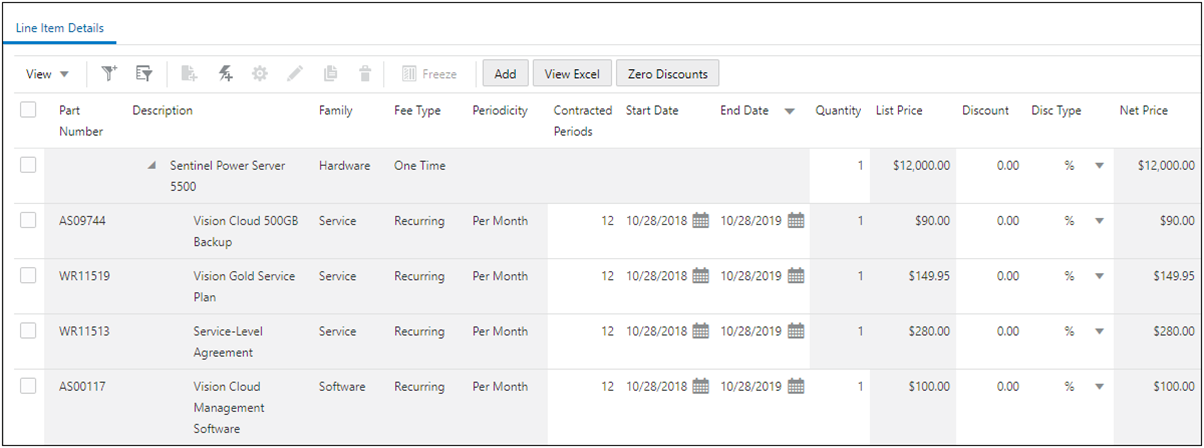
To wrap cell content, select Manage Columns from the JET Transaction UI Line Item Grid View menu.

The wrap text option for the Line Item Grid gives end users the option of wrapping or truncating cell content.
Steps to Enable
You don't need to do anything to enable this feature.
The following Oracle CPQ Integration feature is available in Oracle CPQ 20C.
Support for Microsoft Dynamics 365 Unified User Interface
Microsoft Dynamics 365 for Sales (CRM) customers can integrate with Oracle CPQ, allowing their users to access Oracle CPQ from an opportunity, to create new quotes, and to edit existing quotes with a seamless Single Sign-On experience. Quote data and line items are synced back to Dynamics to enable more reliable forecasts and reports.
Microsoft Dynamics 365 has introduced a new Unified UI. Beginning with Oracle CPQ 20C, we have added integration support for MS Dynamics Unified UI. In addition Oracle CPQ continues to support the Microsoft Dynamics Legacy Web Client.
Steps to Enable
For the Microsoft Dynamics 365 Unified UI, Oracle CPQ customers are required to integrate their site using the Oracle CPQ Connector Solution for Microsoft Dynamics. For detailed instructions, refer to the Oracle CPQ with Microsoft Dynamics 365 Integration Guide.
Tips And Considerations
- Prior to integrating Oracle CPQ with latest Microsoft Dynamics Solution package (1.0 or later), the site Process ID, Document ID, and Action ID must be recorded. The values in these fields are not retained and must be re-entered.
- In order for the Return to Opportunity and Return to Account actions to function with the Dynamics Unified UI, administrators must set the return URL app ID. The app ID can be retrieved from the site URL from the Sales hub.
- If an end user performs a page refresh while creating a quote in the Unified UI, a "Record is Unavailable" error may display. Provided the end user has saved and synched the quote to Microsoft Dynamics, no data is lost. The quote is available under their respective opportunity.
Key Resources
Oracle CPQ – Dynamics 365 Implementation Guides and Migration Packages on My Oracle Support Doc ID 2364513.1
The following REST API enhancements available in Oracle CPQ 20C.
- Default Headless Mode to False for Configuration REST APIs
- Display Swagger Schema for Interface Catalog REST APIs
Default Headless Mode to False for Configuration REST APIs
In prior releases, the default behavior for Configuration REST APIs was headless. In headless mode, the default values and overridden values defined on the layout editor are not included in the API calls; only the default values defined in the attribute editor will apply. Customers frequently rely on overridden values as defined in the current Oracle CPQ legacy Configuration Layout Flow. The "legacyMode" property allowed customers to disable the headless behavior. The default setting was false, so customers had to explicitly set the "legacyMode" to true in the REST API call to enable the legacy behavior.
In Oracle CPQ 20C, the "headlessMode" property replaces the "legacyMode" property for v10 Configuration REST APIs. Headless mode is disabled by default to honor overridden values that are defined in the current Oracle CPQ Configuration Layout Flow. This change is applicable to the following REST APIs:
- Configure Model (_configure)
- Reconfigure Transaction (_reconfigureTxn)
- Reconfigure from Favorites (_reconfigureFav)
- Bulk Add to Transaction (_bulkAddToTxn)
The v10 Configuration REST APIs will honor the legacy behavior by default, so customers do not need to explicitly disable headless mode for Configuration REST calls.
Steps to Enable
Review the REST service definition in the REST API guides, available from the Oracle Help Center > your apps service area of interest > REST API. If you're new to Oracle's REST services you may want to begin with the Quick Start section.
IMPORTANT:
- Beginning in Oracle CPQ 20C, the "legacyMode" property will be removed from v10 Configuration REST APIs. If you explicitly set the "legacyMode" property in Configuration REST calls, you will need to remove the "legacyMode" property from v10 Configuration calls. If the "legacyMode" property is not removed, you will receive an invalid parameter error.
- You need to set the "headlessMode" property to true to enable headless mode. The default value of this property is false. You do not have to explicitly set the "headlessMode" property to false to honor CPQ Configuration layouts. Passing a false value is optional.
Display Swagger Schema for Interface Catalog REST APIs
Beginning in Oracle CPQ 20C, the Interface Catalog will display swagger definitions instead of JSON schema for the following v10 REST APIs:
- Accounts
- Assets
- Commerce Documents
- Configurations BOM Instance
- Configuration Layout and Metadata
- DocxCompare and DocxMerge
- ecommerce Interaction Metrics
- Eligibility Rules
- Parts
Swagger definitions follow the OpenAPI Specification and several open source tools are available to develop, test, and visualize RESTful web services.
Steps to Enable
Review the REST service definition in the REST API guides, available from the Oracle Help Center > your apps service area of interest > REST API. If you're new to Oracle's REST services you may want to begin with the Quick Start section.
IMPORTANT Actions and Considerations
PRE-UPGRADE CONSIDERATIONS
Modifications to Known Functionality
Before upgrading to Oracle CPQ 20C, we recommend you review the modifications to known functionality and plan accordingly.
- Beginning in Oracle CPQ 20C, we have restricted the user password security question answer text entry size for password recovery to be 50 characters or fewer. Existing user security questions and answers remain until the first time a user changes their password security question answer after upgrading to Oracle CPQ 20C or later.
- In JET Configuration UI, catalog object variable names containing a slash (/) cause issues with call routing in Web Services.
- When adding a large number of records in a horizontal configuration array in JET UI, the response time is very slow and the page may become unresponsive. If this occurs, we recommend you convert the horizontal configuration arrays to vertical format.
- Beginning in Oracle CPQ 20C, the _BM_USER_EMAIL context setting is removed from the Document Object Model (DOM). As a result, customization may need to be refactored to work correctly. If this change impacts your functionality or for additional information regarding this change, log a Service Request on My Oracle Support.
- In Oracle CPQ 20C, Internet Explorer browser certification and support for the CPQ Administration platform is discontinued as we transition from Internet Explorer to Edge browser support. We recommend you plan for this transition.
- As previously announced Oracle CPQ 20B and later support Antenna House for XSL/XML formatting. We are no longer supporting Apache FOP. When transitioning from Apache to Antenna House, all output documents should be reviewed for accurate rendering. In particular, Apache incorrectly renders elements that have a width defined in pixels or sized by percentage.
Planned Changes to Supported Features
The following changes to supported features will be occurring in a future update. We recommend that you plan for these transitions.
- Beginning in Oracle CPQ 20D, we will discontinue support for low complexity password strength. This change will impact end users the first time they reset their password following the 20D upgrade.
- Beginning in Oracle CPQ 20D, Internet Explorer browser certification and support for both CPQ Administration and end users will be discontinued. In 20D, Oracle CPQ plans to support the latest version of Edge browser.
- Beginning in Oracle CPQ 21A, we will end support for Lightweight Directory Access Protocol (LDAP) User Management.
- Beginning in Oracle CPQ 21A, we will support the current REST version and the two previous REST versions. Older (three versions back and earlier) REST versions may continue to function; however, Oracle will not address new issues that arise.
Custom JavaScript
If customers have added custom JavaScript that leverages the Document Object Model structure or specific elements, classes or IDs, this customization should be thoroughly tested and may require refactoring. For more information about custom JavaScript, go to Style & Templates > JET JavaScript Customization in the Oracle CPQ Administration Online Help.
Migration
When using Import From Source or Connect To Destination to migrate content, both sites must use the same major update. The migration of content can only occur across minor updates within the same major update.
- "Major update" = Update 20C
- "Minor update" = Update 20C Patch 1
When using Migration Packages, content from 19A and forward can be uploaded to the latest site version.
Resolved Known Issues
For information on bugs fixed in Update 20C, refer to the Oracle CPQ 20C Resolved Known Issues document available on My Oracle Support and the Oracle CPQ Administration Online Help.
Translation
For some system-defined messages and components, strings were removed and others added in Oracle CPQ 20C. If you have created your own implementation-specific translations of system-defined strings, some of these strings may no longer appear. Other strings may appear in English. The strings appearing in English are new and require translation.
Most of these messages and components are on the Administration side of Oracle CPQ, but you should review both your end user and administration pages before deploying your updated installation to confirm that all strings appear in the desired language.
Translation Status
Oracle CPQ supports the consumption of both single and multi-byte character sets. Submit a service request on My Oracle Support to enable your site for a new language.
For the following languages, a translation of the Oracle CPQ user interface is available for both the platform and the reference application:
- Chinese (Simplified) [China]
- Chinese (Traditional) [Taiwan]
- Czech [Czech Republic]
- Danish [Denmark]
- Dutch [Netherlands]
- English
- Finnish [Finland]
- French
- French [Canada]
- German
- Hungarian [Hungary]
- Italian
- Japanese [Japan]
- Korean [South Korea]
- Norwegian (Bokmål) [Norway]
- Polish [Poland]
- Portuguese [Brazil]
- Romanian [Romania]
- Russian [Russia]
- Spanish (Worldwide)
- Swedish [Sweden]
- Turkish [Turkey]
POST-UPGRADE CONSIDERATIONS
Upgrade and test all test instances on Oracle CPQ 20C before upgrading to production.
Browser Support
CPQ Cloud supports all browser versions that meet the criteria of the Oracle Software Web Browser Support Policy.
If you experience issues using a supported browser version, open a ticket on My Oracle Support to resolve the issue. If an issue arises when using a supported browser, use a certified browser version until the delivery of a fix. Certified browsers are selected based on current market share and thoroughly tested to work with the current version's standard functionality.
Certified Browsers
Windows
- Google Chrome 83.x
- Mozilla Firefox 77.x
- Internet Explorer 11.x (Does not include Oracle CPQ Administration screens, see note below)
IMPORTANT:
- Beginning in Oracle CPQ 20C, Internet Explorer browser certification and support for the CPQ Administration platform is discontinued. In Oracle CPQ 20D, Internet Explorer browser certification and support for both CPQ Administration and end users will be discontinued. In 20D, Oracle CPQ plans to support the latest version of Edge browser. We recommend you plan for this transition
- Compatibility issues with the selected browsers may exist when sites contain additional JavaScript, alternate CSS, or other custom functionality. Customizations may require add-on work. Contact My Oracle Support to determine the availability of workarounds and minor fixes.
Salesforce Integration Support
Oracle officially supports version 8.1, 8.2, and 8.3 of the Oracle CPQ Connector for Salesforce. We also continue to support version 7.2 of the legacy Oracle CPQ Commerce Integration.
IMPORTANT: With the Spring 20 release, Salesforce is automatically enabling the new Salesforce Mobile App for all customers. There are potential compatibility issues between the new Salesforce Mobile App and the Oracle CPQ Mobile experience and at this time it is not supported. As of publication, this remains a fluid situation. We will communicate updates as they become available on My Oracle Support. Refer to My Oracle Support article titled: Oracle CPQ Cloud | Impending CPQ - Salesforce Mobile Incompatibility.
Training
Please refer to the release documentation for all versions between your current version and the version to which you are upgrading to see all new functionality, resolved known issues, and functional known issues.
Refer to the Oracle CPQ Administration Online Help to become familiar with the new features introduced in Oracle CPQ 20C. For additional help, see My Oracle Support.
Verify any information not explicitly mentioned in this document as supported by the software against the product help for Oracle CPQ 20C.
Additional Information
For more information on Oracle CPQ, visit the Oracle CPQ Documentation site.
Disclaimer
The details in this document are provided for high-level informational purposes only and are not intended to function as a specification or to replace the Online Help. Upgrading to a subsequent release may require the re-deployment of Commerce Processes, Configuration, or global function settings. Modifications to integration XSL files or APIs may also be required.