
This document will continue to evolve as existing sections change and new information is added. All updates appear in the following table:
| Date | Module | Feature | Notes |
|---|---|---|---|
| 16 DEC 2022 | Created initial document. |
Oracle Configure, Price, and Quote (CPQ) enables companies to streamline the entire opportunity-to-quote to-order process, including product selection, configuration, pricing, quoting, ordering, and approval workflows. Oracle CPQ provides a flexible, scalable, enterprise-ready solution ideal for companies of all sizes that sell products and services across direct, indirect, and e-commerce sales channels.
This guide outlines the information you need to know about new or improved functionality in Oracle CPQ 23A.
Security and New Features
We would like to remind you that if your system has modified security structures, you may need to advise your security administrator of new features you would like to implement.
 HAVE AN IDEA?
We’re here and we’re listening. If you have a suggestion on how to make our cloud services even better then go ahead and tell us. There are several ways to submit your ideas, for example, through the Ideas Lab on Oracle Customer Connect. Wherever you see this icon after the feature name it means we delivered one of your ideas.
GIVE US FEEDBACK
We welcome your comments and suggestions to improve the content. Please send us your feedback at cpqcloud_documentation_us_grp@oracle.com.
DISCLAIMER
The information contained in this document may include statements about Oracle’s product development plans. Many factors can materially affect Oracle’s product development plans and the nature and timing of future product releases. Accordingly, this Information is provided to you solely for information only, is not a commitment to deliver any material, code, or functionality, and should not be relied upon in making purchasing decisions. The development, release, and timing of any features or functionality described remains at the sole discretion of Oracle.
This information may not be incorporated into any contractual agreement with Oracle or its subsidiaries or affiliates. Oracle specifically disclaims any liability with respect to this information. Refer to the Legal Notices and Terms of Use for further information.
Column Definitions:
Report = New or modified, Oracle-delivered, ready to run reports.
UI or Process-Based: Small Scale = These UI or process-based features are typically comprised of minor field, validation, or program changes. Therefore, the potential impact to users is minimal.
UI or Process-Based: Larger Scale* = These UI or process-based features have more complex designs. Therefore, the potential impact to users is higher.
Features Delivered Disabled = Action is needed BEFORE these features can be used by END USERS. These features are delivered disabled and you choose if and when to enable them. For example, a) new or expanded BI subject areas need to first be incorporated into reports, b) Integration is required to utilize new web services, or c) features must be assigned to user roles before they can be accessed.
| Ready for Use by End Users Reports plus Small Scale UI or Process-Based new features will have minimal user impact after an update. Therefore, customer acceptance testing should focus on the Larger Scale UI or Process-Based* new features. |
Customer Must Take Action before Use by End Users Not disruptive as action is required to make these features ready to use. As you selectively choose to leverage, you set your test and roll out timing. |
|||||
|---|---|---|---|---|---|---|
| Feature |
Report |
UI or |
UI or |
|
||
System Navigation Panel Enhancements for the Configuration UI |
||||||
Provide Additional Integration Event Data in Performance Log |
||||||
Support Granular Migration of Commerce User Interface Layouts |
||||||
The following Commerce features are available in Oracle CPQ 23A.
Alternate Input Mode for Commerce Formula Management
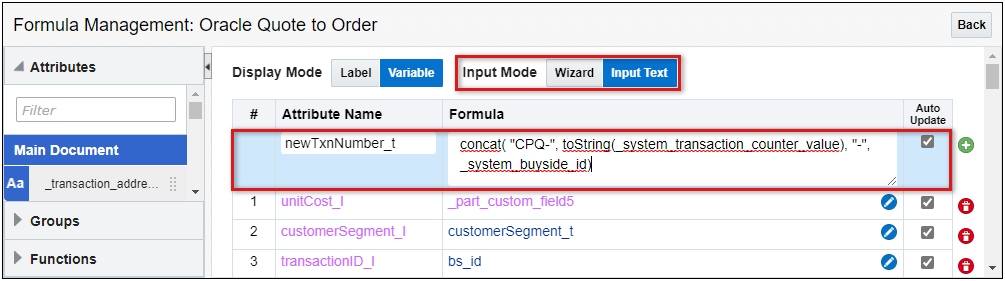
Beginning in Oracle CPQ 23A, CPQ provides an alternate input method to create formulas using plain text entry. The new formula entry method vastly increases ease of use and supports the following functionality:
- View all formula attributes and operators in one place.
- Easily navigate to any position in the formula.
- Allow quick copy-paste between formulas.
Administrators can now use the Input Text Input Mode to create formulas using plain text entry.
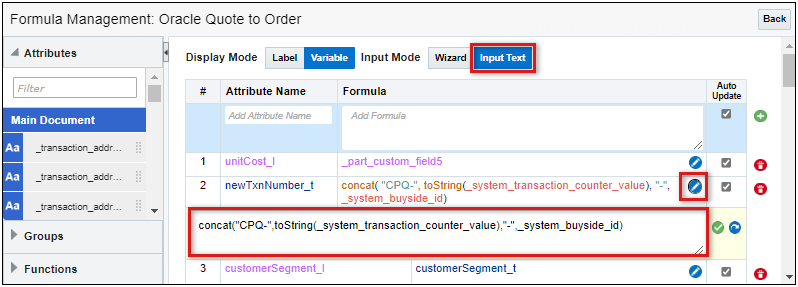
To edit an existing formula in plain text entry, select the Input Text Input Mode, and then click the Edit icon for the applicable formula.
IMPORTANT:
- Administrators will not be allowed to save a formula if any errors exist.
- Refer to the CPQ Administrator Online Help – Formula Management topic for additional formula details.
Administrators now can use plain text entry to maintain customer formulas.
Steps to Enable
You don't need to do anything to enable this feature.
Expose New BOM Attributes for Line Item Grid
Oracle CPQ 23A exposes the following attributes in Commerce to display BOM-related data in the Line Item Grid:
Line BOM Name (_line_bom_name) – This is the name from the BOM Item Definition table.
Line BOM Variable Name (_line_bom_variable_name) – This is the variable name from the BOM Item Definition table.
Line Item Type (_line_item_type) – This is the item type from the BOM Item Definition table.
Line Display Name (_line_display_name) – This value contains one of the following values:Note the first value that is populated is used for the _line_display_name value.
- DISPLAY_NAME target value from BOM Attribute mapping
- The Name from the BOM Item Definition table
- Model name
- Part display name
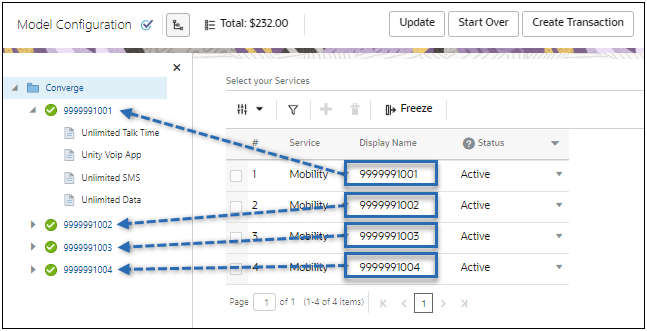
For example, in the following configuration the DISPLAY_NAME target value from the BOM Attribute mapping is populated, so this is the value that _line_display_name will contain.
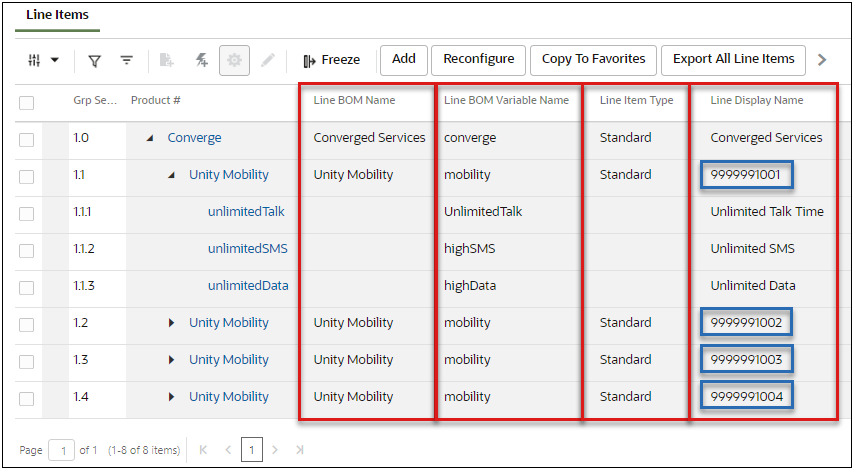
When a sales user creates a transaction from the configuration shown above, the new BOM attributes are displayed in the Line Item Grid. The new BOM-related attributes are outlined in red in the image below. The Line Display Names outlined in blue are using the DISPLAY_NAME target value from the BOM Attribute mapping. The remaining Line Display Names are populated using the Name from the BOM Item Definition table.
The new attributes will be added to existing Commerce processes and will be present when a new sub-document is created. These attributes are treated as system attributes and can be referenced in the same applicable areas as similar attributes.
IMPORTANT: The new line attributes will not be populated for lines created in versions before Oracle CPQ 23A.
Customers use the new line item attributes to reference BOM-related items within their Commerce process.
Steps to Enable
You don't need to do anything to enable this feature.
Tips And Considerations
-
The new BOM attributes are exposed for display purposes only. If administrator makes the Line Item Grid attributes editable, changes made to Line Item Grid values will not be impact the BOM attribute values. Best practices is to make these new BOM-related attributes non-editable.
-
For more information about BOM Mapping attribute relationships, refer to Oracle CPQ Administrator Online Help > Configuration > BOM Mapping > BOM Tables.
The following Configuration feature is available in Oracle CPQ 23A.
System Navigation Panel Enhancements for the Configuration UI
The System Navigation Panel displays the hierarchical arrangements of configurable models within a system root item. Oracle CPQ 23A improves usability of the System Navigation Panel by expanding display options for the JET Configuration UI.
"Sticky" System Navigation Panel
Beginning in Oracle CPQ 23A, the system navigation panel will remain "sticky" as the user scrolls on the Configuration UI. The "sticky" system navigation panel is automatically enabled and cannot be disabled.
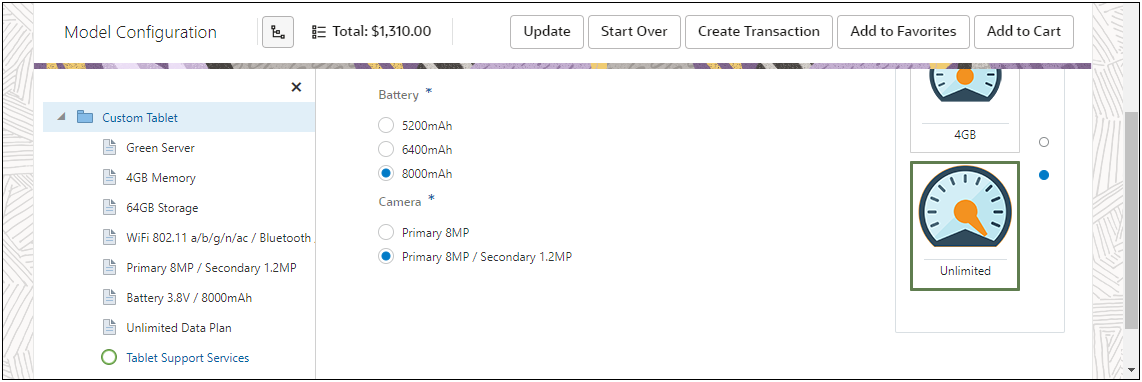
System Navigation Panel Location
Previously, the System Navigation Panel could only be displayed in the left sidebar on the Configuration UI. Customers can now display the System Navigation in the left sidebar or in the right sidebar. The following image shows the System Navigation Panel displayed in the right sidebar.
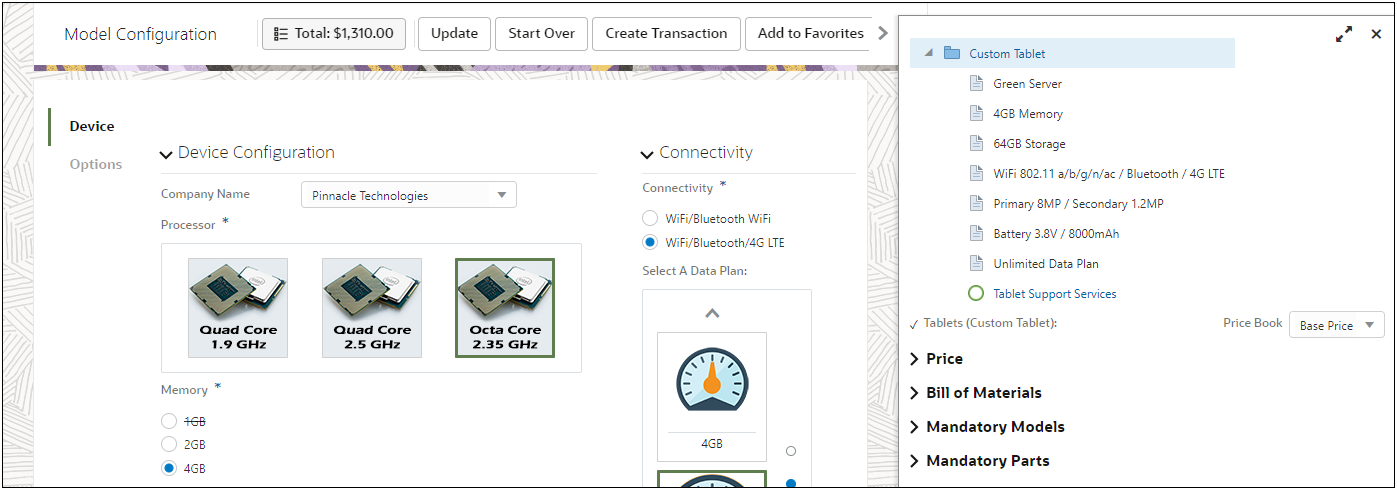
System Navigation Panel Size
Customers can now display a small, medium, or large panel size when the System Navigation panel is displayed in the left sidebar on the Configuration UI. The medium panel size is the only option available when the System Navigation Panel is displayed in the right sidebar.
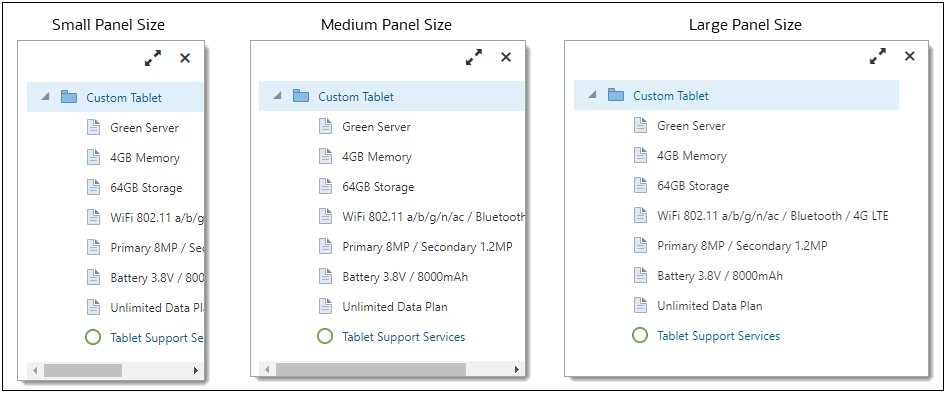
Administrators can now set System Navigation Panel display options in the configuration layout editor.
Steps to Enable
Perform the following steps to change the size or location of the System Navigation Panel:
- Navigate to the Configuration Layout Editor page.
Admin > Catalog Definition > Product Families > Product Lines > Models > Configuration Flows > Desktop
-
Click Layout Properties in the top action toolbar.
-
To change the location of the System Navigation Panel, select Left Sidebar or Right Sidebar from the Navigation Panel Location menu.
-
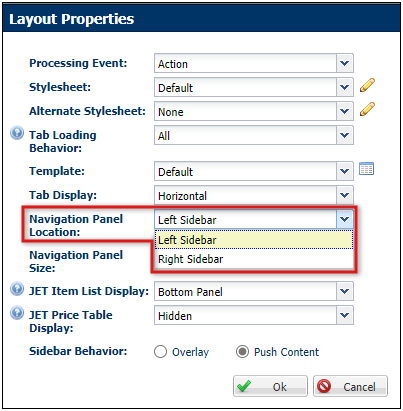
-
-
To change the size of the System Navigation Panel; select Small, Medium, or Large from the Navigation Panel Size menu.
-
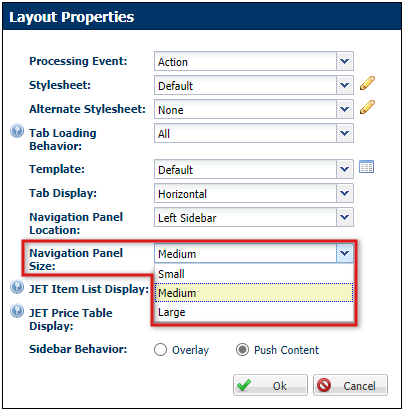
IMPORTANT: The medium panel size is the only option available when the System Navigation Panel is displayed in the right sidebar.
-
-
Click OK.
-
Click Save.
-
IMPORTANT: The Product Family must be deployed to make changes available to sales users. Refer to Setting Up Product Families > Deploy a Product Family the Oracle CPQ Administration Online Help for detailed steps.
The following Integration features are available in Oracle CPQ 23A.
Provide Additional Integration Event Data in Performance Log
Performance details for all Web Service calls invoked from integrations, external applications, BML scripts, etc. are logged in Oracle CPQ performance logs. Following upgrade to Oracle CPQ 23A, additional Commerce integration event data is included in the performance logs, as follows:
- The URL of the Commerce integration is included for all SOAP and REST integrations and when available for BML integrations.
- The Execution Context ID (ECID) is included when available in the response header for SOAP/REST/BML integrations. The ECID is a unique identifier that helps in identifying and debugging processes and analyzing logs for various components on the Fusion server.
This additional information aids administrators when troubleshooting integrations. Refer to Performance Logs in the Oracle CPQ Administration Online Help for information about Oracle CPQ performance logs.
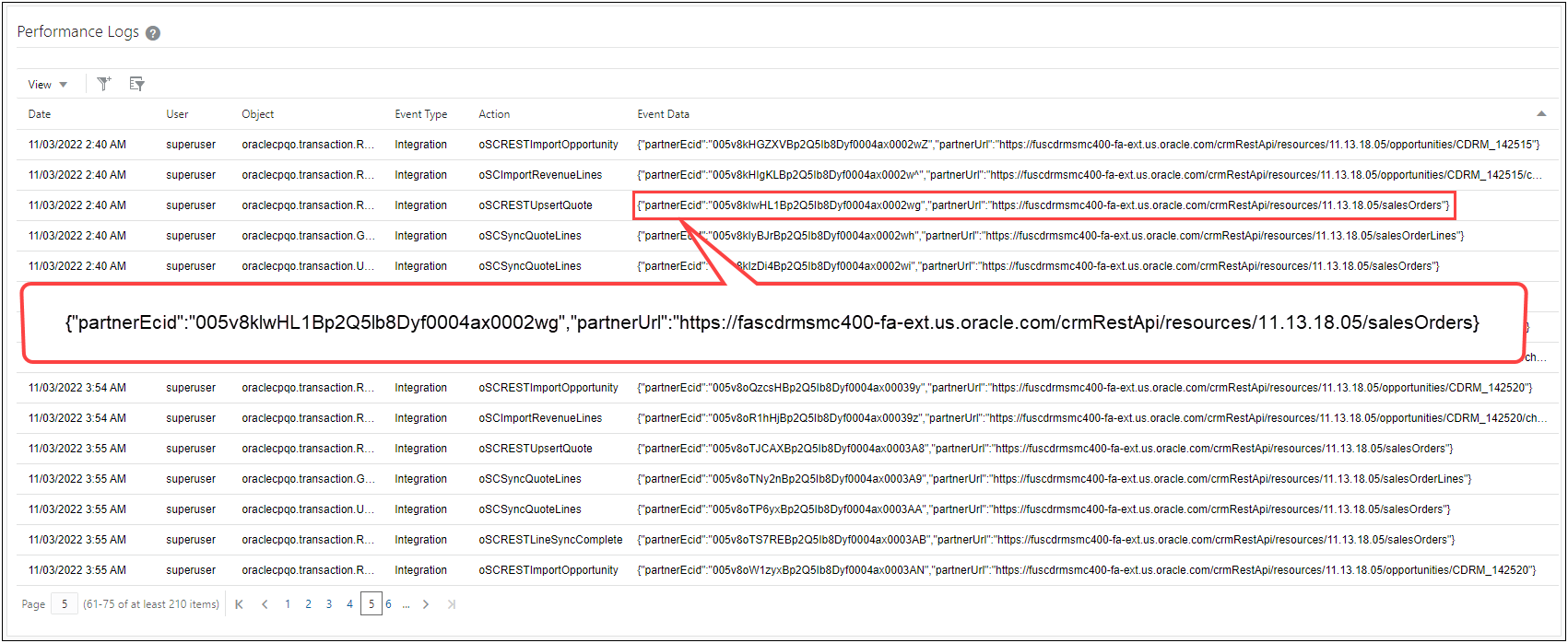
Sample Performance Debug Log
If you have debug-level performance logging enabled for a REST Integration, the REST Request and Response payload information is now included in the bm.log. If you don't have debug-level logging enabled, submit a service request on My Oracle Support to analyze potential site performance impact for additional logging.
IMPORTANT: Enabling debug-level logging has a site performance impact and should be avoided in Production environments.
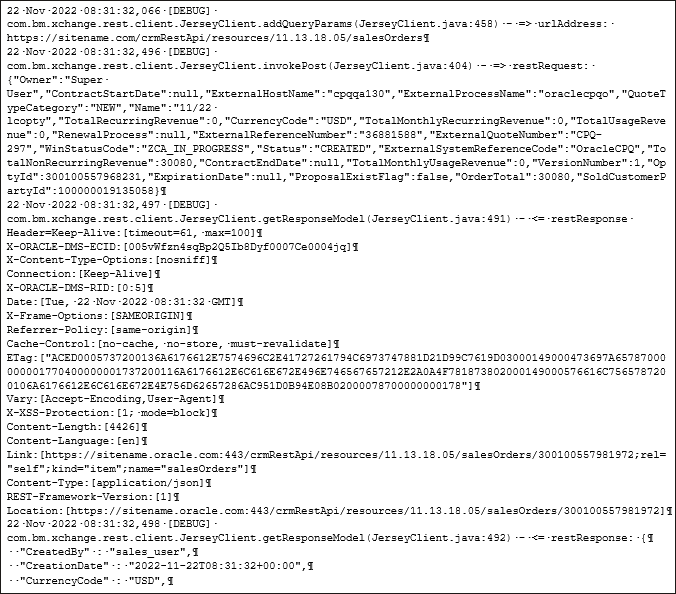
Sample bm.log Report
Steps to Enable
You don't need to do anything to enable this feature.
Tips And Considerations
If the event data does not appear in the performance log, select Event Data from the View drop-down on the Performance Log.
Salesforce: Automatically Mark New Quotes as Active
Oracle CPQ Connector for Salesforce Managed Package v8.6 allows administrators to define a site-level default setting for marking a quote within an Opportunity as active. This includes quotes that are newly created as well as those that are copied/cloned and moved from one Opportunity to another. The new Auto Activate Quote setting provides three options, as follows:
- None (default) requires users to mark a quote as active.
- First Quote automatically marks the first quote created for an Opportunity as active.
- New Quote automatically marks the latest quote created for an Opportunity as active.
This feature establishes a standard process for sales users to follow and saves sales users time as the quotes are marked as active automatically. The sales user only needs to modify a quote to mark it as active when necessary.
Steps to Enable
IMPORTANT: Your site must be running Salesforce Managed Package v8.6 or later to use this feature. Salesforce Managed Package v8.6 is certified to work with Oracle CPQ Update 23A.
Once the site has the prerequisite Oracle CPQ and Managed Package running, an administrator can update the Auto Activate Quote setting as follows:
- In Salesforce using the App Launcher, navigate to the CPQ Site Settings object by entering CPQ Site Settings in the keyword search.
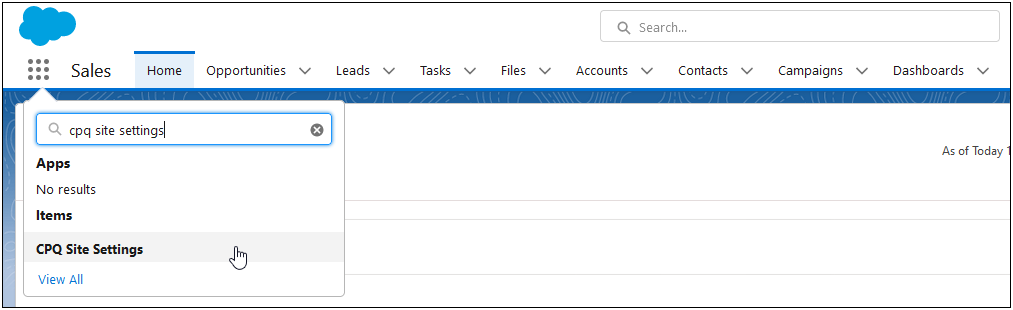
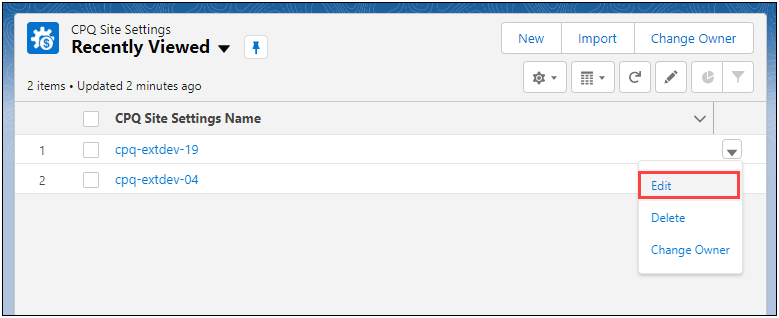
- Click CPQ Site Settings to view a list of the CPQ connections.
- Click Edit from the dropdown for a connection. The CPQ Site Settings page opens to Step 1 – Connection Details.
- Click Next to proceed to Step 2 – Process Details.
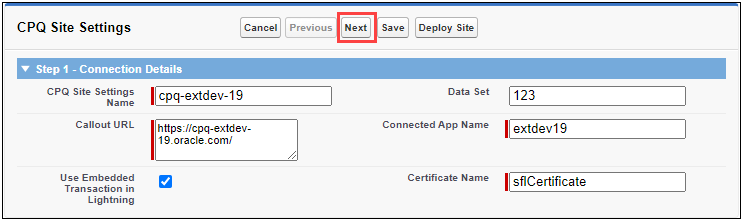
IMPORTANT: The CPQ Site Settings were originally entered during the Oracle CPQ Salesforce Connector install and setup. Refer to Oracle CPQ Connector for Salesforce Installation and Setup Guide for instructions.
- Click Next to proceed to Step 3 – Adapter Settings.
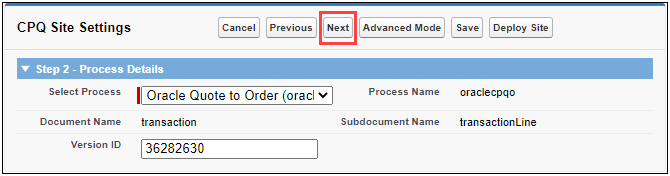
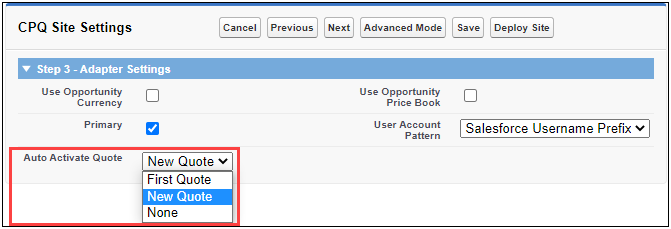
- Select one of the following from the Auto Activate Quote dropdown:
- None (default) requires users to mark a quote as active.
- First Quote automatically marks the first quote created for an Opportunity as active.
- New Quote automatically marks the latest quote created for an Opportunity as active.
- Click Deploy Site to update the site.
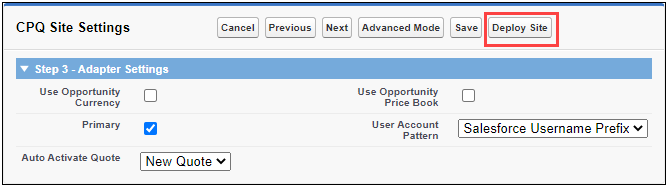
- Repeat steps 3 through 7 for all CPQ connections. Once an Oracle CPQ connection is re-deployed the quotes are automatically marked as active per the selected setting.
The following Migration feature is available in Oracle CPQ 23A.
Support Granular Migration of Commerce User Interface Layouts
Oracle CPQ 23A supports the individual selection and migration of Commerce User Interface Layouts (JET Responsive Layouts) in the Migration Center. Administrators can now select the Commerce JET Responsive Layouts at the main and sub-document levels and migrate using one of two migration modes: import by source or import package. In addition, if necessary, administrators can roll back the migrated Commerce UI layout.
The Commerce UI Layout migration migrates the entire layout including layout elements, attributes, actions, and settings.
Prior to performing the granular migration, administrators need to evaluate the Commerce UI Layouts for dependencies. If the layouts have a dependency on elements other than layout-level elements, such as formulas, steps, etc., those elements must be selected or migrated prior to the migration of the Commerce UI Layouts. During the Commerce UI migration the entire layout on the target site is replaced with the one imported from the source site or an import package. If a dependent element, such as a table, is not available on the destination site, the Migration Log displays an error.
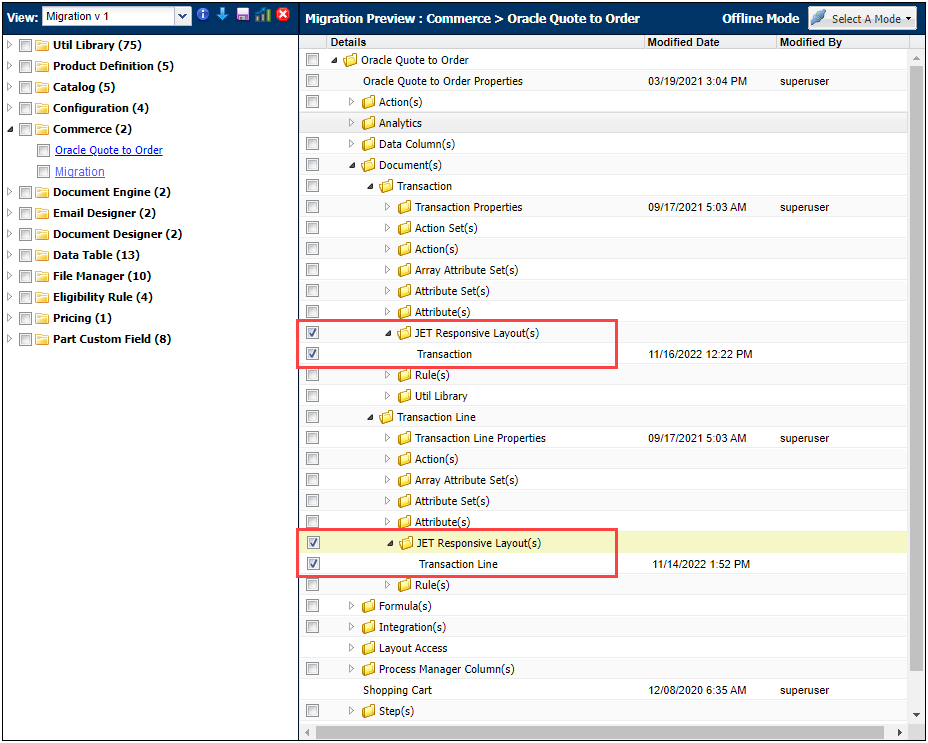
Example of Commerce UI Layouts in Oracle CPQ Migration Center
This feature saves administrators significant time, reduces the possibility of errors when performing migrations, and improves Commerce UI layout uniformity.
Steps to Enable
You don't need to do anything to enable this feature.
Tips And Considerations
- The Commerce User Layout granular migration follows the existing Oracle CPQ Migration Center standards and procedures. Refer to the Oracle CPQ Administration Online Help for migration topics including:
- Migration Center for an overview of terminology and summary of the Oracle CPQ Migration Center.
- Migration Modes for detailed instructions for import by source or import package migrations.
- Migration Packages for details on migration objects and instructions in creating or editing a migration package.
- Rollbacks and Snapshots for detailed instructions for undoing a migration and reverting to a migration snapshot.
- Migration Tips and Considerations
- The granular migration of Commerce UI Layouts is specific to JET Responsive Layouts only. Migration of Mobile and Legacy Layouts is not supported.
The following Pricing features are available in Oracle CPQ 23A.
Oracle CPQ 23A introduces the new Pricing Portal and all-new Pricing Engine UIs to dramatically improve the administrator experience. The new Pricing Portal and Pricing Engine UIs use Redwood design standards to align with other Oracle products and provide a foundation for consolidation of CPQ pricing functionality. In this release, CPQ's Pricing Engine modules are the first items to be updated and accessible from the new Pricing Portal. Users will experience a completely redesigned Redwood UX for Pricing Rules, Price Models (previously known as Pricing Profiles), and Pricing Attributes. The redesigned Pricing Engine supports all existing functionality in addition to enhancements that simplify and modernize the administrator experience in pricing.
The new Pricing Portal provides access to Pricing Engine Pricing Rules, Price Models, and Pricing Attributes.
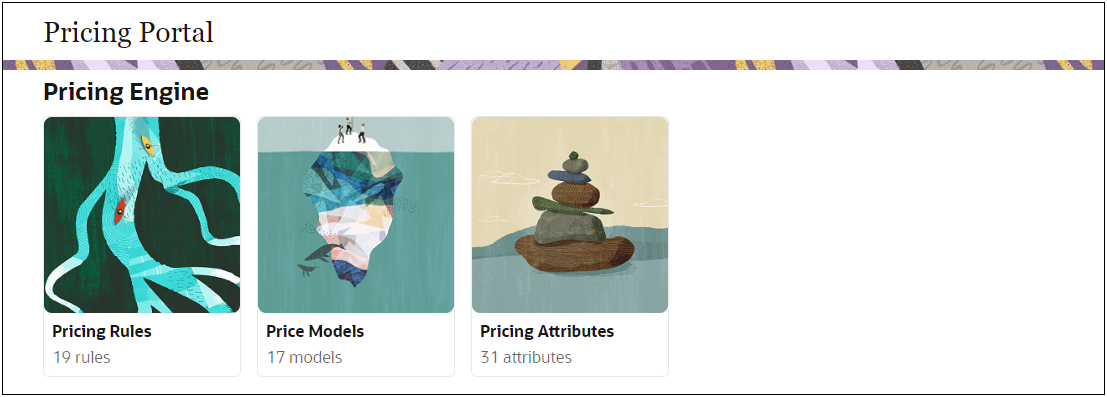
Redwood UX Enhancements
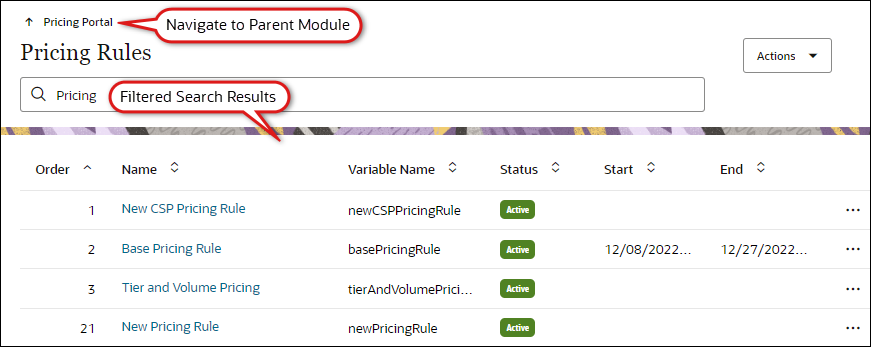
The new Redwood UI provides a consistent approach for actions and navigation. Module actions are provided in the upper right Actions menu. Individual item actions available by clicking the line ellipse.
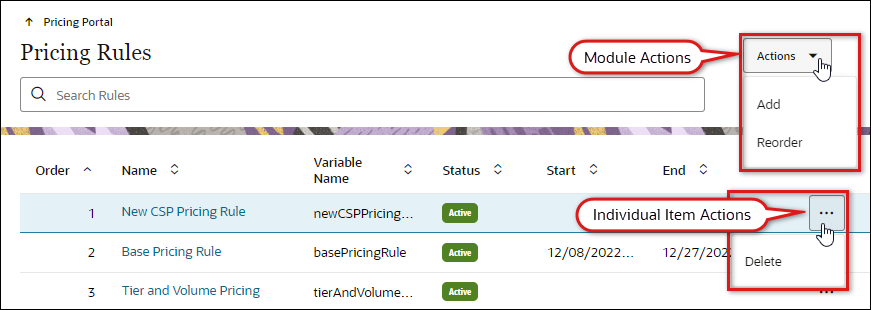
Every UI page has a navigation link that will take the admin user to the parent module. The new UX also provides persistent search results and navigation between filtered items. For example, the following image shows a list of filtered search results.
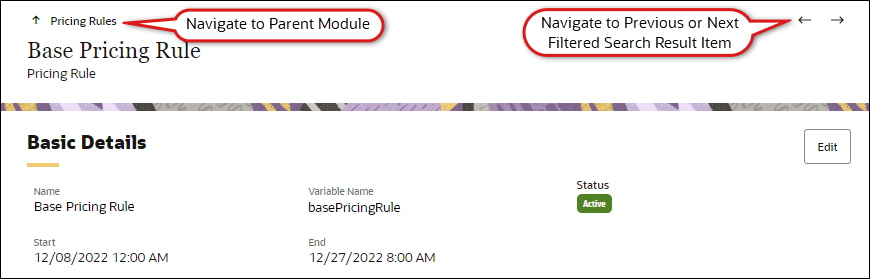
When the admin user opens an item from the filtered search results, the search results are persistent. Navigation arrows are provided in the upper right to allow navigation to the previous or next filtered search result item.
Changes in Pricing Engine Behavior
-
'Pricing Profiles' is renamed 'Price Models' to better reflect that they contain price data.
-
The 'Basic' Pricing Rule is renamed 'Customer-Specific' to more accurately represent the nature of this Pricing Rule type.
-
The 'Discount Type' selection is relabeled 'Value Type' to indicate that absolute price values may also be selected as values.
-
The Pricing Rule fields 'Active', 'From', and 'To' are renamed as 'Status', 'Start', and 'End'.
-
The General Site Option Apply only first matching Pricing profile is reworded as Apply only first matching Price Model to consistently refer to the renamed Price Model object.
-
The Commerce Option Transfer Advanced Pricing Profiles JSON to Commerce is renamed as Transfer Price Model JSON to Commerce to more accurately reflect that the JSON object contains a list of ALL Price Models applied by the Pricing Engine.
-
Search is enabled in Pricing Rules, Price Models, and Pricing Attributes to easily locate specific results.
-
Validations are enhanced by greying out invalid selections rather than flagging an entry when the user attempts to save.
-
Users can easily return to the parent object or list page using the 'Up' arrow at the top left side of the page.
Pricing Rules
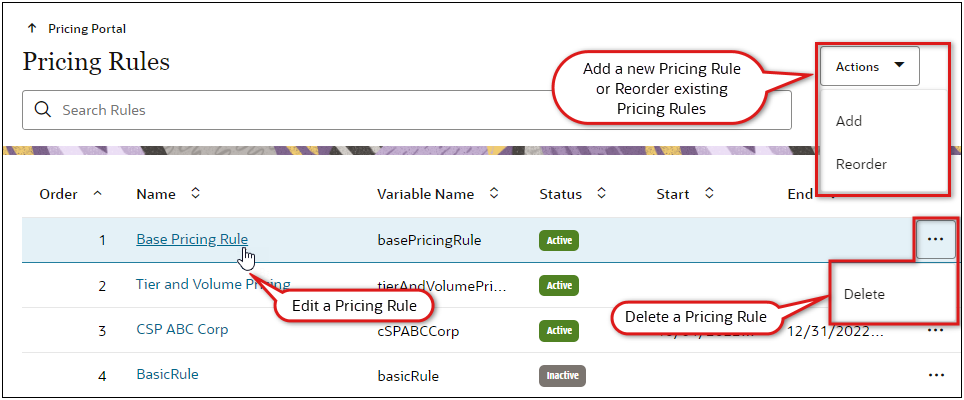
The redesigned Pricing Rules list page provides the following functions:
-
Enter search criteria to filter Pricing Rule results, which remain persistent while navigating within Pricing Rules.
-
View the Pricing Rules Order, Name, Variable Name, Status, Start Date, and End Date for all Pricing Rules without opening individual Pricing Rule details.
-
Sort Pricing Rules using the Order, Name, Variable Name, Status, Start Date, or End Date column headers.
-
Add a new Pricing Rule or reorder existing Pricing Rules using the Actions drop-down.
-
Edit an existing Pricing Rule by clicking on the Pricing Rule Name.
-
Delete a Pricing Rule by clicking on the line ellipse and selecting Delete.
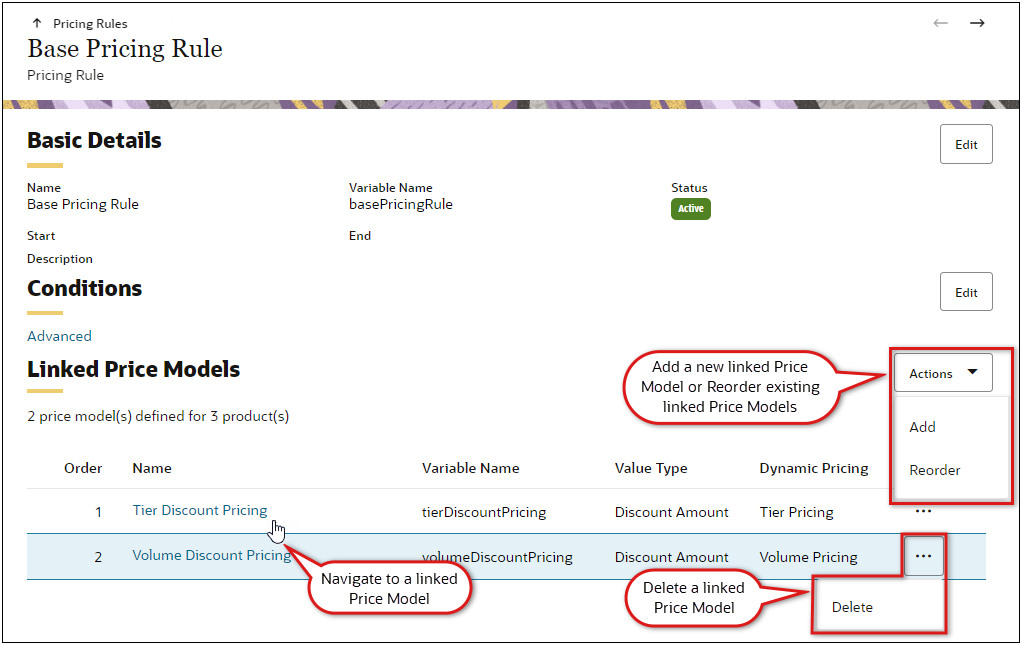
The redesigned Pricing Rule page provides the following functions:
-
Edit Basic Details and Conditions by clicking on the associated Edit button.
-
View and quickly navigate to linked Price Models.
-
Add a new linked Price Model or reorder linked Price Models using the Actions drop-down.
-
Delete a linked Price Model by clicking on the line ellipse and selecting Delete.
Changes in Pricing Rules Behavior
-
A Start Date is no longer required on Pricing Rules and the Start Date may be set to a historical date and time. As a result, both retroactive and evergreen Pricing Rules are now supported and you can use the active / inactive switch to govern their effectivity.
-
You can now change a Pricing Rule's type without deleting and creating a new rule.
-
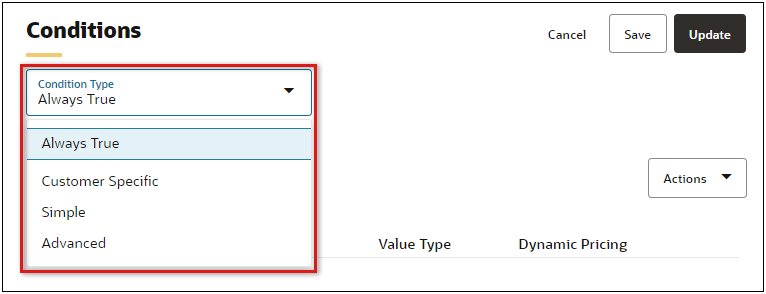
A new "Always True" condition is available and used as the default when creating a new Pricing Rule.
-
Administrators can now associate any type of Price Model with any type of Pricing Rule. Prior to Oracle CPQ 23A, Advanced Pricing Profiles (now Price Models) could not be associated with Simple Pricing Rules.
-
Advanced Rules now have both a status and start/end dates, to simplify management of price effectivity.
-
Pricing Rules can now define Price Effectivity based on the time, not just by date, by specifying the hour and minutes for a start or end date.
IMPORTANT: Price effectivity currently operates based on today's date.
Price Models
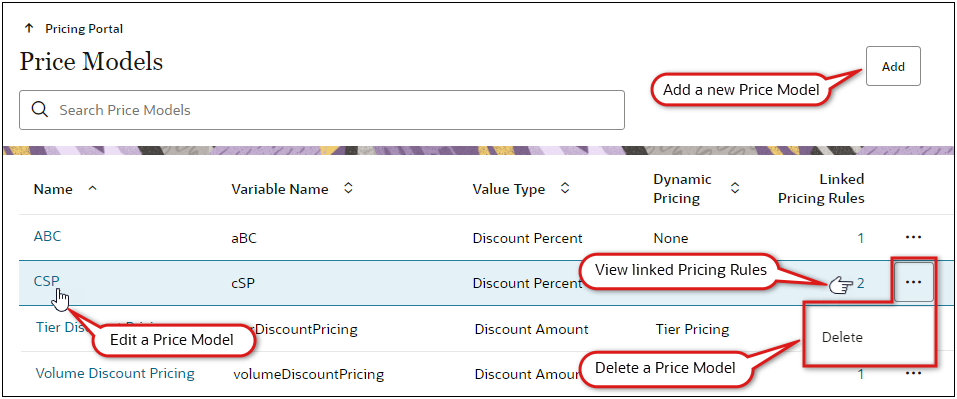
The redesigned Price Models (previously known as Pricing Profiles) list page provides the following functions:
-
Enter search criteria to filter Price Model results, which remain persistent while navigating within Price Models.
-
View the Price Model Name, Variable Name, Value Type, Dynamic Pricing, and the number of linked Pricing Rules without opening individual Price Model details.
-
Sort Price Models using the Name, Variable Name, Value Type, or Dynamic Pricing column headers.
-
Add a new Price Model.
-
Edit an existing Price Model by clicking on the Price Model Name.
-
View linked Pricing Rules by clicking on the Linked Pricing Rules number.
-
Delete a Price Model by clicking on the line ellipse and selecting Delete.
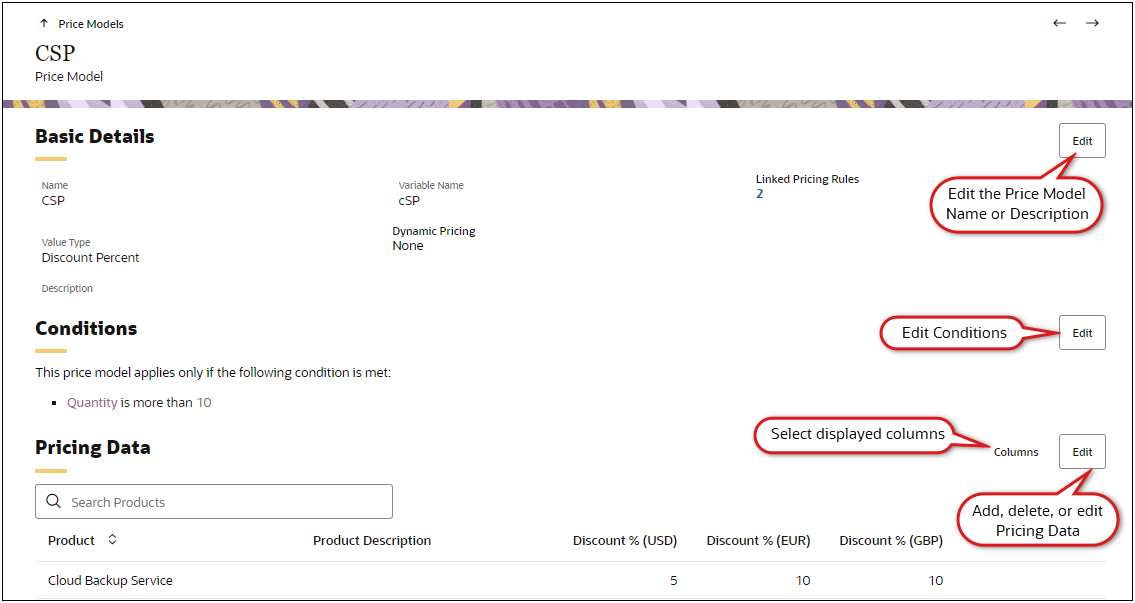
The redesigned Price Model (previously known as Pricing Profile) page provides the following functions:
-
Edit Basic Details, Conditions, and Pricing Data Products by clicking on the associated Edit button.
-
Manage displayed Pricing Data columns by clicking on Columns.
-
View and search for Products for use in Price Models.
Changes in Price Model (Pricing Profiles) Behavior
-
Users can now navigate directly to a linked Pricing Rule from an associated Price Model.
-
Users can now navigate directly into a linked Price Model from an associated Pricing Rule.
-
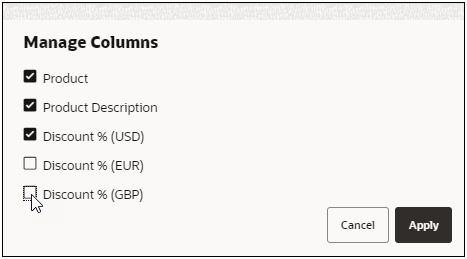
Users can easily select which site currencies they wish to view and edit when they click on Columns.
Pricing Attributes
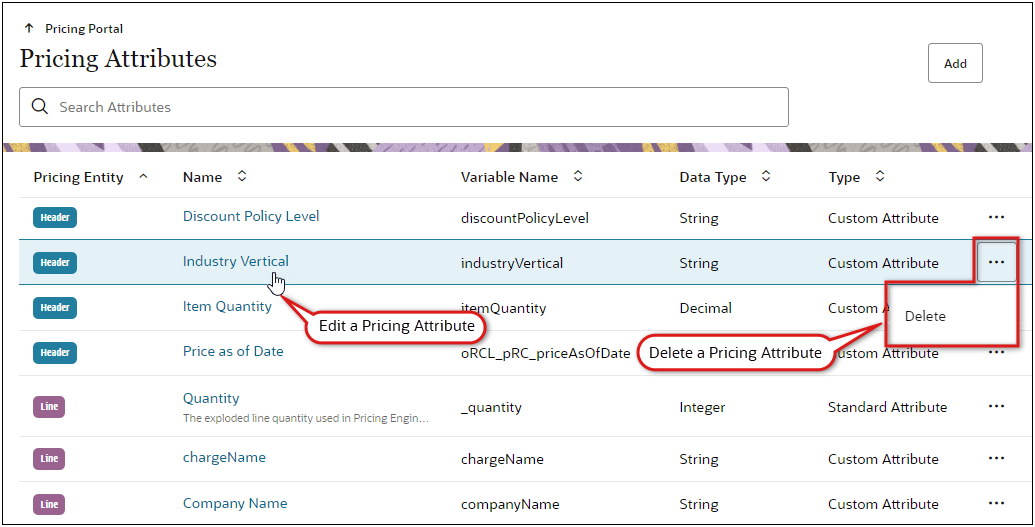
The redesigned Pricing Attributes list page provides the following functions:
-
Enter search criteria to filter Pricing Attribute results, which remain persistent while navigating within Pricing Attributes.
-
View the Pricing Attribute Pricing Entity (Header or Line), Name, Variable Name, Data Type, and Type for all Pricing Attributes without opening individual Pricing Attribute details.
-
Sort Pricing Attributes using the Pricing Entity, Name, Variable Name, Data Type, or Type column headers.
-
Add a new Pricing Attribute.
-
Edit an existing Pricing Attribute by clicking on the Pricing Attribute Name.
-
Delete a Pricing Attribute by clicking on the line ellipse and selecting Delete.
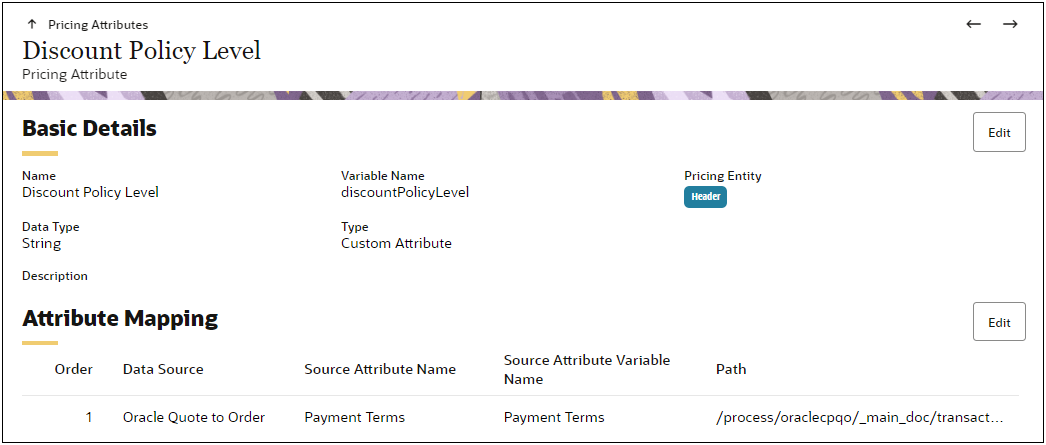
The redesigned Pricing Attributes page allows administrators to edit Basic Details and Attribute Mapping by clicking on the associated Edit button.
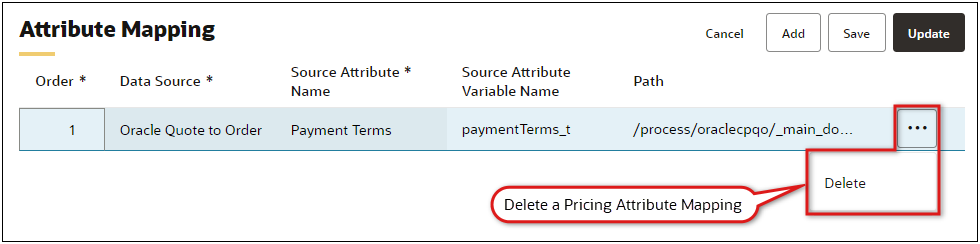
When administrators click the Edit button for Attribute Mapping, they can add, reorder, and delete attribute mappings.
Changes in Pricing Attribute Behavior
-
Pricing Attributes can now be re-sequenced (ordered) without creating a new attribute and deleting the old one.
-
Header or Line level type is displayed on the Pricing Attributes list page to allow administrators to quickly identify the associated attribute level for all Pricing Attributes.
-
Array type attributes are appropriately labeled in the Data Type column on the Pricing Attributes list page.
-
Administrators can now easily select an attribute from a specific Product Family.
The new Pricing Portal and redesigned Pricing Engine UIs dramatically improve the administrator experience, align with other Oracle products, and provide a foundation for consolidation of CPQ pricing functionality.
Steps to Enable
You don't need to do anything to enable this feature.
Pricing Engine Pricing Rule Enhancements
In addition to the Redwood design update, Oracle CPQ 23A delivers the following enhancements for Pricing Engine Pricing Rules.
"Always True" Pricing Rules
CPQ introduces a new "Always True" condition for Pricing Engine Pricing Rules. The "Always True" condition provides a simplified method for creating Pricing Rules that are always true. Customers no longer need to create a script or artificial condition and row grouping to make a Pricing Rule always apply.
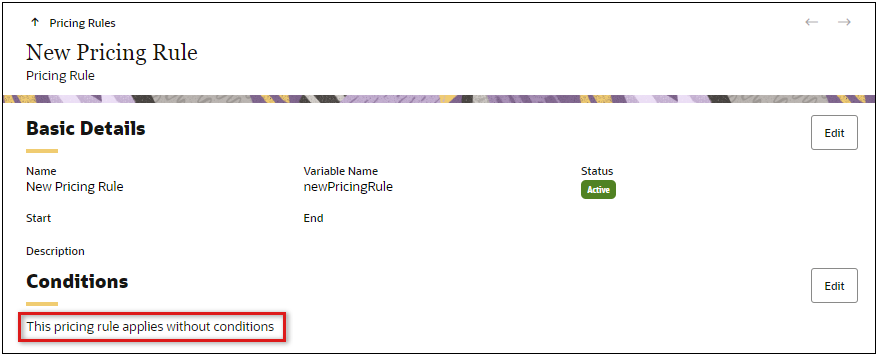
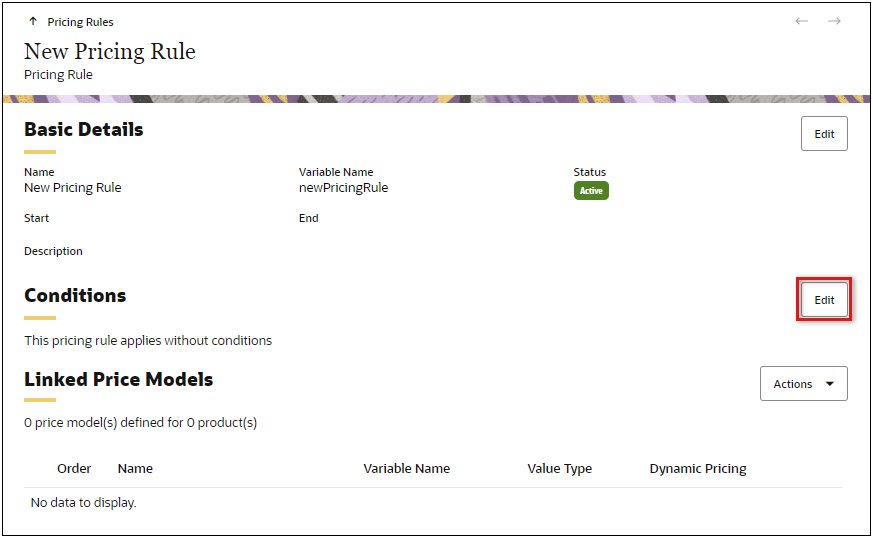
When administrators create a new Pricing Rule, the default condition type is "Always True", and "This pricing rule applies without conditions" is displayed in the Conditions section on the Pricing Rules details page.
Change Pricing Rule Type after Creation
Beginning in Oracle CPQ 23A, administrators can change the Pricing Rule type without creating a new Pricing Rule.
Complete the following steps to change the condition type for a Pricing Rule.
-
Navigate to the Admin Home page.
-
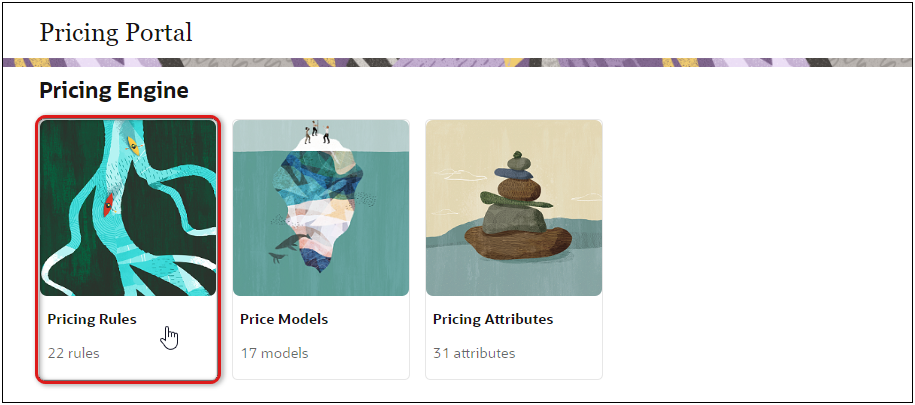
Click on Pricing Portal under Products.
-
Click on the Pricing Rules card.
-
Click on the applicable pricing rule Name on the Pricing Rules list page.
-
Click the Conditions Edit button.
-
Select the appropriate Condition Type from the drop-down.
-
Click Update.
IMPORTANT: Refer to the Oracle CPQ Administrators Online Help – Pricing Engine > Pricing Rules topic for more information about creating Pricing Rules.
The "Always True" Pricing Rule condition type and the ability to change the Pricing Rule condition type after creation type simplify usability and expand functionality.
Steps to Enable
You don't need to do anything to enable this feature.
The following Web Service features are available in Oracle CPQ 23A.
Get BOM Tree REST API Enhancements
Beginning in Oracle CPQ 23A, the Get BOM Tree REST API will include the following Boolean parameters:
-
"treeHasModel" – This output parameter will be included for root BOM items only, and will indicate if the root item has any child models.
-
"isModel" – This parameter will be included for all BOM items to indicate if the current item is a model.
The Get BOM Tree REST API results will now indicate if a root BOM item has child models and if a returned BOM item is a model.
Steps to Enable
Review the REST service definition in the REST API guides, available from the Oracle Help Center > your apps service area of interest > REST API. If you're new to Oracle's REST services you may want to begin with the Quick Start section.
Part Validation Service for BOM Mapping REST API
Oracle CPQ 23A introduces the following BOM Mapping REST API endpoint:
Validate Part for BOM
Use this endpoint to validate parts for BOM mapping implementations. It will validate that the part exists and that the part's "Direct Buy" value is not set to "Buy Parent Part". If the part is being used in the root BOM item, this service will validate that the part is not used by any other root BOM items.
- Endpoint: /bomItemSetups/actions/validatePartForBOM
- Method: POST
Customers can use web services to validate that the given part can be used within a BOM system.
Steps to Enable
Review the REST service definition in the REST API guides, available from the Oracle Help Center > your apps service area of interest > REST API. If you're new to Oracle's REST services you may want to begin with the Quick Start section.
Oracle CPQ 23A expands the current Parts REST API to allow customers to view a specific part or an unfiltered list of all parts. All new and existing endpoints for Parts REST API are read-only; parts cannot be added, modified, or deleted using these web services.
Get All Parts
Use this endpoint to retrieve a list of parts.
- Endpoint: /parts
- Method: GET
Get a Part
Use this endpoint to retrieve the specified part.
- Endpoint: /parts/id
- Method: GET
Oracle CPQ 23A expands the current Parts REST API to allow customers to view a specific part or an unfiltered list of all parts. All new and existing endpoints for Parts REST API are read-only; parts cannot be added, modified, or deleted using these web services.
Steps to Enable
Review the REST service definition in the REST API guides, available from the Oracle Help Center > your apps service area of interest > REST API. If you're new to Oracle's REST services you may want to begin with the Quick Start section.
Pricing Administration REST APIs
Oracle CPQ 23A introduces new Pricing Administration REST APIs to enable administration of CPQ Pricing Engine functions using REST API services. The following web services are now available:
Price Models
Get All Price Models
Use this endpoint to retrieve all price models in Pricing Engine.
- Endpoint: /pricingSetup/models
- Method: GET
Add a Price Model
Use this endpoint to create a new price model in Pricing Engine.
- Endpoint: /pricingSetup/models
- Method: POST
Update Price Models
Use this endpoint to update or delete price models in Pricing Engine.
- Endpoint: /pricingSetup/models
- Method: PATCH
Get a Price Model
Use this endpoint to retrieve the specified price model in Pricing Engine.
- Endpoint: /pricingSetup/models/{modelVarName}
- Method: GET
Delete a Price Model
Use this endpoint to delete the specified price model in Pricing Engine.
- Endpoint: /pricingSetup/models/{modelVarName}
- Method: DELETE
Update a Price Model
Use this endpoint to update the specified price model in Pricing Engine. In contrast to editing a price model in the UI, this endpoint also supports changing the part number for a price on an existing row.
- Endpoint: /pricingSetup/models/{modelVarName}
- Method: PATCH
Get Pricing Data for a Price Model
Use this endpoint to retrieve pricing data for the specified price model in Pricing Engine.
- Endpoint: /pricingSetup/models/{modelVarName}/data
- Method: GET
Add Pricing Data for a Price Model
Use this endpoint to add pricing data to the specified price model in Pricing Engine.
- Endpoint: /pricingSetup/models/{modelVarName}/data
- Method: POST
Update Pricing Data for a Price Model
Use this endpoint to add, update, or delete pricing data for the specified price model in Pricing Engine. This endpoint can be used to update a collection of prices or discounts in a Price Model.
- Endpoint: /pricingSetup/models/{modelVarName}/data
- Method: PATCH
Delete Pricing Data from a Price Model
Use this endpoint to delete pricing data from the specified price model in Pricing Engine.
- Endpoint: /pricingSetup/models/{modelVarName}/data/{id}
- Method: DELETE
Pricing Attributes
Get All Pricing Attributes
Use this endpoint to retrieve all pricing attributes in Pricing Engine.
- Endpoint: /pricingSetup/attributes
- Method: GET
Add a Pricing Attribute
Use this endpoint to add a pricing attribute in Pricing Engine.
- Endpoint: /pricingSetup/attributes
- Method: POST
Update Pricing Attributes
Use this endpoint to update or delete pricing attributes in Pricing Engine.
- Endpoint: /pricingSetup/attributes
- Method: PATCH
Get a Pricing Attribute
Use this endpoint to retrieve the specified pricing attribute in Pricing Engine.
- Endpoint: /pricingSetup/attributes/{attributeVarName}
- Method: GET
Delete a Pricing Attribute
Use this endpoint to delete the specified pricing attribute in Pricing Engine.
- Endpoint: /pricingSetup/attributes/{attributeVarName}
- Method: DELETE
Update a Pricing Attribute
Use this endpoint to update the specified pricing attribute in Pricing Engine.
- Endpoint: /pricingSetup/attributes/{attributeVarName}
- Method: PATCH
Get All Pricing Attribute Mappings
Use this endpoint to retrieve attribute mapping data for the specified pricing attribute in Pricing Engine.
- Endpoint: /pricingSetup/attributes/{attributeVarName}/mappings
- Method: GET
Add a Pricing Attribute Mapping
Use this endpoint to add mapping data to the specified pricing attribute in Pricing Engine.
- Endpoint: /pricingSetup/attributes/{attributeVarName}/mappings
- Method: POST
Update Pricing Attribute Mappings
Use this endpoint to update mapping data for the specified pricing attribute in Pricing Engine.
- Endpoint: /pricingSetup/attributes/{attributeVarName}/mappings
- Method: PATCH
Pricing Rules
Get All Pricing Rules
Use this endpoint to retrieve all pricing rules in Pricing Engine.
- Endpoint: /pricingSetup/rules
- Method: GET
Add a Pricing Rule
Use this endpoint to add a pricing rule in Pricing Engine.
- Endpoint: /pricingSetup/rules
- Method: POST
Update Pricing Rules
Use this endpoint to add, update, reorder, or delete pricing rules in Pricing Engine.
- Endpoint: /pricingSetup/rules
- Method: PATCH
Get a Pricing Rule
Use this endpoint to retrieve the specified pricing rule in Pricing Engine.
- Endpoint: /pricingSetup/rules/{ruleVarName}
- Method: GET
Delete a Pricing Rule
Use this endpoint to delete the specified pricing rule in Pricing Engine.
- Endpoint: /pricingSetup/rules/{ruleVarName}
- Method: DELETE
Update a Pricing Rule
Use this endpoint to update the specified pricing rule in Pricing Engine.
- Endpoint: /pricingSetup/rules/{ruleVarName}
- Method: PATCH
Get All Customer-Specific Conditions for a Pricing Rule
Use this endpoint to retrieve all customer-specific conditions for the specified pricing rule in Pricing Engine.
- Endpoint: /pricingSetup/rules/{ruleVarName}/customerSpecificConditions
- Method: GET
Add a Customer-Specific Condition for a Pricing Rule
Use this endpoint to add a customer-specific condition for the specified pricing rule in Pricing Engine.
- Endpoint: /pricingSetup/rules/{ruleVarName}/customerSpecificConditions
- Method: POST
Update Customer-Specific Conditions for a Pricing Rule
Use this endpoint to update or delete customer-specific conditions for the specified pricing rule in Pricing Engine.
- Endpoint: /pricingSetup/rules/{ruleVarName}/customerSpecificConditions
- Method: PATCH
Get a Customer-Specific Condition for a Pricing Rule
Use this endpoint to retrieve the specified customer-specific condition for a pricing rule in Pricing Engine.
- Endpoint: /pricingSetup/rules/{ruleVarName}/customerSpecificConditions/{conditionId}
- Method: GET
Delete a Customer-Specific Condition from a Pricing Rule
Use this endpoint to delete the specified customer-specific condition from a pricing rule in Pricing Engine.
- Endpoint: /pricingSetup/rules/{ruleVarName}/customerSpecificConditions/{conditionId}
- Method: DELETE
Update a Customer-Specific Condition for a Pricing Rule
Use this endpoint to update the specified customer-specific condition for a pricing rule in Pricing Engine.
- Endpoint: /pricingSetup/rules/{ruleVarName}/customerSpecificConditions/{conditionId}
- Method: PATCH
Get All Price Models Linked to a Pricing Rule
Use this endpoint to retrieve all the price models that are linked to the specified pricing rule in Pricing Engine.
- Endpoint: /pricingSetup/rules/{ruleVarName}/rulemodels
- Method: GET
Link a Price Model to Pricing Rule
Use this endpoint link a price model to a pricing rule in Pricing Engine.
Note: This operation does not add a new price model.
- Endpoint: /pricingSetup/rules/{ruleVarName}/rulemodels
- Method: POST
Update Price Models Linked to a Pricing Rule
Use this endpoint to add, reorder, or delete price models that are linked to a Pricing Engine Rule.
- Endpoint: /pricingSetup/rules/{ruleVarName}/rulemodels
- Method: PATCH
Unlink a Price Model from a Pricing Rule
Use this endpoint to unlink the specified price model from a pricing rule in Pricing Engine
Note: This operation does not delete the price model.
- Endpoint: /pricingSetup/rules/{ruleVarName}/rulemodels/{modelVarName}
- Method: DELETE
Update a Price Model Linked to a Pricing Rule
Use this endpoint to update the specified price model that is linked to a pricing rule in Pricing Engine.
- Endpoint: /pricingSetup/rules/{ruleVarName}/rulemodels/{modelVarName}
- Method: PATCH
Pricing Engine Lookups
The Pricing Engine in Oracle CPQ 23A references several other business objects within CPQ. These lookup APIs retrieve an unfiltered list of important values for the specified business object comprising a set of ids, lookup codes, meanings, and descriptions. For example, the lookup codes retrieved for accounts are the account Ids visible in the CPQ native Account Object. For parts, the lookup codes are part numbers.
Get Lookups for All Accounts
Use this endpoint to retrieve lookup values for all customer accounts.
- Endpoint: /pricingSetup/lookups/accounts
- Method: GET
Get Lookups for an Account
Use this endpoint to retrieve lookup values to the specified customer account.
- Endpoint: /pricingSetup/lookups/accounts/{lookupId}
- Method: GET
Get Lookups for All Supported Currencies
Use this endpoint to retrieve lookup values for all supported currencies.
- Endpoint: /pricingSetup/lookups/currencies
- Method: GET
Get Lookups for a Supported Currency
Use this endpoint to retrieve lookup values for the specified currency.
- Endpoint: /pricingSetup/lookups/currencies/{lookupId}
- Method: GET
Get Lookups for All Supported Data Sources
Use this endpoint to retrieve lookup values for all supported data sources.
- Endpoint: /pricingSetup/lookups/dataSources
- Method: GET
Get Lookups for a Data Source's Attributes
Use this endpoint to retrieve all attribute lookup values for the specified data source.
- Endpoint: /pricingSetup/lookups/dataSources/{dataSourceVarName}/attributes
- Method: GET
Get Lookups for All Parts
Use this endpoint to retrieve lookup values for all parts.
- Endpoint: /pricingSetup/lookups/parts
- Method: GET
Get Lookups for a Part
Use this endpoint to retrieve lookup values for the specified part.
- Endpoint: /pricingSetup/lookups/parts/{lookupId}
- Method: GET
Get Lookups for All Simple Condition Attributes
Use this endpoint to retrieve lookup values for all simple condition attributes.
- Endpoint: /pricingSetup/lookups/simpleConditionAttributes
- Method: GET
Customers can use Pricing Administration REST APIs to manage Pricing Engine data via REST services.
Steps to Enable
Review the REST service definition in the REST API guides, available from the Oracle Help Center > your apps service area of interest > REST API. If you're new to Oracle's REST services you may want to begin with the Quick Start section.
IMPORTANT Actions and Considerations
PRE-UPGRADE CONSIDERATIONS
Modifications to Known Functionality
Before upgrading to Oracle CPQ 23A, we recommend you review the modifications to known functionality and plan accordingly.
| Oracle CPQ Feature |
Description |
| JET 12.1.0 Support | Oracle CPQ 23A supports JET 12.1.0. Refer below to Custom JavaScript and CSS for details. |
| Oracle CPQ REST API | The following REST APIs will respond with 404 instead of 500 when an invalid number is used as the key of the resource:
JET Transaction UI will have a change in behavior when the current user doesn’t have access. For example, when a user doesn’t have access to a quote (a participant profile is not given access to a Document in Commerce Steps Admin), the user will be navigated to Access Denied page. |
Planned Changes to Supported Features
To continually improve our application, Oracle CPQ routinely evaluates product capabilities to identify older features that should be replaced with improved functionality. Supporting outdated features adversely impacts the value that we bring to our customers. This announcement provides information to CPQ administrators and IT professionals to prepare for future updates, including the uptake of provided alternative functionalities. The table below includes planned feature deprecations and their removal release schedule.
What does this mean?
“Deprecated” means the feature is planned for removal in a future Oracle CPQ Update (see End of Life column in the table below). The feature will continue to function for existing users until that time but will not be further enhanced or documented. After removal, the feature will no longer be supported or function.
| Oracle CPQ Feature |
Deprecation Announced |
End of Life and Removal |
Description |
| Legacy Global Functions |
21C |
24A |
In earlier versions of Oracle CPQ the Legacy Global Functions, also known as Jython scripts, allowed customers to write custom python scripts to use with BML for various types of processing. Due to poor performance, Oracle CPQ ended support for these scripts several years ago. If your Oracle CPQ implementation uses this functionality, we recommend administrators migrate to standard supported functionality (e.g., Util BML Libraries, Commerce BML Libraries, and BMQL). To verify if you have Legacy Global Functions enabled in your environment, follow the steps below:
|
| Legacy Commerce UI |
21C |
24A |
In Oracle CPQ 21C, we announced the deprecation of Legacy Commerce Transaction UI. The end of life and removal of this functionality is Oracle CPQ 24A. We introduced JET Responsive UI for Commerce in Oracle CPQ 18C, and after years of evolution and production experience, our customers are experiencing the benefits of the new JET Responsive UI for both Commerce and Configuration. The majority of Oracle CPQ customers have successfully made the complete transition to the JET UI. Moving forward, we are focusing our development efforts on enhancing the JET Responsive UI to improve the overall user experience. We’re announcing these changes to give our customers early visibility and the opportunity to prepare for this update. If your Oracle CPQ implementation still uses Legacy Commerce UI, we encourage you to start preparing for the transition to the JET UI. For more information on enabling JET Commerce UI, visit the Oracle CPQ Administration Online Help JET Transaction UI topic or watch the CPQ JET UI: Best Practices and Customization Video. |
| Legacy Configuration UI |
21C |
24A |
In Oracle CPQ 21C, we announced the deprecation of Legacy Configuration UI. The end of life and removal of this functionality is Oracle CPQ 24A. We introduced JET Responsive UI for Configuration in Oracle CPQ 19B, and after years of evolution and production experience, our customers are experiencing the benefits of the new JET Responsive UI for both Commerce and Configuration. The majority of Oracle CPQ customers have successfully made the complete transition to the JET UI. Moving forward, we are focusing our development efforts on enhancing the JET Responsive UI to improve the overall user experience. We’re announcing these changes to give our customers early visibility and the opportunity to prepare for this update. If your Oracle CPQ implementation still uses Legacy Configuration UI, we encourage you to start preparing for the transition to the JET UI. For more information on enabling JET Configuration UI, visit the Oracle CPQ Administration Online Help JET Configuration UI topic or watch the CPQ JET UI: Best Practices and Customization Video. |
| Legacy Commerce and Configuration Mobile Layouts |
21C |
24A |
In Oracle CPQ 21C, we announced the deprecation of Legacy Commerce and Configuration Mobile Layouts. The end of life and removal of this functionality is Oracle CPQ 24A. Legacy Mobile Layouts were built to provide an adaptive experience for quoting and configuring on mobile devices. The JET Responsive UI provides a clean, streamlined user experience that is fully responsive across desktop, tablet, and phone devices, eliminating the need for the administration of separate UI Layouts for desktop and mobile users. If your Oracle CPQ implementation has legacy mobile layouts enabled, we advise you to make a transition to JET Responsive UI to provide an optimal experience for your end users. For more information on enabling the JET UI responsive experience, refer to the Oracle CPQ Administration Online Help. We’re announcing these changes to give our customers early visibility and the opportunity to prepare for this update. If your Oracle CPQ implementation still uses Legacy Configuration UI, we encourage you to start preparing for the transition to the JET UI. For more information on enabling JET Configuration UI, visit the Oracle CPQ Administration Online Help JET Responsive UI topic. |
| Legacy Rich Text Editor |
21C |
24A |
In Oracle CPQ 21C, we are announced the deprecation of the Legacy Rich Text Editor. The end of life and removal of this functionality is Oracle CPQ 24A. Oracle CPQ occasionally disables old areas of the product that have been replaced by newer and improved versions. As previously announced in CPQ 20C, we introduced a new inline editor for rich-text editable attributes (RTE). The new JET editor includes more text formatting options than the legacy editor. Features include undo/redo, images, links, table tools, and functions with the browser's native spell-check. We are also working on adding user-specific template support to the new editor before retiring the legacy editor from the product. |
| GXT Customer Images and CSS References |
21C |
24A |
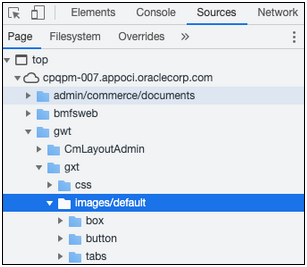
GXT is a Java framework for building web application pages. Oracle CPQ used this framework for its internal implementation and did not expose this for customer use. We are eliminating this framework from our product. If you are referencing images or CSS provided by this framework, we strongly recommend you to remove those references from your implementation. The end of life and removal of this functionality is Oracle CPQ 24A. GXT Images/Icons References The images used by this framework are likely found under the folder path: "/gwt/gxt/images/default/" Refer to the example below. If you are referencing any image from this folder, remove those references and use the File Manager to manage your customized images.
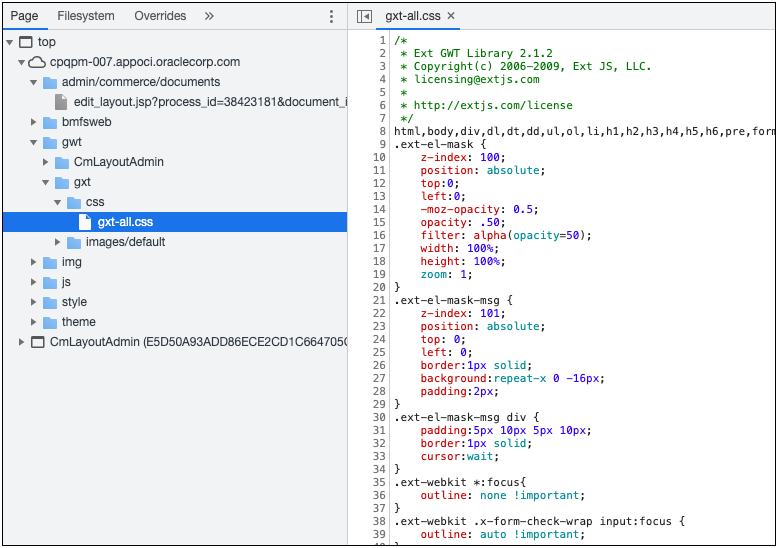
GXT CSS References The CSS file used by this framework are likely found under this folder path: "/gwt/gxt/css/gxt-all.css". Refer to the example below. If you have customized the above CSS file or referencing any CSS classes from this file, remove those customizations and use Stylesheet Manager to manage your customized CSS.
IMPORTANT: Depending on your specific implementation, the folder may not be exactly in the same path as referenced above. Review the folders to find the images/default folder and gxt-all.css file. |
Custom JavaScript and CSS
While Oracle CPQ does not endorse or guarantee the use of JavaScript customizations, we recognize that some customers have extended the Oracle CPQ. Customizations may conflict with new Oracle CPQ platform features, data may be corrupted or lost, maintenance and support may be difficult, cross-browser support must be verified, performance may be impaired, and testing is required for each upgrade. Customers should consider carefully the relative benefits of JavaScript customizations in light of the associated risks.
Customers are recommended to utilize the CPQJS APIs instead of manipulating the Document Object Model (DOM) structure or specific elements, classes or IDs.
If customers have added custom JavaScript that leverages the Document Object Model (DOM) structure or specific elements, classes or IDs, this customization should be thoroughly tested and may require refactoring.
Oracle CPQ 23A supports JET v12.1.0. Please note the following:
Select One component (<oj-select-one>) is deprecated and has been replaced with Select Single (<oj-select-single>). The following are impacted by this change: Favorites List and Detail pages, Commerce Analytics graph, and Single Select Menu (SSM).
Standard JET tables with data table cell tag (<td>) has updated id property syntax and the headers property is removed. For example:
-
JET v12.1.0 syntax: <td class="oj-table-data-cell oj-form-control-inherit" id="mandatoryModels-table:48_0">Recommended Model 1</td>
- JET v10.0.0 syntax: <td class="oj-table-data-cell oj-form-control-inherit" id="mandatoryModels-table:modelName_48" headers="mandatoryModels-table:modelName">Recommended Model 1</td>
-
For Configuration Array set read-only cells, .oj-table-data-cell.oj -hover styling has been updated from {background-color: #f2f2f3;} to linear-gradiant (rbg(242, 242, 243), rgb(242, 242, 243)).
When changing column selections for Simple List UIs and Configuration BOM panels, you need to hover over the columns to see the options list display. This change impacts Recommended Items List, Asset List, Performance Logs, and Eligibility Rules.
In data tables, clicking on a table cell selects the current value in the table cell (all table cell contents are highlighted). If you begin typing, the newly entered content replaces the highlighted content.
In the Commerce Layout Editor, the tooltip remains in view even after the applicable field is no longer visible.
The error message text for required attributes is modified from "Enter a value" to "Select a value".
-
When a sales user edits a date attribute, the date-picker tool will not automatically open. The user must either type in a value or click the date picker icon to select a value. On a mobile device, the user must select the date picker icon to select a value.
IMPORTANT: JET widget CSS applies to elements with class that starts with '.oj'. Oracle JET reserves this as a namespace. As such all customized elements that include '.oj' should be reviewed, tested, and refactored. Going forward no customized elements should include '.oj' in order to prevent future issues.
Oracle CPQ 22C upgraded jQuery to 3.6.0. Customers using earlier versions of jQuery need to upgrade and test their JavaScript customizations.
Refer to the following resources for more information:
- Oracle CPQ Administration Online Help > Style & Templates > JavaScript Customizations for JET UIs
- Oracle CPQ JET Configuration and Transaction UI: Refactoring Existing JavaScript Customizations (Doc ID 2490016.1)
- JavaScript Extension Toolkit and JET v12.1.0 Release Notes
Migration
When using Import From Source or Connect To Destination to migrate content, both sites must use the same major update. The migration of content can only occur across minor updates within the same major update.
- "Major update" = Update 23A
- "Minor update" = Update 23A Patch 1
When using Migration Packages, content from 19A and forward can be uploaded to the latest site version.
Resolved Known Issues
For information on bugs fixed in Update 23A, refer to the Oracle CPQ 23A Resolved Known Issues document available on My Oracle Support and the Oracle CPQ Administration Online Help.
Translation
For some system-defined messages and components, strings were removed and others added in Oracle CPQ 23A. If you have created your own implementation-specific translations of system-defined strings, some of these strings may no longer appear. Other strings may appear in English. The strings appearing in English are new and require translation.
Most of these messages and components are on the Administration side of Oracle CPQ, but you should review both your end user and administration pages before deploying your updated installation to confirm that all strings appear in the desired language.
Translation Status
Oracle CPQ supports the consumption of both single and multi-byte character sets. Submit a service request on My Oracle Support to enable your site for a new language.
For the following languages, a translation of the Oracle CPQ user interface is available for both the platform and the reference application:
- Chinese (Simplified) [China]
- Chinese (Traditional) [Taiwan]
- Czech [Czech Republic]
- Danish [Denmark]
- Dutch [Netherlands]
- English
- Finnish [Finland]
- French
- French [Canada]
- German
- Hungarian [Hungary]
- Italian
- Japanese [Japan]
- Korean [South Korea]
- Norwegian (Bokmål) [Norway]
- Polish [Poland]
- Portuguese [Brazil]
- Romanian [Romania]
- Russian [Russia]
- Spanish (Worldwide)
- Swedish [Sweden]
- Turkish [Turkey]
POST-UPGRADE CONSIDERATIONS
Upgrade and test all test instances on Oracle CPQ 23A before upgrading to production.
Customer Upgrade Testing
Customers should actively test new versions applied to non-production environments before a scheduled production upgrade. At minimum, customers should test the lifecycle of a transaction, with the typical actions that sales users perform. These may include but are not limited to: start transaction, new configuration, reconfigure existing configuration, parts search, discounting, printing, revisions, and approvals. Integration points should also be tested. Reviewing the What's New is highly recommended as this practice may indicate additional focus areas for testing.
Customers should also test any customizations made on the environment, especially JavaScript and unsupported integrations. Note that custom JavaScript is the most frequent cause of post-upgrade issues. Custom JavaScript and unsupported integrations are not supported by Oracle Support or Development. In particular, note that an upgrade may introduce changes to the DOM, which could impact use of customer JavaScript and CSS.
While Oracle CPQ does not endorse or guarantee the use of JavaScript customizations, we recognize that some customers have extended Oracle CPQ to support critical use cases. JavaScript API ("CPQJS") includes methods for accessing attributes, actions, and other elements on the JET Configuration and JET Transaction UIs. Customers should consider carefully the relative benefits of JavaScript customizations in light of the associated risks. Customizations may conflict with new Oracle CPQ platform features, data may be corrupted or lost, maintenance and support may be difficult, cross-browser support must be verified, performance may be impaired, and testing is required for each upgrade.
Oracle CPQ does extensive testing as part of the release cycle. Therefore your testing plan efforts should focus on testing customer-specific use cases rather than general tasks such as adding a configuration attribute.
Update Early Testing and Cohort Schedule
Customers are encouraged to take advantage of the Early Test periods in their 23A Update Cohort. This provides time for you to update one or more pre-Production environments to test customizations and use cases and make any necessary adjustments. The following table summarizes the Oracle CPQ Update 23A schedule. If you are uncertain which Update Cohort you are in, please submit a Service Request (SR) on My Oracle Support.
| Cohort |
Early Test Updates |
Pre-Production Updates |
Production Updates |
| A |
January 6 and 7 |
February 3 and 4 |
February 17 and 18 |
| B |
January 6 and 7 February 3 and 4 |
March 3 and 4 |
March 17 and 18 |
| C |
February 3 and 4 March 3 and 4 |
April 7 and 8 |
April 21 and 22 |
Oracle CPQ follows the Oracle SaaS Cohort Update Policy and Schedule. Quarterly Updates cannot be skipped. You need to integrate your Update schedule into your business and project plans. Customers must opt-in to Early Test by submitting a SR on My Oracle Support. You may elect to permanently opt-in to Early Test but must keep the same Early Test sites and cadence to do so.
Customers may request to have a few Pre-Production environments upgraded along with the Production environment on the standard Production schedule by submitting a SR on My Oracle Support. You may request to have the same sites upgraded along with your Production environment permanently to avoid having to submit SRs every quarter.
Issues after Upgrade
If a customer experiences issues after the upgrade, there are two different processes depending on if the upgrade is a non-production or production upgrade.
Issues after Non-Production Upgrade
- Log a Service Request (SR) through My Oracle Support.
- The Service Request will be picked up by Customer Support, and assigned to the Point of Contact (POC).
- The Service Request is worked as a standard Customer Support Service Request.
NOTE: In some instances the customer administrator may resolve issues without opening a Customer Support Service Request.
Issues after Production Upgrade
- In most cases, production upgrades go smoothly and the Upgrade Service Request is closed once the upgrade completes.
- The customer is instructed to open a "Severity 1" Service Request in the event that there is a critical issue after the production upgrade that was not identified after the non-production upgrade. Critical issues after upgrade would be considered production site down, 100% of users cannot quote, or other revenue impacting business critical issues.
- Once the "Severity 1" Service Request is created, the on-call team is notified.
- On-call team member(s) will work the Service Request towards resolution.
- On-call team member will then reach out to Oracle Upgrade Specialist who performed the post upgrade validation if needed.
Browser Support
Oracle CPQ supports all browser versions that meet the criteria of the Oracle Software Web Browser Support Policy.
If you experience issues using a supported browser version, open a ticket on My Oracle Support to resolve the issue. If an issue arises when using a supported browser, use a certified browser version until a fix is delivered. Certified browsers are selected based on current market share and are thoroughly tested to work with the current version’s standard functionality.
Certified Browsers
Windows
- Google Chrome 107.x
- Mozilla Firefox 106.x
- Microsoft Edge 106.x
Mobile Devices
- Apple iPad iOS 16.x, Safari browser
- Apple iPhone iOS 16.x, Safari browser
IMPORTANT: Compatibility issues with the selected browsers may exist when sites are created with additional JavaScript, alternate CSS, or other custom functionality. Customizations may require add-on work. Contact My Oracle Support to determine the availability of workarounds and minor fixes.
Salesforce Integration Support
Oracle officially supports version 8.x of the Oracle CPQ Connector for Salesforce.
Training
Please refer to the release documentation for all versions between your current version and the version to which you are upgrading to see all new functionality, resolved known issues, and functional known issues.
Refer to the Oracle CPQ Administration Online Help to become familiar with the new features introduced in Oracle CPQ 23A. For additional help, see My Oracle Support.
Verify any information not explicitly mentioned in this document as supported by the software against the product help for Oracle CPQ 23A.
Additional Information
For more information on Oracle CPQ, visit the Oracle CPQ documentation site.
Disclaimer
The details in this document are provided for high-level informational purposes only and are not intended to function as a specification or to replace the Online Help. Upgrading to a subsequent release may require the re-deployment of Commerce Processes, Configuration, or global function settings. Modifications to integration XSL files or APIs may also be required.