
This document will continue to evolve as existing sections change and new information is added. All updates appear in the following table:
| Date | Feature | Notes |
|---|---|---|
| 08 AUG 2019 | All DataFox Implementations | Updated document. Delivered features in July 2019. |
| 08 AUG 2019 | View Bulk Sync History | Updated document. Delivered feature in July 2019. |
| 08 AUG 2019 | View Accounts Synced to Oracle Engagement Cloud on Companies Tab | Updated document. Delivered feature in July 2019. |
| 31 JUL 2019 | Created initial document. |
This document outlines the features in Oracle DataFox and describes any tasks you might need to perform for this service. Each section includes a brief description of the feature, the steps you need to take to enable or begin using the feature, any tips or considerations that you should keep in mind, and the resources available to help you.
Column Definitions:
Report = New or modified, Oracle-delivered, ready to run reports.
UI or Process-Based: Small Scale = These UI or process-based features are typically comprised of minor field, validation, or program changes. Therefore, the potential impact to users is minimal.
UI or Process-Based: Larger Scale* = These UI or process-based features have more complex designs. Therefore, the potential impact to users is higher.
Features Delivered Disabled = Action is needed BEFORE these features can be used by END USERS. These features are delivered disabled and you choose if and when to enable them. For example, a) new or expanded BI subject areas need to first be incorporated into reports, b) Integration is required to utilize new web services, or c) features must be assigned to user roles before they can be accessed.
| Ready for Use by End Users Reports plus Small Scale UI or Process-Based new features will have minimal user impact after an update. Therefore, customer acceptance testing should focus on the Larger Scale UI or Process-Based* new features. |
Customer Must Take Action before Use by End Users Not disruptive as action is required to make these features ready to use. As you selectively choose to leverage, you set your test and roll out timing. |
|||||
|---|---|---|---|---|---|---|
| Feature |
Report |
UI or |
UI or |
|
||
View Accounts Synced to Oracle Engagement Cloud on Companies Tab |
||||||
Integrations with Oracle Engagement Cloud
Smart Talking Points in Oracle Engagement Cloud
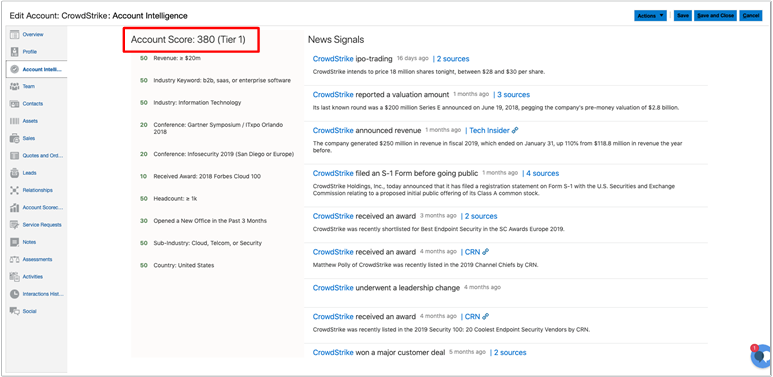
Monitor news on prospects with the Smart Talking Points feature in Oracle Engagement Cloud. Use news signals to have relevant business discussions and identify potential opportunities. Use account scores to understand if accounts are a good fit for your business, based on how closely they match your ideal customer profile.
- Focus on selling by reducing time spent on researching about accounts
- View several types of company signals delivered in real time
This screenshot shows the Account Intelligence tab on the Edit Account page.
Steps to Enable
Contact Oracle Support to complete the setup steps in Application Composer to add the Account Intelligence tab in Oracle Engagement Cloud.
Tips And Considerations
- Oracle recommends that the tab is named Account Intelligence. However, you can choose any other name.
- Enable the tab in both Account and Opportunity pages so that salespeople can access account intelligence easily.
Key Resources
View Accounts Synced to Oracle Engagement Cloud on Companies Tab
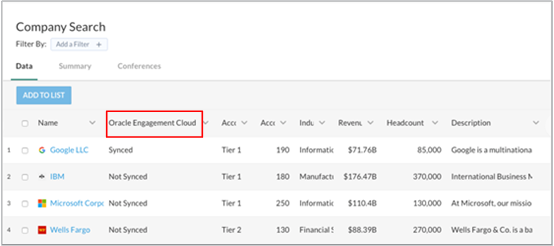
Know if your account is synced or not synced to Oracle Engagement Cloud from the Oracle Engagement Cloud column on the Company Search page.
Steps to Enable
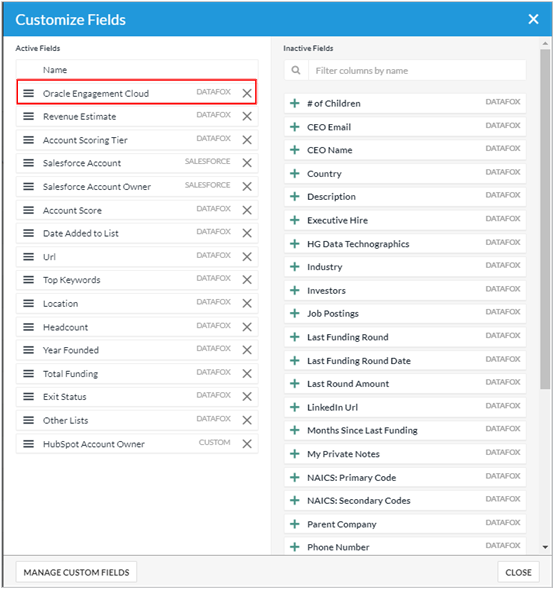
You must add the Oracle Engagement Cloud column on the Company Search page using the Customize Fields dialog box.
- Navigate to the Companies tab.
- Click the Customize Fields icon.
- In the Inactive Fields section, click the + icon against the Oracle Engagement Cloud field to move it to the Active Fields section.
- Click Close.
Tips And Considerations
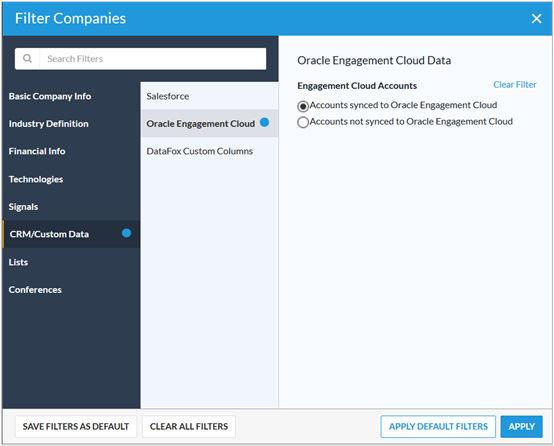
You can choose to view only accounts that are synced or those that aren't synced to Oracle Engagement Cloud on the Company Search page. To do so, navigate to the Company Search page, click Add a Filter, and apply the Oracle Engagement Cloud field to the Company page.
Key Resources
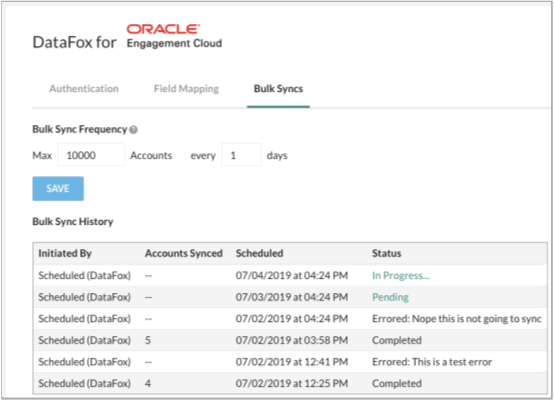
View the history of your account syncs on the Settings page for Oracle Engagement Cloud. You can view the total number of accounts synced, when and who initiated the sync, and status of the sync using this section. Previously, you could only set the bulk sync frequency for your accounts on this page.
Steps to Enable
You don't need to do anything to enable this feature.
Key Resources
Location Details on Hierarchy Summary Page
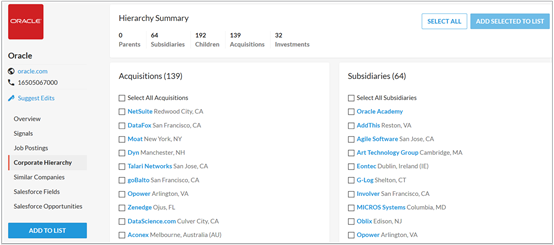
View location details for companies listed on the Hierarchy Summary page. You can use the location to identify the company you're looking for, if two companies share the same name.
This screenshot shows the hierarchy summary for Oracle, including locations.
Steps to Enable
You don't need to do anything to enable this feature.
Streamlined Industry and Subindustry Category Names
To ensure consistency in the name formats, few industry and subindustry category names are modified. Here’s the list of updated names:
- Industry Categories
- Mining, Oil, and Gas
- Transportation and Logistics
- Subindustry Categories
- Oil and Gas Extraction
- Pesticide, Fertilizer, Agricultural Chemical Manufacturing
- Residential, Commercial, and Industrial Real Estate
- Lessor Nonfinancial Intangible Assets Except Copyright Work
- Religious, Grant-Making, Civic, Professional Organizations
- Human Resource Programs
- Environmental Quality Programs
- Housing Programs, Urban Planning, and Community Development
- Economic Programs
- Cloud Infrastructure and Telecommunications Software
- Human Resource and Recruiting Software
Steps to Enable
You don't need to do anything to enable this feature.
Key Resources
View Relevant Dashboard Based on Your Lists
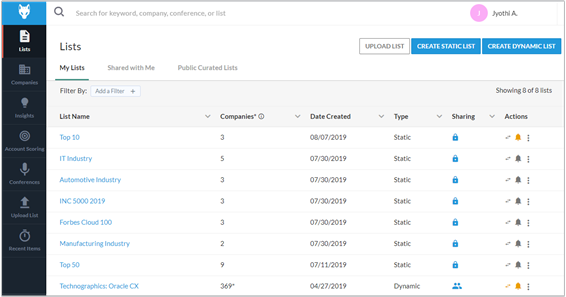
The Dashboard tab is now removed from the navigation menu. You are now directed to the Lists page or Companies page to help you get started quickly. Here’s what you see when you sign in:
- Lists page if you have created seven or more than seven lists on your account
- Companies page if you have created less than seven lists on your account
This screenshot shows the Lists page on sign in as there are more than seven lists.
Steps to Enable
You don't need to do anything to enable this feature.
View All Conferences on a Single Page
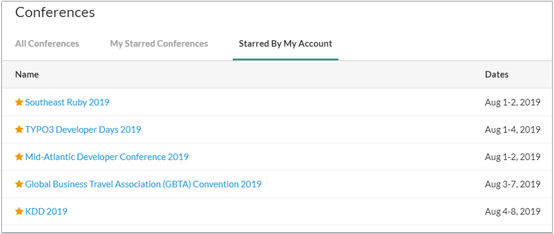
You can now view the My Starred Conferences and Starred By My Account tabs on the Conferences page. Previously, these tabs were displayed on the Dashboard page after a conference was starred on the Conferences page. With this update, you can view all the conference-related information on the same page.
This screenshot shows the Conferences page with the Starred By My Account tab.
Steps to Enable
You don't need to do anything to enable this feature.
Key Resources