
- Revision History
- Overview
- Feature Summary
-
- DataFox
-
- Integrate Oracle Engagement Cloud with Oracle DataFox
- Match Your Accounts with Companies in Oracle DataFox
- Update Company Data Using Bulk Sync
- Identify New Companies in Your Total Addressable Market (TAM)
- Prioritize Your Target Accounts
- Improved Accessibility on the Insights Reports
- Get Signal Alerts on Slack with Member ID
-
- DataFox
This document will continue to evolve as existing sections change and new information is added. All updates appear in the following table:
| Date | Feature | Notes |
|---|---|---|
| 08 AUG 2019 | Improved Accessibility on the Insights Reports | Updated document. Delivered feature in June 2019. |
| 08 AUG 2019 | Get Signal Alerts on Slack with Member ID | Updated document. Delivered feature in June 2019. |
| 24 JUN 2019 | Created initial document. |
This document outlines the features in Oracle DataFox and describes any tasks you might need to perform for this service. Each section includes a brief description of the feature, the steps you need to take to enable or begin using the feature, any tips or considerations that you should keep in mind, and the resources available to help you.
Column Definitions:
Report = New or modified, Oracle-delivered, ready to run reports.
UI or Process-Based: Small Scale = These UI or process-based features are typically comprised of minor field, validation, or program changes. Therefore, the potential impact to users is minimal.
UI or Process-Based: Larger Scale* = These UI or process-based features have more complex designs. Therefore, the potential impact to users is higher.
Features Delivered Disabled = Action is needed BEFORE these features can be used by END USERS. These features are delivered disabled and you choose if and when to enable them. For example, a) new or expanded BI subject areas need to first be incorporated into reports, b) Integration is required to utilize new web services, or c) features must be assigned to user roles before they can be accessed.
| Ready for Use by End Users Reports plus Small Scale UI or Process-Based new features will have minimal user impact after an update. Therefore, customer acceptance testing should focus on the Larger Scale UI or Process-Based* new features. |
Customer Must Take Action before Use by End Users Not disruptive as action is required to make these features ready to use. As you selectively choose to leverage, you set your test and roll out timing. |
|||||
|---|---|---|---|---|---|---|
| Feature |
Report |
UI or |
UI or |
|
||
Identify New Companies in Your Total Addressable Market (TAM) |
||||||
Integrate Oracle Engagement Cloud with Oracle DataFox
You can enrich your Oracle Engagement Cloud accounts by integrating with Oracle DataFox. This one-time integration ensures that complete and up-to-date information on your accounts is available directly in your Oracle Engagement Cloud instance. You make better sales decisions using the latest information. For example, you can use the latest funding and estimated revenue figures to close an opportunity.
This screenshot illustrates the field mapping process.
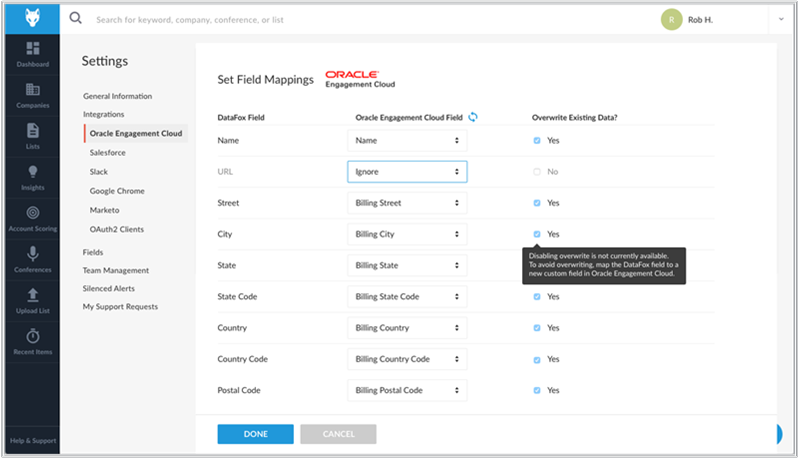
Set Field Mappings Page
Steps to Enable
Steps required to integrate are described in the Integrate with Oracle Engagement Cloud topic.
Key Resources
Match Your Accounts with Companies in Oracle DataFox
You can match and sync companies with your Oracle Engagement Cloud accounts directly from the company page in Oracle DataFox. Create a new account or sync to an existing account using the registry ID. You can also sync a company to multiple accounts using the Connect Another Account field.
This screenshot shows the option to sync a company.
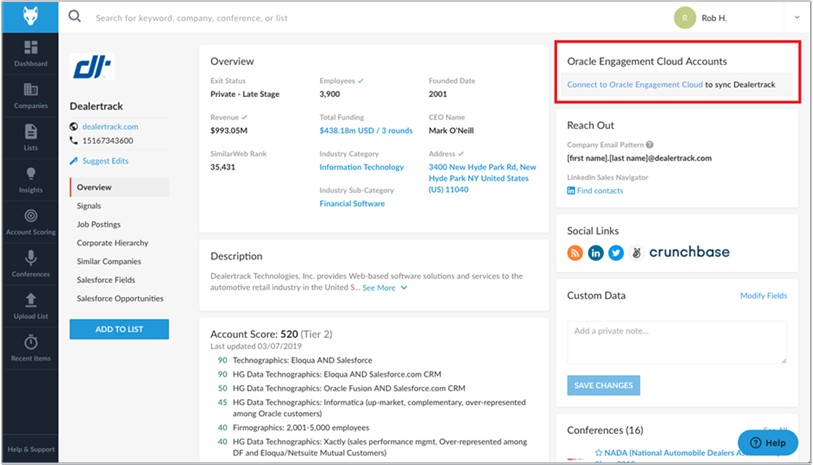
Connect to Oracle Engagement Cloud Accounts
Steps to Enable
You must integrate with Oracle Engagement Cloud to be able to use this feature.
Key Resources
Update Company Data Using Bulk Sync
Set a bulk sync frequency to update the company data for your accounts periodically. You can also set the number of accounts for each sync depending on your requirements. For example, you have 60,000 Oracle Engagement Cloud accounts and you set the bulk sync frequency to sync 10,000 accounts each day. This means your accounts are synced at least once a week.
This screenshot shows the bulk sync settings page.
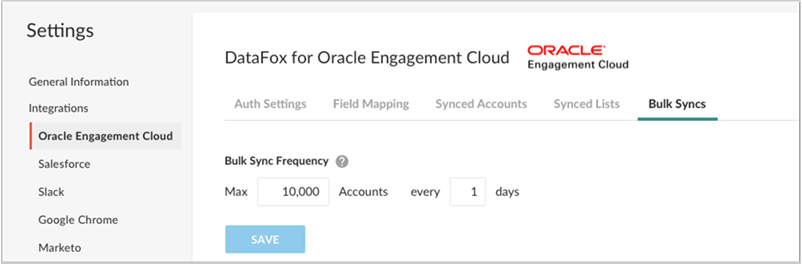
Bulk Sync Settings Page
Steps to Enable
You must integrate with Oracle Engagement Cloud to be able to use this feature.
Tips And Considerations
After you integrate with Oracle Engagement Cloud, your accounts are by default synced with company data. The accounts are synced daily up to a maximum of 10,000 accounts each day.
Key Resources
Identify New Companies in Your Total Addressable Market (TAM)
You can find leads in your TAM by running specific queries on company data and signals. Use the data-driven insights to find and target similar companies. You can set alerts to get ideal company recommendations.
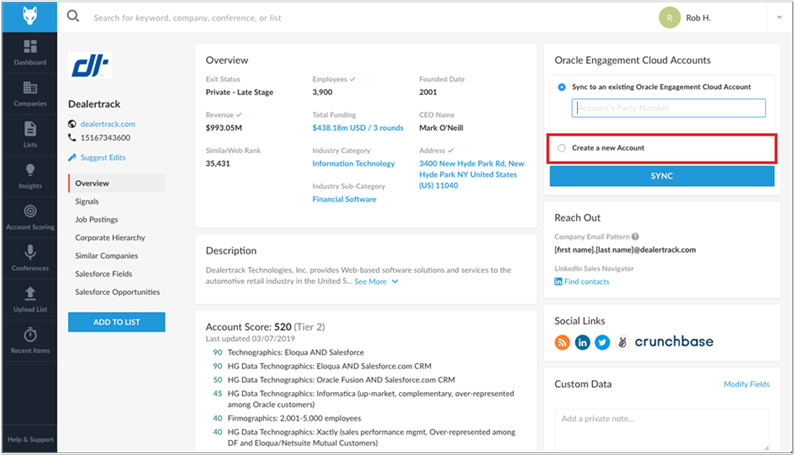
Create a New Account Option
Steps to Enable
You must integrate with Oracle Engagement Cloud to be able to use this feature.
Key Resources
Prioritize Your Target Accounts
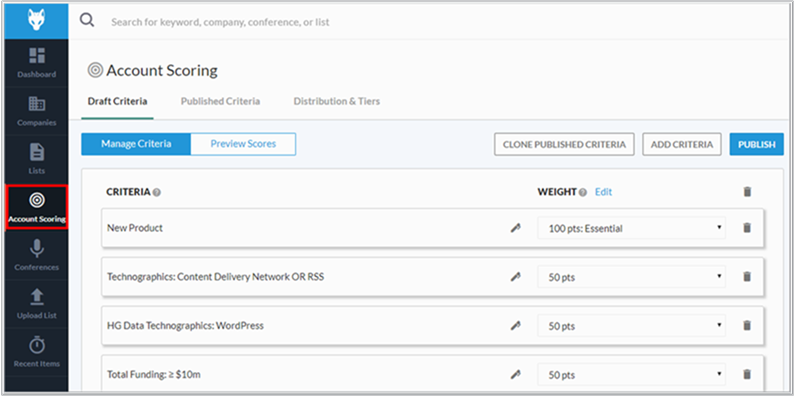
You can set your own criteria to rank and prioritize your accounts. You choose from hundreds of criteria and decide how to weigh them, but you can also use a template to get started quickly. Account scoring helps your sales and marketing teams focus on accounts with the highest potential according to your business strategy.
This screenshot shows example criteria that can be set in the Account Scoring page.
Account Scoring Page
Steps to Enable
You must integrate with Oracle Engagement Cloud to be able to use this feature.
Key Resources
Improved Accessibility on the Insights Reports
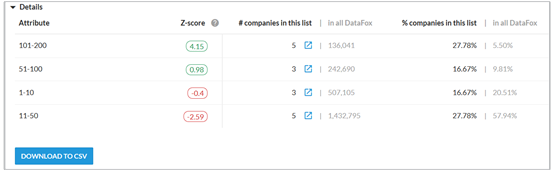
Navigate to the Insights tab to find improved user interface. The Insights page is enhanced to provide better accessibility. For example, the Z-score field looks larger and more prominent after the enhancement.
This image shows the Details report after the enhancement.
Steps to Enable
You don't need to do anything to enable this feature.
Key Resources
Get Signal Alerts on Slack with Member ID
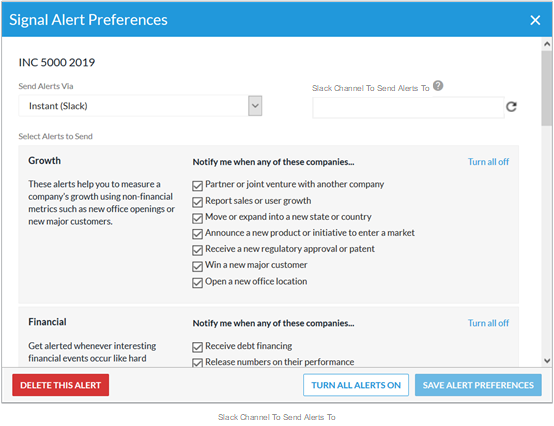
Get signal alerts on Slack by entering your Slack member ID or Slack channel name in the Signal Alert Preferences dialog box. You can no longer get signal alerts on Slack using a user name.
Steps to Enable
You must add the Slack channel name or the slack member ID in the Signal Alert Preferences dialog box.
- On your Lists page, click the bell icon.
- In the Signal Alert Preferences dialog box, select Instant Slack from the Send Alerts Via list.
- Enter the Slack Channel or Slack member ID. To copy a member ID, navigate to the profile within Slack and click the More actions icon.
- Toggle the notifications you would like to receive.
- Click Save Alert Preferences.
Tips And Considerations
If you have already set up signal alerts using a user name, remember to update it to use the Slack ID or the Slack channel so that you continue to receive alerts.
Key Resources