
This document will continue to evolve as existing sections change and new information is added. All updates appear in the following table:
| Date | Feature | Notes |
|---|---|---|
| 15 JUN 2020 | Unique Identifier to Find Company Records | Updated document. Delivered feature in May 2020. |
| 20 MAY 2020 | Created initial document. |
This document outlines the features in Oracle DataFox and describes any tasks you might need to perform for this service. Each section includes a brief description of the feature, the steps you need to take to enable or begin using the feature, any tips or considerations that you should keep in mind, and the resources available to help you.
Column Definitions:
Features Delivered Enabled
Report = New or modified, Oracle-delivered, ready to run reports.
UI or Process-Based: Small Scale = These UI or process-based features are typically comprised of minor field, validation, or program changes. Therefore, the potential impact to users is minimal.
UI or Process-Based: Larger Scale* = These UI or process-based features have more complex designs. Therefore, the potential impact to users is higher.
Features Delivered Disabled = Action is needed BEFORE these features can be used by END USERS. These features are delivered disabled and you choose if and when to enable them. For example, a) new or expanded BI subject areas need to first be incorporated into reports, b) Integration is required to utilize new web services, or c) features must be assigned to user roles before they can be accessed.
| Ready for Use by End Users Reports plus Small Scale UI or Process-Based new features will have minimal user impact after an update. Therefore, customer acceptance testing should focus on the Larger Scale UI or Process-Based* new features. |
Action is Needed BEFORE Use by End Users Not disruptive as action is required to make these features ready to use. As you selectively choose to leverage, you set your test and roll out timing. |
|||||
|---|---|---|---|---|---|---|
| Feature |
Report |
UI or |
UI or |
|
||
Precise Revenue Information for Companies
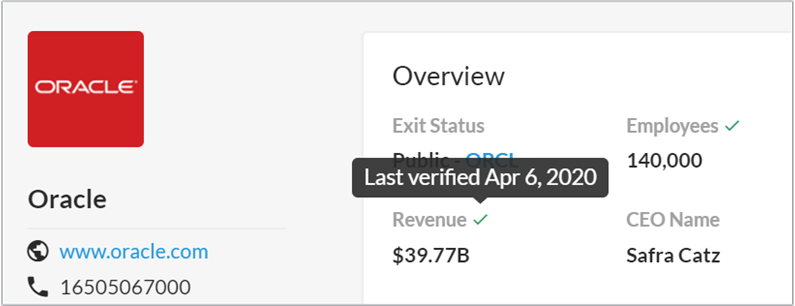
You can now easily gauge the revenue value for a company. If the revenue for a company is exact and is verified, you now see a Verified icon next to the Revenue field on the Company Overview page. Hover over the field to see the date when the revenue was last verified. For companies with an estimated revenue, you see est in the Revenue field.
This screenshot shows verified revenue for a company on the Company Overview page.
This screenshot shows estimated revenue for a company on the Company Overview page.
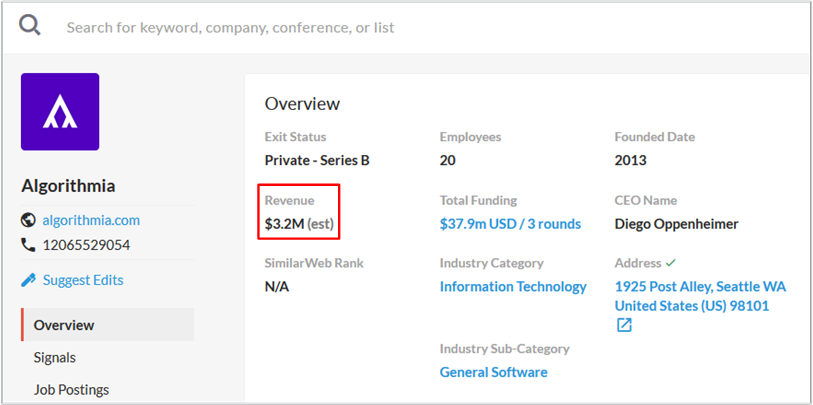
Previously, the revenue value was mentioned approximately, such as >2M. For example, if the revenue is 3,165,576, it was displayed as >2M, however, now it's displayed as 3.2M (est).
Steps to Enable
You don't need to do anything to enable this feature.
Unique Identifier to Find Company Records
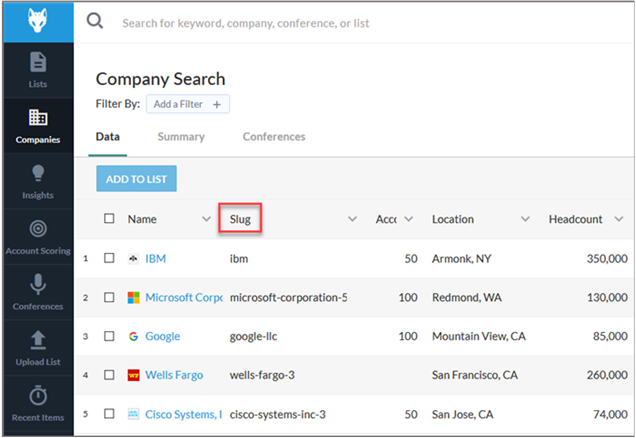
You can now use the company slug, a unique identifier, to easily find records of your company in applications where you’re importing Oracle DataFox data. You can find the company slug listed in the Slug column on the Companies page in Oracle DataFox.
If you’re comparing a company record in Oracle DataFox with the record in another application, it’s easier to identify using the company slug. The company slug is derived from the company name and is easy to remember. The other identifiers are Registry ID, which is a 10-digit CRM account identifier, and the DataFox ID, a 24-digit alphanumeric identifier.
You can also export slug identifiers for all your companies to an excel sheet.
This screenshot shows the Slug column on the Companies page.
Steps to Enable
- On the Companies page, click the Customize Fields icon.
- In the Customize Field dialog box, in the Inactive Fields section, enter Slug.
- Click the Add icon.
- Click Close.
Key Resources