
This document will continue to evolve as existing sections change and new information is added. All updates appear in the following table:
| Date | Feature | Notes |
|---|---|---|
| 20 JUN 2019 | Created initial document. |
This document outlines the features in Oracle DataFox and describes any tasks you might need to perform for this service. Each section includes a brief description of the feature, the steps you need to take to enable or begin using the feature, any tips or considerations that you should keep in mind, and the resources available to help you.
Column Definitions:
Report = New or modified, Oracle-delivered, ready to run reports.
UI or Process-Based: Small Scale = These UI or process-based features are typically comprised of minor field, validation, or program changes. Therefore, the potential impact to users is minimal.
UI or Process-Based: Larger Scale* = These UI or process-based features have more complex designs. Therefore, the potential impact to users is higher.
Features Delivered Disabled = Action is needed BEFORE these features can be used by END USERS. These features are delivered disabled and you choose if and when to enable them. For example, a) new or expanded BI subject areas need to first be incorporated into reports, b) Integration is required to utilize new web services, or c) features must be assigned to user roles before they can be accessed.
| Ready for Use by End Users Reports plus Small Scale UI or Process-Based new features will have minimal user impact after an update. Therefore, customer acceptance testing should focus on the Larger Scale UI or Process-Based* new features. |
Customer Must Take Action before Use by End Users Not disruptive as action is required to make these features ready to use. As you selectively choose to leverage, you set your test and roll out timing. |
|||||
|---|---|---|---|---|---|---|
| Feature |
Report |
UI or |
UI or |
|
||
With scaling of machine learning methods, you can now find improved data accuracy and coverage for headcount, revenue, and location.
You can expect the following improvements with this change:
- Coverage of 300,000+ company locations
- 1,000,000+ company profiles with headcount
- 1,000,000+ company profiles with revenue
Steps to Enable
You can update the new data settings instantly. To do so, sign in to your Salesforce account, navigate to the DataFox Settings page, the Instant Sync tab, and select the Instant Sync Enabled - On Update option.

Salesforce Settings
Tips And Considerations
To ensure that Salesforce processes such as account score and territory assignments are uninterrupted, you can uptake these changes when the network bandwidth is high.
Enhanced UI for Salesforce Admin Settings
You can now find an improved layout for the Salesforce Settings. View these tabs in the Settings > DataFox for Salesforce page if your account is connected to Salesforce.
- Auth Settings
- View your user name.
- Check if your Oracle DataFox and Salesforce accounts are connected.
- Bulk Syncs
- Sync your Salesforce records with the most recent data from Oracle DataFox.
- View your bulk sync history.
- Synced Accounts
- View a list of your last synced accounts along with the mapped companies.
- Resync errors by selecting an error type from the All Filters drop-down list.
- View synced accounts within a specific time-frame.
- Synced Lists
- View synced lists.
- Resync list names.
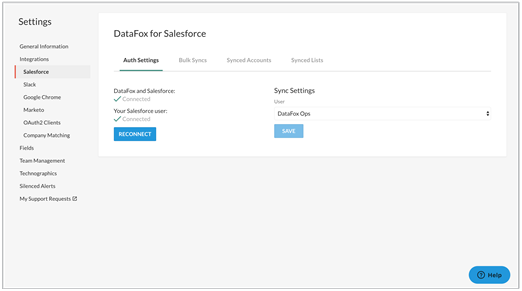
Oracle DataFox Settings
Steps to Enable
You don't need to do anything to enable this feature.
Tips And Considerations
To view the Bulk Syncs, Synced Accounts, and Synced List tabs in the Settings page, you must connect your Salesforce account to Oracle DataFox.
Key Resources
Clearer Check Box Label for Resync Errors Email
Email the account owner on the resync errors by selecting the Email the team's Account Owner about scheduled sync errors check box in the Bulk Syncs tab from the Settings page. The check box was earlier labeled as Email me about resync errors.
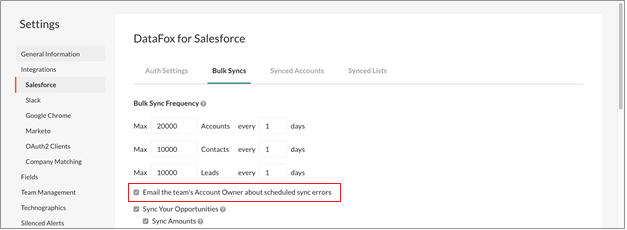
Resync Errors Email
Steps to Enable
You don't need to do anything to enable this feature.
Key Resources