
This document will continue to evolve as existing sections change and new information is added. All updates appear in the following table:
| Date | Feature | Notes |
|---|---|---|
| 27 SEP 2019 | Use Single Sign-On to Access Oracle DataFox | Updated document. Delivered feature in September 2019. |
| 19 SEP 2019 | Created initial document. |
This document outlines the features in Oracle DataFox and describes any tasks you might need to perform for this service. Each section includes a brief description of the feature, the steps you need to take to enable or begin using the feature, any tips or considerations that you should keep in mind, and the resources available to help you.
Column Definitions:
Report = New or modified, Oracle-delivered, ready to run reports.
UI or Process-Based: Small Scale = These UI or process-based features are typically comprised of minor field, validation, or program changes. Therefore, the potential impact to users is minimal.
UI or Process-Based: Larger Scale* = These UI or process-based features have more complex designs. Therefore, the potential impact to users is higher.
Features Delivered Disabled = Action is needed BEFORE these features can be used by END USERS. These features are delivered disabled and you choose if and when to enable them. For example, a) new or expanded BI subject areas need to first be incorporated into reports, b) Integration is required to utilize new web services, or c) features must be assigned to user roles before they can be accessed.
| Ready for Use by End Users Reports plus Small Scale UI or Process-Based new features will have minimal user impact after an update. Therefore, customer acceptance testing should focus on the Larger Scale UI or Process-Based* new features. |
Customer Must Take Action before Use by End Users Not disruptive as action is required to make these features ready to use. As you selectively choose to leverage, you set your test and roll out timing. |
|||||
|---|---|---|---|---|---|---|
| Feature |
Report |
UI or |
UI or |
|
||
Consistent Presentation of Salesforce Sync Error Details
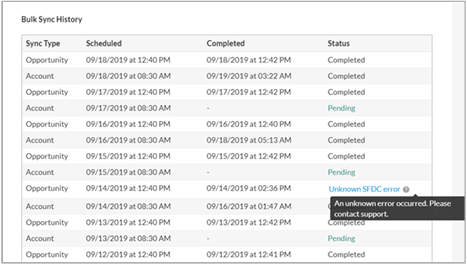
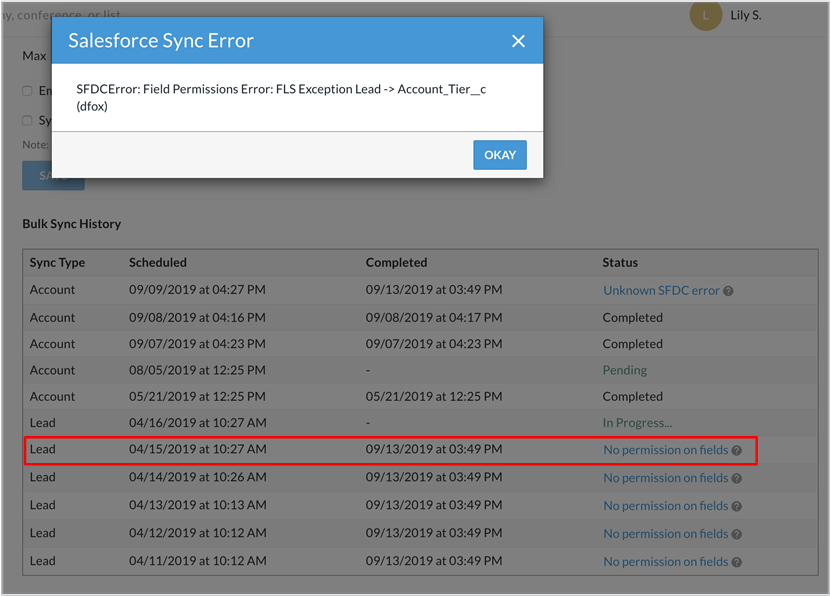
The Salesforce sync error messages are now consistent throughout the application. You can now view the error summary at a glance in the Bulk Sync History and Synced Accounts sections on the Settings page for Salesforce integration. You can click the help icon to view more details for the error. Previously, you could find the Salesforce sync error summary and the details only on the Companies page.
This screenshot shows the sync error on hover for the opportunity type.
This screenshot shows the sync error on click for the selected lead type.
Steps to Enable
You don't need to do anything to enable this feature.
Key Resources
Use Single Sign-On to Access Oracle DataFox
You can now allow your users to sign in to Oracle DataFox using single sign-on (SSO). You can configure Oracle DataFox to appear as one of the applications on your identity provider.
Enabling single sign-on has these effects:
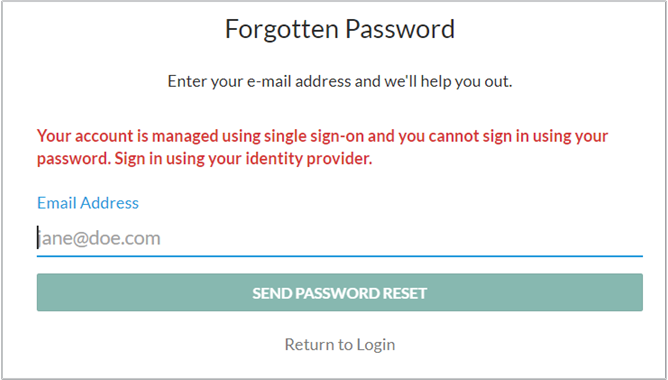
- Users must use single sign-on to access Oracle DataFox. This screenshot illustrates the Oracle DataFox sign in page with a message to sign in using your identity provider.
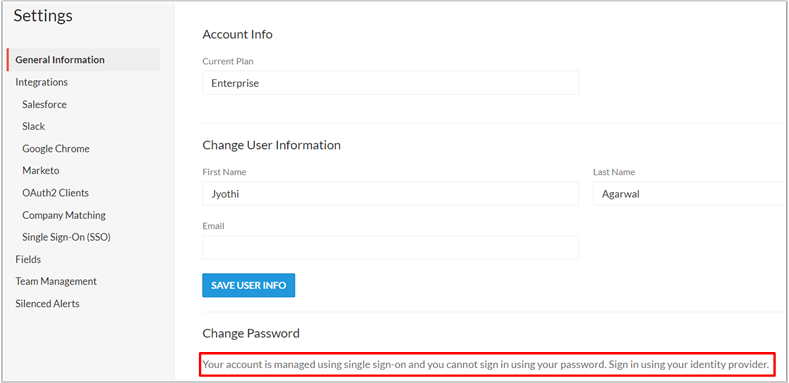
- They can no longer edit the password for their Oracle DataFox account as the account is managed using SSO. This screenshot shows the Settings > General Information tab for a user whose account is managed using SSO.
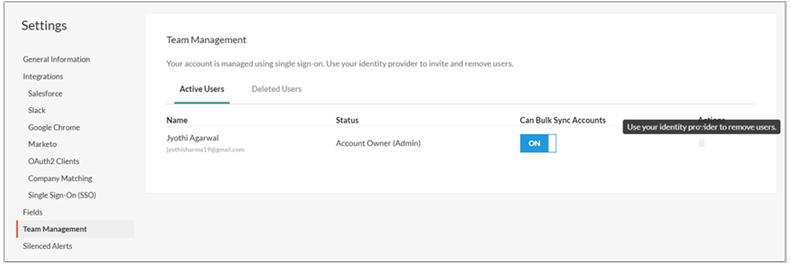
- You can no longer add, delete, or modify users on the Oracle DataFox Settings page. The Team Management tab on the Settings page displays the list of active and deleted users but you can't edit the list on this page. This screenshot illustrates the Team Management page for an account that's managed using SSO.
- You must add, delete, or modify users from your identity provider, using the new REST API called Users.
Steps to Enable
- To configure single sign-on for Oracle DataFox, see Manage Single Sign-On.
- To add, delete, or modify users, use the Users REST API. See Users in the REST API guide for more information.
Tips And Considerations
After SSO is enabled for your account, only the account owner can sign in using the Oracle DataFox user name and password. Admins and users must sign in using their identity provider. If you have issues with signing in to Oracle DataFox using your SSO credentials, contact your account owner who can verify details on the SSO page in Oracle DataFox.
Key Resources