


- Revision History
- Enterprise Performance Management Cloud, November Update
-
- EPM Cloud Common
-
- New Videos
- New User Group Report
- New EPM Automate Utility Version
- New Features in Smart View for Office (Mac and Browser)
- Planning Label in Migration Changed to Core
- New Menu in Modal Dialogs Provides Access to Provide Feedback and Customer Connect
- Group Export and Import Options Removed from Access Control
- New Home Page Icon for Switching Navigation Flows at Runtime
- Access to Data Integration Extended
- Updates to EPM Cloud Groovy Rules Java API
- Creating a Drill-Down Without a Source System Landing Page Using the EPM Integration Agent
- New REST API to Generate a User Group Report
- Upcoming Changes
- Considerations
-
- Account Reconciliation
- Enterprise Data Management
- Financial Consolidation and Close
- Upcoming Changes
- Considerations
-
- Calculation Status
- Copying Data
- Editing Data in a Data Collection Period
- Adding Shared Members in Smart View
- Self-Service Upgrade
- Horizontal Scroll on a Non-Tabular Form
- Unable to Refresh the Cube
- Viewing Members on Seeded Forms
- Viewing the FCCS_VIEW_SYSTEM_MEMBERS
- Translation Override Rule Redirection
- Simplified Dimension Editor and Metadata Validation
- Entity Member Names/Aliases with ICP Property
- Working with Metadata
- Ownership Management Enablement
- Smart View Summary Dialog Display
- Extended Dimensionality Performance Consideration
- Equity Pickup - Different Currencies for a Holding Company and Its Immediate Parent
- Narrative Reporting
- Planning
- Profitability and Cost Management
- Tax Reporting
This document will continue to evolve as existing sections change and new information is added. All updates appear in the following table:
| Date | Feature | Notes |
|---|---|---|
| 31 OCT 2019 | Narrative Reporting: Schema Change in Release 19.12 | Updated document. Added upcoming change. |
| 24 OCT 2019 | Created initial document. |
Enterprise Performance Management Cloud, November Update
This document outlines the upcoming Enterprise Performance Management Cloud update.
Oracle will apply the latest monthly updates to your Test environments during the first daily maintenance that occurs at or after 22:00 UTC (15:00 PDT) on Friday, November 1, 2019. Oracle will apply the latest monthly updates to your Production environments during the first daily maintenance that occurs at or after 23:00 UTC (15:00 PST) on Friday, November 15, 2019.
The Oracle Help Center provides access to updated documentation. The updates will be available in the Help Center on Friday, November 1, 2019. Some of the links to new feature documentation included in this readiness document will not work until after the Oracle Help Center update is complete.
NOTE: Backing up the daily maintenance snapshot and restoring the environment as needed are self-service operations. Oracle recommends that you download the maintenance snapshot every day to a local server.
Please Join Oracle Cloud Customer Connect
Please take a moment to join the Cloud Customer Connect forums for EPM Cloud services. Oracle Cloud Customer Connect is a community gathering place for members to interact and collaborate on common goals and objectives. This is where you will find the latest release information, upcoming events, or answers to use-case questions. Joining takes just a few minutes. Join now!
https://cloud.oracle.com/community
NOTE: The Settings and Actions menu now contains a link to Cloud Customer Connect. To access this link, from the Home page, click the down arrow next to the user name (in the upper right-hand corner of the screen), and select Cloud Customer Connect.
Give Us Documentation Feedback
We welcome your comments and suggestions to improve the content of the What's New document and the product documentation. Please send us your feedback at EPMdoc_ww@oracle.com. In the body or title of the email, state that you are inquiring or providing feedback, and indicate for which EPM Cloud service and the monthly update cycle.
For the latest updates and information about EPM Cloud, follow us on YouTube, Twitter, Facebook, and LinkedIn at Hyperion EPM Info.
Software issues addressed each month will be posted to My Oracle Support.
This section contains announcements related to the common EPM Cloud components such as EPM Automate, Migration, Access Control, Data Integration, and Smart View for Office.
Watch videos and learn about service capabilities, benefits and how to use key features.
Learn more about all of the value in the comprehensive EPM Cloud: EPM Standard Cloud and EPM Enterprise Cloud.
Getting help for Oracle EPM Cloud is easy. Access videos, tutorials, new feature updates, forums, documentation, translated Information, and more on our help center.
The User Group Report is available starting with this update. This new report lists the direct or indirect membership of users assigned to groups in Access Control. Users are deemed to be direct members of a group if they are assigned to the group; users are considered indirect members when they are assigned to a group which is a child of another group. For each user assigned to a group, the report lists information such as the login ID, first and last name, email ID, and the name of groups to which the user is directly or indirectly assigned. The CSV version of the report indicates whether the user is directly or indirectly assigned to a group by using Yes or No.
NOTE: This report is not applicable for Account Reconciliation and Narrative Reporting.
New EPM Automate Utility Version
A new version of the EPM Automate Utility is available. This version contains the userGroupReport command, which generates a comma separated value file that lists the groups to which users are assigned in Access Control. The report indicates whether the user assignment to group is direct (as member of a group) or indirect (as member of a group that is a child of a nested group).
NOTE: The UserGroupReport command does not apply to Account Reconciliation.
Key Resources
Working with EPM Automate for Oracle Enterprise Performance Management Cloud
New Features in Smart View for Office (Mac and Browser)
A new version of Oracle Smart View for Office (Mac and Browser) is available. This version includes the ability to save formatting on ad hoc grids and Smart Forms, and support spreading values using grid spread, cell locking, and mass allocation.
- Saving Formatting on Ad Hoc Grids and Smart Forms
Save native Excel formatting back to your Oracle EPM Cloud business process as part of a Smart Form or ad hoc grid.
- Spreading Values Using Grid Spread
Administrators enable Grid Spread in the business process. Users can then specify an amount or percentage to increase or decrease values across multiple dimensions on the grid, based on the existing values in the target cells. When calculating the spread data, read-only and locked cells and cells having supporting detail are ignored. Data integrity is ensured because values can be spread only to cells to which you have access.
- Spreading Values with Cell Locking
When spreading data over time periods, users can temporarily lock the values of one or more cells to preserve their values when other values are recalculated. Data can then spread across time periods based on various calculations and visually review the changes before committing them to the database.
- Spreading Values Using Mass Allocation
Administrators enable Mass Allocation in the business process. Users can then spread data to all descendants of a source cell and across all dimensions. Spreading by mass allocation spreads data to cells not displayed on the grid and does not require that the user have access to the target cells.
Steps to Enable
For Grid Spread and Mass Allocation, a Service Administrator or Power User must ensure that the form is enabled for Grid Spread and Mass Allocation.
See these topics in Administering Planning:
For all the features listed, a new manifest file must be created and deployed.
- Create a new manifest file and customize it per your requirements
- Deploy the manifest file to Office 365 users
See these topics in Deploying and Administering Oracle Smart View for Office (Mac and Browser)
- Creating and Saving the Manifest File
- Customizing the Manifest File (optional)
- Deploying the Manifest File to Office 365 Users
Key Resources
- Spreading Data in Working with Oracle Smart View for Office (Mac and Browser)
Planning Label in Migration Changed to Core
Starting with this update, Core replaces Planning in the artifact categories listing that is displayed when you access Migration. This change in the display label better reflects the type of artifacts available in this category and does not have any functional impact.
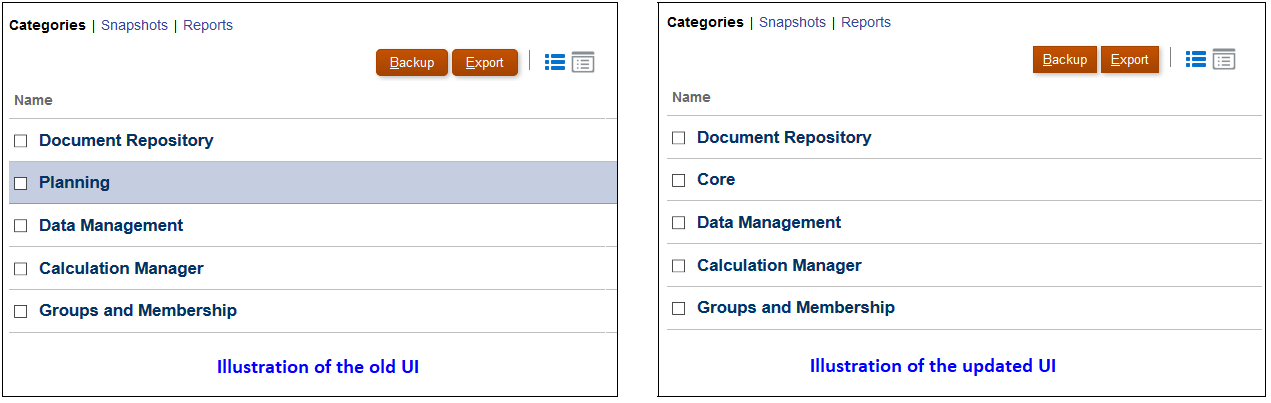
Label Change in Migration Categories
New Menu in Modal Dialogs Provides Access to Provide Feedback and Customer Connect
Many Access Control and Migration modal windows now contain a new menu, which provides access to online help, the Provide Feedback Utility, EPM Cloud Customer Connect, and Oracle Support. This new menu helps you submit Provide Feedback submissions from modal windows.
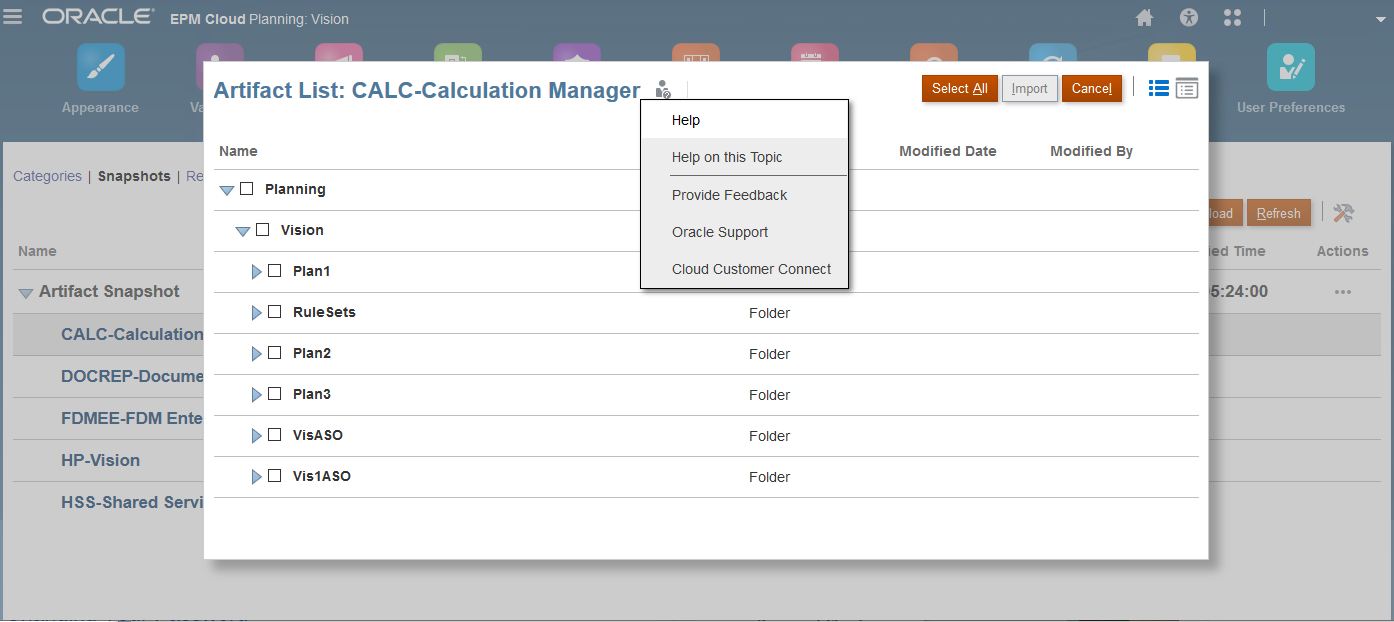
New Menu in Modal Dialogs
NOTE: This feature is not currently available in Enterprise Data Management. This feature is not applicable for Narrative Reporting.
Group Export and Import Options Removed from Access Control
Oracle has removed the ability to export and import groups from Access Control. As a result of this change, the Export and Import buttons are no longer available in the Manage Groups screen. This change was made because the ability to import and export groups is available through Migration and EPM Automate. You should use Migration for interactive export and import of groups and EPM Automate for automated import and export of groups.

NOTE: Account Reconciliation does not use groups; it uses Teams instead.
New Home Page Icon for Switching Navigation Flows at Runtime
There is a new Home page icon for switching navigation flows at runtime.
If you belong to multiple groups or if a navigation flow is assigned to a role, you might have access to more than one navigation flow and you can switch between navigation flows at runtime. To display a list of navigation flows from which you can choose, click the Navigation Flow icon on the global header, and select the navigation flow you want to view.
NOTE: This feature does not apply to Profitability and Cost Management, Account Reconciliation, Enterprise Data Management, and Narrative Reporting.
Key Resources
- Switching Navigation Flows at Runtime in Administering Planning
Access to Data Integration Extended
EPM Cloud users assigned to Power User and User predefined roles for the Planning business process can now access the Data Integration user interface. Previously, only the users assigned to the Service Administrator predefined role had access to the Data Integration user interface.
NOTE: In Financial Consolidation and Close, access to to Data Integration is limited to users assigned to the Service Administrator
predefined role only.
Data Integration is used only by Planning and Financial Data Consolidation and Close business processes.
Updates to EPM Cloud Groovy Rules Java API
When using Groovy, you can now exclude members in Smart Push. You can also execute a calc script and return to the Groovy script for further execution. The new API is cube.executeCalcScript().
Key Resources
Role Information
- Administrator
Creating a Drill-Down Without a Source System Landing Page Using the EPM Integration Agent
You can now drill down to an on-premises source system without a landing page and display the results in a pop-up in Data Management using the EPM Integration Agent.
NOTE: This feature applies to Planning and Financial Consolidation and Close business processes only.
Key Resources
- Creating a Drill-Down Without a Source System Landing Page in Administering Data Integration for Oracle Enterprise Performance Management Cloud
New REST API to Generate a User Group Report
You can now use REST APIs to generate a User Group Report on users in the system and write the report to a provided file name. This report lists the direct or indirect membership of users assigned to groups. It can be downloaded using the Download REST API.
Key Resources
- Manage Users in REST API for Enterprise Performance Management Cloud.
Role Information
- System Administrators
Removal of Instance Name from Predefined Role Names
Currently, the predefined role names displayed in the Access Control screens of EPM Cloud environments prefix the instance name to the role name in INSTANCE_NAME ROLE_NAME format. They are also stored in this format in the snapshots, making it difficult to migrate snapshots from one instance to another.
To facilitate the migration of security across EPM Cloud environments, Oracle plans to rename predefined role names displayed within EPM Cloud applications by removing the instance name prefix. For example, if the instance name is Planning1, predefined role names are Planning1 Service Administrator, Planning1 Power User, Planning1 User, and Planning1 Viewer, the new role names will be Service Administrator, Power User, User, and Viewer.
NOTE: This change does not affect how the role names are displayed in the MyServices customer portal.
This change will not have any impact on customers who currently use predefined roles for managing application-level provisioning and access to artifacts. Oracle will ensure that all application role assignments and artifact security assignments are automatically updated after the roles are renamed. This change makes it easy to migrate EPM Cloud artifacts across environments.
This change is being implemented to address customer feedback. If you have any concerns about this change, please contact Oracle Support.
Planner Role to Be Renamed as User
In an upcoming release, Oracle will rename the Planner EPM Cloud predefined role as User. This change will have no functional effect.
Subscriptions that were provisioned prior to the May 2016 update used the Planner role, which has been maintained in subsequent updates to provide continuity. In subscriptions that were activated after May 2016, the Planner role was already replaced by the User role.
NOTE: This change will affect Planning, Financial Consolidation and Close, and Tax Reporting only.
In a future update, there will be a revised interface with enhanced navigation and a new theme called Sky Blue.
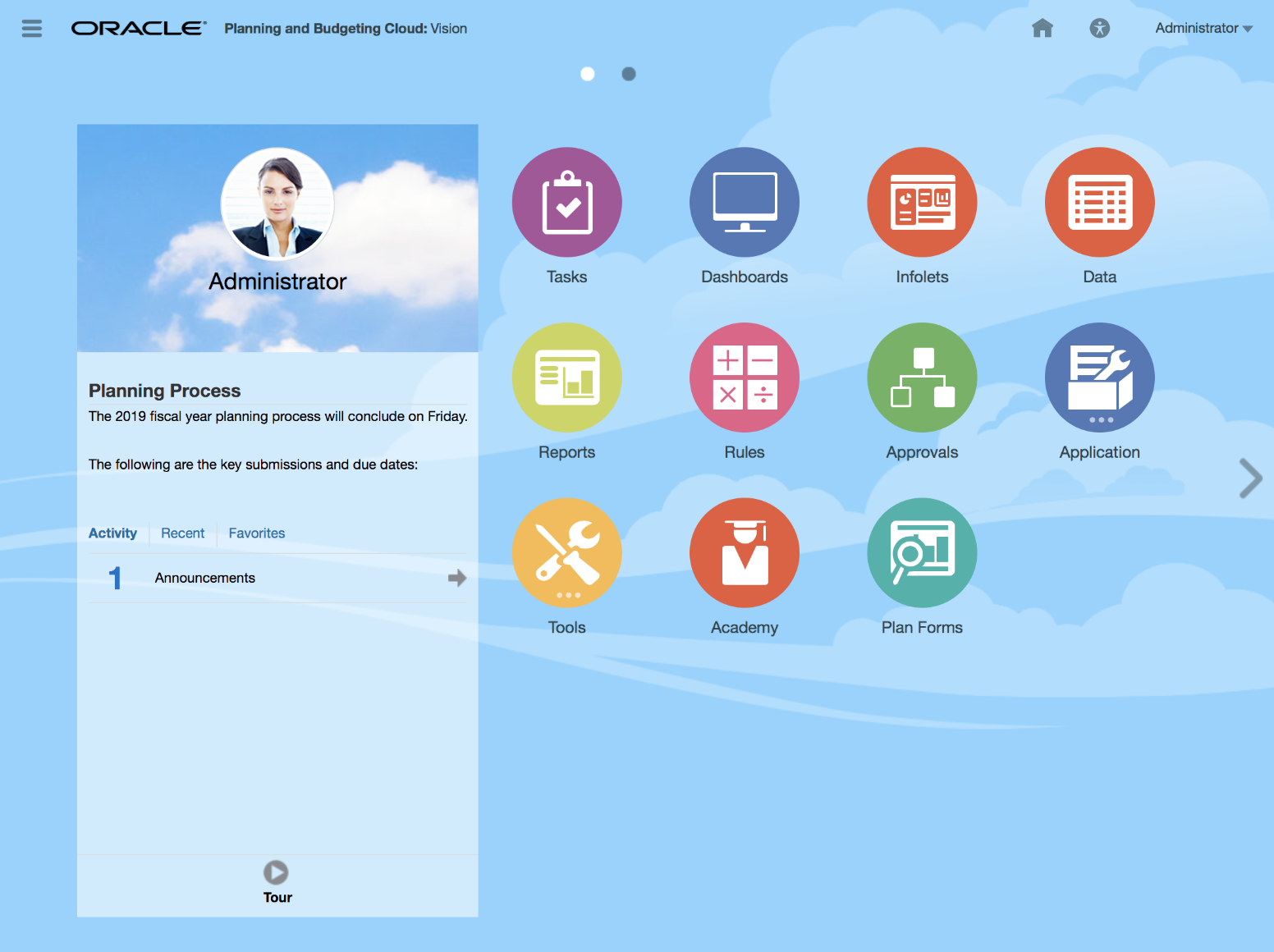
New Interface of Planning
The following EPM Cloud business processes will adopt this new theme as their default interface:
- Planning
- Financial Consolidation and Close
- Tax Reporting
- Profitability and Cost Management
- Account Reconciliation
- Strategic Workforce Planning
- Sales Planning
The revised interface retains existing functionality and enhances your experience with a more modern look and feel and responsive design. The Welcome Panel and the Global Header readjust after resizing, which means less scrolling. An updated Welcome Panel features Announcements and Notifications. Arrows are available on the Home Page to help you navigate easily between the Springboard and infolet dashboard pages. A bigger Navigator Menu has improved usability, more themes for customization are included, and a bigger work area has more space to maneuver and provide better visibility. The interface is also more consistent with other Oracle products, such as Fusion Applications.
After the interface is released, all new customers will use the new lighter-colored Sky Blue theme, and existing customers will keep their current theme. You can switch themes using Tools, and then Appearance.
- Watch Overview: Preview EPM Cloud's New Look and Feel video to view highlights of the new user interface theme.
Predefined Role Names as EPM Cloud Key Words
Starting with an update in the near future, Oracle plans to treat the following predefined role names as EPM Cloud key words, which should not be used in the name of any custom artifacts that you create; for example, as a group name in Access Control.
- Service Administrator
- Power User
- User
- Viewer
- Planner
- System Administrator
- Application Administrator
- Library Administrator
- Reports Administrator
If you have any groups or artifacts named using these keywords, Oracle requests that you rename or delete them; else Oracle will rename them to ensure that there is no impact because of this change. For example, a group named Power User will be renamed as Power User1 without affecting the current role assignments. If you do not want Oracle to automatically rename such groups, you must rename them.
This change is being implemented to address customer feedback. If you have any concerns about this change, please contact Oracle Support.
Key Resources
- Modifying Groups in Administering Access Control for Oracle Enterprise Performance Management Cloud
Query Governor on BSO and ASO Cubes
In a future update, Oracle will add a query governor on Essbase block storage and aggregate storage cubes to guard against excessive server load created unintentionally by running ad hoc queries that take a very long time to complete. The new governor will limit all queries to a maximum of 30 minutes execution time. This governor affects only retrieval of data, for example, Smart View ad hoc queries, web and Smart View forms, and reports. It does not affect business rules.
NOTE: This feature change affects Planning, Financial Consolidation and Close, Tax Reporting, and Profitability and Cost Management only.
To allow customers more time to transition from using the Classic Dimension Editor to using the Simplified Dimension Editor, Oracle has deferred the removal of support for Classic Dimension Editor to a future update. Because the plans to remove support for Classic Dimension Editor has not changed, Oracle recommends that you start using the Simplified Dimension Editor instead of the classic editor.
Oracle will temporarily discontinue this notification from upcoming readiness documents. A two-month advance notification will be provided before support for Classic Dimension Editor is officially removed.
NOTE: Removal of support for Classic Dimension Editor will affect Planning, Financial Consolidation and Close, and Tax Reporting only.
Job Scheduler Now Supports the Starting Hour and Minute
Because the Job scheduler changes in the 19.10 update ignored the minutes set in the start time of hourly jobs, it was not possible to sequentially schedule hourly jobs (Bug 30407857). This issue has been resolved in the 19.11 EPM Cloud update.
To support sequential scheduling of jobs, the Job scheduler now honors the hour and minute you set for the starting time of a job. For example, if you set the start time to be 12:48AM, and the hourly interval to be 2, the job will now run at 12:48AM, 2:48AM, 4:48AM and so on. And for an 8-hour interval with a start time of 12:48AM, the job will run at 12:48AM, 8:48AM, 4:48PM, and then start over at 12:48AM. The Planning documentation has been modified to explain the hourly scheduling timetable.
NOTE: Applies only to Planning, Financial Consolidation and Close, and Tax Reporting
Key Resources
- Scheduling Hourly Jobs in Administering Planning
Allow Editing of Transactions in Transaction Matching
If enabled by an Administrator, preparers will now be able to edit one or more transactions when using Transaction Matching. Administrators enable this feature using the Match Type window while preparers will be able to edit multiple transactions from the Unmatched window. A new Edit column will indicate which transactions have been edited and the new audit feature will show an audit trail of the edits.
Key Resources
- Editing Transactions in Reconciling Accounts with Account Reconciliation
Audit History of Transactions and Matching Status in Transaction Matching
An audit trail is provided that shows the changes to transactions from the time they are loaded until the time they are deleted. The match status is also tracked and shown in the audit history.
Key Resources
- Viewing Audit History in Reconciling Accounts with Account Reconciliation
Removal of .XLS Format as Report Export Option
Currently, the following report export options are available: csv, xls, xlsx, pdf and html.
In version 19.12, the option for xls will be removed. Customers who have built custom reports must ensure that their reports will export as desired to one of the remaining formats: csv, xlsx, pdf or html.
All Business Processes to Support an Identical Set of Predefined Roles
In an upcoming release, Oracle plans to implement the following predefined roles for Enterprise Data Management. Other EPM Cloud business processes already use this common set of predefined roles, which will become the standard set of predefined roles as a result of this change. This update will allow Oracle to address customer issues related to migrating services from current environments to EPM Standard Cloud Service and EPM Enterprise Cloud Service environments.
- Service Administrator
- Power User
- User
- Viewer
This change is automatic; you do not need to update current role assignments. If you have any concerns about this proposed change, please contact Oracle Support by submitting a service request which explains your concerns.
Enterprise Data Management Cloud will support two additional predefined roles, Power User and Viewer.
CAUTION: Do not assign the Power User and Viewer roles to Enterprise Data Management users because these roles do not assign any privileges to users.
Default Values for Node, Date, and Timestamp Display with Red Border
Valid default values for node, date, and timestamp properties may display a red border in the property pane indicating that the values are invalid. When this occurs you can still submit the request successfully.
Email Notifications in English
Subscription and workflow email notifications are displayed in English only.
If an approval policy is set up for a user who does not have an email address specified, when that user is invited to approve a request, the email is not sent to that user or to the user who submitted the request. Use Access Control to assign email addresses to users.
After reverting overridden property parameters back to base parameter, the icon next to the parameter indicates that the property is still overridden or overridden values are reverted to blank instead of base values. When this happens, there is no way to change the values back to base values.
Lookup sets cannot be archived.
Financial Consolidation and Close
Opening Balance Ownership Change
The Opening Balance Ownership Change (OBOC) system rule adjusts the Proportion and Elimination Opening Balance entries carried forward from the Closing Balance of the prior period when the Consolidation % changes from period-to-period. These adjustments ensure that the total of the opening balances plus related OBOC adjustments contribute to the Closing Balance in the current period reflecting the current period Consolidation %. Prior to this release, all OBOC adjustments were posted to the Elimination Consolidation dimension member. Beginning with this release, adjustments to Proportion Opening Balances will be posted to Proportion and only adjustments to Elimination Opening Balances will be posted to Elimination. The OBOC adjustments are posted to the “FCCS_Mvmts_Acquisitions” movement member when the period-to-period Ownership % increases and to the “FCCS_Mvmts_Disposals” movement member when the period-to-period Ownership % decreases.
Key Resources
- Advanced Consolidation Rules in Administering Oracle Financial Consolidation and Close Cloud
Decimal Precision in Intercompany Eliminations
The cumulative elimination amount of an intercompany transaction cannot exceed the proportionalized amount. The system must therefore ensure that if the net contribution amount of an intercompany account has been reduced to zero, no further eliminations can occur. It is possible that a computerized system cannot and does not record an accumulation to zero accurately. This is due to a “decimal precision” issue common to all computer systems. The test as to whether further intercompany eliminations should be processed must be based on the net contribution being “approximately equal” to zero rather than exactly equal to zero. By default, FCCS applies “decimal precision” of four decimals when applying the test. In this case, any net contribution of less than 0.0001 will be considered as zero and further eliminations will not be applied to the data. In most cases and for most currencies this level of precision should provide sufficient accuracy. However, if unexpected eliminations still occur, a Substitution Variable can be added to the application to modify the decimal precision applied to the test.
Key Resources
- Intercompany Eliminations in Administering Oracle Financial Consolidation and Close Cloud
Translation processes are applied to the source data during consolidation and translation execution whenever the source and destination POV represent different currencies. None of the translation processes are applied to the source data set during consolidation and translation execution whenever the source and destination POV represent the same currency. In these cases, data are copied from the source to the destination with no additional processing.
NOTE: This excludes the “Opening Balance Carry Forward” process, which must be applied to all stored members.
Key Resources
- Translating Data in Administering Oracle Financial Consolidation and Close Cloud
Performance Substitution Variables
The following Substitution Variables can be enabled to improve performance:
- EnableSimpleAggregation
This Substitution Variable improves the way that child entities are aggregated into parent entities. This Substitution Variable should be used in conjunction with the OptimizeYTDCalculation to improve consolidation performance.
- OptimizeDBRefresh
This Substitution Variable improves the way that exchange rates are pushed to the consol cube during the database refresh.
- OptimizeYTDCalculation
This Substitution Variable avoids redundant and repetitive calculations. This Substitution Variable should be used in conjunction with EnableSimpleAggregation to improve consolidation performance.
In order to enable the Substitution Variables, set the parameter Cube = Consol, in addition to setting Value = true.
NOTE: The degree of performance improvement varies widely across different applications as it is purely driven by the application design and data distribution.
Removal of .XLS Format as Report Export Option
Currently, the following report export options are available: csv, xls, xlsx, pdf and html.
In version 19.12, the option for xls will be removed. Customers who have built custom reports must ensure that their reports will export as desired to one of the remaining formats: csv, xlsx, pdf or html.
When you change Ownership Data that uses a Consolidation rule and then consolidate, the Calculation Status is not correct for the partner and entity.
When copying an entity with a Calculation Status of No Data, the target should also have a Calculation Status of No Data. The Copy Data process is incorrectly setting the Calculation Status to Impacted.
Editing Data in a Data Collection Period
In a Data Collection Period in Supplemental Data, editing Start, End, and Close Dates may result in an error that the date is outside the valid range.
Adding Shared Members in Smart View
When using Smart View, after adding a Shared Member, Refresh and Submit may not work correctly.
It is strongly recommended that you do not use the Upgrade Application Content settings in this update.
Although a new Upgrade screen is available in Daily Maintenance, this feature is not fully functional.
Horizontal Scroll on a Non-Tabular Form
In Supplemental Data forms, the horizontal scroll does not work on a non-tabular form, which is intended only for use on a single record. Do not use non-tabular layout if the form is meant for more than one record.
A Cube refresh will not complete if a level 0 currency dimension member has the "Label only" data storage property, but this is not currently detected in the Dimension Editor or Metadata Validator.
Viewing Members on Seeded Forms
If you are using an Extended Dimensionality environment, on seeded forms, use the View members, such as Periodic, QTD and YTD, instead of using functions to ensure the _RULE members are not accidentally added to the forms.
Viewing the FCCS_VIEW_SYSTEM_MEMBERS
If you are using an Extended Dimensionality environment, users other than the Administrator can view the FCCS_VIEW_SYSTEM_MEMBERS and its hierarchy in the data form and Intercompany reports.
Translation Override Rule Redirection
When you create a Translation Override rule, redirection does not work properly when you use a shared Parent account for the Source. The workaround is to specify the primary Parent account.
Simplified Dimension Editor and Metadata Validation
Some of the Simplified Dimension Editor errors (cells outlined in red) are false-positive errors (that is, incorrectly reported as errors). Data Storage errors for the following members should be ignored:
- Data Source --> All children of "FCCS_Source Entities" Entity --> "FCCS_Global Assumptions"
If you are using an Extended Dimensionality upgraded environment, the Simplified Dimension Editor does not show Dynamic Calc as an allowed value for Custom dimension parent member Data Storage. This issue does not occur in a newly-installed Extended Dimensionality environment. You can use the Classic Dimension Editor, Import Metadata, or Smart View to change the Data Storage value.
In addition, the Metadata Validator incorrectly shows validation errors for the following:
- Shared level 0 Scenario dimension members
- Parent members of the Scenario dimension
Entity Member Names/Aliases with ICP Property
When you create an Entity with the ICP property enabled, the maximum length of the member name is 76 characters instead of 80, to allow for the ICP prefix.
Be aware of the following considerations.
You should not make metadata changes that result in the following:
- Changing a base member to which a journal has been posted into a parent member. If there are journals or Supplemental Data posted to those members, these changes can cause problems when accessing Journals or importing existing journals.
- When you use ad hoc grids in Smart View with Financial Consolidation and Close Cloud, do not add a root Period member on the grid. Make sure the root Period member is removed by either clicking Remove Only or selecting periods that are in the application and selecting Keep Only.
- If a Period member is left on the grid, then any changes to data that you make will fail to properly set the impact status of the Entities.
Ownership Management Enablement
Enabling the Ownership Management feature entails adding seeded accounts, which causes a restructuring of your application. Depending on the size of your application, the restructuring could take a considerable length of time. This can be expected to take as long as manually refreshing the database after adding accounts. If there are conflicts with aliases of existing members, an error is displayed that the system cannot enable the feature. Resolve the member alias conflict, refresh the database and then enable the feature.
When the Ownership Management feature is enabled, you will need to reconsolidate all existing data in your application in order to re-populate the Proportion member in the Consolidation dimension. If you enable the Ownership Management feature, you may not be able to open some existing Financial Reporting reports due to metadata changes for Ownership Management.
Key Resources
- Enabling Ownership Management in Applications in Administering Oracle Financial Consolidation and Close Cloud
Smart View Summary Dialog Display
In Internet Explorer, you may experience issues using the Open Summary dialog in Smart View.
Workaround:
- Use the keyboard arrow keys to make your selection, then close and reopen the dialog, or
- Minimize and then reopen the dialog, or
- Use a different browser
Extended Dimensionality Performance Consideration
For an Extended Dimensionality application with Ratios enabled, consolidation performance may be slower. When you create an Extended Dimensionality application, you should not enable the “Include Ratio Calculations” feature.
Equity Pickup - Different Currencies for a Holding Company and Its Immediate Parent
In Ownership Management it is generally assumed that the Holding Company and the immediate parent (which represents the consolidated results of the Holding Company) have the same local currency. You may encounter an issue with the EPU calculations if the Holding Company does not have the same currency as its immediate parent.
NEW VIDEOS
The conditional text enables you to generate dynamic text based on predefined conditions and a combination of static text and text functions, which return member labels and data values to complete the resulting text. In this tutorial, you'll learn how to display conditional text in a text box and grid rows.
Looking for an easier way to standardize diverse data to meet your external regulatory reporting requirements? EPM Cloud delivers! From XBRL tagging and taxonomy management to SEC and IFRS validation, you can file with accuracy and confidence.
It used to be that a report was a static, context-less presentation of data and figures. Times have changed! With new capabilities such as notes, books, drill through, and full integration with report packages, your management reports can capture the situation behind the data.
A New Book Sample is Available
A new Book Sample is added to the Sample Management Reports file. A newly added sample Book helps you learn how to use a Book, which contains another Book, Word, and a PDF document in it.
Key Resources
- Reviewing the Sample Books in Designing with Management Reporting for Oracle Enterprise Performance Management Cloud
New Notifications are Available in the Report Package
In the current release, you get a status notification for the following tasks:
- A notification is delivered when a data source refresh is completed.
- A notification is delivered when the shared library location is changed.
Schema Change in Release 19.12
Release 19.12 will include a change to the Narrative Reporting database repository schema which will prevent migration of individual artifacts from a 19.12 environment to a 19.11 environment. What this means is that between the time that your test environment is updated to 19.12 and your production environment is still on 19.11, you will not be able to migrate artifacts from test to production. We recommend that you perform any artifact migrations to production prior to 19.12 being deployed to your test environment.
All Business Processes to Support an Identical Set of Predefined Roles
In an upcoming release, Oracle plans to implement the following predefined roles for Narrative Reporting. Other EPM Cloud business processes already use these common predefined roles, which will become the standard set of predefined roles as a result of this change. This update will allow Oracle to address customer issues related to migrating services from current environments to EPM Standard Cloud Service and EPM Enterprise Cloud Service environments.
- Service Administrator
- Power User
- User
- Viewer
This change is automatic; you do not need to update current role assignments. If you have any concerns about this proposed change, please contact Oracle Support by submitting a service request, which explains your concerns.
Current non-conforming Narrative Reporting predefined roles will be deleted; users assigned to those roles will be remapped automatically as follows to the common set of predefined roles.
Remapping for Narrative Reporting Roles
| Current Non-Conforming Roles | Common Remapped Roles |
|---|---|
| System Administrator | Service Administrator |
| Application Administrator | Power User |
| Library Administrator | Power User |
| Reports Administrator | Power User |
NOTE: User role assignments are not affected by this change. The Viewer role will not be assigned to users.
-
In Access Control, Service Administrator can manage group using “*” (asterisk) as the wildcard character to retrieve all available groups. For example, "John*" should be added to search user in the search field. However, in Oracle Narrative Reporting (NR) search capability automatically display characters that are matching in the "contains” field. See Creating Groups in Administering Access Control for Oracle Enterprise Performance Management Cloud.
-
In Access Control, Service Administrator can create and manage group, where as in Narrative Reporting, an Application Administrator can create and maintain all artifacts, such as applications, models, dimensions, and data grants. You may not able to view each individual Application-Level provisioning roles in Narrative Reporting. See Understanding Pre-Defined Roles in Getting Started with Oracle Enterprise Performance Management Cloud for Administrators.
-
In Oracle Narrative Reporting, if a user has Reports Administrator rights then the user can view the folder and can perform import or export option on that folder, else the user will not have rights to view all the folders in the library. See Understanding Pre-Defined Roles in Getting Started with Oracle Enterprise Performance Management Cloud for Administrators.
Be aware of the following considerations when working with Books.
- If a Book was created in the 19.10 release and it contain a reference another Book, it cannot be exported and imported into a 19.09 environment.
- When creating a Book and inserting another Book into it, if the Book is saved using the same name as the inserted Book, you may receive a service error when reopening the Book. The best practice is to save a Book with a different name than any Books that are inserted into it.
Be aware of the following considerations when working with Disclosure Management.
-
Bidirectional language functionality is not supported in Disclosure Management for this release.
-
When publishing a taxonomy in Taxonomy Designer, you must enter the full path for the ZIP file when specifying the location to publish to. An error is displayed if you specify the ZIP file name only without the path.
- When auto preview is enabled and you select Exhibit Linking after publish, Exhibit Linking does not work.
Workaround: Close Preview and select Exhibit Linking
-
When publishing a taxonomy in Taxonomy Designer, you must enter the full path for the ZIP file when specifying the location to publish to. An error is displayed if you specify the ZIP file name only without the path.
-
Ribbons are grayed out.
Workaround: Reopen the same report. No need to restart the entire Microsoft Word instance. Only the report needs to be closed and reopened from the Private Connection. Once the report is reopened the ribbon is in an enabled state. At this time you can undo the checkout so the issue doesn’t occur again. The issue occurs due to the report being checked out earlier and never checked back in, or, the Undo Checkout was selected while the application was in an unstable state
-
Arelle from the client cannot connect to the internet.
Workaround: Run Arelle on a PC that has access to internet or open an SR and DEV (or support) will deliver the http cache and should be unzipped at:
<USER_HOME>\AppData\Local\Arelle\cache
- Do not convert PDF formatted Disclosure Management reports to Word document.
Best Practice: Use original Word documents where available or re-create the content in a Word instance. Converting a PDF report to Word format is prohibited and will prevent the user from checking in the repository item when working in Disclosure Management.
-
The Auto Tag process can only detect one dimension now. The dimension name should be located on the horizontal or vertical column header.
-
You must ensure that the document is checked-in before clicking Auto Tag. If not, the current mappings in the Review Pane may disappear.
-
If you are restoring a database back up from 18.08 or 18.09, then the taxonomy registrations will not be restored. All the taxonomies need to be registered again. For open taxonomies that was edited using Taxonomy Designer template, you need to publish the taxonomy and register it again. For close taxonomies, you need to download the taxonomy from the issuing jurisdiction and register it again.
-
Auto-Tag process will only detect Level 4 tags in tables. It will not be able to detect tags in narratives.
-
Document Entity Information tags, Level 3 tags should be made first before attempting Auto-Tagging.
-
In Disclosure Management, you should remove spaces inside of the negative number before auto tagging. As a workaround, you must update individual doclet table cell from removing space. For example, you need to change table cell as follows:
- From: "(74 )" – An extra space is displayed in the table cell.
- To: "(74)" – Remove an extra space in the table cell.
Be aware of the following consideration when working with Management Reporting.
- When uploaded for use with Management Reporting, Microsoft Internet Explorer requires installable fonts. If custom fonts are not installable, then Internet Explorer will substitute a different font. Google Chrome and Mozilla Firefox do not require installable fonts.
Only for Smart View for Office with Microsoft Office 365 ProPlus
A known issue with Microsoft Office 365 ProPlus patch 16.0.10228.20051, updated through the insider slow channel, prevents users from accessing Oracle Smart View for Office with Office 365, resulting in the “Member not found” message being displayed. This Microsoft patch was pushed to users who signed up for monthly channel updates between June 12 and June 14, 2018.
Workaround: Update Office with Microsoft Office 365 Version 1806 (Build 10228.20080), which contains the fix for this issue.
Be aware of the following considerations when working with Report Packages.
-
In Report Package, if you are adding a table of contents with a report package that uses multi-byte fonts, a service error may occur when executing a link within the table of contents if the associated fonts have not been uploaded to the service. As a workaround, uploading the required fonts to the service.
-
With the latest Oracle Application Development Framework (ADF) software update, Time zone preference set to UTC - 08:00 by default. If a user tries to set the date selection in any of the Report Package's time line fields, the time zone code (GMT+/-00:00) is shown at the end of the input field. For example, if the user sets the due date for the start of the author phase to be January 1, 2019 at 9 AM in the Pacific US time zone, the date field is displayed as Jan 1, 2019 9:00:00 AM GMT-08:00.
-
In PDF-based Report Packages, Reviewers are unable to add comments to the report content sourced from Microsoft Excel doclets. Review commenting on the Excel doclet contents will be supported within a future release.
- Publishing a report package to PDF that contains embedded charts that were created in Microsoft Word results in errors.
Workaround: Either convert the Word charts to images, or replace the Word charts with embedded content from a reference file or doclet.
- Previewing a report that has a PowerPoint style sample with a custom slide that has numbering starting at zero will display an error.
Workaround: Download the PowerPoint style sample document and change the numbering on the Slide Master to start with one, instead of zero. Then, edit your report package properties and select the updated style sample document.
-
When you add embedded content that contains internal hyperlinks to a report package, if you select Download Preview to view the document, the hyperlinks within the embedded content do not open when clicked.
- When creating embedded content, if you use the horizontal text alignment format Center Across Selection in Excel, the selection does not carry forward into the embedded content when the doclet is embedded in Word. The text remains within the original cell.
Workaround: To achieve the same visual layout, use Merge cells and Center align to align the text in the merge cell.
- When you insert a reference variable value that references a document that was created using Word 2007, a line break is inserted in the text, creating an extra line.
Workaround: If you encounter this issue, delete the extra line.
- If an Excel worksheet uses a double-line bottom border on the last row of a named range, an extra row appears in the embedded content within a consuming doclet.
Workaround: To work around this issue, try one of the following options:
-
Do not use a double line bottom border in the last row of a named range, but select an alternative bottom border.
-
Navigate to a cell that is below the named range, and add dummy text or a blank space. You can then upload and check in the reference doclet. When the embedded content is generated, the empty row is no longer included.
- Resize the row below the row that contains the double-line bottom border. You can keep the double line border in the last row intact, but resize the next row to be very small (but not hidden). Click any cell in the relevant row and choose Home, then Format, and then Row Height and enter a small value such as 2 or 3. The extra space is included in the embedded content, but it has a minimal impact.
- If a PowerPoint slide is created from a layout that contains placeholders for tables, charts, smart art or media files, those objects seem to disappear when uploaded to the service. The content is not lost however. After downloading the files, a reset on the slide will cause the content to reappear.
Workaround: To work around this issue, create the slide by adding the content directly to the slide rather than use a layout with place holders.
- If the user enters a simple URL format (for example, www.oracle.com) within the Rich Text Editor, a service error will be displayed when the link is executed.
Workaround: If a user enters a fully qualified URL format (for example, http://www.oracle.com) within the Rich Text Editor, the URL link will open within a new browser tab.
-
When using an iPad with the Safari browser to preview a report package, Safari stops responding when you magnify the screen and tap preview.
-
When downloading files using Safari 9, any spaces in the filename will appear as special characters.
-
When performing a review of a PowerPoint report package using Safari, a service error is displayed if the user places the comment anchor in the blue area outside slide.
- When you open a review instance within Smart View, add a comment, switch to another review instance, and then switch back to the first review instance using the Content Selector, the comment is not updated correctly.
Workaround: Click “Refresh Comments” or click the Content Selector refresh button to display the comment correctly.
- When performing a "Refresh All" on a report package, there is a database transaction timeout limit of 10 minutes in the system. As a result, if Management Reporting doclet refreshes take more than 10 minutes to complete, the entire refresh operation is rolled back to its previous state.
Workaround: For a larger report package, it is recommended to perform manual refresh, and split the report package into multiple ones and refresh them separately. Later manually combine resulting PDF outputs into a single output.
Be aware of the following considerations when working with Smart View.
-
In the Mozilla Firefox browser, if you are trying to download the Smart View extensions, this may result in a new tab opening with a large amount of code being displayed. This is due to a security policy within the Mozilla Firefox browser related to certain file extensions.
Workaround: Download the Smart View extensions using an alternate supported browser (Microsoft Internet Explorer or Google Chrome) or you can install the extension from Smart View directly.
Then, follow the install instructions in “Installing the Narrative Reporting Cloud Extension” of the Oracle Smart View for Office User's Guide.
-
In Word 2016, 32- or 64-bit, when you close a document, Word stops responding (displays the spinning wheel) until you either click in the ribbon area of the interface, or press the Alt key.
- On Microsoft Windows 10 with Office 32- or 64-bit, in the Add Report Content dialog, range names display incorrectly.
Workaround: Go to the Control Panel, then Display, then click the link for “Set a custom scaling level” and ensure that the setting in the “Custom sizing options” dialog is 100%. If it is not, set it to 100%, and then log out of Windows and log back in.
- A connection created in one language cannot be used if Smart View is changed to a different language.
Workaround: Create multiple private connections using the Add Connection Wizard. Before creating each connection, change the Smart View language display (in the Options dialog box, Advanced tab, Language drop-down list). Then, follow the instructions “Using the Private Connection Wizard” in the Oracle Smart View for Office User's Guide.
- When downloading a new Smart View extension from Microsoft Internet Explorer, the filename extension defaults to .ZIP instead of .SVEXT. This prevents you from being able to double-click to install the extension.
Workaround: When Internet Explorer prompts you to save the file, choose “Save As”, change the Type to “All Files”, and then change the extension from .ZIP to .SVEXT. Then, double-click the downloaded file to install the extension.
-
When any of the allowable special characters are used in a report package name (such as commas, semicolons, or ampersands), there may be a discrepancy between how the name displays in the library tree and how it displays in the Report Center panel.
-
If you have open or close bracket characters in an Excel reference or supplemental doclet, Excel changes the brackets to parentheses when you save the file.
- When you upload an Excel reference doclet with many named ranges, not all of the named ranges are listed as available content.
Workaround: Upload the doclet and then go to the web and add the embedded contents within the doclet inspect dialog.
- User names or artifact names containing special characters, such as ampersands (&), may cause errors in the Smart View Narrative Reporting extension when displaying the Home panel or inspecting an artifact’s history.
Workaround: Remove special characters from user names and artifact names.
- After opening a review instance, then switching back to the Report Center and selecting a doclet, in some cases, the Show / Hide Comments link is no longer visible, but the Comments panel is always displayed.
Be aware of the following consideration when working with Smart View for ad hoc analysis.
-
When users sign in to the service for the first time, they will be prompted to change the password. Oracle recommends that users sign in first to the web to change their password before connecting through Smart View.
Watch videos and learn about service capabilities, benefits and how to use key features.
Setting Up Funding Options in Strategic Modeling
Learn how to set up funding options in Strategic Modeling in Oracle EPM Cloud. First you review how cash surplus and cash deficits are defined. Then you modify the funding routine to use excess cash to pay down high interest debt, and review the impact of those changes on accounts.
New User Interface Labels for Enable Features in Projects
On the Projects Enable Features page, the label for Standard Rates from Workforce changed to Integration from Workforce, and the label for Standard Rates from Capital changed to Integration from Capital. These changes were made to more clearly identify the purpose of the options for integration.
Key Resources
- "Enabling Project Expense" in Administering Planning Modules
New Database Suppression Option in Form Grid Properties
There is a new form layout option called Use Database Suppression that enables you to apply row suppression at the Essbase level instead of at the Planning level, thus reducing the amount of data handled on the Planning side and eliminating the impact on query thresholds.
NOTE: If you use this option and you have a formula column on the form that results in a #MISSING value, the row won't appear on the form because it will be suppressed in Essbase and won't be returned to Planning for formula evaluation.
The Use Database Suppression option can be set on the Layout tab of the Form and Ad Hoc Grid Management page under Grid Properties.
Key Resources
- Setting Form Grid Properties in Administering Planning
Start Date Member in Workforce
In an upcoming update, the Workforce module will introduce a new member named Start Date, which could impact how you load data into Workforce. The Workforce Data Load templates will be updated to accommodate this change, as will the Data Management templates. This new Start Date member enables more accurate calculations than the current Start Month member.
For existing customers, the start month will be converted to a calculated value based on the Start Date so that your calculations aren't affected. But you will need to make changes to your data load files to provide Workforce with the Start Date instead of Start Month.
Profitability and Cost Management
Change to Calculation Rules Screen in Application Cluster
In an upcoming update, the Calculation Rules screen in the Applications cluster will be replaced with the Designer screen from the Models cluster. The Designer screen is an enhanced version of the Calculation Rules screen, with capability to create and edit complete rule definitions.
Removal of Tax Reporting Sample Application for Legacy Licenses
Effective with this release, the option to create a Sample Application is no longer available for Legacy licenses; however, the Enterprise Licenses will continue to support Sample Application creation.
Key Resources
- Creating a Sample Application in Administering Oracle Tax Reporting Cloud
Future New Connection Type and Advanced Options for External Connections for Tax Reporting
In a future update, Service Administrators for Tax Reporting will be able to use connections created for external Web services, specifying optional query or header parameters. These connections could be referenced or used in a Groovy script to create a communications link between the Groovy script and the external Web resource. Users will be advised when this new feature is to be supported in Tax Reporting.
With a view to allowing customers more time to familiarize themselves with the Simplified Dimension Editor, Oracle has decided to defer the removal of support for Classic Dimension Editor to a future update in 2019. Oracle will notify you at least two months prior to the removal of the feature.
Removal of .XLS Format as Report Export Option
Currently, the following report export options are available: csv, xls, xlsx, pdf and html.
In version 19.12, the option for xls will be removed. Customers who have built custom reports must ensure that their reports will export as desired to one of the remaining formats: csv, xlsx, pdf or html.