
This document will continue to evolve as existing sections change and new information is added. All updates appear in the following table:
| Date | Module | Feature | Notes |
|---|---|---|---|
| 21 APR 2023 | Created initial document. |
 HAVE AN IDEA?
We’re here and we’re listening. If you have a suggestion on how to make our cloud services even better then go ahead and tell us. There are several ways to submit your ideas, for example, through the Ideas Lab on Oracle Customer Connect. Wherever you see this icon after the feature name it means we delivered one of your ideas.
GIVE US FEEDBACK
We welcome your comments and suggestions to improve the content. Please send us your feedback at oracle_fusion_applications_help_ww_grp@oracle.com.
DISCLAIMER
The information contained in this document may include statements about Oracle’s product development plans. Many factors can materially affect Oracle’s product development plans and the nature and timing of future product releases. Accordingly, this Information is provided to you solely for information only, is not a commitment to deliver any material, code, or functionality, and should not be relied upon in making purchasing decisions. The development, release, and timing of any features or functionality described remains at the sole discretion of Oracle.
This information may not be incorporated into any contractual agreement with Oracle or its subsidiaries or affiliates. Oracle specifically disclaims any liability with respect to this information. Refer to the Legal Notices and Terms of Use for further information.
Column Definitions:
Report = New or modified, Oracle-delivered, ready to run reports.
UI or Process-Based: Small Scale = These UI or process-based features are typically comprised of minor field, validation, or program changes. Therefore, the potential impact to users is minimal.
UI or Process-Based: Larger Scale* = These UI or process-based features have more complex designs. Therefore, the potential impact to users is higher.
Features Delivered Disabled = Action is needed BEFORE these features can be used by END USERS. These features are delivered disabled and you choose if and when to enable them. For example, a) new or expanded BI subject areas need to first be incorporated into reports, b) Integration is required to utilize new web services, or c) features must be assigned to user roles before they can be accessed.
| Ready for Use by End Users Reports plus Small Scale UI or Process-Based new features will have minimal user impact after an update. Therefore, customer acceptance testing should focus on the Larger Scale UI or Process-Based* new features. |
Customer Must Take Action before Use by End Users Not disruptive as action is required to make these features ready to use. As you selectively choose to leverage, you set your test and roll out timing. |
|||||
|---|---|---|---|---|---|---|
| Feature |
Report |
UI or |
UI or |
|
||
Capacity REST API - Support of Quota Operations for Time Slot Booking Approach |
||||||
The page header becomes smaller and sticks at the top of the page while scrolling within activities, inventory and forms. When compressed, the back navigation as well as the configurable action buttons remain accessible. This behavior only occurs when using larger devices with screens that are at least 1440 pixels.
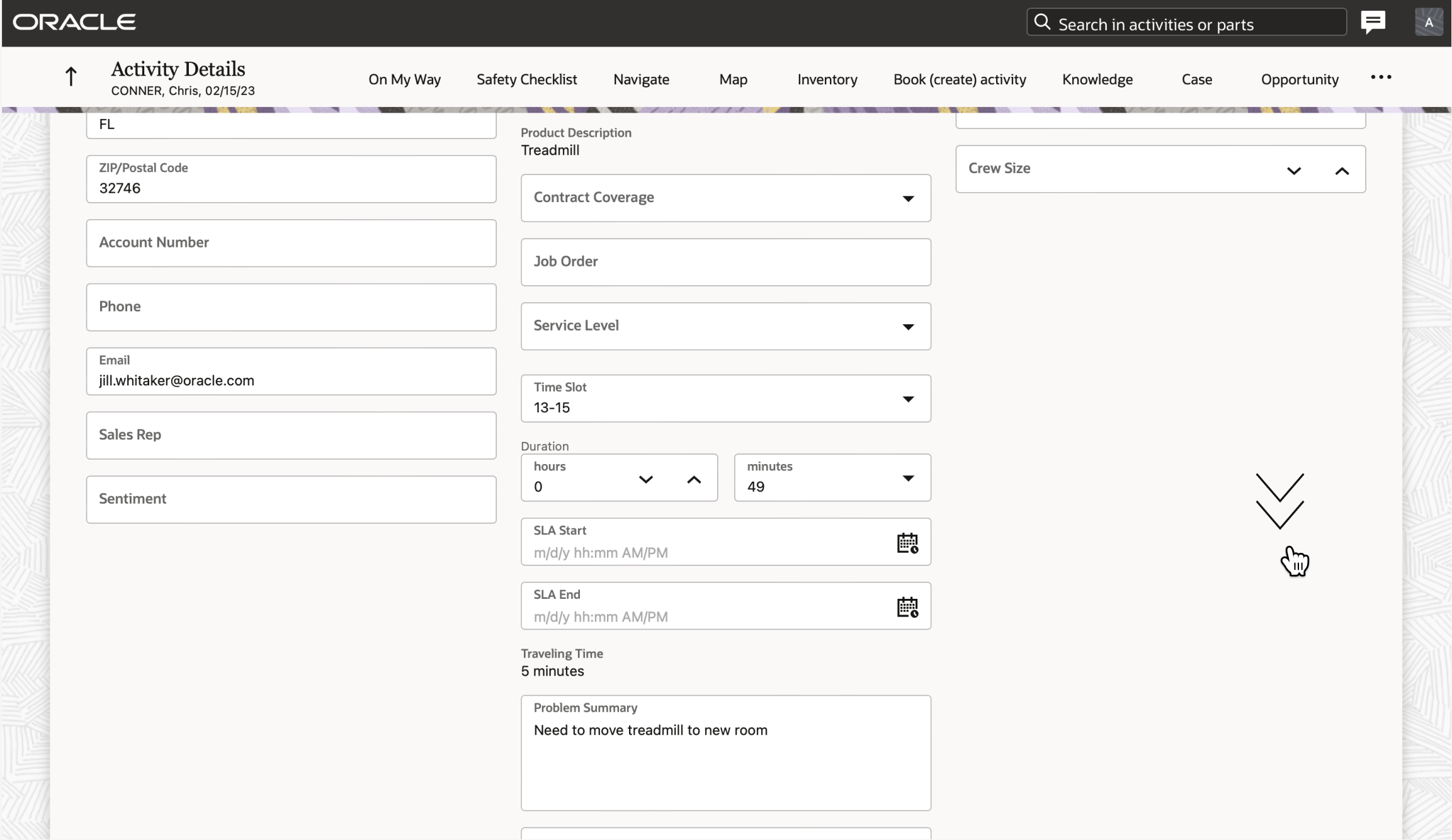
The Dispatch Console page header also becomes smaller when in split-screen mode. This provides users with more viewing and functional space while in this mode.

Business Benefit
-
Actions are always accessible for quick and easy navigation between pages
-
Reduced screen space is consumed by the header on pages with a large amount of content that requires vertical scrolling
Steps to Enable
You don't need to do anything to enable this feature.
Dispatch Console Export Progress Dialog
When a user exports the list of activities, it could take significant time to download, depending on the number of records. Users can now view the progress of the export within a dialog window.
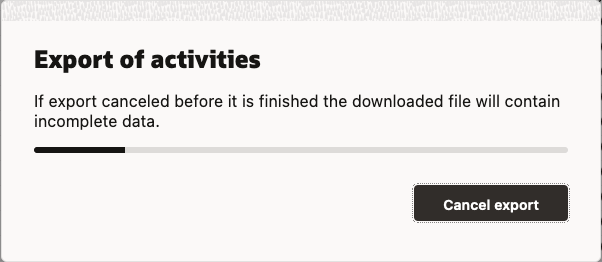
There is also an option to cancel the export, if necessary. The file that contains partially generated data (for example, 500 activities out of 10,000 activities) is still downloaded when the Cancel Export button is clicked.
If, for some reason, the file can't be fully generated (i.e. too much data requested or a timeout happens) then the error message shown below will appear to the user.
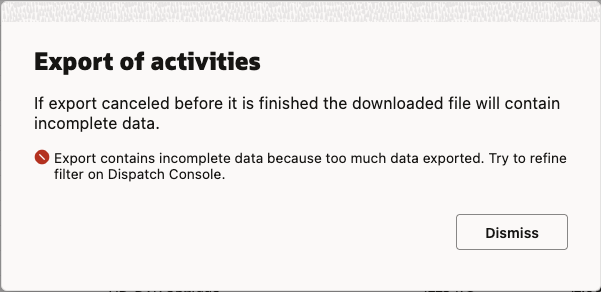
The portion of the file that was generated is still downloaded.
Business Benefit
-
Stay informed on the export progress
-
Cancel exports that are no longer needed or are taking too long to generate
-
Be alerted of errors that occur during export
Steps to Enable
You don't need to do anything to enable this feature.
Filter Conditions for SLA Start
The following three filter condition properties have been added. Once a filter with any of these conditions is configured, it can be used to filter activities in Routing, Dispatch Console and Nearby Activities.
- Calendar Days to SLA Start
- Full Days to SLA Start
- Hours to SLA Start
These can be selected via the "Property" drop-down, which is found on the "Configuration – Filters – Filter Conditions" screen. The SLA Start filter properties behave similar to existing ones ('Calendar Days', 'Full Days', and 'Hours to SLA End'), except the new ones use the SLA Start activity field to calculate their value.
Here is an example of Filter conditions – 'Add new condition' screen with one of the new condition properties:

Difference between "Calendar Days to SLA Start" and "Full Days to SLA Start"
Suppose you have:
- The current time of: "2023-03-20 14:00"
- An activity with "SLA start": "2023-03-23 13:59"
The condition that includes "Calendar Days to SLA Start" will find the difference between the date portion of the SLA start and the current date (ex. "2023-03-23" - "2023-03-20" = 3 days). Therefore, in this example, a filter condition of "Calendar Days to SLA Start > 2" would result in a match.
The condition that includes "Full Days to SLA Start" will take the time into account. Using the same example, the difference between the SLA start and the current time ("2023-03-23 13:59" - "2023-03-20 14:00") would equal 2.999 days, which would be further truncated to 2 days. Therefore, a filter condition of "Full Days to SLA Start > 2" would not result in a match.
Business Benefit
Identify activities that are close to starting their SLA window
Steps to Enable
You don't need to do anything to enable this feature.
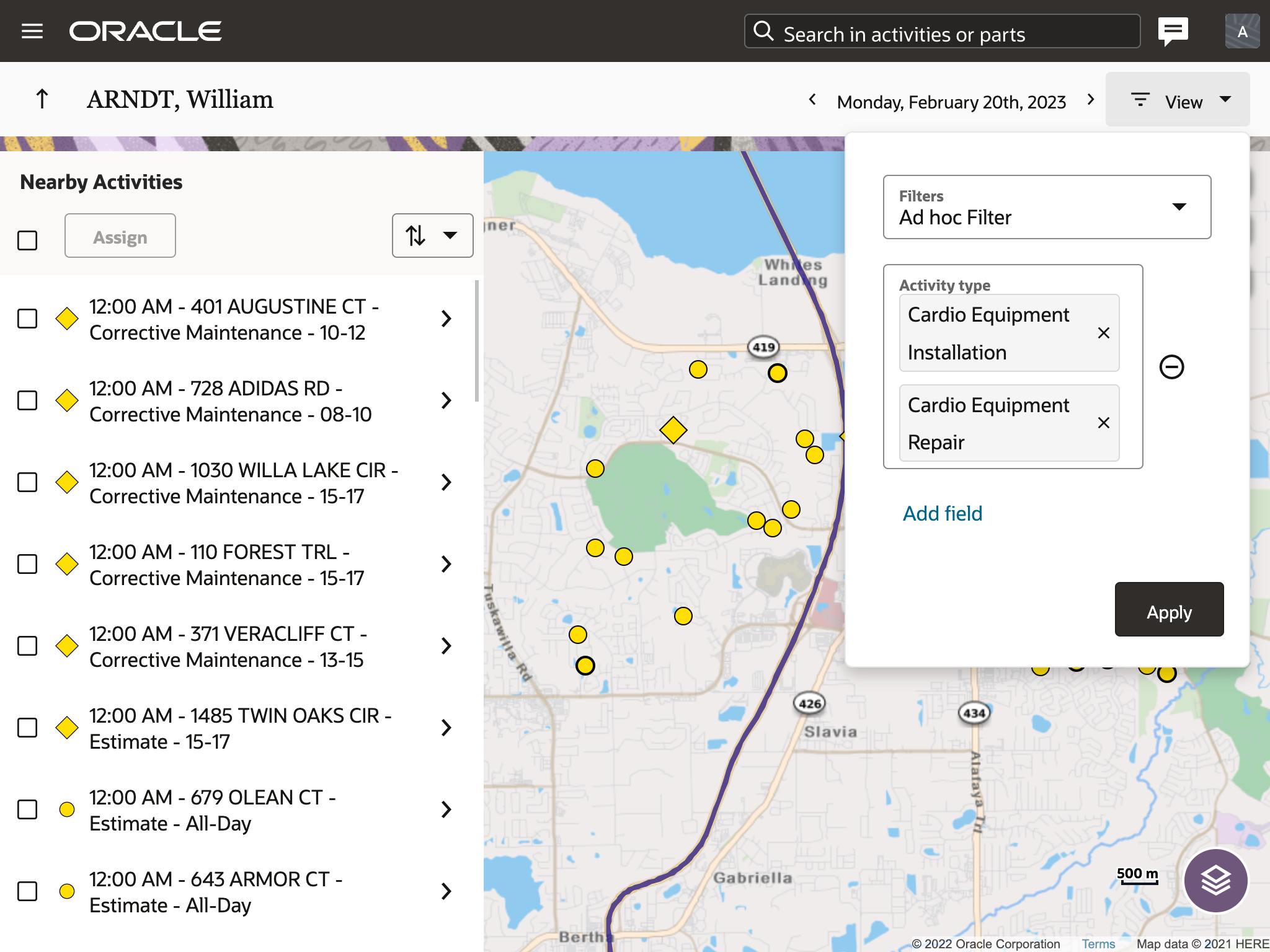
The nearby activities workflow has been improved with the addition of both pre-defined and ad-hoc filtering capabilities. A "View" button is available when the Nearby Activities map layer is enabled within the Route Map. The filters control is consistent with the Dispatch Console.
To apply a filter, first click on the "View" button. From the "Filters" dropdown, select "Ad hoc filter" or any previously configured filter.
Filters are applied to nearby activities in Map view and in the panel. Filters are not applied to route activities.
Ad Hoc Filters
When "Ad hoc filter" is selected, define filter criteria by clicking the "Add field" button and then selecting a desired field from the list. Once the field is added, provide a value. To remove a filter criteria, click on the "-" button to the right of the field. Only fields available within the Dispatch Console List View are available to add within the Ad Hoc Filter and only ten fields may be added at one time.
All values provided in the filter must match in order for the activity to be shown. For enumeration properties, the exact value is used. For string properties, the substring is used. All filters are case sensitive.
Multiple fields may be added and multiple values may be provided per field. For enumeration properties, select multiple values from the dropdown list. For string properties, enter multiple values separated by a comma. When multiple values are provided, matches are determined when an activity contains at least one value.
All fields added to the ad hoc filter are preserved between sessions. When you access Nearby Activities after logging out, the initial filter is "*" which will display all nearby activities within the map radius. When you select "Ad hoc filter", all fields previously configured will be applied.
Business Benefit
-
Narrow down the volume of nearby activities based on specific criteria to easily identify key activities to assign.
-
Quickly re-use filters previously configured or define a new filter ad-hoc.
Steps to Enable
You don't need to do anything to enable this feature.
Form Preview within Visual Form Editor
A 'Preview' button is displayed within the Visual Form Editor header when selecting 'Modify content' for any form. When clicking that button, the application displays a preview of the form as it will be displayed to end users.
However, visualization is not the only benefit of this feature. Using the preview capability, it's now possible to test conditional behaviors of the form by entering data into fields, properties and form elements - basically emulating what resources will see and do in the field.
In particular, this means that:
- It will be possible to enter data into ReadWrite and required fields
- Any visibility conditions based on entered data will work
- Any default values will be calculated and displayed
- Validation rules will work and trigger validation messages
- Regular expressions configured for custom properties will validate entered data and trigger error messages, if necessary
- Visibility conditions for the 'Submit' button will be applied
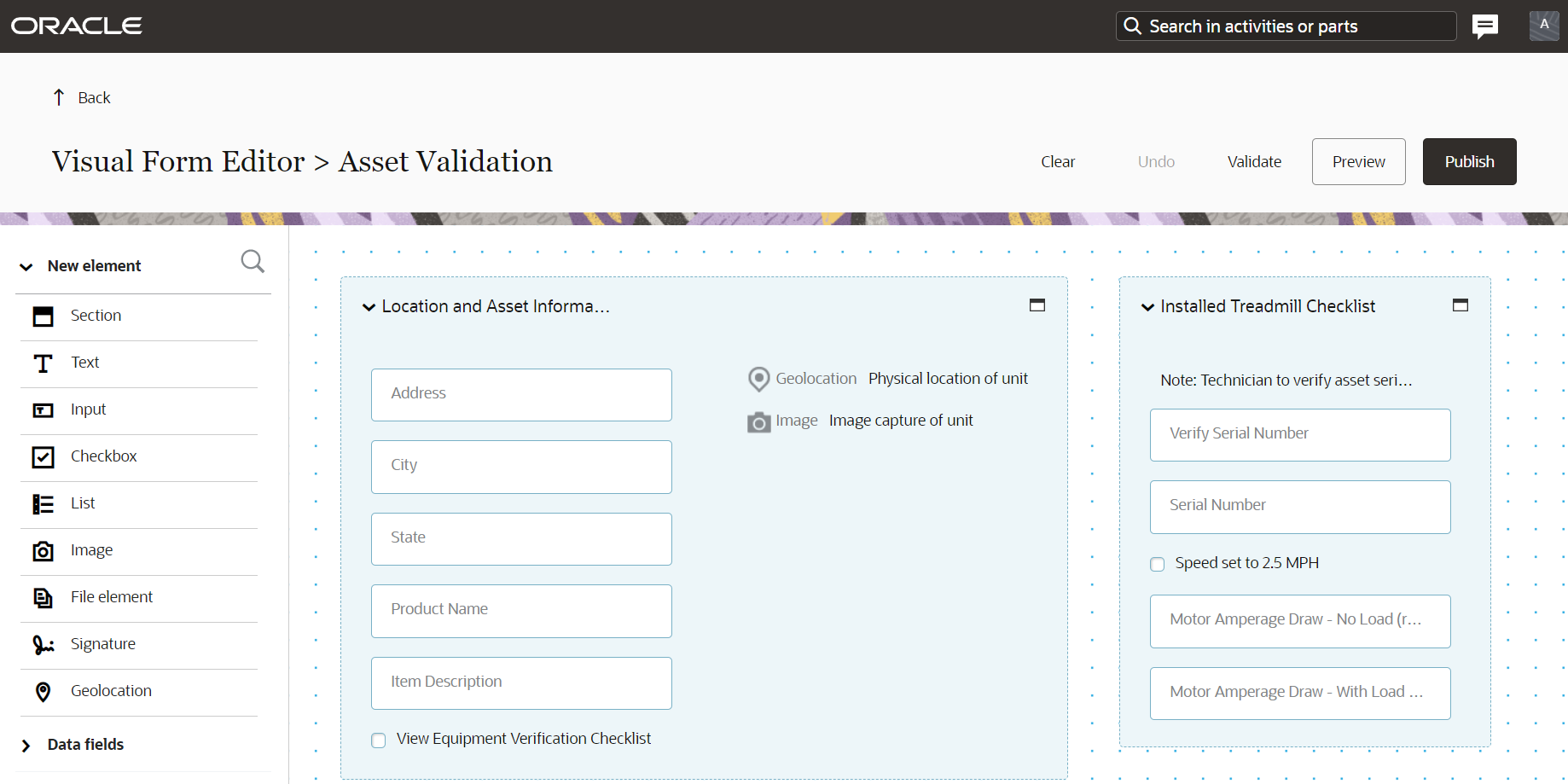
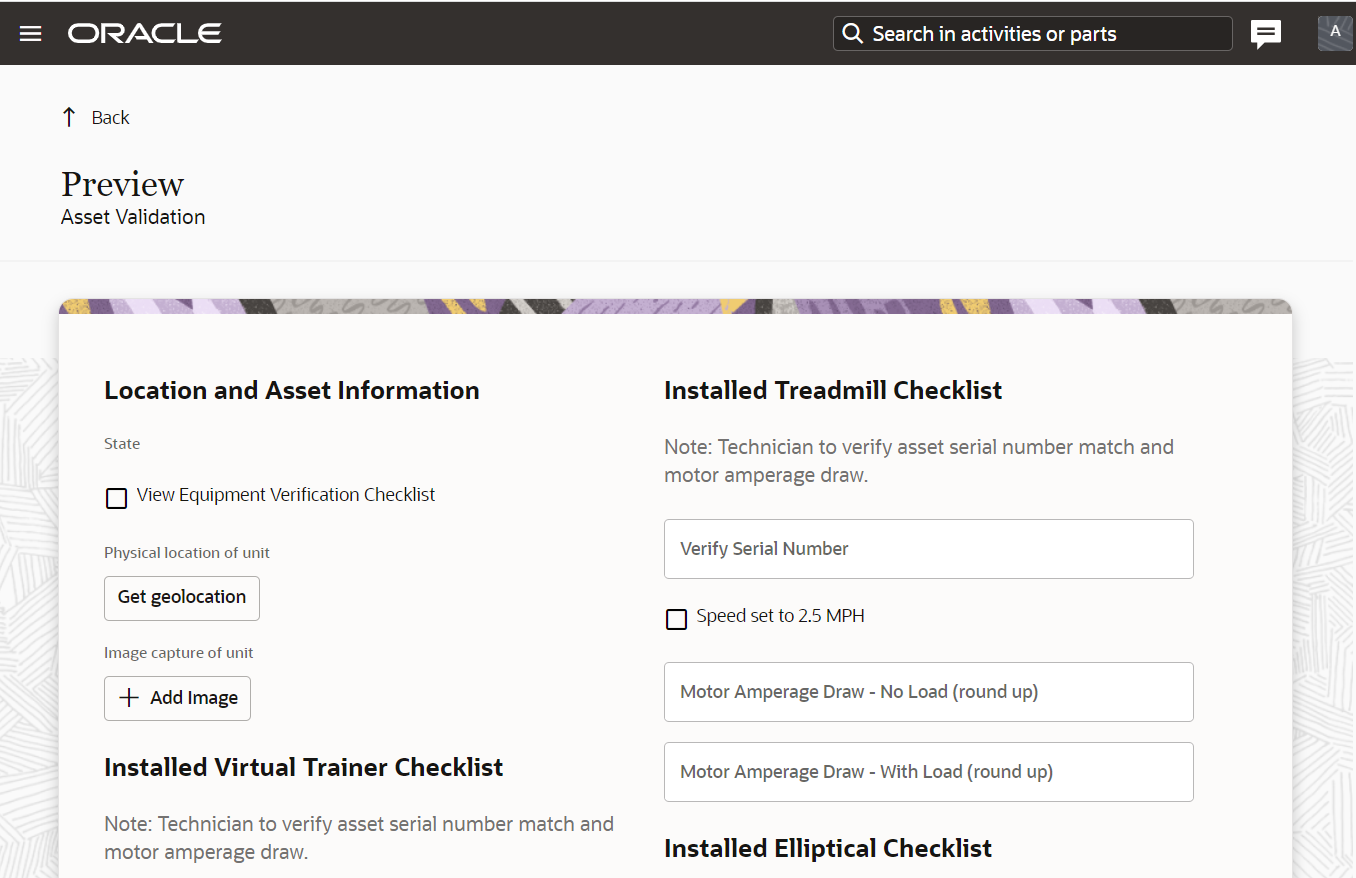
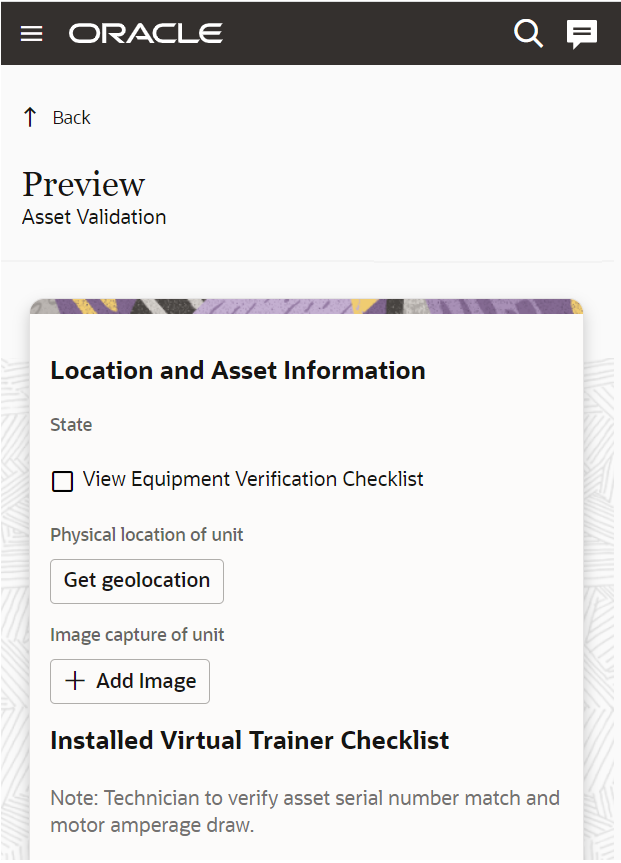
NOTE: Empty ReadOnly elements are not displayed in forms by default. Therefore product fields, custom properties and form elements configured with ReadOnly visibility conditions and containing no data will not be displayed in the form preview either.
What will be shown in the Preview
The form preview will reflect the latest configuration changes, even those that have not yet been saved. This means that you'll be able to configure your form, test it using preview, make corrections, test it again then publish it only once you're confident that the form is ready for use.
Data entered over the course of your work will also be shown as a part of the preview.
Preserving Form Preview Data
The application will preserve data you entered earlier into the preview and show it when you launch preview the next time. There will be a notification letting you know that this data was auto-saved, indicating the specific time when it was done.
You can click the "Start Over" button at the bottom of the notification in order to clear all data previously entered into the preview. As the result, the application will display the form preview just as it was when opened the first time.
"Save" Operation Renamed to "Publish"
The "Save" button in the Visual Form Editor has been renamed "Publish" as the operation followed by a click on this button literally means publishing the form to all relevant users.
Business Benefit
-
Streamlined testing of form behavior during configuration
-
Reduced time and effort to validate form look and feel
-
Fewer clicks to test form configuration and updates
-
-
Early detection of errors before publishing forms to end users
-
Test forms before saving configuration changes
-
Reduced chances of sharing "broken" forms with field resources
-
Steps to Enable
You don't need to do anything to enable this feature.
Resource Info Work Zones Tile UX
Work Zone Tile
When a resource does not have any directly-assigned work zones, but instead inherits work zones from one of its parent entities, then a new message "Applied from <bucket_name>" will appear where <bucket_name> is the placeholder of that parent resource.
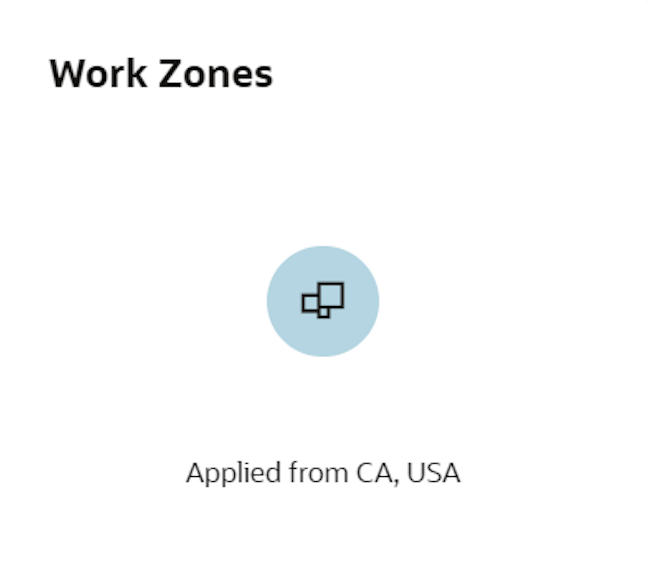
In cases where a resource has directly-assigned work zones, then the Map is not shown anymore on the tile. Instead, the list (up to 10) of those assigned work zones will appear. Redwood design has been applied for this tile.
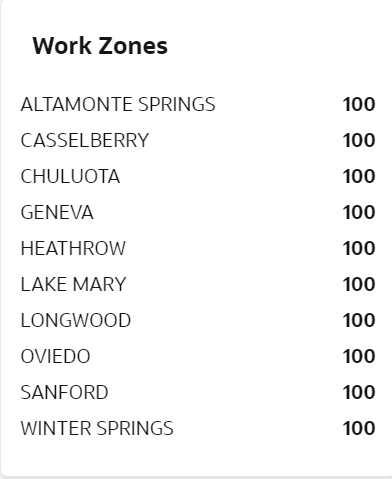
Resource Work Zones
In cases when resources have work zones added but shapes are not populated, or no work zones are added either for resource AND all parents, then the Map on the resource work zones screen will no longer display. Only the list of work zones will be displayed on the full screen. After adding new work zones that have shapes, then the screen is refreshed and the map is displayed.
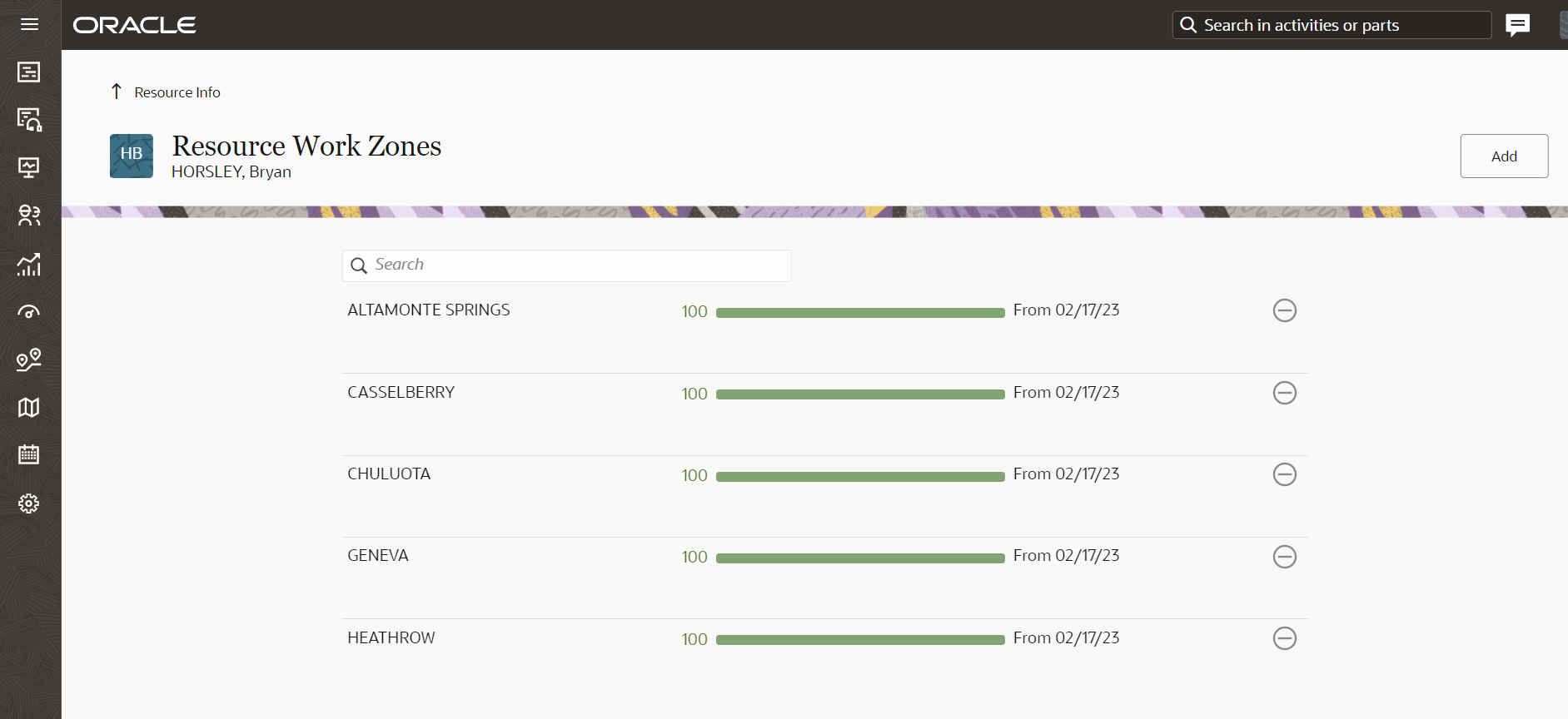
When a resource does not have any directly-assigned work zones, then a search field is displayed and a new message "No work zones are added for the resource. Work zones are applied from <bucket_name>" is displayed where <bucket_name> is a placeholder of the parent resource.
Business Benefit
-
Clear indication when work zones are inherited or directly assigned
-
Improved use of screen space when work zone shapes are not available
Steps to Enable
You don't need to do anything to enable this feature.
Segmentable Activities with Prolonged Duration
The maximum duration for segmentable activities, created within the user interface or via APIs, is increased to a total duration of 9,999 hours and 55 minutes. Segments may be generated and planned for up to 99 days, or approximately 3 months, into the future.
Business Benefit
Long duration projects, up to approximately 1,250 eight-hour working days (or 1+ year in 24x7 mode), may be managed within a single segmentable activity.
Steps to Enable
You don't need to do anything to enable this feature.
Skills Mismatch Alert when Crew Composition Changes
Team Work Skill Calculations
OFS provides the ability to configure teams composed of several team members. Their work skills may be shared within a team, allowing the team to perform an activity that might require several people with different skill sets, or a person plus some machinery, such as a crane or a forklift. Previously, when one of the team members was unavailable for some reason (i.e. illness, day off, etc.), OFS was still assuming them to be available when assigning the activity.
If there is a team member that has a non-working day or has been set to "inactive", OFS stops sharing their work skills with the team. As a result, new scenarios are supported:
- a dispatcher can receive an alert that the crew can't perform some work due to the absence of required skills
- routing optimization can automatically move an activity that can't be performed to a bucket or to another crew
- quota management is updated with new available capacity that excludes the team member no longer available
Work Skill Mismatch Alert
The "work skill mismatch" alert will be shown not only within "Move Activity" and "Assignment Assistant", but also within:
- Dispatch Console Time/List/Map Views
- Manage Screen
- Maps Screen
This will allow the dispatcher to catch cases when work skills for the team or the individual field worker have changed and thus take the appropriate actions.
Business Benefit
Stay informed when necessary skills are no longer available, for a resource or within a crew, so appropriate action can be taken
Steps to Enable
You don't need to do anything to enable this feature.
Fusion Application Name Updated on the Applications Screens
Fusion Application name has been changed from "B2B Service" to "Fusion Service". To maintain consistency, the new name has been updated on the Applications screens.
Consistency with Fusion product naming conventions
Steps to Enable
You don't need to do anything to enable this feature.
Mask Secure Plug-In Parameters
Oracle considers security one of its main priorities, and therefore continuously evolves applications to comply with higher security standards. To this point, this new feature introduces improvements in the configuration of any secure parameters of plugins. With the 23B update, it will be possible to define parameters containing secure data and mask their values, therefore preventing unauthorized access. The feature solves two challenges:
the situation known as "man behind"inadvertent access to values of secure parameters by other people who have privileges to configure the application
How it works
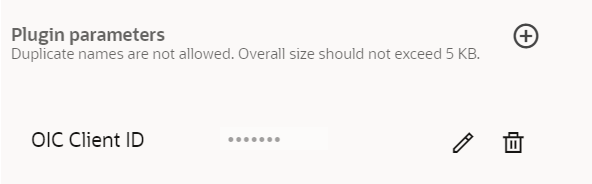
Let's take a typical example of a plugin interacting with some other system via Oracle Integration Cloud. To make it happen, you have to configure the Client ID of the OIC application as one of the plugin parameters.
When adding this new parameter to a plugin, you should check the "Secure parameter" checkbox identifying that the parameter contains sensitive data. When enabling the checkbox, the application will mask a value of the parameter within the UI, replacing it with a series of "dots".
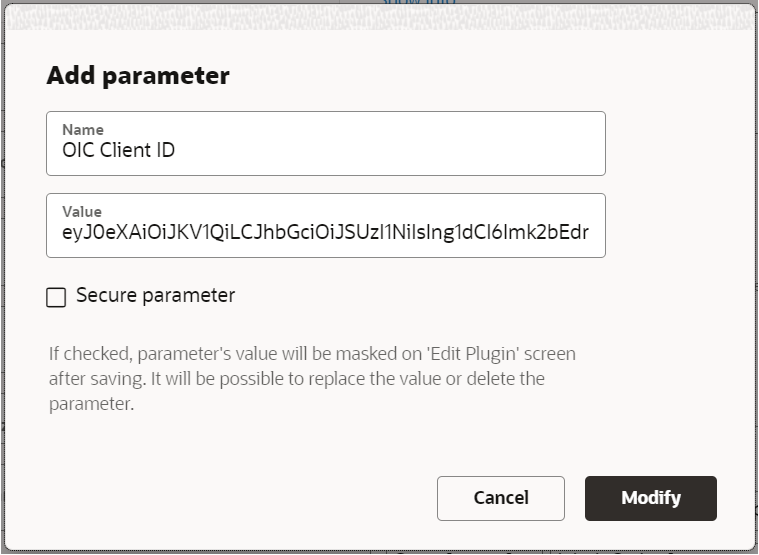
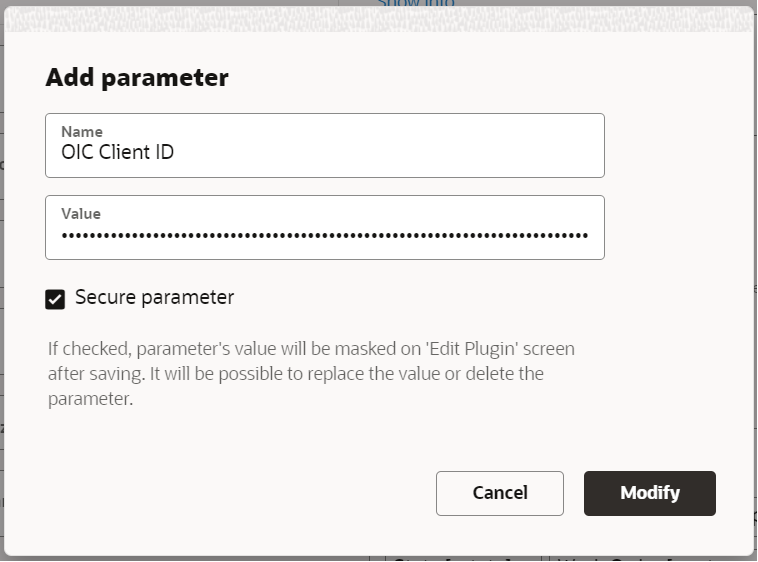
You'll be able to uncheck the checkbox and verify that the value is correct until you save the configuration of the plugin. Once the configuration is saved, the application will mask the value of the parameter on the following screens:
- "Edit plugin"
- "View parameter"
However, you'll still be able to edit the parameter and change its name and value.
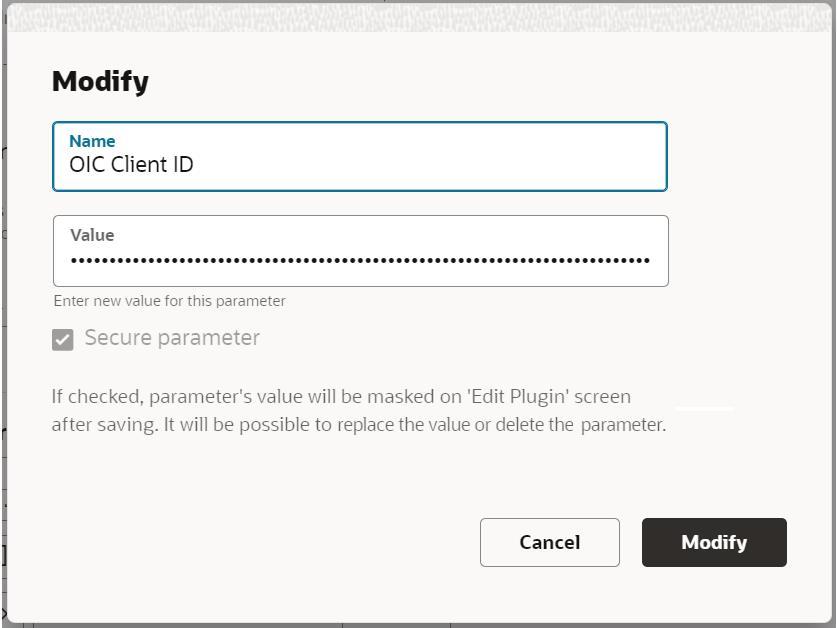
NOTE: When opening previously saved secure parameters for editing, you'll have to replace the values and specify them over again as the system will delete the value from the field. This is needed in order to not confuse users, as they won't be able to edit masked data since the real values cannot be accessed under any conditions.
Business Benefits
-
Prevent unauthorized access to sensitive data
-
Enhance clarity and consistency
-
Ensure compliance with regulations
Steps to Enable
You don't need to do anything to enable this feature.
Capacity REST API - Support of Quota Operations for Time Slot Booking Approach
The Capacity REST API has two methods that support quota operations:
- Get Quota
- Create or Update Quota
To support various types of quota configurations with an easy to understand interface while at the same time maintaining backward compatibility for all existing integrations, new versions (v2) for these two methods are now available. They provide the ability to obtain and update quota values and control quota close statuses for both time slot-based quota as well as interval-based booking approach.
The existing methods 'Get quota' and 'Create or update quota' (v1) are not recommended for new integrations. Also, usage of the additional functions 'Get booking statuses' and 'Update booking statuses' is now unnecessary, as those capabilities have been rolled into v2 of 'Get quota' and 'Create or Update quota'.
Get Quota
GET /rest/ofscCapacity/v2/quota
The function provides the ability to read the quota information for set of days at different quota levels - Capacity Areas, Capacity Categories, Time Slots or Intervals. The quota values can be retrieved from various levels accordingly to the quota type configuration of each particular Capacity Area.
Request parameters
- aggregateResults (optional): boolean
If this parameter is true then the quota values for all requested capacity areas are aggregated and returned as a single structure. If false, then the quota values for each area are returned separately. Note that the result can be aggregated only if all requested Capacity Areas have same quota configuration type (e.g., time-slot based or based on intervals). If aggregation is requested for mixed types in one request, the error will be return.
The default value is false.
- dates: array
Collection Format: csv
The list of dates in the YYYY-MM-DD format, for which the quota information is retrieved.
- areas (optional): array
Collection Format: csv
The list of labels of the capacity areas. It is also possible to use resource external id(s) of a grouping resource item(s), under which the capacity areas are configured, for such the function will scan and collect all the nested Capacity Areas for processing.The default value is the root item of the resource tree, so that all existing capacity areas will be processed.
- categories (optional): array
Collection Format: csv
The list of labels of the capacity categories. If the parameter is not specified then all categories configured for the areas will be processed.
- categoryLevel (optional): boolean
This parameter indicates if the quota information from the Capacity Category level should be returned. It can be used for areas configured with time-slot based quota and with quota by intervals. The default value is false.
- intervalLevel (optional): boolean
This parameter indicates if the quota information from the Intervals level should be returned. It can be used for areas configured with quota by intervals. The default value is false.
- timeSlotLevel (optional): boolean
This parameter indicates if the quota information from the Time Slots level should be returned. It can be used for areas configured with time-slot based quota. The default value is false.
- returnStatuses (optional): boolean
This parameter indicates if the information about the quota statuses at various levels should be returned. The default value is false.
Response attributes
- items: array
Array of objects with quota information for each requested date.
- date: string
Date in the YYYY-MM-DD format.
- areas: array
Array of objects containing the quota information for each requested capacity area or the aggregated result.
- label (optional): string
The label of the Capacity Area. This field is not returned for the aggregated result.
- maxAvailable: integer
The total working time of the resources.
- otherActivities: integer
The total travel time and duration of activities that are not part of capacity management.
- quota: integer
The quota value in minutes. For the quota based on intervals it contains null if the value is not defined.
- quotaPercent (optional): number
The quota value in percent. For the quota based on intervals it contains null if the value is not defined.This field is not returned for the aggregated result.
- minQuota (optional): integer
The minimal quota value in minutes.This field is not returned for the aggregated result.
- used: integer
The amount of consumed capacity in minutes.
- usedQuotaPercent (optional): number
The percent of the daily quota that is used by booked activities. This field is not returned for the aggregated result.
- bookedActivities: integer
The number of booked activities.
- quotaIsClosed (optional): boolean
Indicates if the booking has been closed at this level. This parameter is returned if the request parameter returnStatuses is true
- quotaIsAutoClosed (optional): boolean
Indicates if the booking has been closed at this level automatically by schedule. This parameter is returned if the request parameter returnStatuses is true.
- quotaIsReopened (optional): boolean
Indicates if the booking has been manually reopened after closure. This parameter is returned if the request parameter returnStatuses is true.
- closeTime (optional): string
Time when quota is to be closed automatically in the time zone of the selected capacity bucket in the 'YYYY-MM-DD HH:MM:SS' format. This parameter is returned if the request parameter returnStatuses is true.
- intervals (optional): array
Array of objects containing the daily statuses of intervals. At this level an interval may be closed for all Capacity Categories of the area. Quota cannot be specified at this level. This array is returned if the request parameters returnStatuses and intervalLevel are true and cannot be returned in aggregated mode.
- timeFrom: string
The start time of the time interval in HH:MM format.
- timeTo: string
The end time of the time interval in HH:MM format.
- quotaIsClosed: boolean
Indicates if the booking has been closed at this level.
- quotaIsAutoClosed: boolean
Indicates if the booking has been closed at this level automatically by schedule.
- quotaIsReopened: boolean
Indicates if the booking has been manually reopened after closure.
- closeTime (optional): string
Time when quota is to be closed automatically in the time zone of the selected capacity bucket in the 'YYYY-MM-DD HH:MM:SS' format.
- categories (optional): array
Array of objects containing the quota information for each Capacity Category. This list is returned for Capacity Areas with quota by intervals configuration if the request parameter categoryLevel is true.
- label: string
The label of the Capacity Category.
- maxAvailable: integer
The total working time of the resources for the category.
- quota (optional): integer
The quota value in minutes. It contains null if the value is not defined.
- quotaPercentDay: number
The quota value defined as a percent of the daily quota value of the capacity category. It contains null if the value is not defined.
- quotaPercentCategory: number
The quota value defined as a percent of the Max Available value of the Capacity Category. It contains null if the value is not defined.
- minQuota (optional): integer
The minimal quota value in minutes. This field is not returned for the aggregated result.
- used: integer
The amount of consumed capacity in minutes.
- usedQuotaPercent: number
The quota percentage of the capacity category currently used for booked activities.
- stopBookingAt (optional): integer
The percent of the used quota at which the booking of activities stops. It is returned as zero If it has zero value; if the value is not defined then this field is not returned.
- bookedActivities: integer
The number of booked activities.
- quotaIsClosed (optional): boolean
Indicates if the booking has been closed at this level. This parameter is returned if the request parameter returnStatuses is true.
- quotaIsAutoClosed (optional): boolean
Indicates if the booking has been closed at this level automatically by schedule. This parameter is returned if the request parameter returnStatuses is true.
- quotaIsReopened (optional): boolean
Indicates if the booking has been manually reopened after closure. This parameter is returned if the request parameter returnStatuses is true.
- closeTime (optional): string
Time when quota is to be closed automatically in the time zone of the selected capacity bucket in the 'YYYY-MM-DD HH:MM:SS' format. This parameter is returned if the request parameter returnStatuses is true.
- workZones (optional): array
Quota status defined for work zones. Only work zones with closed statuses are returned in this list. This list is returned if the request parameter returnStatuses is true.
- label: string
The label of a work zone.
- quotaIsClosed: boolean
Indicates if the booking has been closed at this level.
- quotaIsAutoClosed: boolean
Indicates if the booking has been closed at this level automatically by schedule.
- quotaIsReopened: boolean
Indicates if the booking has been manually reopened after closure.
- closeTime (optional): string
Time when quota is to be closed automatically in the time zone of the selected capacity bucket in the 'YYYY-MM-DD HH:MM:SS' format.
- intervals (optional): array
Array of objects containing the quota information for intervals within the Capacity Category. This list is returned if the request parameter intervalLevel is true.
- timeFrom: string
The start time of the time interval in HH:MM format.
- timeTo: string
The end time of the time interval in HH:MM format.
- quota: integer
The quota value in minutes. It contains null if the value is not defined.
- used: integer
The amount of consumed capacity in minutes.
- quotaIsClosed (optional): boolean
Indicates if the booking has been closed at this level. This parameter is returned if the request parameter returnStatuses is true.
- quotaIsAutoClosed (optional): boolean
Indicates if the booking has been closed at this level automatically by schedule. This parameter is returned if the request parameter returnStatuses is true.
- quotaIsReopened (optional): boolean
Indicates if the booking has been manually reopened after closure. This parameter is returned if the request parameter returnStatuses is true.
- closeTime (optional): string
Time when quota is to be closed automatically in the time zone of the selected capacity bucket in the 'YYYY-MM-DD HH:MM:SS' format. This parameter is returned if the request parameter returnStatuses is true.
- workZones (optional): array
Quota status defined for work zones. Only work zones with closed statuses are returned in this list. This list is returned if the request parameter returnStatuses is true.
- label: string
The label of a work zone.
- quotaIsClosed: boolean
Indicates if the booking has been closed at this level.
- quotaIsAutoClosed: boolean
Indicates if the booking has been closed at this level automatically by schedule
- quotaIsReopened: boolean
Indicates if the booking has been manually reopened after closure.
- closeTime (optional): string
Time when quota is to be closed automatically in the time zone of the selected capacity bucket in the 'YYYY-MM-DD HH:MM:SS' format.
- timeSlots (optional): array
Array of objects containing the quota information for each time slot. This list is returned for Capacity Areas with time slot based configuration if the request parameter timeSlotLevel is true.
- label: string
Label of the time slot.
- maxAvailable (optional): integer
The total working time of the resources.
- otherActivities (optional): integer
The total travel time and duration of activities that are not part of capacity management.
- quota (optional): integer
The quota value in minutes. It is returned as zero If it has zero value; if the value is not defined then this field is not returned.
- quotaPercent (optional): number
The quota value in percent. It is returned as zero If it has zero value; if the value is not defined then this field is not returned.This field is not returned for the aggregated result.
- minQuota (optional): integer
The minimal quota value in minutes. It is returned as zero If it has zero value; if the value is not defined then this field is not returned.This field is not returned for the aggregated result.
- used (optional): integer
The amount of consumed capacity in minutes.
- usedQuotaPercent (optional): number
The percent of the time slot quota that is used by booked activities.This field is not returned for the aggregated result.
- stopBookingAt (optional): integer
The percent of the used quota at which the booking of activities stops. It is returned as zero If it has zero value; if the value is not defined then this field is not returned.
- bookedActivities (optional): integer
The number of booked activities.
- quotaIsClosed (optional): boolean
Indicates if the booking has been closed at this level. This parameter is returned if the request parameter returnStatuses is true.
- quotaIsAutoClosed (optional): boolean
Indicates if the booking has been closed at this level automatically by schedule. This parameter is returned if the request parameter returnStatuses is true.
- quotaIsReopened (optional): boolean
Indicates if the booking has been manually reopened after closure. This parameter is returned if the request parameter returnStatuses is true.
- closeTime (optional): string
Time when quota is to be closed automatically in the time zone of the selected capacity bucket in the 'YYYY-MM-DD HH:MM:SS' format. This parameter is returned if the request parameter returnStatuses is true.
- categories (optional): array
Array of objects containing the quota information for each Capacity Category. This list is returned if the request parameter categoryLevel is true.
- label: string
The label of the Capacity Category.
- maxAvailable: integer
The total working time of the resources for the category.
- quota (optional): integer
The quota value in minutes. It is returned as zero If it has zero value; if the value is not defined then this field is not returned.
- quotaPercent (optional): number
The quota value in percent. It is returned as zero If it has zero value; if the value is not defined then this field is not returned. This field is not returned for the aggregated result.
- used: integer
The amount of consumed capacity in minutes.
- usedQuotaPercent: number
The quota percentage of the capacity category currently used for booked activities.
- stopBookingAt (optional): integer
The percent of the used quota at which the booking of activities stops. It is returned as zero If it has zero value; if the value is not defined then this field is not returned.
- bookedActivities: integer
The number of booked activities.
- quotaIsClosed (optional): boolean
Indicates if the booking has been closed at this level. This parameter is returned if the request parameter returnStatuses is true.
- quotaIsAutoClosed (optional): boolean
Indicates if the booking has been closed at this level automatically by schedule. This parameter is returned if the request parameter returnStatuses is true.
- quotaIsReopened (optional): boolean
Indicates if the booking has been manually reopened after closure. This parameter is returned if the request parameter returnStatuses is true.
- closeTime (optional): string
Time when quota is to be closed automatically in the time zone of the selected capacity bucket in the 'YYYY-MM-DD HH:MM:SS' format. This parameter is returned if the request parameter returnStatuses is true.
- weight (optional): number
Weight of the Capacity Category calculated based on historical data.
- estimatedQuotaPercent (optional): number
Estimated quota value (as percent) calculated on the basis of the 'weight' coefficient and the configuration of available resources for the day.
- workZones (optional): array
Quota status defined for work zones. Only work zones with closed statuses are returned in this list. This list is returned if the request parameter returnStatuses is true.
- label: string
The label of a work zone.
- quotaIsClosed: boolean
Indicates if the booking has been closed at this level.
- quotaIsAutoClosed: boolean
Indicates if the booking has been closed at this level automatically by schedule.
- quotaIsReopened: boolean
Indicates if the booking has been manually reopened after closure. This parameter is returned if the request parameter returnStatuses is true.
- closeTime (optional): string
Time when quota is to be closed automatically in the time zone of the selected capacity bucket in the 'YYYY-MM-DD HH:MM:SS' format.
Create or update quota
PATCH /rest/ofscCapacity/v2/quota
The function provides the ability to modify the quota information for sets of days at different quota levels - Capacity Areas, Capacity Categories, Time Slots or Intervals. The quota values can be retrieved from various levels accordingly to the quota type configuration of each particular Capacity Area.
Request parameters
- items: array
Array of objects with quota information for each date that should be updated
-
date: string
Date in the YYYY-MM-DD format
-
areas: array
Array of objects with quota information for each capacity area that should be updated.
- label: string
The label of the Capacity Area that should be updated.
- quota (optional): integer
Quota value in minutes. This parameter is ignored If the area is not configured to enter quota in minutes. For the quota based on booking intervals null can be used to unset the value.
- quotaPercent (optional): number
The quota value in percent. This parameter is ignored If the area is not configured to enter quota in percent. For the quota based on intervals null can be used to unset the value.
- minQuota (optional): integer
The minimal quota value in minutes.
- quotaIsClosed (optional): boolean
Allows to open or close booking status at this level.
- intervals (optional): array
Array of objects containing the daily statuses of intervals. At this level an interval may be closed for all Capacity Categories of the area. Quota cannot be specified at this level.
- timeFrom: stringT
he start time of the time interval in HH:MM format.
- timeTo: string
The end time of the time interval in HH:MM format.
- quotaIsClosed: boolean
Allows to open or close booking status at this level.
- categories (optional): array
Array of objects with quota information for each capacity category that should be updated. This list is only accepted for Capacity Areas with quota by intervals configuration.
- label: string
The label of the Capacity Category.
- quota (optional): integer
The quota value in minutes. This parameter is ignored If the area is not configured to enter quota in minutes at this level. null can be used to unset the value.
- quotaPercentDay: number
The quota value as a percent of the daily quota value of the capacity category. This parameter is ignored If the area is not configured to enter quota as percent of quota defined on parent level.
- quotaPercentCategory: number
The quota value defined as a percent of the Max Available value of the Capacity Category. This parameter is ignored If the area is not configured to enter quota as percent of maximum capacity available in the category.
- minQuota (optional): integer
The minimal quota value in minutes.
- stopBookingAt (optional): integer
The percent of the used quota at which the booking of activities stops.
- quotaIsClosed (optional): boolean
Allows to open or close booking status at this level.
- workZones (optional): array
Quota status defined for work zones.
- label: string
The label of a work zone.
- quotaIsClosed: boolean
Allows to open or close booking status at this level.
- intervals (optional): array
Array of objects containing the quota information for intervals within the Capacity Category.
- timeFrom: string
The start time of the time interval in HH:MM format.
- timeTo: string
The end time of the time interval in HH:MM format.
- quota: integer
The quota value in minutes. This parameter is ignored If the area is not configured to enter quota in minutes at this level. null can be used to unset the value.
- quotaIsClosed (optional): boolean
Allows to open or close booking status at this level.
- workZones (optional): array
Quota status defined for work zones.
- label: string
The label of a work zone.
- quotaIsClosed: boolean
Allows to open or close booking status at this level.
- timeSlots (optional): array
Array of objects containing the quota information for each time slot.
- label: string
Label of the time slot
- quota (optional): integer
The quota value in minutes. This parameter is ignored If the area is not configured to enter quota in minutes at this level.
- quotaPercent (optional): number
The quota value as a percent of the day level or as a percent of max available for time slot depending on the configuration. This parameter is ignored If the area is not configured to enter quota as percent.
- minQuota (optional): integer
The minimal quota value in minutes.
- stopBookingAt (optional): integer
The percent of the used quota at which the booking of activities stops.
- quotaIsClosed (optional): boolean
Allows to open or close booking status at this level.
- categories (optional): array
Array of objects containing the quota information for each Capacity Category.
- label: string
The label of the Capacity Category.
- quota (optional): integer
The quota value in minutes. This parameter is ignored If the area is not configured to enter quota in minutes at this level.
- quotaPercent (optional): number
The quota value as a percent of the day level or as a percent of max available for time slot depending on the configuration. This parameter is ignored If the area is not configured to enter quota as percent.
- minQuota (optional): integer
The minimal quota value in minutes.
- stopBookingAt (optional): integer
The percent of the used quota at which the booking of activities stops.
- quotaIsClosed (optional): boolean
Allows to open or close booking status at this level.
- workZones (optional): array
Quota status defined for work zones.
- label: string
The label of a work zone.
- quotaIsClosed: boolean
Allows to open or close booking status at this level.
EXAMPLE
{
"items": [
{
"date": "2023-05-30",
"areas": [
{
"label": "Area1_by_intervals",
"quota": 360,
"quotaPercent": 25.8,
"minQuota": 300,
"quotaIsClosed": false,
"intervals": [
{
"timeFrom": "00:00",
"timeTo": "08:00",
"quotaIsClosed": true
}
],
"categories": [
{
"label": "CC_1",
"quota": 60,
"workZones": [
{
"label": "WZ_1",
"quotaIsClosed": true
}
],
"intervals": [
{
"timeFrom": "32:00",
"timeTo": "40:00",
"quota": 32
}
]
}
]
},
{
"label": "Area2_by_timeslots",
"quota": 360,
"quotaPercent": 25.8,
"minQuota": 300,
"quotaIsClosed": false,
"timeSlots": [
{
"label": "08-10",
"quota": 60,
"categories": [
{
"label": "CC_4",
"workZones": [
{
"label": "WZ_1",
"quotaIsClosed": false
}
]
}
]
}
]
}
]
}
]
}
Response structure
- errorsCount: integer - Amount of unsuccessful operation
- errors: array - List of error messages
Example of a response without errors
{
"errorsCount": 0,
"errors": []
}
Example of a response with some errors
{
"errorsCount": 3,
"errors": [
"Unknown capacity area: 'Area52' ",
"Unknown capacity category: 'Area52' in capacity area 'Area_1' ",
"Unknown time slot: '32-22' in capacity area 'Area_2' "
]
}
Response structure on failure
- type: string - The URL of the page containing the error details.
- tittle: string - The summary of the error message.
- status: string - The HTTP status code.
- detail: string - The detailed information about the error.
Example of response
{
"type": "http://www.w3.org/Protocols/rfc2616/rfc2616-sec10.html#sec10.4.1",
"title": "Bad Request",
"status": "400",
"detail": "Invalid JSON"
}
Business Benefit
The capability enables the implementation of quota operations via Capacity REST API, regardless of the configured booking approach for the Capacity Areas, whether time slot, availability interval-based, or a combination of both. This leads to a reduction in integration complexity and overall solution optimization.
Steps to Enable
You don't need to do anything to enable this feature.
Core API - Update Resource External ID
With the addition of this feature, the 'Update a Resource' (PATCH /rest/ofscCore/v1/resources/{resourceId}) Core REST API method can now modify the resource's external ID. To perform the update, the resource's internal identifier must be specified within the API call.
New identifyResourceBy query parameter
identifyResourceBy (optional): string - Indicates which type of identifier is used in the URL path parameter.
Allowed values: [ "resourceInternalId", "resourceId" ]Default value: "resourceId"
Support for the 'resourceId' attribute
The Update a Resource REST API method is enhanced with the ability to support the resource's external ID attribute within the body of the request.
resourceId(optional): string - The unique identifier of the resource.
- The maximum length of this field is 32 characters.
- This parameter cannot be changed and will be ignored in the update request if the resource is identified by its resourceId in the URL.
- This parameter can be modified only with the identifyResourceBy=resourceInternalId query parameter.
Support of the resource's internal identifier in the URL path parameters
resourceId(optional): string - The unique identifier of the resource.
- If the 'identifyResourceBy' query parameter is specified as 'resourceId' or absent, then the resource is identified by its External ID (maximum length is 32 characters).
- If the 'identifyResourceBy' query parameter is specified as 'resourceInternalId', then the resource is identified by its OFS internal id (integer value).
EXAMPLE
Example of an API request to modify the Resource ID is below. The value 22222 in this example is the OFS internal identifier of a resource and the value 'new_external_id' is the new value of the resource external ID.
PATCH /rest/ofscCore/v1/resources/22222?identifyResourceBy=resourceInternalId
{
"resourceId" : "new_external_id"
}
Business Benefit
- Streamline the process of making changes to the resource's external identifier, leading to a significant reduction in the time and cost associated with performing this action.
- Increase flexibility and scalability in the management and synchronization of integrated systems.
Steps to Enable
You don't need to do anything to enable this feature.
Tips And Considerations
- These changes are backward compatible with the previous versions and will not impact any existing integrations.
- The maximum length of the resourceId(optional): string field is 32 characters.
Metadata API - Link Template Operations
With the 23B release, we have implemented the ability to retrieve, create and update link templates using the Metadata REST API.
The following API functions have been added:
- Get a link template (GET /rest/ofscMetadata/v1/linkTemplates/{label})
- Get the list of link templates (GET /rest/ofscMetadata/v1/linkTemplates)
- Create a link template (POST /rest/ofscMetadata/v1/linkTemplates)
- Update a link template (PATCH /rest/ofscMetadata/v1/linkTemplates/{label})
Get a link template
The function returns the existing item by its label.
GET /rest/ofscMetadata/v1/linkTemplates/{label}
Path parameters
- label - unique identifier of a link template. A link template may have two labels specified - label and reverseLabel; either may be used as the identifier.
Response structure
- label: string - Label
Unique label of the link template. Use this label when adding a link to the the list of links of the "second" activity.For example, label "start_after" should appear in the list of the activity which is expected to be started after another activity. To create the link for the first activity in the pair, use the "reverseLabel" instead.This parameter is mandatory for any link template type. For the "simultaneous" template type, it is used as the only label.Maximum length is 40 characters.
- reverseLabel (optional): string - Reverse label
Unique label of the link template. Use this label when adding a link to the the list of links of the "first" activity.For example, reverseLabel "start_before" should appear in the list of the activity which is expected to be started before another activity.The parameter is mandatory for all link template types except "simultaneous". For the "simultaneous" type it is not needed and it will be ignored in create/update requests.Maximum length is 40 characters.
- active: boolean - Status
Contains one of the following values: true or false. If true, then the link template is available for creating new activity links.
- linkType: string - Type of the sequence constraint
This attribute can only be set when the link template is created. This attribute cannot be modified, it will be ignored in any update request.
Available values: [ "finishToStart", "startToStart", "simultaneous", "related" ]
- minInterval (optional): string - Minimum interval type
The parameter specifies if the minimum time constraint can or cannot be adjusted for a particular link. The parameter is ignored for the "simultaneous" and "related" link types.
Available values: [ "adjustable", "nonAdjustable" ]
- minIntervalValue (optional): integer - Minimum interval default value
The parameter contains a predefined value of the minimum time constraint. This value is used as default for new activity links. The parameter is ignored for the "simultaneous" and "related" link types. Maximum allowed value is 30000.
- maxInterval (optional): string - Maximum interval type
The parameter specifies if the maximum time constraint is not used ("unlimited"), if it can or cannot be adjustable for a particular link. The parameter is ignored for the "simultaneous" and "related" link types.
Available values: [ "unlimited", "adjustable", "nonAdjustable" ]
- maxIntervalValue (optional): integer - Maximum interval default value
The parameter contains a predefined value of the maximum time constraint. This value is used as default for new activity links. The parameter is ignored for the "simultaneous" and "related" link types. The parameter is not used if maxInterval is "unlimited". Maximum allowed value is 30000.
- schedulingConstraint (optional): string - Constraint for activity scheduling
The parameter specifies the constraint for scheduling the linked activities. The parameter is not applicable for the "simultaneous" link type.
Available values: [ "none", "sameDay", "differentDays" ]
- assignmentConstraint (optional): string - Constraint for activity assignment
The parameter specifies the constraint for assignment of the linked activities. The parameter is not applicable for the "simultaneous" link type.
Available values: [ "none", "sameResource", "differentResources" ]
- translations: array - Translations
List of associated names for the link as they are displayed in the activity links list. The names of a link are configured separately for the "first" activity and for the "second" activity. Note that the English translation is mandatory.
- language: string - Contains the ISO code of the language (e.g. 'en-US').
- name: string - Name of the link as it is displayed in the list of the "second" activity. For the "simultaneous" link types this value is used for displaying in the lists of both activities.
- reverseName (optional): string - Name of the link as it is displayed in the list of the "second" activity. For the "simultaneous" link types this value is not used.
Get the list of link templates
The function returns all existing link templates items.
GET /rest/ofscMetadata/v1/linkTemplates
Query parameters
- limit: integer - The number of items to be returned in the response.
The minimum value that can be specified is 1 and the maximum value that can be specified is 100. If the specified value is greater than 100, zero, or if no value is specified, then it defaults to 100.
- offset: integer - The record number from which the retrieval starts.
If no value is specified, then it defaults to zero. The value zero indicates that the retrieval will start from the beginning of the collection.
Response structure
- hasMore: boolean - Whether the data set has more pages to load. (true/false)
- limit: integer - The actual limit value used to process the request. If the request value of the limit was not specified or if the specified value was not accepted, then it defaults to 100.
- offset: integer - The actual index from which the items are returned.
- totalResults: integer - The total number of the items in the collection.
- items: array - Each array item contains an object similar to the described in the "Get a link template" function
Create a link template
The function creates a new link template item.
POST /rest/ofscMetadata/v1/linkTemplates
Request structure
- label: string - Label
Unique label of the link template. Use this label when adding a link to the the list of links of the "second" activity.For example, label "start_after" should appear in the list of the activity which is expected to be started after another activity. To create the link for the first activity in the pair, use the "reverseLabel" instead.This parameter is mandatory for any link template type. For the "simultaneous" template type it is used as the only label.Maximum length is 40 characters.
- reverseLabel (optional): string - Reverse label
Unique label of the link template. Use this label when adding a link to the the list of links of the "first" activity.For example, reverseLabel "start_before" should appear in the list of the activity which is expected to be started before another activity.The parameter is mandatory for all link template types except "simultaneous". For the "simultaneous" type it is not needed and it will be ignored in create/update requests.Maximum length is 40 characters.
- active: boolean - Status
Contains one of the following values: true or false. If true, then the link template is available for creating new activity links.
- linkType: string - Type of the sequence constraint
The type of the sequence constraint. This attribute can only be set when the link template is created. This attribute it is not allowed to be modified, it will be ignored in any update request.Available values: [ "finishToStart", "startToStart", "simultaneous", "related" ]
- minInterval (optional): string - Minimum interval type
The parameter specifies if the minimum time constraint can or cannot be adjusted for a particular link.The parameter is ignored for the "simultaneous" and "related" link types.Available values: [ "adjustable", "nonAdjustable" ]
- minIntervalValue (optional): integer - Minimum interval default value
The parameter contains a predefined value of the minimum time constraint. This value is used as default for new activity links.The parameter is ignored for the "simultaneous" and "related" link types.Maximum allowed value is 30000
- maxInterval (optional): string - Maximum interval type
The parameter specifies if the maximum time constraint is not used ("unlimited"), if it can or cannot be adjustable for a particular link.The parameter is ignored for the "simultaneous" and "related" link types.Available values: [ "unlimited", "adjustable", "nonAdjustable" ]
- maxIntervalValue (optional): integer - Maximum interval default value
The parameter contains a predefined value of the maximum time constraint. This value is used as default for new activity links.The parameter is ignored for the "simultaneous" and "related" link types.The paramenter is not used if maxInterval is "unlimited".Maximum allowed value is 30000
- schedulingConstraint (optional): string - Constraint for activity scheduling
The parameter specifies the constraint for scheduling the linked activities.The parameter is not applicable for the "simultaneous" link type.Available values: [ "none", "sameDay", "differentDays" ]
- assignmentConstraint (optional): string - Constraint for activity assignment
The parameter specifies the constraint for assignment of the linked activities.The parameter is not applicable for the "simultaneous" link type.Available values: [ "none", "sameResource", "differentResources" ]
- translations: array - Translations
List of associated names for the link as they are displayed in the activity links list. The names of a link are configured separately for the "first" activity and for the "second" activity. Note that the English translation is mandatory.
- language: string - This field contains the ISO code of the language (e.g. 'en-US').
- name: string - Name of the link as it is displayed in the list of the "second" activity. For the "simultaneous" link types this value is used for displaying in the lists of both activities.
- reverseName (optional): string - Name of the link as it is displayed in the list of the "second" activity. For the "simultaneous" link types this value is not used.
Response structure
The response structure is identical to the "GET a link template" function in cases of successful operations.
Update a link template
The function modifies the attributes of an existing link template item.
PATCH /rest/ofscMetadata/v1/linkTemplates/{label}
Path parameters
- label - Unique identifier of a link template.
A link template may have two labels specified - label and reverseLabel; either may be used as the identifier.
Request structure
- label (optional): string - Label
Unique label of the link template. Use this label when adding a link to the the list of links of the "second" activity. For example, label "start_after" should appear in the list of the activity which is expected to be started after another activity. To create the link for the first activity in the pair, use the "reverseLabel" instead. This parameter is mandatory for any link template type. For the "simultaneous" template type it is used as the only label. Maximum length is 40 characters.
- reverseLabel (optional): string - Reverse label
Unique label of the link template. Use this label when adding a link to the the list of links of the "first" activity. For example, reverseLabel "start_before" should appear in the list of the activity which is expected to be started before another activity. The parameter is mandatory for all link template types except "simultaneous". For the "simultaneous" type, it is not needed and it will be ignored in create/update requests. Maximum length is 40 characters.
- active (optional): boolean - Status
Contains one of the following values: true or false. If true, then the link template is available for creating new activity links.
- minInterval (optional): string - Minimum interval type
The parameter specifies if the minimum time constraint can or cannot be adjusted for a particular link. The parameter is ignored for the "simultaneous" and "related" link types.
Available values: [ "adjustable", "nonAdjustable" ]
- minIntervalValue (optional): integer - Minimum interval default value
The parameter contains a predefined value of the minimum time constraint. This value is used as default for new activity links. The parameter is ignored for the "simultaneous" and "related" link types. Maximum allowed value is 30000.
- maxInterval (optional): string - Maximum interval type
The parameter specifies if the maximum time constraint is not used ("unlimited"), if it can or cannot be adjustable for a particular link. The parameter is ignored for the "simultaneous" and "related" link types.
Available values: [ "unlimited", "adjustable", "nonAdjustable" ]
- maxIntervalValue (optional): integer - Maximum interval default value
The parameter contains a predefined value of the maximum time constraint. This value is used as default for new activity links. The parameter is ignored for the "simultaneous" and "related" link types. The parameter is not used if maxInterval is "unlimited". Maximum allowed value is 30000
- schedulingConstraint (optional): string - Constraint for activity scheduling
The parameter specifies the constraint for scheduling the linked activities. The parameter is not applicable for the "simultaneous" link type.
Available values: [ "none", "sameDay", "differentDays" ]
- assignmentConstraint (optional): string - Constraint for activity assignment
The parameter specifies the constraint for assignment of the linked activities. The parameter is not applicable for the "simultaneous" link type.
Available values: [ "none", "sameResource", "differentResources" ]
- translations (optional): array - Translations
List of associated names for the link as they are displayed in the activity links list. The names of a link are configured separately for the "first" activity and for the "second" activity.
- language: string - This field contains the ISO code of the language (e.g. 'en-US').
- name: string - Name of the link as it is displayed in the list of the "second" activity. For the "simultaneous" link types this value is used for displaying in the lists of both activities.
- reverseName (optional): string - Name of the link as it is displayed in the list of the "second" activity. For the "simultaneous" link types this value is not used.
Response structure
The response structure is identical to the "GET a link template" function in cases of successful operations.
Business Benefit
This feature enables seamless integration with other systems, eliminating the need for manual actions in the user Interface, allowing more efficient and streamlined workflows.
Steps to Enable
You don't need to do anything to enable this feature.
IMPORTANT Actions and Considerations
REPLACED OR REMOVED FEATURES
Features and technical components of the solution may be removed or replaced to enhance the security, performance, and overall quality of the cloud service. When this occurs, the deprecation of a feature or component will be announced in advance, allowing customers sufficient time to anticipate the change and transition to any enhanced replacement feature/component. After the deprecation is announced, the deprecated feature or component will remain in the solution until the planned removal date and will not be enhanced or made compatible with other new features.
Below is a list of new and previously announced deprecations for this cloud service.
Previously-Announced Deprecations
| Application Area | Removed Feature | Target Removal | Replacement Feature | Replaced In | Additional Information |
|---|---|---|---|---|---|
| Daily Extracts |
Ability to export files related to property files entity as part of the Daily Extract process. |
23D |
|
Announced in 22A |
|
| User Login Domain |
Authentication requests using https://login.etadirect.com URL scheme |
23D | Use URL scheme https://<instance_name>.fs.ocs.oraclecloud.com |
Announced in 22A |
This change will improve authentication time and adhere to government and corporate policy regulations related to data residency by ensuring the request is directed to the proper data center where the target Oracle Field Service environment is running. Login domain will not be supported from Update 23D general availability date onwards for all environments running on all versions of Oracle Field Service. For more information see the Oracle Field Service Login and API Domains Deprecation topic. |
| API Domain |
APIs access using https://api.etadirect.com URL scheme |
23D | Use URL scheme https://<instance_name>.fs.ocs.oraclecloud.com |
Announced in 22A |
This change will improve authentication time and adhere to government and corporate policy regulations related to data residency by ensuring the request is directed to the proper data center where the target Oracle Field Service environment is running. API domain will not be supported from Update 23D general availability date onward for all environments running on all versions of Oracle Field Service. For more information see the Oracle Field Service Login and API Domains Deprecation topic. |