
This document will continue to evolve as existing sections change and new information is added. All updates appear in the following table:
| Date | Module | Feature | Notes |
|---|---|---|---|
| 23 OCT 2023 | Created initial document. |
 HAVE AN IDEA?
We’re here and we’re listening. If you have a suggestion on how to make our cloud services even better then go ahead and tell us. There are several ways to submit your ideas, for example, through the Ideas Lab on Oracle Customer Connect. Wherever you see this icon after the feature name it means we delivered one of your ideas.
GIVE US FEEDBACK
We welcome your comments and suggestions to improve the content. Please send us your feedback at oracle_fusion_applications_help_ww_grp@oracle.com.
DISCLAIMER
The information contained in this document may include statements about Oracle’s product development plans. Many factors can materially affect Oracle’s product development plans and the nature and timing of future product releases. Accordingly, this Information is provided to you solely for information only, is not a commitment to deliver any material, code, or functionality, and should not be relied upon in making purchasing decisions. The development, release, and timing of any features or functionality described remains at the sole discretion of Oracle.
This information may not be incorporated into any contractual agreement with Oracle or its subsidiaries or affiliates. Oracle specifically disclaims any liability with respect to this information. Refer to the Legal Notices and Terms of Use for further information.
Column Definitions:
Report = New or modified, Oracle-delivered, ready to run reports.
UI or Process-Based: Small Scale = These UI or process-based features are typically comprised of minor field, validation, or program changes. Therefore, the potential impact to users is minimal.
UI or Process-Based: Larger Scale* = These UI or process-based features have more complex designs. Therefore, the potential impact to users is higher.
Features Delivered Disabled = Action is needed BEFORE these features can be used by END USERS. These features are delivered disabled and you choose if and when to enable them. For example, a) new or expanded BI subject areas need to first be incorporated into reports, b) Integration is required to utilize new web services, or c) features must be assigned to user roles before they can be accessed.
| Ready for Use by End Users Reports plus Small Scale UI or Process-Based new features will have minimal user impact after an update. Therefore, customer acceptance testing should focus on the Larger Scale UI or Process-Based* new features. |
Customer Must Take Action before Use by End Users Not disruptive as action is required to make these features ready to use. As you selectively choose to leverage, you set your test and roll out timing. |
|||||
|---|---|---|---|---|---|---|
| Feature |
Report |
UI or |
UI or |
|
||
Teamwork - Storage Location Selection for Inventory Undo Install Action |
||||||
Require Inventory X Days Prior to Activity Start Date in Bulk Routing |
||||||
The feature allows customers to configure multiple bundling rules, which can be used for two purposes:
- Information exchange
- Workload optimization
It will be possible to achieve either one of the goals via a specific bundling rule or use it for both purposes at time.
Based on configured rules, the application will automatically identify related activities and share data between them and/or optimize activity assignment.
The feature introduces changes in configuration area, user interface and REST API, which makes it consistent from configuration through user actions and up to the integration with external systems.
Terminology
The content below provides the explanation of the key terminology for the feature.
Bundling rule
A combination of bundling keys, forms and workload optimization parameters which drives the application to:
- build bundles(groups) of related activities
- identify and share required data between activities in a bundle
- optimize workload of field resources
Bundling keys
A combination of system fields and properties used by the application to automatically define and join related activities.
Associated forms
A set of forms where their data, captured by various users while working on different activities from the same bundle, will be available across all activities in the bundle.
How it works
For information exchange
Data from associated forms collected by various users will be available for all activities, or activity segments, bundled by the rule. Information will be available for activities or segments assigned to different days or shifts.
For workload optimization
The application will create a bundle of activities in the future to assign them to the same technician on the same day. This can be done either with automatic scheduling by Routing or by manually assigning the activities via the Assignment Assistant. This will help reduce the durations of same-site activities, and therefore improve the overall utilization of resources.
For both purposes at time
It is possible to use activity bundling for both purposes simultaneously. The 'same site/same technician/same day' concept applies, as the resulting data from collected forms will be exposed for activities bundled by the rule, but assigned to the same technician and for the same day.
How to Configure
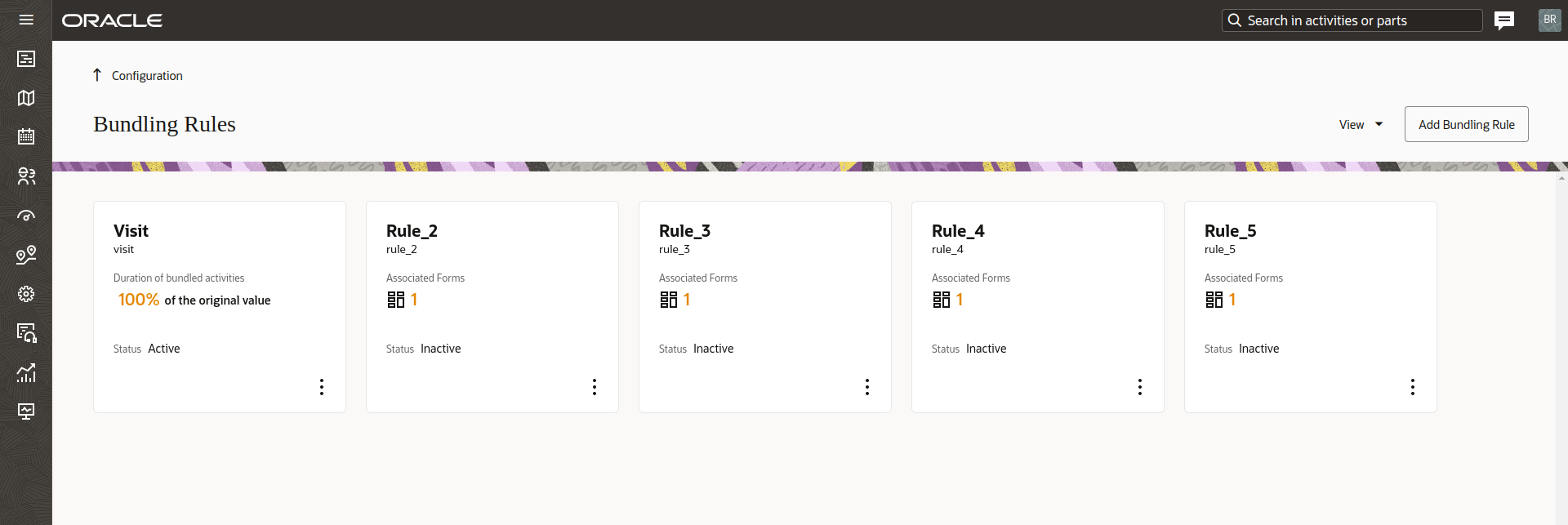
New 'Bundling Rules' screen
There is a new 'Bundling Rules' screen accessible via the Configuration area, where bundling rules are configured and their parameters can be viewed. The level of access to this screen is directed by visibility conditions - users with 'ReadWrite' access will be able to create and update bundling rules, while users having 'ReadOnly' access will only be able to view configuration settings of the rules.
Each rule is presented on the screen as a tile containing the most important parameters:
- Name, Label and Status for all rules
- Number of used forms, for rules used for information exchange
- 'Duration of bundled activities', for rules used for workload optimization
Add/Edit a rule
To create a new bundling rule, click the 'Add Bundling Rule' button. A popup window to add the bundling rule details will open.
To edit a bundling rule, you can either click on a tile showing the key details for a rule or select the 'Edit' item from the tile's context menu. The bundling rule configuration screen will open.
General settings
When adding a new bundling rule, you'll need to define a name and label for it, as well as select the status, which could be 'Active' or 'Inactive'.
The application will only calculate bundles for rules with an 'Active' status, and rules with an 'Inactive' status will not be processed.
Bundling keys
Click 'Add key' under the 'Bundling rules' section to add a field or a property as the bundling key. The screen to add a bundling key will be displayed.
The following product fields can be selected as a bundling key:
- appt_number
- caddress
- ccity
- czip
- customer_number
- aworktype
Properties of 'string', 'enum' and 'integer' type can also be selected as a bundling key.
The 'Take entire value of short fields' checkbox sets the maximum limit of characters that will be taken from the value of a field/property selected as the bundling key.
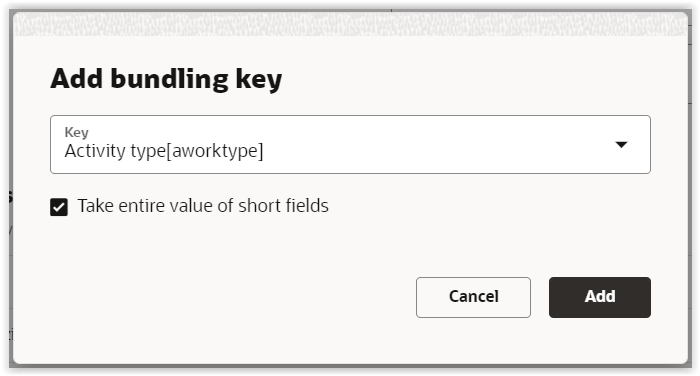
The length can be changed by unchecking the checkbox and updating the 'Length' parameter. The maximum length is the length of the field/property selected as the bundling key.
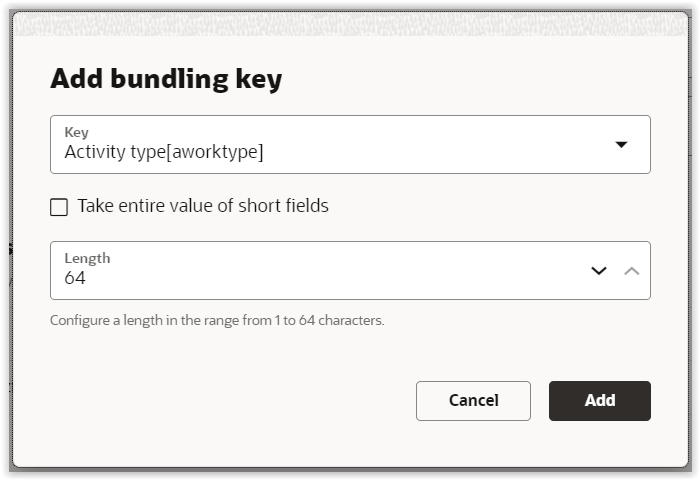
Once the key details are defined, click the 'Add' button to create the new bundling key.
NOTE: the 'case insensitive' function will be applied by default to all the new bundling keys.
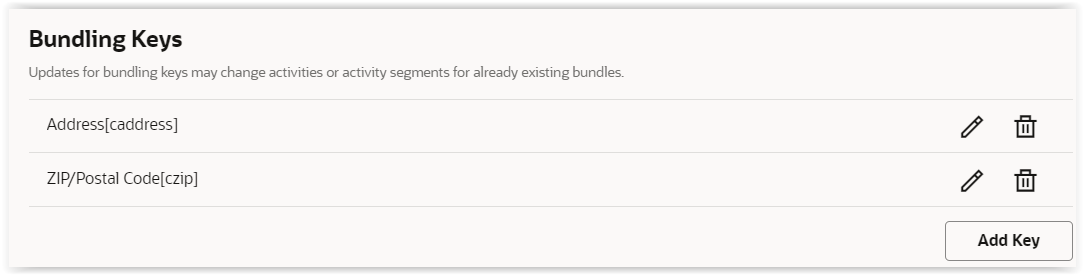
The two icons displayed alongside each key allow users to edit or delete them.
Configure bundling rule for information exchange
Configure associated forms
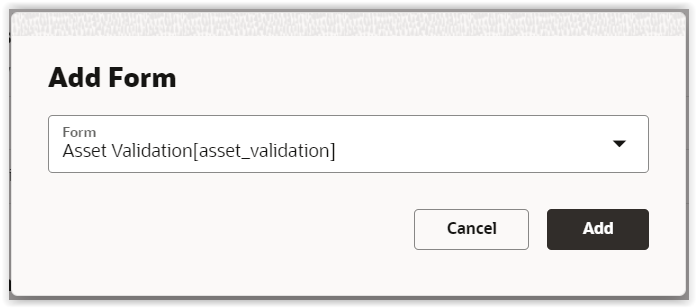
When using a bundling key for information exchange, you can select forms to be shared by clicking 'Add form' under the 'Use for Information Exchange' > 'Associated Forms' section. The screen to add a form will open.
To select a form, click into the 'Form' field and select a form from the list. This list reflects forms configured in the 'Forms & Plugins' screen.
Once the form is selected, click the 'Add' button to add it to the bundling rule.
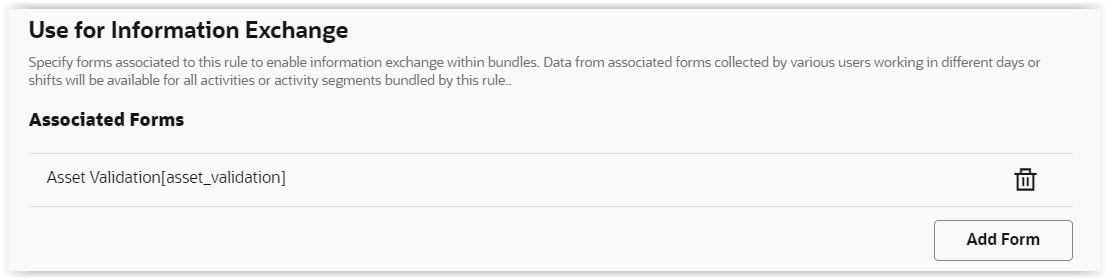
To remove a form, click the delete icon displayed alongside the form.
Configure bundling rule for workload optimization
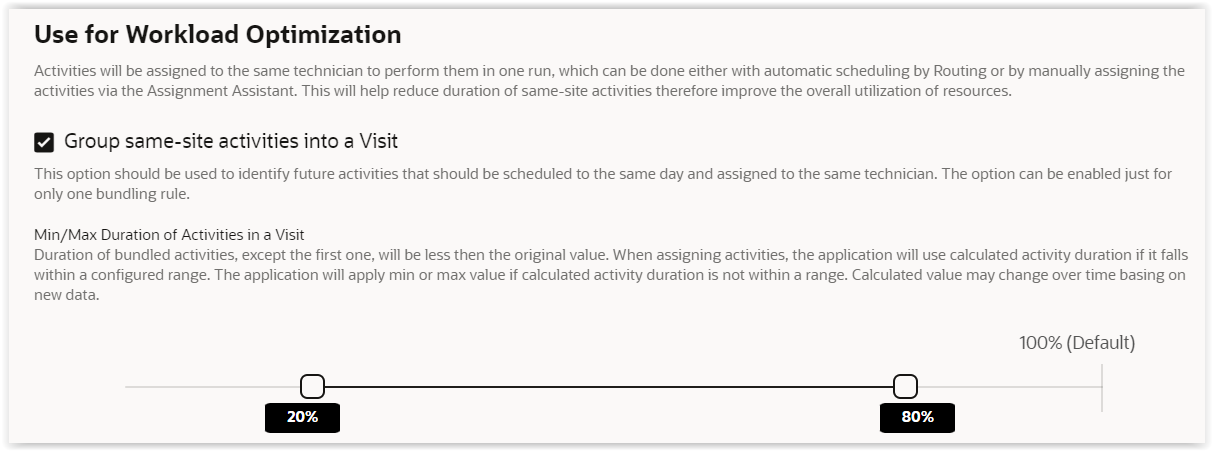
Click 'Group same-site activities into a Visit' checkbox to indicate that this rule should be used for workload optimization. Then, define a ratio for min/max duration of activities in a Visit. This parameter will be displayed when 'Group same-site activities into a Visit' is enabled.
Other changes for 'Visit'
Migration of 'Visit' configuration
The configuration of 'Visit bundling keys' will be migrated from the 'Business Rules' screen to the 'Activity bundling' screen. It will now be presented as the 'Visit' bundling rule.
If 'Visit bundling keys' were previously configured, then the 'Visit' rule will be active and all the parameters will be preserved, including those that are mentioned in the 'Deprecation and removal' section below. It will not be possible to update bundling keys presenting deprecated and removed functionality, however it will be possible to delete these keys.
Deprecation and removal in 23D
The following functionalities will be deprecated and removed in 23D:
1) Ability to configure the following functions for bundling keys:
- Case sensitive
- Case insensitive
- First word case sensitive
- First word case insensitive
2) Ability to configure other product fields other than the ones described in the 'Add/Edit a rule' section.
Automatic creation of a 'Visit'
The 'Visit' rule will be automatically created with 'Inactive' status and pre-configured with the following keys:
- Address [caddress]
- ZIP/Postal code [czip]
This functionality will be effective for:
- newly provisioned environments
- existing environments where 'Visit' was not previously configured
How to use
Access to 'Forms Submitted' screen
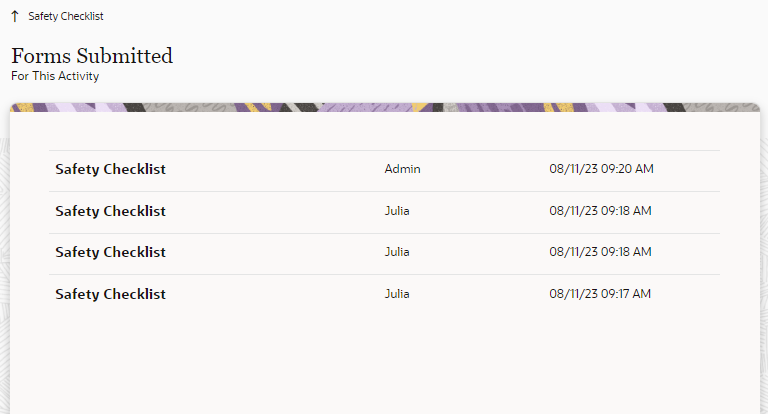
The 'Forms Submitted' button is now displayed in the header of forms. For regular forms not belonging to bundle rules, this button leads to the existing 'Forms history' screen, which in this release was renamed to 'Forms Submitted For This Activity'.
The screen will show a list of forms submitted for a given activity.
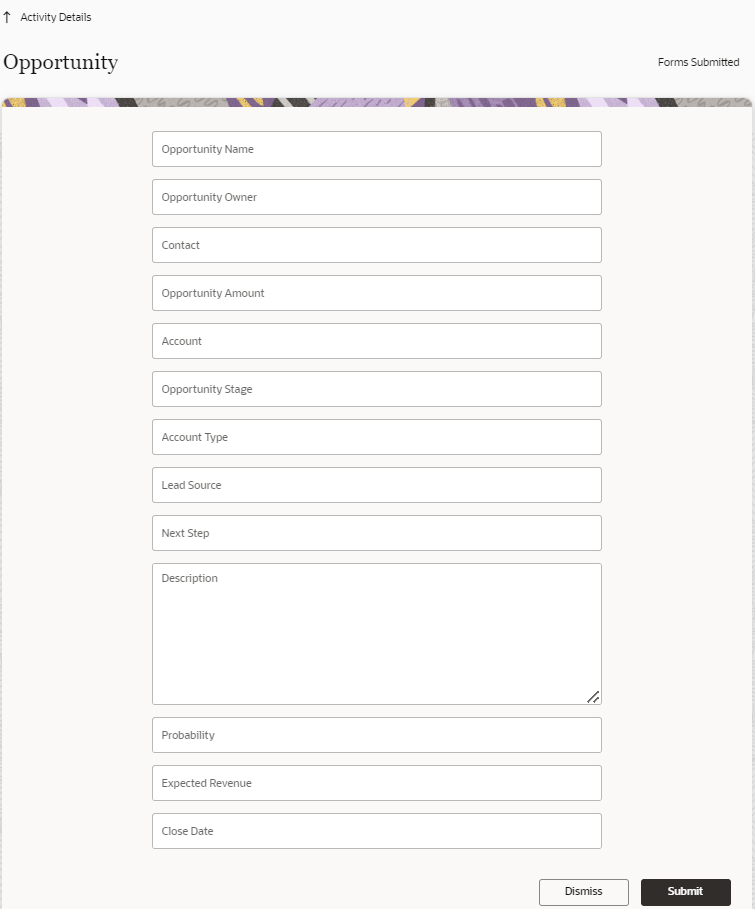
For associated forms(forms configured for a rule), the 'Forms Submitted' button is converted into a the drop-down menu containing two options:
- For This Activity
- For Related Activities
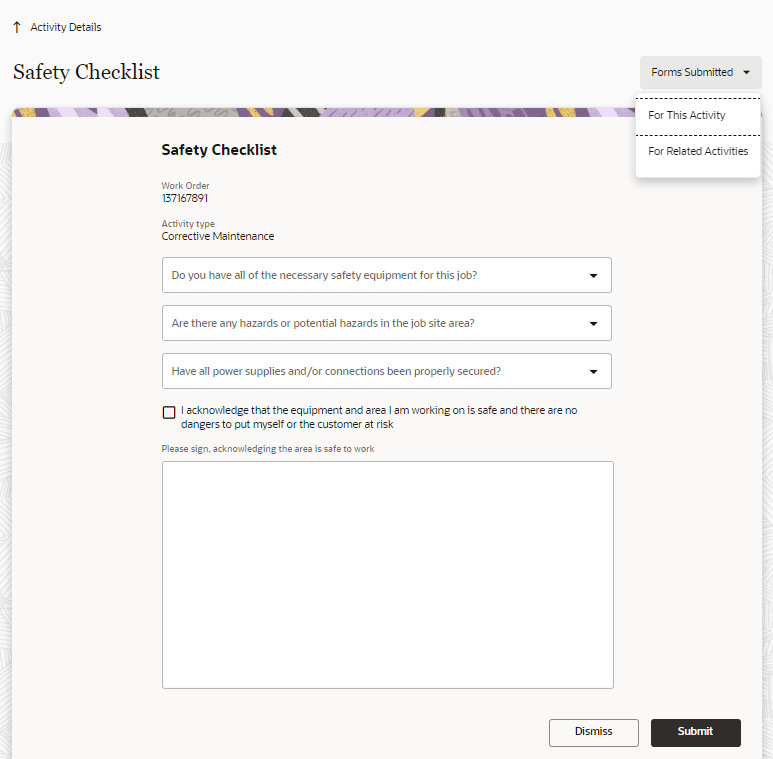
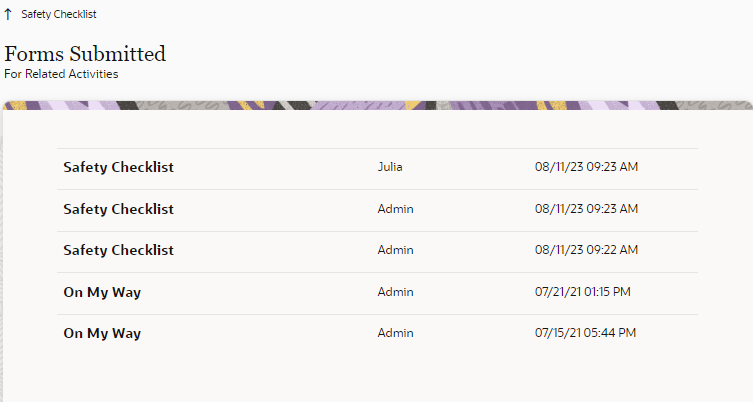
When selecting 'For Related Activities', a user will be navigated to the screen displaying a list of forms submitted by other users while working on other activities or activity segments from the bundle. This list will contain just form submissions for 'associated forms' that were configured for this bundling rule.
Warnings for simultaneous activities sharing the same visit key
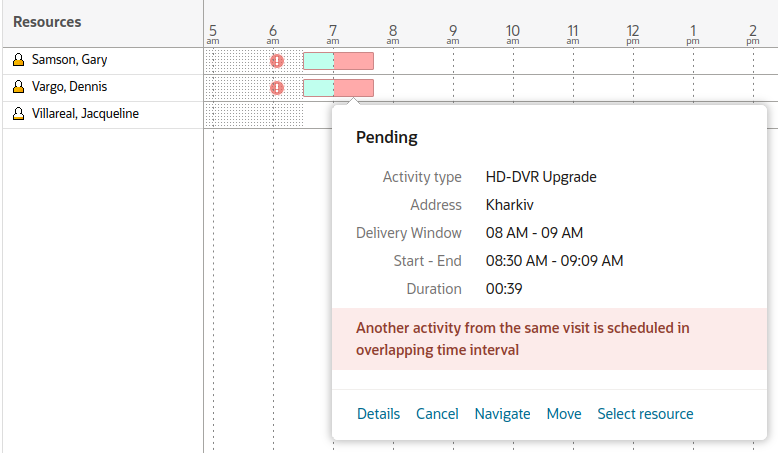
If activities starting simultaneously share the same visit key value, an alert is shown, as the activities in the same bundle are intended to be started one by one, and the order may be enforced by bulk routing. In order to inform the system that the activities are intentionally scheduled simultaneously, you may create an activity link with the "start simultaneously" link or set the same Communicated Window or Service Window for both activities, effectively preventing the alerts and ensuring the order enforcement.
REST API
The API method allows to retrieve all submitted data related to an activity or activity bundles.Note that the submitted forms can be returned for up to 1000 activities of a bundle. This limitation serves as protection against potential improper configurations of this feature.
GET /rest/ofscCore/v1/activities/{activityId}/submittedForms?limit=100&offset=0&scope=bundles&bundle=bundle_label
Query parameters
scope (optional): string. Whether to return submitted forms related only to the activity or to all bundled activities. If the value is 'activity', all data of all submitted forms related to the activity is returned. If the value is 'bundles' then the submitted forms related to configured activity bundles are returned. Allowed values [ activity, bundles ].Default: bundles
bundle (optional): string. The parameter allows to specify the label of the bundle to filter the returned data. Only submitted forms related to a specific bundle will be present in the response. If the parameter is not specified, all the submissions related to all bundles will be returned.This parameter is not allowed if the 'scope' parameter has value 'activity'Default: all the submissions related to all bundles related to the activity will be returned
limit (optional): integer. The number of items to be returned in the response. The minimum value that can be specified is 1 and the maximum value that can be specified is 100. If the specified value is greater than 100, zero, or if no value is specified, then it defaults to 100.
offset (optional): integer. The record number from which the retrieval starts. If no value is specified, then it defaults to zero. The value zero indicates that the retrieval will start from the beginning of the collection.
Response
hasMore: boolean. If true, then there are more results that can be retrieved with successive paging requests. If false, then there are no more results and this is the final page.
totalResults: integer. Total number of submissions that match the request.
limit (optional): integer. The actual limit value that was used for the request. (May be different form specified in the request parameter).
offset (optional): integer. The offset value specified in the request.
items (optional): array. Collection of submitted data related to the activity or to bundles.
time: string. The datetime in UTC when the form was submitted. For example, 2016-04-25 12:36:11.
user: string. The user identifier (login) of the user who submitted the form.
bundles (optional): array. The list of labels of the configured bundles to which the submitted form is related. This value is not present if the request parameter 'scope' is 'activity'.
formIdentifier: Label of the form and unique id of the submitted form.
formSubmitId: integer. The unique id of the submitted form.
formLabel: string. The label of the submitted form.
formDetails (optional): The record that contains the submitted form field values.
activityDetails: The record that contains the submitted activity field values.
Example of Response
{
"hasMore": false,
"totalResults": 3,
"limit": 100,
"offset": 0,
"items": [
{
"time": "2018-11-22 13:13:55",
"user": "login",
"formIdentifier": {
"formSubmitId": 19,
"formLabel": "",
"activityDetails": { .... },
"formDetails": { .... }
},
{ ... submit data 2 ... },
{ ... submit data 3 ... }
]
}
Business Benefit
- Better support of long duration jobs requiring multiple resources or teams.
- Improved handling of parallel activities dependent on data collected by various technicians.
Steps to Enable
This feature is controlled by configuration settings.
Tips And Considerations
-
When a rule is used for both 'Information exchange' and 'Workload optimization' purposes, then the 'Duration of bundled activities' parameter will be showed on the tile of the bundling rule.
-
The application allows the creation of up to 5 bundling rules.
-
There can only be one rule used for workload optimization.
-
The maximum number of activities in a bundle cannot exceed 1000 activities. The application will start picking up activities from newest to oldest and stop to build a bundle when the max number of activities reaches 1000.
Automatically Detect Activity Travel Keys
Activity travel keys can now be set to be automatically detected by the system. When this setting is checked, administrators will not need to manually decide and configure them. The system will use machine learning to automatically detect and configure travel keys based on the countries of operation, city and the zip codes of the activities' locations. Once applied, the system will learn and keep updating the travel keys, as well as the estimated travel durations, based on reported data.
On the Configuration - > Statistics screen, under 'Activity Travel Keys', there will be a new checkbox called 'Detect activity travel keys automatically'.
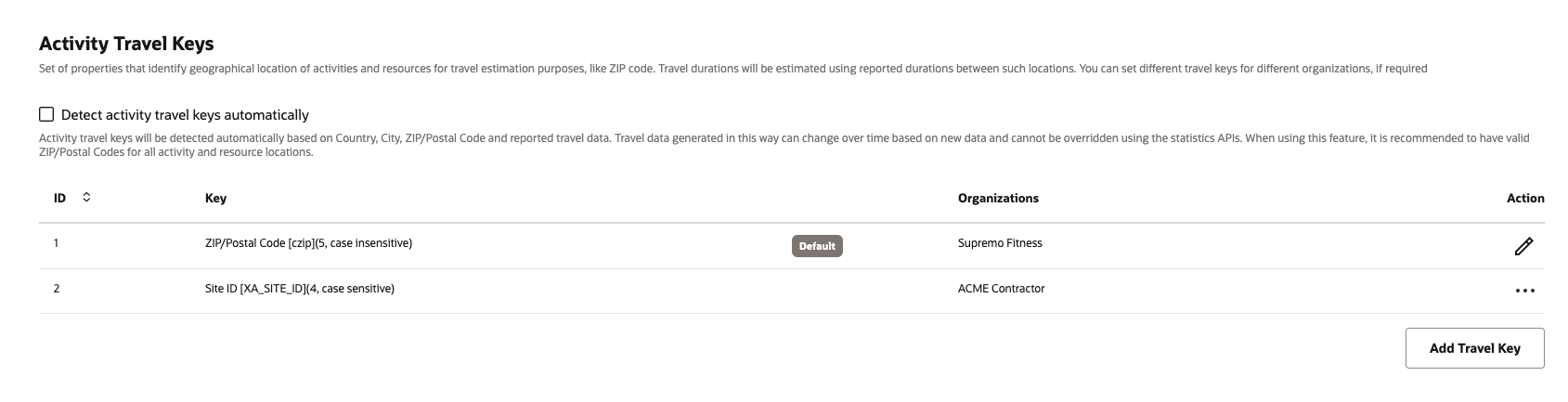
Checking this checkbox will make any existing keys that were manually configured disappear, since they will not be required.

Once checked, the system will automatically detect travel keys based on the country, city and zip codes of activities' locations. If the country code is not specified, the system will then use the default country specified in the 'Default country for geocoding' field configured in the Business Rules screen. Travel durations will be estimated and continually learned based on reported travel durations and data from location services, as it previously did, based on the newly detected travel keys.
The travel keys detected will typically be a combination of the country code and a part of the zip code, if there is enough data with zip codes available. The length of the zip code will depend on the country and it will be calculated in a way to optimize the geographical area of travel keys. For example, if the entire postal code is detected as a travel key and the area represented by it is too small, then only the first characters of the postal code may be considered to represent a larger, and more optimal, area - therefore providing better travel estimations.
If enough data exists, the following will be the typical travel keys used by the system based on country:
| Country | Code | Travel Key |
|---|---|---|
| Argentina | AR | country_code, czip(4) |
| Australia | AU | country_code, czip(4) |
| Austria | AT | country_code, czip(4) |
| Belgium | BE | country_code, czip(4) |
| Bermuda | BM | country_code, czip(2) |
| Brazil | BR | country_code, czip(6) |
| Canada | CA | country_code, czip(5) |
| China | CN | country_code, czip(5) |
| Czechia | CZ | country_code, czip(6) |
| Dominican Republic | DO | country_code, czip(5) |
| Ecuador | EC | country_code, czip(5) |
| Finland | FI | country_code, czip(5) |
| France | FR | country_code, czip(5) |
| Germany | DE | country_code, czip(5) |
| Great Britain/UK/England | GB | country_code, czip(first word + 1 char) |
| Greece | GR | country_code, czip(5) |
| Guatemala | GT | country_code, czip(5) |
| Hungary | HU | country_code, czip(4) |
| India | IN | country_code, czip(6) |
| Italy | IT | country_code, czip(5) |
| Japan | JP | country_code, czip(5) |
| Mexico | MX | country_code, czip(5) |
| Netherlands | NL | country_code, czip(4) |
| New Zealand | NZ | country_code, czip(4) |
| Portugal | PT | country_code, czip(4) |
| Puerto Rico | PR | country_code, czip(5) |
| Romania | RO | country_code, czip(5) |
| Singapore | SG | country_code, czip(2) |
| Spain | ES | country_code, czip(5) |
| Sweden | SE | country_code, czip(6) |
| USA | US | country_code, czip(5) |
Except for Great Britain/UK/England, any spaces and special characters will be excluded for all countries stated in the table when calculating travel keys. For example, a postal code with the value of '40301-110' will be considered to be the same as '40301110'. For countries not included in the list, the format of '(country_code, czip(5))' will be used by default. If the proportion of activity locations with valid zip codes is not significant, the system will use a combination of the country code and the city as the travel key.
If the 'Detect activity travel keys automatically' checkbox is checked, API overrides for travel keys cannot be applied. The message corresponding to the option 'Apply statistics API overrides only' in the 'Apply Changes' screen will be adjusted to convey this.
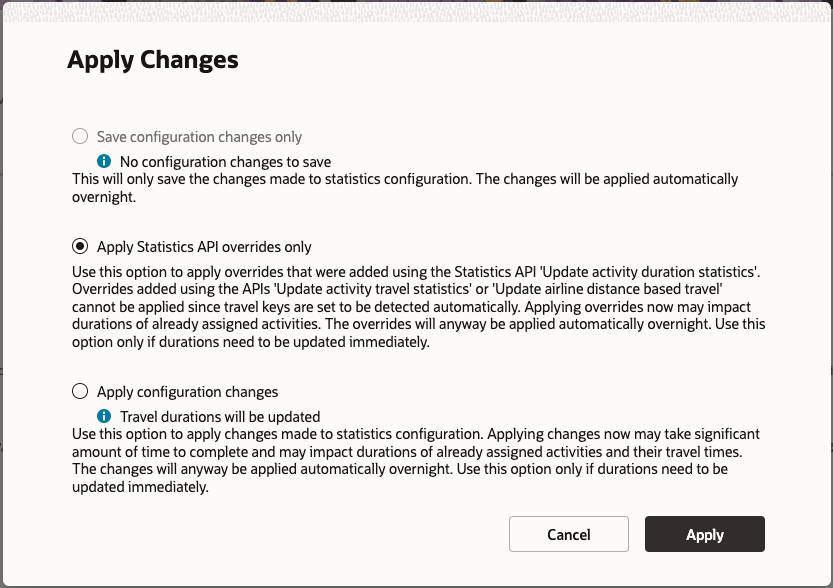
Once the checkbox 'Detect activity travel keys automatically' is checked and the changes are applied, the previous learned statistics and overrides related to the manually configured keys will be deleted from the system. However, the previous configuration is preserved, so and if at any point in time the checkbox 'Detect activity travel keys automatically' is unchecked, the travel keys that were manually configured previously will be displayed. In this case, once the changes are applied, the travel estimations based on the previous configured keys can either be applied overnight or immediately by selecting the 'Apply configuration changes' option.
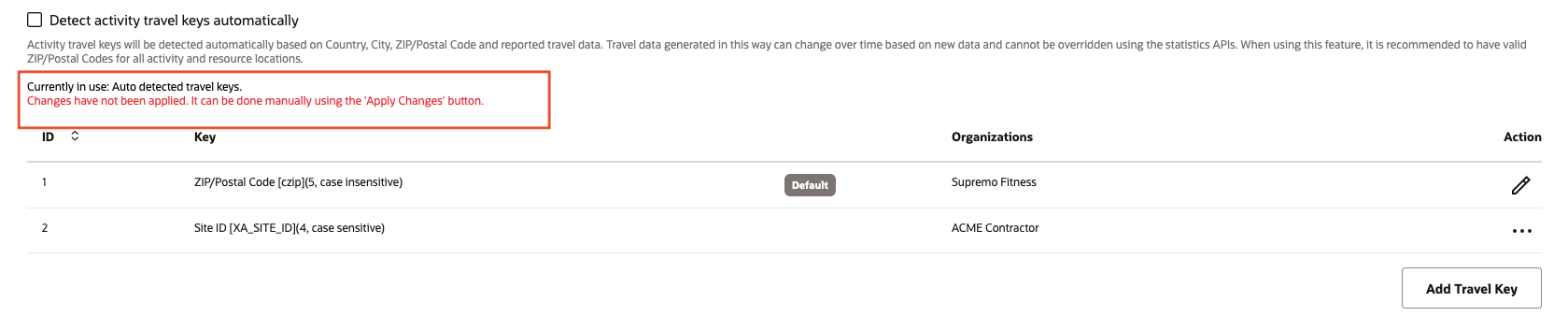
If the changes have only been saved and not yet applied, a message will be displayed alerting that the changes have not yet been applied, similar to how it currently works. This will be applicable when checking as well as unchecking the checkbox.
Data related to travel keys detected automatically can be viewed in the Travel Statistics reports, as well as the GET APIs related to travel statistics. The column for Organization in the Travel Statistics report will show 'All Organizations' for travel keys that are automatically detected.
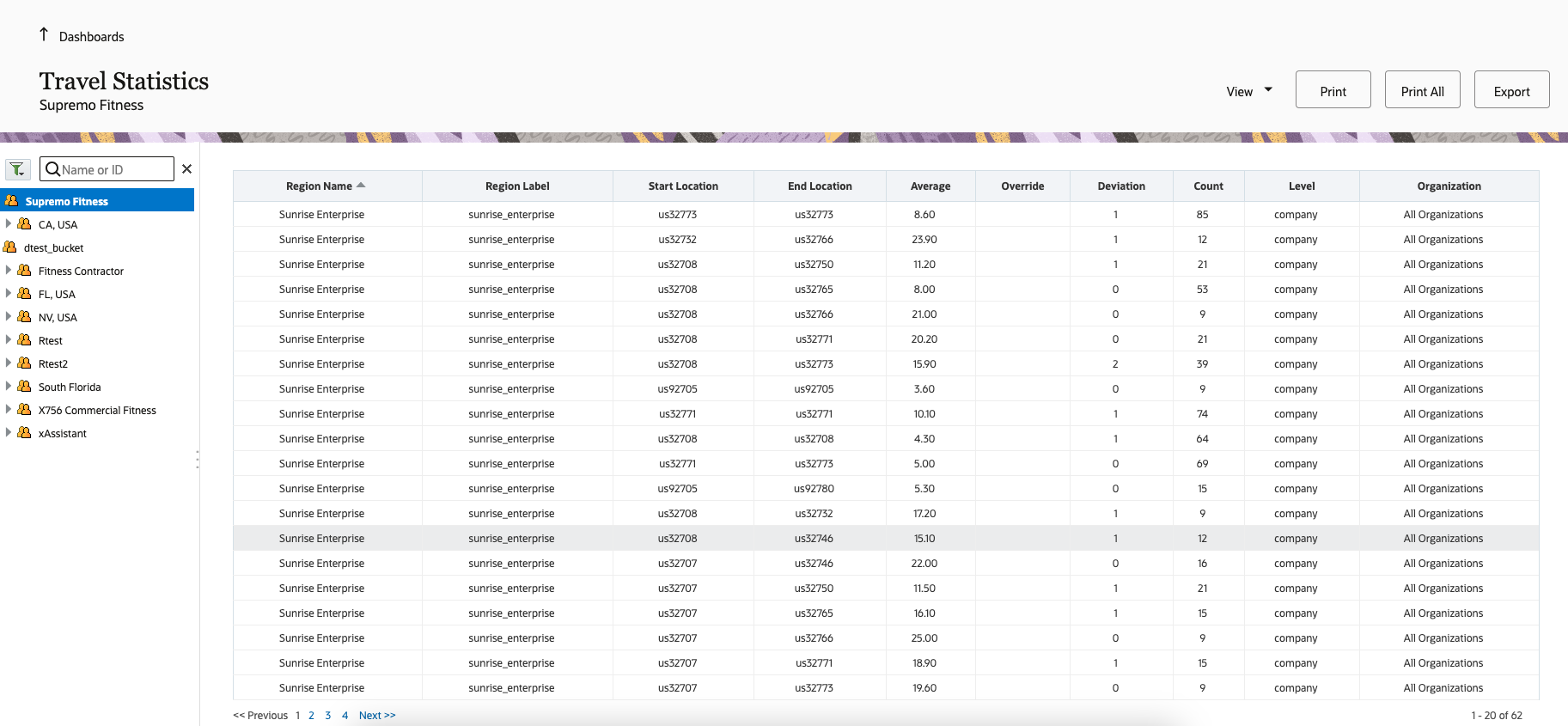
The travel keys that are automatically detected by the system will work the same way as travel keys created manually, including gathering statistics and estimating airline distance based on travel time at the key level, if configured that way. These travel keys will also be independent of organizations and will only vary based on the country of operation.
Changes to APIs
Overrides for travel duration via API will not be supported if the system is configured to detect travel keys automatically. Moreover, the 'Update activity travel statistics' and the 'Update airline distance based travel' operations will return a status code error 'HTTP 409' with the appropriate error message in case of an override attempt.
Since overrides cannot be added when travel keys are automatically detected, the 'Get activity travel statistics' and 'Get airline distance based travel' operations will not return data related to overrides in their response. Similarly, if the travel keys are detected automatically, the system will not use the travel key ID field. If 'Detect activity travel keys automatically' is checked in the Statistics configuration, the parameter 'keyId' will be ignored in the GET API requests. Also, the 'keyId' and 'org' parameters will not be returned in the response of the GET API requests if the travel keys are detected automatically.
Example of Get activity travel statistics response
{
"tkey" : "us79764" ,
"fkey" : "us79763" ,
"avg" : 11 ,
"dev" : 1 ,
"count" : 5 ,
"region" : "xyz_enterprise"
}
Example of Get airline based travel response
{
"key" : "us32771" ,
"data" : [
{
"distance" : 1 ,
"estimated" : 16
}
{
"distance" : 50 ,
"estimated" : 68
}
]
}
For GET activityBookingOptions and GET capacity API operations, in order to estimate travel duration, it is recommended to pass the country code, zip code and the city of each location in the API request.
Business Benefit
Administrators will no longer have to research, analyze and find out what the most optimal travel key to be used in the system is. With this new feature, the system will perform this task by detecting travel keys automatically, keeping the size of the travel keys at an optimal level, and improving the balance between the speed of learning and accuracy of travel estimates. This feature also reduces the chances of less optimal keys being configured manually, providing better travel estimations and in return, resulting in better routes and better ETA predictions.
Steps to Enable
You can enable this feature by selecting the checkbox 'Detect activity travel keys automatically' under 'Activity Travel Keys' within Configuration - > Statistics.
Tips And Considerations
- When detecting travel keys automatically, it is recommended to specify the country code and the zip codes for all activities and resource locations in order to obtain the most accurate travel estimations.
- If the country code is not populated, the system will consider the default country specified in the 'Default country for geocoding' field defined in the 'Business Rules' screen. If there aren't enough zip codes for activities, the system may use city instead of zip codes, which may reduce the accuracy of travel estimations.
- API overrides for travel durations will not be supported if the system is configured to detect travel keys automatically.
- The automatically detected travel keys will be independent of organizations and will only vary based on the countries of operation.
- When using GET activityBookingOptions and GET capacity API operations, in order to estimate travel duration, it is recommended to pass the country code, zip code and the city of each location in the API request.
Rename Re-create Instance to Refresh Environment
As a part of aligning Oracle Field Service with the other Oracle Fusion applications, "Recreate Instance" has been renamed to the terminology used in Fusion applications - "Refresh Environment". In the same manner, every mention of "Instance" in the product has be replaced with "Environment", as used by Fusion.
This change will, however, not be applied to APIs and hence would not impact any existing integrations set up by customers.
Business Benefit
- Aligning terminologies in Oracle Field Service and Oracle Fusion applications will make the experience consistent for users.
Steps to Enable
You don't need to do anything to enable this feature.
Teamwork - Storage Location Selection for Inventory Undo Install Action
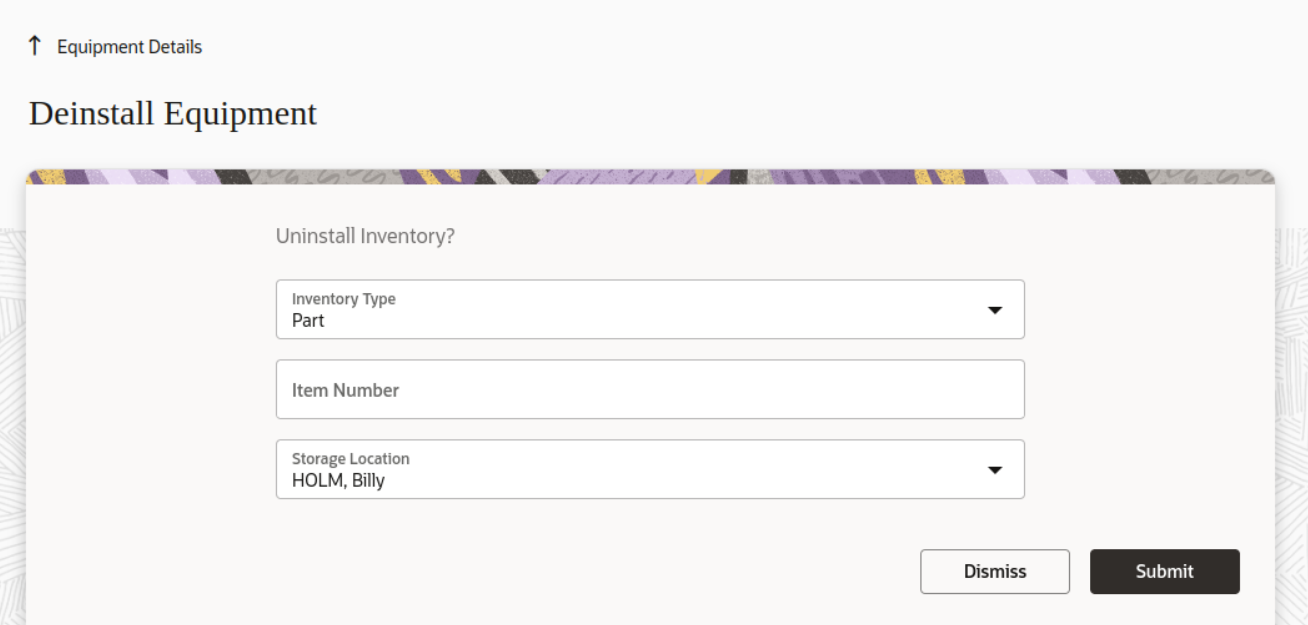
Once a technician that's part of a team realizes that they installed the incorrect inventory, or after the installation they realize that a part doesn’t work, they should perform an 'Undo install' action next. This will return the incorrect or broken part to the van that's part of the team, or to another technician. After the 23D upgrade, technicians will see a new 'Storage Location' field on the 'Undo install' screen, which will show all available storage locations (other technicians or vans) that are part of the team.
- A new 'Storage Location' field is available on the 'Undo Install' screen.
- The field 'Storage Location' is available in cases where a field resource is part of a team with other resources (field resource or van), and the resource type has the 'Share inventory in teamwork' feature enabled.
- For serialized inventory, the storage location (field resource or van) from where the part is taken is selected by default. For non-serialized inventory, the 'storage location' (resource) whose route is open is selected by default. In both cases, technicians can browse other available storage locations from the list.
- The Plugin Framework has been extended with a new "inv_pid" parameter of the "undo_install" inventory action, which enables the choice of ’Storage Location’ through the custom plugin.
Changes in Plugin API
The ability now exists to set the 'Id' of the resource whose 'provider' pool the inventory will be returned to, by using the 'Undo Install' action. This can be achieved by updating the 'inv_pid' property in the inventory or the inventoryList collection (only for serialized inventory), or by setting the 'inv_pid' parameter of the 'undo_install' inventory action.
New parameters for 'undo_install' inventory action
| Param name |
Mandatory |
Type | Description |
|---|---|---|---|
| inv_pid |
No |
string |
One of:
If the 'inv_pid' parameter is absent:
|
Updated error codes related to Inventory actions
| Code | Caused by action | Cause |
|---|---|---|
| TYPE_ACTION_PARAM | ||
| CODE_ACTION_INVENTORY_PID_INVALID | deinstall |
Any of these:
|
Updated error codes
| Code | When occurs |
|---|---|
| TYPE_ENTITY_PROPERTY | |
| CODE_INVENTORY_PID_INVALID | Any of these:
|
Business Benefit
- Enhanced inventory processing flow for field resources that are part of a team.
- Relevant resource selection for the inventory returned after an incorrect installation, or defective inventory.
Steps to Enable
You don't need to do anything to enable this feature.
Tips And Considerations
Since the 'Storage Location' field uses the 'Resource ID', it is not recommended to add the 'Resource ID' field to the 'Undo Install' screen. That will lead to duplication of the field on the screen and the selected resource in ‘Storage Location’ won’t be saved.
SAML Metadata Update Alert due to Certificate Renewal
While implementing SAML authentication security standard, Oracle Fusion Cloud Field Service uses a digital certificate to confirm the identity of the requests initiated from OFS. The customer's Identity Provider (IdP) verifies these requests using a public key and process them further. This key is present as a part of the OFS Metadata and is used by the IdP to establish the SAML authentication to OFS.
The current certificate will expire on December 6th, 2023, it is required to download the new OFS Metadata XML from your Login Policy configuration page and replace it in your IdP to retain authentication to Oracle Field Service for your users using these SAML Login Policies.
Notification on Configuration Screen
If your OFS environment uses at least one Login Policy of type 'SAML', you will see a notification displayed at the top of the Configuration screen as soon as your environment is updated to the version 23C Service Update 6 or the latest 23D release. This notification informs users with appropriate privileges to the Login Policies configuration screens about the need to download the OFS Metadata file and replace it in the IdP by December 6th, 2023:
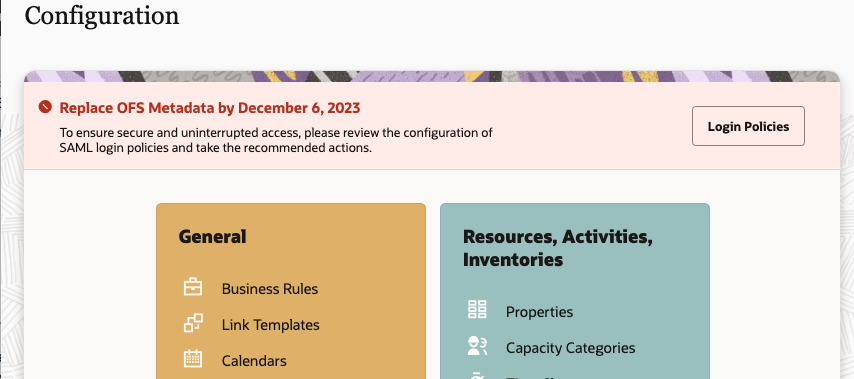
By clicking the 'Login Policies' button within the notification, users will navigate to the corresponding screen.
The general notification on the Configuration screen will disappear when the required actions are completed for all the SAML Login Policies.
Identify SAML Policies Requiring to Replace OFS Metadata
On the Login Policies screen you will be able to identify the SAML Login Policies requiring attention; this warning message will be displayed on the tiles of the SAML Login Policies:
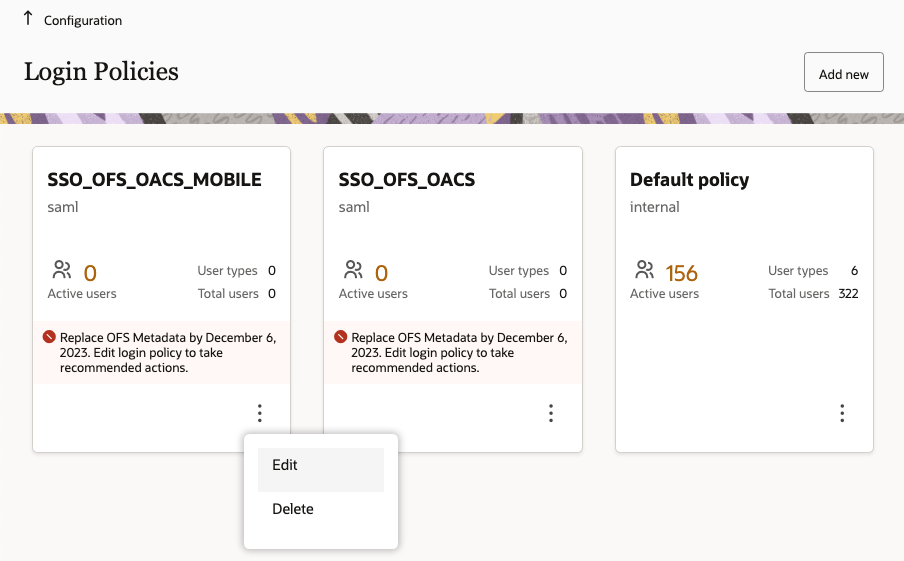
The warning message within each tile will disappear from the tile once all recommended actions are taken and you confirm that the new OFS Metadata XML is already applied in your IdP.
Business Benefit
Ensure a seamless user access experience, maintaining uninterrupted service even after the digital certificate has reached its expiration date.
Steps to Enable
Instructions to download and apply the new OFS Metadata XML
- Backup the legacy metadata file uploaded to your IdP.
- Open the context menu on the Login Policy tile and click 'Edit'. The screen to edit the Login Policy will appear.
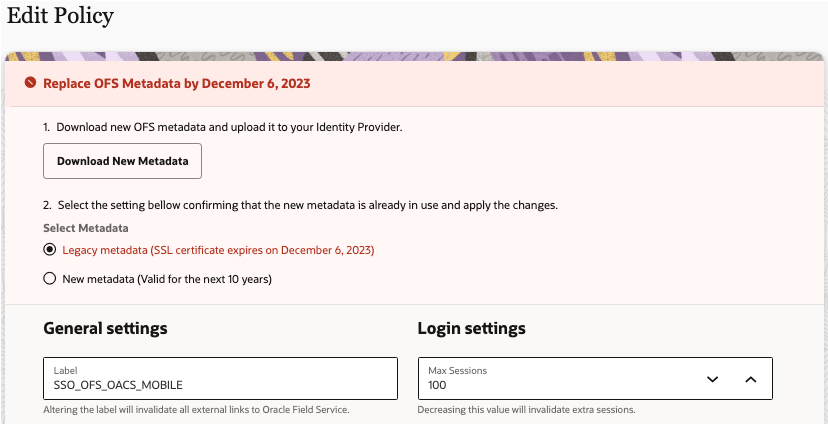
- Pay attention to the warning that appears at the top of the screen informing about the need to replace OFS metadata in your IdP. A short instruction on how to do it will be displayed below the notification, and the button 'Download New Metadata' will be available:
-
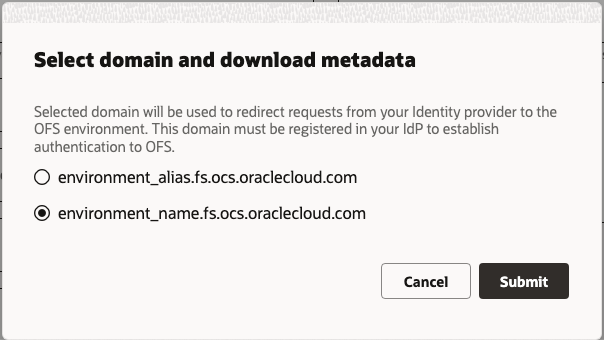
Select the domain used to redirect the requests from your IdP to OFS and click 'Submit'; this action will automatically initiate the file download process.
NOTE: The environment domain which was previously chosen for this policy will be automatically selected by default.
- Upload the new Metadata XML file into your IdP.
- Select the setting 'New metadata (Valid for the next 10 years)' right after the new OFS Metadata is uploaded to your Identity provider and click the 'Update' button at the bottom of the screen.
- Verify that you can sign into OFS via SAML, and that you can sign out correctly as well.
The warning and settings showing which OFS Metadata is currently used will be displayed on the screen for five (5) days once the Login Policy is switched to the new Metadata. This extra time allows you to easily roll back the changes in case of any issues.
How to rollback the changes
If the SAML authentication suddenly stops working, you can roll back the changes by following the steps below:
- Upload old OFS metadata to your IdP (you backed it up during the update).
- Open login policy for modification, select the 'Legacy Metadata (SSL certificate expires on December 6, 2023)' setting and click 'Update' button at the bottom of the screen.
- Check that sign in and sign out operations are successful.
Tips And Considerations
- Backup your legacy OFS metadata file before replacing it with the new one in your Identity provider. This will let you to perform a rollback in case of any issues with SAML authentication upon applied changes.
- You can only download the new metadata file from the application; the legacy metadata file is no longer available for download.
Direct Use of Item Catalog from Fusion
The feature introduces a new way to synchronize parts catalogs from Fusion into OFS. While the OIC accelerator has allowed the creation of catalogs based on items from inventory organizations for a long time, this feature presents the following improvements:
- Creation and update of OFS parts catalogs from Fusion item catalogs
- Direct integration with Fusion without involvement of Oracle Integration Cloud, which saves time on implementation and maintenance of parts catalog integration and decreases the error rate caused by proxying of API requests by OIC
To benefit from this feature, two items are required:
- Item catalogs in Fusion environment
- 'Oracle Fusion Service and Service Logistics' Application configured in OFS
The system will then do the rest automatically. It will periodically check item catalogs in Fusion and respectively:
- Create new catalogs in OFS as they arrive into Fusion
- Upload updates for existing catalogs based on changes in Item catalogs
New catalogs will be visible on the 'Parts catalog' screen, and customers then have to assign them to User Types to make the catalogs available for field resources.
Fusion catalogs uploaded to OFS will be visible to all users of assigned User Types regardless of the configured language. The 'Language' parameter won't be displayed on tiles of parts catalogs uploaded from Fusion.
How to remove language limitation while creating parts catalog via REST API
To remove the language limitation, specify a value of 'all' for the 'language' parameter in the API request. Example: /rest/ofscPartsCatalog/v1/catalogs/my_catalog/all
Business Benefits
- More flexibility to create parts catalogs from Fusion.
- Saves time and resources for parts catalog integrations.
- Direct connection to Fusion Item catalogs without the usage of middleware results in a more stable integration.
Steps to Enable
How to configure the application
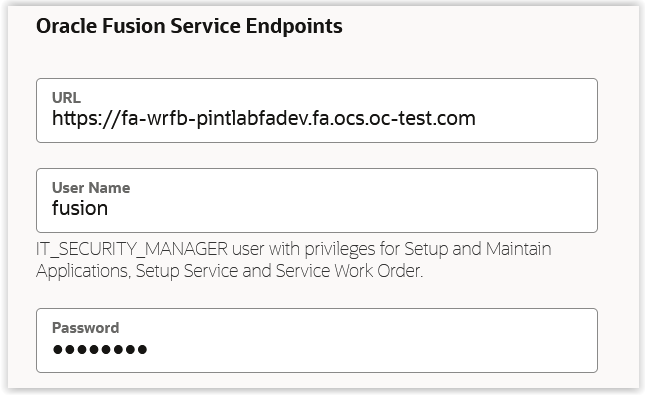
The following parameters should be populated for the 'Oracle Fusion Service and Service Logistics' Application:
Oracle Fusion Service Endpoints
- URL
- User Name
- Password
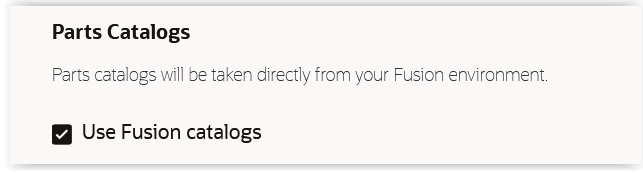
Parts Catalog
- Use Fusion Catalog (new parameter added as a part of this feature)
Test connection
'Test connection' function now separately checks the connections to the Fusion environment and Oracle Integration Cloud, and displays the connection status to each of them.
Additional changes
The application no longer requires the 'OIC channel' parameter, since from now on the application serves two needs:
- Integration via Oracle Integration Cloud - the parameter is needed just when using this kind of integration, while endpoints of Fusion environment are required as well
- Direct integration with Fusion - then only Fusion endpoints should be filled in
NOTE: The 'Password' field under the 'Oracle Integration' section will be displayed when the 'Integration Channel' field is populated. The 'Password' won't be shown when the 'Integration Channel' field is empty.
Tips And Considerations
The following parameters will be taken for parts from Fusion service:
- "CatalogId"
- "CatalogCode"
- "CatalogName"
- "CategoryId"
- "CategoryCode"
- "CategoryName"
- "ItemId"
- "OrganizationId"
- "Item"
- "OrganizationCode"
- "ItemDescription"
- "ItemClassId"
- "ItemClassName"
Require Inventory X Days Prior to Activity Start Date in Bulk Routing
There is a new parameter Require inventory for the following number of days before the activity start: at the routing plan level. This parameter allows routing to disregard inventory requirements for activities scheduled in advance. For example, if you set it to a value of '7', then all activities with required inventory that are scheduled for a date one week or less from now will only be routed to technicians that have the inventory on hand. However, activities scheduled for more than a week from now may be routed to technicians without the required inventory on hand, as it is assumed that one week is enough for parts to be ordered and shipped. The default value for this field is 0, which means that inventory is required for each day starting from today, which is the pre 23D behavior.

Business Benefit
- The process of ordering parts for planned maintenance activities can now become independent from routing, so activities can be routed in advance whether there are required parts or not. However, the same functionality can also strictly require inventory for activities being scheduled or re-scheduled a defined time before the start dates.
- Another potential benefit is for companies that are concerned about using optimization so as to not miss activities that strictly require some inventory within the next X days, or those that are planned for some point in the future and don't require inventory; this new setting will ensure that activities are always routed correctly based on your inventory requirements.
Steps to Enable
When creating or modifying a routing plan, enable routing by inventory and then select a value for the new parameter called 'Require inventory for the following number of days before the activity start'. For example, if you set it to a value of '7', then all activities with required inventory that are scheduled for a date one week or less from now will only be routed to technicians that have the inventory on hand. However, activities scheduled for more than a week from now may be routed to technicians without the required inventory on hand, as it is assumed that one week is enough for parts to be ordered and shipped.
NOTE: Please note that the number of days before the activity start is always calculated starting from 'today' and is independent from the date the routing plan is run.
Tips And Considerations
Consider choosing the required inventory interval in a way that accommodates the time needed for the required parts to be ordered and obtained.
IMPORTANT Actions and Considerations
REPLACED OR REMOVED FEATURES
Features and technical components of the solution may be removed or replaced to enhance the security, performance, and overall quality of the cloud service. When this occurs, the deprecation of a feature or component will be announced in advance, allowing customers sufficient time to anticipate the change and transition to any enhanced replacement feature/component. After the deprecation is announced, the deprecated feature or component will remain in the solution until the planned removal date and will not be enhanced or made compatible with other new features.
New Deprecations/ Removals
| Application Area | Removed Feature | Planned Removal | Replacement Feature | Replaced In | Additional Information |
|---|---|---|---|---|---|
| Visit Bundling Keys |
|
23D | For more details about the new capabilities in this area, please refer to the 'Activity Bundling Feature' section in the current release. |
23D | These specific capabilities are being removed due to their extended period of minimal or no usage. |
Previously-Announced Deprecations
Below is a list of new and previously announced deprecations for this cloud service.
| Application Area | Removed Feature | Planned Removal | Replacement Feature | Replaced In | Additional Information |
|---|---|---|---|---|---|
| Daily Extracts |
Ability to export files related to property files entity as part of the Daily Extract process. |
23D |
|
Announced in 22A |
|
| User Login Domain |
Authentication requests using https://login.etadirect.com URL scheme |
23D | Use URL scheme https://<instance_name>.fs.ocs.oraclecloud.com |
Announced in 22A |
This change will improve authentication time and adhere to government and corporate policy regulations related to data residency by ensuring the request is directed to the proper data center where the target Oracle Field Service environment is running. Login domain will not be supported from Update 23D general availability date onwards for all environments running on all versions of Oracle Field Service. For more information see the Oracle Field Service Login and API Domains Deprecation topic. |
| API Domain |
APIs access using https://api.etadirect.com URL scheme |
23D | Use URL scheme https://<instance_name>.fs.ocs.oraclecloud.com |
Announced in 22A |
This change will improve authentication time and adhere to government and corporate policy regulations related to data residency by ensuring the request is directed to the proper data center where the target Oracle Field Service environment is running. API domain will not be supported from Update 23D general availability date onward for all environments running on all versions of Oracle Field Service. For more information see the Oracle Field Service Login and API Domains Deprecation topic. |