
This document will continue to evolve as existing sections change and new information is added. All updates appear in the following table:
| Date | Feature | Notes |
|---|---|---|
| 01 FEB 2019 | Created initial document. |
This guide outlines the information you need to know about new or improved functionality included in Update 19A for Oracle Taleo Learn Cloud. Each section includes a brief description of the feature, the steps you need to take to enable or begin using the feature, any tips or considerations that you should keep in mind, and the resources available to help you.
Your CSS & New Features
Oracle Taleo Learn Cloud platform and general technology updates can affect complex or custom LearnCenter pages. If you are using a custom CSS file, it is important to verify your site CSS with each product update. Based on changes in the platform, there is a chance that you could see alignment or positioning issues after an update due to the custom CSS used on your site. Often any updates that your CSS requires are minor and easy to make. Contact Customer Support through My Oracle Support for any additional information.
For Licensing Information, please refer to My Oracle Support DOC ID 1461788.1. For the latest information on browser support, please refer to the Oracle Taleo Learn Cloud System Requirements document; My Oracle Support DOC ID 1461788.1.
Key Resources
For additional information about any of the features and enhancements discussed in this document, refer to Oracle Taleo Learn Cloud Online Help.
Give Us Feedback
We welcome your comments and suggestions to improve the content. Please send us your feedback at talent_acquisition_doc_feedback_ww_grp@oracle.com.
Column Definitions:
Report = New or modified, Oracle-delivered, ready to run reports.
UI or Process-Based: Small Scale = These UI or process-based features are typically comprised of minor field, validation, or program changes. Therefore, the potential impact to users is minimal.
UI or Process-Based: Larger Scale* = These UI or process-based features have more complex designs. Therefore, the potential impact to users is higher.
Features Delivered Disabled = Action is needed BEFORE these features can be used by END USERS. These features are delivered disabled and you choose if and when to enable them. For example, a) new or expanded BI subject areas need to first be incorporated into reports, b) Integration is required to utilize new web services, or c) features must be assigned to user roles before they can be accessed.
| Ready for Use by End Users Reports plus Small Scale UI or Process-Based new features will have minimal user impact after an update. Therefore, customer acceptance testing should focus on the Larger Scale UI or Process-Based* new features. |
Customer Must Take Action before Use by End Users Not disruptive as action is required to make these features ready to use. As you selectively choose to leverage, you set your test and roll out timing. |
|||||
|---|---|---|---|---|---|---|
| Feature |
Report |
UI or |
UI or |
|
||
LearnCenter Designer Enhancements
New WYSIWYG Button for the LearnCenter Designer
There is a new Insert/edit Dynamic Link button on the LearnCenter Designer WYSIWYG Editor bar, available for use with both Designer Pages and Templates. Use this button to create links to pages in sub LearnCenters.
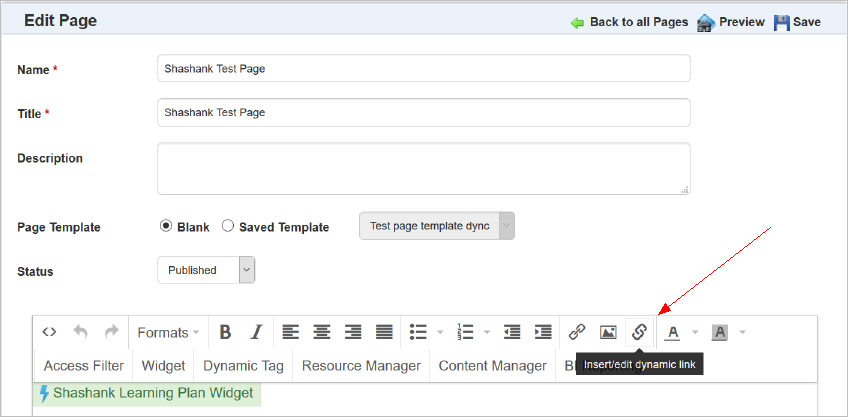
New WYSIWYG Button for Designer Pages and Templates
When you click the button, the Insert dynamic link window opens.
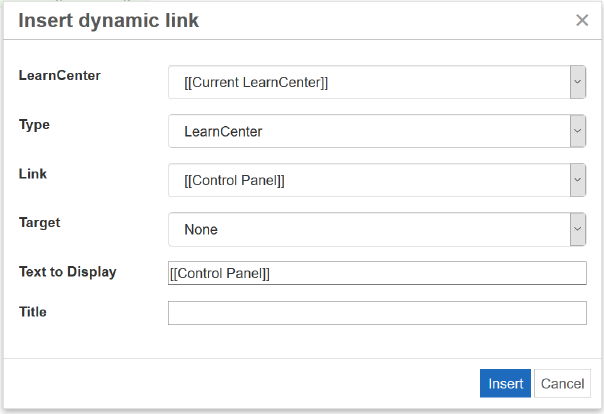
New Dynamic Link Window
This functionality was previously located on the Insert Link window as the Link list field, and was used to create links within the current LearnCenter. This functionality has been expanded on the new window.
Use the LearnCenter drop-down list to select either the current LearnCenter or one of its sub LearnCenters. Use the Type drop-down list to select one of the following:
- LearnCenter - to create a link to the LearnCenter or sub LearnCenter.
- Pages - to create a link to a specific LearnCenter Designer page in the LearnCenter or sub LearnCenter.
- Pages (Classic) - to create a link to a specific classic WYSIWYG page in the LearnCenter or sub LearnCenter.
- User Account - to create a link to specific user account features.
Use the Link drop-down list to select something specific for the Type you selected. For example, if you selected LearnCenter, you can link to the Control Panel, the default page, the Learning Object Manager, the Resource Manager, or the Visual Manager. If you select Pages for the Type, the Link drop-down list contains the available LearnCenter Designer pages for the selected LearnCenter or sub LearnCenter. If you select Pages (Classic), you can link to the page designated as the default page, or other pages created using the classic WYSIWYG page editor. If you select User Account, you can create dynamic links to users' calendars, messages, preferences, sign in page, sign out page, or sign up page.
Use the Target drop-down list to select the appropriate target for the link, such as New Window. Use the Text to display field to type your own custom text to display for the link. Use the Title field to type tool tips.
The Insert Link button is still available on the WYSIWYG Editor bar.
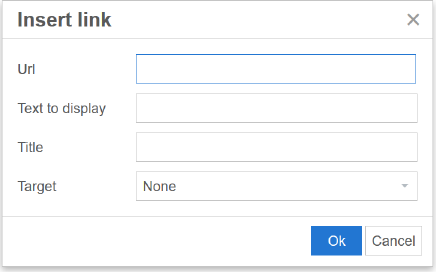
Updated Insert Link Window
The window that displays when you click the button contains all of the previously existing fields, with the exception of Link list, which has moved to the new window, as described above.
Steps to Enable
You don't need to do anything to enable this feature.
Key Resources
Refer to the online help topic called "Page Templates" (TOC > LearnCenter Designer > Page Templates) for instructions on creating LearnCenter Designer page templates.
Refer to the online help topic called "Pages" (TOC > LearnCenter Designer > Pages) for instructions on creating LearnCenter Designer pages.
A change has been made to the Delta Data field on the BI Reporting Schedule tab. You now have the ability to use date-only parameters for daily, weekly, monthly and yearly recurrence patterns. Previously, you could only use date/time parameters. For example, prior to this enhancement, in the Users Report, you could not find the User Hire Date parameter in the Delta Data drop-down list, because Hire Date is a date-only parameter. This parameter, and others like it, are available in the Delta Data drop-down list.
NOTE: Date only parameters are visible, but unavailable for selection if you select Hourly as the Recurrence Pattern.
Steps to Enable
No steps are required to enable this feature.
Key Resources
Refer to the online help topic called "Scheduling BI Reports" (TOC > Reports > BI Reporting > Scheduling BI Reporting Reports).
There is a new data view called Approver located under Item Progress. This data view enables you to report on who approved user requests.
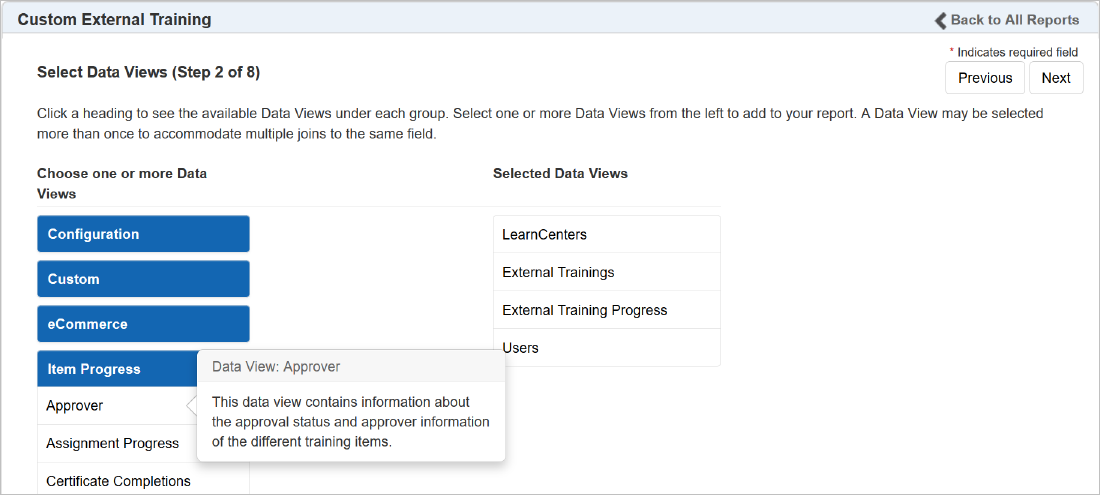
New Approver Data View
Steps to Enable
You don't need to do anything to enable this feature.
Key Resources
Refer to the online help topic called “Creating Custom Reports" (TOC > Reports > BI Reporting > Creating Custom Reports) for instructions on using data views with BI Reporting.
Refer to Taleo Learn Integration Capabilities Certification for more detailed information regarding this specific data view. You must first complete a certification course to gain access to this site.
LearnCenter Course Player Enhancements
New Default Launch Mode for LearnCenter Course Player
You can now set the default launch mode for LearnCenter Courses, Document Courses, and SCORM 1.2 Courses played on the LearnCenter Course Player. You can do this at both the course and LearnCenter level.
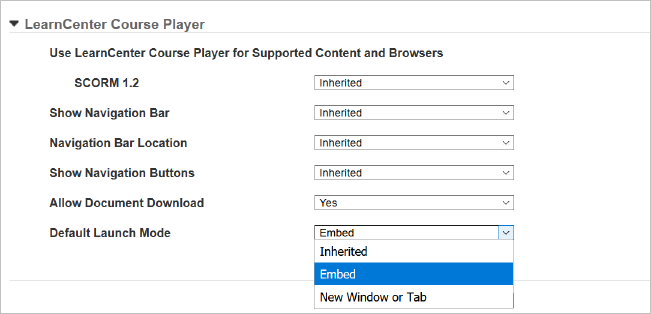
New Default Launch Mode Field
Launch modes include:
- Inherited - the launch mode setting is inherited from the parent LearnCenter.
- Embed - the Course is embedded on the page.
- New Window or Tab - The Course opens in a new window or tab.
NOTE: This enhancement affects only the LearnCenter Course Player. The options for the classic Course Player have not changed
Steps to Enable
You don't need to do anything to enable this feature.
Key Resources
Refer to the online help topic called “LearnCenter Course Options ” (TOC > Options > Course Options > LearnCenter Course Options) for instructions on setting this option at the LearnCenter level.
Refer to the online help topic called "Viewing and Editing Course Properties" (TOC > Content > Managing Courses > Viewing and Editing Course Properties) for instructinos on setting this option at the Course level.
Update to Enrollment Bulk Loader
A new field, Enrollment ID, has been added to first position in the Enrollment Bulk Loader template. This field acts as the primary identifier to locate and update a specific Enrollment by the Enrollment ID that may share the same name other Enrollments.
IMPORTANT: If you have scheduled Enrollment bulk loaders, Oracle recommends that you update the template for them as soon as possible to avoid any Bulk Loader run failures after Learn 19A is deployed.
Steps to Enable
No steps are required to enable this feature.
Key Resources
Refer to the online help topic called “Bulk Loader” (TOC > Integrations > Bulk Loader) for complete details on using Bulk Loader.
The Previous Completions field in the Recurrence section on the Options tab of the Edit Learning Plan window has been renamed to Initial Completions. This was done to clarify what the two accompanying option buttons are used for.
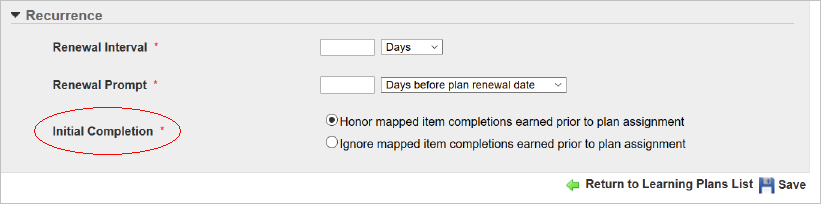
Field Label Renamed in the Recurrence Section
Steps to Enable
You don't need to do anything to enable this feature.
Key Resources
Refer to the online help topic called “Adding a New Learning Plan" (TOC > Advanced Learning > Learning Plans > Adding a New Learning Plan) for instructions on setting or updating the recurrence for Learning Plans.