
| Date | Feature | Notes |
|---|---|---|
| 17 MAY 2019 | New WYSIWYG Editor for the Classic Page Editor |
Updated document. The New WYSIWYG Editor for the Classic Course Editor and Page Editor feature was originally targeted for delivery in 19B, but it is currently postponed. |
| 26 APR 2019 | Created initial document. |
This guide outlines the information you need to know about new or improved functionality included in Update 19B for Oracle Taleo Learn Cloud. Each section includes a brief description of the feature, the steps you need to take to enable or begin using the feature, any tips or considerations that you should keep in mind, and the resources available to help you.
Your CSS & New Features
Oracle Taleo Learn Cloud platform and general technology updates can affect complex or custom LearnCenter pages. If you are using a custom CSS file, it is important to verify your site CSS with each product update. Based on changes in the platform, there is a chance that you could see alignment or positioning issues after an update due to the custom CSS used on your site. Often any updates that your CSS requires are minor and easy to make. Contact Customer Support through My Oracle Support for any additional information.
For Licensing Information, please refer to My Oracle Support DOC ID 1461788.1. For the latest information on browser support, please refer to the Oracle Taleo Learn Cloud System Requirements document; My Oracle Support DOC ID 1461788.1.
Key Resources
For additional information about any of the features and enhancements discussed in this document, refer to Oracle Taleo Learn Cloud Online Help.
Give Us Feedback
We welcome your comments and suggestions to improve the content. Please send us your feedback at talent_acquisition_doc_feedback_ww_grp@oracle.com.
Column Definitions:
Report = New or modified, Oracle-delivered, ready to run reports.
UI or Process-Based: Small Scale = These UI or process-based features are typically comprised of minor field, validation, or program changes. Therefore, the potential impact to users is minimal.
UI or Process-Based: Larger Scale* = These UI or process-based features have more complex designs. Therefore, the potential impact to users is higher.
Features Delivered Disabled = Action is needed BEFORE these features can be used by END USERS. These features are delivered disabled and you choose if and when to enable them. For example, a) new or expanded BI subject areas need to first be incorporated into reports, b) Integration is required to utilize new web services, or c) features must be assigned to user roles before they can be accessed.
| Ready for Use by End Users Reports plus Small Scale UI or Process-Based new features will have minimal user impact after an update. Therefore, customer acceptance testing should focus on the Larger Scale UI or Process-Based* new features. |
Customer Must Take Action before Use by End Users Not disruptive as action is required to make these features ready to use. As you selectively choose to leverage, you set your test and roll out timing. |
|||||
|---|---|---|---|---|---|---|
| Feature |
Report |
UI or |
UI or |
|
||
Supervisor Accounts Enhancements
A change has been made to how Supervisors see their mapped Users. Previously, Supervisors were able to see all of their mapped Users, including those with membership statuses of Denied Access, Removed, or Pending Approval. Now, Supervisors only see mapped Users who have a status of Approved and Disabled Access. Users with Denied Access, Removed, or Pending Approval Statuses remain mapped to Supervisors, but they are hidden from Supervisor view until they are changed to Approved.
Steps to Enable
You don't need to do anything to enable this feature.
Key Resources
Refer to the online help topics for Supervisor Accounts for complete information about working with Supervisors.
Refer to the online help topic called Membership Statuses for full details on membership statuses.
Change to Copy Existing Course Functionality
Beginning with this 19B, you can only use the Copy Existing Course functionality to copy Courses created with the WYSIWYG Editor.
Courses Selector for Copy Existing Course
If you need to copy SCORM, AICC, or Media Courses, you have two options:
- You can copy content on your PC, upload it under a new SFTP directory, and bring in the copied content.
- You can reimport the content, and give it a different name.
Steps to Enable
You don't need to do anything to enable this feature.
Role Information
- Administrator
There is new Bulk Import functionality that enables you to import Users into Dynamic Groups. In previous releases, the ability to bulk import Users to Groups was only available for the classic groups functionality.
By default, you can import Users into 10 different Dynamic Groups.
NOTE: If you require more or fewer groups, this default number is configurable by opening a Service Request (SR) with Oracle Learn Support.
On the Control Panel:
- Click the expand icon on the Users menu.
- Click Bulk Import Users.
- Select a file type from the Import type drop-down list.
- Enter or retrieve the data based on the Import Type you selected.
- Click Continue with Import.
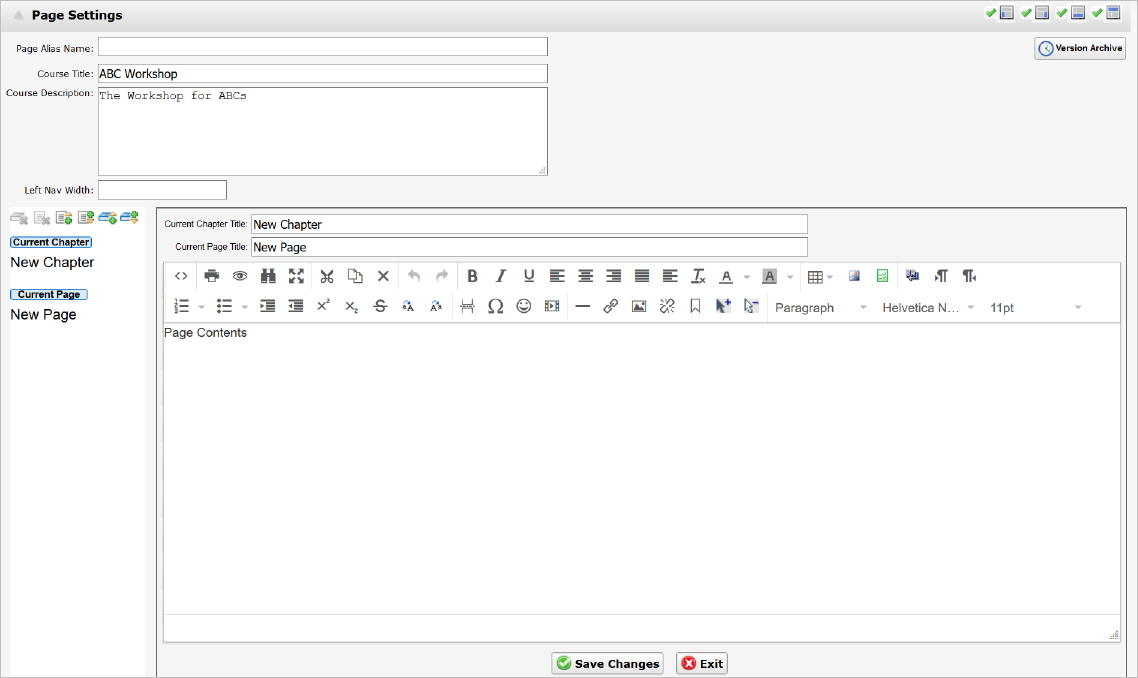
Choose Groups Is Available for Dynamic Groups
- Click Choose Groups to open the Find Groups window.
- Search for and select the Groups you want.
- Click Return Selected. The Groups you selected are applied to the Users. If you selected more than 10, an error message displays.
Message Displays If You Select More than Ten Dynamic Groups
Imported Users are placed in the selected Dynamic Groups with a membership type of Static. All the mapped items (such as Learning Plans, Job Profiles, Skills) are added to the User.
Steps to Enable
You don't need to do anything to enable this feature.
Tips And Considerations
Group owners have the ability to restrict access to their groups by selecting the existing Only allow Owners to edit the group check box in the Dynamic Group setup. Doing so prevents other Admins from bulk importing users to a Group owner’s groups.
Key Resources
Refer to the online help topic called Bulk Importing Users for complete details on how to use Bulk Import.
Refer to the online help topic called Adding a Dynamic Group for complete details on adding and editor Dynamic Groups.
Content Manager - Increase Content DPI
Beginning with this release, when you create documents using the Content Manager, the default DPI for images is 360.
NOTE: Documents imported prior to this release retain their original DPI settings. If you need to increase DPI for these documents, you must reimport them.
Users now have the ability to zoom in up to 200%, or zoom out up to 10% of the original size.
Steps to Enable
You don't need to do anything to enable this feature.
Tips And Considerations
The resolution default is configurable by opening a Service Request (SR) with Oracle Learn Support.
Key Resources
Refer to the Content Manager online help topics for complete details on using the Content Manager,
Role Information
- Administrator
Updated Course Launch Icon at Top level
The Course launch icon has been replaced with a more visible icon at the top level of the following Widgets:
- Search
- Catalog
- My Task
- Learning Plan
- Skills
- Transcript

New Icon at Top Level of Courses
This larger icon signals to Users which item they are to click to begin a Course.
NOTE: The icons within Courses have not changed.
Steps to Enable
You don't need to do anything to enable this feature.
Key Resources
Refer to the online help topics for Widgets for complete details on working with Widgets.
Updated Behavior for Transcript Widget
Approved External Training items with future end dates no longer display as Complete on the Transcript Widget.
The Transcript Widget only displays External Training items if:
- The end date is less than or equal to the current date.
And
- The approval status is Approved or Completed.
Steps to Enable
You don't need to do anything to enable this feature.
Key Resources
Refer to the online help topics for External Training for complete details on External Training.
Refer to the online help topic called Adding a Transcript Widget for information about the Transcript Widget.
The default number of Groups displayed in the Group drop-down list on the Users Selector window is now limited to 50 Groups.

Users Selector Window
Also, the Group search text box now has a limitation of 100 characters.
Steps to Enable
You don't need to do anything to enable this feature.
Role Information
- Administrator