
This document will continue to evolve as existing sections change and new information is added. All updates appear in the following table:
| Date | Feature | Notes |
|---|---|---|
| 02 AUG 2019 | Created initial document. |
This guide outlines the information you need to know about new or improved functionality included in Update 19C for Oracle Taleo Learn Cloud. Each section includes a brief description of the feature, the steps you need to take to enable or begin using the feature, any tips or considerations that you should keep in mind, and the resources available to help you.
Your CSS & New Features
Oracle Taleo Learn Cloud platform and general technology updates can affect complex or custom LearnCenter pages. If you are using a custom CSS file, it is important to verify your site CSS with each product update. Based on changes in the platform, there is a chance that you could see alignment or positioning issues after an update due to the custom CSS used on your site. Often any updates that your CSS requires are minor and easy to make. Contact Customer Support through My Oracle Support for any additional information.
For Licensing Information, please refer to My Oracle Support DOC ID 1461788.1. For the latest information on browser support, please refer to the Oracle Taleo Learn Cloud System Requirements document; My Oracle Support DOC ID 1461788.1.
Key Resources
For additional information about any of the features and enhancements discussed in this document, refer to Oracle Taleo Learn Cloud Online Help.
Give Us Feedback
We welcome your comments and suggestions to improve the content. Please send us your feedback at talent_acquisition_doc_feedback_ww_grp@oracle.com.
Column Definitions:
Report = New or modified, Oracle-delivered, ready to run reports.
UI or Process-Based: Small Scale = These UI or process-based features are typically comprised of minor field, validation, or program changes. Therefore, the potential impact to users is minimal.
UI or Process-Based: Larger Scale* = These UI or process-based features have more complex designs. Therefore, the potential impact to users is higher.
Features Delivered Disabled = Action is needed BEFORE these features can be used by END USERS. These features are delivered disabled and you choose if and when to enable them. For example, a) new or expanded BI subject areas need to first be incorporated into reports, b) Integration is required to utilize new web services, or c) features must be assigned to user roles before they can be accessed.
| Ready for Use by End Users Reports plus Small Scale UI or Process-Based new features will have minimal user impact after an update. Therefore, customer acceptance testing should focus on the Larger Scale UI or Process-Based* new features. |
Customer Must Take Action before Use by End Users Not disruptive as action is required to make these features ready to use. As you selectively choose to leverage, you set your test and roll out timing. |
|||||
|---|---|---|---|---|---|---|
| Feature |
Report |
UI or |
UI or |
|
||
Management Access Code Enforcement
With release 19C, if the Management Access code is enabled for your LearnCenter, users won't be able to access certain Control Panel pages until they enter the Management Access code. Even if a user has appropriate permissions to access a page, they will not be able to until they've entered the Management Access Code. A "not authorized" message displays to users who have not entered the Management Access Code. Affected Control Panel pages include:
- Learning Plan Settings
- eCommerce
- External Training
- Assessments/Surveys
- ILT
- VILT
- Options
- Integrations
- Appearance
- Tools
- Resources
Steps to Enable
You don't need to do anything to enable this feature.
Key Resources
Refer to the topic in online help called General Security Options (TOC > Options > Security Options > General Security Settings) for instructions on enabling the Management Access Code.
Visual Manager is being retired in release 19C. Beginning with release 19C, you will no longer see the Visual Manager link on the Management Controls Menu.
Why Are You Removing It?
There are two reasons we are removing Visual Manager. First, it was built using Adobe® Flash technology. Adobe is expected to retire Flash in 2020. Second, Visual Manager lacks the ability to meet the high scalability requirements of our customer base.
What Can I Use Instead?
Use the Sub LearnCenter menu on the Control Panel to see the entire list of your sub LearnCenters.
If you have any questions or concerns, you can open a service request (SR) in My Oracle Support.
Steps to Enable
You don't need to do anything to enable this feature.
Key Resources
Refer to the Sub LearnCenters topics in online help for complete instructions on using the Sub LearnCenter menu.
Changes to the Course Manager Bulk Loader
Two new columns have been added to the Course Manager Bulk Loader template. The first is a column called LearnCenter Course Player Default Launch Mode. Use it to set the default launch mode for LearnCenter Courses, Document Courses, and SCORM 1.2 Courses played on the LearnCenter Course Player.
LearnCenter Course Player Default Launch Mode
| Text Editor | Column | Required | Notes |
|---|---|---|---|
| 52 | AZ | No | Indicates your LearnCenter Course Player Launch Mode preference. |
| Accepted Values |
|
||
|
|||
The second is a column called LearnCenter Course Player Multiple Attempts. Use this field to set the LearnCenter Course Player Multiple Attempts option at the Course level for Document Courses, and SCORM 1.2 Courses.
| Text Editor | Column | Required | Notes |
|---|---|---|---|
| 53 | BA | No | Sets your preference for multiple attempts for the Document or SCORM 1.2 Course. |
| Accepted Values |
|
||
|
|||
NOTE: See the feature called "Multiple Attempts" for additional details about this column.
Steps to Enable
You don't need to do anything to enable this feature.
Tips And Considerations
IMPORTANT: These two columns have been added to template rows AZ and BA. The existing File Path column as been moved to column BB in the template. If you have scheduled Course Manager bulk loads, Oracle recommends that you update the template for them as soon as possible to avoid any Bulk Loader run failures after Learn 19C is deployed.
Key Resources
Refer to the Bulk Loader topics in online help (TOC > Integrations > Bulk Loader) for complete instructions on using Bulk Loader.
Change to the Enrollment Mappings Bulk Loader
A new field, Enrollment ID, has been added to the User Enrollment Mappings Bulk Loader. This field acts as the primary identifier to locate and update a specific Enrollment mapping that may share the same name with other Enrollments. This field has been added to column A in the template, which means all other columns have shifted. You must download a new template, or update your existing one to continue using this loader.
Enrollment ID
| Text Editor | Column | Required | Notes |
|---|---|---|---|
| 1 | A |
|
The unique ID number for the Enrollment. It acts as the primary identifier to locate and update a specific Enrollment that may share the same name other Enrollments. |
| Accepted Value | The LearnCenter System generated Enrollment ID. |
||
| Example 104 | |||
| Notes |
|
||
Steps to Enable
You don't need to do anything to enable this feature.
Tips And Considerations
IMPORTANT: The new column has been added to template column A, which means all pre-existing columns have shifted by one. If you have scheduled User Enrollment Mappings bulk loads, Oracle recommends that you update the template for them as soon as possible to avoid any Bulk Loader run failures after Learn 19C is deployed.
Key Resources
Refer to the Bulk Loader online help (TOC > Integrations > Bulk Loader) topics for complete information about using Bulk Loader.
LearnCenter Course Player Enhancements
You can now set the LearnCenter Course Player Multiple Attempts option at the Course level for Document Courses, and SCORM 1.2 Courses.
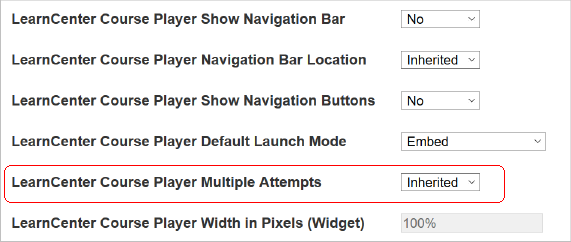
LearnCenter Course Player Multiple Attempts Field on Course Properties Page
Values for this field include Inherited, Yes, and No. Based on the value you select, Courses can either be played multiple times, or only once.
NOTE: In addiction, a new LearnCenter Course Player Multiple Attempts column has been added to the Course Manager Bulk Loader. See the feature called "Changes to the Course Manager Bulk Loader" for details.
Steps to Enable
You don't need to do anything to enable this feature.
Tips And Considerations
IMPORTANT: If a Course is added to recurring Learning Plan, this field is automatically set to Yes and is changed to read-only mode. Similarly, if you have any active, recurring Learning Plans in your LearnCenter, then the Allow Multiple WBT Attempts option, available under System Options, is disabled/read-only.
Key Resources
Refer to online help for instructions on using both Multiple Attempts and the LearnCenter Course Player.
There is a new Time Zone field at the user level that lets users create, update, and view their Users Time Zone through REST API.
Steps to Enable
You don't need to do anything to enable this feature.
Key Resources
For more information about the Taleo Learn REST API, refer to the REST API document.
Rest API Document Has Moved to Oracle Help Center
To better serve you, the Taleo Learn Rest API document has been moved to Oracle Help Center. This document contains everything a developer needs to know to work with the Taleo Learn API. There is no certification course required to access the documentation.
NOTE: If you bookmark this URL, you’ll need to update it for subsequent releases, as the URL changes based on the release number.
Steps to Enable
You don't need to do anything to enable this feature.