
This document will continue to evolve as existing sections change and new information is added. All updates appear in the following table:
| Date | Product | Feature | Notes |
|---|---|---|---|
| 16 DEC 2020 | Updated Communication Message | Updated document. Delivered feature in update 20D. | |
| 16 DEC 2020 | New WYSIWYG Editor Migration | Updated document. Revised feature information. | |
| 06 OCT 2020 | Created initial document. |
This guide outlines the information you need to know about new or improved functionality included in Update 20B for Oracle Taleo Learn Cloud. Each section includes a brief description of the feature, the steps you need to take to enable or begin using the feature, any tips or considerations that you should keep in mind, and the resources available to help you.
GIVE US FEEDBACK
We welcome your comments and suggestions to improve the content. Please send us your feedback at talent_acquisition_doc_feedback_ww_grp@oracle.com.
Column Definitions:
Features Delivered Enabled
Report = New or modified, Oracle-delivered, ready to run reports.
UI or Process-Based: Small Scale = These UI or process-based features are typically comprised of minor field, validation, or program changes. Therefore, the potential impact to users is minimal.
UI or Process-Based: Larger Scale* = These UI or process-based features have more complex designs. Therefore, the potential impact to users is higher.
Features Delivered Disabled = Action is needed BEFORE these features can be used by END USERS. These features are delivered disabled and you choose if and when to enable them. For example, a) new or expanded BI subject areas need to first be incorporated into reports, b) Integration is required to utilize new web services, or c) features must be assigned to user roles before they can be accessed.
| Ready for Use by End Users Reports plus Small Scale UI or Process-Based new features will have minimal user impact after an update. Therefore, customer acceptance testing should focus on the Larger Scale UI or Process-Based* new features. |
Action is Needed BEFORE Use by End Users Not disruptive as action is required to make these features ready to use. As you selectively choose to leverage, you set your test and roll out timing. |
|||||
|---|---|---|---|---|---|---|
| Feature |
Report |
UI or |
UI or |
|
||
In Release 20D, all customer environments will be migrated from the existing Classic WYSIWIG editor (Cute Editor) to our new editor experience (TinyMCE).
NOTE: If you would like to take advantage of the more secure and robust TinyMCE editor features by migrating before Release 20D, you can submit a service request through My Oracle Support to ask for early migration.
The new editor resembles the one used in the Widgets and LearnCenter Designer. All of the functionality of the previous editor remains, with a few minor differences.

New WYSIWYG Editor

Classic Page Editor WYSIWYG Toolbar
You still have access to LearnCenter-specific icons such as Resource Manager and Dynamic Object, and the Version Archive button.

LearnCenter-Specific Icons
File Attachments
Before you can attach files like Microsoft® Word documents, Microsoft® PowerPoint® presentations, and other resources, you must first upload them to the Resource Manager. Once uploaded, click the Resource Manager icon on the WYSIWYG toolbar and navigate to the appropriate folder to select your file.
The new editor is available following functional areas of LearnCenter:
- Communication Messages
- Communication Messages (Enrollment Screen)
- Forum Messages
- Course Editor
- LC Page Editor
- Header Editor
- Reviews
- Performance Appraisals
- Performance Appraisal Templates
- eSignatures
- Comm Center
- Certificates
Page Editor
On the Page Editor, the Save and Cancel actions have been moved to the bottom of the page.
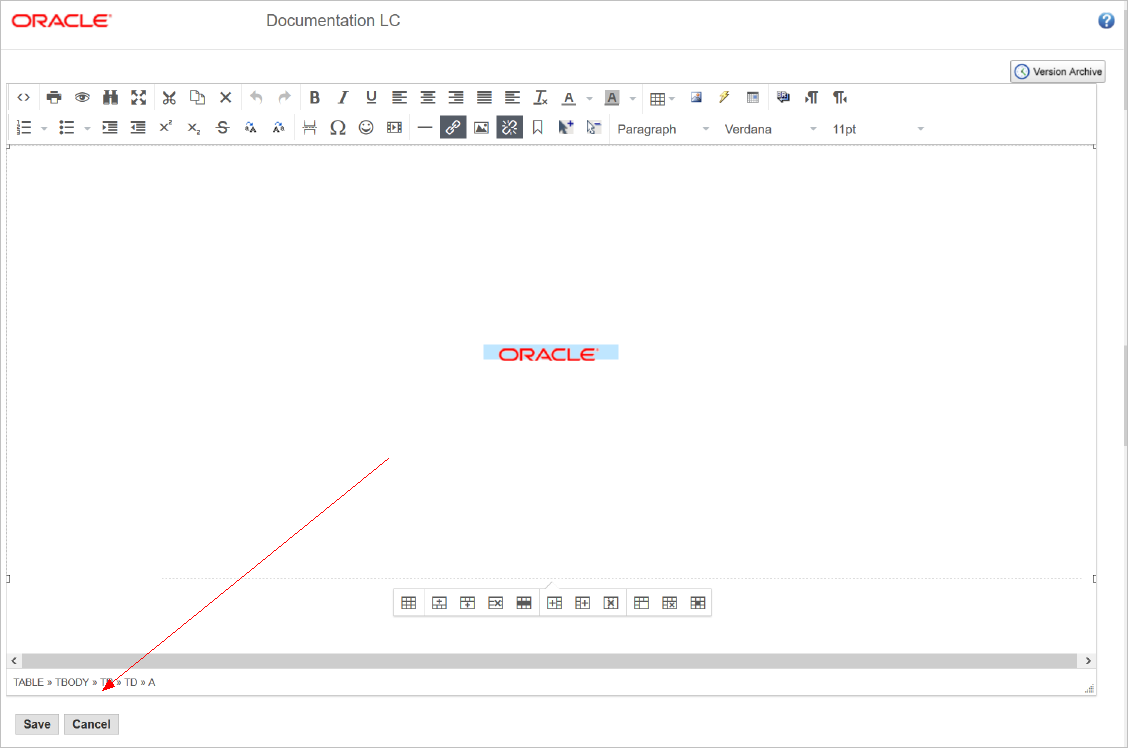
Page Editor Save and Cancel Buttons
Course Page Editor
On the Course editor, the course-specific functionality has been moved from the editor to the left side of the page.

Course Page Editor Functionality Moved
You can still access LearnCenter-specific buttons like Resource Manager and Insert Test on the WYSIWYG Editor.
Communication Messages
For Communication Messages, you can insert dynamic content fields using an icon on the WYSIWYG editor.
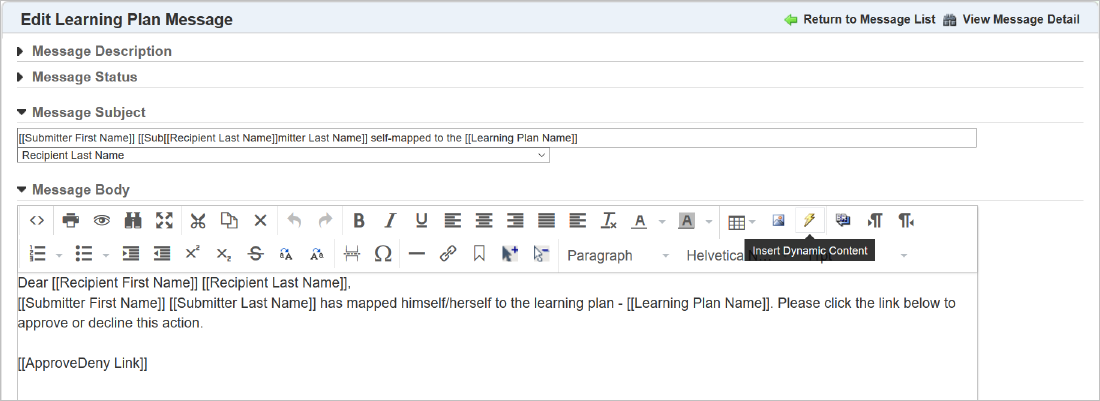
Dynamic Content Icon
When you click this icon, an additional window opens containing the appropriate dynamic links for your message.
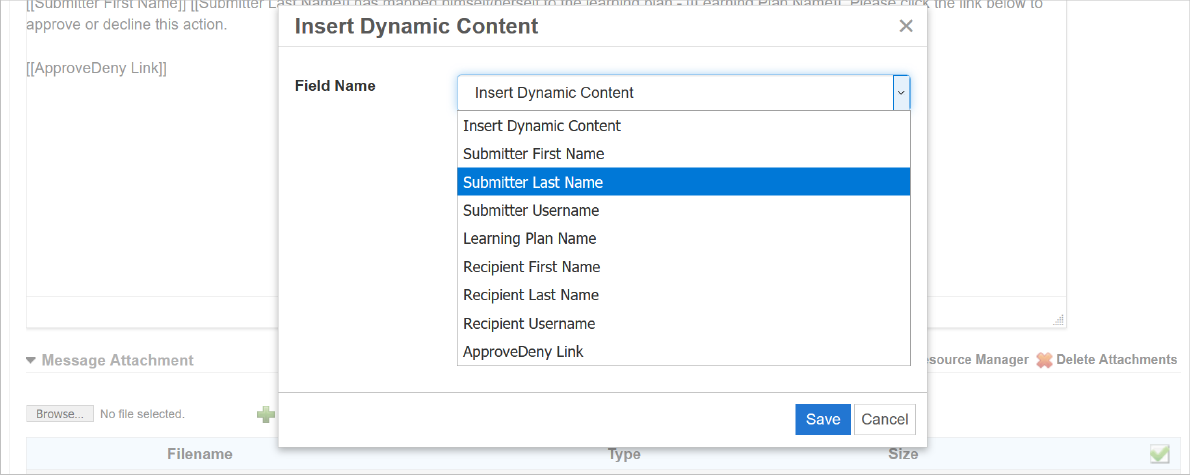
Insert Dynamic Content
The interface is cleaner, simplified, and similar options are consolidated. This enhancement provides a consistent look and feel for all WYSIWYG editors within LearnCenter.
Steps to Enable
You don't need to do anything to enable this feature.
Tips And Considerations
This enhancement brings a consistent look and feel for all WYSIWYG editors across LearnCenter.
Notice that the default verbiage for the Message Body field of the User Password Change communication message has been updated.
Previous Message Body
Dear [[User First Name]] [[User Last Name]], This is a notification that your password was changed on [[Password Change Date]]. Your new password is [[New Password]].
New Message Body
Dear [[User First Name]] [[User Last Name]], This is a notification that your password was changed on [[Password Change Date]]. If this wasn’t intentional, please contact your administrator.
Updates the communication message to use modern and more secure language.
Steps to Enable
You don't need to do anything to enable this feature.
Tips And Considerations
If you customized the verbiage for this message body prior to this release, it will not be overwritten with the new default verbiage.
Key Resources
Refer to the Communication Messages topics of online help for complete information on LearnCenter Communication Messages.