
This document will continue to evolve as existing sections change and new information is added. All updates appear in the following table:
| Date | Product | Feature | Notes |
|---|---|---|---|
| 21 May 2021 | Maxymiser | Created initial document. |
This guide outlines the information you need to know about new or improved functionality in this update.
GIVE US FEEDBACK
We welcome your comments and suggestions to improve the content. Please send us your feedback at omcdocumentation_ca@oracle.com.
Column Definitions:
Report = New or modified, Oracle-delivered, ready to run reports.
UI or Process-Based: Small Scale = These UI or process-based features are typically comprised of minor field, validation, or program changes. Therefore, the potential impact to users is minimal.
UI or Process-Based: Larger Scale* = These UI or process-based features have more complex designs. Therefore, the potential impact to users is higher.
Features Delivered Disabled = Action is needed BEFORE these features can be used by END USERS. These features are delivered disabled and you choose if and when to enable them. For example, a) new or expanded BI subject areas need to first be incorporated into reports, b) Integration is required to utilize new web services, or c) features must be assigned to user roles before they can be accessed.
| Ready for Use by End Users Reports plus Small Scale UI or Process-Based new features will have minimal user impact after an update. Therefore, customer acceptance testing should focus on the Larger Scale UI or Process-Based* new features. |
Customer Must Take Action before Use by End Users Not disruptive as action is required to make these features ready to use. As you selectively choose to leverage, you set your test and roll out timing. |
|||||
|---|---|---|---|---|---|---|
| Feature |
Report |
UI or |
UI or |
|
||
Simplified URLs for Single Sign-on (SSO) Setup
Simplified URLs for single sign-on (SSO) setup and configuration are now available.
The new and simpler URLs are:
- EU: ui-eu.maxymiser.com
- US: ui-us.maxymiser.com
If you are an SSO account user, you are encouraged to update your configuration to utilize these new URLs.
Steps to Enable
Please contact your System Administrator to update the URLs.
Single Sign-on (SSO) between Maxymiser and Infinity
If you use both Maxymiser and Infinity, you can now leverage single sign-on (SSO) capabilities across both products.
Infinity Single sign-on is now supported and available to select from the Single sign-on (SSO) drop-down.
Your users need to be present in both Maxymiser and Infinity, and your account must be SSO enabled for you to leverage this feature.
By selecting this option you can set up single sign-on between Maxymiser and Infinity accounts, requiring you to log in only once to access both products.
Steps to Enable
Please contact your System Administrator to enable SSO for your account to make use of this feature.
Increased Custom Attributes Limits
We have increased the Custom Attribute limit to 100 per site by creating availability for an additional 60 targeting attributes. As personalization and data connectivity become more and more important, so does the need for a higher Custom Attribute limit.
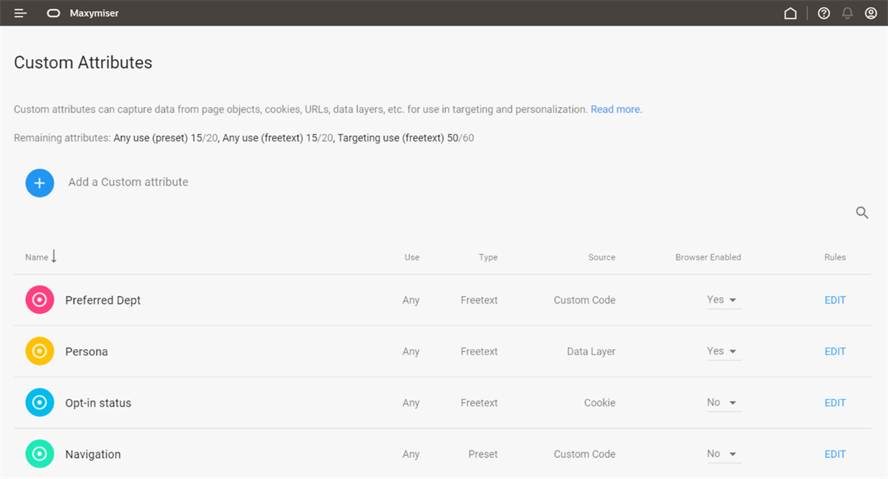
Increase Custom Attributes
This allows you to make campaigns even more relevant and personalized, thanks to greater flexibility and variability in what customer data can be harnessed in Maxymiser.
Steps to Enable
You don't need to do anything to enable this feature.
Key Resources
- Visit our Help Center to learn more.
New Custom Attributes Usage Screen
A new Custom Attributes Usage screen is now available. This allows you to compare multiple experiences against the control in the action breakdown widget of the Campaign Performance Report. If a site is nearing its Custom Attribute limit, you can now check the attribute's usage to estimate whether it is still needed, or can be overwritten by a new attribute.
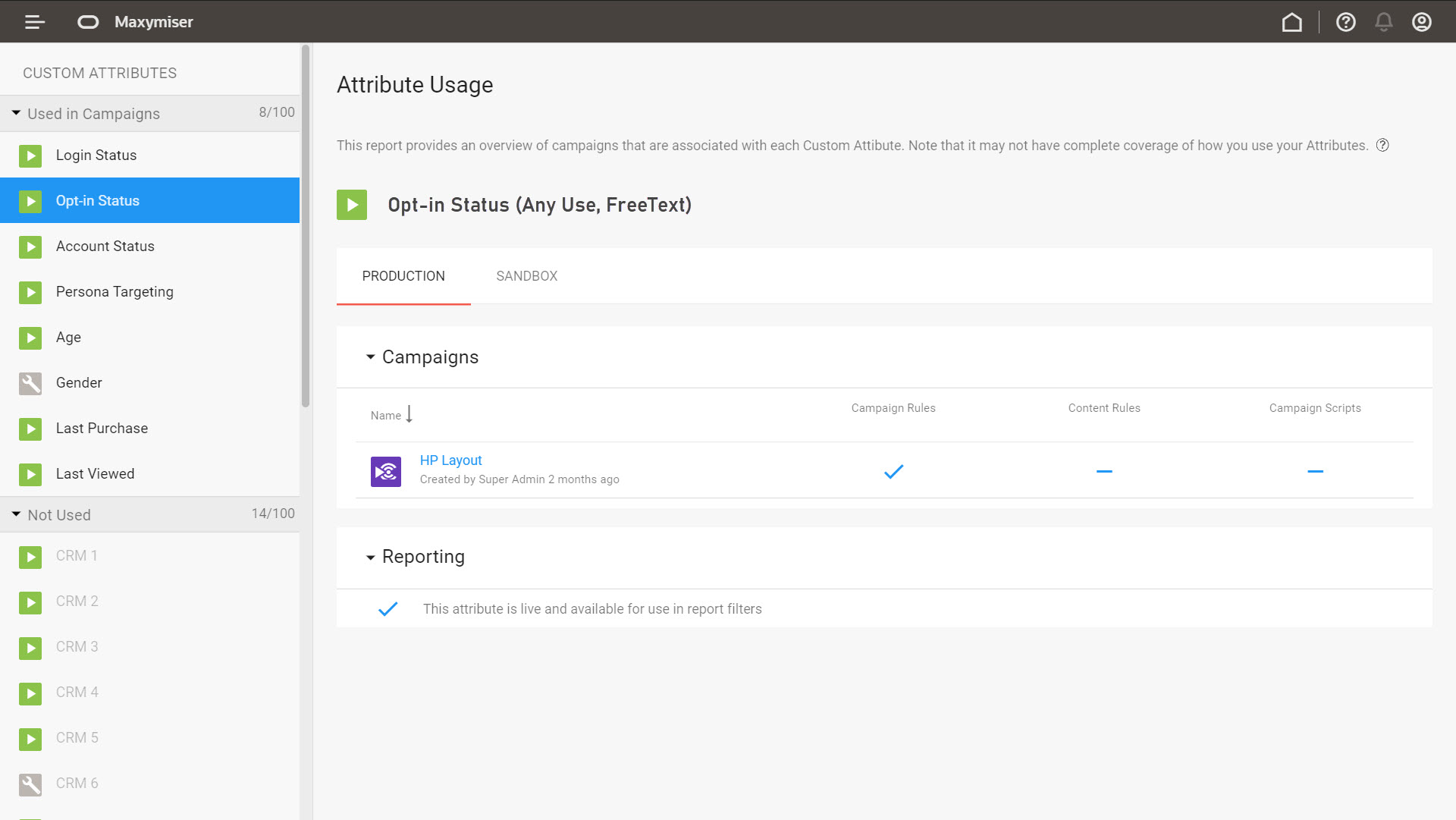
Custom Attributes Usage
Checking the attribute usage:
- saves time
- reduces reliability on developers
- reduces the risk of overwriting a needed attribute
Steps to Enable
You don't need to do anything to enable this feature.
Our new Campaign Tutorial is now available if you are using Oracle Maxymiser for the first time.
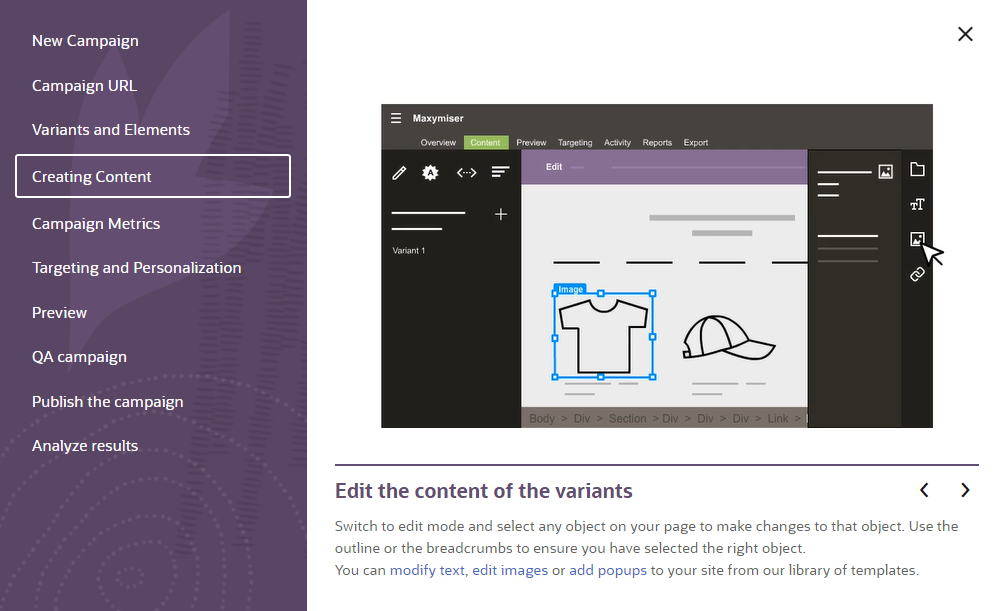
Day 1 Experience
Additionally Campaign Designer UI enhancements are a useful guide as you create and QA your first campaign in Campaign Designer.
- You can launch the QA Tool from within Campaign Designer. You no longer need to use the Help Center to find the URL parameter to launch the QA Tool.
- We have provided a Campaign Tutorial if you are using Maxymiser for the first time.
Steps to Enable
You don't need to do anything to enable this feature.
Maxymiser has updated and applied Redwood themed designs to the following components:
- Home
- Reporting
- QA Tool
- Activity
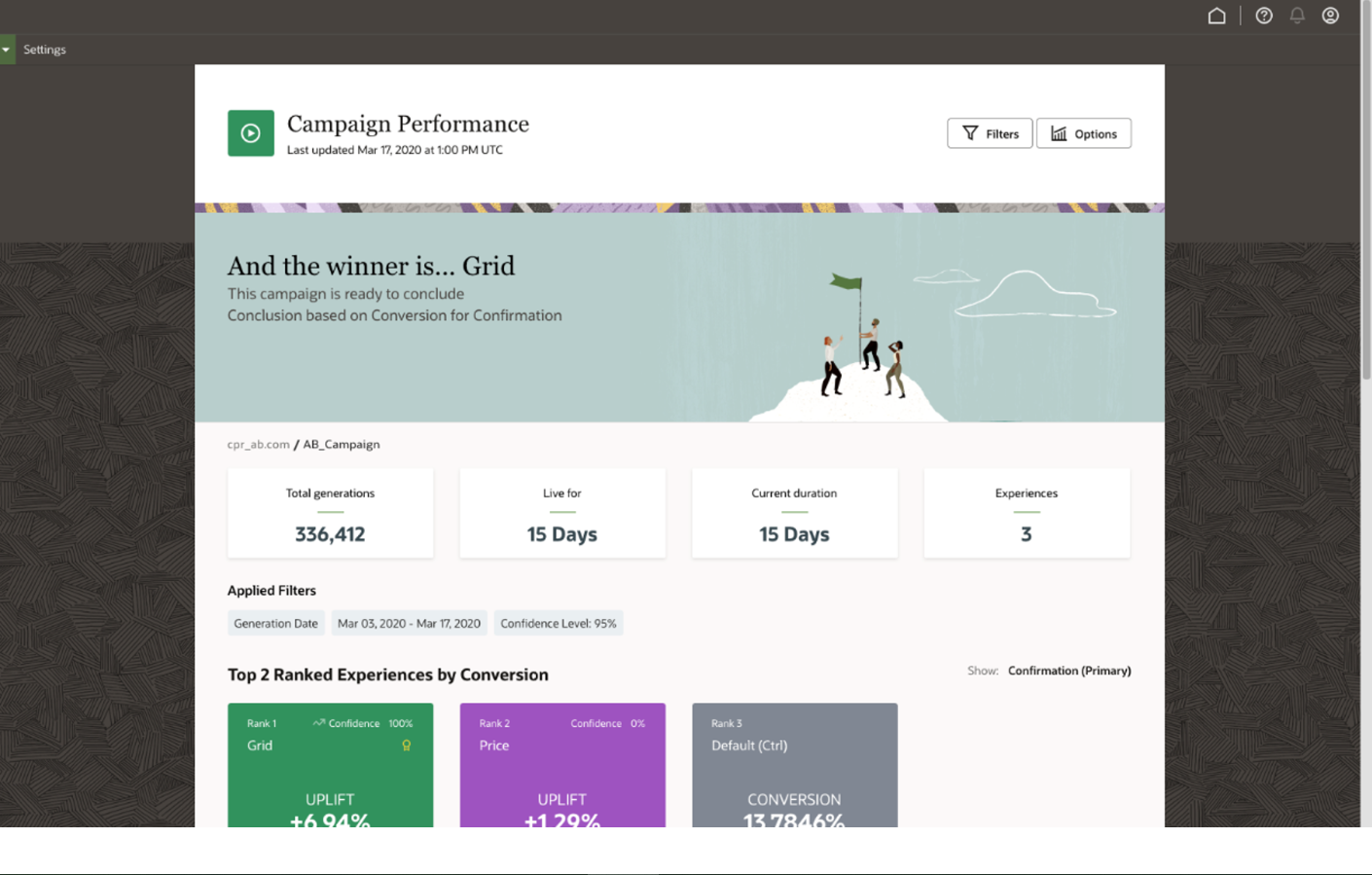
Redwood UI
We are aligning with Redwood, Oracle’s approach to the next generation product and communication design, user experience platform, and brand design system.
Steps to Enable
You don't need to do anything to enable this feature.
Reporting Enhancements - Compare
You can now compare multiple experiences for the control in the Action Breakdown widget of the Campaign Performance Report.
This saves you time by making it easier to compare multiple experiences at a glance.
Steps to Enable
You don't need to do anything to enable this feature.
You can now use the Engage library to visually add popups to a Single Page Application (SPA) site.
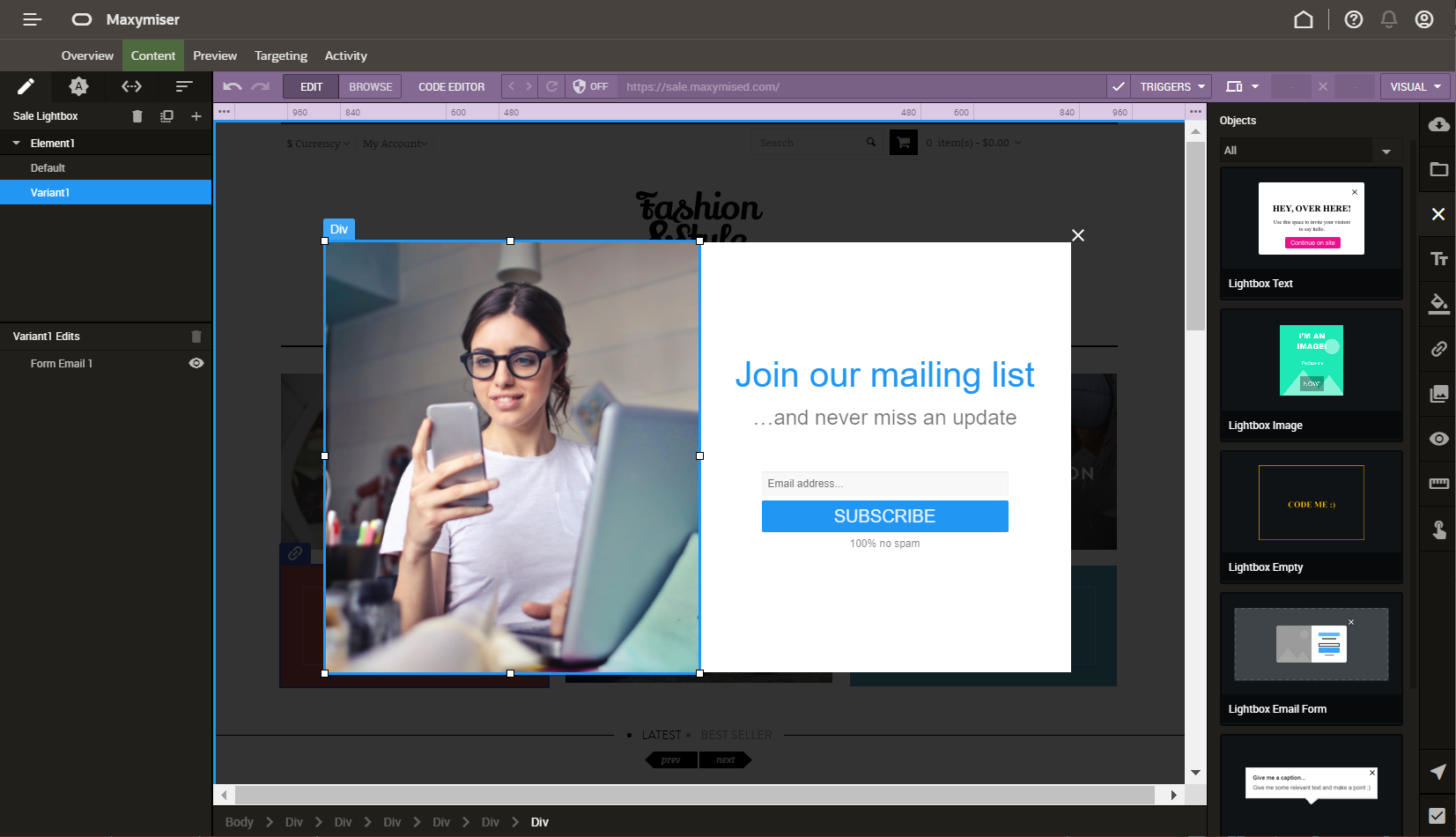
SPA Engage
You no longer require a developer to code the popups - all the functionality for displaying and closing the popup is available out of the box.
Steps to Enable
This feature requires Site API version 1.26.
SPA support must be enabled on your site. If you have enabled SPA support for your campaign and you see a URLs button instead of Triggers, then you may be using our old version of SPA support. To upgrade please contact My Oracle Support (MOS) or your Oracle Maxymiser representative.
Tips And Considerations
The template library contains the following popups:
- lightboxes
- callouts
- sticky bars
Key Resources
- Visit our Help Center to learn more.
An updated SDK is now available to provide support for the new Android Visual Editor, and new APIs.
The latest Android SDK version 1.4.2 contains:
- Support for the new Mobile Campaign Builder
- New APIs to retrieve list of custom attributes and their values for use between Web and App sites
- Updated PDF document
Steps to Enable
Please refer to the Key Resources section for the setup steps.
Key Resources
Android visual editor allows you to use Maxymiser's "what you see is what you get" (WYSIWYG) interface for Android native app testing and personalization.
You can deploy these campaigns without the need to update your app through the Google Play Store.
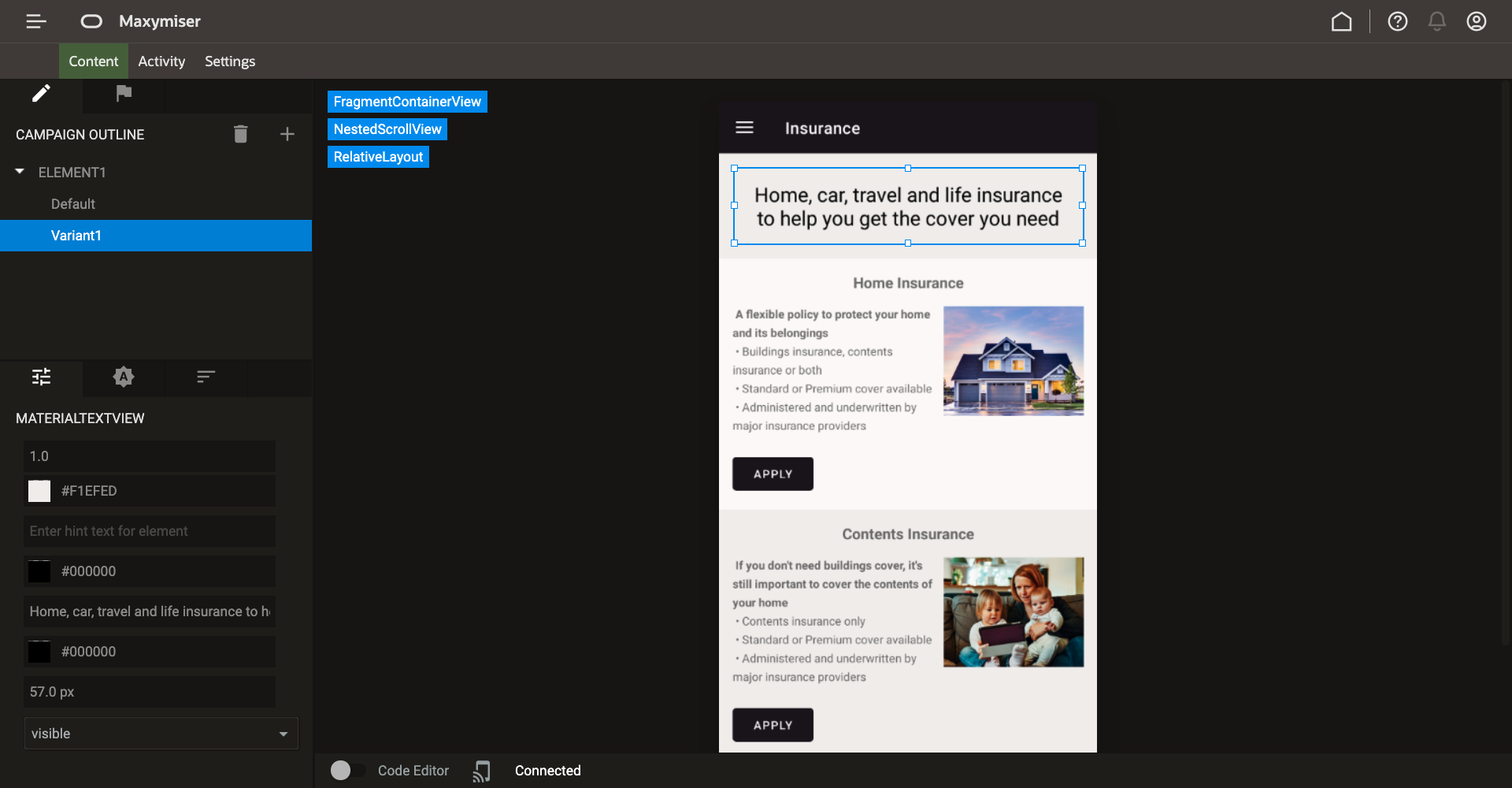
Android Visual Editor
Our visual editor enables you to:
- update UI elements visually with a WYSIWYG interface
- extend your campaign using JSON code
- view your updates in real time on your app, and within the UI
- publish and update without going through an app store update
Steps to Enable
The latest version of our Android SDK is required.
Key Resources
An updated SDK is now available to provide support for new APIs. The latest iOS SDK version 1.5.2 contains new APIs to retrieve lists of custom attributes, and their values for use between Web and App sites.
The new APIs enable you to retrieve custom attributes and their values.
Steps to Enable
Please refer to the Key Resources section for the relevant information.
Key Resources