
This document will continue to evolve as existing sections change and new information is added. All updates appear in the following table:
| Date | Product | Feature | Notes |
|---|---|---|---|
| 23 AUG 2021 | Created initial document. |
This guide outlines the information you need to know about new or improved functionality in this update.
GIVE US FEEDBACK
We welcome your comments and suggestions to improve the content. Please send us your feedback at omcdocumentation_ca@oracle.com.
Column Definitions:
Report = New or modified, Oracle-delivered, ready to run reports.
UI or Process-Based: Small Scale = These UI or process-based features are typically comprised of minor field, validation, or program changes. Therefore, the potential impact to users is minimal.
UI or Process-Based: Larger Scale* = These UI or process-based features have more complex designs. Therefore, the potential impact to users is higher.
Features Delivered Disabled = Action is needed BEFORE these features can be used by END USERS. These features are delivered disabled and you choose if and when to enable them. For example, a) new or expanded BI subject areas need to first be incorporated into reports, b) Integration is required to utilize new web services, or c) features must be assigned to user roles before they can be accessed.
| Ready for Use by End Users Reports plus Small Scale UI or Process-Based new features will have minimal user impact after an update. Therefore, customer acceptance testing should focus on the Larger Scale UI or Process-Based* new features. |
Customer Must Take Action before Use by End Users Not disruptive as action is required to make these features ready to use. As you selectively choose to leverage, you set your test and roll out timing. |
|||||
|---|---|---|---|---|---|---|
| Feature |
Report |
UI or |
UI or |
|
||
New Day 1 Experience - Campaign Settings
Use Campaign Settings as you create your campaign.
Maxymiser now ensures you are aware of Campaign Settings when you create a new campaign. Campaign Settings allow you to easily enable the following:
- SPA Support option: Use with Single Page Application framework sites.
- Cross Device: Identified customers will see the same experiences and will be counted consistently across all devices.
- Low Traffic: Optimize for low traffic - less than 1000 generations per day per experience.
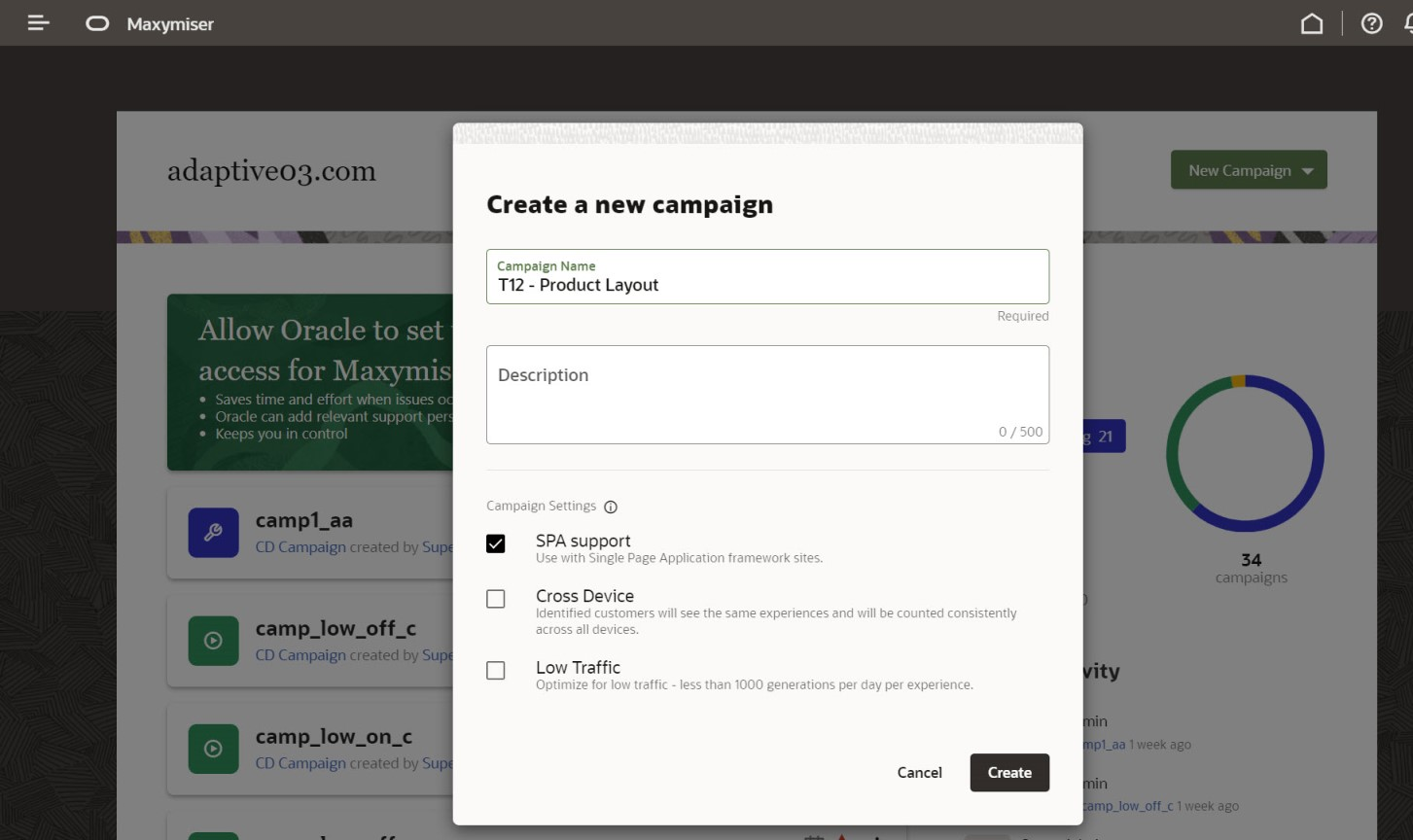
New Day 1 Experience - Campaign Settings
If you use Single Page Application support, Cross Device or Low Traffic, you can easily select these settings as you create your campaign.
Please note that these settings are available to you as you create your campaign.
Steps to Enable
You don't need to do anything to enable this feature.
SPA Engage Recommendation Widget
Maxymiser now adds support for the Recommendations widget in Single Page Application (SPA) Campaigns.
You can now add a Recommendations widget to your campaign and visually configure the strategy and layout. Recommendations can be shown to visitors who visit the page that matches either a HTML selector or a URL.
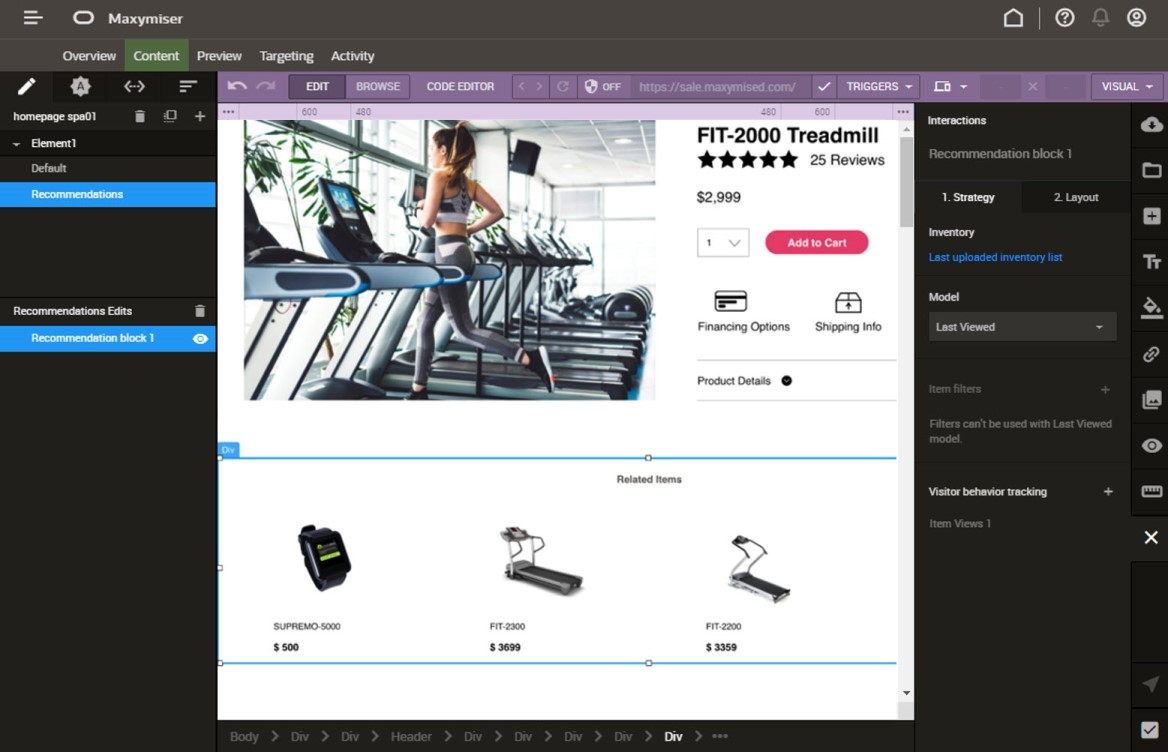
SPA Engage Recommendation Widget
If you have a Single Page Application site, you will be able to use the ready-to-use Recommendations template to get started quickly.
Steps to Enable
This feature requires Site API version 1.26.
Key Resources
- To learn more, visit our Help Center.
Google Analytics 4 Integration
The new integration with Google Analytics 4 is now available.
Analyze your campaign visitors' experiences in Google Analytics 4 using segments, events, or dimensions in your reports.
Google enables customers to dual run with Google Universal Analytics and Google Analytics 4 - so now you can add both Google Analytics integrations in Maxymiser.
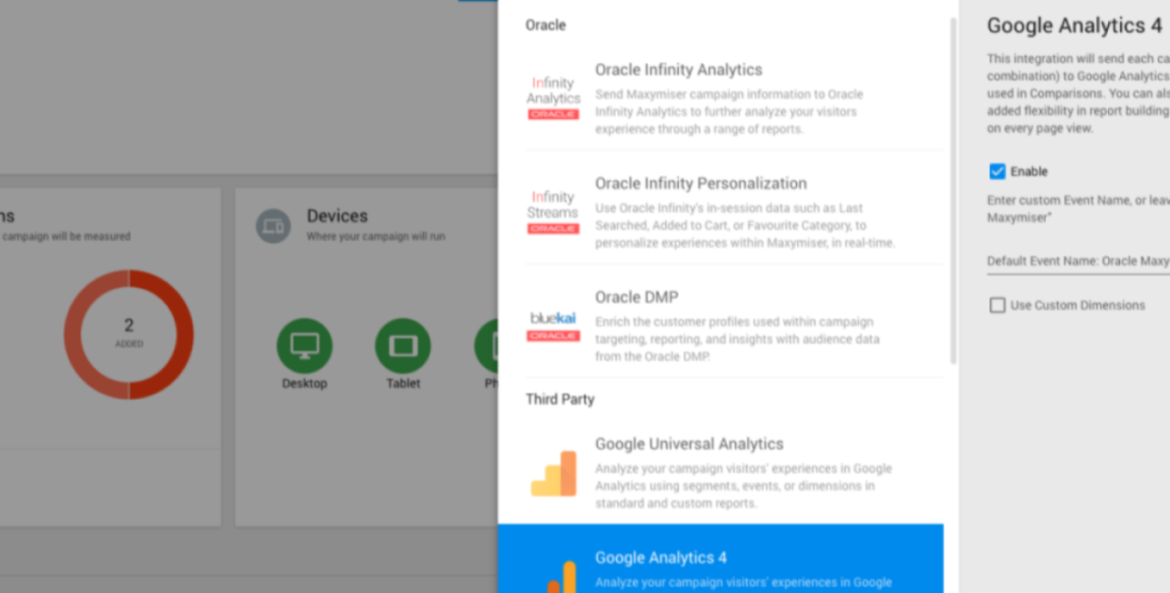
Maxymiser Integrations
With this new integration, you can send Maxymiser campaign data to Google Analytics 4 where you can analyze your existing metrics and data, alongside your Maxymiser element and variant combinations. This integration enhances your analysis efforts.
Steps to Enable
You don't need to do anything to enable this feature.
Key Resources
- To learn more, visit our Help Center.
The updated SDK provides support for new targeting-only custom attributes. In the previous update, Maxymiser added the ability for you to add up to 60 targeting-only custom attributes, bringing the total number of supported custom attributes to 100.
To make use of these new additional attributes, you need to update your apps with the new SDK. If you do not update SDKs, you will not be able to make use of these new attributes within your campaigns.
This allows you to make app campaigns even more relevant and personalized, due to greater flexibility and variability in what customer data can be harnessed in Maxymiser.
Steps to Enable
To upgrade to the latest version of our Android SDK (version 1.4.3, released on June 8, 2021), click the link where you can find all downloads and documentation.
Key Resources
- Android SDK downloads, and documentation can be found here.
The updated SDK provides support for new targeting-only custom attributes. In the previous update, Maxymiser added the ability for you to add up to 60 targeting-only custom attributes, bringing the total number of supported custom attributes to 100.
To make use of these new additional attributes, you need to update your apps with the new SDK. If you do not update SDKs, you will not be able to make use of these new attributes within your campaigns.
This allows you to make app campaigns even more relevant and personalized, due to greater flexibility and variability in what customer data can be harnessed in Maxymiser.
Steps to Enable
To upgrade to the latest version of our iOS SDK (version 1.5.3, released on June 8, 2021), click the link where you can find all downloads and documentation.
Key Resources
- iOS SDK downloads and documentation can be found here.
Click Metrics will display the exact number of clicks for every element on the page.
Heatmaps requires Maxymiser and Infinity.
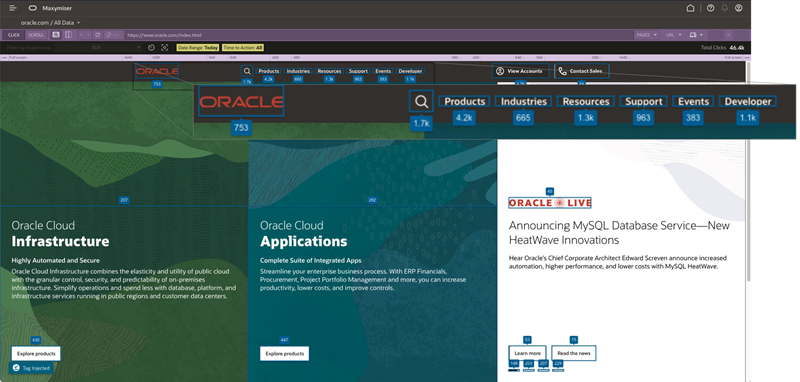
Heatmaps Click Metrics
Click Metrics within Heatmaps allows you to drill down and view the specific number of clicks for every element on the page, providing another layer of insight. This can be useful when certain areas such as Navigation all receive a lot of clicks, so it can be difficult to distinguish where most users go by simply looking at the heat indicators.
Click Metrics can be enabled by clicking the new Metrics icon (next to Click and Scroll), to view more specific click data.
Steps to Enable
You don't need to do anything to enable this feature.
Key Resources
- To learn more, visit our Help Center.