
This document will continue to evolve as existing sections change and new information is added. All updates appear in the following table:
| Date | Product | Feature | Notes |
|---|---|---|---|
| 19 NOV 2021 | Created initial document. |
 HAVE AN IDEA?
We’re here and we’re listening. If you have a suggestion on how to make our cloud services even better then go ahead and tell us. There are several ways to submit your ideas, for example, through the Ideas Lab on Oracle Customer Connect. Wherever you see this icon after the feature name it means we delivered one of your ideas.
GIVE US FEEDBACK
We welcome your comments and suggestions to improve the content. Please send us your feedback at omcdocumentation_ca@oracle.com.
DISCLAIMER
The information contained in this document may include statements about Oracle’s product development plans. Many factors can materially affect Oracle’s product development plans and the nature and timing of future product releases. Accordingly, this Information is provided to you solely for information only, is not a commitment to deliver any material, code, or functionality, and should not be relied upon in making purchasing decisions. The development, release, and timing of any features or functionality described remains at the sole discretion of Oracle.
This information may not be incorporated into any contractual agreement with Oracle or its subsidiaries or affiliates. Oracle specifically disclaims any liability with respect to this information. Refer to the Legal Notices and Terms of Use for further information.
Column Definitions:
Report = New or modified, Oracle-delivered, ready to run reports.
UI or Process-Based: Small Scale = These UI or process-based features are typically comprised of minor field, validation, or program changes. Therefore, the potential impact to users is minimal.
UI or Process-Based: Larger Scale* = These UI or process-based features have more complex designs. Therefore, the potential impact to users is higher.
Features Delivered Disabled = Action is needed BEFORE these features can be used by END USERS. These features are delivered disabled and you choose if and when to enable them. For example, a) new or expanded BI subject areas need to first be incorporated into reports, b) Integration is required to utilize new web services, or c) features must be assigned to user roles before they can be accessed.
| Ready for Use by End Users Reports plus Small Scale UI or Process-Based new features will have minimal user impact after an update. Therefore, customer acceptance testing should focus on the Larger Scale UI or Process-Based* new features. |
Customer Must Take Action before Use by End Users Not disruptive as action is required to make these features ready to use. As you selectively choose to leverage, you set your test and roll out timing. |
|||||
|---|---|---|---|---|---|---|
| Feature |
Report |
UI or |
UI or |
|
||
Maxymiser Testing and Optimization
Campaign Management API Updates
Oracle Maxymiser Campaign Management APIs are updated as follows:
- New endpoint - Read Campaign Actions for Production
- New endpoint - Read Campaigns for Production
- Updated the Read Campaigns and Read Campaign endpoints to return the links to the Campaign and the Campaign Performance Report
- Updated the Read Campaigns endpoint to return the link to the Campaign Dashboard
Use the API to retrieve details about any of your published Actions. If you use our API to display Maxymiser campaign details in your UI, you can now display a link that will take users directly to a Maxymiser campaign or the Campaign Performance Report.
Steps to Enable
Review the REST service definition in the REST API guides, available from the Oracle Help Center > your apps service area of interest > REST API. If you're new to Oracle's REST services you may want to begin with the Quick Start section.
Oracle Maxymiser has updated browser rules to recognize Instagram, Facebook, and Twitter browsers.
If you have included or excluded the following browsers in any live campaigns:
- Android WebView
- iOS In-App (was detected as 'Safari' on 'Phone' before release)
then you must update your campaigns to ensure the 'Instagram Mobile App', 'Facebook Mobile App', or 'Twitter Mobile App' browsers are also included or excluded accordingly.
You can now filter by specific social media browsers. Previously, there was no way to include and exclude these newer browsers. As of 21D, we support them individually so you can decide in which of these browsers you would like your campaigns and personalizations to take place, and which ones should be excluded from your campaigns. This gives you greater flexibility in choosing your supported social media browsers.
Steps to Enable
You don't need to do anything to enable this feature.
The Oracle Maxymiser app integrates Oracle Eloqua and Oracle Maxymiser by using Eloqua contact attributes to create personalized experiences in Maxymiser.
The app allows you to leverage both Eloqua and Maxymiser to create a connected journey experience spanning email and web site personalization.
Steps to Enable
To enable this feature you need to log a Service Request (SR).
- Follow the install URL provided:
- For Maxymiser U.S. customers: https://login.eloqua.com/Apps/Cloud/Admin/Catalog/Add/0d72609a-76f0-4615-94c1-f93b596f8980/66-E6-02-C3-C9-AB-79-77-93-11-BF-D3-61-23-EF-9B
- For Maxymiser customers outside of the U.S.: https://login.eloqua.com/Apps/Cloud/Admin/Catalog/Add/7b4c0fb1-03e4-45eb-af76-52943b89f8cb/12-EE-CF-D0-D3-D0-C8-5E-6B-33-46-64-C2-49-51-00
- Click Get App.
- Log in with your Eloqua credentials, if required.
- Click Accept and Install to add the app to your Apps list.
- Click Sign In to grant permission for the app to communicate with Eloqua on your behalf.
- Click Accept or switch users.
Tips And Considerations
- You must have both Oracle Maxymiser and Oracle Eloqua to use this integration app.
Key Resources
Role Information
The installation process must be done by a user with client administrator rights.
The Oracle Maxymiser iOS SDK has updated its version numbering format. Our iOS SDK version numbering format is updated from 4 non-negative integers to 3 non-negative integers.
- Previous version: 1.5.3.29
- New version: 1.5.4
This change complies with Apple's AppStore requirements.
Steps to Enable
To upgrade to the latest version of our iOS SDK (version 1.5.4, released on September 30, 2021), click the link where you can find all downloads and documentation.
Key Resources
Targeting-Only Attributes Support in App Campaigns
Oracle Maxymiser has an updated Targeting user interface for the Native App campaign, which enables you to add new Targeting-only attributes. We have increased the Custom Attribute limit to 100 per site by creating availability for an additional 60 targeting attributes.
This change allows you to make app campaigns even more relevant and personalized, thanks to greater flexibility and variability in what customer data can be harnessed in Maxymiser.
Steps to Enable
You don't need to do anything to enable this feature.
Key Resources
Oracle Maxymiser has added keyboard support for the following areas:
- Campaign Designer
- Campaign Performance Report
- Test Duration Calculator
- Campaign Insights
- Audience Insights
The keyboard support updates in Campaign Designer and Reporting helps make these areas of the product more accessible for all Maxymiser users.
Steps to Enable
You don't need to do anything to enable this feature.
Tips And Considerations
For the above areas mentioned that have keyboard support, these are the following keyboard shortcuts you can use:
- Tab key for forward navigation and Tab+Shift keys for backward navigation to access interactive elements
- Enter key
- to select and unselect checkboxes (for example, to Enable an Integration)
- to set an input value (for example, URL input)
- to open a panel or drop-down list
- Esc key to close overlay panels (for example, Settings, Publish, Integrations, and so on)
- Left and Right arrow keys to increase and decrease value in slider controls (for example, Traffic Allocation)
Oracle Maxymiser has an updated navigation menu. As part of this change, the Site Switcher, which you can use to toggle between your sites, has moved from within the Site Menu to the branding bar at the top of the page. This change ensures that it is always visible to you.
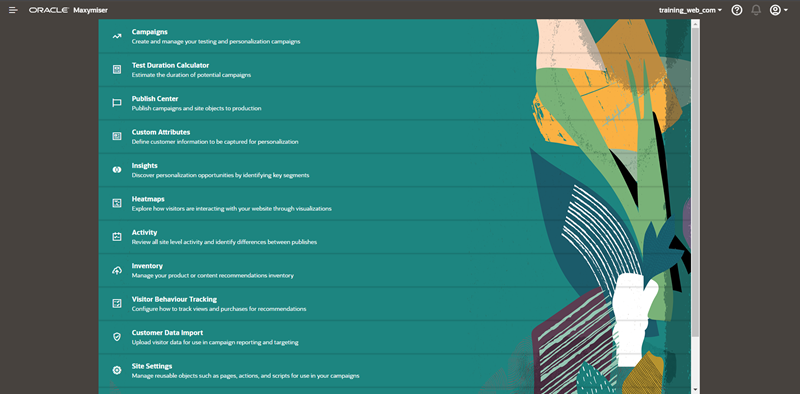
New Maxymiser Navigation Menu
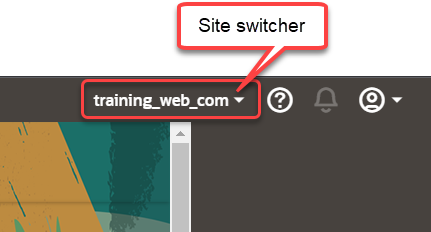
Site Switcher
By making the Site Switcher always visible, you can toggle more quickly between your different sites. The navigation menu changes bring a more consistent experience to users of the Oracle CX products.
Steps to Enable
You don't need to do anything to enable this feature.