
This document will continue to evolve as existing sections change and new information is added. All updates appear in the following table:
| Date | Module | Feature | Notes |
|---|---|---|---|
| 12 SEP 2022 | Created initial document. |
 HAVE AN IDEA?
We’re here and we’re listening. If you have a suggestion on how to make our cloud services even better then go ahead and tell us. There are several ways to submit your ideas, for example, through the Ideas Lab on Oracle Customer Connect. Wherever you see this icon after the feature name it means we delivered one of your ideas.
GIVE US FEEDBACK
We welcome your comments and suggestions to improve the content. Please send us your feedback at oracle_fusion_applications_help_ww_grp@oracle.com.
DISCLAIMER
The information contained in this document may include statements about Oracle’s product development plans. Many factors can materially affect Oracle’s product development plans and the nature and timing of future product releases. Accordingly, this Information is provided to you solely for information only, is not a commitment to deliver any material, code, or functionality, and should not be relied upon in making purchasing decisions. The development, release, and timing of any features or functionality described remains at the sole discretion of Oracle.
This information may not be incorporated into any contractual agreement with Oracle or its subsidiaries or affiliates. Oracle specifically disclaims any liability with respect to this information. Refer to the Legal Notices and Terms of Use for further information.
Column Definitions:
Report = New or modified, Oracle-delivered, ready to run reports.
UI or Process-Based: Small Scale = These UI or process-based features are typically comprised of minor field, validation, or program changes. Therefore, the potential impact to users is minimal.
UI or Process-Based: Larger Scale* = These UI or process-based features have more complex designs. Therefore, the potential impact to users is higher.
Features Delivered Disabled = Action is needed BEFORE these features can be used by END USERS. These features are delivered disabled and you choose if and when to enable them. For example, a) new or expanded BI subject areas need to first be incorporated into reports, b) Integration is required to utilize new web services, or c) features must be assigned to user roles before they can be accessed.
| Ready for Use by End Users Reports plus Small Scale UI or Process-Based new features will have minimal user impact after an update. Therefore, customer acceptance testing should focus on the Larger Scale UI or Process-Based* new features. |
Customer Must Take Action before Use by End Users Not disruptive as action is required to make these features ready to use. As you selectively choose to leverage, you set your test and roll out timing. |
|||||
|---|---|---|---|---|---|---|
| Feature |
Report |
UI or |
UI or |
|
||
Announcing More Information to Recruiting Users Using a Screen Reader |
||||||
Sourcing Candidates Recommended by LinkedIn
A new section in the requisitions Sourcing tab, LinkedIn Recommendations, lets you view candidates that are recommended by LinkedIn. From there you can link candidates that you're interested in to requisitions and send them an InMail. If you're not interested in a particular candidate you have the option to pass on that candidate and see the next candidate recommended by LinkedIn.
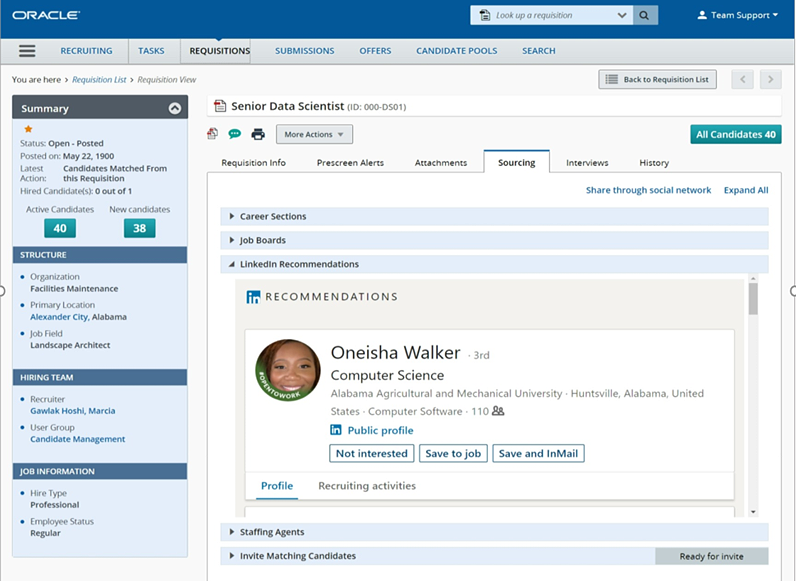
New LinkedIn Recommendations Section in Requisition Sourcing Tab
This feature streamlines the sourcing process by allowing you to directly source candidates recommended by LinkedIn from within Recruiting.
Steps to Enable
You don't need to do anything to enable this feature.
Tips And Considerations
LinkedIn RSC must be activated and recruiters must have the new Access LinkedIn Recommended Matches permission to take advantage of this feature. To access this new setting, follow the steps below.
- Go to Configuration and click Settings under the Recruiting section.
- Refine by name and enter LinkedIn Recommended Matches. Click Refresh.
- Select the setting by clicking on its name.
- Click Edit and select Yes or No.
- Click Save.
The requisition must be posted externally to allow sourcing through LinkedIn.
Announcing More Information to Recruiting Users Using a Screen Reader
More information is announced to Recruiting users using a screen reader as they work their way through several areas within Recruiting.
When a Recruiting user uses a screen reader and takes any of the below actions, the corresponding field labels are announced.
- Adds interview participants in Evaluation Management
- Uses quick filters in candidate lists
- Sends correspondence
Increases the amount of audible information and guidance to Recruiting users using screen readers.
Steps to Enable
You don't need to do anything to enable this feature.
Resending Previously Sent Correspondence
You can resend a previously manually sent email to candidates. You access this ability in the History tab of a submission. You're given the opportunity to edit the email header prior to resending.
To access the previously sent email, click on the Details/Comments of the Correspondence sent history event. Once open, you're given choices that allow you to resend the email as-is or to edit some information prior to resending.
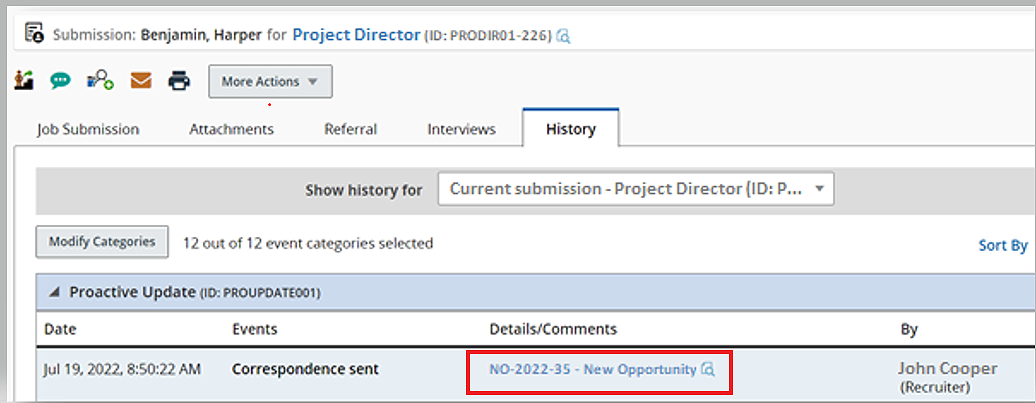
Correspondence Sent History Event in Submissions
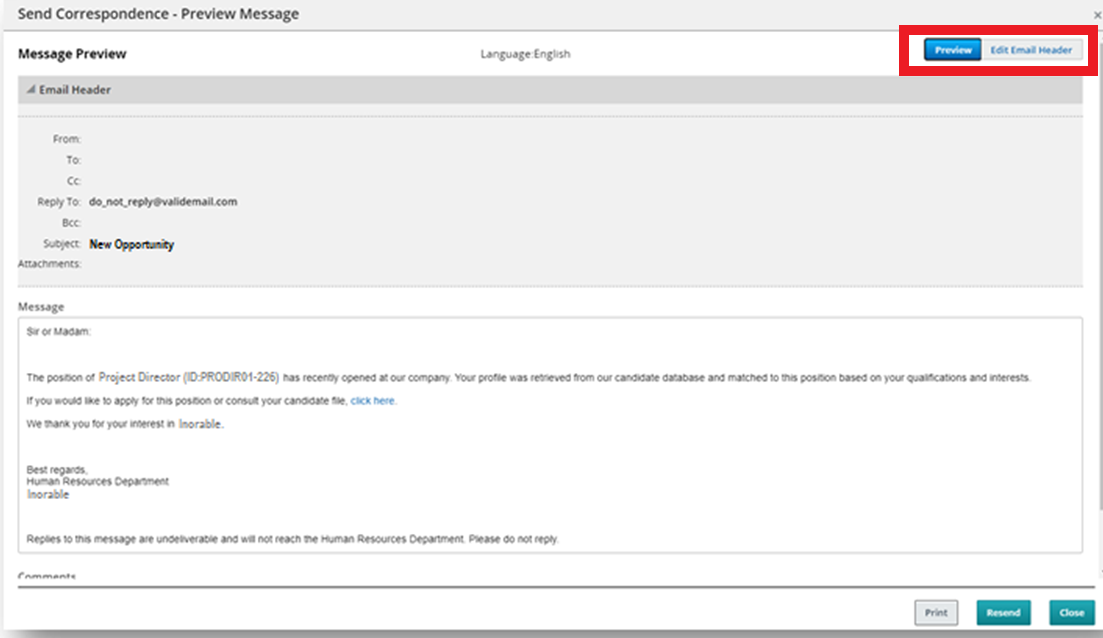
Resend Email
This feature eases the process of resending emails to prospective candidates.
Steps to Enable
You don't need to do anything to enable this feature.
Tips And Considerations
Before resending an email you can change the recipient's email address, add additional email addresses and edit the subject of the email.
A history event is logged when resending an email.
Viewing Search Results With 50 Candidates Per Page
The Number of items listed per configurable list page setting introduced in Release 21D now includes the option to view 50 candidates per page of candidate search results.
When scrolling up and down and left to right on your desktop, key information, options and navigation elements remain displayed for your use.
Note that if you choose to display 50 candidates per page of candidate search results, you will also display 50 submissions per Submission List page.
Provides a more flexible user experience by providing the option to view 50 candidates per page of candidate search results.
Steps to Enable
You don't need to do anything to enable this feature.
Tips And Considerations
While there are no steps necessary to enable this feature your System Administrator can configure the setting to show you 50 submissions instead of the default 15.
System Administrators should follow the steps below to access and edit the new setting.
- Go to Configuration and click Administration under the Recruiting section.
- Click Settings under General Configuration.
- Find the Number of items listed per configuration list page setting and click on the name of the setting to open it.
- Click Edit and select 50 as the value.
- Click Save.
Searching for Candidates in LinkedIn
You can search for candidates on LinkedIn directly from within Recruiting if you have LinkedIn RSC activated.
When you kick off a search for candidates in Recruiting using your keyword search terms, those terms are also applied to LinkedIn. From your search results, you have a new value available to select from the More Actions menu, Search for Candidates in LinkedIn. When you select this, a new browser tab opens and displays the LinkedIn search results based on the keywords you entered in Recruiting.
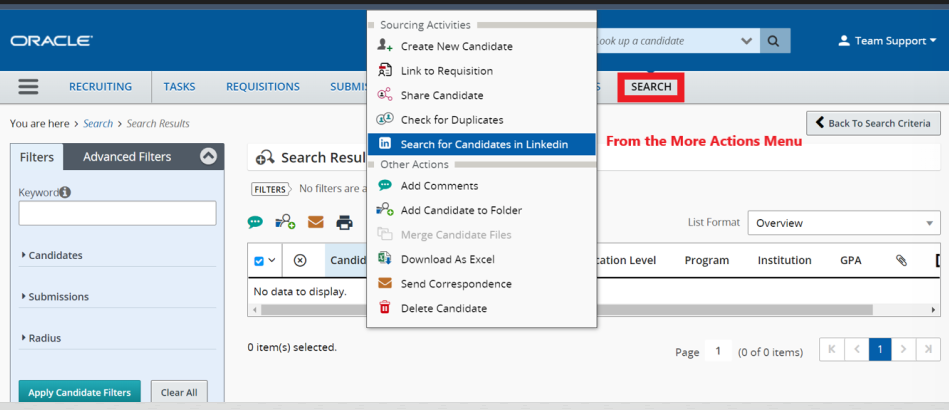
Search for Candidates in LinkedIn from More Actions Menu in Search
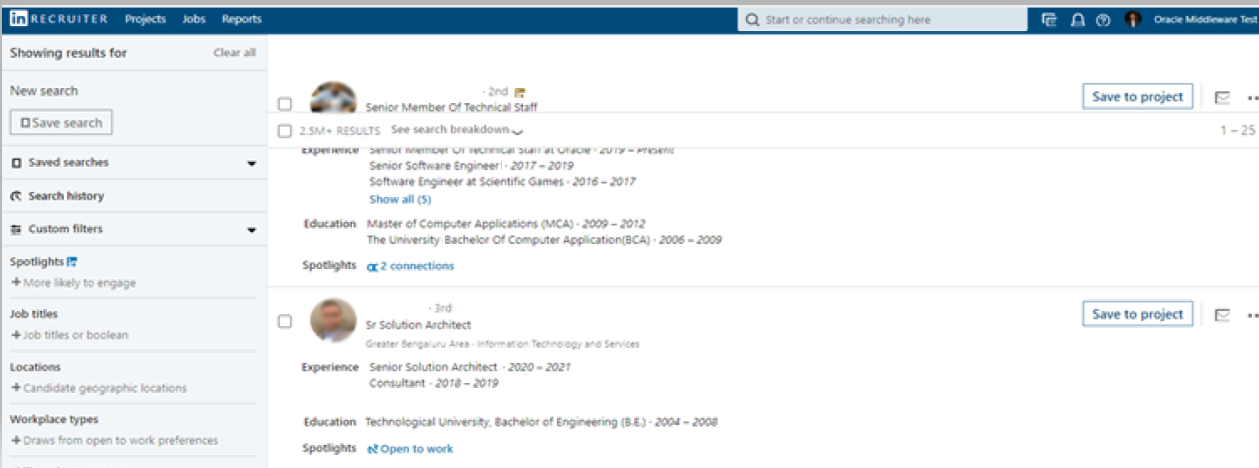
Candidate Search from Within LinkedIn
This feature streamlines the process of searching for candidates in LinkedIn by allowing direct access to LinkedIn from within Recruiting.
Steps to Enable
You don't need to do anything to enable this feature.
Reporting on OFCCP Protected Candidates
Two new fields are available for determining which candidates are OFCCP-protected. The 2 new fields are:
- OFCCP Protected
- OFCCP Expiration Date
These reports allow you to discern between OFCCP-protected candidates and those that are not, while also providing the expiration date for each candidate's OFCCP protection.
This feature eases the process of determining which candidates are OFCCP-protected.
Steps to Enable
You don't need to do anything to enable this feature.