
Oracle Planning and Budgeting Cloud – August Update
Announcements and New Features
Administrators can set up a simple form so that Planners' data is automatically saved when they move out of a cell, and values are aggregated immediately. The affected cells are displayed in green. To enable automatic save, the new Grid Properties option ‘Enable Autosave’ should be enabled in the Form design. With that option selected, administrators can also select ‘Run Form Rules on Autosave’ which updates dynamically calculated cells that depend on the changed cell values.
When working with a simple form in the simplified interface, if an administrator has set up the form to support Undo, you can undo your actions by pressing Ctrl+Z (or clicking or tapping Undo on the Data tab). Press Ctrl+Z repeatedly to successively undo actions that you've taken since you last opened or refreshed the form. When you use Undo, dependent cells, such as those that are dynamically calculated, are reevaluated.
Administrators can define rules (called valid intersection rules) that filter or restrict certain cell intersections for data entry in forms. Valid intersection rules prevent users from entering data into invalid intersections.
Users can create Smart Forms – new form templates that support Excel formula-based calculations – in Smart View ad hoc analysis with personalized and instant calculations that don't affect the rest of the Planning application. You can then execute the calculations in Planning that you created in a Smart Form.
Planners can use the new sandbox capabilities to keep their work private as they work on their plans. Planners may want to experiment with various outcomes in a sandbox without having others see their changes and outcomes until they’re finished. When they’re ready to share their results with others, they publish the data.
Users can print forms or save them in PDF format with embedded comments and supporting detail included in the output. These annotations can be printed by themselves or as part of the form.
For more meaningful and complete reporting, planners can synchronize data updates (both numeric and non-numeric data) between their plan types when they save the data on their input forms. For example, if they are planning expenses, their reports are updated with that information instantly.
Built-in intelligence now quickly saves new or changed data in simple forms when Planners click or tap Save. Instant Save works unless the structure of the form has changed (for example, if a row was suppressed because it contained no data).
New shortcut keys are available when you access simple forms in the simplified interface from the desktop.
Navigation shortcuts—Planners can now navigate the form using new keyboard shortcuts. For example, to move to the first cell in the form, press Ctrl+Home.
Data entry shortcuts—New data entry shortcuts provide built-in calculators. For example, to enter the value in thousands, enter 5K for 5,000.
Formatting shortcuts—Key combinations enable Planners to quickly format values. For example, to bold a value, press Ctrl+Alt+B.
Submit Data Without Refresh Option
Use the new Submit Data Without Refresh option to submit modified cells, also called dirty cells, from Planning Ad Hoc without first refreshing. The new Submit Data Range option lets you select and then submit contiguous and non-contiguous single cells and cell ranges from Planning Ad Hoc.
Customize the extension update process so that Smart View users can control when they install, update, and remove extensions.
Use the new Diagnostics tools to collect files and screenshots to submit to Oracle Support when you encounter a Smart View issue that requires assistance. For Diagnostics to appear, you will need to enable Show Diagnostics Group on the Smart View Ribbon Option in the Options dialog box.
Modified Member Selection Dialog Boxes
Use the modified Member Selection dialog boxes for business rules and for modifying user variables on forms that now resemble the standard Member Selection dialog boxes accessed from the data provider ribbons. The new dialog box offers improved performance when selecting business rule members and while modifying user variables.
Use the Sheet Information dialog box in Microsoft Excel that now presents consistent information including connection status for the Smart View providers.
Predictive Planning can now be used with Planning ad hoc grids, reports, Oracle Smart View for Office Smart Queries, saved ad hoc grids, and sandboxes.
You can use Quick Predict, which enables you to run and paste predictions with a few mouse clicks or keystrokes.
Prediction chart enhancements enable you to directly manipulate predicted data series. You can adjust predictions without retyping predicted values.
New forecasting techniques improve forecast accuracy, particularly at long lead times: Damped Trend Smoothing Nonseasonal, Damped Trend Additive Seasonal, and Damped Trend Multiplicative Seasonal.
You can generate a trial balance in the Fusion GL Cloud application, and then pick that file up and load it to Planning using a few simple constructs in Data Management.
You can write data directly back to the Fusion GL Cloud service from Planning and Budgeting Cloud in a single process. You can also generate a file using data management, download that file, and then load that file to any other system. The data extract and download process can be fully automated using the EPMCopy and EPMAutomate utilities.
A robust data synchronization feature enables you to easily move data between Planning and Essbase ASO cube applications created by Planning without having to create a data file from the source application. You specify the source and target application, and then map the data. Given the powerful mapping features already available, the data can be easily transformed from one application to another application.
Extracting Integrated Planning and Fusion Data to a Flat File
After completing a planning or budgeting cycle, write data out to a text file for use in an external application. Exporting data is facilitated through the use of a custom application.
When the source system is a file-based data load, use the new Import Format Builder feature to map source fields graphically to target dimension members instead of typing the starting position and the field length. This feature is available for both fixed and delimited files.
New POV lock options enable you to lock the POV for all locations Locking the POV prevents locations from modifying the data. When a location has been locked for a particular period or category, users cannot import, validate, export, or rerun the validation report. Data in a locked POV can only be loaded when the locked POV is “unlocked.”
New Design-Time Prompt Functions for Templates
You now have more control over design-time prompts for templates. For example, get a list of members that are common or not common between two design time prompts, add or remove quotes in a string, and convert characters in a string to upper or lower case.
Access new custom defined functions from within the function selector of Calculation Manager script, formula, and condition components. These custom defined functions allow you to perform tasks such as removing and adding single or double quotes to a text string, comparing two strings, among others.
Finding and Replacing Text in the Variable Designer
You can now find and replace text within the Variable Designer.
Aggregation System Template Enhancements
An enhanced aggregation system template makes it easier to design business rules for aggregations.
The script editor includes new enhancements, such as word wrap, Go to Line, and auto-suggestions for functions in a dialog box.
Filtering Objects in the System View
You can now apply a filter to the System View to limit the display of objects for better usability.
Any business rule can be analyzed, not just graphical rules. You can click on each row that contains analysis information to see the following: execution time, block count, number of potential and counted blocks, and scope of the Fix statement.
You can customize the columns to display and the order in which they display in various Views.
Comparing the Scripts of a Saved Rule to a Changed Rule
You can compare business rules side-by-side in a window in the Designer view.
Launching Planning Business Rules and Viewing Logs
When you have a business rule open for viewing or editing in the Rule Designer, you can launch the rule and view any logs generated in the Log Messages tab.
Enabling Email Notification When Planning Business Rules are Launched
In Rule Designer, you can enable Planning business rules to send an email notification when rules launch successfully or with errors. You enter the email address of the user to be notified in Planning.
Support for Parallel Processing
You can run calculation scripts in parallel to speed up calculation.
A new Financial Reporting Workspace preference allows you to launch a Query Ready export of a Financial Reporting report to either a new workbook or a new worksheet.
A new release of Financial Reporting Studio will be available with the Planning and Budgeting Cloud August update. Installation of this release is required to work with July update of Planning and Budgeting. Going forward, any subsequent changes to the Planning and Budgeting Cloud Service will not require a re-installation of Financial Reporting Studio.
Oracle Planning and Budgeting Cloud - September Update
Announcements and New Features
This section provides announcements and information about new features included in this update.
Oracle had previously announced that the Simplified Interface will become the standard interface starting with the November release. Based on customer feedback to this announcement and internal analysis of actual usage, Oracle will delay this transition until the Simplified Interface is more widely adopted by our customers.
Removal of Internet Explorer 9 Support
As previously announced (starting the June Release Content Document), beginning this release Oracle no longer supports the use of Internet Explorer Release 9 to access the service. The service will work if you continue to access it using Internet Explorer 9. However, Oracle will not fix any Internet Explorer 9 specific issues that you encounter.
Smart View Release 11.1.2.5.500, which was originally announced in the previous release, is now available. Install the new release to use the features listed in the Smart View for Office section in the August Release Content Document. You must install this release between now and November 6, 2015 to ensure compatibility. See Installing Clients for instructions.
Best Practice: Use Multiple Screenshots in Feedback to Expedite Issue Resolution
To expedite the resolution of issues that you find in the service, Oracle recommends that you add multiple screenshots to your feedback submissions. Adding a succession of screenshots that show your progress through a task enables you to create a storyboard that shows Oracle how to recreate your issue.
The Feedback panel is displayed when you select the Provide Feedback option. You use the buttons in this panel to highlight or hide areas on the screen, to capture screenshots, and to enter a description of the issue that you face. Click the Add button to capture the initial screenshot. After you capture the screen, the button name changes to Capture.
You can now open another screen and click the Capture button to initiate another screen capture.
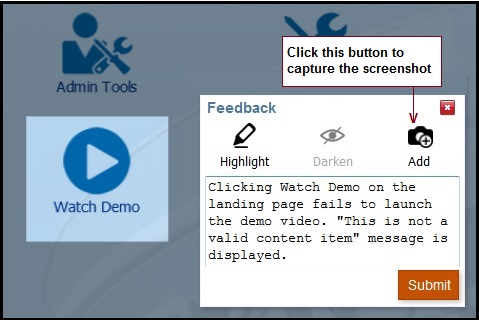

On clicking Capture, the button label changes to Add, indicating that you are ready to capture the screen. You can now enter additional problem description and then capture the screen by clicking the Add button. See Providing Feedback to Oracle for a detailed procedure.

Data Management Operations Using the EPM Automate Utility
A new version of the EPM Automate Utility is available with this update. This version implements two new Data Management commands (rundatarule and runbatch), which enable Service Administrators to use the EPM Automate Utility to automate the execution of existing data rules and batch definitions. For detailed information, see Command Reference.
Install the new version now if you need to run the new Data Management commands. If not, you may install this version anytime before November 6, 2015 to ensure compatibility. See Installing Clients for instructions.
Deprecation of File Transfer Utility
Oracle is committed to providing comprehensive tools to automate many of the tasks that Service Administrators can perform within instances. To this end, Oracle has enhanced the capabilities of the EPM Automate Utility, which can now perform all the activities that you can complete using the File Transfer Utility (EPMCopy.exe). As a result, the File Transfer Utility will be deprecated starting with the January 1, 2016 service update.
File Transfer Utility commands can easily be converted to EPM Automate commands. For example, consider the following File Transfer Utility command (which connects to a service instance, uploads a file, and then runs a data rule):
EPMCopy.exe USERNAME=user PASSWORD=password FROM=D:\WORK\FDMEE\PBCS\GLData.dat TO=http://pbcs-server.oraclecloud.com/files/inbox/GLData.dat LOADDATA=Vision:Jan-15:Jan-15:REPLACE:STORE_DATA
The preceding command can be converted to these EPM Automate Utility commands to perform the same operations using similar parameters:
epmautomate login user password http://pbcs-server.oraclecloud.com
epmautomate uploadfile D:\WORK\FDMEE\PBCS\GLData.dat inbox
epmautomate rundatarule Vision Jan-15 Jan-15 REPLACE STORE_DATA GLData.dat
REST (Representational State Transfer) APIs
A set of REST APIs that enable the automation of service integration with other services (on-premises and cloud) are now available. Service Administrators can use these REST APIs to remotely perform these tasks:
- Work with Application Management versions and snapshots
- Work with Planning REST API versions, application, planning units, jobs, and members
- Import and export data
For more information, see the REST API for Oracle Planning and Budgeting Cloud Service Guide available in the Oracle Planning and Budgeting Cloud Help Center.
Drill Through for Calculation Manager
Planning users can now list, add, edit, and delete drill through definitions for plan types. You can also export drill through definitions to a Comma Separated Value (.CSV) file.
Exporting User Information from Identity Domain
From the My Services application, Identity Domain Administrators can now export user information into a Comma Separated Value file for review.
You use the Export button on the Users tab to export user. See Accessing My Services for instructions on accessing the My Services application. On clicking the Export button, the My Services application creates users.csv, which contains the first name, last name, email address, and user login of all the users belonging to the identity domain.
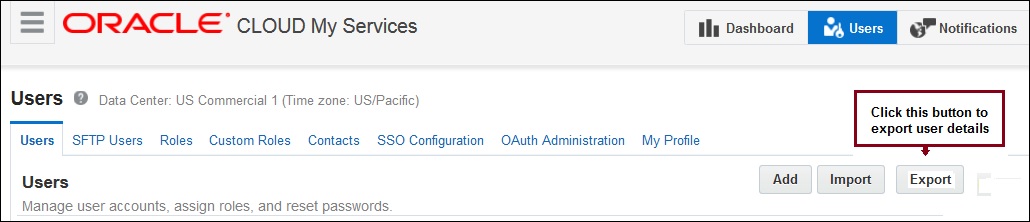
Download users.csv to a local computer to review user information for audit purposes.
Simplification of the Application Management Interface
Removal of Application Groups Node: Starting with this update, the Application Groups node of Application Management has been removed. The components that comprise the service are now listed under the Applications node as shown in the illustration.

Removal of EssaseCluster-1 Node: Starting with this update, the EssaseCluster-1 node that was present within the Application Groups node has been removed to simplify the user interface. This node referenced seeded data that could not be accessed from the service.
| Defect Number |
Description |
|---|---|
| 21682436/ |
You no longer receive the Planning provider error when performing ad hoc analysis sin an Excel worksheet grid that has an empty row and column between members. |
| 21611005 |
In HTML preview of reports, column headers are now aligned after you merge columns and then select Freeze Headers. |
| 21096770 |
You can now create additional folders under the Inbox using the Create Folder button in the File Browser. You can upload Data Management files into them and download files from them using the EPM Automate Utility. These folders, however, cannot be nested. |
Oracle Planning and Budgeting Cloud - October Update
Announcements and New Features
Configuration of IP Whitelist (Network Restricted Access)
As an Identity Domain Administrator or Service Administrator, you can now create a whitelist or blacklist of IP addresses, subnets, and Classless Inter-Domain Routing to control access to each service instance. See Setting Up Network Restricted Access for details.
New EPM Automate Utility Version
A new version of the EPM Automate Utility is available with this update. This version implements the feedback command, which enables Service Administrators to use the utility to send comments and feedback to Oracle. For detailed information, see Command Reference.
Install the new version now to use the new command. The new version, however, must be installed before December 4, 2015 to ensure compatibility. See Installing Clients for instructions.
Deprecation of File Transfer Utility
Oracle is committed to providing comprehensive tools to automate many of the tasks that Service Administrators can perform within instances. To this end, Oracle has enhanced the capabilities of the EPM Automate Utility, which can now perform all the activities that you can complete using the File Transfer Utility (EPMCopy.exe). As a result, the File Transfer Utility will be deprecated starting with the January 1, 2016 service update.
File Transfer Utility commands can easily be converted to EPM Automate commands. For example, consider the following File Transfer Utility command (which connects to a service instance, uploads a file, and then runs a data rule):
EPMCopy.exe USERNAME=user PASSWORD=password FROM=D:\WORK\FDMEE\PBCS\GLData.dat TO=https://pbcs-server.oraclecloud.com/files/inbox/GLData.dat LOADDATA=Vision:Jan-15:Jan-15:REPLACE:STORE_DATA
The preceding command can be converted to these EPM Automate Utility commands to perform the same operations using similar parameters:
epmautomate login user password https://pbcs-server.oraclecloud.com
epmautomate uploadfile D:\WORK\FDMEE\PBCS\GLData.dat inbox
epmautomate rundatarule Vision Jan-15 Jan-15 REPLACE STORE_DATA GLData.dat
| Defect Number |
Description |
|---|---|
| 21778959/ |
Data load process using the EPM Automate Utility no longer causes the Planning application to become unresponsive. |
| 21763416 |
Smart View forms now correctly display formula rows. |
| 21698822/ |
You no longer receive the “session is not authenticated” error while attempting to create currency conversion scripts. |
Oracle Planning and Budgeting Cloud - November Update
Announcements and New Features
Starting with this release, you can configure Single Sign-On (SSO) to authenticate service users using Microsoft Active Directory Federation Server (ADFS) 2.0, ADFS 2.1, ADFS 3.0, Shibboleth Identity Provider 2.4.0, and Oracle Identity Federation Server 11g. See Managing Single Sign-On in the Administering Oracle Cloud Identity Management guide for instructions to configure SSO in Oracle Public Cloud.
Resetting of Default Automated Maintenance Window
If you did not reset the default start time of the daily service maintenance window for your instance, Oracle will reset the start time from the default (midnight Pacific Standard Time) to a more appropriate time (between 11:00 pm and 4:00 am local data center time) based on the historical usage data of the service instance. Resetting the start time based on historical data will improve service maintenance and reduce the duration of the maintenance window.
Ability to Exclude Metadata During Data Import
To improve data import performance, the Simplified Interface of Planning now provides the option to specify whether to import metadata along with application data. You deselect (clear) the Include Metadata check box (available on the Import Data page) to improve performance. If you exclude metadata in this manner, the required metadata must already exist in the application before loading application data. Deselecting this option also prevents members from changing position in the outline during data import.
New EPM Automate Utility Version
A new version of the EPM Automate Utility is available with this update. This version implements the resetservice command, which enables Service Administrators to use the utility to reset service instances that are not performing well. Resetting the service instance does not affect the custom settings; for example, settings related to locales, themes, and currency, that you specified in the instance. For detailed information, see Command Reference.
Install the new version now to use the new command. The new version, however, must be installed before January 1, 2016 to ensure compatibility. See Installing Clients for instructions.
Discontinuation of File Transfer Utility
As first announced on September 6, 2015, Oracle has enhanced the capabilities of the EPM Automate Utility, which can now perform all the activities that you can complete using the File Transfer Utility (EPMCopy.exe). As a result, the File Transfer Utility will be discontinued starting with the January 1, 2016 service update.
File Transfer Utility commands can easily be converted to EPM Automate commands. For example, consider the following File Transfer Utility command (which connects to a service instance, uploads a file, and then runs a data rule):
EPMCopy.exe USERNAME=user PASSWORD=password FROM=D:\WORK\FDMEE\PBCS\GLData.dat TO=https://pbcs-server.oraclecloud.com/files/inbox/GLData.dat LOADDATA=Vision:Jan-15:Jan-15:REPLACE:STORE_DATA
The preceding command can be converted to these EPM Automate Utility commands to perform the same operations using similar parameters:
epmautomate login user password https://pbcs-server.oraclecloud.com
epmautomate uploadfile D:\WORK\FDMEE\PBCS\GLData.dat inbox
epmautomate rundatarule Vision Jan-15 Jan-15 REPLACE STORE_DATA GLData.dat
| Defect Number |
Description |
|---|---|
| 21969796/21969428 |
Because Calculation Manager now validates attribute aliases, as well as attribute member names, you should not receive the message, “the attribute member ‘ATTRIBUTE_ALIAS’ cannot be found”. |
| 21937127 |
You can now reopen the Financial Reporting Studio Properties window by selecting View and then Property Sheet. |
| 21935606/21862707 |
Plan Type Map jobs that are scheduled to run at a future date or time now run as scheduled. |
| 21931252 |
Financial Reporting reports no longer return null after the POV is changed to member intersections that contain data. |
| 21891383 |
Smart View now displays the correct user variable member when you launch forms that use dynamic user variable from the Context menu. |
| 21861512 |
Books now correctly display data belonging to selected User POV members. |
| 21805034/21786609 |
Financial Reporting reports now correctly display account line items when you run the HTML version of the report for multiple entities. |
| 21683168 |
The Simplified Interface now allows you to increase the column size of Planning forms. |
| 20783923 |
Smart View no longer re-launches business rules that take more than five minutes to run. |
| 18811470 |
You can now select a local time zone for display in the Job Console, Financial Reporting reports, and Migration Status Report. |
Oracle Planning and Budgeting Cloud - December Update
Announcements and New Features
Drill-Through to Oracle Fusion Financials Cloud Service General Ledger
Drill through enables users to quickly drill down from level 0 of the Planning application in the service to Oracle Fusion Financials Cloud Service to view the underlying transactions. See Administering Data Management for Oracle Planning and Budgeting Cloud for detailed information.
Planned Changes in Future Releases
See Oracle Planning and Budgeting Cloud 15.12 Release – Removal of Features (Doc ID 2075317.1) on My Oracle Support for information about the discontinuation of the File Transfer Utility in the January Update of the service.
| Defect Number |
Description |
|---|---|
| 20553783 |
The Simplified Interface accessed in Internet Explorer set to Norwegian locale now allows you to create announcements with start and end dates. You can also add content and save the announcements. |
| 21674217 |
You can now correctly export a Financial Reporting report to Microsoft Excel without receiving the Members from dimension <DIMENSION_NAME> are selected on the ad hoc grid twice error. |
| 21895765 |
You can now set the Fiscal Year Start Date in Data Management period table by selecting a current or previous year. |
| 21932678 |
You can now delete unnecessary Essbase Calculation scripts. |
| 21952968/21984083 |
You are now able to select the application when using Oracle EPM Mobile app. |
| 21962085 |
Financial Reporting books now run and generate the desired output after you change the paper size or the page orientation of the table of contents. |
| 21966750 |
You no longer receive the Unable to load the data entry form as there are not enough resources error when opening forms from the Application Management Workspace. |
| 22019963 |
The Simplified Interface of the service now displays Financial Reporting reports that contain prompts. |
| 22107449 |
Financial Reporting now correctly excludes the GridPOV dimensions that are not selected when running a report in the Simplified Interface. |
| 22117912/22230814 |
Smart View now correctly displays cell history of actions that you performed previously. |
| 22158995/21805759 |
Planners who have access to a web form, but not to the business rules it references, are now correctly prevented from launching business rules from the form. |
---

Copyright © 2015, 2017, Oracle and/or its affiliates. All rights reserved.
This document is provided for information purposes only, and the contents hereof are subject to change without notice. This document is not warranted to be error-free, nor subject to any other warranties or conditions, whether expressed orally or implied in law, including implied warranties and conditions of merchantability or fitness for a particular purpose. We specifically disclaim any liability with respect to this document, and no contractual obligations are formed either directly or indirectly by this document. This document may not be reproduced or transmitted in any form or by any means, electronic or mechanical, for any purpose, without our prior written permission.
Oracle and Java are registered trademarks of Oracle and/or its affiliates. Other names may be trademarks of their respective owners.
Intel and Intel Xeon are trademarks or registered trademarks of Intel Corporation. All SPARC trademarks are used under license and are trademarks or registered trademarks of SPARC International, Inc. AMD, Opteron, the AMD logo, and the AMD Opteron logo are trademarks or registered trademarks of Advanced Micro Devices. UNIX is a registered trademark of The Open Group.

2015