
This document will continue to evolve as existing sections change and new information is added. All updates are logged below, with the most recent updates at the top.
| Date |
What's Changed |
Notes |
|---|---|---|
| 01 MAR 2016 |
Initial Document Creation |
This guide outlines the information you need to know about new or improved functionality in Oracle Social Network Release 11. Each section includes a brief description of the feature, the steps you need to take to enable or begin using the feature, any tips or considerations that you should keep in mind, and the resources available to help you.
We welcome your comments and suggestions to improve the content. Please send us your feedback at socialnetwork-pm_ww@oracle.com
We would like to remind you if your system has modified security structures you may need to advise your security administrator of new features you would like to take advantage of. To assist you Appendix A provides a listing of the new features and the security attributes needed to employ the new features when you have decided to implement them.
Some of the new Release 11 features are automatically available to users after the upgrade and some require action from the user, the company administrator, or Oracle.
The table below offers a quick view of the actions required to enable each of the Release 11 features.
| Action Required to Enable Feature |
||||
|---|---|---|---|---|
| Feature |
Automatically Available |
End User Action Required |
Administrator Action Required |
Oracle Service Request Required |
| Updates to Social in Oracle Applications Cloud |
||||
|
|
||||
|
|
||||
|
|
||||
|
|
||||
|
|
||||
|
|
||||
|
|
||||
|
|
||||
|
|
||||
|
|
||||
|
|
||||
| Add Referring Items to Social Objects, Conversations, and Walls |
|
|||
|
|
||||
|
|
||||
|
|
||||
|
|
||||
| Desktop Client Improvements |
||||
|
|
||||
|
|
||||
|
|
||||
|
|
||||
|
|
||||
|
|
||||
|
|
||||
|
|
||||
| Add-In for Outlook Improvements |
||||
|
|
||||
|
|
||||
|
|
||||
|
|
||||
|
|
||||
|
|
||||
|
|
||||
|
|
||||
|
|
||||
| Web Client Improvements |
||||
|
|
||||
|
|
||||
|
|
||||
| Administration Improvements |
||||
|
|
||||
|
|
||||
| Developer Improvements |
||||
|
|
||||
|
|
||||
|
|
||||

Updates to Social in Oracle Applications Cloud
The Social user interface in Oracle Applications Cloud includes the following new features:
- Global search
- Expanded navigation menu
- Upload documents from cloud document stores
- View and create document annotations
- Documents view in Conversations and walls
- Recent activity, trending items, and contacts panels
- Mark items as favorites
- Real-time user presence in Conversations and walls
- Start web conferences
- Start Conversations with groups
- Restore deleted messages
- Add referring items to Social Objects, Conversations, and walls
- Change display language of Conversations and walls
- View items a group is a member of
- Discard Conversations
- Rename folders
You can search everything in Oracle Social Network at once with a global search.
Key Resources
- See the Oracle Social Network help: Social Networking In… > Oracle Applications Cloud > How do I search?
The Oracle Social Network navigation menu has been expanded to include Overview, My Wall, and Favorites.
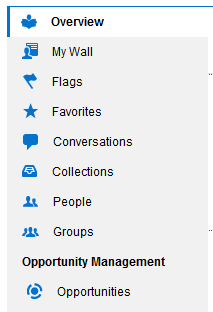
Oracle Social Network Navigation Menu
Key Resources
- See the Oracle Social Network help: Social Networking In… > Oracle Applications Cloud
Upload Documents From Cloud Document Stores
If you have an account with a cloud document store (for example, Google Drive), you can add a file from the cloud to Oracle Social Network.
Key Resources
- See the Oracle Social Network help: Social Networking In… > Oracle Applications Cloud > How do I share a document with others?
View and Create Document Annotations
Annotations provide a way to comment on a document. You can view and create annotations when previewing the document. For example, using annotations you can add a pushpin marker to a document preview, and enter a comment about the document right where the pushpin is placed. Each person's annotations appear in a unique color, making it easy to follow who said what.

Document Annotations
Key Resources
- See the Oracle Social Network help:
- Social Networking In… > Oracle Applications Cloud > How do I view document annotations?
- Social Networking In… > Oracle Applications Cloud > How do I annotate a document?
Documents View in Conversations and Walls
You can view a list of all documents and folders in a Conversation or wall by clicking the Documents tab in the Conversation or wall.
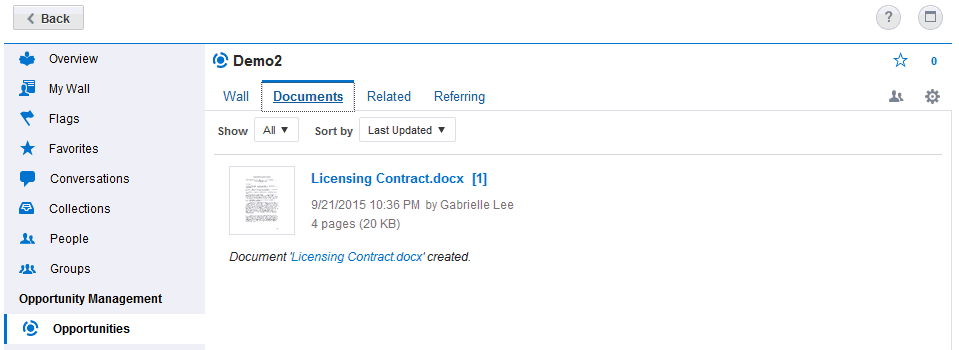
Documents View
Key Resources
- See the Oracle Social Network help: Social Networking In… > Oracle Applications Cloud > How do I view a document?
Recent Activity, Trending, and Contacts Panels
You can see the most recent messages in the Recent Activity section on the right side of the Social panel. It includes the following sections:
- Recent Activity—Displays the most recent actions of the people you follow and objects you’re a member of.
- Trending—Displays the Conversations, collections, hashtags, Social Objects, and walls with the most people in them at the moment. It also shows any conferences running in Conversations you’re a member of. You can click
 to join the conference.
 - Contacts—Displays your list of contacts and the contacts’ presence. You can click a contact to quickly open a one-on-one Conversation or view the person's profile.
Note: If the sections on the right don’t appear, your browser window is not wide enough. Expand the browser window to see it.
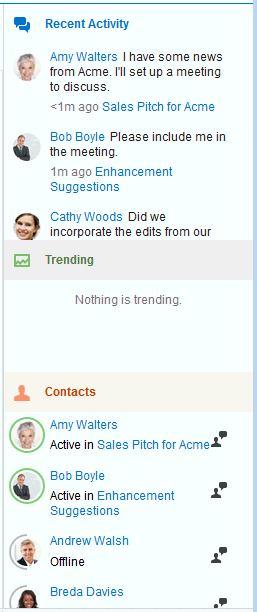
Recent Activity, Trending, and Contacts Panels
Key Resources
- See the Oracle Social Network help: Social Networking In… > Oracle Applications Cloud > How do I open the Social panel to view social activity?
You can mark walls, Conversations, or messages as favorites to quickly access items you refer to frequently.
Key Resources
- See the Oracle Social Network help: Social Networking In… > Oracle Applications Cloud > How do I mark a wall, Conversation, or message as a favorite?
Real-Time User Presence in Conversations and Walls
A colored border appears around the users’ pictures to indicate people's presence—that is, whether they are online (a green full circle), online but inactive (a yellow three-quarter circle), or offline (a gray half-circle). Presence is shown for your contacts in the Contacts panel and in Conversations and walls.
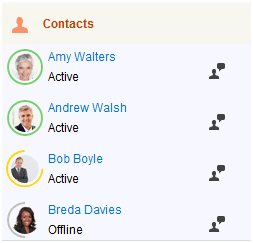
Presence Indicators
Key Resources
- See the Oracle Social Network help: Social Networking In… > Oracle Applications Cloud > How do I collaborate and socialize in the social network?
You can start a web conference from a Conversation or a wall (if the server supports web conferences and you have a web conference account).
Key Resources
- See the Oracle Social Network help:
- Administration > Managing Conferencing
- Social Networking In… > Oracle Applications Cloud > How do I start a web conference?
Start Conversations with Groups
You can easily start a Conversation with a whole group from the group’s wall.
Key Resources
- See the Oracle Social Network help: Social Networking In… > Oracle Applications Cloud > How do I start a Conversation with a group?
When a user deletes a message,  appears where the message used to be. To restore the deleted message, click .
Note: Only a service administrator, the person who posted the message, or the person who deleted the message can restore the deleted message.
Key Resources
- See the Oracle Social Network help: Social Networking In… > Oracle Applications Cloud > How do I delete a message?
Add Referring Items to Social Objects, Conversations, and Walls
Referring items are the Social Objects and collections that an item has been added to. You can add referring items to a Social Object, Conversation, or wall to relate the item they’re working on back to its associated Social Object or group it with other similar items in a collection. Grouping items in like this makes it easier to find all associated content.
Key Resources
- See the Oracle Social Network help: Social Networking In… > Oracle Applications Cloud > How do I view or add referring items to a Conversation or wall?
Change Display Language of Conversations and Walls
System messages in a Conversation or wall can appear in a language other than the default language, by changing the language setting. The language setting affects all members' views of the Conversation or wall.
Any system messages posted after the language is changed will appear in the new language. System messages that were there before the language change, however, remain in the language that was in place when they were posted. Messages and files posted to the Conversation or wall are unaffected; that is, they appear in the language they were written in.
Key Resources
- See the Oracle Social Network help: Social Networking In… > Oracle Applications Cloud > How do I change a Conversation or wall’s language?
View Items a Group is a Member Of
You can view the Conversations and walls a group is a member of by clicking the Member Of tab while viewing a group.
Key Resources
- See the Oracle Social Network help: Social Networking In… > Oracle Applications Cloud > How do I see which Conversations and walls a group is a member of?
If you created a Conversation that you don't need or don't need to refer to anymore, you can delete it, but you must be the only member.
Key Resources
- See the Oracle Social Network help: Social Networking In… > Oracle Applications Cloud > How do I delete a Conversation?
You can rename a folder from the Documents tab.
Key Resources
- See the Oracle Social Network help: Social Networking In… > Oracle Applications Cloud > How do I rename a folder?
Oracle Social Network Desktop provides easy access to Oracle Social Network from your computer desktop. The Desktop Client improvements include:
- Support for federated SSO
- Option to save open tabs on exit
- Find text, unread messages, or flagged messages in a Conversation
- Improved filter and sorting options for search results
- Cloud document adapter for Oracle Documents
- Context menu for search results
- Add related Conversations to offline briefcase
- Restore deleted messages
Oracle Social Network now supports login through federated SSO.
Option to Save Open Tabs on Exit
By default, your open tabs are saved when you exit Oracle Social Network Desktop. The next time you log on, the Detail window opens, showing those saved tabs. You can change this option in your settings.
Key Resources
- See the Oracle Social Network help: Desktop > Configuring Your Settings > How do I prevent my previously opened tabs from showing up when I reconnect?
You can search a Conversation or wall for unread messages, flags assigned to you, or messages or documents that include specific text. The controls in the Posts header enable you to find and navigate the results.
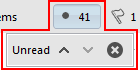
Unread Messages Controls
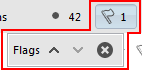
Flags Controls
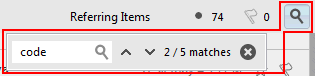
Text Search Controls
Key Resources
- See the Oracle Social Network help: Desktop > Getting Started > What is the Detail window?
Improved Filter and Sorting Options for Search Results
You can filter search results by result type (for example, Conversations or documents).
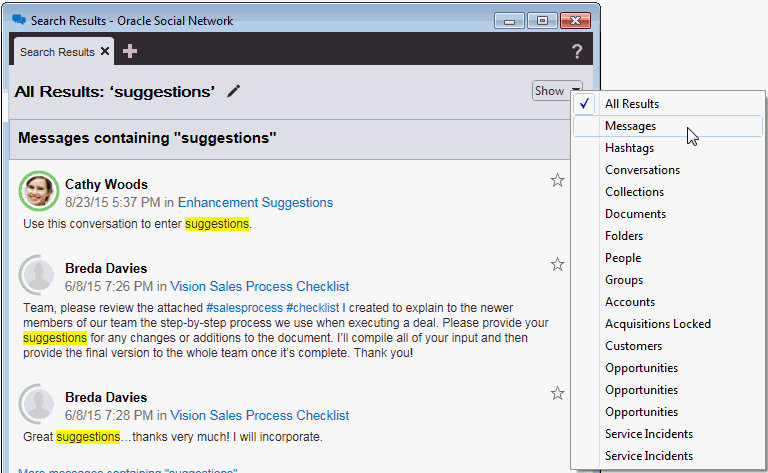
Filter Options
After filtering by a result type, additional filter and sort options become available.
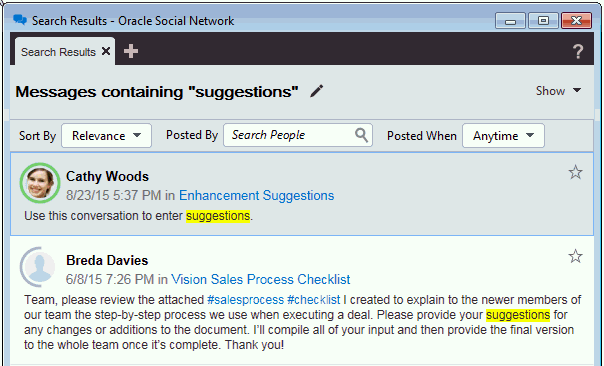
Additional Sort and Filter Options
Key Resources
- See the Oracle Social Network help: Desktop > Using Hashtags/Search > How do I search?
Cloud Document Adapter for Oracle Documents
Oracle Social Network includes a cloud document adapter to integrate with Oracle Documents.
Key Resources
- See the Oracle Social Network help:
- Administration > Cloud Document Services
- Desktop > Configuring Your Settings > How do I allow Oracle Social Network to access my cloud documents?
- Desktop > Working with Documents > How add documents?
Context Menu for Search Results
You can right-click a search result to see actions associated with the result type.
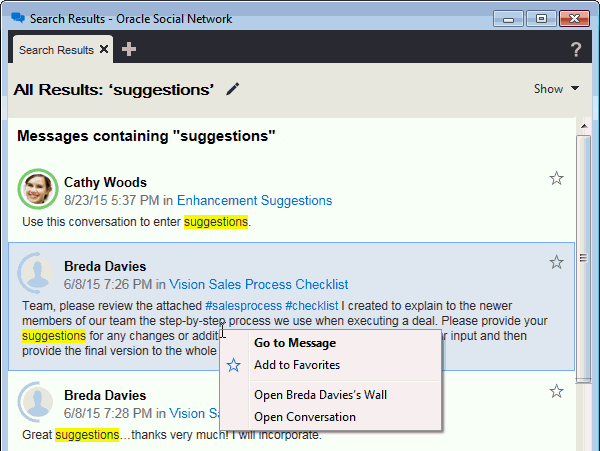
Search Results Context Menu
Key Resources
- See the Oracle Social Network help: Desktop > Using Hashtags/Search > How do I search?
Add Related Conversations to Offline Briefcase
When you add items to your offline briefcase, if the item includes related Conversations, you’ll be asked if you want to add the related Conversations to your briefcase as well.
Key Resources
- See the Oracle Social Network help: Desktop > Working Offline > How do I add an item to my Offline Briefcase?
When a user deletes a message, appears where the message used to be. To restore the deleted message, the user can click to restore the message.
Note: Only a service administrator, the person who posted the message, or the person who deleted the message can restore the deleted message.
Key Resources
- See the Oracle Social Network help: Desktop > Working with Messages > How do I delete a message?
Add-In for Outlook Improvements
Oracle Social Network Add-In for Outlook provides access to Oracle Social Network from within Microsoft outlook. The add-in improvements include:
- Support for federated SSO
- Invite contacts from your Outlook address book to Oracle Social Network
- Find text, unread messages, or flagged messages in a Conversation
- Improved filter and sorting options for search results
- Cloud document adapter for Oracle Documents
- View details for underlying Social Objects
- Offline panel
- Option to auto-publish offline changes
- Restore deleted messages
Oracle Social Network now supports login through federated SSO.
Invite Contacts From Your Outlook Address Book
If extended collaboration is enabled, you can invite people from your Outlook address book to join Oracle Social Network. Inviting users makes it easier to collaborate with them. You can invite a person by opening the contact, then clicking Invite from the Oracle Social Network actions in the Outlook ribbon. An email is sent to the contact inviting them to join Oracle Social Network.
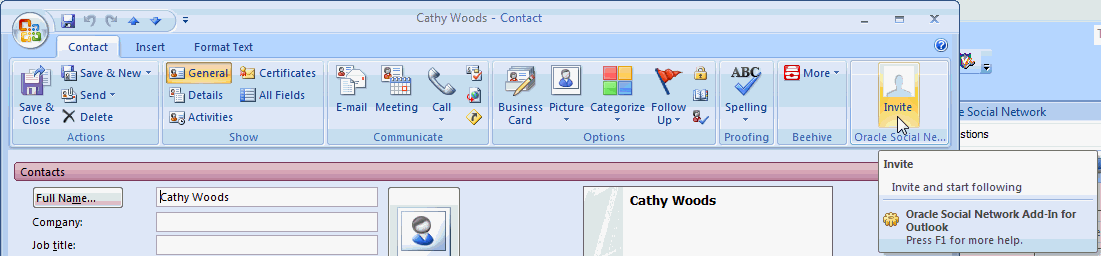
Invite Button
Steps to Enable
To enable extended collaboration:
- Log in to Oracle Social Network as an administrator.
- From the Administration UI, click Extended Collaboration.
- Enable the Invitations option.
- Edit the Employee Whitelist or Outside Users Whitelist as needed to specify email domains where users can be invited from.
- Add your company's "base" domains into the Employee Whitelist field. For example, if you log in to Oracle Social Network as lia.kuang@example.com, put example.com in the Employee Whitelist field. If you skip this step, you will be unable to log in to Oracle Social Network after saving your change and logging out.
Key Resources
- See the Oracle Social Network help:
- Administration > Managing Collaboration
- Outlook > Working with People > How do I invite my contacts from my Outlook address book to join Oracle Social Network?
You can search a Conversation or wall for unread messages, flags assigned to you, or messages or documents that include specific text or that were posted by a particular person. The controls in the Posts header enable you to find and navigate the results.
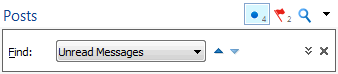
Unread Messages Controls
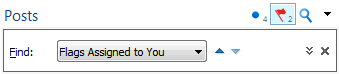
Flags Controls
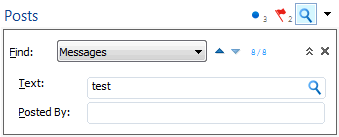
Text Search and Posted By Controls
Key Resources
- See the Oracle Social Network help: Outlook > Using Conversations > How do I find items in a Conversation or wall?
Improved Filter and Sorting Options for Search Results
You can filter search results by result type (for example, Conversations or documents). After filtering by a result type, additional filter and sort options become available.
To see additional filter options, click  .
.
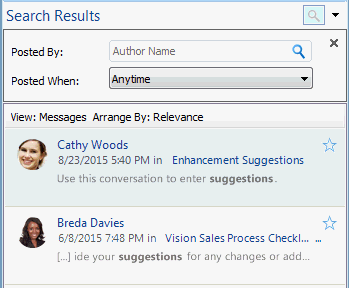
Additional Filter Options
To see additional sort options, click the options menu (click  on the Search Results banner), then select Sort.
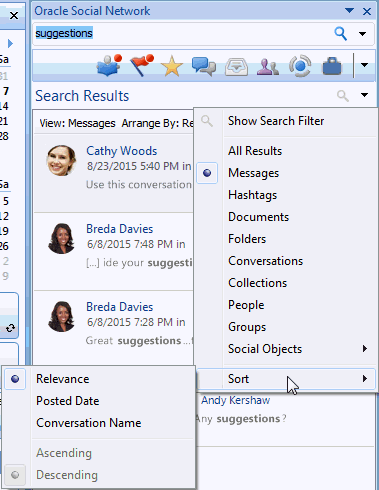
Additional Sort Options
Key Resources
- See the Oracle Social Network help: Outlook > Using Search > How do I run a search?
Cloud Document Adapter for Oracle Documents
Oracle Social Network includes a cloud document adapter to integrate with Oracle Documents.
Key Resources
- See the Oracle Social Network help:
- Administration > Cloud Document Services
- Outlook > Configuring Your Settings > How do I connect to my documents in the cloud?
- Outlook > Using Documents/Folders > How add files to a Conversation or wall?
View Details for Underlying Social Objects
A Social Object might include a link back to the associated record in the source system (for example, customer relationship management, enterprise resource planning, or human capital management). If available, you can open the source record by clicking View Details in the options menu (click on the Social Object banner) or at the bottom of the list of the Social Object's attributes.
Key Resources
- See the Oracle Social Network help: Outlook > Using Social Objects > How do I view the details of a Social Object?
You can view a list of the Conversations you’ve downloaded for offline use by clicking  on the navigation bar.
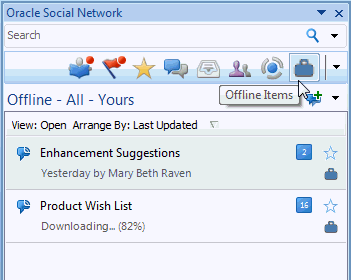
Offline Panel
Key Resources
- See the Oracle Social Network help: Outlook > Working Offline
Option to Auto-Publish Offline Changes
You can set your offline preferences to automatically publish changes you make to offline items. The changes are posted when you connect to your account.
Key Resources
- See the Oracle Social Network help: Outlook > Configuring Your Settings > How do I set offline preferences?
When a user deletes a message, appears where the message used to be. To restore the deleted message, the user can click to restore the message.
Note: Only a service administrator, the person who posted the message, or the person who deleted the message can restore the deleted message.
Key Resources
- See the Oracle Social Network help: Outlook > Using Conversations > How do I delete a message?
The Web client improvements include:
- Filter search results by posting user
- Cloud document adapter for Oracle Documents
- Restore deleted messages
Filter Search Results by Posting User
You can filter search results by the person who posted the item. After performing a global search, you can enter a name in the Posted By box, and select a user from the drop-down list.
Key Resources
- See the Oracle Social Network help: Getting Started > Everyday Tasks > How do I search?
Cloud Document Adapter for Oracle Documents
Oracle Social Network includes a cloud document adapter to integrate with Oracle Documents.
Key Resources
- See the Oracle Social Network help:
- Administration > Cloud Document Services
- Getting Started > Setting Up > How can I connect to my documents in the cloud?
- Documents & Folders > Working with Documents > How do I add a document from a cloud document store?
When a user deletes a message, appears where the message used to be. To restore the deleted message, the user can click to restore the message.
Note: Only a service administrator, the person who posted the message, or the person who deleted the message can restore the deleted message.
Key Resources
- See the Oracle Social Network help: Conversations > Managing Messages > How do I delete a message or reply?
Oracle Social Network includes the following administration improvements:
- Social Object visibility settings - Allow Public and Default Visibility setting
- Global email notification option
Social Object Visibility Settings
Social Object visibility settings affect whether users can make Social Definition instances (Social Objects) public, and the default setting for new Social Objects.
If you set the Social Object to be discoverable, the Social Definition displays in the Social Objects drop-down list in the user interface, and users can make Social Objects public in the same way they would make a Conversation public. Public Social Objects appear in search results and in the Available area on the Social Objects page. If the Social Object isn’t discoverable, the user does not see the Social Definition or any of its Social Objects unless it is shared with them.
The Default Visibility Setting specifies whether newly-created Social Objects are publicly available or members-only by default. After the Social Object is created, users can change this setting.
Steps to Enable
- Log in to Oracle Social Network as an administrator.
- From the Administration UI, click Social Definitions.
- Select the Social Definition that you want to change. Its properties page opens.
- Under Visibility, enable or disable Allow Public (Discoverable) Social Objects.
- Select a Default Visibility Setting.
Key Resources
- See the Oracle Social Network help: Administration > Social Definitions > Editing Social Definition Properties
Global Email Notification Option
The Email Notifications setting allows you to globally enable or disable email notifications. When enabled, email notifications are sent, based on user settings.
Steps to Enable
- Log in to Oracle Social Network as an administrator.
- From the Administration UI, click General. The General page is displayed by default when you enter the Administration section of the user interface.
- Under Notifications, enable or disable Email Notifications.
Key Resources
- See the Oracle Social Network help: Administration > General Properties > Editing General Properties
Oracle Social Network includes the following developer improvements:
- Cloud Storage Services API
- Conferencing Services API
- Social Plugin Explorer API Reference
Users with the developer privilege or the service administrator privilege can add and manage Oracle Social Network cloud storage services using the REST API.
Oracle Social Network integrations with cloud document stores let users collaborate on cloud files as easily as on files that originate from the desktop. Oracle Social Network integrates with Google Drive, Dropbox, WebDAV, Oracle Documents, and Microsoft OneDrive out-of-the-box. In addition we provide an SDK that you can use to create additional conferencing services.
Users with the developer privilege or the service administrator privilege can add and manage Oracle Social Network conferencing services using the REST API.
A conferencing service lets users run on-demand meetings across many locations. Oracle Social Network integrations with conferencing services let users start conferences from within the client user interface. The Cisco Web Meetings (WebEx) product is integrated into Oracle Social Network out-of-the-box. In addition we provide an SDK that you can use to create additional conferencing services.
Social Plugin Explorer API Reference
The Social Plugin API URL reference documentation shows the URLs that correspond to OSN views, giving developers access to a wide range of Social Plugin functionality.
---

Copyright © 2017, Oracle and/or its affiliates. All rights reserved.
This document is provided for information purposes only, and the contents hereof are subject to change without notice. This document is not warranted to be error-free, nor subject to any other warranties or conditions, whether expressed orally or implied in law, including implied warranties and conditions of merchantability or fitness for a particular purpose. We specifically disclaim any liability with respect to this document, and no contractual obligations are formed either directly or indirectly by this document. This document may not be reproduced or transmitted in any form or by any means, electronic or mechanical, for any purpose, without our prior written permission.
Oracle and Java are registered trademarks of Oracle and/or its affiliates. Other names may be trademarks of their respective owners.
Intel and Intel Xeon are trademarks or registered trademarks of Intel Corporation. All SPARC trademarks are used under license and are trademarks or registered trademarks of SPARC International, Inc. AMD, Opteron, the AMD logo, and the AMD Opteron logo are trademarks or registered trademarks of Advanced Micro Devices. UNIX is a registered trademark of The Open Group.
