
- Revision History
- Overview
- Feature Summary
- Absence Management
-
- Absence Management
-
- Integration of Global Absences with External Applications
- Hide or Show Save and Close Option in Add Absence Page
- Review Warning Message Before Withdrawing Accruals and Deleting Enrollments
- Future Absence Processing Option for Same and Impacted Absence Types
- Compensatory Absence Plan Updated After Time Card Approval
- Predefined Partial Period Proration and Rounding Rules for Accrual Plans
- Purge Old Unused Absence Processing Data
- Enhancements to the Events Framework for Absence Processing
- Descriptive Flexfield Attributes For Configuring Approval Rules
- Redwood Experience
-
- Absence Management
- IMPORTANT Actions and Considerations for Absences
This document will continue to evolve as existing sections change and new information is added. All updates appear in the following table:
| Date | Module | Feature | Notes |
|---|---|---|---|
| 31 MAR 2023 | Absence Management | Redwood Experience for Cash Disbursements | Updated document. Revised feature information. |
| 31 MAR 2023 |
Absence Management |
Redwood Experience for Donations | Updated document. Revised feature information. |
| 03 MAR 2023 | Created initial document. |
HCM Cloud applications have two types of patches you can receive that are documented in this What's New:
- Release Updates (23A, 23B, 23C, and 23D)
- Optional Monthly Maintenance Packs to each update
It is important for you to know what Release Update your environment is on. You can find this in your Cloud Portal.
____________________
 HAVE AN IDEA?
We’re here and we’re listening. If you have a suggestion on how to make our products better, please let us know. To enter an idea go to the Ideas Lab on Oracle Customer Connect. In this document wherever you see the light bulb icon after the feature name it means we delivered one of your ideas.
____________________
SUGGESTED READING FOR ALL HCM PRODUCTS
- HCM Common What's New - In this What's New you will find feature that are used across applications.
- Human Resources What’s New – In the Global Human Resources section you will find features on the base application in which other application are built upon.
NOTE: Not all Global Human Resource features are available for Talent and Compensation products.
- Oracle Human Capital Management Cloud Functional Known Issues and Maintenance Packs (Document ID 1554838.1). These documents identify bug fixes and possible known issues. You will also need to review these documents based in the release update version you are currently on or will be moving to.
- Oracle Help Center – Here you will find guides, videos and searchable help.
- Release Readiness – New Feature Summary, What’s New, Feature Listing Spreadsheet, Spotlights and Release Training
GIVE US FEEDBACK
We welcome your comments and suggestions to improve the content. Please send us your feedback at oracle_fusion_applications_help_ww_grp@oracle.com. Indicate you are inquiring or providing feedback regarding the HCM Cloud What’s New in the body or title of the email.
Column Definitions:
Report = New or modified, Oracle-delivered, ready to run reports.
UI or Process-Based: Small Scale = These UI or process-based features are typically comprised of minor field, validation, or program changes. Therefore, the potential impact to users is minimal.
UI or Process-Based: Larger Scale* = These UI or process-based features have more complex designs. Therefore, the potential impact to users is higher.
Features Delivered Disabled = Action is needed BEFORE these features can be used by END USERS. These features are delivered disabled and you choose if and when to enable them. For example, a) new or expanded BI subject areas need to first be incorporated into reports, b) Integration is required to utilize new web services, or c) features must be assigned to user roles before they can be accessed.
| Ready for Use by End Users Reports plus Small Scale UI or Process-Based new features will have minimal user impact after an update. Therefore, customer acceptance testing should focus on the Larger Scale UI or Process-Based* new features. |
Customer Must Take Action before Use by End Users Not disruptive as action is required to make these features ready to use. As you selectively choose to leverage, you set your test and roll out timing. |
|||||
|---|---|---|---|---|---|---|
| Feature |
Report |
UI or |
UI or |
|
||
Review Warning Message Before Withdrawing Accruals and Deleting Enrollments |
||||||
Future Absence Processing Option for Same and Impacted Absence Types |
||||||
Predefined Partial Period Proration and Rounding Rules for Accrual Plans |
||||||
Descriptive Flexfield Attributes For Configuring Approval Rules |
||||||
Oracle Absence Management is a configurable and flexible global solution that enables organizations to manage absences of their workforce. The framework provides ability to define both complex and diverse absence plans. It integrates with the Oracle Cloud Global Payroll and Time and Labor products and provides dedicated work areas for the roles of Administrator and Employees. Simplified user interface is provided for employees’ absence data entry.
Integration of Global Absences with External Applications
You can now use the REST end point absences to fetch existing absence entries from Oracle Cloud HCM. You can filter and fetch specific absence entries using query parameters listed below:
| Query Parameter |
Description |
|---|---|
| personNumber |
Fetches all the absence entries that belong to a certain person. '{base_url}/absences/?q=personNumber='1410290' |
| employer |
Fetches all the absence entries that belong to employees who work in a certain legal employer. For instance, if you want to fetch all absence entries of employees who work in Vision Corporation, you need to make the following request: '{base_url}/absences/?q=employer='Vision Corporation' |
| absenceType |
Fetches all the absence entries of a certain type. For instance, if you want to fetch all the absence entries of Vacation absence type, you need to make the following request: '{base_url}/absences/?q=absenceType='Vacation' '{base_url}/absences/?q=absenceType='Sickness' and employer='Vision Operations' |
Get more options while using the absences end-point to fetch existing absences from Global Absences. You can now fetch absence records for a specific person, or employee of a certain legal employer or even absences belonging to a particular absence type.
Steps to Enable
You don't need to do anything to enable this feature.
Hide or Show Save and Close Option in Add Absence Page
Using the HCM Transaction Design Studio, you now have the option to either hide or show the Save and Close button for the absence entry flow for employees and managers. With the save and close button hidden, employees and managers can submit or cancel an absence transaction, but cannot save the absence transaction without submitting.
You can now experience more flexibility in configuring the Add Absence page. You can either display the Save and Close button or hide it, leaving only Submit and Cancel buttons on the page.
Steps to Enable
Here’s how you can configure the display of Save and Close button:
- Create a Sandbox.
- Select HCM Design Studio from the All Tools section.
- Enter the sandbox.
- Click HCM Experience Design Studio quick action under the My Client Groups tab.
- Select Absences from Action.
-
Select Add Absence in the Region field and set Save and Close attribute to Not visible.

- Click Save and Close.
Review Warning Message Before Withdrawing Accruals and Deleting Enrollments
When you enter the parameters for the Withdraw Accruals and Balances absence process and click Submit, the application displays a warning message. The warning message allows you to review the parameters you set for the absence process before submitting. Reviewing the accrual withdrawal and enrollment deletion process prior to submission ensures the process is run with the correct parameters and important data is not lost.
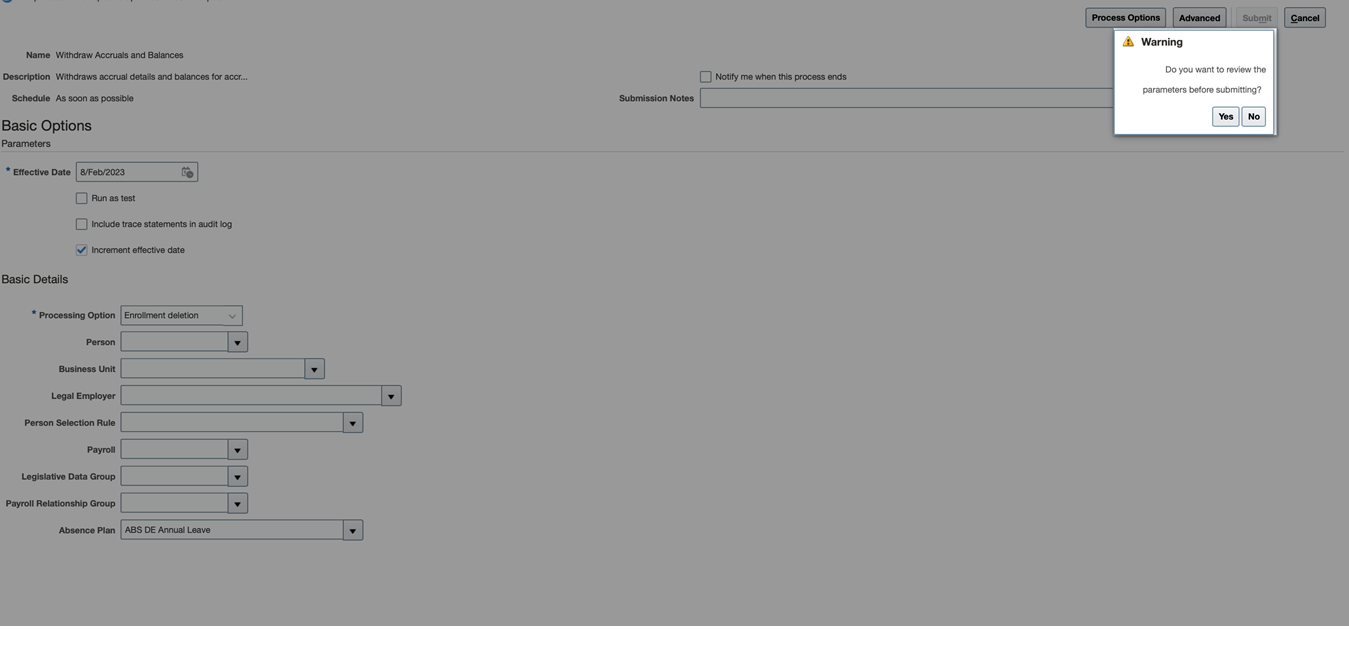
Review message after you click Submit
If you click Yes on this message, the application will close the message and allow you to review the parameters. If you click No, the application will submit the process and a new dialogue will display the process ID.
The new warning message ensures that you don't accidentally submit an absence process for withdrawing accruals and deleting enrollments with incorrect parameters. Reviewing your parameters before submitting the process will help you prevent losing your important data.
Steps to Enable
You don't need to do anything to enable this feature.
Future Absence Processing Option for Same and Impacted Absence Types
You now have the option to select which future absences get processed during absence entry. There is a new field called Future Absence Processing in the Configure Absence Batch Parameters page. You can choose two options in this field: All Absences and Only Impacted Absences.

Future Absence Processing field in the Job Configuration page.
If you select All Absences, the application continues to function like it always used to. When you add an absence, all future dated absences are reprocessed automatically. All Absences is the default value for this option.
If you select Only Impacted Absences, the application will reprocess only the future dated absences of the same absence type, and any impacted absences that are a part of the concurrent or shared plan. The absence processing performance improves when you reprocess only a few future dated absences instead of all future dated absences.
Improve absence processing performance for future dated absences by processing only the future absences of the same absence type or any impacted absences that are part of a shared or concurrent plan.
Steps to Enable
You don't need to do anything to enable this feature.
Compensatory Absence Plan Updated After Time Card Approval
Previously, compensatory absence plan balances were increased as soon as time was reported on time cards and the time card was saved or submitted. If time cards were rejected, the earned time that was added to balances didn’t get deducted. Now, compensatory absence plan balances are increased only after time cards are approved.
This enhancement ensures that compensatory absence plan balances aren’t increased before approval.
Steps to Enable
If you're already using Time and Labor and Absence Management, you need to upgrade to the new integration architecture. If you're just implementing the applications, the new integration is turned on by default, so you don't need to do anything.
- Create the ANC_TM_NEW_INTG_ENABLE lookup type, as shown here:
Field
Value
Lookup Type Name
ANC_TM_NEW_INTG_ENABLE
Lookup Type Meaning
Upgrade Absence Management and Time and Labor Integration
Lookup Type Description
Upgrade to the new integration architecture for Absence Management and Time and Labor
Module
Global Absences
REST Access Secured
Secure
Lookup Code
ANC_YES
Enabled
Select the check box
Meaning
ANC_YES

ANC_TM_NEW_INTG_ENABLE lookup code configuration
-
Migrate your existing absence data to the new data model. Here's how you do it:
IMPORTANT: After the migration process runs in your production environment, you can't revert the absence data to the old data model. It's vitally important that you test the upgrade in your preproduction environments before running the upgrade on your production environment.
-
-
In the Setup and Maintenance work area, on the Tasks panel, click Search.
-
On the Search page, search for and click Feature Upgrades.
-
On the Process Flow page, click Schedule.
-
On the Schedule page, click Run Feature Upgrade.
-
On the Schedule: Run Feature Upgrade page, complete the fields as shown here:
Field
Value
Process Flow
Enter a name, such as Migrate absence data to new data model.
Feature
Upgrade Time Repository for Absences
Process Configuration Group
Select a group to control error logging and multithreading of the process
Additional Information
Enter the migration cut-off date in the dd/mm/yyyy format. This date is used by the migration process to decide which existing absences to upgrade to the new architecture. All absences on time cards that exist from 31 days before the date that you enter are considered for upgrade.
-
-
- Click Submit. These are the processes that run:
- Calculate Eligible Objects for Upgrade: This process calculates all of the eligible employee records that the Upgrade Eligible Objects process will upgrade.
- Upgrade Eligible Objects: This process does the actual data upgrade task.
- Click Submit. These are the processes that run:
You can review the output and log files for processing details and any errors or warnings.
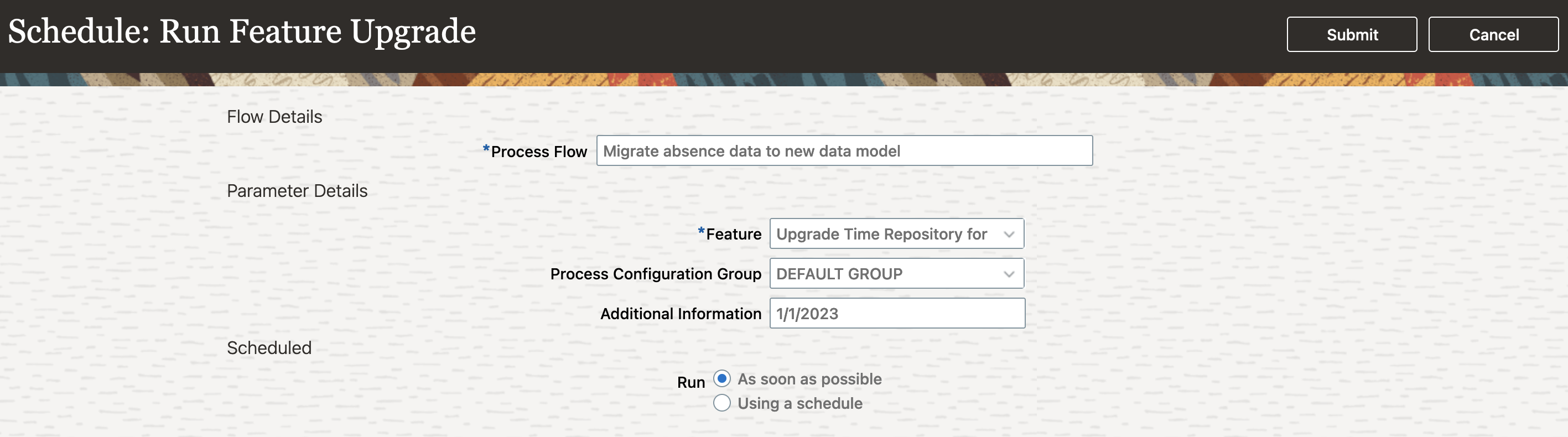
Schedule: Run Feature Upgrade page
Key Resources
- For more information about process configuration groups, see the Payroll Process Configuration Groups topic in the Implementing Global Payroll guide.
Predefined Partial Period Proration and Rounding Rules for Accrual Plans
Previously, when the accrual had to be pro-rated for partial participation in an accrual plan, you needed to write a partial period formula. You can now replace those formulas with pre-defined pro-ration rules. The pro-ration rules available for you depend on whether the accrual plan is a front-loaded plan or an incremental plan. You can choose from one of the following pre-defined partial period pro-ration rules.
Front-loaded plans
| Rule | Description | Examples | |
|---|---|---|---|
| Enrollment | Unenrollment | ||
| Based on days spent in plan | Accrual is pro-rated based on the number of days spent in the plan for the entire plan term. | Enrollment date: 14-Sep-2022 Pro-rated accrual = Full accrual * (Days spent in plan in the enrollment year)/(Days in plan term in the enrollment year) = 25 * 109/365 = 7.46 |
Unenrollment date: 13-Sep-2022 Pro-rated accrual = Full accrual * (Days spent in plan in the un-enrollment year)/(Days in plan term in the un-enrollment year) = 25 * 256 / 365 = 17.53 |
| Based on repeating periods, excluding partial periods | Accrual is pro-rated based on the number of repeating periods that the employee was enrolled into in the plan term. If the employee is not enrolled into the plan for the entire length of a repeating period, then that repeating period is not considered. | Enrollment date: 14-Sep-2022 Pro-rated accrual = Full accrual * (No. of repeating periods enrolled in)/(No. of repeating periods in plan term) = 25 * 3/12 = 6.25 |
Unenrollment date: 13-Sep-2022 Pro-rated accrual = Full accrual * (No. of repeating periods enrolled in)/(No. of repeating periods in plan term) = 25 * 8/12 = 16.67 |
| Based on repeating periods, including partial periods | Accrual is pro-rated based on the number of repeating periods that the employee was enrolled into in the plan term. Even if an employee is not enrolled into the plan for the entire length of a repeating period, the repeating period is still considered. | Enrollment date: 14-Sep-2022 Pro-rated accrual = Full accrual * (No. of repeating periods enrolled in)/(No. of repeating periods in plan term) = 25 * 4/12 = 8.33 |
Unenrollment date: 13-Sep-2022 Pro-rated accrual = Full accrual * (No. of repeating periods enrolled in)/(No. of repeating periods in plan term) = 25 * 9/12 = 18.75 |
| Based on repeating periods, depending on coverage |
Accrual is pro-rated based on the number of repeating periods that the employee was enrolled into in the plan term. If the employee is not enrolled into the plan for the entire length of a repeating period, then that repeating period is considered only if the employee was enrolled for at least half the period. | Enrollment date: 14-Sep-2022 Pro-rated accrual = Full accrual * (No. of repeating periods enrolled in)/(No. of repeating periods in plan term) = 25 * 4/12 = 8.33 |
Unenrollment date: 13-Sep-2022 Pro-rated accrual = Full accrual * (No. of repeating periods enrolled in)/(No. of repeating periods in plan term) = 25 * 8/12 = 16.67 |
| No proration, full accrual is granted | Accrual is not pro-rated and the employees receives the entire accrual amount for the plan term. | N/A | N/A |
| No accrual is granted for partial period | Employee does not receive any accruals for partial period participation in accrual plans. | N/A |
N/A |
| Formula | Accrual pro-ration logic is specified in a fast formula. | N/A |
N/A |

Incremental plans
Consider an incremental plan with a monthly repeating period that gives employees 2 days of accrual per repeating period. The examples show the pro-rated amounts for various enrollment and unenrollment dates. The plan also has a Rounding rule set to Standard rounding with a decimal precision of 2.
| Rule | Description | Examples | |
|---|---|---|---|
| Enrollment | Unenrollment | ||
| Based on days spent in plan | Accrual is pro-rated based on the number of days spent in the plan in the repeating period. | Enrollment date: 14-Sep-2022 Pro-rated accrual = Full accrual * (Days spent in plan in the repeating period of enrollment)/(Total days in the repeating period of enrollment) = 2 * 17 / 30 = 1.13 |
Unenrollment date: 13-Sep-2022 Pro-rated accrual = Full accrual * (Days spent in plan in the repeating period of un-enrollment)/(Days in the repeating period of un-enrollment) = 2 * 13 / 30 = 0.87 |
| No proration, full accrual is granted | Accrual is not pro-rated and the employees receives the entire accrual amount for the repeating period. | N/A | N/A |
| No accrual is granted for partial period | Employee does not receive any accruals for partial period participation in accrual plans. | N/A |
N/A |
| Full or no accrual, depending on coverage |
Employee receives full accrual if they were enrolled into the plan for at least half the repeating period. Else, the employee receives no accrual for the repeating period. | N/A |
N/A |
| Formula | Accrual pro-ration logic is specified in a fast formula. | N/A |
N/A |
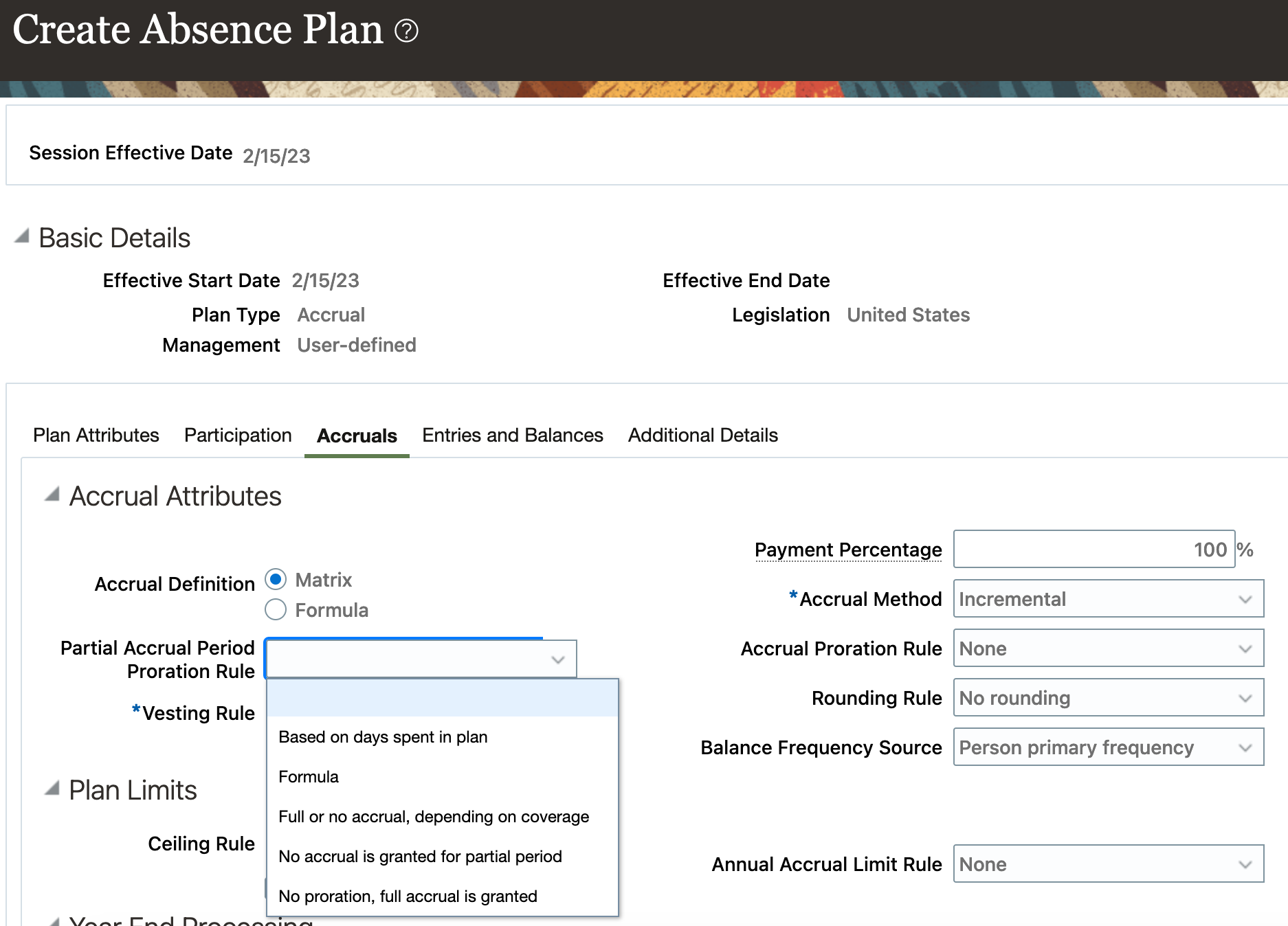
Partial Accrual Period Proration Rule options for Incremental plans
If the pro-ration rule for your plan is not covered by any of the above rules, you can still choose to write your own fast formula with the required pro-ration logic.
If you don't choose one of the pre-defined partial period proration rules, or specify your own partial-period rule using a fast formula, then the application will continue its existing behavior for partial period accrual calculation.
| Enrollment | Un-enrollment | |
|---|---|---|
| Front-loaded plans | Full accrual is granted | Full accrual is granted |
| Incremental plans | Full accrual is granted | Zero accrual is granted. |
Rounding rules for accrual amounts
| Rule | Description | Example |
|---|---|---|
| No rounding | No rounding is applied on absence accruals | N/A |
| Always round up | Accrual amount is always rounded up to the decimal precision | When Rounding Decimal Precision is 0 3.1 > 4 3.9 > 4 3 > 3 When Rounding Decimal Precision is 1 3.1 > 3.1 3.11 > 3.2 3.18 > 3.2 |
| Always round down | Accrual amount is always rounded down to the decimal precision | When Rounding Decimal Precision is 0 3.1 > 3 3.9 > 3 3 > 3 When Rounding Decimal Precision is 1 3.1 > 3.1 3.11 > 3.1 3.18 > 3.1 |
| Standard rounding | Accrual amount is rounded to the nearest number as specified in the decimal precision | When Rounding Decimal Precision is 2 3.456 > 3.46 3.132 > 3.13 3.445 > 3.45 |

Rounding Rule options in the Absence Plan setup page
The rounding rule applies only to the accrual amounts.
Setting up partial period accrual plan participation is now easier with predefined proration calculations. Similarly, you can also use predefined rounding rules for accrual calculations.
Steps to Enable
You don't need to do anything to enable this feature.
Tips And Considerations
If you have existing accrual plans, when you open the accrual plan you will see two new fields:
- Rounding Rule - this field will have the value No rounding in it.
- Partial Accrual Period Proration Rule - If you do not have a Partial Accrual Period Proration Formula already attached, then this field will be blank. If you have a formula, then this field will have the value Formula. The existing Partial Accrual Period Proration Formula field will also be shown with your formula listed there.
Purge Old Unused Absence Processing Data
Absence management persistently logs technical processing information in anc_process_messages and anc_per_events tables. The application now automatically purges processing log messages created in these two tables during absence processing and that aren’t required anymore. The purge happens during every quarterly patching. This purge ensures that the processing tables contain only the relevant data for your pod.
The following data from these two tables will be automatically purged:
- Rows that are more than 2 years old.
- Duplicate rows that belong to the same process key attribute value. Only the latest one will be retained.
- Rows where event_id has no reference to per_events_id in enrollments table.
- Rows where ref_pk_id has no reference to absence_entry_id.
You can now keep just relevant absence data in processing tables and purge all old unused absence data.
Steps to Enable
You don't need to do anything to enable this feature.
Enhancements to the Events Framework for Absence Processing
You can configure event conditions based on which when an event is triggered, an appropriate response to the event is put in action automatically. Previously, every time an event was triggered the evaluation of the event condition and the subsequent notification to absences of the event being triggered used to happen synchronously. But now these processes have been de-coupled. They are processed asynchronously so that in case of a potential failing of the notification to absences, the evaluation of the event condition process won’t be affected.
The feature improves the performance and reliability of the events framework.
Steps to Enable
You don't need to do anything to enable this feature.
Descriptive Flexfield Attributes For Configuring Approval Rules
You can now use Descriptive Flexfields (DFFs) in Absence Approval workflow to configure approval rules. These DFFs can be used to cater to your custom needs during approval configuration. They are available in Absence Rule Payload. You can see these attributes under the Additional information section of the Add Absence page.
You can use Descriptive Flexfields (DFFs) in Absence Approval workflow to configure custom absence approval rules.
Steps to Enable
You don't need to do anything to enable this feature.
Redwood Experience for Cash Disbursements
The Cash Disbursements page was re-created using the Redwood tool set available in Oracle Visual Builder Studio to improve the user experience by providing the same consistent functionality across Redwood pages.

Cash Disbursements page
Here’s how you use the Redwood page for Cash Disbursements:
- On the Home page, click Me.
- Click Time and Absences.
- Click the Cash Disbursements tile.

Adding a new cash disbursement on the Cash Disbursements page
The new Cash Disbursements page lets you experience Redwood’s high-fidelity interactions.
Steps to Enable
This page is turned off by default. If you want to enable this page, you will need to do so in the Profile Options. Here are the steps for changing the delivered Profile Options:
-
Navigate to the Setup and Maintenance work area.
-
Search for and click the Manage Administrator Profile Values task.
-
Search for and select the ORA_ANC_DISBURSEMENTS_VBCS_UI_ENABLED profile option.
-
In the Level list, select Site.
-
Enter Y in the Profile Value field.
-
Click Save and Close.
Extensibility Limitations
NOTE: The use of VB Studio to extend this page is limited to the variables to set up Nudges and Guided Journeys at this time. If you have Guided Journey’s configured you will need to reconfigure them, if you are using the new Redwood page. Refer to the following on setting up Nudges and Guided Journeys:
- 23B Human Resources What’s New - VBS Enable Guided Journeys for the Rebuilt Redwood Pages
- 23B Human Resources What’s New - New Nudge Users to Complete Tasks
The use of VB Studio to extend the Cash Disbursements page is limited to the variables listed below, as well as the constants defined for Nudges and Guided Journeys.
| Type | Variable Name | Variable Description | Level |
|---|---|---|---|
| Constant |
renderNudges |
This variable controls the rendering of the nudges on this page. Set it to on/off to render and hide nudges respectively. |
|
| Constant |
journeyCode |
This property represents the guided journey code which can help find unique guided journey information. |
Page |
| Constant |
task code |
List of task codes whose information is supposed to be rendered. If this list is empty/null/undefined the component will render information of all the tasks related to the guided journey. |
Page |
Tips And Considerations
When you click Save after entering the cash disbursement details, the request will go through the same approval process as earlier. Previously, this button was called Submit.
Key Resources
- For a listing of all profile options for the recreated pages across applications, see the following document in My Oracle Support: HCM Redwood Pages with Profile Options - DOC ID 2922407.1
Redwood Experience for Donations
The Donations page was re-created using the Redwood tool set available in Oracle Visual Builder Studio to improve the user experience by providing the same consistent functionality across Redwood pages.
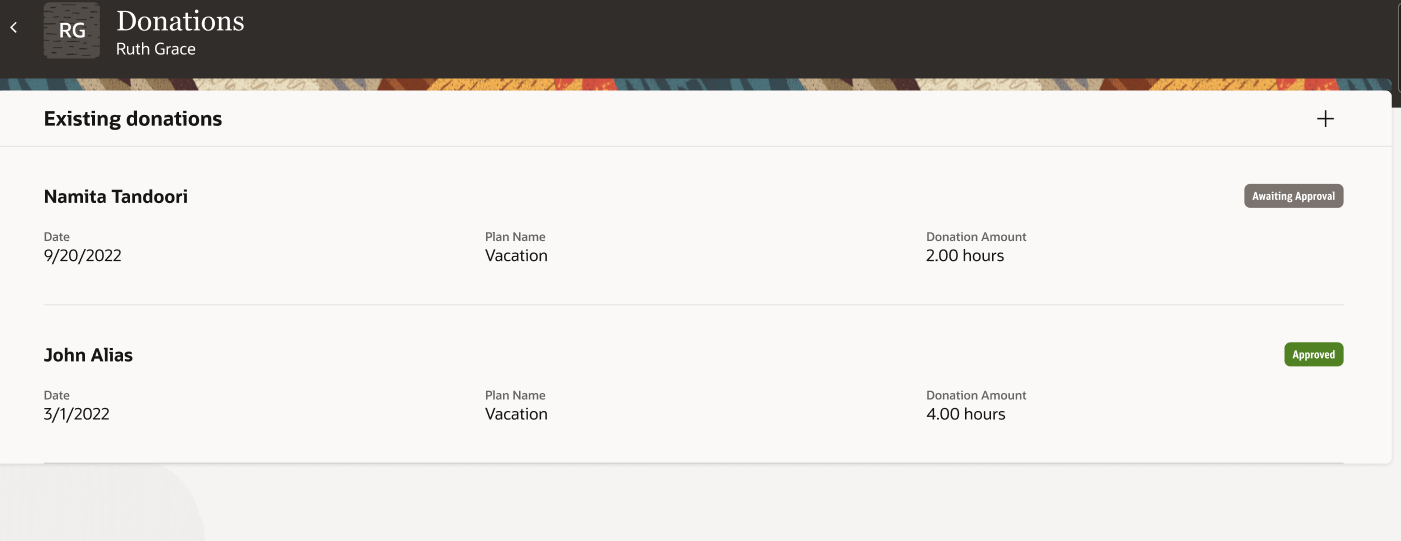
Donations page
Here’s how you use the Redwood page for Donations:
- On the Home page, click Me.
- Click Time and Absences.
- Click the Donations tile.
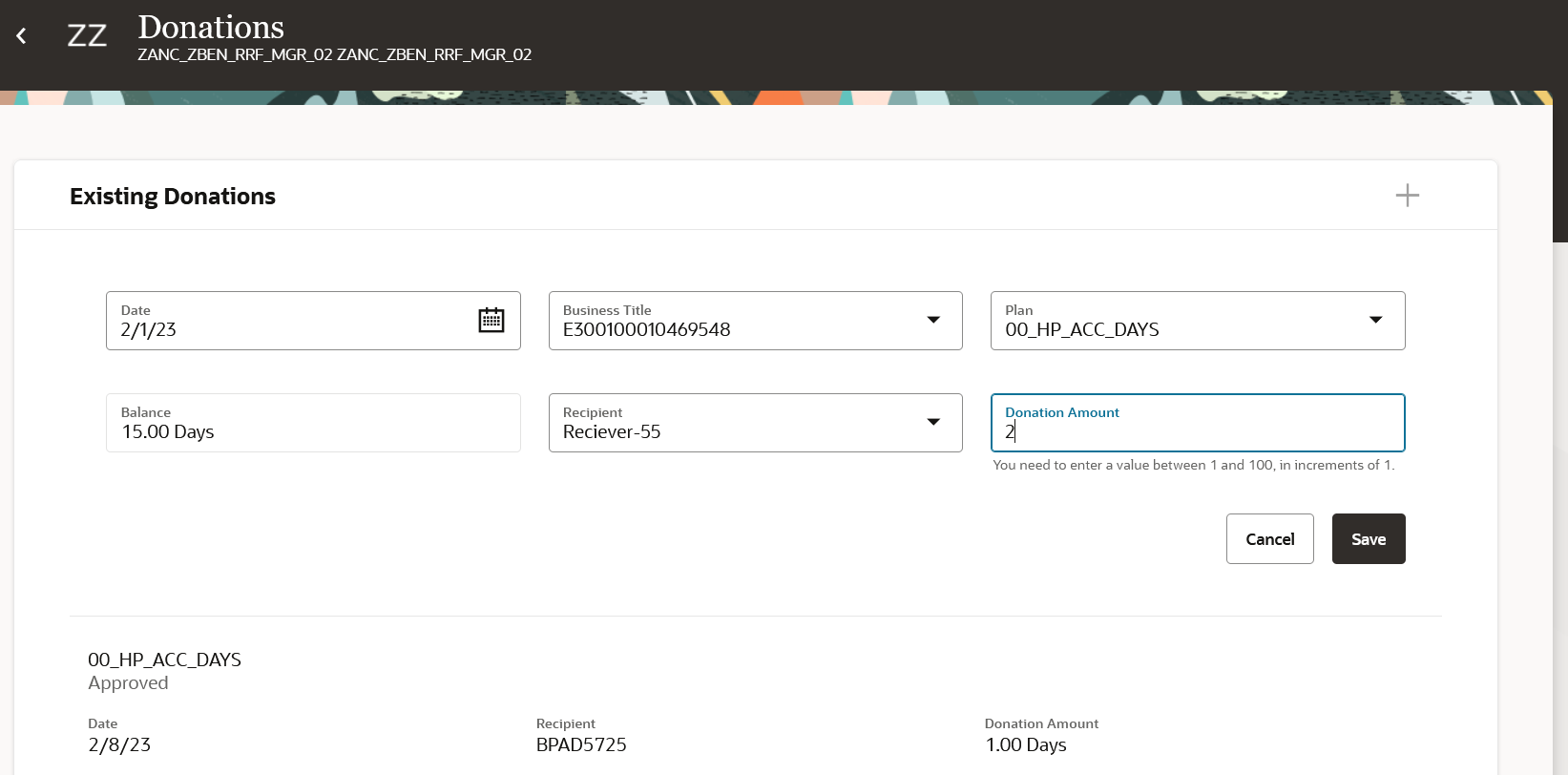
Adding a donation in the Donations page
The new Donations page lets you experience Redwood’s high-fidelity interactions.
Steps to Enable
This page is turned off by default. If you want to enable this page, you will need to do so in the Profile Options. Here are the steps for changing the delivered Profile Options:
-
Navigate to the Setup and Maintenance work area.
-
Search for and click the Manage Administrator Profile Values task.
-
Search for and select the ORA_ANC_DONATIONS_VBCS_UI_ENABLED profile option.
-
In the Level list, select Site.
-
Enter Y in the Profile Value field.
-
Click Save and Close.
Extensibility Limitations
NOTE: The use of VB Studio to extend this page is limited to the variables to set up Nudges and Guided Journeys at this time. If you have Guided Journey’s configured you will need to reconfigure them, if you are using the new Redwood page. Refer to the following on setting up Nudges and Guided Journeys:
- 23B Human Resources What’s New - VBS Enable Guided Journeys for the Rebuilt Redwood Pages
- 23B Human Resources What’s New - New Nudge Users to Complete Tasks
The use of VB Studio to extend the Donations page is limited to the variables listed below, as well as the constants defined for Nudges and Guided Journeys.
| Type | Variable Name | Variable Description | Level |
|---|---|---|---|
| Constant |
renderNudges |
This variable controls the rendering of the nudges on this page. Set it to on/off to render and hide nudges respectively. |
|
| Constant |
journeyCode |
This property represents the guided journey code which can help find unique guided journey information. |
Page |
| Constant |
task code |
List of task codes whose information is supposed to be rendered. If this list is empty/null/undefined the component will render information of all the tasks related to the guided journey. |
Page |
Tips And Considerations
When you click Save after entering the donation details, the request will go through the same approval process as earlier. Previously, this button was called Submit.
Key Resources
- For a listing of all profile options for the recreated pages across applications, see the following document in My Oracle Support: HCM Redwood Pages with Profile Options - DOC ID 2922407.1
IMPORTANT Actions and Considerations for Absences
REPLACED OR REMOVED FEATURES
From time to time, Oracle replaces existing Cloud service features with new features or removes existing features. When a feature is replaced the older version may be removed immediately or at a future time. As a best practice, you should use the newer version of a replaced feature as soon as the newer version is available.
| Product |
Removed Feature |
Target Removal |
Replacement Feature |
Replaced In |
Additional Information |
|---|---|---|---|---|---|
| Nothing at this time. |
_________________________
KNOWN ISSUES / MAINTENANCE PACK SPREADSHEETS
Oracle publishes a Known Issues document for every Update to make customers are aware of potential problems they could run into and the document provides workarounds if they are available.
Oracle also publishes Maintenance Pack and Statutory Maintenance Pack documentation of bugs that are fixed in the monthly or statutory patching.
To review these documents you must have access to My Oracle Support:
Oracle Human Capital Management Cloud Functional Known Issues and Maintenance Packs (Document ID 1554838.1)