
This document will continue to evolve as existing sections change and new information is added. All updates appear in the following table:
| Date | Module | Feature | Notes |
|---|---|---|---|
| 27 OCT 2023 | Absence Management Redwood Experience | Vacation Bidding | Updated document. Revised feature information. |
| 29 SEP 2023 | Absence Management | Link Absence Global Descriptive Flexfield to Time Card Field | Updated document. Revised feature information. |
| 01 SEP 2023 | Created initial document. |
HCM Cloud applications have two types of patches you can receive that are documented in this What’s New:
- Release Updates (23A, 23B, 23C, and 23D)
- Optional Monthly Maintenance Packs to each update
It is important for you to know what Release Update your environment is on. You can find this in your Cloud Portal.
____________________
 HAVE AN IDEA?
We’re here and we’re listening. If you have a suggestion on how to make our products better, please let us know. To enter an idea go to the Ideas Lab on Oracle Customer Connect. In this document wherever you see the light bulb icon after the feature name it means we delivered one of your ideas.
____________________
Suggested Reading for all HCM Products:
- HCM Common What's New - In this What's New you will find feature that are used across applications.
- Human Resources What’s New – In the Global Human Resources section you will find features on the base application in which other application are built upon.
NOTE: Not all Global Human Resource features are available for Talent and Compensation products.
- Oracle Human Capital Management Cloud Functional Known Issues and Maintenance Packs (Document ID 1554838.1). These documents identify bug fixes and possible known issues. You will also need to review these documents based in the release update version you are currently on or will be moving to.
- Oracle Help Center - Here you will find guides, videos and searchable help.
- Release Readiness - New Feature Summary, What’s New, Feature Listing Spreadsheet, Spotlights and Release Training
GIVE US FEEDBACK
We welcome your comments and suggestions to improve the content. Please send us your feedback at oracle_fusion_applications_help_ww_grp@oracle.com. Indicate you are inquiring or providing feedback regarding the HCM Cloud What’s New in the body or title of the email.
Column Definitions:
Report = New or modified, Oracle-delivered, ready to run reports.
UI or Process-Based: Small Scale = These UI or process-based features are typically comprised of minor field, validation, or program changes. Therefore, the potential impact to users is minimal.
UI or Process-Based: Larger Scale* = These UI or process-based features have more complex designs. Therefore, the potential impact to users is higher.
Features Delivered Disabled = Action is needed BEFORE these features can be used by END USERS. These features are delivered disabled and you choose if and when to enable them. For example, a) new or expanded BI subject areas need to first be incorporated into reports, b) Integration is required to utilize new web services, or c) features must be assigned to user roles before they can be accessed.
| Ready for Use by End Users Reports plus Small Scale UI or Process-Based new features will have minimal user impact after an update. Therefore, customer acceptance testing should focus on the Larger Scale UI or Process-Based* new features. |
Customer Must Take Action before Use by End Users Not disruptive as action is required to make these features ready to use. As you selectively choose to leverage, you set your test and roll out timing. |
|||||
|---|---|---|---|---|---|---|
| Feature |
Report |
UI or |
UI or |
|
||
Link Absence Global Descriptive Flexfield to Time Card Field |
||||||
Redwood Experience for Unvested Accruals and Unvested Compensatory Time |
||||||
Oracle Absence Management is a configurable and flexible global solution that enables organizations to manage absences of their workforce. The framework provides ability to define both complex and diverse absence plans. It integrates with the Oracle Cloud Global Payroll and Time and Labor products and provides dedicated work areas for the roles of Administrator and Employees. Simplified user interface is provided for employees’ absence data entry.
Work Pattern Starting Point in Scheduling Hierarchy
There is a new option called Work pattern in the Schedule Hierarchy Start Point field in the absence type setup page. You can now select this option to set the work pattern as the starting point in scheduling hierarchy. The option you select here determines the duration of an employee’s absence entry and applicable payments.

Work pattern option in the Schedule Hierarchy Start Point field.
When you select work pattern as the starting point in scheduling hierarchy, the application begins searching at that level and continues down until it finds a schedule or relevant work hours.
The application can now begin searching for a schedule or relevant work hours at work pattern level and continue down using the new work pattern option in Schedule Hierarchy Start Point field.
Steps to Enable
You don't need to do anything to enable this feature.
Automatically Reprocess Absences When Work Pattern Changes
You can now use HCM Events to configure absence types to automatically re-process absences when an employee’s work pattern changes across HCM. This eliminates the need to schedule multiple absence processes to manage such re-processing across absence types and workforces.
Reprocess absences efficiently without scheduling multiple processes whenever an employee's work pattern changes using HCM Events.
Steps to Enable
Configure event conditions
Here's how you create an event condition:
- In the My Client Groups tab, click the HCM Experience Design Studio quick action.
- Click the Event Conditions.
- Click Add.
- Enter the necessary details of the event. Based on your requirement, specify the entity as Work Pattern Assignment, Work Pattern Break, or Work Pattern Shift. In the Condition Details section, enter the specific details of the conditions of the event in which it will be triggered. You need to enter the details for how a particular data changes from old to new.
- Click Save and Close.
Configure absence types
Once the event conditions are configured, you need to specify which absence types track that event and what needs to happen when the event is detected. Here’s how you configure the absence type to respond to events:
- Click the newly added Additional Details tab in the absence type setup page.
- In the Event Processing section, click Select and Add.
- In the Select and Add Event Processing Rule window, select the event from the Event You can configure how an absence plan responds when this event occurs by selecting an option from the Response option.
- Click OK.
- Click Save and Close.
When you're done setting up the absence types, you can use the Process Events absence process to process all events. You can access this process from My Client Groups > Absences > Schedule and Monitor Absence Processes.
Link Absence Global Descriptive Flexfield to Time Card Field
Using Global segments on the Absence Entries DFF (ANC_PER_ABSENCE_ENTRIES_DFF), you can now pass cost overrides entered against an absence entry on a time card to absence management and payroll.
Use the Generate Data Dictionary Time Attributes process to create time attributes for all cost allocation key flexfield segments that are enabled for cost override at the element entry level.
When these time attributes are associated with time card fields and included on a worker's time entry profile, the worker can override costing segments when entering time. Time and Labor sends the cost overrides to payroll, and they are honored by the payroll costing process.
Previously, cost overrides entered against an absence entry on the time card were ignored as the values didn’t flow to Absence Management, and therefore didn’t flow to payroll. With this release, Time and Labor will pass the cost overrides to Absence Management.
If a global absence entries DFF exists with the same name as the cost allocation key flexfield segment, then the cost override will be stored in the global flexfield segment. This value will be passed to payroll and honored by the payroll costing process.
Capture cost overrides for absence transactions for all absence entry methods using Global segments on the Absence Entries DFF.
Steps to Enable
Linking the Absence Global Descriptive Flexfield to the Time card field can be done only with the new Absences to Time and Labor integration. This new integration is already in place for new implementations of Absences and Time and Labor. However, if you're already using Time and Labor and Absence Management, you need to upgrade to the new integration architecture.
First you need to create the ANC_TM_NEW_INTG_ENABLE lookup type, as shown here:
| Field |
Value |
| Lookup Type Name |
ANC_TM_NEW_INTG_ENABLE |
| Lookup Type Meaning |
Upgrade Absence Management and Time and Labor Integration |
| Lookup Type Description |
Upgrade to the new integration architecture for Absence Management and Time and Labor |
| Module |
Global Absences |
| REST Access Secured |
Secure |
| Lookup Code |
ANC_YES |
| Enabled |
Select the check box |
| Meaning |
ANC_YES |
Then you need to migrate your existing absence data to the new data model.
NOTE: After the migration process runs in your production environment, you can't revert the absence data to the old data model. It's vitally important that you test the upgrade in your preproduction environments before running the upgrade on your production environment.
Here's how you do it:
-
In the Setup and Maintenance work area, on the Tasks panel, click Search.
-
On the Search page, search for and click Feature Upgrades.
-
On the Process Flow page, click Schedule.
-
On the Schedule page, click Run Feature Upgrade.
-
On the Schedule: Run Feature Upgrade page, complete the fields as shown here:
Field
Value
Process Flow
Enter a name, such as Migrate absence data to new data model.
Feature
Upgrade Time Repository for Absences
Process Configuration Group
Select a group to control error logging and multithreading of the process
Additional Information
Enter the migration cut-off date in the dd/mm/yyyy format. This date is used by the migration process to decide which existing absences to upgrade to the new architecture. All absences on time cards that exist from 31 days before the date that you enter are considered for upgrade.
-
Click Submit. The processes that run are:
-
Calculate Eligible Objects for Upgrade: This process calculates all of the eligible employee records that the Upgrade Eligible Objects process will upgrade.
-
Upgrade Eligible Objects: This process does the actual data upgrade task.
These pages or flows have been recreated in the Redwood tool set Visual Builder Studio (VB Studio) to improve your user experience. The pages or flows look and act like Redwood pages or flows, to help create cohesiveness through the application.
Employees can now bid for vacations with the new bidding feature. They can submit an absence bid with 2 sets of absence dates as their first and second preference. Depending on the configured rules and other factors like seniority date, submission date and time, etc., the manager can approve or reject these bids. If there are multiple conflicting absence requests during a specific period of days, the manager can decide who can take the vacation on that day, and let the other employee take the vacation on separate days.
Here's how employees can create and submit a bid:
- Click Me > Time and Absences > Absence Bid.
- Enter details of your absence bid.
- Select the Add second preference check box to enable the start and end date fields for the second preference.
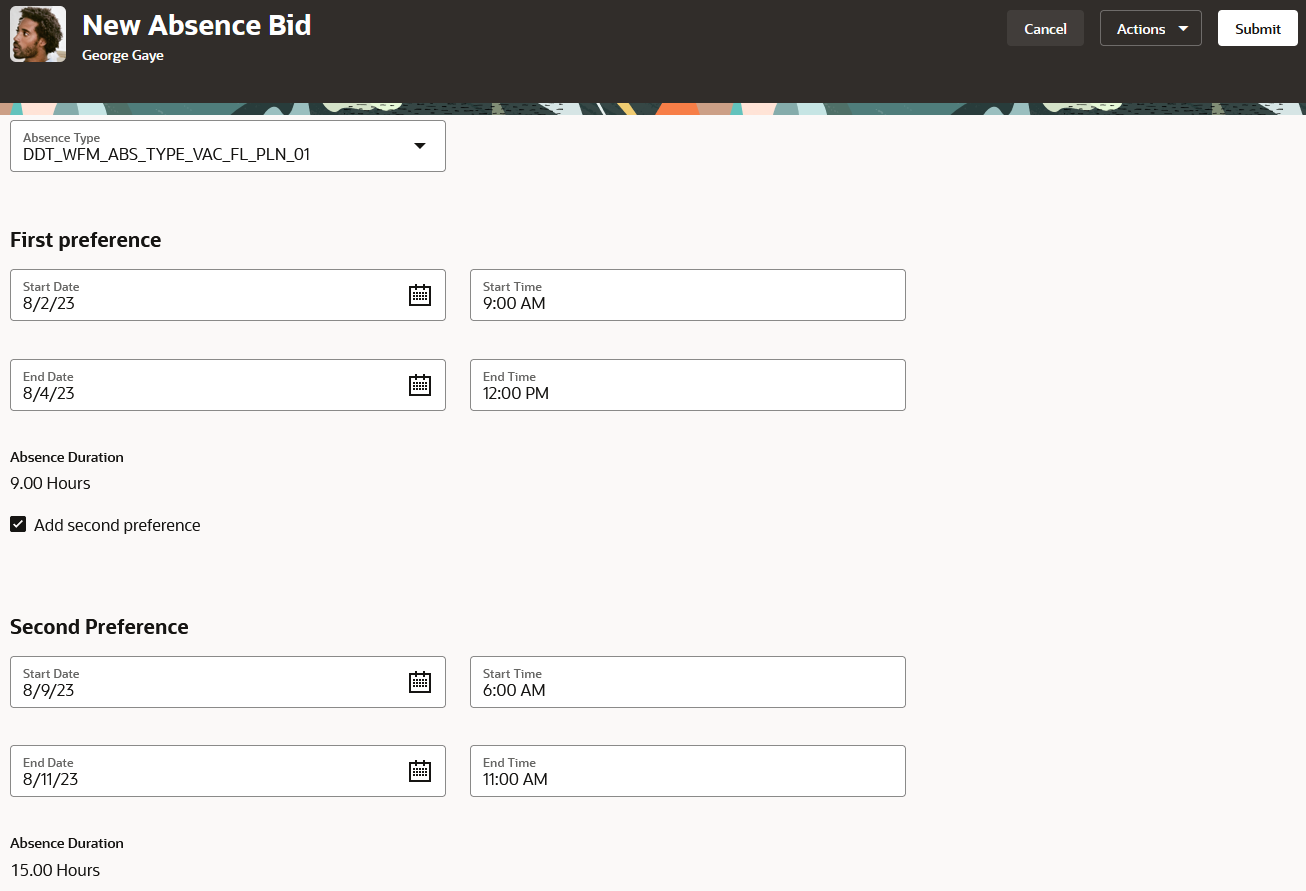
New Absence Bid page.
- Enter any other required additional info and click Submit to submit the bid.
Additionally, employees can also bid for an absence from the Absence Balance and Existing Absences pages using the Bid for Absence button.
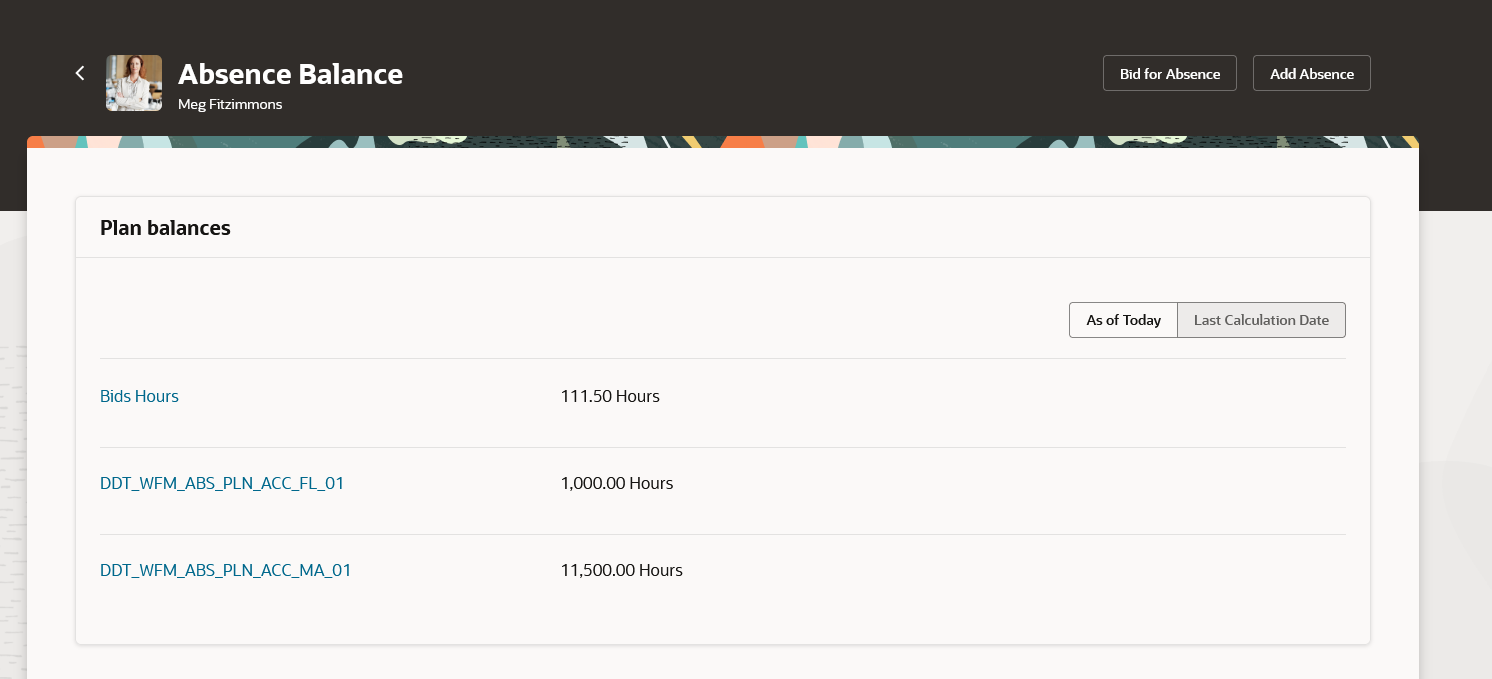
Bid for Absence button in the Absence Balance page
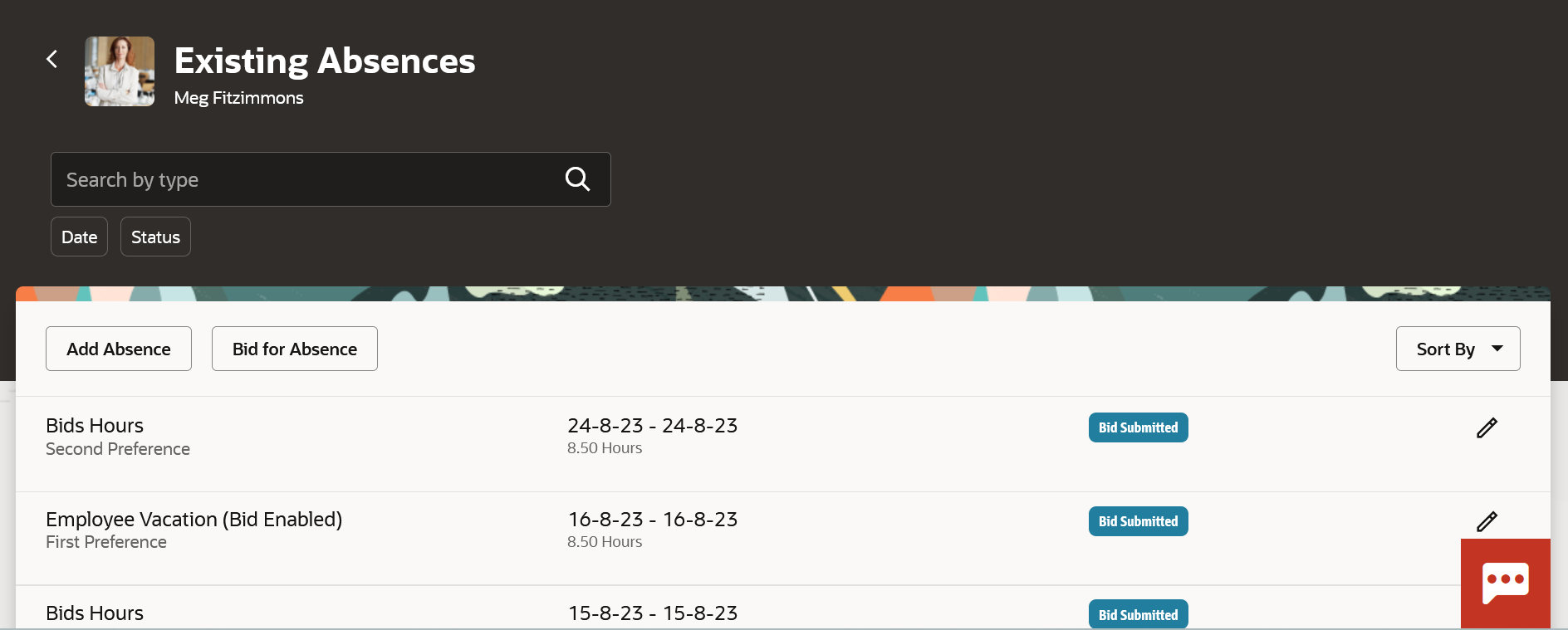
Bid statuses in the Existing Absences page
Managers can see the submitted bids on the Absence Planning page. Depending on the company rules, they can approve or reject the bids along with other absence requests on this page. The approved bids are converted into absence requests. If the line manager is the only approver, then the approved bid becomes a scheduled absence. They can access this page from: My Team > Show More > Absence Planning.
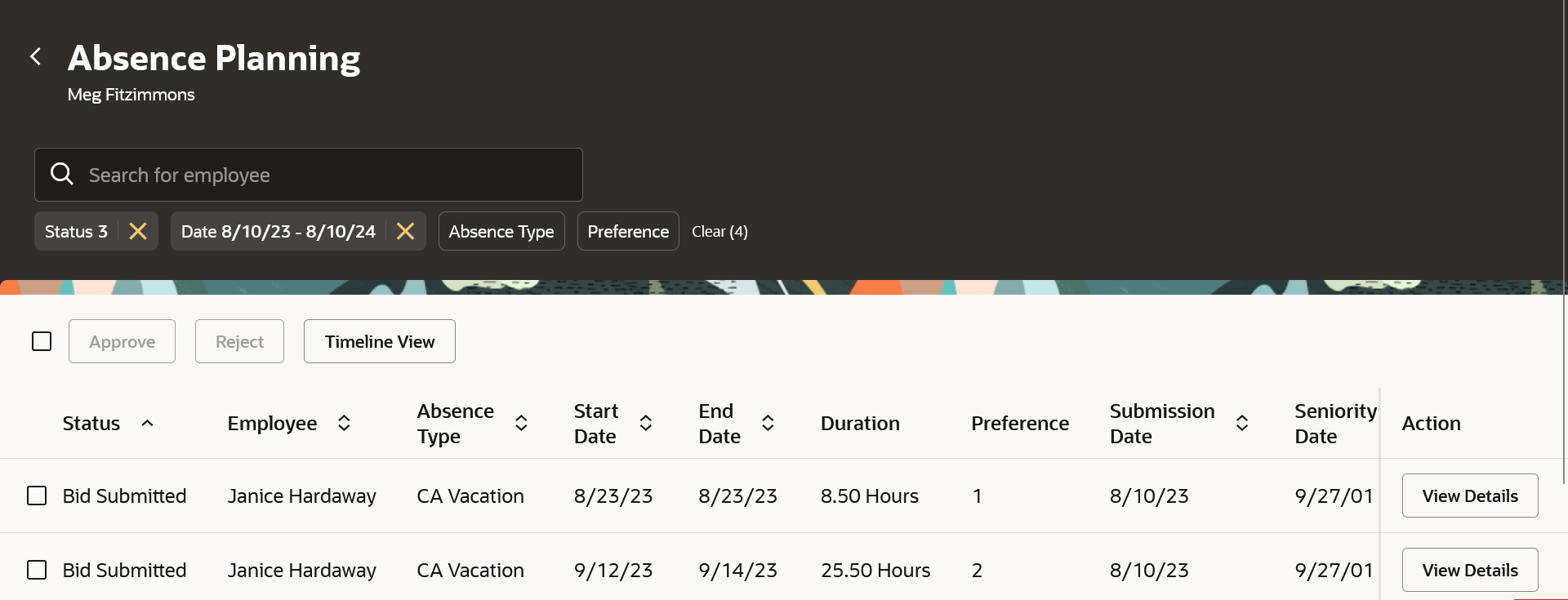
Absence bids on Absence Planning page
Allow workers to now bid for absence on specific dates using the new absence bidding feature. You can enable the bidding feature from the absence type setup page.
Steps to Enable
To enable bidding for an absence type, you need to select the Enable bidding check box in the absence type setup page.

Enable bidding check box in the absence type setup page.
You can enable bidding only for absence types with "Generic" absence pattern. Absence types associated with only accrual or compensatory plans are eligible for bidding.
In addition you need to enable the ORA_HCM_VBCS_PWA_ENABLED profile to access the HCM Redwood pages.
Tips And Considerations
- The bidding feature works only for the Generic absence type pattern.
- It works only for hours and days based UOM.
- You need to set the profile ORA_ANC_VACATION_BIDDING_ENABLED to Y to enable the Bid for Absence button in Existing Absence and Absence Balance page for employees.
Access Requirements
| Duty Role | Duty Role Code | Duty |
|---|---|---|
| Submit Absence Bid | ORA_ANC_SUBMIT_ABSENCE_BID | Employee |
| Submit Absence Bid | ORA_ANC_SUBMIT_ABSENCE_BID | Contingent Worker |
| Submit Absence Bid by Manager | ORA_ANC_SUBMIT_ABSENCE_BID_BY_MANAGER | Line Manager |
Redwood Experience for Compensatory Plan Adjustments
The Redwood page for Compensatory plans has been further enhanced to allow managers to create and update compensatory time manual adjustments and expiration dates.
Here’s how managers can manually adjust compensatory time for their direct reports:
- Click My Team > Show More > Absence Balance.
- Select the employee you want to manually adjust the compensatory time for.
- Click the compensatory plan.
- Click Add.
- Enter the hours you want to allocate to the employee and other necessary details. Depending on the plan setup, you can edit the expiration date of a previous unexpired compensatory time transaction or a manual adjustment.
- Click Save.
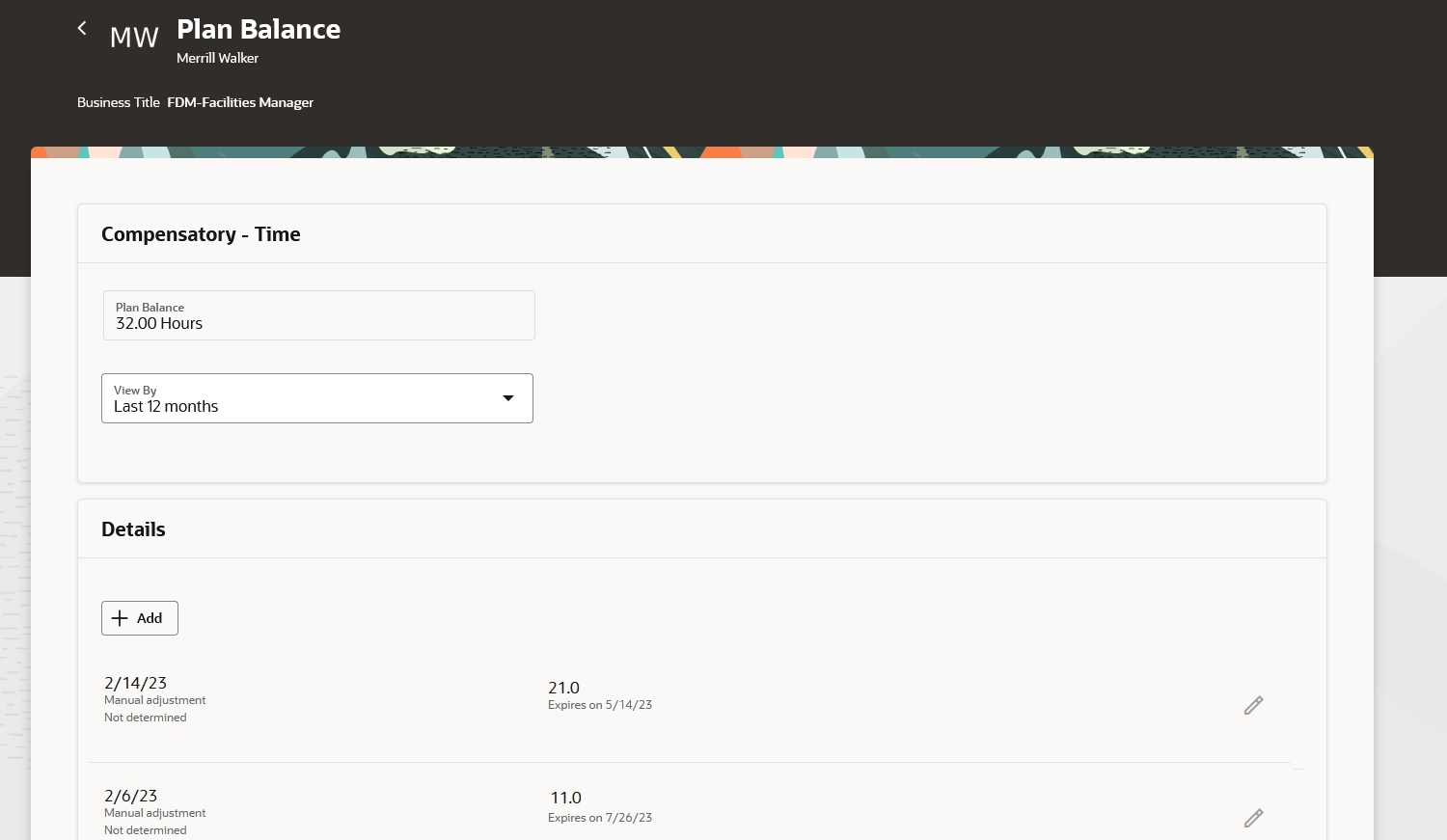
Plan Balance page for a compensatory plan
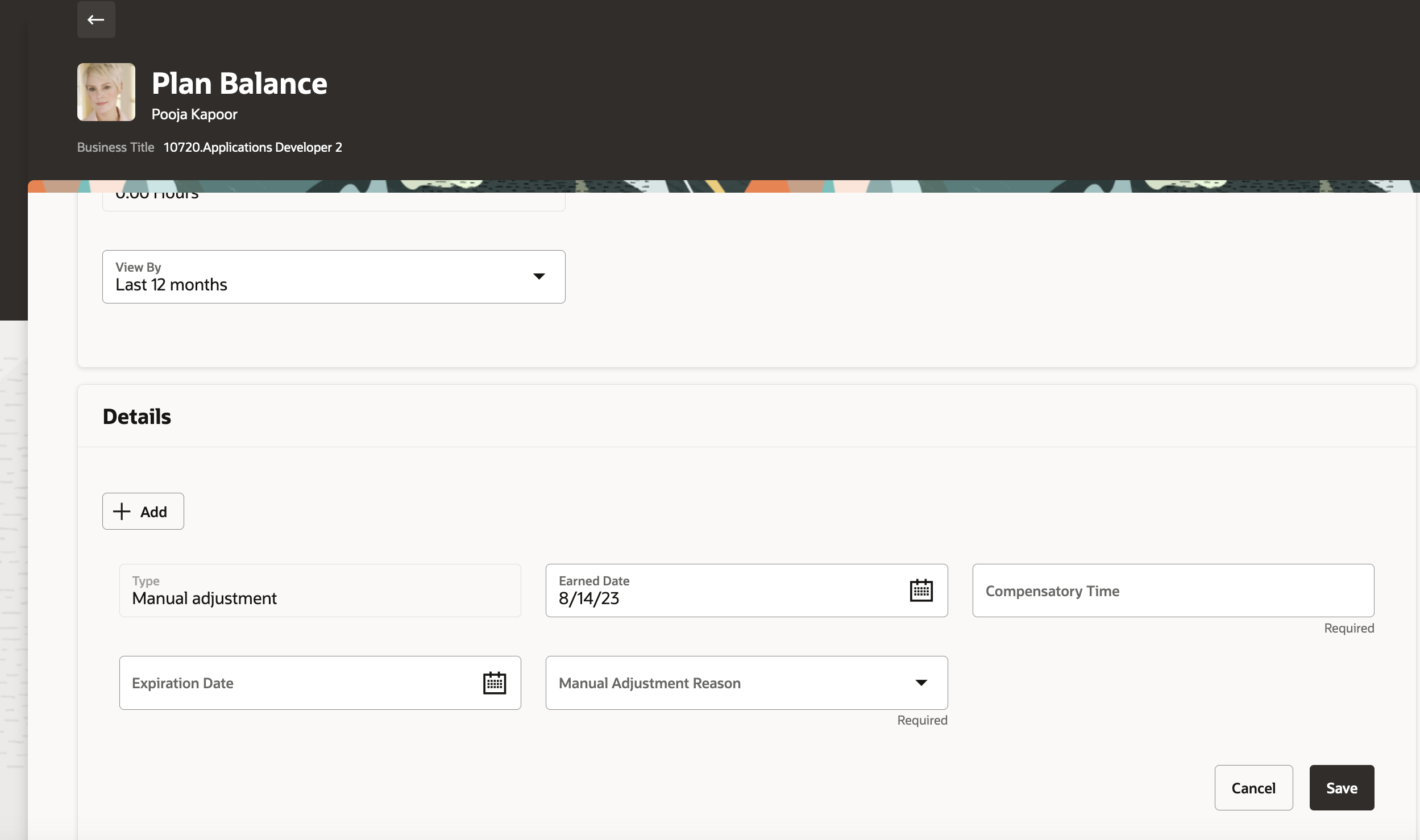
Manual adjustment for a compensatory plan
The enhanced Compensatory plans Redwood page lets you experience Redwood’s high-fidelity interactions. Managers can now create and update compensatory time manual adjustments and expiration dates.
Steps to Enable
This page is turned off by default. If you want to enable it, you will need to do so in the Profile Options. Here are the steps for changing the delivered Profile Options:
- Navigate to the Setup and Maintenance work area.
- Search for and click the Manage Administrator Profile Values task.
- Search for and select the profile option ORA_ANC_PLAN_BALANCE_VBCS_UI_ENABLED.
- Select the Level as Site.
- Enter a Y in the Profile
- Click Save and Close.
Redwood Experience for Unvested Accruals and Unvested Compensatory Time
The Redwood pages for Compensatory and Accrual Plan Balances have been further enhanced to display unvested accruals and compensatory time hours for accrual and compensatory plans in the Unvested Balance section. It will also display the earned date and vesting dates for those unvested amounts.

Accrual plan with Unvested Balance region
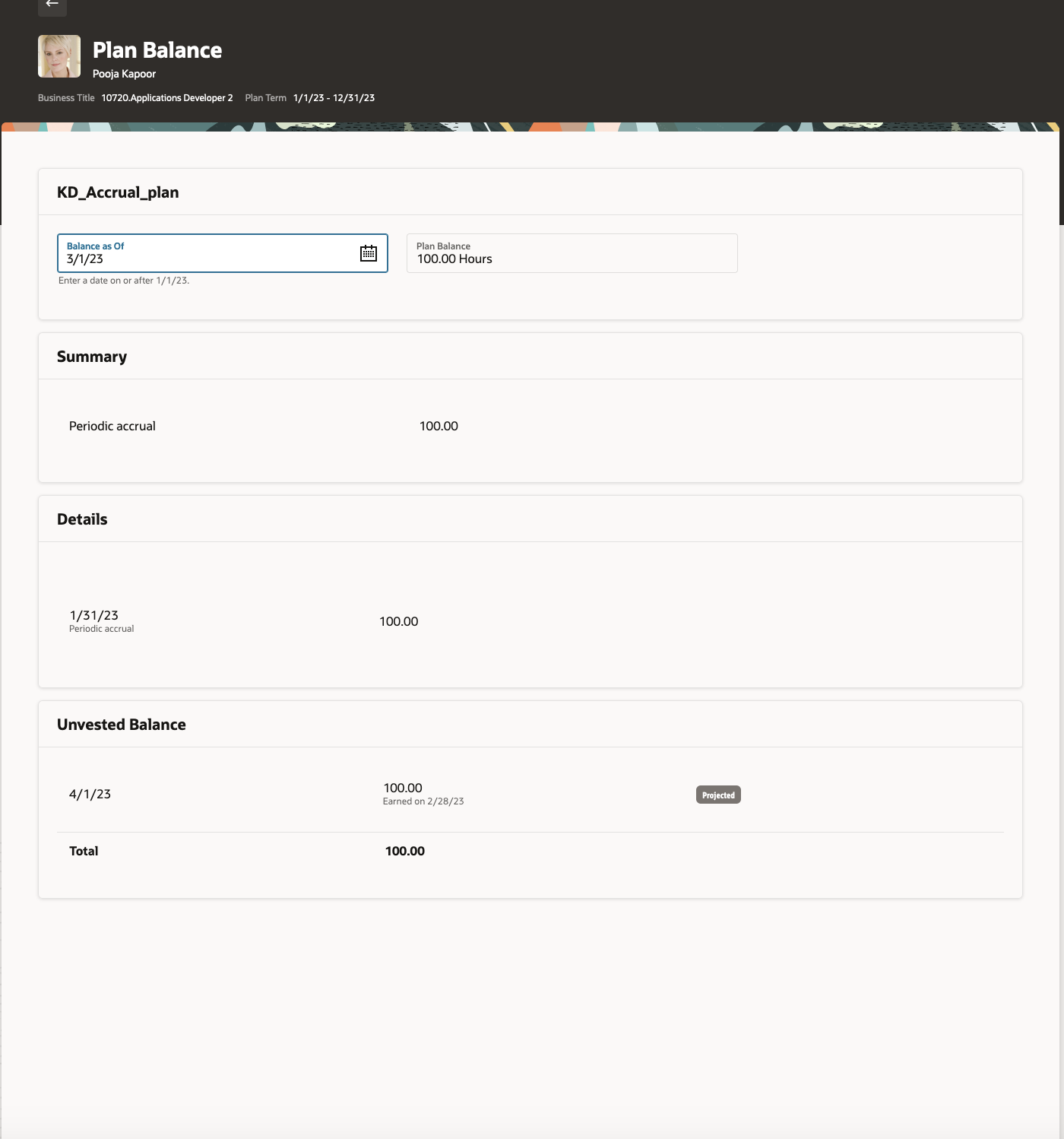
Accrual plan with Unvested Balance region
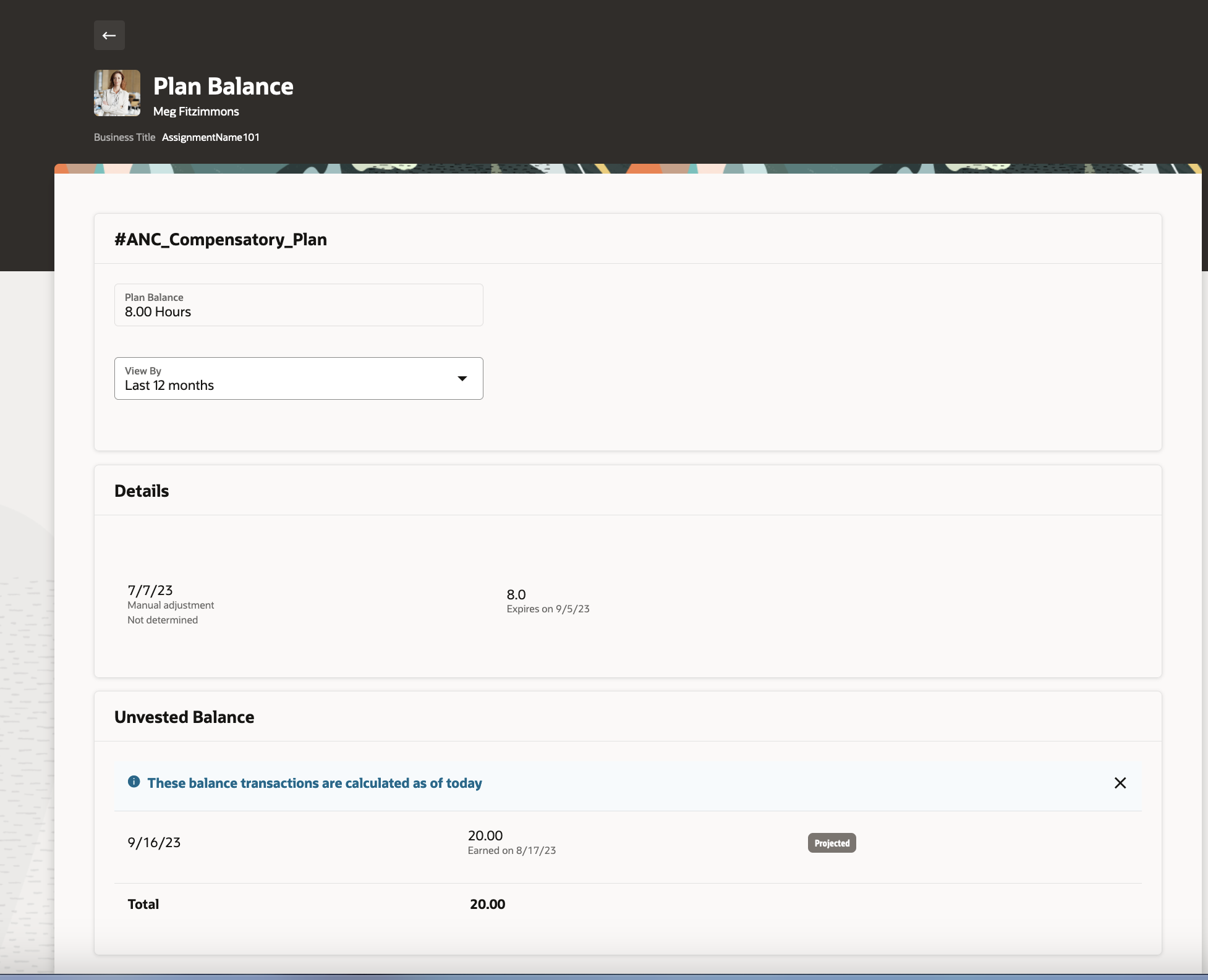
Compensatory plan balance with Unvested Balance region
The enhanced Accrual Plan Balance Redwood page now gives you more information about your accrual plans. It displays unvested accruals for accrual plans in the Unvested Balance section along with the earned date and vesting dates.
Steps to Enable
This page is turned off by default. If you want to enable it, you will need to do so in the Profile Options. Here are the steps for changing the delivered Profile Options:
- Navigate to the Setup and Maintenance work area.
- Search for and click the Manage Administrator Profile Values task.
- Search for and select the profile option ORA_ANC_PLAN_BALANCE_VBCS_UI_ENABLED.
- Select the Level as Site.
- Enter a Y in the Profile
- Click Save and Close.
Transactional Business Intelligence for Absence Management
Oracle Transactional Business Intelligence is a real time, self-service reporting solution offered to all Oracle Cloud application users to create ad hoc reports and analyze them for daily decision-making. Oracle Transactional Business Intelligence provides human resources managers and specialists, business executives, and line managers the critical workforce information to analyze workforce costs, staffing, compensation, performance management, talent management, succession planning, and employee benefits.
Don’t want to start from scratch building a report or analytics? Check out the library of sample reports for all products on Customer Connect on the Report Sharing Center.
Approval Date In Absence Subject Areas
Leverage the new attribute added to the absence related subject areas to report on the date on which the absence record was approved. The new attribute is added to the following subject areas.
| Subject Area | Folder | New Attribute |
|---|---|---|
| Workforce Management - Absence Real Time |
Assignment Absence Details |
Approval Date |
| Workforce Management - Absence Calendar Details Real Time |
Absence Calendar Details |
Approval Date |
Leverage the new attribute added to the absence related subject areas to report on the date on which the absence record was approved.
Steps to Enable
You don't need to do anything to enable this feature.
Tips And Considerations
NOTE: In cases where the approval workflow is setup, Approval Date column is populated after the last approver has approved the absence record. For example, if the absence was created on 1-Jan-2023, the first level approver was manager who approved it on 2-Jan-2023, and the final approver was the HR Manager who approved on 3-Jan-2023; after which the absence record was deemed approved. The Approval Date in the Absence table will be updated as 3-Jan-2023 with the timestamp. In cases where the approval workflow is not setup, the approval date will be same as the absence creation date, as it is considered as auto approved. Again, the Approval date is updated with datetime format.
IMPORTANT Actions and Considerations for Absences
REPLACED OR REMOVED FEATURES
From time to time, Oracle replaces existing Cloud service features with new features or removes existing features. When a feature is replaced the older version may be removed immediately or at a future time. As a best practice, you should use the newer version of a replaced feature as soon as the newer version is available.
| Product |
Removed Feature |
Target Removal |
Replacement Feature |
Replaced In |
Additional Information |
|---|---|---|---|---|---|
| Nothing at this time. |
_________________________
KNOWN ISSUES / MAINTENANCE PACK SPREADSHEETS
Oracle publishes a Known Issues document for every Update to make customers are aware of potential problems they could run into and the document provides workarounds if they are available.
Oracle also publishes Maintenance Pack and Statutory Maintenance Pack documentation of bugs that are fixed in the monthly or statutory patching.
To review these documents you must have access to My Oracle Support:
Oracle Human Capital Management Cloud Functional Known Issues and Maintenance Packs (Document ID 1554838.1)