
This document will continue to evolve as existing sections change and new information is added. All updates appear in the following table:
| Date | Product | Feature | Notes |
|---|---|---|---|
| 05 MAR 2021 | Created initial document. |
This guide outlines the information you need to know about new or improved functionality in this update, and describes any tasks you might need to perform for the update. Each section includes a brief description of the feature, the steps you need to take to enable or begin using the feature, any tips or considerations that you should keep in mind, and the resources available to help you.
Join Oracle Cloud Customer Connect
Please take a moment to join the Cloud Customer Connect forums for Financials Cloud. Oracle Cloud Customer Connect is a community gathering place for members to interact and collaborate on common goals and objectives. This is where you will find the latest release information, upcoming events, or answers to use-case questions. Joining takes just a few minutes. Join now!
https://cloud.oracle.com/community
Security and New Features
The Role section of each feature identifies the security privilege and job role required to use the feature. If feature setup is required, then the Application Implementation Consultant job role is required to perform the setup, unless otherwise indicated. (If a feature doesn't include a Role section, then no security changes are required to use the feature.)
If you have created job roles, then you can use this information to add new privileges to those roles as needed.
Give Us Feedback
We welcome your comments and suggestions to improve the content. Please send us your feedback at oracle_fusion_applications_help_ww_grp@oracle.com.
Optional Uptake of New Features (Opt In)
Oracle Cloud Applications delivers new updates every quarter. This means every three months you'll receive new functionality to help you efficiently and effectively manage your business. Some features are delivered Enabled meaning they are immediately available to end users. Other features are delivered Disabled meaning you have to take action to make available. Features delivered Disabled can be activated for end users by stepping through the following instructions using the following privileges:
- Review Applications Offering (ASM_REVIEW_APPLICATIONS_OFFERINGS_PRIV)
- Configure Oracle Fusion Applications Offering (ASM_CONFIGURE_OFFERING_PRIV)
Here’s how you opt in to new features:
- Click Navigator > My Enterprise > New Features.
- On the Features Overview page, select your offering to review new features specific to it. Or, you can leave the default selection All Enabled Offerings to review new features for all offerings.
- On the New Features tab, review the new features and check the opt-in status of the feature in the Enabled column. If a feature has already been enabled, you will see a check mark. Otherwise, you will see an icon to enable the feature.
- Click the icon in the Enabled column and complete the steps to enable the feature.
For more information and detailed instructions on opting in to new features for your offering, see Offering Configuration.
Opt In Expiration
Occasionally, features delivered Disabled via Opt In may be enabled automatically in a future update. This is known as an Opt In Expiration. If your cloud service has any Opt In Expirations in this update, you will see a related tab in this document. Click on that tab to see when the feature was originally delivered Disabled, and when the Opt In will expire, potentially automatically enabling the feature. You can also click here to see features with current Opt In Expirations across all Oracle Cloud Applications. Beyond the current release, the Financials forums on Cloud Customer Connect have details of Opt In Expirations upcoming in future releases.
Column Definitions:
Report = New or modified, Oracle-delivered, ready to run reports.
UI or Process-Based: Small Scale = These UI or process-based features are typically comprised of minor field, validation, or program changes. Therefore, the potential impact to users is minimal.
UI or Process-Based: Larger Scale* = These UI or process-based features have more complex designs. Therefore, the potential impact to users is higher.
Features Delivered Disabled = Action is needed BEFORE these features can be used by END USERS. These features are delivered disabled and you choose if and when to enable them. For example, a) new or expanded BI subject areas need to first be incorporated into reports, b) Integration is required to utilize new web services, or c) features must be assigned to user roles before they can be accessed.
| Ready for Use by End Users Reports plus Small Scale UI or Process-Based new features will have minimal user impact after an update. Therefore, customer acceptance testing should focus on the Larger Scale UI or Process-Based* new features. |
Customer Must Take Action before Use by End Users Not disruptive as action is required to make these features ready to use. As you selectively choose to leverage, you set your test and roll out timing. |
|||||
|---|---|---|---|---|---|---|
| Feature |
Report |
UI or |
UI or |
|
||
Supporting Reference Balance Initialization Using a Simplified Template |
||||||
Subledger Journal Entry Analysis
Analyze the accounting rules and source values used to create a subledger journal entry. Use this analysis to determine whether appropriate rules were used, and make changes where required. This facilitates rules configuration during implementation, provides better visibility into rule exceptions, and creates a full audit trail of accounted transactions.
Navigate to the new Analyze Journal Entry page from the Review Journal Entries page, from the View Accounting window, or directly from the Manage Accounting Errors page.
Use the Analyze Journal Entry Page to review the source transaction distributions behind a journal entry along with details of the various subledger accounting rules applied at the time accounting was created. You can do that for both draft and final accounted journal entries, as well as for invalid journal entries.

This feature provides useful insight into why accounting is created in a particular way or why there are errors. It simplifies analysis of unexpected accounting results and helps reduce efforts for implementing and troubleshooting accounting rules.
Steps to Enable
Make the feature accessible by assigning or updating privileges and/or job roles. Details are provided in the Role section below.
Tips And Considerations
- Keep in mind accounting rules may have changed since a journal entry was first created. For draft journal entries, you can create accounting again to apply the current rules.
- The analysis focuses on journal entries created based on subledger accounting rules. Exceptions – like automatically generated lines (gain or loss, suspense, intercompany, rounding, etc.) – are flagged accordingly.
Role Information
To access the Analyze Journal Entry page you need a custom job role with the Review Accounting Diagnostic function security policy added.
Supporting Reference Balance Initialization Using a Simplified Template
Use the Adjust Supporting Reference Balances template to initialize or adjust balances for a supporting reference. The simplified template restricts users from entering unbalanced journals.
You can access the template from the Adjust Supporting Reference Balances task in the Journals work area.
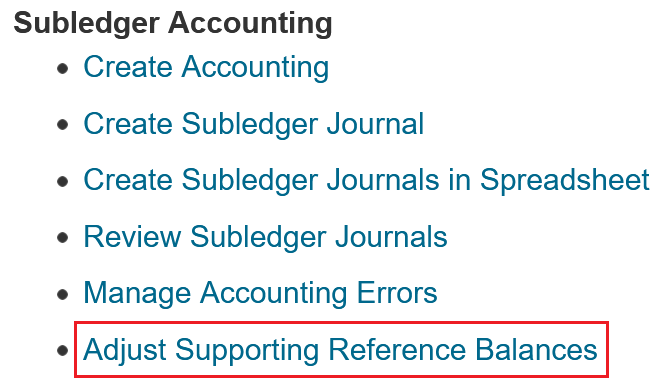
Navigate to Adjust Supporting Reference Balances Task
Enter the Ledger and Journal Source and click on the Open Spreadsheet button to render the Adjust Supporting Reference Balances template.

Enter the Ledger and Journal Source
Complete the details and submit the adjustments to either initialize supporting reference balances or adjust existing balances for the entered combination. The upload creates subledger journal entries for all adjustments and submits the Update Subledger Balances program for processing.

Adjust Supporting Reference Balances Using the Spreadsheet Template
For each row in the spreadsheet an offset line is automatically created on the opposite side with the same account combination but no supporting references so that the journal entry is balanced. These journal entries help you maintain an audit trail of the supporting reference balance adjustments.

The simplified template streamlines balance adjustments during initial data migration or when an additional dimension is implemented at a later stage.
Steps to Enable
You don't need to do anything to enable this feature.
Tips And Considerations
-
You can also use the Import Supporting Reference Initial Balances task in the Setup and Maintenance work area to access the Adjust Supporting Reference Balances template.
-
Resulting subledger journal entries are not transferred to the general ledger.
Role Information
Access to the "Adjust Supporting Reference Balances" task would be available through the existing Subledger Accounting Manager duty. You don't need a new role to use this feature.