
This document will continue to evolve as existing sections change and new information is added. All updates appear in the following table:
| Date | Product | Feature | Notes |
|---|---|---|---|
| 04 MAR 2022 | Created initial document. |
IMPORTANT NOTE: If you are being updated directly from 21D to 22B you should review the content of both 22A and 22B sections to ensure you see all the changes included in the update.
 HAVE AN IDEA?
We’re here and we’re listening. If you have a suggestion on how to make our cloud services even better then go ahead and tell us. There are several ways to submit your ideas, for example, through the Ideas Lab on Oracle Customer Connect. Wherever you see this icon after the feature name it means we delivered one of your ideas.
GIVE US FEEDBACK
We welcome your comments and suggestions to improve the content. Please send us your feedback at oracle_fusion_applications_help_ww_grp@oracle.com.
DISCLAIMER
The information contained in this document may include statements about Oracle’s product development plans. Many factors can materially affect Oracle’s product development plans and the nature and timing of future product releases. Accordingly, this Information is provided to you solely for information only, is not a commitment to deliver any material, code, or functionality, and should not be relied upon in making purchasing decisions. The development, release, and timing of any features or functionality described remains at the sole discretion of Oracle.
This information may not be incorporated into any contractual agreement with Oracle or its subsidiaries or affiliates. Oracle specifically disclaims any liability with respect to this information. Refer to the Legal Notices and Terms of Use for further information.
Optional Uptake of New Features (Opt In)
Oracle Cloud Applications delivers new updates every quarter. This means every three months you'll receive new functionality to help you efficiently and effectively manage your business. Some features are delivered Enabled meaning they are immediately available to end users. Other features are delivered Disabled meaning you have to take action to make available. Features delivered Disabled can be activated for end users by stepping through the following instructions using the following privileges:
- Review Applications Offering (ASM_REVIEW_APPLICATIONS_OFFERINGS_PRIV)
- Configure Oracle Fusion Applications Offering (ASM_CONFIGURE_OFFERING_PRIV)
Here’s how you opt in to new features:
- Click Navigator > My Enterprise > New Features.
- On the Features Overview page, select your offering to review new features specific to it. Or, you can leave the default selection All Enabled Offerings to review new features for all offerings.
- On the New Features tab, review the new features and check the opt-in status of the feature in the Enabled column. If a feature has already been enabled, you will see a check mark. Otherwise, you will see an icon to enable the feature.
- Click the icon in the Enabled column and complete the steps to enable the feature.
In some cases, you might want to opt in to a feature that's not listed in the New Features work area. Here's how to opt in:
- Click Navigator > My Enterprise > Offerings.
- On the Offerings page, select your offering, and then click Opt In Features.
- On the Opt In page, click the Edit Features (pencil) icon for the offering, or for the functional area that includes your feature.
- On the Edit Features page, complete the steps to enable the feature.
For more information and detailed instructions on opting in to new features for your offering, see Offering Configuration.
Opt In Expiration
Occasionally, features delivered Disabled via Opt In may be enabled automatically in a future update. This is known as an Opt In Expiration. If your cloud service has any Opt In Expirations you will see a related tab in this document. Click on that tab to see when the feature was originally delivered Disabled, and when the Opt In will expire, potentially automatically enabling the feature. You can also click here to see features with Opt In Expirations across all Oracle Cloud Applications.
Column Definitions:
Report = New or modified, Oracle-delivered, ready to run reports.
UI or Process-Based: Small Scale = These UI or process-based features are typically comprised of minor field, validation, or program changes. Therefore, the potential impact to users is minimal.
UI or Process-Based: Larger Scale* = These UI or process-based features have more complex designs. Therefore, the potential impact to users is higher.
Features Delivered Disabled = Action is needed BEFORE these features can be used by END USERS. These features are delivered disabled and you choose if and when to enable them. For example, a) new or expanded BI subject areas need to first be incorporated into reports, b) Integration is required to utilize new web services, or c) features must be assigned to user roles before they can be accessed.
| Ready for Use by End Users Reports plus Small Scale UI or Process-Based new features will have minimal user impact after an update. Therefore, customer acceptance testing should focus on the Larger Scale UI or Process-Based* new features. |
Customer Must Take Action before Use by End Users Not disruptive as action is required to make these features ready to use. As you selectively choose to leverage, you set your test and roll out timing. |
|||||
|---|---|---|---|---|---|---|
| Feature |
Report |
UI or |
UI or |
|
||
Manual Subledger Journal Transfer to General Ledger by Preparer |
||||||
Manual Subledger Journal Transfer to General Ledger by Preparer
Transfer manual subledger journal entries to the general ledger by preparer while creating subledger journals using a spreadsheet or submitting the Post Subledger Journal Entries process. Manual journal entries created by different users are split into separate general ledger journal batches. This facilitates routing the journal batches to different approvers or reviewers based on the preparer. You can also choose to transfer all subledger journals, or exclude manual journal entries, while submitting the Post Subledger Journal Entries process.
On enabling this feature, the following changes are applied -
- When you create subledger journals using a spreadsheet with Completion Status as ‘Final and Transfer’ or ‘Final and Post’, eligible manual subledger journals created by the same user will be transferred to the general ledger. Manual subledger journals created by other users will not be transferred.
- Use the Journal Batch field to optionally enter text to use as a prefix to the General Ledger journal batch name when creating subledger journals using a spreadsheet.
- An additional parameter, Journal Entries to Transfer, would be displayed in the Post Subledger Journal Entries ESS Parameter submission window for users to select which subledger journal entries should be transferred -
- All - Selecting this option will allow continuing current behavior i.e. submit transfer for all subledger journals.
- All except manual journals - Selecting this option will exclude manual subledger journals from transferring to general ledger.
- Manual journals created by me - Selecting this option will only transfer manual subledger journals created by the current user.

Entering a Journal Batch Prefix in Create Subledger Journals Spreadsheet
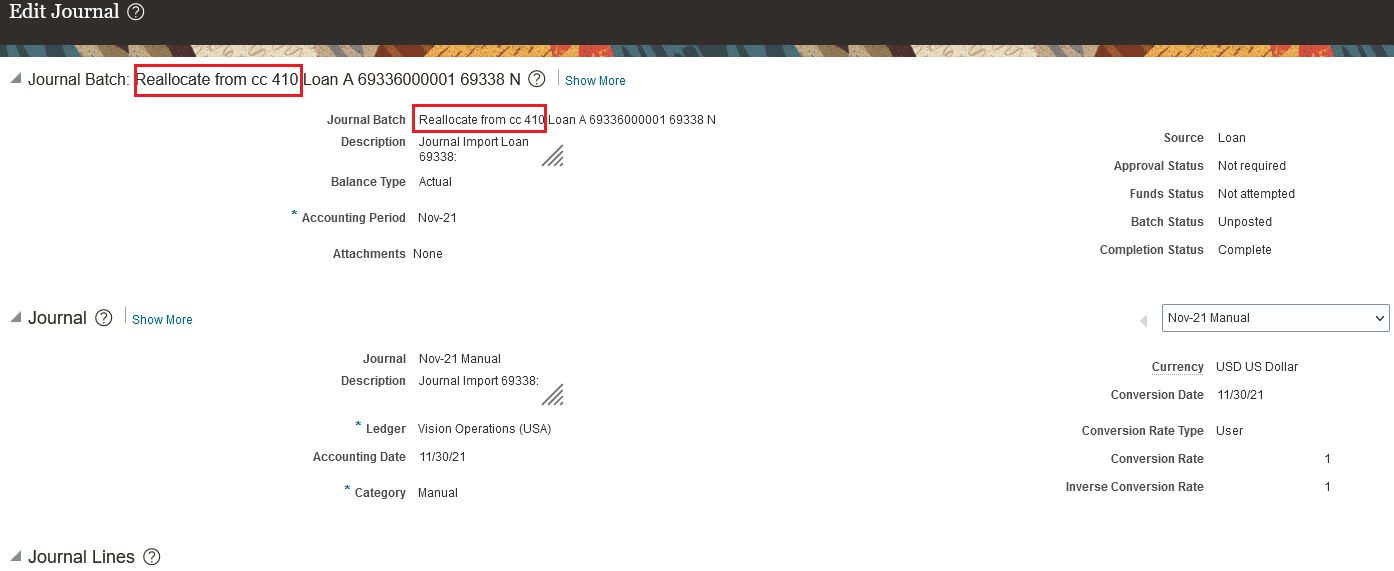
General Ledger Journal Batch Created with the Prefix Entered

Selecting Journal Entries to Transfer in the Post Subledger Journal Entries Program
Business benefits include:
- Leverage general ledger journal approval workflow to review and approve subledger journals created for accounting hub subledgers.
- Improved user experience in tracing general ledger journal batches generated for manual subledger journals.
Steps to Enable
- Log in with a user having access to Setup pages. For example, User with Application Implementation Consultant role.
- Navigate to Fusion Setup and Maintenance page.
- Select Offering: Fusion Accounting Hub and Functional Area: Accounting Transformation.
- Click on the Task: Manage Subledger Accounting Lookups.
- Search the Lookup Type: ORA_XLA_PROMOTIONAL_OPTIONS and add a lookup code under it with the following details –
- Lookup Code: XLA_PROMO_32177682_ON
- Reference Data Set: Common Set
- Enabled: <Checked>
- Meaning: Transfer Accounting Hub Manual Journals to GL by Preparer
- Save the changes.

Lookup Code Setup to Enable the Feature
Tips And Considerations
- You can also create manual subledger journal entries using the Create Subledger Journal page and group them into one GL batch by posting them using the Post Subledger Journal Entries process. All manual adjustments entered through UI or spreadsheet will be grouped into one GL batch when a user selects ‘Manual Journals created by me’ in the Journal Entries to Transfer parameter.
- To group all accounting hub transactions which have not been transferred yet into one GL batch, you can account the transactions in Final status and then submit the Post Subledger Journal Entries ESS program with Journal Entries to Transfer set to ‘All except Manual Journals’.
- Note: This option will not transfer any manual subledger journal entries to GL. It will not select eligible journals by the preparer.
- If a Journal Batch is not specified in the spreadsheet, or you’re using an old template, a system generated batch name will be assigned to the GL journal batch.
- Note: You can't enter a Journal Batch exceeding 50 characters.
Role Information
No new roles\privileges are required to secure access to this feature.