
November Maintenance Pack for 22D
This document will continue to evolve as existing sections change and new information is added. All updates appear in the following table:
| Date | Module | Feature | Notes |
|---|---|---|---|
| 27 OCT 2022 | Service Request Management |
Adaptive Intelligence for Service - SR Classification | Updated document. Delivered new feature in update 22D. |
| 27 OCT 2022 |
Service Request Management |
Service Center in the Redwood Experience is Available Upon Request | Updated document. Delivered new feature in update 22D. |
| 06 OCT 2022 | Created initial document. |
 HAVE AN IDEA?
We’re here and we’re listening. If you have a suggestion on how to make our cloud services even better then go ahead and tell us. There are several ways to submit your ideas, for example, through the Ideas Lab on Oracle Customer Connect. Wherever you see this icon after the feature name it means we delivered one of your ideas.
GIVE US FEEDBACK
We welcome your comments and suggestions to improve the content. Please send us your feedback at oracle_fusion_applications_help_ww_grp@oracle.com.
DISCLAIMER
The information contained in this document may include statements about Oracle’s product development plans. Many factors can materially affect Oracle’s product development plans and the nature and timing of future product releases. Accordingly, this Information is provided to you solely for information only, is not a commitment to deliver any material, code, or functionality, and should not be relied upon in making purchasing decisions. The development, release, and timing of any features or functionality described remains at the sole discretion of Oracle.
This information may not be incorporated into any contractual agreement with Oracle or its subsidiaries or affiliates. Oracle specifically disclaims any liability with respect to this information. Refer to the Legal Notices and Terms of Use for further information.
Column Definitions:
Report = New or modified, Oracle-delivered, ready to run reports.
UI or Process-Based: Small Scale = These UI or process-based features are typically comprised of minor field, validation, or program changes. Therefore, the potential impact to users is minimal.
UI or Process-Based: Larger Scale* = These UI or process-based features have more complex designs. Therefore, the potential impact to users is higher.
Features Delivered Disabled = Action is needed BEFORE these features can be used by END USERS. These features are delivered disabled and you choose if and when to enable them. For example, a) new or expanded BI subject areas need to first be incorporated into reports, b) Integration is required to utilize new web services, or c) features must be assigned to user roles before they can be accessed.
| Ready for Use by End Users Reports plus Small Scale UI or Process-Based new features will have minimal user impact after an update. Therefore, customer acceptance testing should focus on the Larger Scale UI or Process-Based* new features. |
Customer Must Take Action before Use by End Users Not disruptive as action is required to make these features ready to use. As you selectively choose to leverage, you set your test and roll out timing. |
|||||
|---|---|---|---|---|---|---|
| Feature |
Report |
UI or |
UI or |
|
||
Service Center in the Redwood Experience is Available Upon Request |
||||||
Service Center in the Redwood Experience is Available Upon Request
Service Center in the Redwood user experience is now available upon request for customers in selected data centers. The new Service Center is a completely redesigned agent experience allowing you to manage service issues and engage with customers and fellow employees using a modern, conversational user interface. Designed with the new Redwood Design System and Visual Builder Studio, every element in the design has been reimagined with simpler, modern design elements to make it easier than ever to support your customers.
The new Service Center user experience enhances many existing features and introduces brand new capabilities including:
- Adaptive search provides an easy-to-use search to find the right records, including saved searches.
- The service request activity stream interweaves all important SR updates including field edits, customer messages, internal conversations, and interactions into a single timeline.
- More easily manage service requests with an easier to read layout of customer and internal conversations.
- The Action Bar allows agents to quickly access actions without the need to navigate buttons and menus.
- The Pending Items and Recommendation region helps users access recommended knowledge and follow prescribed best practice steps in an action plan.
- Quickly access knowledge management with the option to leverage separate browser tabs to research multiple articles at once.
- Reduce clicks and overall effort with productivity boosters such as drag and drop of attachments, solo actions, next record navigation, and fewer pages.
- Collaborate with the new Conversation framework to instantly communicate with other members of your organization.
The new Redwood experience improves the overall simplicity and efficiency for users of the Service Center. Users will find that most tasks require fewer clicks and steps, many actions are more convenient to perform, and the overall design requires less cognitive effort. In addition, the new Visual Builder Studio framework allows more flexibility and many new options to create changes to the UI layout and add new types of extensions.
Steps to Enable
Use the Opt In UI to enable this feature. For instructions, refer to the Optional Uptake of New Features section of this document.
Offering: Service
If your organization is interested in enabling the Redwood experience, submit a service request to Oracle Support or contact your Customer Success Manager.
Once the Redwood experience has been enabled in your cloud environment, you will need to use the Opt-in features in the Service offering in Setup and Maintenance to activate the UI. The opt-in steps are covered in the Implementing Service Center with the Redwood User Experience guide.
Key Resources
See the following guides on the Oracle Help Center (https://docs.oracle.com):
- Using Service Center in the Redwood User Experience
- Implementing Service Center with the Redwood User Experience
Role And Privileges
Service Administrator
Adaptive Intelligence for Service - SR Classification
SR Classification uses AI/ML to predict and label your email-created service requests (SRs) with the correct service category and product. Your agents don't need to spend time anymore reading through service emails to decide what category an SR belongs or the product it maps to. With these key attributes automatically stamped at the time of creation, the SR is assigned to the correct queue and agent, avoiding subsequent queue/agent transfers and the attendant delays in resolution. As you keep using the feature, the system trains itself to get progressively better, resulting in improved prediction accuracy and the resultant exponential benefits.
Improved SR routing efficiency and accuracy, better agent experience and reduction in SR resolution times are some of the more obvious benefits of this feature
Steps to Enable
Use the Opt In UI to enable this feature. For instructions, refer to the Optional Uptake of New Features section of this document.
Offering: Service
You need to opt-in to use the feature.
Tips And Considerations
- Use the promo code provided in the 'Implementing Service Center Guide' book to enable the feature.
- SR Classification is available with both Classic and Redwood user experience
Key Resources
- Implementing Service Center with the Classic User Experience
- Implementing Service Center with the Redwood User Experience
Role And Privileges
Sales Administrator
New Extensibility Options to Support Case Automation
Your Visual Builder developers can use new extensibility options to create unique automation workflows in the Create Case page and Case Details page. For example, developers can use case variables and events that automatically initiate a specific action or action plan when the case is created or updated. You can also extend and refresh all dynamic containers on the page related to action plans that have been updated through the automation.
Your users can view the most appropriate action plans based upon automated rules that your Visual Builder developer creates for your unique organizational needs.
Steps to Enable
Visual Builder developers can utilize the following in their Action plan automation designs:
- Page Constant: CaseNumber
- Page Events: On-Save, On-Update, refreshActionPlanComponentsEvent
- Dynamic Container: Left-hand Panel
Key Resources
- For more information about extending Cases, see the "Extend Case Management" chapter of the Implementing Case Management guide.
Create and Manage Cases for Your Help Desk
Cases can be created automatically from your help desk action plans allowing cases to be part of any help desk request workflow. In addition, cases can be related to help desk requests for easy updates and communications between the request and the case.
You can now create cases that support help desk workflows like grievances, disciplinary actions, investigations, escalations, exceptions and collaborations.
Steps to Enable
You don't need to do anything to enable this feature.
Tips And Considerations
- This feature supports the new Help Desk based upon the Redwood experience but does not support Classic Help Desk.
- This feature applies to both the HRSR stripe (Help Desk Requests) and ISR stripe (Internal Service Requests).
Key Resources
- For more information about how to use Cases in Help Desk, see the Using Help Desk guide.
Role And Privileges
- Help desk users and administrators should ensure they have appropriate privileges for the case-related features they plan to use.
This document will continue to evolve as existing sections change and new information is added. All updates appear in the following table:
| Date | Module | Feature | Notes |
|---|---|---|---|
| 27 OCT 2022 |
Service Request Management |
Accomplish More with the Service Request Overview Page in Redwood | Updated document. Delivered new feature in update 22D. |
| 27 OCT 2022 |
Service Request Management |
Manage Service Work Orders from Service Request Foldout Panel | Updated document. Delivered new feature in update 22D. |
| 27 OCT 2022 |
Service Request Management |
Manage the Service Request List Results in Redwood | Updated document. Delivered new feature in update 22D. |
| 15 SEP 2022 |
Created initial document. |
HAVE AN IDEA?
We’re here and we’re listening. If you have a suggestion on how to make our cloud services even better then go ahead and tell us. There are several ways to submit your ideas, for example, through the Ideas Lab on Oracle Customer Connect. Wherever you see this icon after the feature name it means we delivered one of your ideas.
GIVE US FEEDBACK
We welcome your comments and suggestions to improve the content. Please send us your feedback at oracle_fusion_applications_help_ww_grp@oracle.com.
DISCLAIMER
The information contained in this document may include statements about Oracle’s product development plans. Many factors can materially affect Oracle’s product development plans and the nature and timing of future product releases. Accordingly, this Information is provided to you solely for information only, is not a commitment to deliver any material, code, or functionality, and should not be relied upon in making purchasing decisions. The development, release, and timing of any features or functionality described remains at the sole discretion of Oracle.
This information may not be incorporated into any contractual agreement with Oracle or its subsidiaries or affiliates. Oracle specifically disclaims any liability with respect to this information. Refer to the Legal Notices and Terms of Use for further information.
Column Definitions:
Report = New or modified, Oracle-delivered, ready to run reports.
UI or Process-Based: Small Scale = These UI or process-based features are typically comprised of minor field, validation, or program changes. Therefore, the potential impact to users is minimal.
UI or Process-Based: Larger Scale* = These UI or process-based features have more complex designs. Therefore, the potential impact to users is higher.
Features Delivered Disabled = Action is needed BEFORE these features can be used by END USERS. These features are delivered disabled and you choose if and when to enable them. For example, a) new or expanded BI subject areas need to first be incorporated into reports, b) Integration is required to utilize new web services, or c) features must be assigned to user roles before they can be accessed.
| Ready for Use by End Users Reports plus Small Scale UI or Process-Based new features will have minimal user impact after an update. Therefore, customer acceptance testing should focus on the Larger Scale UI or Process-Based* new features. |
Customer Must Take Action before Use by End Users Not disruptive as action is required to make these features ready to use. As you selectively choose to leverage, you set your test and roll out timing. |
|||||
|---|---|---|---|---|---|---|
| Feature |
Report |
UI or |
UI or |
|
||
Assess and Update Cases Using Intelligent Advisor Interviews |
||||||
Access the Action Bar in Redwood User Experience Using a Keyboard Shortcut |
||||||
Manage Action Plans Through an Intuitive and Interactive Diagram |
||||||
Manage Service Work Orders from Service Request Foldout Panel |
||||||
Accomplish More with the Service Request Overview Page in Redwood |
||||||
Decide Which Related Objects to Purge When You Purge Contacts |
||||||
Assess and Update Cases Using Intelligent Advisor Interviews
You can now assess and update your cases using expert guidance from Intelligent Advisor interviews.
Using Intelligent Advisor interviews can ensure that all critical questions about your case are answered and the next best actions are taken.
Steps to Enable
- Create and publish your Intelligent Advisor interview.
- Using Visual Builder Studio, update the Case Details page:
- Add your Intelligent Advisor Hub endpoint to the variable, intelligentAdvisorHubURL.
- Add your interview name to the variable, assessCaseInterviewName.
- Enable the Assess Case clickable link using the variable, showAssessCaseLinkOnDetailsPage.
- Publish the changes.
- To start the interview, users can now click the newly created Assess Case link in the left-hand panel of the Case Details page.
Tips And Considerations
Interviews can assist case managers in assessing a case in a number of ways. Interviews can provide guidance to the case manager based upon the details of the case and the case manager's responses to interview questions. Interviews may also make updates to the case itself, automating actions for the case manager.
Key Resources
- For more information, see the Implementing Case Management guide.
Role And Privileges
- Application developers must enable the Assess Case option on the Case Details page.
Access the Action Bar in Redwood User Experience Using a Keyboard Shortcut
Use the keyboard shortcut Alt+A for PC and Control+A for Mac to put focus on the Action Bar. This keyboard shortcut works on the Case Management and Service Request pages in your Redwood User Experience Service Center application, wherever the Action Bar is available.
Using the keyboard shortcut lets agents more quickly and easily navigate through the user interface.
Steps to Enable
You don't need to do anything to enable this feature.
Tips And Considerations
This feature is only available for Service Request and Case Management in Redwood Service Center. This feature isn't available for Help Desk or Digital Sales.
Key Resources
- See "Edit a Case" in the Using Case Management guide.
Role And Privileges
- This feature is available to all Redwood Service Center users without any additional setup required.
Easily Copy Attachments Using Action Plan Actions
Action Plan administrators can now choose to copy all attachments when defining an action plan action. An action with this option set will copy all the attachments from the parent object onto the new object that's created by the action.
This feature fosters better collaboration and escalations by simplifying and accelerating document-based action plan workflows.
Steps to Enable
You don't need to do anything to enable this feature.
Tips And Considerations
Copy All Attachments is an optional feature that can be applied to action plan actions of these types:
- Case
- Service Request
- Help Desk Request
- Internal Service Request.
Remember that attachments may contain sensitive information.
Key Resources
- See the "Work with Actions and Plans" topic in the Using Case Management guide.
Role And Privileges
Action Plan administrators can enable the Copy All Attachments feature for all new or existing Action Plan Actions that create a Case, Service Request, Help Desk Request, or Internal Service Request.
Manage Action Plans Through an Intuitive and Interactive Diagram
Users can now view and interact with action plans in an intuitive, interactive diagram. This easy-to-read interface complements the existing table-based view of action plans in all Redwood applications, including Cases, Service Requests, and Help Desk Requests.
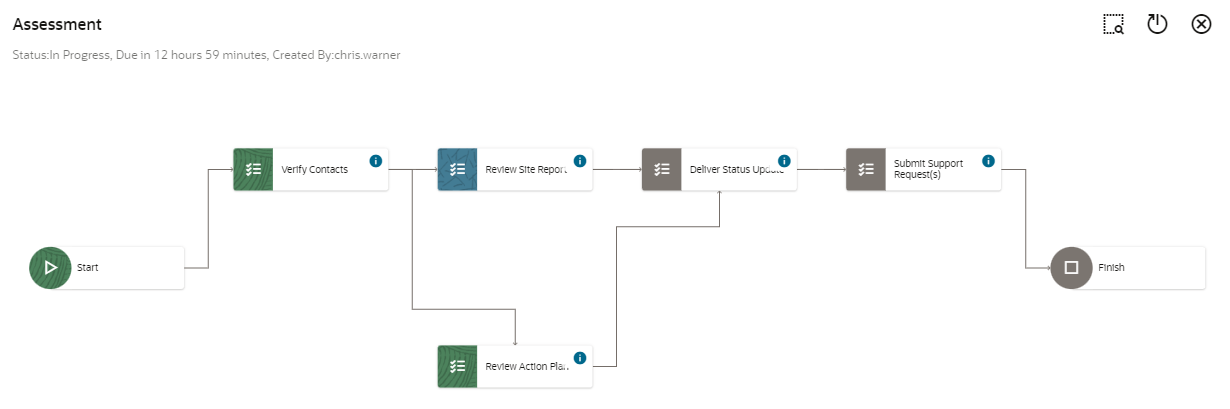
Assessment Diagram
The Action Plan diagram gives users a clear picture of their Action Plans, including past, present, and future steps; their status; and their dependencies. As a result, users can better understand how to get Action Plans completed on time.
Steps to Enable
You don't need to do anything to enable this feature.
Key Resources
- See the "Work with Cases" chapter in the Using Case Management guide.
Role And Privileges
- User and managers of Cases, Service Requests and Help Desk Requests
Manage the Service Request List Results in Redwood
Manage the display of the search results on the Service Request list page in your Redwood Service Center application. Use the ready-to-use saved searches, or create your own default, custom saved searches. Add multiple filters to narrow down your search results. Administrators can create saved searches for all users and for specific roles, such as service managers and service representatives. The Service Request list page also lets you create a new service request record, group service requests by available attributes, export the list of service request records to a file, and perform actions like assigning the service request to yourself.
Users and administrators now have more options to personalize the search experience.
Steps to Enable
You don't need to do anything to enable this feature.
Manage Service Work Orders from Service Request Foldout Panel
You can now see open work orders in the work order panel when viewing the service request fold out view in the Redwood UI. You can also open a specific work order to view details or open the service request detail page to view all associated work orders.
Understand the remaining field service scheduled work required to resolve a service request.
Steps to Enable
You don't need to do anything to enable this feature.
Tips And Considerations
This feature is only available for Service Requests and Cases in Service Center. This feature is not available for Help Desk or Digital Sales. Only work orders not completed or canceled will show in the service request work order panel. To view all work orders, go to the work order section in the service request details page.
Key Resources
For details about how to implement Service Work Orders in B2B Service, see the Implementing Service Center with the Redwood User Experience guide.
Role And Privileges
This feature will be available to all Redwood users without any additional setup required..
Accomplish More with the Service Request Overview Page in Redwood
The Service Request Overview page in Redwood Service Center now lets you accomplish more work quickly, with these usability improvements:
- Click-to-dial any contact associated with the service request using the Show Contacts action, and then select any displayed contact phone number.
- When you navigate to a Service Request Overview page from the Similar Service Request Results list page, the Service Request Overview page header displays options to link the two SRs together, or mark the matched SR as not relevant. Also, a back arrow on the page navigates you back to the Similar Service Request Results list page.
- When you compose an email and attach a file to the email, you can drag and drop multiple files into the email.
- When you navigate to the Service Request Details page, the Summary section fields are immediately editable. This lets you save time and avoids the need to switch from the read-only state.
These UI enhancements provide an easier to use experience for users of service requests.
Steps to Enable
You don't need to do anything to enable this feature.
Notify Agents of Missed Customer-Initiated Chats
Agents are now notified when they miss a customer-initiated chat. The notification persists until dismissed by the agent. If the missed chat is from a known contact, then the agent can drill down into the contact record. There's no drill-down when the contact isn't known. If the missed chat is for a Service Request, then the agent will be can also drill down into the Service Request record.
This feature notifies agents of missed customer-initiated chats, thereby allowing them to proactively reach out to the customer.
Steps to Enable
You don't need to do anything to enable this feature.
Key Resources
-
See the "How You Enable Chat" topic in the Implementing Service Center with the Classic User Experience guide.
Decide Which Related Objects to Purge When You Purge Contacts
You can determine whether you want to purge associated Service Requests and related objects when a contact is purged, to comply with General Data Protection Regulations. You can also decide to purge select objects, such as Service Request messages.
You can decide what actions must be taken on the service requests and their related objects when contacts are purged from Fusion Sales and Service. The available options are:
- Delete all service requests and their child objects where the purged contact is the primary contact.
- Delete all service requests and their child objects where the purged contact is the primary or secondary contact.
- Clear out the content of all service request messages where the purged contact is a correspondent.
- Clear out the content of all service request messages where the purged contact is the sender.
- Clear out the content of all service request messages where the purged contact is a correspondent and the message is marked to contain Personally Identifiable Information (PII).
- Clear out the content of all the service request messages where the purged contact is the sender and the message is marked to contain PII.
- Remove the association between the purged contacts and the service requests, but make no other changes to the service request or its child objects.
- Make no changes to the service request. This is the default behavior of the application when a contact is deleted.
Steps to Enable
- Navigate to the Manage Administrator Profile Values task in the Setup and Maintenance work area.
- Search for the ORA_SVC_SR_GDPR_OPTIONS_FOR_CONTACT profile option.
- From the list of displayed values, select the value that you want to set for the profile option.
Key Resources
- See the "Profile Options, Lookups, and Scheduled Processes for Service Requests" chapter in the Implementing B2B Service guide.
Role And Privileges
- Customer Relationship Management Application Administrator
- Sales Administrator
Enable System Access Groups for Service Work Orders
You can now use system access groups and predefined rules to support service work order data security for your users. Every standard job role provided by Oracle has a corresponding system access group. The predefined object-sharing rules assigned to each system access group provide the same access to service work order data as provided by the standard job roles.
System access groups give you an alternative way to manage a user's access to service work order data. You can also create access extension rules to extend the access provided by the predefined rules to related objects.
Steps to Enable
System access-group-based data security policies were created to match exiting predefined SQL-based data security policies and are enabled by default. However, the predefined object-sharing rules associated with each system access group are inactive by default. So you must activate these rules before you can use them. The association between system groups and predefined rules is also disabled by default. So for each system group, you must also enable the predefined rules you want to apply to the group.
- Navigate to Security Console.
- Edit the role for which you're enabling predefined rules.
- Go to Step 3, Data Security Policies, in the wizard where you're editing the role.
- Find the matching SQL-based data security policy for your predefined rule.
- Edit the data security policy and set a past date as the end date for the data security policy.
Tips And Considerations
Access groups are an alternative way of granting data permissions to users as compared to the SQL based data security policies.
Key Resources
- See the "Users and Security" chapter in the Implementing B2B Service guide.
Role And Privileges
- Customer Relationship Management Application Administrator
- Sales Administrator
Enable Near Real-Time Updates for Work Order Access Groups
You can access service work orders that are secured using access groups in near-real time. When a service work order is created or updated, users can access the new or updated service work order immediately.
With this feature, users get access to new or updated service work orders faster than before.
Steps to Enable
To implement near-real-time processing for service work orders, you must enable these profile options:
- Near Real-Time Transaction Tracking for Access Groups Enabled (ORA_ZCA_ACCESS_GROUPS_NEAR_REAL-TIME_TRACKING_ENABLED): This profile option is enabled at the site level by default.
- Common CRM Signals Active (ORA_ZCA_ENABLE_SIGNALS): This profile option is disabled by default.
Tips And Considerations
Enabling Signals and Near Real-Time Transaction Tracking eliminates the need to run the Perform Object Sharing Rule Assignment Processing scheduled process for users to access the service work orders.
Key Resources
- See the "Users and Security" chapter in the Implementing B2B Service guide.
Role And Privileges
- Customer Relationship Management Application Administrator
- Sales Administrator