
- Revision History
- Overview
- Feature Summary
-
- Benefits
-
- Delete Generated Billing Charges
- Choose Additional Costing Choices in Benefits
- Display More than 500 Derived Factors on Eligibility Profiles
- Import and Export Eligibility Profiles in Functional Setup Manager
- Consider Waiting Periods for Imputed Income Calculations
- Extend Open Enrollment Window for New Hires
- New Check While Changing the Start Date of Contacts with Existing Enrollments
- Track Changes in Enrollment Data
- Use 10-Day Payroll Frequency
-
- Transactional Business Intelligence Enterprise for Benefits
- Benefits
- IMPORTANT Actions and Considerations for Benefits
This document will continue to evolve as existing sections change and new information is added. All updates appear in the following table:
| Date | Product | Feature | Notes |
|---|---|---|---|
| 25 MAR 2022 | Benefits |
Choose Additional Costing Choices in Benefits | Updated document. Revised feature information. |
| 25 MAR 2022 |
Benefits |
Consider Waiting Periods for Imputed Income Calculations | Updated document. Revised feature information. |
| 25 MAR 2022 |
Benefits |
Import and Export Eligibility Profiles in Functional Setup Manager | Updated document. Revised feature information. |
| 25 Feb 2022 | Benefits / OTBI |
Modified Attribute Name in Benefits Subject Area | Updated document. Feature delivered in update 22A. |
| 28 JAN 2022 | HCM Common / HCM Common Architecture |
Enhancements to Approvals and Notifications | Updated document. Revised feature information. |
| 28 JAN 2022 | Benefits | Extend Open Enrollment Window for New Hires | Updated document. Revised feature information. |
| 28 JAN 2022 | Benefits | Track Changes in Enrollment Data | Updated document. Revised feature information. |
| 06 DEC 2021 | Created initial document. |
HCM Cloud applications have two types of patches you can receive that are documented in this What’s New:
- Release Updates (22A, 22B, 22C, and 22D)
- Optional Monthly Maintenance Packs to each update
It is important for you to know what Release Update your environment is on. You can find this in your Cloud Portal.
____________________
 HAVE AN IDEA?
We’re here and we’re listening. If you have a suggestion on how to make our products better, please let us know. To enter an idea go to the Ideas Lab on Oracle Customer Connect. In this document wherever you see the light bulb icon after the feature name it means we delivered one of your ideas.
____________________
Suggested Reading for all HCM Products:
- Human Resources What’s New – In the Global Human Resources section you will find features on the base application in which other application are built upon.
NOTE: Not all Global Human Resource features are available for Talent and Compensation products.
- Oracle Human Capital Management Cloud Functional Known Issues and Maintenance Packs (Document ID 1554838.1). These documents identify bug fixes and possible known issues. You will also need to review these documents based in the release update version you are currently on or will be moving to.
- Oracle Help Center – Here you will find guides, videos and searchable help.
- Release Readiness – New Feature Summary, What’s New, Feature Listing Spreadsheet, Spotlights and Release Training
GIVE US FEEDBACK
We welcome your comments and suggestions to improve the content. Please send us your feedback at oracle_fusion_applications_help_ww_grp@oracle.com. Indicate you are inquiring or providing feedback regarding the HCM Cloud What’s New in the body or title of the email.
Column Definitions:
Report = New or modified, Oracle-delivered, ready to run reports.
UI or Process-Based: Small Scale = These UI or process-based features are typically comprised of minor field, validation, or program changes. Therefore, the potential impact to users is minimal.
UI or Process-Based: Larger Scale* = These UI or process-based features have more complex designs. Therefore, the potential impact to users is higher.
Features Delivered Disabled = Action is needed BEFORE these features can be used by END USERS. These features are delivered disabled and you choose if and when to enable them. For example, a) new or expanded BI subject areas need to first be incorporated into reports, b) Integration is required to utilize new web services, or c) features must be assigned to user roles before they can be accessed.
| Ready for Use by End Users Reports plus Small Scale UI or Process-Based new features will have minimal user impact after an update. Therefore, customer acceptance testing should focus on the Larger Scale UI or Process-Based* new features. |
Customer Must Take Action before Use by End Users Not disruptive as action is required to make these features ready to use. As you selectively choose to leverage, you set your test and roll out timing. |
|||||
|---|---|---|---|---|---|---|
| Feature |
Report |
UI or |
UI or |
|
||
Display More than 500 Derived Factors on Eligibility Profiles |
||||||
Import and Export Eligibility Profiles in Functional Setup Manager |
||||||
New Check While Changing the Start Date of Contacts with Existing Enrollments |
||||||
Oracle Benefits is a complete, configurable and flexible global solution that enables organizations to successfully evolve and adapt to the unique needs of their workforce. The solution enables setup of traditional 'one-size fits all' plans to highly complex plans that selectively target different workforce segments with different benefit packages. Self-service capabilities present the user with an out of the box intuitive guided enrollment process with contextual information and embedded analytics.
Delete Generated Billing Charges
You can now delete incorrect billing charges that are in unpaid status from the Billing page in Benefits Service Center. After you delete the charges, the data is restored to how it was before. For example, you want to waive off billing charges for some employees after the bills have been generated. These billing charges are in unpaid status and you can delete them. When you delete the charges, they neither appear on the employee’s Year to Date totals (YTD) nor appear as dues in the subsequent bills.
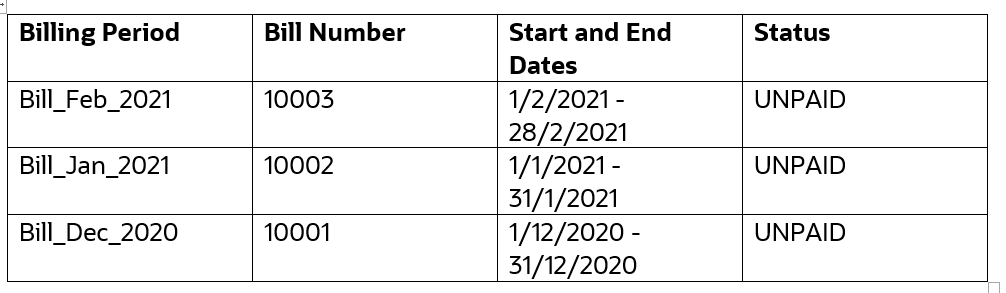
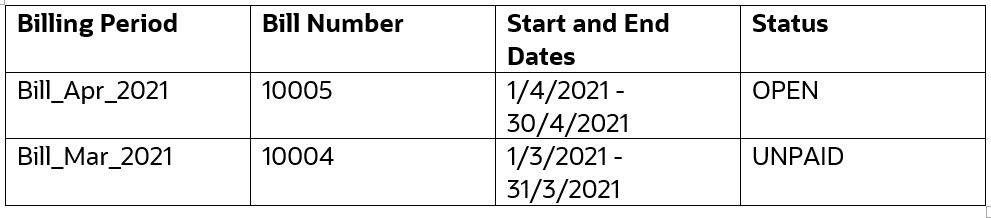
You can only delete the latest unpaid billing charge. If there are more future-dated billing charges that are in unpaid status, you need to delete those charges first before you can delete a specific unpaid billing charge.
In the following example, there are more billing charges that are in unpaid status. If you want to delete the bill number 10001 or 10002, you need to first delete the bill number 10003.
In the following example, there is one billing charge that is in open status and one in unpaid status. If you want to delete the bill number 10004, you need to first delete the bill number 10005.
You can add reasons and comments on why you are deleting the billing charges. Such details are useful for future reference. You need to extend a lookup named Reason for Deleting the Bill Charge (ORA_BEN_BILL_DEL_REASON) to add your business-specific reasons.
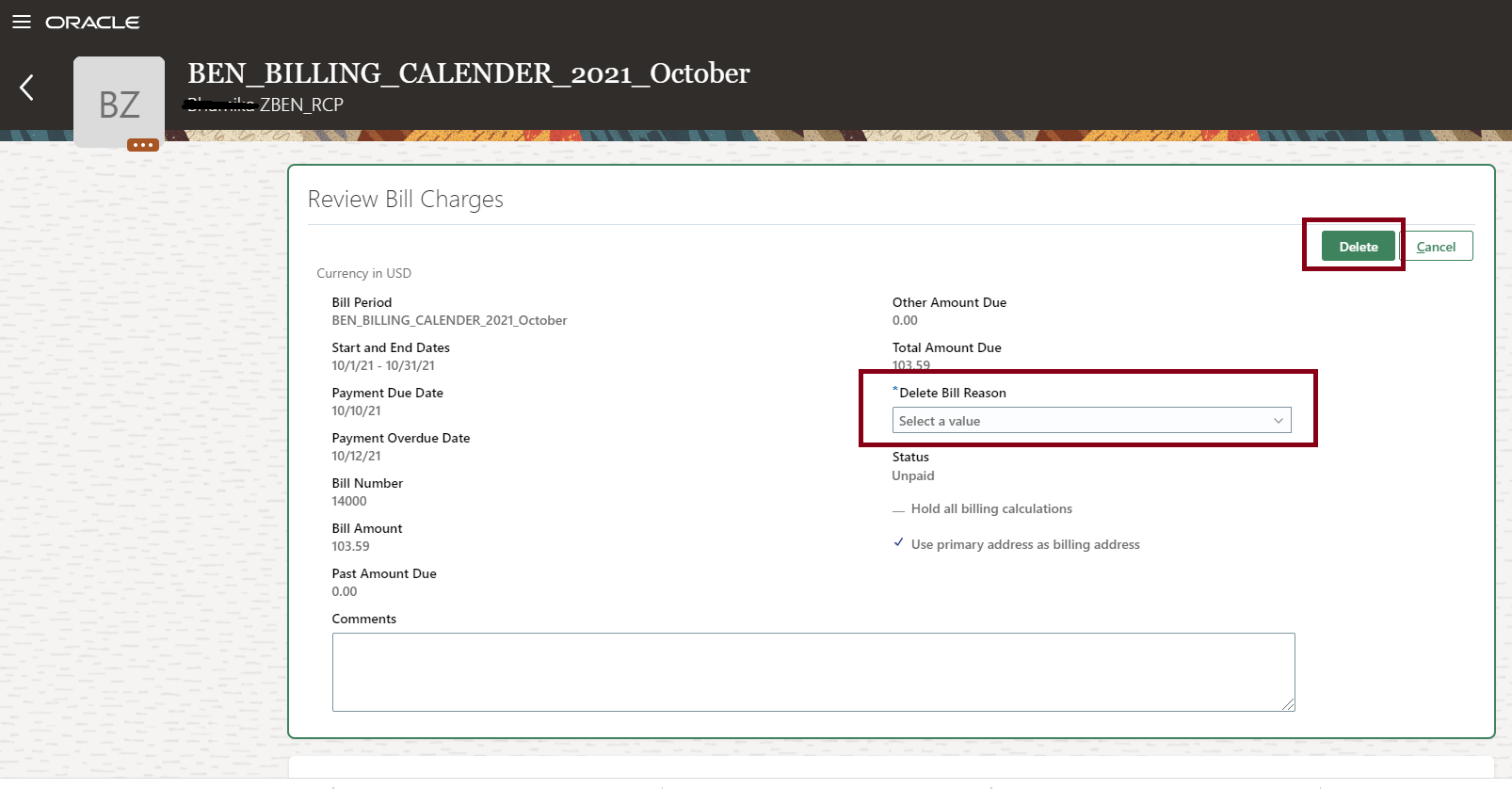
Delete Option and Add Reason
Even after the billing charge is deleted, you’ll be able to see it from the Show Deleted Unpaid Bill Charges option along with the reason for deletion.
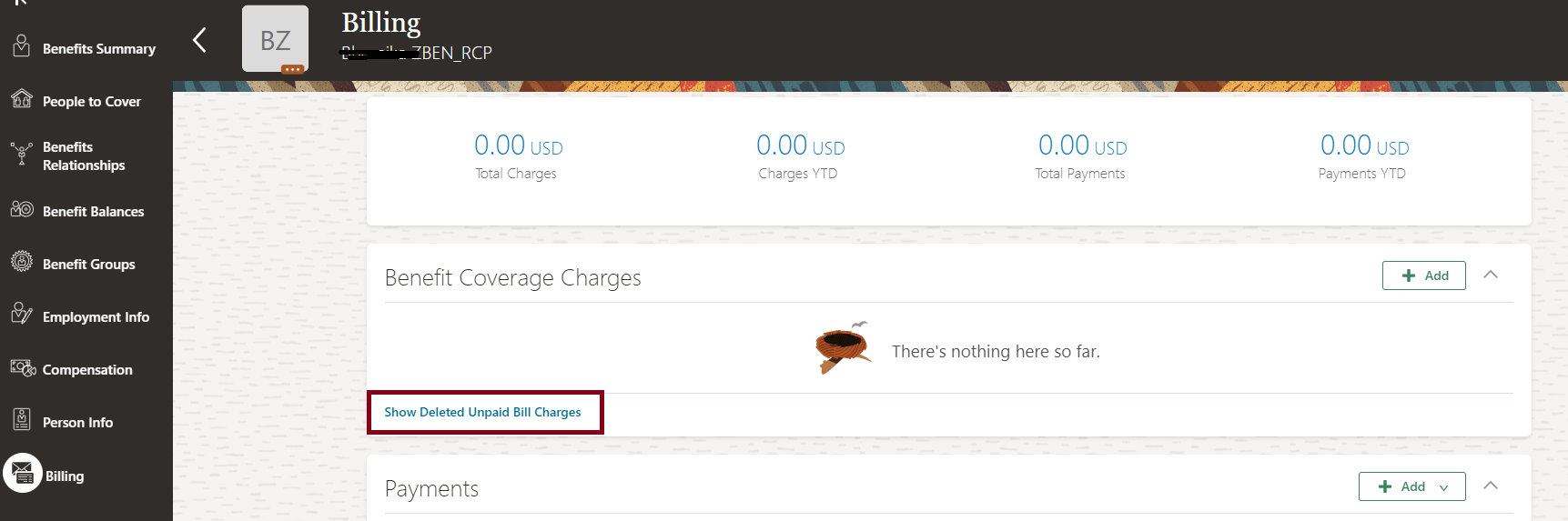
Show Deleted Unpaid Bill Charges Option
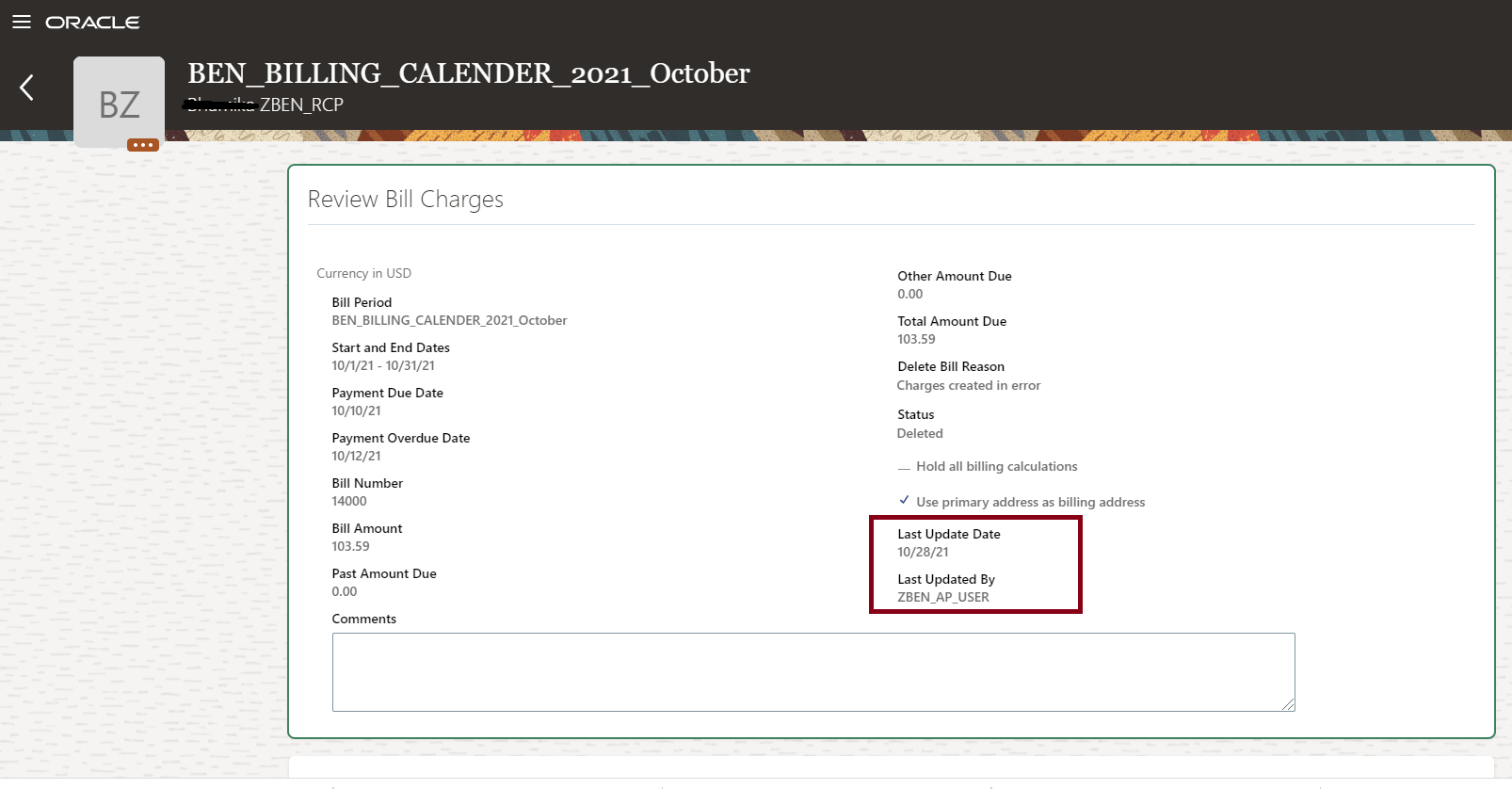
Review Bill Charges
You no longer have to give the participant a credit for these bill charges that appear on their YTD. Instead, by being able to delete the unpaid bill charge itself, the data is restored to how it was before the charges were prepared. Also, the charges don’t appear on a participant’s Year to Date totals (YTD). This leads to fewer participant queries and administrator time needed to resolve them.
Steps to Enable
You don't need to do anything to enable this feature.
Key Resources
Choose Additional Costing Choices in Benefits
You can now distribute costs under different assignments. Previously, the complete cost can be distributed only under the primary assignment. You can use a fast formula to define the distribution across assignments.

Costing Method and Distribution Formula
Also, the Person Benefits Diagnostic Test report now includes a new section to show the costing distribution details. To view this report, click the logged-in user's icon, and click Run Diagnostics Tests in the Troubleshooting section. Then, search for the Person Benefits Diagnostic Test report.
Administrators and other benefits professionals can record costs of benefits towards the correct financial departments. This improves accuracy of financial reporting and shows the real expenditure of a department or organization.
Steps to Enable
You need to do these steps when you create or edit a standard rate:
-
Select the Rates and Coverages tab.
-
On the Standard Rates subtab Create menu, select Create Standard Rate.
-
Select Distribution Formula from the dropdown list named Costing Method in the Processing Information tab on the Additional Information section.
-
Select the fast formula from the dropdown list named Distribution Formula.
Fast Formula
The costing distribution will be done based on the formula return values.
Formula Type: Benefits Rate Distribution
Formula Contexts:
- HR_RELATIONSHIP_ID
- HR_TERM_ID
- ENTERPRISE_ID
- ELEMENT_TYPE_ID
- PAYROLL_RELATIONSHIP_ID
- PAYROLL_TERM_ID
- LEGAL_EMPLOYER_ID
- DATE_EARNED
- HR_ASSIGNMENT_ID
- BUSINESS_GROUP_ID
- PERSON_ID
- JOB_ID
- EFFECTIVE_DATE
- PAYROLL_ASSIGNMENT_ID
- PAYROLL_ID
- LEGISLATIVE_DATA_GROUP_ID
- LER_ID
- OPT_ID
- ORGANIZATION_ID
- ELIG_PER_ELCTBL_CHC_ID
- ACTY_BASE_RT_ID
- BNFTS_BAL_ID
- PGM_ID
- PL_ID
- PL_TYP_ID
- BENEFIT_RELATION_ID
- PER_IN_LER_ID
ReturnVariables
Here are some points to consider:
- The return variable names must follow this format:
l_asg1, l_val1.......l_asg10, l_val10
Example: l_asg1,l_val1,l_asg2,l_val2,l_asg3,l_val3
- As in the sample formula, the return variables need to follow this convention:
return l_asg1,l_val1,l_asg2,l_val2,l_asg3,l_val3
- The maximum number of assignments for allocation is 10. That means there can be up to 10 pairs. The above example has 3 pairs.
- The return variable l_valx indicates the distribution percentage of the costs across assignments. The percentage value must be between 0 and 100 and the sum of the values must be 100. Also, the value can’t have more than 2 decimal places.
- The assignment_ids should belong to the person being processed and also to the same payroll relationship.
- If the value for the assignment_id is 0, the assignment_id and value set are ignored.
- A missing set is not allowed. For example, l_asg1,l_val1,l_asg3,l_val3. Here, the set l_asg2,l_val2 is missing.
Here’s a sample distribution formula to store % values for each person assignment in a user-defined table, and use it for costing distribution:
User-Defined Table:
| Assignment |
PERSON_ID |
VALUE(Percentage) |
|---|---|---|
| Assignment_1 |
Person_id_1 |
50 |
| Assignment_2 |
Person_id_1 |
30 |
| Assignment_3 |
Person_id_1 |
20 |
| Assignment_4 |
Person_id_2 |
50 |
| Assignment_5 |
Person_id_2 |
50 |
Sample Formula:
DEFAULT_DATA_VALUE for PER_HIST_ASG_ASSIGNMENT_ID is 0
l_asg1=0
l_val1=0
l_asg2=0
l_val2=0
l_asg3=0
l_val3=0
i=1
j=1
l_effective_date = GET_CONTEXT(EFFECTIVE_DATE,to_date('1951/01/01 00:00:00'))
CHANGE_CONTEXTS(LEGISLATIVE_DATA_GROUP_ID = 202)
WHILE(PER_HIST_ASG_ASSIGNMENT_ID.EXISTS(i)) LOOP(
if ((PER_HIST_ASG_ASSIGNMENT_TYPE[i]='E' or PER_HIST_ASG_ASSIGNMENT_TYPE[i]='N') and ((l_effective_date > PER_HIST_ASG_EFFECTIVE_START_DATE[i]) and (l_effective_date <PER_HIST_ASG_EFFECTIVE_END_DATE[i]))) then (
l_person_id = to_number(GET_TABLE_VALUE ('DHQA_ASG_COSTING_DISTRIBUTION','PERSON_ID',to_char(PER_HIST_ASG_ASSIGNMENT_ID[i]),'-999'))
if (l_person_id = GET_CONTEXT(PERSON_ID,-9999)) then (
if(j=1) then(
l_asg1= PER_HIST_ASG_ASSIGNMENT_ID[i]
l_val1 = to_number(GET_TABLE_VALUE ('DHQA_ASG_COSTING_DISTRIBUTION','VALUE',to_char(PER_HIST_ASG_ASSIGNMENT_ID[i]))))
if (j=2) then (
l_asg2 = PER_HIST_ASG_ASSIGNMENT_ID[i]l_val2 = to_number(GET_TABLE_VALUE ('DHQA_ASG_COSTING_DISTRIBUTION','VALUE',to_char(PER_HIST_ASG_ASSIGNMENT_ID[i]))))
if (j=3) then (
l_asg3 =PER_HIST_ASG_ASSIGNMENT_ID[i]l_val3 = to_number(GET_TABLE_VALUE ('DHQA_ASG_COSTING_DISTRIBUTION','VALUE',to_char(PER_HIST_ASG_ASSIGNMENT_ID[i]))))
j=j+1
)
)
i=i+1
)
return l_asg1,l_val1,l_asg2,l_val2,l_asg3,l_val3
Key Resources
Display More than 500 Derived Factors on Eligibility Profiles
You can use a new search option to access the Length-of-Service and Hours-Worked derived factors when you add them as criteria to an eligibility profile. Previously, there wasn’t a search option and you could select from a choice list that showed only a maximum of 500 derived factors.
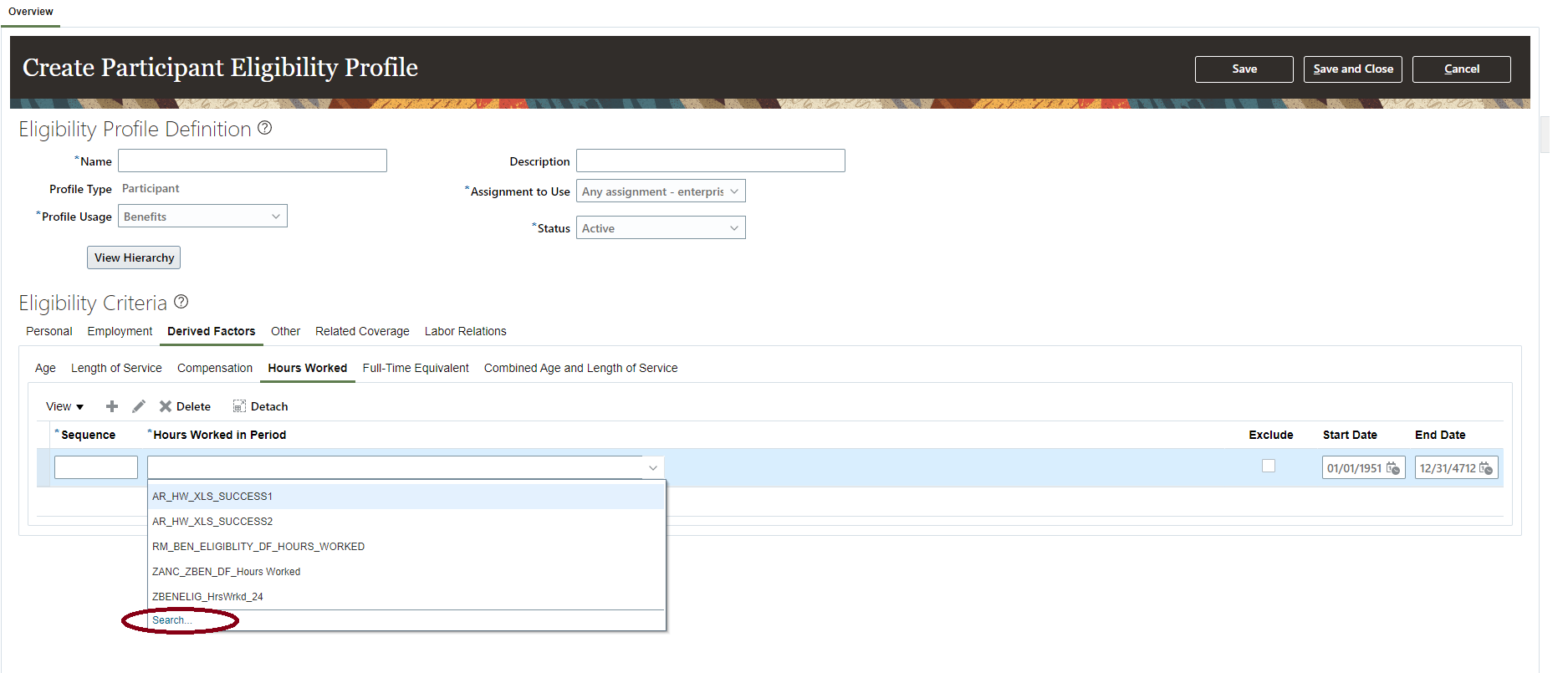
New Search Option
You now have more flexibility in creating eligibility profiles because you can add more derived factors.
Steps to Enable
You don't need to do anything to enable this feature.
Import and Export Eligibility Profiles in Functional Setup Manager
You use the Setup and Maintenance work area to export and import the benefits objects from a source environment to a destination environment. Currently, the import service supports creating new data in the target environment and it doesn’t support updating existing data. You can now update imported records in the target environment.
If the data is already present in the target environment, then the update will take place if there is any change in non-key attributes. If a key attribute is changed in the source, then a new object will be created in the target environment.

Export Page
Here's the list of the key attributes for the criteria for the FSM import: Name is the key attribute that can't be changed. Other non-key attributes can be changed.
Key Attributes
| Eligibility Category |
BUSINESS_OBJECT_NAME |
DISPLAY_SEQUENCE |
ATTRIBUTE_NAME |
|---|---|---|---|
| - | Eligibility Profile |
Name | |
| PERSONAL |
Benefit Eligibility Profile |
2 | Name |
| Benefit Eligibility Gender Criteria |
20 | Sequence |
|
| 40 | Gender |
||
| Benefit Eligibility Person Type Criteria |
20 | Sequence |
|
| 40 | Person Type |
||
| Benefit Eligibility Disability |
20 | Sequence |
|
| 40 | Disability Type |
||
| Benefit Eligibility Tobacco |
20 | Sequence |
|
| 40 | Tobacco Use |
||
| Benefit Eligibility Religion |
20 | Sequence |
|
| Benefit Eligibility Religion |
40 | Religion |
|
| Benefit Eligibility Geography |
20 | Sequence |
|
| 40 | Country | ||
| 50 | State | ||
| 60 | City | ||
| Benefit Eligibility Geography No City |
20 | Sequence |
|
| 40 | Country |
||
| 50 | State | ||
| 60 | City | ||
| Benefit Eligibility Leave Of Absence |
20 | Sequence |
|
| Benefit Eligibility Leave Of Absence No Reason |
20 | Sequence |
|
| Benefit Eligibility Leaving Reason |
20 | Sequence |
|
| 40 | Leaving Reason |
||
| Benefit Eligibility Competency |
20 | Sequence |
|
| 40 | Competency |
||
| Benefit Eligibility Postal Code |
20 | Sequence |
|
| 40 | Postal Range |
||
| Benefit Eligibility Performance Rating |
20 | Sequence |
|
| 40 | Template Name |
||
| 50 | Most Recent |
||
| Benefit Eligibility Qualification |
20 | Sequence |
|
| 40 | Qualification Type |
||
| 60 | Qualification Title |
||
| EMPLOYMENT |
Benefit Eligibility Assignment Category |
20 | Sequence |
| 40 | Full Time or Part Time |
||
| Benefit Eligibility Assignment Status |
20 | Sequence |
|
| 30 | Assignment Status Code |
||
| Benefit Eligibility Grade |
20 | Sequence |
|
| 40 | Grade Name |
||
| 50 | Grade Code |
||
| Benefit Eligibility Hire Date |
20 | Sequence |
|
| 40 | Date Determination Rule |
||
| 50 | Operator |
||
| 60 | Criteria 3 |
||
| Benefit Eligibility Hourly or Salaried |
20 | Sequence |
|
| 40 | Hourly or Salaried Code |
||
| Benefit Eligibility Job Family |
20 | Sequence |
|
| 40 | Eligibility Criteria Code |
||
| 50 | Job Family Name |
||
| Benefit Eligibility Job Function |
20 | Sequence |
|
| 40 | Eligibility Criteria Code |
||
| 50 | Criteria Character |
||
| Benefit Eligibility Job |
20 | Sequence |
|
| 40 | Job Name |
||
| 50 | Job Code |
||
| Benefit Eligibility Quartile in Grade |
20 | Sequence |
|
| 40 | Quartile In Grade Code |
||
| Benefit Eligibility Range Of Scheduled Hours |
20 | Sequence |
|
| 40 | Determination Code |
||
| 50 | Rounding Code |
||
| 60 | Frequency Code |
||
| Benefit Eligibility Organization/Department |
20 | Sequence |
|
| 40 | Department Name |
||
| Benefit Eligibility Payroll |
20 | Sequence |
|
| 40 | Payroll Name |
||
| Benefit Eligibility Pay Basis |
20 | Sequence |
|
| 40 | SalaryBasisName |
||
| Benefit Eligibility People Manager |
20 | Sequence |
|
| 40 | Criteria Character |
||
| Benefit Eligibility Position |
20 | Sequence |
|
| 40 | Position Code |
||
| 40 | Postal Range |
||
| Benefit Eligibility Probation Period |
20 | Sequence |
|
| 40 | Operator |
||
| Benefit Eligibility Work Location |
20 | Sequence |
|
| 40 | Location Name |
||
| 50 | Location Code |
||
| Labor Relations |
Benefit Eligibility Labor Union Member |
20 | Sequence |
| 40 | Labor member |
||
| Benefit Eligibility Bargaining Unit Criteria |
20 | Sequence |
|
| 40 | Bargaining Unit Code |
||
| Benefit Eligibility Collective Agreement |
20 | Sequence |
|
| 40 | Collective Agreement Name |
||
| Benefit Eligibility Union |
20 | Sequence |
|
| 40 | Union Name |
||
| Other |
Benefit Eligibility Formula |
20 | Sequence |
| 40 | Formula Name |
||
| 50 | Legislative Data Group |
||
| Benefit Eligibility Benefit Group |
20 | Sequence |
|
| 40 | Benefit Group |
||
| Benefit Eligibility User Defined |
20 | Sequence |
|
| 40 | User Defined Criteria |
This enhancement provides ease and flexibility while importing, exporting, and updating eligibility Profiles using the Setup and Maintenance work area.
Steps to Enable
You don't need to do anything to enable this feature.
Key Resources
- Export and Import Supporting Benefits Objects Using FSM
- Watch Enhanced Benefits Administrative and Participant Features Readiness Training
Consider Waiting Periods for Imputed Income Calculations
Imputed income rate calculation now considers the waiting period of a plan that is subject to imputed income. Future-dated benefits coverages are now not included in the imputed rate calculation.
Previously, the imputed income rate calculation did not consider the waiting period, which meant that employees might end up paying taxes for coverage that they didn't use from the first day. With this enhancement, such coverage is considered for the rate calculation only when the coverage starts. However, you need to process an extra life event on the day the coverage starts so that the correct rates are sent to payroll.
For example, an employee joins your organization on Aug 1, 2022 and enrolls into the Basic Life insurance plan. You have configured a waiting period of 60 days on this plan. So the coverage starts on Oct 1, 2022 and the employee shouldn't be paying for this imputed income before that date. To make this configuration work:
-
You process the new hire life event on Aug 1, 2022.
-
On Oct 1, 2022, the day when the coverage starts after the waiting period, you need to process another life event that recalculates the imputed income. This ensures that the correct imputed income value is sent to payroll.
This is an opt-in feature. So you can still continue with the current model of calculating imputed income rates for all coverages without considering waiting periods.
There is no change to the current calculation logic of the imputed rate once the coverage amount is determined based on the additional setup that you make to uptake this enhancement.
You can now set up imputed income calculations to consider waiting periods.
Steps to Enable
Before evaluating the life event, you need to specify when to calculate the coverage amount of the imputed income. This will ensure that only the coverages that are active as of the evaluated date are considered for imputed income calculation.
In the General tab of the Edit Plan Enrollment page, configure these values:
-
Imputed Income Calculation Date: This drop-down list shows the rules to determine when to calculate the coverage amount of the imputed income. This list shows the following values:
-
Event
-
First of Next Month
-
Formula
-
-
Imputed Income Calculation Date Formula: This drop-down list shows the formulas to determine when to calculate the coverage amount of the imputed income. You can configure this list only if you have selected formula as the rule in the Imputed Income Calculation Date list. The formula uses the same formula type of Rate Start Date
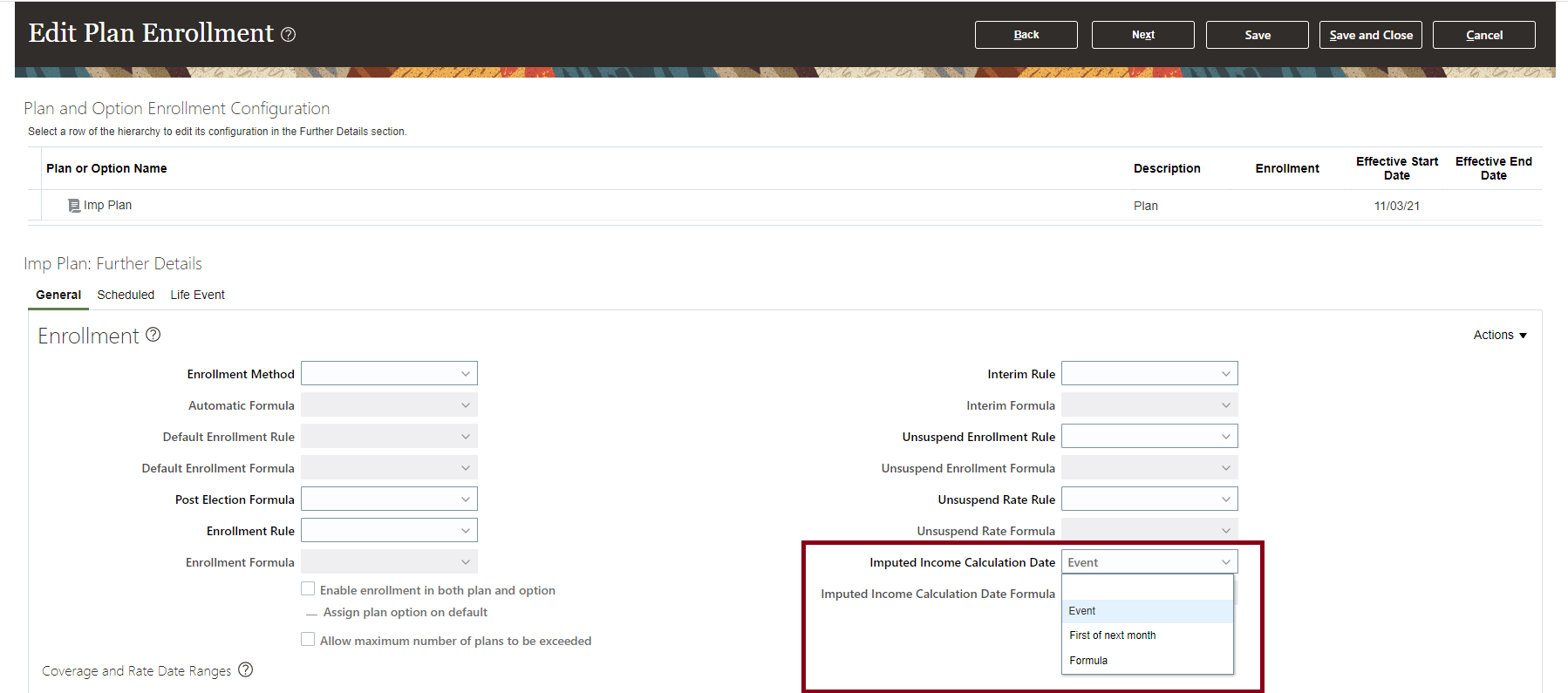
Edit Plan Enrollment
Key Resources
Extend Open Enrollment Window for New Hires
You can now extend the open enrollment window without closing any open life events to give more time to employees to make their choices.
The steps to extend the open enrollment window remain the same. You can do it using the View Enrollment Opportunities option in Benefits Service Center. But previously, when you extended the window, the Close Enrollment process would close the Open life event thus preventing participants to make any further choices. But with this release, the process considers the extension and doesn't close the Open life event.
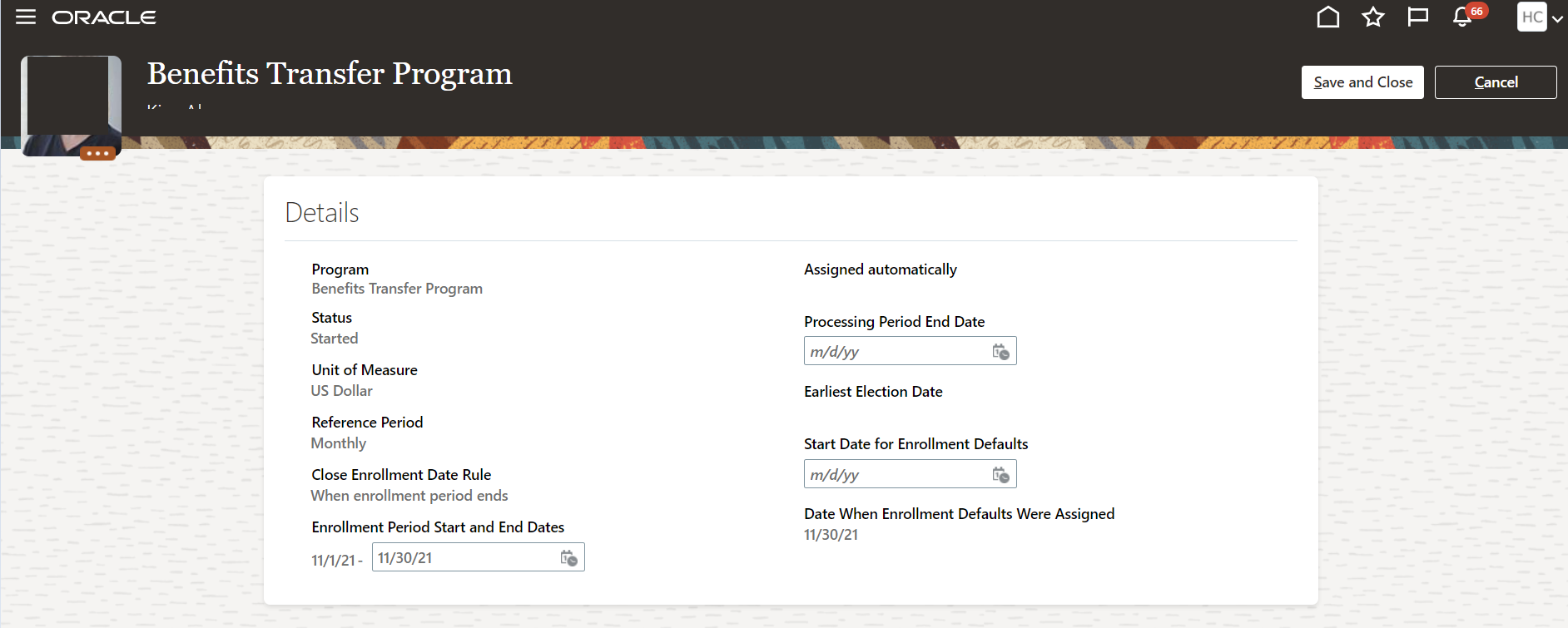
Extend the Open Enrollment Window
You no longer need to back out and reprocess an event to extend the enrollment window.
Steps to Enable
You don't need to do anything to enable this feature.
Key Resources
New Check While Changing the Start Date of Contacts with Existing Enrollments
A new check from the Benefits side prevents HR specialists from changing the start date of a contact when the contact has active designations before the new start date. If there are any such designations and if the contact is an eligible dependent, the error message appears. If the administrators need to change the start date of the contact, they can back out the currently active events and then change the start date.
For example, the start date of a contact is Jan 15, 2021 and you processed the life event and designated the contact in an enrollment on the same date. If an HR specialist changes the contact start date to Jan 20, 2021, the error message appears.
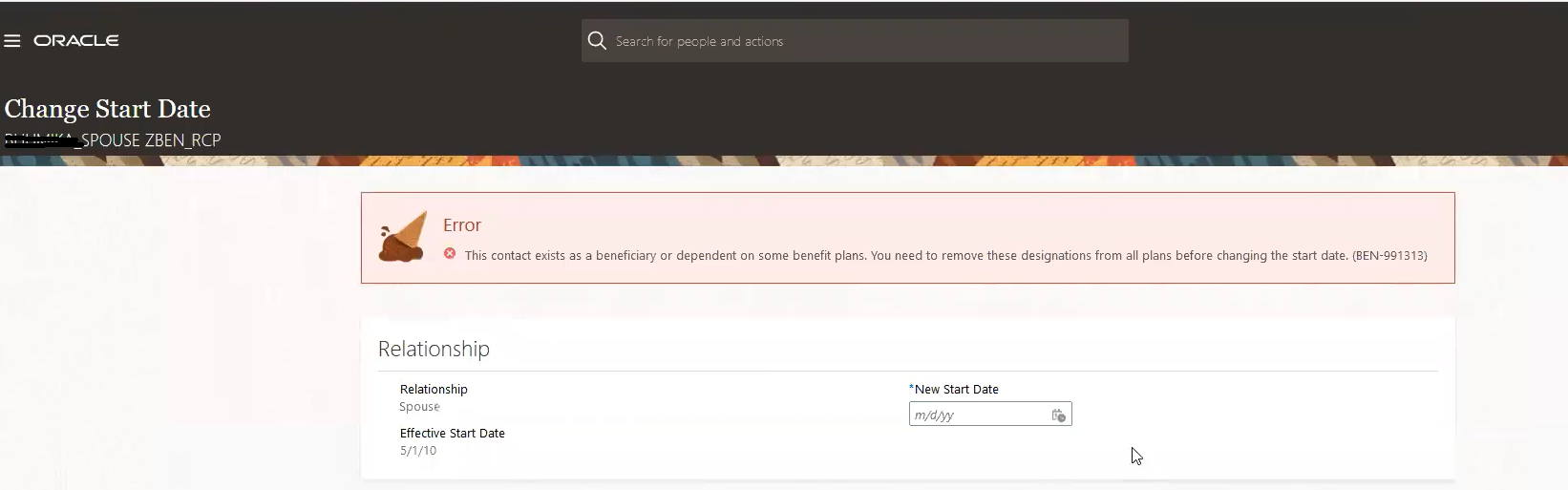
New Check
If the start date of the contact is changed to Jan 1, 2021, the error doesn’t appear because the contact is still valid from the first day of benefit coverage.
This enhancement eliminates data corruption issues that arise when you change the start date of contacts who have existing enrollments.
Steps to Enable
You don't need to do anything to enable this feature.
Key Resources
Track Changes in Enrollment Data
This enhancement tracks user-activity data in Benefits self-service within and outside of the enrollment window. It tracks data such as who accessed the objects, what changes were made, and what are the before-and-after values. For example, you can keep track of situations when employees access Benefits self-service enrollment form, but do not submit any changes. This data helps the HR representative while following up with those employees. Also, you can decide if you want to close the life event or leave it open for those employees.
This enhancement tracks activities such as create, update, and delete on these objects:
-
Court orders
-
Person benefits balance
-
Person habits
-
Billing charges and payments
-
Person life event
It also tracks data that is created, modified, or deleted using HDL or spreadsheet loaders.
The life event data can be changed by the employee or by the benefits administrator. So, it is important to understand who made the changes. Because the changes to the life event data have an impact on enrollments and opportunities, these are tracked irrespective of the user.
View the Report
To view the report that shows the tracked data, click Tools from the Navigator, Audit Reports.
Post-Implementation Considerations
You’ll need to purge the transaction audit data from time to time. You can only purge the data that is older than 6 months to prevent the required data from being accidentally purged. However, you can override this 6 months retention policy, if required, by creating a lookup type [BEN_PURGE_DATA_RETENTION_OVERR ] with the lookup value Y/Yes. To create the lookup type, search for the Manage Common Lookups task in the Setup and Maintenance work area, and click Actions, New under Search Results.
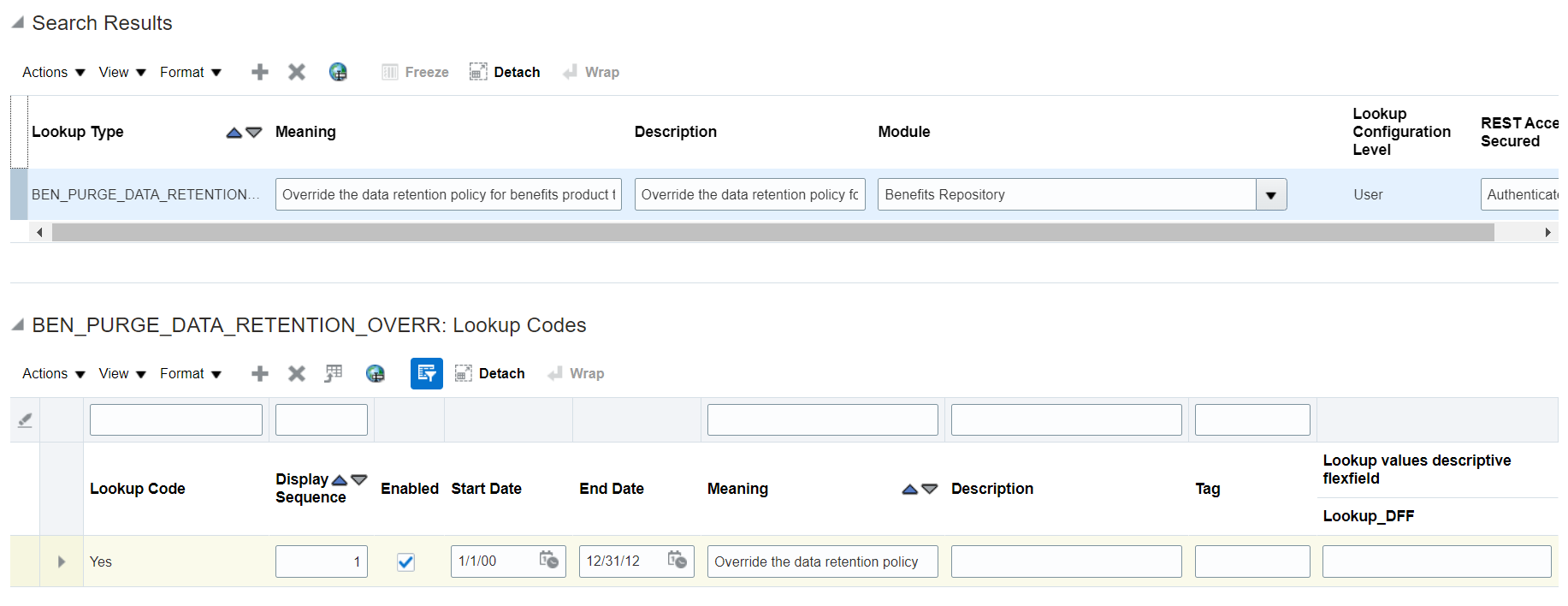
BEN_PURGE_DATA_RETENTION_OVERR Lookup Type
To purge the transaction audit data, go to the Evaluation and Reporting Work area, select the Processes tab, and select Maintenance Processes. Then select Purge Stage Data. To purge the audit, select the new Source Type value of [Transaction Audit Data].
This enhancement enables employers to be able to respond to questions from employees related to the nature of a change in their benefit enrollments.
Steps to Enable
Do these steps to set up the business objects to be tracked:
-
In the Setup and Maintenance work area search and open the Manage Audit Policies task
-
On the Manage Audit Policies page, click Configure Business Object Attributes in the Oracle Fusion Applications section.
-
On the Configure Business Object Attributes page, select Benefits as the product.
-
In the Audit Name column of the table of business objects, select the objects that you want to be audited.
When you select a single component, such as Billed enrollments, its object group, and Audit Top Node are selected automatically. When you select an object group, such as Benefits Billing, every entry in the group and Audit Top Node are selected automatically. If you select Audit Top Node, then every object group and its contents are selected automatically.
You can configure the attributes to audit only when you select a single component, such as Billed enrollments. When you select a single component, the Audited Attributes section of the page is updated automatically to list the attributes that are audited by default. To update the list of attributes, click the Create icon and follow the prompts.
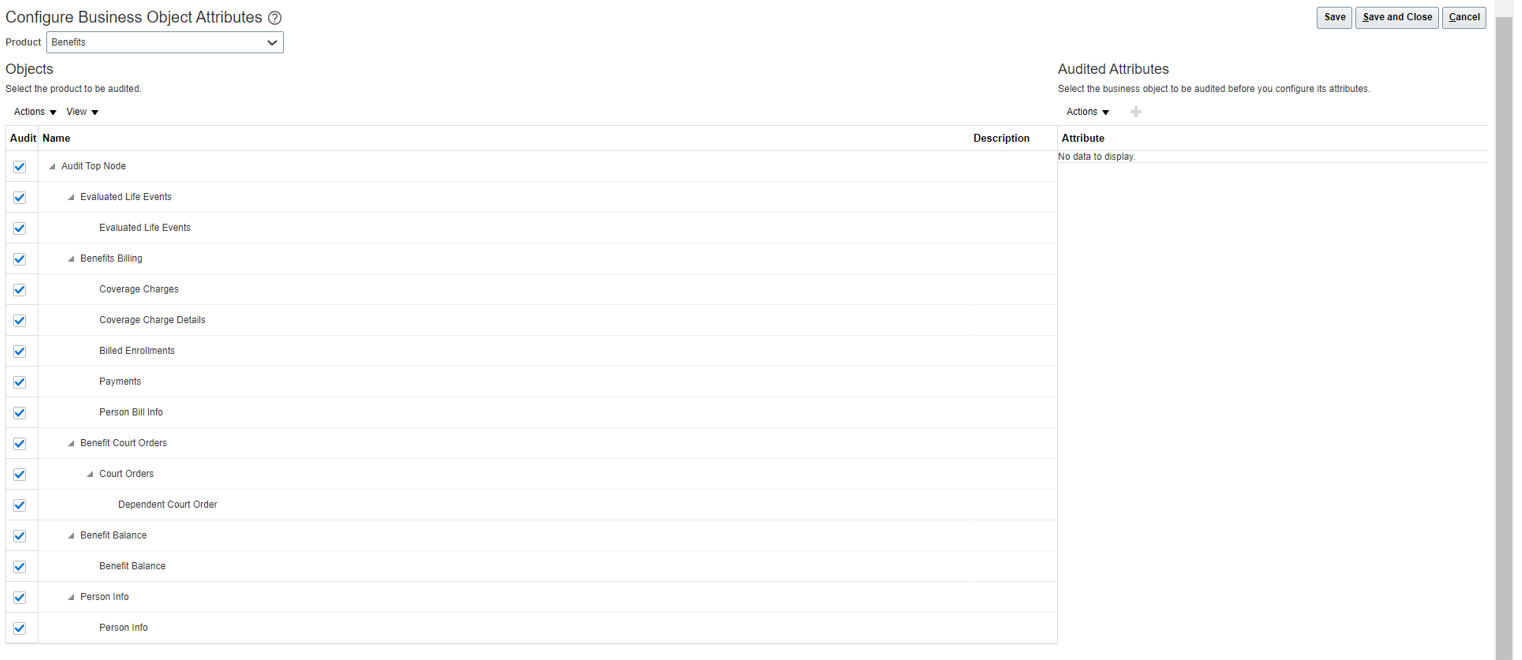
Configure Business Object Attributes Page
5. Click Save and Close on the Configure Business Object Attributes page.
Do these steps to track the data that is created, modified, or deleted using HDL loaders:
1) Set the profile option FA_AUDIT_LEVEL to Auditing.
2) When you load the data, set the SET ENABLE_AUDIT_DATA parameter to Y in your DAT file just before the METADATA line.
Key Resources
Role Information
-
To manage operations audit, you must have the Manage Audit Policies (FND_MANAGE_AUDIT_POLICIES_PRIV) function security privilege. The predefined Application Implementation Consultant job role has this privilege.
-
To view audit reports, you must have the View Audit Reports (FND_VIEW_AUDIT_REPORTS_PRIV) function security privilege. The predefined Internal Auditor job role has this privilege.
You can now use the new Ten Days period type that supports payroll frequency of 36 periods per year. This enhancement lets you calculate benefits rates on 10th, 20th, and the last calendar day of every month. You can enter an annual salary value to pay a thrice-monthly amount for employees.
The payroll frequency of a worker is passed to payroll for processing. A new lookup code, Ten Days, is provided to allow you to select the new rate frequency when defining or updating a program.
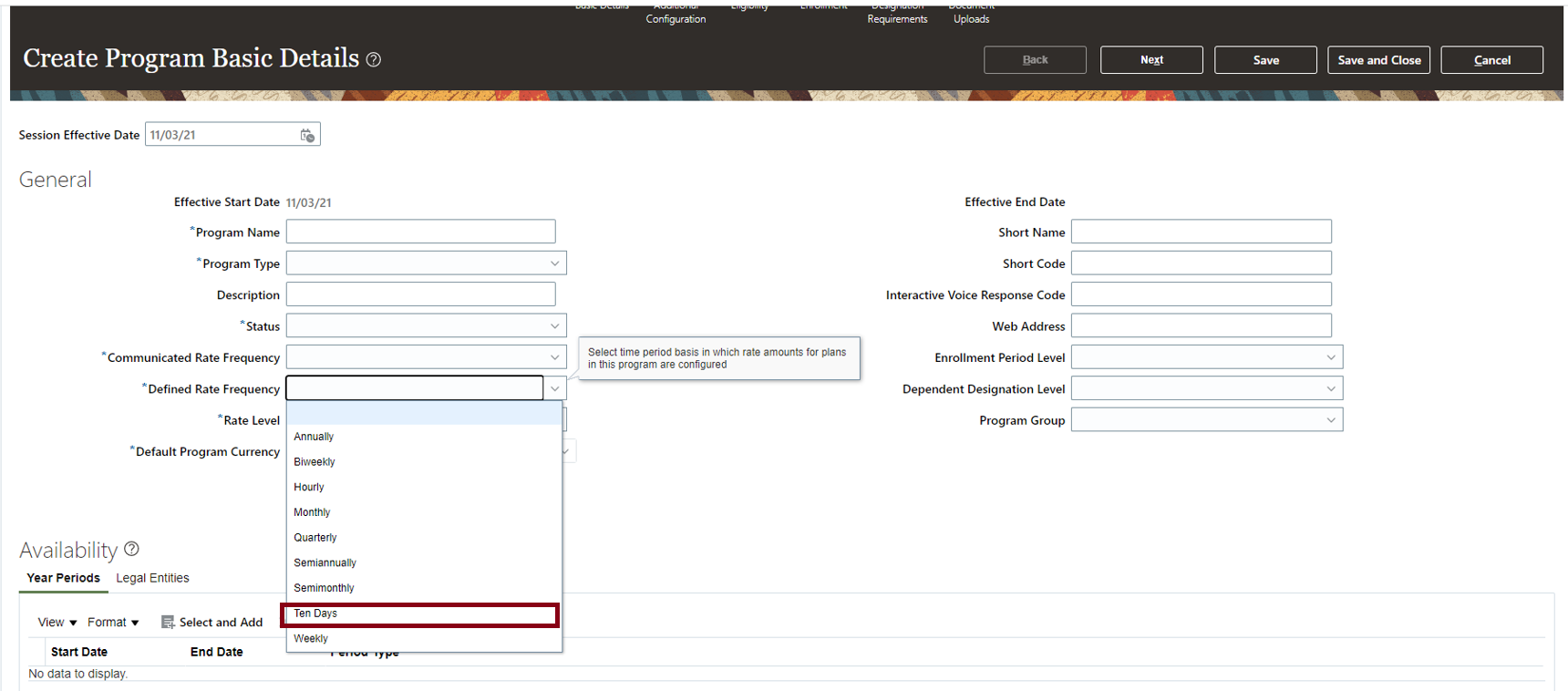
New Lookup Code
This feature allows the flexibility to use a 10-day payroll frequency to calculate the benefit deductions.
Steps to Enable
You don't need to do anything to enable this feature.
Key Resources
Transactional Business Intelligence Enterprise for Benefits
Oracle Transactional Business Intelligence is a real time, self-service reporting solution offered to all Oracle Cloud application users to create ad hoc reports and analyze them for daily decision-making. Oracle Transactional Business Intelligence provides human resources managers and specialists, business executives, and line managers the critical workforce information to analyze workforce costs, staffing, compensation, performance management, talent management, succession planning, and employee benefits.
Don’t want to start from scratch building a report or analytics? Check out the library of sample reports for all products on Customer Connect on the Report Sharing Center.
Enhanced Benefits Business Process Dashboard
The analysis # Of Enrollments and # Of Covered Dependent in the Benefits Business Process dashboard is enhanced to include the Dependent Full Name.
You should see Dependent full name when the report is exported.
Steps to Enable
You don't need to do anything to enable this feature.
Modified Attribute Name in Benefits Subject Area
The attribute "Enrollment Certification Type" under "Benefits - Enrollments Real Time" > "Participant Enrollment Results Details" > "Enrollment Results" is renamed as "Enrollment Certification".
This name better defines the data.
Steps to Enable
You don't need to do anything to enable this feature.
IMPORTANT Actions and Considerations for Benefits
REPLACED OR REMOVED FEATURES
From time to time, Oracle replaces existing Cloud service features with new features or removes existing features. When a feature is replaced the older version may be removed immediately or at a future time. As a best practice, you should use the newer version of a replaced feature as soon as the newer version is available.
| Product | Removed Feature | Target Removal | Replacement Feature | Replaced In | Additional Information |
|---|---|---|---|---|---|
| None at this time. |
_________________________
KNOWN ISSUES / MAINTENANCE PACK SPREADSHEETS
Oracle publishes a Known Issues document for every Update to make customers are aware of potential problems they could run into and the document provides workarounds if they are available.
Oracle also publishes Maintenance Pack and Statutory Maintenance Pack documentation of bugs that are fixed in the monthly or statutory patching.
To review these documents you must have access to My Oracle Support:
Oracle Human Capital Management Cloud Functional Known Issues and Maintenance Packs (Document ID 1554838.1)