
- Revision History
- Overview
- Feature Summary
- Benefits
-
- Benefits
-
- Filter Self-Assigned Life Events Using Eligibility Profiles
- Store Additional Plan Configuration Documents
- Improved Features in Rates Spreadsheets
- Tax Year Display in HSA and FSA Calculators
- Show Active Plans, Plan Types, and Options by Default
- Move Back the Effective Start Date of Options and Options in Plan
- Group Waive Options Together in Confirmation and Benefits Summary Page
-
- Benefits
- IMPORTANT Actions and Considerations for Benefits
October Maintenance Pack for 22C
This document will continue to evolve as existing sections change and new information is added. All updates appear in the following table:
| Date | Module | Feature | Notes |
|---|---|---|---|
| 17 NOV 2022 | Created initial document. |
 HAVE AN IDEA?
We’re here and we’re listening. If you have a suggestion on how to make our cloud services even better then go ahead and tell us. There are several ways to submit your ideas, for example, through the Ideas Lab on Oracle Customer Connect. Wherever you see this icon after the feature name it means we delivered one of your ideas.
GIVE US FEEDBACK
We welcome your comments and suggestions to improve the content. Please send us your feedback at oracle_fusion_applications_help_ww_grp@oracle.com.
DISCLAIMER
The information contained in this document may include statements about Oracle’s product development plans. Many factors can materially affect Oracle’s product development plans and the nature and timing of future product releases. Accordingly, this Information is provided to you solely for information only, is not a commitment to deliver any material, code, or functionality, and should not be relied upon in making purchasing decisions. The development, release, and timing of any features or functionality described remains at the sole discretion of Oracle.
This information may not be incorporated into any contractual agreement with Oracle or its subsidiaries or affiliates. Oracle specifically disclaims any liability with respect to this information. Refer to the Legal Notices and Terms of Use for further information.
Column Definitions:
Report = New or modified, Oracle-delivered, ready to run reports.
UI or Process-Based: Small Scale = These UI or process-based features are typically comprised of minor field, validation, or program changes. Therefore, the potential impact to users is minimal.
UI or Process-Based: Larger Scale* = These UI or process-based features have more complex designs. Therefore, the potential impact to users is higher.
Features Delivered Disabled = Action is needed BEFORE these features can be used by END USERS. These features are delivered disabled and you choose if and when to enable them. For example, a) new or expanded BI subject areas need to first be incorporated into reports, b) Integration is required to utilize new web services, or c) features must be assigned to user roles before they can be accessed.
| Ready for Use by End Users Reports plus Small Scale UI or Process-Based new features will have minimal user impact after an update. Therefore, customer acceptance testing should focus on the Larger Scale UI or Process-Based* new features. |
Customer Must Take Action before Use by End Users Not disruptive as action is required to make these features ready to use. As you selectively choose to leverage, you set your test and roll out timing. |
|||||
|---|---|---|---|---|---|---|
| Feature |
Report |
UI or |
UI or |
|
||
Oracle Benefits is a complete, configurable and flexible global solution that enables organizations to successfully evolve and adapt to the unique needs of their workforce. The solution enables setup of traditional 'one-size fits all' plans to highly complex plans that selectively target different workforce segments with different benefit packages. Self-service capabilities present the user with an out of the box intuitive guided enrollment process with contextual information and embedded analytics.
Benefits Open Enrollment Diagnostic Report
You can now run Benefits Open Enrollment Diagnostic Report to discover and resolve open enrollment issues.
This report:
- Identifies any missing or incorrect setups that are associated with the target event and general configurations on self-service. Also, identifies the associated outcomes or drawbacks.
- Identifies the current state of enrollment and associated transactions and action items. Provides alerts on completing corrective and cleanup actions before you process the target event.
- Provides alerts and recommended use of relevant product features, such as Alerts and Plan Compare, that can help you manage the event and communicate effectively with participants.
- Recommends the best practices to follow on Purge Jobs, Auditing, Profiles, Lookups, and Batch Parameters so that you achieve optimal performance while processing the event for the identified set of participants.
The timing of running this report is critical. You can run this report while setting up the open enrollment or preparing for an upcoming open enrollment after setting up new plans, options, and rates. Also, you can run the report a few times as the changes get implemented for the open enrollment. This can reduce the issues that could possibly arise when the scheduled event process runs.
Sections of the Report
The sections of this report are generated based on the following input values:
- Program Name
- Life Event (Open/Administrative/Unrestricted Open - LOV)
- Life Event Date
Here’s the list of sections that are available in this report:
- Configuration for the Scheduled Open Event at the Program Level
- Missing Payroll Calendars
- Missing Plan Year Periods
- Retire or Inactivate Old Plans and Options
- Add Plans, Options, and Rates for the Upcoming Plan Year
- Self-Service Benefits: Customization and Configuration
- Missing Fast Formulae
- Missing Input Values
- Lookups for Opt-in Features
- Unresolved Life Events, Suspended Enrollments, and Pending Action Items
- Aged Out Covered Dependents: US-Specific
- HSA and FSA Calculators and Rates
- Overridden Enrollments and Rates
- Alert for Adding Missing Contacts
- Alerts for Open Enrollment
- Review Compare Plans Configuration
- Dependent Eligibility for Newly Added Contacts
- Review Audit Configuration
- Performance of Batch Processes: Thread Size, Compute Stats, Fast Formula, and Audit Log Parameter
- Other Scheduled Jobs
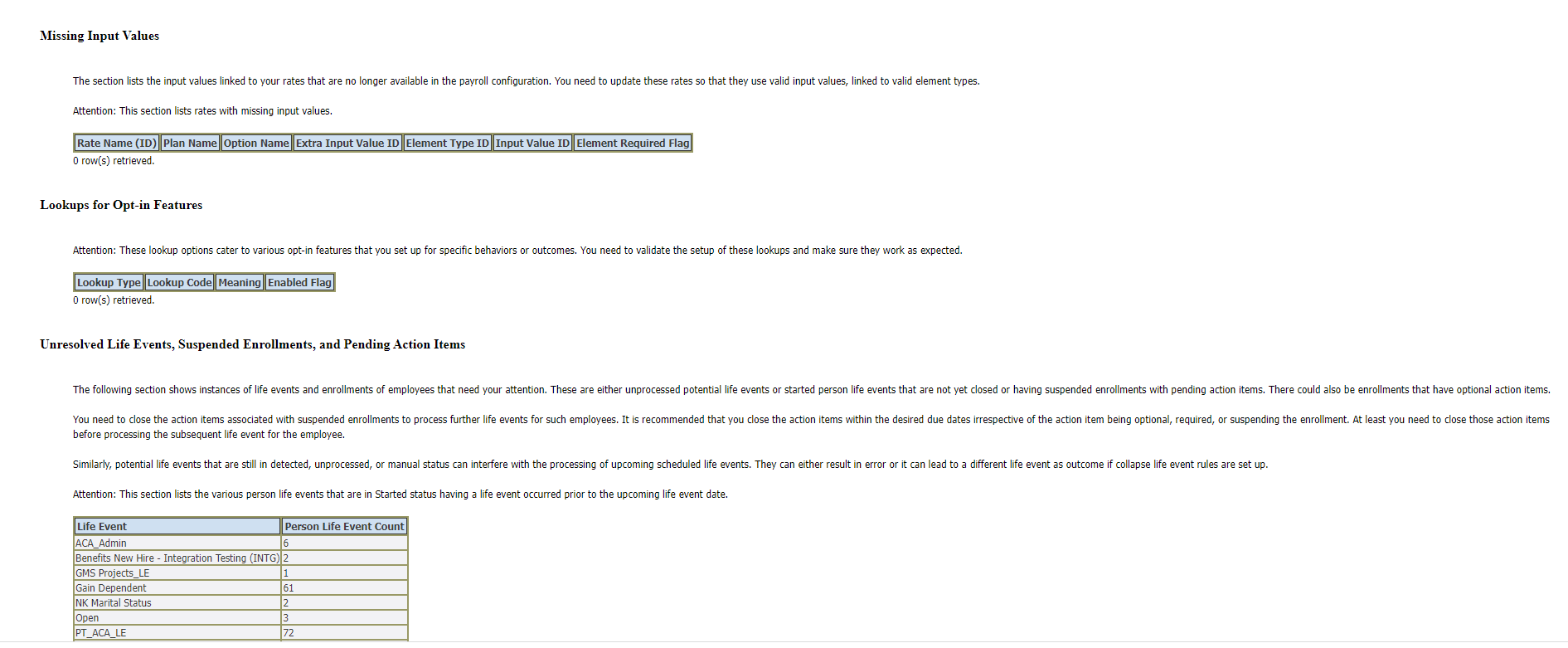
Sample Report
Here’s how you generate and view Benefits Open Enrollment diagnostic report:
- Click the logged-in user's icon, and click Run Diagnostics Tests in the Troubleshooting section.
- On the Diagnostic Dashboard page, search for Benefits Open Enrollment Diagnostic Report, select it and click Add to Run.
- In the Choose Tests to Run and Supply Inputs section, click the Input Status icon to enter the details. Configure these parameters to run the report:
- Program Name
- Life Event
- Life Event Date
- Click Save and enter a name and display name for the test.
- Click OK.
- Click Run in the Choose Tests to Run and Supply Inputs section.
- In the Diagnostic Test Run Status table, click Refresh to see the latest status.
- When the execution status reads Complete, click the Report icon to view the report.
This enhancement proactively identifies the open enrollment issues to save time and money, and it fosters the confidence of the employees in the application. Also, the early identification of issues or omissions provides time for resolutions, and it can increase the success rate of open enrollment.
Steps to Enable
You don't need to do anything to enable this feature.
Cancel Pending Actions in Self-Service Benefits
Participants can now resolve the pending actions in the self-service page when they can’t provide the certificates for various reasons. You can use the Declare Missing Certification button in the Pending Actions page to resolve pending actions. Pending certification can lead to suspension of coverage.
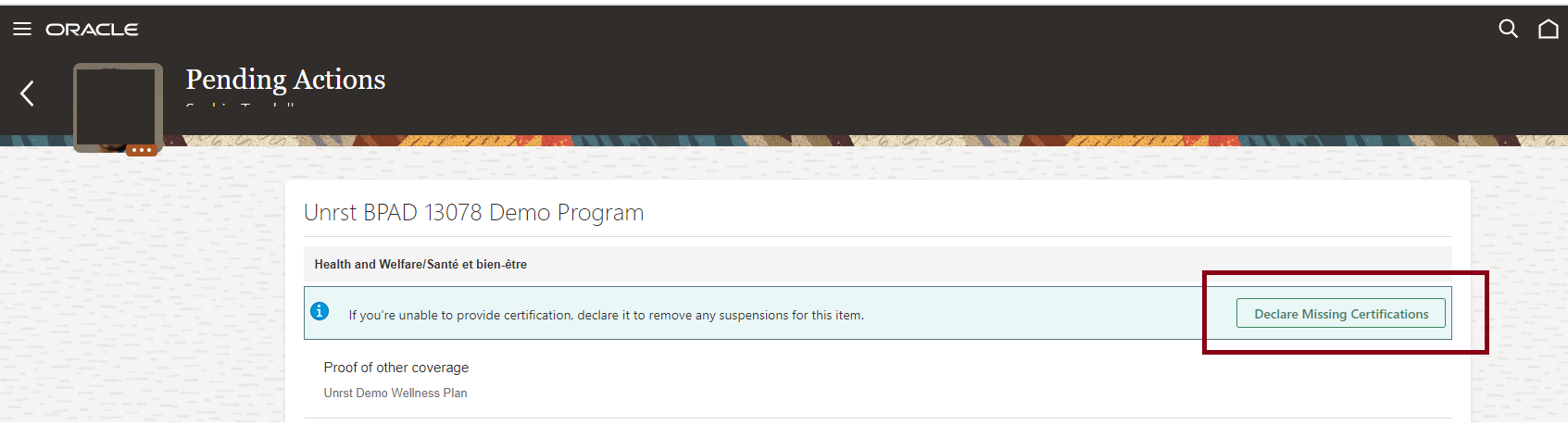
The Declare Missing Certification Button
The Declare Missing Certification button appears only when:
- The life event is in started state.
- The effective date is within the enrollment window.
- The pending certification is just for the participant. The button doesn’t appear for the designation action items for dependent or beneficiary or for the missing date of birth or social security number action items.
- Document of records is configured for certification and the document is not uploaded.
This feature simplifies the process of clearing suspensions and allows employees to declare that they can't provide a certificate. Previously, a Benefits administrator had to involve and clear such suspensions.
Steps to Enable
Here’s how you allow participants to declare that they can't provide a certificate:
- On the Home Page, click Benefits Administration > Plan Configuration.
- In the Tasks panel drawer, click Self-Service Configuration.
- Select the Allow employees to declare that they can't provide a certificate check box in the Pending Actions section.
- Click Save.
Role And Privileges
- Employee
- Benefits Manager
- Benefits Specialist
- Benefits Administrator
This document will continue to evolve as existing sections change and new information is added. All updates appear in the following table:
| Date | Module | Feature | Notes |
|---|---|---|---|
| 29 JUL 2022 | Benefits | Move Back the Effective Start Date of Options and Options in Plan | Updated document. Revised feature information. |
| 24 JUN 2022 | Benefits | Show Active Plans, Plan Types, and Options by Default | Updated document. Revised feature information. |
| 03 JUN 2022 | Created initial document. |
HCM Cloud applications have two types of patches you can receive that are documented in this What’s New:
- Release Updates (22A, 22B, 22C, and 22D)
- Optional Monthly Maintenance Packs to each update
It is important for you to know what Release Update your environment is on. You can find this in your Cloud Portal.
HAVE AN IDEA?
We’re here and we’re listening. If you have a suggestion on how to make our products better, please let us know. To enter an idea go to the Ideas Lab on Oracle Customer Connect. In this document wherever you see the light bulb icon after the feature name it means we delivered one of your ideas.
Suggested Reading for all HCM Products
Human Resources What’s New – In the Global Human Resources section you will find features on the base application in which other application are built upon.
NOTE: Not all Global Human Resource features are available for Talent and Compensation products
Oracle Human Capital Management Cloud Functional Known Issues and Maintenance Packs (Document ID 1554838.1). These documents identify bug fixes and possible known issues. You will also need to review these documents based in the release update version you are currently on or will be moving to.
- Oracle Help Center – Here you will find guides, videos and searchable help.
- Release Readiness – New Feature Summary, What’s New, Feature Listing Spreadsheet, Spotlights and Release Training
GIVE US FEEDBACK
We welcome your comments and suggestions to improve the content. Please send us your feedback at oracle_fusion_applications_help_ww_grp@oracle.com. Indicate you are inquiring or providing feedback regarding the HCM Cloud What’s New in the body or title of the email.
DISCLAIMER
The information contained in this document may include statements about Oracle’s product development plans. Many factors can materially affect Oracle’s product development plans and the nature and timing of future product release updates. Accordingly, this Information is provided to you solely for information only, is not a commitment to deliver any material, code, or functionality, and should not be relied upon in making purchasing decisions. The development, release update, and timing of any features or functionality described remains at the sole discretion of Oracle.
This information may not be incorporated into any contractual agreement with Oracle or its subsidiaries or affiliates. Oracle specifically disclaims any liability with respect to this information. Refer to the Legal Notices and Terms of Use for further information.
Column Definitions:
Report = New or modified, Oracle-delivered, ready to run reports.
UI or Process-Based: Small Scale = These UI or process-based features are typically comprised of minor field, validation, or program changes. Therefore, the potential impact to users is minimal.
UI or Process-Based: Larger Scale* = These UI or process-based features have more complex designs. Therefore, the potential impact to users is higher.
Features Delivered Disabled = Action is needed BEFORE these features can be used by END USERS. These features are delivered disabled and you choose if and when to enable them. For example, a) new or expanded BI subject areas need to first be incorporated into reports, b) Integration is required to utilize new web services, or c) features must be assigned to user roles before they can be accessed.
| Ready for Use by End Users Reports plus Small Scale UI or Process-Based new features will have minimal user impact after an update. Therefore, customer acceptance testing should focus on the Larger Scale UI or Process-Based* new features. |
Customer Must Take Action before Use by End Users Not disruptive as action is required to make these features ready to use. As you selectively choose to leverage, you set your test and roll out timing. |
|||||
|---|---|---|---|---|---|---|
| Feature |
Report |
UI or |
UI or |
|
||
Move Back the Effective Start Date of Options and Options in Plan |
||||||
Group Waive Options Together in Confirmation and Benefits Summary Page |
||||||
Oracle Benefits is a complete, configurable and flexible global solution that enables organizations to successfully evolve and adapt to the unique needs of their workforce. The solution enables setup of traditional 'one-size fits all' plans to highly complex plans that selectively target different workforce segments with different benefit packages. Self-service capabilities present the user with an out of the box intuitive guided enrollment process with contextual information and embedded analytics.
Filter Self-Assigned Life Events Using Eligibility Profiles
You can now use eligibility profiles to filter self-assigned life events for specific participants. For example, you want only married participants to report the divorce life event. You can add eligibility on this life event to filter it out for married participants. Currently if you configure self-assigned life events, all participants can self-assign those events.
When you use the Benefit Life Events task in the Plan Configuration work area to add a life event and eligibility profile for it, ensure that you select the Self-Assigned check box. The life event page now has a new tab named Eligibility for you to add participant eligibility profiles only for the self-assigned life events. You can add only one eligibility profile per life event. Click Add Eligibility Profile and select the eligibility profile to configure eligibility for the life event. The status of the eligibility profile should be Active to evaluate the life event eligibility.
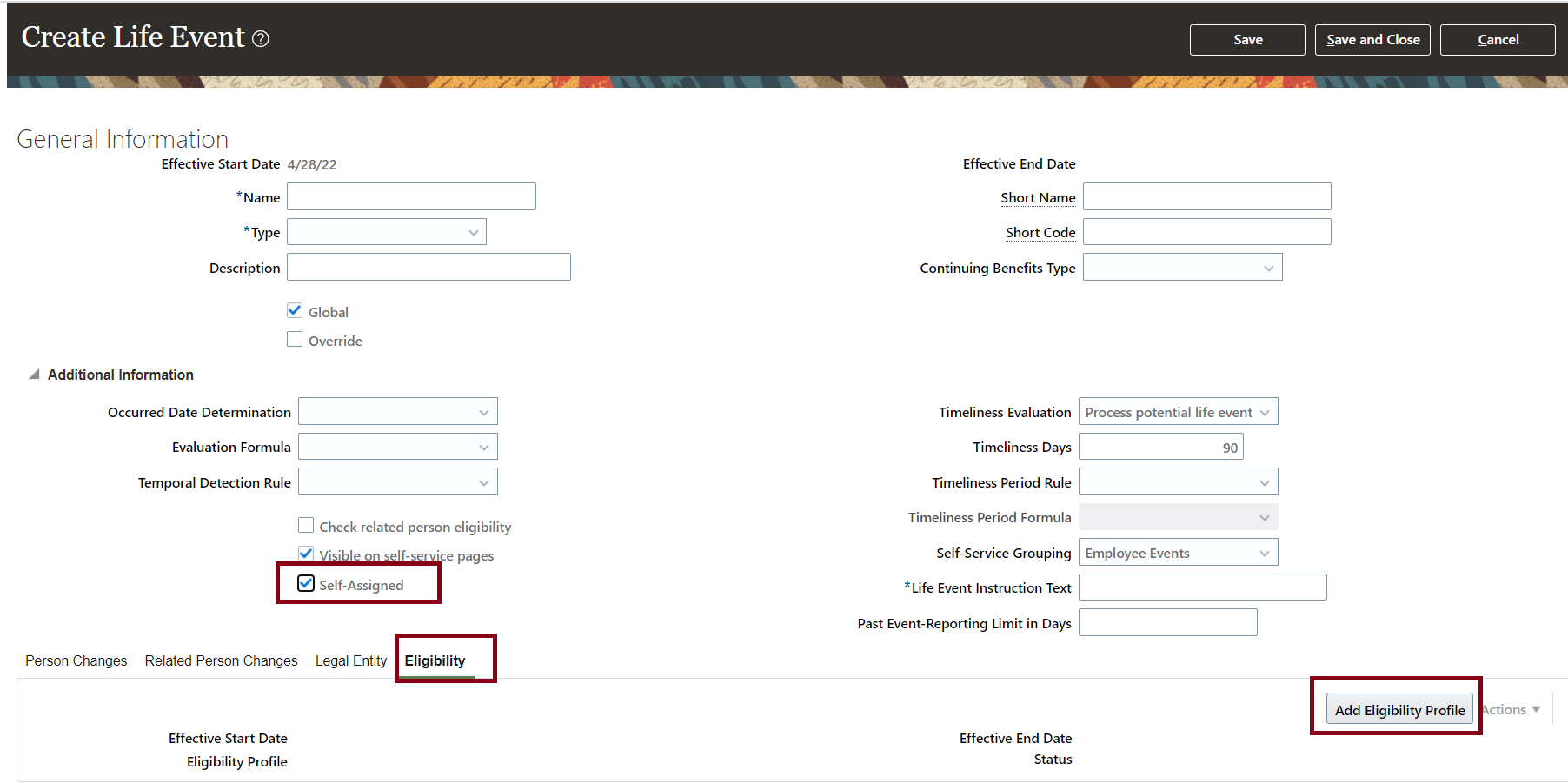
The Life Event Page

Eligibility Tab
When a participant opens the Report A Life Event page in Self-Service Benefits, eligibility is evaluated for each self-assigned life event. The final list of life event appears based on the eligibility profile. In general, the participants see a life event during one of the following scenarios:
-
The participant qualifies the eligibility rule for the life event.
-
No life event eligibility is set up.
-
The life event eligibility status is inactive, or the eligibility profile starts on a future date.
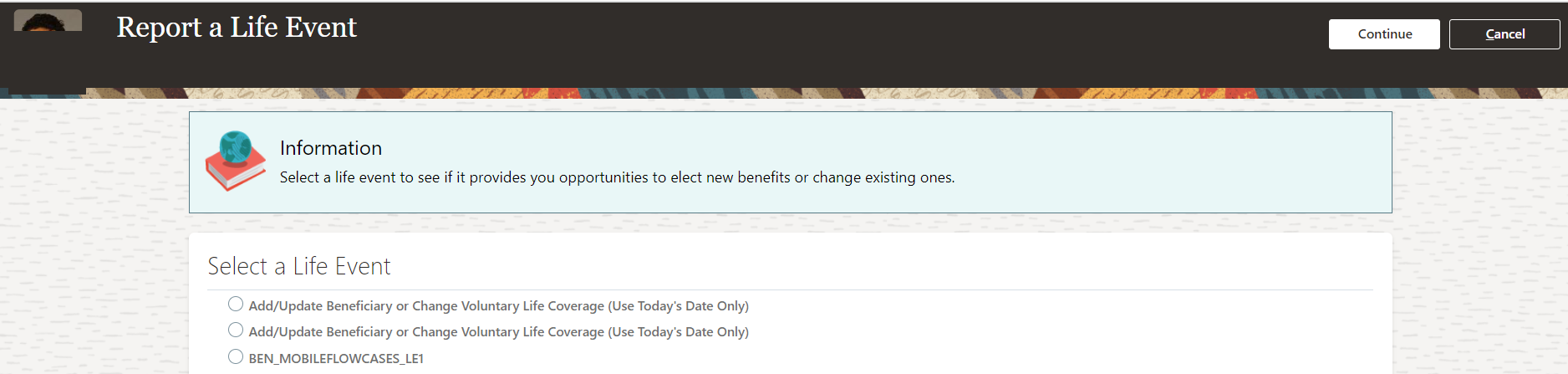
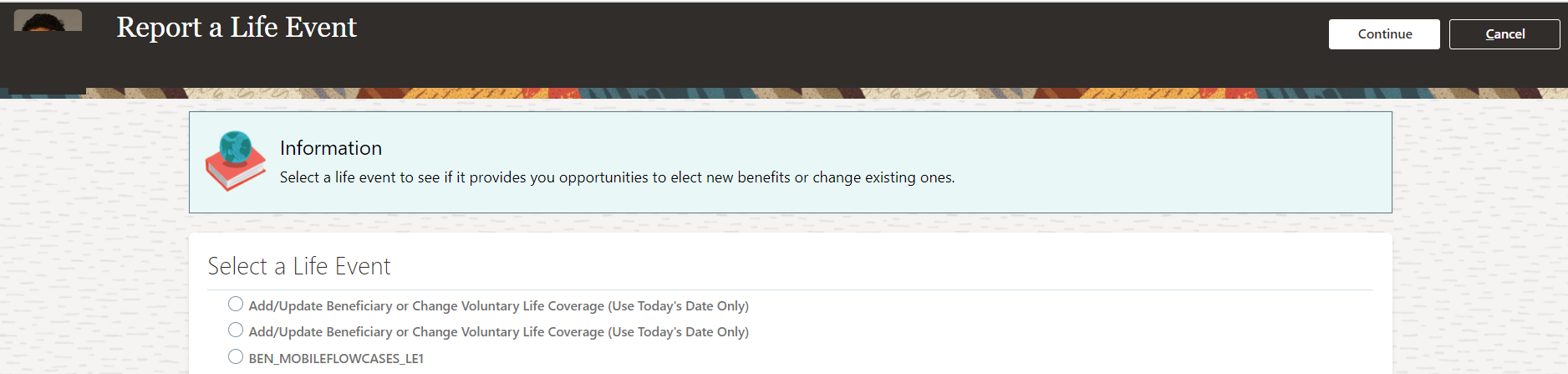
Report a Life Event
The export and import feature now covers the life event eligibility data too.
The Benefits Setup Diagnostic Test report now has a new section named Life Events Eligibility Setup Data Details. To view this report, click the logged in user's icon, and click Run Diagnostics Tests in the Troubleshooting section. Then, search for the Benefits Setup Diagnostic Test report. The report shows the following details:
- Life events with eligibility setup
- Life Events without eligibility setup
- Life Events with active eligibility status
- Life Events with inactive eligibility status
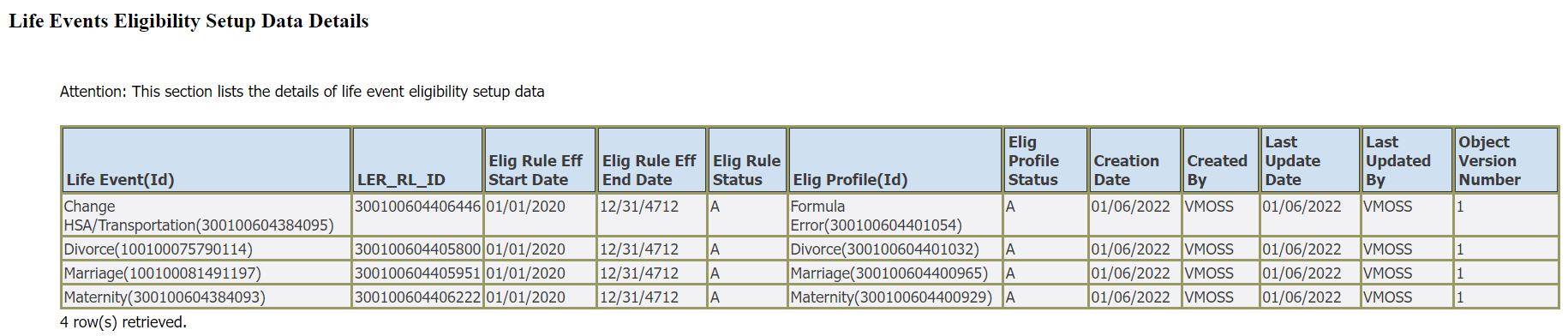
Diagnostic Test Report
The Benefits Diagnostic report now has a new section named Life Events Eligibility Error Details. To view this report, click the logged in user's icon, and click Run Diagnostics Tests in the Troubleshooting section. Then, search for the Person Benefits Diagnostic report. The report shows if there are any errors that occurred during the evaluation of the life event eligibility profile.

Diagnostic Report
You can use these reports to answer questions from participants on eligibility.
You can filter self-assigned life events for specific participants based on location, grade, job, and so on. It allows you to control the rollout of self-assigned life events.
Steps to Enable
You don't need to do anything to enable this feature.
Role And Privileges
You need the Benefits Manager or Benefits Administrator role to use this feature.
Store Additional Plan Configuration Documents
You can now upload and store plan design documents along at the program and the plan level. For example, you can store rate sheets, summary plan descriptions, and summary of benefits and coverage.
You can upload up to 8 documents and the file names should be unique. The document file format should be one of the following:
- Doc
- Docx
- Ppt
- Pptx
- Txt
- Xls
- Xlsx
- Html
- Htm
- xml
The document size should not exceed 5 MB.
Here’s how you store the document:
- On the Home Page, click Benefits Administration >Plan Configuration.
- Open the create or edit program or plan pages and navigate to the Additional Configurations step.
- Select the Documents tab and click Select and Add.
- Follow the prompts and upload the document. You need to select the language of the document. You can add a URL for the participants to get more information about the document.
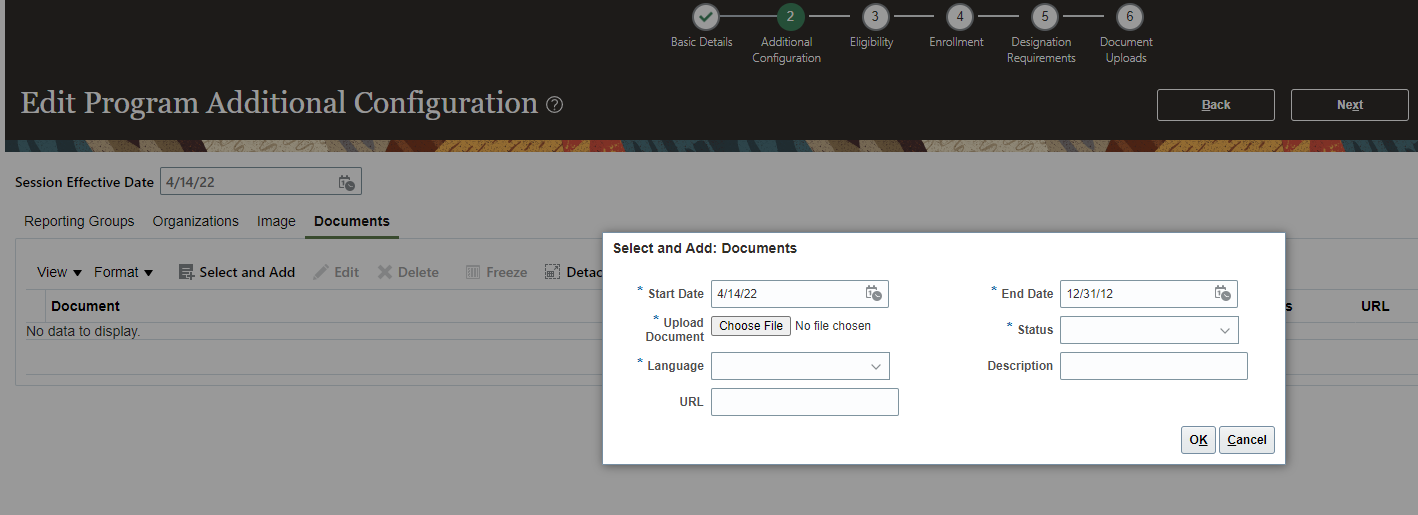
Select and Add Documents for Programs
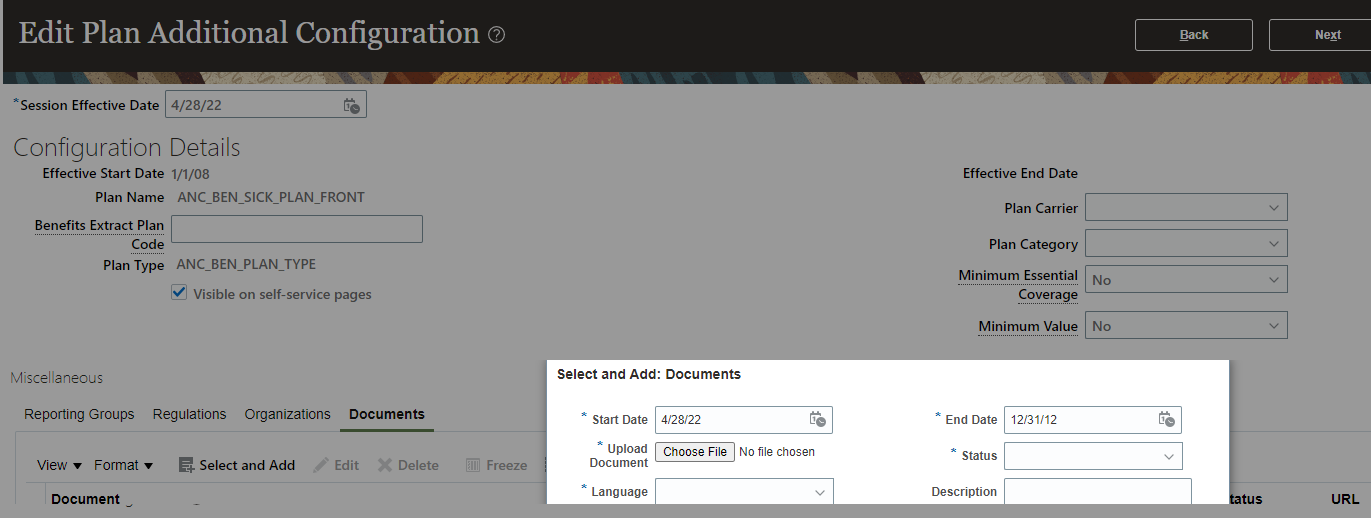
Select and Add Documents for Plans
Benefits administrators can now load plan documents to the plan.
Steps to Enable
You don't need to do anything to enable this feature.
Role And Privileges
You need the Benefits Manager or Benefits Administrator role to use this feature.
Improved Features in Rates Spreadsheets
This enhancement has improved the search capabilities and use of the rates upload spreadsheet. You no longer need to deal with timeout issues due to large amounts of data. The new pagination capabilities help you easily manage large amounts of data.
Currently, the mandatory search criteria, such as Legal Employer or Legislative Data Group, limit the search results. For example, if you have many legal employers and you want to update rates for a plan option across all those legal employers, the current functionality can be time-consuming. This new enhancement has made the following fields optional:
-
Legal Employer
-
Legislative Data Group
-
Rate Display Type
The Plan Name field is mandatory.
Here’s the list of new fields that are added to the spreadsheet:
| Field | Description |
|---|---|
| Participants enter value during enrollment |
Set to Yes to search for the rates that have the Participants enter value at enrollment check box selected during rate creation. This field is applicable only when you select the Calculation Formula as Flat Amount in the spreadsheet. The default value is No. |
| Range of Rows |
Select a range to display the search result as per the selected range. |
| Option Name |
Enter the name of an option to narrow down the search results. |
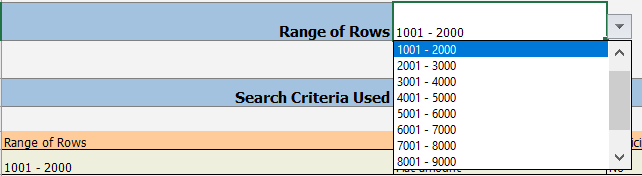
Range of Rows
Also, the new section named Search Criteria Used shows the criteria that was used in the search.
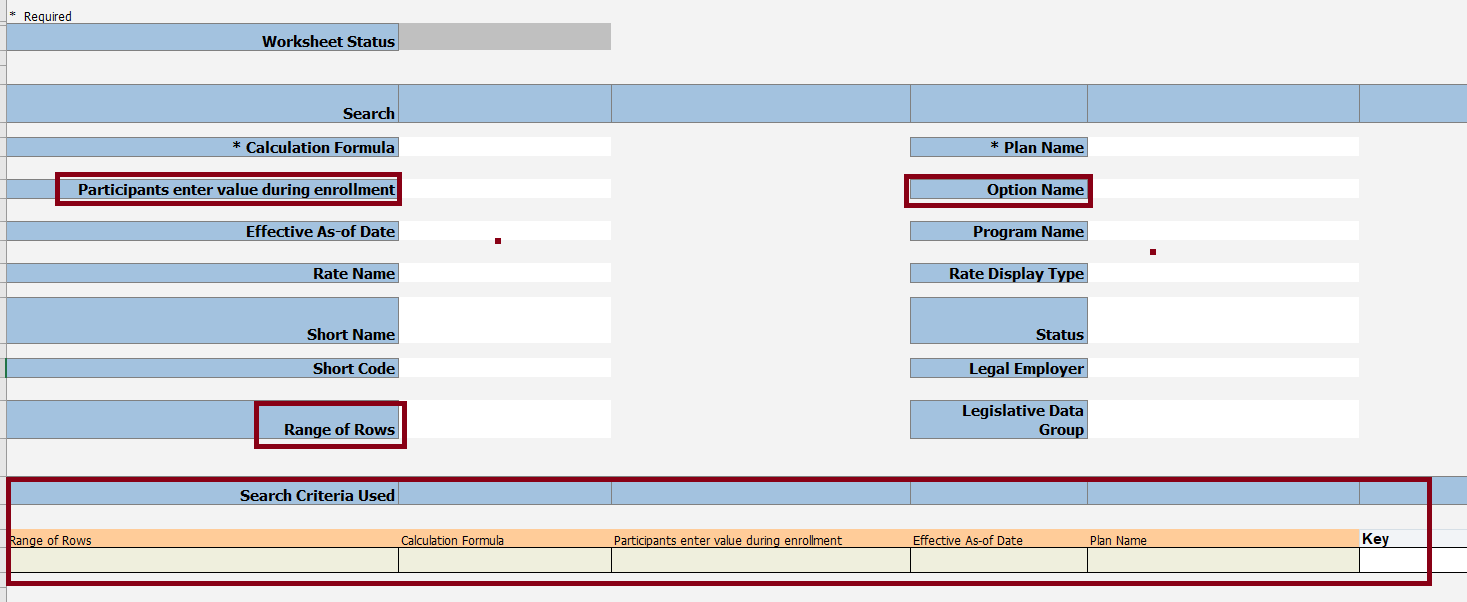
New Fields and Section
The search results include a column named Copy Calculation Method Fields to all Rates only when you specify Legal Employer or Legislative Data Group in the search criteria. You need to set the value of this to Y to copy the calculation methods of a rate to the rates of other legal entities of the same compensation object.

Copy Calculation Method Fields to all Rates
This enhancement allows for rates to be easily managed without running into timeout issues due to large volume of data being uploaded. Also, it provides capabilities to manage large datasets more easily.
Steps to Enable
You don't need to do anything to enable this feature.
Role And Privileges
You need the Benefits Manager or Benefits Administrator role to use this feature.
Tax Year Display in HSA and FSA Calculators
The health savings and flexible spending account calculators now display the tax year to forecast the next years payments on Health and Flexible savings plans.
The following calculators now have the Tax Year field:
- HSA Calculator
- Dependent Care FSA Calculator
- Health Care FSA Calculator
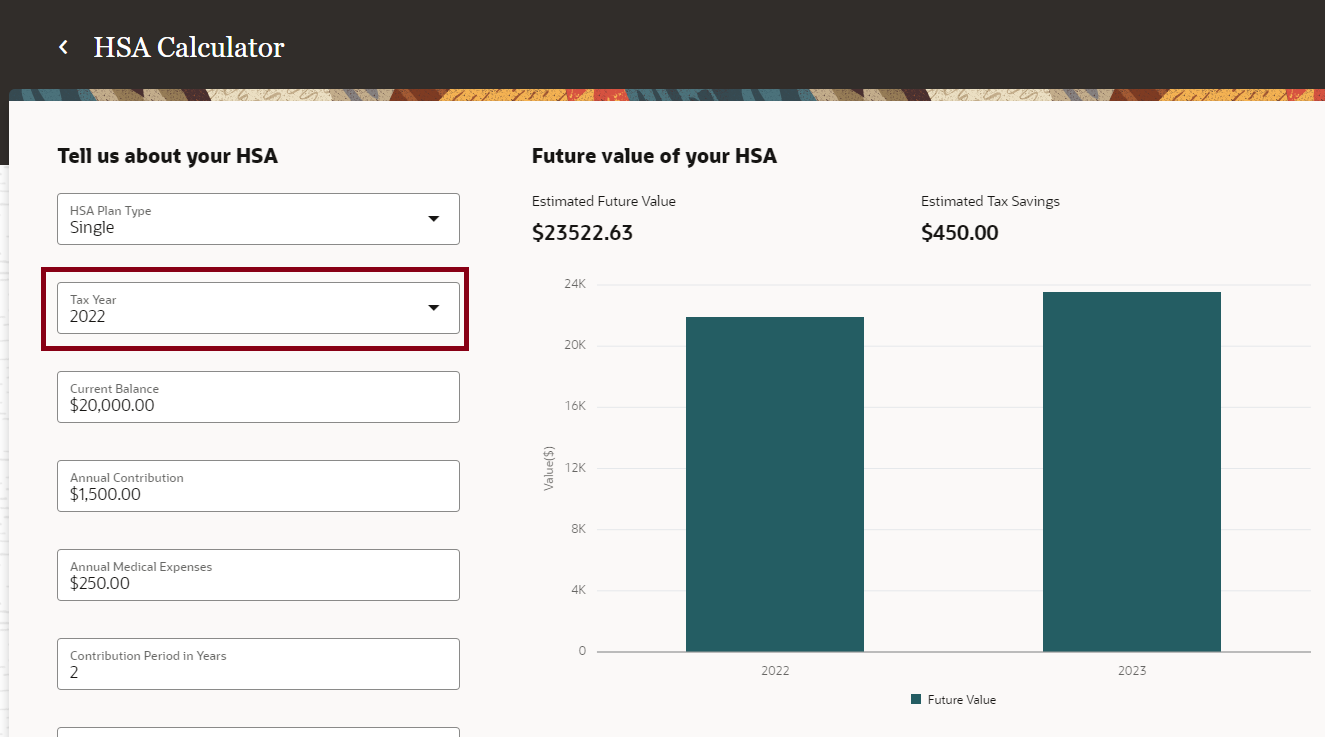
Tax Year
Ensure that you have configured the extensible lookups to set the annual contribution limit for your participants for each year:
- ORA_BEN_HSA_SINGLE
- ORA_BEN_HSA_FAMILY
- ORA_BEN_DEPENDENT_CARE_FSA
- ORA_BEN_HEALTH_CARE_FSA
This enhancement enables the participants to forecast choices for the next year and current year during open enrollment.
Steps to Enable
You don't need to do anything to enable this feature.
Key Resources
- For more information, refer to Configure the Display of FSA and HSA Calculators.
Role And Privileges
This feature is for users with the Employee role.
Show Active Plans, Plan Types, and Options by Default
The Basic Details page of programs now shows only the active plans and plan types in a program by default. You can display both active and inactive plans by selecting View All Plans from the View menu. This can help you easily identify the active or inactive plans. For example, you want to rename a huge number of inactive plans, which you can’t delete because of the existence of child records.
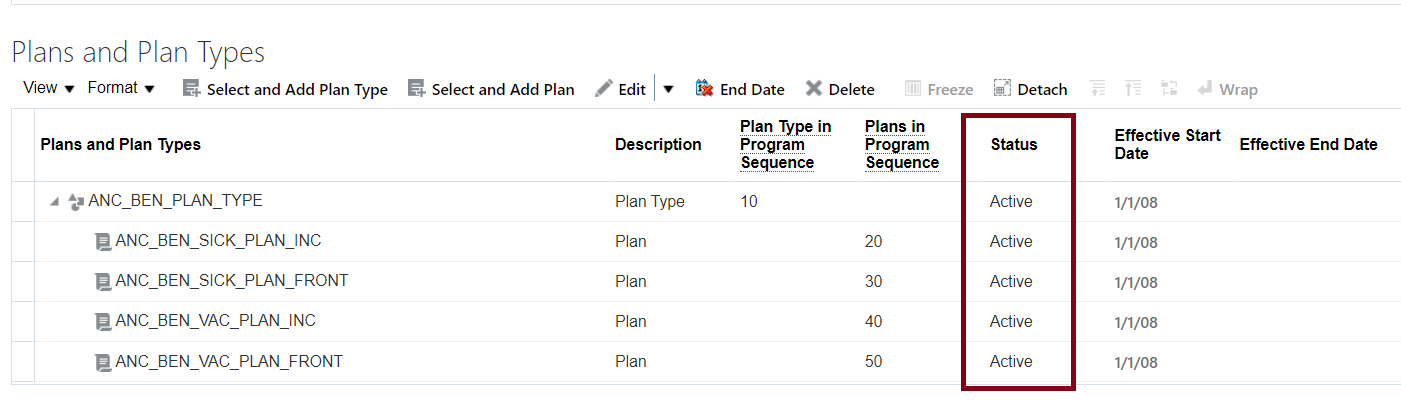
View Active Plans
The Basic Details page of plans now shows only the active options.

View Active Options
The subsequent pages, such as Eligibility, show active or all plans, based on the settings that you select in the Basic Details page.
This enhancement helps you identify active and inactive plans.
Steps to Enable
You don't need to do anything to enable this feature.
Role And Privileges
You need the Benefits Manager or Benefits Administrator role to use this feature.
Move Back the Effective Start Date of Options and Options in Plan
You can now move back the effective start date of both the options and options-in-plan. Currently, if you configured a wrong effective start date for an option, the participants don’t see the option during enrollment because it isn’t active on that date. In such cases, you need to make the option inactive and create a new option with the correct start date for using it in the plan design.
Implementation Considerations for Options:
- You can move the effective start date of an option only to an earlier date on which the option was created. For example, if an option was created on 1 January, 2022, you can move the date to 31 December, 2021 or earlier.
- If the option has child objects like Plan-Type-for-Option and Allowable Dependent or Beneficiary Designees, their effective start date also changes to the new start date of the option.
- When the plan type isn’t valid as of the new date, its effective start date also changes to the new option date.
Implementation Considerations for Option-in-Plans:
- You can move the effective start date of the option-in-plan to any date as long as both the plan and option are valid. For example, if the plan and option are valid till 20 December, 2021, you can move the start date of the option-in-plan till that date.
- If the effective start date of the option-in-plan and plan, or option is the same, you can’t move out the start date of option-in-plan.
- The date change in option doesn’t affect the effective start date of option-in-plan. You need to change the date for the option-in-plan.
- If the option-in-plan has child objects like option-in-plan-in-program, its effective start date also changes to the new start date of the option-in-plan.
- When multiple date track records exist for an option in plan, the Change Effective Start Date action is allowed only on the first date track record.
Here’s how you change the effective start date of options:
- In the Plan Configuration work area, click Benefit Options to open the Benefit Options page.
- Search for the option where you want to change the effective start date.
- Click Actions > Change Effective Start Date.
- Change the date and save your changes.
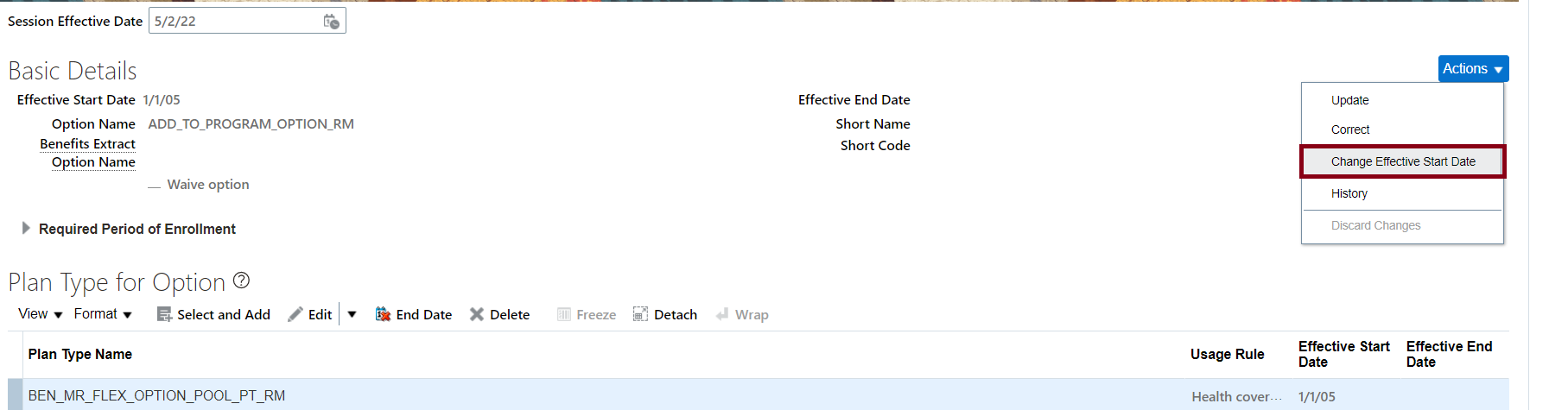
Change Effective Start Date: Option
Here’s how you change the effective start date of option-in-plan:
- In the Plan Configuration work area, navigate to the create or edit page of plans.
- Select the option from the Options section.
- Click Change Effective Start Date in the toolbar.
- Change the date and save your changes.

Change Effective Start Date: Option-in-Plan
When options are created on the wrong date, Benefits administrators can adjust the start date so that they can reuse the options.
Steps to Enable
You don't need to do anything to enable this feature.
Role And Privileges
You need the Benefits Manager or Benefits Administrator role to use this feature.
Group Waive Options Together in Confirmation and Benefits Summary Page
You can now group waive options together at the top of the confirmation and Benefits Summary page in Self-service pages. This grouping highlights all the plans that the participants have not elected, so they can revisit their choices if needed. Currently, the waived coverages are not listed at the top of the confirmation and summary pages.
If you have already customized the waive option name and then enabled this enhancement, you need to redo the customizations for the changes to appear in the confirmation and summary pages.
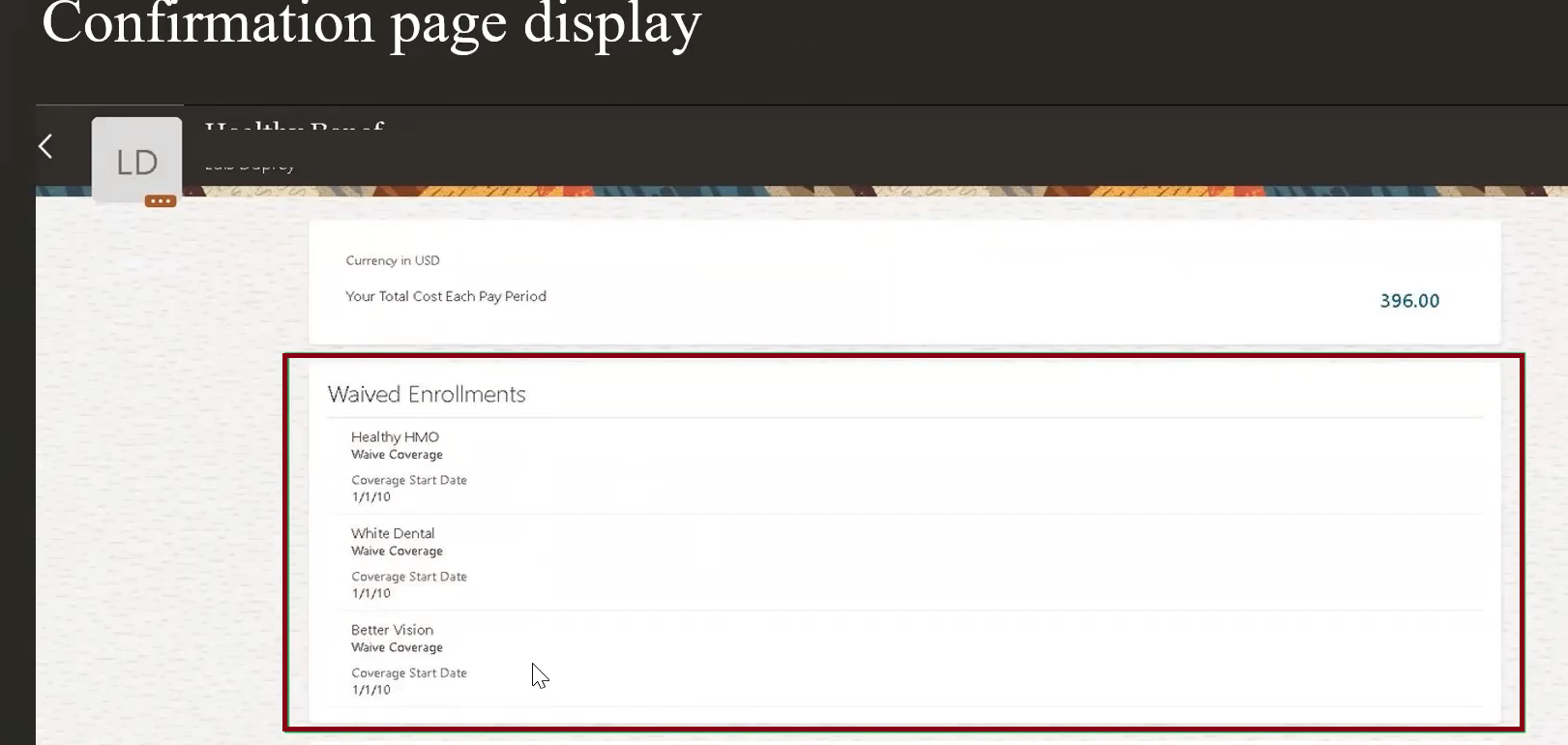
Confirmation Page
This enhancement allows the Benefits administrator to highlight waive plans at the top of the confirmation page.
Steps to Enable
Here’s how you enable this feature:
- On the Home Page, click Benefits Administration > Plan Configuration.
- In the Tasks panel drawer, click Self-Service Configuration.
- Select the Display waived enrollments on the Confirmation and Summary page in a separate section check box.
- Click Save.

Self-Service Configuration
Role And Privileges
You need the Benefits Manager or Benefits Administrator role to use this feature.
IMPORTANT Actions and Considerations for Benefits
REPLACED OR REMOVED FEATURES
From time to time, Oracle replaces existing Cloud service features with new features or removes existing features. When a feature is replaced the older version may be removed immediately or at a future time. As a best practice, you should use the newer version of a replaced feature as soon as the newer version is available.
| Product |
Removed Feature |
Target Removal |
Replacement Feature |
Replaced In |
Additional Information |
|---|---|---|---|---|---|
| None at this time. |
_________________________
KNOWN ISSUES / MAINTENANCE PACK SPREADSHEETS
Oracle publishes a Known Issues document for every Update to make customers are aware of potential problems they could run into and the document provides workarounds if they are available.
Oracle also publishes Maintenance Pack and Statutory Maintenance Pack documentation of bugs that are fixed in the monthly or statutory patching.
To review these documents you must have access to My Oracle Support:
Oracle Human Capital Management Cloud Functional Known Issues and Maintenance Packs (Document ID 1554838.1)