
- Revision History
- Overview
- Feature Summary
- Sales Automation Core Common
-
- CX Foundation
- CRM Common Components
-
- Use Date Variables in Routine Actions
- Use Additional Fields for Mass Update in Workspace
- Select both Date and Time to Filter Date-Time Fields in Workspace and Work Areas Supported by Adaptive Search
- View Near Real-Time Smart List Saved Searches in Workspace
- Receive Email Notifications for Publish Jobs
-
- Accounts, Contacts, and Households
- Simplified Setup
- Import/Export Management
- Customer Data Management
This document will continue to evolve as existing sections change and new information is added. All updates appear in the following table:
| Date | Product | Feature | Notes |
|---|---|---|---|
| 30 JUN 2022 | Created initial document. |
 HAVE AN IDEA?
We’re here and we’re listening. If you have a suggestion on how to make our cloud services even better then go ahead and tell us. There are several ways to submit your ideas, for example, through the Ideas Lab on Oracle Customer Connect. Wherever you see this icon after the feature name it means we delivered one of your ideas.
GIVE US FEEDBACK
We welcome your comments and suggestions to improve the content. Please send us your feedback at oracle_fusion_applications_help_ww_grp@oracle.com.
DISCLAIMER
The information contained in this document may include statements about Oracle’s product development plans. Many factors can materially affect Oracle’s product development plans and the nature and timing of future product releases. Accordingly, this Information is provided to you solely for information only, is not a commitment to deliver any material, code, or functionality, and should not be relied upon in making purchasing decisions. The development, release, and timing of any features or functionality described remains at the sole discretion of Oracle.
This information may not be incorporated into any contractual agreement with Oracle or its subsidiaries or affiliates. Oracle specifically disclaims any liability with respect to this information. Refer to the Legal Notices and Terms of Use for further information.
Column Definitions:
Report = New or modified, Oracle-delivered, ready to run reports.
UI or Process-Based: Small Scale = These UI or process-based features are typically comprised of minor field, validation, or program changes. Therefore, the potential impact to users is minimal.
UI or Process-Based: Larger Scale* = These UI or process-based features have more complex designs. Therefore, the potential impact to users is higher.
Features Delivered Disabled = Action is needed BEFORE these features can be used by END USERS. These features are delivered disabled and you choose if and when to enable them. For example, a) new or expanded BI subject areas need to first be incorporated into reports, b) Integration is required to utilize new web services, or c) features must be assigned to user roles before they can be accessed.
| Ready for Use by End Users Reports plus Small Scale UI or Process-Based new features will have minimal user impact after an update. Therefore, customer acceptance testing should focus on the Larger Scale UI or Process-Based* new features. |
Customer Must Take Action before Use by End Users Not disruptive as action is required to make these features ready to use. As you selectively choose to leverage, you set your test and roll out timing. |
|||||
|---|---|---|---|---|---|---|
| Feature |
Report |
UI or |
UI or |
|
||
Use Merge Request Override to Manage Organization Tax ID Attribute |
||||||
Use Survivorship Rules to Automatically Select the Master Record for Duplicate Resolution Links |
||||||
Support Delete and Restore of Predefined Data
Support delete and restore options for predefined data, such as custom resource role and relationship type. This feature helps you to temporarily hide certain listed data and also re-instate them back later, if needed.
Setup and Maintenance tasks let you filter records based on active or inactive status. Deleted records appear in search results with a status of inactive. The Restore button also appears when you search for inactive status records. Selected records can be restored using the restore option.

Restore Deleted Resource Roles
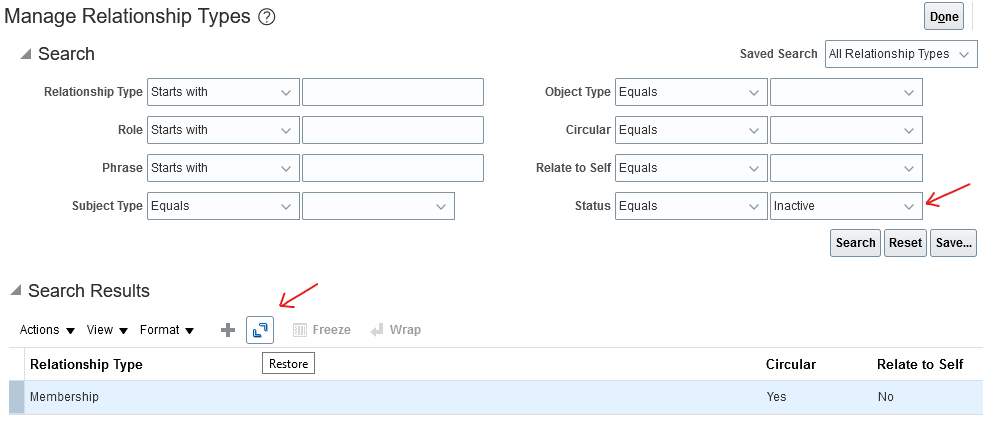
Restore Deleted Relationship Types
You can easily manage set up data to hide lookup values, if they're no longer needed, and revert them back later. This helps you to restore accidentally deleted data.
Steps to Enable
You don't need to do anything to enable this feature.
Key Resources
- See the "Sales Resources, Roles, and Organizations" chapter in the Implementing Sales guide.
- See the "Relationships" chapter in the Implementing Customer Data Management for CX Sales and B2B Service guide.
Use Date Variables in Routine Actions
Routines let you specify date variables to calculate the date based on the routine run date, plus or minus a specific number of days in integer format. For example, for the Update Field and Create Task actions you can create a task or update a field with a due date of the routine run date plus 7 days. This means that if all routines rules are met, the routine will continue to process and update records 7 days past the specified due date.
Creating routines with dynamic dates eliminates the need for periodic updates to routine actions.
Steps to Enable
You don't need to do anything to enable this feature.
Key Resources
- See the “Routines” chapter in the Implementing Sales guide.
Role Information
This feature is available to the following roles:
- Application Implementation Consultant
- Sales Administrator
- Customer Relationship Management Application Administrator
Use Additional Fields for Mass Update in Workspace
You can now mass update additional fields on multiple records. These additional fields include choice list fields based on objects that aren't available in Adaptive Search.
This enhancement makes the mass update feature more usable and complete.
Steps to Enable
You don't need to do anything to enable this feature.
Key Resources
- See the "Workspace and Work Areas Search" chapter in the Using Sales guide.
Role Information
This feature is available for all roles.
Select both Date and Time to Filter Date-Time Fields in Workspace and Work Areas Supported by Adaptive Search
You can now select both date and time filters on specific date and time fields to narrow down your list of search results. This saves you time, because you can conduct more focused searches.
This feature lets users do more granular time-based filtering.
Steps to Enable
You don't need to do anything to enable this feature.
Key Resources
- See the "Workspace and Work Areas Search" chapter in the Using Sales guide.
View Near Real-Time Smart List Saved Searches in Workspace
View near real-time smart list saved searches in Workspace. The user context engine now delivers near real-time user context, and in turn drives smart lists to display the most relevant and contextual records once every 10 minutes.
This feature:
- Provides near real time user context reducing the refresh rates from once every 3hrs to ~10min. It also drives My Smart Lists to display your most relevant and contextual records
- Reduces navigation and search, bringing in efficiencies to Improve Sales user Productivity
Steps to Enable
To enable the near-real-time user contextual relevancy:
-
In Setup and Maintenance, open the Manage Administrator Profile Values task.
- Offering: Sales
- Functional Area: Sales Foundation
- Task: Manage Administrator Profile Values
- In the Manage Administrator Profile Values page, search by the profile option name, Enable Near Real Time User Context Relevancy, or by the code, ORA_ZCA_UC_ENABLE_NRT.
- Click the profile option name link.
- Set the profile option value to Y.
- Save your changes.
Key Resources
- See the "Adaptive Search and Workspace" chapter in the Implementing Sales guide.
Receive Email Notifications for Publish Jobs
You can receive email notifications about the status of completed Publish jobs for Adaptive Search. For example, you're notified about the successful completion of published processes or receive an alert of failed processes that might be causing issues with data access. This helps administrators to better manage the Adaptive Search publishing process.
Email notifications about Publish jobs lets you know the status of completed jobs and alerts you if a job fails.
Steps to Enable
You don't need to do anything to enable this feature.
Key Resources
- See the "Adaptive Search and Workspace" chapter in the Implementing Sales guide.
Role Information
This feature is available for all administrative roles that can do an Adaptive Search Publish.
Accounts, Contacts, and Households
Use Auditing to See Who Deleted Household Records and When
Track deleted household object records using the Audit reporting tool. This feature is supported from all channels, including changes made in the UI, using REST, and using Import Management. You may have to perform certain configuration steps for the Household object and for specific fields to enable auditing.
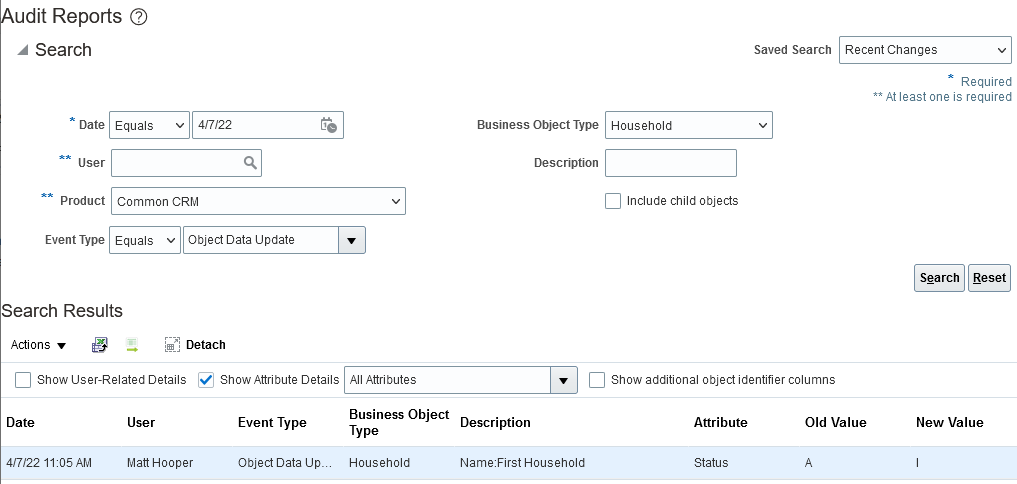
Audit Report: Deleted Household
You can now audit the deleted Household records.
Steps to Enable
- In the Setup and Maintenance work area, use the Manage Audit Policies task:
- Offering: Sales
- Functional Area: Sales Foundation
- Task: Manage Audit Policies
- Click Configure Business Object Attributes in the Oracle Fusion Applications section.
- Select Common CRM as the product.
- Expand Audit Top Node.
- Click to select Household under Customer.
- In the Household: Audited Attributes panel, click the add icon to enable the Status field for auditing. Enable more fields for auditing as required and click OK.
- Click Save and Close.
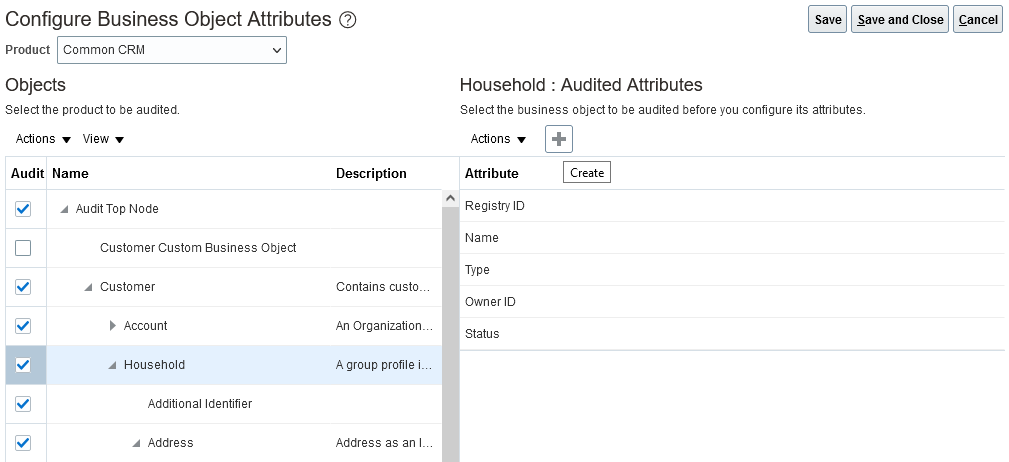
Configuration in Manage Audit Policies for Household
Key Resources
- See the "Application Change Auditing" chapter in the Implementing Sales guide.
Undo Enrichment of a DataFox-Enriched Account
The feature disables enrichment for a Sales account record that's been enriched from Oracle DataFox. Users can later enrich the account record to re-create the association with the Oracle DataFox record.
In certain scenarios, you may have to undo the enrichment of an existing account and associate it again with a new Oracle DataFox company to get the right updates for your account. For example, in a rare case, enrichment can result in an incorrect operation and a Sales account is updated with incorrect Oracle DataFox company data. In such cases, you can undo the existing enrichment and redo it so that the right data is updated in the Sales account records.
Steps to Enable
The Undo Enrichment option is available only for accounts enriched by Dun & Bradstreet (D&B) or Oracle DataFox. The action can be found in the Actions menu of the Edit Account page of an already enriched account. This option isn't available for accounts that are not yet enriched.
Tips And Considerations
- After you undo the enrichment, your account unlinks from the account in D&B or Oracle DataFox, but the old data remains. Redo the enrichment so that the latest data from D&B or Oracle DataFox replaces the old data.
- The enrichment sync jobs won't run for accounts unlinked from enrichment.
Key Resources
See this content:
- The "Accounts and Contacts" chapter in the Implementing Sales guide.
- The "Accounts, Contacts, and Households" chapter in the Using Sales guide.
Use New Task for Data Enrichment
As announced in the Release Readiness documents in Update 22B, we have removed the following two deprecated Functional Setup Manager tasks from the Sales application:
- Manage DataFox Data Enrichment Integration
- Manage Integration with Oracle Data as a Service
The tasks have been replaced by the task, Manage Data Enrichment Integration. Use the Manage Data Enrichment Integration task for configuring enrichment credentials.
Basic Authentication in following tasks has also been disabled, and you're advised to start using OAuth Authentication (for DaaS Credentials in Manage Data Enrichment Integration and address verification credentials in Manage Integration with Oracle Verification Services).
There's no need to maintain multiple Setup and Maintenance tasks to manage the same configuration. We have consolidated two Setup and Maintenance tasks and created a new task in Update 22C, Manage Data Enrichment Integration. The deprecated tasks need to be removed.
OAuth Authentication is the recommended method to store connection credentials, so we're deprecating Basic Authentication for DaaS credentials in Manage Data Enrichment Integration and for address verification credentials in Manage Integration with Oracle Verification Services.
Steps to Enable
You don't need to do anything to enable this feature.
Tips And Considerations
- Use the new task, Manage Data Enrichment Integration, to specify Oracle DataFox and Oracle DaaS credentials, and set authentication to OAuth Authentication.
- Use the existing task, Manage Integration with Oracle Verification Services, to configure verification services with OAuth Authentication.
NOTE: You can go to these tasks from the Setup and Maintenance work area:
-
Offering: Sales
-
Functional Area: Integrations
Key Resources
See this content:
- The "Accounts and Contacts" chapter in the Implementing Sales guide.
- The "Accounts, Contacts, and Households" chapter in the Using Sales guide.
Review the Status of Your Sales Setup
Customers starting a sales implementation can review the status of the required initial setup tasks by running a report from within the Setup Assistant. The report confirms which tasks have been completed and recommends actions for those that haven't. You can rerun the status check at any point.
The setup check saves time by providing a quick snapshot of your setups in a single view, rather than requiring you to check each setup individually.
Steps to Enable
You don't need to do anything to enable this feature.
Key Resources
- See the "Run Setup Assistant" chapter in the Getting Started with Your Sales Implementation guide.
For information on using Import and Export Management, see the Understanding Import and Export Management for CX Sales and B2B Service guide.
Save the Advanced Options in Import and Export Management
You can now save the import and export job advanced options for subsequent reuse on the Import and Export Management user interface.
This feature:
- Provides a quick and easy method for reusing advanced options without having to provide inputs again
- Decreases the time taken to perform import and export tasks by reducing the number of clicks
Steps to Enable
You don't need to do anything to enable this feature.
Tips And Considerations
- We recommend that you check the Advanced Option values before running an import or export job.
- To overwrite the current set of advanced options, you must click Save Advanced Options again.
- The application will save the options, even if the import or export job doesn't complete.
Key Resources
- See the "Import Data" and "Export Data" sections in the Understanding Import and Export Management guide.
Use Specific Alternate Keys to Link Objects on Data Import
You can use specific applicable alternate keys, such as Public Unique Identifier (PUID) or a combination of Original System and Original System Reference value, to uniquely identify and link objects based on pre-defined relationships on data import.
This feature:
- Lets you use Public Unique Identifier (PUID) or a combination of Original System and Original System Reference value attributes as alternate keys, so that you can link data import into an object related to another object:
- If related as a Dynamic Choice List (DCL) attribute
- If defined as part of a 1:M relationship
- Reduces the need to query primary key information of an imported object out of the system before re-importing the data to ensure that the data is uniquely identified and linked.
Steps to Enable
You don't need to do anything to enable this feature.
Key Resources
- See the "How You Import Custom Objects" topic in the "Import Custom Objects" chapter in the Understanding Import and Export Management guide.
Access the Data Quality Rules Configuration Task in the Common Tasks Category in Application Composer
Access the Data Quality Rules Configuration task in the Common Tasks category instead of the Advanced Configuration area in Application Composer. This change helps you have a simpler and cleaner navigation experience.
This change helps provide a simpler navigation experience in Application Composer.
Steps to Enable
You don't need to do anything to enable this feature.
Tips And Considerations
Only the location of the Data Quality Rules link has changed. There is no impact to the Data Quality Rules functionality and any existing scripts.
Key Resources
- See the information on configuring Data Quality Rules in the Implementing Customer Data Management guide.
Role Information
- This feature is available to users with the Master Data Management Application Administrator job role.
Use Merge Request Override to Manage Organization Tax ID Attribute
Use the Merge Request override option for Organizations to manage the Organization's Tax ID attribute. As a Data Steward, you can now manually override the configured Tax ID attribute survivorship logic while processing merge requests.
As a Data Steward, you will now be able to better assure that Tax ID attribute values of master records are correctly selected.
Steps to Enable
You don't need to do anything to enable this feature.
Tips And Considerations
- Use attribute source confidence or other attribute survivorship logic options as the primary mechanism for resolving overlapping Tax ID attribute values when merging organization profiles.
- You can now use the merge review override flow to manually review and modify the merge behavior for exception cases where configured attribute survivorship is not applicable.
Key Resources
- See the Using Customer Data Management guide for more information about merge processing.
Role Information
Users with any of the following roles can use this enhancement:
- Customer Data Steward
- Data Steward Manager
- Master Data Management Application Administrator
Use Survivorship Rules to Automatically Select the Master Record for Duplicate Resolution Links
Use your configured Survivorship Rules to automatically select the master record of Duplicate Resolution Link sets produced through the resolution request process. The same processing options and logic that have been available for Merge requests are now also be applied to Duplicate Resolution Link requests.
This enhancement lets you more effectively and efficiently implement Resolution Links functionality as part of your overall customer data quality practices.
Steps to Enable
To enable this feature, use the Manage Customer Data Management Options setup task to specify the Master Record Selection option to be used in resolution request processing. If Groovy script is chosen as the Master Record Selection option, use Application Composer to configure the Account Set Master and Contact Set Master behavior.
Tips And Considerations
- If you have already enabled Master Record Selection as part of Merge request processing, no further action is necessary. The configured master record selection logic is automatically applied to Resolution Link requests.
Key Resources
- Refer to the "Configuring Duplicate Resolution" section in the Implementing Customer Data Management guide for more information about resolution request processing.
Role Information
- Users with the Master Data Management Application Administrator role can enable and configure Master Record Selection options.