
This document will continue to evolve as existing sections change and new information is added. All updates appear in the following table:
| Date | Module | Feature | Notes |
|---|---|---|---|
| 08 SEP 2023 | Created initial document. |
 HAVE AN IDEA?
We’re here and we’re listening. If you have a suggestion on how to make our cloud services even better then go ahead and tell us. There are several ways to submit your ideas, for example, through the Ideas Lab on Oracle Customer Connect. Wherever you see this icon after the feature name it means we delivered one of your ideas.
GIVE US FEEDBACK
We welcome your comments and suggestions to improve the content. Please send us your feedback at oracle_fusion_applications_help_ww_grp@oracle.com.
DISCLAIMER
The information contained in this document may include statements about Oracle’s product development plans. Many factors can materially affect Oracle’s product development plans and the nature and timing of future product releases. Accordingly, this Information is provided to you solely for information only, is not a commitment to deliver any material, code, or functionality, and should not be relied upon in making purchasing decisions. The development, release, and timing of any features or functionality described remains at the sole discretion of Oracle.
This information may not be incorporated into any contractual agreement with Oracle or its subsidiaries or affiliates. Oracle specifically disclaims any liability with respect to this information. Refer to the Legal Notices and Terms of Use for further information.
Column Definitions:
Report = New or modified, Oracle-delivered, ready to run reports.
UI or Process-Based: Small Scale = These UI or process-based features are typically comprised of minor field, validation, or program changes. Therefore, the potential impact to users is minimal.
UI or Process-Based: Larger Scale* = These UI or process-based features have more complex designs. Therefore, the potential impact to users is higher.
Features Delivered Disabled = Action is needed BEFORE these features can be used by END USERS. These features are delivered disabled and you choose if and when to enable them. For example, a) new or expanded BI subject areas need to first be incorporated into reports, b) Integration is required to utilize new web services, or c) features must be assigned to user roles before they can be accessed.
| Ready for Use by End Users Reports plus Small Scale UI or Process-Based new features will have minimal user impact after an update. Therefore, customer acceptance testing should focus on the Larger Scale UI or Process-Based* new features. |
Customer Must Take Action before Use by End Users Not disruptive as action is required to make these features ready to use. As you selectively choose to leverage, you set your test and roll out timing. |
|||||
|---|---|---|---|---|---|---|
| Feature |
Report |
UI or |
UI or |
|
||
Include Related Record Information as Nested Data for Sales Machine Learning |
||||||
Dispatcher Service to Override the Destination of Dynamic Choice List Links |
||||||
View Invoices for Sales Accounts that are Linked to Separate Back Office Customer |
||||||
Use Object Functions in Routines
You can now create custom smart actions for use in Routines. With this feature you can perform custom processes in routines, such as API or object function calls.
Smart actions allow you to perform custom processing in routines. For example, you can create routines that call object functions that use smart actions for more complex processes such as closing open activities when a sales lead is closed. You can also use REST-based smart actions for custom actions such as retiring leads when a custom field is updated to a specific value.
Steps to Enable
You don't need to do anything to enable this feature.
Key Resources
Access Requirements
The following roles can manage routines:
- Sales Administrator
- Application Implementation Consultant
- Customer Relationship Management Application Administrator
Include Related Record Information as Nested Data for Sales Machine Learning
Sales Machine Learning models now supports related record information as nested data. Nested data allows you to represent a collection of values. For example, you can now build models for predicting outcomes for an opportunity and include opportunity products as one of the features.
Nested data support allows you to bring in features based on related records such as opportunity revenue lines, account contacts, opportunity competitors, lead contacts and so on. You can also include data from custom child objects as nested data for your models.
Customers can build and deploy their own models to meet their business or industry specific use cases. With nested data support, customers can build sales machine learning predictions that take into account factors that are represented as series of data in related record. This allows users to build from simple to complex models with support for bringing related record information.
Steps to Enable
- Navigate to Setup and Maintenance > Intelligence in Sales > Configure Sales Machine Learning
- Create a model by either duplicating system generated record or by using create button
- Follow step by step guided flow to build and deploy the model
- Use storage of prediction outcome in custom attribute for models that predict outcomes
- Use REST service endpoint to fetch results for models that identify similar records
- Add the outcomes of machine learning models to end user UI using custom attributes or REST endpoint
Tips And Considerations
- Use nested data when you want to bring related record information as a series or collection of data. For example products sold on opportunity or contact job titles associated with an account.
- Try to use only key attributes from related records to ensure optimum results from machine learning. Using unimportant attributes may result in poor outcomes from machine learning models.
- If you need to bring related record summary information, utilise Rollups instead of nested data. For example, if you want to consider number of completed activities, time since last activity or number of active contacts, it is better to utilise Rollups for the purpose.
Access Requirements
You require following privilege to build and deploy sales machine learning models. There is no additional access requirement for using nested data as part of the models
- Manage Sales Machine Learning
Trading Community Architecture
Get Near Real-Time Access to Custom Object Data
This feature enables sales users to get access in near real-time (NRT) for custom object records, where access is secured as part of team member, team hierarchy, territory, or territory hierarchy. Before this feature enhancement, sales users needed to wait until the next scheduled access group assignment job to run, or they had to run the job on demand, to get the access.
NOTE: This enhancement applies to customers who are using the Access Groups security framework to define their data security.
This feature:
- Reduces the need to run Access Group assignment jobs on demand.
- You can schedule the Access Group assignment jobs for custom objects with less frequency. This reduces the number of jobs running and in turn improves performance.
Steps to Enable
You don't need to do anything to enable this feature.
Tips And Considerations
If you're using access groups and have already enabled team-based or territory-based access for custom objects, then there are no additional steps required to enable this feature. This feature is automatically applied when you upgrade to Update 23D.
If you're new to access groups and want to enable team-based or territory-based access for custom objects, then you need to perform few configuration steps to enable this feature. You can find the details in the Securing Sales and Fusion Service guide in the Access Groups chapter, in the section, Custom Objects and Access Group Security.
High-Level Steps to Enable the Territory-Based Access for Custom Objects
The team-based steps are in the guide, in the topic, Enable Team-Based Access to Custom Objects. Here are the high-level steps for territory-based access for custom objects:
- Create a dynamic choice list (DCL) field on your custom object using Sales Territory as the Related Object and Territory Name as the Display Value.
- Expose the DCL field create in step 1 in the UI on the pages you want it to appear on.
- Click the Security node and:
- Enable Access Group Security.
- Check the 'Configure Territory for Access Group Security' and select the DCL you created in step 1.
- Configure functional security, i.e., mention the roles that you want to give access to for the custom object.
- Publish the sandbox.
- Navigate to Sales and Service Access Management (SAM) work area under Navigator > Tools.
- In the SAM UI, click on Object Rules in the Configure Groups tab.
- Under Actions, select the option Synchronize Custom Objects and Fields and run the job so that your custom object can be displayed in the objects LOV.
- Sign out of the application and sign in.
- Upon job completion, navigate to Configure Groups > Object rules in the SAM UI. Select the custom object from the objects list and activate the territory rules in it according to your business need.
- Associate the activated rules in step 8 with the access group (associate the rules with the group corresponding to the same role you added in step 3c).
- Click Actions > Publish.
Ability to Log Interactions from an Activity Record
Enables the users to log interactions for appointments and tasks in Redwood Sales. Users can capture the meeting minutes / meeting details for an appointment that occurs in offline channels outside the application such as in-person meetings, or non-integrated web conference calls, and directly store them in the application linking the interaction with the appointment or task.
Helps the users to centrally track all communications from both Integrated and non-integrated channels and associate them with activities in Redwood Sales i.e., interactions can be mapped with the corresponding appointments
Steps to Enable
Prerequisite:
This functionality is available in Redwood Sales only.
Enabling the smart action:
The 'Log an Interaction' smart action for activities is hidden by default but you can make it available to your users through Application Composer.
Here's how to enable the 'Log an Interaction' smart action
- Sign in as a Sales Administrator or as a setup user.
- Activate a sandbox.
- Navigate to Application Composer, in the Configuration category.
- In the navigation tree, expand 'Common Setup' and click on 'Smart actions'
- Enable 'Log an Interaction' smart action for Activity object.
- If the action needs to be available from the Activity list page, Click on the duplicate smart action button.
- Once the smart action is duplicated
- Test the changes: Navigate to Redwood Sales > Account/Lead/Contact/Opportunity and select the action list of an activity and click on 'Log an Interaction'. The form will be displayed in the drawer.
- To test is Activity list page, navigate to Redwood Sales > Activity List page and select the action list of an activity and click on 'Log an Interaction'. The form will be displayed in the drawer.
- Publish the sandbox
Tips And Considerations
The functionality is only available in the Redwood Sales.
Points to consider:
- Only channels that are created with purpose 'Sales' & 'All' will be displayed in the channel drop-down of the 'Log an Interaction' form
- If the channel type is email, then the channel will not be available in the form
Access Requirements
Sales Representative
Dispatcher Service to Override the Destination of Dynamic Choice List Links
You can override the destination of a dynamic choice list (DCL) field using the dispatcher service. The override can be global or conditional based on the logged-in user's role.
The override can be configured to take effect anywhere the DCL field is displayed or only on certain application pages. In addition, this service will also allow you to override the destination when you drill down from a list page to a details page.
Suppose you are creating a simple custom object with only an edit page. In that case, you can create a dispatcher rule to navigate the user to the custom object edit page every time a user clicks on a DCL link of the custom object.
Or lets say you find out that your sales representatives always go to the opportunity activity page when they drill down on an opportunity. You can create a dispatcher rule to do just that for your sales representatives.
Steps to Enable
Leverage Application Composer to expose and adjust page layout and attributes. To learn more about extending your application using Application Composer, visit Oracle Help Center > your apps service area of interest > Books > Configuration and Extension.
Enable Dispatcher
- Navigate to Functional Setup Manager
- Search and Navigate to Manage Profile Options task
- Create a new profile option with the following values
- Profile Option Code = CXF_ENABLE_DISPATCHER_RULES
- Profile Display Name = Any value you would like, such as Enable Dispatcher Rules
- Application = CX Fragments
- Module = CX Fragments
- Save and Close.
- In the subsequent page make sure that you select the Enabled and Updatable check box for the Site level. Click Save and Close.

Create Profile Option
- Next, search and navigate to the Manage Administrator Profile Values task
- Search for the CXF_ENABLE_DISPATCHER_RULES Profile Option
- Set the profile option value to Yes and Save.
- Now, Navigate to Application Composer
- Make sure that you are not in a sandbox
- Under Common Setup you should see a link to Dispatcher.
- You can create dispatcher navigation rules by clicking on this link.
Access Requirements
You can use any user that has one of the following roles: Application Implementation Consultant, Customer Relationship Management Application Administrator or Sales Administrator
If your user has a custom role, then make sure the users role has Manage Dispatcher Rules (ZCA_MANAGE_DISPATCHER_RULES_PRIV) privilege.
Generate Custom Object pages for Redwood UI using fragments
Generate Custom Object pages for Redwood UI using fragments. List, create, detail, and edit pages are generated. Panel and sub view for a child object can be added.
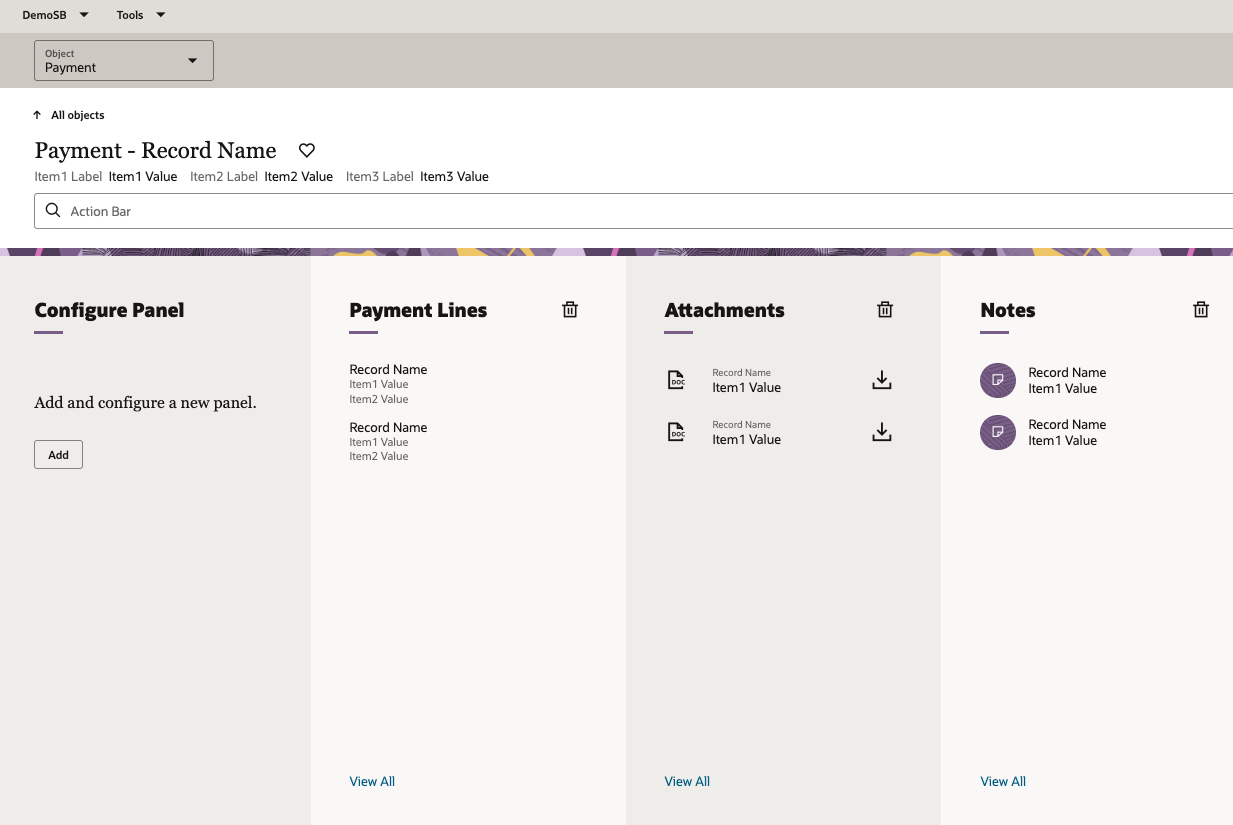
Admin can create default pages for custom object.
Steps to Enable
Leverage Application Composer to expose and adjust page layout and attributes. To learn more about extending your application using Application Composer, visit Oracle Help Center > your apps service area of interest > Books > Configuration and Extension.
Link Sales Accounts with Back Office Customer Records
In scenarios where the customer has been created separately in the back office application, you will be able to link that customer record to the respective sales account.
In cases where a business entity gets represented in different ways in the back office and in sales, the information for that business entity including the various sales activities, subscriptions and invoices get scattered across the various representations. This feature will allow you to link the multiple different representations thus allowing your users to see a unified picture of the business entity.
Steps to Enable
You don't need to do anything to enable this feature.
Tips And Considerations
This feature is available without any additional set up. However, the ability to link a sales account to a financial customer is available only for users with Data Steward Manager job role.
View Invoices for Sales Accounts that are Linked to Separate Back Office Customer
In cases where the customer is represented separately in sales and in the back office, these two separate representations can be linked together allowing you to view invoices associated to the customer record from within the sales application.
This feature will allow you to have a more complete and comprehensive view of the customer even if that customer was inadvertently modeled as a separate back office customer and front office sales account.
Steps to Enable
You don't need to do anything to enable this feature.
This feature enables you to link duplicate accounts together. By linking duplicate accounts in this manner, you will be able to identify one of the accounts in the duplicate set that will serve as the main account and use it for future sales related activities. Whenever you view the main account, you will be able to see all the opportunities, not only for this account but also the opportunities for the duplicate accounts. Whenever you view a duplicate account, you will be informed that you are viewing a duplicate account and that you should be using the main account instead.
This feature is an alternative to hard merging duplicate accounts.
This feature allows you to handle duplicate accounts in a non-destructive way wherein the duplicate accounts are removed from the system and transactions are moved to the surviving account. Instead, this process preserves all the accounts in the system while at the same time denoting the users which accounts are duplicates and should no longer be used.
Steps to Enable
You don't need to do anything to enable this feature.
Tips And Considerations
This feature is available without any additional set up. However, the ability to link sales accounts into a duplicate set is available only for users with Data Steward Manager job role.