
- Revision History
- Overview
- Feature Summary
- Compensation
-
- Compensation
- Salary
- Individual Compensation
- Workforce Compensation
-
- Updated Budget Scoreboard Summary View
- Warning In Configure Performance Ratings
- Receive Error When You Select More Than 20 People For Worksheet Actions
- Change In Behavior In Performance Worksheet Task
- Change In Workforce Compensation Landing Page Analytics Behavior
- Switch Between Workforce Compensation Setup Tasks
- Change In Behavior In Compensation Worksheet Task
- Change In Job Filter Behavior When Job List is Greater Than 50
- Change In Behavior In Manager Reports
- Change In Worksheet Filter Behavior For Managers With More Than 500 People
- Configure Performance Rating To Display In Performance Task Summary
- Grade Step Progression
-
- Enhanced Validation when Accepting Manual Grade Step Progressions
- FTE Adjustments in HR Actions When Salary Comes From Grade Ladder And Salary Amount is Determined By Simple Components
- Salary Adjustment Type Determines FTE Proration When Salary Comes From Grade Ladder And Salary Amount is Determined By User
- Market Data
- Total Compensation Statement
- Transactional Business Intelligence Enterprise for Compensation
- Compensation
- IMPORTANT Actions and Considerations for Compensation
This document will continue to evolve as existing sections change and new information is added. All updates appear in the following table:
| Date | Product | Feature | Notes |
|---|---|---|---|
| 29 APR 2022 | Compensation / Total Compensation Statement |
Total Compensation Statement Feedback | Updated document. Revised feature information. |
| 28 JAN 2022 | Compensation / Grade Step Progression |
FTE Adjustments in HR Actions When Salary Comes From Grade Ladder And Salary Amount is Determined By Simple Components | Updated document. Revised feature information. |
| 28 JAN 2022 |
Compensation / Grade Step Progression |
Salary Adjustment Type Determines FTE Proration When Salary Comes From Grade Ladder And Salary Amount is Determined By User | Updated document. Revised feature information. |
| 24 NOV 2021 | Compensation / Salary |
Salary Not Defaulted to 0 | Updated document. Revised feature information. |
| 29 OCT 2021 | Compensation / Workforce Compensation | Change In Behavior In Compensation Worksheet Task | Updated document. Feature delivered in update 21D. |
| 29 OCT 2021 |
Compensation / Workforce Compensation |
Change In Behavior In Manager Reports | Updated document. Feature delivered in update 21D. |
| 29 OCT 2021 |
Compensation / Workforce Compensation |
Change In Job Filter Behavior When Job List is Greater Than 50 | Updated document. Feature delivered in update 21D. |
| 29 OCT 2021 |
Compensation / Workforce Compensation |
Change In Worksheet Filter Behavior For Managers With More Than 500 People | Updated document. Feature delivered in update 21D. |
| 29 OCT 2021 |
Compensation / Workforce Compensation |
Configure Performance Rating To Display In Performance Task Summary | Updated document. Feature delivered in update 21D. |
| 29 OCT 2021 |
Compensation / Total Compensation Statement | Total Compensation Statement Feedback | Updated document. Revised feature information. |
| 29 OCT 2021 |
Compensation / Total Compensation Statement |
Total Compensation Statement - Stock History Category Additions | Updated document. Revised feature information. |
| 24 SEP 2021 | Compensation / Individual Compensation | Individual Compensation Plan Synchronized with Projected Start Date Introduction in Pending Worker Actions | Updated document. Revised feature information. |
| 03 SEP 2021 | Created initial document. |
HCM Cloud applications have two types of patches you can receive that are documented in this What’s New:
- Release Updates (21A, 21B, 21C, and 21D)
- Optional Monthly Maintenance Packs to each update
It is important for you to know what Release Update your environment is on. You can find this in your Cloud Portal.
____________________
 HAVE AN IDEA?
We’re here and we’re listening. If you have a suggestion on how to make our products better, please let us know. To enter an idea go to the Ideas Lab on Oracle Customer Connect. In this document wherever you see the light bulb icon after the feature name it means we delivered one of your ideas.
____________________
Suggested Reading for all HCM Products:
- Human Resources What’s New – In the Global Human Resources section you will find features on the base application in which other application are built upon.
NOTE: Not all Global Human Resource features are available for Talent and Compensation products.
- Oracle Human Capital Management Cloud Functional Known Issues and Maintenance Packs (Document ID 1554838.1). These documents identify bug fixes and possible known issues. You will also need to review these documents based in the release update version you are currently on or will be moving to.
- Oracle Help Center – Here you will find guides, videos and searchable help.
- Release Readiness – New Feature Summary, What’s New, Feature Listing Spreadsheet, Spotlights and Release Training
GIVE US FEEDBACK
We welcome your comments and suggestions to improve the content. Please send us your feedback at oracle_fusion_applications_help_ww_grp@oracle.com. Indicate you are inquiring or providing feedback regarding the HCM Cloud What’s New in the body or title of the email.
Column Definitions:
Report = New or modified, Oracle-delivered, ready to run reports.
UI or Process-Based: Small Scale = These UI or process-based features are typically comprised of minor field, validation, or program changes. Therefore, the potential impact to users is minimal.
UI or Process-Based: Larger Scale* = These UI or process-based features have more complex designs. Therefore, the potential impact to users is higher.
Features Delivered Disabled = Action is needed BEFORE these features can be used by END USERS. These features are delivered disabled and you choose if and when to enable them. For example, a) new or expanded BI subject areas need to first be incorporated into reports, b) Integration is required to utilize new web services, or c) features must be assigned to user roles before they can be accessed.
Oracle Compensation enables your organization to plan, allocate, and communicate compensation using the most complete solution in the market. Make better business decisions using embedded analytics and a total compensation view of workers, regardless of geographic location or pay package components.
Additional Parameters in Design Studio
You can now use additional parameters while configuring rules for compensation actions in Transaction Design Studio.
| Actions | Additional Parameters |
|---|---|
| Change Salary |
Country, Action, Worker Type |
| Salary History, Compensation Info, My Compensation |
Country, Worker Type |
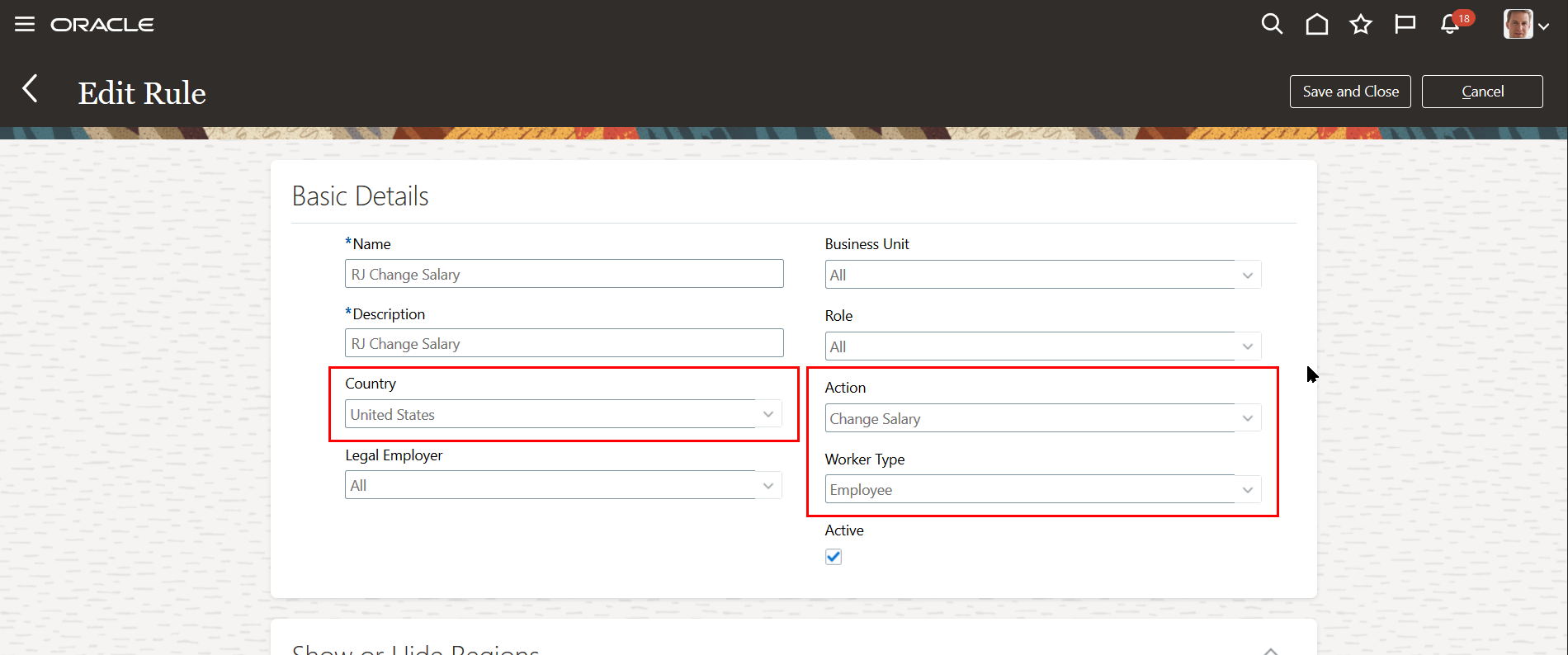
Additional Parameters in Change Salary Action
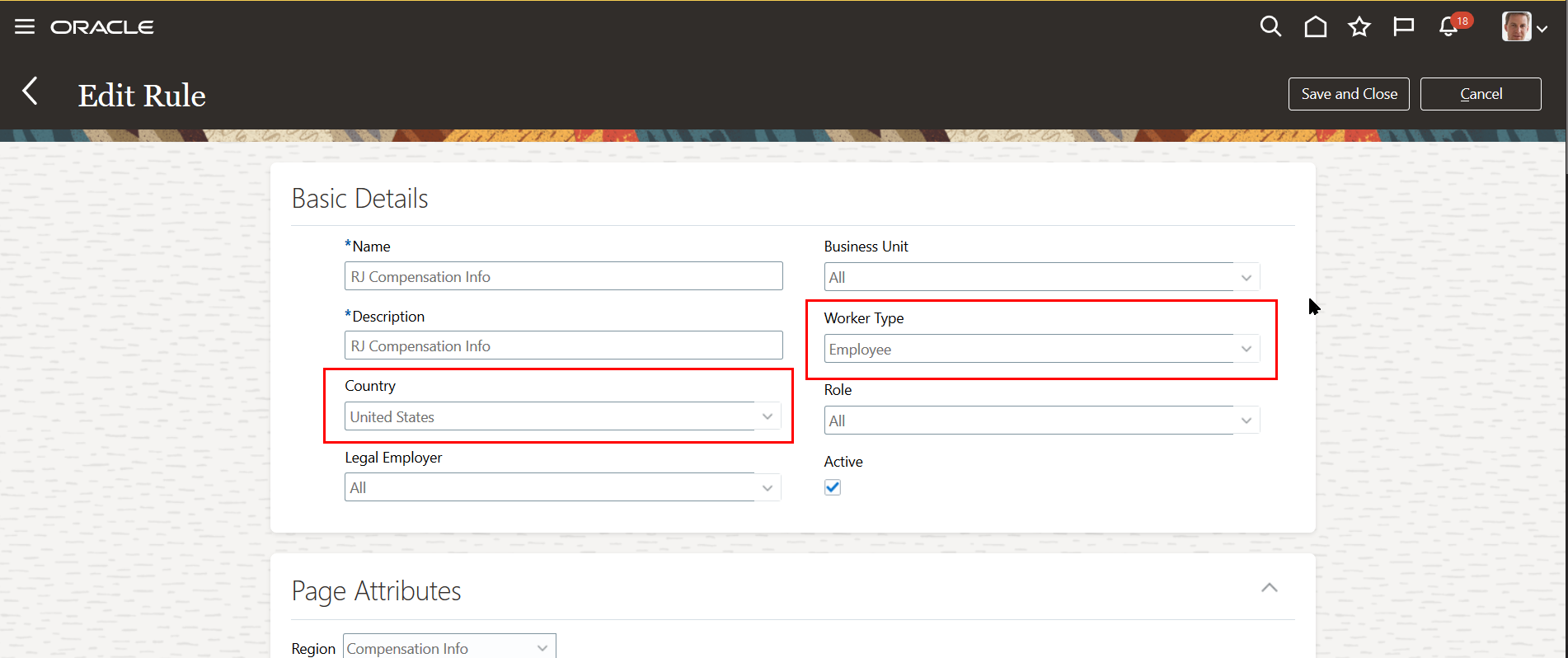
Additional Parameters in Compensation Info Action
This enhancement gives you additional flexibility when you define rules.
Steps to Enable
You don't need to do anything to enable this feature.
Enhancements to Download Salaries
When uploading salary changes using the Download Salaries task:
- Pending Approval Check: You can now avoid loading salary changes when a salary change either from standalone change salary or Global HR actions that include salary, such as Change Assignment, are pending approval. Earlier when a salary change was pending approval, and the Download Salaries task created a salary record, the pending transaction would error after final approval.

Error Preventing the Upload When Another Salary Change Is Pending Approval
-
Salary Range Violation Behavior: You can now avoid loading salary changes that violate salary ranges when you configure the salary range violation behavior to prevent salary that violates the salary range.

Error Preventing the Upload When he Proposed Salary Violates the Salary range
- Salary Ranges are Adjusted for Differential: You can now see the salary ranges calculated considering the differential profile. For example, you have an Individual Contributor 2 grade with a base range from $104,000 to $145,600. One of the locations in the differential profile has a differential factor of 2. For individuals at that specific location, the download salaries workbook shows the range as $208,000 to $291,200.
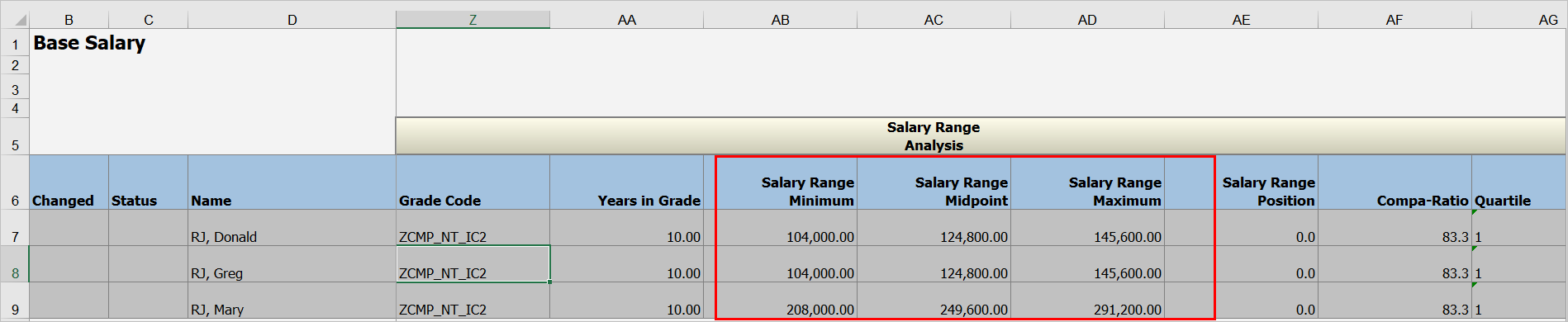
Download Salaries Workbook with Salary Ranges Adjusted by a Differential Profile
- Additional Attributes: You can now see additional context in the download salaries workbook with the inclusion of additional attributes, such as Assignment Number, Location, Compensation Zone, Compensation Zone type.
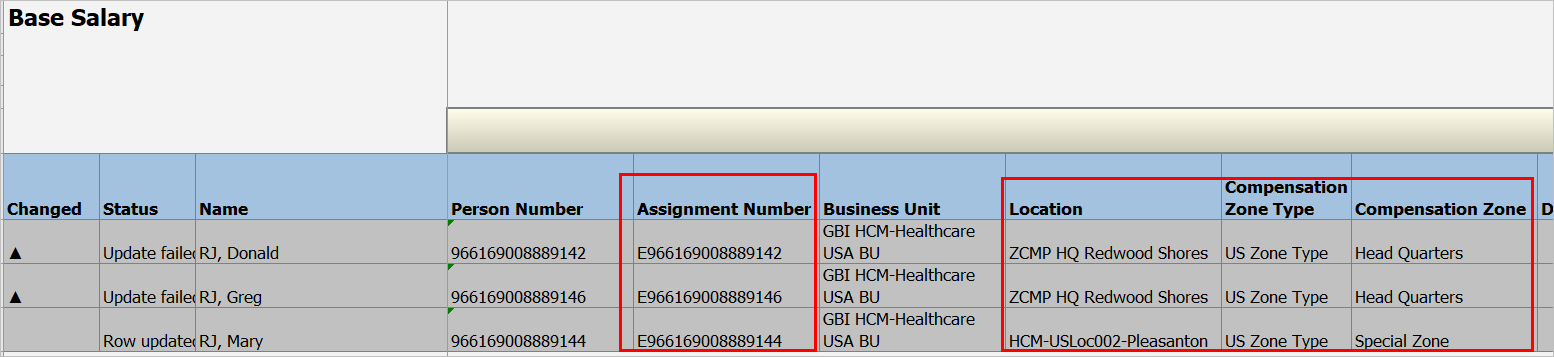
Download Salaries Workbook with Additional Columns, Such as Assignment Number, Location, and Compensation Zone
This enhances people's experience when they upload salary changes using the Download Salaries task.
Steps to Enable
You don't need to do anything to enable this feature.
Tips And Considerations
- When you use Compensation Zones based Differential Profile, you need to run the Generate Compensation Zone and Address Mapping process mandatorily at regular intervals to see the adjusted salary ranges in the Download Salaries workbook.
- The salary range validation runs only for salary bases configured to raise an error for salary range violation because the workbook doesn't support warnings.
Defaulting When Date in Change Salary Flow Introduction
You can now specify whether to default a when date in the responsive Change Salary flow in the My Team and My Client Groups areas using the ORA_PER_EMPL_DEFAULT_EFFECTIVE_DATE profile option. By disabling the default, you make sure that the proposer enters a date. Previously, the option affected only employment actions.
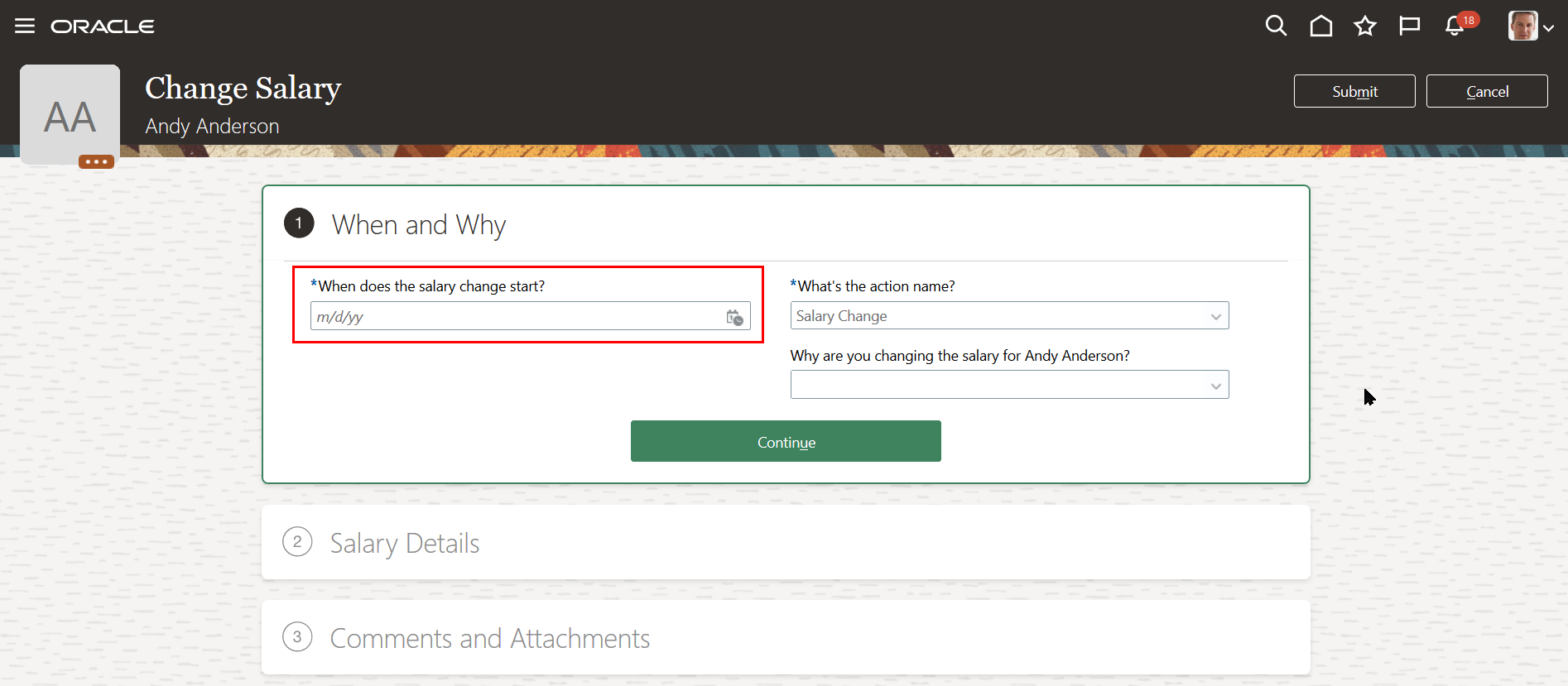
When Date is Not Defaulted in the Change Salary Action
This enhancement improves accuracy by making sure that the proposer enters a date.
Steps to Enable
By default, the profile option is set to Y which means the effective date will be defaulted in employment flows (current behavior). To stop the defaulting of the effective date in responsive employment flows, you must set the profile option to N.
| Profile Option Code |
Profile Display Name | Default Profile Value |
|---|---|---|
| ORA_PER_EMPL_DEFAULT_EFFECTIVE_DATE |
Employment Transaction Date Set by Default |
Y |
To stop the defaulting of the effective date in employment flows, navigate to the Setup and Maintenance work area.
-
Search for and click the Manage Administrator Profile Values task.
-
Search for the ORA_PER_EMPL_DEFAULT_EFFECTIVE_DATE profile option code and select the profile option in the search results.
-
In the Profile Values area, select N in the Profile Value field.
-
Click Save and Close.
Key Resources
- For more information, see the Global Human Resources What's New for Update 21B for the feature Control Defaulting of Effective Date in Employment Flows
You now see a warning when a salary record exists after the proposed salary change date.
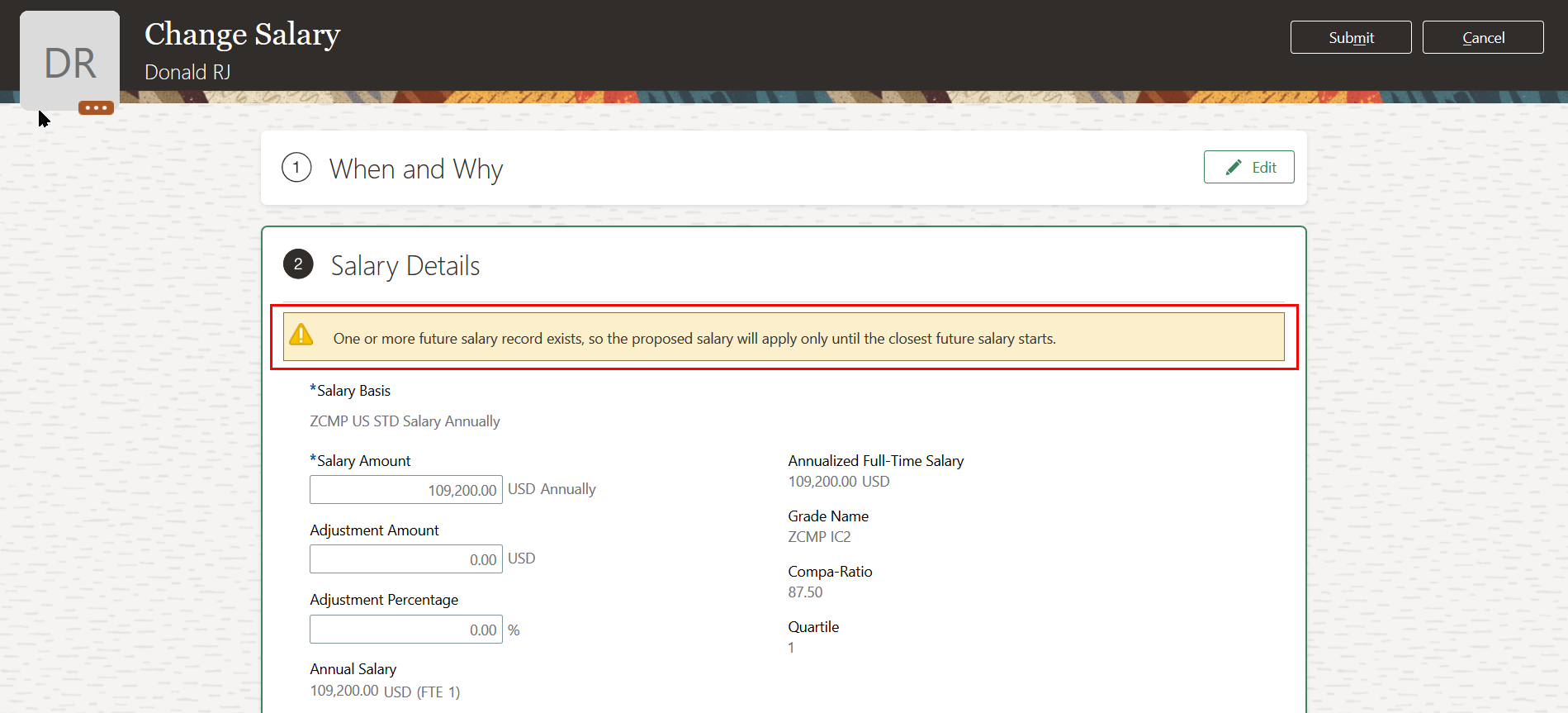
Warning in the Change Salary Action
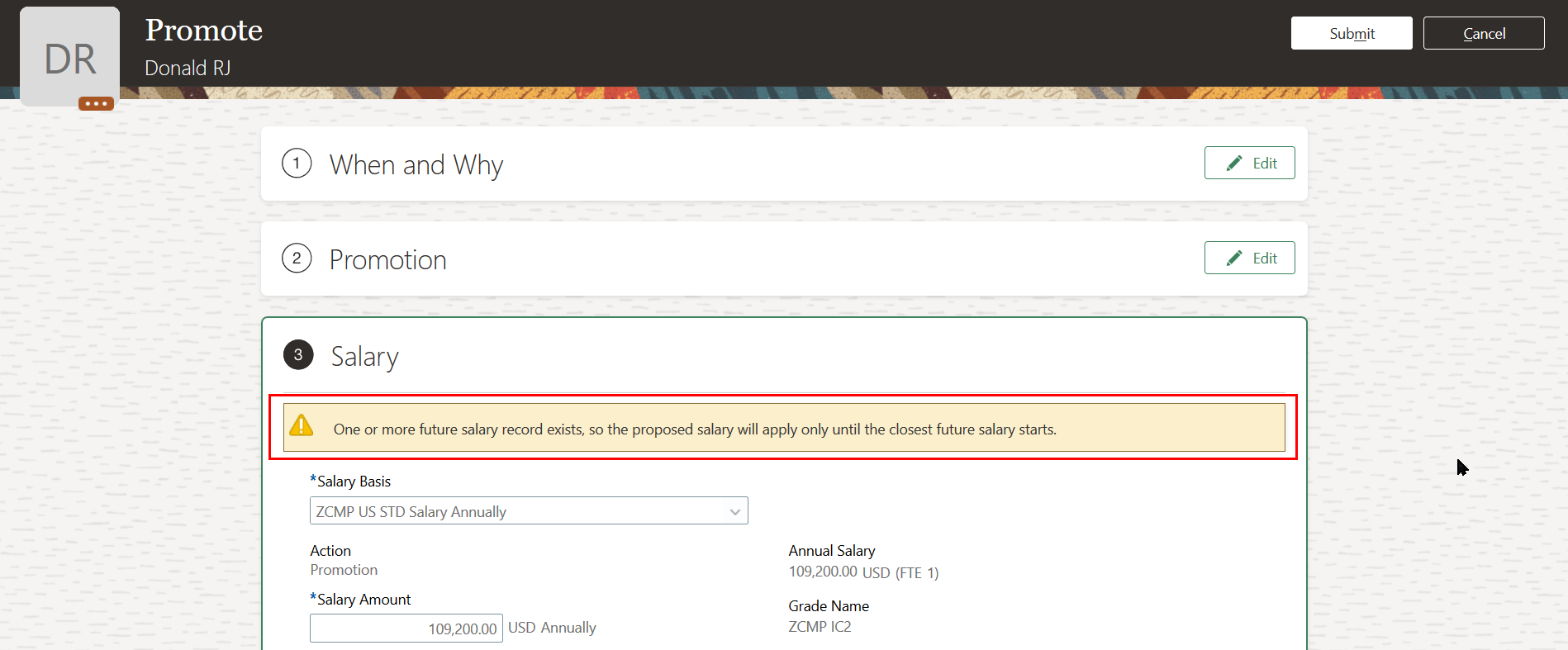
Warning in the Promote Action for Global HR
For example, the latest salary starts January 1, 2021. If you propose a salary change that starts before then, you get a warning that your salary change is valid until the next salary. It also suggests that you might need to revise the later salary change too.
Steps to Enable
You don't need to do anything to enable this feature.
When you select a salary basis of user determined type in flows that create salary, the salary amount won't default to 0. This way you know to explicitly enter an amount. These flows include Hire An Employee, Add Pending worker, Add Contingent Worker, Add Non Worker, Add Assignment, and Add Work Relationship. You can still view the salary ranges for guidance when the salary basis is configured with grade rates.
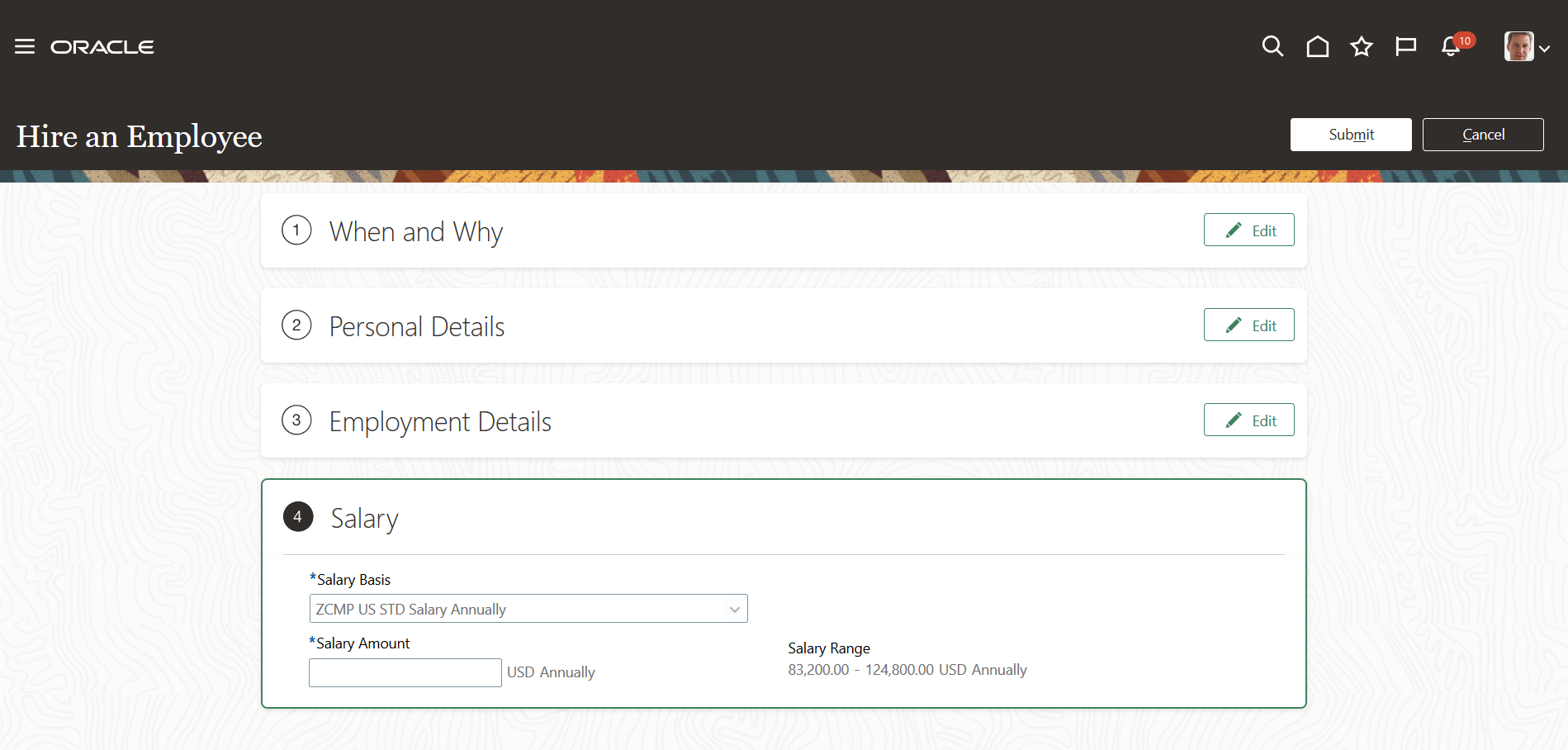
Salary Amount Not Defaulted in the Hire an Employee Action
This enhancement ensures data accuracy.
Steps to Enable
You don't need to do anything to enable this feature.
Key Resources
- For more information refer to the Workforce Rewards 21C Feature: Offered Salary Not Defaulted to 0
Individual Compensation Plan Synchronized with Projected Start Date Introduction in Pending Worker Actions
You can synchronize the payment start and end dates of individual compensation plans included in pending worker, with the start date. Do this by setting the payment start and end dates of the individual compensation plans to Projected Hire, Start, or Submission Date. Then whenever you change the start date of a pending worker and go to the individual compensation section, the plan payment dates adjust automatically.
For example, you have a pending worker with a start date of January 1, 2022. The details include an individual compensation plan with payments that start the same day. Later you revise the start date to February 1, 2022. When you get to the individual compensation section, the existing payment start date automatically adjusts to February 1, 2022, to align with the new start date.
Delay Payment
You can optionally delay the payment date by a specific number of days, months, years, or combination. The payment start and end dates in the offer are then calculated using the start date and the specified delay. For example, the pending worker details includes paying a sign-on bonus 1 month after the start date. Since your current start date is February 1, 2022, the payment start date of the bonus allocation is March 1, 2022.
Override the Payment Date
You can override the calculated payment start date, end date, or both when they include the plan in the individual compensation section. When you override the payment dates, the start date and the payment dates can’t automatically sync anymore. You have to delete the individual compensation plan and add it again every time they change the start date. You can’t correct the existing payment dates.
Synchronization Example
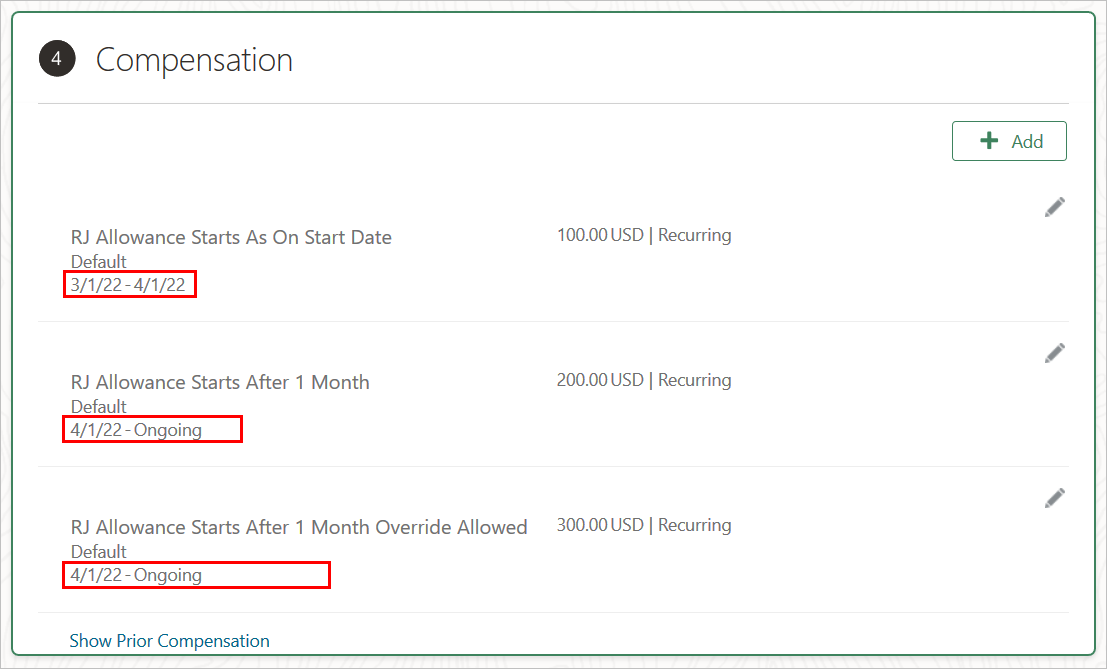
You have three individual compensation plans with slightly different configurations for the Projected Hire, Start, or Submission payment start date. The first plan starts on the pending worker start date and is valid for 1 month. The second plan starts 1 month after the pending worker start date. The third plan starts 1 month after the pending worker start date and lets you override the projected start date.
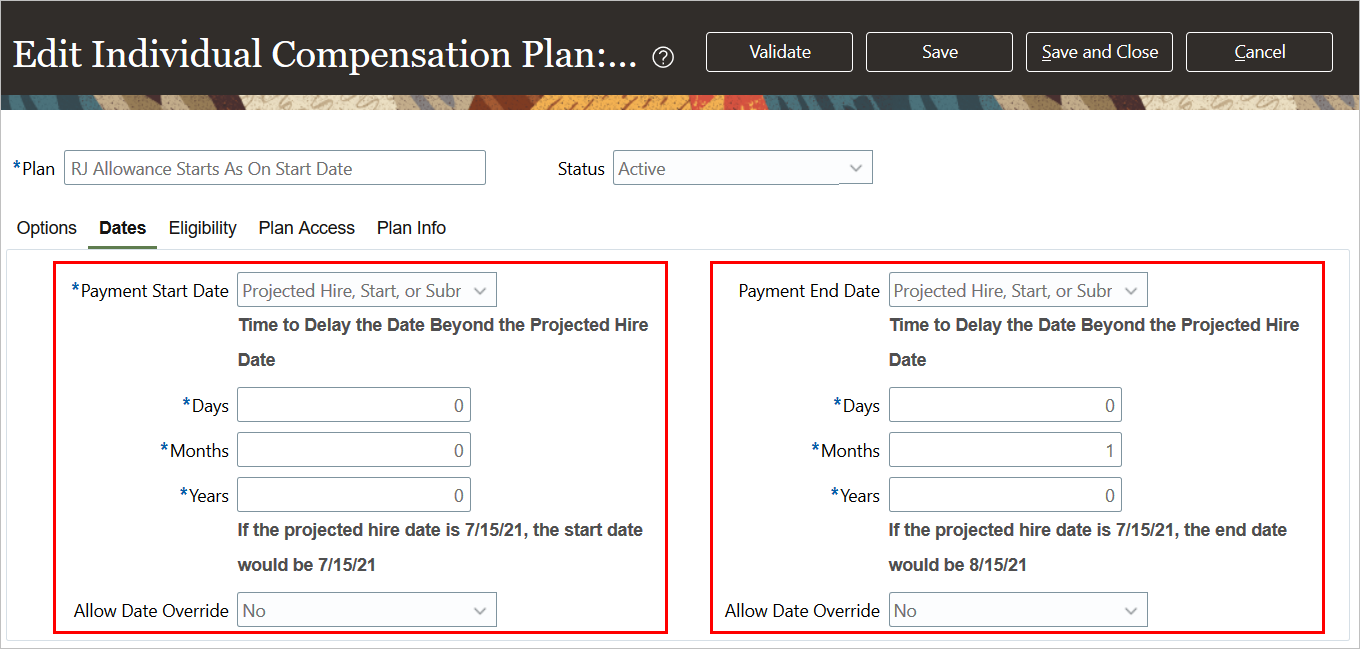
Plan 1 Has a Start and End Dates of Projected Start Date, Is Valid for 1 Month, and Doesn’t Let You Override the Dates
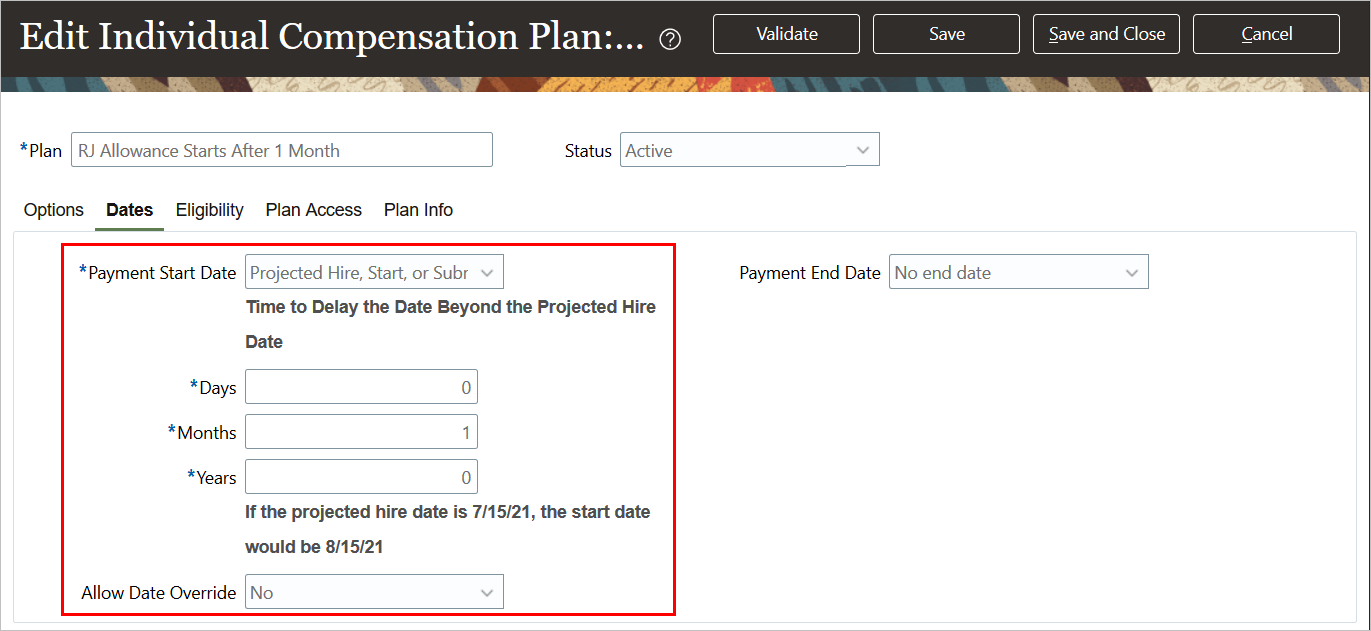
Plan 2 Has a Start Date That’s 1 Month after the Projected Start Date and Doesn’t Let You Override the Date
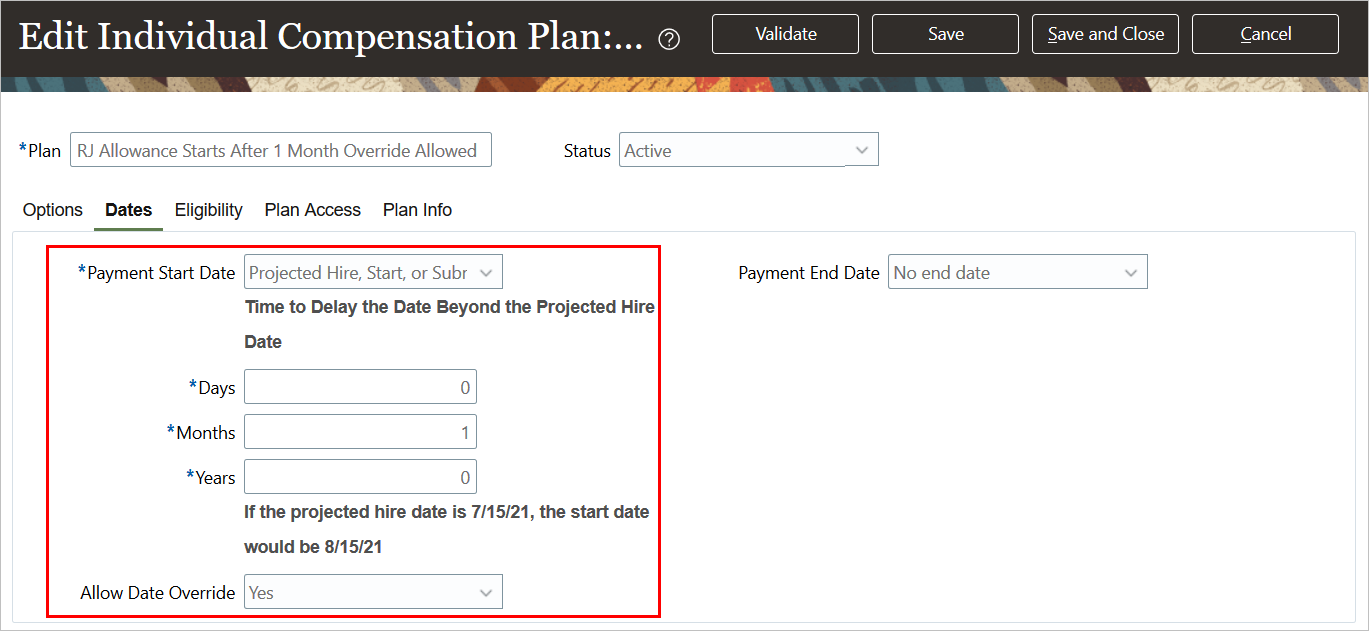
Plan 3 Has a Start Date That’s 1 Month After the Projected Start Date and Lets You Override the Date
Here’s how the Projected Hire, Start or Submission Date configurations affect the payment start dates for the three plans when the planned start date changes.
| Plan Date Configuration | Original Start Date | Original Plan Start Date |
Revised Start Date |
Adjusted Plan Start Date |
|---|---|---|---|---|
| Plan 1, the start date is the projected start date |
Jan 1, 2022 |
Jan 1, 2022 |
Mar 1, 2022 |
Mar 1, 2022 |
| Plan 2, the start date is 1 month after the projected start date |
Jan 1, 2022 |
Feb 1, 2022 |
Mar 1, 2022 |
Apr 1, 2022 |
| Plan 3, the start date is the projected start date, but you can override the date. |
Jan 1, 2022 |
Initially set to Feb 1, 2022 overridden to Apr 1, 2022 |
Mar 1, 2022 |
Apr 1, 2022 Overridden dates are unadjusted |
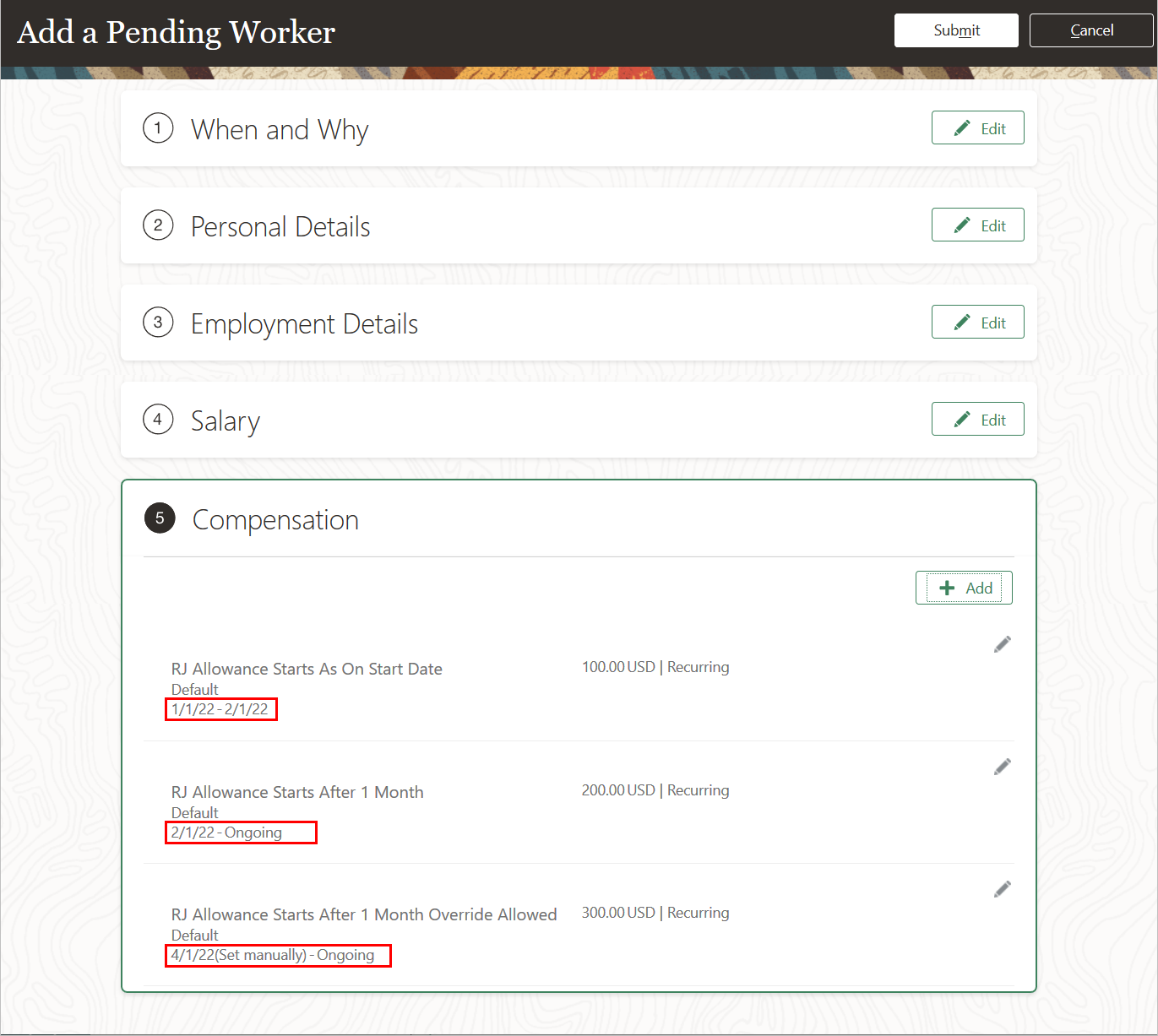
Add Pending Worker with the 2 Automatically Set Plan Dates and the Manually Overridden Date. The Overridden Plan Is Indicated as Set Manually.
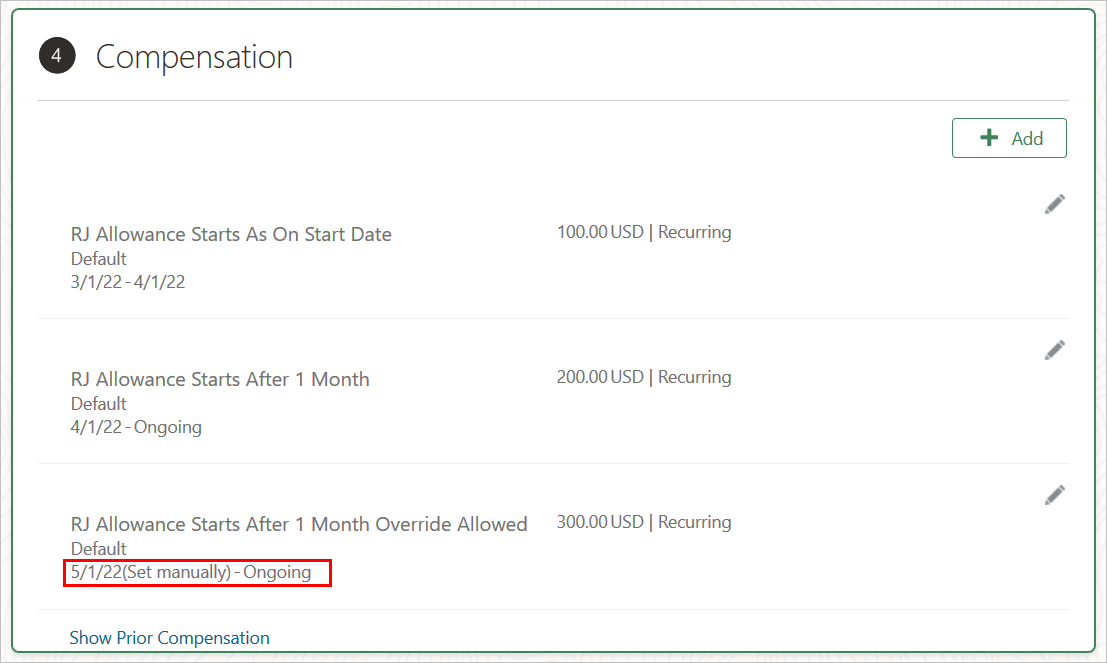
Edited Pending Worker with the Adjusted Plan Dates.
You can see that the third plan date hasn’t changed because you overrode the original date. If the dates are no longer valid, then you have to delete this individual compensation allocation and add it again with the revised dates.
After You Manually Deleted and Re-added the Plan with the Correct Dates
Here’s how the individual compensation plans show up on the Convert Pending Worker page with the start date of April 1, 2021.
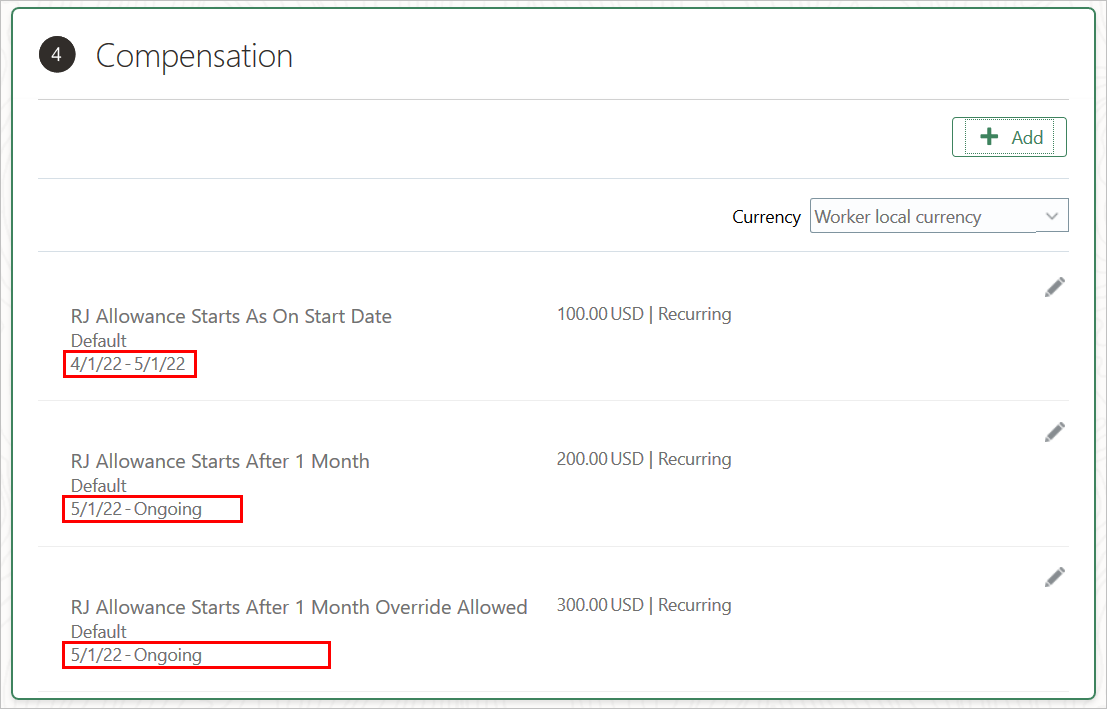
Same Compensation Plans from Pending Worker, Now on the Convert Pending Worker Page with the Start Date of April 1, 2021.
If you change the start date by any other means, then the plan dates no longer automatically adjust.
This enhancement improves productivity by letting you adjust the start date as needed throughout the pending worker cycle and plan payment dates automatically adjust to match. You can also reduce errors by automatically setting payment start and end dates.
Steps to Enable
You don't need to do anything to enable this feature.
Tips And Considerations
- The plan start dates will adjust only when you change the start date and visit the individual compensation section using Edit Pending Worker action. They won’t adjust if you change the start date and don’t visit the IC section.
- They also won't automatically adjust when you change the start date in other flows, such as Employment details, Change Employment Start Dates, Change Work Relationship Start Date. They also won't automatically adjust on any other pages where the start date of the pending worker can be changed or when using HCM Data Loader or REST services. You have to manually delete and re-add the plans in all such scenarios.
- The behavior of plans with this Projected Hire, Start, or Submission Date configuration is similar to the Submission or Start Date in other actions, such as Hire, Individual Compensation, Manage Personal Contribution, and Administer Individual Compensation. You should use the Edit Pending Worker flow or Compensation Info page to view the plan information. Don’t use the standalone individual compensation flows, such as individual compensation or administer compensation. Because they’re standalone flows, they won’t have access to the projected start date or pending worker start date. This lack of access can disturb the sync mechanism of plans configured to let people override the dates.
- If you configure the individual compensation plan with a nonrecurring payroll element, the payment end date depends on whether the person’s payroll relationship links to a payroll. The payment end date you configure for the plan is ignored. When payroll isn’t available in the payroll relationship, the payment end date is the same as the start date. When payroll is available in the payroll relationship, the payment end date is the period end date.
- When the individual compensation row is end dated in the pending worker flow, the end date is carried forward to the conversion stage.
- We recommended that you use the new payment start and end date option with new plans. If you change the payment date configurations for existing plans to the new date option, be sure to test the behavior for new and existing offers using actions, such as Create Offer, Edit Offer, Move to HR, Pending Worker, Edit Pending Worker, Hire, Change Assignment, Global Transfer.
- Changing the payment date configurations of existing plans affects existing allocations, when actions move to the next stage. For example, you update the payment start date of an existing plan to start on the same day as the projected start date. An existing pending worker with the start date of April 1, 2022 includes the plan with the payment start date of May 15, 2022. When the pending worker moves to the next stage, the payment start date adjusts to April 1, 2022 because of the updated individual compensation plan configuration.
- Supported in the following responsive actions:
- Create Pending Worker
- Edit Pending Worker
- Convert Pending Worker
- Quick Convert
- Autoconversion
- Overridden plan dates are indicated with (Set manually) in both Offer and Pending Worker flows.

Key Resources
For more information about similar functionality, see the Workforce Rewards 21C feature: Individual Compensation Plan Synchronized with Projected Start Date Introduction.
Journey Support for Individual Compensation Plan Introduction
You can now assign journeys that consists of tasks when people get new individual compensation allocations. For example, an individual subscribes to a voluntary deduction. A journey includes tasks that require a HR specialist to generate a membership ID, enable portal access, and issue a welcome kit.
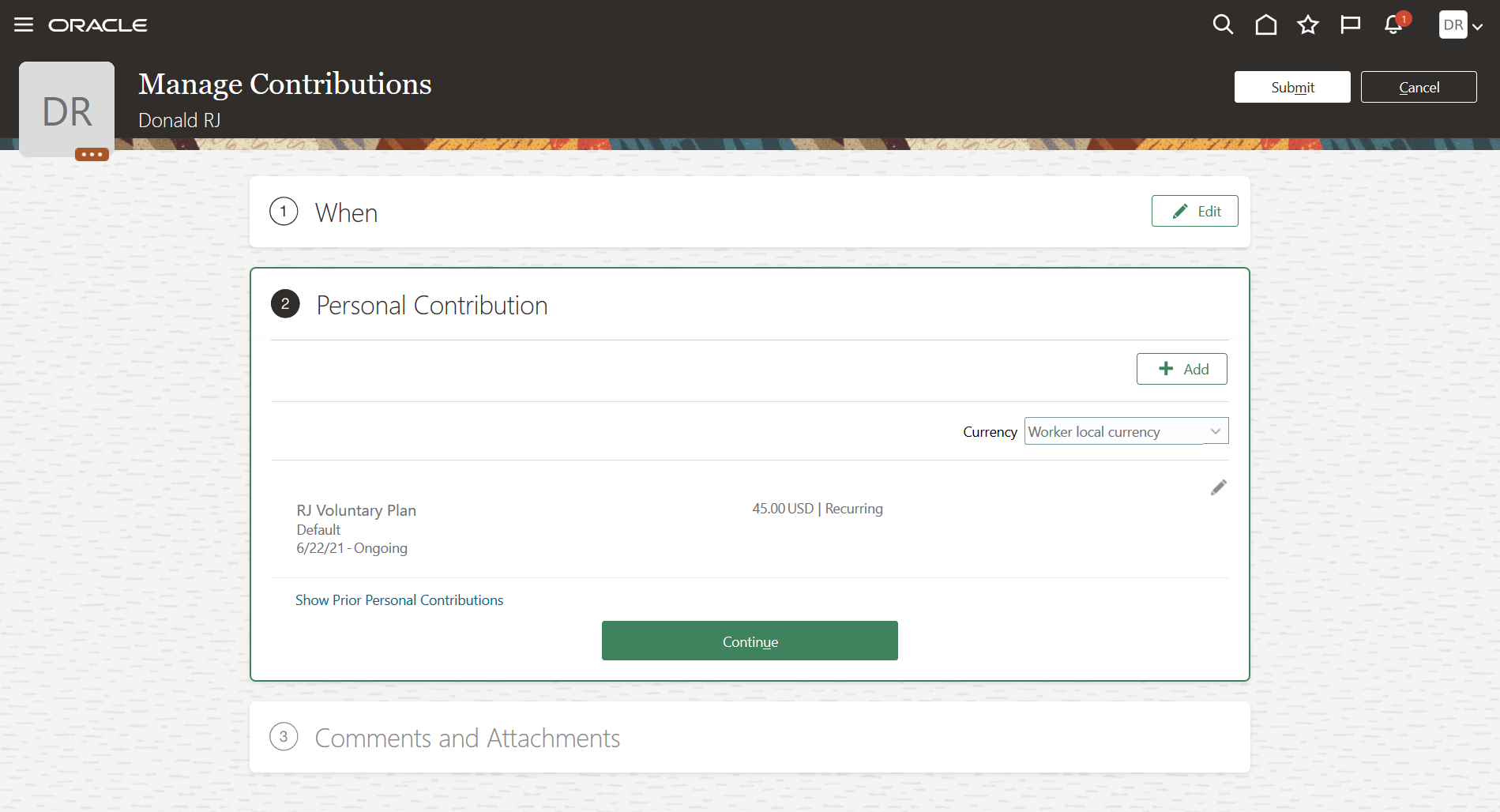
Voluntary Plan Subscription
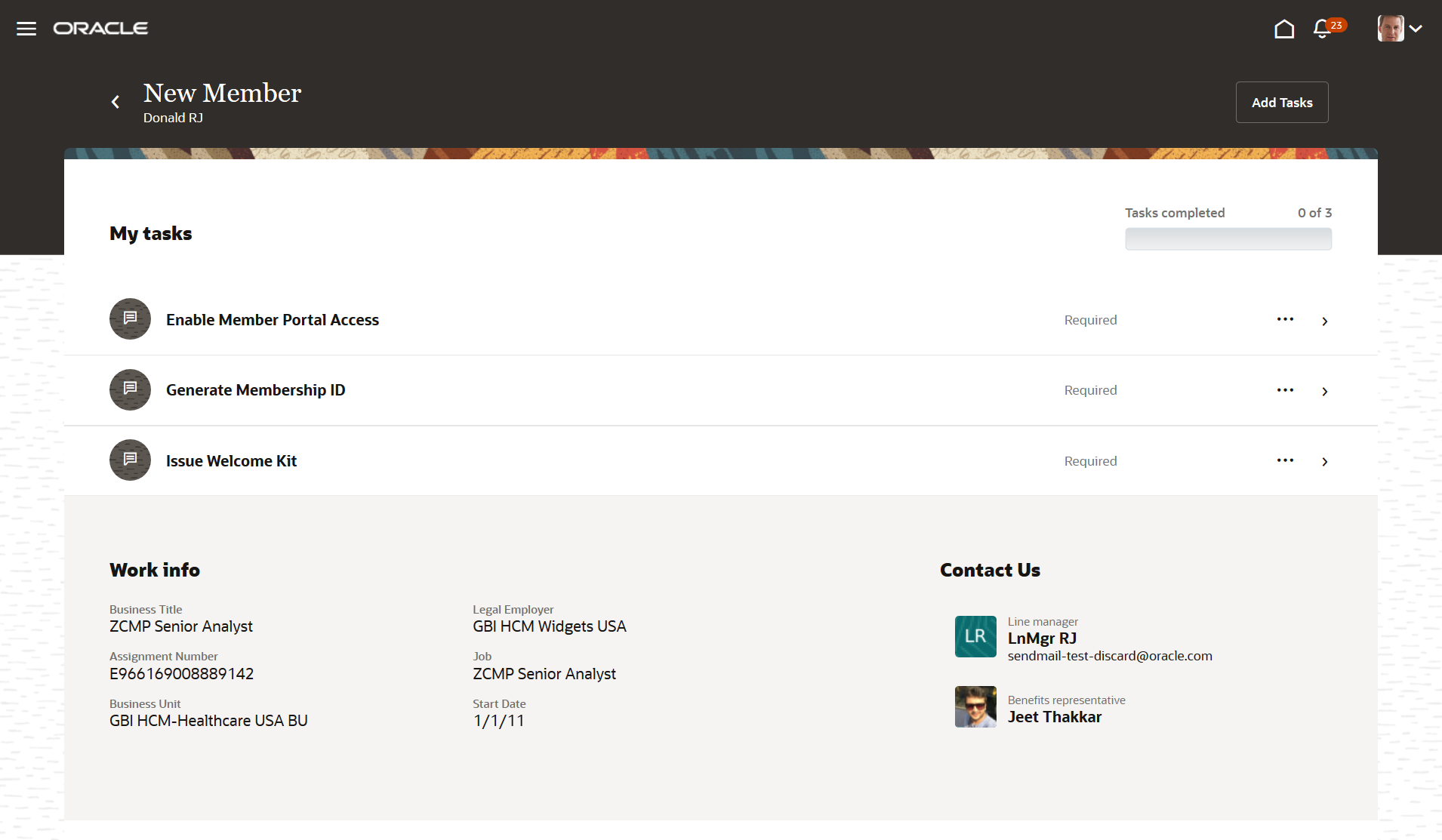
Manual Tasks to Generate a Membership ID, Enable Member Access, and Issue a Welcome Kit
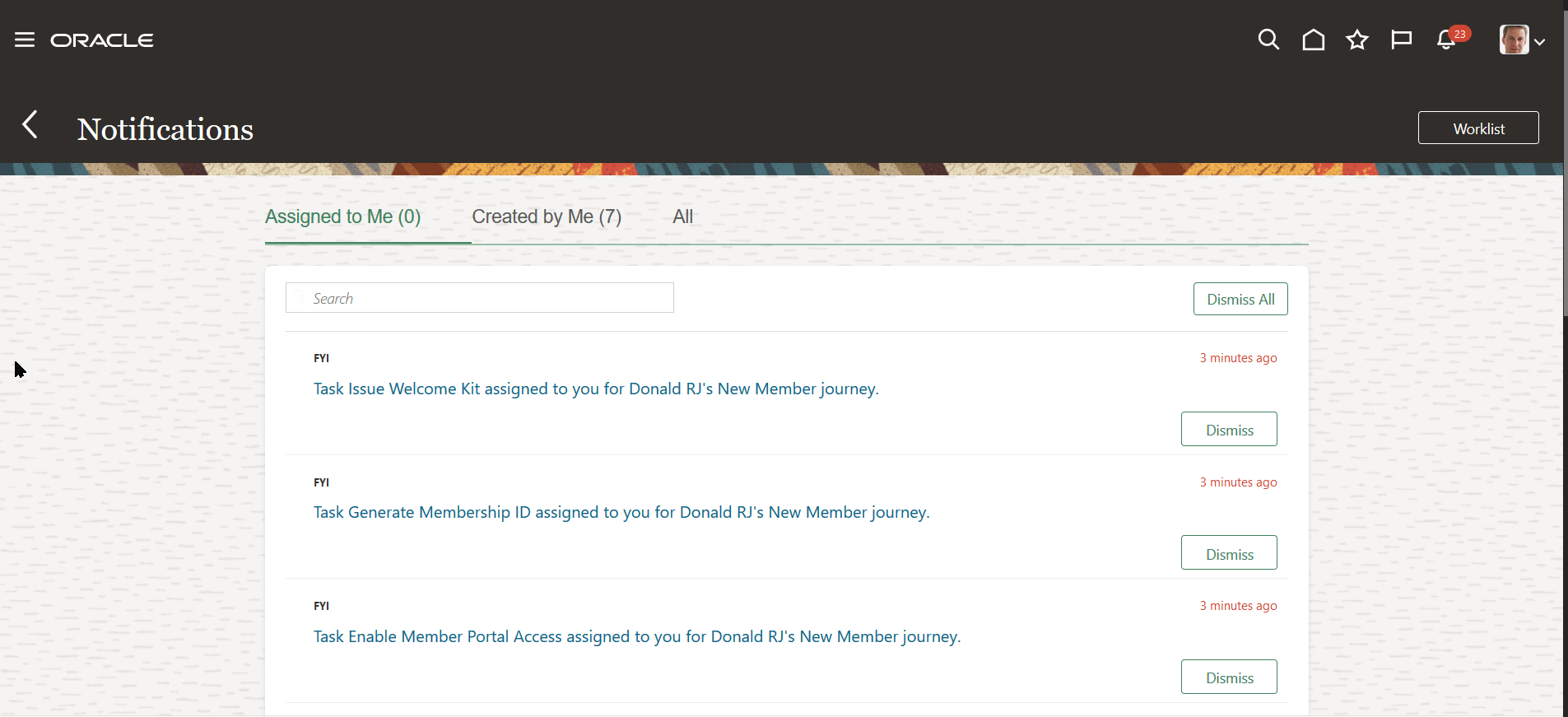
HR Specialist's Task List Showing the Manual Tasks to Generate a Membership ID, Enable Portal Access, and Issue a Welcome Kit
You can now assign journey tasks when people add individual compensation allocations using actions, such as Individual Compensation, Manage Personal Contribution, and Administer Individual Compensation. These tasks are assigned after the new individual compensation allocation passes final approval and the element entries are created. You can assign tasks with Recruiting and Global Human Resources actions that add individual compensation allocations.
This enhancement to journeys optimizes business processes by automatically assigning tasks when certain events happen.
Steps to Enable
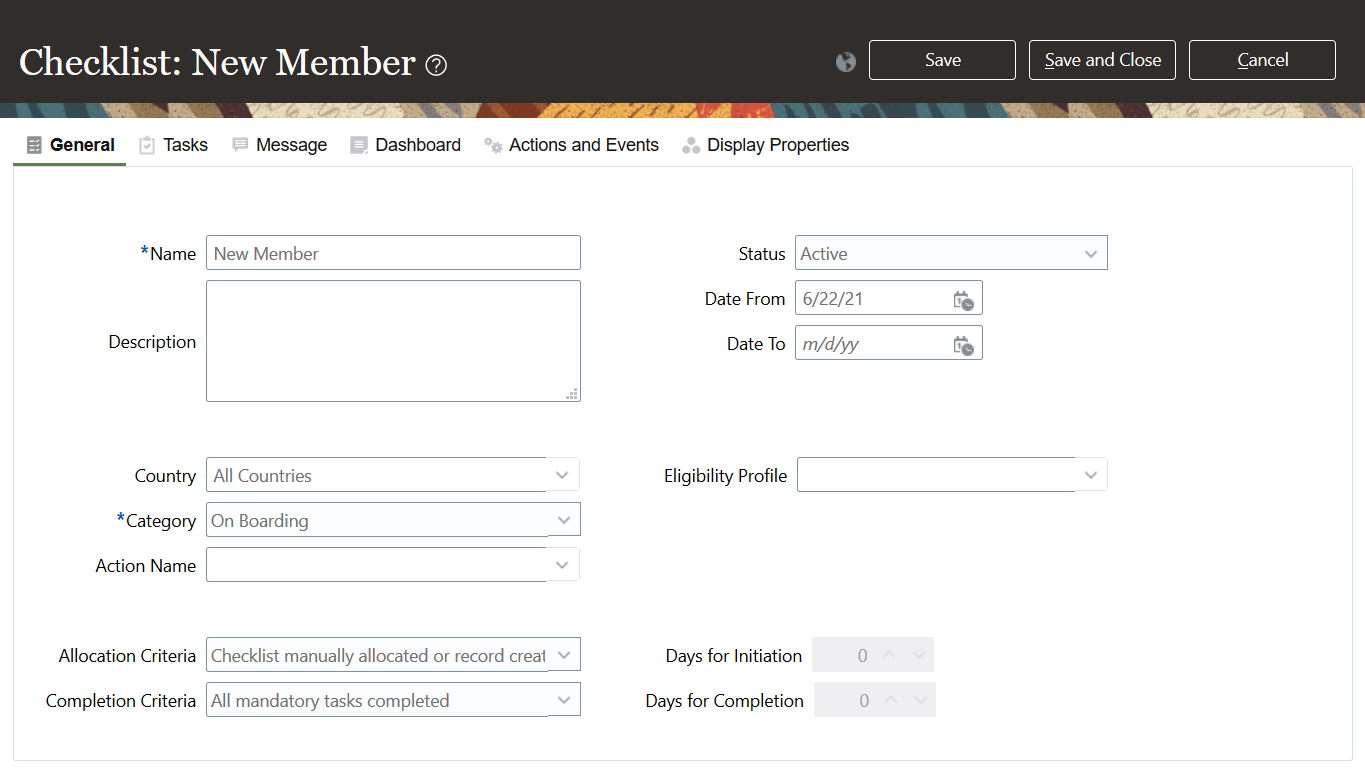
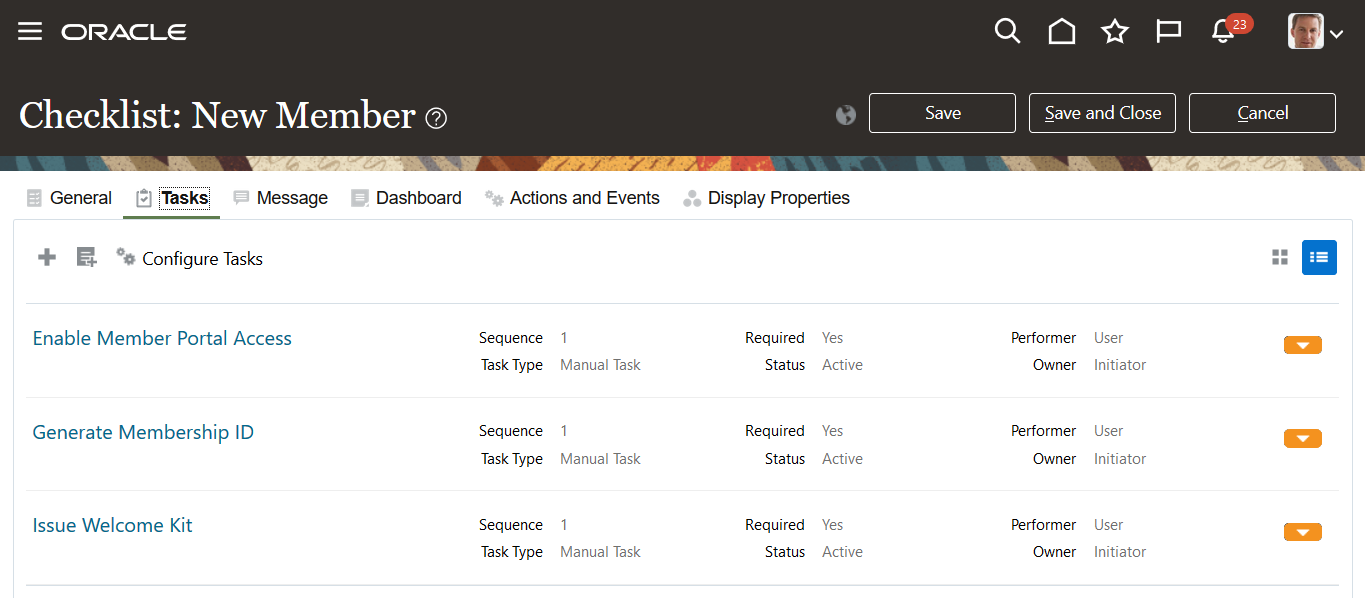
You create a checklist template following the standard procedure and using these individual compensation settings.
- On the General tab, select a category.
- On the Tasks tab, configure the tasks.
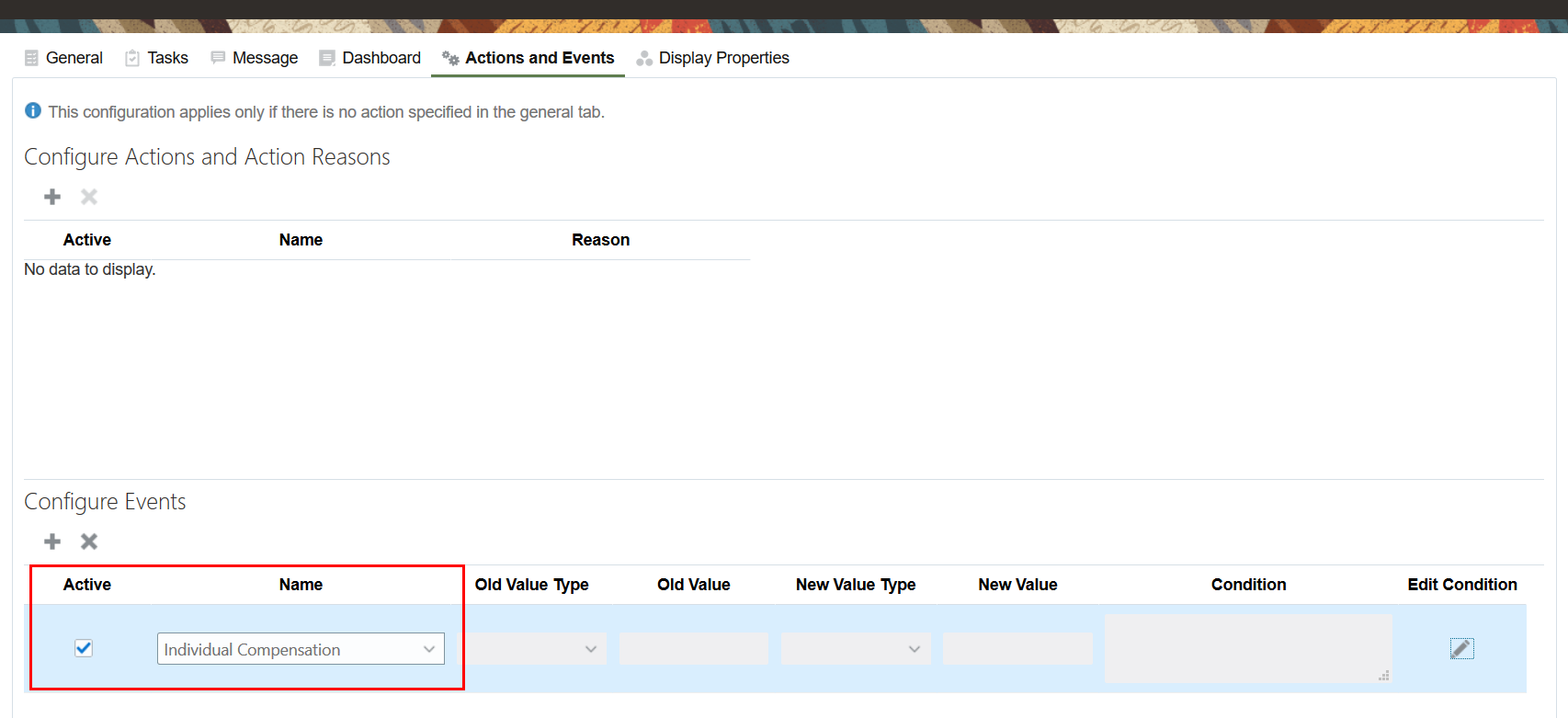
- On the Actions and Events tab, configure the event that causes the journey to assign the checklist. For new individual compensation allocations, the creation of the entry for the specified element causes the checklist to assign the task.
1. Add an event and in the Name field, select Individual Compensation.
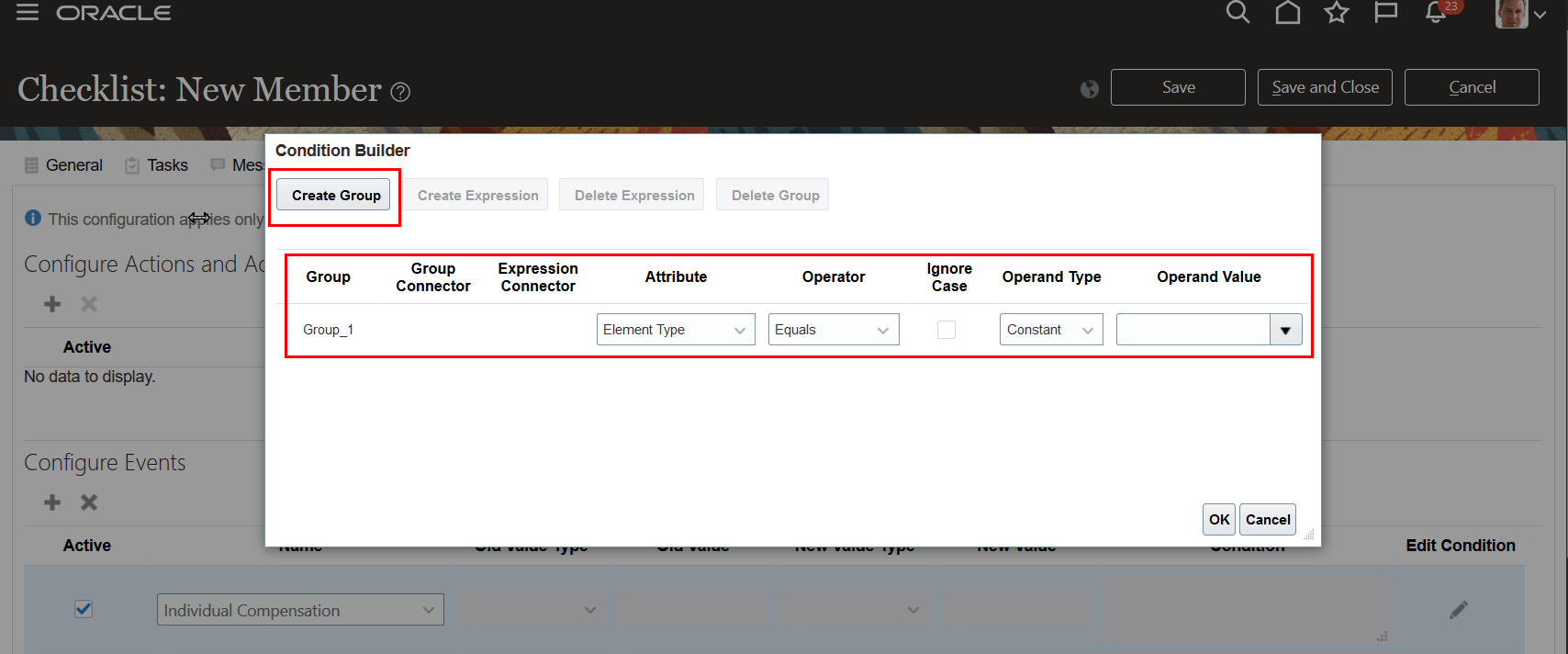
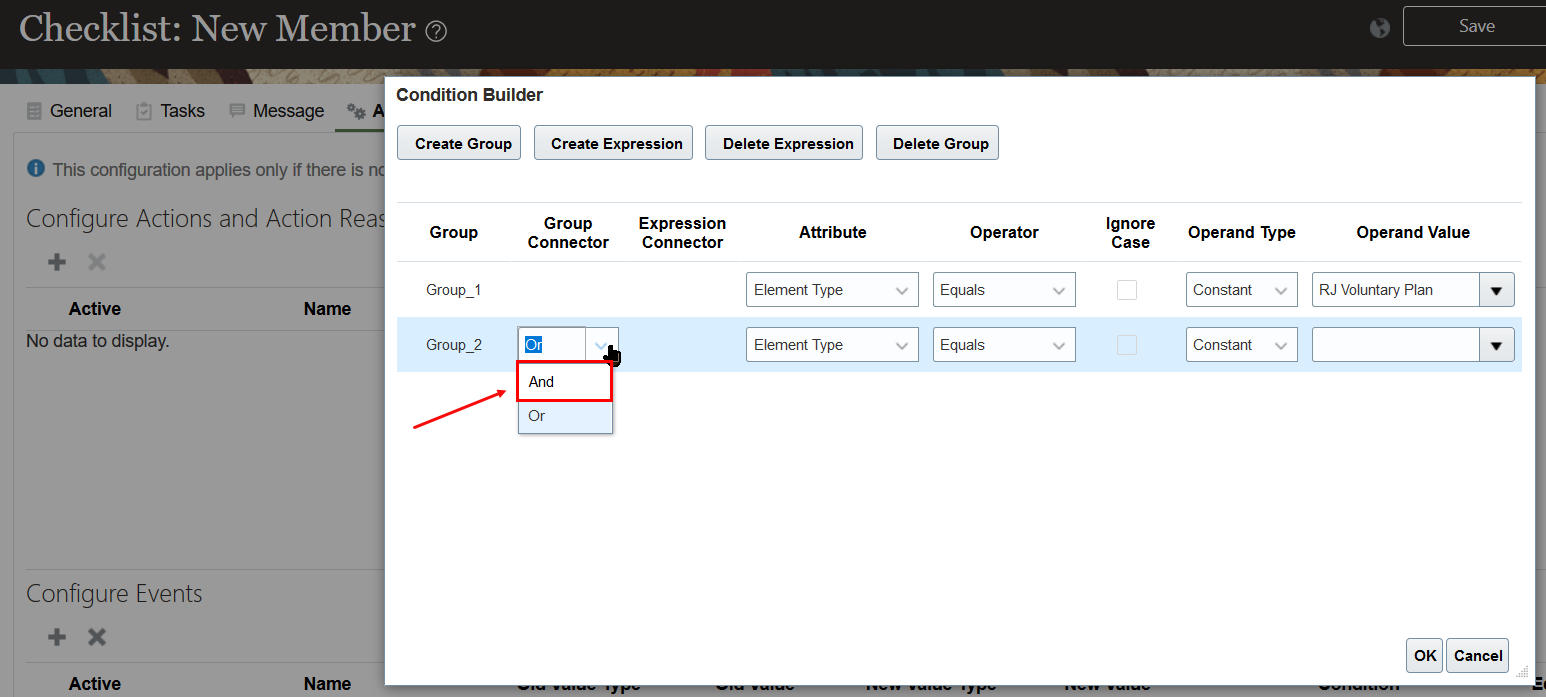
2. Edit the condition and create a group. The attribute defaults to Element Type and the condition defaults to the Equals operator and Constant operand type.
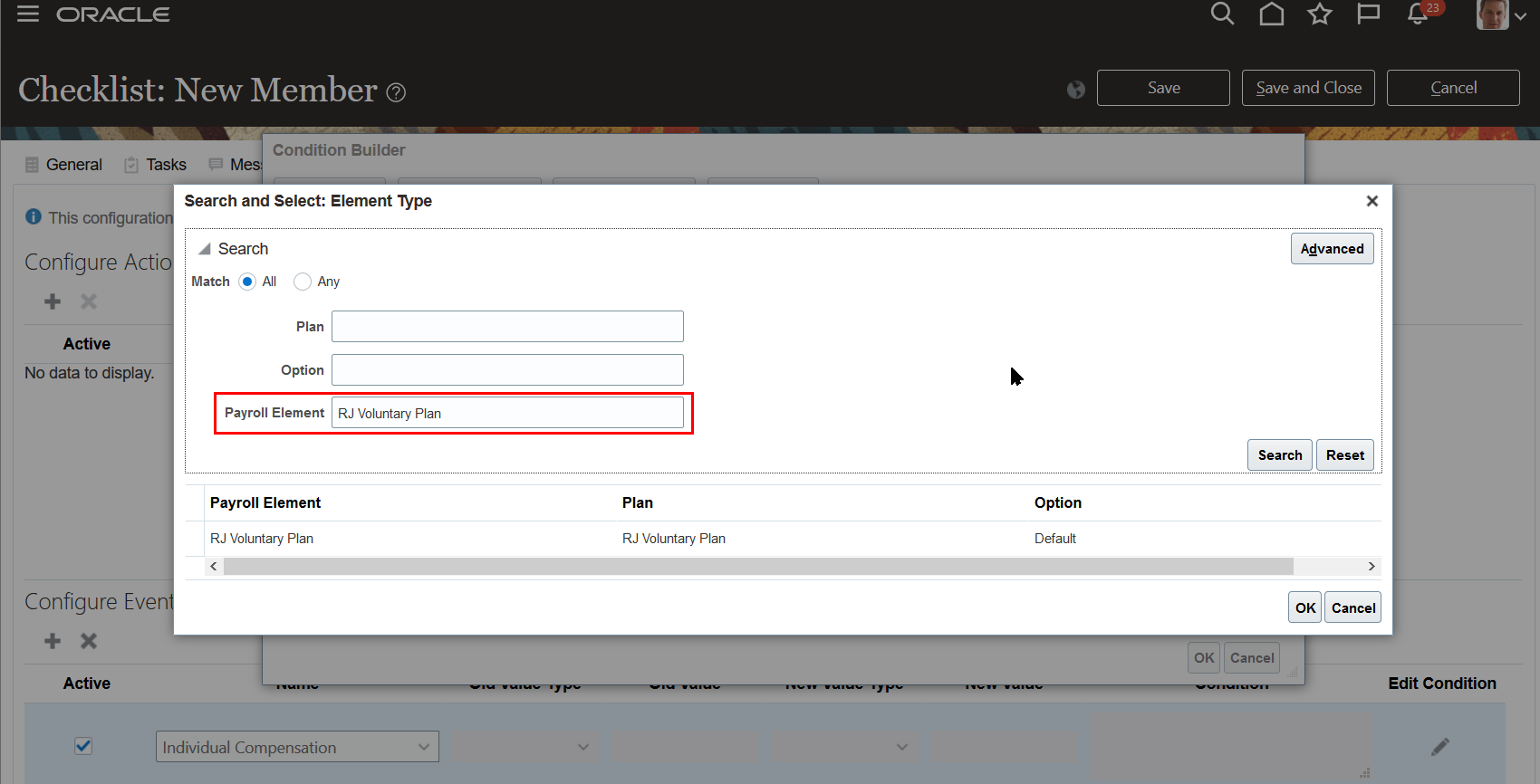
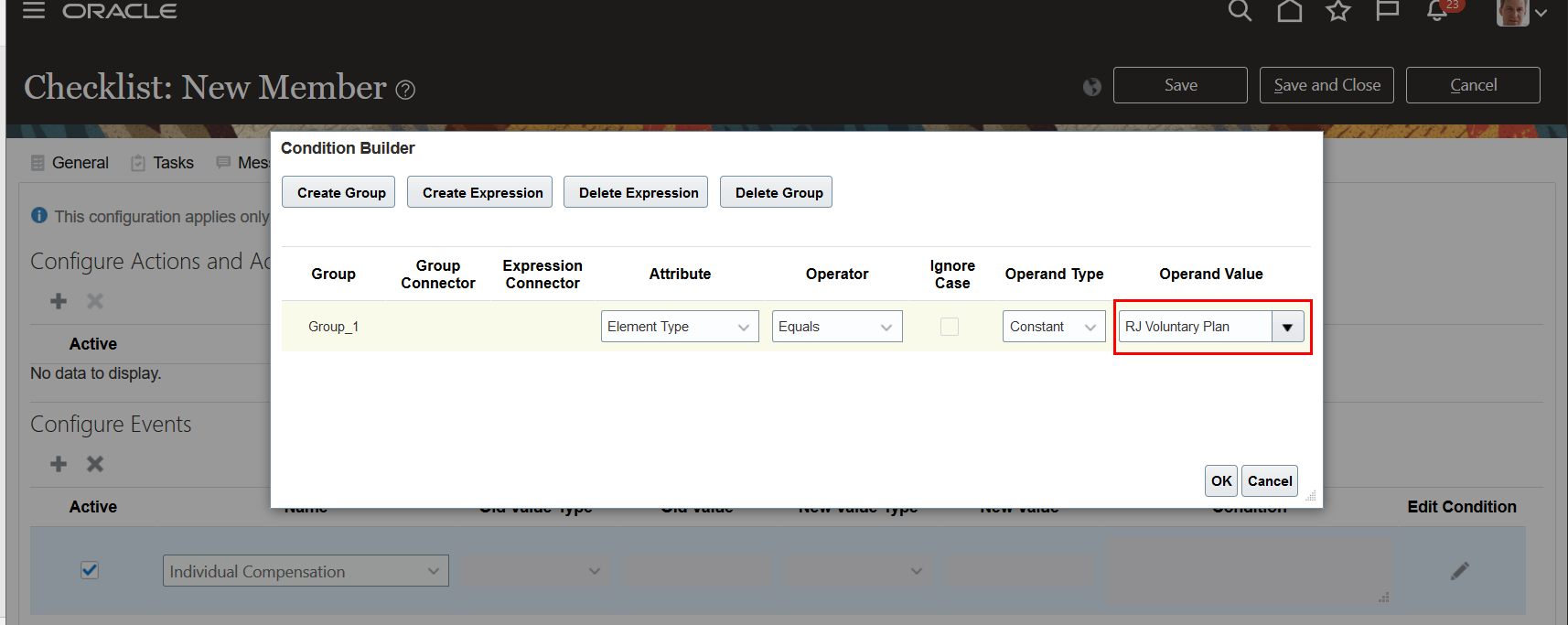
3. In the Operand Value field, click search. Use the Search and Select dialog box to pick the appropriate element for the individual compensation option.
Tips And Considerations
- You can set off checklist tasks for only new individual compensation allocations.
- The checklist listens to the new individual compensation allocations using events. For the events to work, make sure that the profile option HRC_DISABLE_HCM_EVENTS_PROCESSING is set to N.
- You can use only the OR group connector when you define group conditions for individual compensation. The AND connector isn't supported.
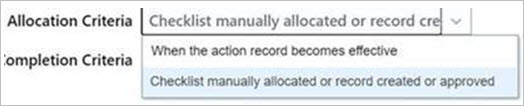
- To control when the checklist triggers, you use the Allocation Criteria. The default option, Checklist manually allocated or record created or approved, triggers as soon as the individual compensation allocation is approved, regardless of the payment start date. The other option, When the action record becomes effective, triggers the checklist on the payment start date.
Updated Budget Scoreboard Summary View
We updated the scoreboard view of the Budget summary:

Prior View of the Budget Scoreboard Summary

Updated View of the Budget Scoreboard Summary
The new scoreboard view of the Budget summary more closely resemble the Worksheet scoreboard summary.
Steps to Enable
You don't need to do anything to enable this feature.
Warning In Configure Performance Ratings
When you configure the Workforce Compensation plan to integrate with Oracle Performance Management, administrators now receive a warning message informing them that they should select additional parameters to improve worksheet performance. Previously, they didn't receive the warning.
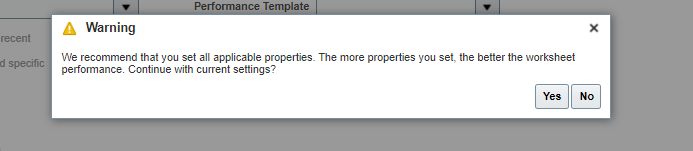
New Warning Message Encouraging Additional Setup Parameters
Configuring additional properties increases worksheet performance.
Steps to Enable
You don't need to do anything to enable this feature.
Receive Error When You Select More Than 20 People For Worksheet Actions
You now receive an error message when you try to select more than 20 people for the following worksheet actions: add/remove Review Manager, eligibility change, and reassign workers to another manager.
This feature allows for better performance when taking action on people in the worksheet.
Steps to Enable
You don't need to do anything to enable this feature.
Change In Behavior In Performance Worksheet Task
Worksheet managers with more than 500 people reporting to them no longer see the summary in the Performance worksheet task. Managers with fewer than 500 people still see the summary.
This change allows for better performance in the Performance worksheet task.
Steps to Enable
You don't need to do anything to enable this feature.
Change In Workforce Compensation Landing Page Analytics Behavior
We improved the landing page performance by limiting access to additional analytics to the right or left arrows. Previously, you could also use a scroll bar.
Also, the analytics summary is closed by default.
These changes allow for better performance when you access the landing page analytics.
Steps to Enable
You don't need to do anything to enable this feature.
Tips And Considerations
As a part of this change, any personalizations you make in this region are not honored.
Switch Between Workforce Compensation Setup Tasks
You can now switch between plan setup tasks and worksheet configuration tasks instead of having to navigate back to the Define Workforce Compensation task list. Use the new switcher to access the next task directly. After you access the new setup task, you can see the new switcher next to the task name.
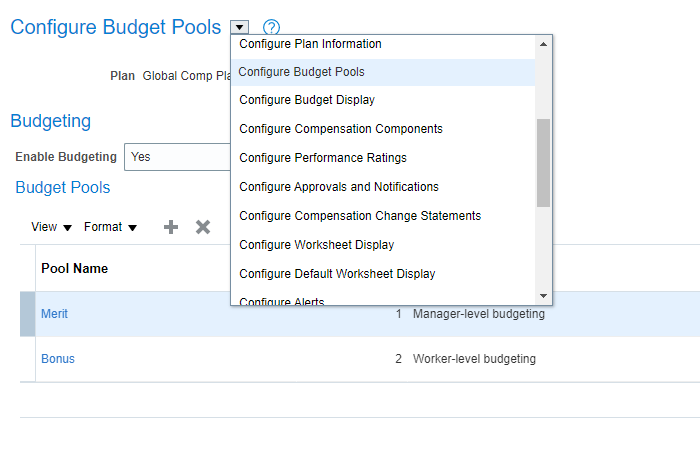
Plan Setup Task Switcher
The switcher is also available within the worksheet tasks. But, you're not be able to switch to a different plan setup task until you return to the Configure Worksheet Display main setup page.
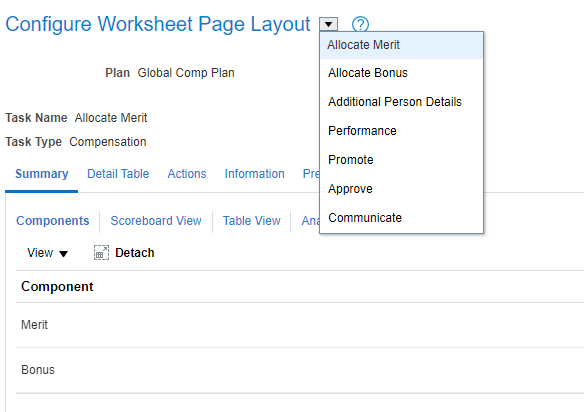
Worksheet Task Setup Switcher
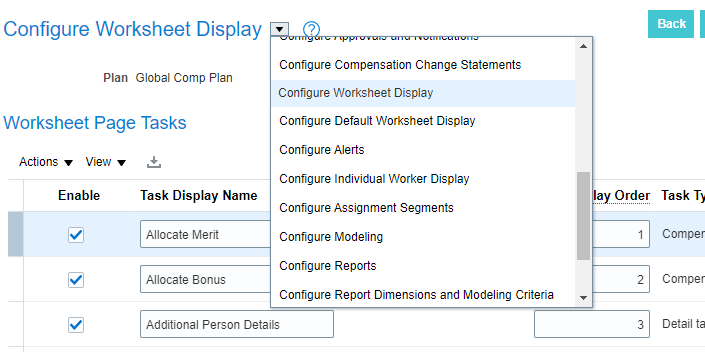
Configure Worksheet Display Setup Page
Switching between tasks saves administrators time when configuring or updating plan setup.
Steps to Enable
You don't need to do anything to enable this feature.
Change In Behavior In Compensation Worksheet Task
We increased worksheet performance for managers with more than 500 people reporting to them by not displaying the Overall Rating analytic in the Analytic view.
This change improves worksheet performance for managers with more than 500 people.
Steps to Enable
You don't need to do anything to enable this feature.
Change In Job Filter Behavior When Job List is Greater Than 50
We improved performance when there are more than 50 distinct jobs under a manger. The manager can now select only a single value from the job filter list. When there are fewer than 50 distinct jobs under a manager, the manager is able to select multiple values from the job filter list.
This change improves worksheet performance when managers have a large number of distinct jobs in the job filter list.
Steps to Enable
You don't need to do anything to enable this feature.
Change In Behavior In Manager Reports
We increased report performance for managers who have more than 500 people reporting to them by not displaying the Oracle Performance Management Rating in the following manager reports:
- Compensation Versus Rating Distribution
- Average Allocation
- Compa-Ratio by Performance Rating
- Compensation by Rating
When you use both Compensation Performance ratings and Oracle Performance Management Ratings or just the Compensation Performance Rating alone the Compensation Performance Ratings appear on the reports.
This change improves report performance for these managers.
Steps to Enable
You don't need to do anything to enable this feature.
Change In Worksheet Filter Behavior For Managers With More Than 500 People
Managers with more than 500 people reporting to them now have to explicitly open the filter toolbar to access worksheet filters. Previously, the filter toolbar was open by default for these managers. We added help informing administrators of the change when they select the "Open" option for Table Filters in the Configure Default Worksheet Display task in plan setup.
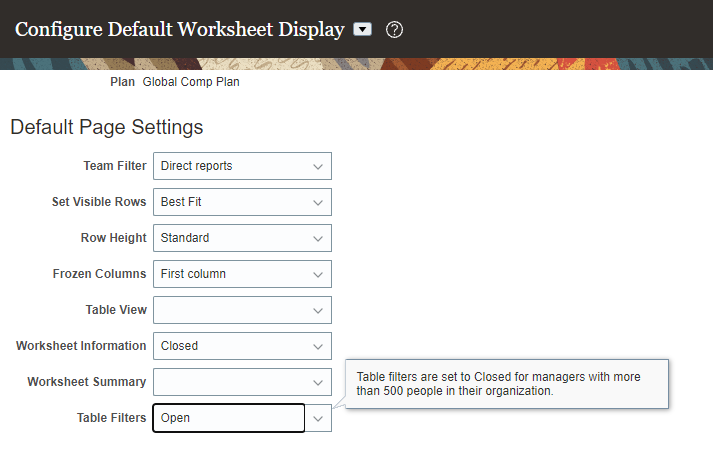
New Help In Configure Default Worksheet Display
This change improves performance for managers with more than 500 people reporting to them.
Steps to Enable
You don't need to do anything to enable this feature.
Configure Performance Rating To Display In Performance Task Summary
You can now use the configuration options to display only the performance ratings used in the plan. Previously, this was not possible.
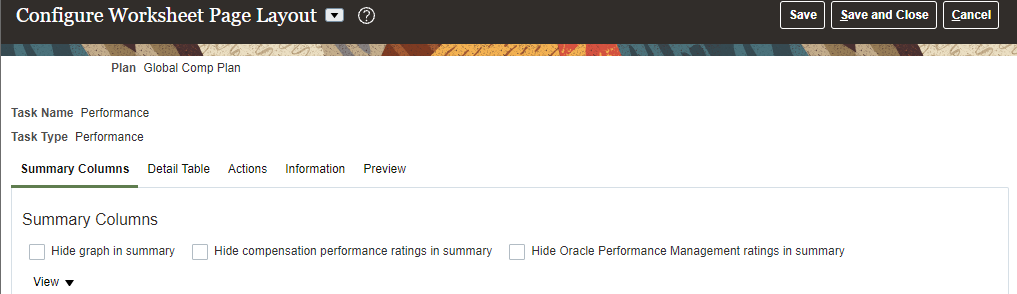
New And Moved Configuration Options In The Performance Task
We moved the "Hide graph in summary" configuration option down in the setup page to align better with the new options. When you select both of the new options, no summary information appears in the Performance task.
This change reduces confusion for managers when one type of performance rating isn't used in plan setup.
Steps to Enable
You don't need to do anything to enable this feature.
Enhanced Validation when Accepting Manual Grade Step Progressions
We enhanced the validations that run when you accept a manual transaction using the Review Proposed Progressions and Salary Updates task. When you run the batch process, it checks for data issues and lists any problems on the Errors tab. If some time passes before you review the proposed updates, the underlying data might have changed. To catch any new problems, some of the validations run again when you manually accept the progressions and salary updates.
If you make a change to the person's assignment or salary record after the process ran, you might see an error message, such as in situations like these:
- You add a future-dated salary record, and your configuration setting doesn't allow updates when future-dated salary records exist
- You add a salary record for the same date as the proposed salary, and your configuration doesn't allow updates when a salary record exists on the same date
- You add a future-dated assignment
- You add a grade step record for the same date as the proposed progression, and your configuration doesn't allow updates when a grade step record exists on the same date
- You change the person's salary basis
Here's an example of one of the validations. In this example, you ran the process with Confirmation Type set to Manual, and there were no errors for this person. There is a proposed progression and salary update for June 25. After the process completed, you added a salary record dated July 1. You come to the Review Proposed Progressions and Salary Updates task and use the Accept action to update the person's assignment and salary record. Now, because the underlying data changed, you see the error showing that the proposal isn't allowed because there is a future-dated salary record.
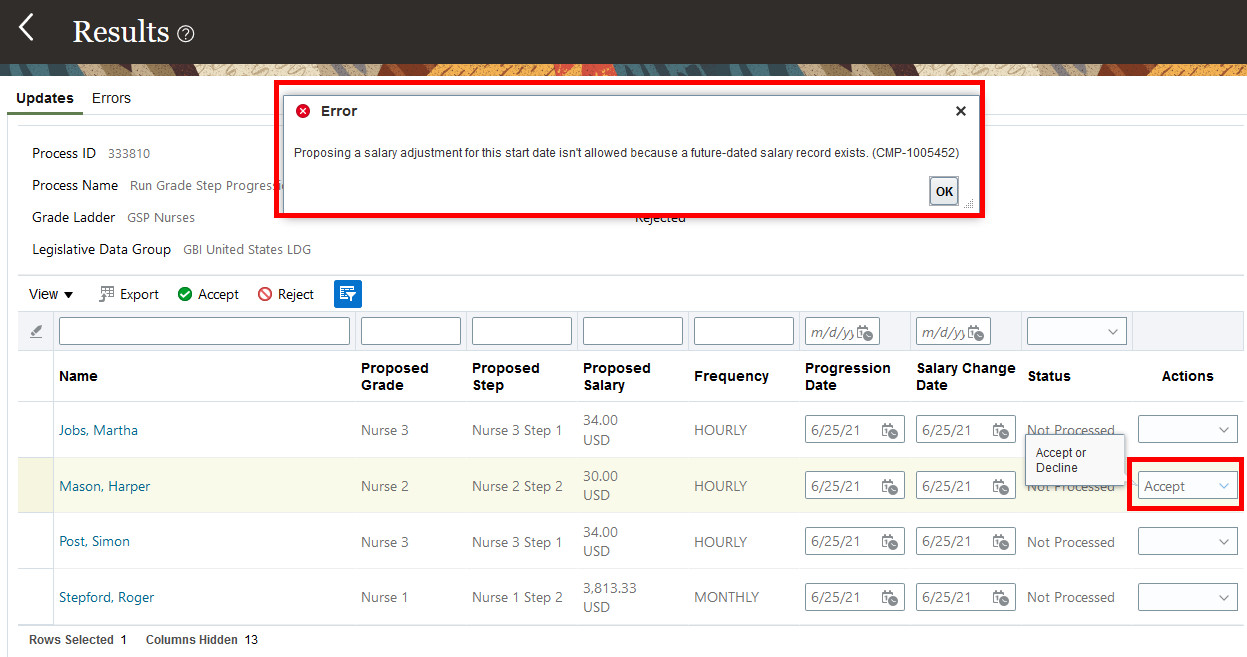
Error message When Using the Accept Action in the Review Proposed Progressions and Salary Updates Task
With this enhancement, you improve data accuracy.
Steps to Enable
You don't need to do anything to enable this feature.
Tips And Considerations
- Not all validation you see in the batch process runs again when you use the manual Accept action.
- Eligibility isn't re-evaluated when you use the manual Accept action. If the person was eligible for the step at the time the process ran, they're moved to that step when you accept the proposal. Using the manual Accept action won't cause eligibility to be checked again.
Key Resources
- For a list of all grade step progression error messages, see the Troubleshooting Grade Step Progression (Document ID 2753020.1) on My Oracle Support.
FTE Adjustments in HR Actions When Salary Comes From Grade Ladder And Salary Amount is Determined By Simple Components
We changed the way the Full-Time Equivalent (FTE) adjustments work in HR actions when the salary comes from the progression grade ladder and the salary amount is determined by simple components. Previously, the progression grade ladder component didn't adjust for the FTE when the Salary Adjustment Type field on your progression grade ladder was blank. All other components adjusted for the FTE, even if the Salary Adjustment Type field was blank. Because some components were adjusted for the FTE, and some weren't, this made it confusing to compare the current salary to the proposed salary.
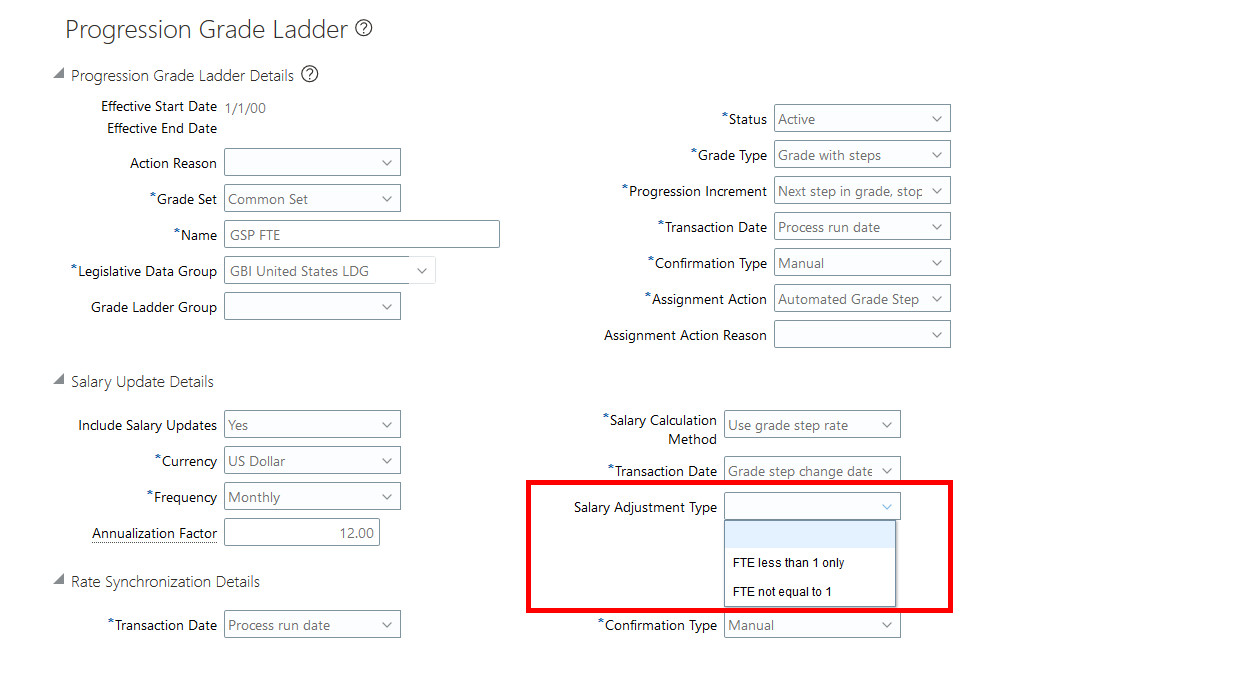
Salary Adjustment Type Attribute on the Progression Grade Ladder Is Ignored When the Salary Amount Is Determined by Simple Components
This enhancement applies to HR actions, such as Hire an Employee, Promote and Change Assignment, when you include the salary region in the flow. When you make a change to the grade, step, or working hours, the proposed progression grade ladder component amount is adjusted for the FTE and displayed in the salary section of the page. In the example below, the step rate value is 3400 and the person has an FTE of 0.5, so the progression grade ladder rate component amount is set to 1750.
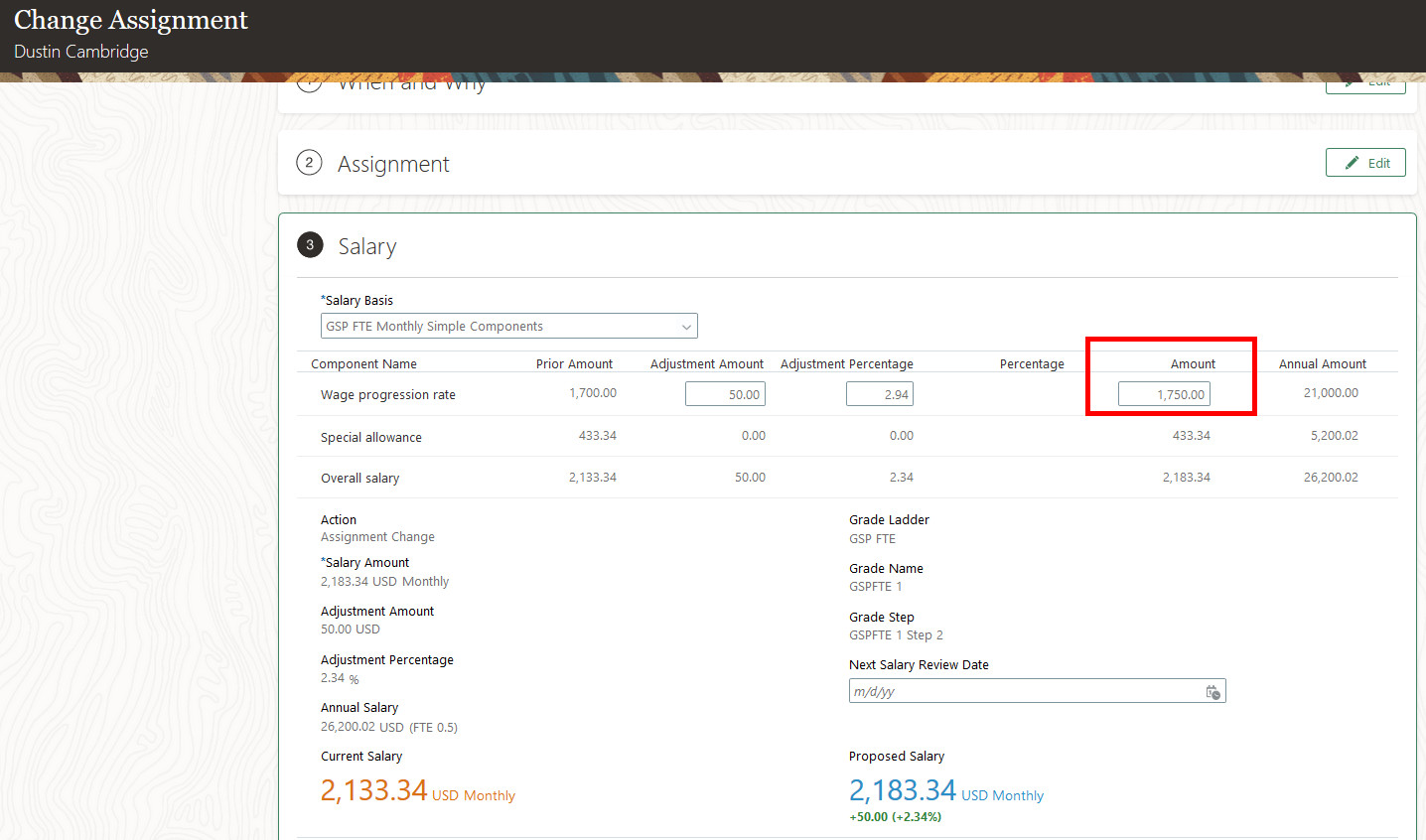
Progression Grade Ladder Component Is Adjusted for FTE Even Though the Salary Adjustment Type Field Is Blank
With this enhancement, you can more easily compare previous salary to proposed salary.
Steps to Enable
You don't need to do anything to enable this feature.
Tips And Considerations
- The change only impacts grade ladders where the Salary Adjustment Type field is blank, there are people on the grade ladder with an FTE not equal to 1, and their salary basis is determined by simple components.
- If the Salary Adjustment Type field isn't blank, the working hours change actions continue to adjust for the FTE. But if you disabled the Update salary if proposed salary is less than current salary setting and the working hours change results in a lower salary, the salary update is blocked.
Key Resources
For more information see this document and topic:
- Introducing the Standard Components Type of Salary Basis (Document ID 2717145.1)
- Implementing Workforce Compensation guide, Base Pay Overview chapter, How You Populate a Salary Amount with a Rate from the Grade Ladder topic, in the Oracle Help Center
Salary Adjustment Type Determines FTE Proration When Salary Comes From Grade Ladder And Salary Amount is Determined By User
We changed the way full-time equivalent (FTE) adjustments work in Change Working Hours actions, when the salary comes from the progression grade ladder and the salary amount is determined by user. Previously, the salary was always prorated for the FTE when you changed the working hours without also changing the grade or step. Now if the person's salary amount is determined by user, a Change Working Hours action uses the Salary Adjustment Type on the progression grade ladder to determine whether the amount should be prorated. The enhancement applies to the Change Working Hours action as well as any other HR action where you change the working hours without changing the grade or step.
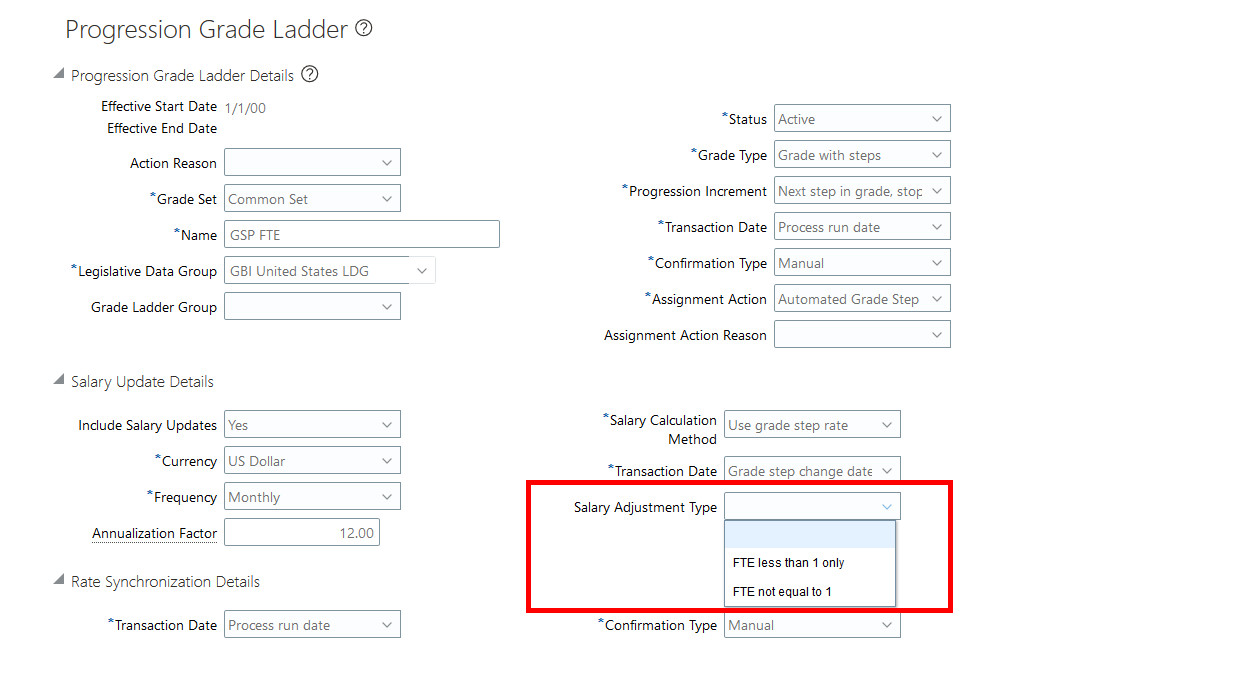
Salary Adjustment Type Attribute on the Progression Grade Ladder Is Honored When the Salary Amount Is Determined by User
In this example of a Change Assignment action, the person's working hours change from 0.5 to 0.75. The proposed salary is the same as the current salary because the Salary Adjustment Type field on the grade ladder is blank. A blank value indicates that the salary won't be adjusted for the FTE.
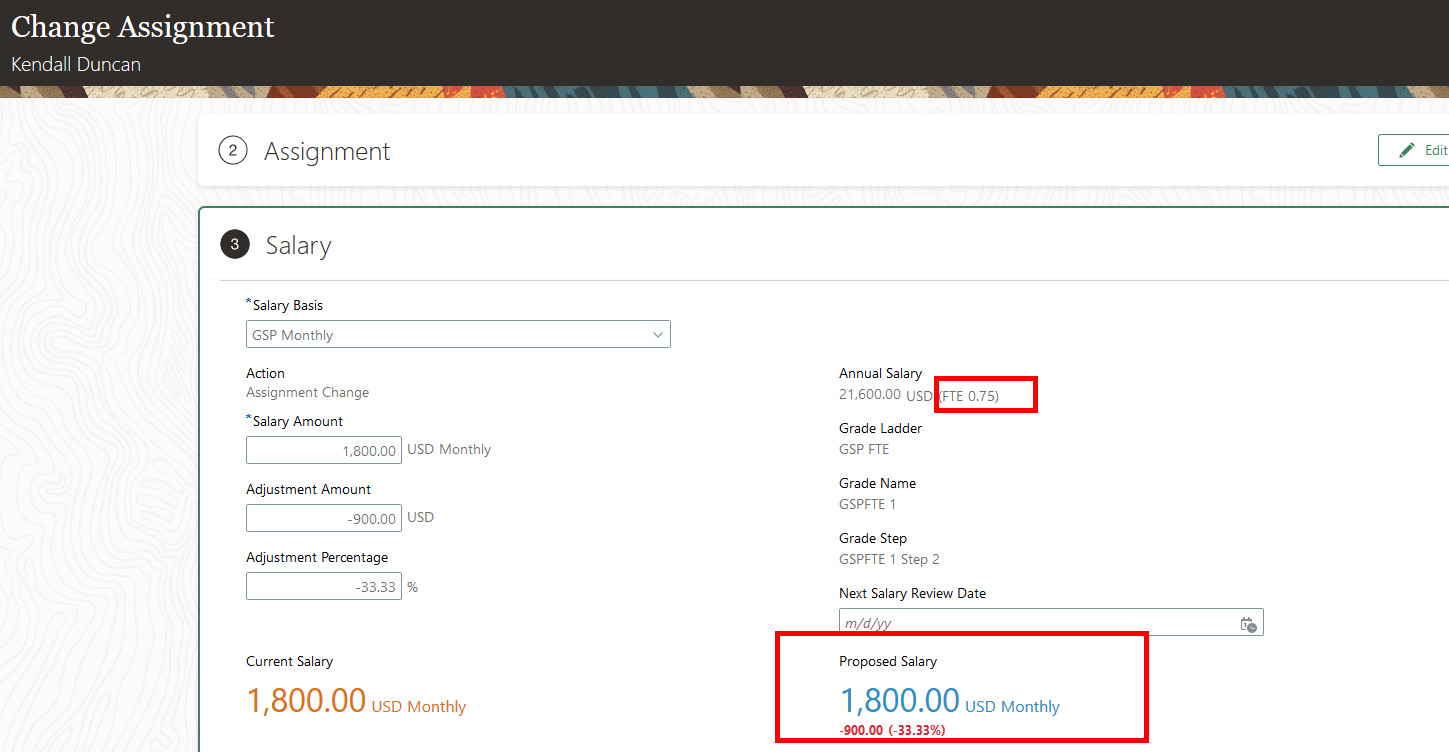
When Salary Comes from the Grade Ladder, the Proposed Salary Is the Same as Current Salary When Salary Adjustment Type Is Blank and the Salary Amount Is Determined by User
The adjustment amount of -900 is the difference between the proposed salary if it were adjusted for the new FTE and the proposed salary with no adjustment for the FTE. If the proposed salary were adjusted for the new FTE of 0.75, it would be 2700. Without adjusting for the FTE, the proposed salary remains at 1800, for a difference of -900.
With this enhancement, you improve accuracy of salary adjustments when changing working hours
Steps to Enable
You don't need to do anything to enable this feature.
Tips And Considerations
-
The change impacts grade ladders where the Salary Adjustment Type field is blank and people on the grade ladder have an FTE not equal to 1
-
If the Salary Adjustment Type field isn't blank, the working hours change actions continue to adjust for the FTE. But if you disabled the Update salary if proposed salary is less than current salary setting and the working hours change results in a lower salary, the salary update is blocked.
-
-
The change impacts HR actions where the grade or step isn't also changing.
-
When salary amount is determined by user, HR actions that included a change to grade or step previously honored the salary adjustment type setting and continue to do so with this enhancement.
-
Key Resources
- Implementing Workforce Compensation guide, Base Pay Overview chapter, How You Populate a Salary Amount with a Rate from the Grade Ladder topic, in the Oracle Help Center
Market Data - Addition of Position in Composite HSDL
We have enhanced the Import Composites HCM Spreadsheet Data Loader (HSDL) to include loading by position. Previously we supported this via HCM Data Loader (HDL) only in 21C, with HSDL to follow in 21D.
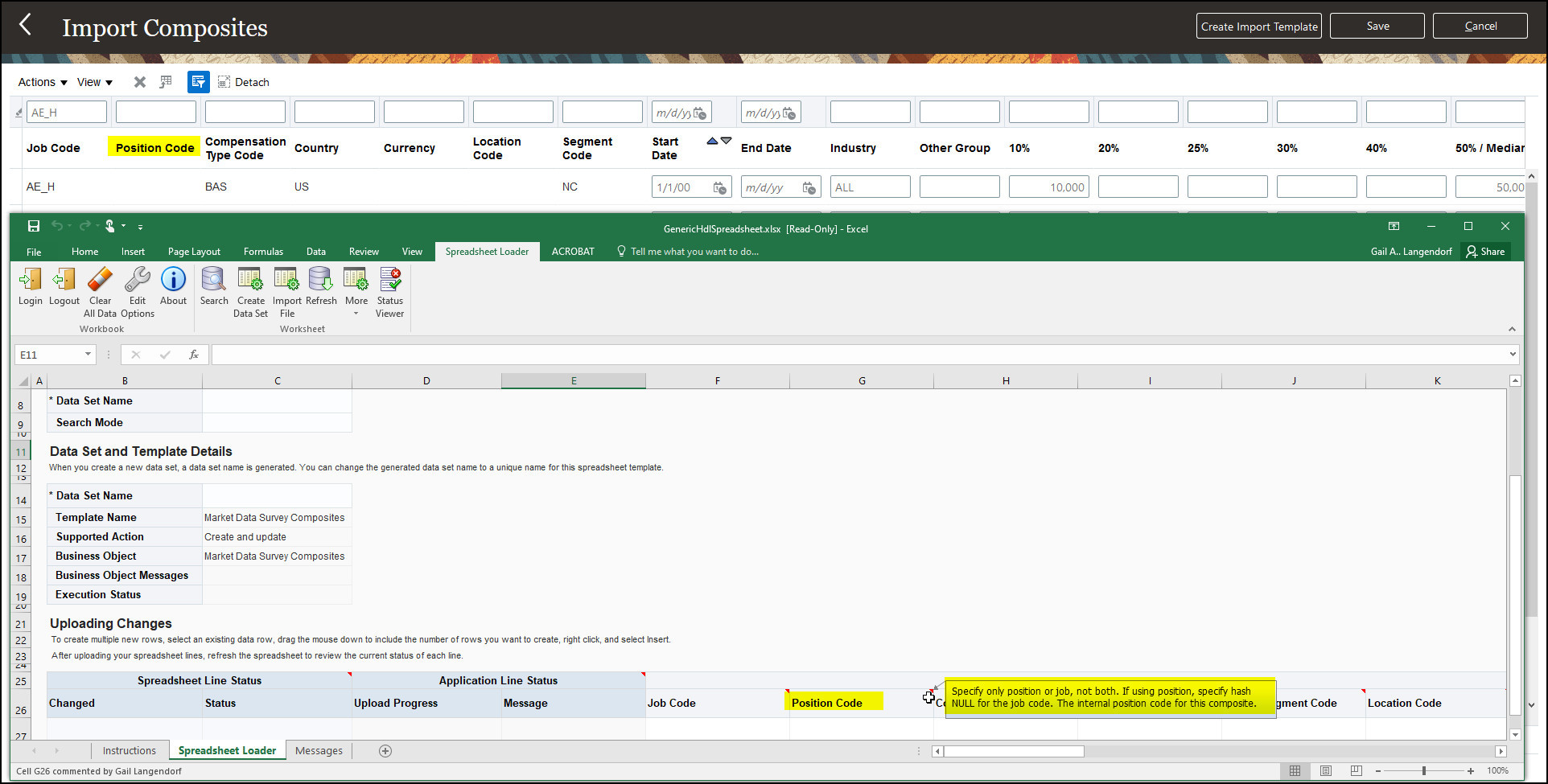
Import Composites
You can now use HSDL to load composites with positions.
Steps to Enable
You don't need to do anything to enable this feature.
Tips And Considerations
Specify only position or job, not both. If you use position, specify #NULL for the job code.
This rule is similar to segment and location. Specify only location or segment, not both. If you use location, specify #NULL for the segment.
Key Resources
- See the Workforce Rewards 21C Whats new for the Market Data Inclusion of Positions feature.
- This feature was implemented based on an idea in the Ideas Lab. For more information on the idea see: https://cloudcustomerconnect.oracle.com/posts/c9c79ad3c9
Total Compensation Statement Feedback
You can now obtain the greatest return of investment for your total compensation package by using Total Compensation Statement Feedback. You start by configuring feedback on the Statement Definition Periods tab. Next you can configure ratings and questions. You generate statements in the usual manner. The feedback appears for online statements only. The feedback doesn't appear in printable statements. People complete the feedback, and then compensation analysts, compensation managers, and line managers can view it.
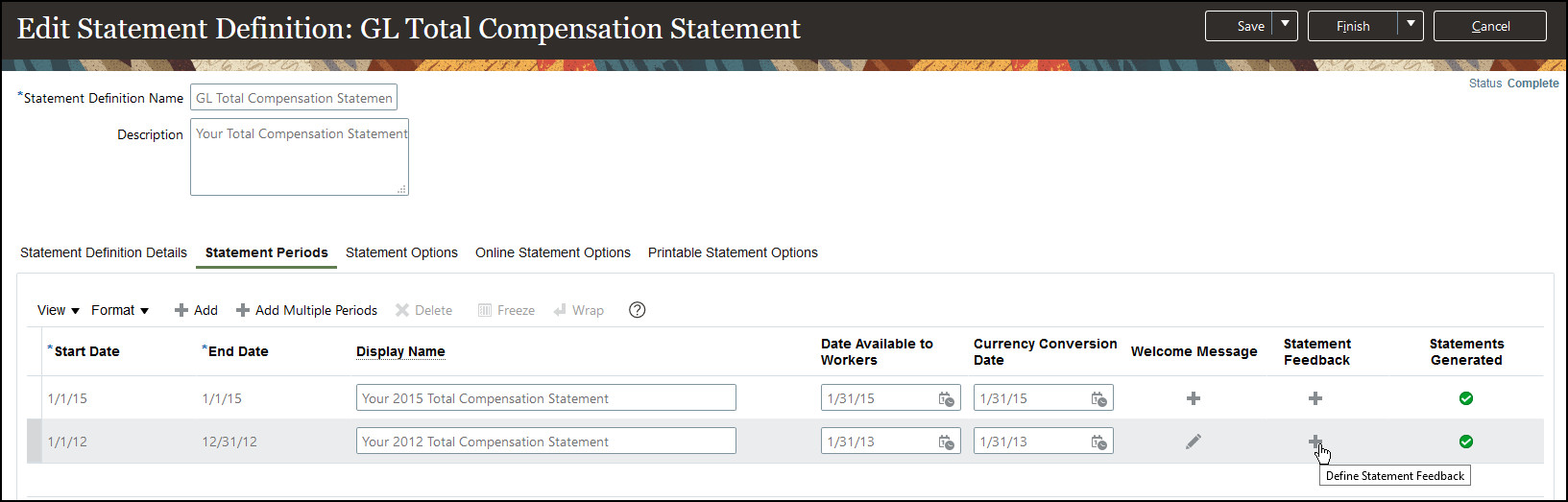
Edit Statement Definition: Define Statement Feedback
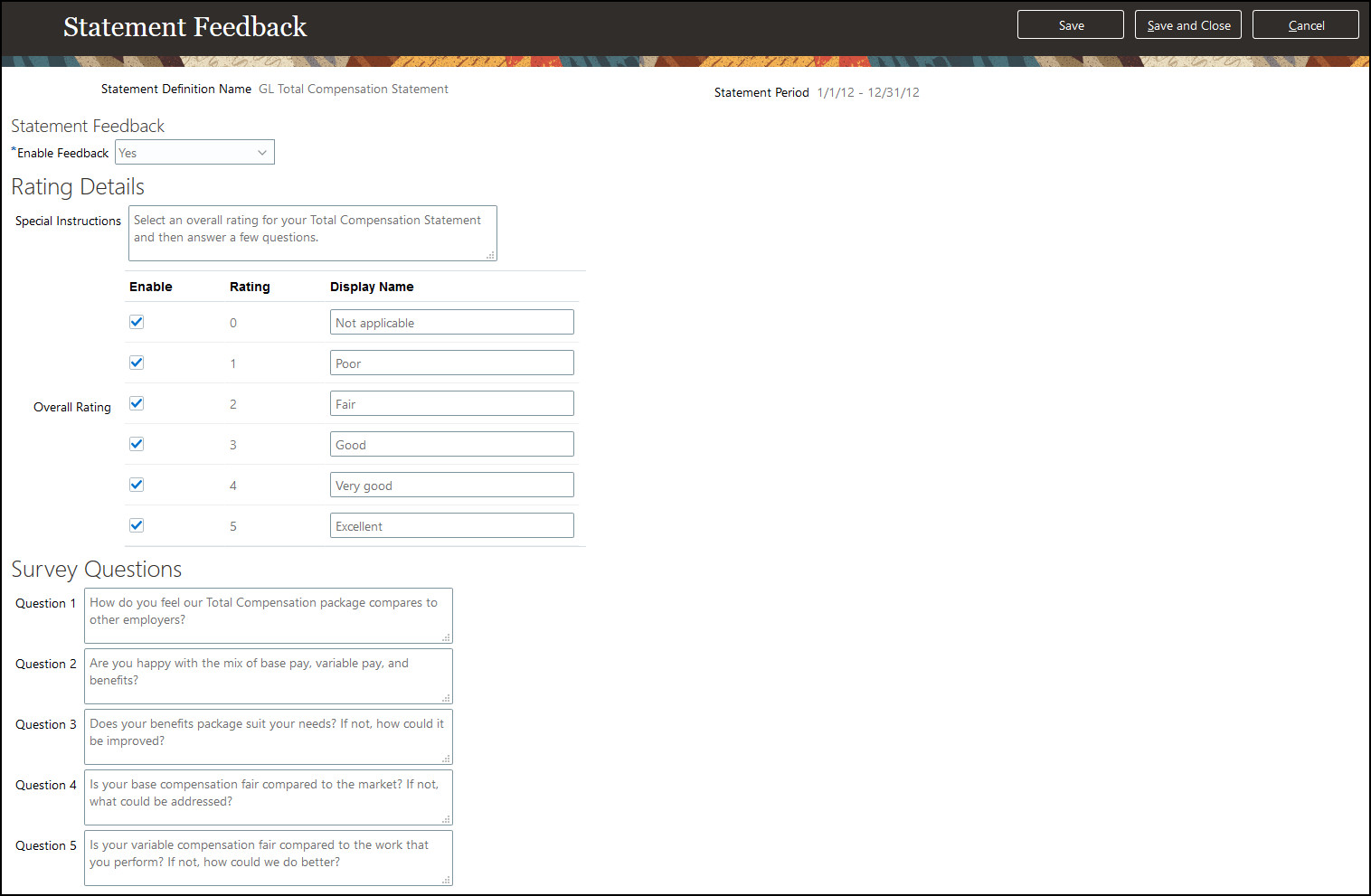
Statement Feedback

Feedback Survey

View Total Compensation Statement Reports: Employee Feedback (Compensation Administrator)

My Team: Total Compensation Statement Feedback (Line Manager)
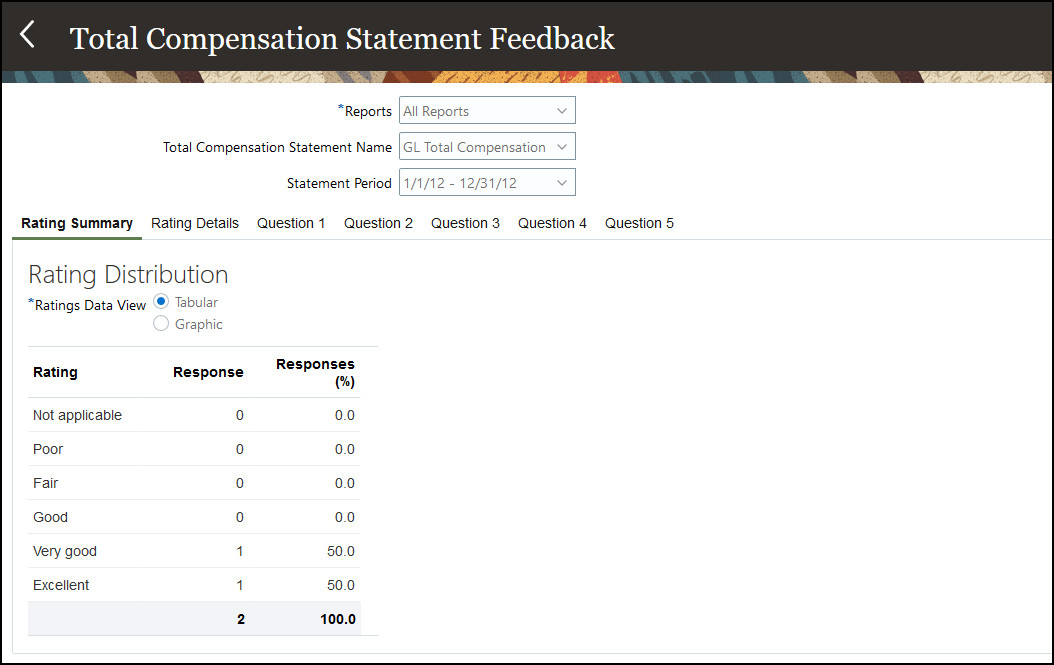
Total Compensation Statement Feedback: Tabular Rating Summary
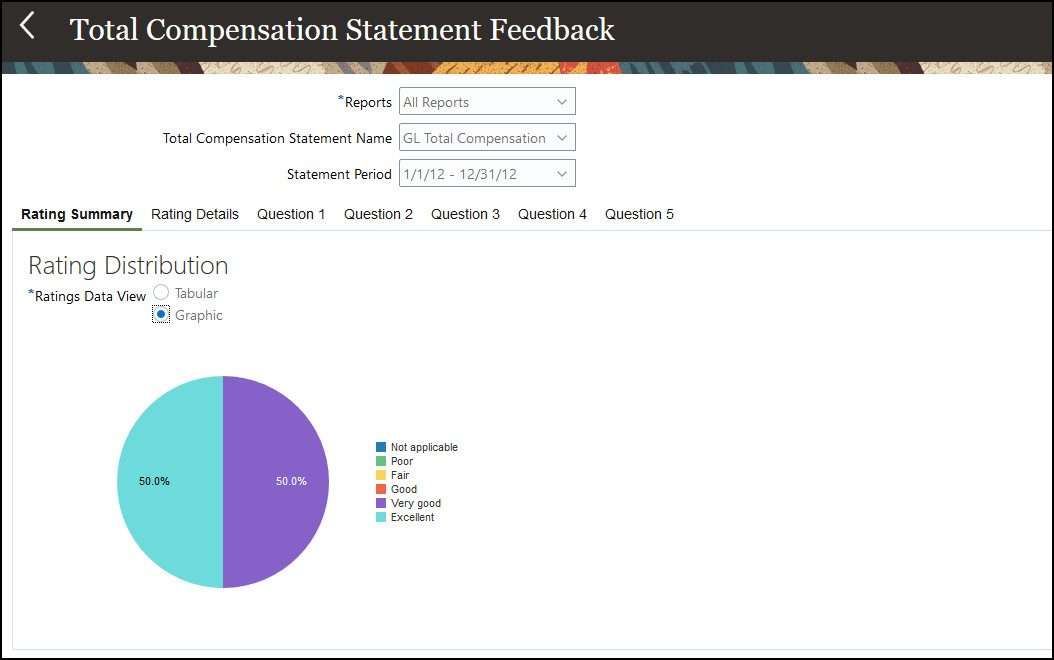
Total Compensation Statement Feedback: Graphic Rating Summary
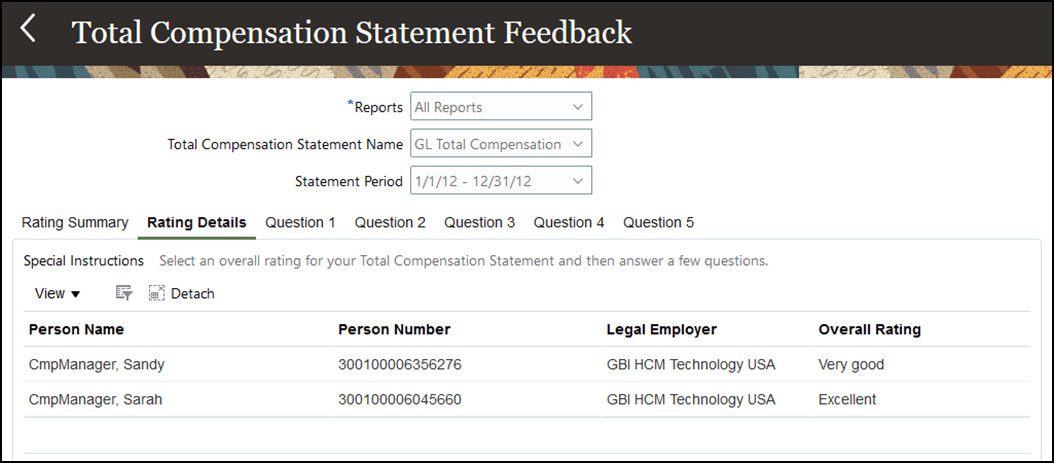
Total Compensation Statement Feedback: Rating Details
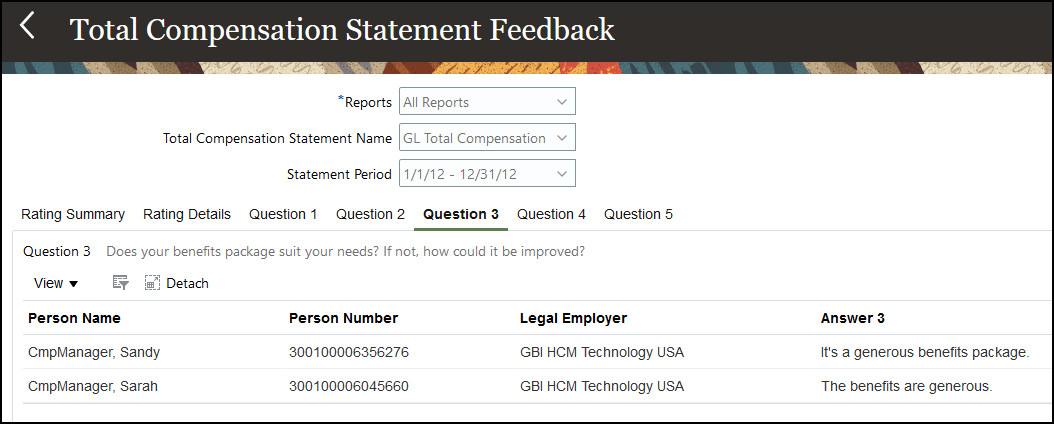
Total Compensation Statement Feedback: Question 3
Customers get the greatest return of investment for their total compensation package by using feedback. This feature has the following potential benefits to provide ROI to customers:
- Improves retention rates, lowered sick days, better performance ratings, higher productivity
- Links business goals with personal outcomes for employees
- Leads to understanding and valuing the total reward package
- Defines the employer/employee relationship
- Reinforces corporate philosophy, culture and values
- Helps achieve total rewards program goals
- Streamlines administration
- Improves program utilization and ROI
- Changes employee attitude and behavior
- Builds employee trust
- Gives a greater understanding of the investment the company makes in the workers
- Improves emotional environment (increase job satisfaction, promote feelings of value, improve focus)
- Reinforces decision to join and remain with the company
Steps to Enable
You don't need to do anything to enable this feature.
Tips And Considerations
You can add a My Total Compensation Statement App to the Me tab of the Home Page by using these simple instructions:
Add an App using a Deep Link: https://community.oracle.com/customerconnect/discussion/562168/add-an-app-using-a-deep-link
Role Information
Compensation Manager: Function Security Privilege, View Total Compensation Statement Administration Reports and Aggregate Privilege, View Total Compensation Statement Feedback by Compensation User
Line Manager: Aggregate Privilege, View Total Compensation Statement Feedback by Line Manager
Total Compensation Statement - Stock History Category Additions
Total Compensation Stock History category now includes additional columns from the stock table. We added the following new columns from stock to the Stock History Category:
- Vest Date, Exercise Date, Cancellation Date
- Miscellaneous Text 1, Miscellaneous Text 2, Miscellaneous Text 3, Miscellaneous Text 4, Miscellaneous Text 5
- Miscellaneous Number 1, Miscellaneous Number 2, Miscellaneous Number 3, Miscellaneous Number 4, Miscellaneous Number 5
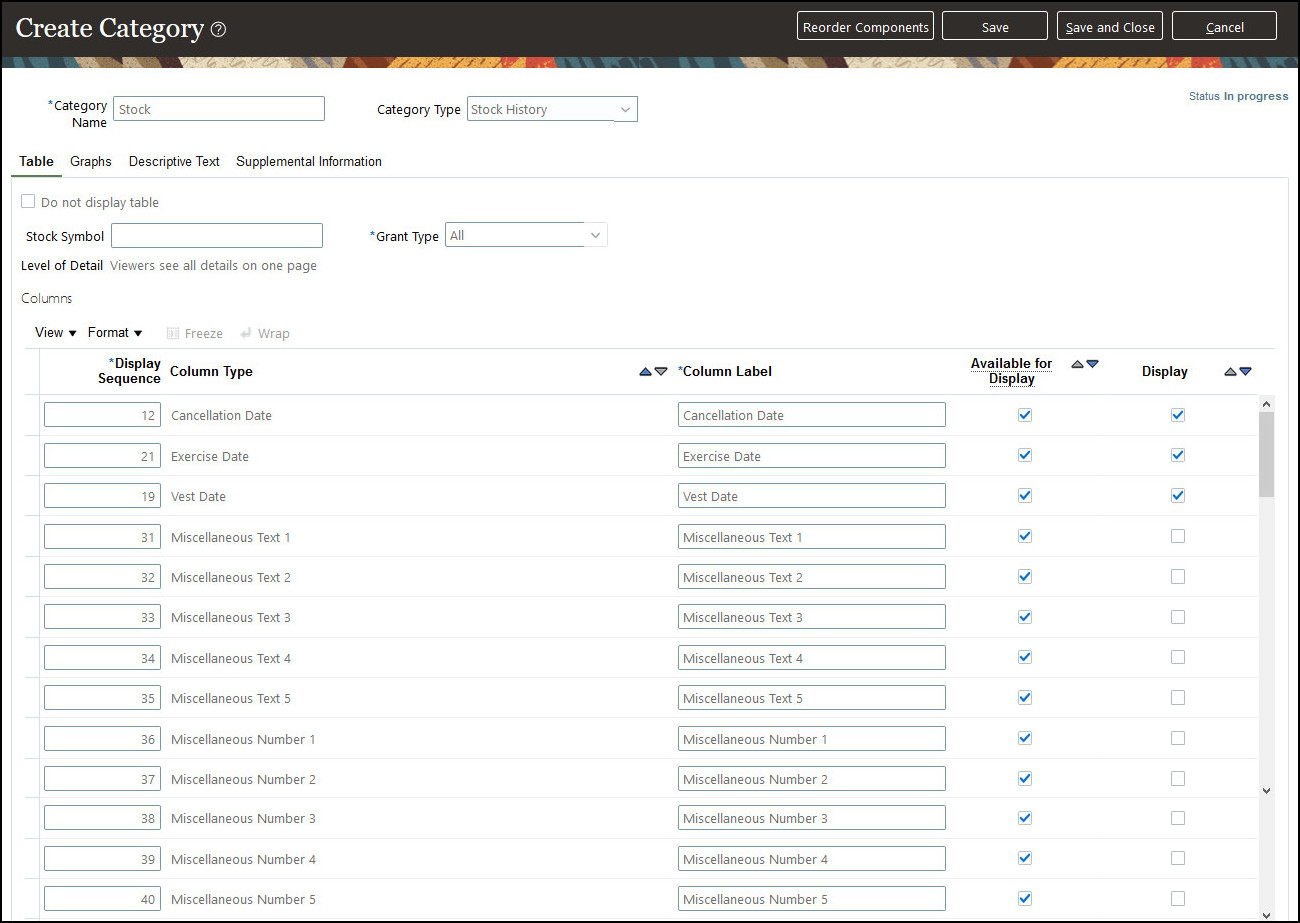
Create Category
Ability to display any of the stock table columns in the Total Compensation Statement.
Steps to Enable
You don't need to do anything to enable this feature.
Tips And Considerations
Feel free to use any and all of these new stock columns for the online statements, but we recommend you select no more than 8 columns for the printable statement, for the best user experience.
Total Compensation Statement - Generate Statements by Manager Hierarchy
You can now generate total compensation statements by manager hierarchy. You configure statements in the usual manner. Then, simply select the Manager Hierarchy choice list, located above Individual Person to generate statements.
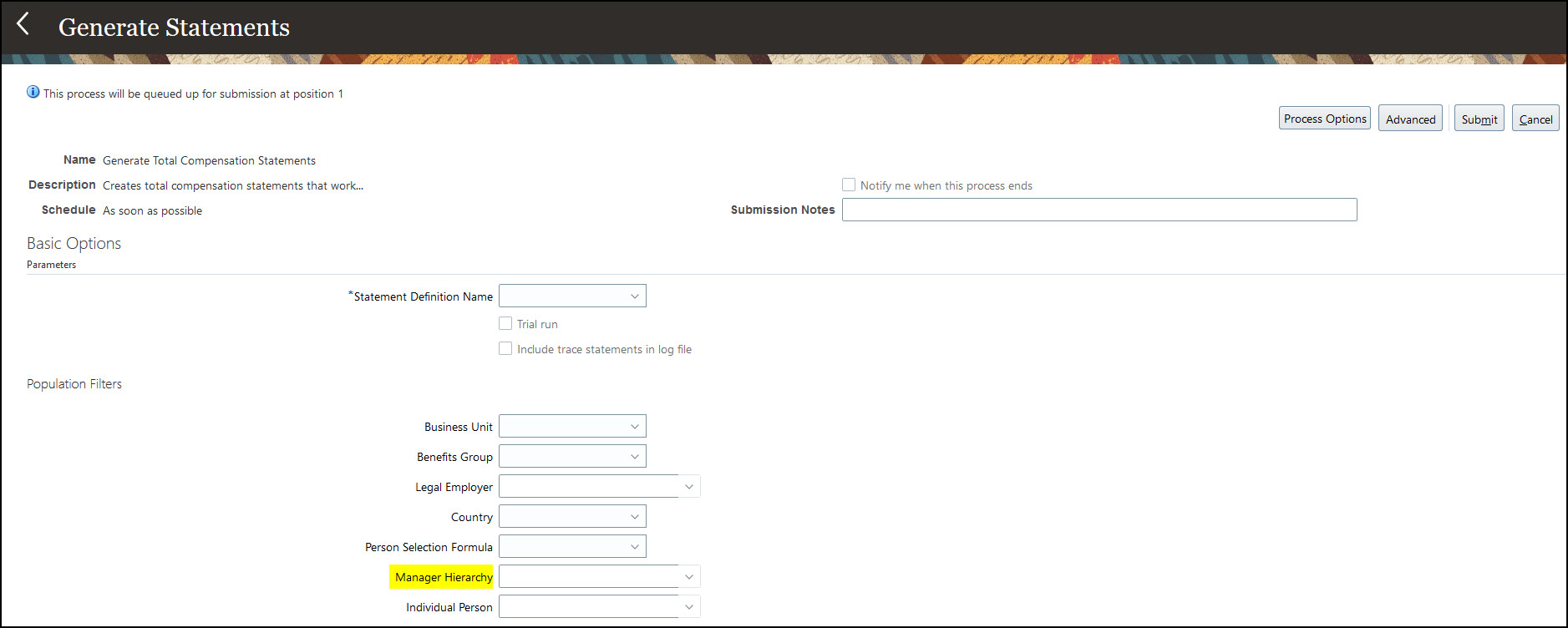
Generate Statements
The ability to generate statements by hierarchy gives you more control, and also simplifies testing.
Steps to Enable
You don't need to do anything to enable this feature.
Transactional Business Intelligence Enterprise for Compensation
Oracle Transactional Business Intelligence is a real time, self-service reporting solution offered to all Oracle Cloud application users to create ad hoc reports and analyze them for daily decision-making. Oracle Transactional Business Intelligence provides human resources managers and specialists, business executives, and line managers the critical workforce information to analyze workforce costs, staffing, compensation, performance management, talent management, succession planning, and employee benefits.
Don’t want to start from scratch building a report or analytics? Check out the library of sample reports for all products on Customer Connect on the Report Sharing Center.
New Attributes In Salary Subject Areas
We enhanced and changed existing attributes in the Salary and Salary History subject areas:
| Subject Area | Folder | Attribute | Action |
|---|---|---|---|
| Compensation - Salary Details Real Time |
Salary Basis - Complete |
Salary Basis Type |
Hidden |
| Salary Basis Type Code |
Added | ||
| Salary Basis Type Meaning |
Added | ||
| Salary Basis - Legacy > Salary Basis |
Salary Basis Type |
Hidden |
|
| Salary Basis Type Code |
Added |
||
| Salary Basis Type Meaning |
Added |
| Compensation - Salary History Details Real Time |
Salary Basis - Complete |
Salary Basis Type |
Hidden |
| Salary Basis Type Code |
Added | ||
| Salary Basis Type Meaning |
Added | ||
| Salary Basis - Legacy > Salary Basis |
Salary Basis Type |
Hidden |
|
| Salary Basis Type Code |
Added |
||
| Salary Basis Type Meaning |
Added |
Also, salary pay rate metrics, such as Rate Amount, previously displayed only aggregated data when you built an analysis using Common Dimensions, such as Worker. Now, the analysis retrieves meaningful data.
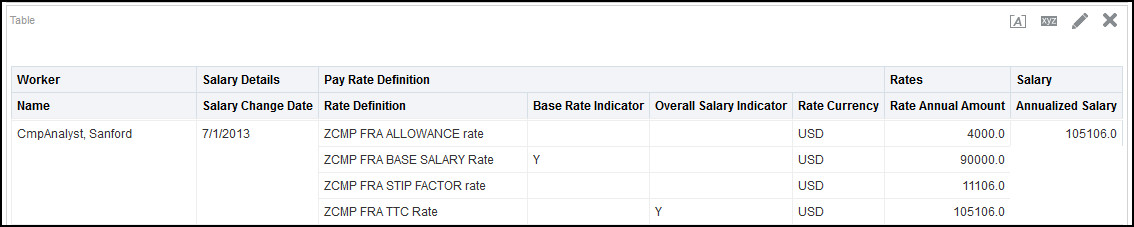
Pay Rates with Worker
Enhance your reporting on salary and salary history subject areas by using new attributes related to salary basis.
Steps to Enable
You don't need to do anything to enable this feature.
Enhancements to Compensation Stocks Subject Area
We made the following changes to the Stocks subject:
| Subject Area | Folder > Column | Changes | |
|---|---|---|---|
| Compensation - Stock Details Real Time |
Stock Details > Price |
We renamed the attribute 'Price' to 'Exercise Price' |
|
| Stock > Estimated Walkaway Value |
We modified the formula to compute this metric to leverage grant price instead of exercise price since unvested shares can't be exercised. This matches changes in the application. Here's the revised formula: (Estimated Stock Price - Original Grant Price) * Number of Unvested Shares |
||
Improve your reporting on the Stocks subject area by using the revised formula to compute the estimated walkaway value.
Steps to Enable
You don't need to do anything to enable this feature.
IMPORTANT Actions and Considerations for Compensation
REPLACED OR REMOVED FEATURES
From time to time, Oracle replaces existing Cloud service features with new features or removes existing features. When a feature is replaced the older version may be removed immediately or at a future time. As a best practice, you should use the newer version of a replaced feature as soon as the newer version is available.
| Product | Removed Feature | Target Removal | Replacement Feature | Replaced In | Additional Information |
|---|---|---|---|---|---|
| None at this time. |
_________________________
ORACLE DECOMMISSIONED THE HCM CLASSIC SIMPLIFIED USER INTERFACE IN UPDATE 20B
The HCM Responsive User Experience has been available and promoted as our standard since Update 18B. If you are still using the older HCM Classic Simplified User Interface, you must transition to the HCM Responsive User Experience, as these older pages will no longer be supported.
For consolidated information on generic setup information you can refer to My Oracle Support Document ID 2399671.1 - HCM Responsive User Experience Setup Information.
_________________________
KNOWN ISSUES / MONTHLY AND STATUTORY MAINTENANCE PACK
Oracle publishes a Known Issues document for every Update to make customers are aware of potential problems they could run into and the document provides workarounds if they are available.
Oracle also publishes Maintenance Pack and Statutory Maintenance Pack documentation of bugs that are fixed in the monthly or statutory patching.
To review these documents you must have access to My Oracle Support:
Oracle Human Capital Management Cloud Functional Known Issues and Maintenance Packs (Document ID 1554838.1)