
- Revision History
- Overview
- Feature Summary
-
- Compensation
- Individual Compensation
- Workforce Compensation
-
- Added Columns for Administer Workers View
- Change in Predefined Alert When Primary Hierarchy Is Refreshed
- Disable Withdraw Worksheet Submission
- Post Compensation Amounts to Simple Components
- Update Of Information Icon In Worksheet Header
- Update of Worksheet Approvals Task
- View Additional Eligibility Information
- Grade Step Progression
- Total Compensation Statement
- Transactional Business Intelligence Enterprise for Compensation
- Compensation
- IMPORTANT Actions and Considerations for Compensation
This document will continue to evolve as existing sections change and new information is added. All updates appear in the following table:
| Date | Product | Feature | Notes |
|---|---|---|---|
| 29 APR 2022 | Compensation/ Total Compensation Statement | Total Compensation - Person Communication Address Columns | Updated document. Revised feature information. |
| 25 MAR 2022 | Compensation | Total Compensation Item - Monetary Unit of Measure | Updated document. Revised feature information. |
| 25 MAR 2022 | Compensation / OTB |
Additional Attributes to the Workforce Compensation Subject Areas | Updated document. Revised feature information. |
| 25 FEB 2022 | Compensation / OTBI | Range Differential Profile Attributes in Salary Subject Areas | Updated document. Revised feature information. |
| 06 DEC 2021 | Created initial document. |
HCM Cloud applications have two types of patches you can receive that are documented in this What’s New:
- Release Updates (22A, 22B, 22C, and 22D)
- Optional Monthly Maintenance Packs to each update
It is important for you to know what Release Update your environment is on. You can find this in your Cloud Portal.
____________________
 HAVE AN IDEA?
We’re here and we’re listening. If you have a suggestion on how to make our products better, please let us know. To enter an idea go to the Ideas Lab on Oracle Customer Connect. In this document wherever you see the light bulb icon after the feature name it means we delivered one of your ideas.
____________________
Suggested Reading for all HCM Products:
- Human Resources What’s New – In the Global Human Resources section you will find features on the base application in which other application are built upon.
NOTE: Not all Global Human Resource features are available for Talent and Compensation products.
- Oracle Human Capital Management Cloud Functional Known Issues and Maintenance Packs (Document ID 1554838.1). These documents identify bug fixes and possible known issues. You will also need to review these documents based in the release update version you are currently on or will be moving to.
- Oracle Help Center – Here you will find guides, videos and searchable help.
- Release Readiness – New Feature Summary, What’s New, Feature Listing Spreadsheet, Spotlights and Release Training
GIVE US FEEDBACK
We welcome your comments and suggestions to improve the content. Please send us your feedback at oracle_fusion_applications_help_ww_grp@oracle.com. Indicate you are inquiring or providing feedback regarding the HCM Cloud What’s New in the body or title of the email.
Column Definitions:
Report = New or modified, Oracle-delivered, ready to run reports.
UI or Process-Based: Small Scale = These UI or process-based features are typically comprised of minor field, validation, or program changes. Therefore, the potential impact to users is minimal.
UI or Process-Based: Larger Scale* = These UI or process-based features have more complex designs. Therefore, the potential impact to users is higher.
Features Delivered Disabled = Action is needed BEFORE these features can be used by END USERS. These features are delivered disabled and you choose if and when to enable them. For example, a) new or expanded BI subject areas need to first be incorporated into reports, b) Integration is required to utilize new web services, or c) features must be assigned to user roles before they can be accessed.
| Ready for Use by End Users Reports plus Small Scale UI or Process-Based new features will have minimal user impact after an update. Therefore, customer acceptance testing should focus on the Larger Scale UI or Process-Based* new features. |
Customer Must Take Action before Use by End Users Not disruptive as action is required to make these features ready to use. As you selectively choose to leverage, you set your test and roll out timing. |
|||||
|---|---|---|---|---|---|---|
| Feature |
Report |
UI or |
UI or |
|
||
Honor Individual Compensation Allocations in Job Offers when Multiple Element Entries Aren't Allowed |
||||||
Change in Predefined Alert When Primary Hierarchy Is Refreshed |
||||||
All Assignments for a Person Included in the Same Grade Step Progression Batch Process Thread |
||||||
Transactional Business Intelligence Enterprise for Compensation |
||||||
Additional Attributes to the Workforce Compensation Subject Areas |
||||||
Range Differential Profile Attributes in Salary Subject Areas |
||||||
Oracle Compensation enables your organization to plan, allocate, and communicate compensation using the most complete solution in the market. Make better business decisions using embedded analytics and a total compensation view of workers, regardless of geographic location or pay package components.
Honor Individual Compensation Allocations in Job Offers when Multiple Element Entries Aren't Allowed
When you process an internal candidate's job offer, the individual compensation plan payments from the offer are copied to the newly-created assignment. This copy now happens even when these conditions exist:
- The person already has the same individual compensation plan in their current assignment.
- The underlying element setup doesn't allow the creation of multiple element entries for the recurring element.
In previous releases, you get a processing error because of the restriction against multiple element entries.
What Happens When Plan Payments for the Current Assignment Have Already Started
When the existing plan payments in the current assignment have already started, the copy process end dates those payments. It sets the end date 1 day before the payment start date for the plan from the offer. For example, John has Car Allowance plan payments of $100 a month in his current Analyst assignment. The payments started on January 1, 2020. The internal change assignment offer includes the same Car Allowance plan, but with payments of $150 a month starting on January 1, 2022. Here's what the plan payments look like in the current assignment after the copy:
| Plan | Option | Amount | Start Date | End Date |
|---|---|---|---|---|
| Car Allowance | Domestic | $100 | 01/Jan/2020 | 31/Dec/2021 |
| Car Allowance | Domestic | $150 | 01/Jan/2022 |
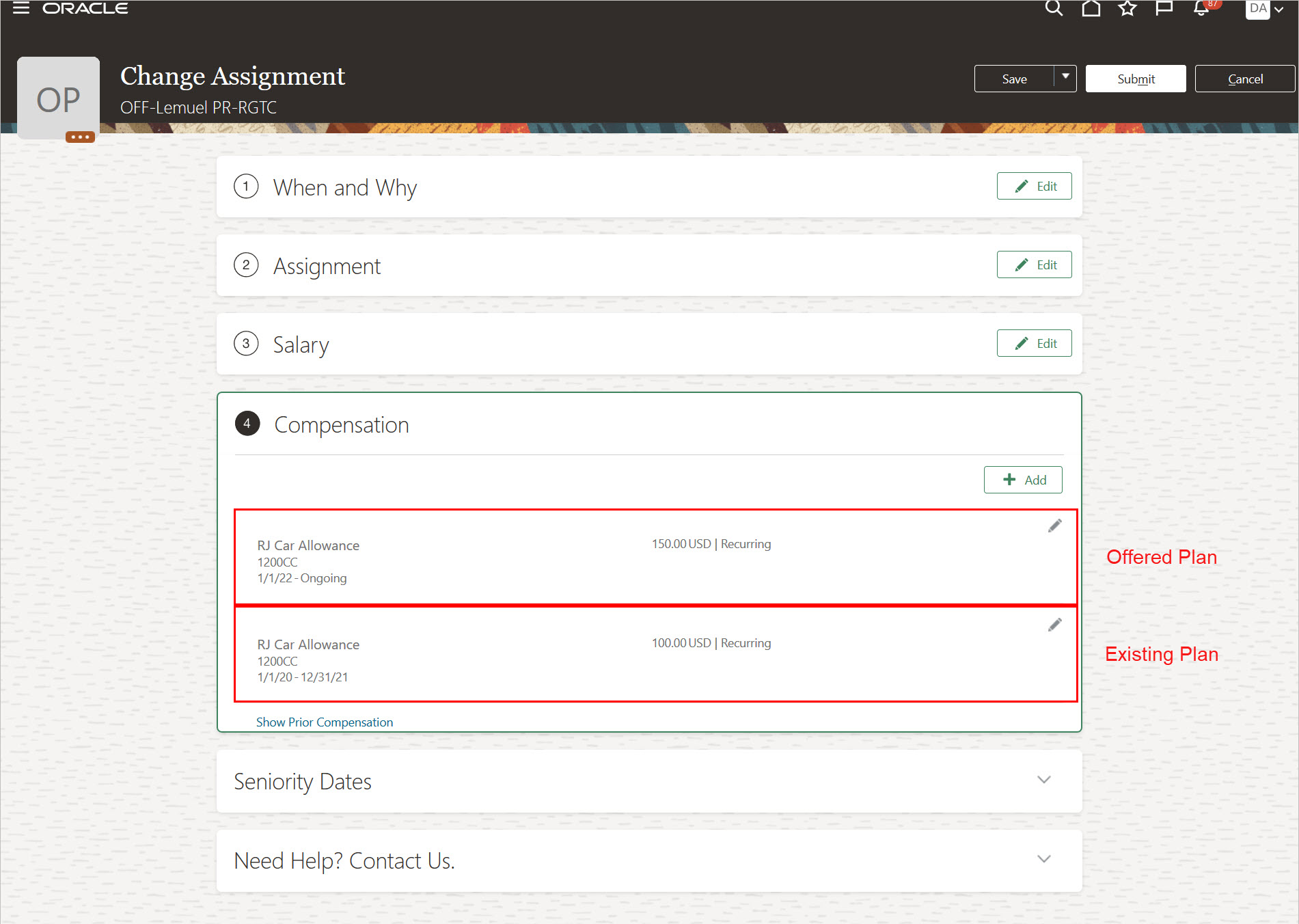
Plan Payments in Internal Assignment Are End Dated a Day before the Start of the Offered Plan Payments
What Happens When Plan Payments for the Current Assignment Start in the Future
When the plan payments in the current assignment start in the future, the copy process end dates the plan payments from the offer. It sets the end date 1 day before the payments in the current assignment plan start. For example, John has Car Allowance plan payments of $100 a month in his current Analyst assignment. The payments are set to start on February 1, 2022. The internal change assignment offer includes the same Car Allowance plan, but with payments of $150 starting on January 1, 2022. Here's what the plan payments look like on the current assignment after the copy:
| Plan | Option | Amount | Start Date | End Date |
|---|---|---|---|---|
| Car Allowance | Domestic | $150 | 01/Jan/2022 | 31/Jan/2022 |
| Car Allowance | Domestic | $100 | 01/Feb/2022 |
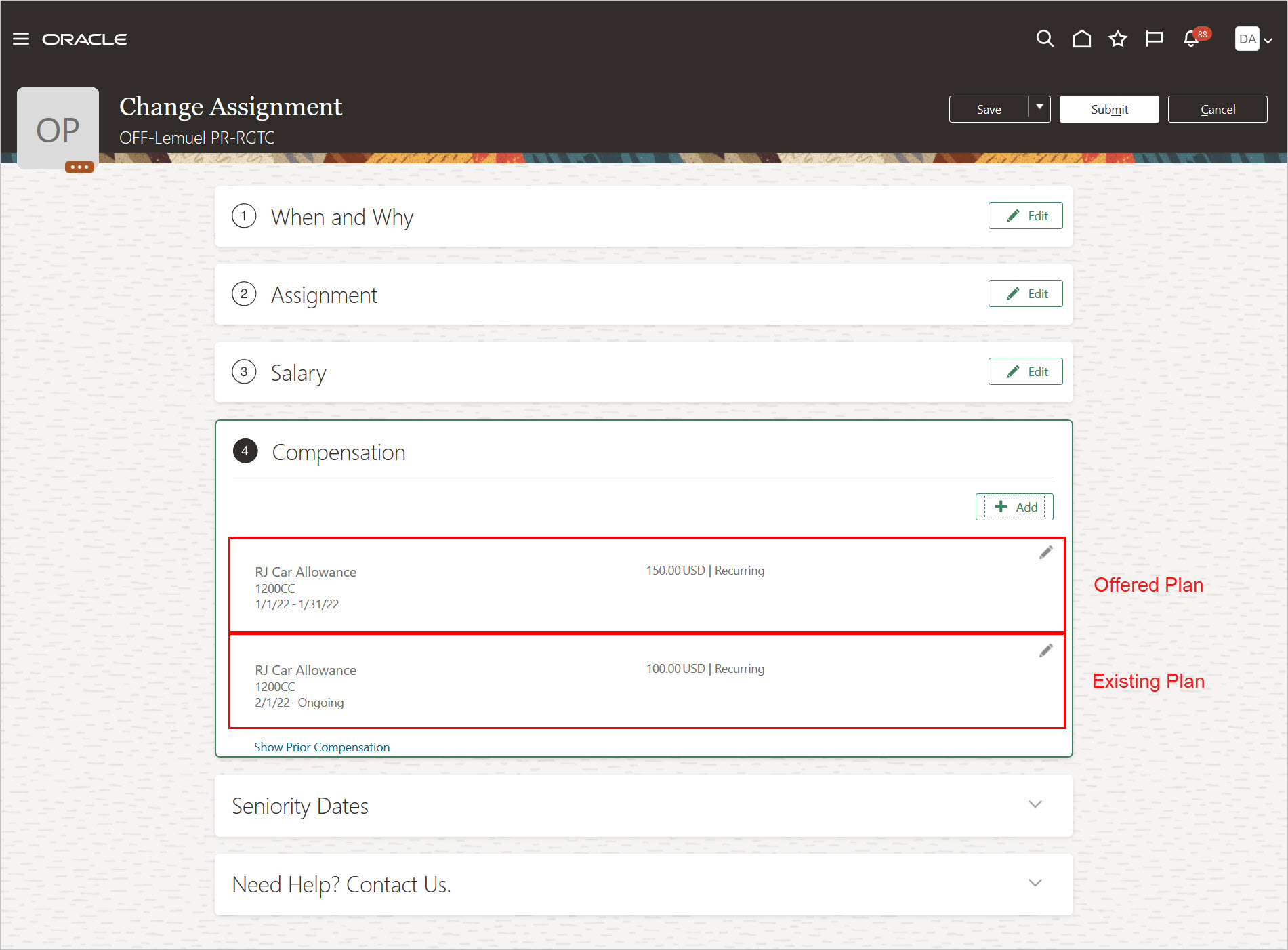
Offered Plan Payments Are End Dated a Day before the Start of the Future Plan Payments in the Internal Assignment
What Happens when Both Plan Payments Start on the Same Day
When the plan payments in the current assignment and the offer start on the same day, you get a warning. The copy process couldn't copy the offered compensation allocation.
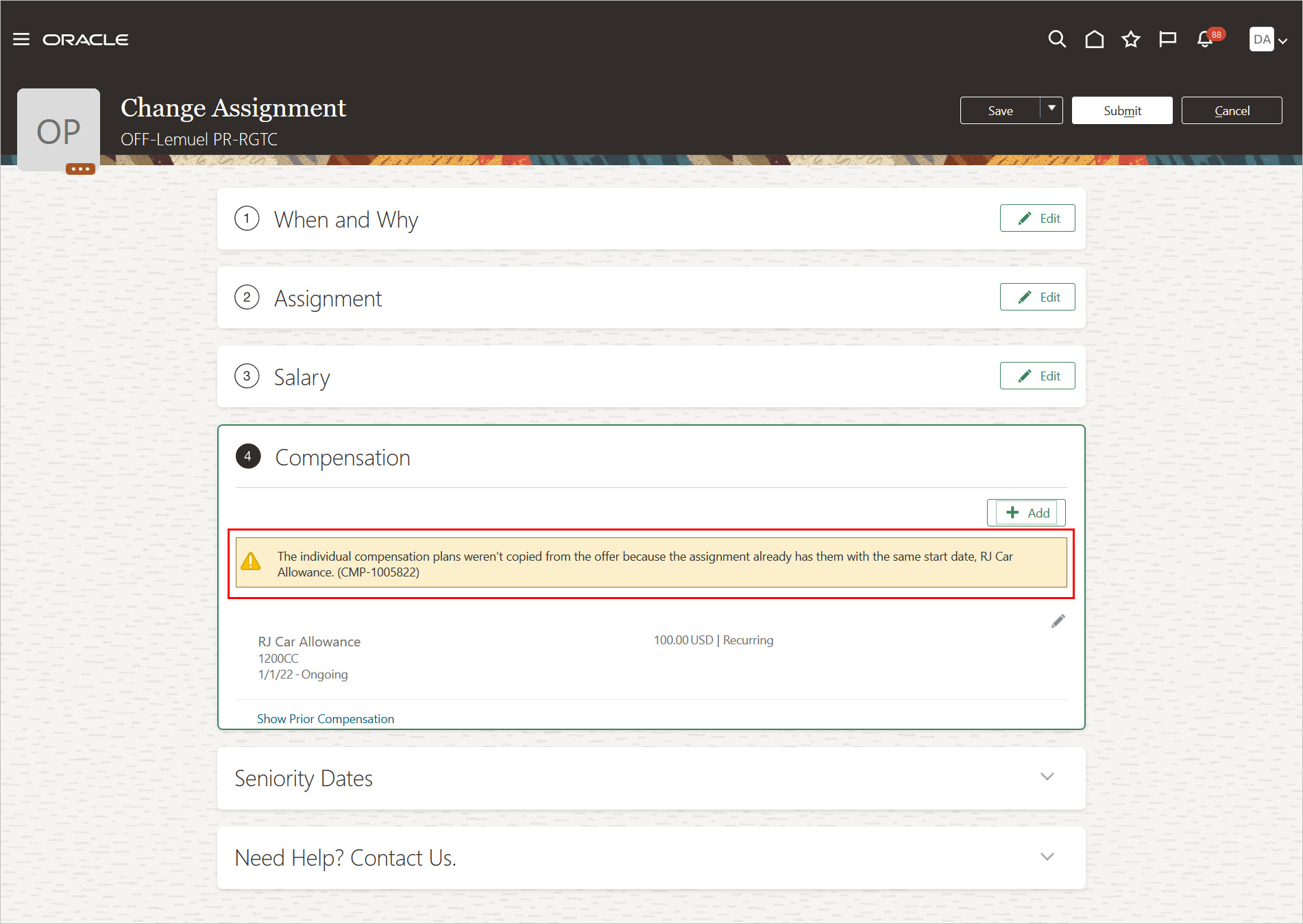
Warning that the Offered Plan Payments Won't Be Copied Because the Offer and Assignment Payments Start on the Same Day
In previous releases, you get an error that the offered compensation allocations couldn't be copied due to the restriction against multiple element entries.
This enhancement increases data accuracy and minimizes manual intervention.
Steps to Enable
You don't need to do anything to enable this feature.
Tips And Considerations
-
This feature applies to recurring elements that don't allow multiple element entries.
-
This feature works for internal candidates where the job offer details are copied to an existing assignment. Examples of these flows are Change Assignment, Transfer, and Promote. It isn’t relevant for internal candidate offers that create a new assignment or work relationship because the process is allocating new individual compensation plan payments.
-
When you process an internal candidate’s offer in responsive flows, the offer plan payments are copied to the person when you reach the individual compensation section. If you submit the flow before reaching this section, the offered plan payments aren't copied. Examples of the affected responsive flows are Change Assignment, Transfer, and Promote.
Added Columns for Administer Workers View
You can now see all worksheet columns in the Administer Workers page. Previously, some columns were unavailable. We added the following columns:
- Business Unit
- Working Hours
- Years in Job
- Job Attribute 1
- Job Attribute 2
- Job Attribute 3
- Job Attribute 4
- Job Attribute 5
- Job Attribute 6
- Years in Position
- Grade Change Date
- Years in Grade
- Base Salary Change Amount
- Base Salary Percentage Change
- Adjusted Salary Factor
- Adjusted Salary - Change Amount
- Annualized Full-Time Salary - Change Amount
- Prior Salary Change Amount
- Prior Salary Change Percentage
- Prior Salary Change Date
- Salary Range Position - Current
- Salary Range Position - New
- Salary Range Quintile - Current
- Salary Range Quintile - New
- Salary Range Decile - Current
- Salary Range Decile - New
- Effective Date - Component (5 columns)
- Prior Cycle Amount - Component (5 columns)
- Prior Cycle Compensation Percentage - Component (5 columns)
- Prior Cycle Effective Date - Component (5 columns)
- Original Amount Updated by (5 columns)
- Amount Last Updated by - Component (5 columns)
- Amount Last Update Date - Component (5 columns)
- Currency Conversion Rate (5 columns)
- Promotion Fields Last Updated By
- Promotion Fields Last Update Date
- Promotion Fields Originally Updated By
- Original Compensation Performance Rating Updated By
- Compensation Performance Rating - Prior
- Compensation Performance Rating Date - Prior
- Worker Potential
- Risk of Loss
- Full Ranking
This change gives administrators a more complete view of data in workforce compensation for a person.
Steps to Enable
You don't need to do anything to enable this feature.
Change in Predefined Alert When Primary Hierarchy Is Refreshed
The “Worksheet manager does not match line manager” predefined alert is now retained when you run the Refresh Workforce Compensation Data process using the “Refresh primary manager hierarchy” parameter when the Primary Hierarchy source in plan setup is set to something other than Primary manager hierarchy. Previously, the alert would clear when the Refresh process was run in this scenario.
This change retains the predefined alert. It informs the primary worksheet manager that they are not the line manager of record on the person’s assignment.
Steps to Enable
You don't need to do anything to enable this feature.
Disable Withdraw Worksheet Submission
You can use a new configuration option in the Configure Approvals and Notifications setup task in plan setup to disable managers ability to withdraw their plan changes after they submit them.
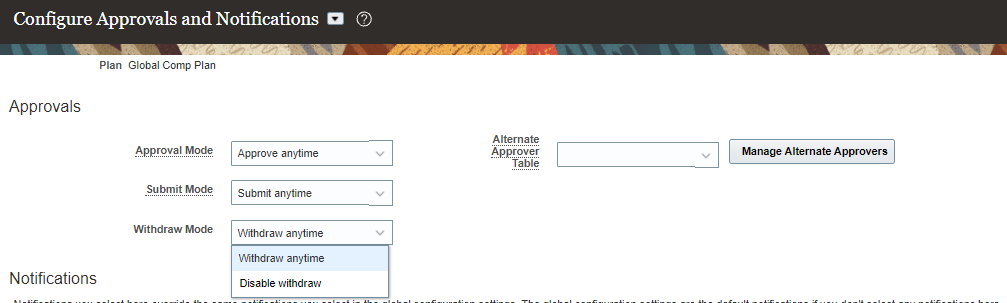
New Configuration Option In Plan Setup
After you start the plan cycle, you can make the change in Active Plans.
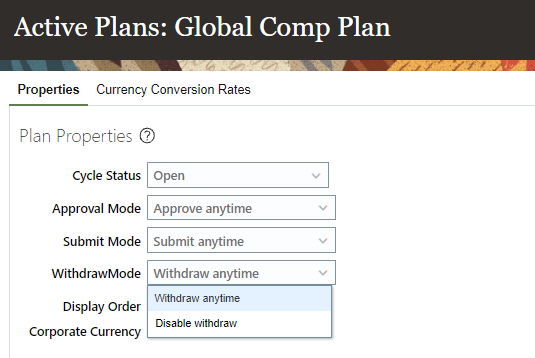
New Option In Active Plans
This feature allows for the Withdraw button to be removed from the landing page, preventing managers from making any further changes once they have submitted.
Steps to Enable
You don't need to do anything to enable this feature.
Tips And Considerations
Higher level managers or administrators need to use the Return for Correction option to return a worksheet to a manager if changes need to be made.
Post Compensation Amounts to Simple Components
You can now distribute and post salary compensation amounts back to people whose salaries include simple components through the transfer process. Previously, you had to use either a user-defined integration or the simple components feature in the Individual Worker Display. To use this new feature, you navigate to the properties for the compensation amount worksheet column you use for your salary increases and scroll down to the Salary and Element Mapping section.
- Select "Yes" for Post as Salary
- Select "Yes, manager does not enter simple components" for Salary Includes Simple Components (You may also have Salary Includes Rates enabled as well)
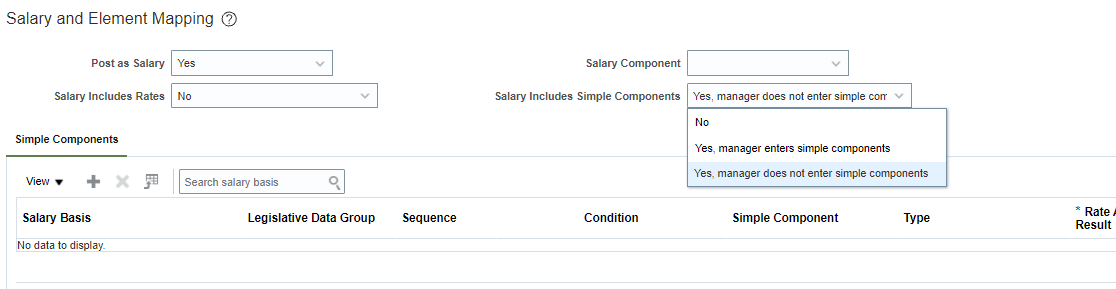
Simple Component Distribution Configuration Area
If you select the “Yes, manager enters simple components” option, you need to configure the section in Individual Worker Display instead of using this feature.
These columns appear in the table:
- Salary Basis name
- Legislative Data Group
- Sequence
- Condition (this lets you determine which people use a salary rate distribution and works similarly to Dynamic Calculation or Alert conditions)
- Simple Component
- Rate Application Result
- Amount
- Balance (required for each salary rate distribution setup for each salary basis)
- Percentage
- Percentage of Remaining
- Value
- Do Not Post (use this when you plan to manually update a person's salary)
- Test Condition
When you click the “add” symbol, you see this dialog box:
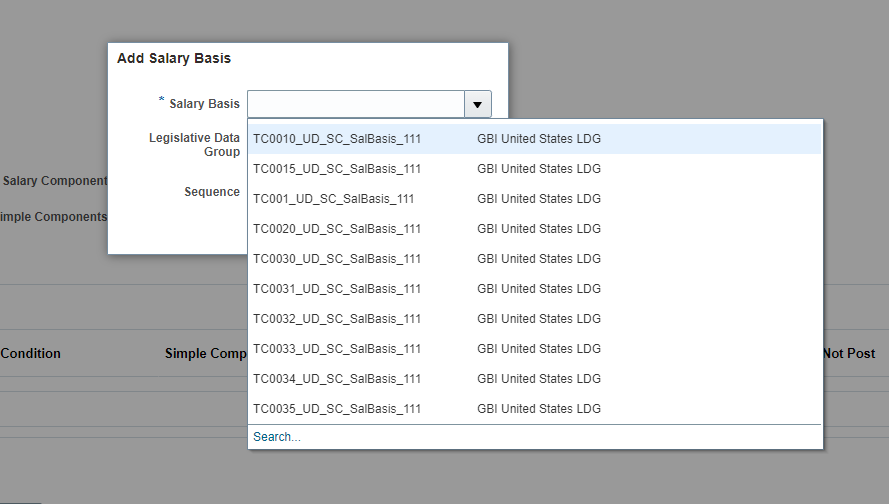
Dialog Box Used To Select Salary Bases Using Simple Components
Only those salary bases that use simple components appear in the search. After you select a salary basis, the associated simple components appear. The derived rates that contribute to the overall salary are also listed in the table, but they don't have any distribution setup support.
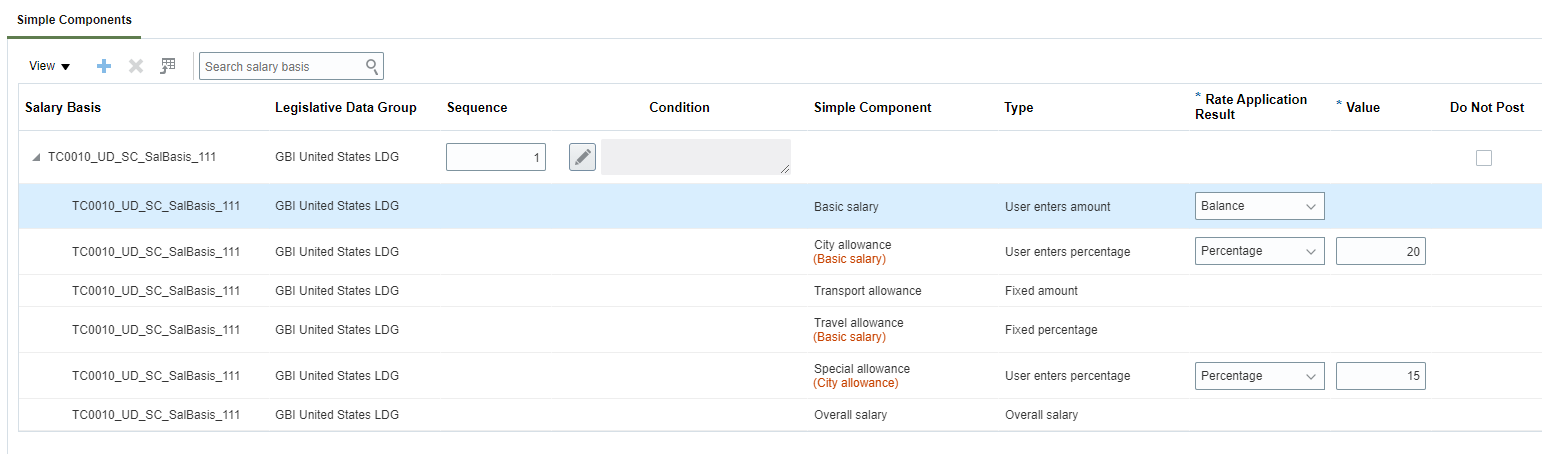
Available Simple Components
There are 4 Rate Application Result options:
- Amount: Rate receives a change amount as entered here (which can be an increment or decrement amount to previous rate value).
- Percentage: Rate receives a change amount as a percentage of the base salary change amount (increment/decrement in base salary).
- Percentage of Remaining: System first allocates the rates that use "Amount" or "Percentage" type of application result, and arrives at remaining increment in base salary. Then it applies the specified percentage on this remaining increment amount to arrive at change amount for the rate.
- Balance: Rate gets balance increment remaining after calculating other rates.
As with the Dynamic Calculation or Alert condition builder, the simple component distribution condition builder only uses worksheet columns.
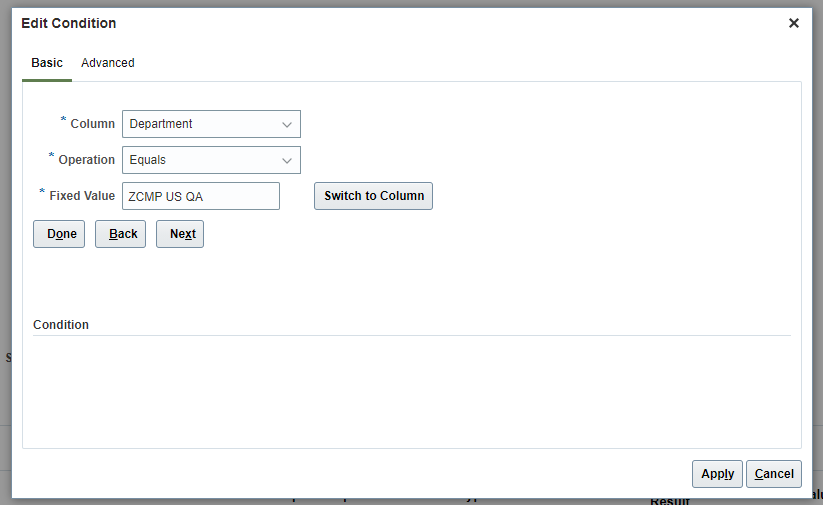
Simple Component Distribution Condition Builder
To test the distribution select the icon in the Test condition column, enter a value for the Change Amount, and click "Test" to validate the salary rate distributions:
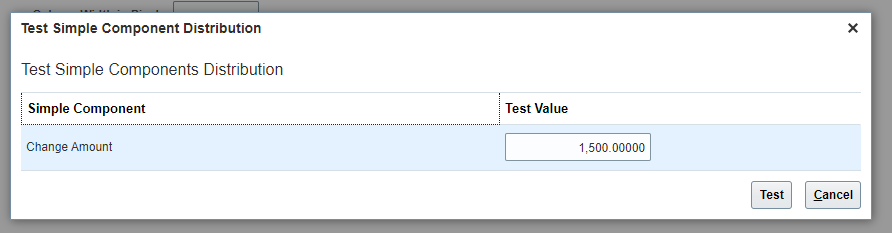
Test Simple Component Distribution
You see the breakout according to your configured distribution values:
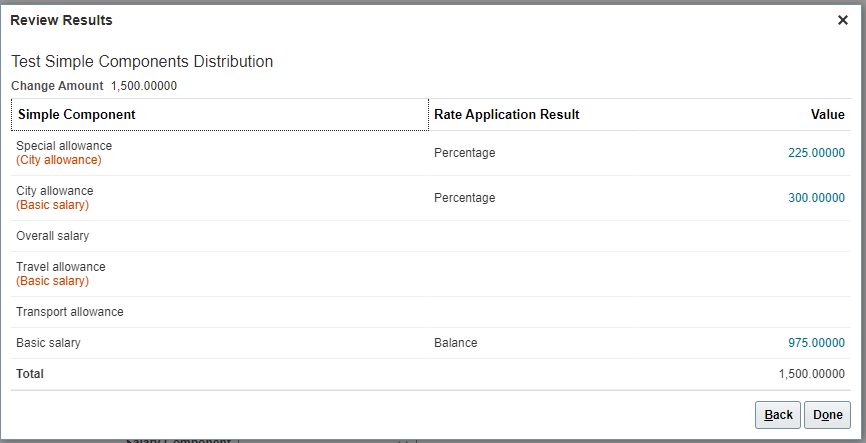
Simple Component Distribution Test Results
This features lets all people have compensation allocated the same way. There's no need for you to enter info on a separate page from the worksheet for those people whose salaries are made up of simple components.
Steps to Enable
You don't need to do anything to enable this feature.
Tips And Considerations
-
Use the "Do Not Post" option in cases where an administrator manually updates people who have a particular salary basis.
-
The Balance rate application result method is required for each salary basis configured.
-
The simple component distribution condition builder uses worksheet columns only.
-
Derived rates don't allow a distribution setup. However, they get calculated as usual during transfer process. All other rate types allow for distribution setup.
-
The Transfer process doesn't post the salary if the overall salary after distribution doesn't match the salary proposed in the worksheet exactly.
-
Simple components of type Overall Salary, Fixed Amount and Fixed Percentage will not have any distribution setup so the fields Rate Application Results and Value will not be editable for the same.
-
Rate Application Results are editable for the simple components of type 'User enters amount' and 'User enters percentage'
-
Simple components of type 'Progression Grade Ladder Rate' are not supported.
Update Of Information Icon In Worksheet Header
You now see a new information icon in all worksheet headers. We updated the icon to a circle “i” icon instead of the circle “?” icon.
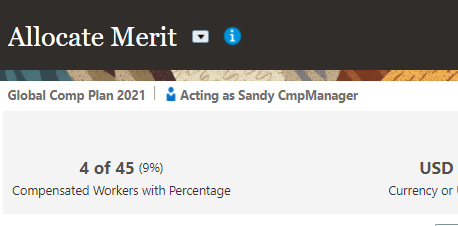
New Worksheet Information Icon
The change in the icon aligns better with other indications of information throughout the application.
Steps to Enable
You don't need to do anything to enable this feature.
Update of Worksheet Approvals Task
We've updated the Approvals task type so you can now configure the task actions such as Request for Information, Change Access for Managers, and Export to Workbook. You can also have the Approval chain appear at the top of the page to let managers see where their plan changes are in the cycle.
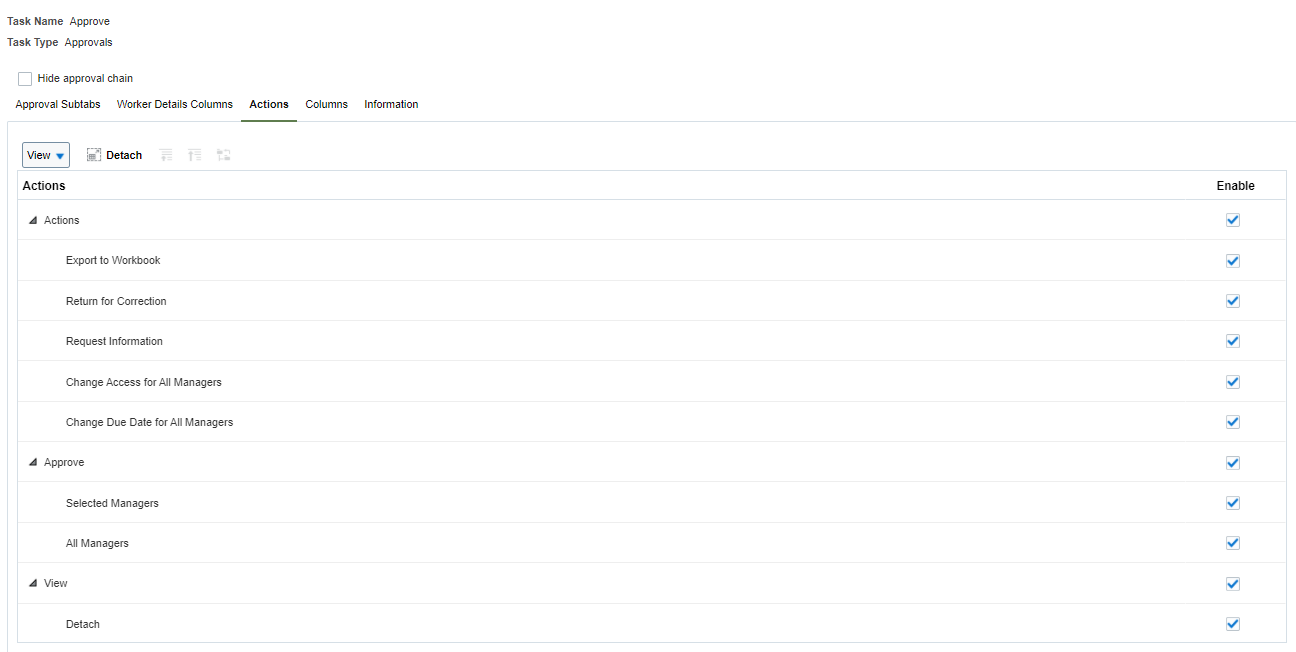
New Configuration Options In The Approvals Task Type
The new configuration options give administrators the ability to configure the Approvals task to better suit the business needs. This should reduce manager confusion and streamline the approvals process.
Steps to Enable
You don't need to do anything to enable this feature.
Tips And Considerations
Because of this change, the approvals hierarchy doesn't appear in Action History but appears on the landing page itself.
View Additional Eligibility Information
You can now see which eligibility profile and criteria caused a person to be found ineligible for the component or plan. In the Worker Eligibility Details report, found in the Status and Monitoring section of View Administration Reports, you can view the additional information in the Details tab.
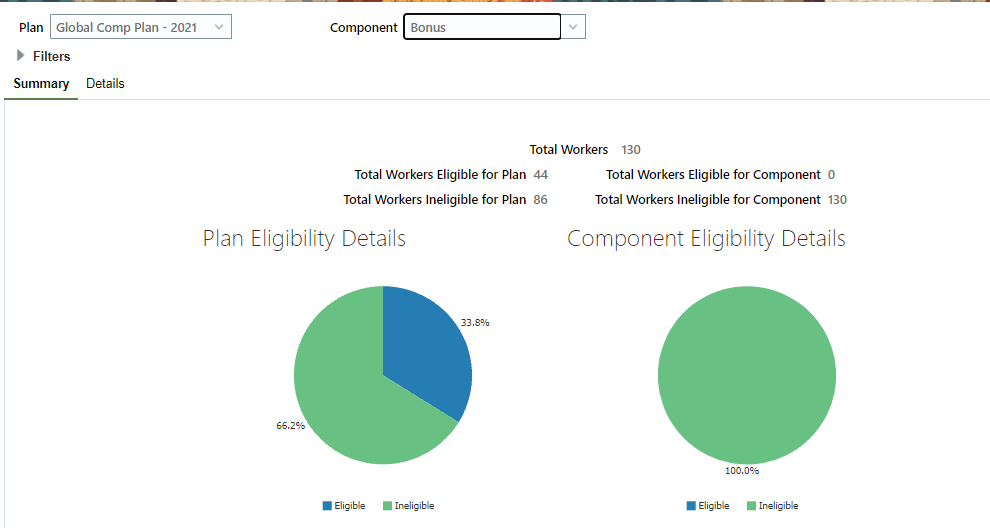
Summary of the Worker Eligibility Details Report
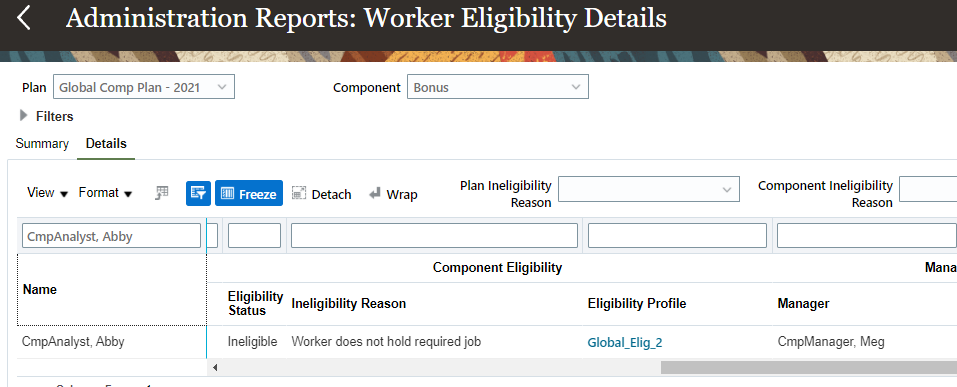
Details Tab Showing Additional Information
The eligibility profile that caused the person to not be eligible for the plan or component is displayed. When you click the profile name, you see the following information:
- Eligibility Profile name
- Eligibility Status
- Ineligibility Reason
- If the profile is required
- Assignment type used for evaluation in the profile
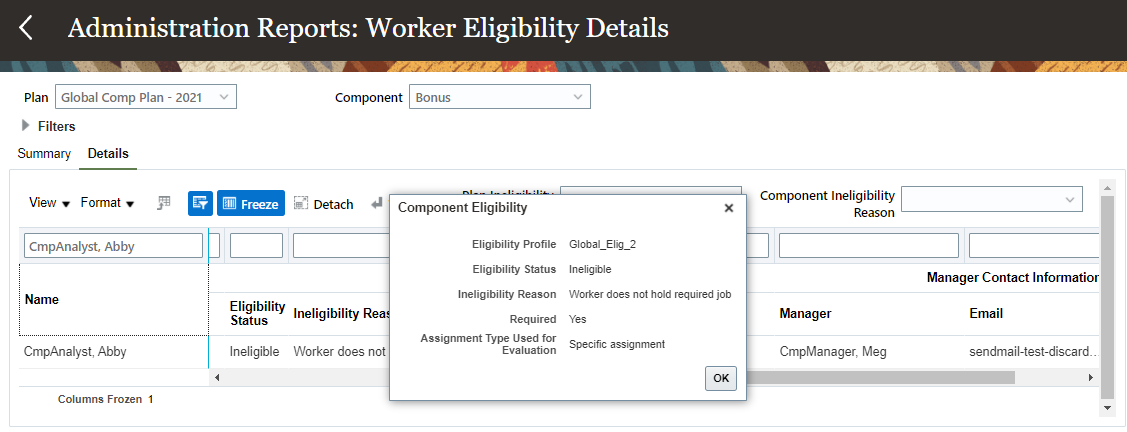
Additional Eligibility Profile Information
The same information is available in the Test Eligibility Profile feature in Configure Plan Eligibility and Configure Compensation Components.
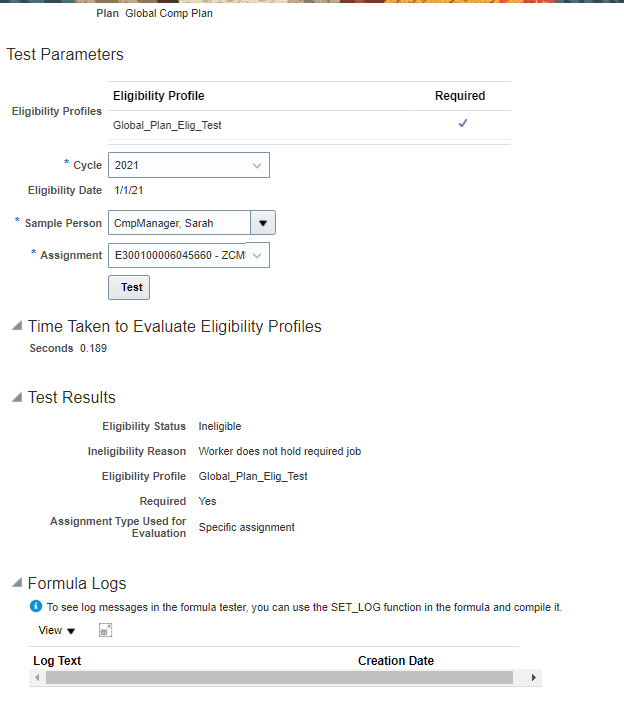
Updated Test Eligibility Profile Info
This change lets administrators gain better insight into how the eligibility profiles linked in plan setup affect the population.
Steps to Enable
You don't need to do anything to enable this feature.
All Assignments for a Person Included in the Same Grade Step Progression Batch Process Thread
We changed the way that the Accept Updates child process groups assignments into threads used by grade step progression batch processes. Now, all of a person's assignments are handled in the same thread. The Accept Updates process updates the assignment with the new grade and step, and updates the salary record with the new salary. You only see this process if your grade ladder Confirmation Type is Automatic.
The grade step progression processes use the Configure Batch Parameters task settings to determine how many threads to create and how many items to include in each thread. This example shows the Configure Batch Parameters page with Total Threads set to 10 and Chunk Size set to 10 for both the Run Grade Step Progression and Synchronize Grade Step Rates processes.
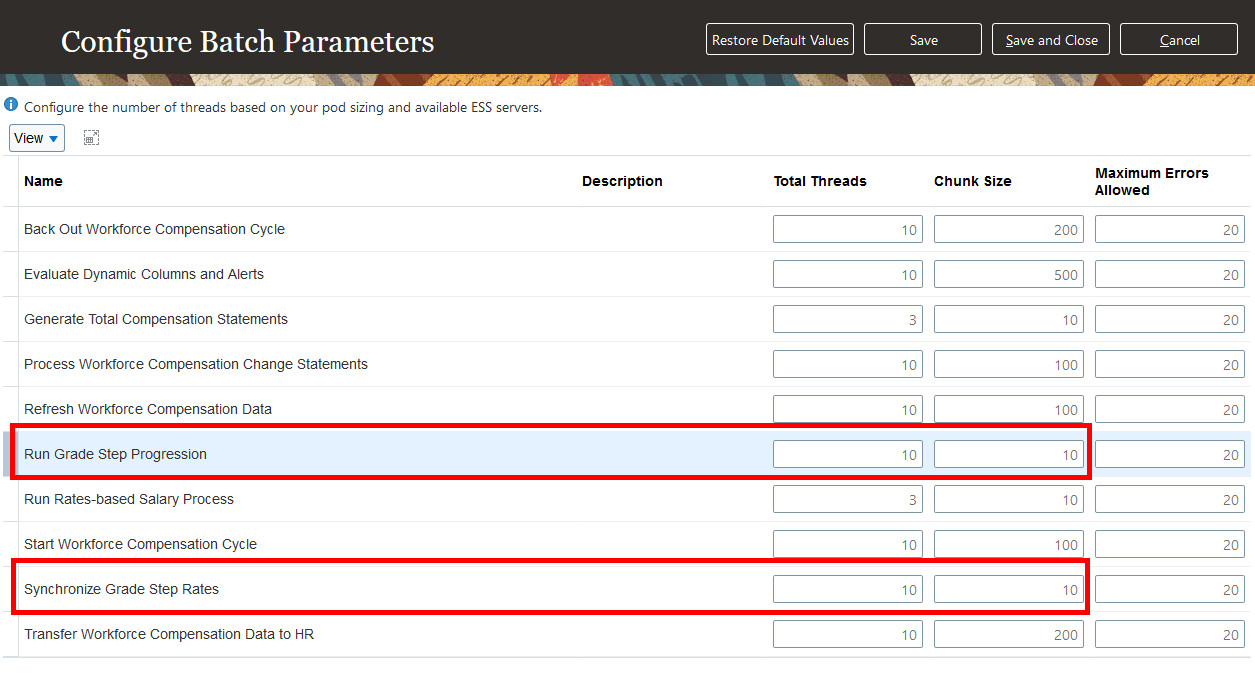
Configure Batch Parameters Page
Previously, the Accept Updates process used the Chunk Size quantity to determine how many assignments to process in each thread. In our example, there would be 10 assignments in each thread to start. After all 10 threads were used, the process added 10 more assignments to each thread until all assignments were processed. With this approach, if a person had multiple assignments, their assignments could be in separate threads.
Now, the Accept Updates process uses the Chunk Size quantity to determine how many people to process in each thread. A thread includes all of a person's assignments. In our example, it processes 10 people in each thread, and each thread includes all of the assignments for those 10 people.
With this enhancement, grade step progression batch processes streamline updates to people with multiple concurrent assignments.
Steps to Enable
You don't need to do anything to enable this feature.
Tips And Considerations
If you have people with multiple concurrent assignments, you can see the impact of this enhancement when you view the log file for the Accept Updates process. Select the Include trace statements in log file option when you run the process, so that you can see the assignment numbers in the log. This example is a partial log file showing that a single thread processed both assignments for a person.
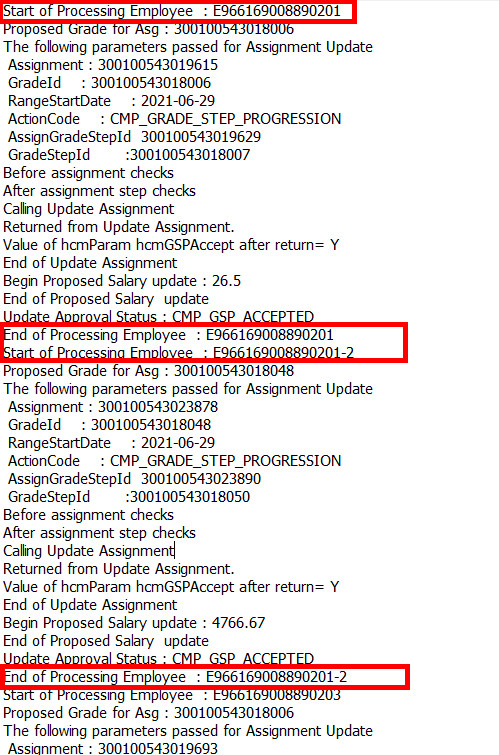
Partial Log File for the Accept Updates Batch Process
Key Resources
Implementing Workforce Compensation guide, Grade Step Progression Processing chapter, in the Oracle Help Center
Total Compensation - Person Communication Address Columns
Now you can use all the person mailing address columns in the rich text format template. Currently, RTF properties for the TCS printable statement support the following columns from Address:
- ADDRESS_LINE_1
- ADDRESS_LINE_2
- ADDRESS_LINE_3
- ADDRESS_LINE_4
- TOWN_OR_CITY,
- REGION_1
- REGION_2
- REGION_3
- POSTAL_CODE
- COUNTRY
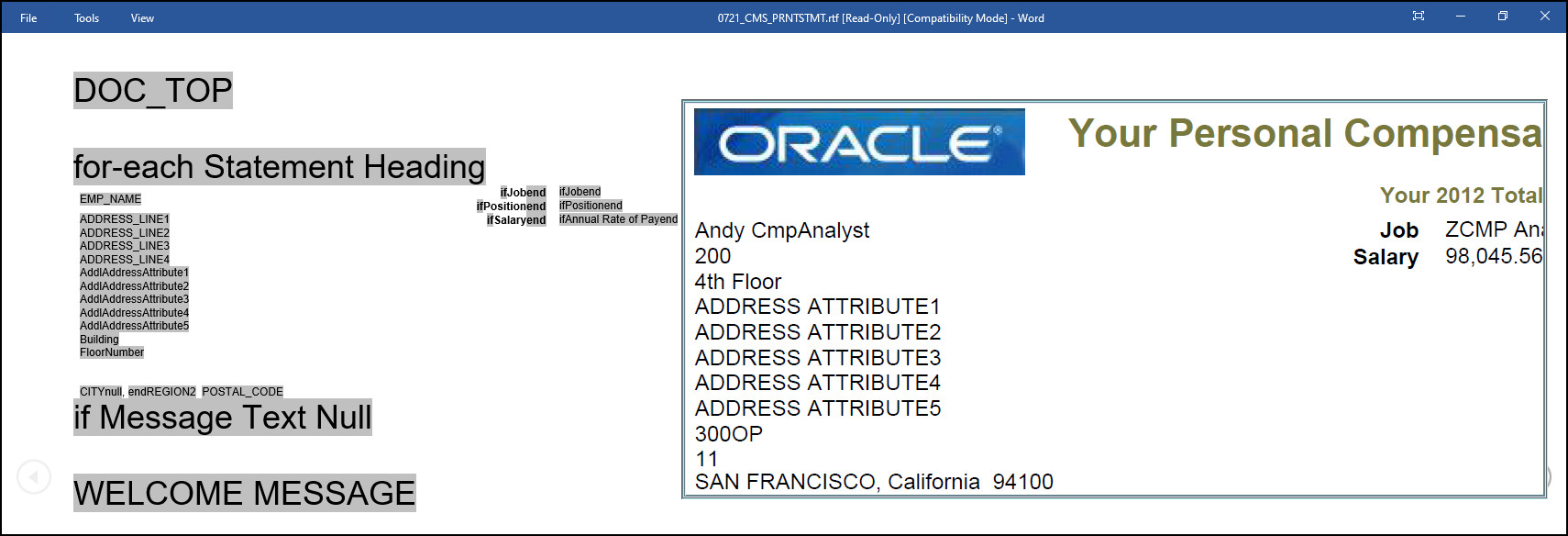
Previously we didn't support the tags below in the RTF, although they were available in the XML. The XML displays these columns only if there is a value. If you need to show these values in the printable statement, you can now customize the RTF to add the XML tags. We now deliver the ability to use the following XML tags in the RTF:
| Address Column | XML tag |
|---|---|
| FLOOR_NUMBER | FloorNumber |
| BUILDING | Building |
| LONG_POSTAL_CODE | LongPostalCode |
| ADDL_ADDRESS_ATTRIBUTE1 | AddlAddressAttribute1 |
| ADDL_ADDRESS_ATTRIBUTE2 | AddlAddressAttribute2 |
| ADDL_ADDRESS_ATTRIBUTE3 | AddlAddressAttribute3 |
| ADDL_ADDRESS_ATTRIBUTE4 | AddlAddressAtrribute4 |
| ADDL_ADDRESS_ATTRIBUTE5 | AddlAddressAttribute5 |
Address Columns and XML Tags
 "
"
Printable Statement Template
This feature lets you add any of the address columns that you populate to the printable total compensation statement.
Steps to Enable
You don't need to do anything to enable this feature.
Total Compensation Item - Monetary Unit of Measure
Now you can reduce and simplify the number of total compensation items you need to create. If you use fast formula, previously you had to create an item for each currency. This enhancement lets fast formula pass a valid currency code along with other data. When no currency is passed, the item setup currency is now used only as a default currency.
Total Compensation Item Fast Formula uses two type of returns:
- Array Variables
- Value Variables
Array Variables return the following array variables. As of this enhancement, people can pass Unit variables for monetary values:
- COMPENSATION_DATES
- VALUES
- ASSIGNMENTS
- LEGALEMPLOYERS
- UNIT
Value Variables return the following names. We allow 4 optional variables for every value and every variable can have more than one values delimited by “;”
- COMPENSATION_DATES, COMPENSATION_DATES1, COMPENSATION_DATES2, COMPENSATION_DATES3
- VALUES, VALUES1, VALUES2, VALUES3
- ASSIGNMENTS, ASSIGNMENTS1, ASSIGNMENTS2, ASSIGNMENTS3
- LEGALEMPLOYERS, LEGALEMPLOYERS1, LEGALEMPLOYERS2, LEGALEMPLOYERS3
- UNIT, UNIT1, UNIT2, UNIT3
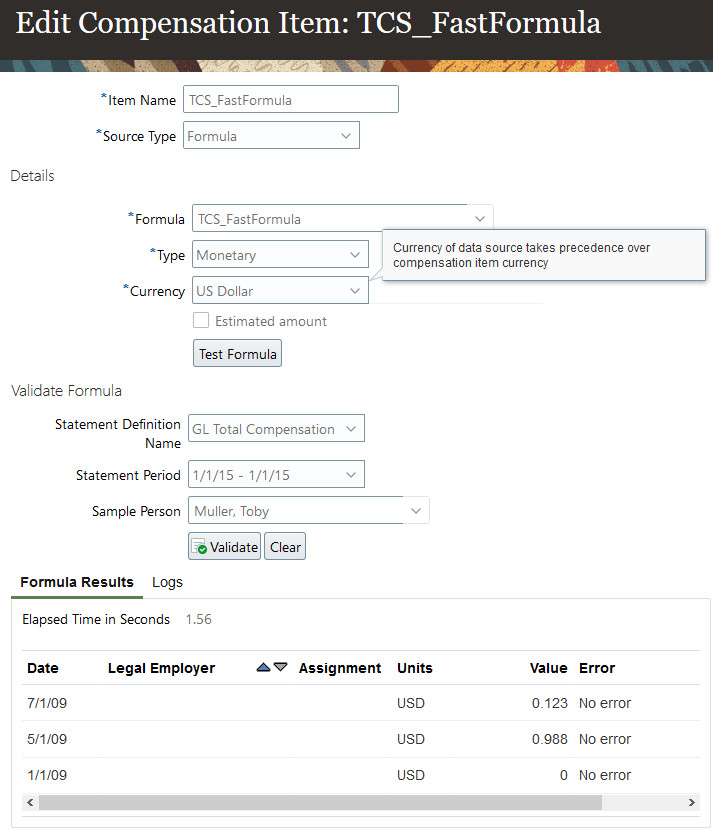
Edit Compensation Item
You no longer need to create separate items based on currency alone. Brought to you by Idea Lab: https://community.oracle.com/customerconnect/discussion/583481/allow-administrator-to-select-worker-local-currency-when-creating-compensation-item
Steps to Enable
You don't need to do anything to enable this feature.
Key Resources
For more information, see the following topic in Applications Help: Formula Type for Total Compensation Item
Transactional Business Intelligence Enterprise for Compensation
Oracle Transactional Business Intelligence is a real time, self-service reporting solution offered to all Oracle Cloud application users to create ad hoc reports and analyze them for daily decision-making. Oracle Transactional Business Intelligence provides human resources managers and specialists, business executives, and line managers the critical workforce information to analyze workforce costs, staffing, compensation, performance management, talent management, succession planning, and employee benefits.
Don’t want to start from scratch building a report or analytics? Check out the library of sample reports for all products on Customer Connect on the Report Sharing Center.
Additional Attributes to the Workforce Compensation Subject Areas
There are new attributes added across the compensation subject areas are listed below.
| Subject Area | Folder (Level 1) | Folder (Level 2) |
Attribute | |
| Compensation - Workforce Compensation Real Time | Compensation Manager | Compensation Person Details | Payroll Name | |
| Worker Number | ||||
| Compensation Person Worksheet Details | Reassigned By | |||
| Reassignment Date | ||||
| Review Manager | ||||
| Secondary Manager | ||||
| Compensation Promotions | Proposed Assignment Name | |||
| Proposed Grade Code | ||||
| Proposed Job Code | ||||
| Proposed Position Code | ||||
| Compensation Worksheet Manager | Compensation Person Details for Worksheet Manager | Payroll Name | ||
| Worker Number | ||||
| Compensation Person Worksheet Details for Worksheet for Worksheet Manager |
Reassigned By | |||
| Reassignment Date | ||||
| Review Manager | ||||
| Secondary Manager | ||||
| Compensation Promotions for Worksheet Manager | Proposed Assignment Name | |||
| Proposed Grade Code | ||||
| Proposed Job Code | ||||
| Proposed Position Code | ||||
| Compensation Worksheet Manager | Compensation Components and Rewards Details | Component Name | ||
| Component Number | ||||
| Amount Last Update Date | ||||
| Amount Last Updated By | ||||
| Effective Date | ||||
| Original Amount Updated By | ||||
| Prior Cycle Effective Date | ||||
| Prior Salary Change Date | ||||
| Compensation Components and Rewards | Compensation Components Details | Component Name | ||
| Component Number | ||||
| Amount Last Update Date | ||||
| Amount Last Updated By | ||||
| Effective Date | ||||
| Original Amount Updated By | ||||
| Prior Cycle Effective Date | ||||
| Prior Salary Change Date | ||||
| Compensation Components and Rewards | Compensation Percentage Maximum |
|||
| Compensation Percentage Minimum |
||||
| Percentage of Eligible Salary for Component |
||||
| Prior Cycle Compensation Percentage |
||||
| Target Compensation Percentage |
||||
| Target Compensation Percentage Maximum |
||||
| Target Compensation Percentage Minimum |
||||
| Compensation - Workforce Compensation Budgets Real Time | Compensation Manager | Compensation Person Worksheet Details | Reassigned By | |
| Reassignment Date | ||||
| Review Manager | ||||
| Secondary Manager | ||||
| Compensation Promotions | Proposed Assignment Name | |||
| Proposed Grade Code | ||||
| Proposed Job Code | ||||
| Proposed Position Code | ||||
| Compensation Worksheet Manager | Compensation Person Worksheet Details for Worksheet Manager |
Reassigned By | ||
| Reassignment Date | ||||
| Review Manager | ||||
| Secondary Manager | ||||
| Compensation Promotions for Worksheet Manager | Proposed Assignment Name | |||
| Proposed Grade Code | ||||
| Proposed Job Code | ||||
| Proposed Position Code |
With this feature you can enhance your reporting on compensation and compensation budget subject areas with the addition of new attributes.
Steps to Enable
You don't need to do anything to enable this feature.
Tips And Considerations
NOTE: Use Compensation Manager for HR users and Act as Proxy; use Compensation Worksheet Manager, when the consumers of the report should see results based on the plan hierarchy.
To see the details of various Compensation Components (1 to 5), simply add Component Name. (OTBI naturally rolls up numerical data unless pertinent detail is added as a column. This can be desirable in certain cases.) For example, the Compensation Manager role, can add new Component Name or Component Number columns from "Compensation Components Details". Similarly, the Worksheet (Line) Manager, can add new Component Name or Component Number columns from "Compensation Components and Rewards Details" located under Compensation Worksheet Manager. This is especially important to avoid rolling up incompatible components like monetary and units/shares together.
Grade Values in Salary Subject Areas
The following grade value attributes are added in the respective subject areas.
| Subject Area | Folder Level 1 | Folder Level 2 | Attributes |
|---|---|---|---|
| Compensation - Salary Details Real Time |
Salary Basis - Complete |
Grade Rate Values |
|
| Compensation - Salary History Details Real Time |
Salary Basis - Complete |
Grade Rate Values |
|
Enhance your reporting on salary and salary history subject areas with the inclusion of attributes related to grade values.
Steps to Enable
You don't need to do anything to enable this feature.
Tips And Considerations
Reminder: Salary Basis Complete works as a separate new folder for reporting on dimension only values, when you want to see all the info in setup tables. Salary Range Low, Salary Range Midpoint, Salary Range High and Grade Rate Value already exist in the Salary facts.
Range Differential Profile Attributes in Salary Subject Areas
The following attributes are added in the respective subject areas:
| Subject Area | Folder | Attributes |
|---|---|---|
| Compensation - Salary Details Real Time | Salary Details > Range Differential |
|
| Compensation - Salary History Details Real Time |
Salary Details > Range Differential |
|
This enhancement allows the users to understand what caused the salary range differential to be applied by knowing the code, criteria, name, ID, type, etc, that applies to that worker. Previously Salary Range Differential Factor was already available.
Steps to Enable
You don't need to do anything to enable this feature.
IMPORTANT Actions and Considerations for Compensation
REPLACED OR REMOVED FEATURES
From time to time, Oracle replaces existing Cloud service features with new features or removes existing features. When a feature is replaced the older version may be removed immediately or at a future time. As a best practice, you should use the newer version of a replaced feature as soon as the newer version is available.
| Product | Removed Feature | Target Removal | Replacement Feature | Replaced In | Additional Information |
|---|---|---|---|---|---|
| None at this time. |
_________________________
KNOWN ISSUES / MAINTENANCE PACK SPREADSHEETS
Oracle publishes a Known Issues document for every Update to make customers are aware of potential problems they could run into and the document provides workarounds if they are available.
Oracle also publishes Maintenance Pack and Statutory Maintenance Pack documentation of bugs that are fixed in the monthly or statutory patching.
To review these documents you must have access to My Oracle Support:
Oracle Human Capital Management Cloud Functional Known Issues and Maintenance Packs (Document ID 1554838.1)