
This document will continue to evolve as existing sections change and new information is added. All updates appear in the following table:
| Date | Product | Feature | Notes |
|---|---|---|---|
| 17 SEP 2021 | Created initial document. |
 HAVE AN IDEA?
We’re here and we’re listening. If you have a suggestion on how to make our cloud services even better then go ahead and tell us. There are several ways to submit your ideas, for example, through the Ideas Lab on Oracle Customer Connect. Wherever you see this icon after the feature name it means we delivered one of your ideas.
GIVE US FEEDBACK
We welcome your comments and suggestions to improve the content. Please send us your feedback at oracle_fusion_applications_help_ww_grp@oracle.com.
DISCLAIMER
The information contained in this document may include statements about Oracle’s product development plans. Many factors can materially affect Oracle’s product development plans and the nature and timing of future product releases. Accordingly, this Information is provided to you solely for information only, is not a commitment to deliver any material, code, or functionality, and should not be relied upon in making purchasing decisions. The development, release, and timing of any features or functionality described remains at the sole discretion of Oracle.
This information may not be incorporated into any contractual agreement with Oracle or its subsidiaries or affiliates. Oracle specifically disclaims any liability with respect to this information. Refer to the Legal Notices and Terms of Use for further information.
Column Definitions:
Report = New or modified, Oracle-delivered, ready to run reports.
UI or Process-Based: Small Scale = These UI or process-based features are typically comprised of minor field, validation, or program changes. Therefore, the potential impact to users is minimal.
UI or Process-Based: Larger Scale* = These UI or process-based features have more complex designs. Therefore, the potential impact to users is higher.
Features Delivered Disabled = Action is needed BEFORE these features can be used by END USERS. These features are delivered disabled and you choose if and when to enable them. For example, a) new or expanded BI subject areas need to first be incorporated into reports, b) Integration is required to utilize new web services, or c) features must be assigned to user roles before they can be accessed.
| Ready for Use by End Users Reports plus Small Scale UI or Process-Based new features will have minimal user impact after an update. Therefore, customer acceptance testing should focus on the Larger Scale UI or Process-Based* new features. |
Customer Must Take Action before Use by End Users Not disruptive as action is required to make these features ready to use. As you selectively choose to leverage, you set your test and roll out timing. |
|||||
|---|---|---|---|---|---|---|
| Feature |
Report |
UI or |
UI or |
|
||
Reports Now Cover User Assignment Security for Remediation Plans |
||||||
Data Migration Import State Transition and Ability to Import URL Attachments |
||||||
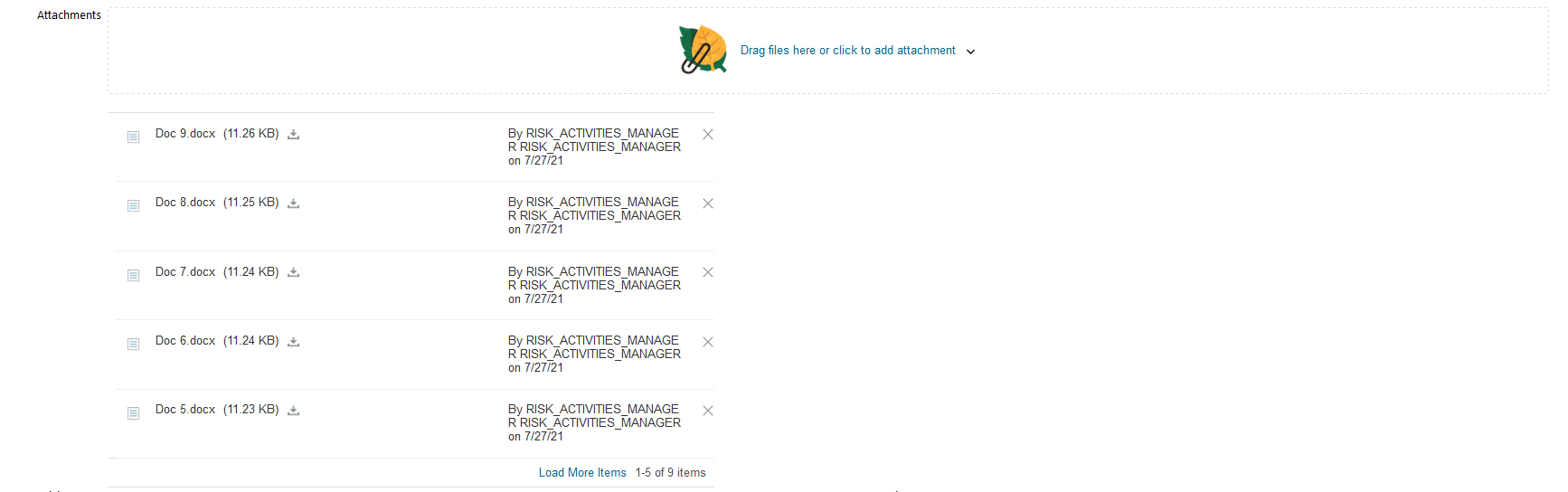
When multiple attachments are added to a single record, the initial list is limited to the first five records. The list of records can be expanded in increments of five.
Attachments
This feature will enhance the usability of attachments, specifically when there's a larger number added to a single record for documentation purposes.
Steps to Enable
You don't need to do anything to enable this feature.
Group Security Assignment Authorization Display Update
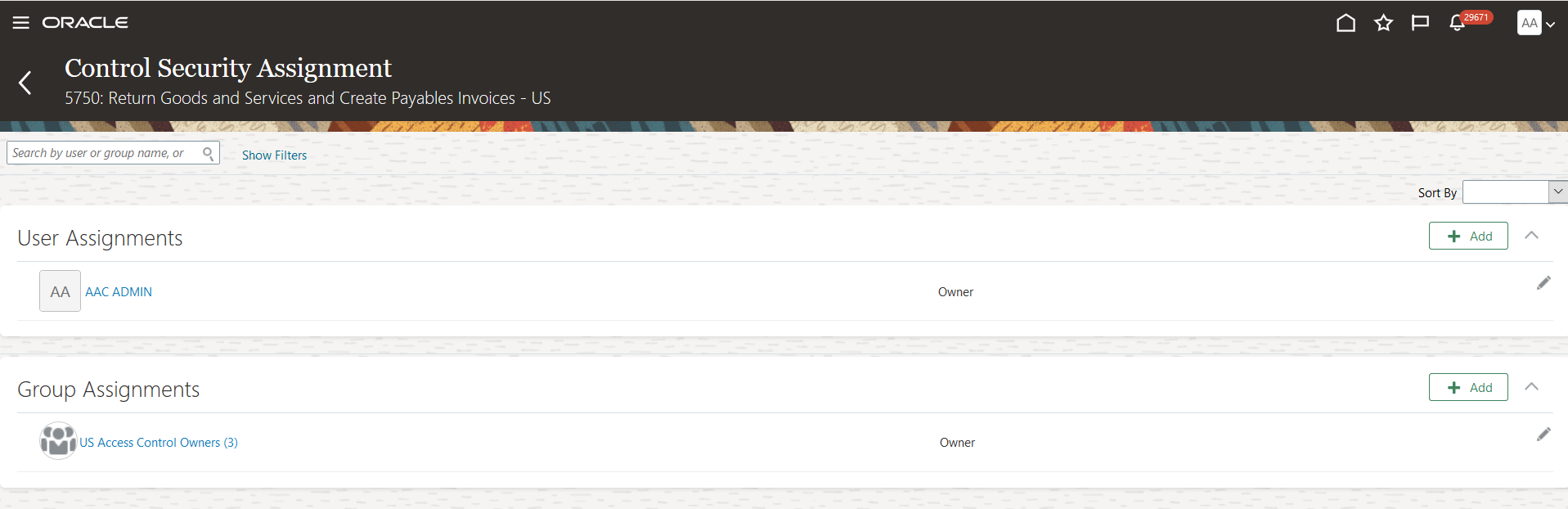
When user groups are assigned to records, the Authorized As value is now displayed as read only. Previously the authorization of the group was displayed as a list of values.
User Group Security Assignment Display
This update will remove confusion related to what can be done when user groups are assigned to records.
Steps to Enable
You don't need to do anything to enable this feature.
Additional Risk Management Quick Actions Added
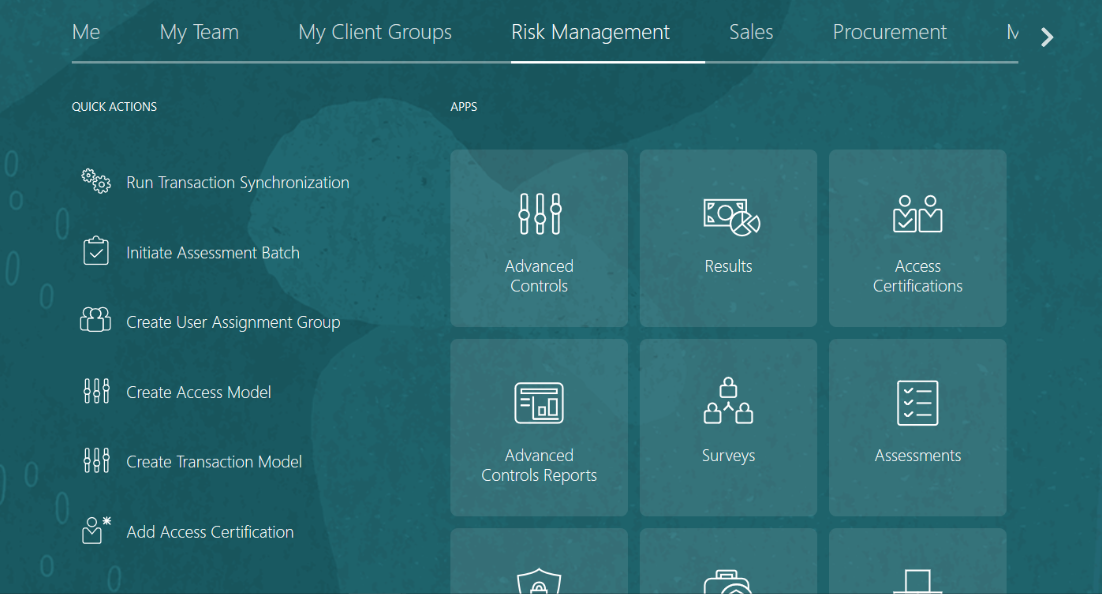
The ability to quickly add new records within Risk Management has been extended to Advanced Controls and Access Certifications functionality.
- Create Access Model
- Create Transaction Model
- Add Access Certification
Risk Management Quick Actions
These new Quick Actions will reduce the number of steps needed by users who want to perform a specific create action.
Steps to Enable
You don't need to do anything to enable this feature.
Audit Is Enabled for User Assignment Groups
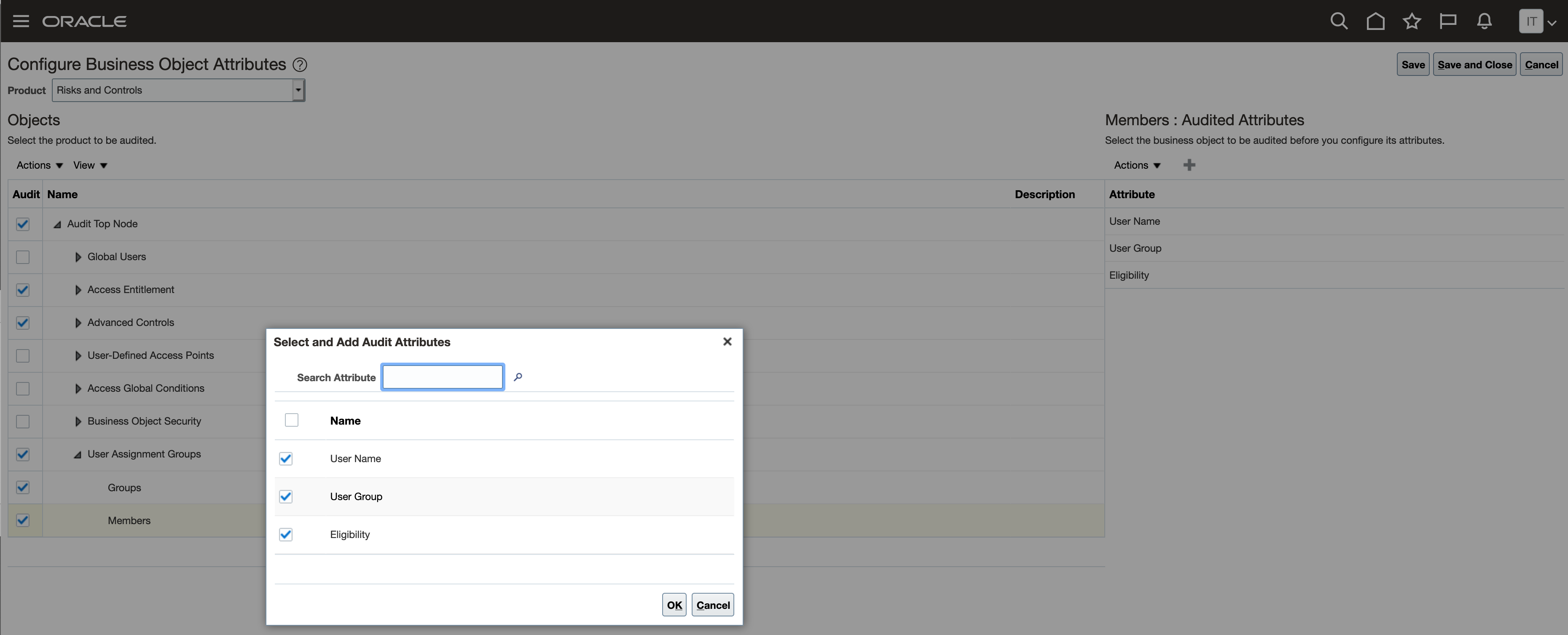
You can now track changes made to Risk Management user assignment groups. For example, suppose a user assignment group has three members in it originally, and later another person is added. You can now run a report to see that change, who made the change, and when. These are the attributes tracked: Group Name, Authorization, Object, User Name, User Group, and Eligibility.
Audit Business Object Security
You can now demonstrate for auditors and management who has had access to records and for what timeframe.
Steps to Enable
- As a user such as Application Implementation Consultant, navigate to Setup and Maintenance and look for the Manage Audit Policies task. Go to Configure Business Object Attributes and then select Risks and Controls from the Product drop down.
- Select Groups or Members under the User Assignment Groups header. Then select the plus icon in the corresponding Audited Attributes section. Check each of the attributes you'd like to track changes for.
- Now make a change to a user assignment group.
- Again, logged in as a user such as Application Implementation Consultant, navigate to Audit Report.
- Search for product Risks and Controls and click Search to see the history of inserts, updates, and deletes.
Transactional Business Intelligence for Risk Management
Reports Now Cover User Assignment Security for Remediation Plans
To secure Risk Management remediation plans, you authorize users as owners, editors, or viewers, or you assign user groups that grant these authorizations. To secure remediation plan workflow, you assign reviewers and approvers. You can now report on the users and groups selected for remediation plan records, and their levels of authorization. Reports also display whether each user is eligible, meaning that the user also has the functional access.
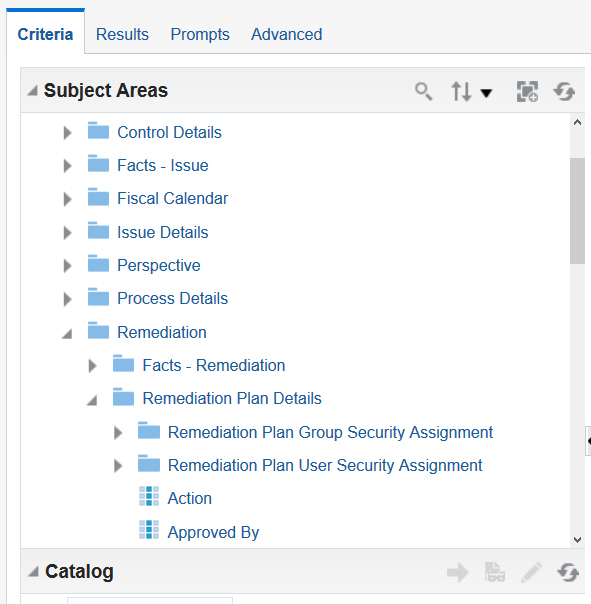
Example of the Risk Management Cloud - Assessment Results subject area
The addition of these new dimensions in OTBI allows reporting on remediation plan security assignment groups and their members.
Steps to Enable
You don't need to do anything to enable this feature.
IMPORTANT Actions and Considerations
FINANCIAL REPORTING COMPLIANCE
Treatment Plans
Each treatment plan will support only a single treatment, rather than multiple treatments per plan. You may continue to have multiple treatment plans to manage a specific risk record.
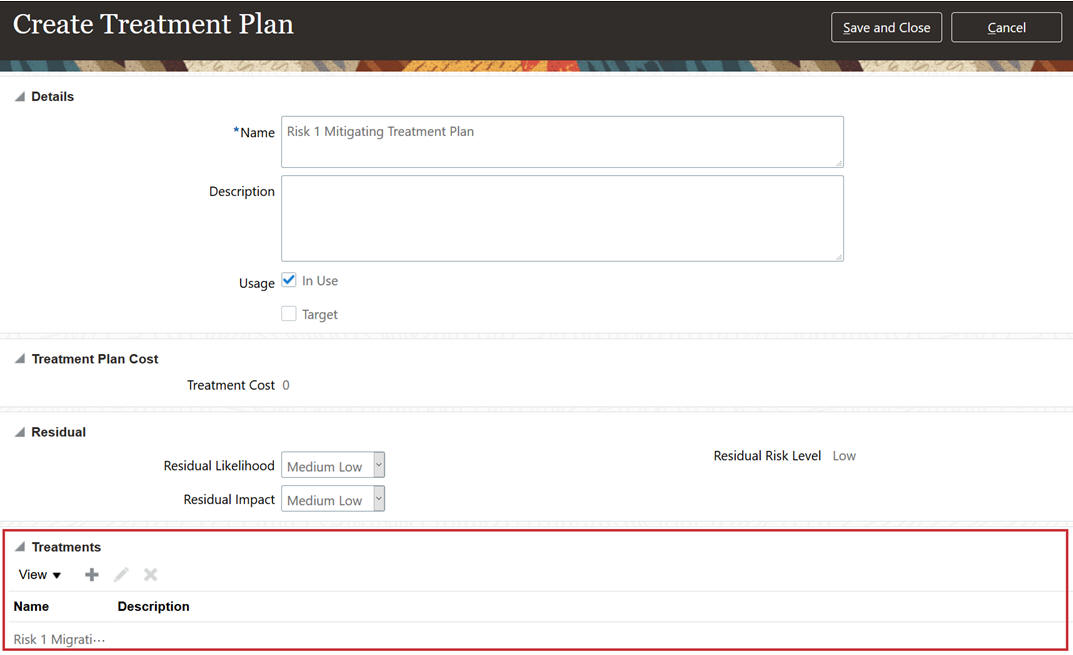
Treatment Plans
Encrypted IDs in Export Files
In a future release, the SYSTEM_ID value will no longer be encrypted. Rather, the export template will include the numeric system ID. This is the same ID that is available in OTBI. This will require a new export of the data to be generated, so it can be used later to import the data.
ADVANCED FINANCIAL CONTROLS
Changes to Audit - Fixed Asset Category
If you have generated incident records containing Category Old or Category New attribute data from the Audit - Fixed Asset Category business object, perform these steps before your environment is updated to 21D:
- Export an xml copy of control that generated the incidents.
- Export documentation of the incidents.
- Inactivate the control.
- After the update to 21D, do not reactivate the control that you inactivated in Step 3. If you still need to analyze the same kinds of transactions, import your xml copy and deploy it as a new control; you can accelerate management of the new incidents by referring to the documentation you exported in Step 2.
NOTE: Those steps are needed because 21D introduces improvements to the way Category Old and Category New data are stored, and those improvements necessitate changes to the way Risk Management analyzes them. The steps are not needed for models.
Financial Reporting Compliance
Financial Reporting Compliance
Send Email Reminder Email Configuration Change
In Financial Reporting Compliance, users may send email reminders to complete assessments, surveys, or tasks related to issues or remediation plans. These are sent regardless of whether email alerts are enabled or disabled in the Manage Configuration Options page of the Setup and Administration work area.
The Risk Management email notification configuration setting will not impact the end user triggered email reminder within Financial Reporting Compliance. The end user can send email reminders, even though the general email notification setting is not enabled.
Steps to Enable
You don't need to do anything to enable this feature.
Data Migration Import State Transition and Ability to Import URL Attachments
At the point data is imported into Risk Management, new records are imported at the Approved state. For records when incremental imports may change existing data relationships, the state does not change; the state of each of these records remains as it was prior to the import.
In addition, you can now import URLs as attachments associated to object records.
Typically during your initial implementation, you need to import your legacy data. The process for importing object records is streamlined to enable you to apply legacy data without the need to approve new records, and simplified by maintaining the state for records being updated due to an incremental load. As already supported, you can only incrementally add net new records or relationships. The Migration tool is not meant to be used as a mass-edit tool, therefore.
In many cases, you will need to add attachments to your defined object records. The ability to import URLs minimizes the need to update each record's attachments manually.
Steps to Enable
You don't need to do anything to enable this feature.
Assign Default Actors for Control Certification Assessments
The owner of a control can select assessors, viewers, reviewers, and approvers who are assigned by default to certification assessments of the control. The control owner makes these selections while working with the control record, using a Default Assessment Security Assignment page. The assessors, viewers, reviewers, and approvers are then assigned by default to all certification assessments for which the control is scoped. (They aren't assigned, however, to any type of control assessment other than certification.) The owner of an assessment batch that includes the control can update the default security assignments.
Defining the Default Assessment Security Assignment
The assignment of default assessment security is similar to the common assignment of security within Risk Management. In the control record, the control owner can select Security Assignment > Default Assessment Security Assignment, and then assign users, groups, or both to define default actors for certification assessments. A group would specify the Control Certification Assessment Result object and an appropriate authorization, such as Assessor or Approver.
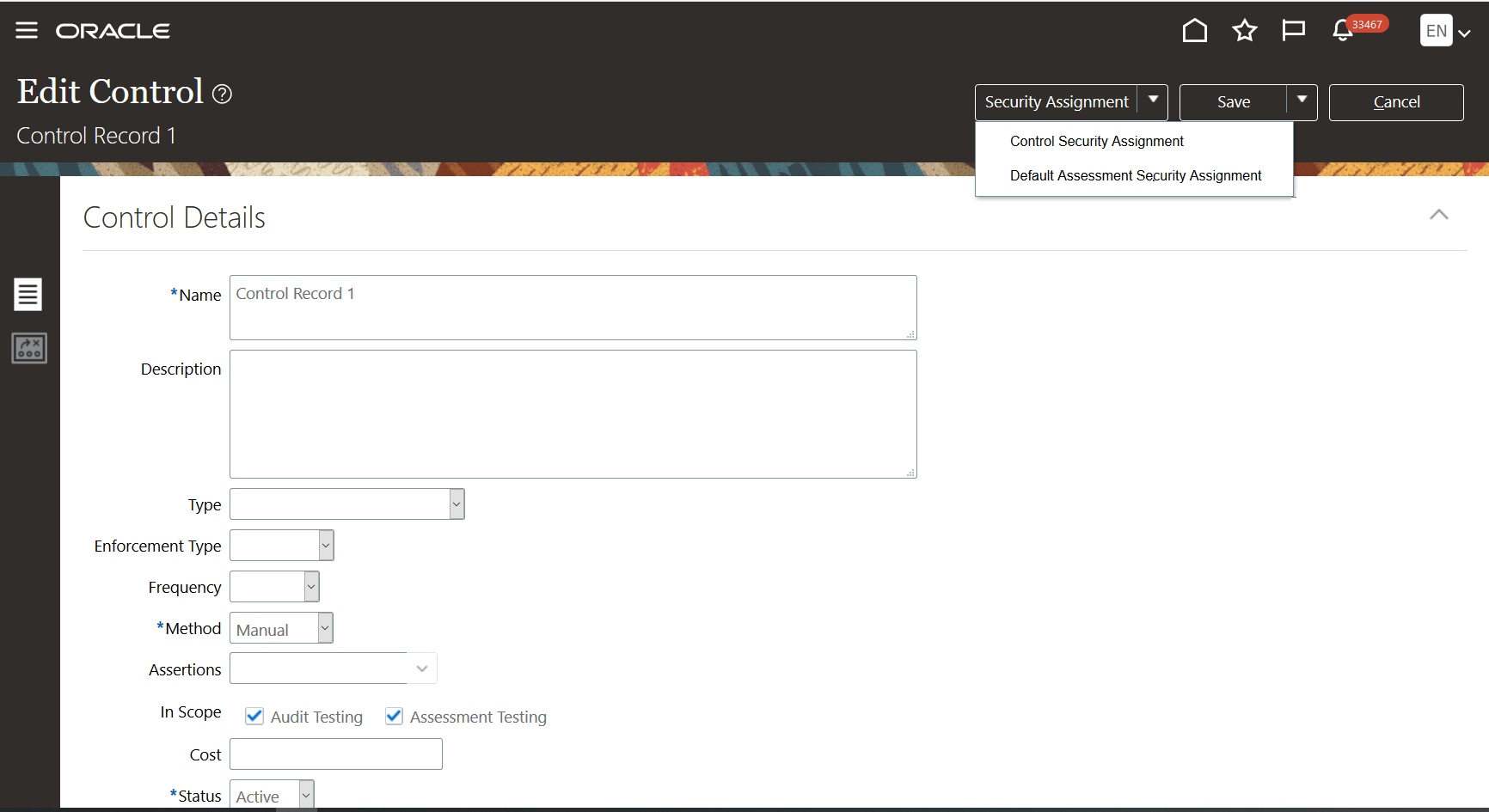
The Edit Control Definition Page Now Has Two Security Actions, One for the Control and One for Its Certification Assessments
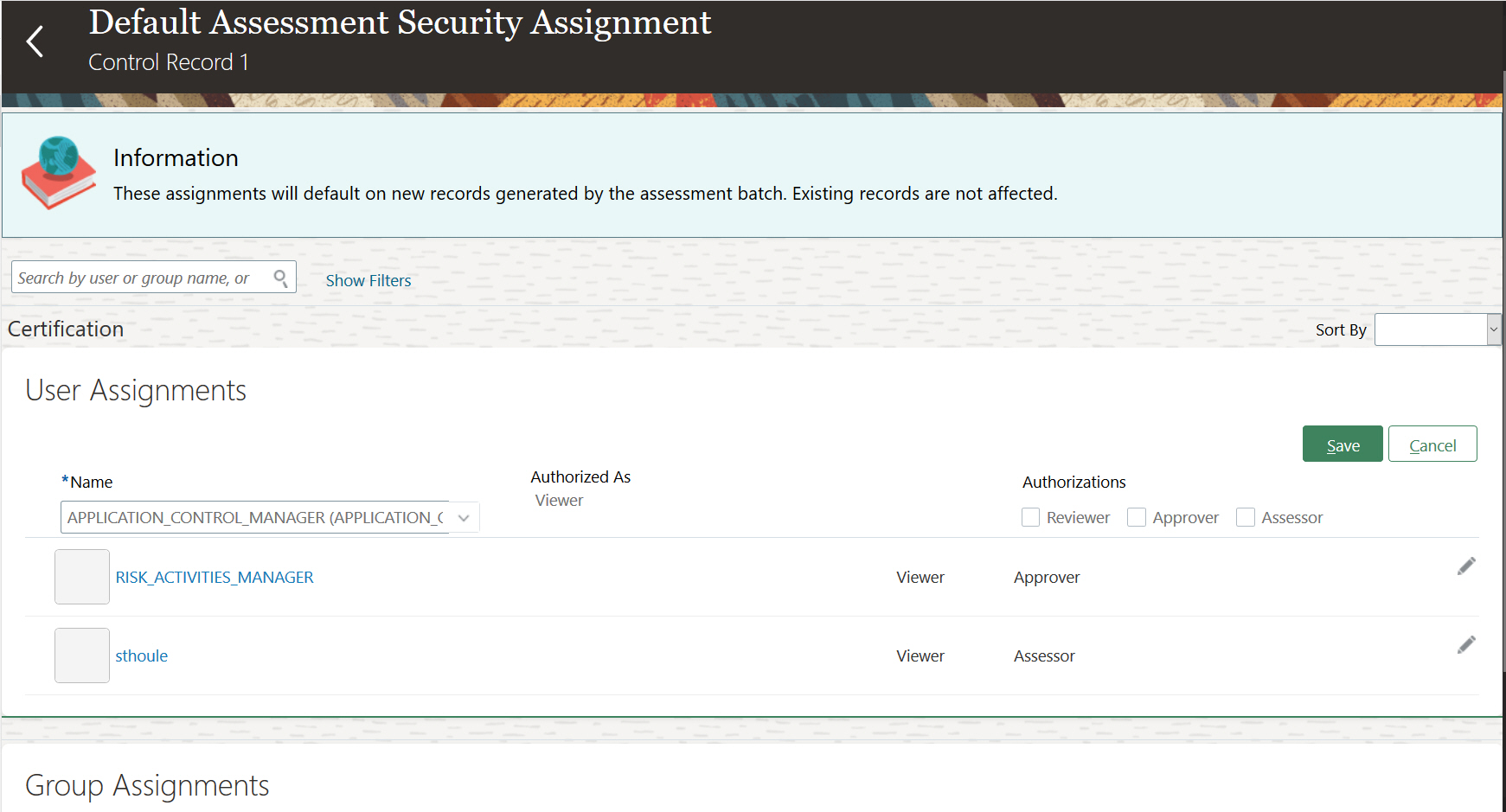
Assessment Actors Selected in a Control's Default Assessment Security Assignment Page
Initiating an Assessment Batch When Default Security Has Been Defined
The overall steps for initiating a certification assessment batch haven't changed. The assessment batch owner follows the same guided process. Once the owner saves the batch security assignments, the Assessment Records Security Assignment page opens, displaying records of controls the owner has selected. For each control that defines assessment actors, the page displays those actors automatically. The assessment batch owner can accept the default assignments, add actors, or remove the default assessment actors and add new ones. The default assessment security assignment has no impact if an owner duplicates an assessment batch; the security definitions are copied as they were defined in the source assessment batch.
Here's an example of the Assessment Records Security Assignment page for an assessment, populated with default actors selected in a control record.
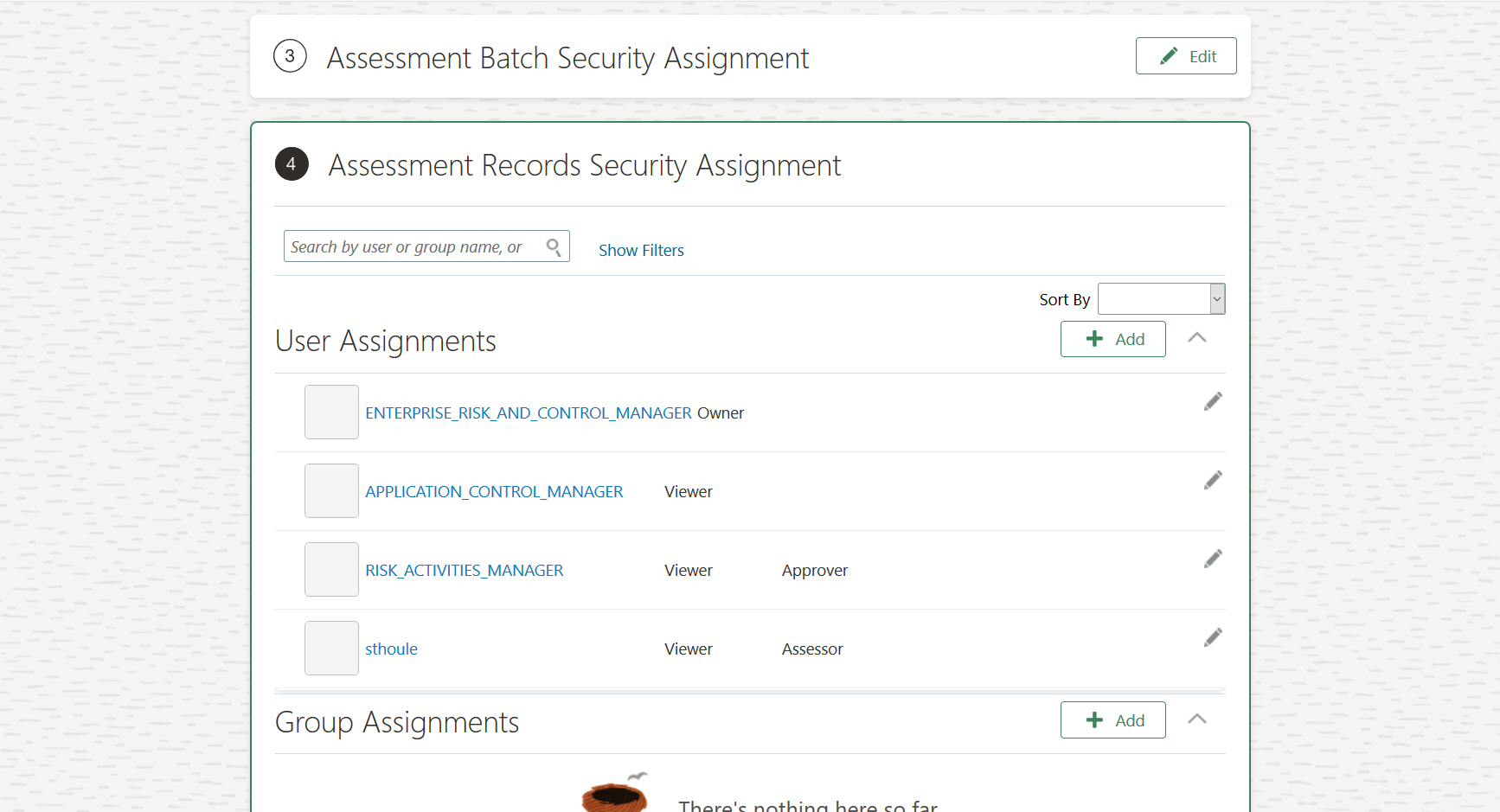
Impromptu Assessment with Prepopulated Default Security
Mass Edit Default Security Assignments for Controls
In the Mass Edit Security Assignment page, authorized users can update the default assessment security assignments for any number of controls. The page is available at Risk Management Data Security > Mass Edit. First select the Control Default Certification Assessment object, and then select any number of controls whose assessment security is to be edited.
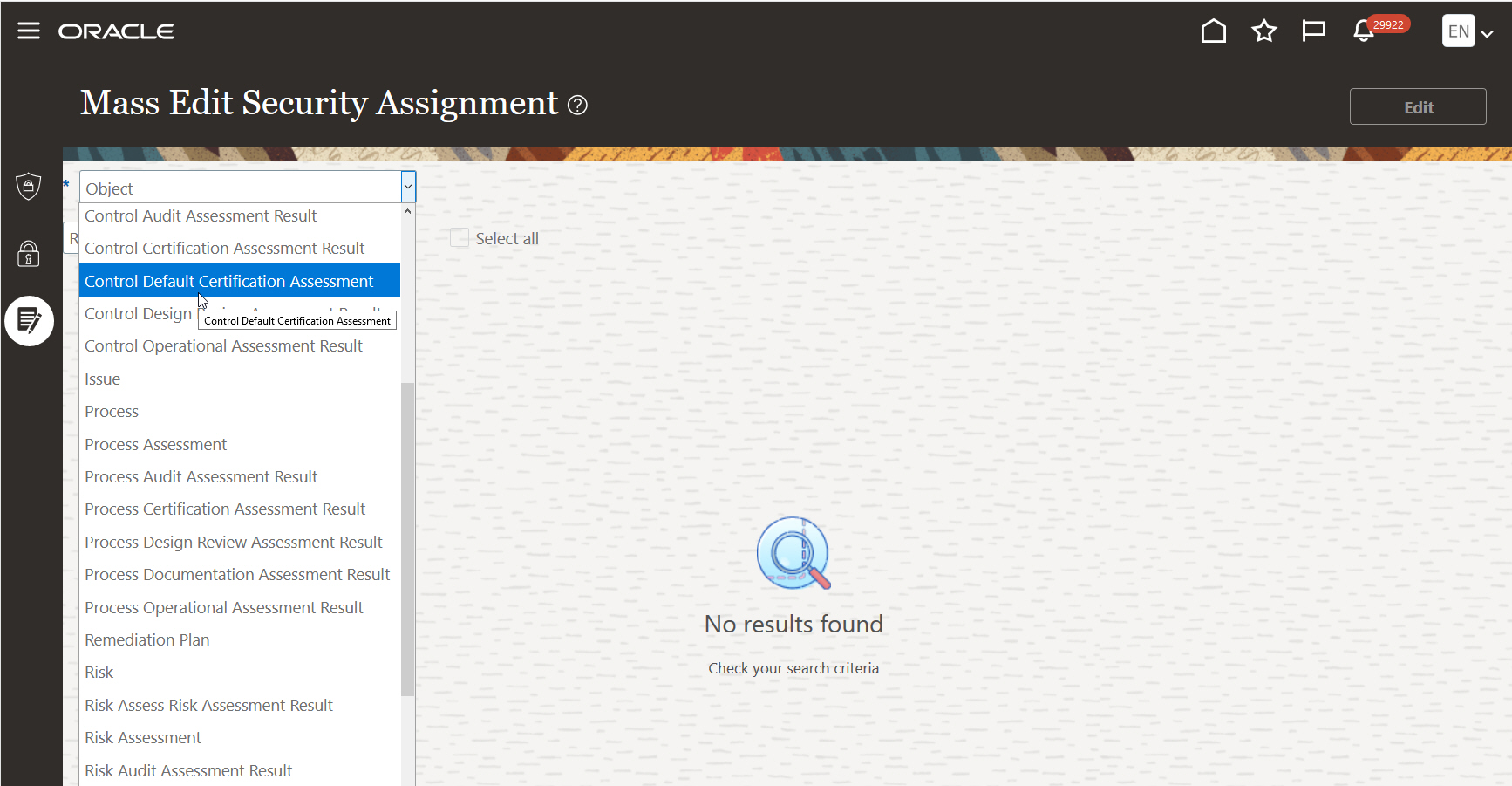
Example of Mass Edit Security Assignment
Then you have the same options as before: In Define Security Assignment Goals, you determine whether to work with users or groups, and whether to append, remove, or replace them. If you're working with users, you select the authorizations to edit in Define Security Assignment Authorizations. Finally, you select the users or groups to be updated. The guided process walks you through the required selections. Your changes apply only to assessment batches initiated after you submit the changes.
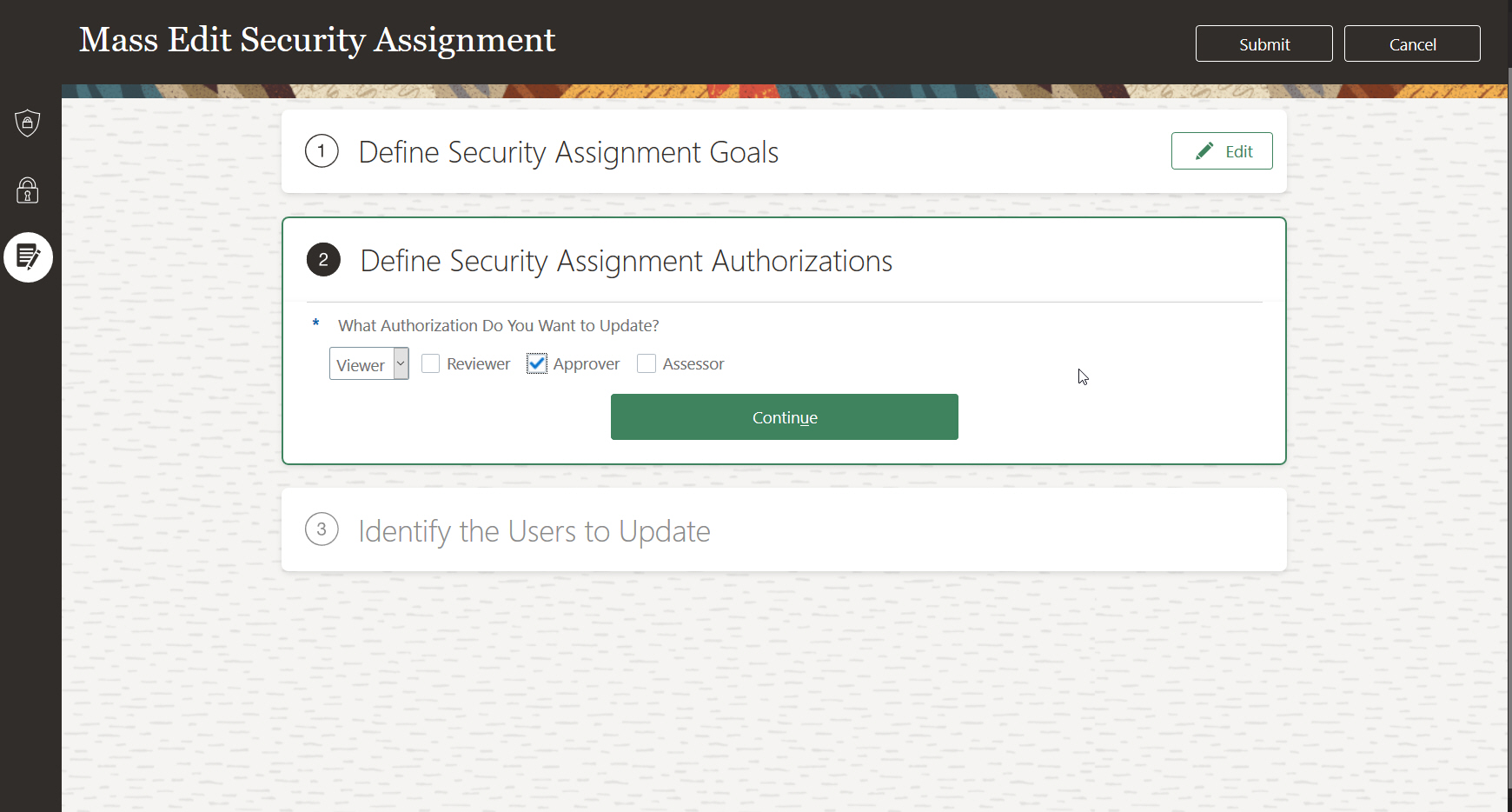
Example of the Mass Edit Guided Process
The control certification assessment process typically requires all documented control records to be certified by many users (50 to 300 individuals). Typically these users are authorized at a minimum to view the control record. To simplify the process, the owner can define control record viewers and the appropriate default certification authorizations all at once. The same would be true when the authorization needs to be updated, due to a change in the organization or overall responsibilities. The owner can leverage Risk Management Mass Edit feature to quickly update users' authorizations.
Steps to Enable
You don't need to do anything to enable this feature.
Tips And Considerations
In the event you have a large number of certification assessment actors, consider creating user groups, which simplify the overall maintenance of managing actors as their assessment responsibilities change.
Changes to Surveys and Perspectives in Assessments
Multiple enhancements pertain to assessment records and assessment batches:
- You can now view the assessor's submitted survey responses within the assessment record.
- When you copy an assessment batch, the copy includes the survey template.
- When you copy an assessment batch, if perspective values used for scoping in the prior batch have become inactive, they are flagged as inactive in the copy. The records associated with inactive perspectives are not included among proposed records for the assessment-batch copy.
Viewing Assessor's Submitted Survey Responses
Authorized users can view the assessor's submitted survey responses within the assessment record, by navigating to the assessment record and the Complete Survey train stop.
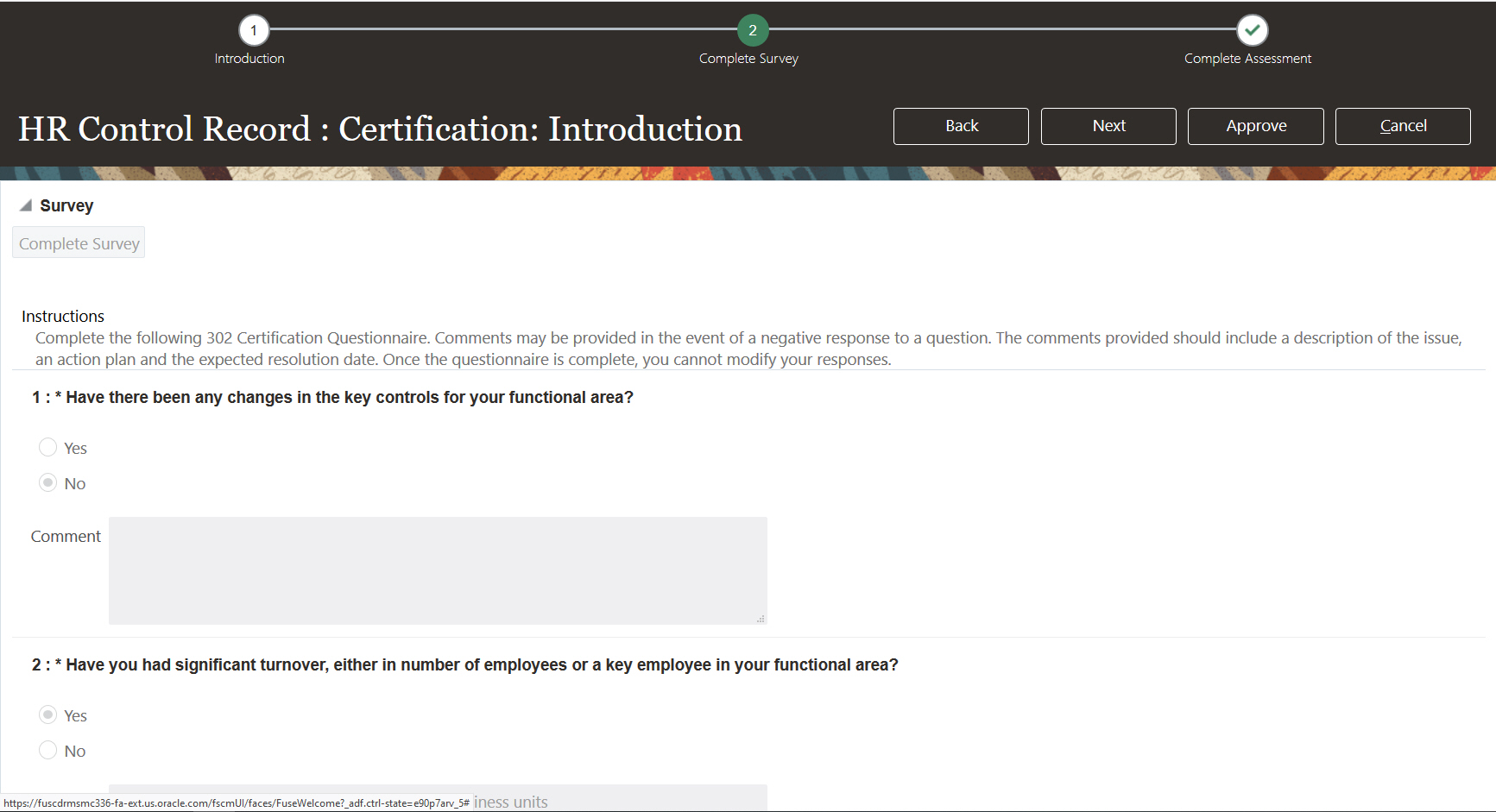
Example of Viewing Assessor's Submitted Survey Responses
Copying a Prior Assessment Batch Includes The Survey Template
When you copy a prior assessment batch, the new version includes the survey template that was associated with the version you're copying. You need to define a new Survey Prefix Name so that the survey name is unique. In addition, you are able to update the survey template being used.
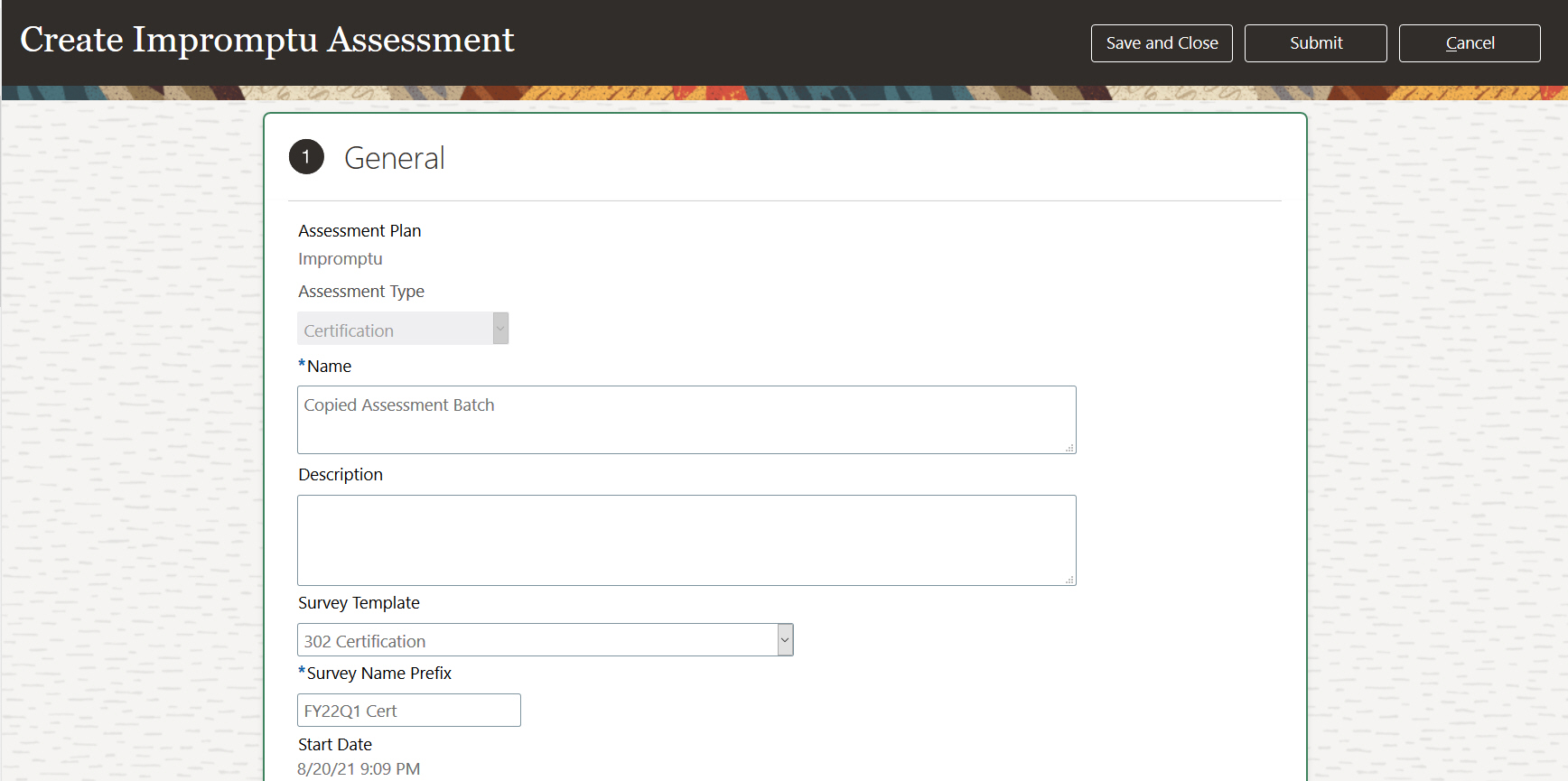
Example of Copying a Prior Impromptu Assessment Batch That Included a Survey
Because survey responses can be viewed within the assessment record, all authorized assessment actors can view the responses without having to navigate to the Survey work area or view an OTBI report. The feature streamlines the assessment workflow by enabling reviewers and approvers to view survey responses within the assessment train.
Scoping criteria for an assessment batch may include perspective values to filter the records proposed for assessment. A copy of an assessment batch includes the perspective values selected for the original. After the original batch was initiated, however, perspective values may have been updated to inactive. If so, the owner of the copied assessment batch can now view which values are inactive and which records are impacted, and so determine whether to create a new assessment batch with updated scoping criteria.
Steps to Enable
You don't need to do anything to enable this feature.
Associate a Survey Template to an Impromptu Assessment
You can now associate a survey template to an impromptu assessment.
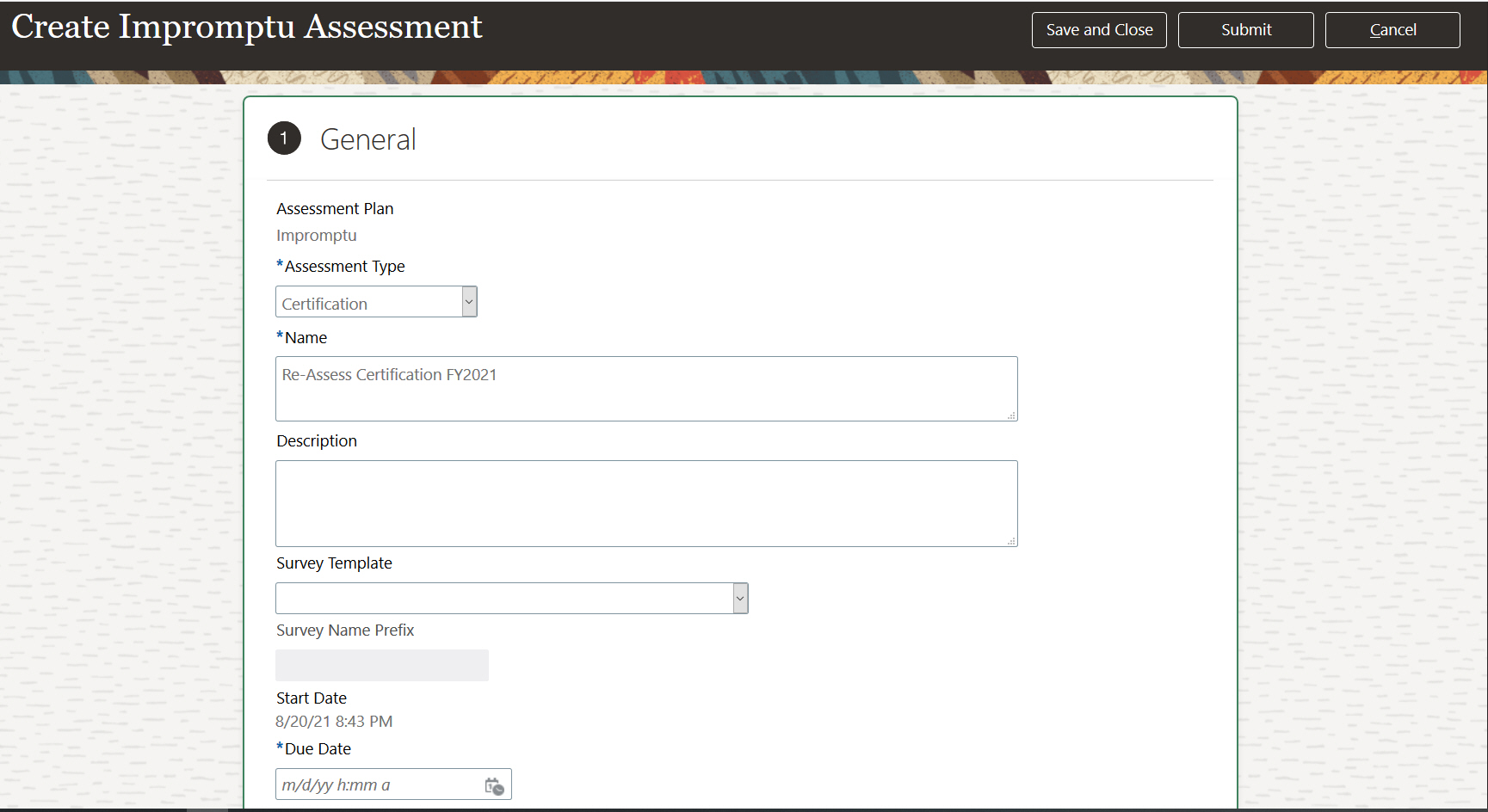
Example of Creating an Impromptu Assessment for a Control Record
While defining the 'General' details of the impromptu assessment you can select a survey template and define the survey name prefix. The survey name prefix is concatenated with the assessment name to generate a unique survey name.
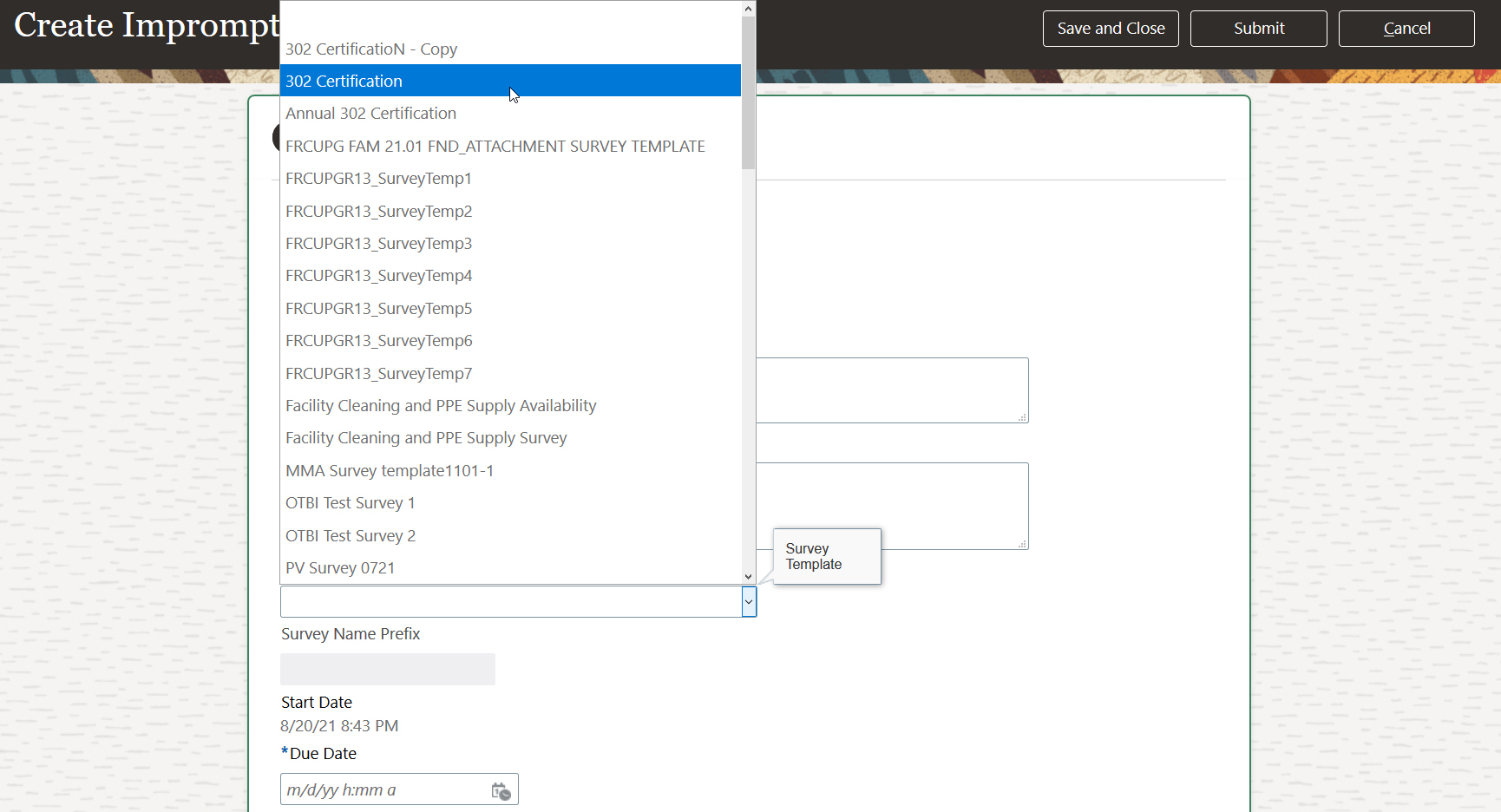
Example of Selecting a Survey Template
Associating a survey template to an impromptu assessment enables authorized actors to quickly initiate an assessment that includes a survey.
Steps to Enable
You don't need to do anything to enable this feature.