
- Revision History
- Overview
- Feature Summary
- Risk Common
- IMPORTANT Actions and Considerations
- Financial Reporting Compliance
-
- Financial Reporting Compliance
-
- Changes to Remediation Plans and Tasks
- Change to Managing Control Relationships to Risks
- Changes to the Creation of Issues
- Changed Encrypted IDs in the Import Template
- Changes to Assessment Action Buttons
- Configuration Option to Make Survey Mandatory in Assessments
- Enhancements to Assessment Survey UI Flow
-
- Financial Reporting Compliance
This document will continue to evolve as existing sections change and new information is added. All updates appear in the following table:
| Date | Product | Feature | Notes |
|---|---|---|---|
| 23 DEC 2021 | Created initial document. |
 HAVE AN IDEA?
We’re here and we’re listening. If you have a suggestion on how to make our cloud services even better then go ahead and tell us. There are several ways to submit your ideas, for example, through the Ideas Lab on Oracle Customer Connect. Wherever you see this icon after the feature name it means we delivered one of your ideas.
GIVE US FEEDBACK
We welcome your comments and suggestions to improve the content. Please send us your feedback at oracle_fusion_applications_help_ww_grp@oracle.com.
DISCLAIMER
The information contained in this document may include statements about Oracle’s product development plans. Many factors can materially affect Oracle’s product development plans and the nature and timing of future product releases. Accordingly, this Information is provided to you solely for information only, is not a commitment to deliver any material, code, or functionality, and should not be relied upon in making purchasing decisions. The development, release, and timing of any features or functionality described remains at the sole discretion of Oracle.
This information may not be incorporated into any contractual agreement with Oracle or its subsidiaries or affiliates. Oracle specifically disclaims any liability with respect to this information. Refer to the Legal Notices and Terms of Use for further information.
Column Definitions:
Report = New or modified, Oracle-delivered, ready to run reports.
UI or Process-Based: Small Scale = These UI or process-based features are typically comprised of minor field, validation, or program changes. Therefore, the potential impact to users is minimal.
UI or Process-Based: Larger Scale* = These UI or process-based features have more complex designs. Therefore, the potential impact to users is higher.
Features Delivered Disabled = Action is needed BEFORE these features can be used by END USERS. These features are delivered disabled and you choose if and when to enable them. For example, a) new or expanded BI subject areas need to first be incorporated into reports, b) Integration is required to utilize new web services, or c) features must be assigned to user roles before they can be accessed.
| Ready for Use by End Users Reports plus Small Scale UI or Process-Based new features will have minimal user impact after an update. Therefore, customer acceptance testing should focus on the Larger Scale UI or Process-Based* new features. |
Customer Must Take Action before Use by End Users Not disruptive as action is required to make these features ready to use. As you selectively choose to leverage, you set your test and roll out timing. |
|||||
|---|---|---|---|---|---|---|
| Feature |
Report |
UI or |
UI or |
|
||
Reports Now Cover Control Stratification and Additional Survey Attributes |
||||||
Configuration Option to Make Survey Mandatory in Assessments |
||||||
Updated "Run By" Search Attribute in Monitor Jobs
In Monitor Jobs, you can search for jobs run by a specific person. It used to be that you could select from a list of 500 users. But any users in excess of 500 would not show in the list. So now, rather than selecting from a limited list, you search for any part of a user name in a free-form text box. If you have saved searches that use the Run By field, you can continue to use the limited list of 500 users for those saved searches. Any new search you create will allow you to search using free-form text instead.
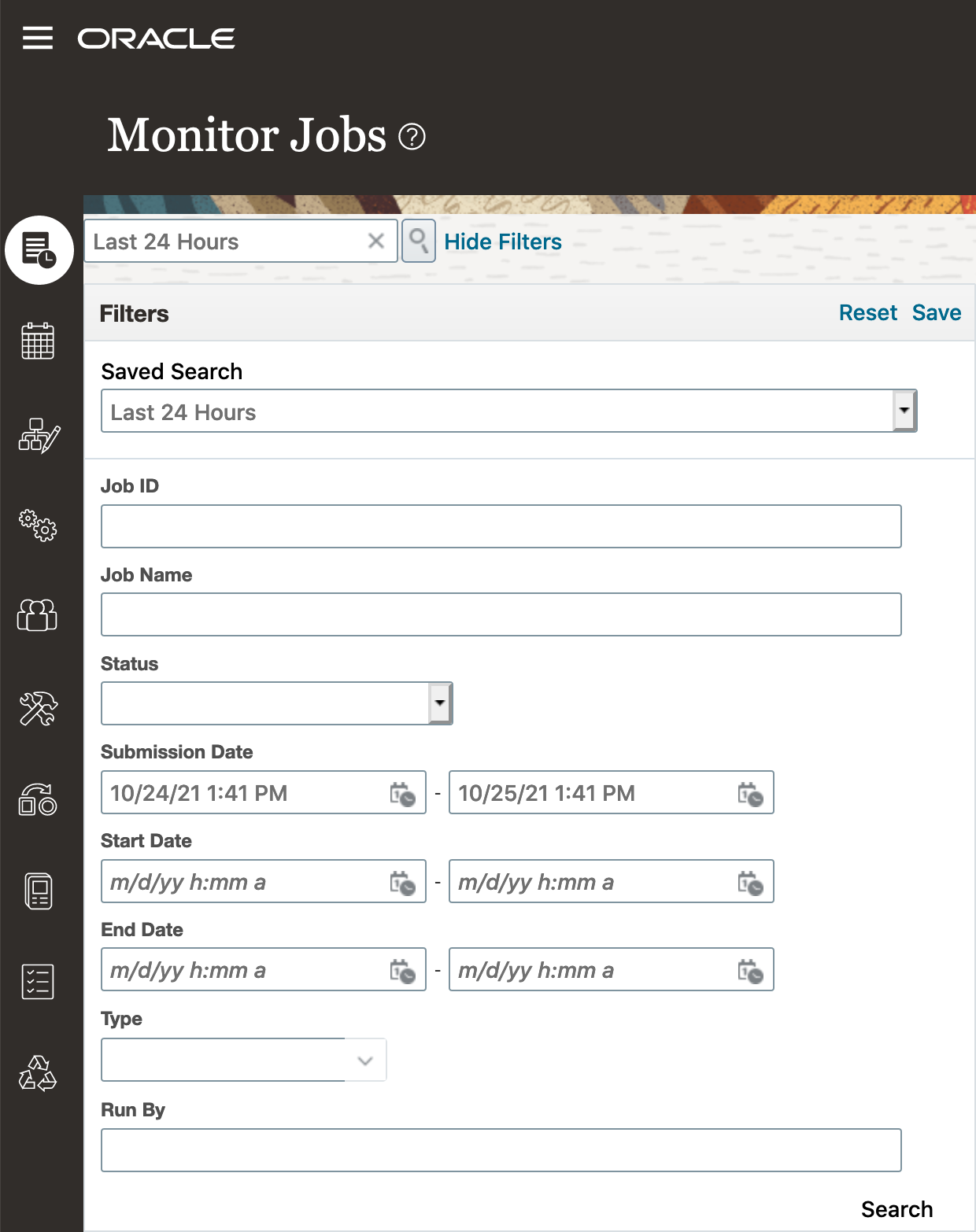
Search Run By
You can now search for any user who may have run a job.
Steps to Enable
You don't need to do anything to enable this feature.
Ability to Mass Edit Security User Group Membership
Security administrators and user group owners can now use the security mass edit functionality to update the members within a security user group.
Just like with any other security mass edit, this includes the ability to append, remove, or replace users as members within the selected groups
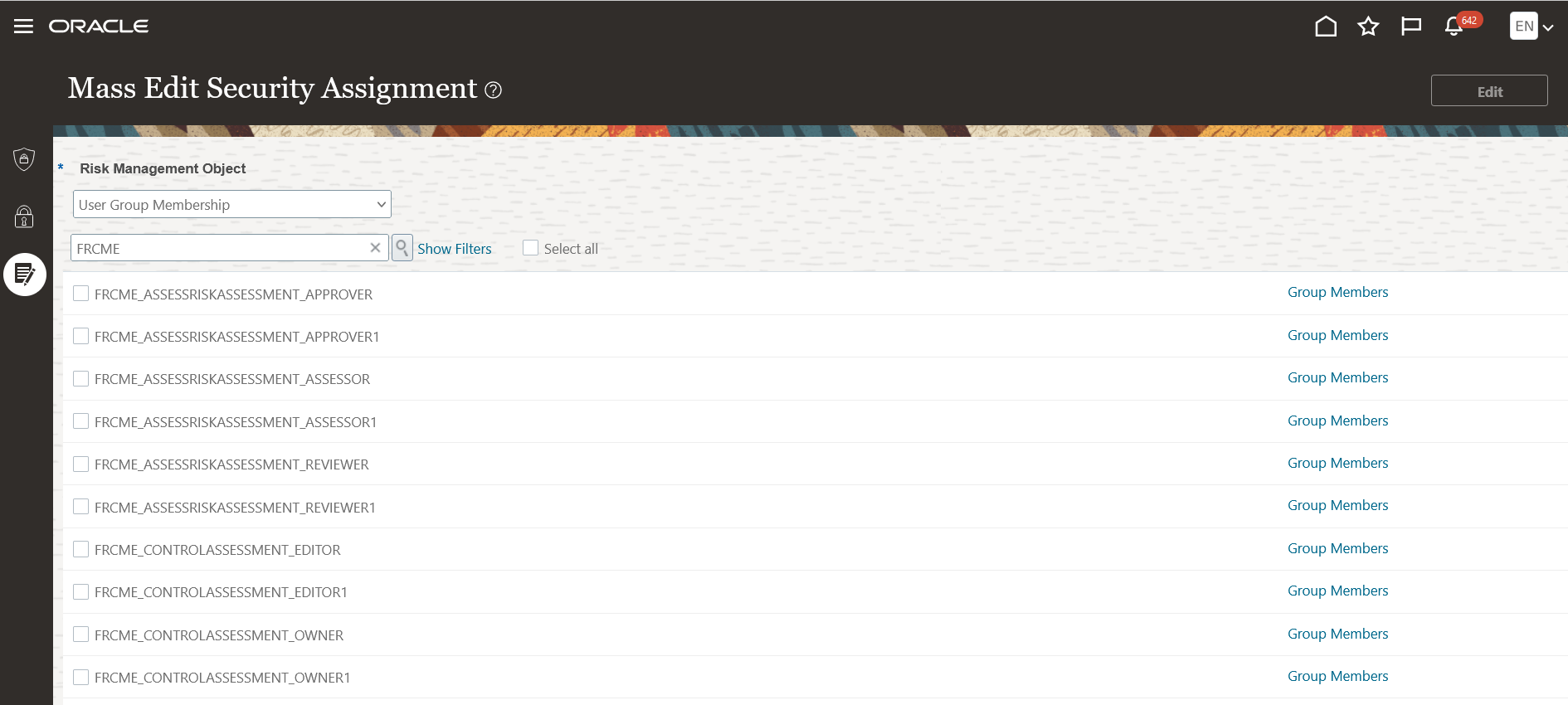
As employees come and go and change positions within an organization, being able to mass edit user group membership is very helpful when a user needs to quickly be added to or removed from more than one user group.
Steps to Enable
You don't need to do anything to enable this feature.
Tips And Considerations
User groups are a great way to manage security access to records. Continual maintenance of user group membership is necessary to ensure proper access is granted.
Ability to Migrate User Groups
To help in the implementation of new user groups, users can now migrate user groups from one environment to another. This is enabled with a new Actions button.
When you perform the migration, validations ensure that only user groups with eligible members can be imported into the destination environment.
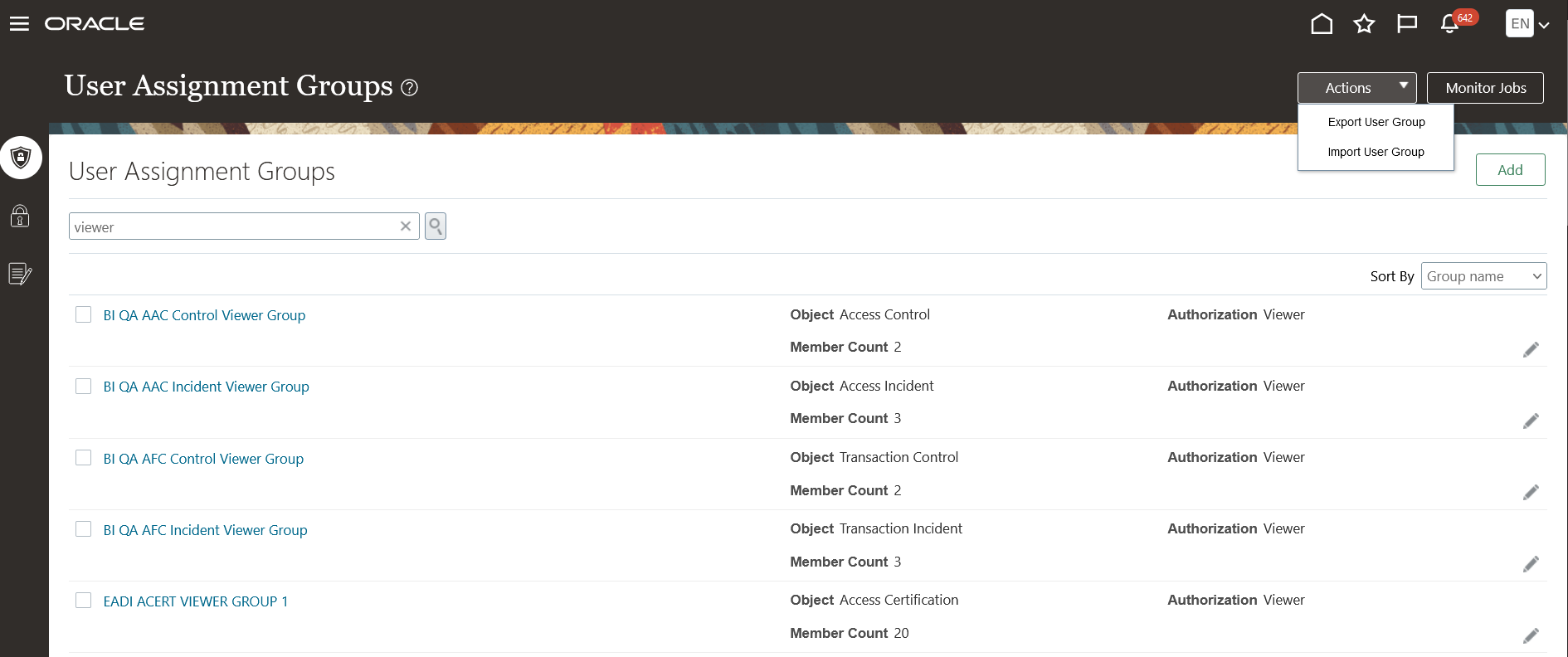
The main benefit is that user groups, especially large ones can be implemented in development and test environments, verified and then migrated intact into the production environment. This is especially beneficial during implementations to ensure that only validated user groups are properly set up in production.
Steps to Enable
You don't need to do anything to enable this feature.
Tips And Considerations
To migrate a user group, you must be able to see the group so that you can select it. You must also have the Create and Edit User Group privilege, which is what enables the import and export actions.
The emails for the entire Risk Management application have been updated with a new look and feel. The new layout provides more specific information about the required action. The location of the Action button is consistent, and the button takes you directly to the page where you can perform the necessary activity.
Also, when more than four emails would have been previously generated, they are now consolidated into a single email for less notification noise.
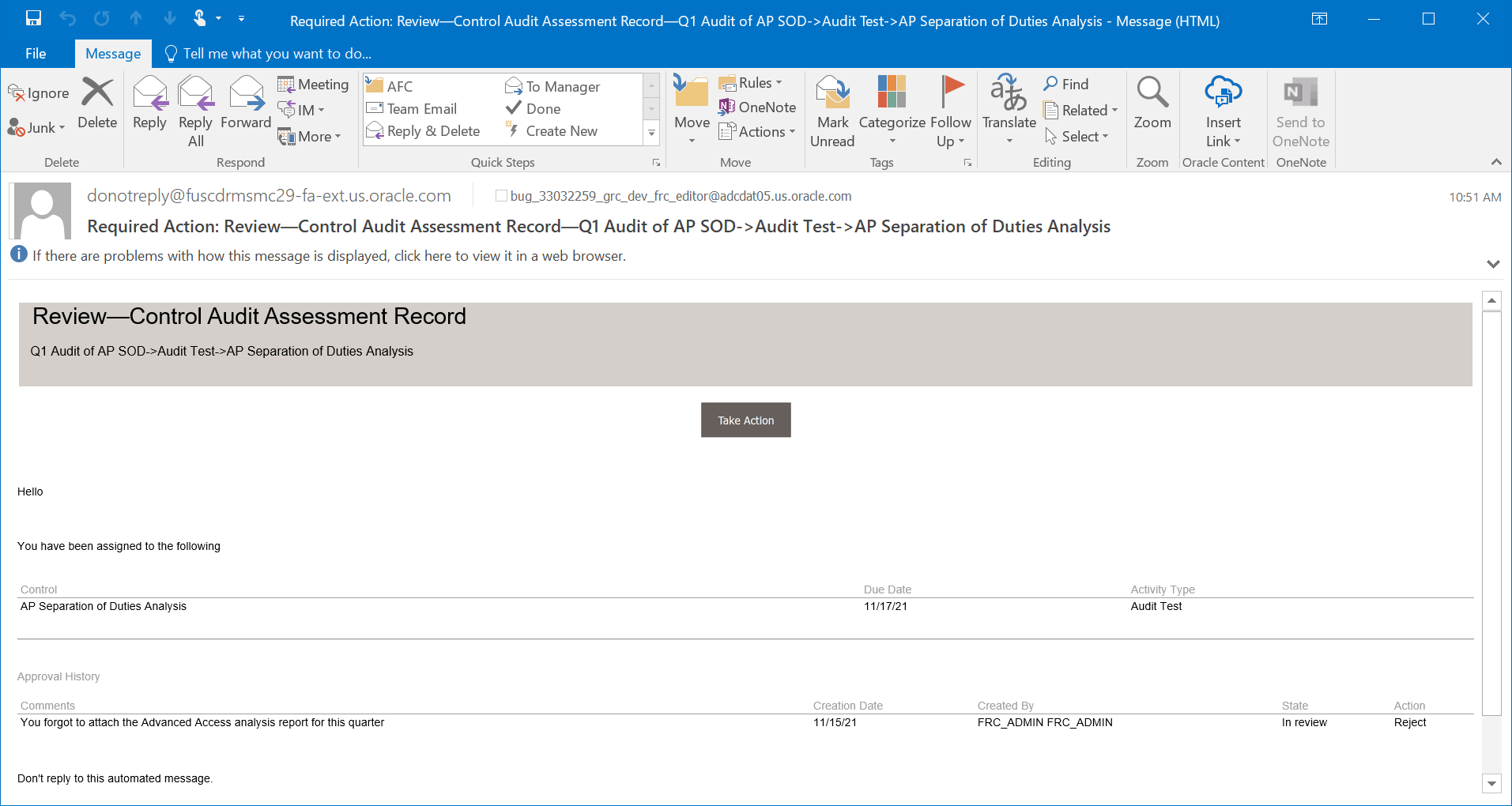
There are several key benefits to this enhancement:
- Refreshed and consistent layout
- More pertinent information
- A direct link to the page where the action can be performed
- Consolidation of emails when applicable to reduce email volume noise
Steps to Enable
You don't need to do anything to enable this feature.
Transactional Business Intelligence for Risk Management
Reports Now Cover Control Stratification and Additional Survey Attributes
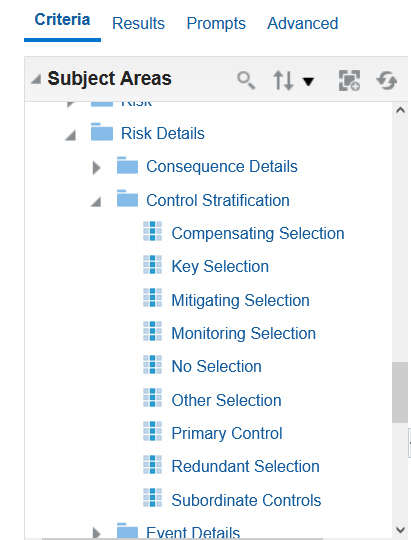
A new Control Stratification attribute has been added to the Risk Detail dimension located in the Risk Management Cloud - Compliance Real Time subject area.
 Set as In Review
Example of the New Control Stratification Dimension Within the Risk Details Dimension
New survey attributes have been added to the Survey Details dimension located in the Risk Management Cloud - Assessment Results Real Time.
- Survey Template Name
- Respondent Email Address
- Respondent Completion Date
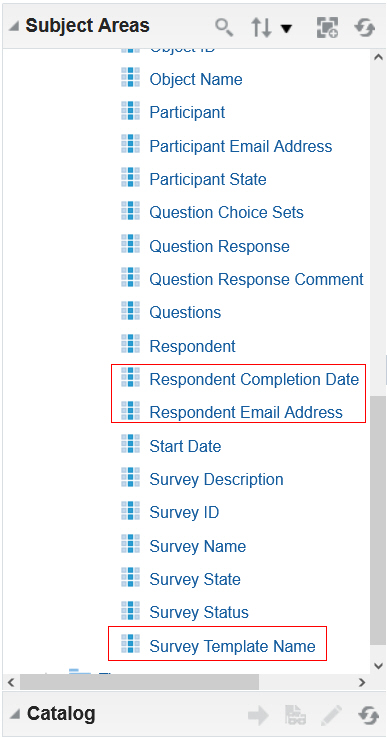
Risk Management Cloud - Assessment Results Real Time > Survey > Survey Details
The introduction of the control stratification dimension within the risk details enables you to include the control stratification within the relation to a risk records. The new survey attributes provide additional information pertaining to the survey respondent, which may be required by external auditors. These include a unique respondent ID, which can be the respondent's first name, last name, and email address, as well as the date the respondent submitted responses.
Steps to Enable
You don't need to do anything to enable this feature.
New Attributes Available for Access Certification
The Risk Management Cloud - Access Certification Real Time subject area has been enhanced to allow you to create a report that includes additional user-role and who attributes.
- Certifier Last Updated By
- Certifier Last Updated Date
- Creation Date (Timestamp has been included)
- Role Code
- User-Role Asset Book
- User-Role Business Unit
- User-Role Data Access Set
- User-Role Ledger
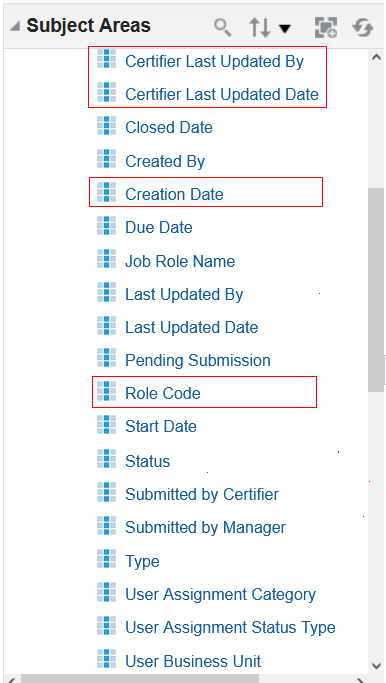
New Attributes Added to the Access Certification Details
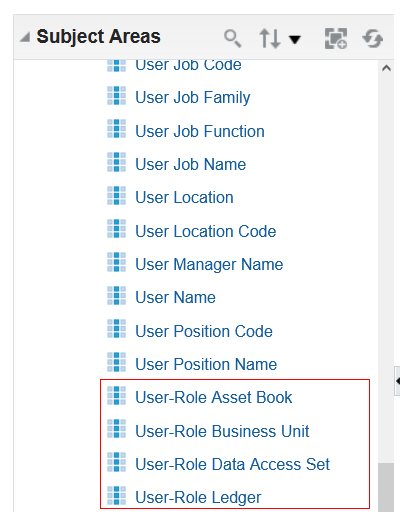
Additional New Attributes Added to the Access Certification Details
These new attributes enable additional insight regarding the user-role assignments being certified. In addition, the information the user who completed the certification and when it was submitted.
Steps to Enable
You don't need to do anything to enable this feature.
IMPORTANT Actions and Considerations
FINANCIAL REPORTING COMPLIANCE
Obsolete Security Artifacts
The Delete Survey privilege (GTG_DELETE_SURVEY) has been removed. Now, only users authorized as owners of a survey are able to delete it.
ADVANCED FINANCIAL CONTROLS
Transaction Data Synchronization Job Must Be Run Following Quarterly Update to 22A
After you upgrade to release 22A, you must run Transaction Data Synchronization. This job takes longer than incremental synchronization of data because it must rebuild previously synchronized data, due to updates for performance improvements. This will not affect existing incident results if you simply rerun the synchronization job. However, you may want to review the existing Created as Of dates for Transactions and Audit Events for a possible update to optimize subsequent data synchronizations and analysis.
Financial Reporting Compliance
Financial Reporting Compliance
Changes to Remediation Plans and Tasks
The record of an issue includes a Remediation tab, which opens a page displaying information about remediation plans associated with the issue. This region now displays each plan's status.
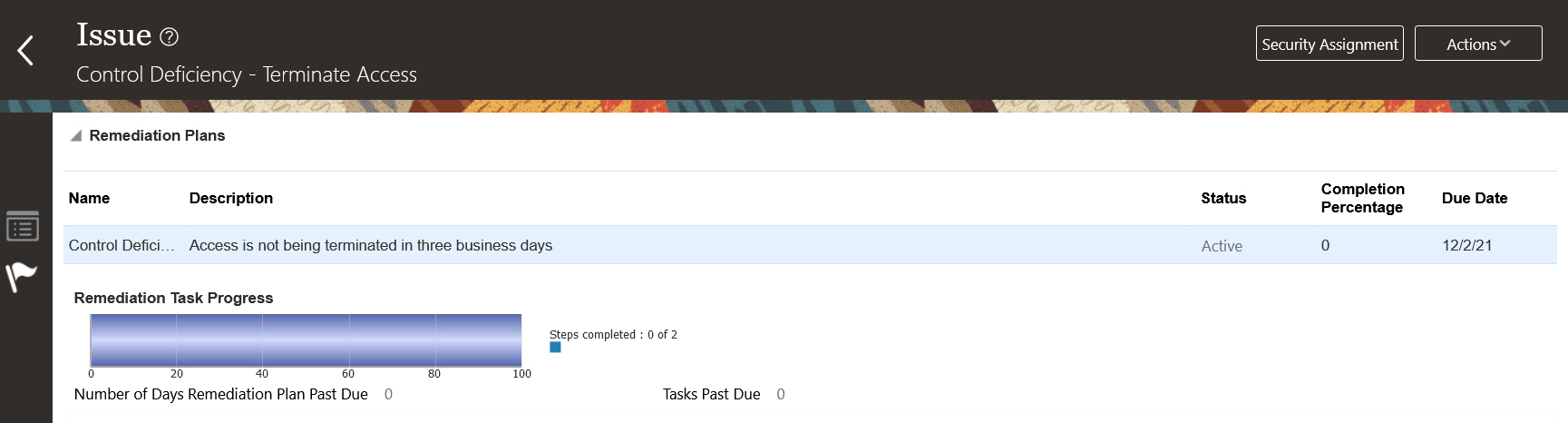
Example of the Remediation Plan tab displaying the status
Within the Remediation tab, the Tasks region has been updated to allow the user to drill on each specific task to view the details.

Example view of the itemized list of Tasks.
A Tasks region of this page used to display detailed information about the tasks to be completed for a selected remediation plan. Now this region displays summary information about those tasks. In the row for a task, you can click its name to open a page that displays detailed information about the task.
Users authorized to view the issue record can easily view the status of the associated remediation plan. In addition, these users can view each defined remediation task with the ability to drill to view the details.
Steps to Enable
You don't need to do anything to enable this feature.
Change to Managing Control Relationships to Risks
As you define a risk, you can relate control records to it, either as primary or as subordinate to another control. You can now remove a primary control only if you first remove any controls that are subordinate to it. If appropriate, you can then select the removed subordinate controls to relate them to the risk once again.
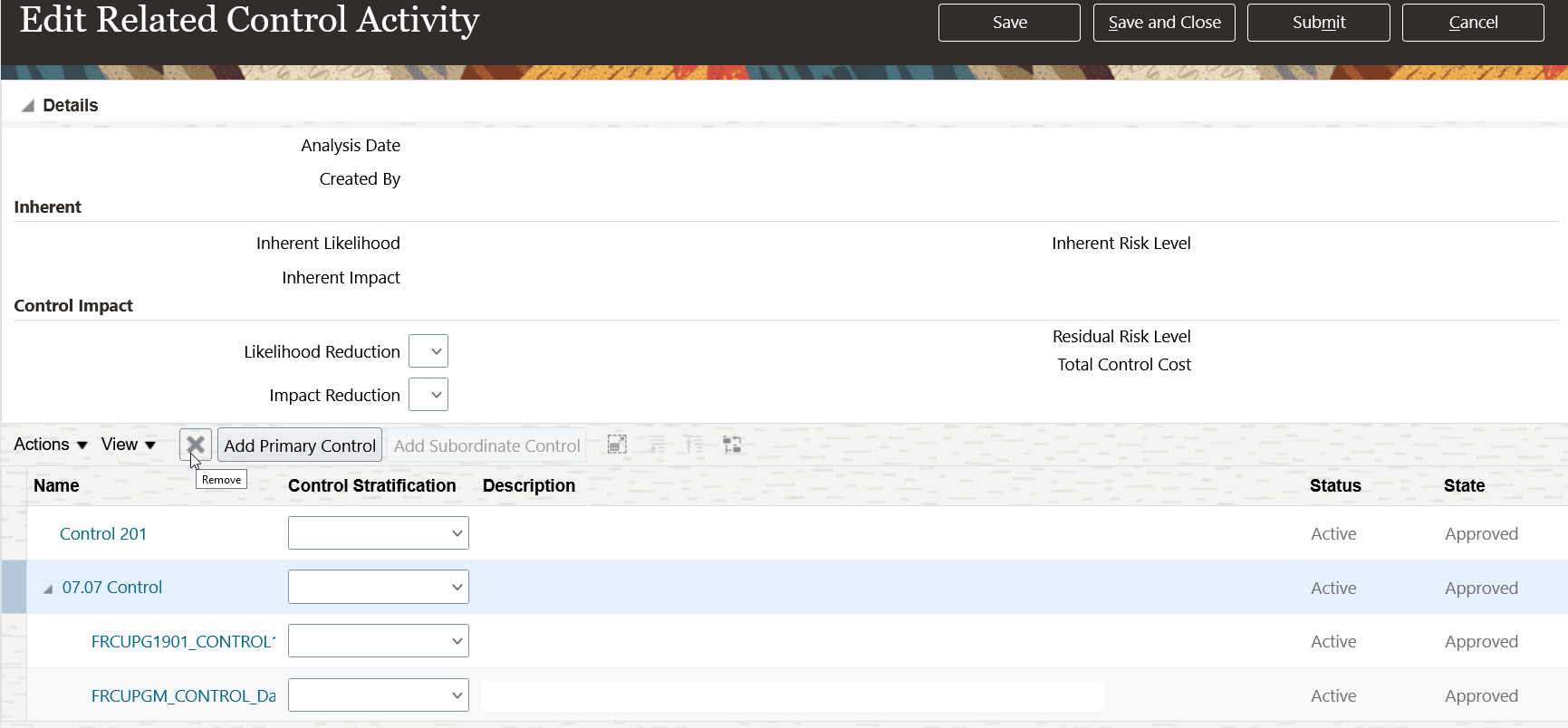
Example of the Related Control Activities: For the 07.07 Control record to be removed, the subordinate controls need to be removed first
This enhancement ensures that when you remove related controls from a risk, the remaining controls have your intended primary and subordinate relationships.
Steps to Enable
You don't need to do anything to enable this feature.
Changes to the Creation of Issues
Issues can't be created for an object record in the New state.
An issue documents a deficiency in associated object record. While the object record is in a New state, the creation of the record is considered a draft and has not been initially submitted. Therefore the appropriate security may not have been applied, or the complete documentation of the record may not have been defined.
An issue is to documents a deficiency in for an associated object record
Steps to Enable
You don't need to do anything to enable this feature.
Changed Encrypted IDs in the Import Template
In the import template generated by the Data Migration utility, SYSTEM_ID values are no longer encrypted. Rather, the template includes the numeric system ID, which is the same as the ID available in OTBI.
Because the numeric system ID is the same as the ID available in OTBI, the use of system IDs in the applications is streamlined. You can identify records by the same numeric value.
Steps to Enable
You don't need to do anything to enable this feature.
Tips And Considerations
This change requires you to generate a new data export, so that records with numeric system IDs can be used to import data.
Changes to Assessment Action Buttons
The actions a user can take on an assessment record depend on its state. Action buttons and menus now include only the actions permitted by the current state of an assessment, as shown in the following table.
| State | Action |
|---|---|
| New | Perform Assessment |
| In Review | Review Assessment |
| Awaiting Approval | Approve Assessment |
| Request for Information In Review | Respond to RFI |
| Request Information In Approve | Respond to RFI |
The View Assessment action enables authorized users to view the assessment record.
These actions are located on the following UI pages:
- Assessment Batches > Assessment Records
- Control Record > Assessment tab
- Risk Record > Assessment tab
- Process Record > Assessment tab
- My Assessments tab
The updates to the action button clarify the actual task being performed by the end user.
Steps to Enable
You don't need to do anything to enable this feature.
Configuration Option to Make Survey Mandatory in Assessments
While initiating an assessment batch or an impromptu assessment, its owner may associate it with a survey template. Now, the owner may also require that assessors complete the survey before submitting assessment results. If an assessment record is rejected, the assessor can update and resubmit the survey responses.
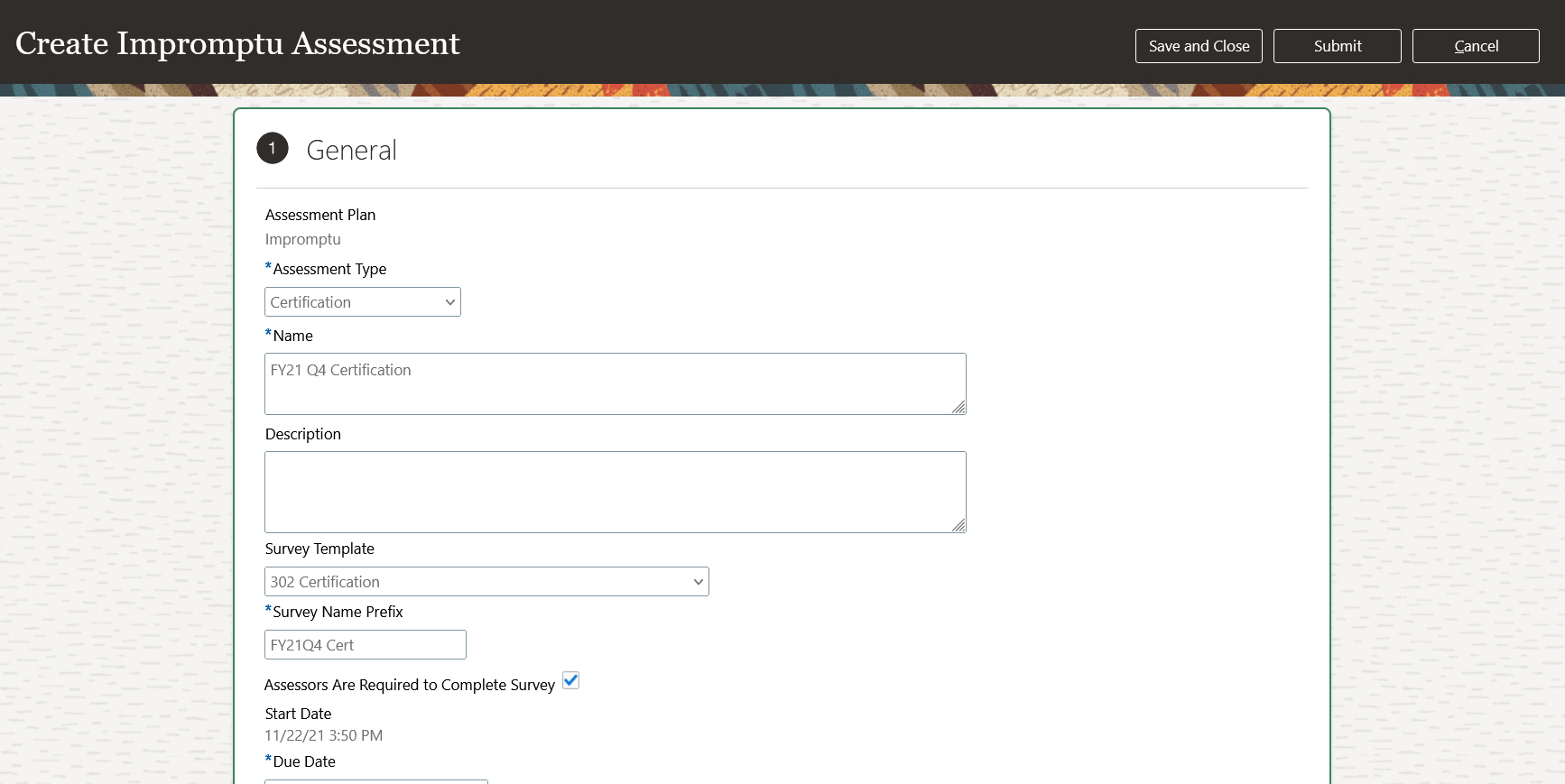
Example of the Configuration Option to Require Assessors to Complete Survey
An assessment may need to include a survey for many reasons. Under specific circumstances, the assessment owner may need to ensure all assessors register their survey responses prior to submitting their assessment records. This enhancement enables the owner to determine the assessments for which survey responses are required.
Steps to Enable
You don't need to do anything to enable this feature.
Enhancements to Assessment Survey UI Flow
Multiple enhancements improve the overall management to complete an assessment record. To use them, an assessment actor would navigate to an object record, click its Assessment tab, and select an assessment record. The available actions depend on the state of the assessment and the user's authorization.
Often there is the need to include a survey as part of the assessment record. Updates to the survey configuration and Complete Survey assessment train stop streamline this process.
- The survey instructions have been moved to appear above the first survey question.
- The additional click to complete the survey is removed.
- Additional buttons have been applied to navigate through a survey with multiple pages.
- The user must click Register Your Survey Responses on the final page of the survey.
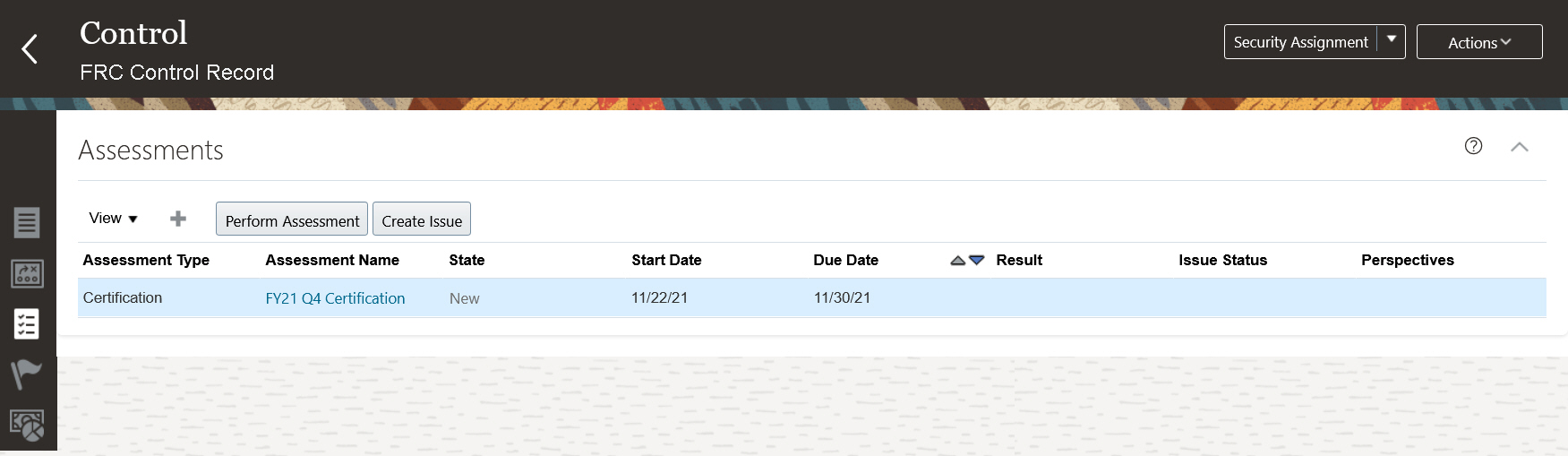
The Perform Assessment Button is an Example of How Assessment Record Action Buttons Have Been Updated
The Complete Survey assessment train stop has been updated to streamline the user's overall UI experience.
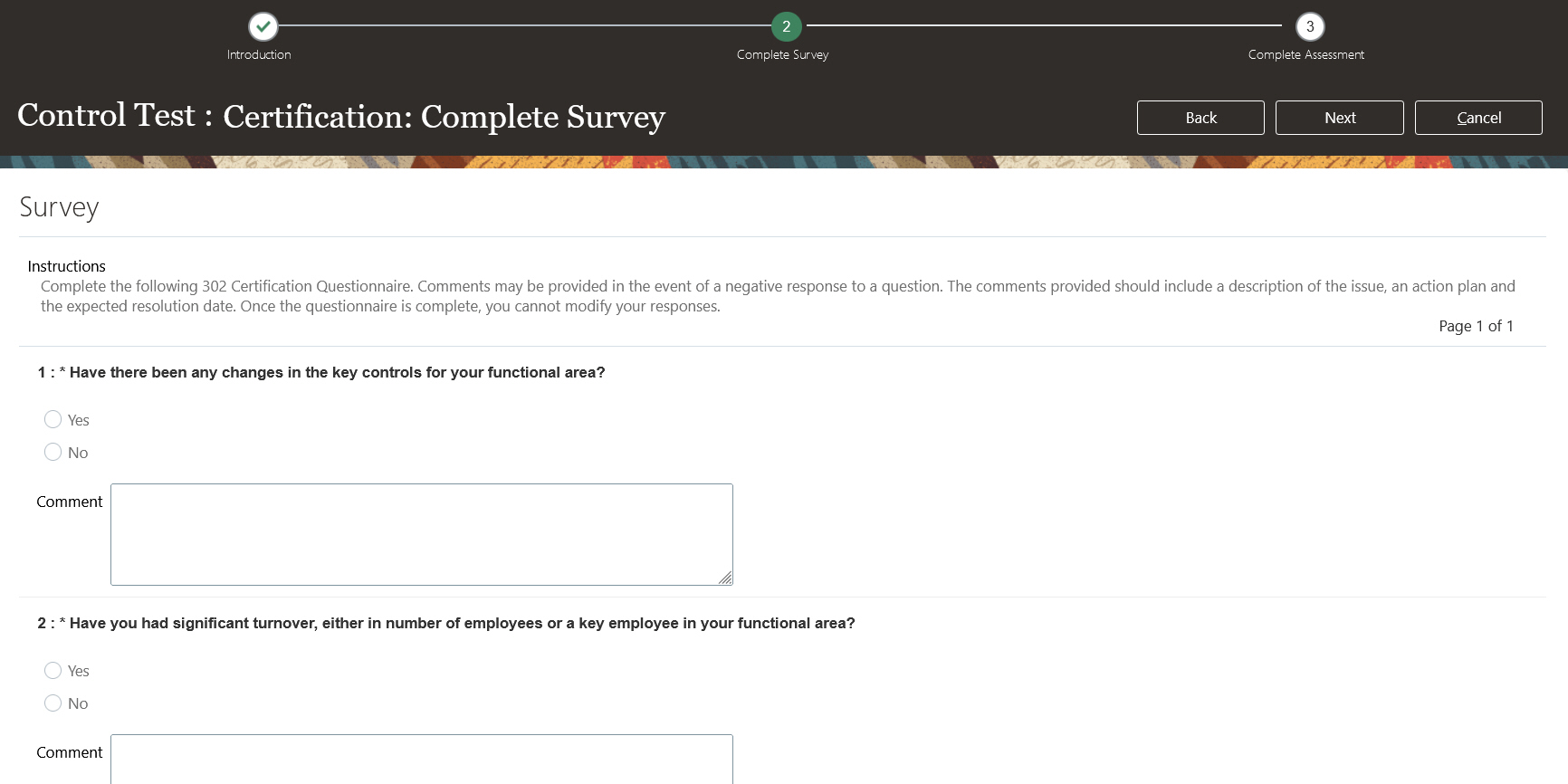
Example of the Complete Survey Train Stop
Assessment actors can still navigate through the train stops by clicking Back, Next, or Cancel, in addition to clicking the train stops themselves. If the survey takes up multiple pages, buttons labeled Go to Previous Survey Page and Go to Next Survey Page enable navigation within the survey.
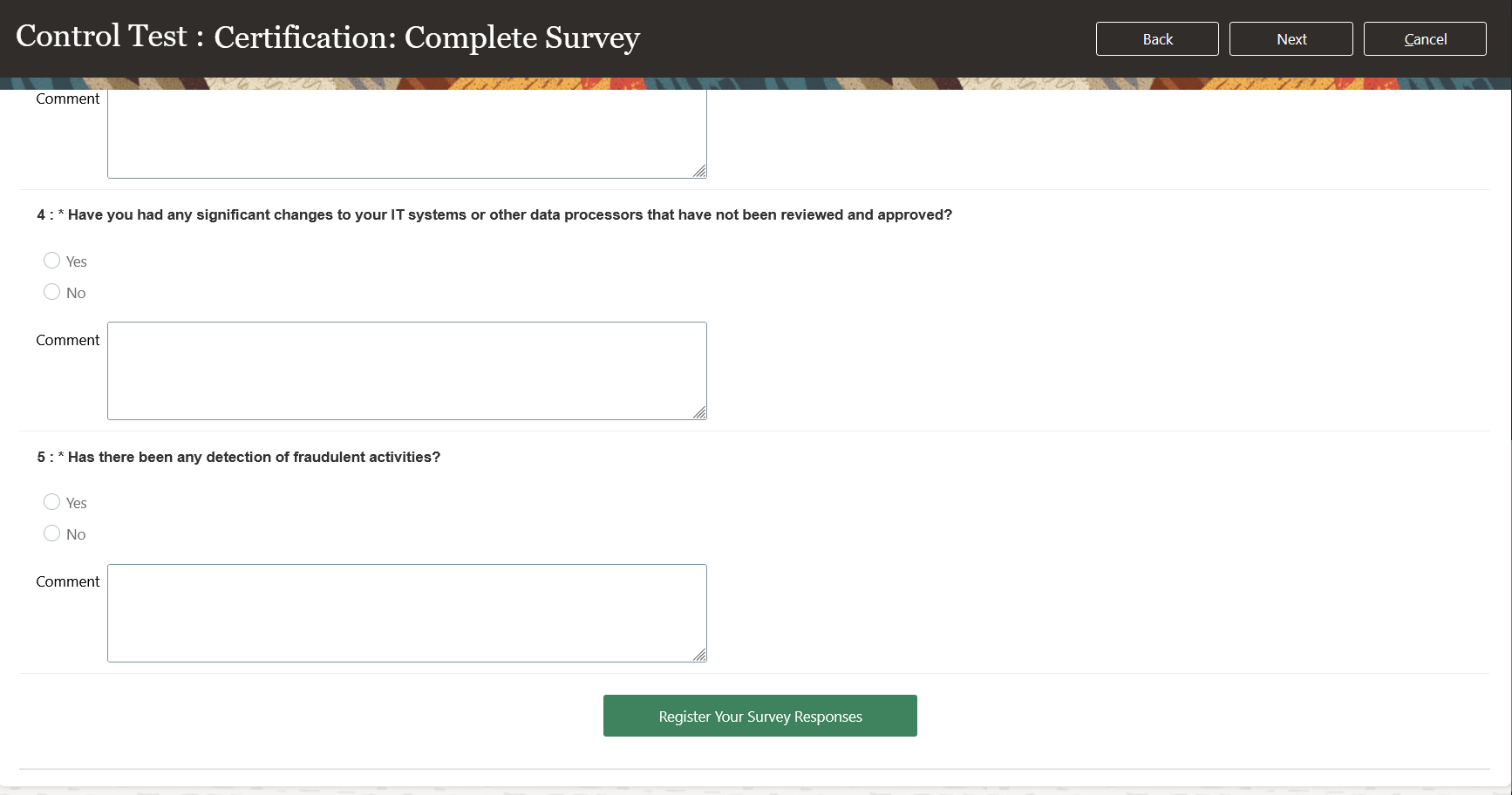
Example of the Register Your Survey Responses, Which Captures the Responses But Does Not Submit the Assessment Result
The assessor must submit survey responses by clicking the Register Your Survey Responses button on the final page of the survey. After registering initial responses, the assessor can update the responses prior to submitting the assessment record by clicking Update Your Survey Responses.
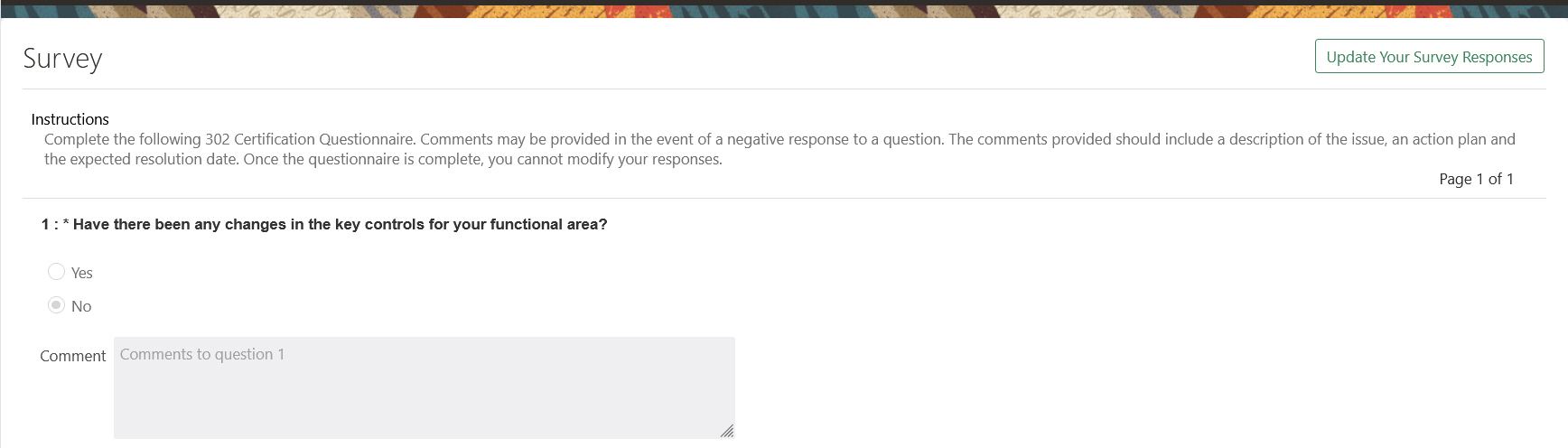
Example Once the Survey Responses Are Registered the Assessor Will Be Able to Update Their Response
The assessor need only provide responses to questions flagged as mandatory. The assessor can skip questions that are not mandatory and proceed to the next page, or register the survey. Once the assessment record has been submitted, the assessor can update the survey responses only if the assessment record was rejected during the assessment workflow process.
The Complete Survey train stop UI enhancements streamline the user experience of registering survey responses. It enables the assessor to complete the survey within the assessment record and improves the corresponding navigation through the assessment flow.
Steps to Enable
You don't need to do anything to enable this feature.