
This document will continue to evolve as existing sections change and new information is added. All updates appear in the following table:
| Date | Module | Feature | Notes |
|---|---|---|---|
| 15 SEP 2023 | Created initial document. |
 HAVE AN IDEA?
We’re here and we’re listening. If you have a suggestion on how to make our cloud services even better then go ahead and tell us. There are several ways to submit your ideas, for example, through the Ideas Lab on Oracle Customer Connect. Wherever you see this icon after the feature name it means we delivered one of your ideas.
GIVE US FEEDBACK
We welcome your comments and suggestions to improve the content. Please send us your feedback at oracle_fusion_applications_help_ww_grp@oracle.com.
DISCLAIMER
The information contained in this document may include statements about Oracle’s product development plans. Many factors can materially affect Oracle’s product development plans and the nature and timing of future product releases. Accordingly, this Information is provided to you solely for information only, is not a commitment to deliver any material, code, or functionality, and should not be relied upon in making purchasing decisions. The development, release, and timing of any features or functionality described remains at the sole discretion of Oracle.
This information may not be incorporated into any contractual agreement with Oracle or its subsidiaries or affiliates. Oracle specifically disclaims any liability with respect to this information. Refer to the Legal Notices and Terms of Use for further information.
Column Definitions:
Report = New or modified, Oracle-delivered, ready to run reports.
UI or Process-Based: Small Scale = These UI or process-based features are typically comprised of minor field, validation, or program changes. Therefore, the potential impact to users is minimal.
UI or Process-Based: Larger Scale* = These UI or process-based features have more complex designs. Therefore, the potential impact to users is higher.
Features Delivered Disabled = Action is needed BEFORE these features can be used by END USERS. These features are delivered disabled and you choose if and when to enable them. For example, a) new or expanded BI subject areas need to first be incorporated into reports, b) Integration is required to utilize new web services, or c) features must be assigned to user roles before they can be accessed.
| Ready for Use by End Users Reports plus Small Scale UI or Process-Based new features will have minimal user impact after an update. Therefore, customer acceptance testing should focus on the Larger Scale UI or Process-Based* new features. |
Customer Must Take Action before Use by End Users Not disruptive as action is required to make these features ready to use. As you selectively choose to leverage, you set your test and roll out timing. |
|||||
|---|---|---|---|---|---|---|
| Feature |
Report |
UI or |
UI or |
|
||
Transaction Synchronization Job Is Seeded on the Scheduling Page |
||||||
New Default Result User Security Assignment in Advanced Controls Analyses |
||||||
Risk Management Dashboard Icon
If you have created a Risk Management dashboard in OTBI, you can now open it from a Risk Management Dashboard springboard icon. The new Risk Management dashboard icon is optional, and you can hide it by removing the new privilege from your security profile.

The Risk Management Dashboard Springboard Icon
The creation of Risk Management reporting dashboard presents a significant business advantage by consolidating essential data and reports within a single, centralized location. This integrated approach brings together both the dashboard itself and the underlying application generating the reports. This seamless coexistence streamlines accessibility, fosters better collaboration, and reduces the time spent navigating between disparate systems.
Steps to Enable
Once you've created your dashboard in OTBI, copy its URL link. Then navigate to Risk Management Setup and Administration > Configuration Options > Risk Management Dashboard Configuration, and paste the URL into the Custom Dashboard URL field. The URL is global, meaning that all users with the View Risk Management Dashboard privilege have access to the dashboard. OTBI security manages the data-level security within the dashboard and determines which tabs each user can view.
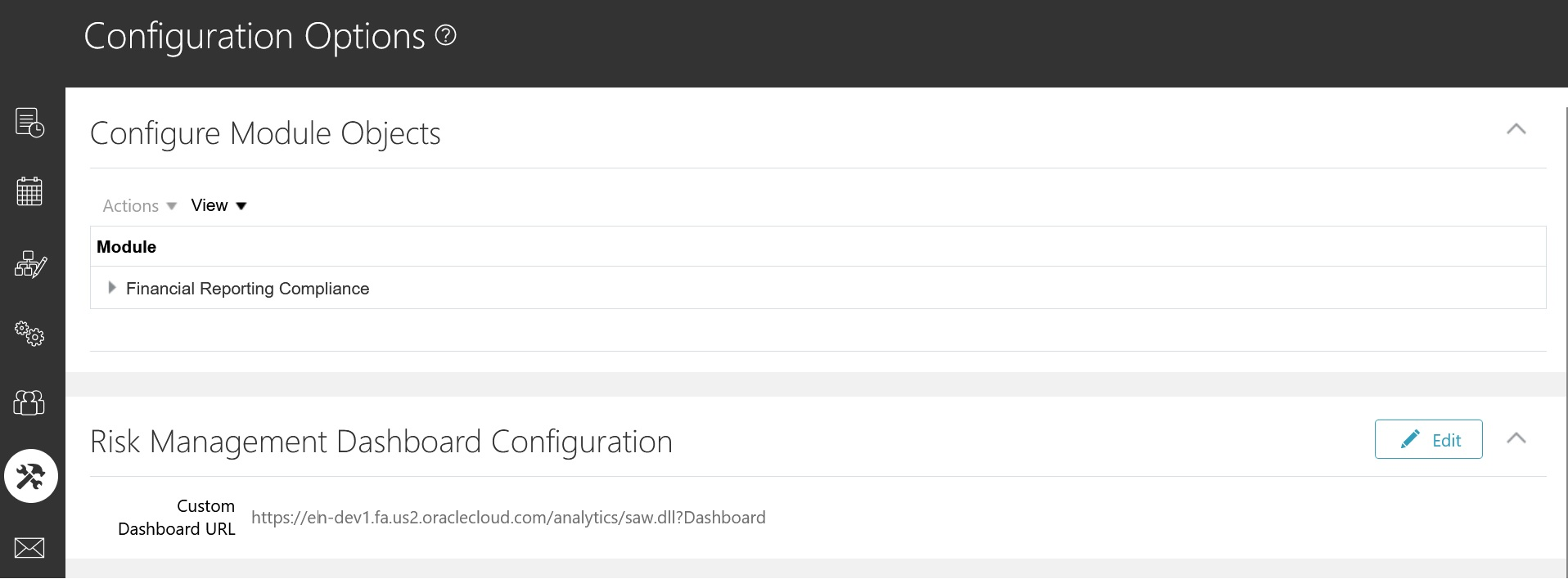
Example of the Risk Management Dashboard Configuration
Tips And Considerations
When designing and creating your OTBI dashboard, consider incorporating multiple pages to capture the diverse analyses necessary to support your specific business needs. OTBI applies the same level of data security as defined for each Risk Management module, ensuring a comprehensive business solution for all active users.
By default, all Risk Cloud job roles include the View Risk Management Dashboard privilege. If you have already created your own dashboard icon and don't want the new dashboard icon to render you will need remove the new privilege from each predefined Risk Management job role.
Access Requirements
The new Risk Management dashboard icon feature requires one new privilege, which is added directly to six predefined job roles. If you've customized your job roles, you need to add the new privilege to it. If you use predefined job roles, you don't need to make any changes.
| New Privilege | Job Roles Inheriting Privilege |
|---|---|
| View Risk Management Dashboard (GTG_VIEW_RISK_MANAGEMENT_DASHBOARD) |
|
Transaction Synchronization Job Is Seeded on the Scheduling Page
In the Setup and Administration > Scheduling page, the Transaction Data Source Sync job has been added as a seeded job. This job can be set up to run on a recurring basis or on demand. This seeding does not impact the existing locations where the Transaction Data Source Sync can be initiated.
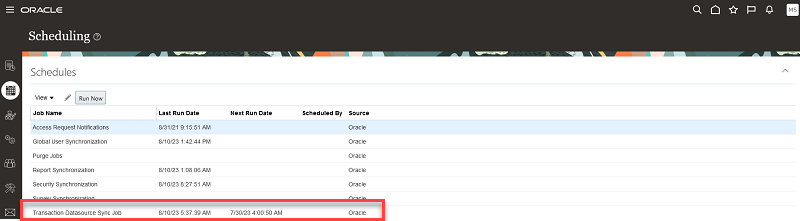
Seeded Jobs
The Advanced Controls Configuration page also enables users to schedule or run the job. Users without access to that page can use the Scheduling page instead.
Steps to Enable
You don't need to do anything to enable this feature.
Advanced Control Results Export Is Now a Job
When you export results from the results page for a model or control, the export file is generated by a dedicated job. After you select the Export to Excel button, you'll be prompted with a job ID. In the Monitor Jobs page, a record of the export job displays the model or control name and the job ID number. Once the job is complete, select the download button to download the spreadsheet.

Spreadsheet Export Job
When you export data, the UI will no longer be locked while the export file is generated, which in some cases was for an extended period.
Steps to Enable
You don't need to do anything to enable this feature.
Transactional Business Intelligence for Risk Management
New Default Result User Security Assignment in Advanced Controls Analyses
Advanced Controls has security assignments associated to two objects, controls and results. On a control, there are two kinds of security assignments, control and control result. Previously, you could report only on security assignments associated to the control (for the control object) and results. In the Risk Management Cloud - Advanced Access Controls Real Time subject area and in the Risk Management Cloud - Advanced Financial Controls Real Time subject area, the Advanced Control Details folder has been enhanced to include Control Result User Security Assignment for the control object. You can now report on these control result user security assignments:
- Advanced Control Details > Control > Default Result Group Security Assignment
- Group Name
- Object
- Authorization Level
- Eligibility Flag
- Member Name
- Advanced Control Details > Control > Default Result Group Security Assignment > Facts - Default Result Group Security Assignment
- Count of Eligible Members
- Count of Members Not Eligible
- Advanced Control Details > Control > Control Result User Security Assignment > Default Result User Security Assignment
- Group Name
- Object
- Authorization Level
- Eligibility Flag
- Member Name
- Advanced Control Details > Control > Control Result User Security Assignment > Facts - Default Result User Security Assignment
- Count of Editors
- Count of Owners
- Count of Viewers
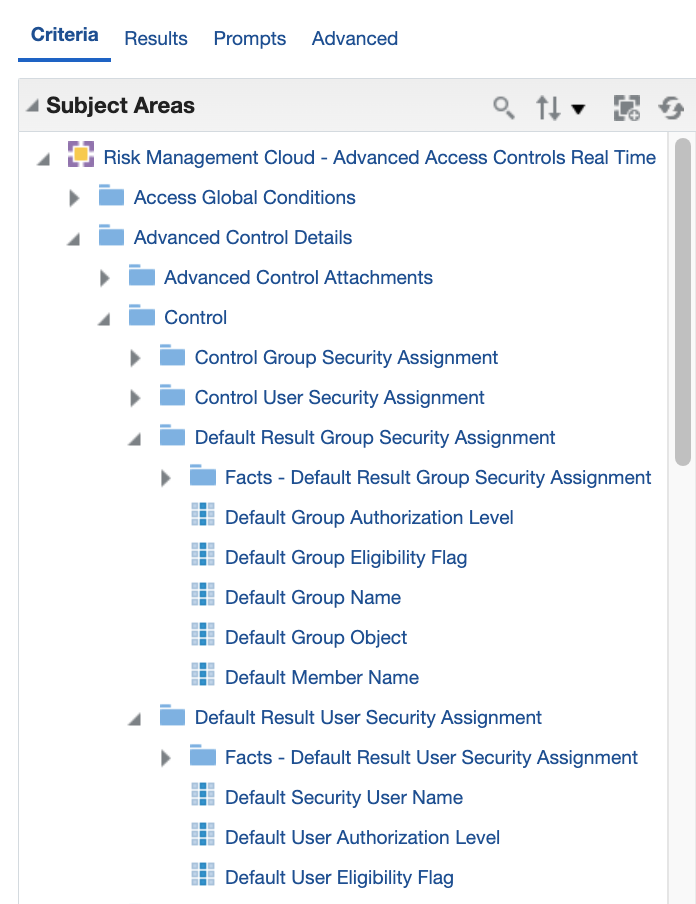
New Dimensions Added to Advanced Control Details
The addition of Control Result User Security Assignments provides insight regarding the security assignments that will be defaulted on the results generated by the control.
Steps to Enable
You don't need to do anything to enable this feature.
Financial Reporting Compliance
Financial Reporting Compliance
Improvement to Survey Participant Lists
Survey Participant Lists, a new tab in the Surveys work area, empowers survey owners to manage survey participants effectively by utilizing participant lists. Survey owners can create new participant lists, each containing up to 500 participants, and can update the lists to include or exclude participants. (To do so, they must have a privilege called Complete a Survey.) A participant list can be active or inactive, and only active lists are available when a new survey is initiated.
Managing Participant Lists
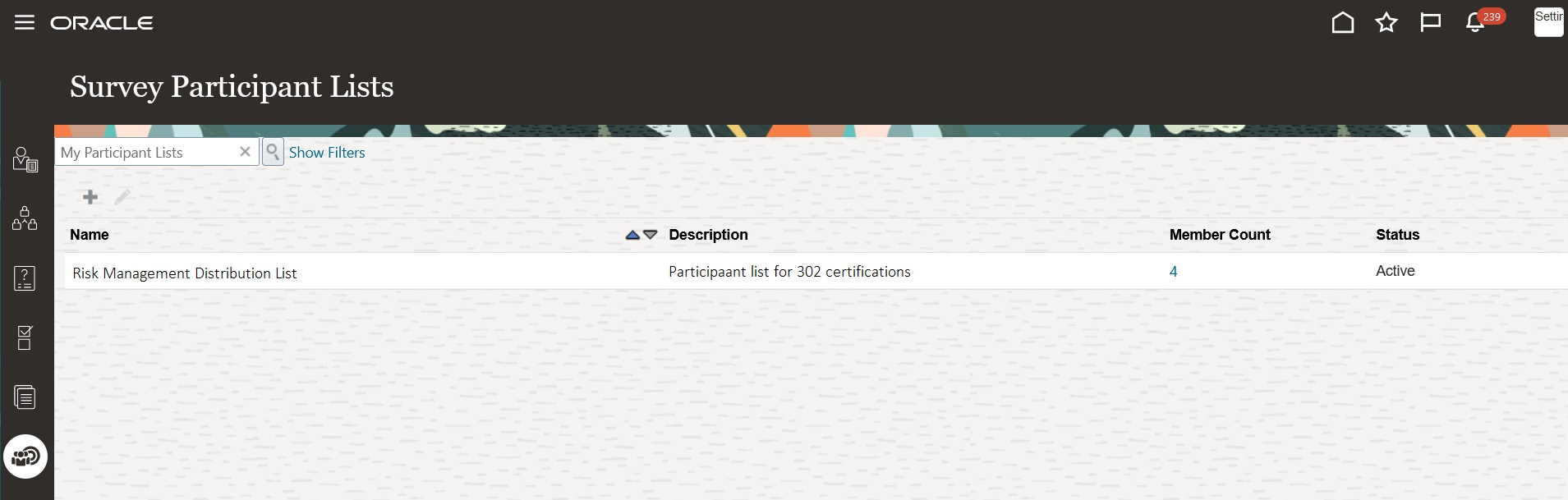
The Survey Participant Lists Tab
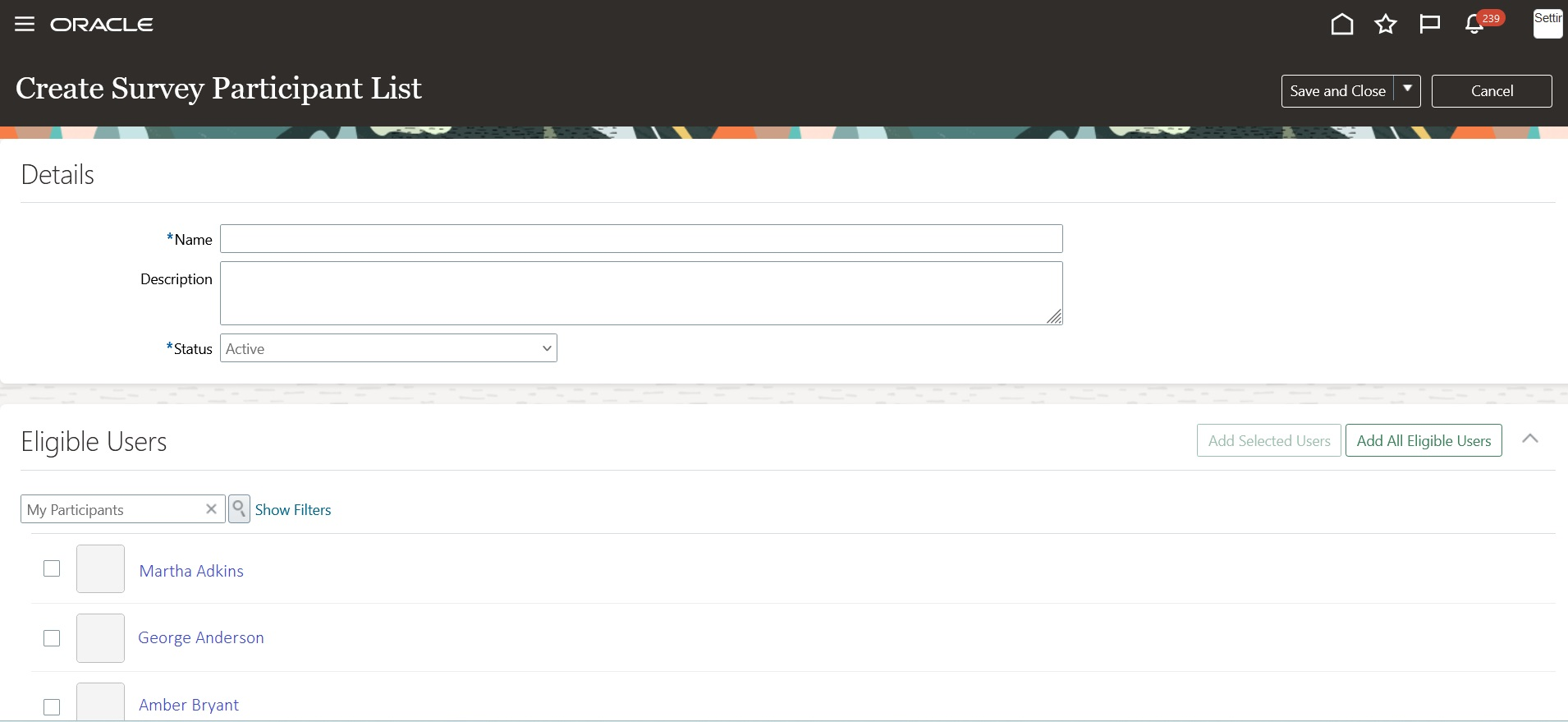
Example of Creating a Survey Participant List
Managing Participants for a Survey
During the survey creation process, the survey owner has the option to include participants by selecting from existing participant lists or adding individual participants. When an owner adds a participant list to a survey, the survey references that list as it is at that moment. If any changes are subsequently made to the list, the survey continues to recognize it as it was when it was added to the survey. Changes to the list don't affect surveys for which the list had previously been selected.
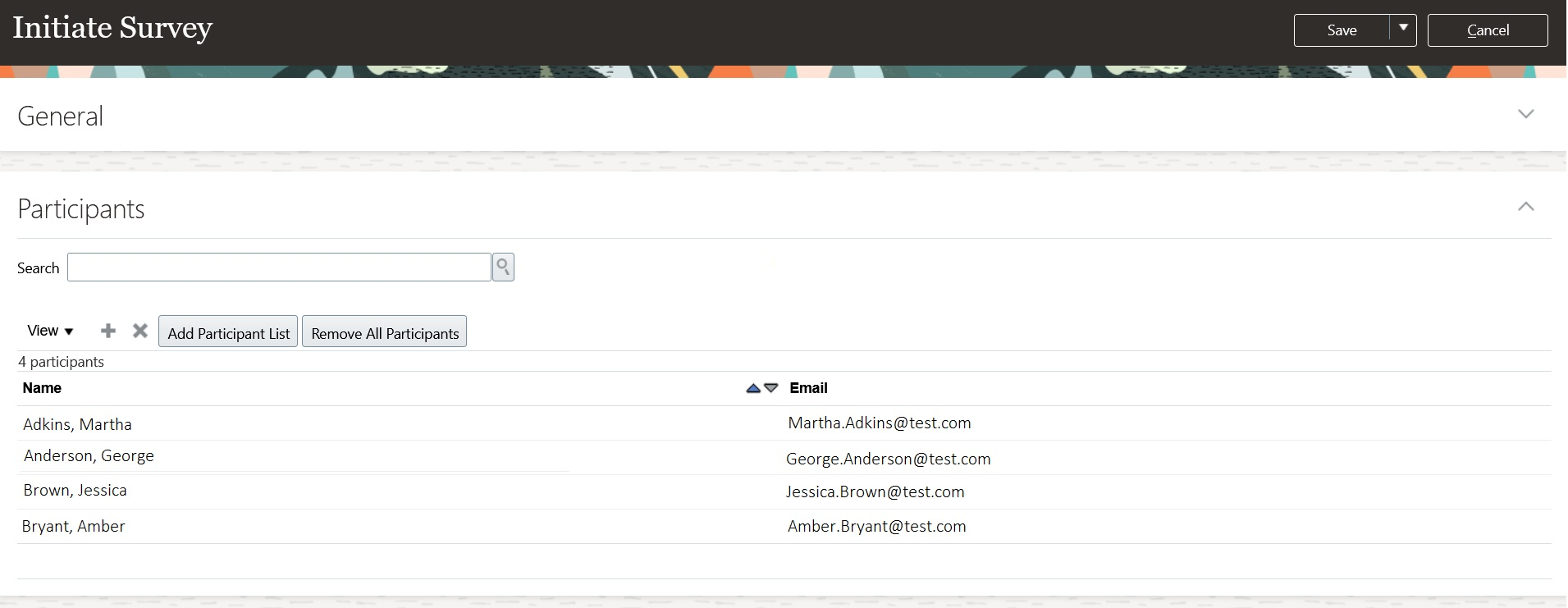
Example of managing the participants while creating a survey
Participant lists provide valuable benefits for your business. With participant lists, you can efficiently target specific groups, ensuring that your surveys reach the right audience and increasing the quality of responses or attendance. By maintaining organized participant lists, you establish a consistent communication channel that saves time and reduces errors, while also centralizing and managing participant data for better-informed decision-making.
Steps to Enable
You don't need to do anything to enable this feature.
Tips And Considerations
Although participant lists can be updated, any changes made will take effect only with the next use of the list within a survey. If you anticipate changes, it's essential to make those updates before utilizing the list in a survey.
Improvements to Automated Notifications
Automated email notifications have been improved, directing recipients to specific UI pages according to record status.
Rejected Object Record Scenario
In the Financial Reporting Compliance workflow, assigned reviewers and approvers may reject submitted records of processes, risks, controls, issues, or remediation plans. When a record is rejected, the submitting user receives an automated notification that prompts for action. By clicking the Take Action button in the notification, the user is now instantly directed to the relevant UI page for the rejected record in edit mode. This efficient process empowers users to promptly address the reason for the rejection.
Object Record Email Reminders
For records of issues and remediation plans, the owner can trigger an email reminder for an approved record. This reminder prompts the assigned owners and editors to take necessary action and move towards resolution. Once the users receive the reminder email and access it, they are now directed to the record in a view-only mode.
Approval History Section
Email reminders for issues and remediation plans now include an Approval History section.
Record Reaches an Approved State
Once an issue or remediation plan record has reached an Approved state, the application will not send a notification for either the owner or editor to take action. The owner can send an email reminder to the assigned owners and editors for them to take necessary action and move towards resolution.
These additional enhancements present a host of valuable business advantages by seamlessly guiding assigned users to the relevant record UI. The enhancement fosters a quicker and more intuitive engagement with critical tasks. This streamlined approach not only saves users time but also facilitates informed decision-making by providing immediate access to the necessary context. As a result, resolution processes become more agile, collaboration is enhanced, and operational efficiency receives a substantial boost
Steps to Enable
You don't need to do anything to enable this feature.