
November Maintenance Pack for 22D
This document will continue to evolve as existing sections change and new information is added. All updates appear in the following table:
| Date | Module | Feature | Notes |
|---|---|---|---|
| 27 OCT 2022 | Created initial document. |
 HAVE AN IDEA?
We’re here and we’re listening. If you have a suggestion on how to make our cloud services even better then go ahead and tell us. There are several ways to submit your ideas, for example, through the Ideas Lab on Oracle Customer Connect. Wherever you see this icon after the feature name it means we delivered one of your ideas.
GIVE US FEEDBACK
We welcome your comments and suggestions to improve the content. Please send us your feedback at oracle_fusion_applications_help_ww_grp@oracle.com.
DISCLAIMER
The information contained in this document may include statements about Oracle’s product development plans. Many factors can materially affect Oracle’s product development plans and the nature and timing of future product releases. Accordingly, this Information is provided to you solely for information only, is not a commitment to deliver any material, code, or functionality, and should not be relied upon in making purchasing decisions. The development, release, and timing of any features or functionality described remains at the sole discretion of Oracle.
This information may not be incorporated into any contractual agreement with Oracle or its subsidiaries or affiliates. Oracle specifically disclaims any liability with respect to this information. Refer to the Legal Notices and Terms of Use for further information.
Column Definitions:
Report = New or modified, Oracle-delivered, ready to run reports.
UI or Process-Based: Small Scale = These UI or process-based features are typically comprised of minor field, validation, or program changes. Therefore, the potential impact to users is minimal.
UI or Process-Based: Larger Scale* = These UI or process-based features have more complex designs. Therefore, the potential impact to users is higher.
Features Delivered Disabled = Action is needed BEFORE these features can be used by END USERS. These features are delivered disabled and you choose if and when to enable them. For example, a) new or expanded BI subject areas need to first be incorporated into reports, b) Integration is required to utilize new web services, or c) features must be assigned to user roles before they can be accessed.
| Ready for Use by End Users Reports plus Small Scale UI or Process-Based new features will have minimal user impact after an update. Therefore, customer acceptance testing should focus on the Larger Scale UI or Process-Based* new features. |
Customer Must Take Action before Use by End Users Not disruptive as action is required to make these features ready to use. As you selectively choose to leverage, you set your test and roll out timing. |
|||||
|---|---|---|---|---|---|---|
| Feature |
Report |
UI or |
UI or |
|
||
Help Desk in the Redwood Experience is Available Upon Request |
||||||
Adaptive Intelligence for Service - Help Desk Request Classification |
||||||
Customize Your Help Desk Resolution Workflow to Your Unique Needs |
||||||
Help Desk in the Redwood Experience is Available Upon Request
Oracle's new Help Desk in the Redwood user experience is now available upon request. Inspired by Oracle's new Redwood design language and built upon the Visual Builder Studio application development environment, the Help Desk in the Redwood Experience is a secure, modern solution to better serve the needs of your employees. The Help Desk enables you to provide service to internal employees to answer questions, lend assistance with an employee task or resolve an issue for an employee. This quarter's Readiness document summarizes just a few of the many features available to employees and help desk agents through Help Desk in the Redwood Experience.
Help Desk in the Redwood Experience allows an organization to provide service to internal employees to answer questions, lend assistance with an employee task or resolve an issue for an employee. The comprehensive solution supports all steps of the help desk lifecycle including:
-
The My Help page, a prebuilt set of pages within the Fusion Application that allows an employee to search knowledge and submit help desk requests. Employees can submit help desk requests about an issue or question, which is then routed and assigned to help desk resources for review and resolution. Employees can also engage with the Help Desk through the Digital Assistant embedded in Fusion applications through the prebuilt skills for knowledge and help desk requests.
-
A prebuilt Help Desk Agent page to review, respond to and resolve requests. The Agent page includes two distinct views, one for HR Help Desk Requests and another for Internal Help Desk Requests, ensuring a secure separation of sensitive HR issues from other types of issues.
-
Knowledge Management enables the help desk support team to publish documents (such as FAQs and policies) to employees through a variety of interfaces including the My Help page, the Digital Assistant, and the Help Desk agent page.

My Help UI for Employee Self-Service
The Help Desk in the Redwood Experience enables organizations to better serve their employees efficiently, effectively, safely, and proactively.
Secure, Intuitive Interactions with Employees
- Safe, easy access from any device through the responsive pages
- Access help in context of a Fusion task leveraging the embedded Digital Assistant
- Find answers quickly through knowledgebase search and simple self-submission interface
- Secure communications through popular communication channels
Smart, Actionable User Experience for Help Desk Agents
- Guided workflows through easy-to-configure action plans
- Quick navigation into common HR tasks
- Efficient, proactive assistance with next-best actions and internal collaboration
Productive, Flexible solution for Sponsors, Administrators and Developers
- Modern user experience that is easily tailored using Visual Builder Studio, a flexible, open, low-code design tool
- Robust and extensible data model
- Automated workflows with the option to use seamlessly integrated best-in-class process automation
Steps to Enable
You don't need to do anything to enable this feature.
Tips And Considerations
Help Desk in the Redwood Experience is available to licensed Help Desk customers upon request. Contact your Customer Success Manager, Center of Excellence sponsor, or Account Executive for details.
Key Resources
- For more information about Help Desk in the Redwood Experience see the Implementing Help Desk and Using Help Desk guides in the Help Center.
Help Desk Request Management allows support agents to manage internal requests using a modern, conversational user interface. You can use the Help Desk capability to support a variety of internal needs, such as sales support or maintenance requests.
Use automated assignment and routing to send requests to the right support team. Once assigned, help desk agents can manage their requests through a request list page that includes adaptive search, milestones, action plans, knowledge search, messaging channels, and collaboration across the enterprise.
The Help Desk Request management in the Redwood user interface enhances many existing features and introduces brand new capabilities including:
- Adaptive search provides an easy to use search to find the right records, including saved searches.
- More easily manage help desk requests with an easier to read layout of customer and internal conversations.
- The Action Bar allows agents to quickly access actions without the need to navigate buttons and menus.
- The Pending Items and Recommendation region helps agents access recommended knowledge and follow prescribed best practice steps in an action plan.
- Quickly access knowledge management with the option to leverage separate browser tabs to research multiple articles at once.
- Reduce clicks and overall effort with productivity boosters such as drag and drop of attachments, solo actions, next record navigation, and fewer pages.
- Collaborate with the new Conversation framework to instantly communicate with other members of your organization.
Easily Transfer Help Desk Requests
Help Desk agents can now easily transfer service requests to load-balance their workloads, including assignment to a member of the current queue, to a specific person, or to another queue.
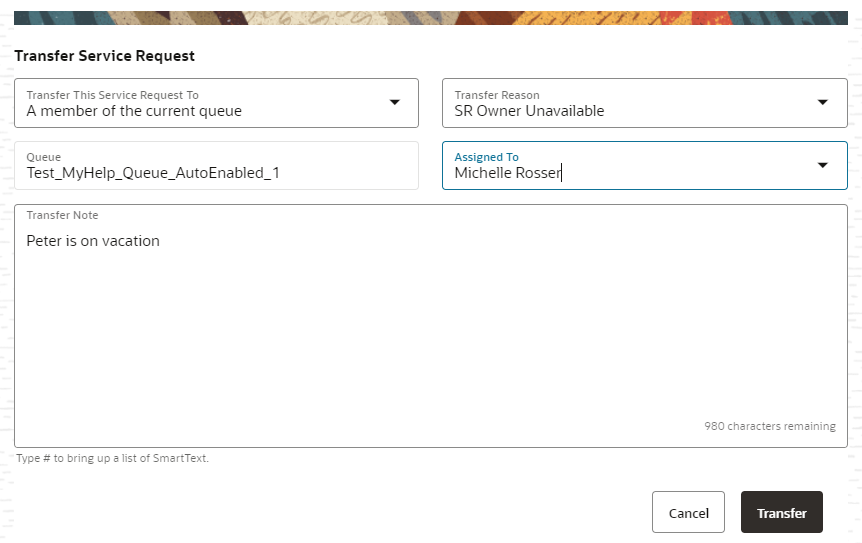
The Transfer Service Request action provides an intuitive experience that captures relevant information from the agent including transfer reason and supporting notes, ensuring the new service requests owner has meaningful context to successfully manage the request.
Steps to Enable
You don't need to do anything to enable this feature.
Tips And Considerations
Transfer Service Request is part of the Help Desk in the Redwood Experience, available to licensed Help Desk customers upon request. Contact your Customer Success Manager, Center of Excellence sponsor, or Account Executive for details.
Key Resources
- For more information about Help Desk in the Redwood Experience see the Implementing Help Desk and Using Help Desk guides in the Help Center.
Mark Your Availability for Help Desk Request Routing
It is now possible for a Help Desk agent to mark themselves as ‘available’ within the Redwood Help Desk UI, which then allow help desk requests in the user's queues to be assigned to them. A new control appears on the right hand side of the Help Desk Request pages that allow agents to set their availability on and off.
Help Desk agents now have explicit control over when they are available to be assigned new requests.
Steps to Enable
You don't need to do anything to enable this feature.
Tips And Considerations
Availability is part of the Help Desk in the Redwood Experience, available to licensed Help Desk customers upon request. Contact your Customer Success Manager, Center of Excellence sponsor, or Account Executive for details.
Key Resources
- For more information about Help Desk in the Redwood Experience see the Implementing Help Desk and Using Help Desk guides in the Help Center.
Role And Privileges
Help Desk Agent
View any Employee Profile from a Help Desk Request
Agents now can see every employee contact's information from Oracle HCM based in the context of the help desk request. (Prior to 22D, the only employee for which HCM navigator was enabled was for the primary point of contact.) To improve productivity, all employees added as contacts now have an HCM navigator link similar to the summary page.
Better usability for Help Desk agents to see contact information for any employee involved in the Help Desk request
Steps to Enable
You don't need to do anything to enable this feature.
Tips And Considerations
This feature is part of the Help Desk in the Redwood Experience, available to licensed Help Desk customers upon request. Contact your Customer Success Manager, Center of Excellence sponsor, or Account Executive for details.
Key Resources
- For more information about Help Desk in the Redwood Experience see the Implementing Help Desk and Using Help Desk guides in the Help Center.
Adaptive Intelligence for Service - Help Desk Request Classification
SR Classification uses machine learning to predict and label your email-created HR and internal help desk requests with the correct service category and product. Your agents don't need to spend time anymore reading through service emails to decide what category to which a request belongs or the product it maps to. With the right category and product automatically stamped at the time of creation, the request is assigned to the correct queue and agent, avoiding subsequent queue/agent transfers and the attendant delays in resolution. As you keep using the feature, the system trains itself to get progressively better, resulting in improved prediction accuracy and the resultant exponential benefits.
Improved help desk request routing efficiency and accuracy, better agent experience and reduction in resolution times are some of the more obvious benefits of this feature
Steps to Enable
Use the Opt In UI to enable this feature. For instructions, refer to the Optional Uptake of New Features section of this document.
Offering: Help Desk
You need to opt-in to use the feature.
Tips And Considerations
- Use the promo code provided in the 'Implementing Service Center Guide' book to enable the feature in
- Email Classification is available with both Classic and Redwood user experience
Key Resources
- For additional information see the Implementing Help Desk Guide
Role And Privileges
HR Help Desk Administrator
Internal Help Desk Administrator
Customize Your Help Desk Resolution Workflow to Your Unique Needs
Using Visual Builder Studio, you can extend the application to change the Resolution section in Edit page to include specialized fields or remove unneeded fields.

This extensibility feature allows you to tailor the information you capture during resolution to your organization's unique process.
Steps to Enable
You don't need to do anything to enable this feature.
Tips And Considerations
This feature is part of the Help Desk in the Redwood Experience, available to licensed Help Desk customers upon request. Contact your Customer Success Manager, Center of Excellence sponsor, or Account Executive for details.
Key Resources
- For more information about Help Desk in the Redwood Experience see the Implementing Help Desk and Using Help Desk guides in the Help Center.
SR Lifecycle Analysis for HR and Internal Help Desk
This feature lets you analyze the delays during a help desk request's lifecycle from the time it is created until it's resolved. This analysis lets you identify the factors that contribute to the overall resolution time. You can analyze causes of inefficiencies such as SR latency in queues and agents, wrong queue or resource assignments, and so on. The feature includes the following components
- Infolets that quickly identify wait times for teams and queues
- Best practice pre-built OTBI reports in the BI Catalog
- New OTBI subject areas with industry standard metrics for building custom reporting:
- Help Desk - HR Service Request Lifecycle
- Help Desk - Internal Service Request Lifecycle
By providing visibility to inefficiencies in dispositioning of Help Desk requests, lifecycle analysis helps managers take corrective action before issues snowball into crises.
Steps to Enable
Leverage new subject area(s) by adding to existing reports or using in new reports. For details about creating and editing reports, see the Creating and Administering Analytics and Reports book (available from the Oracle Help Center > your apps service area of interest > Books > Administration).
No additional steps needed to enable this feature
Tips And Considerations
You must enable Audit Log on the Internal Service Request object and HR Service Request object to capture the data changes.
Key Resources
For additional information see the following guides in the Oracle Help Center:
- Administering Oracle Transactional Business Intelligence
- Subject Areas for Transactional Business Intelligence
Role And Privileges
HR Help Desk Administrator
Internal Help Desk Administrator
Create and Manage Cases for Your Help Desk
Cases can be created automatically from your help desk action plans allowing cases to be part of any help desk request workflow. In addition, cases can be related to help desk requests for easy updates and communications between the request and the case.
You can now create cases that support help desk workflows like grievances, disciplinary actions, investigations, escalations, exceptions and collaborations.
Steps to Enable
You don't need to do anything to enable this feature.
Tips And Considerations
- This feature supports the new Help Desk based upon the Redwood experience but does not support Classic Help Desk.
- This feature applies to both the HRSR stripe (Help Desk Requests) and ISR stripe (Internal Service Requests).
Key Resources
- For more information about how to use Cases in Help Desk, see the Using Help Desk guide.
Role And Privileges
- Help desk users and administrators should ensure they have appropriate privileges for the case-related features they plan to use.
New Extensibility Options to Support Case Automation
Your Visual Builder developers can use new extensibility options to create unique automation workflows in the Create Case page and Case Details page. For example, developers can use case variables and events that automatically initiate a specific action or action plan when the case is created or updated. You can also extend and refresh all dynamic containers on the page related to action plans that have been updated through the automation.
Your users can view the most appropriate action plans based upon automated rules that your Visual Builder developer creates for your unique organizational needs.
Steps to Enable
Visual Builder developers can utilize the following in their Action plan automation designs:
- Page Constant: CaseNumber
- Page Events: On-Save, On-Update, refreshActionPlanComponentsEvent
- Dynamic Container: Left-hand Panel
Key Resources
- For more information about extending Cases, see the "Extend Case Management" chapter of the Implementing Case Management guide.
This document will continue to evolve as existing sections change and new information is added. All updates appear in the following table:
| Date | Module | Feature | Notes |
|---|---|---|---|
| 27 OCT 2022 | Created initial document. |
HAVE AN IDEA?
We’re here and we’re listening. If you have a suggestion on how to make our cloud services even better then go ahead and tell us. There are several ways to submit your ideas, for example, through the Ideas Lab on Oracle Customer Connect. Wherever you see this icon after the feature name it means we delivered one of your ideas.
GIVE US FEEDBACK
We welcome your comments and suggestions to improve the content. Please send us your feedback at oracle_fusion_applications_help_ww_grp@oracle.com.
DISCLAIMER
The information contained in this document may include statements about Oracle’s product development plans. Many factors can materially affect Oracle’s product development plans and the nature and timing of future product releases. Accordingly, this Information is provided to you solely for information only, is not a commitment to deliver any material, code, or functionality, and should not be relied upon in making purchasing decisions. The development, release, and timing of any features or functionality described remains at the sole discretion of Oracle.
This information may not be incorporated into any contractual agreement with Oracle or its subsidiaries or affiliates. Oracle specifically disclaims any liability with respect to this information. Refer to the Legal Notices and Terms of Use for further information.
Column Definitions:
Report = New or modified, Oracle-delivered, ready to run reports.
UI or Process-Based: Small Scale = These UI or process-based features are typically comprised of minor field, validation, or program changes. Therefore, the potential impact to users is minimal.
UI or Process-Based: Larger Scale* = These UI or process-based features have more complex designs. Therefore, the potential impact to users is higher.
Features Delivered Disabled = Action is needed BEFORE these features can be used by END USERS. These features are delivered disabled and you choose if and when to enable them. For example, a) new or expanded BI subject areas need to first be incorporated into reports, b) Integration is required to utilize new web services, or c) features must be assigned to user roles before they can be accessed.
| Ready for Use by End Users Reports plus Small Scale UI or Process-Based new features will have minimal user impact after an update. Therefore, customer acceptance testing should focus on the Larger Scale UI or Process-Based* new features. |
Customer Must Take Action before Use by End Users Not disruptive as action is required to make these features ready to use. As you selectively choose to leverage, you set your test and roll out timing. |
|||||
|---|---|---|---|---|---|---|
| Feature |
Report |
UI or |
UI or |
|
||
Manage Action Plans Through an Intuitive and Interactive Diagram |
||||||
Service Workflow and Automation
Manage Action Plans Through an Intuitive and Interactive Diagram
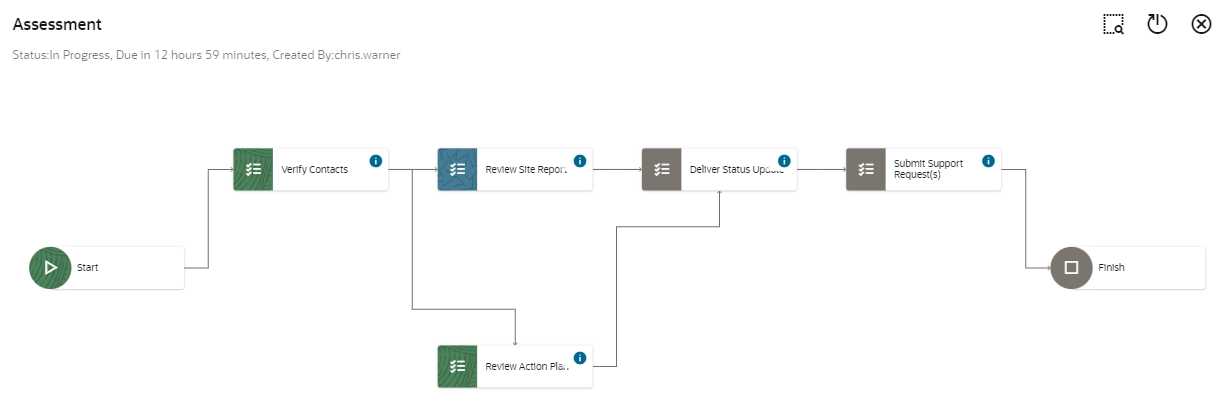
Users can now view and interact with action plans in an intuitive, interactive diagram. This easy-to-read interface complements the existing table-based view of action plans in all Redwood applications, including Cases, Service Requests, and Help Desk Requests.
Assessment Diagram
The Action Plan diagram gives users a clear picture of their Action Plans, including past, present, and future steps; their status; and their dependencies. As a result, users can better understand how to get Action Plans completed on time.
Steps to Enable
You don't need to do anything to enable this feature.
Key Resources
- See the "Work with Cases" chapter in the Using Case Management guide.
Role And Privileges
- User and managers of Cases, Service Requests and Help Desk Requests
Easily Copy Attachments Using Action Plan Actions
Action Plan administrators can now choose to copy all attachments when defining an action plan action. An action with this option set will copy all the attachments from the parent object onto the new object that's created by the action.
This feature fosters better collaboration and escalations by simplifying and accelerating document-based action plan workflows.
Steps to Enable
You don't need to do anything to enable this feature.
Tips And Considerations
Copy All Attachments is an optional feature that can be applied to action plan actions of these types:
- Case
- Service Request
- Help Desk Request
- Internal Service Request.
Remember that attachments may contain sensitive information.
Key Resources
- See the "Work with Actions and Plans" topic in the Using Case Management guide.
Role And Privileges
Action Plan administrators can enable the Copy All Attachments feature for all new or existing Action Plan Actions that create a Case, Service Request, Help Desk Request, or Internal Service Request.