
This document will continue to evolve as existing sections change and new information is added. All updates appear in the following table:
| Date | Module | Feature | Notes |
|---|---|---|---|
| 06 OCT 2023 | Help Desk Analytics | Drill Down to a Detail Report from a Custom Infolet | Newly added to the Release. |
| 06 OCT 2023 |
Case Management | Enhanced Case Features for Case Workers, Administrators and Developers | Newly added to the Release. |
| 08 SEP 2023 | Created initial document. |
 HAVE AN IDEA?
We’re here and we’re listening. If you have a suggestion on how to make our cloud services even better then go ahead and tell us. There are several ways to submit your ideas, for example, through the Ideas Lab on Oracle Customer Connect. Wherever you see this icon after the feature name it means we delivered one of your ideas.
GIVE US FEEDBACK
We welcome your comments and suggestions to improve the content. Please send us your feedback at oracle_fusion_applications_help_ww_grp@oracle.com.
DISCLAIMER
The information contained in this document may include statements about Oracle’s product development plans. Many factors can materially affect Oracle’s product development plans and the nature and timing of future product releases. Accordingly, this Information is provided to you solely for information only, is not a commitment to deliver any material, code, or functionality, and should not be relied upon in making purchasing decisions. The development, release, and timing of any features or functionality described remains at the sole discretion of Oracle.
This information may not be incorporated into any contractual agreement with Oracle or its subsidiaries or affiliates. Oracle specifically disclaims any liability with respect to this information. Refer to the Legal Notices and Terms of Use for further information.
Column Definitions:
Report = New or modified, Oracle-delivered, ready to run reports.
UI or Process-Based: Small Scale = These UI or process-based features are typically comprised of minor field, validation, or program changes. Therefore, the potential impact to users is minimal.
UI or Process-Based: Larger Scale* = These UI or process-based features have more complex designs. Therefore, the potential impact to users is higher.
Features Delivered Disabled = Action is needed BEFORE these features can be used by END USERS. These features are delivered disabled and you choose if and when to enable them. For example, a) new or expanded BI subject areas need to first be incorporated into reports, b) Integration is required to utilize new web services, or c) features must be assigned to user roles before they can be accessed.
| Ready for Use by End Users Reports plus Small Scale UI or Process-Based new features will have minimal user impact after an update. Therefore, customer acceptance testing should focus on the Larger Scale UI or Process-Based* new features. |
Customer Must Take Action before Use by End Users Not disruptive as action is required to make these features ready to use. As you selectively choose to leverage, you set your test and roll out timing. |
|||||
|---|---|---|---|---|---|---|
| Feature |
Report |
UI or |
UI or |
|
||
Use an Action Plan to Draft a Knowledge Article From an Internal Service Request |
||||||
Additional View Objects for Service and Help Desk Data Extraction |
||||||
Enhanced Case Features for Case Workers, Administrators and Developers |
||||||
Enhanced Case Features for Case Workers, Administrators and Developers |
||||||
Update Related Help Desk Requests and Cases
Agents using Help Desk in the Redwood experience can select which related cases or help desk requests should be updated with the same message.
This allows a mass update to multiple related requests/cases, saving time for the agent and ensuring consistent and timely communications to everyone vested in the resolution of the issue.
Steps to Enable
You don't need to do anything to enable this feature.
Tips And Considerations
While it is possible to add a message to a Help Desk Request and have that duplicated in other requests or a Case, it is not possible to do a mass update of the status from one request to a Case, as statuses for Help Desk requests are not always the same and do not necessarily have a one-to-one correspondence.
Key Resources
Refer to the Implementing Help Desk guide for more information.
Access Requirements
The following roles (or custom roles with the privileges required, such as 'View Object Relationship') can use this feature:
- Case Execution
- Case Supervision
- HR Help Desk Service Request Management
- HR Service Request Administration
- HR Service Request Analysis
- HR Service Request Management
- Internal Service Request Administration
- Internal Service Request Analysis
- Internal Service Request Management
View Audit Log of Child Objects
When viewing the Audit Log for a Help Desk request, agents now can choose to view the audited child objects such as contacts, messages, or milestones that have been changed.
Being able to audit child objects on the Help Desk Requests give a broader view of how the request has been handled.
Steps to Enable
If you have already been auditing child objects, there are no additional setup steps. However, with this new feature the administrator may wish to change what is being audited and will need to include any items that you may want to show in the Audit log.
To do this, the administrator should perform the following steps:
- Go to Setup and Maintenance.
- On the right-hand side, click on the Tasks document bar to expand the options and click the Search link.
- Enter 'Manage Audit%' and click the Search icon.
- Click Manage Audit Policies.
- On the Oracle Fusion Applications line, change the Audit Level to 'Auditing' if this is not already selected, and then click the Configure Business Object Attrib button.
- Select Service from the Product Drop-down.
- Check the items that you want to Audit.
- Click Save.
- On the left-hand side, under Objects, use the Action Drop-down to select Synchronize.
- Click Save and Close.
Tips And Considerations
To view the audit history, type “Show Audit History” in the action bar at the top of the page while viewing a help desk request.
By default, only certain fields of the Help Desk Request objects are audited. If you want more fields to be audited, you must add them through Setup and Maintenance.
Key Resources
For more information on configuring Help Desk, view the Implementing Help Desk Guide.
Access Requirements
The 'View Audit History' privilege was added to the standard agent roles in 23C. (FND_VIEW_AUDIT_HISTORY_PRIV)
If you have created custom agent roles, you will need to add this privilege.
Use an Action Plan to Draft a Knowledge Article From an Internal Service Request
Administrators can now configure an Action or Action Plan which can be used to draft a knowledge article for the Internal Help Desk. While this has been a possibility with the HR Help Desk previously, this functionality is now being added to the Internal Help Desk as well.
Configuring this feature allows agents to quickly draft knowledge articles using verbiage already created to explain or solve the situation.
Steps to Enable
Create a new Action:
-
Go to Setup and Maintenance.
-
Select Setup Help Desk from the top left drop-down.
-
Click on the Functional Area Action Plans.
-
Click on Manage Action Plan Actions.
-
Click Create Action.
-
Enter the action name as Create Knowledge.
-
Use the drop-down lists to select the stripe code of ISR and appropriate Business Units, if applicable.
-
Select Category.
-
Select Class.
-
Select the Action Type of Article.
-
Note: You can create an Action of type Article. You must select Stripe Code of the action and then select Sub Type of the action. The Attribute Mapping section must be populated as it's required for any other type of actions.
-
-
Select the Action Visibility as Internal Only.
-
Enter the context for the action as Internal Help Desk Request.
-
Enter a numeric value for the Duration of how long the task should take. Choosing five minutes should suffice for this action.
-
Select the Stripe Code Internal Service Request from the drop-down list.
- Type: ISR
- Stripe: ORA_SVC_ISR
-
Add the attribute mappings:
-
Click the Add icon.
-
Select the field to be populated from the Attribute choice list.
-
In the Mapped To column, select from where the fields must be populated.
- Create an action plan that contains your new Action, following the instructions on how to Manage Action Plan Templates.
-
Tips And Considerations
For agents to draft the knowledge article, in the action bar, they can type and select Add Action Create Knowledge.
Key Resources
Overview of Action Plans can help explain how to configure your action plan.
After this feature is generally available, a video showing the configuration and usage should be found on Oracle Video Hub (https://videohub.oracle.com/category/Cloud+Applications%3ECustomer+Experience%3ECX+Service%3EFusion+Service%3EHelp+Desk/298218042).
Access Requirements
For agents to use this feature, they will need the privilege CSO_KNOWLEDGE_AUTHORING_REDWOOD_USER_INTERFACE. It may be beneficial to also add the role of Knowledge Author Service (ORA_CSO_KNOWLEDGE_AUTHOR_SERVICE_JOB).
In order to configure this, you will need the privileges:
- Edit Action Plan (SVC_EDIT_ACTION_PLAN)
- Create Action Plan (SVC_CREATE_ACTION_PLAN)
- Setup Action Plan (SVC_SETUP_ACTION_PLAN)
In order to create an action plan, SVC_ENABLE_ACTION_PLAN must be set to Yes. This is found under Setup and Maintenance for Help Desk, within the Manage Action Plan Profile Options task.
Note that Knowledge Authors must also have Selected Locales.
Copy Attachments when Copying Help Desk Requests
When copying a help desk request, agents now have the ability to choose which attachments should be copied to the new cloned request. The option to copy attachments is given when the agent has chosen the "Copy Help Desk Request" option from the action bar.
This saves time for the agent when duplicating a request and is more secure since documents no longer need to be downloaded and then reattached.
Steps to Enable
You don't need to do anything to enable this feature.
Tips And Considerations
To restrict agents from being able to copy help desk requests in general, you can remove the option from the action bar.
Access Requirements
To copy attachments, the agent should have the privileges that allow viewing and adding of attachments:
- View Attachment (SVC_VIEW_ATTACHMENT)
- Add Attachment (SVC_ADD_ATTACHMENT)
Personal Signatures for Agents
Help Desk Agents utilizing the Redwood user experience can now construct a personal rich text signature that will be automatically inserted at the bottom of a help desk request email message when they begin composing the message.
This allows agents to manage their own signatures and add images such as a company logo. This feature also reduces the impact caused by defining signatures using SmartText, which some users may have previously used to achieve similar functionality.
Steps to Enable
As an administrator, you will need to configure the profile option to enable a personal signature.
- Go to Setup and Maintenance.
- Click the Task icon on the right-hand side of the page.
- Click Search.
- Search for the Task Manage Global Search Profile Options.
- Search for the profile option code for the type of Help Desk that you are using:
- ORA_SVC_HRHD_ENABLE_PERSONAL_SIGNATURE for the HR Help Desk
- ORA_SVC_ISR_ENABLE_PERSONAL_SIGNATURE for the Internal Service Request Help Desk
- Set the site level profile value to Yes.
- Click Save and Close.
Individual agents will need to manage their own signatures.
Manage Signature
- Create a new signature or edit an existing one by navigating to the Help Desk menu on the home page and clicking on the My Signature Quick Action.
- The signature name is defaulted to "My Signature." Modify it to provide a user-friendly name. The signature name has a limit of 50 characters and cannot contain special characters.
- You can add rich text, including images. The images have a size limit of 100KB.
Compose a help desk request email message.
The signature will automatically be inserted when agents compose a help desk request email message.
Tips And Considerations
Those who've previously used SmartText as a way to define agent signatures may see a performance improvement.
The dedicated Signature creation page allows Help Desk agents to define a signature even if they lack the privilege to author SmartTexts.
My Signature Quick Action is displayed only when the following conditions are met:
- Redwood user experience is enabled.
- The value for the profile option to enable personal signatures is set to Yes (either "ORA_SVC_HRHD_ENABLE_PERSONAL_SIGNATURE" or "ORA_SVC_ISR_ENABLE_PERSONAL_SIGNATURE").
- The agent has the "Manage Signature" (SVC_MANAGE_SIGNATURE_PRIV) privilege.
The agent's signature will be included in the body of the email; hence you do not need to include an additional signature in the email template.
Key Resources
This is similar to what was included in the What's New for Service Center in 23C.
See a demo of this feature at Create a Personal Signature - WN 23D - Oracle Video Hub.
Access Requirements
Agents need the "Manage Signature" (SVC_MANAGE_SIGNATURE_PRIV) privilege to use this feature.
This privilege is included in the standard Job Roles:
- Next Gen Human Resources Help Desk Agent
- Next Gen Human Resources Help Desk Manager
- Next Gen Human Resources Help Desk Administrator
- Internal Help Desk Agent
- Internal Help Desk Manager
- Internal Help Desk Administrator
This privilege has also been granted to the following Duty Roles:
- HR Service Request Administration
- HR Service Request Analysis
- HR Service Request Management
- Internal Service Request Administration
- Internal Service Request Analysis
- Internal Service Request Management
Help Desk Agent Global Capacity Override
Administrators can now modify an individual Help Desk Agent's capacity to allow override of the global capacity value that has been set for all agents.
This can be used to reduce the limit of work for new agents in training or to increase the capacity for a particular experienced agent, or other similar scenarios.
Steps to Enable
You don't need to do anything to enable this feature.
Tips And Considerations
When using automatic assignment for any channel, it is important to have a capacity limit that is reasonable in order to distribute work to the agents equitably.
Key Resources
You can find general information regarding capacities in the Implementing Help Desk Guide found here.
Access Requirements
HR Help Desk Administrators must have the privilege "Manage HR Help Desk Service Queues" (SVC_MANAGE_HR_HD_SERVICE_QUEUES). This privilege is granted to both HR Service Request Administration and HR Service Request Analysis duty roles by default.
Internal Service Request Help Desk Administrators must have the privilege "Manage Internal Help Desk Service Queues" (SVC_MANAGE_INTERNAL_HD_SERVICE_QUEUES). This privilege is granted to both Internal Service Request Administration and Internal Service Request Analysis duty roles by default.
Analyze Internal Conversations in HR Help Desk Requests
An agent can start an internal conversation with her fellow agents (or subject matter experts) to assist her in resolving a help desk request and communicate with those other users through various channels. Managers and agents can gain insights into the extent of collaboration happening via internal conversations during the course of resolving help desk requests. In-depth analysis supported by key metrics such as counts of incoming/outgoing conversation messages and conversation recipients are possible at the level of each help desk request, if required. A new subject area, "Help Desk - HR Service Request Conversation Messages Real Time" has been added.
Visibility into internal conversation recipient information, volumes and other aspects help you understand the extent of collaboration occurring within your organization. An analysis of resolution times of closed requests together with their categories, queues or business units and the nature and volume of conversation messages can help uncover opportunities for improvement.
Steps to Enable
Leverage new subject area(s) by adding to existing reports or using in new reports. For details about creating and editing reports, see the Creating and Administering Analytics and Reports book (available from the Oracle Help Center > your apps service area of interest > Books > Administration).
Key Resources
Subject Areas for Transactional Business Intelligence in Fusion Sales and Fusion Service guide.
Additional View Objects for Service and Help Desk Data Extraction
The new Business Intelligence (BI) Cloud Connector view objects let you extract data for:
- Internal Conversations
- Internal Conversation References
- Internal Conversation Messages
- Internal Conversation Recipients
You use this feature for high-volume data extraction into your own custom data warehouse or other targets.
Steps to Enable
You don't need to do anything to enable this feature.
Key Resources
- Extract Data Stores for CX Sales and Fusion Service
- Creating a Business Intelligence Cloud Extract
- Data Lineage Mapping with View Objects
Drill Down to a Detail Report from a Custom Infolet
In the Redwood user interface, Administrators can link custom tile reports to detailed reports. Before setting up the link, both the tile and detailed reports should already be created in the BI Catalog. Once linked, end users can drill down on the custom infolet in the dashbaord to perform detailed analysis. Links provided in BI for navigation to Service/Help Desk Request records automatically appear on the detail report.
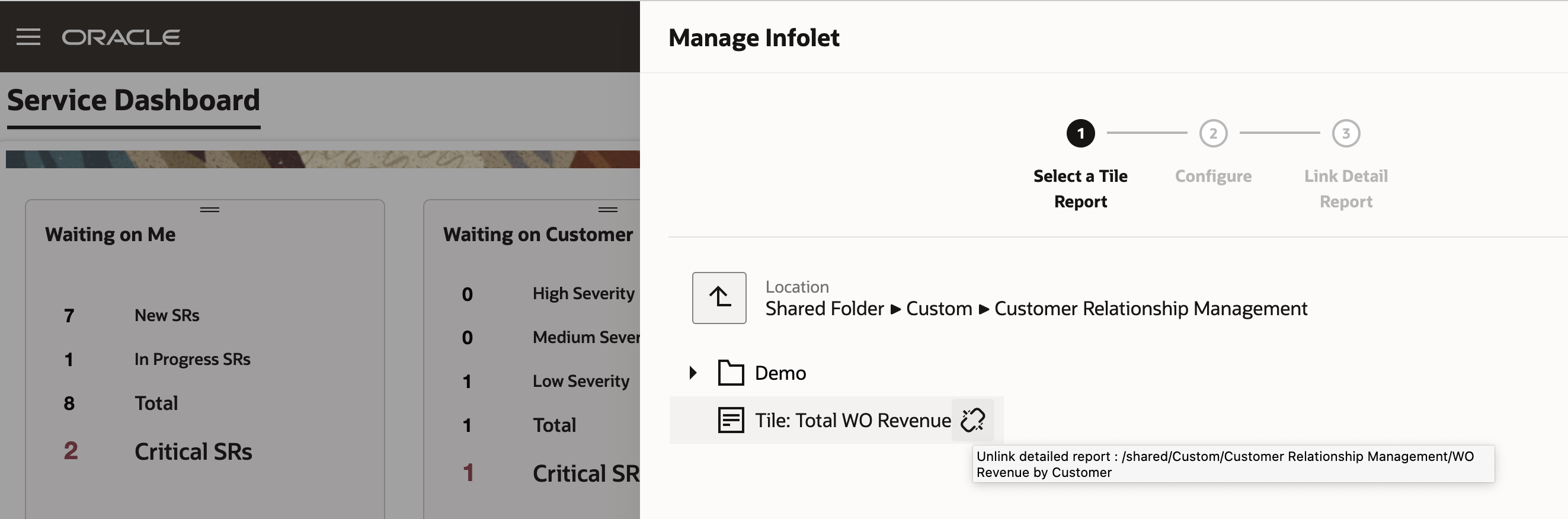
Admin View: Shows a TIle report already linked, with the option to unlink
Adding links to dashboard infolets makes information more actionable for the user.
Steps to Enable
- Log in as an Administrator (Service/HR Help Desk or Internal Desk)
- Click on the dashboard menu at the top right corner and choose 'Manage Infolet' from drop down
- In the resulting pop-up pane, locate the Tile report that needs to be linked to the detailed report
- Click 'Next' and configure the infolet in Step 2. Click 'Next 'again.
- Locate and choose the detail report that the tile report needs to be linked to
- Click 'Save'
- A confirmation message, 'Infolet Configuration Saved' appears
- (optionally) Add the custom infolet to the dashboard and verify that you can drill to the detail report from it.
Enhanced Case Features for Case Workers, Administrators and Developers
Case workers, administrators and developers can now leverage a variety of enhancements to several of their favorite Case Management features on the Create Case and Case Details pages.
- Primary Contact pickers now default intelligently to either customers or employees based on the stripe of the Case. Administrators can easily set the default stripe for their Cases through a profile option.
- Documents on a Case can now be categorized, previewed and secured.
- Tasks and Appointments are now summarized in the left-hand panel.
- Household addresses can be entered easily using a new address verification service.
The refinements to the Primary Contact, Task/Appointment, Document and Household features in the Create Case and Case Details pages make Cases easier to configure for Case Administrators and easier to use for Case Workers.
Steps to Enable
- To configure the default Case stripe and Primary Contact picker:
- Use the 'Manage Case Profile Options' task in Setup and Maintenance to set your preferred value for 'ORA_SVC_CASE_DEFAULT_STRIPE_CD'. The default value is 'CRM'.
- The 'Primary Contact' picker on the Create Case and Case Details pages will show Contacts (for 'CRM' stripe) or Employees (for 'HR Help Desk' and 'Internal Help Desk' stripe).
- To configure Document categories, use the 'Manage Attachment Categories' task in Setup and Maintenance to add or remove the 'SVC_CASES' entities to standard or custom Categories for your Cases. More information about Attachment Entities and Attachment Categories can be found here.
- Household address verification can be enabled by setting the 'householdAddressSearchEnabled' variable to 'on' in Visual Builder.
- No configuration is required to enable:
- Document preview for image formats.
- Tasks/Appointment summary in the left-hand panel.
Create a Case from an Inbound Email
You can now enable your customers and employees to automatically create a case by sending your organization an email. This feature will allow your customers to communicate with you through a powerful new channel. When a customer sends a new inbound email, a Case will automatically be created. The subject of the email will become the title of the case and the body of the email will be captured in the problem description as well as create a customer entry message which is a conversation message.
If the sender of the email is not known by the system, based on a lookup of the email address, a case will be created without a contact associated.
Once a Case has been created, case workers will have the ability to respond to that email from within the context of the Case. As case workers and the customer correspond, all information will be captured as part of a conversation message thread.
This feature will allow customers and employees to communicate with your organization and create cases through the email channel. Customer issues and questions can then be quickly and easily routed to a case worker for attention. This feature helps ensure that when a customer initiates a new case through email, your organization can manage the correspondence without having information spread across multiple channels.
Steps to Enable
Before configuring this feature, you will want to ensure that you have your inbound email setup and configured properly. Please reference this documentation for the setup and configuration steps for inbound email: https://docs.oracle.com/en/cloud/saas/fusion-service/fairs/how-you-set-up-inbound-and-outbound-email.html#s20058578.
Once you have your inbound email setup and configured, you will want to create a new channel. As a user with Administrator privileges navigate to Setup and Maintenance.
- Select the offering Service
- Select Communication Channels
- Select Manage Communication Channels
- Create Channel
- Enter in all requested information
- Set the Purpose Code to "Case"
For detailed information on setting up a communication channel, specific instructions are available here: https://docs.oracle.com/en/cloud/saas/fusion-service/fairs/configure-an-email-channel.html#s20058710.
When emails are then sent into the email address identified in the Account Name a new case will be created.
Tips And Considerations
Important note: if the customer or employee sends an initial inbound email that does not have a subject, the Case creation will fail since the title of the Case is a required field. If this is a concern, please contact My Oracle Support and they can provide you with a workaround.
Access Requirements
In order for Agents to correctly view and correspond with customers through conversation messages, please ensure that they have the following privileges:
| View Conversation Message | SVC_VIEW_CONV_MSG | Allows a user to view a conversation message. |
| Participate in Customer Conversation | SVC_PARTICIPATE_IN_CUSTOMER_CONVERSATION | Allows a user to participate in a customer conversation. |
| Participate in Collaboration Conversation | SVC_PARTICIPATE_IN_COLLAB_CONVERSATION | Allows a user to participate in a collaboration conversation. |
Enhanced Case Features for Case Workers, Administrators and Developers
Case workers, administrators and developers can now leverage a variety of enhancements to several of their favorite Case Management features on the Create Case and Case Details pages.
- Primary Contact pickers now default intelligently to either customers or employees based on the stripe of the Case. Administrators can easily set the default stripe for their Cases through a profile option.
- Documents on a Case can now be categorized, previewed and secured.
- Tasks and Appointments are now summarized in the left-hand panel.
- Household addresses can be entered easily using a new address verification service.
The refinements to the Primary Contact, Task/Appointment, Document and Household features in the Create Case and Case Details pages make Cases easier to configure for Case Administrators and easier to use for Case Workers.
Steps to Enable
- To configure the default Case stripe and Primary Contact picker:
- Use the 'Manage Case Profile Options' task in Setup and Maintenance to set your preferred value for 'ORA_SVC_CASE_DEFAULT_STRIPE_CD'. The default value is 'CRM'.
- The 'Primary Contact' picker on the Create Case and Case Details pages will show Contacts (for 'CRM' stripe) or Employees (for 'HR Help Desk' and 'Internal Help Desk' stripe).
- To configure Document categories, use the 'Manage Attachment Categories' task in Setup and Maintenance to add or remove the 'SVC_CASES' entities to standard or custom Categories for your Cases. More information about Attachment Entities and Attachment Categories can be found here.
- Household address verification can be enabled by setting the 'householdAddressSearchEnabled' variable to 'on' in Visual Builder.
- No configuration is required to enable:
- Document preview for image formats.
- Tasks/Appointment summary in the left-hand panel.