
This document will continue to evolve as existing sections change and new information is added. All updates appear in the following table:
| Date | Feature | Notes |
|---|---|---|
| 21 JUN 2019 | Created initial document. |
This guide outlines the information you need to know about new or improved functionality in this update, and describes any tasks you might need to perform for the update. Each section includes a brief description of the feature, the steps you need to take to enable or begin using the feature, any tips or considerations that you should keep in mind, and the resources available to help you.
Security and New Features
The Role section of each feature identifies the security privilege and job role required to use the feature. If feature setup is required, then the Application Implementation Consultant job role is required to perform the setup, unless otherwise indicated. (If a feature doesn't include a Role section, then no security changes are required to use the feature.)
If you have created job roles, then you can use this information to add new privileges to those roles as needed.
Give Us Feedback
We welcome your comments and suggestions to improve the content. Please send us your feedback at oracle_fusion_applications_help_ww_grp@oracle.com.
Optional Uptake of New Features (Opt In)
Oracle Cloud Applications delivers new updates every quarter. This means every three months you'll receive new functionality to help you efficiently and effectively manage your business. Some features are delivered Enabled meaning they are immediately available to end users. Other features are delivered Disabled meaning you have to take action to make available. Features delivered Disabled can be activated for end users in a couple of ways:
Access the Opt In page from the New Features Work Area
- Click the Navigator, and then click New Features (under the My Enterprise heading)
- On the New Features page, select the offering that includes new features you’d like to review
- Click Go to Opt In for any feature you want to opt in
- On the Edit Features page, select the Enable option for the feature, and then click Done
or... Access the Opt In page from the Setup and Maintenance Work Area
- Click the Navigator, and then click Setup and Maintenance
- On the Setup page, select your offering, and then click Change Feature Opt In
- On the Opt In page, click the Edit Features icon for any area that includes features you want to opt in
- On the Edit Features page, select the Enable option for any feature you want to opt in to. If the Enable column includes an Edit icon instead of a check box, then click the icon, select your feature options, and click Save and Close.
- Click Done.
Opt In Expiration
Occasionally, features delivered Disabled via Opt In may auto enable in a future update. This is known as an Opt In Expiration. If your cloud service has any Opt In Expirations you will see a related tab in this document. Click on that tab to see when the feature was originally delivered Disabled, and when the Opt In will expire, potentially auto enabling the feature. You can also click here to see features with Opt In Expirations across all Oracle Cloud Applications.
Column Definitions:
Report = New or modified, Oracle-delivered, ready to run reports.
UI or Process-Based: Small Scale = These UI or process-based features are typically comprised of minor field, validation, or program changes. Therefore, the potential impact to users is minimal.
UI or Process-Based: Larger Scale* = These UI or process-based features have more complex designs. Therefore, the potential impact to users is higher.
Customer Action Required = You MUST take action before these features can be used by END USERS. These features are delivered disabled and you choose if and when to enable them. For example, a) new or expanded BI subject areas need to first be incorporated into reports, b) Integration is required to utilize new web services, or c) features must be assigned to user roles before they can be accessed.
| Ready for Use by End Users Reports plus Small Scale UI or Process-Based new features will have minimal user impact after an update. Therefore, customer acceptance testing should focus on the Larger Scale UI or Process-Based* new features. |
Customer Must Take Action before Use by End Users Not disruptive as action is required to make these features ready to use. As you selectively choose to leverage, you set your test and roll out timing. |
|||||
|---|---|---|---|---|---|---|
| Feature |
Report |
UI or |
UI or |
Customer Action Required |
||
Search for Work Definitions Based on Item Effectivity Using ADFDI |
||||||
Allow Circular Reference in Rework and Transform Work Definitions |
||||||
View Production Quantities in Reporting UOM in Oracle Transactional Business Intelligence |
||||||
Navigate Directly to Quality Issues and Actions from Approval Notifications |
||||||
Improve Usability and Security of the Relationship Rule Editor |
||||||
Enhance Analytics with Additional Attributes in Quality Issues and Actions Real Time Subject Areas |
||||||
Search for Work Definitions Based on Item Effectivity Using ADFDI
Today a manufacturing engineer can search for work definition operation items based on a specified work definition as of date that corresponds to a work definition version in the Application Development Framework Desktop Integration (ADFdi) spreadsheet. The search results return all of the item structure components and assigned operation items that are effective within the start and end dates of the work definition version. As a result, it is challenging to distinguish the past, current, and future states of the work definition on a specific date.
With this update, you can search for work definition operation items and further restrict the search results based on the past, current, and future, or current, or current and future date effectivity as of the current date, or a specified work definition as of date. This search filter can expedite the identification of new or updated components that may have been implemented through a change order. You can also display past, current, and future effective components to coordinate their assignment to a work definition operation by looking at their operation sequences and material sequences within an operation.
Searching for work definitions based on the date effectivity of operation items in ADFdi helps you quickly identify the components assigned and unassigned to operations to facilitate change management scenarios, and verify work definition setups for accurate work order creation.
The new Display Effectivity search field is available in the following worksheets: Operation Items - Standard, Operation Items - ATO Model, and Operation Items- Multilevel ATO. The following is a screenshot of the Operation Items- Multilevel ATO worksheet in which a new Display Effectivity search field is available with 3 effectivity options:
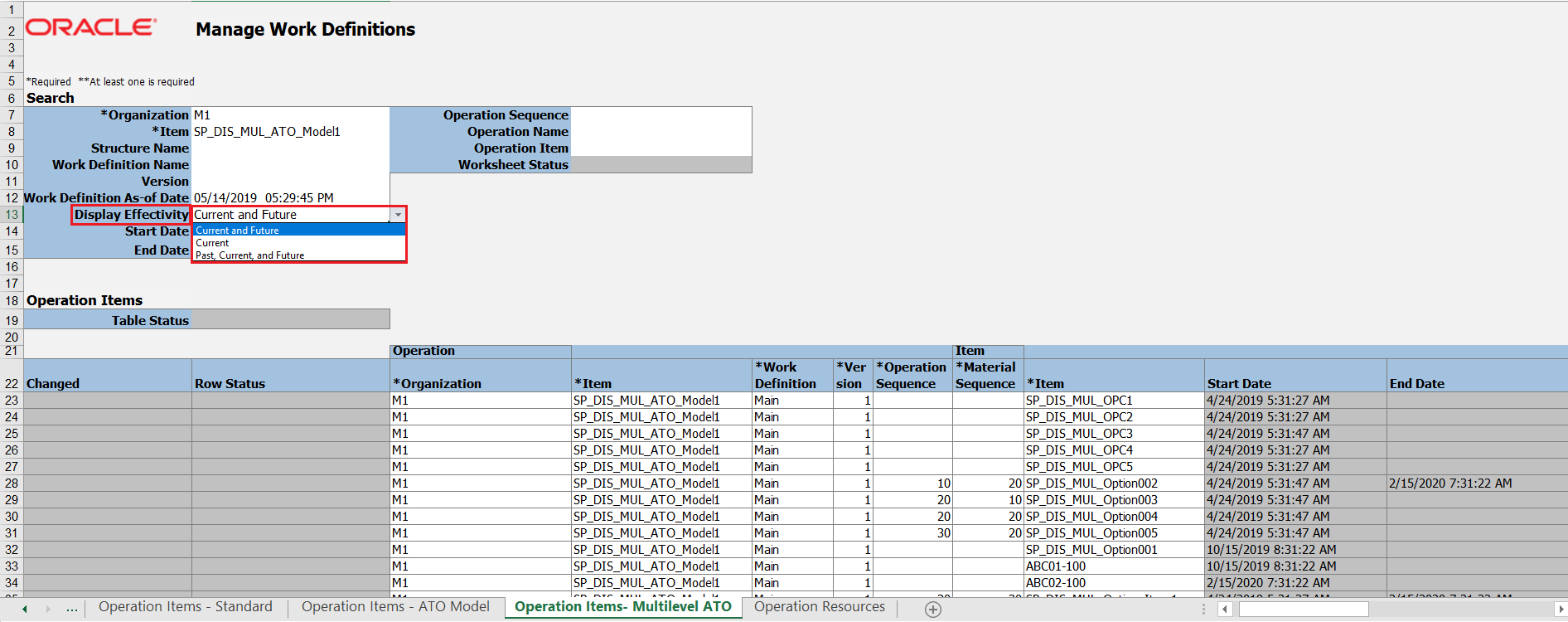
Search Field Display Effectivity in ADFdi
NOTE: This feature was also made available in a monthly update of 19A and 19B.
Watch a Demo
Steps to Enable
You don't need to do anything to enable this feature.
Tips And Considerations
If you don't specify work definition as-of date, the work definition version start date is used to determine what is past, current, and future effective. In this case, since the version start date is used to determine effectivity, you will not get past effective components.
Key Resources
Watch Search for Work Definitions Based on Item Effectivity Using ADFdi Readiness Training
Role Information
- Privilege Name and Code:
- Manage Work Definitions (WIS_MANAGE_WORK_DEFINITIONS_PRIV)
- Job Role Name and Code:
- Manufacturing Engineer (ORA_WIS_MANUFACTURING_ENGINEER_JOB)
Allow Circular Reference in Rework and Transform Work Definitions
As a manufacturer, in a highly competitive market measured by the speed of order fulfillment, your agility in responding to changing demand directly correlates with your ability to easily rework and transform products already in stock. In product management, a circular reference or loop is allowed in item structures with different names. Whereas in manufacturing, a circular reference is prevented between standard, rework, and transform work definitions regardless of having same or different names. As a result, only manual adjustments of adding components directly to work orders without a reference to a work definition can circumvent the looping validation.
For example, you build a subassembly as base stock and use it to configure the final product to fulfill actual sales orders placed.
The work definition to build each product is defined as shown in the table.
| Product X
|
Product Y
|
You convert one product into another product by removing or replacing components as shown in the table.
| Transform to Product X
|
Transform to Product Y
|
You turn the product back into its base subassembly to stock or ship as needed, as shown in the table.
| Transform to Base Subassembly
|
Transform to Base Subassembly
|
With this feature, you can create a set of rework or transform work definitions with different names that essentially allow a circular reference or loop between the work definition item and operation items referenced in the work definitions. An example of a loop is, when a transform work definition for Product X requires Product Y, and another transform work definition for Product Y requires Product X.
You can define different work definition names for each unique rework or transform process to avoid checking for loops. When you create a rework or transform work order, the exploded list of components is compiled based on the same work definition name or item structure name for lower level phantoms.
NOTE: Loops are still prevented when you create a standard work definition or rework and transform work definition with the same name.
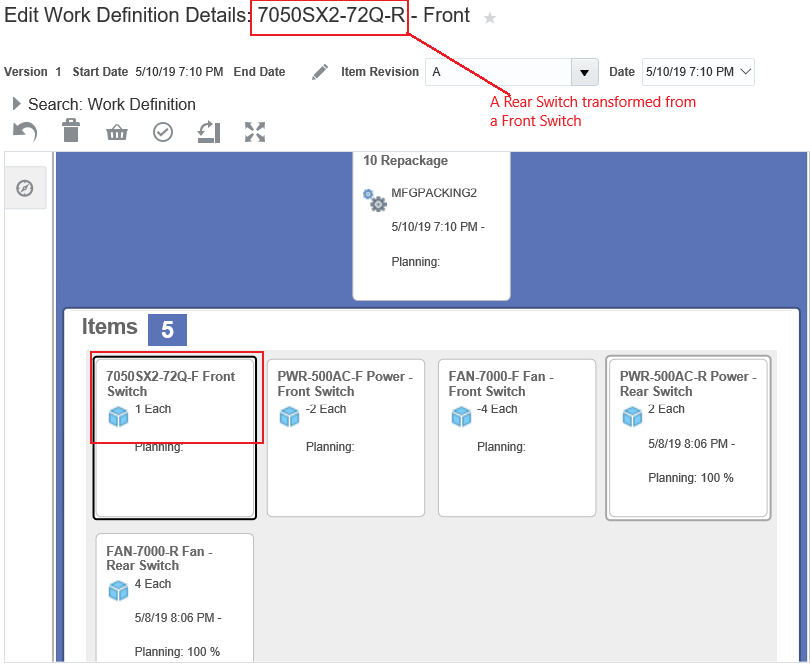
Transform Work Definition for Product X from Product Y
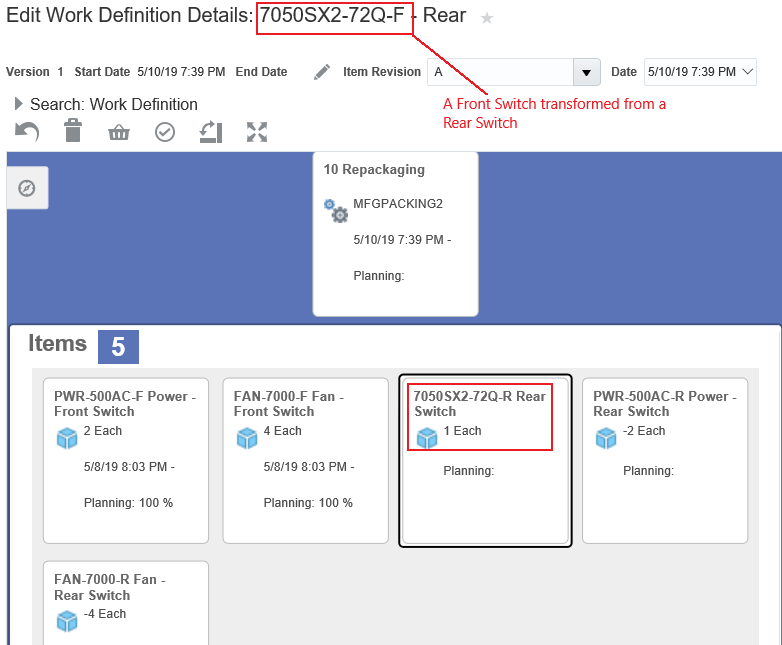
Transform Work Definition for Product Y from Product X
Circular references in rework and transform work definitions with different names enables the production agility to respond adaptively to customer needs and streamline the overall order fulfillment cycle time.
Steps to Enable
You don't need to do anything to enable this feature.
Tips And Considerations
While allowing a circular reference in rework and transform processes is applicable to discrete manufacturing, the loop check enforced for standard work definitions extends to both the discrete and process manufacturing work definitions.
Key Resources
Watch Allow Circular Reference in Rework and Transform Work Definitions Readiness Training
Role Information
- Job Role Name and Code:
- Manufacturing Engineer (ORA_WIS_MANUFACTURING_ENGINEER_JOB)
- Privilege Name and Code:
- Manage Work Definitions (WIS_MANAGE_WORK_DEFINITIONS_PRIV)
Manage Manufacturing and Maintenance Work Order Statuses
Today, companies are not able to add or change the seeded work order statuses. As a result, it is difficult to support enterprise-specific business processes.
With this update, you can now:
- Manage user-defined status for manufacturing and maintenance work orders
- Capture and manage user-defined status during the work order life-cycle
- Search work orders using user-defined statuses
- Display user-defined status in the work order reports
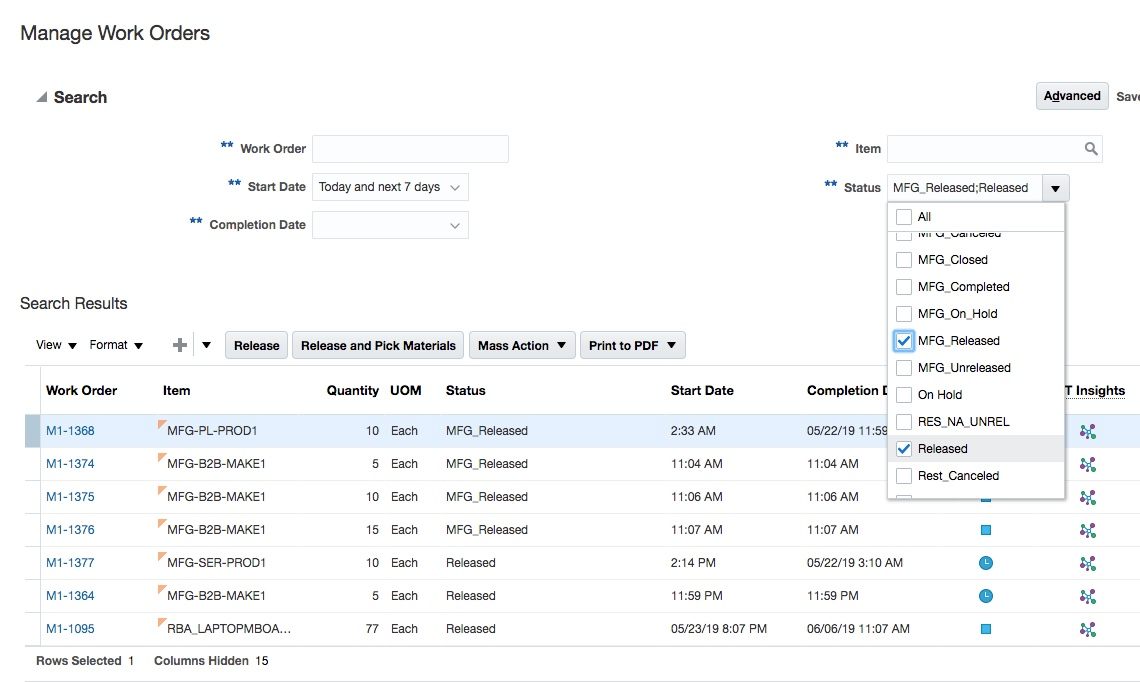
Manage Work Orders Showing User-Defined Statuses
You can not only create new statuses, but also rename predefined work order status. However, you cannot delete a predefined status.
You can create, update, delete, or inactivate user-defined statuses.
User-defined statuses are available in the user interface and by using FBDI and REST services. With this update, you can sort, manage, and report work orders more effectively.
Watch a Demo
Steps to Enable
You don't need to do anything to enable this feature.
Tips And Considerations
This feature is delivered ready to use. You can optionally set up user-defined work order statuses using the Manage Work Order Statuses task.
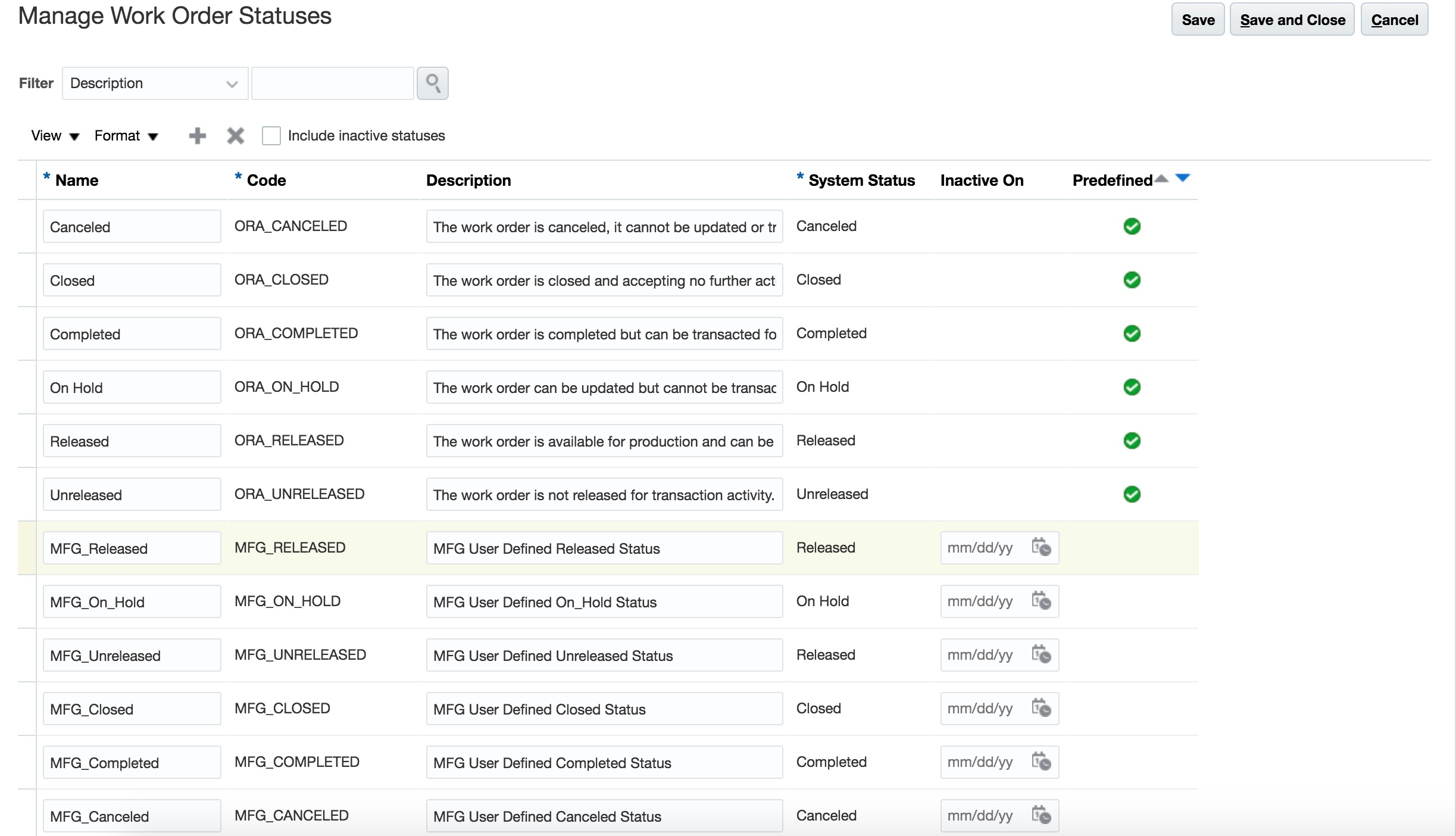
Manage Work Order Statuses
Key Resources
Watch Manage Work Order Statuses Readiness Training
Role Information
New work order statuses can be defined using the Manage Work Order Statuses task which requires the following privilege:
- Privilege Name and Code:
- Manage Work Order Statuses (WIS_MANAGE_WORK_ORDER_STATUSES_PRIV)
- Job Role Name and Code:
- Production Supervisor (ORA_WIE_PRODUCTION_SUPERVISOR_JOB)
View Production Quantities in Reporting UOM in Oracle Transactional Business Intelligence
As a manufacturer with low product mix, you need the flexibility to report production in one unit of measure (UOM) for stocking and tracking material, while viewing aggregate production in a common UOM for yield or financial reporting purposes. For example, a product is produced in pounds (lbs) and converted to equivalent cartons (ECN) when viewed across all products.
With this feature, you can use the Actual Production Real Time subject area in Oracle Transactional Business Intelligence to create and view ad-hoc production reports, analyses, and dashboards in a selected reporting UOM for a specific item class or item category or all items. Because the product completion quantities reported in different transaction UOMs are automatically converted into the reporting UOM, you can either use the existing standard or item-specific UOM conversion ratio, or derive the UOM conversion ratio if it does not exist. Viewing production quantities in a single reporting UOM helps you gain real time insight into production yields at an aggregate level by attributes, such as plant, item class, and month.
This sample analysis shows product completion quantities of different items in a common reporting UOM using a calculated measure.
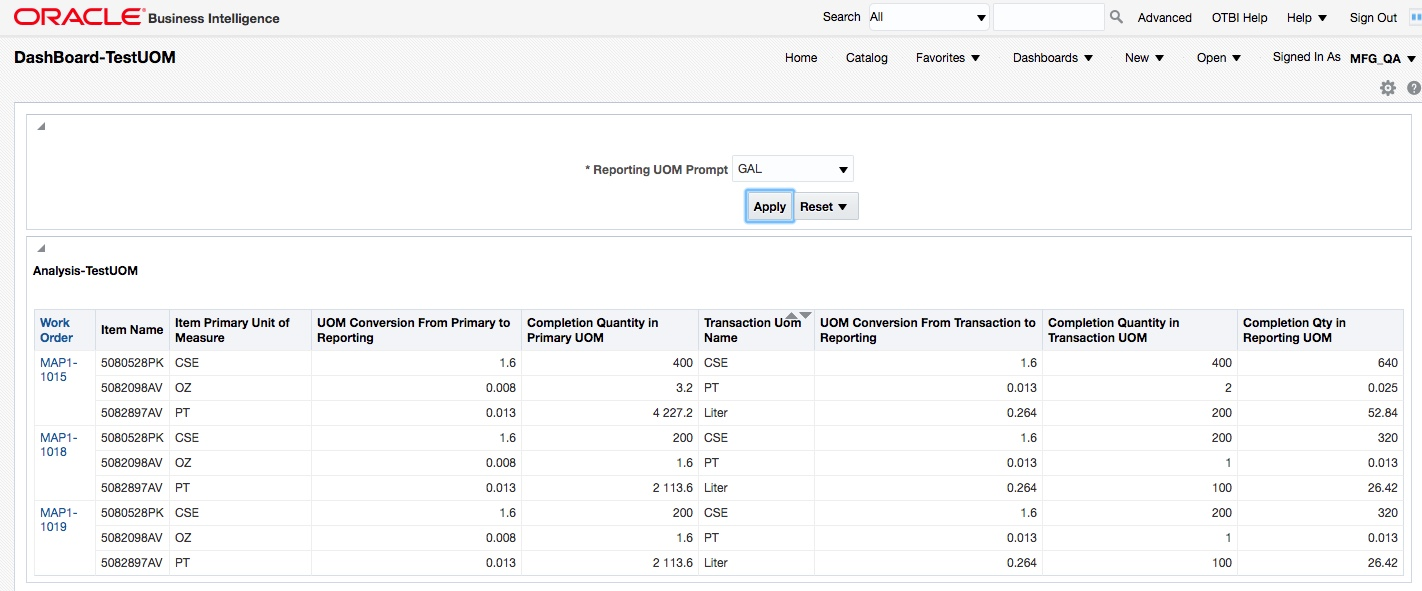
Sample Analysis Showing Production Quantities in Reporting UOM
To use this feature, you should set up a prompt in your OTBI analysis using the reporting UOM attribute and a request variable ToUOM as shown below.
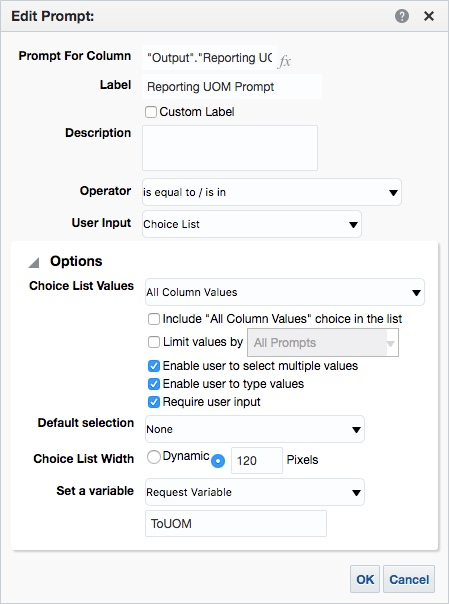
Prompt Definition
Steps to Enable
Leverage new subject area(s) by adding to existing reports or using in new reports. For details about creating and editing reports, see the Creating and Administering Analytics and Reports book (available from the Oracle Help Center > your apps service area of interest > Books > Administration).
Tips And Considerations
OTBI considers both standard and item specific conversions defined in the Setup and Maintenance work area, to display the conversion ratio in the Reporting UOM. You can create a calculated measure of this conversion ratio to display production quantities in the Reporting UOM. It is assumed that the implementation setup will ensure that a conversion ratio to the Reporting UOM exists. The OTBI analysis considers a conversion ratio of -99,999 if the conversion ratio to the Reporting UOM does not exist.
Role Information
Users provisioned with the Production Supervisor role will automatically be able to access the Manufacturing subject areas in Oracle Transactional Business Intelligence.
- Job Role Name and Code:
- Production Supervisor (ORA_WIE_PRODUCTION_SUPERVISOR_JOB)
- BI Duty Role Name and Code:
- Manufacturing Execution Analysis Duty (FBI_MFG_EXECUTION_ANALYSIS_DUTY)
Navigate Directly to Quality Issues and Actions from Approval Notifications
You use the quality management workflow as a vehicle to mobilize designated resources and track progress. To facilitate communication, designated approvers receive workflow approval notifications for quality issues or actions that need immediate review and approval.
With this update, you can directly navigate to the quality issue or quality action from the object hyperlink in approval notifications, improving responsiveness and efficiency of quality problem resolution.
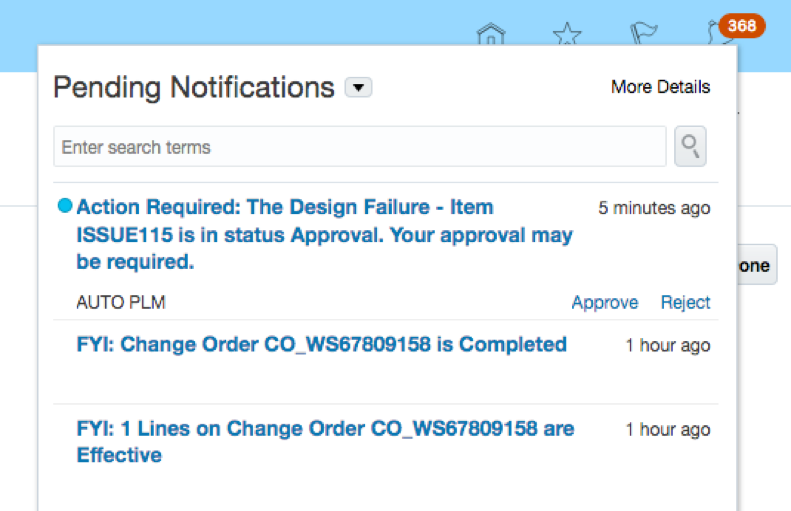
Approval Notification
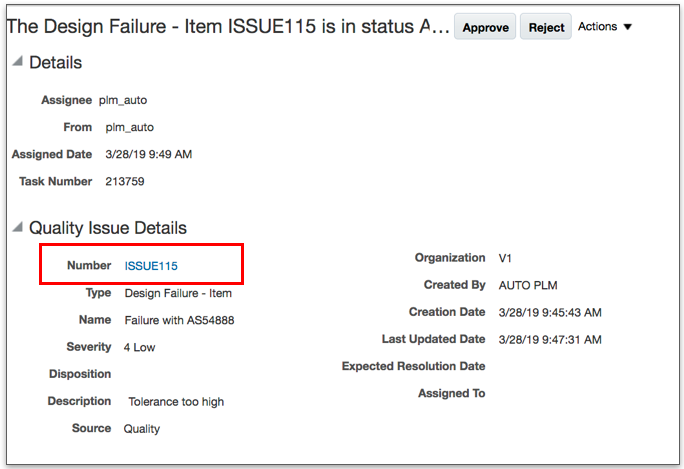
Object Hyperlink in Approval Notification
Steps to Enable
You don't need to do anything to enable this feature.
Key Resources
Watch Attachment Categories and Notifications Back Links Readiness Training
Role Information
- Job Role Name and Code:
- Quality Analyst (ORA_ENQ_QUALITY_ANALYST_JOB)
Categorize Attachments on Quality Issues or Quality Actions
You gather a lot of data during quality management processes as teams work in parallel to define and ultimately resolve quality-related problems. To keep this data organized and provide easy access to individual artifacts as needed, you can categorize attachments. You can also restrict access by attachment category to keep the artifacts secure.
When you add an attachment to an issue or action, you can select the appropriate category to indicate the kind of attachment being added. When you use the Save As action to create a new issue or action, attachment category details are carried over to the new issue or action along with the attachments.
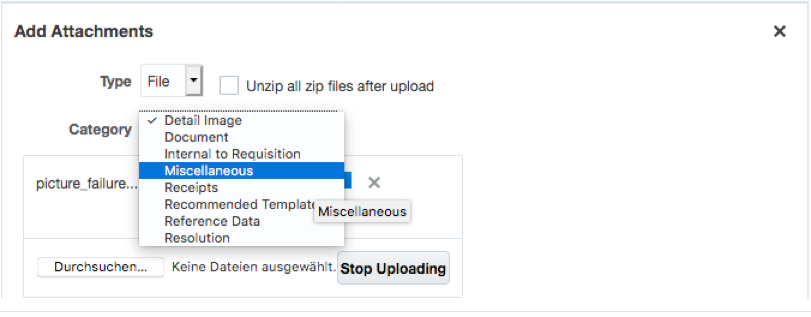
Specify Attachment Category
Watch a Demo
Steps to Enable
To enable this feature, assign additional attachment categories for quality issues and quality actions.
In the Setup and Maintenance work area:
- Open the task Manage Attachment Entities.
- Search for the entity ENQ_ACTION (Quality Actions) or ENQ_ISSUE (Quality Issues).
- Select the entity to see the attachment categories assigned to that specific entity.
- Add the additional attachment categories that should be made available for selection when you create attachments.
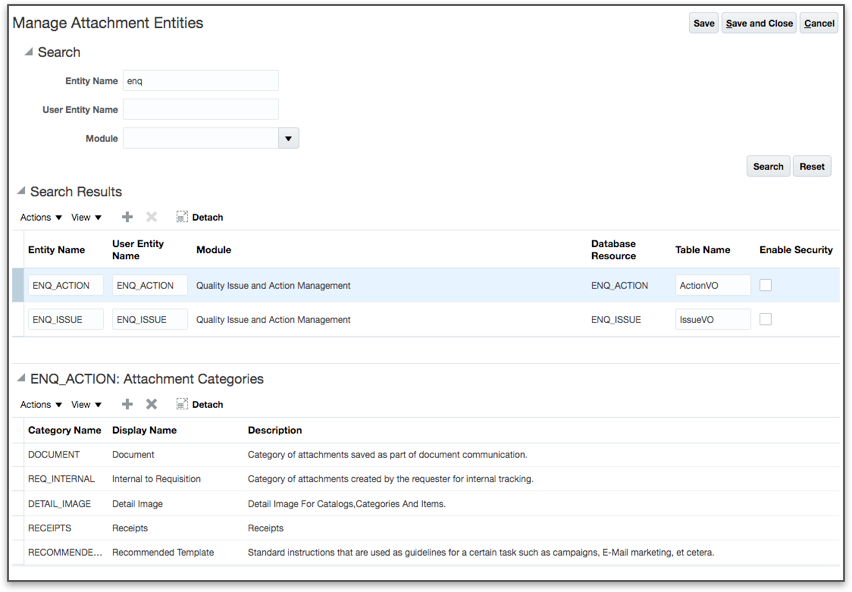
Manage Attachment Entities
Key Resources
Watch Attachment Categories and Notifications Back Links Readiness Training
Role Information
You must have an administrator role to manage attachment categories and assign them to the issue or action attachment entities.
- Job Role Name and Code:
- Quality Analyst (ORA_ENQ_QUALITY_ANALYST_JOB)
Improve Usability and Security of the Relationship Rule Editor
Addressing quality-related events can be a complicated, often intertwined process with multiple dependencies across the various stages or steps from definition to resolution. Not unlike project planning, coordinating the various data gathering and decision processes can be an overwhelming, time consuming, and labor intensive activity.
Use the improved relationships rule editor to define and automatically manage the relationships across quality issues, quality actions, and change orders. You can define rules to change the status of one object when the status of a related object is changed to a specific value. For example, you can define that the status of a quality action is set to Closed once the related change order is set to Closed.
With these improvements, you can clearly see which status is set for each object.
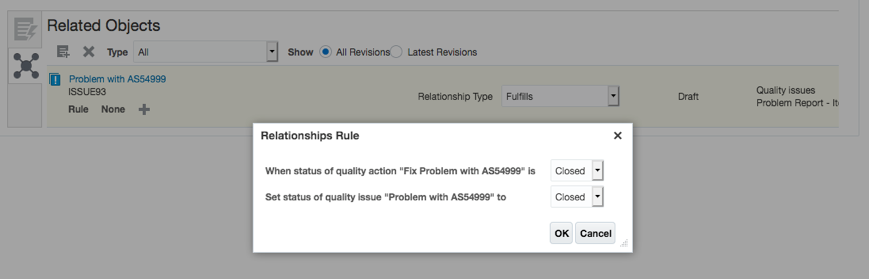
Define Relationships Rule
In addition, the Rule Editor is more secure and prevents unauthorized use with the following improvements:
- You need Manage privilege on the source objects to set rules for those objects. You cannot open the Rule Editor without this.
- You can create a rule only if both related objects have a workflow assigned.
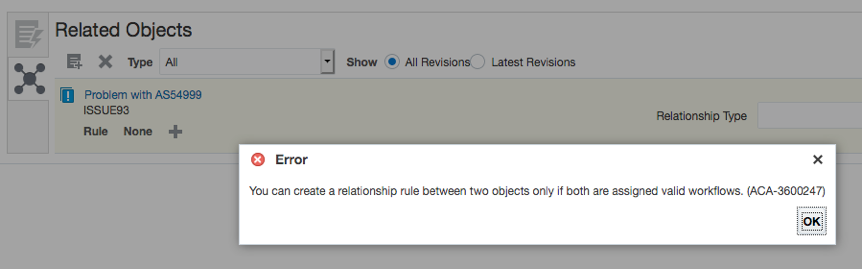
Enhanced Security for Setting Relationship Rules
Steps to Enable
You don't need to do anything to enable this feature.
Key Resources
Watch Attachment Categories and Notifications Back Links Readiness Training
Role Information
- Job Role Name and Code:
- Quality Analyst (ORA_ENQ_QUALITY_ANALYST_JOB)
Enhance Analytics with Additional Attributes in Quality Issues and Actions Real Time Subject Areas
Improve analysis and reporting insights for quality issues and quality actions in Oracle Transactional Business Intelligence (OTBI) with additional attributes for date, text and number.
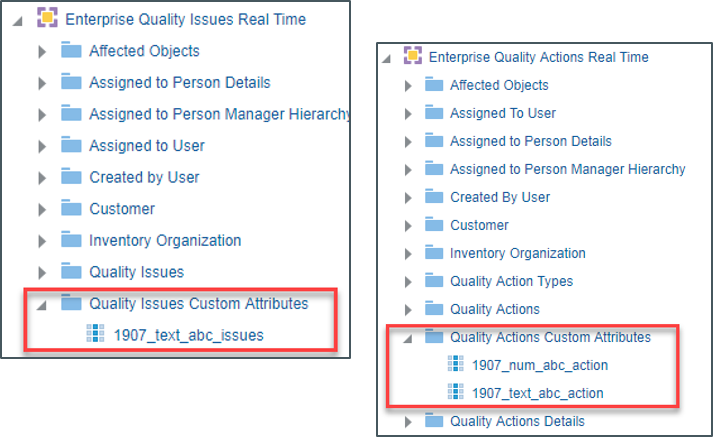
Quality Issues and Quality Actions Subject Areas with Extended Attributes
Steps to Enable
Leverage new subject area(s) by adding to existing reports or using in new reports. For details about creating and editing reports, see the Creating and Administering Analytics and Reports book (available from the Oracle Help Center > your apps service area of interest > Books > Administration).
Key Resources
Watch Attachment Categories and Notifications Back Links Readiness Training
Role Information
- Job Role Name and Code:
- Quality Issues and Actions Transaction Analysis Duty (FBI_QUALITY_ISSUES_ACTIONS_TRANSACTION_ANALYSIS_DUTY)
- BI Consumer Role (BIConsumer)
---