
- Revision History
- Overview
- Pre-Update and Post-Update Tasks
- Optional Uptake of New Features (Opt In)
- Feature Summary
- Supply Chain Orchestration
- Quality Management
- Manufacturing
-
- Manufacturing
-
- Generate an Electronic Production Record for a Product
- Export and Import Work Center Resource Units for Plant Calendar Shifts in the Setup and Maintenance Work Area
- Navigate to IoT Digital Twin from Dispatch List for Real Time Monitoring of Automation Equipment Data
- View Find Number and Suggested Operation Sequence of Item Structure Components in a Manufacturing Work Definition
- Generate a Unique Device Identifier for Lot and Serial-Controlled Manufactured Products
- Extend Automated Work Execution by Sending Program Parameters, and Supporting Automatic Quality Inspection and Disposition
-
- Manufacturing
This document will continue to evolve as existing sections change and new information is added. All updates appear in the following table:
| Date | Module | Feature | Notes |
|---|---|---|---|
| 07 DEC 2023 | Manufacturing | Extend Automated Work Execution by Sending Program Parameters, and Supporting Automatic Quality Inspection and Disposition | Updated document. Added a feature. |
| 01 DEC 2023 | Created initial document. |
 HAVE AN IDEA?
We’re here and we’re listening. If you have a suggestion on how to make our cloud services even better then go ahead and tell us. There are several ways to submit your ideas, for example, through the Ideas Lab on Oracle Customer Connect. Wherever you see this icon after the feature name it means we delivered one of your ideas.
GIVE US FEEDBACK
We welcome your comments and suggestions to improve the content. Please send us your feedback at oracle_fusion_applications_help_ww_grp@oracle.com.
DISCLAIMER
The information contained in this document may include statements about Oracle’s product development plans. Many factors can materially affect Oracle’s product development plans and the nature and timing of future product releases. Accordingly, this Information is provided to you solely for information only, is not a commitment to deliver any material, code, or functionality, and should not be relied upon in making purchasing decisions. The development, release, and timing of any features or functionality described remains at the sole discretion of Oracle.
This information may not be incorporated into any contractual agreement with Oracle or its subsidiaries or affiliates. Oracle specifically disclaims any liability with respect to this information. Refer to the Legal Notices and Terms of Use for further information.
Pre-Update and Post-Update Tasks
Depending on the features you're using in your Cloud applications, you may be required to perform certain steps immediately before or after your quarterly update. For details of these pre-update and post-update steps and the product areas that are affected, refer to Oracle Fusion Cloud SCM: Performing Your Quarterly Update (doc ID 2337485.1) on My Oracle Support.
Optional Uptake of New Features (Opt In)
Oracle Cloud Applications delivers new updates every quarter. This means every three months you'll receive new functionality to help you efficiently and effectively manage your business. Some features are delivered Enabled meaning they are immediately available to end users. Other features are delivered Disabled meaning you have to take action to make available. Features delivered Disabled can be activated for end users by stepping through the following instructions using the following privileges:
- Review Applications Offering (ASM_REVIEW_APPLICATIONS_OFFERINGS_PRIV)
- Configure Oracle Fusion Applications Offering (ASM_CONFIGURE_OFFERING_PRIV)
Here’s how you opt in to new features:
- Click Navigator > My Enterprise > New Features.
- On the Features Overview page, select your offering to review new features specific to it. Or, you can leave the default selection All Enabled Offerings to review new features for all offerings.
- On the New Features tab, review the new features and check the opt-in status of the feature in the Enabled column. If a feature has already been enabled, you will see a check mark. Otherwise, you will see an icon to enable the feature.
- Click the icon in the Enabled column and complete the steps to enable the feature.
In some cases, you might want to opt in to a feature that's not listed in the New Features work area. Here's how to opt in:
- Click Navigator > My Enterprise > Offerings.
- On the Offerings page, select your offering, and then click Opt In Features.
- On the Opt In page, click the Edit Features (pencil) icon for the offering, or for the functional area that includes your feature.
- On the Edit Features page, complete the steps to enable the feature.
For more information and detailed instructions on opting in to new features for your offering, see Configure Offerings.
Opt In Expiration
Occasionally, features delivered Disabled via Opt In may be enabled automatically in a future update. This is known as an Opt In Expiration. If your cloud service has any Opt In Expirations you will see a related tab in this document. Click on that tab to see when the feature was originally delivered Disabled, and when the Opt In will expire, potentially automatically enabling the feature. You can also click here to see features with Opt In Expirations across all Oracle Cloud Applications.
Column Definitions:
Report = New or modified, Oracle-delivered, ready to run reports.
UI or Process-Based: Small Scale = These UI or process-based features are typically comprised of minor field, validation, or program changes. Therefore, the potential impact to users is minimal.
UI or Process-Based: Larger Scale* = These UI or process-based features have more complex designs. Therefore, the potential impact to users is higher.
Features Delivered Disabled = Action is needed BEFORE these features can be used by END USERS. These features are delivered disabled and you choose if and when to enable them. For example, a) new or expanded BI subject areas need to first be incorporated into reports, b) Integration is required to utilize new web services, or c) features must be assigned to user roles before they can be accessed.
| Ready for Use by End Users Reports plus Small Scale UI or Process-Based new features will have minimal user impact after an update. Therefore, customer acceptance testing should focus on the Larger Scale UI or Process-Based* new features. |
Customer Must Take Action before Use by End Users Not disruptive as action is required to make these features ready to use. As you selectively choose to leverage, you set your test and roll out timing. |
|||||
|---|---|---|---|---|---|---|
| Feature |
Report |
UI or |
UI or |
|
||
Improve Processing After Supply Chain Orchestration Updates Supply or Demand |
||||||
Add Postprocessing Days When You Modify Ship Dates in Your Back-to-Back Flows |
||||||
Generate a Unique Device Identifier for Lot and Serial-Controlled Manufactured Products |
||||||
Improve Processing After Supply Chain Orchestration Updates Supply or Demand
Manually reduce or cancel the quantity that remains open on a transfer order or purchase order even when only part of the supply is available. Reduce the errors that might come up when you make these adjustments. Let Oracle Order Management know when Oracle Inventory Management closes a transfer order that's within the shipment tolerance but under the quantity that you requested. Use this functionality in your back-to-back flows.
Manage the response that you get from your fulfillment systems when Oracle Supply Chain Orchestration closes one transfer order but the supply order has other transfer orders that remain open. Use this functionality with your internal material transfers when you might have more than one transfer line in a single supply order.
Reduce errors and user interaction when changes are required to supply or demand.
Steps to Enable
Use the Opt In UI to enable this feature. For instructions, refer to the Optional Uptake of New Features section of this document.
Offering: Manufacturing and Supply Chain Materials Management No Longer Optional From: Update 24B
Key Resources
Access Requirements
The feature is available to any privilege that can create and submit a sales order.
Users who are assigned a configured job role that contains these privileges can access this feature:
- Initiate Order (FOM_CREATE_ORDER_PRIV)
- Submit Order (FOM_SUBMIT_ORDER_PRIV)
Users who are assigned a configured job role that contains these privileges and can create a supply order in the Supply Orchestration work area can access other parts of this feature.
- Create Supply Request (DOS_CREATE_SUPPLY_REQUEST)
- View Supply Line Details (DOS_VIEW_SUPPLY_LINE_DETAILS)
Add Postprocessing Days When You Modify Ship Dates in Your Back-to-Back Flows
Add postprocessing days to the supply's requested delivery date when you modify the sales order's scheduled ship date. Use this feature to help you reliably meet that ship date in your back-to-back flow.
Here's how it works:
- You update the sales order's scheduled ship date, then submit the sales order for scheduling and fulfillment.
- Oracle Global Order Promising calculates the scheduled ship date and updates the sales order. Promising adds the postprocessing days to the scheduled ship date because the shipping warehouse will need them when the item arrives at the warehouse.
- Oracle Order Management sends the update on the requested delivery date to Oracle Supply Chain Orchestration. The requested delivery date includes the postprocessing days.
- Promising subtracts the postprocessing days from the scheduled ship date to calculate the recommended requested delivery date that it sends to Supply Chain Orchestration so Supply Chain Orchestration can make the supply available in the warehouse. The warehouse manager can then do the postprocessing activities before shipping the item to the customer. For example, if the scheduled ship date is November 30, and if the postprocessing days is 5, then Promising will recommend November 25 as the requested delivery date.
- Supply Chain Orchestration picks the requested delivery date from Global Order Promising's recommendation, then sends an update to your downstream application, such as Oracle Manufacturing.
Steps to Enable
Use the Opt In UI to enable this feature. For instructions, refer to the Optional Uptake of New Features section of this document.
Offering: Manufacturing and Supply Chain Materials Management No Longer Optional From: Update 24C
Key Resources
Access Requirements
Users who are assigned a configured job role that contains these privileges can access this feature:
- Process Supply Order Interface (DOS_PROCESS_SUPPLY_ORDER_INTERFACE_PRIV)
- View Supply Orders (DOS_VIEW_SUPPLY_ORDERS_PRIV)
- Manage Supply Request Exceptions (DOS_MANAGE_SUPPLY_REQUEST_EXCEPTIONS_PRIV)
- View Supply Order Exceptions and Status (DOS_VIEW_SUPPLY_ORDER_EXCEPTIONS_AND_STATUS_PRIV)
These privileges were available prior to this update.
Execute Inspection Plan Action Rules Using a REST Service
Manufacturers need a way to effortlessly integrate the Oracle Quality Management product with other applications and systems. This ensures real time data exchange and automatic execution of the action rules. Oracle Quality Inspection already supports execution of the inspection action rules from the user interface. Now you can also seamlessly execute inspection action rules using the Inspection Actions REST service. This fosters agility, flexibility, and automation of the inspection process.
For example, when integrating mobile devices or equipment to Oracle Quality Inspection using REST resources to pass in result values, a quality issue can be automatically created if a result value is outside of the specification limits.
When executing the action rule through REST service you are able to:
- Strengthen the automation handshake for 3rd party integration with equipment and other machinery
- Leads to cost savings by reducing manual effort, reducing errors, and increasing efficiency
Steps to Enable
Review the REST service definition in the REST API guides to leverage (available from the Oracle Help Center > your apps service area of interest > APIs & Schema). If you are new to Oracle's REST services you may want to begin with the Quick Start section.
Tips And Considerations
- If the Inspection Actions REST resource is called after the actions have been previously executed, all of the rules will be executed again, if any.
- Information pertaining to inspection actions triggered cannot be deleted.
- Creation of inspection action records is only supported through the execution of the rules, and they cannot be directly created or modified.
- You can execute inspection plan action rules using a REST resource, but you cannot create action rules for the inspection plan using a REST resource.
- You can use the Visual Builder Cloud Service add-in for Excel with the REST services to execute the inspection plan action rules and to retrieve the information pertaining to the actions taken.
Access Requirements
Access to this feature is through privilege:
- Edit Inspection Results
Generate an Electronic Production Record for a Product
Manufacturers in all industries are increasingly required for regulatory or traceability purposes, to provide the manufacturing records for their products in a digital format that's easily accessible. With the electronic production record (EPR), you can generate such a document that summarizes the complete work order and quality history of a product in a single, auditable record. This document contains the product information as planned and manufactured, including lot and serial information of input material. It also contains quality results for incoming, in process, and final inspection as well as non-conformance, corrective and preventive actions, equipment used, and electronic signatures for any of the business transactions critical to Good Manufacturing Practices (GMP).
You can perform the following tasks with this update:
- Generate the EPR report for completed or closed work orders.
- Generate the EPR report in a PDF format with the following content:
- Work order details, work definition details, operations, materials, and resources
- Operation completion with back flush and inline inspections
- Product with serial and lot details
- Materials issued with serials and lot details
- Labor and equipment resources charged
- Ad hoc quality inspections
- Inspections performed for outside processing or supplier operations
- Inspection of purchased items that are directly procured against the work order
- Production exceptions and closure
- Electronic signatures for the previous events, if enabled
You can generate EPR documents for one or more work orders as shown below from the Manufacturing Work Execution task list.
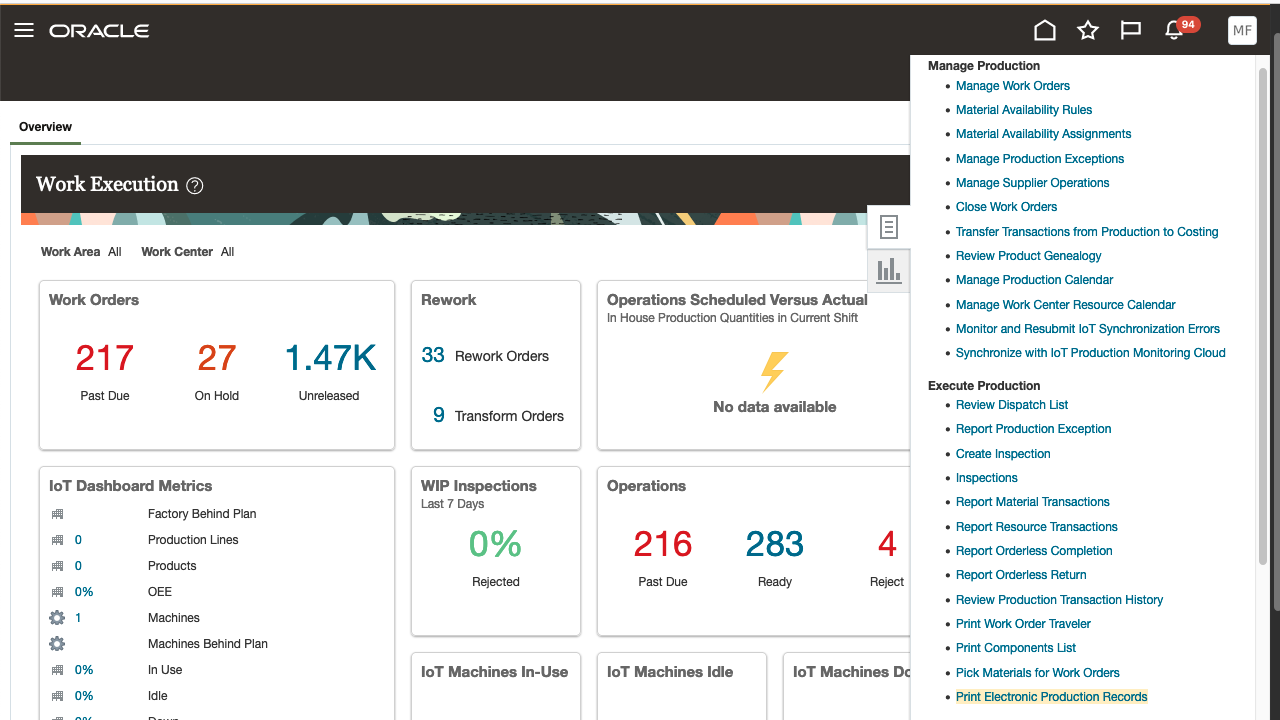
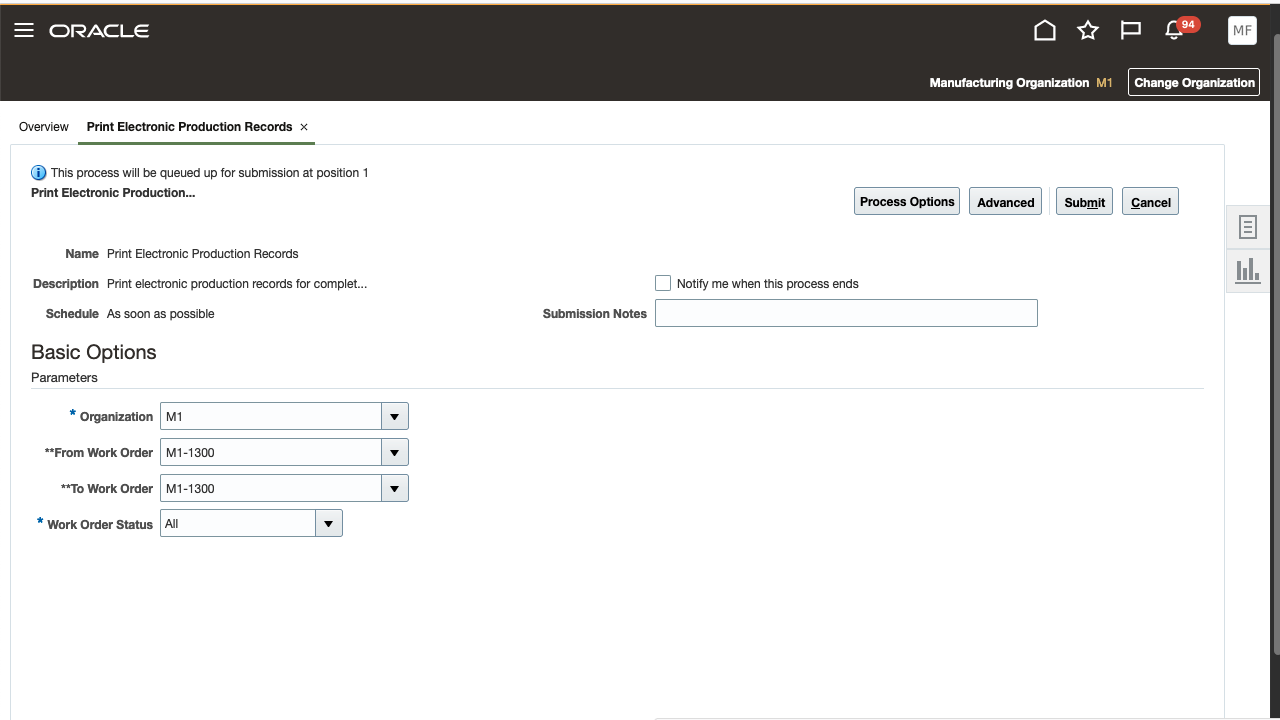
Print Electronic Production Records Task from Manufacturing Work Execution Task List
You can also request to generate the electronic production record and view the documents generated for the requests in the Scheduled Processes page under Tools.
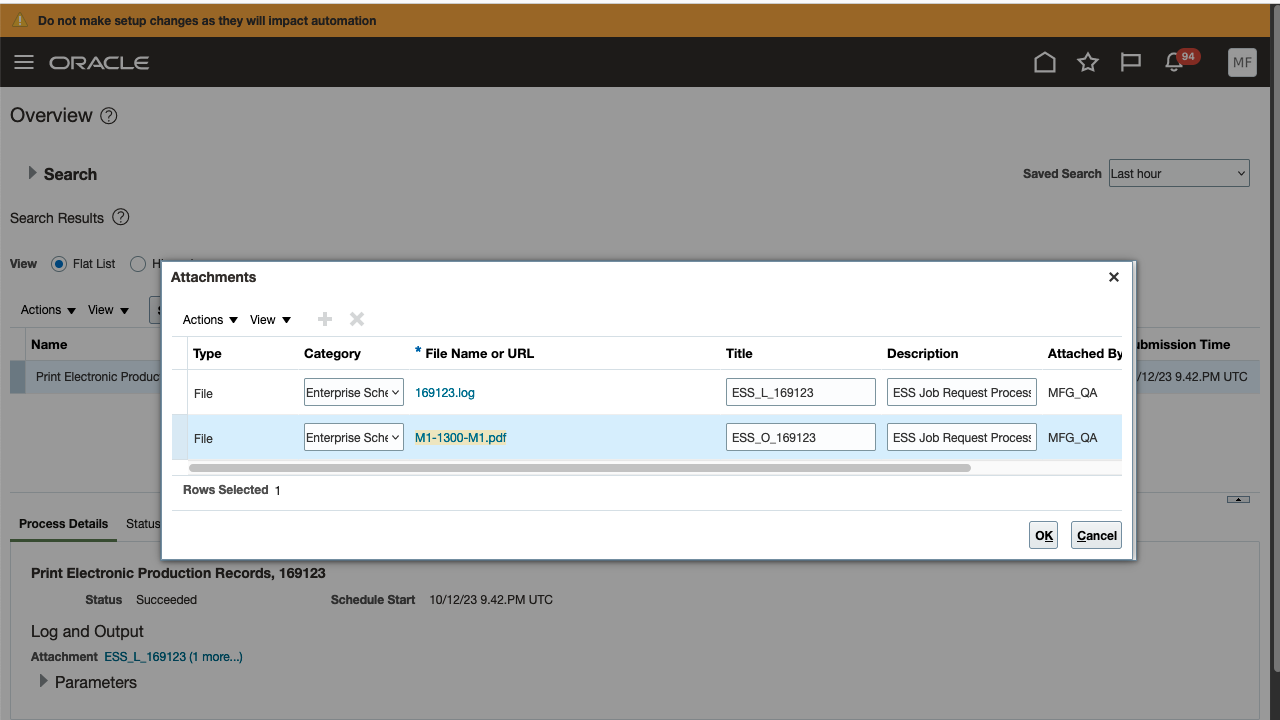

EPR Generated as a PDF Document for Each Work Order
Creating an EPR swiftly facilitates a more efficient and streamlined method of collating essential work order information, enhancing the process of compliance documentation of product conformance ensuring audit trails and traceability.
- Risk associated with paperwork errors is mitigated, ensuring that the documentation presented during regulatory audits is both complete and accurate.
- Data is error-free and readily available, significantly aiding in audit processes and ensuring traceability is both seamless and reliable.
- For manufacturers in nonregulated industries, EPRs provide a consolidated report that quickly offers an acceptance record of a product.
Steps to Enable
You don't need to do anything to enable this feature.
Tips And Considerations
- You can't capture the electronic signature for the electronic production record (EPR) at this time.
- The electronic production record is generated using Oracle Business Intelligence Publisher (BIP) and it's an extensible report that allows for the template to be modified.
- With knowledge of the BIP features, administrators can personalize the brand logo, styling, and layout of this report to enhance this further to meet their business needs.
Key Resources
- To learn more about Oracle Business Intelligence Publisher features that can be leveraged to enhance this report, refer to the product documentation
Access Requirements
Users who are assigned a configured job role that contains this privilege can access this feature:
- Print Electronic Production Records (WIP_PRINT_ELECTRONIC_PRODUCTION_RECORDS_PRIV)
This privilege was available prior to this update.
Export and Import Work Center Resource Units for Plant Calendar Shifts in the Setup and Maintenance Work Area
Prior to this update, the migration of setup data for work center resource unit allocations required manual data entry to ensure an exact copy exists in the test and production environments. Now you can export and import the number of work center resource units available for each shift based on a plant calendar. You can also monitor the progress of this setup data export and import process and review the process results to address any errors or warnings.
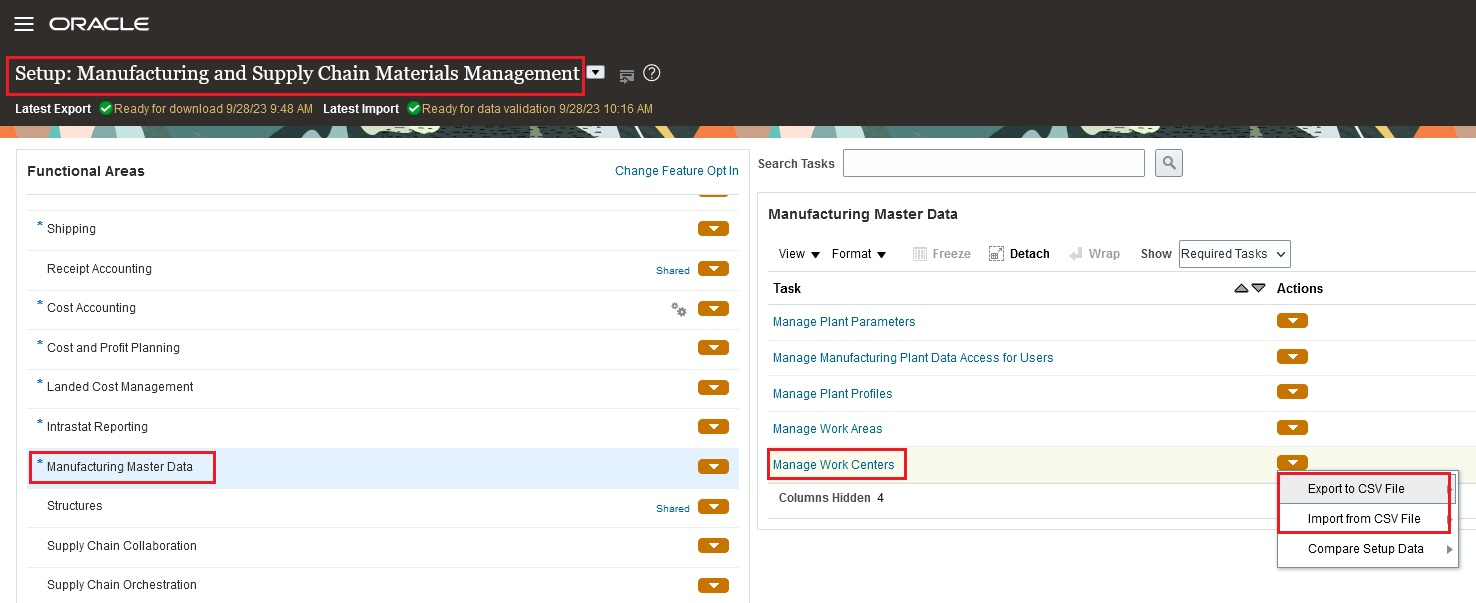
Functional Setup Manager (FSM) - Manage Work Centers - Export and Import Actions
Using the Functional Setup Manager Export feature, you can export the details of the work center resources and the shift units of the resources. Thereafter, you can add new resources and import the resource shift units for the existing as well as the newly added resources using the Functional Setup Manager Import feature. The export and import actions are managed using the CSV files. The resource shift units are managed for the work centers as per the plant calendar only.
Export and import processes for the setup of work center resource units allocated in a plant calendar shift facilitates the automation of the data migration process. As a result, it reduces the time to replicate and verify the same data exists between test and production environments.
Steps to Enable
You don't need to do anything to enable this feature.
Tips And Considerations
- You can prepare environments for migration based on recommended best practices. Refer to the user documentation on Best Practices for Migrating Setup Data from Test to Production.
- You can assign and modify the resource units available in a work center for each shift using the Edit Work Center: Resource Availability page or the Shifts for Work Center Resources REST API. Refer to the user documentation: How You Allocate Resource Units to Shifts and REST API for Oracle Fusion Cloud SCM documentation for more information.
- You can't export or import the resource shifts data for work center calendars that override the plant calendar.
Key Resources
- Refer to the Export and Import Work Center Resource Units for Plant Calendar Shifts in the Setup and Maintenance Work Area user demo.
Access Requirements
Users who are assigned a configured job role that contains these privileges can access this feature:
- Manage File Import and Export (FND_MANAGE_FILE_IMPORT_AND_EXPORT_PRIV)
- Manage Manufacturing Plant Set Up Data by Service (WIS_MANAGE_MFG_PLANT_SETUP_SERVICE_PRIV)
These privileges were available prior to this update.
Navigate to IoT Digital Twin from Dispatch List for Real Time Monitoring of Automation Equipment Data
Real-time sensor data monitoring through IoT communication during manufacturing execution provides a clear visibility of work in progress and performance of connected equipment. With this update, you can now monitor the real time status of an automation equipment and the data produced while executing an operation. You can navigate from the Review Dispatch List page to the equipment's Digital Twin view in Oracle Production Monitoring, part of Oracle IoT Intelligent Applications. This navigation is available for work order operations that have quantities in ready and in process dispatch statuses. You can navigate to the equipment's Digital Twin view in Oracle Production Monitoring by clicking on the Monitor Equipment button as shown in the following screenshot:
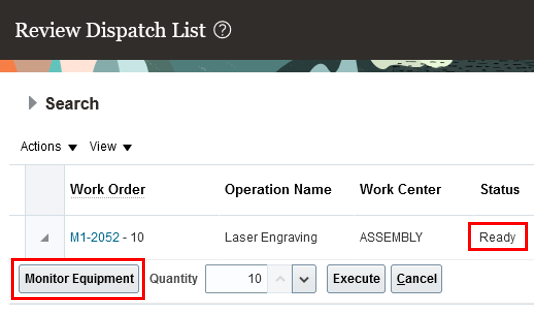
Monitor Equipment Button to Nnavigate to Digital Twin View of the Automation Equipment in IoT Production Monitoring
In the IoT Digital Twin view, you will be able to view the start and complete information of work order operations real time, and monitor the telemetry data from an automation equipment for the corresponding work order operation. You will also be able to determine if the automation equipment is currently available or busy to start execution of a new work order.
The ability to navigate to IoT Digital Twin view directly from the Review Dispatch List page saves time for operators from switching to multiple screens to obtain information about work order execution status and equipment performance.
Steps to Enable
Enable the Enable synchronization to IoT Production Monitoring plant parameter, and then enable the Automate manufacturing execution with robotic and industrial equipment parameter to be able to use this feature.
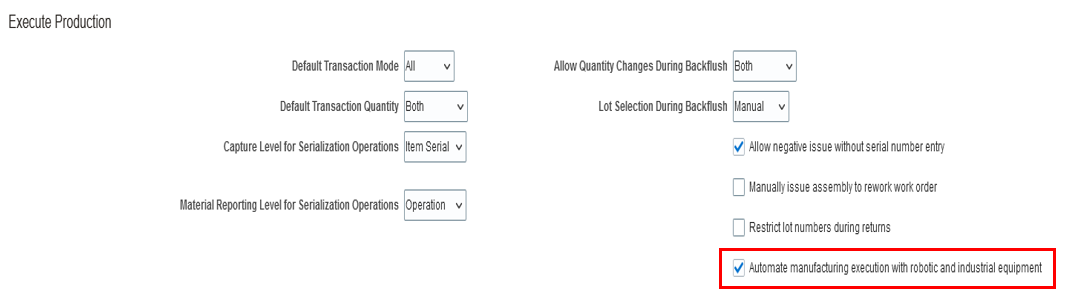
Plant Parameter to Automate Manufacturing Execution Through Bidirectional Communication with Robotic and Industrial Equipment
Key Resources
- Refer to the Navigate to IoT Digital Twin from Dispatch List for Real Time Monitoring of Automation Equipment Data readiness training.
View Find Number and Suggested Operation Sequence of Item Structure Components in a Manufacturing Work Definition
Prior to this update, a product design engineer could add a component and its total quantity required per product when in a single level item structure. Subsequently, a manufacturing engineer could determine whether the component is required in more than one operation and assign a partial quantity to each operation in the work definition for a product. This multistep process requires manual coordination to implement the component split across multiple operations and later to synchronize quantity changes for the component.
Now you can view the find number that uniquely identifies a specific instance of a component in a standard item structure and its suggested operation sequence to facilitate the component assignment to a work definition operation. Find number allows the same component to be repeated in an item structure, which voids the need to split a component in a manufacturing work definition. Suggested operation sequence makes the product design engineer’s recommendations for operation sequencing visible to the manufacturing engineer. For example, a desktop computer is built with a left speaker and right speaker. The product design engineer adds the speaker twice in the item structure, with a unique find number and either the same or different suggested operation sequence for each instance of the speaker.
The following is a screenshot of the Edit Item Structure page showing component WM661 Thin Profile Speaker System that repeats in the item structure with unique find number and suggested operation sequence.

Find Number and Suggested Operation Sequence in Item Structure
In the Edit Work Definition Details page, you can view the find number and suggested operation sequence by double clicking or right click on a selected item structure component to open the Item Information dialog with this information displayed. You can also view the find number of the item structure component in the Assign Operation Items and Edit Operation Items dialogs.
The following is a screenshot of the Item Information dialog for component WM661 Thin Profile Speaker System displaying the find number and suggested operation sequence.
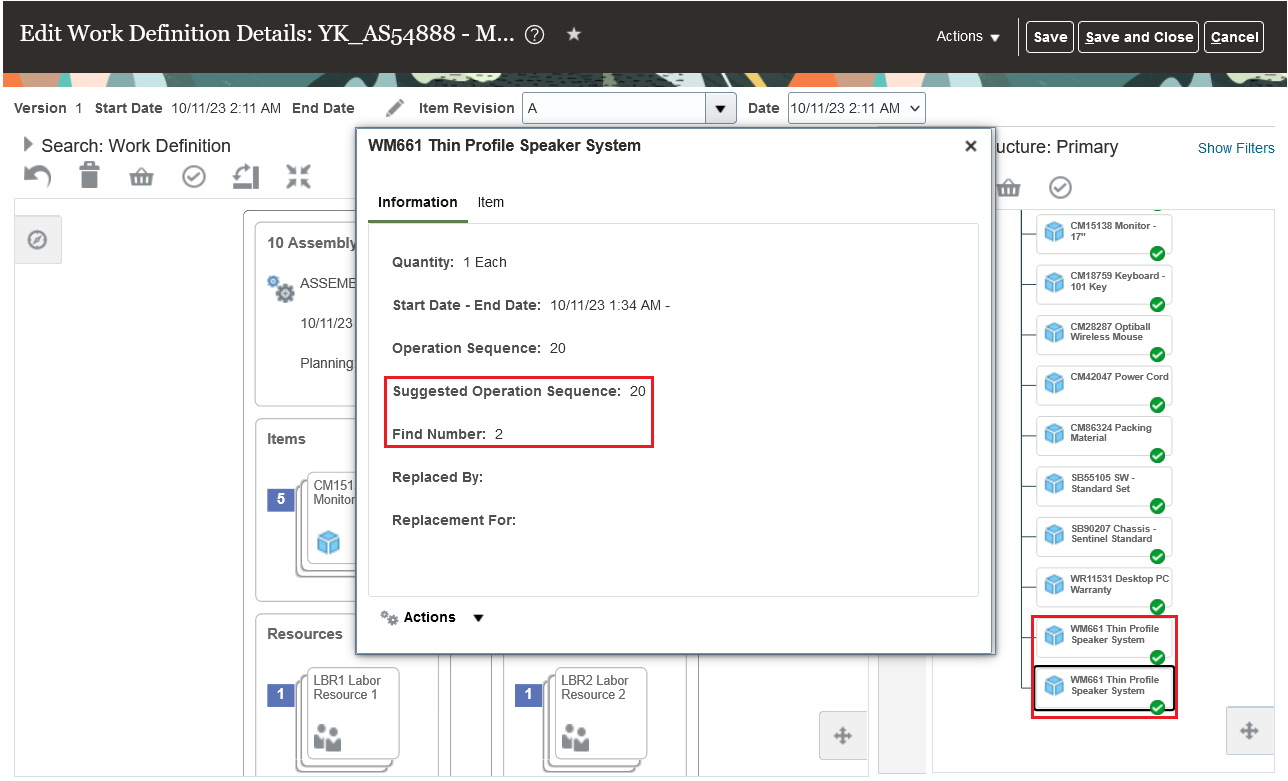
Find Number and Suggested Operation Sequence in Item Information Dialog
The following is a screenshot of the Edit Operation Items dialog displaying the find number of the work definition operation items.
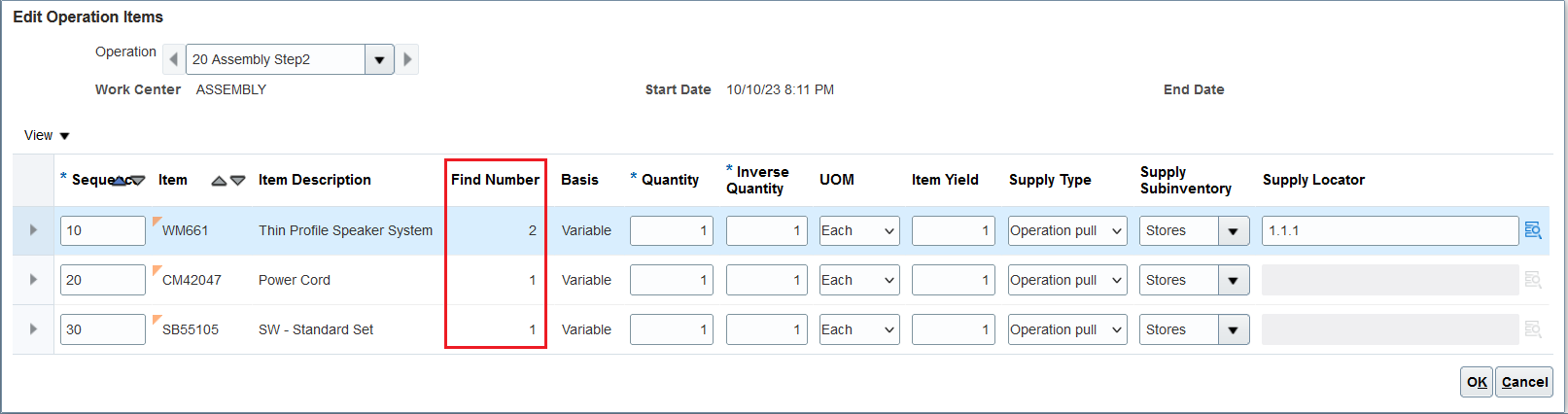
Find Number in Edit Operation Items Dialog
In a change management scenario, an update to the suggested operation sequence for an item structure component can be synchronized to the impacted work definitions by running the Process Item Structure Changes to Work Definitions scheduled process. However, the find number can't be updated after a component is saved in the item structure. Both find number and suggested operation sequence are read only fields when viewed in the work definition.
Application Desktop Framework Desktop Integration (ADFdi) Changes:
The Find Number and Suggested Operation Sequence columns have been added to the following worksheets when creating or updating operation items for discrete manufacturing work definitions:
- Operation Items for Standard Assemblies
- Operation Items for ATO Model
- Operation Items - Multilevel ATO
To assign a component that repeats multiple times in the item structure to a work definition operation using ADFdi, you must perform a search, then assign the item with the unique find number returned in the search results. You can copy the suggested operation sequence to the operation sequence field if the operation assignment is accurate or enter the correct operation sequence for the item.
File-based data import (FBDI) Changes:
The Find Number column has been added to the following worksheets in the FBDI work definition templates when importing operation items for discrete manufacturing or process manufacturing work definitions:
- Template: WorkDefinitionTemplate.xlsm
- Work Definition Operation Items - Standard Items
- Work Definition Operation Items - ATO Model
- Template: ProcessWorkDefinitionTemplate.xlsm
- Work Definition Operation Items
To assign a component that repeats multiple times in the item structure to a work definition operation using FBDI, you must specify the find number of the item in addition to its operation sequence and material sequence. Otherwise, the find number is an optional field. Use the latest template after upgrade to 24A.
REST API Changes:
The Find Number attribute has been added to the Work Definition Requests REST API when creating discrete manufacturing or process manufacturing work definitions. To assign a component that repeats multiple times in the item structure to a work definition operation using REST, you must provide the find number of the item in addition to its operation sequence and material sequence. Otherwise, the find number is an optional field.
With find number and suggested operation sequence, you can streamline the coordination between product development and manufacturing engineering, model the material requirements for production more accurately, and complete work definitions more quickly for use in planning, production, and costing.
Steps to Enable
You don't need to do anything to enable this feature.
Tips And Considerations
- In Product Lifecycle Management, you can specify the following fields for a component in an item structure:
- Find number is a required field. You can’t update the find number in an item structure after the component is saved.
- You can't use find number to add the component multiple times if the item structure type is model or option class.
- Suggested operation sequence is an optional field and defaults to blank.
- You can update the suggested operation sequence in an item structure after the component is saved and upon collaboration with the manufacturing engineer to understand the sequence of operations for making a product.
- In Manufacturing, both find number and suggested operation sequence are read-only fields.
- Any subsequent changes to the operation sequence for the assigned component in the work definition is not automatically synchronized back to the suggested operation sequence in the item structure.
- You can't view the find number and suggested operation sequence for item structure components in a work order. At this time, the quantities of the same component with different find numbers and the same basis type in an operation are aggregated upon work order creation.
- You can't disable this feature in Manufacturing regardless of whether you opt in to the Add Find Number and Suggested Operation Sequence for Structure Components feature in Product Lifecycle Management.
Key Resources
- Readiness training Add Find Number and Suggested Operation Sequence for Structure Components (Product Lifecycle Management Update 24A).
Access Requirements
Users who are assigned a configured job role that contains this privilege can access this feature:
- Manage Work Definitions (WIS_MANAGE_WORK_DEFINITIONS_PRIV)
The privilege was available prior to this update.
Generate a Unique Device Identifier for Lot and Serial-Controlled Manufactured Products
Medical device manufacturers need to comply with regulations to manage, generate, and store a Unique Device Identifier (UDI). The UDI is a series of numeric or alphanumeric characters that's assigned to uniquely identify a medical device. It was introduced to improve the identification, traceability, and safety of medical devices. With this feature, you can generate a complete UDI comprised of the following information:
- Device Identifier - fixed and mandatory element of the UDI. It uniquely identifies the specific version or model of a medical device and the manufacturer (information managed in Oracle Fusion Cloud Product Lifecycle Management).
- Production Identifier - conditional and variable component of the UDI, which may include information like the lot or batch number, the serial number, the expiration date, and the manufacturing date of the device (managed in Oracle Fusion Cloud Manufacturing).
The UDI generation logic is defined on attributes at the item level:
- GTIN value
- Lot
- Serial number
- Expiration date
- Manufacturing date
The UDI is generated as part of the work order product completion and the generated UDI can be seen in the following tasks:
- Production transaction history
- Product labels generated during operation transactions
- Electronic production record
The generation and storage of a full UDI string enables in
- Efficient tracking and tracing of medical devices throughout their lifecycle
- Adherence to regulatory requirements and standards for safety and quality
- Minimizing risks associated with device errors, recalls, and patient safety
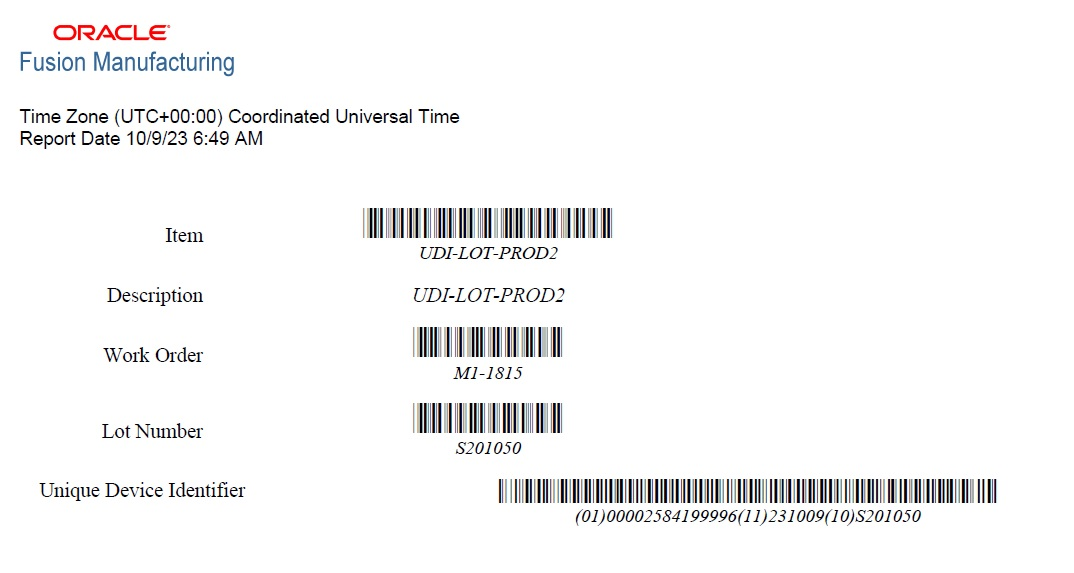
UDI in Product label
Steps to Enable
Associate a Global Trade Identification Number (GTIN) with the item. The GTIN must be associated to the primary UOM of the item without any party.
Set up the UDI Enabled attribute as Yes and Issuing Agency as GS1 in the UDI page of an item definition. Select the required production identifier attributes such as Manufacturing Date and Expiration date. Expiration date is applicable only for lot-controlled products.
Set up the item as lot-controlled or serial-controlled with serial generation as Predefined serial number or Dynamic entry at inventory receipt or both lot and serial controlled at the item-organization.
Tips And Considerations
UDI when generated for a lot is never updated. UDI for a serial is regenerated when the serial is reversed and completed again.
Access Requirements
Users who are assigned a configured job role that contains this privilege can access this feature:
- Report Operation Transactions (WIP_REPORT_OPERATION_TRANSACTIONS_PRIV)
This privilege was available prior to this update.
Extend Automated Work Execution by Sending Program Parameters, and Supporting Automatic Quality Inspection and Disposition
Manufacturers are now progressing towards including automation equipment in their manufacturing workflows to support the journey towards end to end automation. Bidirectional communication with automation equipment to the manufacturing execution systems through IoT interface allows automated work execution and eliminates errors while loading program file information in to the automation equipment. This bidirectional communication can be further leveraged to send additional information to the automation equipment and also to automate the quality inspection and disposition process based on information received from the equipment.
With this update, you can extend your current automated work execution with robotic integration to:
- Send program parameters and inspection characteristics in addition to the program file information to an automation equipment resource
- Automatically perform completion and rejection transactions based on inspection results received from automation equipment
The following are key capabilities related to the feature:
- Generate a equipment parameters file template to associate to work definition operation resource defined as automation equipment
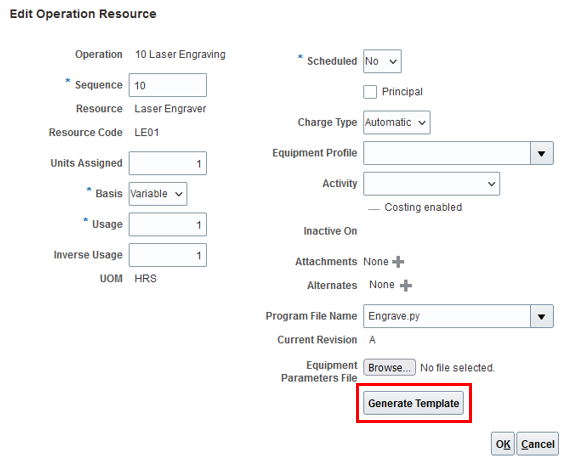
Generation of Equipment Parameters File
- Enrich the template with input program parameters and inspection characteristic names
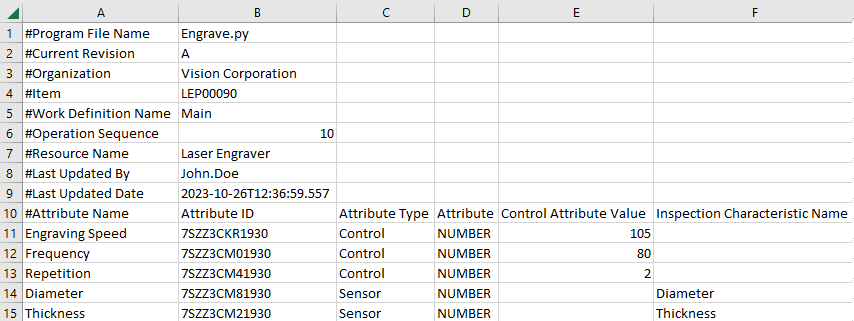
Enrichment of the Equipment Parameters File
- Save and upload the .csv file to complete association to the work definition operation resource
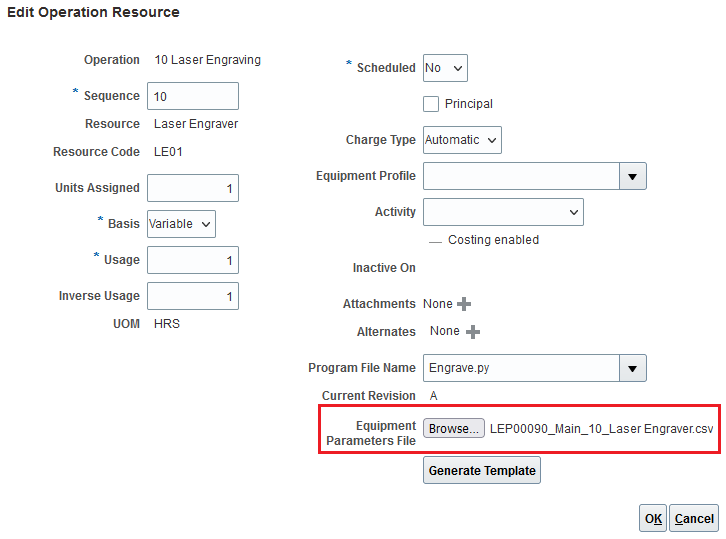
Equipment Parameters File association to Work Definition Operation
- Send the equipment parameter values, inspection characteristic names, inspection plan identifier along with other details to IoT Production Monitoring upon initiating the start of a work order operation from the dispatch list in Manufacturing.
-
Perform automatic quality inspection and disposition through the integration with Oracle Quality Management, based on the sensor data received from automation equipment.
-
Monitor execution status real-time with contextual execution details, telemetry, and transactional data from the automation equipment. In the execution details section of attributes, the user can view the current work order, operation, quantity, program name, version, and user defined program parameters. In addition to execution details, if inspection events have been performed by the machine, inspection event results are also presented in the digital twin view of the machine.
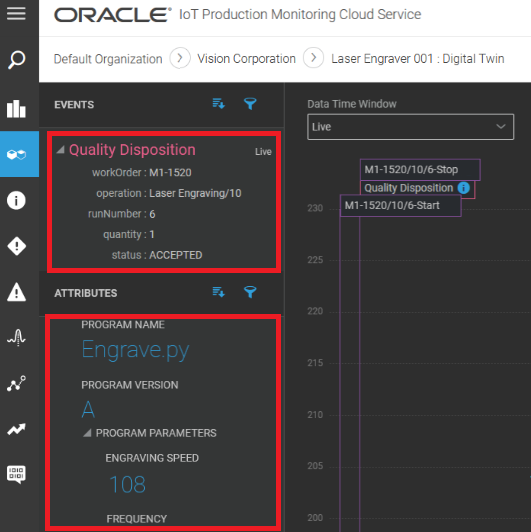
Digital Twin View of Automation Equipment in IoT Production Monitoring Displaying Quality Disposition Details and Program Parameters
-
Create completion and rejection transactions automatically in Manufacturing based on the disposition details received from Quality Management.
While integrating automation equipment in native manufacturing workflows, providing relevant information to the equipment allows for faster transition into end to end automation.
- Sending program parameters in addition to program file information to an automation equipment eliminates errors that may be caused due to manual input into the machine. This provides flexibility to maintain a common program file to perform an operation, but parse item specific parameters for different item variants.
- Leveraging inspection results provided by the automation equipment in the form of telemetry data through IoT communication eliminates the need to manually acceptance and rejections of units produced by automation equipment during work order execution.
Steps to Enable
Enable the Enable synchronization to IoT Production Monitoring plant parameter, and then enable the Automate manufacturing execution with robotic and industrial equipment parameter to be able to use this feature.
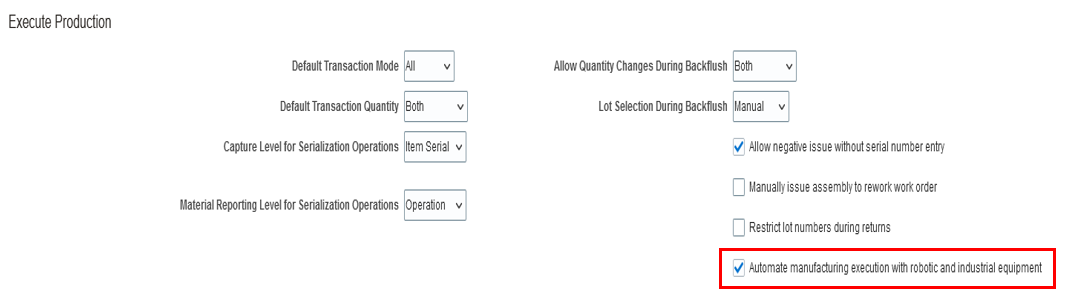
Plant Parameter to Automate Manufacturing Execution Through Bidirectional Communication with Robotic and Industrial Equipment
Tips And Considerations
- The inspection characteristic names in the equipment parameters file associated to a work definition operation resource must be entered in the local language of the user that's configured in Production Monitoring for Manufacturing Cloud integration.
- If quantities were automatically reported as rejected based on inspection results received from the automation equipment, further disposition of the rejected quantities to scrap or completion must be done by the operator manually from the Review Dispatch List page.
Key Resources
- Refer to the What's New of the 23D feature: Automate Manufacturing Execution Through Bidirectional Communication with Robotic and Industrial Equipment as a starting point for this 24A feature
- Refer to the Extend Automated Work Execution by Sending Program Parameters and Supporting Automatic Quality Inspection and Disposition readiness training