
- Revision History
- Overview
- Pre-Update and Post-Update Tasks
- Optional Uptake of New Features (Opt In)
- Feature Summary
- Supply Chain Orchestration
- Collaboration Messaging Framework
-
- Collaboration Messaging Framework
-
- Log In-Process Inbound B2B Messages
- Update Rules for Processing Complex Change Requests in Inbound Order Acknowledgments
- Exchange B2B Messages with Your Trading Partners Using TIE Kinetix
- Define the File Extension for Your B2B Messages Delivered by Email or an Oracle Content Repository
- Specify the Sender's Email Address for Outbound B2B Messages
- Retransmit Unsuccessful B2B Messaging-Enabled Purchase Orders
-
- Collaboration Messaging Framework
- Order Management
- IMPORTANT Actions and Considerations
This document will continue to evolve as existing sections change and new information is added. All updates appear in the following table:
| Date | Module | Feature | Notes |
|---|---|---|---|
| 31 MAY 2023 | Collaboration Messaging Framework |
Specify the Sender's Email Address for Outbound B2B Messages | Updated document. Revised feature description. |
| 31 MAY 2023 | Collaboration Messaging Framework |
Retransmit Unsuccessful B2B Messaging-Enabled Purchase Orders | Updated document. Added a feature that was backported in the May monthly update of 23B. |
| 23 MAY 2023 | Order Management | Selected Order Management Bug Fixes in This Update | Updated document. Included new section. |
| 04 MAY 2023 | Order Management | Copy Order Lines in Revisions | Updated document. Revised Tips and Considerations. |
| 27 APR 2023 | Collaboration Messaging Framework |
Define the File Extension for Your B2B Messages Delivered by Email or an Oracle Content Repository | Updated document. Added a feature that was backported in the April monthly update of 23B. |
| 27 APR 2023 | Collaboration Messaging Framework |
Specify the Sender's Email Address for Outbound B2B Messages | Updated document. Added a feature that was backported in the April monthly update of 23B. |
| 20 APR 2023 | Order Management | Copy Extensible Flexfield Values When You Copy Order Lines | Updated document. Added new feature in update 23B. |
| 03 MAR 2023 | Created initial document. |
 HAVE AN IDEA?
We’re here and we’re listening. If you have a suggestion on how to make our cloud services even better then go ahead and tell us. There are several ways to submit your ideas, for example, through the Ideas Lab on Oracle Customer Connect. Wherever you see this icon after the feature name it means we delivered one of your ideas.
GIVE US FEEDBACK
We welcome your comments and suggestions to improve the content. Please send us your feedback at oracle_fusion_applications_help_ww_grp@oracle.com.
DISCLAIMER
The information contained in this document may include statements about Oracle’s product development plans. Many factors can materially affect Oracle’s product development plans and the nature and timing of future product releases. Accordingly, this Information is provided to you solely for information only, is not a commitment to deliver any material, code, or functionality, and should not be relied upon in making purchasing decisions. The development, release, and timing of any features or functionality described remains at the sole discretion of Oracle.
This information may not be incorporated into any contractual agreement with Oracle or its subsidiaries or affiliates. Oracle specifically disclaims any liability with respect to this information. Refer to the Legal Notices and Terms of Use for further information.
Pre-Update and Post-Update Tasks
Depending on the features you're using in your Cloud applications, you may be required to perform certain steps immediately before or after your quarterly update. For details of these pre-update and post-update steps and the product areas that are affected, refer to Oracle Fusion Cloud SCM: Performing Your Quarterly Update (doc ID 2337485.1) on My Oracle Support.
Optional Uptake of New Features (Opt In)
Oracle Cloud Applications delivers new updates every quarter. This means every three months you'll receive new functionality to help you efficiently and effectively manage your business. Some features are delivered Enabled meaning they are immediately available to end users. Other features are delivered Disabled meaning you have to take action to make available. Features delivered Disabled can be activated for end users by stepping through the following instructions using the following privileges:
- Review Applications Offering (ASM_REVIEW_APPLICATIONS_OFFERINGS_PRIV)
- Configure Oracle Fusion Applications Offering (ASM_CONFIGURE_OFFERING_PRIV)
Here’s how you opt in to new features:
- Click Navigator > My Enterprise > New Features.
- On the Features Overview page, select your offering to review new features specific to it. Or, you can leave the default selection All Enabled Offerings to review new features for all offerings.
- On the New Features tab, review the new features and check the opt-in status of the feature in the Enabled column. If a feature has already been enabled, you will see a check mark. Otherwise, you will see an icon to enable the feature.
- Click the icon in the Enabled column and complete the steps to enable the feature.
In some cases, you might want to opt in to a feature that's not listed in the New Features work area. Here's how to opt in:
- Click Navigator > My Enterprise > Offerings.
- On the Offerings page, select your offering, and then click Opt In Features.
- On the Opt In page, click the Edit Features (pencil) icon for the offering, or for the functional area that includes your feature.
- On the Edit Features page, complete the steps to enable the feature.
For more information and detailed instructions on opting in to new features for your offering, see Configure Offerings.
Opt In Expiration
Occasionally, features delivered Disabled via Opt In may be enabled automatically in a future update. This is known as an Opt In Expiration. If your cloud service has any Opt In Expirations you will see a related tab in this document. Click on that tab to see when the feature was originally delivered Disabled, and when the Opt In will expire, potentially automatically enabling the feature. You can also click here to see features with Opt In Expirations across all Oracle Cloud Applications.
Column Definitions:
Report = New or modified, Oracle-delivered, ready to run reports.
UI or Process-Based: Small Scale = These UI or process-based features are typically comprised of minor field, validation, or program changes. Therefore, the potential impact to users is minimal.
UI or Process-Based: Larger Scale* = These UI or process-based features have more complex designs. Therefore, the potential impact to users is higher.
Features Delivered Disabled = Action is needed BEFORE these features can be used by END USERS. These features are delivered disabled and you choose if and when to enable them. For example, a) new or expanded BI subject areas need to first be incorporated into reports, b) Integration is required to utilize new web services, or c) features must be assigned to user roles before they can be accessed.
Use REST API to Get Supply Sources for Internal Material Transfers
Use the availableSupplySources REST resource to get the supply sources that can fulfill a request for an internal material transfer. Get the one source that can most effectively fulfill the request, or get a list of up to six sources, ranked according to how effectively they can fulfill the request. Get the actual quantity that's currently on hand in each source.
Add flexibility to how you select and use the supply source for each of your internal material transfers.
Steps to Enable
You don't need to do anything to enable this feature.
Tips And Considerations
- Use the findBestAvailableSupplySource finder to get the most effective source.
- Use the findAllAvailableSupplySources finder to get the list of all supply sources. This finder gets a maximum of 6 sources, ranked according to how effectively each one fulfills the request.
- Get the actual quantity that's currently on hand for each supply source.
- You can only read data, so you can use only the GET operation.
Key Resources
- Using Supply Chain Orchestration
- Supply Chain Orchestration
- availableSupplySources in REST API for Oracle Supply Chain Management Cloud
Access Requirements
You have a couple of options for giving people access to this feature, depending on whether you're assigning them predefined job roles or your own configured job roles.
- Users who are assigned any of these predefined job roles can access this feature:
- Supply Chain Operations Manager (ORA_DOS_SUPPLY_CHAIN_OPERATIONS_MANAGER_JOB)
- Users who are assigned a configured job role that contains these privileges can access this feature:
- Process Supply Order Interface (DOS_PROCESS_SUPPLY_ORDER_INTERFACE_PRIV)
- View Supply Orders (DOS_VIEW_SUPPLY_ORDERS_PRIV)
- Manage Supply Request Exceptions (DOS_MANAGE_SUPPLY_REQUEST_EXCEPTIONS_PRIV)
- View Supply Order Exceptions and Status (DOS_VIEW_SUPPLY_ORDER_EXCEPTIONS_AND_STATUS_PRIV)
- Manage Inventory Transfer Order (INV_MANAGE_INVENTORY_TRANSFER_ORDER_PRIV)
- Get Best Or All Available Supply Sources (DOS_GET_BEST_OR_ALL_AVAILABLE_SOURCES_PRIV)
- View Total On Hand Quantity in Supply Source (DOS_VIEW_AVAILABLE_ONHAND_QTY_PRIV)
Include Reference Details for Supply Requests on REST API Error Messages
Add the value of the SupplyOrderReferenceNumber attribute and the SupplyOrderReferenceLineNumber attribute as a prefix on each error message that REST API returns when it processes a supply request. Use the prefix to troubleshoot problems with the request.
Reduce the amount of time you need to troubleshoot and fix problems when you import through REST API.
Steps to Enable
Use the Opt In UI to enable this feature. For instructions, refer to the Optional Uptake of New Features section of this document.
Offering: Manufacturing and Supply Chain Materials Management No Longer Optional From: Update 23D
Tips And Considerations
Here's an example of an error message that REST API returns.
{
"title": "Bad Request",
"status": "400",
"o:errorDetails": [
{
"detail": "SupplyOrderReferenceNumber:A190102, SupplyOrderReferenceLineNumber:100, MessageType:ERROR, MessageText:The supply order wasn't created because the destination subinventory code, source subinventory code, or both aren't correct."
},
{
"detail": "SupplyOrderReferenceNumber:A190102, SupplyOrderReferenceLineNumber:100, MessageType:ERROR, MessageText:The supply order wasn't created because the shipment priority isn't correct. Ensure that a valid shipment priority is specified in the supply request."
}
]
}
Key Resources
- Using Supply Chain Orchestration
- Supply Chain Orchestration
- REST API for Oracle Supply Chain Management Cloud
Access Requirements
You have a couple of options for giving people access to this feature, depending on whether you're assigning them predefined job roles or your own configured job roles.
- Users who are assigned any of these predefined job roles can access this feature:
- Supply Chain Operations Manager (ORA_DOS_SUPPLY_CHAIN_OPERATIONS_MANAGER_JOB)
- Users who are assigned a configured job role that contains these privileges can access this feature:
- Process Supply Order Interface (DOS_PROCESS_SUPPLY_ORDER_INTERFACE_PRIV)
- View Supply Orders (DOS_VIEW_SUPPLY_ORDERS_PRIV)
- Manage Supply Request Exceptions (DOS_MANAGE_SUPPLY_REQUEST_EXCEPTIONS_PRIV)
- View Supply Order Exceptions and Status (DOS_VIEW_SUPPLY_ORDER_EXCEPTIONS_AND_STATUS_PRIV)
- Manage Inventory Transfer Order (INV_MANAGE_INVENTORY_TRANSFER_ORDER_PRIV)
If you're maintaining your own job roles, no new privileges were introduced to support this feature.
Use Service Mappings to Extend Supply Chain Orchestration's Integration with Inventory
Use a service mapping to help integrate your Oracle applications. Use the service mapping to meet your specific integration requirements in your transfer order flow. Create a sales order in Oracle Order Management, orchestrate supply in Oracle Supply Chain Orchestration, then create a transfer order in Oracle Inventory Management. As an option, use an extensible flexfield to integrate data that's specific to your implementation. You can also use a service mapping to integrate data that travels from planning and purchasing, to supply chain orchestration, and then to inventory.
For example, here's a service mapping that uses the TransferOrderRequest entity in the TransferRequestSource service to send a request to create a transfer order from Supply Chain Orchestration to inventory:
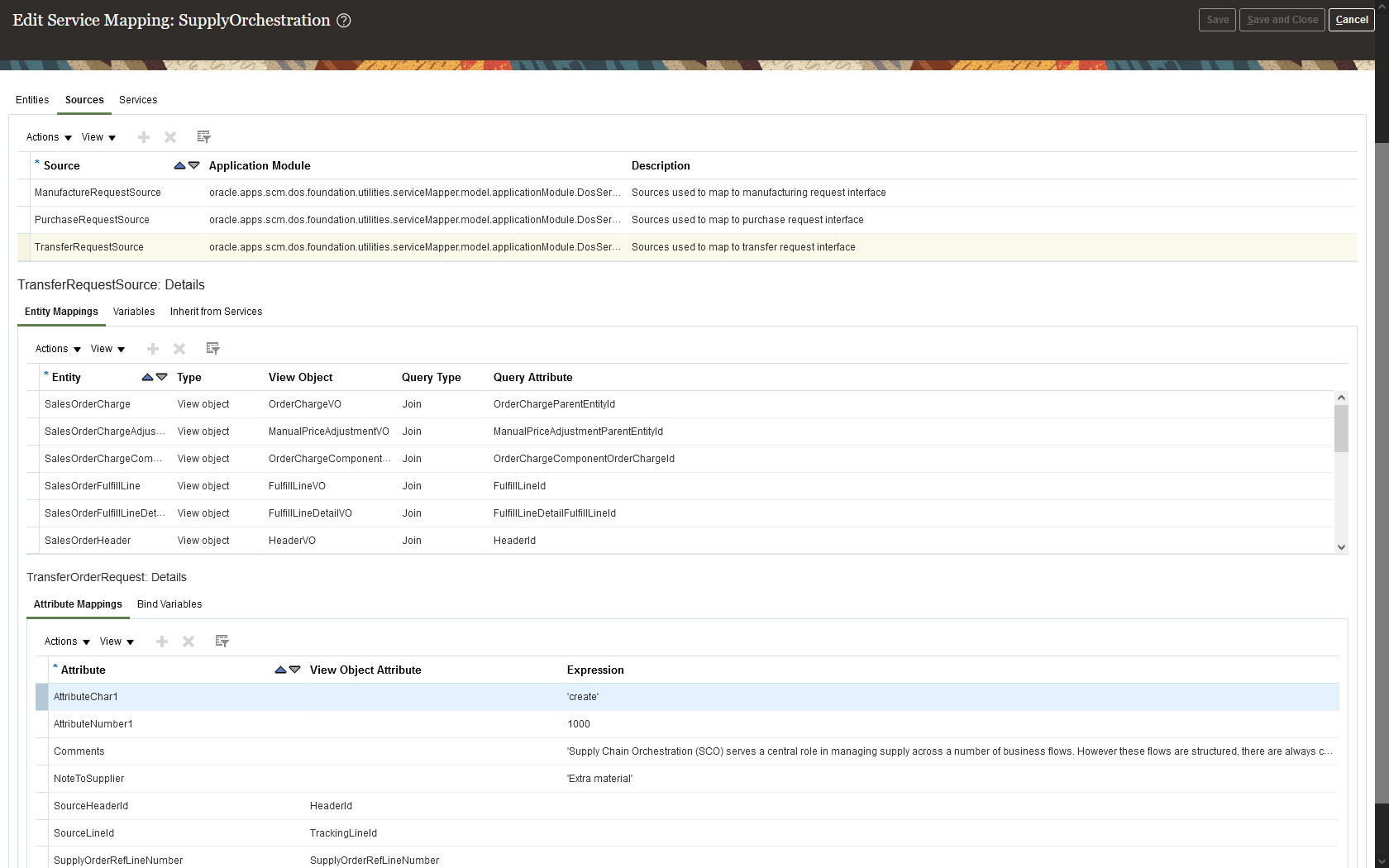
Modify supply orchestration data so it meets your requirements.
Watch a Demo.
Steps to Enable
Use the Opt In UI to enable this feature. For instructions, refer to the Optional Uptake of New Features section of this document.
Offering: Manufacturing and Supply Chain Materials Management
- Get the privileges that you need to manage service mappings and algorithms.
- Go to the Supply Chain Orchestration work area, click Tasks, then click one of:
- Manage Service Mappings
- Manage Algorithms
Watch a Setup Demo.
Tips And Considerations
- Make sure your integration can send the validations that Inventory Management applies. Your request payload might be fine, but Inventory Management might not accept the request.
- Check for empty values when you write expressions in your integration algorithm, especially when you for query more than one request line. A empty value at runtime might create errors.
- If you encounter an error, fix it, then use the Supply Chain Orchestration work area to resubmit your request.
Key Resources
Access Requirements
- Use these predefined privileges to set up this feature:
- Manage DOS Service Mappings
- Manage DOS Algorithms
- Administer Sandbox
- View Modified Data, so you can view the runtime results
Selected Supply Chain Orchestration Bug Fixes in This Update
This update includes some bug fixes that can change the way Oracle Supply Chain Orchestration works. This isn't a full list of all the bug fixes in this update. This list includes the bug fixes that can cause a noticeable change in application behavior.
Create Transfer Orders That Are Valid When You Import Through File-Based Data Import
Before update 23B, if you used the DosSupplyOrderImportTemplate.xlsm file to import a transfer request, and if the project details in your import weren't valid, then the Load Interface File for Import scheduled process finished successfully, reported the error in its error log, and the Process Supply Chain Orchestration Interface scheduled process created the transfer order without project details.
After you update to 23B, if the project details in your import aren't valid, then the Process Supply Chain Orchestration Interface scheduled process won't create the transfer order but will instead report the error in its error log.
Oracle reference: 34862468
Map the Project Organization ID from Supply Chain Orchestration to Procurement
Before update 23B, Oracle Supply Chain Orchestration ignored any mapping that you provided for the ProjectOrganizationId attribute to Oracle Fusion Cloud Procurement. After you update to 23B, if you map the ProjectOrganizationId attribute to Oracle Procurement, then Supply Chain Orchestration will include it when it communicates supply details to Procurement.
Oracle reference: 34902854
Steps to Enable
You don't need to do anything to enable this feature.
Collaboration Messaging Framework
Collaboration Messaging Framework
Log In-Process Inbound B2B Messages
Inbound B2B messages are logged after all setup validations are completed and before processing begins. You can see a list of inbound messages that are In-Process on the Collaboration Messaging History page. After processing is complete, the status updates to reflect the outcome.
When a message with multiple instances of the same document type is received, the original message status is Received. The message status of each instance is In-Process. The message ID generated for each instance is a concatenation of the original message ID and a number representing the counter of the document type.

Message with Multiple Instances of an Inbound Invoice
You can check the latest status of messages by using the new action Refresh Status. And the Refresh and Download Payloads buttons have been replaced with icons, as shown below.
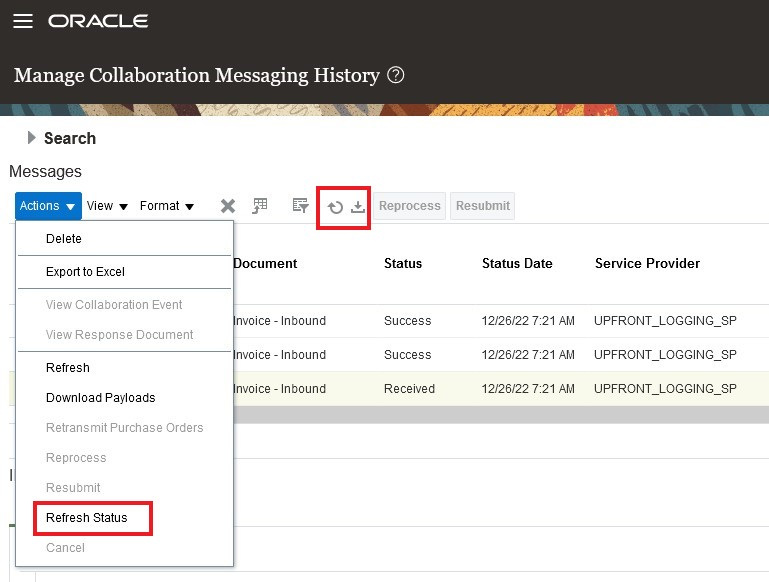
New Action Refresh Status and Icons for Refresh and Download Payloads
Now you can see a log of the inbound messages being processed early in the process flow. You can check the message status and submit them for reprocessing if there are errors.
Steps to Enable
You don't need to do anything to enable this feature.
Tips And Considerations
When a message contains multiple instances of a B2B document, you can find all documents received in that message on the Collaboration Messaging History page. To retrieve those documents, enter the original Message ID followed by a percent sign (for example, IN_81046%) in the Message ID search criteria.
Key Resources
- Configuring and Managing B2B Messaging for Oracle Applications Cloud guide available on the Oracle Help Center.
Access Requirements
You have a couple of options for giving people access to this feature, depending on whether you're assigning them predefined job roles or your own configured job roles.
- Users who are assigned this predefined job role can access this feature:
- Supply Chain Application Administrator (ORA_RCS_SUPPLY_CHAIN_APPLICATION_ADMINISTRATOR_JOB)
- Users who are assigned a configured job role that contains these privileges can access this feature:
- Manage Collaboration Messaging History (CMK_COLLAB_MESG_HISTORY_PRIV)
Update Rules for Processing Complex Change Requests in Inbound Order Acknowledgments
The new version of the Oracle Purchase Order Acknowledgment Inbound message (Oracle-1-0-B2B-Purchase-Order-Acknowledgment-In-V2) has updated processing rules that support the following scenarios:
- If the Buyer Managed Transport check box is selected for a purchase order (PO) and the acknowledgment received includes a promised delivery date, the acknowledgment is now processed and no longer skipped as before. Additionally, the promised delivery date is recorded, along with a note. You need to create two descriptive flexfields at the PO line level for this purpose, B2B Provided Date and B2B Provided Date-Note. If the Buyer Managed Transport check box isn't selected for a PO and the acknowledgment received includes a promised ship date, the acknowledgment is processed, and the two descriptive flexfields are populated.
- A unit price may now be included with an item substitution code. When the acknowledgment is processed, the price on the PO line is updated, and the substitute item is recorded in the descriptive flexfield created for this purpose (B2B Substitute Supplier Item).
- When a part number correction is provided in the acknowledgment received, the supplier item number can be updated on the PO line if the feature Correct the Supplier Item Number on Purchase Orders is enabled. Otherwise, you need to create a descriptive flexfield for B2B Part Number Correction, which will be populated with the corrected part number.
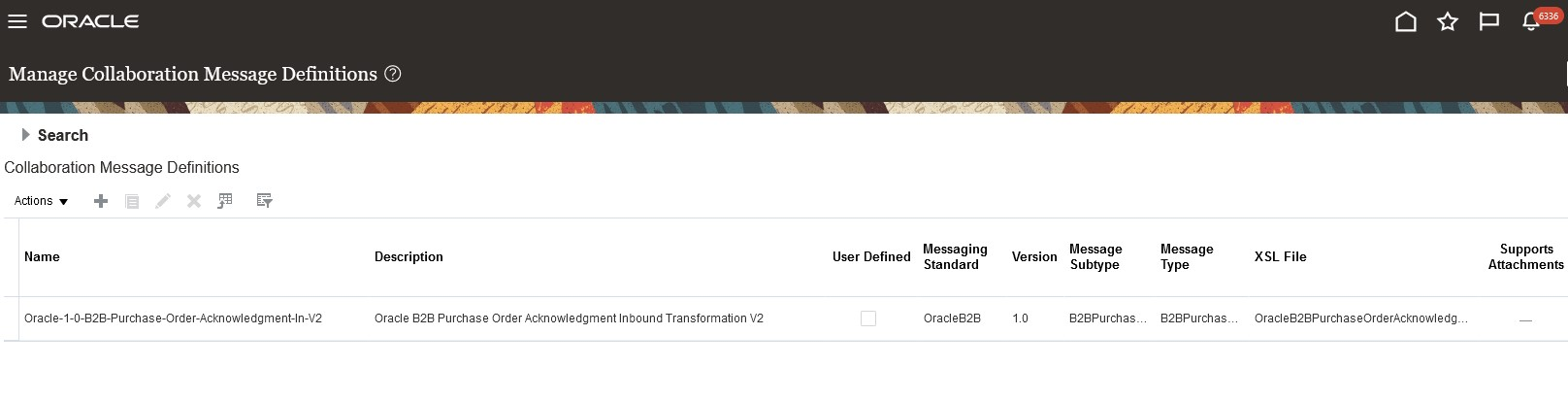
Oracle-1-0-B2B-Purchase-Order-Acknowledgment-In-V2
Steps to Enable
You don't need to do anything to enable this feature.
Tips And Considerations
Enable the feature Correct the Supplier Item Number on Purchase Orders if you want to update the supplier item number on your PO line when you receive a part number correction.
Key Resources
- Configuring and Managing B2B Messaging for Oracle Applications Cloud guide available on the Oracle Help Center.
Access Requirements
You have a couple of options for giving people access to this feature, depending on whether you're assigning them predefined job roles or your own configured job roles.
- Users who are assigned this predefined job role can access this feature:
- Supply Chain Application Administrator (ORA_RCS_SUPPLY_CHAIN_APPLICATION_ADMINISTRATOR_JOB)
- Users who are assigned a configured job role that contains these privileges can access this feature:
- Manage B2B Supplier Trading Partners (CMK_B2B_SUPPLIER_TRADING_PARTNERS_PRIV)
- Manage B2B Trading Partners (CMK_B2B_TRADING_PARTNERS_PRIV)
Exchange B2B Messages with Your Trading Partners Using TIE Kinetix
A new predefined service provider, TIE Kinetix, is available for your procure-to-pay and electronic invoicing needs. You can use TIE Kinetix to connect with your trading partners via the Pan-European Public Procurement Online (PEPPOL) network. TIE Kinetix is a certified PEPPOL access point and solution provider.
When you use the Tie Kinetix predefined service provider, you benefit by having one messaging standard and delivery method to exchange messages with your trading partners. In addition, the messages and delivery methods are predefined, thereby streamlining the B2B setup in the Collaboration Messaging work area.
Steps to Enable
At a high level, to set up the TIE Kinetix service provider:
- Configure TIE Kinetix to exchange messages with your trading partners.
- Create trading partners.
- Associate trading partners with your suppliers or customers.
- Select the documents you want to exchange with your suppliers or customers.
These steps are detailed in the Configuring and Managing B2B Messaging for Oracle Applications Cloud guide.
Configure the Predefined Service Provider TIE Kinetix
- Select Manage Collaboration Messaging Service Providers from the Tasks panel tab, and search for the TIE Kinetix service provider.
- Select the Delivery Methods tab, and enter the username and password for the delivery method that you’re using.
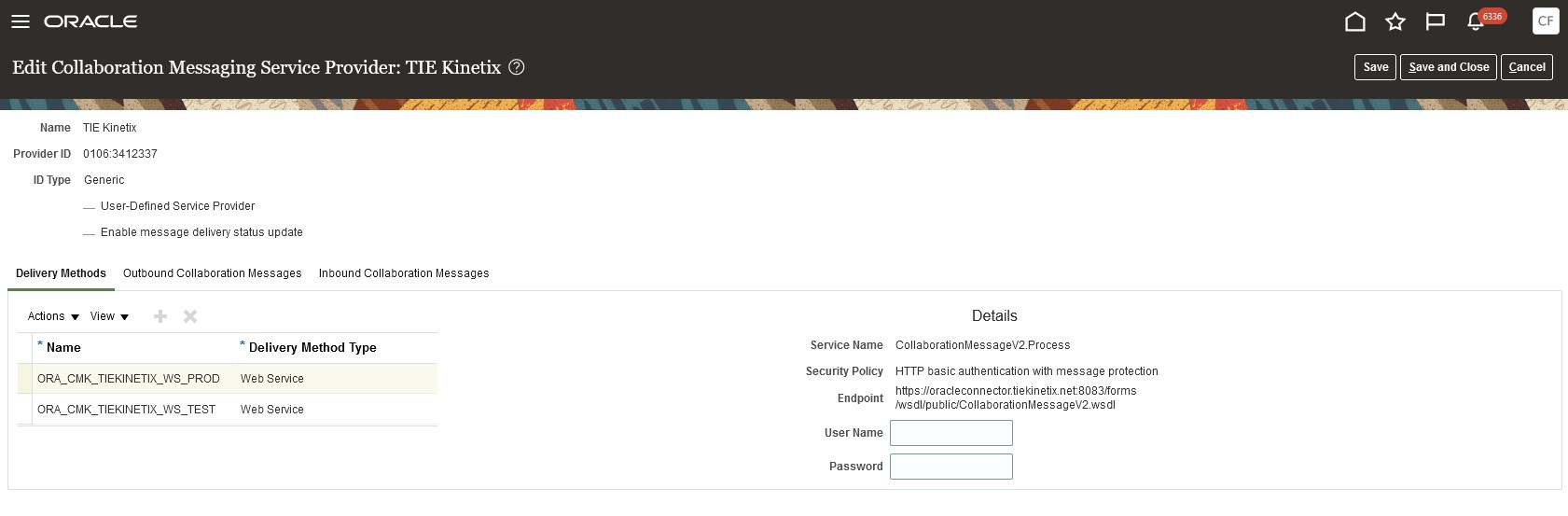
TIE Kinetix Delivery Methods
- Select the Outbound Collaboration Messages tab, link the delivery method (test or production) with the messages, and activate those messages you plan to exchange with your trading partners. The following messages are available:
- OAGIS purchases order outbound message (OAGIS_10.1_PROCESS_PO_OUT)
- OAGIS change purchase order outbound message (OAGIS_10.1_CHANGE_PO_OUT)
- Universal Business Language (UBL) PEPPOL outbound invoice message (UBL-2.1-PEPPOL-Invoice-Out)
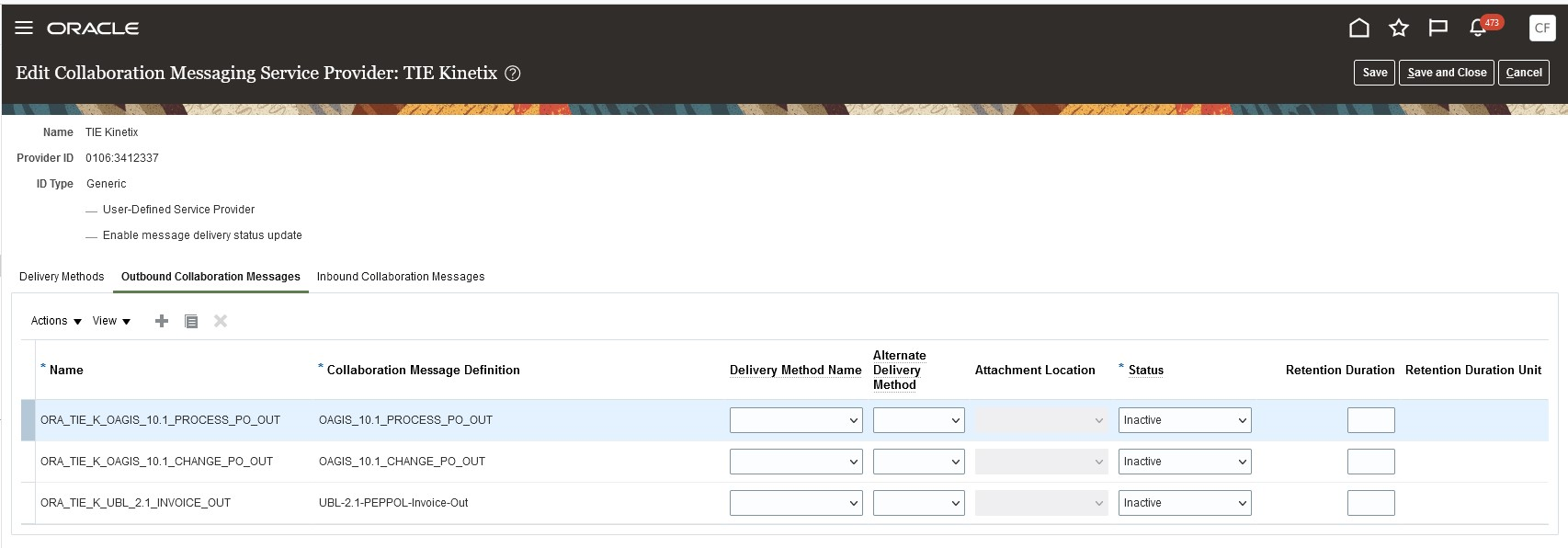
TIE Kinetix Outbound Collaboration Messages
- Select the Inbound Collaboration Messages tab, and activate the messages you plan to use. The following messages are available:
- UBL invoice application response message (UBL-2-1-InvoiceApplicationResponse-In)
- OAGIS acknowledgment purchase order inbound message (OAGIS_10.1_ACK_PO_IN)
- OAGIS invoice inbound message (OAGIS_10.1_PROCESS_INVOICE_IN)
- UBL PEPPOL invoice inbound message (UBL-2.1-PEPPOL-Invoice-In)
- OAGIS shipment inbound message (OAGIS-10.1-Process-Shipment-In-V2)
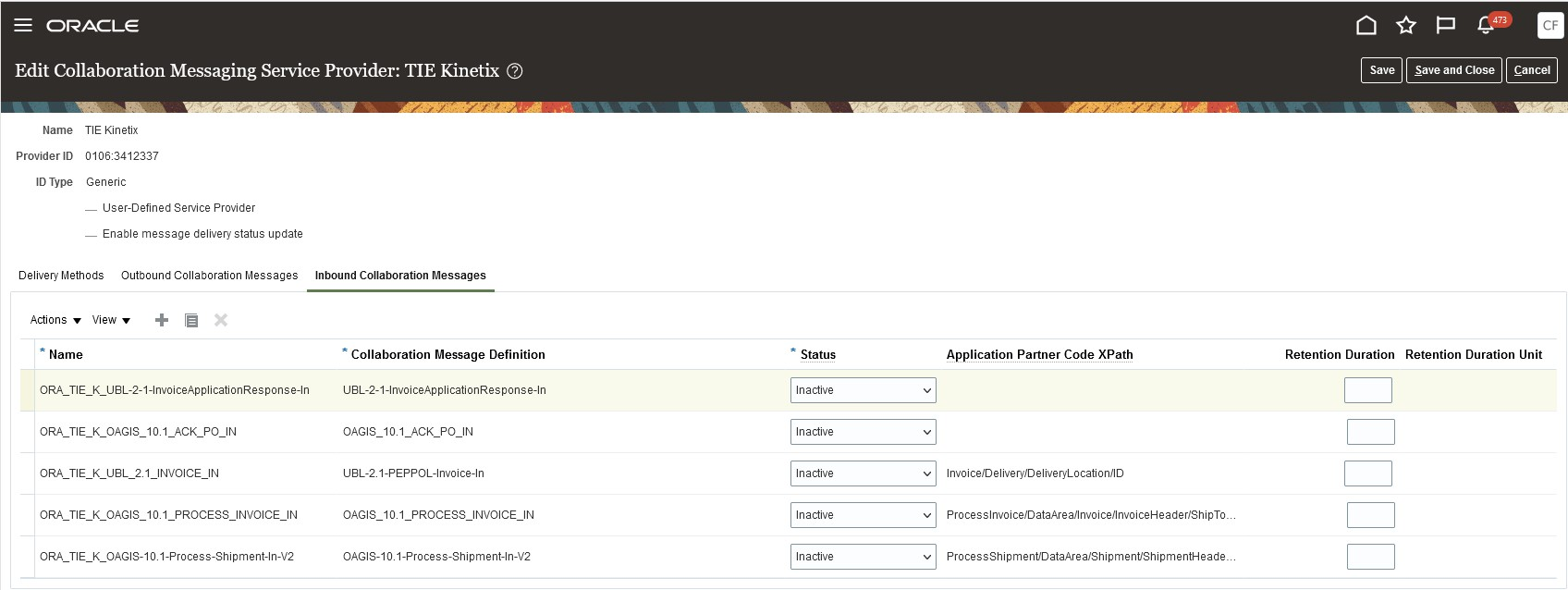
TIE Kinetix Inbound Collaboration Messages
Create Trading Partners
After completing the service provider setup, create your trading partners.
- Select Manage B2B Trading Partners on the Tasks panel tab.
- On the Manage B2B Trading Partners page, select Actions > Create, and add your trading partners.
- Select TIE Kinetix as the service provider.
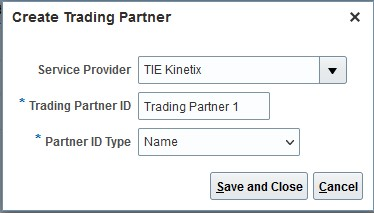
Create a Trading Partner
Associate Trading Partners with Your Suppliers or Customers
Next, associate the trading partners with your suppliers or customers for your procure-to-pay documents.
- Select Manage Supplier B2B Configuration on the Tasks panel tab, and search for your suppliers.
- Select a supplier and then select Edit Supplier B2B Configuration.
- On the Edit Supplier B2B Configuration page, select the Trading Partner Assignment tab and click Actions > Add Row to add a trading partner and the TIE Kinetix service provider.
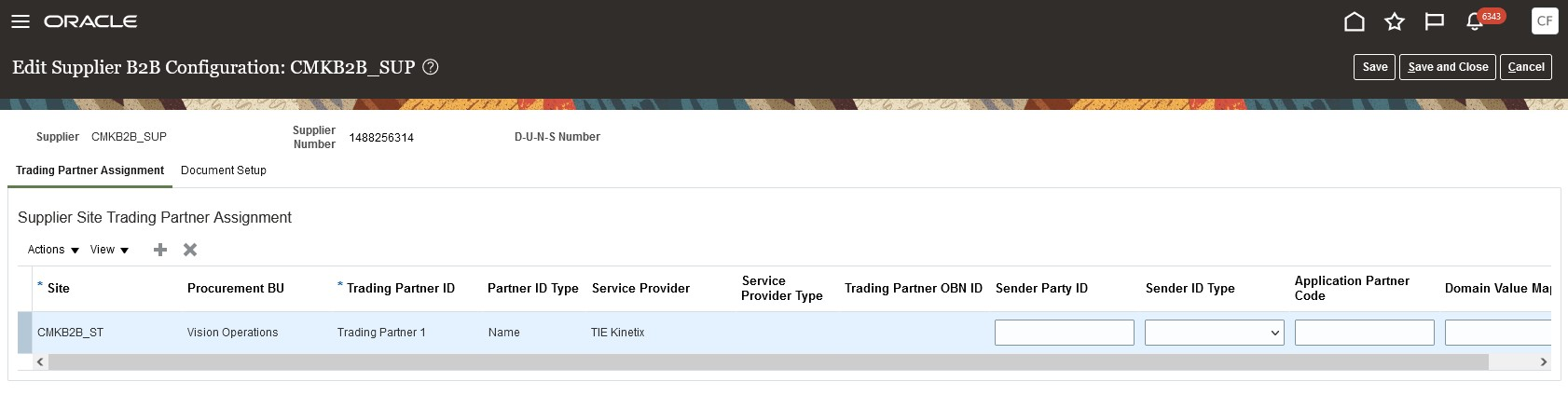
Trading Partner Assignment
- On the Edit Supplier B2B Configuration page, select the Document Setup tab, and add the documents that you want to exchange with the selected supplier.
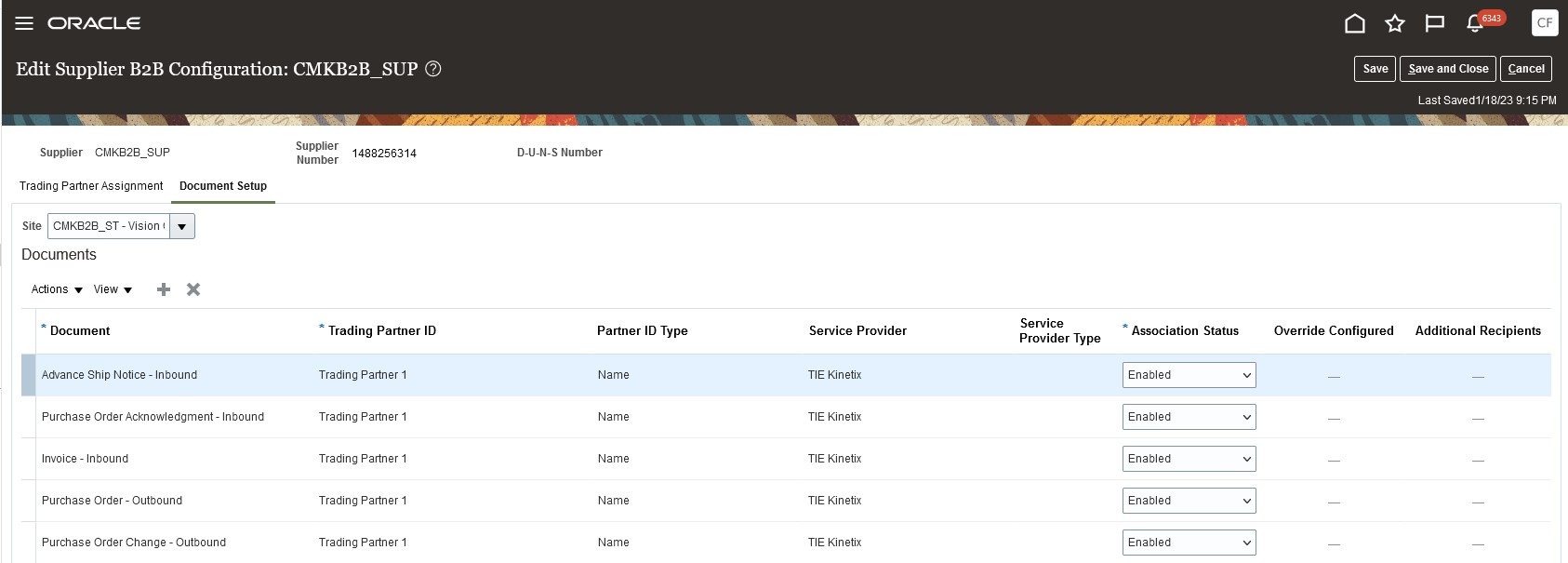
Document Setup for Supplier Sites
- Select Manage Customer Account Collaboration Configuration on the Tasks panel tab, and search for your customers.
- Select a customer. On the Edit Customer Account Collaboration Configuration page, select the TIE Kinetix service and trading partners in the Associated Service Providers section.
- In the Collaboration Documents for Service Provider section, select the documents you want to exchange (outbound invoices or inbound invoice acknowledgments).
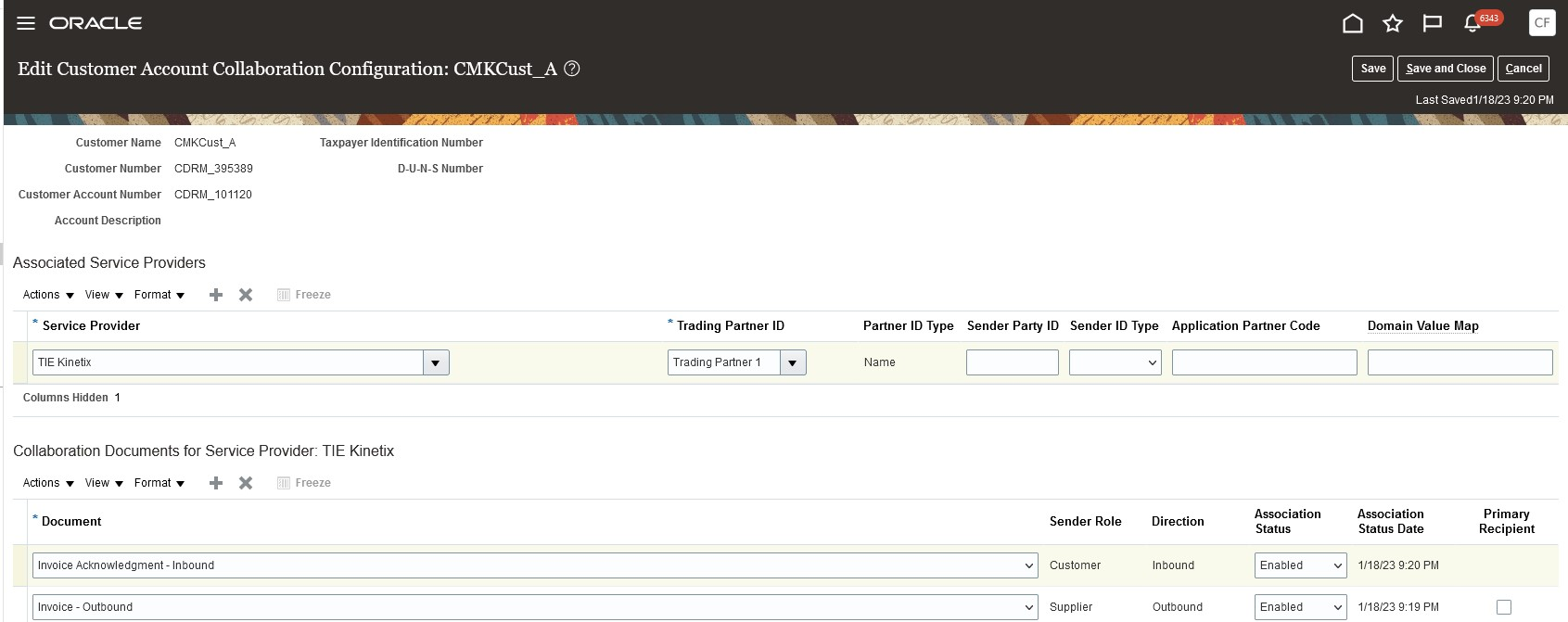
Customer Account Collaboration Configuration
Tips And Considerations
TIE Kinetix supports both OAGIS and UBL PEPPOL-compliant inbound invoices. However, only one message definition can be active for a given document.
Key Resources
- Refer to the How You Configure Predefined Service Providers section of the Configuring and Managing B2B Messaging for Oracle Applications Cloud guide on the Oracle Help Center.
Access Requirements
You have a couple of options for giving people access to this feature, depending on whether you assign them predefined job roles or your own configured job roles.
- Users who are assigned this predefined job role can access this feature:
- Supply Chain Application Administrator (ORA_RCS_SUPPLY_CHAIN_APPLICATION_ADMINISTRATOR_JOB)
- Users who are assigned a configured job role that contains these privileges can access this feature:
- Manage B2B Supplier Trading Partners (CMK_B2B_SUPPLIER_TRADING_PARTNERS_PRIV)
- Manage B2B Trading Partners (CMK_B2B_TRADING_PARTNERS_PRIV)
- Manage Customer Account Collaboration Configuration (CMK_B2B_CUSTOMER_ACCOUNT_TRADING_PARTNERS_PRIV)
- Manage Service Provider (CMK_MANAGE_SERVICE_PROVIDER_PRIV)
Define the File Extension for Your B2B Messages Delivered by Email or an Oracle Content Repository
You can specify a B2B message file extension for the email and file export delivery methods. The extension you specify is used for B2B messages delivered by email or messages retrieved from an Oracle content repository by your trading partner.
To specify a file extension:
- In the Collaboration Messaging work area, click Manage B2B Trading Partners or Manage Collaboration Messaging Service Providers in the Tasks panel tab.
- Search for the trading partner or user-defined service provider associated with the delivery method.
- Select a trading partner or user-defined service provider, and then select Actions > Edit.
- On the Edit Trading Partner page, select the Delivery Methods tab to add a new delivery method type of Email or File Export and specify the file extension. You can also add a file extension for existing delivery methods of these types.
- Enter up to four characters in the File Extension field. B2B messages will have the file extension you entered. If you don’t enter a file extension, the .zip default is used.
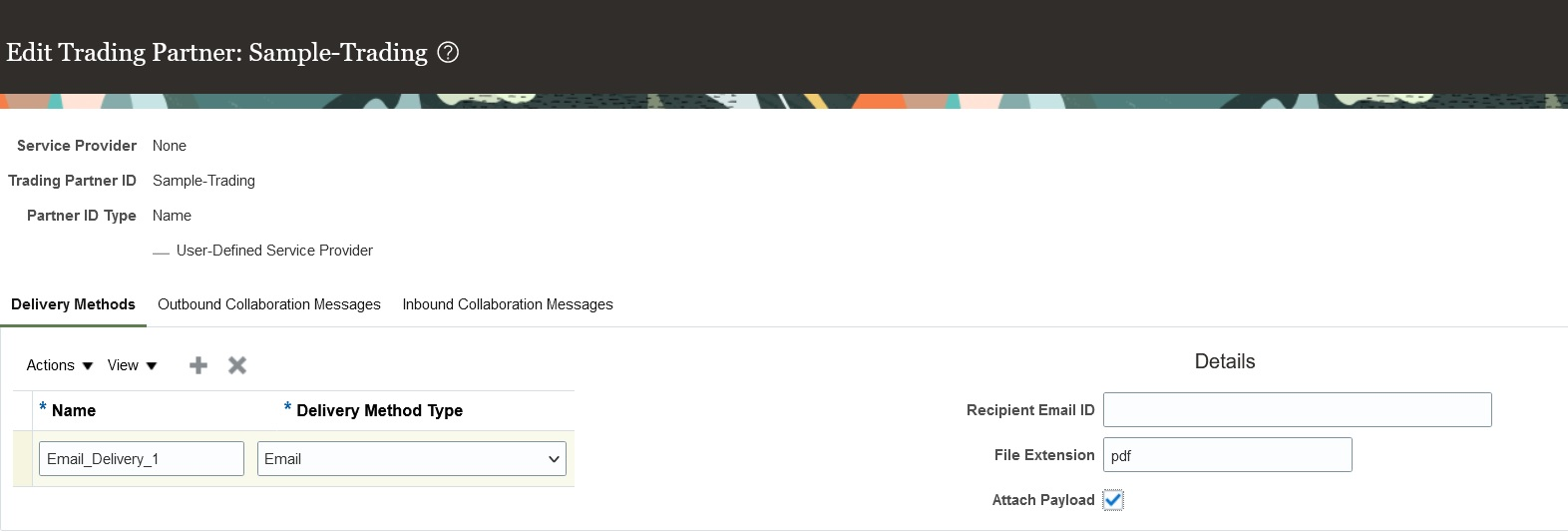
Email Delivery Method
You can send B2B messages to trading partners by email without triggering corporate firewall rules that strip zipped email attachments.
Steps to Enable
You don't need to do anything to enable this feature.
Tips And Considerations
The file extension you enter doesn’t change the file compression method. The file remains a Zip compressed file, but with the file extension you entered. Your trading partner will need to change the extension back to .zip to extract B2B messages upon receipt.
Key Resources
- Configuring and Managing B2B Messaging for Oracle Applications Cloud guide available on the Oracle Help Center.
Access Requirements
- Users who are assigned a configured job role that contains these privileges can access this feature:
- Manage B2B Trading Partners (CMK_B2B_TRADING_PARTNERS_PRIV)
- Manage Service Provider (CMK_MANAGE_SERVICE_PROVIDER_PRIV)
- These privileges were available prior to this update.
Specify the Sender's Email Address for Outbound B2B Messages
You can configure an email address for the sender of your B2B documents instead of using the application-generated one. And you can monitor the inbox of the email address you configured for replies.
Your trading partners can add the sender email address to their approved list of emails to ensure continued communication.
Steps to Enable
In Setup and Maintenance, select the Manage Collaboration Messaging Configuration task.
- In the Setup and Maintenance work area, go to the Manage Collaboration Messaging Configuration task in the Manufacturing and Supply Chain Materials Management offering.
- Select the Business Process Setup tab on the Manage Collaboration Messaging Configuration page.
- In the Collaboration Business Process section, select the business process that includes the document you want to transmit using the new sender email address you configured.
- In the Configure Collaboration Documents section, select the outbound document.
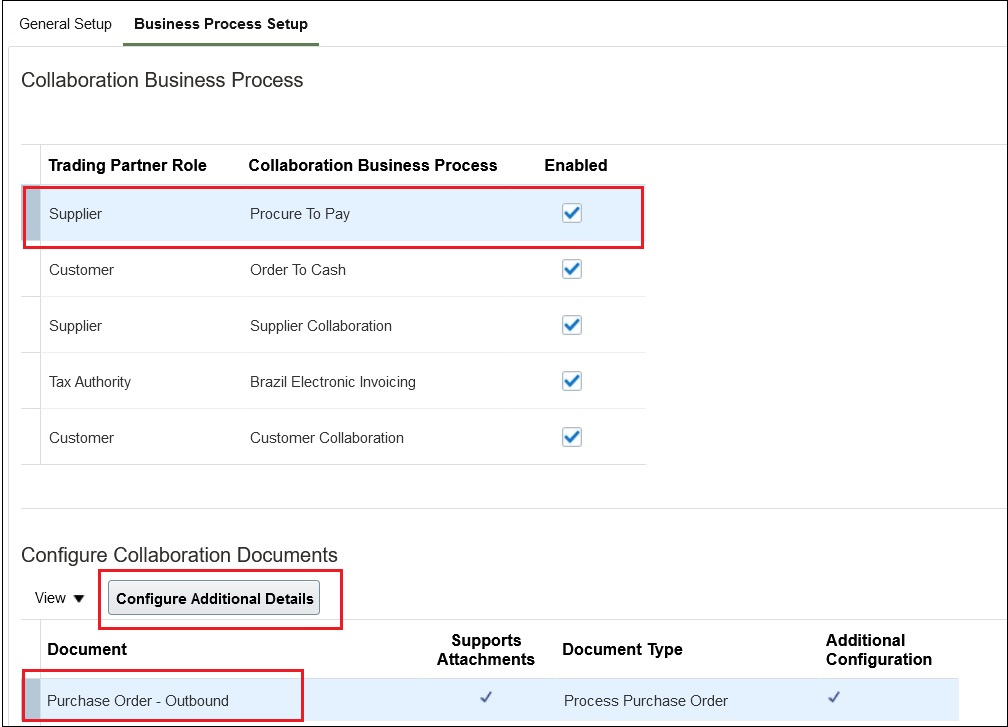
Business Process and Outbound Document Selection
- Click the Configure Additional Details button and enter the sender's email address in the dialog box. This email address is used as the sender for all outbound B2B messages associated with the selected document.
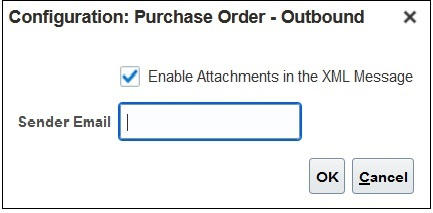
Configure Additional Details Dialog Box
Tips And Considerations
For best practices on email security, refer to the Configure Email Security documentation available on the Oracle Help Center.
Key Resources
- Configuring and Managing B2B Messaging for Oracle Applications Cloud guide available on the Oracle Help Center.
Access Requirements
- Users who are assigned a configured job role that contains this privilege can access this feature:
- Manage Collaboration Messaging Configuration (CMK_MANAGE_COLLAB_MESG_CONFIG_PRIV)
- This privilege was available prior to this update.
Retransmit Unsuccessful B2B Messaging-Enabled Purchase Orders
You can get a list of untransmitted purchase orders and either retransmit them in bulk or download the list for further review. To generate the list, use the new Retransmit Purchase Orders dialog box on the Manage Collaboration Messaging History page. You invoke the new dialog box by clicking on a warning icon or from the Actions menu on that page.
You'll see a warning icon on the Manage Collaboration Messaging History page if there are purchase orders that B2B message transmission wasn't initiated for when you select one of these document types:
- Purchase Order - Outbound
- Purchase Order Change - Outbound
- Purchase Order Cancellation - Outbound
When you click the warning icon, a warning message appears.
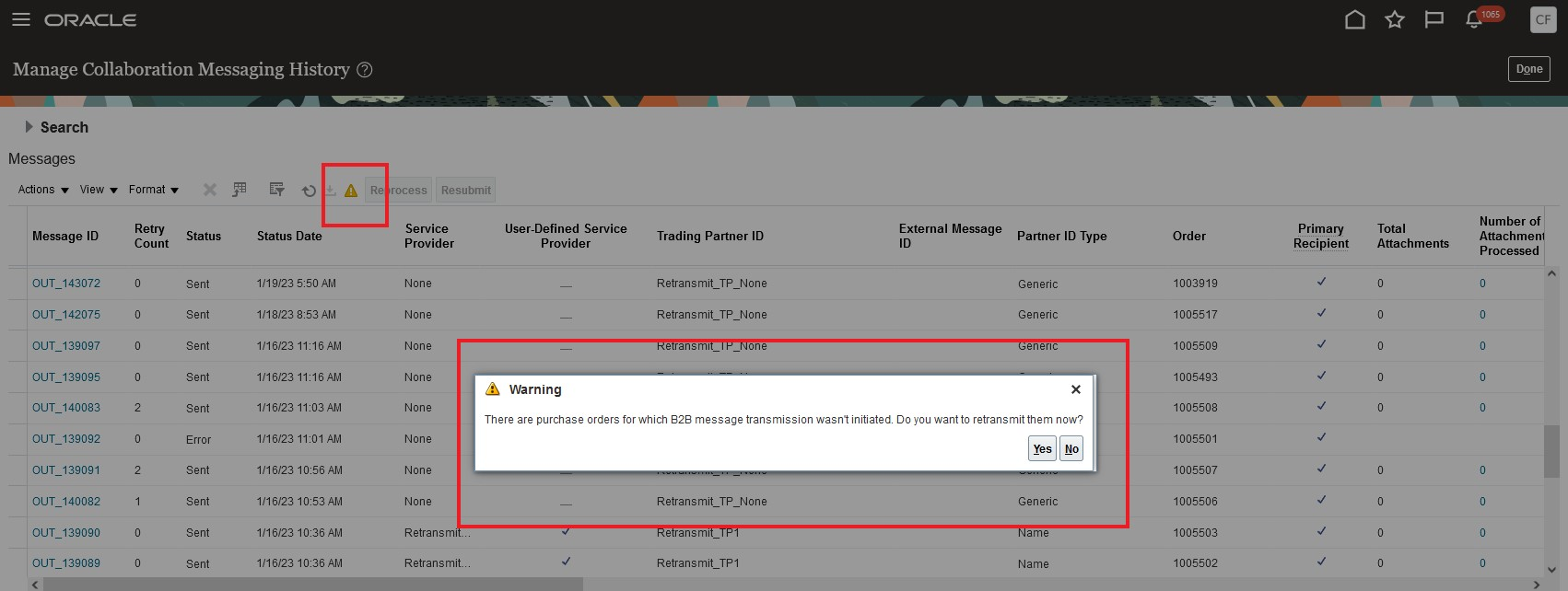
Retransmit Warning Icon and Message
If you click Yes, the Retransmit Purchase Orders dialog box appears. Or you can select Actions > Retransmit on the Manage Collaboration Messaging History page to invoke the dialog box.
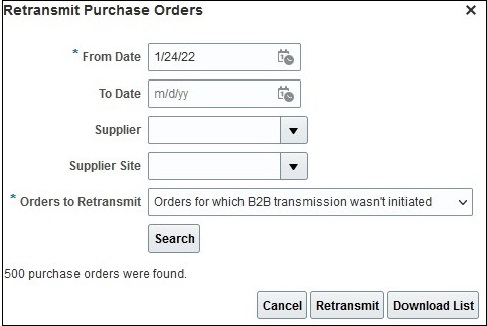
Retransmit Purchase Orders Dialog Box
The From Date and Orders to Retransmit fields are required. The other fields are optional.
The Orders to Retransmit field includes these options:
| Menu Option |
Explanation |
|---|---|
| Orders for which B2B transmission wasn't initiated |
Retransmits all untransmitted purchase orders, including prior untransmitted versions |
| Orders with the B2B messaging status of Terminated |
Retransmits purchase orders that have a status of Terminated |
| All |
Retransmits all untransmitted purchase orders and those with a status of Terminated |
Click Search on Retransmit Purchase Orders dialog box to see the number of orders found. You can download the list of purchase orders found or initiate retransmission of the orders.
To set the minimum time an order can be in process before you can terminate processing:
-
In the Setup and Maintenance work area, go to the Manage Collaboration Messaging Configuration task in the Manufacturing and Supply Chain Materials Management offering.
-
Enter a value in the Minimum In-Process Duration field on the General Setup tab of the Manage Collaboration Messaging Configuration page. The value you enter determines the minimum time an order can be in process before you can terminate it. The default value is 60 minutes.
The Terminate Processing option is available on the Actions menu.
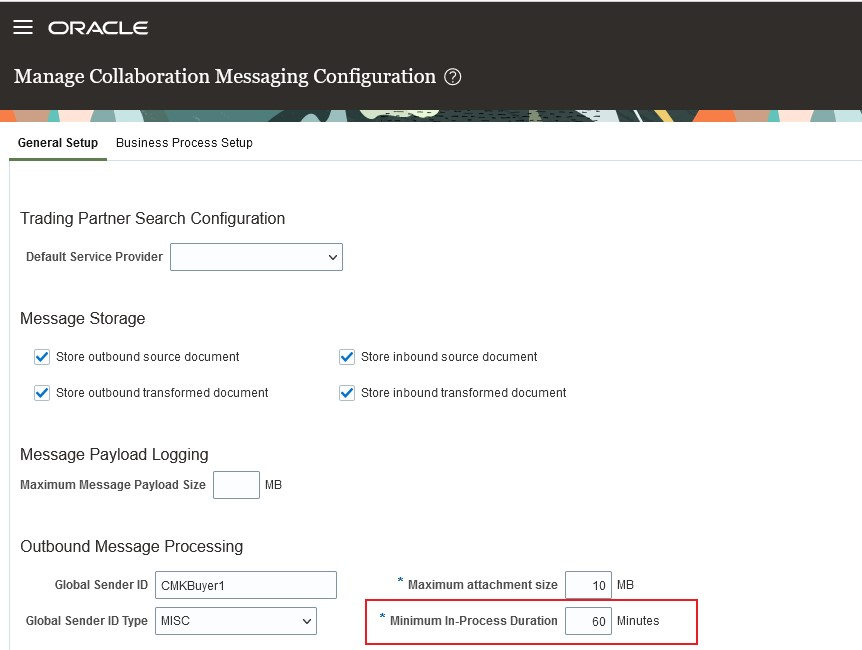
Minimum In-Process Duration
You can now review untransmitted purchase orders with the option to transmit them in bulk. This feature reduces any potential interruption of B2B message exchange with your suppliers.
Steps to Enable
You don't need to do anything to enable this feature.
Key Resources
- Configuring and Managing B2B Messaging for Oracle Applications Cloud guide available on the Oracle Help Center.
Access Requirements
- Users who are assigned a configured job role that contains these privileges can access this feature:
- Manage Collaboration Messaging Configuration (CMK_MANAGE_COLLAB_MESG_CONFIG_PRIV)
- Manage Collaboration Messaging History (CMK_COLLAB_MESG_HISTORY_PRIV)
- Extensible Data Model Used for Electronic Messaging Profile (PO_ELECTRONIC_COMM_DATA_MODEL)
- These privileges were available prior to this update.
You can already copy an order line in the Order Management work area when the sales order is in draft status. You can now also copy an order line when you revise the order.

Improve your user experience. Give users the option of copying values from an existing order line, kit, or configured item to create a new line, kit, or configured item instead of having to manually create and enter values.
Steps to Enable
You don't need to do anything to enable this feature.
Tips And Considerations
Consider these tips when you revise a sales order.
- You can copy a kit, an assemble-to-order or a pick-to-order configured item.
- If you copy a kit or a pick-to-order configured item, then Order Management copies all of the lines in that kit or item except for lines that have an included item. Order Management creates lines for included item according to the structure of the kit or model item that you set up in the Product Information Management work area. Order Management copies values from the root line of the kit or model to the lines that have an included item.
- Order Management can copy a line that's in a shipment set, but it doesn't copy the name of the shipment set. If a line is in a shipment set, then the new line won't be in a shipment set. If you are working on a new draft order and you want to copy a line that's in a shipment set, then Order Management copies the name of the shipment set.
-
Your sales order might have a free line. For example, buy the AS54888 computer on line 1, and get a free laptop bag on line 2. If you use a product transformation rule or an order management extension to create line 2, then you can't copy line 2.
You can't copy a referenced return line or a coverage line.
Key Resources
Access Requirements
- Users who are assigned these predefined job roles can access this feature:
- Order Administrator (ORA_DOO_ORDER_ ADMINISTRATOR_JOB)
- Order Entry Specialist (ORA_FOM_ORDER_ENTRY_SPECIALIST_JOB)
- Order Manager (ORA_DOO_ORDER_MANAGER_JOB)
Integrate Order Management with Subscription Management
Integrate the order-to-cash flow that you use in Oracle Order Management with Oracle Subscription Management so you can fulfill coverages and subscriptions more efficiently.
- Use a single source to manage fulfillment for items, coverages, and subscriptions.
- Create, modify, and end coverages and subscriptions.
- Manage orchestration for your subscription and the item that your subscription covers. For example, sell a subscription for a mobile phone plan and the phone that the plan covers. Orchestrate fulfillment so you don't start the plan until you deliver the phone to your customer.
- Send revenue data to Oracle Revenue Management when you submit the order, and then update this data during fulfillment.
- As an option, you can import a rate plan for each subscription. You can import charges in your rate plan document, such as one-time charges, recurring charges, and usage charges. You can also import manual price adjustments on the plan.
Improve how you manage your order-to-cash flow for subscriptions. Fulfill each sales order more quickly when the order includes a physical item and a coverage or subscription, such as an extended warranty, service level agreement, or preventive maintenance.
Steps to Enable
Use the Opt In UI to enable this feature. For instructions, refer to the Optional Uptake of New Features section of this document.
Offering: Sales
Opt into the Integrate Order Management with Subscription Management to Process Subscriptions feature.
As an option, you can then also enable these features.
- Rate Usage with Events
- Integrate Order Management with Subscription Management to Process Coverages
This feature requires you to do some setup. For details, go to Technical Reference for Oracle Order Management (Doc ID 2051639.1), then download the Integrate Order Management with Subscription Management 23b attachment.
Tips And Considerations
Use REST API or a SOAP service to import source orders that include items, coverages, and subscriptions.

Integration Flow
Here's what you do.
- Import your source order through REST API, ADFDI, or file based data import
- Use a fulfillment view in the Order Management work area to view the subscription after you import it. Fulfill order lines.
- Manage coverages and subscriptions in Subscription Management.
NOTE:
- To update or cancel a subscription or coverage, you create a new sales order that references the original coverage or subscription.
- You can revise or cancel the order line in Order Management only if your revisions don't affect pricing or subscription details.
- You can use this feature only with order lines that you create after you opt into the feature.
- Order Management won't apply this feature to order lines that you create before you opt in.
- You can't use this feature with a rate plan that you import through one of Oracle Pricing's REST API services. You must import the rate plan through the Sales Orders for Order Hub REST API, and you must price the sales order before you import it.
Key Resources
- Implementing Order Management
- Implementing Subscription Management
- Sales Order for Order Hub in REST API for Oracle Supply Chain Management Cloud
- Administering Pricing
Access Requirements
- Users who are assigned any of these predefined job roles are automatically able to access this feature:
- Order Entry Specialist (ORA_FOM_ORDER_ENTRY_SPECIALIST_JOB)
- Order Manager (ORA_DOO_ORDER_MANAGER_JOB)
Copy Extensible Flexfield Values When You Copy Order Lines
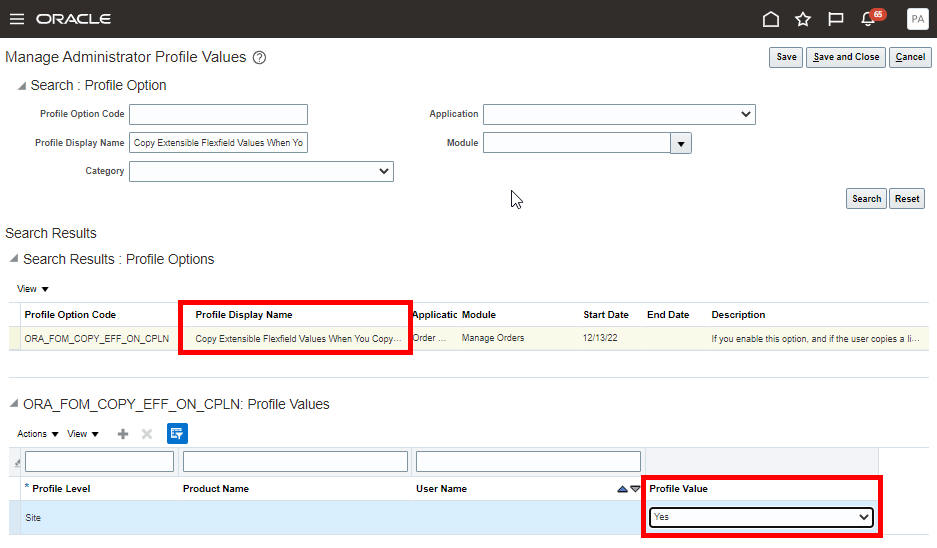
Before update 23B, if a user copied an order line on the Edit Order page, and if the line had an extensible flexfield, then Oracle Order Management didn't copy the extensible flexfield value from the original line to the new line. After you update to 23B, if you enable the Copy Extensible Flexfield Values When You Copy an Order Line (ORA_FOM_COPY_EFF_ON_CPLN) profile option, then Order Management will automatically copy the extensible flexfield value.
Improve your productivity. Order management copies extensible flexfield values from the original line so your user doesn't have to manually enter them.
Steps to Enable
- Go to the Setup and Maintenance work area, click Tasks > Search, then search for and open the Manage Administrator Profile Values task.
- On the Manage Administrator Profile Values page, search for the Copy Extensible Flexfield Values When You Copy an Order Line profile option. Select the value Yes at the site level to enable this feature.
Key Resources
Access Requirements
- Users who are assigned these predefined job roles can access this feature:
- Order Entry Specialist (ORA_FOM_ORDER_ENTRY_SPECIALIST_JOB)
- Order Manager (ORA_DOO_ORDER_MANAGER_JOB)
Selected Order Management Bug Fixes in This Update
This update includes some bug fixes that can change the way Oracle Order Management works. This isn't a full list of all the bug fixes in this update. This list includes the bug fixes that can cause a noticeable change in application behavior.
Include Charges When You Create Your Own Task Type
Before update 23B, if you used your own task type, and if you didn't include a value in the SourceChargeComponentId attribute and the HeaderCurrencyUnitPrice attribute in the Charge Components entity in the fulfillment response from your fulfillment system, then Oracle Order Management accepted the response but an error occurred anytime that you:
- Copied a sales order when pricing is frozen on the order
- Revised a sales order
- Created a referenced return
Starting with update 23B, if you don't include values for SourceChargeComponentId and HeaderCurrencyUnitPrice in the fulfillment response, then Order Management will reject your payload and display an error. To avoid this problem, make sure you include these values.
- For details about creating task types, see Create Your Own Task Type.
Oracle reference: 30113457
Steps to Enable
You don't need to do anything to enable this feature.
Use REST API to Manage Override Currencies for Pricing Strategies
Use the Pricing Strategies REST API to create, get, update, or delete an override currency for a pricing strategy. Use a finder to get all the override currencies that are currently active.
Efficiently manage how you override the currency in each of your pricing strategies.
Process all your override currencies at the same time.
Steps to Enable
Review the REST service definition in the REST API guides to leverage (available from the Oracle Help Center > your apps service area of interest > APIs & Schema). If you are new to Oracle's REST services you may want to begin with the Quick Start section.
Key Resources
- Watch Use REST API to Manage Override Currencies for Pricing Strategies readiness training.
- Refer to REST API for Oracle Fusion Cloud SCM on the Oracle Help Center.
Access Requirements
- Users who are assigned these predefined job roles can access this feature:
- Pricing Administrator (ORA_QP_PRICING_ADMINISTRATOR_JOB)
- Pricing Manager (ORA_QP_PRICING_MANAGER_JOB)
- Pricing Analyst (ORA_QP_PRICING_ANALYST_JOB)
Use REST API to Manage Rate Plans
Set up a rate plan so you can create and manage charges for subscription events in Oracle Subscription Management.
Set up usage charges for your rate plans so you can bill your customers based on usage events and have an integrated end-to-end flow for your subscriptions.
Steps to Enable
Use the Opt In UI to enable this feature. For instructions, refer to the Optional Uptake of New Features section of this document.
Offering: Sales
You must navigate to the functional area named: Subscriptions. Then opt in to the features named:
- Rate Usage with Events
- Integrate Order Management with Subscriptions Management to Process Subscriptions
Tips And Considerations
Specify Usage Charges
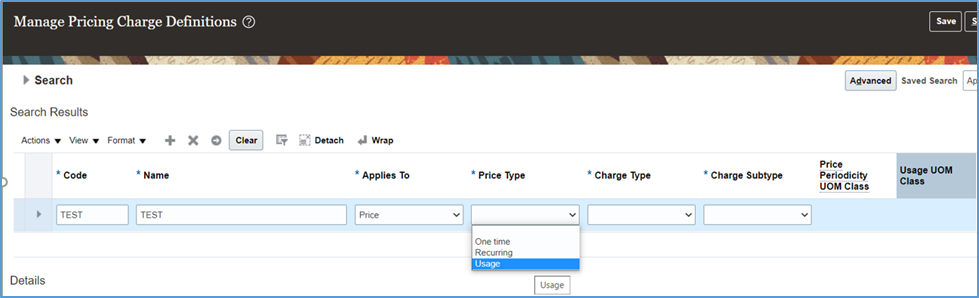
- Use the Manage Pricing Charge Definitions task in the Setup and Maintenance work area to create and update the usage charge.
- Use the new Usage value in the Price Type attribute and the new Usage UOM Class attribute when you create the usage charge.
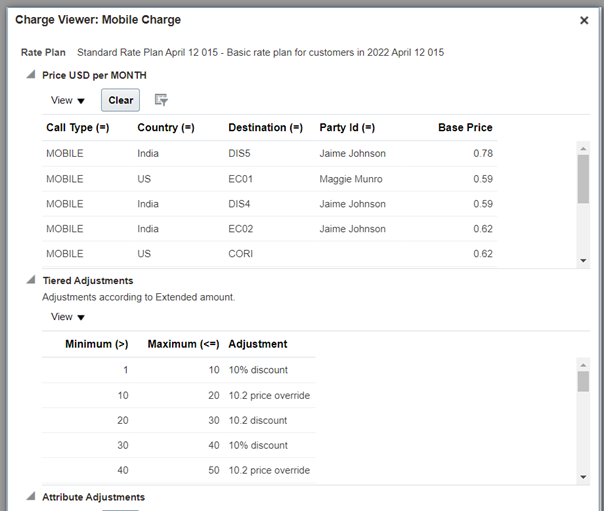
- Use the Manage Price Lists REST API to manage usage charges for subscriptions in your rate plan, including the price in the pricing matrix, tiered adjustments, and attribute adjustments.
Create Rate Plans in Pricing Administration
- Use the ratePlans endpoint in the priceLists REST API resource to create and update rate plans in Oracle Pricing.
- Associate your rate plan with a subscription item on the price list.
- Create, update, or delete charges that are recurring or that happen one time in your rate plan.
- Create a simple usage charge or condition based usage charge in the rate plan.
- Apply a tiered adjustment and an attribute adjustment to a usage charge in the rate plan.
- You must have a rate plan to add a usage charge to a subscription. You can assign as many rate plans as you need to the subscription item in the price list.
Use Your Rate Plan Documents
Use the rate plan document to import:
- One time and recurring charges
- Charge rules that apply usage charges according to how much you consume
- Manual price adjustments, including periodic adjustments
Price Your Subscriptions
- Price a subscription according to a default rate plan. Use your pricing setup or a requested rate plan.
- Calculate one time and recurring charges and their charge components.
- Apply tier adjustments and attribute adjustments.
View Charges
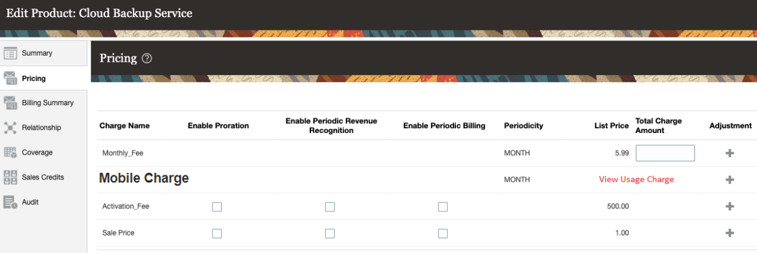
- Use the Pricing tab in the subscription product to view the usage charge.
- View details about the usage charge, pricing matrix, tired adjustments, and attribute adjustments.
Specify Usage According to Quantity
- Create a rate plan for your usage charge according to the quantity and the quantity's UOM.
Key Resources
- If you're using REST services with your Oracle Cloud implementation for the first time, go to REST API for Oracle Supply Chain Management Cloud, then see the Quick Start section.
- For details about rate plans, see Administering Pricing.
- For details about subscriptions, see Implementing Order Management and Implementing Subscription Management.
Access Requirements
- Roles:
- ORA_QP_PRICING_MANAGER_JOB (Pricing Manager)
- ORA_QP_PRICING_ADMINISTRATOR_JOB (Pricing Administrator)
- ORA_QP_PRICING_ANALYST_JOB (Pricing Analyst)
Reduce the Startup Time for Large Configurator Models
Oracle Configurator can replace the optional items in the option class with a single placeholder item to reduce start times. If the model doesn't have any user-defined attributes or supplemental attributes, then Configurator won't attempt to load them into memory at run time.
In the Product Information Management work area, use the Edit Components dialog available on the Item Structure page to enable a placeholder item for an option class:

By enabling a placeholder item for an option class, you can reduce the amount of time it takes Configurator to start when your configurator model has large option classes or references a large number of child models.
Steps to Enable
You don't need to do anything to enable this feature.
Key Resources
Access Requirements
- Users who are assigned this predefined job role can access this feature:
- Product Configurator Manager (ORA_CZ_PRODUCT_CONFIGURATOR_MANAGER_JOB)
- Users who are assigned this predefined job role can enable the placeholder feature setting to optimize the performance of their large option classes:
- Product Manager (ORA_EGP_PRODUCT_MANAGER_JOB)
Creates and administers customer trade programs, which optimizes the execution and impact of programs and promotions across the supply chain.
Manage Customer Rebate Programs
Manage customer rebate programs to define the rules of a promotional agreement with your customers. Use configurable templates to create multiple programs. Define customer eligibility based on the customer, bill-to, or ship-to qualifiers. Define additional conditions based on an order type or a salesperson. Specify rebate amounts in terms of the percentage or the amount per unit.
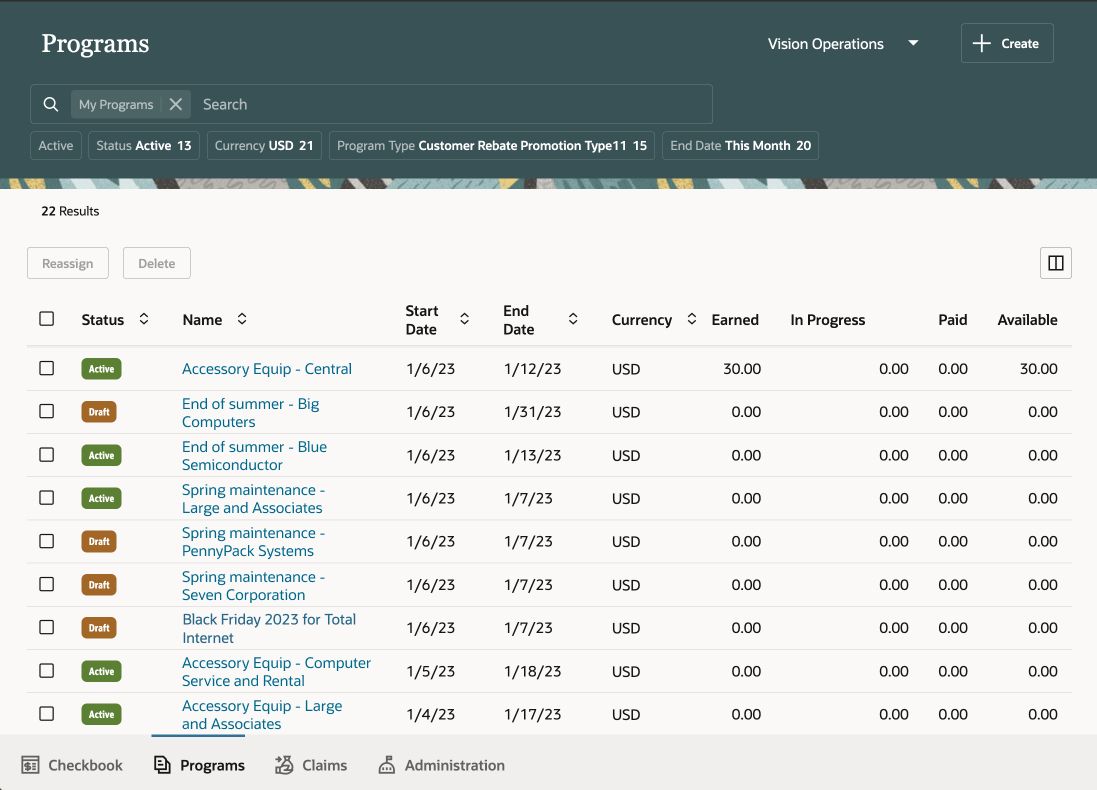
Program Smart Search
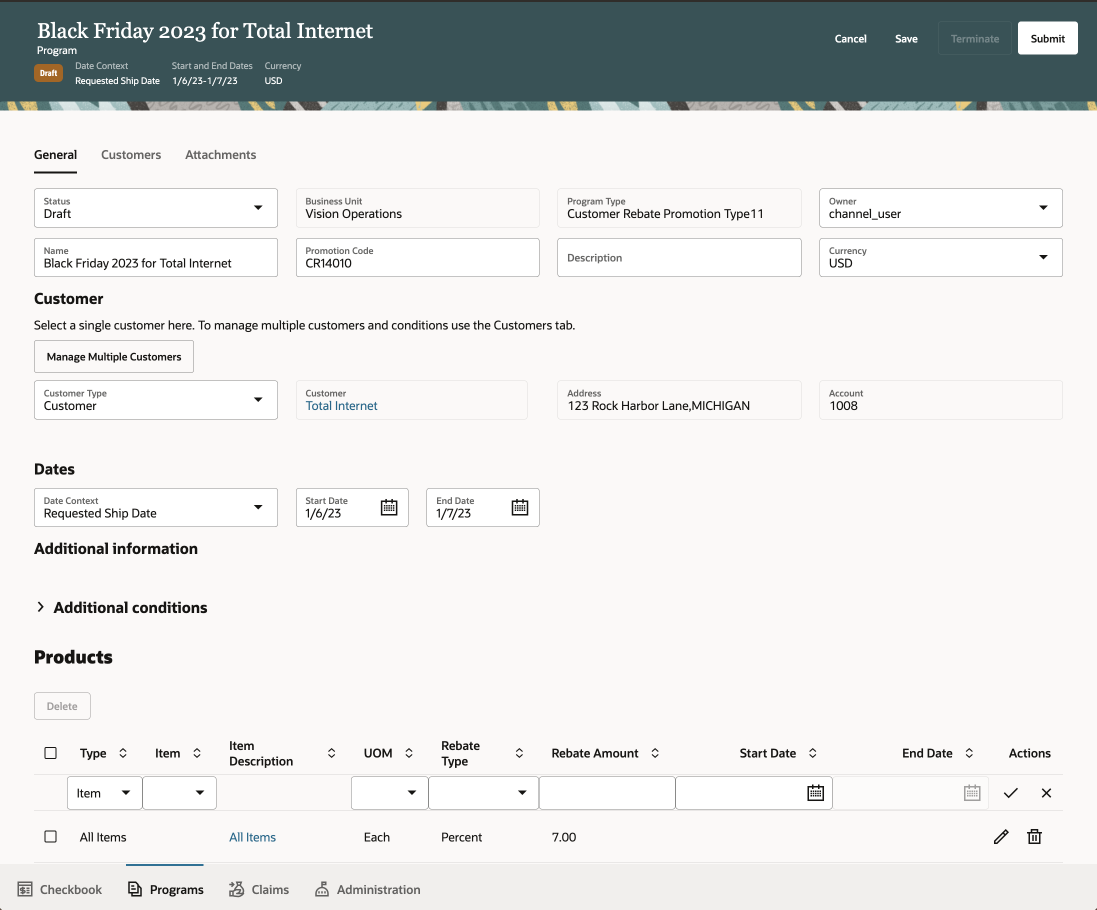
Program in Draft Status
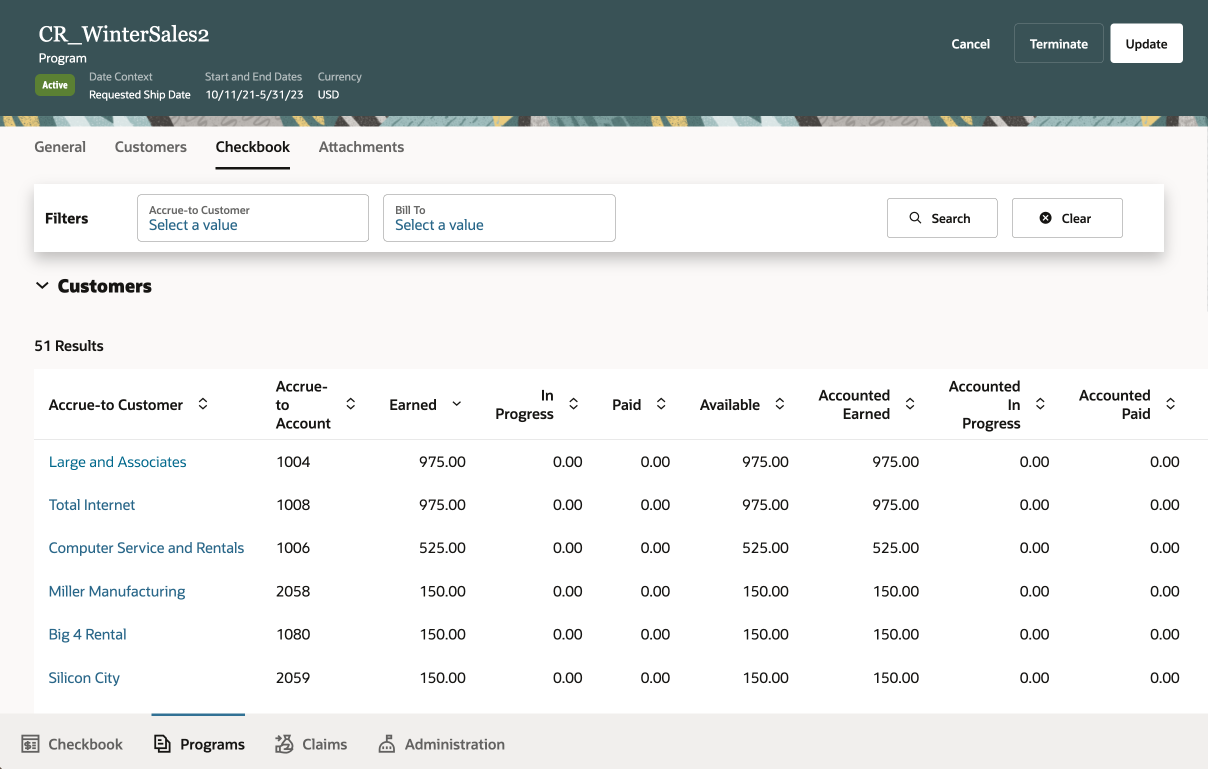
Active Program Checkbook
Business value:
- Take control of customer rebate channel processes
- Centralize channel rebate programs for customers
Steps to Enable
Use the Opt In UI to enable this feature. For instructions, refer to the Optional Uptake of New Features section of this document.
Offering: Order Management
- You must opt in to the functional area: Channel Revenue Management functional area.
- Opt in to the feature: Customer Channel Management.
- If you need deductions from Receivables, then opt in to the feature: Deductions and Settlement. Then opt in to the feature: Manage Deduction Claims Using Redwood Pages.
- Under the offering: Financials and functional area: Receivables, navigate to the task: Manage Receivables System Options. Search for and select your business unit. Click the Cash Processing tab. Select the Enable channel revenue management integration check box and click Save.
- Under the offering: Financials, navigate to a task named: Manage Legal Entity Configurator Profile Options. Set the profile Enable Legal Entity Time Zone at the Site level.
-
Run scheduled process ESS job to create index definition and perform initial ingest to OSCS for program index.
-
Configure program types.
-
Configure user statuses for programs (optional).
Tips And Considerations
Pages that are in the Oracle ADF interface are:
- Customer Trade Profiles
- Setup and Maintenance
- Configure Program Type
- Manage Batches
- Scheduled Processes
Implementation Decision Points
Key Resources
- For more information on Channel Revenue Management, refer to the Oracle Cloud Readiness content for Order Management.
- For more information on the Channel Revenue Management Integration with Receivables, refer to the Oracle Cloud Readiness content for Financials.
- Oracle SCM Cloud: Using Oracle Channel Revenue Management Cloud, available on the Oracle Help Center.
- Oracle SCM Cloud: Implementing Oracle Channel Revenue Management Cloud, available on the Oracle Help Center.
- Oracle SCM Cloud: REST API for Oracle SCM Cloud, available on the Oracle Help Center.
Access Requirements
- Users who are assigned this predefined job role are automatically able to access this feature
- Customer Channel Program Manager (ORA_CJM_CUSTOMER_CHANNEL_PROGRAM_MANAGER_JOB)
- Supply Chain Application Administrator (ORA_RCS_SUPPLY_CHAIN_APPLICATION_ADMINISTRATOR)
- Users need to be assigned reference data set and business unit data security access
Import Sales Orders and Calculate Accruals
Import sales orders data from a .CSV file. Channel Revenue Management uses this information to calculate rebate accruals according to the terms of the agreement with the customer.
Business value:
- Automate the application of customer rebate programs based on spreadsheet uploads
Steps to Enable
Use the Opt In UI to enable this feature. For instructions, refer to the Optional Uptake of New Features section of this document.
Offering: Order Management
- You must opt in to the functional area: Channel Revenue Management functional area.
- Opt in to the feature: Customer Channel Management.
- If you need deductions from Receivables, then opt in to the feature: Deductions and Settlement. Then opt in to the feature: Manage Deduction Claims Using Redwood Pages.
- Under the offering: Financials and functional area: Receivables, navigate to the task: Manage Receivables System Options. Search for and select your business unit. Click the Cash Processing tab. Select the Enable channel revenue management integration check box and click Save.
- Under the offering: Financials, navigate to a task named: Manage Legal Entity Configurator Profile Options. Set the profile Enable Legal Entity Time Zone at the Site level.
Key Resources
- For more information on Channel Revenue Management, refer to the Oracle Cloud Readiness content for Order Management.
- For more information on the Channel Revenue Management Integration with Receivables, refer to the Oracle Cloud Readiness content for Financials.
- Oracle SCM Cloud: Using Oracle Channel Revenue Management Cloud, available on the Oracle Help Center.
- Oracle SCM Cloud: Implementing Oracle Channel Revenue Management Cloud, available on the Oracle Help Center.
- Oracle SCM Cloud: REST API for Oracle SCM Cloud, available on the Oracle Help Center.
Access Requirements
- Users who are assigned this predefined job role are automatically able to access this feature
- Supply Chain Integration Specialist (ORA_RCS_SUPPLY_CHAIN_INTEGRATION_SPECIALIST)
Create, Resolve, and Settle Promotional Customer Claims
Create a claim to reimburse the customer for promotion-related earnings or to settle a deduction with promotion-related earnings. This is systematically settled in Receivables as a credit memo.
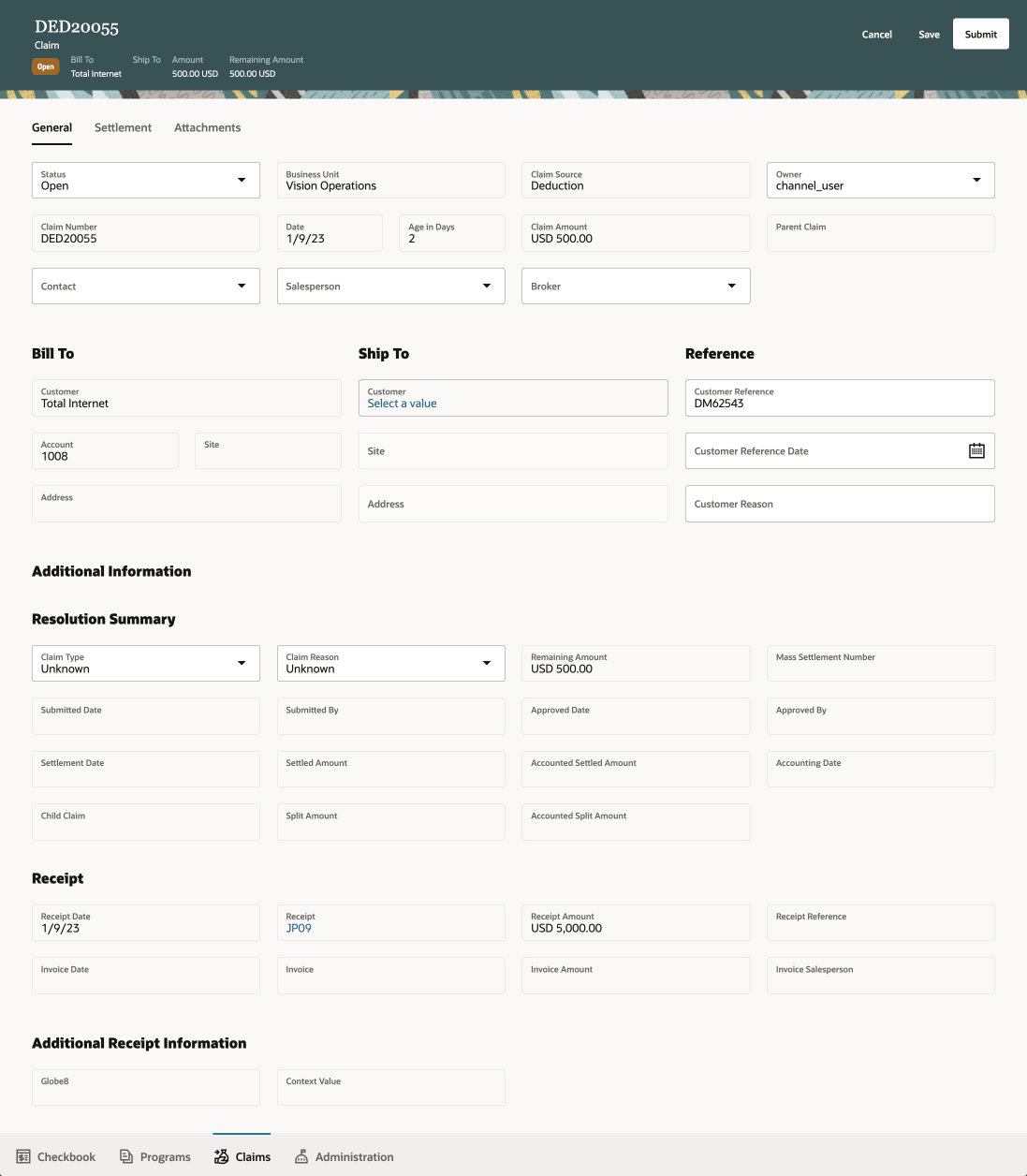
Investigate a Claim
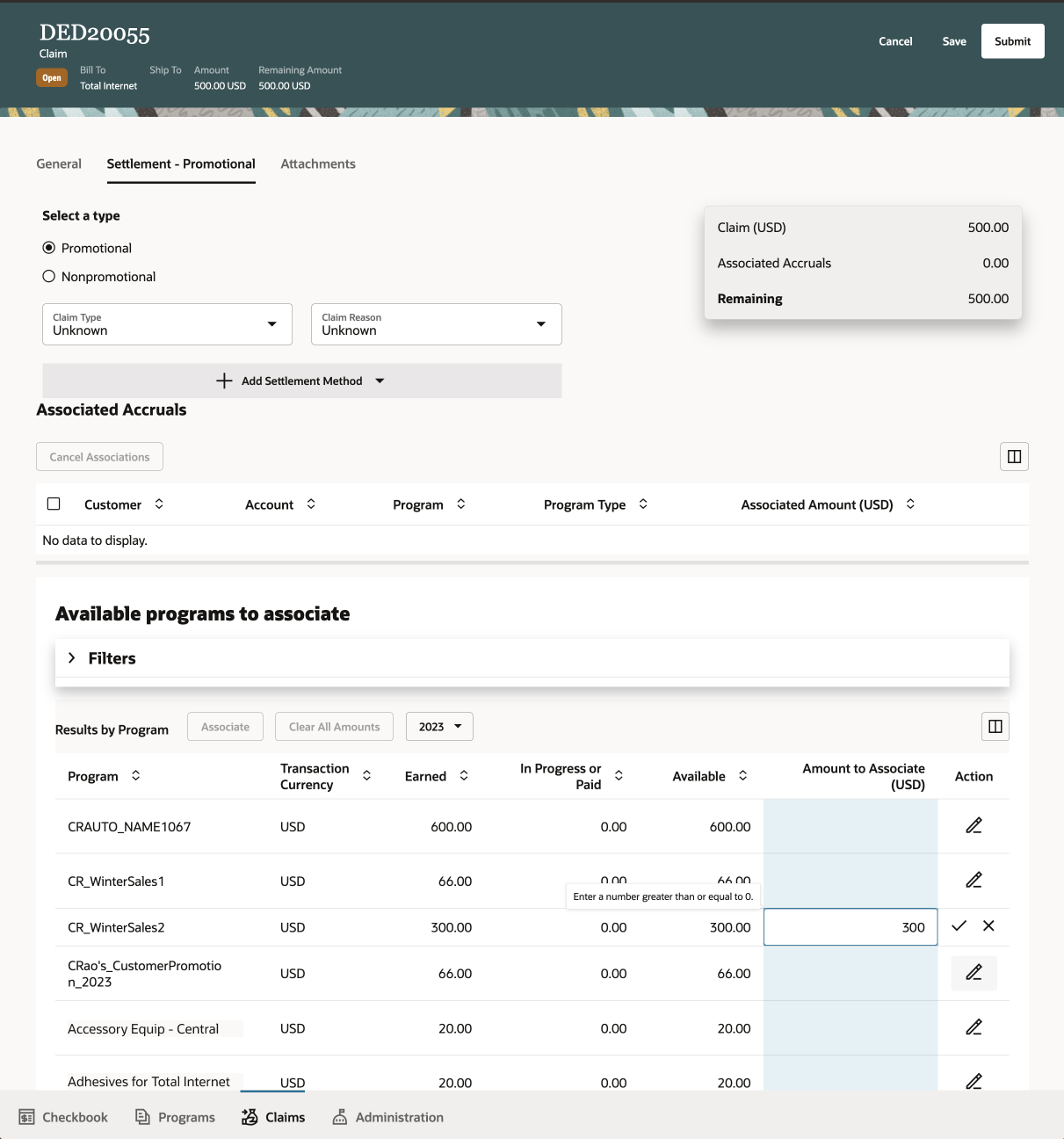
Settle a Claim with Promotional Accruals
Business value:
- Settlement of promotional deductions
- Fast, accurate relief of accruals with accountability and transparency
Steps to Enable
Use the Opt In UI to enable this feature. For instructions, refer to the Optional Uptake of New Features section of this document.
Offering: Order Management
- You must opt in to the functional area: Channel Revenue Management functional area.
- Opt in to the feature: Customer Channel Management.
- If you need deductions from Receivables, then opt in to the feature: Deductions and Settlement. Then opt in to the feature: Manage Deduction Claims Using Redwood Pages.
- Under the offering: Financials and functional area: Receivables, navigate to the task: Manage Receivables System Options. Search for and select your business unit. Click the Cash Processing tab. Select the Enable channel revenue management integration check box and click Save.
- Under the offering: Financials, navigate to a task named: Manage Legal Entity Configurator Profile Options. Set the profile Enable Legal Entity Time Zone at the Site level.
-
Run scheduled process ESS job to create index definition and perform initial ingest to OSCS for claims index, if you have not already done so for Deductions and Settlement.
- Configure Channel Settings to optimize the claim
- Automatically Show Available Programs to Associate (optional) - otherwise it will automatically be shown
- Settlement Type (optional) - used to default the settlement type; otherwise no defaulting
- Configure Deductions and Settlement profiles
- Currency Conversion Type at Site level - CJM_CURRENCY_CONVERSION_TYPE
- Configure Claim Source, Claim Type, Claim Reason and settlement transaction types in Receivables
- Configure promotional settlement profiles
- Calendar year filter in Available Accruals Search at site or user levels - ORA_CJM_AVAIL_ACCR_CAL_YEAR_FILTER
Tips And Considerations
Pages that are in the Oracle ADF interface are:
- Customer Trade Profiles
- Setup and Maintenance
- Configure Program Type
- Manage Batches
- Scheduled Processes
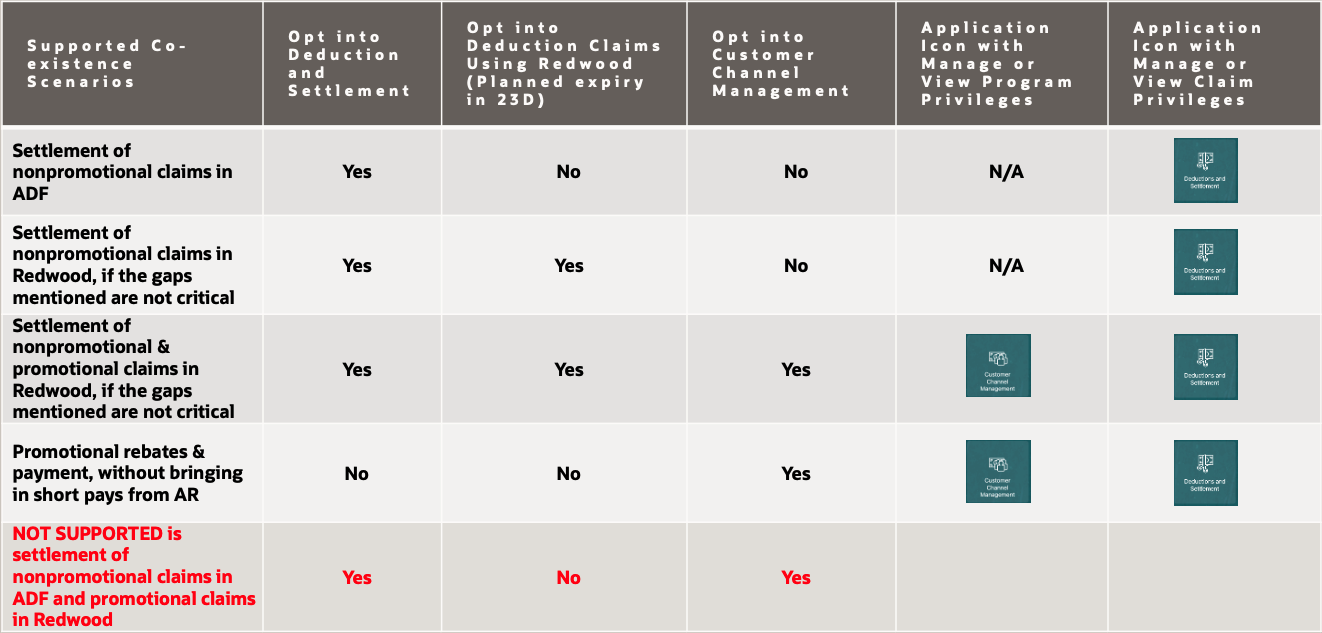
Where is promotional settlement supported:
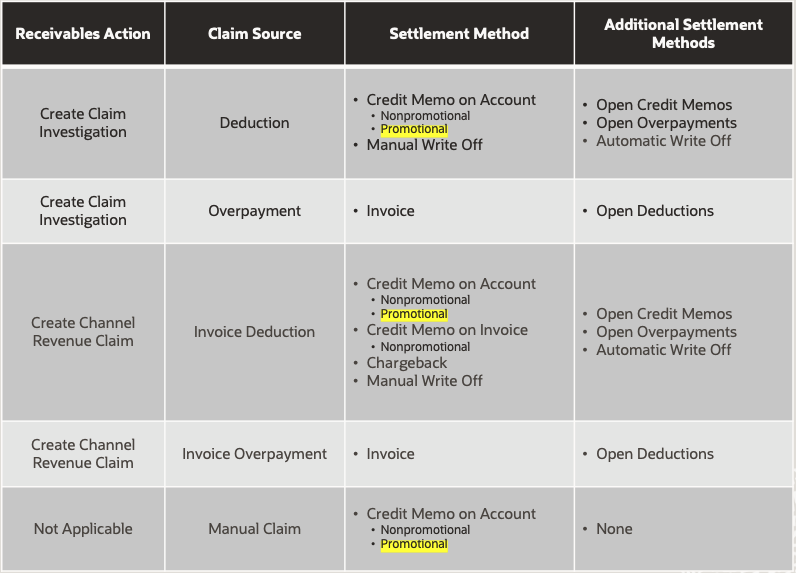
Where Promotional Settlement Is Supported
Key Resources
- For more information on Channel Revenue Management, refer to the Oracle Cloud Readiness content for Order Management.
- For more information on the Channel Revenue Management Integration with Receivables, refer to the Oracle Cloud Readiness content for Financials.
- Oracle SCM Cloud: Using Oracle Channel Revenue Management Cloud, available on the Oracle Help Center.
- Oracle SCM Cloud: Implementing Oracle Channel Revenue Management Cloud, available on the Oracle Help Center.
- Oracle SCM Cloud: REST API for Oracle SCM Cloud, available on the Oracle Help Center.
Access Requirements
- Users who are assigned this predefined job role are automatically able to access this feature
- Channel Claims Manager (ORA_CJM_CHANNEL_CLAIMS_MANAGER_JOB)
- Users need to be assigned reference data set and business unit data security access.
View and analyze the current financial status and performance of your customer programs. For a specific business unit and year, you can summarize by customer, and drill down by program. You can view information about rebates that customers have earned, claims that are in-process and paid, and view the balance available for customer payment. Use the customer checkbook to understand how customers leverage your programs. Use the program checkbook to view the performance of individual programs.
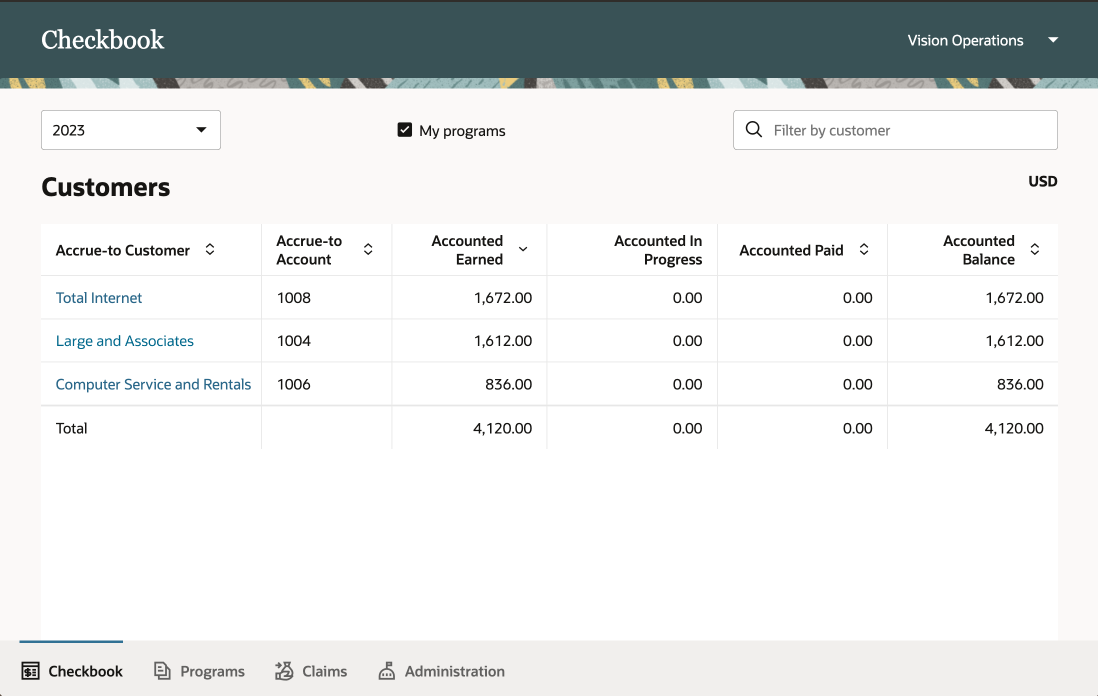
Customer Checkbook - List of customers
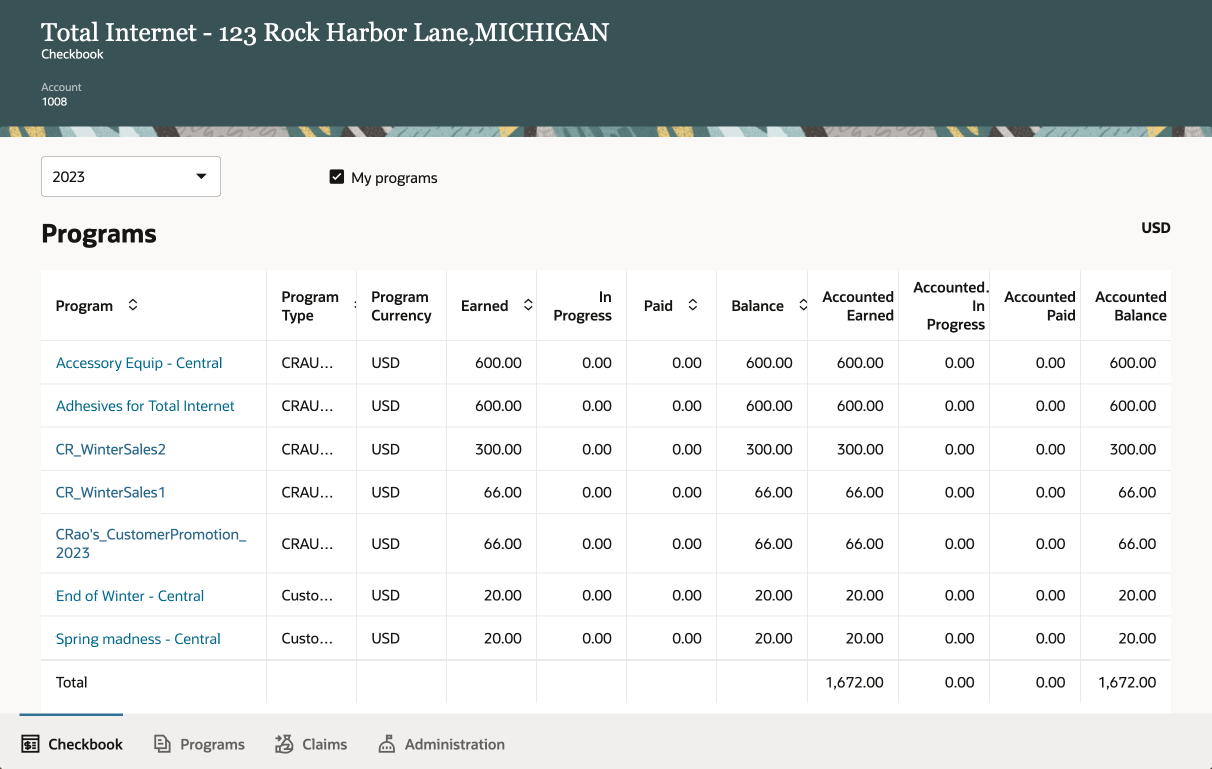
Customer Checkbook - List of Programs for a Customer
Business value:
- Understand the overall success of your promotions.
- Understand how customers are leveraging your promotions and through which programs.
Steps to Enable
Use the Opt In UI to enable this feature. For instructions, refer to the Optional Uptake of New Features section of this document.
Offering: Order Management
- You must opt in to the functional area: Channel Revenue Management functional area.
- Opt in to the feature: Customer Channel Management.
- If you need deductions from Receivables, then opt in to the feature: Deductions and Settlement. Then opt in to the feature: Manage Deduction Claims Using Redwood Pages.
- Under the offering: Financials and functional area: Receivables, navigate to the task: Manage Receivables System Options. Search for and select your business unit. Click the Cash Processing tab. Select the Enable channel revenue management integration check box and click Save.
- Under the offering: Financials, navigate to a task named: Manage Legal Entity Configurator Profile Options. Set the profile Enable Legal Entity Time Zone at the Site level.
Tips And Considerations
The scheduled process, Update Customer Accruals Summary, is used to summarize customer checkbook information, and is automatically triggered at the end of the Create Accruals for Channel Batch process. If customer checkbook performance is slow because you only create accruals monthly, then you may want to run it also after the Settle Customer Claims process, or on a daily basis.
Key Resources
- For more information on Channel Revenue Management, refer to the Oracle Cloud Readiness content for Order Management.
- For more information on the Channel Revenue Management Integration with Receivables, refer to the Oracle Cloud Readiness content for Financials.
- Oracle SCM Cloud: Using Oracle Channel Revenue Management Cloud, available on the Oracle Help Center.
- Oracle SCM Cloud: Implementing Oracle Channel Revenue Management Cloud, available on the Oracle Help Center.
- Oracle SCM Cloud: REST API for Oracle SCM Cloud, available on the Oracle Help Center.
Access Requirements
- Users who are assigned this predefined job role are automatically able to access this feature
- Customer Channel Program Manager (ORA_CJM_CUSTOMER_CHANNEL_PROGRAM_MANAGER_JOB)
Automate Accounting for Customer Program Accruals and Claims
Use Subledger Accounting to automate accounting of earned accruals and relief of claimed accruals. All accounting transactions are posted to the General Ledger.
Business value:
- Tightly automated and accurate channel accounting
Steps to Enable
Use the Opt In UI to enable this feature. For instructions, refer to the Optional Uptake of New Features section of this document.
Offering: Order Management
- You must opt in to the functional area: Channel Revenue Management functional area.
- Opt in to the feature: Deductions and Settlement. Then opt in to the feature: Manage Deduction Claims Using Redwood Pages.
- Opt in to the feature: Customer Channel Management.
- Under the offering: Financials and functional area: Receivables, navigate to the task: Manage Receivables System Options. Search for and select your business unit. Click the Cash Processing tab. Select the Enable channel revenue management integration check box and click Save.
- Under the offering: Financials, navigate to a task named: Manage Legal Entity Configurator Profile Options. Set the profile Enable Legal Entity Time Zone at the Site level.
- Configure Subledger Accounting for channel customer accruals
Key Resources
- For more information on Channel Revenue Management, refer to the Oracle Cloud Readiness content for Order Management.
- For more information on the Channel Revenue Management Integration with Receivables, refer to the Oracle Cloud Readiness content for Financials.
- Oracle SCM Cloud: Using Oracle Channel Revenue Management Cloud, available on the Oracle Help Center.
- Oracle SCM Cloud: Implementing Oracle Channel Revenue Management Cloud, available on the Oracle Help Center.
- Oracle SCM Cloud: REST API for Oracle SCM Cloud, available on the Oracle Help Center.
Access Requirements
- Users who are assigned this predefined job role are automatically able to access this feature
- Channel Claims Manager (ORA_CJM_CHANNEL_CLAIMS_MANAGER_JOB)
- Customer Channel Program Manager (ORA_CJM_CUSTOMER_CHANNEL_PROGRAM_MANAGER_JOB)
- Supply Chain Application Administrator (ORA_RCS_SUPPLY_CHAIN_APPLICATION_ADMINISTRATOR)
Provides research, administration, analysis, and settlement functionalities to quickly resolve deductions and settle claims, improving customer relationships and overall financial performance.
Manage Deduction Claims Using Redwood Pages
Opt in to this feature to begin or to migrate your management of deductions to our new Redwood user interface. Use this feature to create manual claims, investigate, and settle all customer claims.
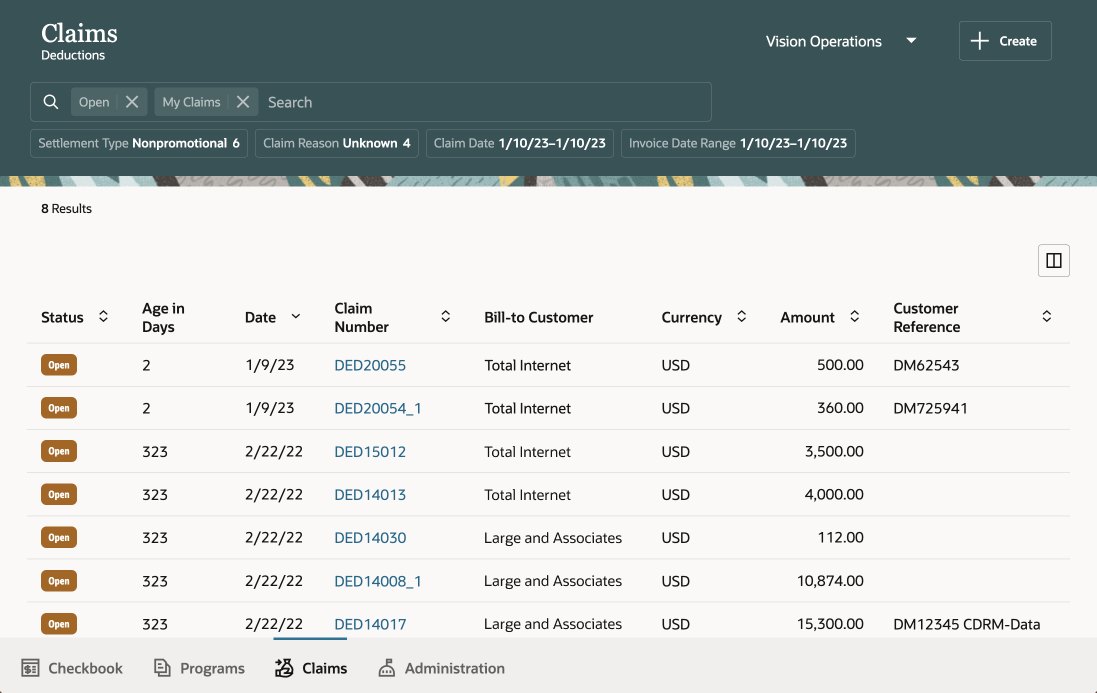
Smart Search for Customer Claims
Business value:
- Improve smart search
- Improve responsive user interface for claim analysts
Steps to Enable
Use the Opt In UI to enable this feature. For instructions, refer to the Optional Uptake of New Features section of this document.
Offering: Order Management
-
You must opt in to the functional area: Channel Revenue Management functional area. Opt in to the feature: Deductions and Settlement. Then opt in to the feature: Manage Deduction Claims Using Redwood Pages.
-
Run scheduled process ESS job to create index definition and perform initial ingest to OSCS for claim index.
Tips And Considerations
Once you start using Redwood in production, you should not switch back.
Deductions and Settlement pages that remain in the Oracle ADF interface are:
- Customer Trade Profiles
- Setup and Maintenance
- Scheduled Processes
The following functional features from 23A are not available in 23B in Redwood. If these are critical, then do not opt into this feature in 23B.
- Notes
- Mass actions on claims
- Update/Settle, Reassign
- Unit price defaulting from latest invoice
- Drill downs to AR receipts, invoices, applied transactions from General & Confirmation tabs
- Regressions for tables
- Retained column personalizations on tables
- Downloads on tables
- Counts on some tables
Key Resources
- For more information on Channel Revenue Management, refer to the Oracle Cloud Readiness content for Order Management.
- For more information on the Channel Revenue Management Integration with Receivables, refer to the Oracle Cloud Readiness content for Financials.
- Oracle SCM Cloud: Using Oracle Channel Revenue Management Cloud, available on the Oracle Help Center.
- Oracle SCM Cloud: Implementing Oracle Channel Revenue Management Cloud, available on the Oracle Help Center.
- Oracle SCM Cloud: REST API for Oracle SCM Cloud, available on the Oracle Help Center.
Access Requirements
- No additional roles needed to access redwood pages if you already have access to Deductions and Settlement in 23B.
- Add reference data set access to existing Channel Claim Manager users, in addition to their existing business unit data access.
Temporarily Reserve Supply While Shopping or Quoting
Integrate your web store with Oracle Global Order Promising and Oracle Order Management so you can efficiently manage supply. An online shopper or salesperson might need to select options for an item, get an approval for credit, provision a service, or arrange delivery before submitting a source order. Your eCommerce application might do these steps in a few minutes, but an online quote might need several days. You can now temporarily reserve supply for an item in your eCommerce shopping cart or online quote to make sure it remains available until you can schedule the order. If the shopper abandons their cart or if the quote expires, then you can cancel the reservation and make that supply available for other orders.
Manage a source order in your shopping cart, such as add items, update quantities, cancel, check out, and so on, and efficiently integrate that source order into a sales order in Oracle Applications.
Steps to Enable
Use the Opt In UI to enable this feature. For instructions, refer to the Optional Uptake of New Features section of this document.
Offering: Supply Chain Planning
Tips And Considerations
Assume you use an eCommerce system named Vision Systems that isn't part of Oracle Fusion Applications to capture your source orders. Here's how it works.
- You create source order 12345 in Vision Systems. It has one order line, line 1.
- You set the Demand Source Line Reference attribute on the source order to a value that's meaningful to Vision Systems. For this example, assume you set the attribute to NP-0612-1.
- You set up Vision Systems so it sends a request to Promising to reserve supply for line 1 of order 12345, and to use NP-0612-1 as the Demand Source Line Reference.
- You import order 12345 into Order Management. Your import payload includes details about the source order, including a value of NP-0612-1in the Demand Source Line Reference attribute.
- Order Management submits the request to order fulfillment. It sets the fulfillment line attribute to 1-1 for order line 1, then sends a request to Promising to schedule line 1 for order 12345.
- Promising swaps the supply that it already reserved for NP-0612-1 to fulfillment line 1-1.
Here's how it shows up in the Order Management work area.

Demand Source Line Reference on the Order Line
Requirements
- You must opt into the Global Order Promising functional area. If you’ve already opted into this functional area, then you don’t have to opt in again.
- You must opt into the High-Volume Global Order Promising feature and the Temporarily Reserve Supply While Shopping or Quoting feature.
- You must use the DemandSourceLineReference attribute in the SalesOrdersforOrderHub REST API resource, or the Demand Source Line Reference attribute in file-based data import (FBDI). To use FBDI, see Use FBDI and REST API to Import a Bunch of Sales Orders.
- You must specify an expiration date for your shopping cart in your eCommerce application. If the cart expires, then your application must send a request to Global Order Promising to cancel the sales order and release supply.
NOTE:
- Use this feature with your own eCommerce application or with Oracle Order Management.
- You can use this feature with database promising. For details, see Database Promising.
- Your eCommerce application can use a web service to call Promising to do various actions. For example, reserve supply when you add an item or update a quantity, or release supply when you cancel an order line in your shopping cart.
- You can revise a sales order or use a processing constraint regardless of whether you use this feature.
- You can use the Demand Source Line Reference attribute in an order management extension, processing constraint, Oracle Transactional Business Intelligence (OTBI), or Oracle Business Intelligence Cloud Connector (BICC).
- You can't update the Demand Source Line Reference attribute in the Order Management work area.
- A change that happens between the time that you add an item in your shopping cart and when Promising schedules the order line might affect your promising results. Assume you place an order for 10 Bluetooth speakers in your web store, and Promising reserves 10 of them. You import the source order into Order Management, Order Management creates a sales order, then submits it to fulfillment. You revise the sales order in Order Management, change the quantity to 15, then submit it again. Promising has only reserved a quantity of 10, so Promising might or might not be able to schedule the additional quantity of 5.
Key Resources
Access Requirements
- Users who are assigned the following predefined job role are automatically able to access this feature:
- Order Promising Manager (ORA_MSC_ORDER_PROMISING_MANAGER_JOB)
- Order Manager (ORA_DOO_ORDER_MANAGER_JOB)
- Order Entry Specialist (ORA_FOM_ORDER_ENTRY_SPECIALIST_JOB)
Order promising is a critical business process that must scale with demand and continue to operate even if hardware failures occur. Recent changes to Oracle Fusion Cloud Global Order Promising provide a scale-out architecture for availability checking and scheduling requests across a horizontal grid, enhancing capacity and resilience. The new architecture also reduces operational overhead, making supply and reference data updates immediately available, and eliminating the need to refresh/restart the order promising server.
Migration to the new architecture is continuing over several updates. Starting in update 24A, the C++-based order promising solution will be retired, and all order promising in Oracle Fusion Cloud will be performed using the high-volume order promising solution. You can transition to the new solution at any time by opting in to the High-Volume Order Promising feature. If you use capable to promise or allocated order promising, you must complete some setups before you make this transition. For details, see this Oracle Cloud Customer Connect Event: SCM – Prepare for the Next Generation of Global Order Promising.
After you opt in to the feature named High-Volume Order Promising, you can use the feature described in this section.
Split Order Lines Only When Supply Meets a Minimum Threshold
Split an order line when you don’t have enough supply to fulfill the entire quantity. Use an ATP rule to specify the minimum quantity of the item that must be available before splitting the line, and Oracle Global Order Promising will split the line and deliver part of the quantity instead of waiting until all of its available. If the minimum quantity isn’t available by the customer’s request date, then Promising will delay the line until you can ship the minimum quantity.
Fulfill at least some of your customer's demand even if only part of the quantity becomes available after the requested date.
Steps to Enable
Use the Opt In UI to enable this feature. For instructions, refer to the Optional Uptake of New Features section of this document.
Offering: Supply Chain Planning
Tips And Considerations
Create an ATP rule.

ATP Rule
Add a check mark to the Split Order When Supply Becomes Available option.
Enter a value in the Minimum Quantity for Splitting attribute.
NOTE:
- You must opt into the High-Volume Order Promising feature. If you’ve already opted into this feature, then you don’t have to opt in again.
-
If you create the sales order in Oracle Order Management, then this feature will only split the order line when you set the Allow Partial Shipments of Lines attribute on the order to Yes.
-
If you use REST API to check availability or automatically schedule the line, and if you specify a value in the minSplitQuantity attribute in your REST API payload, then Promising will use this value instead of the value that you specify in your ATP rule.
Key Resources
- See ATP Rules.
Access Requirements
- Users who are assigned the following predefined job role are automatically able to access this feature:
- Order Promising Manager (ORA_MSC_ORDER_PROMISING_MANAGER_JOB)
IMPORTANT Actions and Considerations
Replaced and Removed Features
From time to time, Oracle replaces existing Cloud service features with new features, or removes existing features. Replaced features may be put on a path to removal. As a best practice, you should use the newer version of a replaced feature as soon as the newer version is available.
This section identifies the features in this Cloud service that have been replaced or will be removed.
| Module | Removed Feature | Target Removal | Replacement Feature | Replaced In | Additional Information |
|---|---|---|---|---|---|
| Pricing | Price Request SOAP Service | 23D | Document Prices REST API | 19A | No additional enhancements have been made to the Price Request SOAP service since update 19A. Until the SOAP service is removed in 23D, it will continue to work, but you should migrate to the Document Prices REST API at your earliest convenience. For details about the Document Prices REST API, refer to the REST API for Oracle Fusion Cloud SCM documentation, available on the Oracle Help Center. |
| Global Order Promising | Memory resident, C++-based order promising |
24A | High-volume order promising |
23A | Starting in update 24A, the C++-based order promising solution will be retired, and all order promising in Oracle Fusion Cloud will be performed using the high-volume order promising solution. You can transition to the new solution at any time by opting in to the High-Volume Order Promising feature. If you use capable to promise or allocated order promising, you must complete some setups before you make this transition. For details, see this Oracle Cloud Customer Connect Event: SCM – Prepare for the Next Generation of Global Order Promising. |
Changes to File-Based Data Import (FBDI) Templates
An Oracle Global Order Promising FBDI template has changed in this update. For details of the specific changes, refer to the Instructions tab of this FBDI template:
- Available-to-Promise Rules (ScpATPRulesImportTemplate)
You can find the latest template in Oracle Fusion Cloud SCM: File-Based Data Import (FBDI) for SCM, available on the Oracle Help Center.