
- Revision History
- Overview
- Feature Summary
- Payroll
-
- Global Payroll
-
- Update Employee’s Payroll During Change Assignment Transaction
- Copy Future Dated Changes During Global Transfer
- Calculate a Rate Using Multiple Values Defined by Criteria
- View Employee Retroactive Pay (RetroPay) Results
- Performance Improvement to the Payroll Costing Process
- New Report - Run Periodic Payroll Register Report
- Balance Results Responsive Page
- Changes to the Statement of Earnings (SOE) Header
-
- Payroll for Bahrain
- Payroll for Canada
- Payroll for China
-
- Taxable and Nontaxable Enterprise Annuity Employee and Employer Contributions
- New Element Template to Manage Social Security Items
- Create Association and Association Details for the Employees Hired via HDL and HSDL
- Hide the Person Legislative Attributes Delivered by Oracle via Transaction Design Studio
- Payroll Relationship Level Deduction Card and Most of the Card Components are Kept Open for Final Closed Employees
-
- Payroll for Kuwait
- Payroll for Mexico
- Payroll for Qatar
- Payroll for the United Arab Emirates
- Payroll for the United Kingdom
-
- Pensions Automatic Enrolment Enhancements
- Configure Backdated Pay Awards for Teachers' Pension
- Temporary National Insurance Number for Teachers' Pension
- Reporting Local Authority Central Staff in the England School Workforce Census
- Benefits and Pensions Integration: Print Option and Historical Enrolments
- Enhancement to MyCSP Reporting to Provide Year-End Five-Day PIP Report
- Send P45 Through Email
-
- Payroll for the United States
- Global Payroll
- IMPORTANT Actions and Considerations for Payroll
This document will continue to evolve as existing sections change and new information is added. All updates appear in the following table:
| Date | Product | Feature | Notes |
|---|---|---|---|
| 27 MAY 2022 | Created initial document. |
HCM Cloud applications have two types of patches you can receive that are documented in this What’s New:
- Release Updates (22A, 22B, 22C, and 22D)
- Optional Monthly Maintenance Packs to each update
It is important for you to know what Release Update your environment is on. You can find this in your Cloud Portal.
____________________
 HAVE AN IDEA?
We’re here and we’re listening. If you have a suggestion on how to make our products better, please let us know. To enter an idea go to the Ideas Lab on Oracle Customer Connect. In this document wherever you see the light bulb icon after the feature name it means we delivered one of your ideas.
____________________
Suggested Reading for all HCM Products:
- Human Resources What’s New – In the Global Human Resources section you will find features on the base application in which other application are built upon.
NOTE: Not all Global Human Resource features are available for Talent and Compensation products.
- Oracle Human Capital Management Cloud Functional Known Issues and Maintenance Packs (Document ID 1554838.1). These documents identify bug fixes and possible known issues. You will also need to review these documents based in the release update version you are currently on or will be moving to.
- Oracle Help Center – Here you will find guides, videos and searchable help.
- Release Readiness – New Feature Summary, What’s New, Feature Listing Spreadsheet, Spotlights and Release Training
GIVE US FEEDBACK
We welcome your comments and suggestions to improve the content. Please send us your feedback at oracle_fusion_applications_help_ww_grp@oracle.com. Indicate you are inquiring or providing feedback regarding the HCM Cloud What’s New in the body or title of the email.
Column Definitions:
Report = New or modified, Oracle-delivered, ready to run reports.
UI or Process-Based: Small Scale = These UI or process-based features are typically comprised of minor field, validation, or program changes. Therefore, the potential impact to users is minimal.
UI or Process-Based: Larger Scale* = These UI or process-based features have more complex designs. Therefore, the potential impact to users is higher.
Features Delivered Disabled = Action is needed BEFORE these features can be used by END USERS. These features are delivered disabled and you choose if and when to enable them. For example, a) new or expanded BI subject areas need to first be incorporated into reports, b) Integration is required to utilize new web services, or c) features must be assigned to user roles before they can be accessed.
| Ready for Use by End Users Reports plus Small Scale UI or Process-Based new features will have minimal user impact after an update. Therefore, customer acceptance testing should focus on the Larger Scale UI or Process-Based* new features. |
Customer Must Take Action before Use by End Users Not disruptive as action is required to make these features ready to use. As you selectively choose to leverage, you set your test and roll out timing. |
|||||
|---|---|---|---|---|---|---|
| Feature |
Report |
UI or |
UI or |
|
||
Legislative Change of National Insurance Primary Thresholds for the Tax Year 2022-23 |
||||||
Payroll for Oracle Human Capital Management for Canada supports country specific features and functions for Canada. It enables users to follow Canada's business practices and comply with its statutory requirements.
Voluntary Deductions Included in Disposable Income Rule
The disposable income rule "Net pay less specific deductions” will now allow voluntary deductions to reduce disposable income. This is legislatively required in some jurisdictions for specific elements, which are categorized as voluntary deductions. Previously, this rule only reduced the disposable income using pretax deductions.
For example, you may require this configuration for these types of voluntary deductions:
- Professional fees
- Union dues
- Health insurance premiums
- Disability insurance premiums
With this feature you have the ability to meet legislative requirements of garnishments.
Steps to Enable
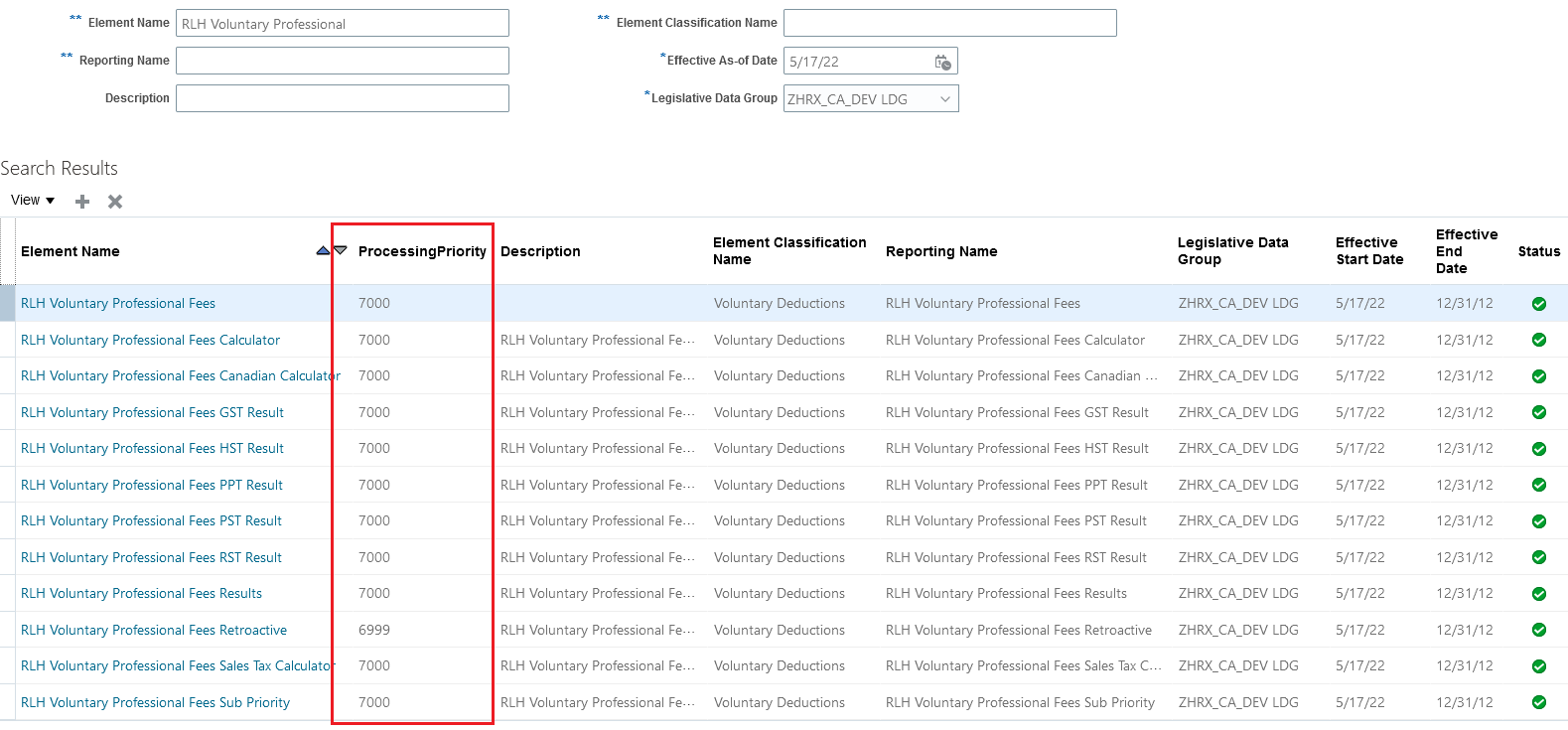
To take advantage of this feature and reduce disposable income by the voluntary deduction amount, you must change the processing priority of the voluntary deduction element. Change the priority of the base element, and all other shadow elements, for the voluntary deduction to 7000. Change the priority of the retroactive shadow element to 6999. These changes are required so the processing of the voluntary deduction elements occur before the involuntary deduction elements, when disposable income is calculated.
To update the processing priority of the element:
- Navigate to My Client Groups > Payroll > Elements.
- Search for and select the voluntary deduction element.
- Click Edit > Correct.
- Update the Priority to:
- For the base and shadow elements, enter 7000.
- For the retroactive element, enter 6999.
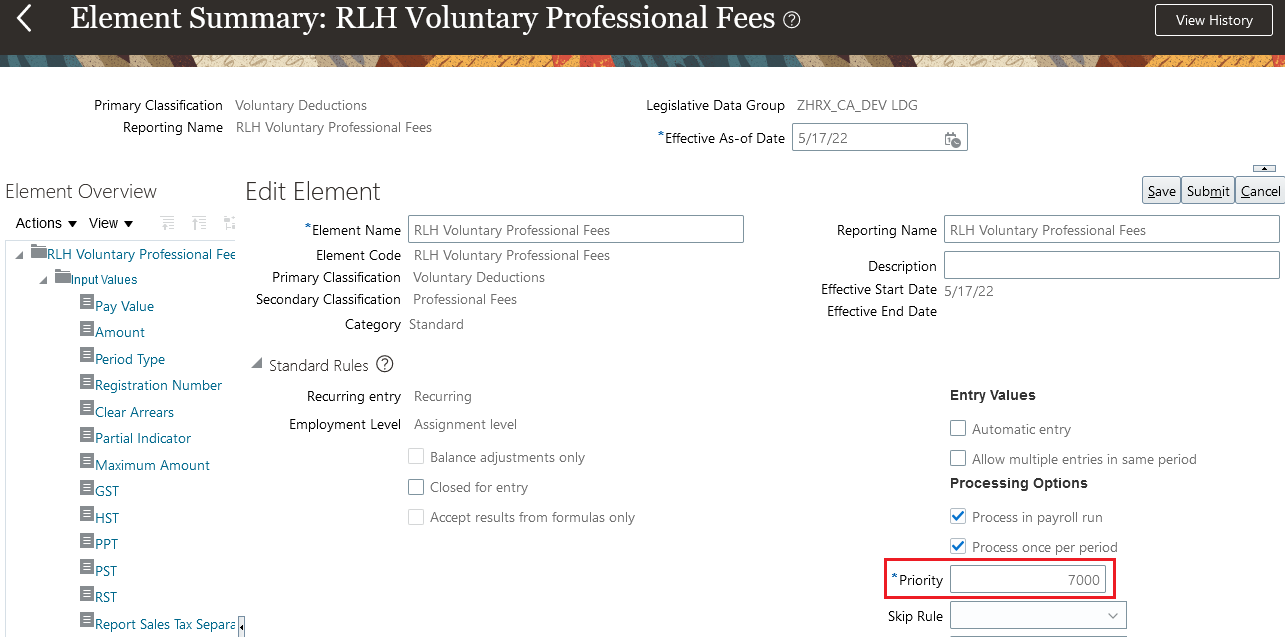
- Click Save.
- Click OK for the warning that is issued.

- Click Submit.
- Repeat this process for each shadow and retroactive element. This illustrates the processing priority of the base and all shadow elements once all the updates are made. Note that the retroactive element is set to 6999.
Tips And Considerations
You must update the processing priority for any voluntary deduction that impacts disposable income for garnishments. If the voluntary deduction should not impact disposable income, don’t update the processing priority.
Key Resources
Refer to these documents on the Canada Information Center for additional information.
Canada Information Center
https://support.oracle.com/rs?type=doc&id=2102586.2
- CA - Payroll tab > Product Documentation > Technical Briefs > Involuntary Deductions
Hot Topics Email (To Receive Critical Statutory Legislative Product News)
To receive important Fusion Canada Legislative Product News, you must subscribe to the Hot Topics Email feature available in My Oracle Support. Refer to the document below on the Canada Information Center for additional information.
https://support.oracle.com/rs?type=doc&id=2102586.2
- Welcome tab > Other Documents > How To Use My Oracle Support Hot Topics Email Subscription Feature
Payroll for the United Kingdom
Payroll for Oracle Human Capital Management for the United Kingdom supports country specific features and functions for the United Kingdom. It enables users to follow the United Kingdom's business practices and comply with its statutory requirements.
Legislative Change of National Insurance Primary Thresholds for the Tax Year 2022-23
The legislative changes to National Insurance Primary Thresholds will ensure that your organization is compliant with the National Insurance (NI) calculations when running the payroll calculation process.
Employee National Insurance Primary Threshold
The updated Primary Threshold for employee National Insurance contribution calculations effective July 6, 2022 and are:
| Threshold/limit (£) |
Weekly |
2 Weekly |
4 Weekly |
Monthly |
Annual |
| Primary Threshold (PT) |
242 |
484 |
967 |
1,048 |
12,570 |
Company Director Pro-rated Annual National Insurance Primary Threshold
A pro-rated company director Annual Primary Threshold for National Insurance contribution calculations effective for the 2022-23 tax year has been added as below:
| Threshold/limit (£) |
Weekly |
2 Weekly |
4 Weekly |
Monthly |
Annual |
| Primary Threshold (PT) Company Directors |
NA |
NA | NA | NA | 11,908 |
These legislative changes will be effective for the tax year 2022-23 and enable you to stay compliant with the changes introduced for national Insurance effective from July 6, 2022 for employees and for the annual calculations for company directors for the 2022-23 tax year.
Steps to Enable
You don't need to do anything to enable this feature.
This document will continue to evolve as existing sections change and new information is added. All updates appear in the following table:
| Date | Product | Feature | Notes |
|---|---|---|---|
| 29 APR 2022 | Created initial document. |
HCM Cloud applications have two types of patches you can receive that are documented in this What’s New:
- Release Updates (22A, 22B, 22C, and 22D)
- Optional Monthly Maintenance Packs to each update
It is important for you to know what Release Update your environment is on. You can find this in your Cloud Portal.
____________________
HAVE AN IDEA?
We’re here and we’re listening. If you have a suggestion on how to make our products better, please let us know. To enter an idea go to the Ideas Lab on Oracle Customer Connect. In this document wherever you see the light bulb icon after the feature name it means we delivered one of your ideas.
____________________
Suggested Reading for all HCM Products:
- Human Resources What’s New – In the Global Human Resources section you will find features on the base application in which other application are built upon.
NOTE: Not all Global Human Resource features are available for Talent and Compensation products.
- Oracle Human Capital Management Cloud Functional Known Issues and Maintenance Packs (Document ID 1554838.1). These documents identify bug fixes and possible known issues. You will also need to review these documents based in the release update version you are currently on or will be moving to.
- Oracle Help Center – Here you will find guides, videos and searchable help.
- Release Readiness – New Feature Summary, What’s New, Feature Listing Spreadsheet, Spotlights and Release Training
GIVE US FEEDBACK
We welcome your comments and suggestions to improve the content. Please send us your feedback at oracle_fusion_applications_help_ww_grp@oracle.com. Indicate you are inquiring or providing feedback regarding the HCM Cloud What’s New in the body or title of the email.
Column Definitions:
Report = New or modified, Oracle-delivered, ready to run reports.
UI or Process-Based: Small Scale = These UI or process-based features are typically comprised of minor field, validation, or program changes. Therefore, the potential impact to users is minimal.
UI or Process-Based: Larger Scale* = These UI or process-based features have more complex designs. Therefore, the potential impact to users is higher.
Features Delivered Disabled = Action is needed BEFORE these features can be used by END USERS. These features are delivered disabled and you choose if and when to enable them. For example, a) new or expanded BI subject areas need to first be incorporated into reports, b) Integration is required to utilize new web services, or c) features must be assigned to user roles before they can be accessed.
| Ready for Use by End Users Reports plus Small Scale UI or Process-Based new features will have minimal user impact after an update. Therefore, customer acceptance testing should focus on the Larger Scale UI or Process-Based* new features. |
Customer Must Take Action before Use by End Users Not disruptive as action is required to make these features ready to use. As you selectively choose to leverage, you set your test and roll out timing. |
|||||
|---|---|---|---|---|---|---|
| Feature |
Report |
UI or |
UI or |
|
||
Council Tax Attachment of Earnings Order Wales from April 2022 |
||||||
Payroll for the United Kingdom
Payroll for Oracle Human Capital Management for the United Kingdom supports country specific features and functions for the United Kingdom. It enables users to follow the United Kingdom's business practices and comply with its statutory requirements.
Council Tax Attachment of Earnings Order Wales from April 2022
In February 2022, the Welsh Government introduced regulations that amended the Council Tax (Administration and Enforcement) Regulations 1992, and introduced new deduction rates for the Welsh Council Tax Attachment of Earnings Orders (CTAEO).
This update enables you to stay compliant with legislative changes for Council Tax Attachment of Earnings Orders issued by a Welsh authority on or after April 1, 2022.
Steps to Enable
- Create a new court order element using the new Council Tax Attachment of Earnings Order Wales element template.
- You must create the element eligibility for the new court order element <Name>.
- You must also create element eligibility for the associated adjustment element <Name> Adjustment.
This document will continue to evolve as existing sections change and new information is added. All updates appear in the following table:
| Date | Product | Feature | Notes |
|---|---|---|---|
| 30 SEP 2022 | Global Payroll | New Report - Run Periodic Payroll Register Report | Updated document. Revised feature information. |
| 24 JUN 2022 | Payroll for the United States | Adjust Multiple Tax Balances for Third-Party Payments | Updated document. Revised feature information. |
| 27 May 2022 | Global Payroll | Balance Results Responsive Page | Updated document. Feature delivered in update 22B. |
| 27 May 2022 |
Global Payroll |
Changes to the Statement of Earnings (SOE) Header | Updated document. Feature delivered in update 22B. |
| 29 APR 2022 | Payroll for the United States | Creditor Debt, Garnishment, and Regional Tax Levy Involuntary Deduction Processing Enhancement | Updated document. Revised feature information. |
| 04 MAR 2022 | Created initial document. |
IMPORTANT NOTE: If you are being updated directly from 21D to 22B you should review the content of both 22A and 22B sections to ensure you see all the changes included in the update.
HCM Cloud applications have two types of patches you can receive that are documented in this What’s New:
- Release Updates (22A, 22B, 22C, and 22D)
- Optional Monthly Maintenance Packs to each update
It is important for you to know what Release Update your environment is on. You can find this in your Cloud Portal.
____________________
HAVE AN IDEA?
We’re here and we’re listening. If you have a suggestion on how to make our products better, please let us know. To enter an idea go to the Ideas Lab on Oracle Customer Connect. In this document wherever you see the light bulb icon after the feature name it means we delivered one of your ideas.
____________________
Suggested Reading for all HCM Products:
- Human Resources What’s New – In the Global Human Resources section you will find features on the base application in which other application are built upon.
NOTE: Not all Global Human Resource features are available for Talent and Compensation products.
- Oracle Human Capital Management Cloud Functional Known Issues and Maintenance Packs (Document ID 1554838.1). These documents identify bug fixes and possible known issues. You will also need to review these documents based in the release update version you are currently on or will be moving to.
- Oracle Help Center – Here you will find guides, videos and searchable help.
- Release Readiness – New Feature Summary, What’s New, Feature Listing Spreadsheet, Spotlights and Release Training
GIVE US FEEDBACK
We welcome your comments and suggestions to improve the content. Please send us your feedback at oracle_fusion_applications_help_ww_grp@oracle.com. Indicate you are inquiring or providing feedback regarding the HCM Cloud What’s New in the body or title of the email.
Column Definitions:
Report = New or modified, Oracle-delivered, ready to run reports.
UI or Process-Based: Small Scale = These UI or process-based features are typically comprised of minor field, validation, or program changes. Therefore, the potential impact to users is minimal.
UI or Process-Based: Larger Scale* = These UI or process-based features have more complex designs. Therefore, the potential impact to users is higher.
Features Delivered Disabled = Action is needed BEFORE these features can be used by END USERS. These features are delivered disabled and you choose if and when to enable them. For example, a) new or expanded BI subject areas need to first be incorporated into reports, b) Integration is required to utilize new web services, or c) features must be assigned to user roles before they can be accessed.
Oracle Global Payroll is a high-performance, graphical, rules-based payroll management application. It’s designed to keep pace with the changing needs of your enterprise and workforce in order to reduce setup costs, administration, and processing time. It operates globally and consistently in every country supported by Oracle. It uses a highly scalable processing engine that takes advantage of the features of the Oracle database for parallel processing, resulting in optimal performance. In countries with payroll extensions delivered and supported by Oracle, the application delivers the calculations, tax reporting, and regulatory rules required to accurately process payroll and remain in compliance.
Update Employee’s Payroll During Change Assignment Transaction
You can now update an employee’s payroll while updating their assignment. The Change Assignment quick action is enhanced to allow you to either transfer the employee to a new payroll or edit the existing one. For example, an employee transfers to a new department and as a result changes from monthly payroll to a weekly payroll: you can now capture the new payroll as part of the Change Assignment transaction. You can also update Payroll Assignment info such as Timecard required and Overtime Period.
Steps to Use this Feature
- Select Change Assignment Quick Action
- Select the assignment you want to update

3. Select Payroll Details
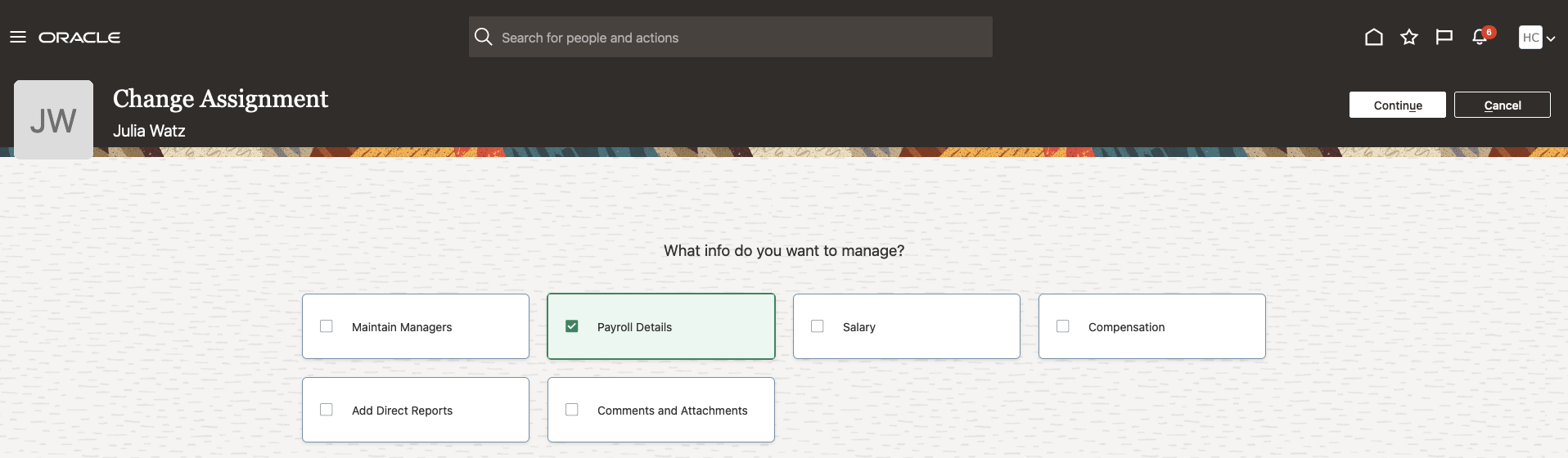
4. Fill in the When and Why section as well as other regions selected
5. Continue on to the Payroll Details section
-
If the assignment doesn’t have an assigned payroll already, you can create one

-
If the assignment already has an assigned payroll, you can either edit the current payroll frequency or transfer to a new one.
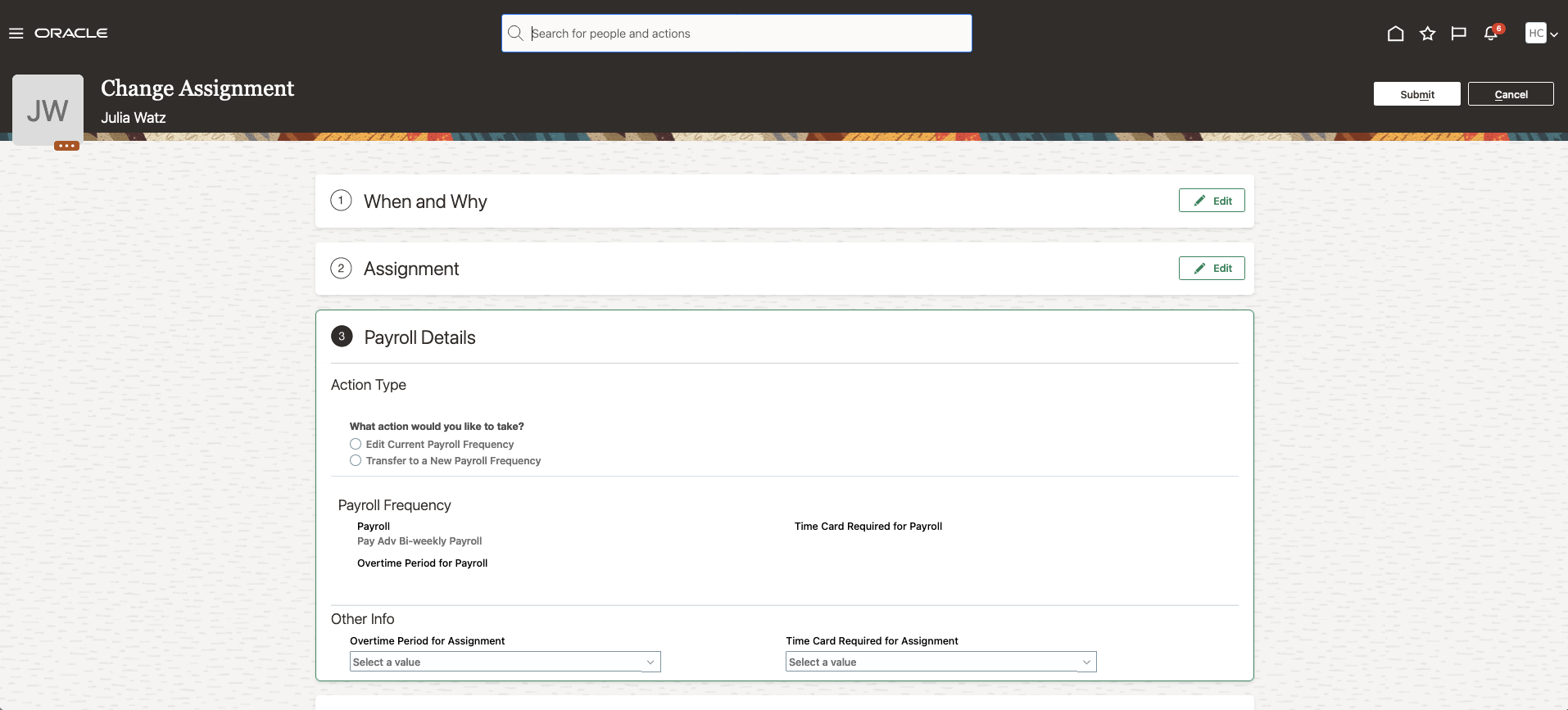
If you select Edit Current Payroll Frequency, the Payroll Frequency fields become editable.
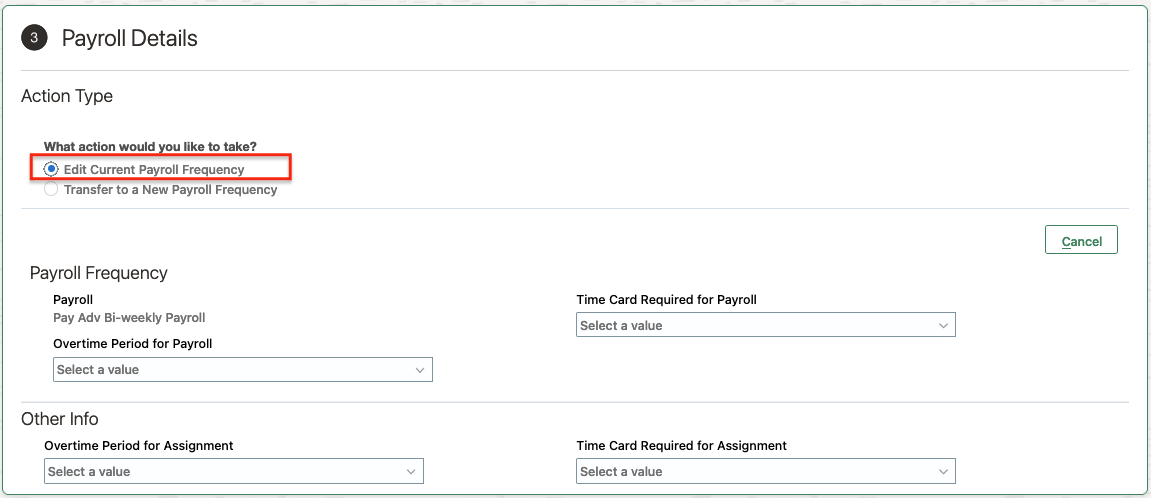
If you select Transfer to a New Payroll Frequency, you can enter the new payroll frequency details.
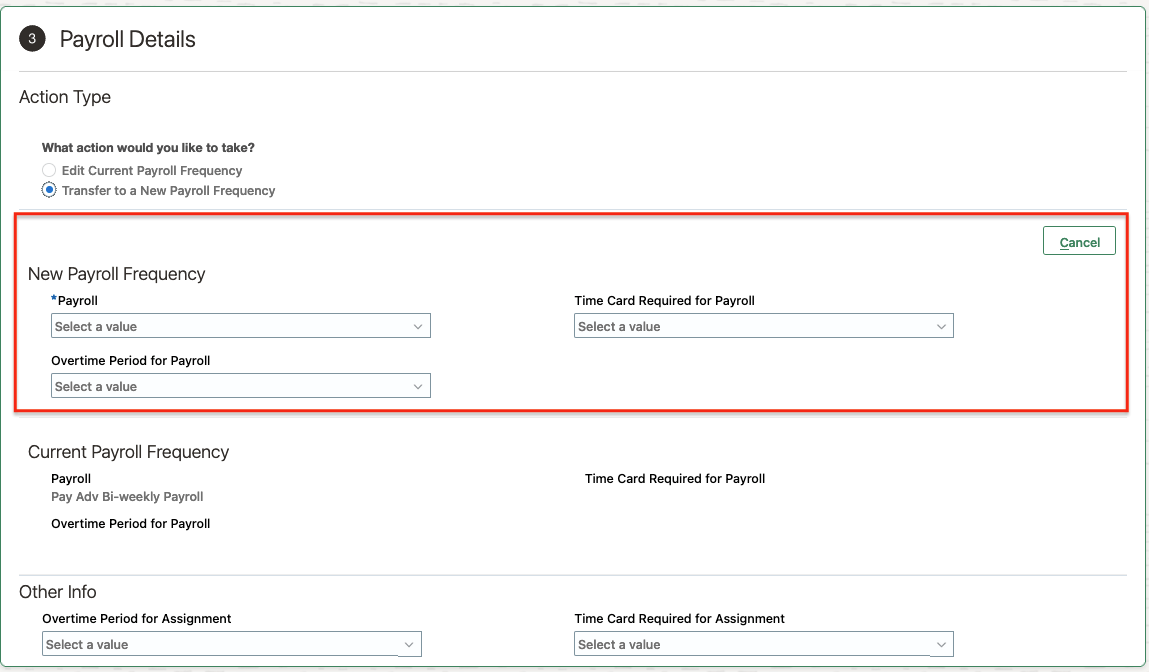
NOTE: The new payroll frequency record will be created as at the assignment change start date entered in the When and Why section. The current payroll frequency record will be ended as of the day before.
Once you make a selection, the other option becomes disabled. Use the Cancel button to change your selection.
Usage Tips
The options may not be available in certain conditions:
-
Edit option is unavailable if
-
Both the Overtime Period for Payroll and Time Card Required for Payroll are hidden using Transaction Design Studio.
-
-
Transfer option is unavailable if:
-
A future-dated payroll transfer already exists for the assignment or if the assignment has future-dated changes (such as a termination).
-
-
When the employee no longer has an active payroll frequency (either because of termination, or because the assignment was ended), the Current Payroll Frequency will be blank.
-
Payroll region is hidden (even if selected from the questionnaire) under the following conditions:
-
The selected assignment doesn’t have a payroll relationship
-
The Worker type is Contingent Worker or Non-worker
-
User doesn't have the security privileges to access the payroll region. Refer to Role Information section below.
-
-
The payroll region is read-only if:
-
The action selected in When and Why is either End Assignment or End Temporary Assignment
-
The logged-in user only has access to the payroll region in read-only. Refer to the Role Information section below.
-
The selected assignment is inactive. Use the Manage Payroll Relationship Quick Action to make necessary updates to the assignment’s payroll after termination.
-
Approvals
Once the Change Assignment is submitted, it goes through approval (if approval is configured). Payroll changes are part of the approval process and won’t be committed until the Change Assignment has been approved.
You can’t make further changes to the employee’s assigned payroll via Manage Payroll Relationship until the approval process is complete: the Payroll and Other Info sections are locked for edit.
Rules on locking Manage Payroll Relationship
- Payroll Association Region
If you start a Change Assignment transaction, and in the Payroll Section you take one of the following actions, the lock status of the Payroll Association region on the Manage Payroll Relationship will vary as described below:
| Action | Lock Status |
|---|---|
| Click on Edit but do not make any changes |
Locked |
| Click on Edit but do not make any changes, then click Cancel button |
Won't be locked |
| Click on Edit and make a change |
Locked |
| Click on Edit and make a change, then click Cancel button |
Won't be locked |
-
Payroll Details Region
If you start a Change Assignment transaction, and in Other Info Section you take one of the following actions, the lock status of the Payroll Assignment Details region on the Manage Payroll Relationship will vary as described below:
| Action | Lock Status |
|---|---|
| Make a change |
Locked |
| No Changes |
|
Save for Later Option
When using the Save for Later option on Change Assignment, any changes made in the payroll region will be saved and transaction can be discarded or resumed at a later date. However, the following conditions might invalidate the saved transaction:
-
A payroll transfer is entered as part of Change Assignment transaction and saved for later. In the meantime another payroll transfer is recorded via the Manage Payroll Relationship task. When resuming the Change Assignment transaction, the following error message is raised in the When and Why section: "This transaction is no longer valid because the payroll association changed after it was saved. Discard it and start a new one."
-
Other Info attributes are entered or updated as part of Change Assignment transaction and saved for later. In the meantime changes are also made to the same attributes via the Manage Payroll Relationship task. When resuming the Change Assignment transaction, the following error message is raised in the When and Why section: "This transaction is no longer valid because the payroll assignment details changed after it was saved. Discard it and start a new one."
With this feature you no longer need separate transactions to change assignment and payroll data. You can make all relevant changes in a single Change Assignment transaction.
Steps to Enable
By default, the payroll region is enabled. To disable it, create a rule in Transaction Design Studio.
The following fields are hidden by default, and enabled for localizations such as US and Canada:
- Overtime Period for Payroll
- Time Card Required for Payroll
- Overtime Period for Assignment
- Time Card Required for Assignment
Tips And Considerations
- Approval notification does not include the payroll changes. Approvers will not be able to see what changes, if any, were made to any of the payroll fields. This will be delivered in subsequent release.
- If you disable the region, then enable it at a later date, the predefined rules controlling whether the region is displayed or not will be disabled.
- You can set the Retain Employment Changes profile option to Yes, to enable valid employment changes to be retained in the in-progress transaction when the user changes the effective date. Payroll data are not retained, even with profile option set to Yes.
- You may create Auto-complete rule to either validate the New Payroll Frequency or default it based on assignment attributes.
NOTE: You must be cautious while making the payroll frequency field mandatory in the Change Assignment flow, as it may cause issues in certain circumstances. Consider the following scenario: an employee is not currently on a payroll. You start a Change Assignment and select the payroll region from the questionnaire. When the payroll region is opened, a new payroll record will automatically be created, however logged-in user only has access to the region in read-only mode.
Payroll Region will be added to other assignment transactions (such as Promote, Change Location, etc) in subsequent releases.
Role And Privileges
The Payroll Details region is secured using the following aggregate privileges:
| Aggregate Privileges | Job Roles |
|---|---|
| Manage Payroll Relationship ORA_PAY_PERSONAL_PAYROLL_ RELATIONSHIP_MANAGEMENT_DUTY |
Payroll Manager Payroll Administrator Human Resource Manager Human Resource Specialist Payroll Interface Coordinator |
| View Payroll Relationship ORA_PAY_PERSONAL_PAYROLL_ RELATIONSHIP_VIEW_DUTY |
Human Resource Analyst |
If you don't have any of the above privileges, the payroll region displays the following warning message

Copy Future Dated Changes During Global Transfer
With this enhancement, you can copy future-dated changes and preserve end dates on the payroll objects copied during a change of legal employer (Global Transfer). For example, on recurring element entries with an end date after the global transfer date, if you choose to copy the element entry as of the global transfer date, the end date is also be copied.
You can copy future-dated changes on the payroll objects during a Global Transfer. There are two types of future changes:
- Future Updates to the Record Created as of the Global Transfer Date
- Future Record that begins after the Global Transfer Date
Future changes to Employment data are copied only if you choose to copy future assignment updates. The following payroll objects are considered employment data and supported with this feature.
- Overtime Period
- Timecard Required
- Element entries not linked to Calculation Cards, including future non-recurring entries.
Use the HR profile option “Future Assignment Changes Copy Enabled” (ORA_PER_CLE_COPY_FUT_ASG) in the Local and Global Transfer flow and the “Copy future assignment updates” check box on the Mass Legal Employer Change flow to be able to copy future changes on employment data.
For example, you may want to select this option for a global transfer that is due to a re-organization, merger, or acquisition, where the employees are expected to continue with the same employment data, even those scheduled for the future.
For personal data (Personal Payment Methods), the future changes are copied irrespective of what's set on the HR profile option or the check box.
NOTE: Support for copying future changes to Person Costing Overrides and Calculation Cards is planned for a future release.
Reduce manual effort in copying future-dated payroll information from the source to the target legal employer.
Steps to Enable
You don't need to do anything to enable this feature.
Key Resources
For more information see the following topic:
- Employment Profile Options topic under the Employment chapter of the Implementing Global Human Resources guide in the Oracle Help Center.
Calculate a Rate Using Multiple Values Defined by Criteria
You can calculate a rate using a Values Defined by Criteria by referencing another Values Defined by Criteria. The list of supported calculation types on the Values Defined by Criteria is updated to enable the selection of another Values Defined by Criteria when you create a new value. You can use these for rate calculations while running Generate HCM Rates process and when viewing salary rates.
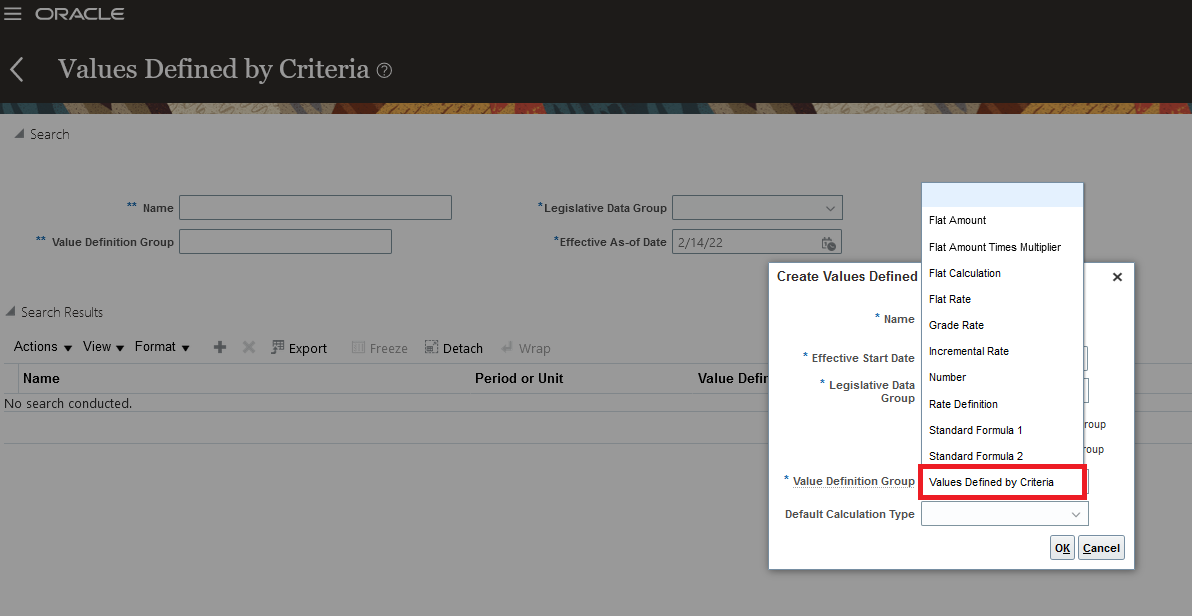
Let’s look at an example that shows how to calculate a rate using a Values Defined by Criteria by referencing another Values Defined by Criteria. Assume that you need to calculate housing and car allowance payments based on a condition such as a worker's job. In this example, separate Values Defined by Criteria are created to capture the different levels of the allowance rates. Here are some criteria you could use:
1. Create a Values Defined by Criteria and name it Standard Allowance Rates
For Workers on Job A
- Pay Housing Allowance 250
- Pay Car Allowance 400
For Workers on Job B
- Pay Housing Allowance 650
- Pay Car Allowance 900
2. Create a Values Defined by Criteria and name it Special Allowance Rates
For Workers on Job A
- Pay Housing Allowance 500
- Pay Car Allowance 750
For Workers on Job B
- Pay Housing Allowance 350
- Pay Car Allowance 750
3. Create a Values Defined by Criteria with calculation type as Values Defined by Criteria and name it TRU Allowance Rates
Note: You can now create a Values Defined by Criteria based on conditions that indicate when the ‘Standard Allowance Rates’ and ‘Special Allowance Rates’ are applicable. In this example, the conditions are based on the worker's TRU:
For Workers on TRU 1
- Pay Housing Allowance using the ‘Standard Allowance Rates’ Values Defined by Criteria
- Pay Car Allowance using the ‘Standard Allowance Rates’ Values Defined by Criteria
For Workers on TRU 2
- Pay Housing Allowance using the ‘Special Allowance Rates’ Values Defined by Criteria
- Pay Car Allowance using the ‘Special Allowance Rates’ Values Defined by Criteria
4. Once you've defined the Values Defined by Criteria, create Rate Definitions for each type of value such as Housing Allowance and Car Allowance.
Rate Definition - Housing Allowance
- Select the Value by Criteria category
-
Select the Value by Criteria Name ‘TRU Allowance Rates'
-
Select the Value 'Housing Allowance'.
Rate Definition - Car Allowance
- Select the Value by Criteria category
-
Select the Value by Criteria Name ‘TRU Allowance Rates'
-
Select the Value 'Car Allowance'.
With this type of configuration, the Housing Allowance rate for an employee on TRU 2 and Job B is calculated as 350.
Calculate a rate using a Values Defined by Criteria by referencing another Values Defined by Criteria.
Steps to Enable
You don't need to do anything to enable this feature.
View Employee Retroactive Pay (RetroPay) Results
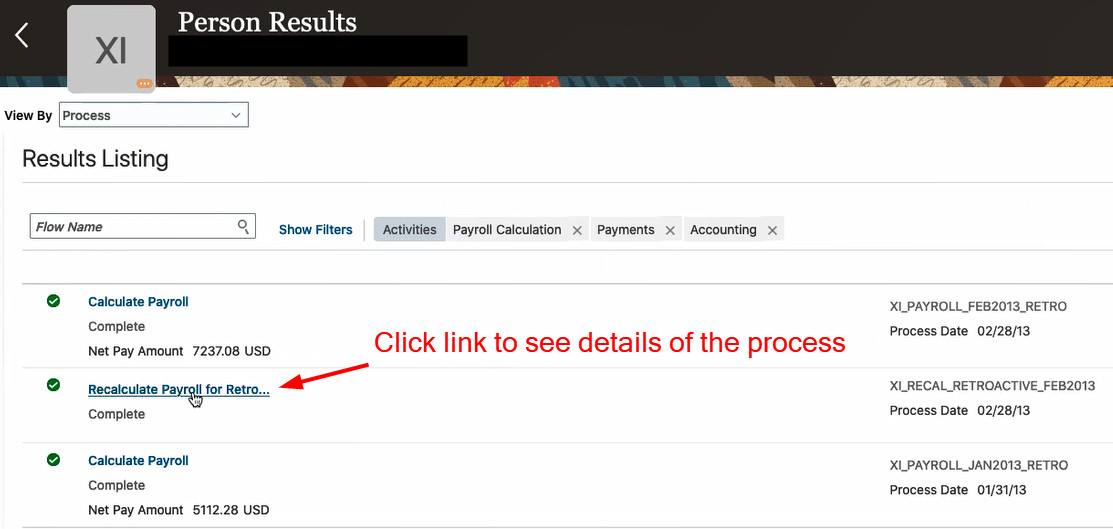
You can now view the calculated results of a retropay process and easily compare against the original payroll run results from the retropay process results.
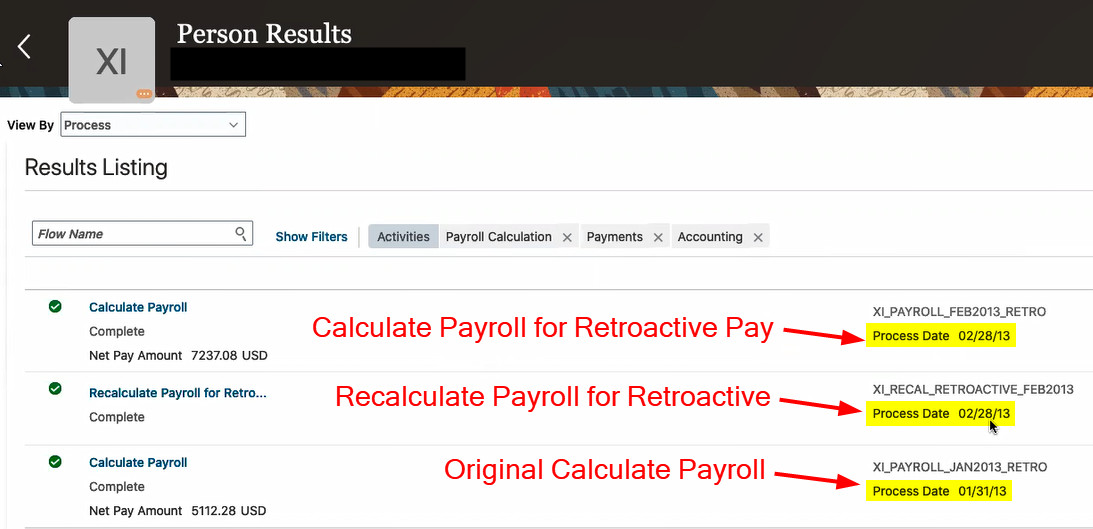
Use the link associated to the process to drill down into the details.
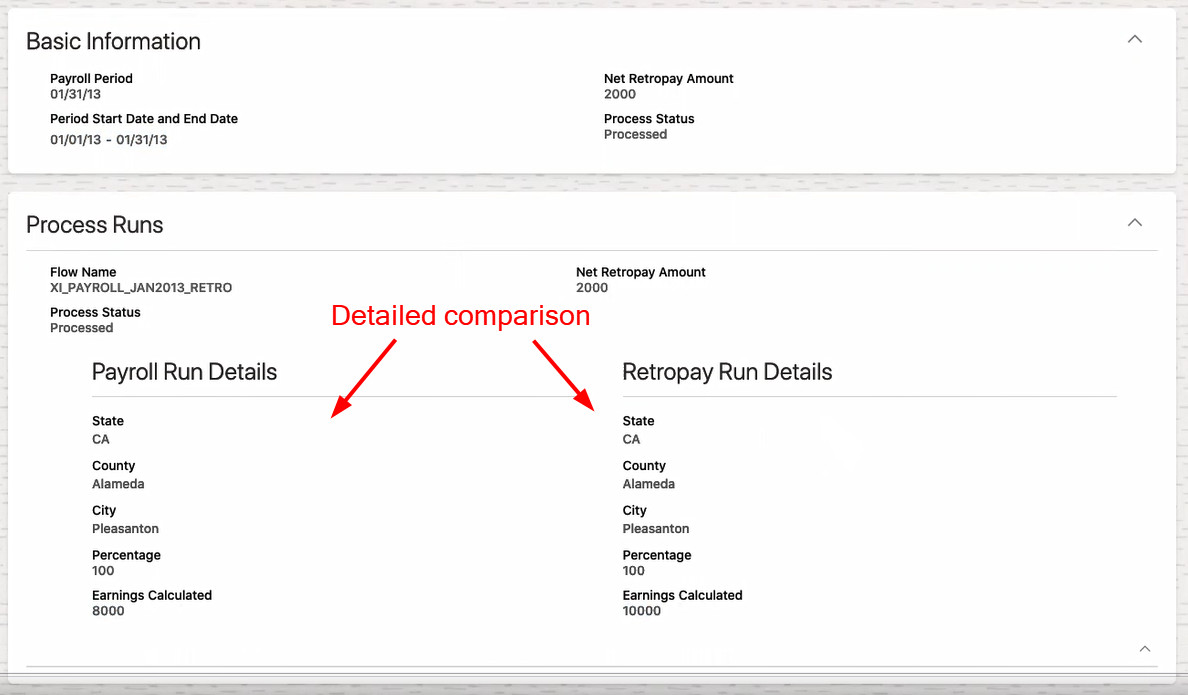
In the Retropay Results section of the Result Details page, you see the difference the Recalculate Payroll for Retroactive Changes calculated between the original payroll run and the payroll run after retroactive changes. In this scenario, the results calculated a difference of 2000.

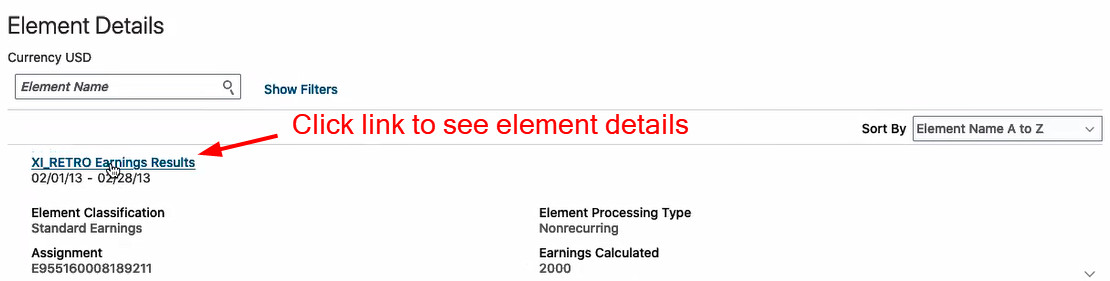
In the Element Details of the Results Details page, you see that the calculated retropay change was applied in February, which is the pay period that the Retroactive Payroll for Retroactive Changes ran.

Use the link associated to the element to drill down into the calculation details.
The original earnings calculated is 8000. The retropay earnings calculated is 10000. The net retropay amount is 2000.

With the expanded Process Runs region, you can see the side-by-side detailed comparison of the original payroll run and the retropay run.
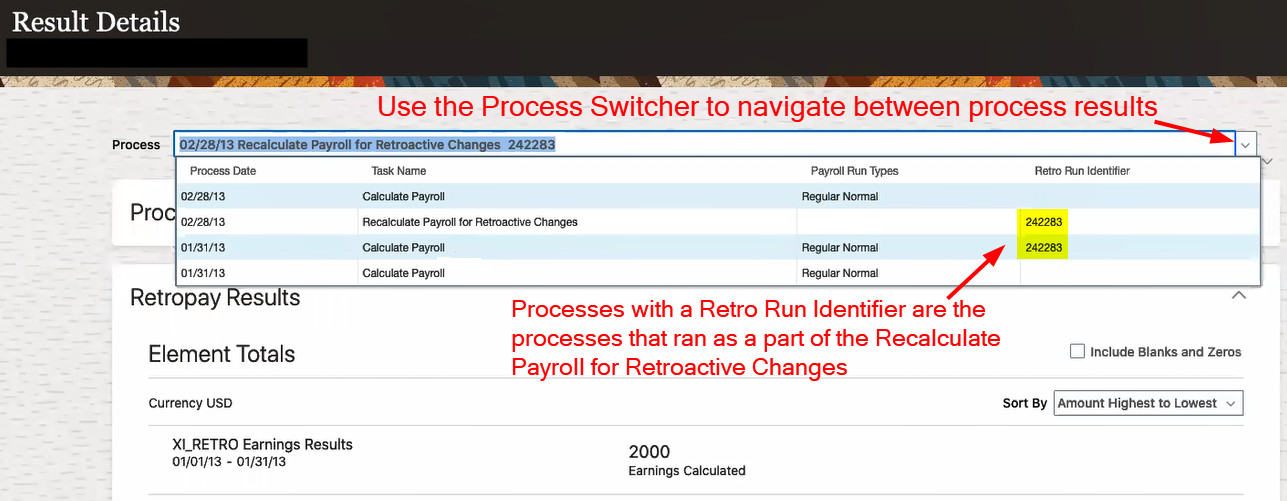
Use the Process Switcher to navigate from one person process results to another. The data items in the list help you determine which process results to view. For example, when the Calculate Payroll run has a Retro Run Identifier, it means it is the run generated by the Recalculate Payroll for Retroactive Changes process. For example, in this scenario, the original Calculate Payroll ran for 01/31 and the retro run identifier is blank. When the Recalculate Payroll for Retroactive Changes ran on 02/28, it kicks off a Calculate Payroll process to recalculate payroll as of 01/31 with the exact same parameters as the original payroll, picks up the latest changes and then compares to the original results. The Retro Run Identifier is the only data item identifying the Calculate Payroll that is being used to determine net retropay amounts.
From the Action menu, you can now easily navigate to the calculation entries page, drill down into the Standard Entries or Tax Withholding and back to the retro run results.

View the retropay process calculated results and compare them to the original payroll run results.
Steps to Enable
You don't need to do anything to enable this feature.
Key Resources
- For more information on Retropay, refer to the Administering Global Payroll guide in the Oracle Help Center.
Performance Improvement to the Payroll Costing Process
You can now create an index on the costing key flexfield segments by running the Run Feature Upgrade flow with the feature name Create Index for Costing Key Flexfield. This improves the payroll costing process performance when you have a large number of costing key flexfield segment combinations to process.
If you have multiple costing structures in your organization, the process considers all the combinations. It creates an index based on the most usage of the columns and deletes any existing index if it determines the index is no longer applicable. The log file shows the changes made to the indexes.
NOTE: This feature is at the enterprise level, isn't specific to any costing key flex structure, and isn't available at the LDG level.
Create an index for the costing key flexfield segments to improve the payroll costing process performance when there are a large number of costing key flexfield segment combinations to process.
Steps to Enable
You don't need to do anything to enable this feature.
Tips And Considerations
Submit the Run Feature Upgrade flow without selecting any Legislative Data Group.
Key Resources
For more information on Payroll Costing, refer to these resources in the Oracle Help Center:
- Administering Global Payroll Costing
New Report - Run Periodic Payroll Register Report
You can now run the enhanced Periodic Payroll Register Report to extract the periodic payroll balances for large volumes of data:
The new report uses a much lighter report template with enhanced performance and scalability capabilities to handle high volumes of data. You can now run the report to produce CSV/text output that is easily imported into the Excel format. This is in addition to the PDF and Excel outputs we already support.
The report produces the same output as running the existing report with the Latest Process YTD Totals Only field set to No. However, for large volumes of data, the enhanced report runs much faster.
NOTE: The parameter Latest Process YTD Totals Only is removed and is not part of this report. This parameter is still available in the Payroll Register Report.
This new enhanced report runs much faster for large volumes of data with minimal time, with the option to display Run and year-to-Date balances.
Process high volumes of data with minimal time, with the option to display Run and Year-to-date balances.
Steps to Enable
You don't need to do anything to enable this feature.
Tips And Considerations
- The new periodic report complements the corresponding Latest Process report released a few releases ago. Together, they should effectively replace the old Payroll Register Report. It is therefore recommended to use the enhanced report instead of the old report.
- If you have configured changes to your existing extract definition, including but not limited to delivery options, report templates, and so on, then those must be reapplied to the new report, if required.
- For very large data sets, it is quicker to run the Text (CSV) format and then import it into Excel instead of producing an Excel directly.
Key Resources
For more information see the Auditing and Reporting chapter of the Administering Global Payroll guide in the Oracle Help Center for the following topic:
Balance Results Responsive Page
Use the new responsive Balance Results page to view balance results of payroll processes, such as payroll calculation, QuickPay, payroll reversal, balance adjustment, and balance initialization.
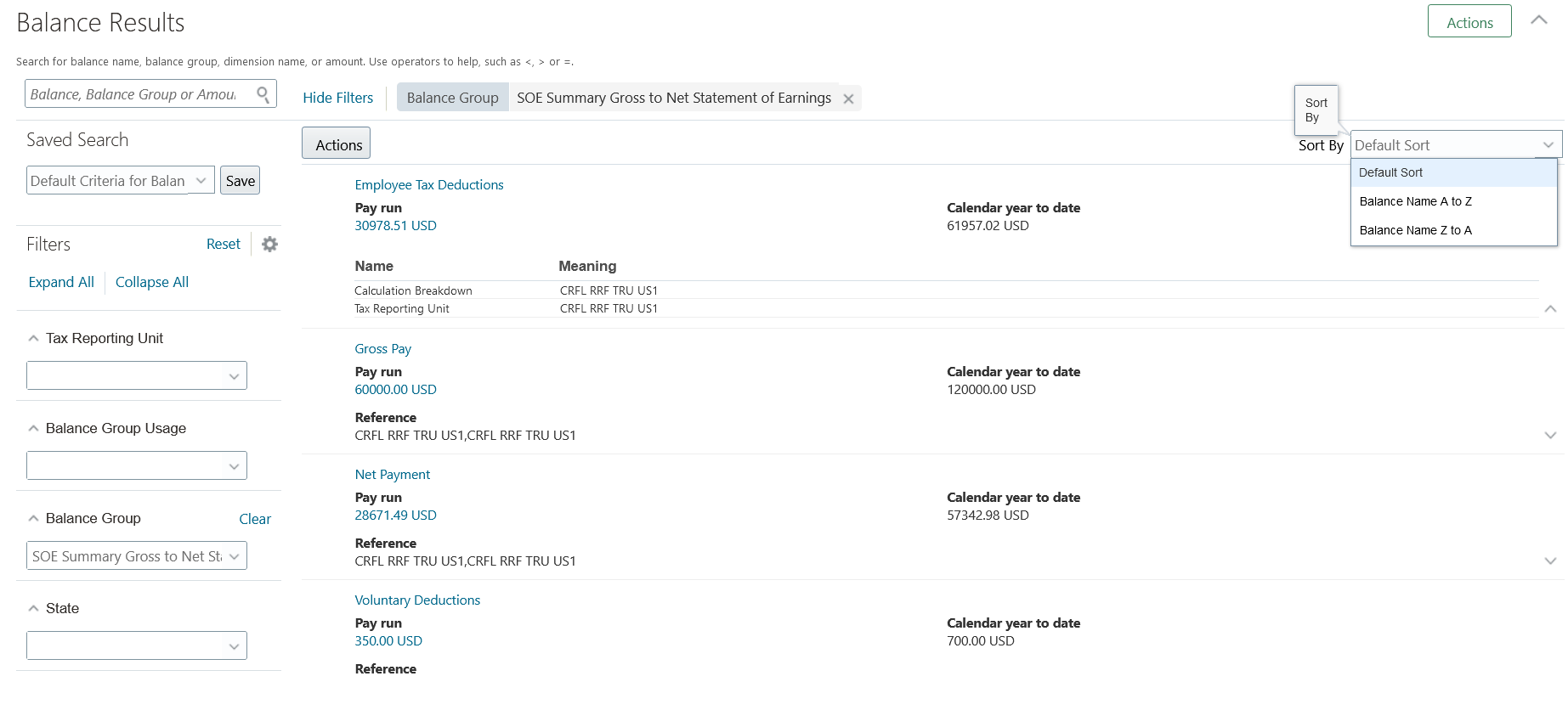
The responsive Balance Results page includes the following:
- Use the Search option to search by balance name, balance group, dimension name, or amount. You can also use these operators to search on a balance amount.
- <
- >
- =
- If the search is not appropriate a warning message displays asking you to enter valid search criteria for balance name, balance group or amount.
- Use the Sort option to sort the results by balance name.
- Use the Process Switcher to navigate away from the process you are currently viewing and view the balance results for other processes that have been run for the employee. The same set of balances are searched in the new process as was done in the previous process. You don’t have to specify the search criteria all over again.
- Expand a balance row to view the calculation breakdown and tax reporting unit for the balance.
- Expand Process Details at the top of the page to view the Payroll Flow Name, Date Earned, Period Start date, Period End Date Payroll and other related details. This region is collapsed by default.
- Use the Actions button to navigate to the Adjust Balances page.
- Filter by dimension level or dimension period if you are searching by balance name.
Use the new responsive Balance Results page for an enhanced user experience.
Steps to Enable
You don't need to do anything to enable this feature.
Changes to the Statement of Earnings (SOE) Header
The Statement of Earnings is now enhanced and includes these changes:
- Use the Actions button to navigate to the results pages such as the Run Results, Costing Results, and so on.
- Use the Process Switcher to navigate away from the process you are currently viewing and view the results for other processes that have been run for the employee. Once you click on the drop list of values for the switcher, the values are populated using REST values.
- Expand the Process Details region to view the payroll process details. This region is now moved to the bottom of the SOE and it is collapsed by default.

Use the enhanced Statement of Earnings to view the payroll process details for a person.
Steps to Enable
You don't need to do anything to enable this feature.
Payroll for Oracle Human Capital Management for Bahrain supports country specific features and functions for Bahrain. It enables users to follow Bahrain's business practices and comply with its statutory requirements.
Involuntary Deductions / Loans
Calculate involuntary deductions (court orders) and voluntary deductions (loans) accurately with the delivered element templates and rules. The primary and secondary classifications of the element template are updated with Court Orders and Loans in the list of values.
You can use the court order calculation card to enter the relevant calculation information.
You can transfer third-party payments to bank accounts (EFT), or you can also print cheques. Use the provided templates for EFT (based on the Bahrain Electronic Fund Transfer System) or cheque to create templates for your own usage.
Calculate involuntary deductions (court orders) and voluntary deductions (loans) accurately with the delivered element templates and rules.
Steps to Enable
You don't need to do anything to enable this feature.
Payroll for Oracle Human Capital Management for Canada supports country specific features and functions for Canada. It enables users to follow Canada's business practices and comply with its statutory requirements.
End-of-Year Exception Report Message Categorization
End-of-Year Exception Report messages are now categorized as informational or errors. Use the new Informational or Error column to filter and view messages based on the type. If the message is categorized as an Error, it will be highlighted in red in the Informational or Error column, as well as the exception message. This new column is available for transmitter, employer, and employee exceptions.
This is an excerpt of the End-of-Year Exception Report displaying the T4 Employee Exceptions with the new Informational or Error column.

Provides the ability to filter and view messages based on the type, making it easier to determine what messages require action.
Steps to Enable
You don't need to do anything to enable this feature.
Tips And Considerations
Note these important considerations for this feature:
- The categorization of messages only applies to the Excel output format.
- If multiple exception messages are displayed on one line, and any message is an error, the Informational or Error column displays Error and it is displayed in red. Additionally, the filter will not filter since the column displays Error.
- If multiple exception messages are displayed on one line, and all messages are informational, the Informational or Error column displays Informational.
- To filter messages by Informational or Error, select the column and hit Filter (under the Data tab, Sort & Filter section).
Key Resources
Refer to the documents below on the Canada Information Center for additional information:
- Refer to the End-of-Year Processing Guide: click CA – Payroll tab > End-of-Year Processing Guide under the End-of-Year Processing section.
- To receive important Fusion Canada Legislative Product News, you must subscribe to the Hot Topics Email feature available in My Oracle Support. Refer to the following document for additional information: click Welcome tab > Other Documents section under Product Documentation > click How To Use My Oracle Support Hot Topics Email Subscription Feature.
Retroactive Earnings Taxed as Non-Periodic Earnings
Taxation of all retroactive earnings are now taxed as non-periodic earnings, as per legislative guidelines. This is now the case even if the base earnings are regular or have a tax processing type of regular. Previously, when an employee had retroactive earnings and the base earnings were taxed as regular, the retroactive earnings were also taxed as regular.
Supports required taxation of retroactive earnings.
Steps to Enable
You don't need to do anything to enable this feature.
Tips And Considerations
This feature is only available for new elements. Also, when processing Absence elements that reduce regular salary, both the Absence and the Regular Salary elements must be new elements.
Key Resources
Refer to the documents below on the Canada Information Center for additional information:
- Refer to Welcome tab > Product Documentation > Technical Briefs > Implementation and Use.
-
To receive important Fusion Canada Legislative Product News, you must subscribe to the Hot Topics Email feature available in My Oracle Support. Refer to the following document for additional information: click Welcome tab > Other Documents section under Product Documentation > click How To Use My Oracle Support Hot Topics Email Subscription Feature.
Global Uptake: TRU Support for HDL Load of Worker.dat
When adding employees using the HCM Data Loader for the Worker.dat object, you may now enter the TRU ID or TRU Name. If one of those values is passed, the association and association details are automatically created for the employee’s tax card. This is the same as in the new hire process.
The details of new attributes are:
| Name | Label | Description | Example |
|---|---|---|---|
| TaxReportingUnitId |
Tax Reporting Unit ID |
The surrogate identifier (ID) for the tax reporting unit. |
1017 |
| TaxReportingUnit |
Tax Reporting Unit |
The name of the tax reporting unit for this adjustment line. Tax reporting units are legal entities that group workers for the purpose of tax reporting. |
Canada Tax Reporting Unit One |
Supports the ability to automatically create the employee’s tax card using the HCM Data Loader for Worker.dat.
Steps to Enable
You don't need to do anything to enable this feature.
Key Resources
Refer to the documents below on the Canada Information Center for additional information:
- To receive important Fusion Canada Legislative Product News, you must subscribe to the Hot Topics Email feature available in My Oracle Support. Refer to the following document for additional information: click Welcome tab > Other Documents section under Product Documentation > click How To Use My Oracle Support Hot Topics Email Subscription Feature.
Payroll for Oracle Human Capital Management for China supports country specific features and functions for China. It enables users to follow China's business practices and comply with its statutory requirements.
Taxable and Nontaxable Enterprise Annuity Employee and Employer Contributions
You can set up the tax thresholds. The system will then compare an employee’s enterprise annuity employee and employer contributions with the thresholds, calculate taxable and nontaxable contribution amounts, and include them in the monthly tax calculation.
This feature assists you in being legally compliant.
Steps to Enable
To enable the feature of calculating taxable and nontaxable enterprise annuity employee and employer contributions:
- Navigate to Setup and Maintenance -> Manage Implementation Projects -> Workforce Deployment -> Define Common Applications Configuration for Human Capital Management -> Define Enterprise Structures for Human Capital Management -> Define Legal Entities for Human Capital Management -> Legal Entity Calculation Cards.
- Go to the Setup and Maintenance work area, search for an implementation project that has the Workforce Deployment offering.
- Select the legal entity you want, to manage the payroll statutory unit level statutory deduction card.
- Click Go To Task icon of the task: Legal Entity Calculation Cards.
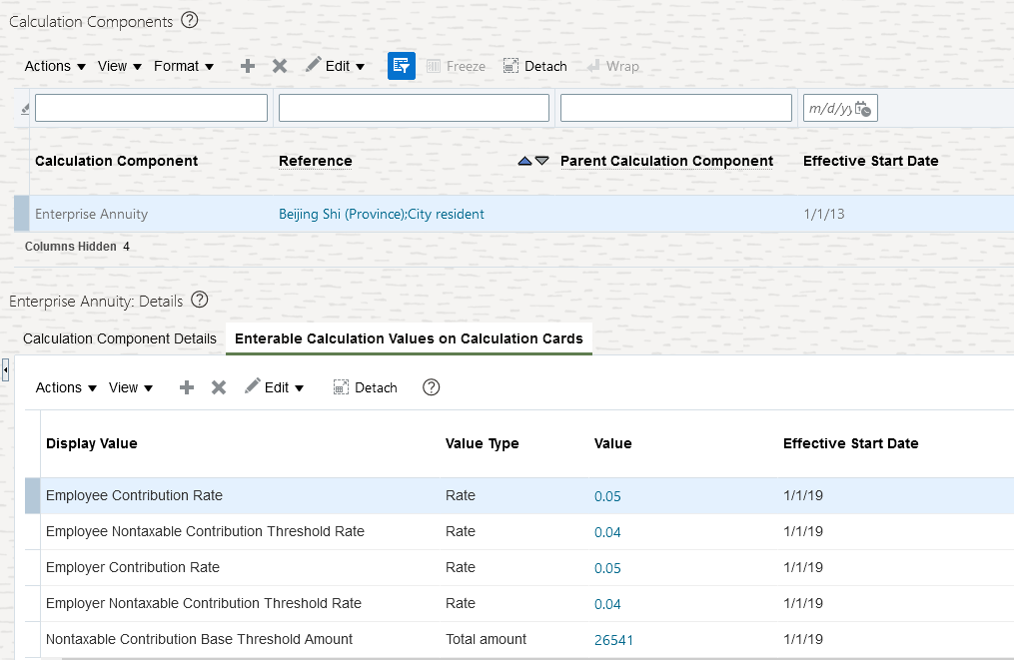
Calculate Taxable and Nontaxable Enterprise Annuity
- Select the Benefits component group, then select the Enterprise Annuity component.
- Under the Enterable Calculation Values on Calculation Cards tab, either set up the threshold amounts or base threshold amount and threshold rates.
When both threshold amounts and rates are set, only the threshold amounts are used in calculation.
Key Resources
New Element Template to Manage Social Security Items
You can create custom elements to manage social security employee and employer contributions by using the new template.
When you create the elements for managing employee contribution for public housing fund and various social insurance items, select the primary classification as social security deductions, and specify the secondary classification as one of the following: basic medical insurance, basic pension insurance, maternity insurance, public housing fund, supplementary medical insurance, supplementary public housing fund, unemployment insurance, and work-related injury insurance; the new template is applied.
If your company also provides enterprise annuity, then create the employee contribution element by specifying the primary classification as voluntary deductions and the secondary classification as enterprise annuity employee contribution, the same template is applied.
When you create the elements for managing employer contribution for public housing fund, various social insurance items, and enterprise annuity, select the primary classification as employer charges, and specify the corresponding secondary classification; the new template is applied.
You will find new balances, formulas are created by the system. This will make managing social security contributions, and monthly tax calculation easier.
Steps to Enable
To create custom elements for managing the social security items:
-
Navigate to Home -> My Client Groups -> Quick Actions -> Payroll -> Elements.
-
Select your China legislative data group.
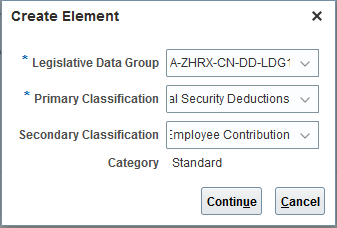
Create Element
-
Select Social Security Deductions as the primary classification
-
Specify the secondary classification by choosing from the list of values.
-
Click Continue.
NOTE: To create an element for employer contribution for public housing fund and social insurance items, repeat the above steps. In step 2, select Employer Charges as the primary classification. To create an element for employee contribution for enterprise annuity, repeat the above steps. In step 3, choose Voluntary Deductions as the primary classification, and Enterprise Annuity Employee Contribution as the secondary classification.
-
On the Basic Information page, specify the element name and provide a reporting name.

Create Element: Basic Information
-
Answer the duration questions.
-
Review the default selection for Standard Rules and make the required changes.
-
Click Next to go to the Additional Details page.
-
On the Additional Details page, the question Do you want to calculate the taxable amount? Is set to No, by default. Set it to Yes if you require the system to calculate taxable contribution amount.
-
Click Next to view the Review page.
-
Review all the selected options and click Submit to start the element creation process.
Tips And Considerations
The newly delivered template will not have any impact on existing custom elements for managing social security items; but the new elements you will create after this upgrade.
Key Resources
Create Association and Association Details for the Employees Hired via HDL and HSDL
You can include the tax reporting unit attribute in the HCM Data Loader (HDL) data file or HCM Spreadsheet Data Loader (HSDL) template for new employees and provide a value for each new employee. The system automatically creates association and association details info for the new employees.
The feature helps you to create the association and association details for the new employees automatically.
Steps to Enable
Ensure the legal employer for whom the new persons are being hired is mapped to the tax reporting unit used in Worker HSDL. This mapping between TRU and Legal employers can be done using Manage Legal Reporting Units for Human Capital Management FSM task.
To enable creating association and association details for the employees hired via HSDL:
- Navigate to Home -> My Client Groups -> Data Exchange -> HCM Spreadsheet Data Loader -> Spreadsheet Templates
- In the template Design page, select the Assignment object.
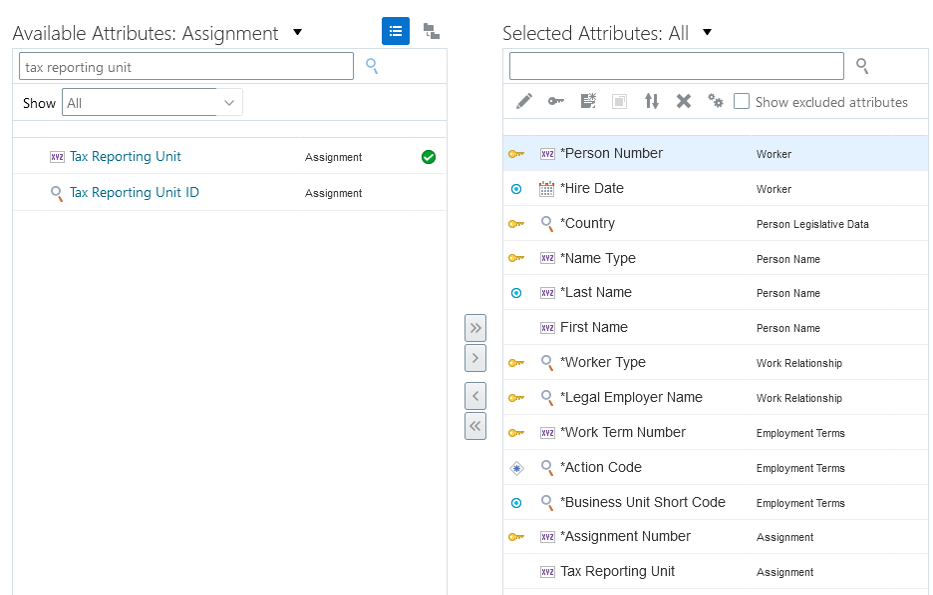
Create Association and Association Details
- Search for the Tax Reporting Unit attribute. Select the attribute and add it to the Selected Attributes region.
- To enable the feature for HDL, add the Tax Reporting Unit attribute to the Worker data file.
Key Resources
Hide the Person Legislative Attributes Delivered by Oracle via Transaction Design Studio
You can hide any person legislative attributes that are not used in your managing personal information business practice.
Example: Hire an employee, Edit pending worker.
Streamlines your data capture for personal information management.
Steps to Enable
To hide the person legislative attributes not required for your business, use the HCM Experience Design Studio as follows:
- Navigation to Home -> My Client Groups -> Quick Actions -> Transaction Configuration and Audit -> HCM Experience Design Studio.
- Create a rule for the actions involving managing person information, like Hire an Employee.
- In the Page Attributes section, select the Legislative Info for Region attribute.
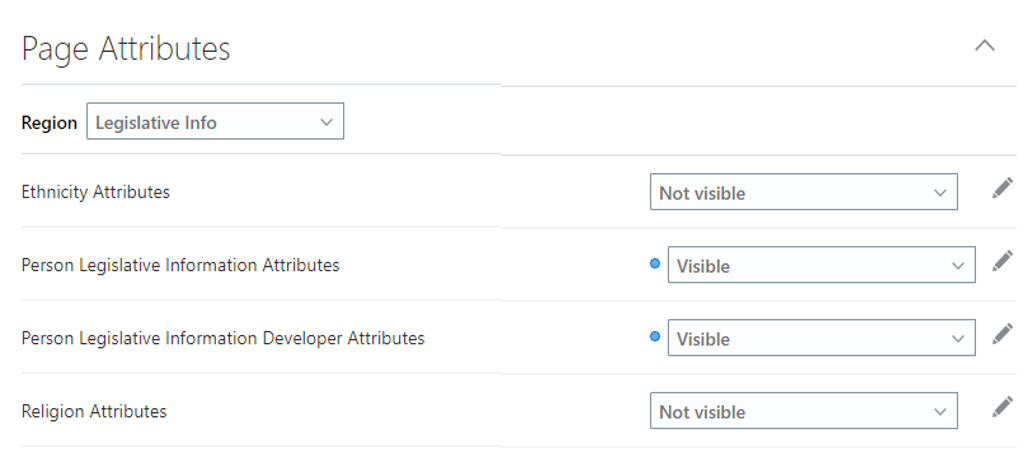
Hide Person Legislative Attributes
- Click Edit next to the Person Legislative Information Developer Attributes.
- Select CN as the value for the Flexfield Context Code attribute, then select the attribute you want to hide for the Flexfield Attribute.
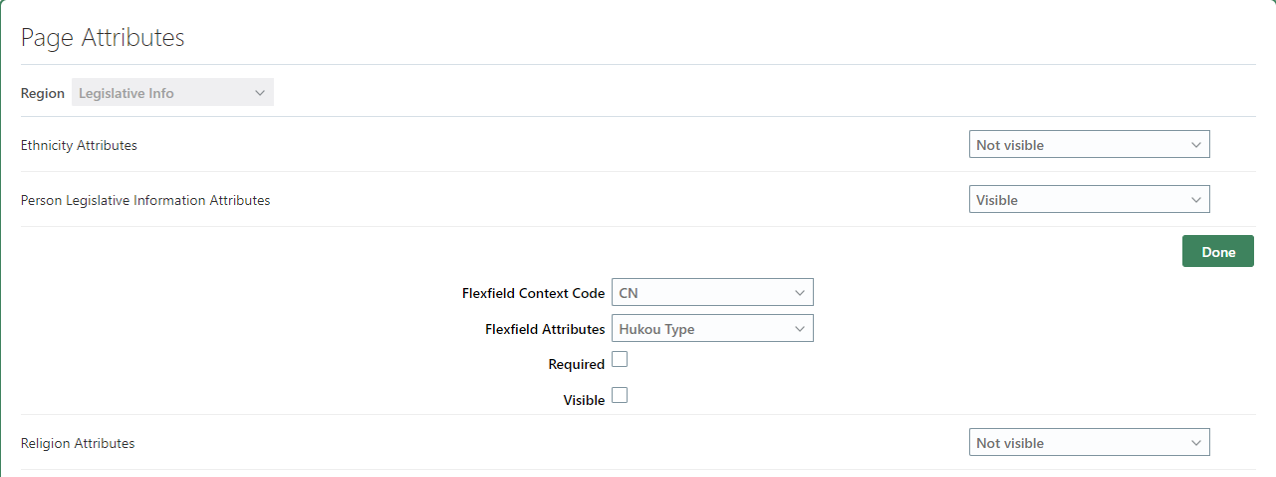
Hide Flexfield Attributes
- Deselect the checkbox for the Visible attribute.
- Repeat the steps for all the attributes you want to hide.
- Click Save to save and close the rule.
Key Resources
Payroll Relationship Level Deduction Card and Most of the Card Components are Kept Open for Final Closed Employees
The payroll relationship level deduction card is open and most of the card components are still open, when the employee’s payroll relationship is end-dated after termination, with the exception of the Aggregation Information component.
Example: An employee’s final close date is March 31, 2021. The employee’s payroll relationship is end-dated on the date. The employee’s deduction card is still open as well as most of the components. The Aggregation Information component is end-dated on March 31, 2021 by the system.
An error message is displayed when you try to end-date a component except the Aggregation Information Component.
Minimizes the personal card maintenance when a terminated employee is rehired.
Steps to Enable
You don't need to do anything to enable this feature.
Tips And Considerations
You can update the account status of a social security item to stop further contribution for an employee at any time. You can update account status for multiple items and for multiple employees in bulk via the HSDL.
- Navigate to Home -> My Client Groups -> Data Exchange -> HCM Spreadsheet Data Loader -> Spreadsheet Templates.
- Create a template and specify a template name.
- Provide a code if it is not automatically generated by the system.
- Select Calculation Card as the business object.
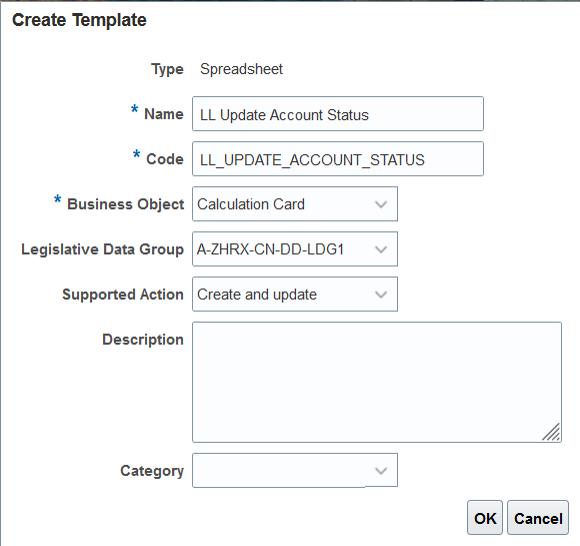
Create HSDL Template
- Specify your China legislative data group and click OK.
- Next to the Available Attributes, select Component Detail.
- Search for the Account Status attributes. Select and add the Account Status attributes of the social security items you would like to update.
- Select the Payroll Relationship Number user key as it changes less frequently compared to the assignment number.
- In the Selected Attributes, select the second Account Status attribute and click Edit.
- Map the attribute to the first Account Status attribute by selecting the Default Value option, choosing the Existing selected attribute option and picking up the first Account Status attribute.
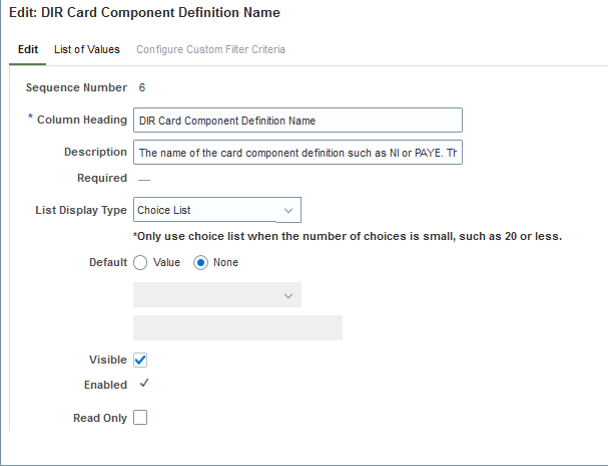
Create HSDL Template: DIR Card Component Definition
- Deselect the Visible option to hide the attribute from being shown in the template.
- For the DIR Information Category attribute, map it to the Context Value attribute by selecting the Default Value option, choosing the Existing selected attribute option and picking up the Context Value attribute.
- Deselect the Visible option to hide the attribute display in the template.
- For the Context Value attribute, replace the view object value with oracle.apps.hcm.locCN.payrollSetup.details.publicView.CNCompDefNamePVO. Select Name for the Attributes to Display.
- Select ContextCode for the Values to Return, and select the findByContextName from the Filter Criteria and click Add.
- For the DIR Card Component Definition Name attribute, change the List Display Type to Choice List.
- Select the View object option, enter the value oracle.apps.hcm.locCN.payrollSetup.details.publicView.CNCompDefNamePVO. Select ComponentName for the Attributes to Display.
- Select ComponentName for the Values to Return, and select the findBySocialSecurityComps from the Filter Criteria and click Add.
- Keep the Legislative Data Group Name and Card Sequence attributes visible, for the list of value to work properly. But you may provide default value for the two attributes and make them read-only to simplify the data setup for end-users.
Perform step 18 to complete the attribute configuration of the template and other required tasks to finish the template configuration. The template is ready to be used for end-users.
Key Resources
Payroll for Oracle Human Capital Management for Kuwait supports country specific features and functions for Kuwait. It enables users to follow Kuwait business practices and comply with its statutory requirements.
Gratuity Calculation Validation
You can now pay gratuity amounts to employees on probation or on an involuntary termination. Use the gratuity override functionality to pay gratuity in excess of the legislative limits, if you wish to override the check for probation or dismissal. If no override is present, then payments won't be processed for the employees who are on probation, or have been dismissed.
Enhance your business requirements for employees and employers working in Kuwait.
Steps to Enable
You don't need to do anything to enable this feature.
Payroll for Oracle Human Capital Management for Mexico supports country specific features and functions for Mexico. It enables users to follow Mexico's business practices and comply with its statutory requirements.
Tax Reporting Unit Support in Worker.dat for HCM Data Loader
When you create workers, work relationships, or assignments using HCM Data Loader, you can include the Tax Reporting Unit (TRU) ID or TRU name in the worker data (worker.dat) file. You can pass the TRU ID or TRU name when loading workers in these scenarios:
- Hiring a worker
- Creating a new work relationship
- Adding a new assignment
When you include the TRU ID or name in the worker.dat file, the calculation card association and association details are created.
You can now load the TRU when creating workers, work relationships, or assignments, avoiding the need to create the TRU association separately.
Steps to Enable
You don't need to do anything to enable this feature.
Tips And Considerations
If the employee has an Employee Tax Card, adding a new assignment with HCM Data Loader using the worker file doesn't create a new calculation card. When adding a new assignment, if the worker file includes the TRU ID or TRU name, then the association and association details are added to the existing calculation card.
Key Resources
For more information, see the Oracle Help Center guide:
-
HCM Data Loading Business Objects, Chapter 3 Loading Workers
Payroll for Oracle Human Capital Management for Qatar supports country specific features and functions for Qatar. It enables users to follow Qatar business practices and comply with its statutory requirements.
Gratuity Calculation Validation
You can now pay gratuity amounts to employees on an involuntary termination. Use the gratuity override functionality to pay gratuity in excess of the legislative limits, if you wish to override the check for dismissal. If no override is present, then payments won't be processed for the employees who have been dismissed.
Enhance your business requirements for employees and employers working in Qatar.
Steps to Enable
You don't need to do anything to enable this feature.
Payroll for the United Arab Emirates
Payroll for Oracle Human Capital Management for the United Arab Emirates supports country specific features and functions for the United Arab Emirates. It enables users to follow the United Arab Emirates business practices and comply with its statutory requirements.
Gratuity Calculation Validation
You can now pay gratuity amounts to employees on probation or on an involuntary termination. Use the gratuity override functionality to pay gratuity in excess of the legislative limits, if you wish to override the check for probation or dismissal. If no override is present, then payments won't be processed for the employees who are on probation, or have been dismissed.
Enhance your business requirements for employees and employers working in the UAE.
Steps to Enable
You don't need to do anything to enable this feature.
Gratuity Payment for Employees Terminated with Service less than One Year
Calculate gratuity accurately for employees when the employer terminates either a fixed or an unlimited contract. The conditions for the calculations are as follows:
- If an employee has served for less than 1 year, the employee is not entitled to any gratuity pay.
- If an employee has served more than 1 year but less than 5 years, the employee is entitled to 21 calendar days' basic salary for each year of the first five years of work.
- If an employee has served more than 5 years, the employee is entitled to 30 calendar days' basic salary for each additional year, provided the entire compensation does not exceed two years pay.
The formula that calculates the gratuity payment uses the gratuity pay factor calculation value definitions only when the termination is voluntary.
Calculate gratuity accurately for employees when the employer terminates either a fixed or an unlimited contract.
Steps to Enable
You don't need to do anything to enable this feature.
Payroll for the United Kingdom
Payroll for Oracle Human Capital Management for the United Kingdom supports country specific features and functions for the United Kingdom. It enables users to follow the United Kingdom's business practices and comply with its statutory requirements.
Pensions Automatic Enrolment Enhancements
The Pensions Automatic Enrolment Multiple Updates process is enhanced to support a positive offset payroll pay reference period. The regular process date of the payroll is used as the effective date for the pensions process. This is also to enable opt-out and leavers in the previous pay reference period. Except backdated transfers, this supports all the self service options where the employees join or leave before or after the cutoff date. You can use the new parameter Process Outstanding Actions from Previous PRP.
You can now make use of the enhancements to the the Pensions Automatic Enrolment Multiple Updates process.
Steps to Enable
You don't need to do anything to enable this feature.
Configure Backdated Pay Awards for Teachers' Pension
Configure backdated pay awards to calculate Monthly Contributions Reconciliation (MCR) contributions using the "when paid" (BK) method.
Identify backdated pay award salary actions by associating them with the predefined Pay Award action reason. The Pay Value input value of the non-recurring information element, Backdated Pay Award Information TPS feeds the information balance Backdated Pay Award Information TPS to manage the tier calculation.
When a retrospective calculation is performed and the action reason for the salary increase is Pay award, any arrears calculated are excluded when calculating the contribution tier.
Comply with Teachers' Pension requirements to configure pay awards to exclude backdated arrears when calculating the contribution percentage using the "when paid" (BK) method in the MCR.
Steps to Enable
You don't need to do anything to enable this feature.
Temporary National Insurance Number for Teachers' Pension
Record the 9-digit temporary (administrative) National Insurance number provided by Teachers' Pension to teachers who either don't have, or don't know, their NI Number.
When no permanent NI Number is found, this temporary number is reported in the Monthly Contributions Reconciliation (MCR). Once the permanent NI Number is entered into the system, it will be reported and the temporary number, if it still exists, is ignored. The TPS Temporary NI Number field is available at the person legislative information level.
Record the TPS Temporary NI Number to comply with Teachers' Pension requirements for reporting members without a permanent NI Number.
Steps to Enable
You don't need to do anything to enable this feature.
Tips And Considerations
You can validate the format of the entered temporary NI number format against Teachers' Pension requirements using the delivered Autocomplete rule GB Validate Teachers Pension Temporary NI Number.
Key Resources
- For more information on using delivered Autocomplete rules, see the Configuring and Extending HCM Using Autocomplete Rules guide in the Oracle Help Center.
Reporting Local Authority Central Staff in the England School Workforce Census
Identify a local authority's central establishments using the LA Central Establishment checkbox in the Teachers' Pensions Reporting Establishment Information reporting establishment level flexfield context.
Use the Source parameter in the Generate England School Workforce Census payroll flow to report central staff workforce members whose assignments are associated with a central reporting establishment. They are reported in a single local authority level census file; educational psychologist headcounts are included too. The flow submission for central staff also creates a local authority level summary and validation report
Identify and report all your central local authority staff in one School Workforce Census file as required by the Department for Education.
Steps to Enable
You don't need to do anything to enable this feature.
Key Resources
- For more information on configuring and running the England School Workforce Census, refer to My Oracle Support for the following document: England School Workforce Census Functional and Implementation Considerations (Document 2794274.1)
Benefits and Pensions Integration: Print Option and Historical Enrolments
With the Benefits and Pensions integration, you can enable the employees to view their enrolments based on a date. The employee can select Your Benefits in self service, and enter the effective date as of which their pension enrolments are displayed. If no pension enrolments exist for the employee, they can still view their Other Benefits. There's also an option to print all the pension enrolments for the employees in the Benefits report.
Using the new Employee Self-Service feature, the employees can now view their historic enrolments data and use the print option.
Steps to Enable
You don't need to do anything to enable this feature.
Enhancement to MyCSP Reporting to Provide Year-End Five-Day PIP Report
The Pension Input Period (PIP) file is available as a subtask of the main flow Generate MyCSP Interface: April Five-Day PIP File.
The report is a .csv file. The structure of the .csv is aligned with the manual spreadsheet column layout to simplify this task. You can copy the contents of this report in the MyCSP manual spreadsheet.
It will be populated at the end of April.
The UK Central Government clients are required to report end-of-year pension data to myCSP. This is a cross government requirement and includes earnings and pension contributions for the period 01 to 05 April known as the Pension Input Period (PIP)
Steps to Enable
You don't need to do anything to enable this feature.
You can use the option to create and use a new parameter value included in the P45 Archive process to send the document through email.
- You can use the steps outlined in the Steps to Enable section to copy the predefined delivery option as an override and add your own custom information.
- Select the email option that you have set up in the Output Destination field.
- The email option will be considered only when you run the process in the Live mode.
- For security reasons, the email will be password protected. The default password is the recipient's date of birth in the format yyyymmdd.
You can use this feature to send the P45 through email to the employee, provided you have set up the required parameters and a home email address for the recipient.
Steps to Enable
- Go to the Extract Definitions task.
- Search for the UK P45 Archive Process.
- Click Edit.
- Select P45 Email in the Extract Delivery Options.
- Click View.
- Select Columns > Overriding Delivery Mode.
- Click Save.
To add the new delivery option to the Extract Definition for the P45 Archive process:
- Go to the Extract Definitions task.
- Search for the UK P45 Archive Process.
- Click Edit.
- Add a new row in the Extract Delivery Options and enter the values for:
- Delivery Option Name
- Template Name: The BIP template that would be used for the report
- Output Name: The name for the PDF file that will be generated by the process
- Add additional details for the delivery option, as required.
- Click Save.
You can confirm that the delivery option you added is available under the Extract Delivery Options. You can submit to validate the new addition within the hierarchy structure for the P45 Archive Process.
The extract delivery option should be available in the P45 Archive process for selection in the Output Destination field.
Payroll for Oracle Human Capital Management for the United States supports country specific features and functions for the United States. It enables users to follow the United States business practices and comply with its statutory requirements.
Creditor Debt, Garnishment, and Regional Tax Levy Involuntary Deduction Processing Enhancement
We have enhanced the state-specific rules that control the processing order of a person’s involuntary deductions. Some states have rules that restrict the processing of a person’s involuntary deductions to one deduction of a given type per state per payroll period.
With this enhancement, once the current involuntary deduction is satisfied, on the next pay cycle, the payroll process automatically starts the next involuntary deduction of that type based on the elements’ subprocessing order.
Criteria that determine whether the deduction is satisfied:
-
Deduction is end-dated
-
Time limit is met
-
Total owed is reached
This only applies to involuntary deductions with the Creditor Debt, Garnishment, or Regional Tax Levy secondary classifications. It has no impact on any other secondary classifications, such as Child Support.
For example:
- You have an employee who works in California (CA) and Idaho (ID).
- California enforces this rule for Garnishments, Creditor Debts, and Regional Tax Levies. Idaho doesn't.
- This employee has two garnishments in CA and two tax levies in ID.
In this case, when you run the payroll process:
- It processes one CA garnishment (per CA's rules) and both ID tax levies.
- On the payroll the CA garnishment is satisfied, the process generates the final deduction. It processes both ID deductions normally.
- Next pay cycle, the process begins the second CA garnishment. It continues both ID deductions normally.
Further automates the processing of involuntary deductions.
Steps to Enable
You don't need to do anything to enable this feature.
Tips And Considerations
No element upgrade is necessary if your elements were created on or after Update 18C.
Key Resources
- For more info, see the Administering US Involuntary Deductions Guide on the Oracle Help Center.
- Refer to your regional authority to see if your state enforces this involuntary deduction rule.
403(b) and 457(b) Deduction Enhancement for Multiple Assignments
We have improved the accuracy of the processing of 403 (b) and 457 (b) deductions. For employees with multiple assignments in a payroll relationship, their flat amount and percentage deductions are now calculated proportionally for the applicable assignments.
Facilitates and streamlines the processing of 403 (b) and 457 (b) deductions.
Steps to Enable
You don't need to do anything to enable this feature.
Tips And Considerations
- This feature applies to both pretax and Roth plans.
- When the payroll relationship has all assignments associated to the calculation component, the payroll process considers all assignments’ earnings and calculates proportionally.
When the relationship has no assignments associated, the process considers all assignments’ earnings and calculates proportionally.
When the relationship has some but not all assignments associated, the process considers only those assignments’ earnings for the deduction calculation.
This applies to the payroll relationship regardless of whether its assignments are in the same or different TRUs.
Adjust Multiple Tax Balances for Third-Party Payments
We have made it easier for you to perform adjustments on multiple tax balances at one time. The new, improved, responsive user interface for the Adjust Multiple Tax Balances task requires less input from the user. You can now enter all person and balance adjustment details, review before and after results, and submit the transaction from a single page, and the system automatically determines which balances and dimensions to update. Use this task to enter common payroll transactions such as third-party sick pay, stock option exercises, and moving and relocation transactions.
The new Adjust Multiple Tax Balances page is broken up into the following sections.
- Page Header

- Person Details

- Gross-to-Net

- Employee Tax

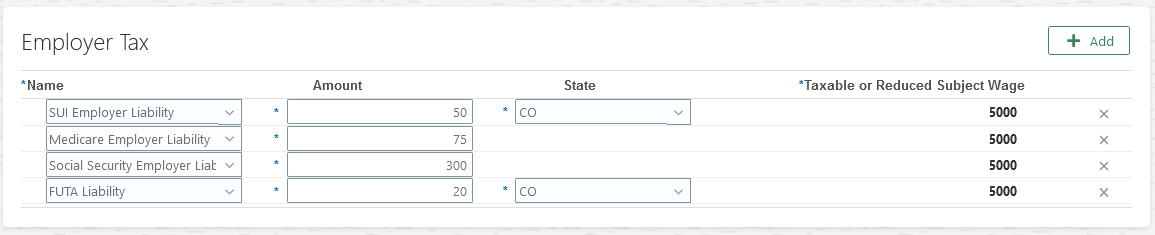
- Employer Tax
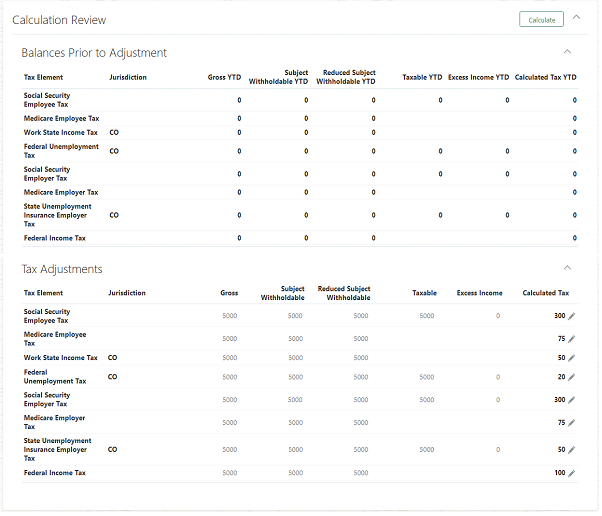
- Calculation Review
- Costing and Payment

- Comments

This table outlines the function and important notes of each.
| Section | Function | Important Notes |
|---|---|---|
| Person Details |
Use this section to enter the person details of the balance adjustment. |
|
| Gross-to-Net |
Use this section to enter the element to adjust, as well as the gross and net adjustment values. This determines the amount of the tax balance adjustment. For example, if you enter gross as $5,000 and net as $4,000, the tax amount to adjust is $1,000. |
Only the elements applicable to the employee are available to select. |
| Employee Tax |
Use this section to enter the employee tax balances that were withheld and require adjustment, along with their required contexts (for example, state, county, and city). The tax adjustment amounts are accumulated in this section to ensure it equals the amount to adjust, which is the difference between the gross and net entered in the Gross-to-Net section. This is represented by Unallocated Taxes. You can’t click Calculate until this value is $0. Once this value is $0, you can click Calculate to see how the entries will affect the various tax balances. |
The supported employee tax balances are:
NOTE: Additional employee tax balances will be added in the future. |
| Employer Tax |
Use this section to enter the employer tax balances to adjust, along with their required contexts (for example, state, county, and city). |
The supported employer tax balances:
NOTE: Additional employer tax balances will be added in the future. |
| Calculation Review |
Once all the adjustments are entered, use this section to calculate and review balances. Use the Balances Prior to Adjustment section to review the balance details prior to the adjustments. Use the Tax Adjustments section to review the tax adjustments to process. Based on the amount you entered in the Gross-to-Net section, all applicable balances are automatically calculated and displayed here (for example, Gross, Subject Withholdable, Reduced Subject Withholdable). In this section, you may also override the calculated balances prior to submitting the process. |
The Calculate button in this section is hidden until the Unallocated Taxes amount in the Employee Tax section is $0. The Calculated Tax column represents either the employee tax withheld or the employer liability, depending on if it’s an employee or employer tax. Balance adjustments bypass system validation. Vertex validation doesn’t occur during balance adjustment processing. Therefore, limits aren’t verified. It’s your responsibility to ensure you don’t adjust taxable balances in excess of the government-regulated limit. However, we do check limits for taxable balances that have limits. In these cases, any amount above the limit will be held in the “excess” balance. The Calculated Tax column represents either the employee tax withheld or the employer liability, depending on if it’s an employee or employer tax. |
| Costing and Payment |
Use this section to designate whether to include adjustments in the costing or payment processes. For costing, the values entered here are overrides. |
The checkboxes in this section are enabled once the Unallocated Taxes amount in the Employee Tax section is $0. Both fields are unchecked by default. |
| Comments |
Use this section to provide a reason and comments for the adjustments. |
Comments are allowed only for the reason type of Other. The list of reasons are extensible by the user. |
Once the balance adjustment data is entered, reviewed, and acceptable, click Submit to submit the entries to the balance adjustment process.
Provided the ability to perform adjustments on multiple tax balances at one time, with minimal input, in a new improved responsive user interface.
Steps to Enable
Because this feature is only applicable to the US localization, you must enable its user interface by defining and assigning the Adjust US Tax Balances role. You must create this role to have access to this feature.
This involves multiple steps.
- Configure the profile options.
- Create the Adjust US Tax Balances role.
- Assign the security profiles to the role.
- Attach the role to your users.
- Confirm the Adjust Multiple Tax Balances UI is available.
Configure the Profile Options
- Navigate to Setup and Maintenance.
- Using Search, search for and click Manage Administrator Profile Values.
- Ensure these profile option codes contain Y in the Profile Value field.
- ORA_PAY_PAYROLL_ADMIN_PHASE_2_RESPONSIVE_ENABLED
- HCM_RESPONSIVE_PAGES_ENABLED
- HCM_SAVE_CHANGES_WARNING_ENABLED
- If required for any missing profile values, perform the following to set the profile option codes to Y.
- Click New to add a profile value.
- Select Site as the profile level.
- Enter Y for Profile Value.
- Click Save and Close.
Here’s how ORA_PAY_PAYROLL_ADMIN_PHASE_2_RESPONSIVE_ENABLED should look when you’re finished.
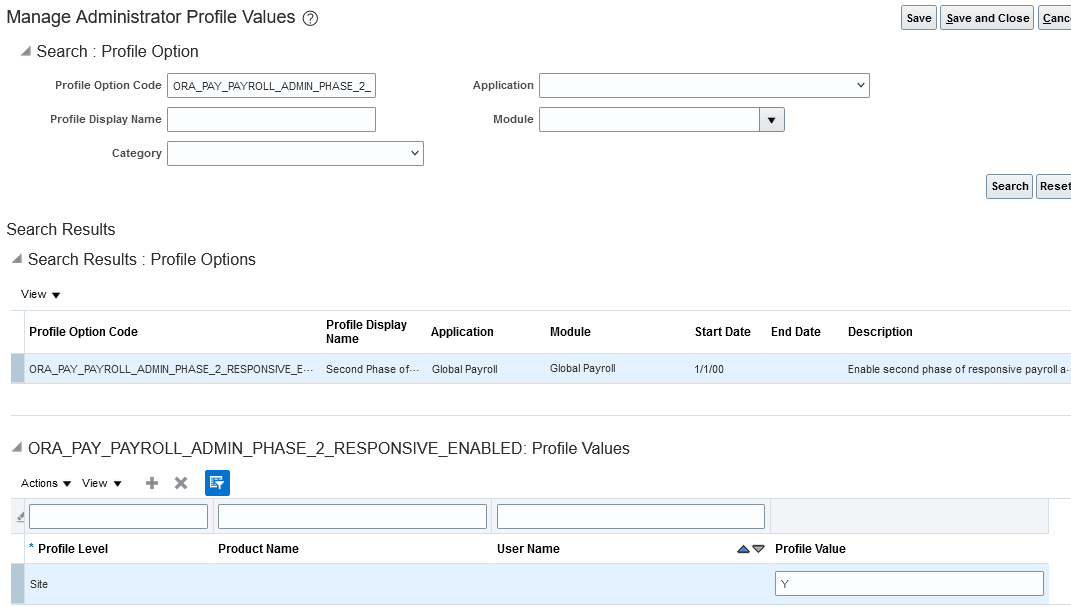
Create the Role for the Adjust US Tax Balances Task
- Navigate to Tools > Security Console.
- Click Roles, then click Create Role.
- Enter a role name and a role code.
- Select HCM – Job Roles as the role category.
- Click Next, Next, and Next.
- In the Role Hierarchy task, click Add Role.
- On the Add Role Membership window, search for and select Adjust US Tax Balances.

- Click Add Role Membership, then Cancel.
- Click Next, then Next.
- Click Save and Close.
Assign the Security Profiles
- Navigate to My Client Groups > Workforce Structures > Data Roles and Security Profiles.
- Search for the Adjust US Tax Balances role.
- Click Edit, and click Yes.
- Click Next, and Next.
- Start the Security Criteria task.
- Select an LDG security profile, such as View All Legislative Data Groups.
- Select a person security profile, such as View All People).
- Click Next, and Next.
- Click Submit.
Here’s how the role should look with its assigned security profiles.

Attach the New Role to Users
- Navigate to Tools > Security Console.
- Click Users, then Create Role.
- Search for and select the user to attach the role.
- Click Edit then Add Role.
- Search for the newly created role, and then click Add Role Membership.
- Click Done then Save and Close.
Confirm the User Interface Is Available
- Login with the user credentials with the role and the assigned security profiles.
- Navigate to My Client Groups > Payroll > Adjust Multiple Tax Balances.
NOTE: If the Adjust Multiple Tax Balances user interface isn’t available, review to ensure the steps were completed correctly.
For additional info on roles and security profiles, see Securing Applications 22B on the Oracle Cloud Help Center.
Tips And Considerations
- This feature is only applicable to the US localization.
- Balance adjustments bypass system validation. Vertex validation occurs during payroll processing but not during balance adjustment processing. Therefore, limits aren’t verified. It’s your responsibility to ensure you don’t adjust taxable balances in excess of the government-regulated limit.
- Use the Balance Exception Report to determine if any limits are exceeded.
- Use the system-generated flow name created for the adjustment to identify the transaction. Locate the name at the top of the landing page for each transaction. The format for the flow name is “Adjustments_LastName, FirstName_SystemDate”.
Global Payroll Uptake: TRU Support for HDL Load of Worker.dat
This feature helps you augment the HCM Data Loader (HDL) upload of new and existing employee info. When uploading working info using HDL, you can now include one of the two new values in the worker data (worker.dat) file.
| Value Name | Label | Description | Example |
|---|---|---|---|
| TaxReportingUnitId |
Tax Reporting Unit ID |
The surrogate identifier (ID) for the tax reporting unit (TRU). |
1015 |
| TaxReportingUnit |
Tax Reporting Unit |
The name of the TRU for this adjustment line. TRUs are legal entities that group workers for the purpose of tax reporting. |
United States Tax Reporting Unit One |
This applies to these scenarios:
- Hiring a worker
- Creating a work relationship
- Adding an assignment
When you include the TRU ID or name in the worker.dat file, HDL creates the calculation card association and association details.
HDL creates the calculation card association and association details.
Steps to Enable
You don't need to do anything to enable this feature.
Tips And Considerations
If the employee already has a Tax Withholding Card, adding an assignment with this method automatically updates the existing card.
Key Resources
- For more information, see the Oracle Help Center guide: HCM Data Loading Business Objects, Chapter 3 Loading Workers
IMPORTANT Actions and Considerations for Payroll
REPLACED OR REMOVED FEATURES
From time to time, Oracle replaces existing Cloud service features with new features or removes existing features. When a feature is replaced the older version may be removed immediately or at a future time. As a best practice, you should use the newer version of a replaced feature as soon as the newer version is available.
| Product | Removed Feature | Target Removal | Replacement Feature | Replaced In | Additional Information |
|---|---|---|---|---|---|
| Nothing at this time. |
_________________________
KNOWN ISSUES / MAINTENANCE PACK SPREADSHEETS
Oracle publishes a Known Issues document for every Update to make customers are aware of potential problems they could run into and the document provides workarounds if they are available.
Oracle also publishes Maintenance Pack and Statutory Maintenance Pack documentation of bugs that are fixed in the monthly or statutory patching.
To review these documents you must have access to My Oracle Support:
Oracle Human Capital Management Cloud Functional Known Issues and Maintenance Packs (Document ID 1554838.1)