
This document will continue to evolve as existing sections change and new information is added. All updates appear in the following table:
| Date | Feature | Notes |
|---|---|---|
| 20 SEP 2019 | Created initial document. |
This guide outlines the information you need to know about new or improved functionality in this update, and describes any tasks you might need to perform for the update. Each section includes a brief description of the feature, the steps you need to take to enable or begin using the feature, any tips or considerations that you should keep in mind, and the resources available to help you.
Column Definitions:
Report = New or modified, Oracle-delivered, ready to run reports.
UI or Process-Based: Small Scale = These UI or process-based features are typically comprised of minor field, validation, or program changes. Therefore, the potential impact to users is minimal.
UI or Process-Based: Larger Scale* = These UI or process-based features have more complex designs. Therefore, the potential impact to users is higher.
Features Delivered Disabled = Action is needed BEFORE these features can be used by END USERS. These features are delivered disabled and you choose if and when to enable them. For example, a) new or expanded BI subject areas need to first be incorporated into reports, b) Integration is required to utilize new web services, or c) features must be assigned to user roles before they can be accessed.
| Ready for Use by End Users Reports plus Small Scale UI or Process-Based new features will have minimal user impact after an update. Therefore, customer acceptance testing should focus on the Larger Scale UI or Process-Based* new features. |
Customer Must Take Action before Use by End Users Not disruptive as action is required to make these features ready to use. As you selectively choose to leverage, you set your test and roll out timing. |
|||||
|---|---|---|---|---|---|---|
| Feature |
Report |
UI or |
UI or |
|
||
Public Sector Community Development
Common Community Development Features
When a transaction is related to another transaction, the relationship is displayed for both transactions under the Related Transactions tab.
Related transactions link two separate transactions to each other. For example, if the permit you are reviewing has a related permit, you can find the associated permit under the Related Transactions tab. Additionally, if you want to link transactions, you can navigate to the Related Transactions tab and select the Link Transaction button to search for and link the transaction to another transaction. You can see the relationship between both transactions on each transaction details page once they are linked.
Steps to Enable
You don't need to do anything to enable this feature.
Key Resources
- See Using Community Development Planning and Zoning, Managing Applications for Planning and Zoning, "Working with Related Transactions" on the Oracle Help Center for more information.
Role Information
Agency staff can utilize this feature.
A URL link titled, "Read More," is available on the Apply page. This link provides agencies the ability to link to additional content which is hosted on the agency website. This can point to information specific to that agency to help the applicant complete the application as required. An agency hosted URL must be provided when configuring the description of the permit or planning application category or application type for the Apply page.
Steps to Enable
You don't need to do anything to enable this feature.
Tips And Considerations
The system administrator or business analyst can configure the URL.
Key Resources
- See Configuring User Experience, Setting Up the Landing Pages and Agency Springboard, "Defining Summary Details" on the Oracle Help Center for more information.
Role Information
The public user can utilize this feature.
Combined Template for Email and In-Product Notification
A combined notification template allows agency staff to configure an email and an in-product notification at one time, using the same message. This is useful when you want to send the same message to multiple channels. The combined template is available for communication events. This template is not available for manually generated communication messages.
Steps to Enable
You don't need to do anything to enable this feature.
Tips And Considerations
The combined template should only be used when the message is the same for email and in-product notification.
Key Resources
- See Implementing Your Agency, Setting Up Your Agency, "Setting Up Communication Events" on the Oracle Help Center for more information.
Role Information
Agency staff can utilize this feature.
Global search highlights searchable criteria in yellow to make it easier to scan and select the correct search result. You can run search from the global header.
Steps to Enable
You don't need to do anything to enable this feature.
Retry Option and Process Overview for Workflow
Workflow has two new enhancements. Both are ready to use and no additional configuration is required.
WORKFLOW OVERVIEW
The workflow overview provides a graphical snapshot of the process definition to help you select the human task when there is a need to manually alter the workflow. On the Permit Details page, select the Workflow tab to see the current workflow. By selecting Alter Workflow, View Workflow you can find the graphical overview of the workflow, where you can identify the workflow step that you may need to override or alter in order to move the process along.
RETRY OPTION
The retry option enables you to restore a process, in the unlikely event it fails during the alter workflow transaction. If the event fails, when you are altering the workflow transaction, select Alter Workflow, View Workflow. Select "Recover" to retry the process.
Steps to Enable
You don't need to do anything to enable this feature.
Role Information
Agency staff can utilize this feature.
Save Transaction Contacts to Profile Contact List
When registered public users are applying for an application, they can save any contacts entered in the application to their current profile contact list. This allows the user to save time when they submit applications in the future. This is available for all registered public users without any configuration from the agency.
Steps to Enable
You don't need to do anything to enable this feature.
Tips And Considerations
The saved contact is only available from the active profile and no other profiles that the registered user may have created.
Role Information
Registered public users can utilize this feature.
The number of characters for the unit of measure abbreviation has been expanded to five characters to support additional uses.
Steps to Enable
You don't need to do anything to enable this feature.
Display Project Tab on Transaction Detail
When agency staff associates a transaction, such as a permit, to a project, the Projects tab will appear on the transaction details page allowing direct access to the project information. When a permit has not been associated to a project by agency staff, then the project tab does not display on the permit details. This is native behavior not configurable by the agency. From a project, once a transaction is associated, a projects tab will display on the transaction details page allowing access to the project information.
Steps to Enable
You don't need to do anything to enable this feature.
Role Information
Agency staff can utilize this feature.
Projects can be configured and added by agency staff. Once a project is added, you can add a primary address on the Project Overview page. Using the map, you can search for projects that are added to the system. Map search for projects is available when projects are configured.
Steps to Enable
You don't need to do anything to enable this feature.
Role Information
Agency staff can utilize this feature.
When an agency allows cash payments and configures cash as an accepted payment method, a cashier or other authorized agency staff member, can enter cash received as payment of fees within an open cashier session. Cash drawer management functionality allows authorized agency staff to reopen a closed cashier session and adjust the entries as needed, to reconcile recorded payments with the cash received.
Steps to Enable
You don't need to do anything to enable this feature.
Key Resources
- See Using Community Development Permits, Managing Permits, "Reconciling Cashier Sessions" on the Oracle Help Center for more information.
Role Information
Agency staff can utilize this feature.
Create Accounting Through Subledger Accounting
When a payment is received via any supported payment method, an accounting event is created through Oracle ERP Cloud subledger accounting. Each payment is recorded and listed for access by the ERP Cloud.
Steps to Enable
You don't need to do anything to enable this feature.
Role Information
Agency staff has access to subledger accounting.
The Property dashboard provides real-time analytics for the master parcel, address, and owner information. Based on the Property subject area, the property dashboard includes metrics such as total count, size, and valuation of properties. You can access this dashboard from the BI Catalog where it can be copied and further configured.
Steps to Enable
Leverage new subject area(s) by adding to existing reports or using in new reports. For details about creating and editing reports, see the Creating and Administering Analytics and Reports book (available from the Oracle Help Center > your apps service area of interest > Books > Administration).
Tips And Considerations
The subject area can also serve as the data sets for BI Publisher reports.
Role Information
Agency staff can utilize this feature.
A pre-built report showing the Inspection activity is available. The report includes information showing the activity per inspector such as how many passing results, how many failing results, and other information. This report is built using Oracle BI Publisher.
Steps to Enable
You don't need to do anything to enable this feature.
Key Resources
- See Implementing Your Agency, Setting Up Your Agency, "Setting Up Reports" on the Oracle Help Center for more information.
Role Information
Agency staff can utilize this feature.
The inspection job card tracks ongoing inspections for a specific permit. The Job Card report is a BI Publisher report that can be copied and further configured for your agency's needs. The Inspection Job Card report is available through the BI Catalog.
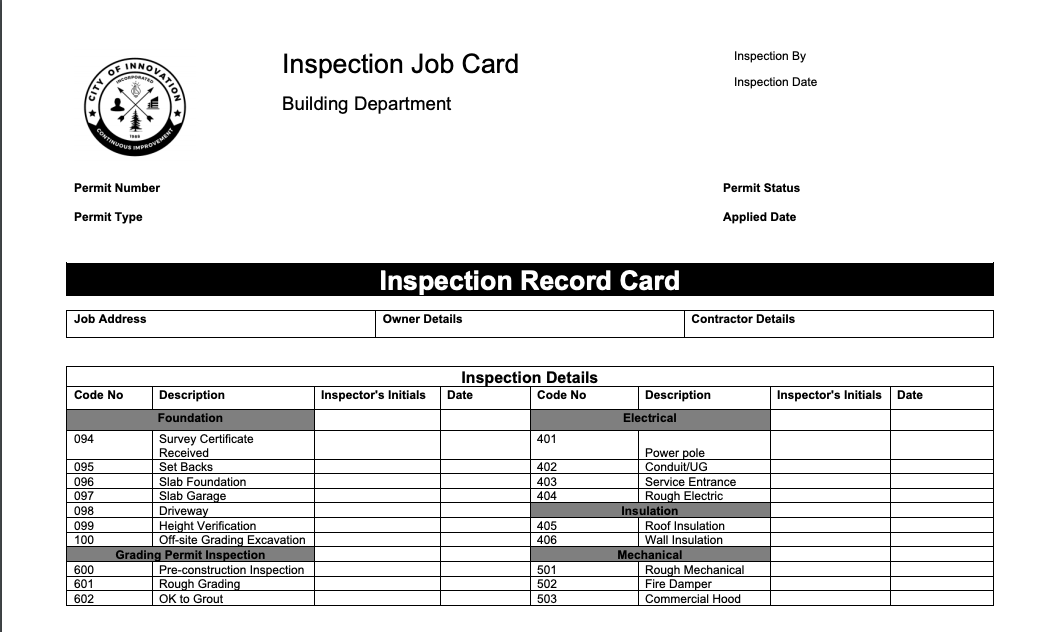
Inspection Job Card Report
Steps to Enable
You don't need to do anything to enable this feature.
Key Resources
- See Implementing Your Agency, Setting Up Your Agency, "Setting Up Reports" on the Oracle Help Center for more information.
Role Information
Agency staff can utilize this feature.
The Receipts subject area provides real-time analytics based on permit and planning applications. Key metrics include total fees and payment transactions for a given time. They can be broken down by dimensions such as fee schedules and transaction types. The Receipt subject area is accessible through the BI Catalog.
Steps to Enable
Leverage new subject area(s) by adding to existing reports or using in new reports. For details about creating and editing reports, see the Creating and Administering Analytics and Reports book (available from the Oracle Help Center > your apps service area of interest > Books > Administration).
Tips And Considerations
This subject area can also serve as the data sets for BI Publisher reports.
Role Information
Agency staff has access to this subject area.
Planning Applications Subject Area
The Planning Applications subject area provides real-time analytics based on planning-related information. Key metrics include total application counts, fee amounts and project size. These metrics can be broken down by dimensions such as application types, properties, and data ranges. The Planning Applications subject area is available through the BI Catalog.
Steps to Enable
Leverage new subject area(s) by adding to existing reports or using in new reports. For details about creating and editing reports, see the Creating and Administering Analytics and Reports book (available from the Oracle Help Center > your apps service area of interest > Books > Administration).
Tips And Considerations
The subject area can also serve as the data sets for BI Publisher reports.
Role Information
Agency staff can utilize this feature.
Thumbnail images of each attachment for a permit are visible along with the file name, file size, description, uploaded by name, and the date and time it was uploaded. These images are also available on smartphones and tablets. These icons make it much easier to identify the attachments and images that have been uploaded.
Steps to Enable
You don't need to do anything to enable this feature.
Role Information
Agency staff and registered public users can utilize this feature.
Public Sector Community Development can be configured to allow a registered public user to add attachments to their account or profile. Attachments can include copies of a registered public user's professional or business license that supports the application review and processing of their transactions. This functionality is delivered as part of the account management functionality. However, the agency must set up a Document Group ID with categories and subcategories so that the public user can select the appropriate category for their attachment. Some examples include Business License, Contractor License, or Drivers License. When a public user uploads the attachment, they will choose the category and subcategory as defined by the agency. When the public user navigates to the Manage Account page, they can see all attachments listed.
Steps to Enable
You don't need to do anything to enable this feature.
Key Resources
- See Implementing Your Agency, Setting Up Your Agency, "Setting Up Document Groups" on the Oracle Help Center for more information.
Role Information
Registered public users and agency staff can utilize this feature.
Property Conditions Inheritance
Lock, hold, and notice conditions can be applied to a parcel and a transaction (such as a permit). Lock conditions prevent any action on an object (for example, a parcel or transaction) until the condition is removed. Hold conditions prevent specific actions according to the condition, such as preventing an inspection from being scheduled for a permit. Notice conditions display a notification on the affected object and do not prevent action. These conditions can be inherited so that any conditions against a parcel will also be applied to new transactions associated with the parcel.
Agencies can configure the inheritance of a condition. Parcel and transaction lock, hold, and notice conditions are enabled individually on the Conditions set up page. The Apply Condition to Transactions switch is not enabled by default. To allow transactions to inherit conditions, the agency must enable this switch when configuring the condition.
Steps to Enable
You don't need to do anything to enable this feature.
Key Resources
- See Implementing Your Agency, Setting Up Your Agency, "Setting Up Conditions" on the Oracle Help Center for more information.
Role Information
Agency staff utilize this feature.
An agency user may have access to multiple map profiles. In that case, when they click the 'Map' icon on the global header, a list of available map profiles will be presented. This gives the agency staff the ability to quickly navigate to various maps based on their map profiles. Once an agency enables map profiles, this list will be available from the global header.
Steps to Enable
You don't need to do anything to enable this feature.
Key Resources
- See Implementing Your Cloud Integrations, Setting Up GIS, "Setting Up Map Profiles" on the Oracle Help Center for more information.
Role Information
Agency staff can utilize this feature.
Email and Notifications for Plan Reviews and Inspections
The communication framework allows template-driven email and in-product notifications to be initiated from a variety of events and delivered to designated recipients. In the case of an application being canceled or withdrawn, a template-driven email and/or an in-product notification can be configured to be sent automatically to plan reviewers responsible for in process plan reviews and inspectors responsible for the inspections that have been assigned and not yet performed.
Steps to Enable
You don't need to do anything to enable this feature.
Key Resources
- See Implementing Your Agency, Setting Up Your Agency, "Setting Up Communication Events" on the Oracle Help Center for more information.
Role Information
Agency staff can utilize this feature.
View All Comments and Cycle Days
Plan reviews can be performed in one plan review cycle if all plan reviewers approve the plans as initially submitted. Plan reviewer and plan check coordinator comments are displayed for the plan review cycle, and the elapsed time for the cycle, from creation to completion, is displayed as Cycle Days.
Plan reviews often have two or more cycles, as all plan reviewers may not approve the plans as submitted. In these cases, a consolidated view of comments from all plan review cycles can be accessed by clicking the View Plan Comments link. Additionally, a list of other plan review cycles, including a display of cycle days for each cycle, can be accessed by clicking the Switch Cycle link.
Steps to Enable
You don't need to do anything to enable this feature.
Key Resources
- See Using Community Development Planning and Zoning, Managing Applications for Planning and Zoning, "Using Workflow" on the Oracle Help Center for more information.
Role Information
Agency staff and public users can utilize this feature.
The Plan Review dashboard provides real-time analytics for managing the Plan Review process. Based on the Plan Review subject area, the Plan Review dashboard includes metrics such as the plan review cycle count, percentage of approved decisions, and time tracking per plan reviewer. Through the BI Catalog, the Plan Review dashboard can be copied and further configured based on your agency's requirements.
Steps to Enable
You don't need to do anything to enable this feature.
Key Resources
- See Implementing Your Agency, Setting Up Your Agency, "Setting Up Dashboards" on the Oracle Help Center for your information.
Role Information
Agency staff can utilize this feature.
Inspection Request on Phone or Tablet
A registered public user, as well as any agency staff, can request an inspection for a permit from either a computer, a tablet, or a smartphone. The user will have the same inspection scheduling functionality on smartphones and tablets as they would on a computer. This gives applicants and staff easier access to scheduling inspections. This does not apply to the Oracle Inspector Mobile application.
Steps to Enable
You don't need to do anything to enable this feature.
Key Resources
- See Using Community Development Permits, Working with Permit Inspections, "Requesting Inspections" on the Oracle Help Center for more information.
Role Information
Registered public users and agency staff can utilize this feature.
Supervisor Calendar Batch Scheduling and Assignment
Inspection supervisors can select multiple unassigned inspections and assign them to the qualified, available inspectors as a group or one at a time. Typically unassigned inspections are configured for manual scheduling and assignment. Inspections can be automatically scheduled and automatically assigned according to the inspection district, inspector qualifications, and inspector availability. The inspection district, inspector qualifications, and inspector availability are used for batch scheduling and assignment in the same way as when inspections are confirmed for auto-scheduling and auto-assignment.
Steps to Enable
You don't need to do anything to enable this feature.
Key Resources
- See Using Community Development Permits, Working with Permit Inspections, "Assigning Inspections Using the Supervisor Calendar" on the Oracle Help Center for more information.
Role Information
Agency Inspection Supervisors can utilize this feature.
Schedule Cutoff Time for Inspection Assignment
Inspection types can be configured with a scheduled cut off time which prevents automatic scheduling and assignment of the inspection after the specified cutoff time. For example, if an inspection was scheduled after 4:00 p.m. for an inspection type that had a 4:00 p.m. cut off time, the inspection would not be scheduled for the next day but rather it would be scheduled in two days. Inspection supervisors can manually override automatic scheduling and assignment logic if necessary. Agency staff can configure cutoff times for each inspection type on the Inspection Type Details page.
Steps to Enable
You don't need to do anything to enable this feature.
Key Resources
- See Implementing Community Development, Setting Up Inspections, "Setting Up Inspection Types" on the Oracle Help Center for more information.
Role Information
Agency staff can utilize this feature.
When an applicant or agency staff requests an inspection, the inspection location contact information is automatically populated as the applicant. However, the applicant or agency staff can change the inspection location contact to be someone other than the applicant. This ensures that the correct contact information is captured for the inspection.
Steps to Enable
You don't need to do anything to enable this feature.
Key Resources
- See Using Community Development Permits, Working with Permit Inspections, "Requesting Inspections" on the Oracle Help Center for more information.
Role Information
Registered public users and agency staff can utilize this feature.
Location and Agenda in Pre-Application Meeting Details
Agency staff defines the meeting location and agenda items when they are configuring the pre-application meeting. Once defined, the location and agenda items are included in the pre-application meeting details.
Steps to Enable
You don't need to do anything to enable this feature.
Key Resources
- See Implementing Community Development, Setting Up Planning Applications, "Managing Pre-Application Meeting Configuration" on the Oracle Help Center for more information.
Role Information
Agency staff can utilize this feature.
Planner Calendar Sorting and Filtering Options
The Planner Calendar has options to sort and filter as needed. You can sort and filter pre-applications meetings using the following criteria:
- Start Time
- Duration in Hours
- Application
- Planner Name
- Applicant Name
By default, the calendar will display only current and future rows. When you sort or filter, you can pull in older values depending on your criteria.
Steps to Enable
You don't need to do anything to enable this feature.
Role Information
Agency staff can utilize this feature.