
This document will continue to evolve as existing sections change and new information is added. All updates appear in the following table:
| Date | Product | Feature | Notes |
|---|---|---|---|
| 18 JUN 2021 | Created initial document. |
This guide outlines the information you need to know about new or improved functionality in this update, and describes any tasks you might need to perform for the update. Each section includes a brief description of the feature, the steps you need to take to enable or begin using the feature, any tips or considerations that you should keep in mind, and the resources available to help you.
Security and New Features
The Role section of each feature identifies the security privilege and job role required to use the feature. If feature setup is required, then the Application Implementation Consultant job role is required to perform the setup, unless otherwise indicated. (If a feature doesn't include a Role section, then no security changes are required to use the feature.)
If you have created job roles, then you can use this information to add new privileges to those roles as needed.
Give Us Feedback
We welcome your comments and suggestions to improve the content. Please send us your feedback at oracle_fusion_applications_help_ww_grp@oracle.com.
Optional Uptake of New Features (Opt In)
Oracle Applications Cloud delivers new updates every quarter, often containing new features for offerings. Some features are enabled by default and are readily available for use. Features that aren’t enabled by default require you to use the New Features work area to review and decide whether to opt in to them or not.
To do that, you need these privileges:
- Review Applications Offering (ASM_REVIEW_APPLICATIONS_OFFERINGS_PRIV)
- Configure Oracle Fusion Applications Offering (ASM_CONFIGURE_OFFERING_PRIV)
Here’s how you opt in to new features:
- Click Navigator > My Enterprise > New Features.
- On the Features Overview page, select your offering to review new features specific to it. Or, you can leave the default selection All Enabled Offerings to review new features for all offerings.
- On the New Features tab, review the new features and check the opt-in status of the feature in the Enabled column. For a feature already enabled, you would see a check mark. Otherwise, you would see an icon to enable the feature.
- Click the icon in the Enabled column and complete the steps to enable the feature.
For more information and detailed instructions on opting in to new features for your offering, see Offering Configuration.
Opt In Expiration
Occasionally, features delivered Disabled via Opt In may be enabled automatically in a future update. This is known as an Opt In Expiration. If your cloud service has any Opt In Expirations you will see a related tab in this document. Click on that tab to see when the feature was originally delivered Disabled, and when the Opt In will expire, potentially automatically enabling the feature. You can also click here to see features with Opt In Expirations across all Oracle Cloud Applications.
Column Definitions:
Report = New or modified, Oracle-delivered, ready to run reports.
UI or Process-Based: Small Scale = These UI or process-based features are typically comprised of minor field, validation, or program changes. Therefore, the potential impact to users is minimal.
UI or Process-Based: Larger Scale* = These UI or process-based features have more complex designs. Therefore, the potential impact to users is higher.
Features Delivered Disabled = Action is needed BEFORE these features can be used by END USERS. These features are delivered disabled and you choose if and when to enable them. For example, a) new or expanded BI subject areas need to first be incorporated into reports, b) Integration is required to utilize new web services, or c) features must be assigned to user roles before they can be accessed.
| Ready for Use by End Users Reports plus Small Scale UI or Process-Based new features will have minimal user impact after an update. Therefore, customer acceptance testing should focus on the Larger Scale UI or Process-Based* new features. |
Customer Must Take Action before Use by End Users Not disruptive as action is required to make these features ready to use. As you selectively choose to leverage, you set your test and roll out timing. |
|||||
|---|---|---|---|---|---|---|
| Feature |
Report |
UI or |
UI or |
|
||
Common Compliance and Regulation
Centralized Contractor Comments
Contractor management centralizes comments about contractor to allow agency staff to include notes that can viewed only by staff.
This provides a centralized location for the agency to maintain documentation such as credential attachments (OSHA certificate, Business certificate) for each contractor listed in their contractor management.
Steps to Enable
You don't need to do anything to enable this feature.
Role Information
You need to be granted one of the following duty roles to view and manage contractor comments:
- PSC Contractor Master Administration
- PSC Contractor Master Management
PSC Contractor Master Administration is assigned to:
- PSC System Administrator
- PSC Permits Application Administrator
- PSC Planning and Zoning Application Administrator
PSC Contractor Master Management is assigned to:
- PSC Associate Planner
- PSC Building Inspector
- PSC Business Analyst
- PSC Cashier
- PSC Chief Building Officer
- PSC Economic Development Officer
- PSC Inspections Supervisor
- PSC Permit Technician
- PSC Permits Supervisor
- PSC Plan Reviewer
- PSC Planning Assistant
- PSC Planning Coordinator
- PSC Principal Planner
- PSC Zoning Administrator
Centralized Contractor Attachments
The Contractor Detail pages within contractor management provides agency staff a centralized location to add attachments specific to a contractor. You can update or delete attachments that have been added for a contractor. Only agency staff is able to view the attachments.
This provides a centralized location for the agency to maintain documentation such as credential attachments (OSHA certificate, Business certificate) for each contractor listed in their contractor management.
Steps to Enable
You don't need to do anything to enable this feature.
Tips And Considerations
Attachments can be classified using document categories and subcategories. To set this up, you can add document groups in the Contractor License Options page.
Contractor licenses in the agency contractor list must have a business name and address. New licenses can't be added or loaded to the list without these values. Update or reload existing licenses with business name and address if values are not already provided.
See Important Actions and Considerations, REST API Updates for specific REST API impacts.
Key Resources
- See Implementing Your Agency, Setting Up Contractor Licenses, "Setting Up Contractor License Options" on the Oracle Help Center.
Role Information
You need to be granted one of these duty roles to view and manage contractor attachments: PSC Contractor Master Administration or PSC Contractor Master Management.
PSC Contractor Master Administration
This role is assigned to:
- PSC System Administrator
- PSC Permits Application Administrator
- PSC Planning and Zoning Application Administrator
PSC Contractor Master Management
This role is assigned to:
- PSC Associate Planner
- PSC Building Inspector
- PSC Business Analyst
- PSC Cashier
- PSC Chief Building Officer
- PSC Economic Development Officer
- PSC Inspections Supervisor
- PSC Permit Technician
- PSC Permits Supervisor
- PSC Plan Reviewer
- PSC Planning Assistant
- PSC Planning Coordinator
- PSC Principal Planner
- PSC Zoning Administrator
Update Contacts in Application After Submittal
This feature allows the applicant or contacts associated with a permit to add, update, or inactivate contacts, comments and attachments after submitting the application. These changes can be made only while the application is active, up to the applicable terminal status of the lifecycle such as "complete", "final", or "Certificate of Occupancy".
The applicant may be a permit runner and the contractor can be listed as a contact on the application. In this case, the contractor is really the responsible party and therefore will be able to update the permit as necessary.
Steps to Enable
You don't need to do anything to enable this feature.
Tips And Considerations
Contact types need to be configured with "Permit Access" enabled for identifying contacts with this access. Any time an applicant adds that contact type, that individual will receive the identified permission to update the application as outlined.
Key Resources
- See Implementing Your Agency, Setting Up Public Users, "Setting Up Contact Types" on the Oracle Help Center.
Role Information
Applicant access and contact access is available to all registered public users. For access to an application as a contact, the public user's registered email ID needs to be added as a contact for the permit application.
For enabling this access customers need to assign the PSC Contact User role to the CUSTOM_PSC_REGISTERED_PUBLIC_USER role.
Allows a public user to bypass establishing an IVR access code during registration.
When registering for an account, some public users may determine that they have no need to access the agency's IVR, either because they plan to obtain information online or the IVR doesn't provide relevant information to their needs. Therefore, they can now bypass the step to create an IVR access code.
Steps to Enable
You don't need to do anything to enable this feature.
Key Resources
- See Using Community Development Permits, Managing Public Users, "The Public Users Registration Process" on the Oracle Help Center.
Role Information
Public users can utilize this feature.
Default Business Rules for Conditions
Set up conditions, such that default condition rules are automatically applied when a condition is created. Agency staff can edit the condition rules before applying the condition on a transaction.
Current condition behavior, which allows selecting the applicable condition rule (such as, prevent workflow advancing, prevent issue or final, restrict payment, prevent inspection schedule, prevent inspection result), is extended so that when the condition is applied, a default condition rule can automatically set the the initial business rule behavior. Agency staff could change the condition from the default condition rule to another condition rule when the condition is applied.
Steps to Enable
- Default condition rule(s) for each condition must be configured by the agency.
- You need to update the existing Condition Setup that has the severity "Hold".
Tips And Considerations
Conditions with the severity of "Hold" must have at least one Condition Rule. Since there are multiple Condition Rules available to select, you should update the existing conditions. Otherwise, the condition cannot be used in Business Rules Framework or there will be no default condition rules when the condition is applied to an object (for example, a parcel, address, or person) or to a permit or planning application.
Key Resources
- See Implementing Your Agency, Setting Up Your Agency, "Setting Up Conditions" on the Oracle Help Center.
Role Information
Agency staff can utilize this feature.
Business Rules Framework Document Upload Events
The Business Rules Framework, Permits offering includes five new events that can be used to configure a communication action that will send either an email or an in-product notification to agency staff when a permit document is uploaded.
Agencies can use the Document Category and Document Subcategory attributes as criteria in the Business Rules Framework business rule to conditionally trigger the event and send the notification to agency staff in different roles.
This item adds a new event that is triggered when a document is attached or uploaded to any object that can have an attachment. This requirement applies specifically to permits.
Steps to Enable
You don't need to do anything to enable this feature.
Key Resources
- See Implementing Your Agency, Implementing Business Rules Framework, "Setting Up Send Communication Actions" on the Oracle Help Center.
Role Information
Agency staff can utilize this feature. You need to be granted PSC System Administrator role to configure Business Rules Framework during implementation.
Automatically Apply Conditions
Using the Business Rules Framework, you can configure conditions to be applied automatically to applications according to the criteria in your business rules.
Current condition behavior allows manual selection of the applicable business rule such as preventing workflow advancement or preventing issue or final. This behavior is extended so that one or more conditions can be configured to be automatically applied to an application.
Steps to Enable
- You must add a task in your workflow model to trigger the Business Rules Framework rule check.
- Set up a business rule to drive the Apply Condition action.
Tips And Considerations
Automatic creation of specific conditions requires configuration by the agency for applicable application types.
Key Resources
- See Implementing Your Cloud Integrations, Setting Up Workflow, "Setting Up the Transactions Connector," "Step 11: Add the POST Operation for the Business Rules Request" on the Oracle Help Center.
- See Implementing Your Agency, Implementing the Business Rules Framework, "Setting Up Apply Conditions Actions" on the Oracle Help Center.
Role Information
You need to be granted PSC System Administrator role to configure Business Rules Framework during implementation.
You will also need to be granted one of the following roles to manage Conditions as agency users:
- PSC Permit Conditions Management
- PSC Planning and Zoning Conditions Management
- PSC Property Setup Conditions Management
PSC Permit Conditions Management is assigned to:
- PSC Building Inspector
- PSC Business Analyst
- PSC Cashier
- PSC Chief Building Officer
- PSC Economic Development Officer
- PSC Finance Administrator
- PSC Geographical Information System Administrator
- PSC Permit Technician
- PSC Permits Application Administrator
- PSC Permits Supervisor
- PSC Plan Reviewer
- PSC Planning Coordinator
- PSC Principal Planner
- PSC System Administrator
PSC Planning and Zoning Conditions Management is assigned to:
- PSC Associate Planner
- PSC Business Analyst
- PSC Cashier
- PSC Economic Development Officer
- PSC Finance Administrator
- PSC Geographical Information System Administrator
- PSC Planning and Zoning Application Administrator
- PSC Planning Assistant
- PSC Principal Planner
- PSC Zoning Administrator
PSC Property Setup Conditions Management is assigned to:
- PSC Associate Planner
- PSC Building Inspector
- PSC Business Analyst
- PSC Economic Development Officer
- PSC Permit Technician
- PSC Permits Supervisor
- PSC Plan Reviewer
- PSC Planning Assistant
- PSC Principal Planner
- PSC Property Setup Administration Duty
- PSC Zoning Administrator
Using the public user's email address as their user ID simplifies sign-in. Additionally, this feature clarifies the purpose of establishing an access code for IVR use.
Simplifies sign in by standardizing user ID as public user's email address so it's easier to remember.
Steps to Enable
You don't need to do anything to enable this feature.
Tips And Considerations
Existing users can still log in using their predefined User ID. However, new registered public users must use their email ID.
See Important Actions and Considerations for impacts to the User References REST API.
Role Information
Registered public users can utilize this feature.
View only audit log for agency staff to see which messages have been unsuccessful.
Allows agency staff to audit unsuccessful messages sent providing them an opportunity to correct errant templates or addresses.
Steps to Enable
You don't need to do anything to enable this feature.
Key Resources
- See Using Community Development Permits, Managing Communications, "Using the Communication Center" on the Oracle Help Center.
Role Information
You need to be granted PSC System Administrator role to view communication error log.
The following Solution Packages are being delivered for 21C:
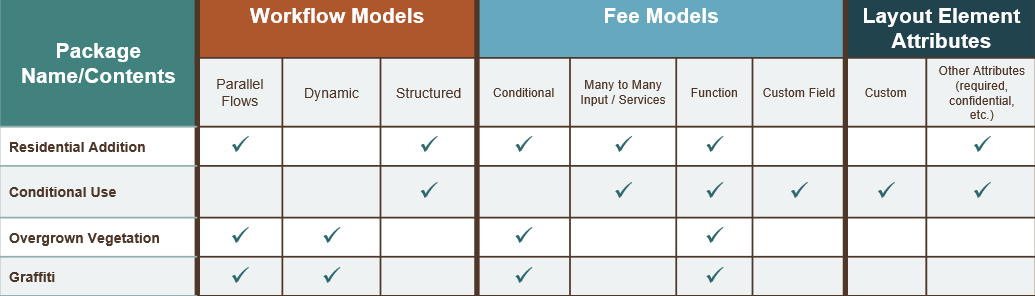
Solution Packages provide a quick and easy way to set up various intake forms for Public Sector Compliance and Regulation.
Steps to Enable
You don't need to do anything to enable this feature.
Tips And Considerations
Documentation regarding the download and import of the Solution Packages can be found in the Public Sector Compliance and Regulation Solution Library.
Key Resources
Public User Payment Process Improvements
Registered public users can navigate directly to the payment cart from their applications list, and from the fees and payments page in the application details, to make a payment. Agency staff can also add a Make a Payment tile to the registered public user landing page for easier access to initiate a payment.
The addition of these links makes it easier for registered public users to initiate a payment.
Steps to Enable
You must configure the new Make a Payment tile on the registered public user landing page to have it appear for registered public users.
Key Resources
-
See Configuring User Experience, Configuring Navigation on the Oracle Help Center.
Role Information
Registered public users can utilize this feature.
Appeal Fee Calculation and Payment
With the Public Hearing appeal payments feature, a public user can pay for an appeal on behalf of an applicant or impacted public members, and supervisors can take appeal action within the appeal period.
Planning appeals can be requested by the applicant or the impacted neighbors. This allows an agency to be able to take payments for appeals requested by the impacted neighbors.
Steps to Enable
You don't need to do anything to enable this feature.
Key Resources
- See Using Community Development Planning and Zoning, Managing Applications for Planning and Zoning, "Working with Appeals" on the Oracle Help Center.
Role Information
Public users and agency staff can utilize this feature.
Third-Party Accounting Integration
Third-party accounting integration, including PeopleSoft General Ledger is available through OIC.
The integration enables agencies to:
- Post Public Sector Compliance and Regulation accounting data to a third-party general ledger through seamless integration.
- Map and enrich data for specific financial accounting requirements.
- Confirm and call back to display the status and transaction ID created in the financial accounting application.
- Allow for two flows - integration to PeopleSoft General Ledger and integration to any third-party financial system.
Third party accounting integration allows use of PeopleSoft General Ledger or other third party accounting system.
Steps to Enable
Integration to third-party systems must be configured in order to use this feature. This includes adding agency integrations on the Agency page. This allows you to add integration to publish your agency's accounting information to OIC where it can be transformed and imported by third-party applications.
Key Resources
- See Implementing Your Agency, Setting Up Your Agency, "Setting Up Agency Integrations" on the Oracle Help Center.
Role Information
Agency staff can utilize this feature.
Run Reports from Report List Page
List of reports added for agency staff access.
Agency staff can now run reports directly from a list of reports without the need to navigate to the BI Catalog. They can also generate a report from a detail page and display view available reports based on configuration.
Steps to Enable
You don't need to do anything to enable this feature.
Tips And Considerations
You can only access the reports that are available to you based on the permissions setup for the reports in the BI catalog.
Key Resources
- See Implementing Your Agency, Setting Up Analytics, "Setting Up Reports" on the Oracle Help Center.
Role Information
Agency staff can utilize this feature. You need to be granted any of the agency job roles to access the report list.
Planning and Zoning Subject Area Updates
Build analytics for your planning and zoning data using updated prebuilt metadata in the planning and zoning subject area.
Additional metadata supplied in the planning and zoning subject area extends the value of OTBI reports.
Steps to Enable
Leverage new subject area(s) by adding to existing reports or using in new reports. For details about creating and editing reports, see the Creating and Administering Analytics and Reports book (available from the Oracle Help Center > your apps service area of interest > Books > Administration).
Role Information
You need to be granted one of the following roles to configure analytics in the Planning and Zoning Subject Area:
- PSC Building Inspector
- PSC Business Analyst
- PSC Chief Building Officer
- PSC Economic Development Officer
- PSC Finance Administrator
- PSC Inspections Supervisor
- PSC Permit Technician
- PSC Permits Supervisor
- PSC Planning Coordinator
- PSC Plan Reviewer
- PSC Principal Planner
- PSC Permits Application Administrator
- PSC System Administrator
- PSC Zoning Administrator
- PSC Associate Planner
- PSC Planning Assistant
- PSC Planning and Zoning Application Administrator
Display Agency Workflow Comments
Registered public users can now view the comments added by agency staff related to the workflow for their transaction. Agency staff can determine which comments are visible to the public user. The visible comments will be read-only for the public user.
This feature allows public users to view the comments posted by agency for their applications.
Steps to Enable
You don't need to do anything to enable this feature.
Tips And Considerations
You can control whether the comment is visible to public users who view their application workflow. The default setting is for comments to be visible, so you must manually hide comments that you do not want the public user to see.
Key Resources
- See Using Community Development Permits, Managing Permits, "Using Workflow" on the Oracle Help Center.
Role Information
Agency staff and public users can utilize this feature.
Link and Display Conditions of Approval in Permits
The related transaction functionality is available and can be added to the permit intake form. In the Related Transaction section, agency staff and public users can link a related transaction. If the related transaction is a planning application, agency staff can copy the Conditions of Approval from the planning application to bring them over to the permit. Agency staff can monitor, review, and resolve the conditions of approval on the related permit.
This feature allows agency staff and public users to link a related application during application intake. Additionally, agency staff can monitor, review and resolve conditions of approval on related building permits.
Steps to Enable
- You will need to add Related Transaction field group to the intake form.
- Conditions of approval must be applied to the planning application associated with the permit.
Key Resources
- See Implementing Compliance and Regulation, Creating Intake Forms, "Working with Predefined Field Groups" on the Oracle Help Center.
- See Using Community Development Planning and Zoning, Managing Applications for Planning and Zoning, "Working with Conditions of Approval" on the Oracle Help Center.
Role Information
You need to be granted PSC Permits Conditions of Approval Management duty role to apply and resolve conditions of approval on permits.
This duty role is assigned to:
- PSC Inspections Supervisor
- PSC Geographical Information System Administrator
- PSC Finance Administrator
- PSC Economic Development Officer
- PSC Chief Building Officer
- PSC Cashier
- PSC Business Analyst
- PSC Building Inspector
- PSC System Administrator
- PSC Principal Planner
- PSC Planning Coordinator
- PSC Plan Reviewer
- PSC Permits Supervisor
- PSC Permits Application Administrator
- PSC Permit Technician
For required inspection types, you can create them as pending manually or create them as pending automatically upon application submittal. Pending inspections are added to the inspection list with no scheduled date or assigned inspector. The status of pending inspections changes to scheduled when it is scheduled to a specific date.
Current inspection request functionality is extended to allow required inspection types to be automatically created when a permit is submitted, or manually by agency staff, and the inspection is initially set to pending. This improves the inspection request process by indicating to the applicant and also agency staff which inspections are required, ensuring that required inspections are performed.
Steps to Enable
- Specific inspection types must be configured to be automatically created when a permit is submitted.
- Use the Inspections section of the Permit Options page to configure how your agency handles pending inspections.
Key Resources
- See Implementing Compliance and Regulation, Setting Up Permits, "Setting Up Agency-Level Options for Permits" on the Oracle Help Center.
Role Information
You need to be granted the PSC System Administrator role to configure inspection types and permit types during implementation.
New Condition to Prevent Scheduling a Final Inspection
Agency staff can apply a condition on a permit that prevents a final inspection from being scheduled or being resulted.
The "Prevent Final Inspection" condition is available. Currently the conditions framework supports preventing workflow from advancing, preventing issuing or finalizing a permit, restricting a payment, preventing an inspection from being scheduled, and preventing an inspection from being resulted.
Until a condition to prevent a final inspection from being scheduled was available, agency staff would need to check when scheduling and assigning a requested inspection that prerequisites are completed.
Steps to Enable
You don't need to do anything to enable this feature.
Key Resources
- See Implementing Your Agency, Setting Up Your Agency, "Setting Up Conditions" on the Oracle Help Center.
Role Information
Agency staff can utilize this feature.
Supervisor Calendar Bulk Reassignment
Enable inspection supervisors to reassign multiple inspections at once using the Supervisor Calendar.
A common use of the Supervisor Calendar is to reassign inspections when inspectors are not available. Having multiple inspectors, it is essential to be able to filter on a specific inspector and reassign inspections from one inspector to another in bulk.
Steps to Enable
You don't need to do anything to enable this feature.
Key Resources
- See Using Community Development Permits, Working with Permit Inspections, "Assigning Inspections Using Supervisor Calendar" on the Oracle Help Center.
Role Information
You need to be granted the PSC Inspections Supervisor role to access the Supervisor Calendar.
Assign plan reviews by plan review district.
Automated plan reviewer assignment functionality is extended to include plan review district.
Steps to Enable
You don't need to do anything to enable this feature.
Tips And Considerations
Plan review districts must be created using a District Type Category of "Plan Review".
Key Resources
- See Implementing Your Agency, Setting Up Property Information, "Setting Up District Types" on the Oracle Help Center.
- See Using Community Development Permits, Managing Manual Plan Reviews, "Managing Manual Plan Review Cycles" on the Oracle Help Center.
Role Information
Agency staff can utilize this feature.
Public Hearing and Meeting Tabs Added to Planner Worklist
Planning staff uses the planner worklist to manage their day-to-day work. Planners can now access public hearing and meeting information on planning applications that are assigned to them from the Planner Worklist.
Planners can now access public hearing and meeting information on planning applications that are assigned to them from the Planner Worklist.
Steps to Enable
You don't need to do anything to enable this feature.
Role Information
Agency staff can utilize this functionality.
Workflow Updates When Planner is Assigned
Configure business rules to update workflow when the application is assigned to a planner.
Two new events have been added to the business rules framework:
- Planner Assigned
- Planner Reassigned
You can configure business rules framework to automatically update a workflow step when a planner is assigned.
Steps to Enable
You don't need to do anything to enable this feature.
Key Resources
- See Implementing Your Agency, Implementing Business Rules Framework, "Setting Up Update Workflow Actions" on the Oracle Help Center.
Role Information
You need to be granted the PSC System Administrator role to configure Business Rules Framework during implementation.
Pre-Application and Applications
Schedule Planning Application Meetings via Meetings Tab
Meeting functionality is enabled in regular planning applications. Agency staff can also send invitations to additional attendees when the meeting is scheduled.
This extends meeting functionality to regular planning applications. It enhances existing meeting functionality to support sending invitations to additional attendees and embedding a hyperlink in the meeting agenda.
Steps to Enable
You don't need to do anything to enable this feature.
Tips And Considerations
Agencies need to configure a meeting template in order to use this functionality.
Key Resources
- See Implementing Compliance and Regulation, Setting Up Planning Applications, "Setting Up Meetings" on the Oracle Help Center.
Role Information
You need to be granted the PSC Planning Application Meeting Management duty role to manage planning meetings. This role is assigned to the following:
- PSC Zoning Administrator
- PSC Planning Assistant
- PSC Associate Planner
- PSC Principal Planner
- PSC System Administrator
Additionally, applicants can be granted access to schedule meetings using the meeting template configuration.
The Case Inspection Dashboard provides real-time analytics based on your agency's project-related activity. Based on the Case Inspection subject area, the Case Inspection Dashboard includes metrics such as total code inspections and inspection by status.
You can access this dashboard from the BI Catalog where it can be copied and further configured.
Delivers pre-defined Case Inspection dashboard based on the Case Inspection subject area.
Steps to Enable
You don't need to do anything to enable this feature.
Key Resources
- See Implementing Your Agency, Setting Up Analytics, "Setting Up Dashboards" on the Oracle Help Center.
Role Information
You need to be granted the following roles to access the Code Inspections Dashboard:
- PSC Code Enforcement Application Administrator
- PSC Code Enforcement Officer
- PSC Code Enforcement Supervisor
- PSC Code Enforcement Technician
- PSC System Administrator
- PSC Business Analyst
Notices can now be set up as (.RTF) format. When selected, a download option is displayed during the notice generation page flow. A downloaded .RTF file can then be modified and saved in a Word or PDF format. Staff can then select to attach the revised document prior to generating the notice and closing the notice task.
This provides additional flexibility by enabling agency staff to download, edit, and reattach a notice that is being generated. This feature ensures that case information is dynamically added to a pre-defined BIP report while allowing staff to personalize notices when needed.
Steps to Enable
You don't need to do anything to enable this feature.
Tips And Considerations
In order for a notice to be editable, a BIP report must be added to the report configuration page as a rich text format (.RTF) format.
Key Resources
- See Implementing Your Agency, Setting Up Analytics, "Setting Up Reports" on the Oracle Help Center for information on setting up the report.
- See Using Community Development Code Enforcement, Managing Cases, "Working with Notices" on the Oracle Help Center for information regarding editing notices.
Role Information
You need to be granted one of the following duty roles to manage code enforcement notices:
- PSC Code Enforcement Case Management
- PSC Code Enforcement Case Administration
PSC Code Enforcement Case Management is assigned to:
- PSC Code Enforcement Supervisor
- PSC Code Enforcement Officer
- PSC Code Enforcement Technician
PSC Code Enforcement Case Administration is assigned to:
- PSC Code Enforcement Application Administrator
- PSC System Administrator
Code Enforcement Cases Added to Maps
Explore Your City and the main agency map now display code cases. These can be searched by case ID or by address and provide details including case status and description.
Agency staff and the general public can now view code enforcement activity from a map.
Steps to Enable
You don't need to do anything to enable this feature.
Role Information
Agency staff and public users can utilize this feature.
Link Cases to Permits and Planning Applications
Agency staff can now link a code case to another case, permit, entitlement, or business license through related records in case details. You can navigate to another related record by clicking on the link and vice-versa.
Related record functionality is now extended to Code Enforcement to manage cases that might relate to permits, entitlements, or business licenses as part of a corrective action.
Steps to Enable
- Add the Related Transaction field group to the intake form.
- Apply conditions of approval to the planning application associated with the permit.
Key Resources
- See Implementing Compliance and Regulation, Creating Intake Forms, "Using Predefined Field Groups" on the Oracle Help Center for information about adding the Related Transactions field group to the intake form.
- See Implementing Compliance and Regulation, Setting Up Conditions of Approval on the Oracle Help Center.
Role Information
Agency staff can utilize this feature. You need to be granted any of the agency job roles to manage related transactions and link cases.
Code case timeline provides a read-only display of key enforcement activity such as the date a case is created, a notice is generated, or a payment is made. The case timeline provides at-a-glance details for each occurrence while allowing you to simply click to navigate to further details when needed. A filter allows you to quickly limit the display to specific case time event types so that you can generate a report based on the filtered results. A toggle option provides a dynamic horizontal graphical view of a code case events that take place over time.
A case timeline provides a detailed chronology of related code enforcement activity that agency staff can use to document and review its enforcement activities for a particular code case.
Steps to Enable
You don't need to do anything to enable this feature.
Key Resources
- See Using Community Development Code Enforcement, Managing Cases, "Working with Case Timeline" on the Oracle Help Center for more information.
Role Information
Agency staff can utilize this information. You need to be granted any of the agency job roles to view case timeline.
Support for Code Enforcement Hearings
Agency staff can now set up separate code enforcement hearing bodies and their respective calendars. The meeting hearing results are now agency-defined. Moreover, hearings can occur independent from an appeal process, when needed.
Existing hearing functionality is extended to provide more flexibility for scheduling meetings and capturing the results of a hearing body decision.
Steps to Enable
You don't need to do anything to enable this feature.
Key Resources
- See Using Community Development Code Enforcement, Managing Cases, "Working with Appeals and Hearings" on the Oracle Help Center for more information.
Role Information
You need to be granted one of the following duty roles to manage code enforcement hearings:
- PSC Code Enforcement Case Management
- PSC Code Enforcement Case Administration
PSC Code Enforcement Case Management is assigned to:
- PSC Code Enforcement Supervisor
- PSC Code Enforcement Officer
- PSC Code Enforcement Technician
PSC Code Enforcement Case Administration is assigned to:
- PSC Code Enforcement Application Administrator
- PSC System Administrator
IMPORTANT Actions and Considerations
UPGRADE ACTIONS
With every upgrade, make sure to complete the following steps in the Initial Set Up functional area in Functional Setup Manager. This process ensures all new security definitions, such as job roles, duty roles, privileges, and so on, are included in your implementation.
- Run Public Sector Security Setup Process
- Manage Custom Roles
REST UPDATES 21B to 21C
Public Sector Compliance and Regulation updates REST APIs from release to release. Our goal is to not create APIS that are incompatible from one release to the next. However, due to circumstances and security impacts this may not be feasible. In the 21C update, there are some APIs that were altered and may impact the performance of the API. This documentation lists the changes so you can plan and alter your usage prior to upgrading to 21C.
Documentation for all REST APIs included in Public Sector Compliance and Regulation can be found on the Oracle Help Center.
Status Histories (publicSectorStatusHistories)
The following new mandatory “NOT NULL” columns have been added:
- STATUS_HISTORY_KEY
- STATUS_HISTORY_PUID (has default)
- MIGRATED_DATA_FLAG (default value provided)
Removed the following primary composite key:
- TRANSACTION_TYPE
- TRANSACTION_KEY
- CHANGE_DATE
Added the following new primary key:
- STATUS_HISTORY_KEY
For existing data, an upgrade script is provided to populate the data for the mandatory columns and to make the primary key change.
Inspection Checklists (publicSectorInspectionChecklists)
The following field is now mandatory:
- ASSESSMENT_TYPE
Inspection Types (publicSectorInspectionTypes)
The following field is now mandatory:
- ASSESSMENT_TYPE
Comment Setups (publicSectorCommentSetups)
Changes were made to restrict the deletion of this API.
Contractor Licenses (publicSectorContractorLicenses)
The following fields are now mandatory:
- DBA (Business Name)
- PostalPlus4Code
- Address1
User References (publicSectorUserRefs)
UserName must now match EmailID.
Maximum number of characters for EmailID is reduced to 64.
Modules (publicSectorModules)
Public and anonymous user access has been revoked for this REST API.
System Administrators will continue to have access to this REST API to retrieve LBA or module ID details.
Record Parcels (publicSectorRecParcels)
The following WHO columns have been removed:
- CreatedBy
- LastUpdatedBy
Record Parcel Owners (publicSectorRecParcelOwners) child of Record Parcels
The following WHO columns have been removed:
- CreatedBy
- LastUpdatedBy
Record Parcel Addresses (publicSectorRecParcelAddresses) child of Record Parcels
The following WHO columns have been removed:
- CreatedBy
- LastUpdatedBy
Workflow Communications (publicSectorWorkflowCommunications)
Important! You will need to review all of the communication templates for communication events that use this REST service. If the communication template references any removed or renamed attributes, the communication will not process.
The following attribute labels have been removed:
- Classification
- ProjectKey
- DelinquentDate
- ApplicantProfileId
- ApplicantBizProfileId
- Applicant
- DistrictName
The following attribute labels have been modified.
| Attribute | Old Label | New Label |
|---|---|---|
| ApplicantPersonName | Applicant Name | Applicant Full Name |
| ParcelAddress1 | Parcel Address Line 1 | Property Address Line 1 |
| ParcelAddress2 | Parcel Address Line 2 | Property Address Line 2 |
| ParcelCity | Parcel City | Property City |
| ParcelPostalCode | Parcel Postal Code | Property Postal Code |
| ParcelState | Parcel State | Property State |
| ParcelProvince | Parcel Province | Property Province |
| ParcelCounty | Parcel County | Property County |
| OwnerId | Owner | Property Owner |
| SecondaryOwner | Secondary Owner | Property Secondary Owner |
| OwnerEmailId | Owner Email | Property Owner Email |
Planning and Zoning Workflow Communications (pubicSectorPzWorkflowCommunications)
Important! You will need to review all of the communication templates for communication events that use this REST service. If the communication template references any removed or renamed attributes, the communication will not process.
The following attribute labels have been removed:
- Classification
- ProjectKey
- DelinquentDate
- ApplicantProfileId
- ApplicantBizProfileId
- Applicant
The following attribute labels have been modified.
| Attribute | Old Label | New Label |
|---|---|---|
| ApplicantPersonName | Applicant Name | Applicant Full Name |
| ParcelAddress1 | Parcel Address Line 1 | Property Address Line 1 |
| ParcelAddress2 | Parcel Address Line 2 | Property Address Line 2 |
| ParcelCity | Parcel City | Property City |
| ParcelPostalCode | Parcel Postal Code | Property Postal Code |
| ParcelState | Parcel State | Property State |
| ParcelProvince | Parcel Province | Property Province |
| ParcelCounty | Parcel County | Property County |
| OwnerId | Owner | Property Owner |
| SecondaryOwner | Secondary Owner | Property Secondary Owner |
| OwnerEmailId | Owner Email | Property Owner Email |
| WithdrawnByUserId | Withdrawn By | Withdrawn By User ID |
| CancelledByUserId | Canceled By | Canceled By User ID |
| BalanceDue | Balance Due | Fee Balance Due |
Public Sector Intakes (publicSectorIntakes)
This REST API has been deprecated and removed.