
This document will continue to evolve as existing sections change and new information is added. All updates appear in the following table:
| Date | Product | Feature | Notes |
|---|---|---|---|
| 17 SEP 2021 | Created initial document. |
This guide outlines the information you need to know about new or improved functionality in this update, and describes any tasks you might need to perform for the update. Each section includes a brief description of the feature, the steps you need to take to enable or begin using the feature, any tips or considerations that you should keep in mind, and the resources available to help you.
Security and New Features
The Role section of each feature identifies the security privilege and job role required to use the feature. If feature setup is required, then the Application Implementation Consultant job role is required to perform the setup, unless otherwise indicated. (If a feature doesn't include a Role section, then no security changes are required to use the feature.)
If you have created job roles, then you can use this information to add new privileges to those roles as needed.
 HAVE AN IDEA?
We’re here and we’re listening. If you have a suggestion on how to make our cloud services even better then go ahead and tell us. There are several ways to submit your ideas, for example, through the Ideas Lab on Oracle Customer Connect. Wherever you see this icon after the feature name it means we delivered one of your ideas.
GIVE US FEEDBACK
We welcome your comments and suggestions to improve the content. Please send us your feedback at oracle_fusion_applications_help_ww_grp@oracle.com.
DISCLAIMER
The information contained in this document may include statements about Oracle’s product development plans. Many factors can materially affect Oracle’s product development plans and the nature and timing of future product releases. Accordingly, this Information is provided to you solely for information only, is not a commitment to deliver any material, code, or functionality, and should not be relied upon in making purchasing decisions. The development, release, and timing of any features or functionality described remains at the sole discretion of Oracle.
This information may not be incorporated into any contractual agreement with Oracle or its subsidiaries or affiliates. Oracle specifically disclaims any liability with respect to this information. Refer to the Legal Notices and Terms of Use for further information.
Column Definitions:
Report = New or modified, Oracle-delivered, ready to run reports.
UI or Process-Based: Small Scale = These UI or process-based features are typically comprised of minor field, validation, or program changes. Therefore, the potential impact to users is minimal.
UI or Process-Based: Larger Scale* = These UI or process-based features have more complex designs. Therefore, the potential impact to users is higher.
Features Delivered Disabled = Action is needed BEFORE these features can be used by END USERS. These features are delivered disabled and you choose if and when to enable them. For example, a) new or expanded BI subject areas need to first be incorporated into reports, b) Integration is required to utilize new web services, or c) features must be assigned to user roles before they can be accessed.
| Ready for Use by End Users Reports plus Small Scale UI or Process-Based new features will have minimal user impact after an update. Therefore, customer acceptance testing should focus on the Larger Scale UI or Process-Based* new features. |
Customer Must Take Action before Use by End Users Not disruptive as action is required to make these features ready to use. As you selectively choose to leverage, you set your test and roll out timing. |
|||||
|---|---|---|---|---|---|---|
| Feature |
Report |
UI or |
UI or |
|
||
Manage Contractors and Contacts in Applications After Submittal |
||||||
Extend Access to My Permits List to Contacts and Contractors |
||||||
Expand the Worklist to Display Indicators Representing Fees and Conditions |
||||||
Mobile Inspector Management of Incomplete Permit Inspections |
||||||
Notification of Upcoming Plan Review and Plan Review Cycle Due Dates |
||||||
Licensing and Permitting Common
Manage Contractors and Contacts in Applications After Submittal
Applicants and contacts with full application access have the ability to inactivate or reactivate a contact on an application after submittal. They also determine whether a contact has access to permit and planning application details by assigning a contact type set up by the agency. The In Use flag for a contractor license indicates whether a contractor is actively performing work on the project. An application must have at least one contractor license in use for a contractor.
Example of the Contacts page displaying whether a contact has application access and is currently active:

Additional Contacts
Example of updating the contractor detail from the Contractor page to show that the license is in use for an application:
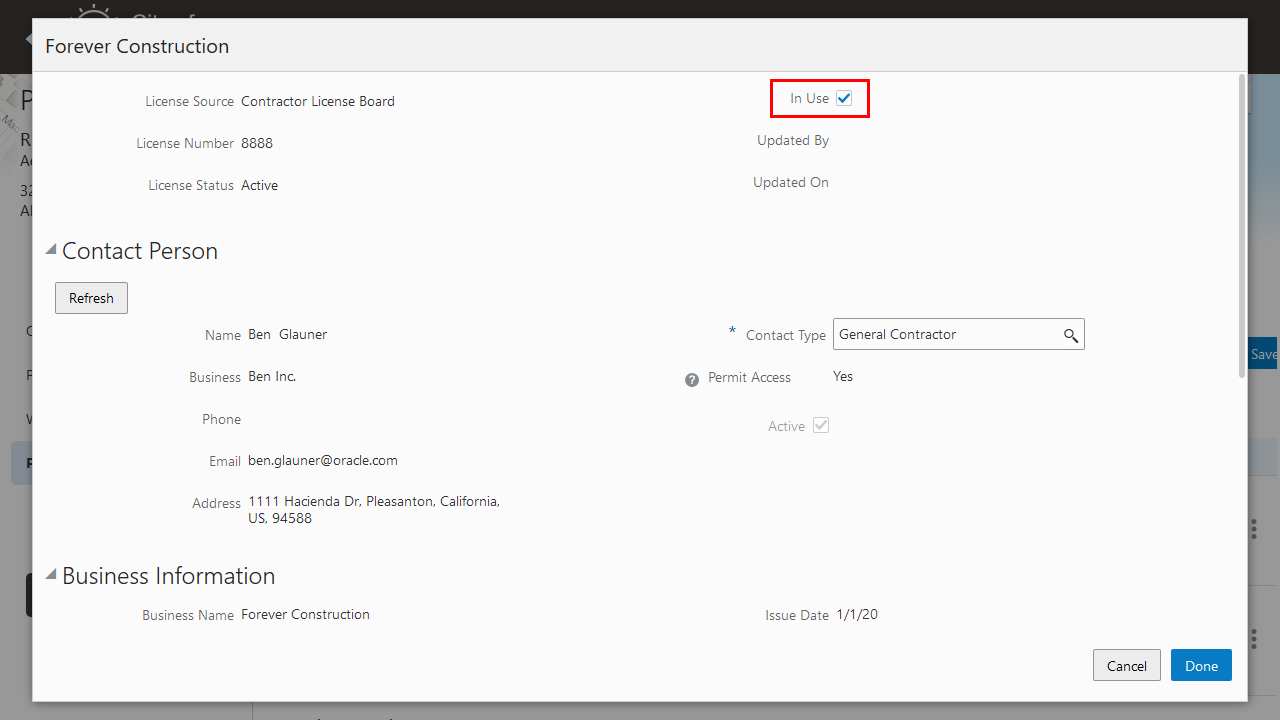
Contractor Detail page
There may be an occasion that a contractor or contact needs to be added to an application after submittal and this feature allows either the applicant, the contact (with full access) and agency staff to accommodate this change.
Steps to Enable
You don't need to do anything to enable this feature.
Tips And Considerations
Applicants, application contacts, and agency staff can no longer delete contacts on applications after submittal, but they can make the contacts inactive. Only system administrators and staff with agency management permissions can delete.
Key Resources
- See Using Community Development Permits, "Managing Permits," Adding Contacts to Applications and Working with Contractors and Agents in Applications on the Oracle Help Center.
- See Using Community Development Planning and Zoning, "Managing Applications for Planning and Zoning," Adding Contacts to Applications and Working with Contractors and Agents in Applications on the Oracle Help Center.
Agency staff can manage contractors for permit and planning applications by applying a condition to a license to prevent application progress. When filling out an intake form, applicants and staff who select a contractor with a condition can't submit the application. The condition must be resolved by agency staff first.
Example of a condition applied to a contractor license in the contractor details:
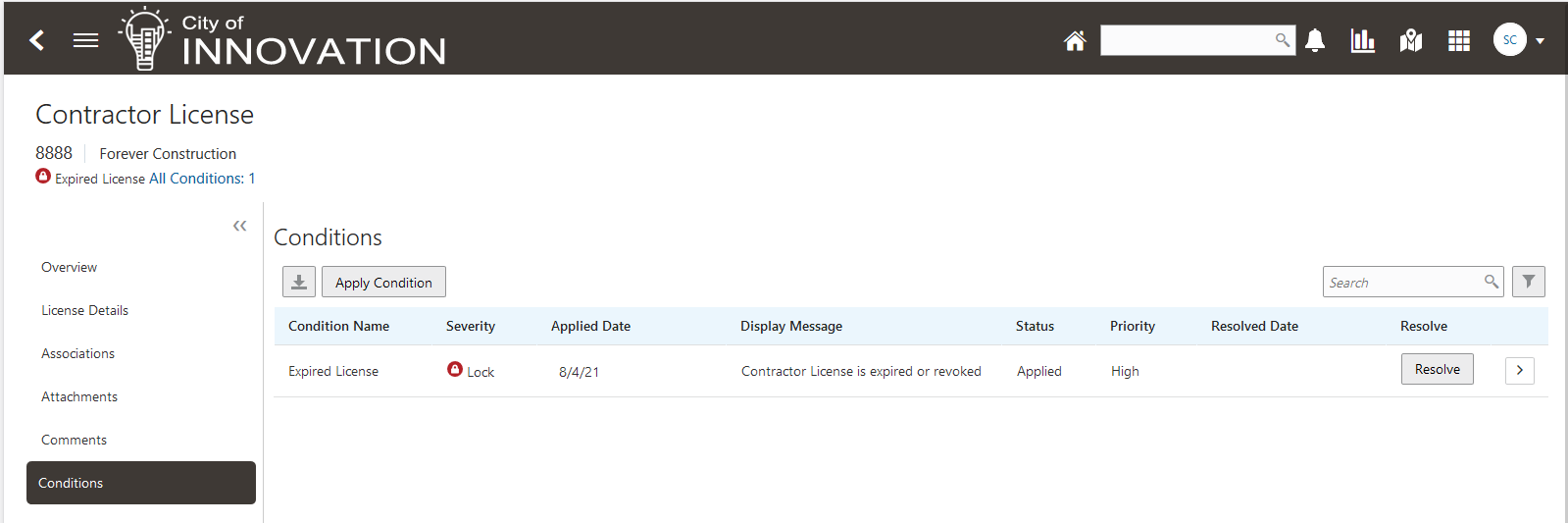
Conditions
This allows an agency to add a condition to a specific contractor. In the case that a Hold or Lock condition is used, it will prevent the submittal of an application where that license was used.
Steps to Enable
Agency staff will need to set up conditions for object type "Contractor License". You can then apply conditions to the contractor license.
Tips And Considerations
The Hold and Lock condition levels behave the same in the intake form. Both prevent application progress. Applicants can still submit an application with a Notice condition on a contractor license.
Key Resources
- See Using Community Development Permits, "Managing Contractor Information," Applying Conditions to Contractor Licenses on the Oracle Help Center.
Add Contractors as Application Contacts
When an applicant adds a contractor license to a permit or planning application in the intake form, the contractor's contact is added automatically on the contractor information page. If there are multiple contractors associated with the contractor license, the applicant must select the contractor in this section. Once the application is submitted, the contractor's contact is added to the list of contacts for the application. On the Contacts page in the application details, the applicant can select additional contacts from the contractor's contacts and grant them permission to the application.
Example of an intake form showing the contact for the contractor reflected in the application information. The applicant assigned the agency-defined General Contractor contact type to the contact, which in this example has permit access:

Contact Person
This simplifies the addition of a contractor's contact person being added to the application contacts. When the applicant adds a contractor license to the application, the contractor contact is automatically added to the contact grid. The applicant can also search the contractor's contacts to add them to the contacts on the application.
Steps to Enable
Navigate to Contractor License, Associate tab. Select the entry with associate type "Contractor" and change the verification status to "Verified".
Tips And Considerations
Agency staff will need to change the contractor’s verification status to Verified in the Contractor License Associate page in order to select the contractor as a contact on the Contractor page in the intake application.
When adding a contractor to the intake application, you can select the verified active contractors in the contractor page.
Key Resources
- See Using Community Development Permits, "Managing Permits," Adding Contacts to Applications on the Oracle Help Center.
Extend Access to My Permits List to Contacts and Contractors
Contacts with access to one or more permits or planning applications will now see these appear on the application list, along with the applications they applied for themselves.
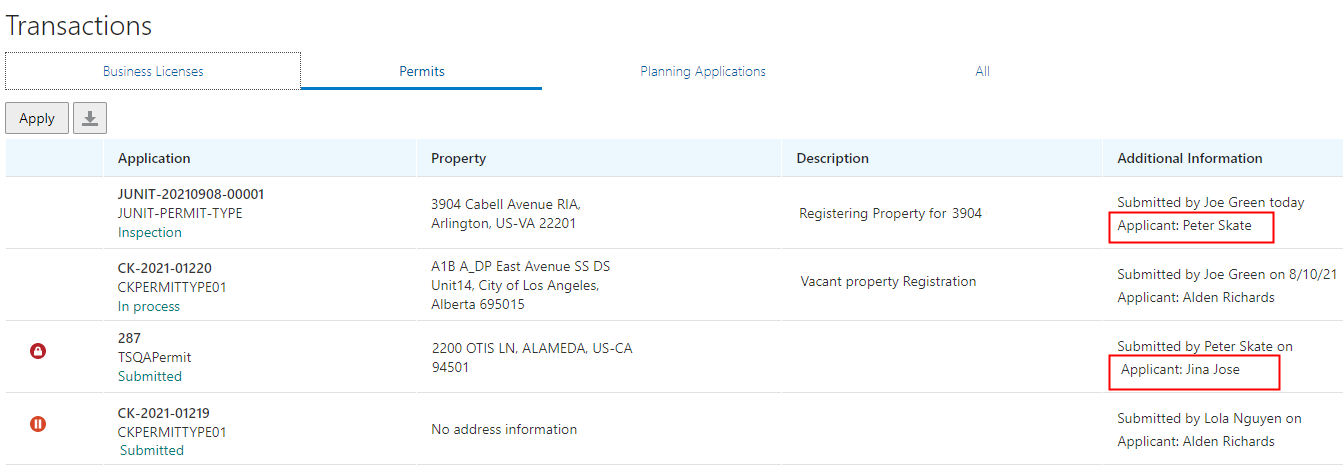
Transactions List
Contacts listed on an application will now be able to use the Permit list to view these applications instead of having to search for them by application attribute.
Steps to Enable
On the Contact Type setup page, agencies will need to enable “Allow Application Access” for the contact type that will have access to My Permits list.
Key Resources
- See Using Community Development Permits, Managing Permits, "Managing Transactions" on the Oracle Help Center.
Provide Ready-to-Use Fields for the Intake Form Designer
You can now use predefined fields on your intake forms. Predefined fields are delivered by Oracle and come preconfigured with any required formatting or validation, and they are set up to be incorporated into your fee calculations. Drag and drop predefined fields from the Elements panel onto your form just as you would any other form element. For the 21D release, the Job Cost field is provided.

Job Cost Element
Leverage predefined fields that can be added to any intake form for maximum flexibility of field level attributes with out of the box capabilities and formats.
Steps to Enable
You don't need to do anything to enable this feature.
Tips And Considerations
The Job Cost field is a reusable field that is identical to the Job Cost field in the Construction predefined field group. You can now use this reusable field instead of using the Construction predefined field group and hiding the rest of the fields within that field group. The Construction predefined field group is now deprecated.
Key Resources
- See Implementing Licensing and Permitting, Implementing Compliance and Regulation, "Creating Intake Forms," Working with Fields, Using Predefined Fields on the Oracle Help Center.
Use the Recent Activity menu to navigate quickly between transactions you are working on. As you access the transactions, such as permits, planning applications, parcels, and so on, the items get stored in Recent Activity menu. Simply select Navigator > Recent Activity to view all of the transactions you have visited recently and jump straight to them to finish your work.
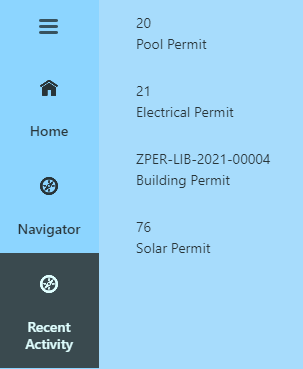
Recent Activity
Minimize the time it takes to get back on track after an important interruption takes you away from working on your tasks. Recent activity gets you back on track quickly with up to 15 of your most recently accessed transactions.
Steps to Enable
You don't need to do anything to enable this feature.
Tips And Considerations
Agencies should consider performance when setting the number of listed activities to more than 15.
Consolidate Fee Notices to Applicants
Automated processing sends notices with fees for an application consolidated into a list, on a regular basis. Every time a fee is added or recalculated, the application is identified as updated in the system. At the end of the day, week, or another period of time, the notice with combined fees for the application is sent to the designated recipients.
Applicants expect to be notified when fees are added to an application, but don't want to receive separate notifications for each added fee when fees are added in groups or at various times in a short time interval. This feature allows fees to be consolidated over a designated period of time so that notifications are more in line with an applicant's expectations.
Steps to Enable
Agencies will need a communication template with a fees grid for the notice, as well as setup in the Business Rules Framework and Process Monitor. See the documentation link below for set up instructions.
Key Resources
- See Implementing Your Agency, "Setting Up Communications," Setting Up Fee Notices" on the Oracle Help Center.
Fees that haven't been paid can be changed to a waived status when payment is pending and any time fees are assessed after application submittal. The fee waiver reduces the total amount due by the amount of the waived item and doesn't affect the progress of the application.
Example of changing the status of a fee item to Waived on the application's Fees and Payments page:

Fees and Payments
Agency policies often allow fees that would typically apply to applications to be waived by authorized agency staff.
Steps to Enable
You don't need to do anything to enable this feature.
Tips And Considerations
Assessed fees set to "Due" that have not yet been paid can be waived. Fees that have already been paid are not eligible to be waived. Fee recalculation will consider waived fees and not re-add them,
Key Resources
- See Using Community Development Permits, "Managing Permits," Working with Fees and Payments on the Oracle Help Center.
Fee Line Item Display Permit Address
The Checkout page now displays the permit address when you click the Pricing Details icon.

Permit Address on Pricing Details
Permit address is often a key attribute to establish the context of an application, in some cases even more than the ID or type. By displaying permit address as a pricing detail the association between the fees due and the application is reinforced.
Steps to Enable
You don't need to do anything to enable this feature.
Tips And Considerations
When a permit has more than one address the primary address is displayed.
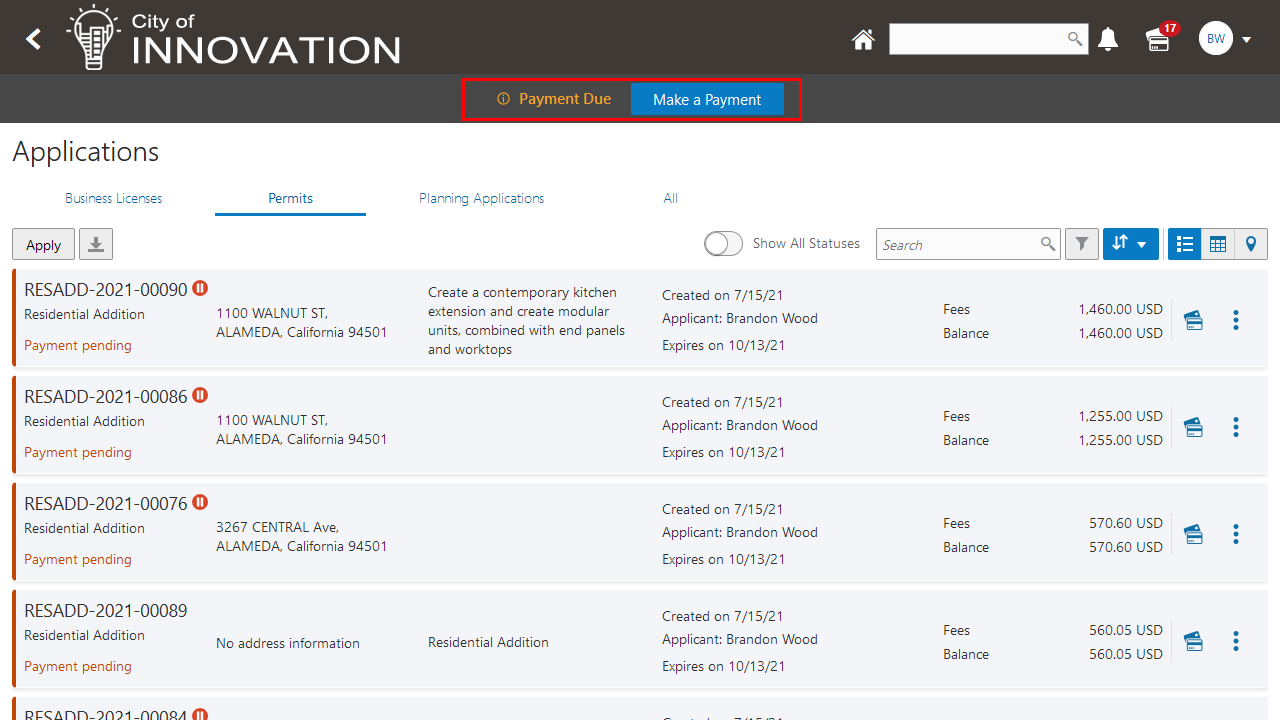
Registered public users who are applicants can now see the total fees due and the number of applications with fees in a banner on their landing page. The Make a Payment button in the banner provides access to the Make a Payment page, where applicants can select multiple applications for payment. The applicant can also access the Make a Payment page through the fees banner on their Applications list page as well as the payment icon in the global header.
Example of an applicant's registered public user landing page with payment icon in the global header and fees banner:

Example of an applicant's Applications list page with the Make a Payment button:
Example of an applicant's Make a Payment page:
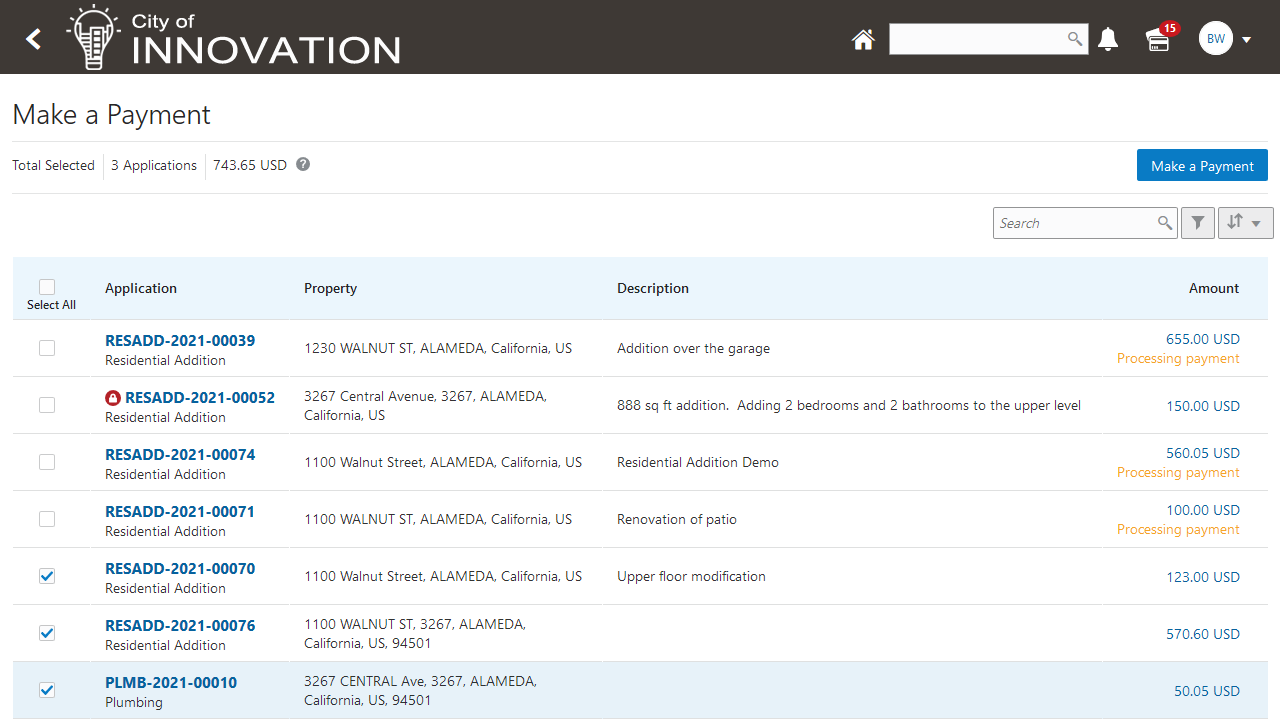
Display of total fees due, a prominent payment button, and an improved payment page all contribute to improved usability and a better user experience for public users.
Steps to Enable
You don't need to do anything to enable this feature.
Tips And Considerations
The payment icon, fees banner, and Make a Payment page are for registered public users who are applicants only. The Make a Payment page, which replaces the payment cart, lists only their applications with payments due. Applicants and agency staff can still make payments for individual applications from their respective list of applications or transactions, as well as from an application's Fees and Payments page.
Key Resources
- See Using Community Development Permits, "Applying for a Permit," Making Payments on the Oracle Help Center.
Payer Information for Payments
The system now captures and displays the payer name for payments, which may or may not match the information of the person requesting the payments. The payer name displayed depends on the payment method:
- Check payments display the name recorded during payment processing, usually the name written on the check.
- Cash payments display the name provided by the customer who paid the cashier.
- Credit card or debit card payments display the name returned by the payment processor.
- Offline payments display the name recorded during payment processing.
- PayPal payments display the name returned by PayPal.
- There is no name displayed for trust accounts.
Payments are often received from payers other than the applicant. This payer information can now be recorded and displayed to assist an agency with payment processing and payment related actions.
Steps to Enable
You don't need to do anything to enable this feature.
Tips And Considerations
The payer name shown on the Fees and Payments page will depend on the payment method.
- For cash - Name provided by the customer to the cashier
- For check– Name recorded during payment processing, which normally will be the name on the check
- For credit/debit card – Name returned by the payment processor
- For PayPal – Name returned by the PayPal
- For offline – Name recorded during payment processing
- For trust account – (no name displayed)
Payor information can be used in conjunction with comments for in-person payments.
Key Resources
- See Using Community Development Permits, "Managing Permits," Working with Fees and Payments on the Oracle Help Center.
- See Using Community Development Permits, "Working with Payments," Viewing Payment History on the Oracle Help Center.
Payment Receipts in Oracle Accounts Receivables
The new Create Oracle Receivables Receipt ESS job generates receipts in Oracle Receivables for each payment line associated with a payment processed in Public Sector Licensing and Permitting. The process assigns a receipt method and remittance name to each receipt based on the receipt options defined for each payment method at the agency level.
Creating payment receipts in Oracle Accounts Receivable for payments processed in Public Sector Licensing and Permitting leverages an agency's investment in Oracle Accounts Receivable.
Steps to Enable
You don't need to do anything to enable this feature.
Tips And Considerations
This feature requires an agency to set up and configure Oracle Accounts Receivable. Agencies that do not use Oracle Accounts Receivable can continue to generate payment receipts in Public Sector Licensing and Permitting.
Key Resources
- See Using Community Development Permits, "Working with Payments," Creating Oracle Receivable Receipts on the Oracle Help Center.
- See Implementing Your Financials Framework, "Integrating with Oracle Receivables" on the Oracle Help Center.
The new Sync Card Payment Status ESS job enables agency staff to reconcile orphaned payments at scheduled intervals.

Sync Card Payment Status
The process reads orphaned transactions from the checkout table, calls the Fusion Payments API to get status from CyberSource, and invokes a payment response for all those transactions.
Occasionally due to a network or other issue payment processing status is not successfully passed from Cybersource, the payment processor, to Public Sector Licensing and Permitting. This could potentially result in orphaned payments, which require reconciliation.
Steps to Enable
You don't need to do anything to enable this feature.
Tips And Considerations
After a payment request is sent, CyberSource has to make a post-back call with the payment response. Therefore, continuous polling of the transaction status is done to inquire if a response is received. The polling is eternal without a timer. When there is a data loss between the post-back from Cybersource a payment/decline is recorded on the CyberSource Merchant Account but the Public Sector Licensing and Permitting application is not aware of it.
Key Resources
- See Using Community Development Permits, "Managing Permits," Working with Fees and Payments on the Oracle Help Center
- See Using Community Development Permits, "Working with Payments," on the Oracle Help Center
Contacts with full permit and planning application access can now pay fees for their applications online. Applicants determine whether a contact has access by assigning a contact type set up by the agency. The contact then has the ability to manage applications with applicant-like permissions. Contacts click the Pay button for an application in their applications list or on the application's Fees and Payments page. The Pay button takes them directly to the Checkout page in payment services.
This provides the opportunity for a listed contact with application access to pay assigned fees.
Steps to Enable
On the Contact Type setup page, agencies will need to enable the “Allow Application Access” for the contact type that will have access.
Tips And Considerations
Contacts with application access see only the applications for which they are the applicant in the fees banner on the registered public user landing page and on the Make a Payment page.
Key Resources
- See Implementing Your Agency, "Setting Up Public Users," Setting Up Contact Types on the Oracle Help Center.
Scheduled Rules for Business Rule Framework
The Business Rules Framework now enables you to create scheduled rules that run through the Oracle Enterprise Scheduler Service (ESS). You create rule to drive the desired action just as you would any other business rule, except you also set up a schedule to determine when the business rule runs and at what intervals.

Scheduled Rules for Business Rule Framework
Scheduled business rules complement event-driven actions by allowing configuration of date-driven actions.
Steps to Enable
You don't need to do anything to enable this feature.
Tips And Considerations
Examples of actions that could potentially be driven by scheduled rules include:
- Notify plan reviewer, and potentially other interested stakeholders, at plan review due date minus x days.
- Notify plan check coordinator, and potentially other interested stakeholders, at plan review date minus x days.
- Notify plan check coordinator, and potentially other interested stakeholders, at plan review cycle due date minus y days.
Key Resources
-
See Implementing Licensing and Permitting, "Implementing the Business Rules Framework", Setting Up Scheduled Rules on the Oracle Help Center.
Expand the Worklist to Display Indicators Representing Fees and Conditions
Icons now appear in the left hand column of worklists and transaction pages to indicate if fees are due for a transaction or if there have been any conditions applied to a transaction.
You can click on the icon to display further details on the fees or conditions.
This transaction has an outstanding fee balance.

Outstanding Fee Balance
This transaction has a hold condition applied.

Hold Condition Applied
To improve usability of the worklists and transaction pages visual indicators allow agency staff to easily, at a glance, identify which permits have a fee balance or conditions.
Steps to Enable
You don't need to do anything to enable this feature.
Tips And Considerations
The visual indicators are displayed on the Plan Review, Incoming Task and Inspection tabs. You can select the Condition icon or Fees icon to view the details.
Send Communications to Contacts on Applications by Type
Agencies can create communication templates using variables for the attributes of application contacts, including phone, email, user ID, and user name. The variables make it possible to send communications to all contacts, the primary contact, or contacts of a specific type, such as business owners or contractors. You can insert variables for contact attributes into the address fields as well as the subject line and message body.
This allows contact types listed on an application to be included in system generated emails when the communication template includes that contact type in the To, CC or BCC address field. (For example, contractors, engineers, or architects could be included as contact types.)
Steps to Enable
Agencies will need a communication template for the delivered events and scheduled rules for the corresponding business objects in the Business Rules Framework.
Tips And Considerations
This feature isn't available for ad hoc communications from the Communication Center. It's available when setting up communications for events and ad hoc communications for an application.
Communication templates need to be configured with the desired Contact Types for those contacts to be included in the system generated emails.
Key Resources
- See Implementing Your Agency, "Setting Up Communications," Using Attributes in Communication Templates on the Oracle Help Center.
- See Using Community Development Permits, "Managing Permits," Working with Application Communications on the Oracle Help Center.
This report shows the impact of parcel reconciliation to permit transactions. Below, is an example of the report:

Parcel Reconciliation Report
Due to the parcel reconciliation, provisional parcels have been replaced with final parcels. The user will need to change those provisional parcels that are referred to on the permit transactions, and he will have to change them to the final parcels.
Steps to Enable
You don't need to do anything to enable this feature.
IVR Without PIN with Agency Configuration
You now enable interactive voice response (IVR) at the agency level on the Permit Options page.

Enable IVR
When you turn on the Enable IVR switch in the agency's permit options, you'll see the Enable IVR Access Code check box on the Public User Setup page. This setting determines whether an access code is required during user registration. The IVR Access Code field on the Register page and in account management is only available when you select the Enable IVR Access Code check box. Your agency can integrate with an IVR system and deselect the check box so that applicants can access IVR without a PIN, but Oracle recommends requiring a PIN.
Some agencies using IVR for requesting inspections currently require a PIN to limit IVR access to authorized users and some agencies allow IVR access without a PIN. This setting allows an agency to confiture IVR access according to their policies.
Steps to Enable
If you are using the IVR integration a new flag has been added to agency options. This flag is defaulted to "Off". While there is no adverse impact to keeping the flag as it is defaulted, you should enable the flag to be consistent with new implementation configuration.
Navigate to Agency, Features Tab, Options Link, Inspections section and enable the IVR switch.
Tips And Considerations
This feature is used in conjunction with Selectron IVR.
Key Resources
- See Implementing Licensing and Permitting, "Setting Up Permits," Setting Up Agency-Level Options for Permits on the Oracle Help Center.
The Inspection page now displays how and when an inspection was created. Text below the permit ID displays the source of the inspection along with the date that it was created.

Inspection page
The possible sources are:
- IVR
- Manually (created by agency staff)
- Online (created by applicant)
- Data migration
- Automatically
Inspections can be configured by an agency to be requested in several ways, including online by a public user, by agency staff, by IVR, or even automatically or as part of data migration. Often knowledge of when and how an inspection was requested can aid agency staff in addressing inspection related issues.
Steps to Enable
You don't need to do anything to enable this feature.
To streamline the process of creating these inspections, you can now create multiple inspection types at once instead of one at a time.
Example of the new modal page that enables you to select multiple inspection types at the same time:

Multiple Inspection Types
Example of the Inspection page with the new Selected Inspections grid:

Selected Inspections
It is common for construction to be ready for more than one inspection to be performed. By allowing multiple inspections to be requested at the same time inspection requestors do not need to go through the time and effort to separately request multiple inspections.
Steps to Enable
You don't need to do anything to enable this feature.
Tips And Considerations
For reference, currently public users can request inspections one at a time for a permit online and by IVR, so that if work has progressed for more than one inspection to be requested then each inspection would be requested separately.
Key Resources
- See Using Community Development Permits, "Working with Permit Inspections," Requesting Inspections on the Oracle Help Center.
The Schedule Cutoff field on the Inspection Type Details page enables agencies to set a time after which no more inspections can be scheduled for the same day. This field no longer affects agency staff when they schedule inspections, nor does it affect automatic batch assignment or reassignment.
Inspection schedule cutoff times are often used by agencies to prevent the disruption caused by public users requesting inspections at the last minute, and do not generally apply to inspections requested by agency staff, even non-supervisors.
Steps to Enable
You don't need to do anything to enable this feature.
Tips And Considerations
Prior to 21D the inspection schedule cutoff time applied to both public users and non-supervisor agency staff.
Key Resources
- See Implementing Licensing and Permitting, "Setting Up Inspections," Setting Up Inspection Types on the Oracle Help Center.
Mobile Inspector Management of Incomplete Permit Inspections
Inspectors and supervisors using the Oracle Inspector mobile application for permits see incomplete inspections from previous days at a glance in the daily task list. These inspections are displayed as overdue in a collapsible section at the top of the list. Overdue inspections can be performed at any time by clicking the task. Completing the inspection moves it back to the task list for the scheduled date and the date of completion is displayed on the Inspection Detail page.
Example of the Inspection List page showing 1 overdue inspection:

Overdue Inspection
Often inspections cannot be completed on the day they are scheduled. In some cases inspections are started and not completed and in other cases inspections may not have been started. By displaying incomplete inspections from prior days inspectors can easily identify addition tasks that need attention in addition the their scheduled tasks for the day.
Steps to Enable
You don't need to do anything to enable this feature.
Tips And Considerations
For reference, currently an inspector sees their list of today's inspections in Oracle Inspector. If inspections from prior days have not yet been completed there is no visual queue and the inspector must either look at a different inspection list to view prior incomplete inspections and/or manually change the date display in the mobile app.
Key Resources
- See Using Community Development Permits, "Using Oracle Inspector," Viewing Inspection Tasks on the Oracle Help Center.
Enhancements to the Inspections page enable agency staff to manage the full life cycle of an inspection from a single page.

Inspections page
Two new fields at the top of the page enable you to filter the inspections displayed by the Requested Date, Scheduled Date, and Completed Date. The icon in the Assign column enables inspections supervisors to assign inspections in the same way they do using the Supervisor Calendar. The following two actions have been added to the Actions menu:
- Add Inspection
- Cancel Inspection
The supervisor calendar includes information and actions for an inspection supervisor to manage inspections and the inspection console includes information and actions for others who are not inspection supervisors. However, in practice agency staff are using the inspection console so adding assignment functionality to the inspection console page allows inspection supervisors to stay on the page they may already be on instead of navigating to the separate supervisor calendar.
Steps to Enable
You don't need to do anything to enable this feature.
Tips And Considerations
Access to inspection assignments from the inspection console is limited to authorized agency staff such as inspection supervisors.
Key Resources
- See Using Community Development Permits, "Working with Permit Inspections," Managing Inspections for an Agency on the Oracle Help Center.
Plan Review Cascading Due Dates
Administrators can now enable cascading due dates for plan reviews for permits and planning applications at the agency level. The Enable Cascading Due Dates switch is on the Permit Options and Planning and Zoning Options pages accessed from the Features Tab of the Agency Information page:

Agency Information page
When the switch is turned on, the due date that you enter at the plan review cycle level is automatically entered for any reviewer due dates that are blank. This includes the due dates for any reviewers subsequently added to the plan review.
Plan review due dates can be entered separately for each reviewer in each plan review cycle. Often agency service level agreements apply the same plan review time frames to multiple department-level reviewers, so the ability to enter a single due date and have it cascade to all reviewers streamlines entering plan review due dates.
Steps to Enable
Navigate to Options, Permits, Enable Cascading Cycle Due Dates and select the flag to enable the due dates.
Tips And Considerations
Plan review due dates can be edited so that dates automatically entered by cascading a single due date can be updated to reflect specific department-level reviewer variations.
Key Resources
- See Implementing Licensing and Permitting, "Setting Up Permits," Setting Up Agency-Level Options for Permits on the Oracle Help Center.
- See Using Community Development Permits, "Managing Manual Plan Reviews," Managing Manual Plan Review Cycles on the Oracle Help Center.
Notification of Upcoming Plan Review and Plan Review Cycle Due Dates
You can use the Scheduled Rules of the Business Rules Framework to send communications to plan coordinators and plan reviewers as the due dates associated with plan reviews approach. Four new communication events are being delivered:
- Permit Plan Review Cycle Due Date Scheduled Event
- Permit Plan review Department Due Date Scheduled Event
- Planning Plan Review Cycle Due Date Scheduled Event
- Planning Plan Review Department Due Date Scheduled Event
A common request from agencies is to send timely notifications to agency stakeholders of upcoming actions, particularly when those actions may be tied to a service level such as a plan review or plan review cycle due date.
Steps to Enable
Agencies will need a communication template for the delivered events and scheduled rules for the corresponding business objects in the Business Rules Framework.
Tips And Considerations
Notification of upcoming plan review and plan review cycle due dates leverages scheduled rules in the Business Rules Framework.
Key Resources
- See Implementing Your Agency, "Setting Up Communications," Delivered Communication Events on the Oracle Help Center.
- See Implementing Your Agency, "Setting Up Communications, Setting Up Notifications for Plan Review Due Dates on the Oracle Help Center.
You can now select at the agency level whether the name of a plan review defaults to the permit type value.

Permit Options
Regardless of whether the switch is turned on, a new icon on the Plan Reviews page enables you to edit the name of a plan review after it's created.

Plan Reviews
Meaningful plan review cycle names are a convenient way to assist agency staff when going through multiple plan reviews. Default plan review naming available prior to 21D using the permit type as the plan review cycle name in many cases does not provide enough differentiation between plan review cycles; therefore, by allowing an agency to turn off the default so that the plan review cycle name is initially blank and then allow editing the plan review cycle name allows for use of more meaningful plan review names.
Steps to Enable
You don't need to do anything to enable this feature.
Tips And Considerations
There is a flag at Agency Options, Permits, Enable Default of Plan Review that determines if the name is defaulted to the Permit Type.
Key Resources
- See Implementing Licensing and Permitting, "Setting Up Permits," Setting Up Agency-Level Options for Permits on the Oracle Help Center.
- See Using Community Development Permits, "Managing Manual Plan Reviews," Managing Manual Plan Review Cycles on the Oracle Help Center.
Support Re-Order of Conditions of Approval
You can now reorder the conditions of approval that are applied to a submitted planning and zoning application. This allows you to format the conditions report before printing.
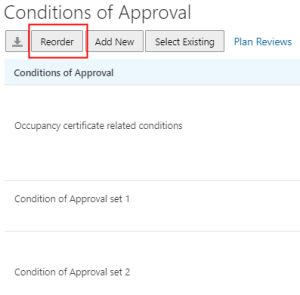
Conditions of Approval
The project planner is responsible for gathering conditions from various departments and sometimes external agencies, re-ordering them, attaching them to the staff report, and presenting them at a hearing. Planner needs the flexibility to easily manage these conditions so they are properly conveyed in the right order. Without this feature, planner will not be able to make any changes or adjustments to the order of the condition
Steps to Enable
You don't need to do anything to enable this feature.
Tips And Considerations
This feature allows agency planner to re-order the conditions of approval once they are entered into the system. Entitlements and other decision documents include conditions of approval that clearly describe to the applicant, decision-makers, agency staff and the public the action that is required to occur and how that action will be accomplished.
Condition Type Sequence and Category Sequence setups will no longer be used to order the Conditions of Approval. Planners can re-order the conditions of approval for a given planning application and that will persist.
Key Resources
-
See Using Community Development Planning and Zoning, "Working with Conditions of Approval" on the Oracle Help Center.
Hearing Body setup is now renamed as Hearing and Decision Making Body setup. Hearing Hierarchy setup is now part of the Hearing and Decision Making Body setup page. Agency administrators can identify whether a decision making body can be the first body. If the decision making body is identified as the first body, the Appeal Body section will appear. Agency administrators will be able to set up the Appeal Body, previously known as Hearing Hierarchy.

Hearing and Decision Making Body
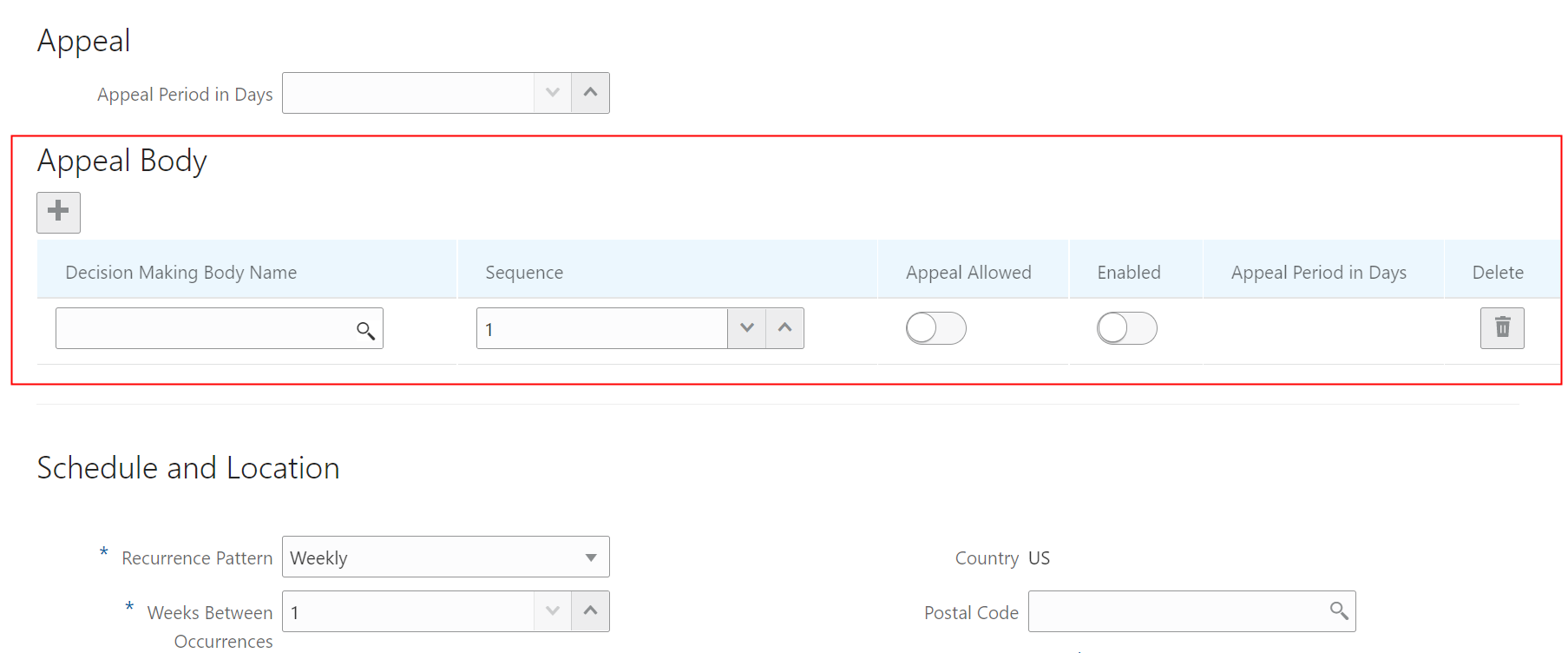
Appeal Section
Depending on the planning entitlements or the permits requested, one or more hearings may be required. The decision-making body will typically take action at that hearing. The decision-making body may approve, partially approve, or deny a project. This action is subject to an appeal period. The Appeal Section allows agency administrators to set up the Appeal Body.
Steps to Enable
You don't need to do anything to enable this feature.
Key Resources
- See Implementing Licensing and Permitting, "Setting Up Hearing and Decision Making Bodies" on the Oracle Help Center.
Additional Tabs for Code Officer Worklist
Code Technician tabs were added to the Code Officer Worklist including Notice of Violation, Notice of Citation, Hearings, and Assigned Incidents.
Code Technician tabs now allow both Code Officers and Code Technicians to access worklist tasks.
Steps to Enable
You don't need to do anything to enable this feature.
Key Resources
- See Using Community Development Code Enforcement, "Using the Code Officer Worklist" on the Oracle Help Center.
Ready for Inspection Prior to Comply by Date Expiration
Code enforcement staff such as inspectors and technicians can now schedule inspections prior to the compliance date, if requested by the responsible party.
On the Case Overview page or the Inspections page, turn on the Ready for Inspection switch for the inspection task. This action will enable the Worklist Inspections page to list the inspection task with an indication that it's ready for an early inspection.

Case Overview page
Responsible parties and agency staff can request an inspection for their case using the Ready for Inspection action on the responsible party page.
Steps to Enable
You don't need to do anything to enable this feature.
Tips And Considerations
The case will be displayed as "Ready for Inspection" in the Municipal Code Officer mobile application as well as in the Code Officer Worklist page.
Key Resources
- See Using Community Development Code Enforcement, "Managing Cases". "Using the Code Officer Worklist" on the Oracle Help Center.
Multiple Inspections on a Property
You can now view the details of other active inspections related to a property. The Inspection page on the Mobile Oracle Municipal Code Officer app shows the details of the inspection that is assigned to you.
If there are two or more other active inspections for the same location, then a link is displayed with a text showing the number of other active inspections. Tap the link to open a modal that lists the details of the remaining inspection items.
Code officers can group multiple violations within the same property and maintain specific time rules, due dates, workflow, inspections, and code references for individual cases. The primary case serves as an umbrella case file to facilitate the overview of a property, with multiple concurrent code enforcement activity.
Steps to Enable
You don't need to do anything to enable this feature.
Tips And Considerations
The primary case serves as an umbrella case file to facilitate the overview of a property, with multiple concurrent code enforcement activity.
Key Resources
- See Using Community Development Code Enforcement, "Overview of Mobile Oracle Municipal Code Officer" on the Oracle Help Center.
Automatic Assessment of Fees for Notice of Violations
Extends the auto-assessment of fees to Notice of Violations. The fee schedule corresponding to case subtype should have the required fee schedule item created.
Agencies often apply fees to Notice of Violations, and without auto-assessment these fees need to be manually assessed.
Steps to Enable
You don't need to do anything to enable this feature.
Tips And Considerations
For creating fee schedule item choose mapping source as 'Code Enforcement Case Fees' and ensure that the attributes are mapped appropriately. Fees can also continue to be manually assessed.
Key Resources
- See Using Community Development Code Enforcement, "Working with Citation Fees and Payments" on the Oracle Help Center.
Code Violation Status Tracking
Code enforcement staff such as inspectors and technicians can now track the status of their case code violations and take actions such as Resolve, Remove from Case, and Reopen.
The Inspection Code Violations page and the Case Code Violations page list all the violations with their status. Use the Actions menu to select from available options:

Code Violations
Code officers can use the Code Violation Status to view and update individual code violation records.
Steps to Enable
You don't need to do anything to enable this feature.
Tips And Considerations
Key functionality includes tracking individual history for each code violation, and providing a visual indicator when each or all of the violations have been resolved by the corrective actions.
Key Resources
- See Using Community Development Code Enforcement, "Working with Code Violations" on the Oracle Help Center.
Support for Multiple Responsible Parties
You can now add a new responsible party to a case by entering the person details. The Select from Parcel Owners link allows you to search and select an existing parcel owner as the responsible party.
You can assign a responsible party as the primary responsible party.

Add Responsible Party
Support for multiple responsible parties gives agency staff the ability to associate multiple responsible parties to a code case and to update the responsible party type.
Steps to Enable
You don't need to do anything to enable this feature.
Tips And Considerations
You will need to create responsible party types using the appropriate set up pages. There is also the ability to update the notice of violation and citation work list tabs.
Key Resources
- See Using Community Development Code Enforcement, "Adding Responsible Parties" on the Oracle Help Center.
IMPORTANT Actions and Considerations
UPGRADE ACTIONS
With every upgrade, make sure to complete the following steps in the Initial Set Up functional area in Functional Setup Manager. This process ensures all new security definitions, such as job roles, duty roles, privileges, and so on, are included in your implementation.
- Run Public Sector Security Setup Process
- Manage Custom Roles
REST UPDATES 21C to 21D
Public Sector Compliance and Regulation updates REST APIs from release to release. Our goal is to not create APIS that are incompatible from one release to the next. However, due to circumstances and security impacts this may not be feasible. In the 21D update, there are some APIs that were altered and may impact the performance of the API. This documentation lists the changes so you can plan and alter your usage prior to upgrading to 21D.
Documentation for all REST APIs included in Public Sector Compliance and Regulation can be found on the Oracle Help Center.
Summary of Fees (publicSectorRecordOverviewFees)
The label for the attribute “TotalPaid” is changed from “Total Paid” to “Fees Total Paid”.
Category Sequences (publicSectorConditionCategorySequences)
This REST resource is being deprecated in update 22A.
Condition Type Print Sequences (publicSectorConditionTypeSequences)
This REST resource is being deprecated in update 22A.
Workflow Communications (publicSectorWorkflowCommunications)
The following attributes were changed from String to BigDecimal:
- BalanceDue
- TotalFees
- TotalPayable
- TotalPaid
The labels have been removed from the following attributes:
- ApplicantPhoneCountryCode
- ApplicantPhoneAreaCode
- OwnerId
- PrimaryContactPartyId
- PrimaryContactPhoneNumber
- PrimaryContactType
- PrimaryContactEmail
- PrimaryContactName
NOTE: For anchor Workflow Communications (publicSectorWorkflowCommunications), the related resource was changed from Fee Communications (publicSectorFeeCommunications) to Fee Dues (publicSectorFeeDues).
Planning and Zoning Workflow Communications (publicSectorPzWorkflowCommunications)
The following attributes were changed from String to BigDecimal:
- BalanceDue
- TotalFees
- TotalPayable
- TotalPaid
The labels have been removed from the following attributes:
- ApplicantPhoneCountryCode
- ApplicantPhoneAreaCode
- OwnerId
- PrimaryContactPartyId
- PrimaryContactPhoneNumber
- PrimaryContactType
- PrimaryContactEmail
- PrimaryContactName
Fee Communications (publicSectorFeeCommunications)
The labels have been removed from the following attributes:
- FeeRecordKey
- Address3
- Address4
NOTE: You need to review all the communication templates for the communication events that use these REST service. If the communication template references any removed or renamed attributes, the communication will not process.
Payments (publicSectorPayments)
Added a new “not null” column:
psc_bnp_payment_hist_lin
PAYMENT_LINE_PUID NOT NULL and Unique index is created on the column.
Records (publicSectorRecords)
Contact Lists (child resource)
The following field has been added (not Null):
- CONTACT_ACTIVE (The default is set to “N”)
First and Last name is now required when creating a contact.
Business Profiles (publicSectorBusinessProfiles)
Validation has been added to restrict new profile creation after user registration.
Personal Profiles (publicSectorPersonalProfiles)
Validation has been added to restrict new profile creation after user registration.
Validation has been added to restrict HiddenPersonalProfile from being updated.
User Profiles (publicSectorUserProfiles)
Validation has been added to restrict new profile creation after user registration.
Validation has been added to restrict HiddenPersonalProfile from being updated.